-
The Project Manager is a panel that allows access to the management and modification of the several types of entities that can be displayed in the CAD window.
The CAD Project Manager is available only when using a tablet, due to visualization requirements.
Accessing the project manager
-
Project Manager is a panel that allows access to the management and modification of the several types of entities that can be displayed in the CAD window.
-
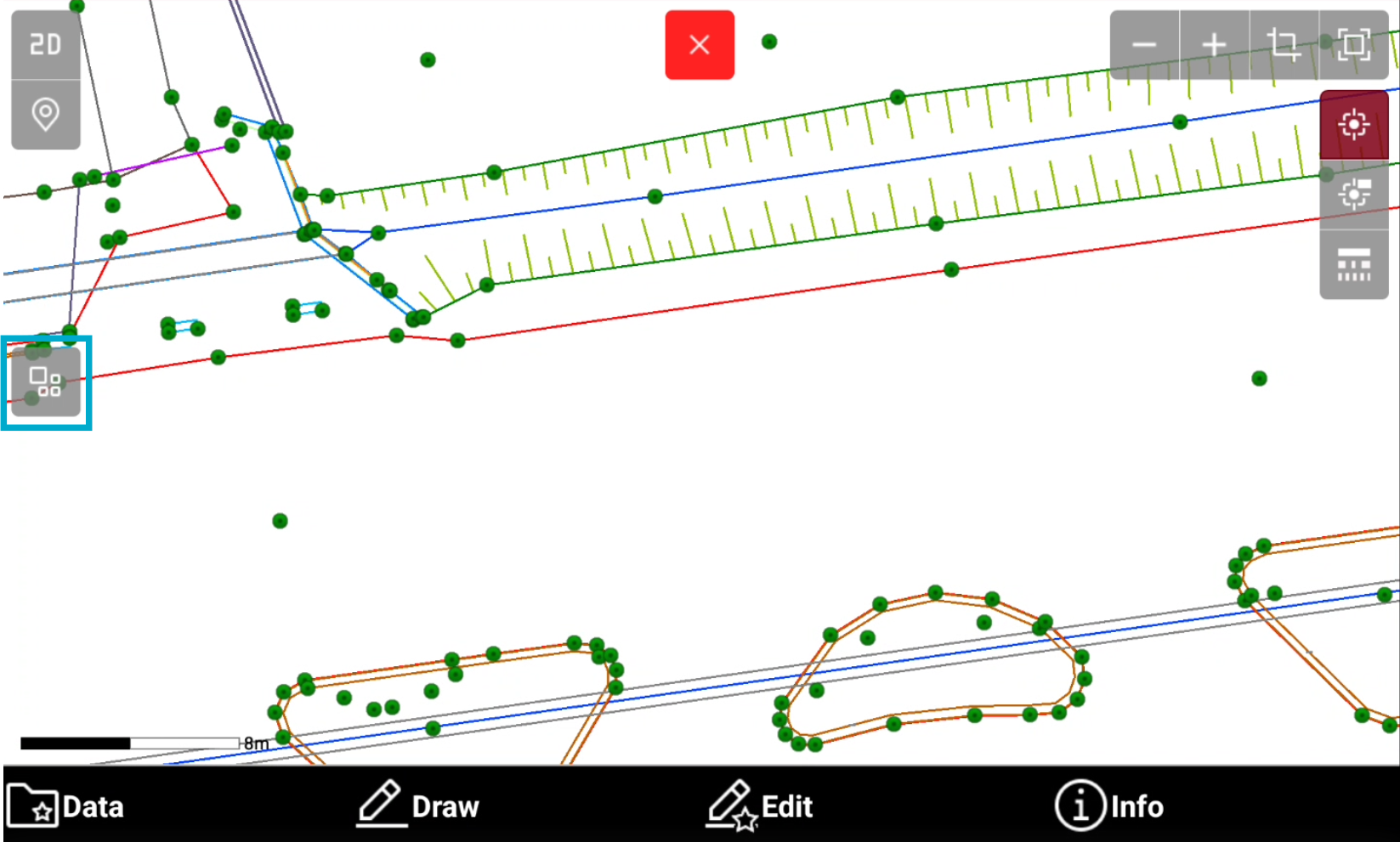
From the CAD window tap on the screen and press the Project Manager icon.
-
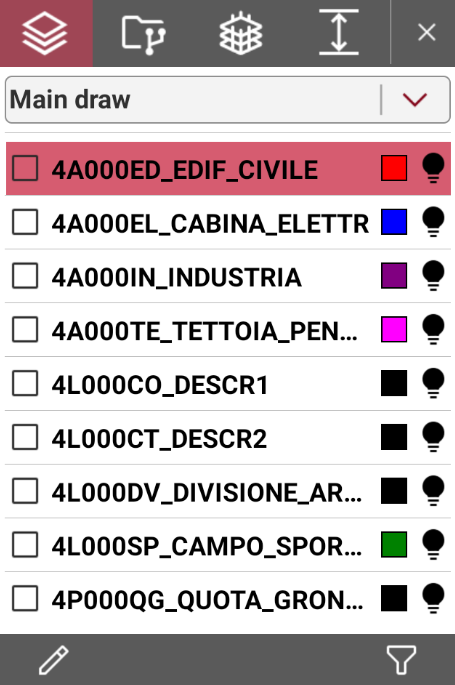
This opens a new panel with different tabs.
-
Available tabs are:
-
Layer

-
Project entities

-
IFC models

-
Cut planes

-
Layer management
-
The Project Manager layer panel allows to manage the layers in CAD.
-
Open the Layers

Set the current layer
-
Press

-
The current layer is used when creating new drawing elements in CAD.
-
The current layer is marked by

Drawing and external reference layer list
-
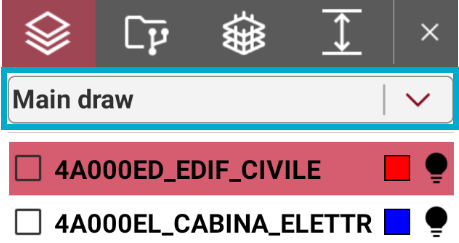
In case an external reference is loaded with layers (for example a DXF/DWG file) it is possible to manage the external reference layers.
-
To change the list of layers tap on the top bar to open the drop-down list.
Filter the layers
-
To filter the layers in the list press

-
This allows to create a filter by layer name.
-
Press

Create a new layer
-
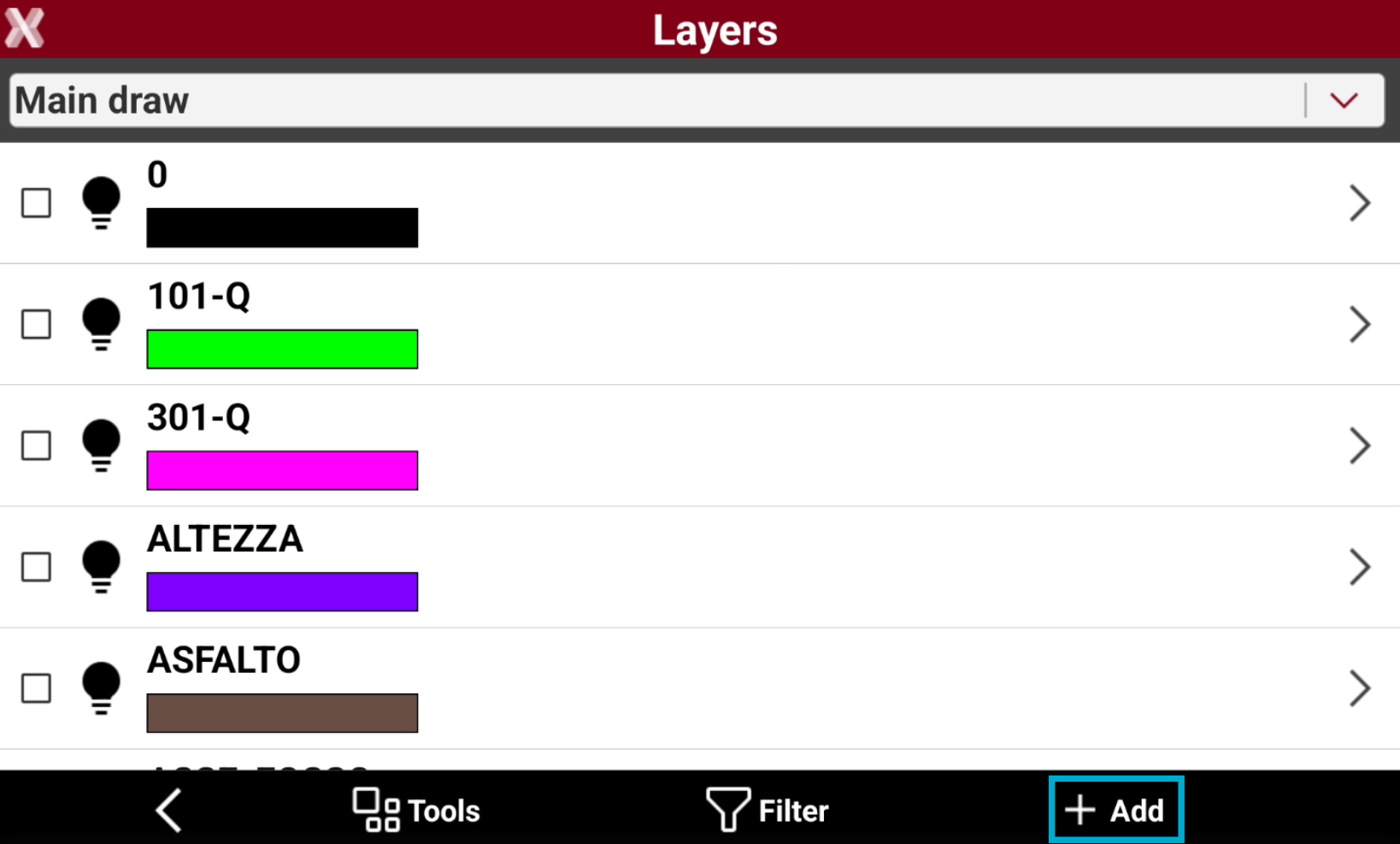
To create a new layer press

-
This opens the Layers page.
-
Press Add to add a new layer.
Making a layer visible or invisible
-
Visible layers are marked by

-
Invisible layers are marked by

-
Select the symbol to change the visibility of a layer.
Making all layers visible or invisible
-
Select
-
This opens the Layer page.
-
Select Tools.

-
Select All ON to make all layers visible.
-
Select All OFF to make all layers invisible.
Edit a layer
-
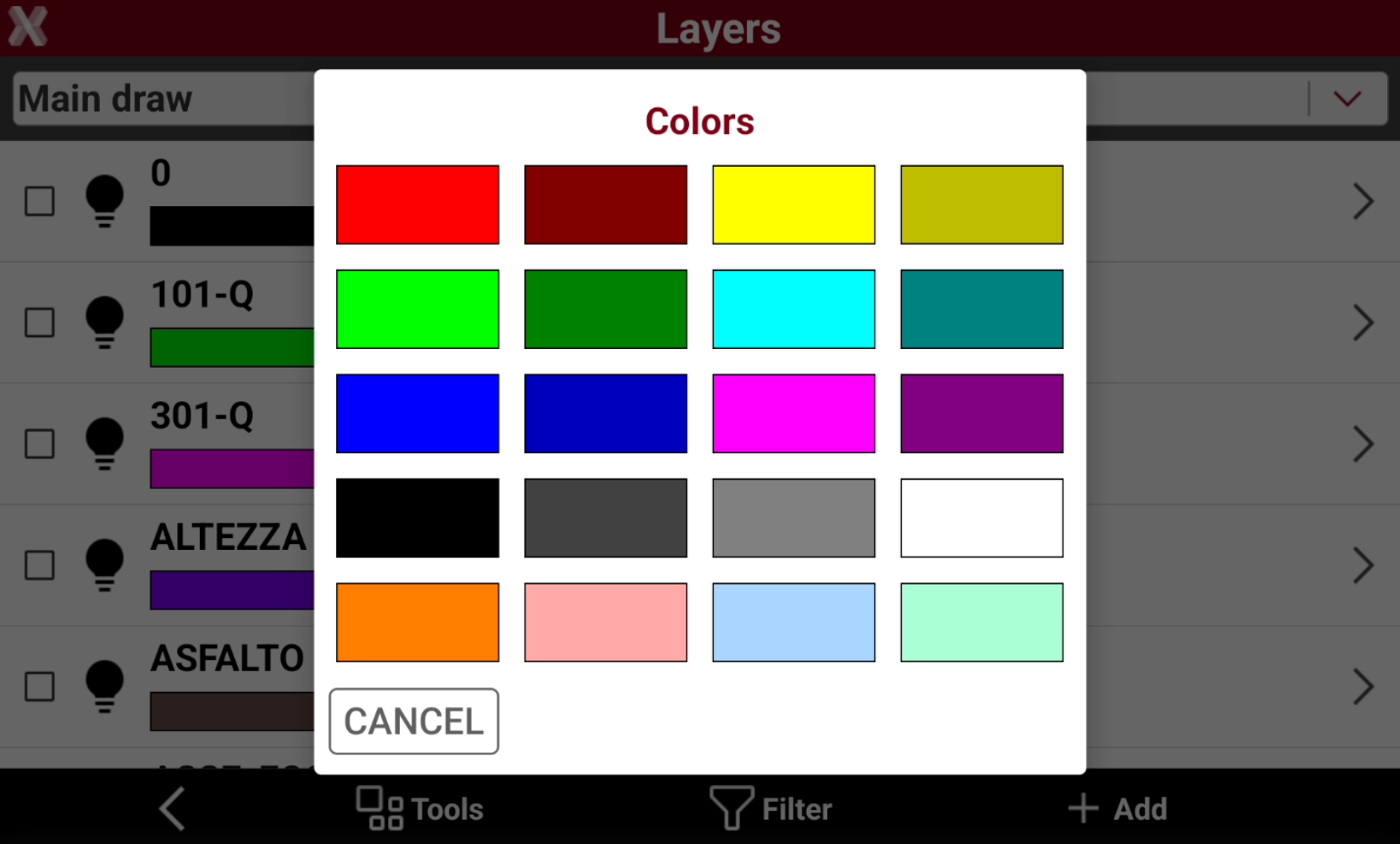
It is possible to edit a layer, changing the color or the linetype.
-
Select
-
This opens the Layer page.
-
To change the layer color, click on the color bar under a layer to select a different color.
-
To change a linetype tap on the linetype name to open the Linetypes manager.
-
To rename or delete a layer, press on the > icon on a layer line and select Delete or Rename.
Delete unused layers
-
This function allows to delete all layers not used in the project.
-
Select
-
This opens the Layer page.
-
Select
-
Select Delete unused layers to delete all layers without drawing elements.
Project entities management
-
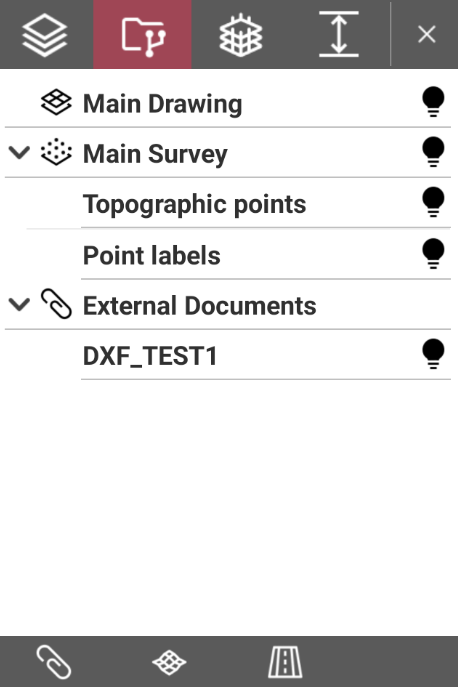
The Project entities management shows the entities (project drawing, survey data, IFC models, external documents, etc..) loaded in the project.
-
The panel allows to show/hide different entities and change their visualization mode.
-
Open the Project entities management

Making an entity visible or invisible
-
Visible entities are marked by

-
Invisible entities are marked by

-
Tap on the symbol to change the visibility.
Open entities manager
-
Directly from this page it is possible to open the external reference, surface and road manager.
-
Press

-
Press

-
Press

IFC management
-
The Industries Foundation Classes (IFC) format is the reference for the BIM methodology.
-
The file has a data structure divided into classes. Each class has objects. Using an IFC file as an external reference makes all the classes and objects in the file available in the CAD window.
-
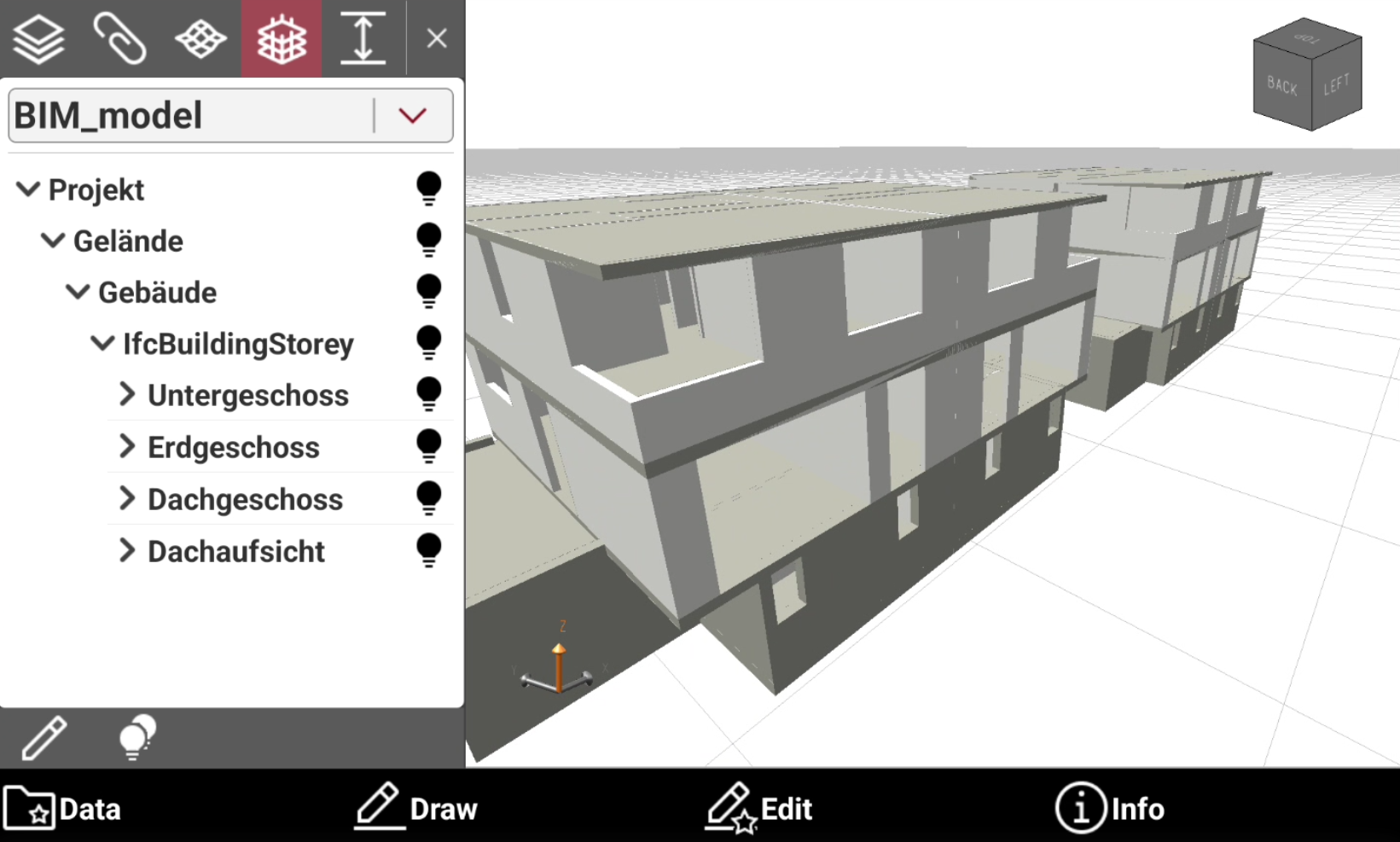
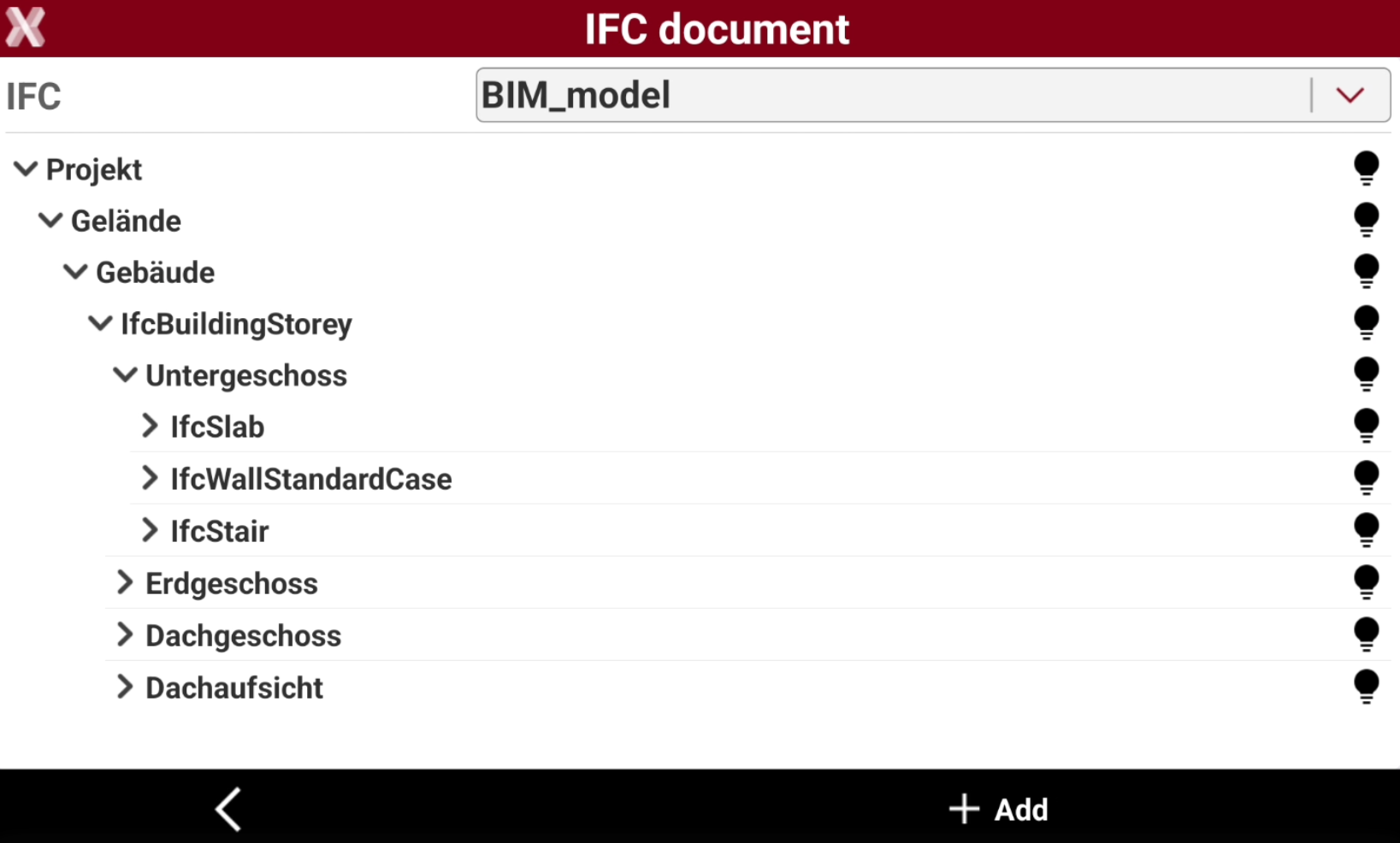
In the IFC panel of the Project Manager, the display state of a class or objects for each IFC file linked can be changed.
-
Open the IFC model
-
This opens the external references panel showing loaded BIM models.
-
Use the drop-down list to select the BIM model, in case more IFC files have been loaded in the job.
Points and lines can be extracted from BIM model using the available BIM tools.
Making a class or object visible or invisible
-
The IFC file has a data structure divided into classes. Each class has objects.
-
Visible classes and objects are marked by
-
Invisible classes and objects are marked by
-
It is also possible to press

-
Press

Elevation filter
-
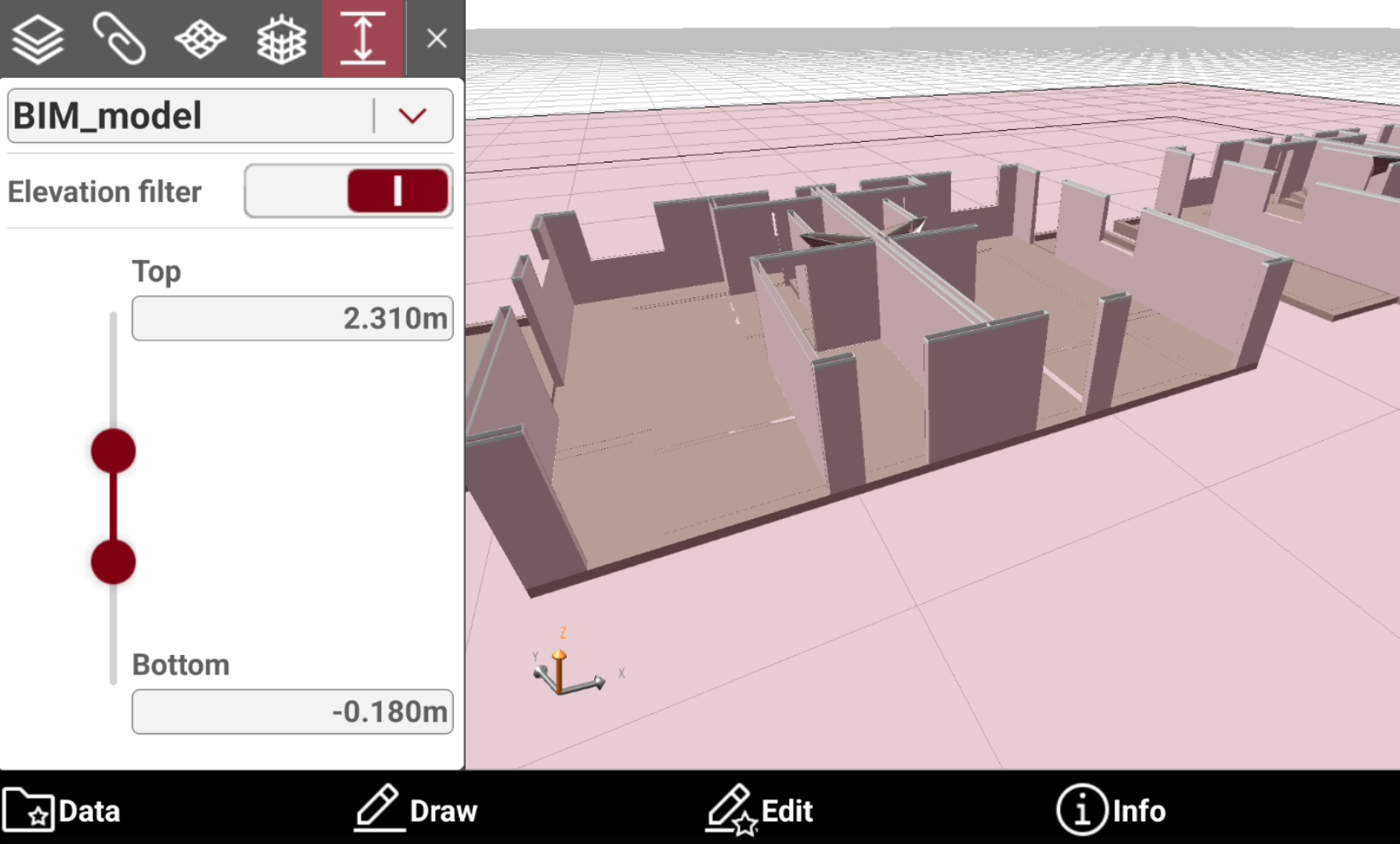
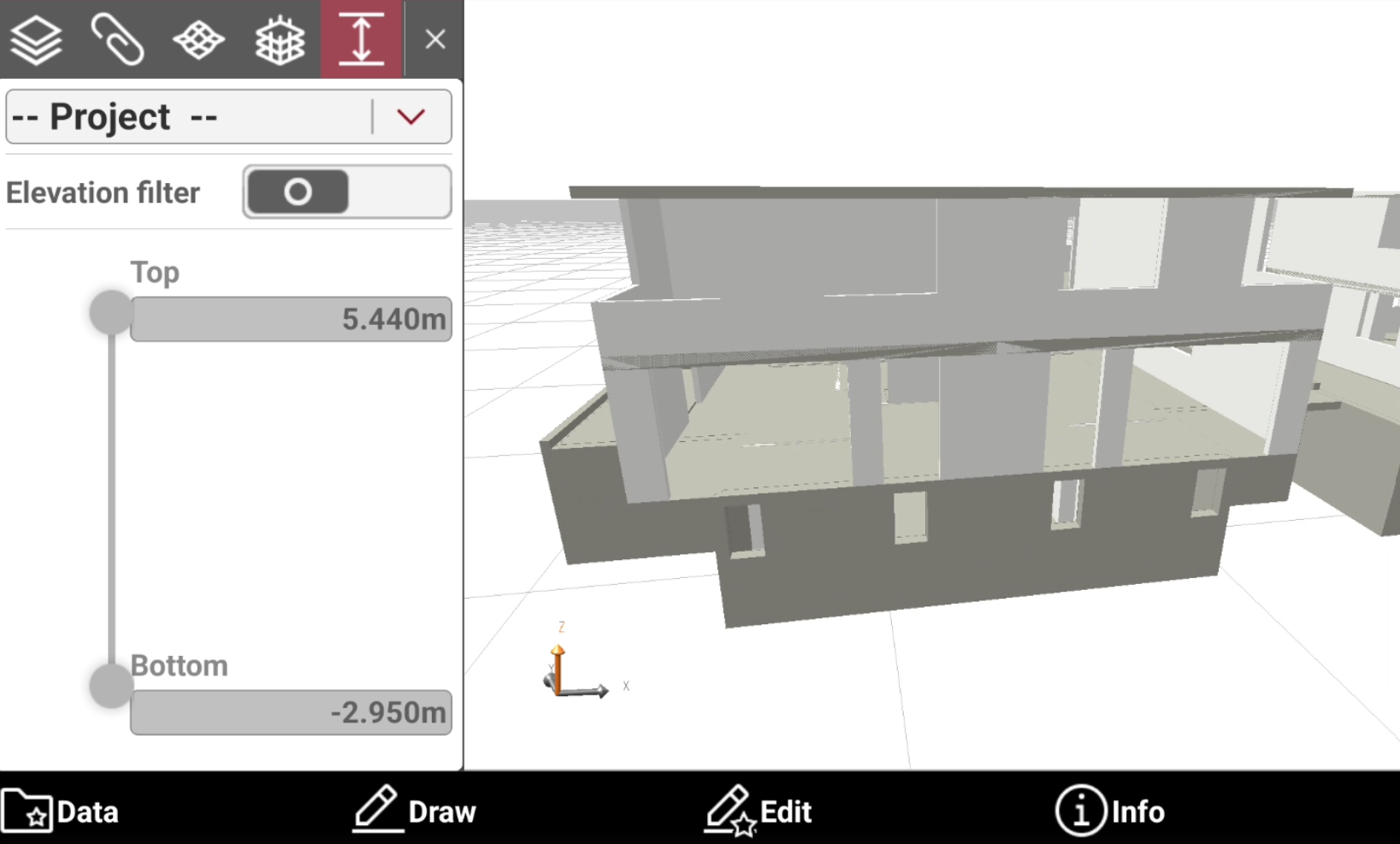
Elevation filter function allows to define a range of elevations that has to be visible; everything else outside the defined range is not visible.
-
With this tool it is possible to restrict the visualization of the models, drawings and surfaces to a specific range of elevations. The elevation range can be defined for the complete drawing or for the single models, drawings.
-
Open the CAD Project Manager and open the Cut planes tab
-
In the top drop-down list it is possible to select if to restrict the visualization to the entire model or to a specific model or drawing.
-
Activate the elevation filter and select the min and max elevation.