
-
The Edit commands are utilized in CAD to create new topographic points or edit the drawing.
-
To access the Drawing commands open CAD.
-
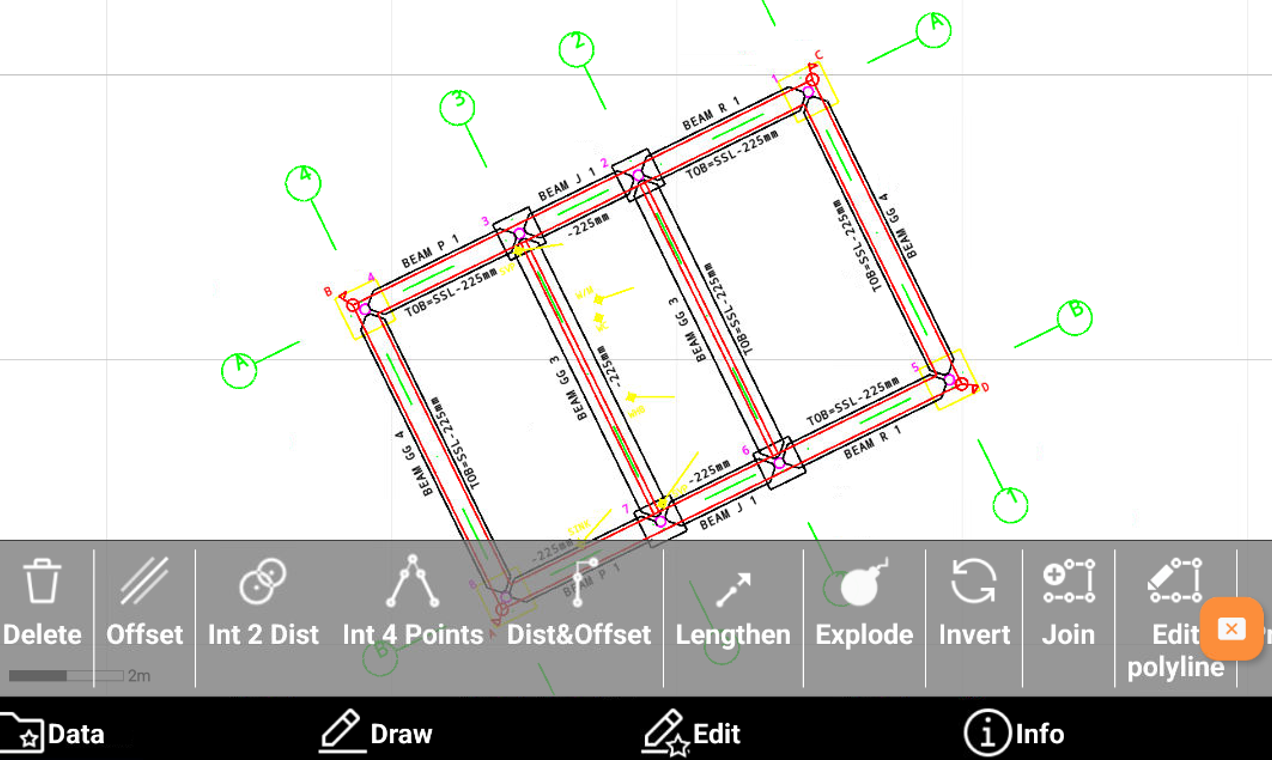
Select Edit to open the toolbar.
-
Available commands are:
-
Delete: deletes CAD objects.
-
Offset: creates an object parallel to reference object at a defined distance.
-
Distance intersection: calculates the position of a new topographic point located at a certain distance from two reference points.
-
Intersection by 4 points: calculates the position of a topographic point that is on the intersection of two straight lines.
-
Distance and offset: calculates the position of a new topographic point referring to a reference object.
-
Lengthen: extends an object like a line, a polyline or an arc to a defined length. Or extend a line defined by two points which also indicates the direction where to create the point.
-
Explode: transforms selected polylines such as lines and circles into the base elements composing it.
-
Invert: reverses the vertex order of a drawing element.
-
Join: merges several entities so that they have one point in common. Example: Multiple lines that must be managed as a single polyline.
-
Edit polyline: allows to edit a polyline, for example inserting new vertexes, deleting a segment, inverting the polyline, etc.
-
Object properties: accesses the management of the graphical properties of the selected objects such as layer, colour and linetype.
-
Delete
-
Delete function allows to delete CAD objects.
-
From the Edit toolbar select Delete.
-
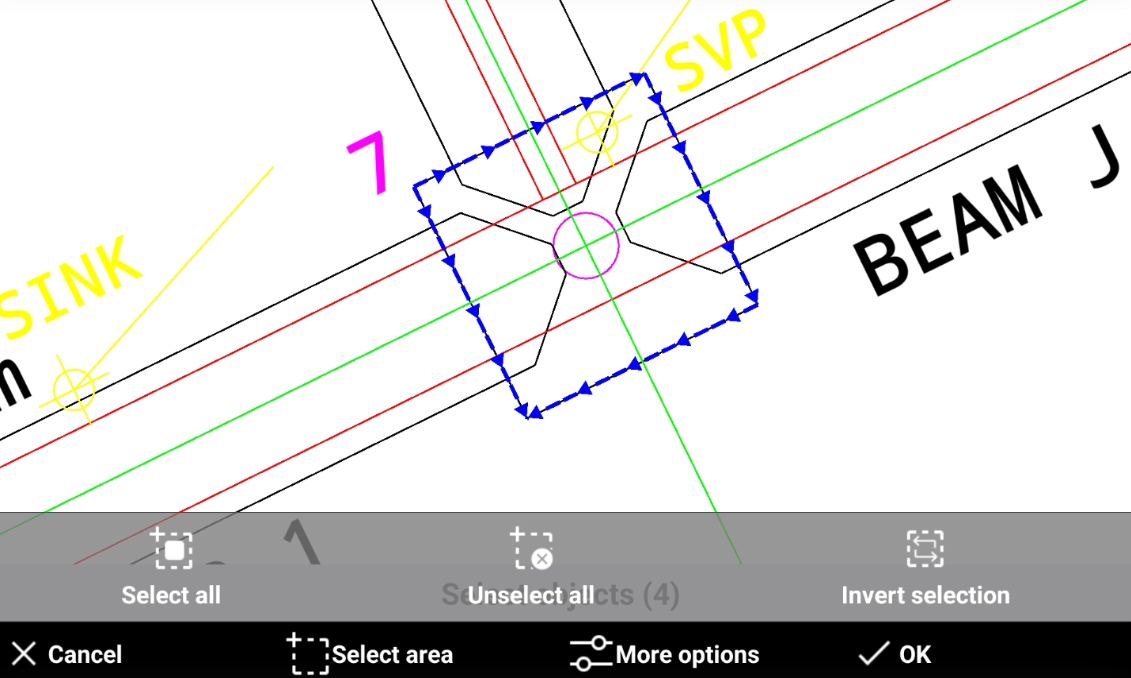
Select the objects to delete:
-
Press OK to confirms the selection and delete the objects.
The operation cannot be undone.
Offset
-
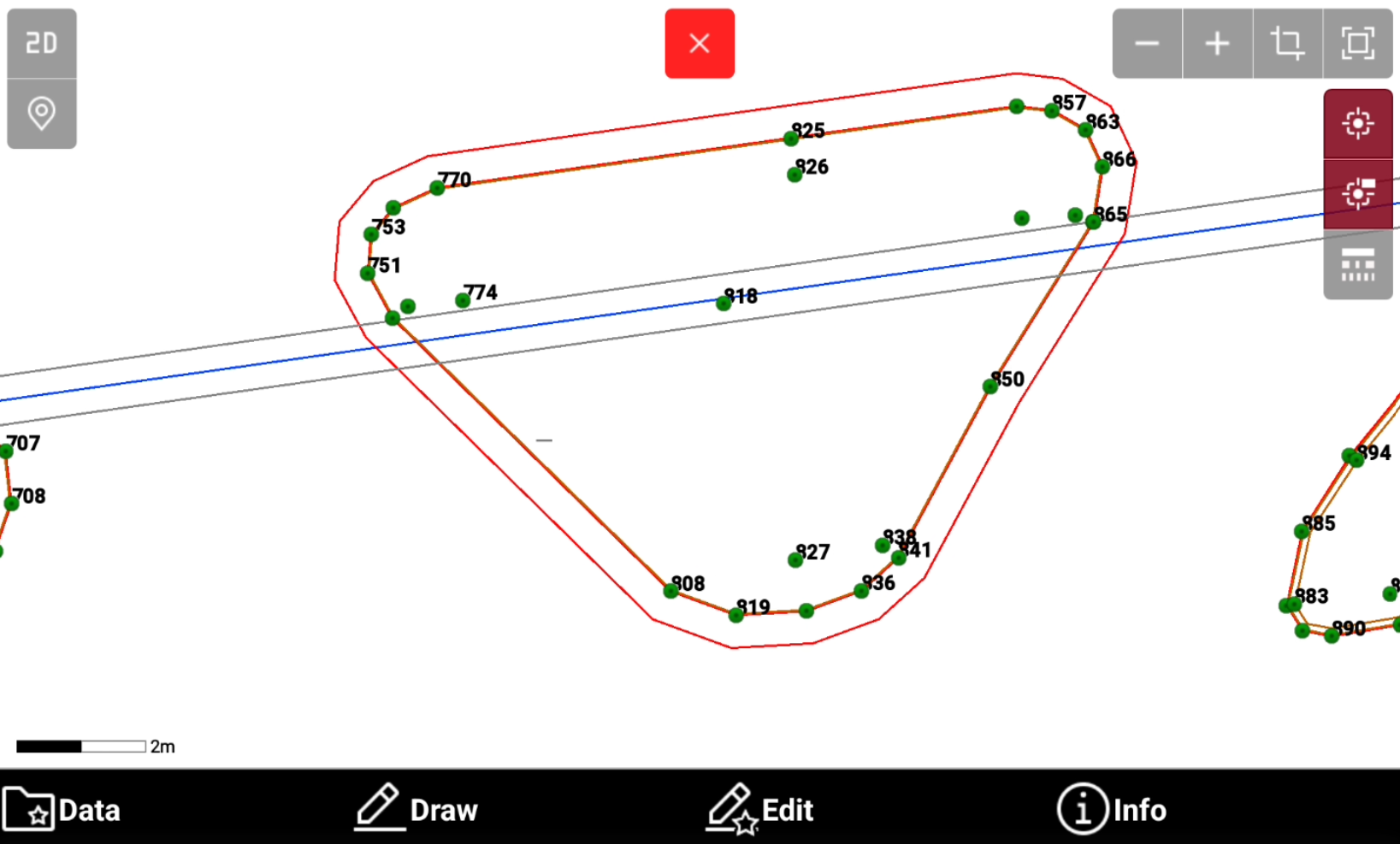
Offset function creates an object parallel to reference object at a defined distance.
-
From the Edit toolbar select Offset.
-
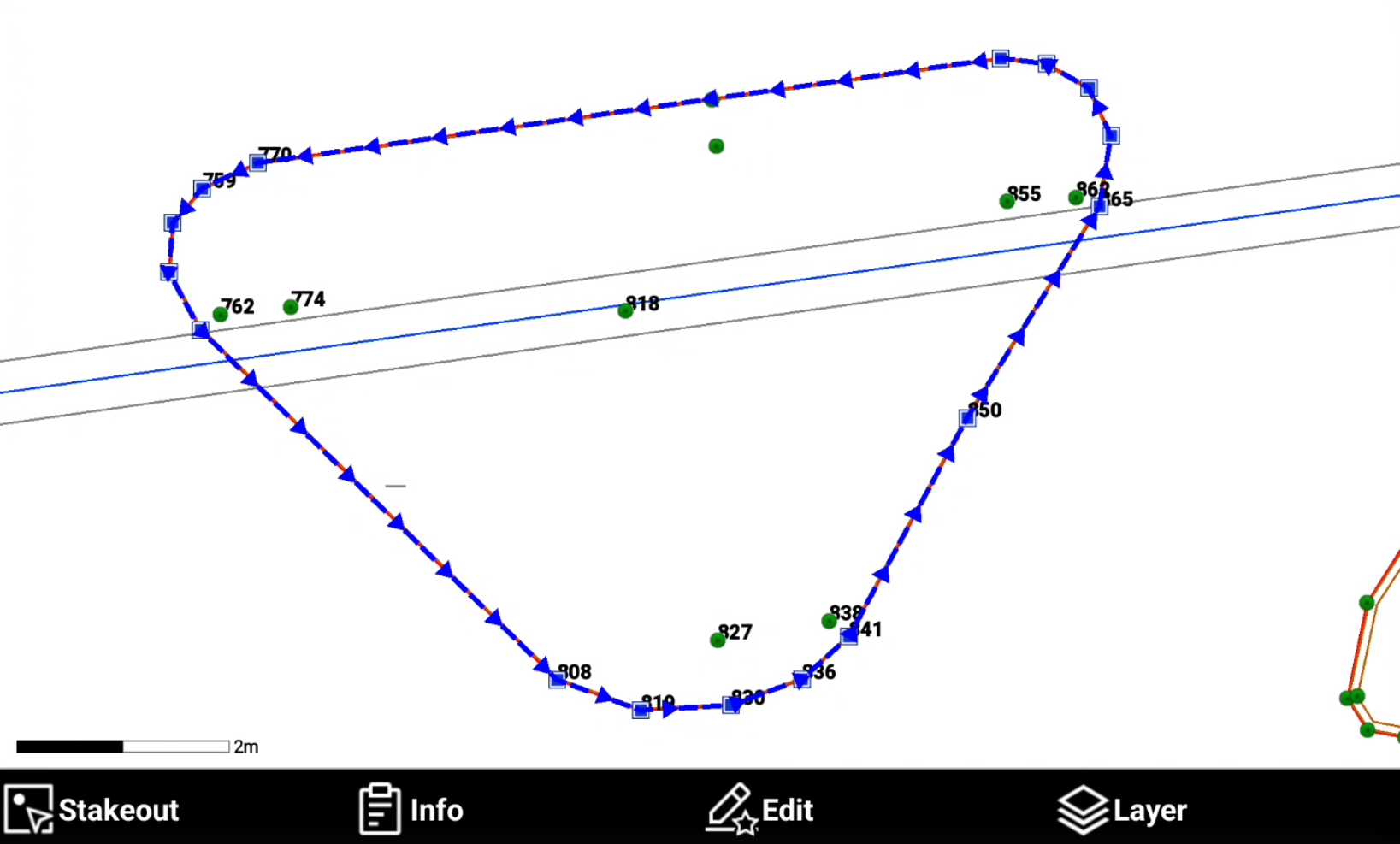
Select the object to offset.
-
Enter the horizontal offset and the vertical offset.
-
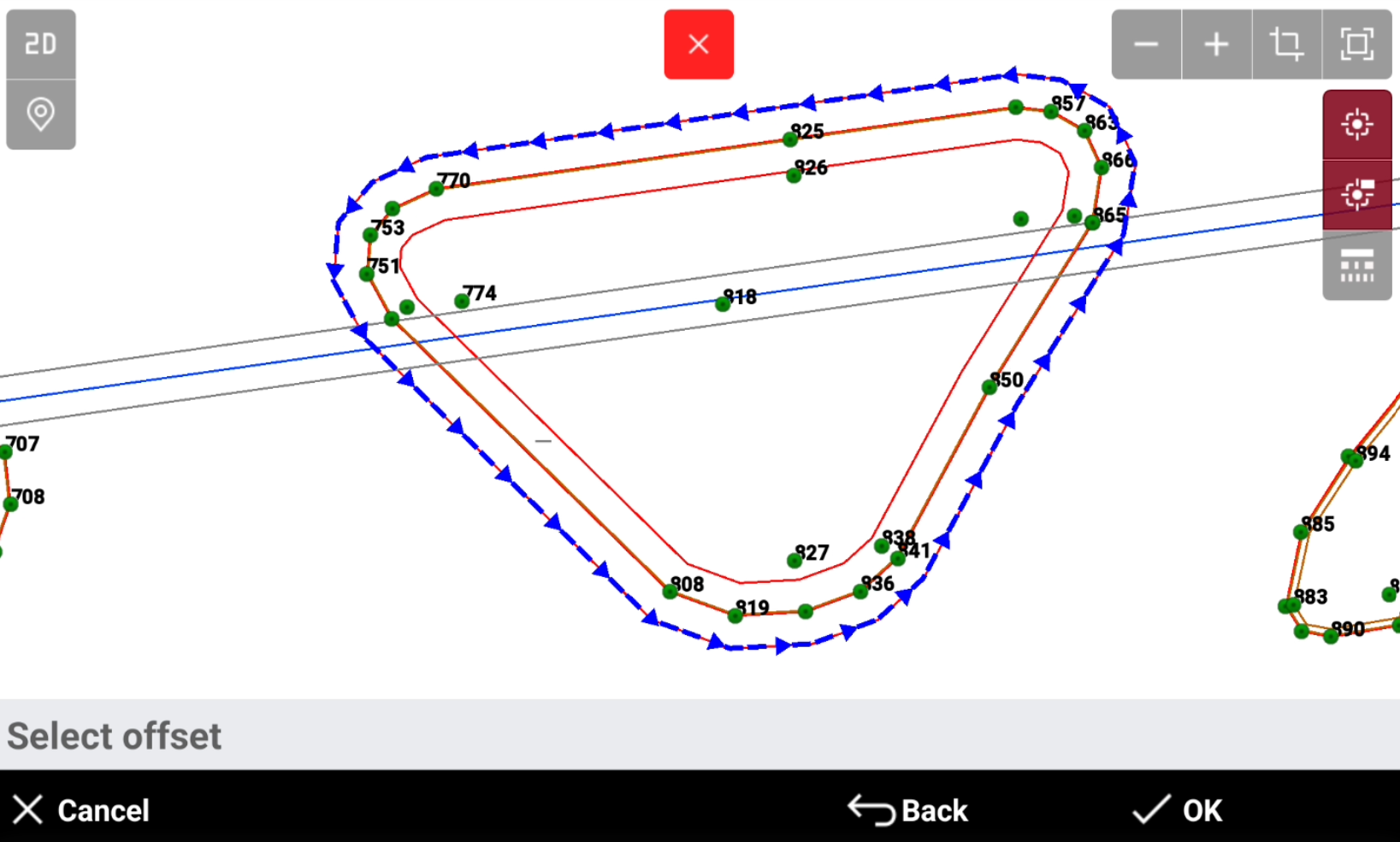
Tap on screen to select the offset direction and press OK.
-
Enter the offset repetition and press OK.
Intersection by 2 distances
-
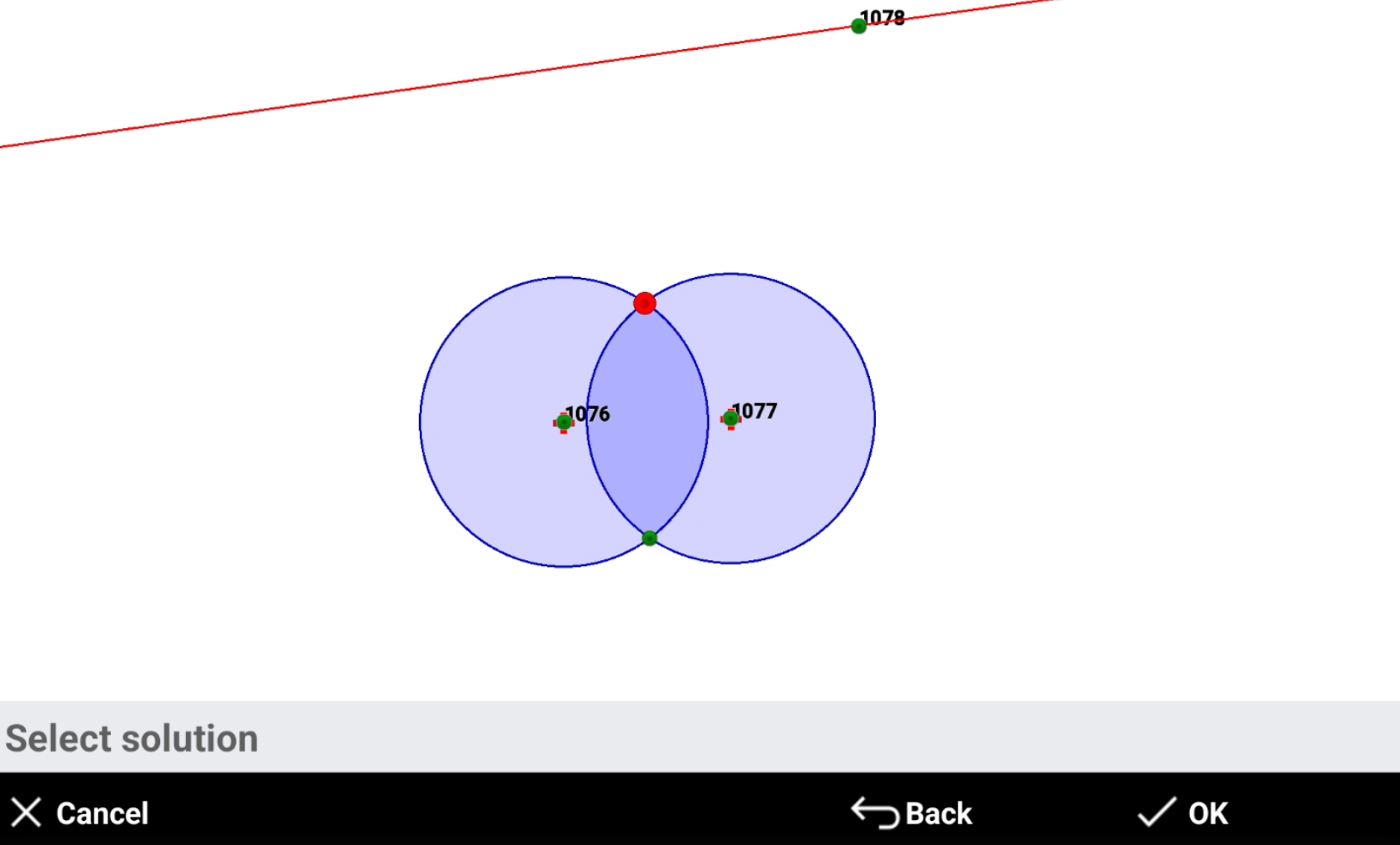
Distance intersection calculates the position of a new topographic point located at a certain distance from two reference points.
-
From the Edit toolbar select Int 2 dist.
-
Select the first reference point from CAD and enter the first distance.
-
Select the second reference point from CAD and enter the second distance.
-
Select the desired solution. The two possible solutions are proposed.
-
Press OK to save the point.
Intersection by 4 points
-
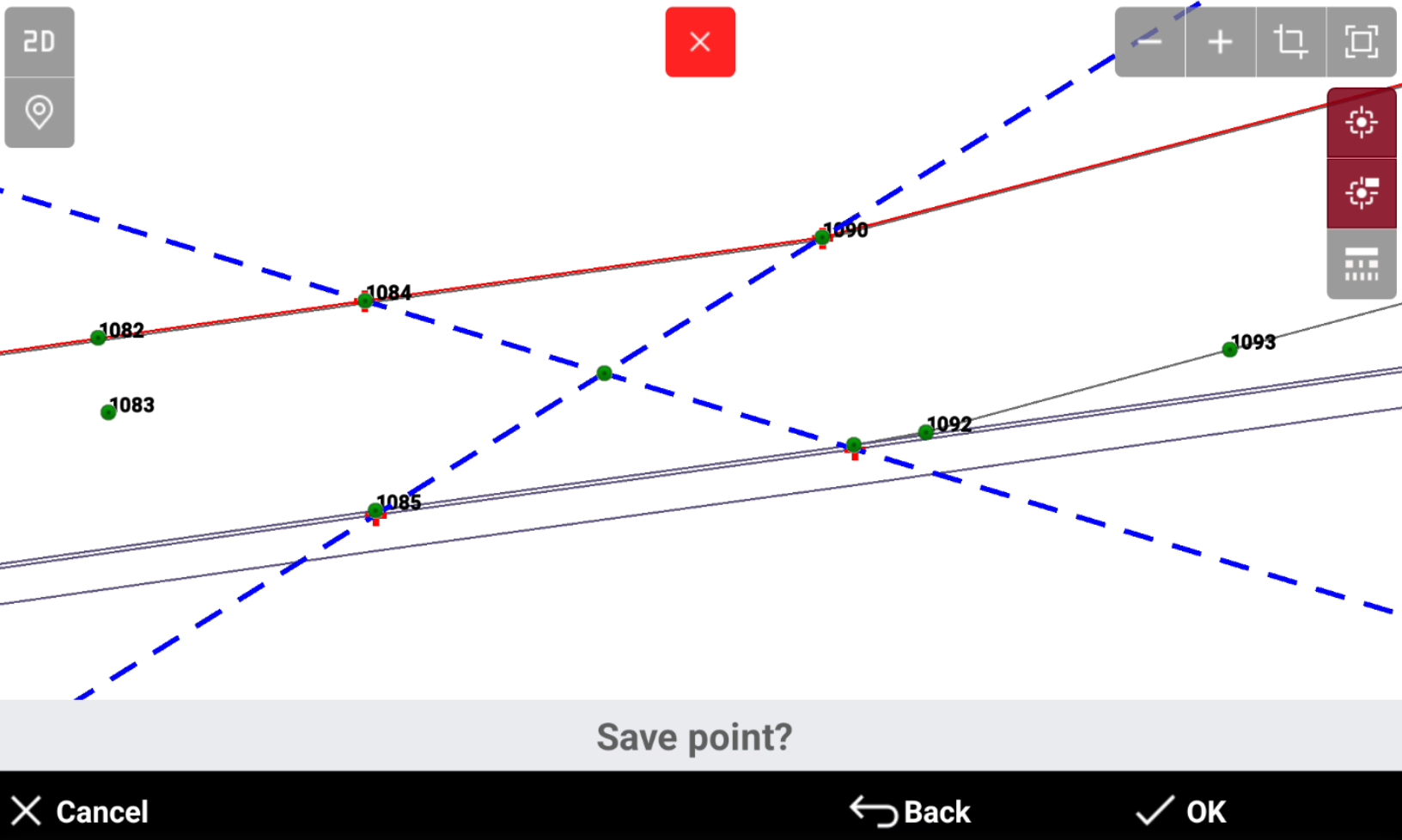
Intersection 4 points calculates the position of a topographic point that is on the intersection of two straight lines.
-
From the Edit toolbar select Int 4 points.
-
Select from CAD the 4 topographic points.
-
The software shows the calculation preview.
-
Select OK to save the point.
Distance and offset
-
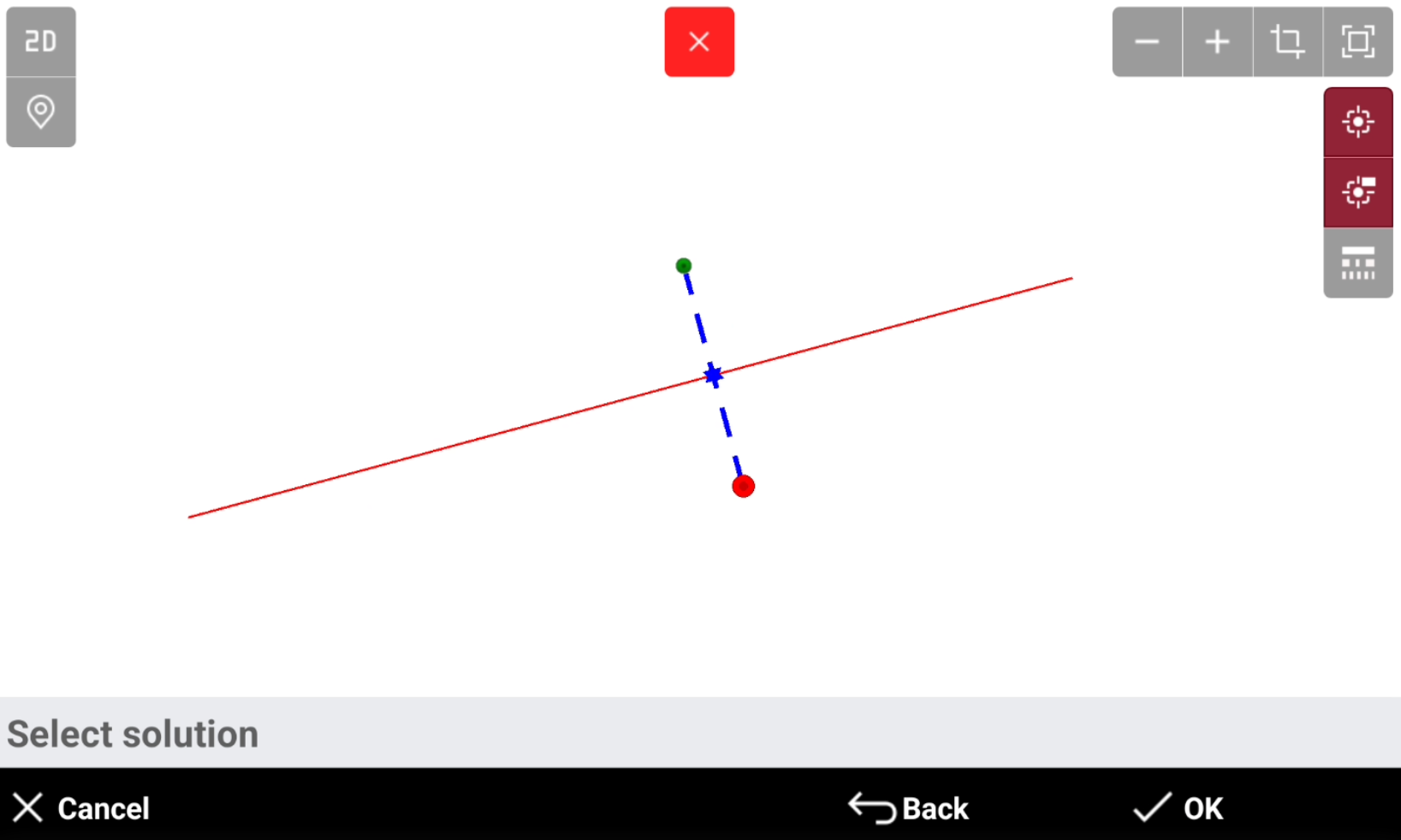
Distance and offset calculates the position of a new topographic point referring to a reference object.
-
From the Edit toolbar select Dist&Offset.
-
Select from CAD the reference object referring to which to calculate the position of the point.
-
Enter the distance along the reference object.
-
Enter the offset from the reference object.
-
The software shows the calculation preview.
-
Select OK to save the point.
Lengthen
-
Lengthen extends an object like a line, a polyline or an arc to a defined length. Or extend a line defined by two points which also indicates the direction where to create the point.
-
From the Edit toolbar select Lengthen.
-
Enter the distance by which to lengthen an object.
-
Select in CAD the object to extend or select the first point.
-
If first point and not an object has been selected, select the second point.
-
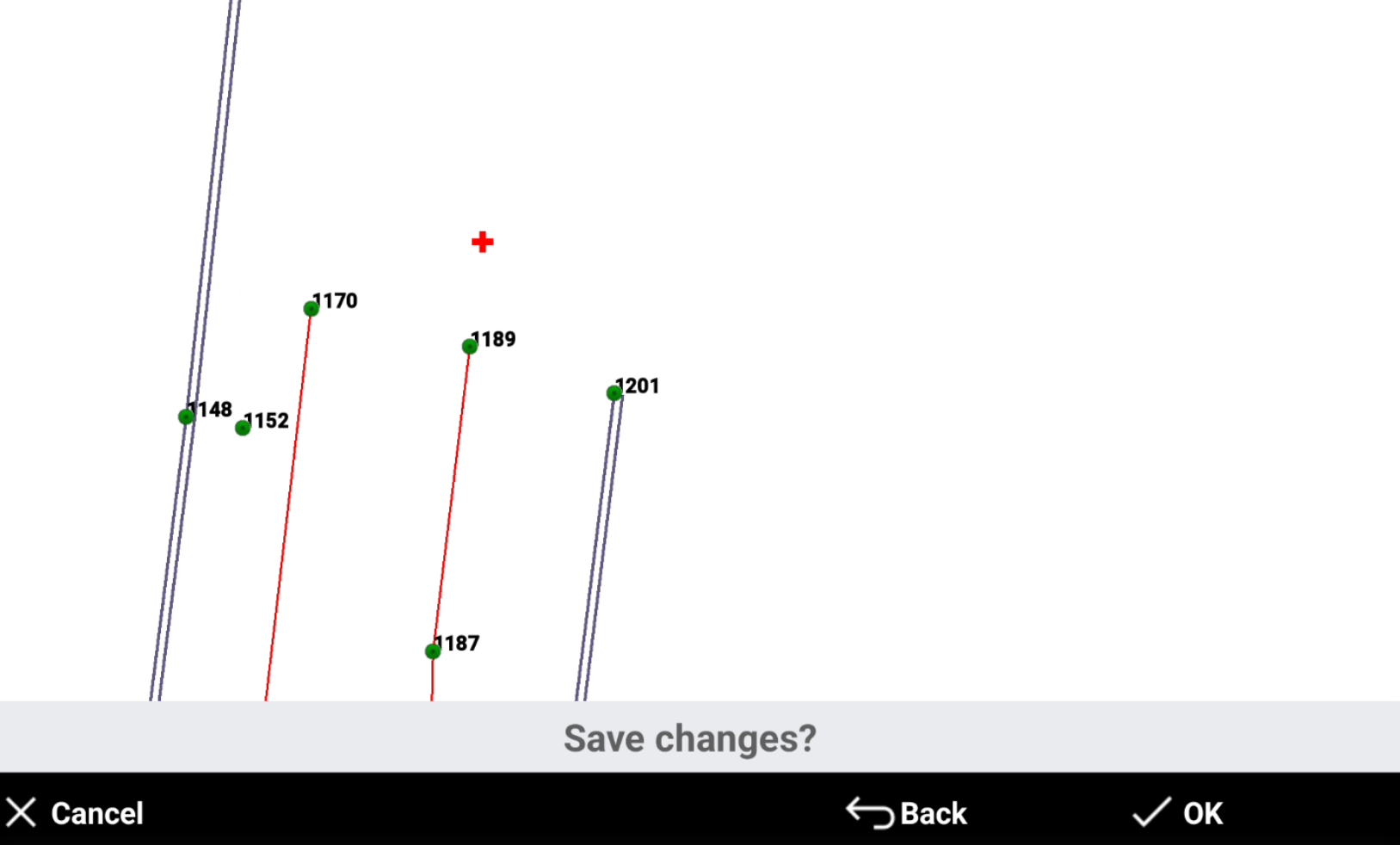
The software shows a preview of the result. Press OK to save the changes.
-
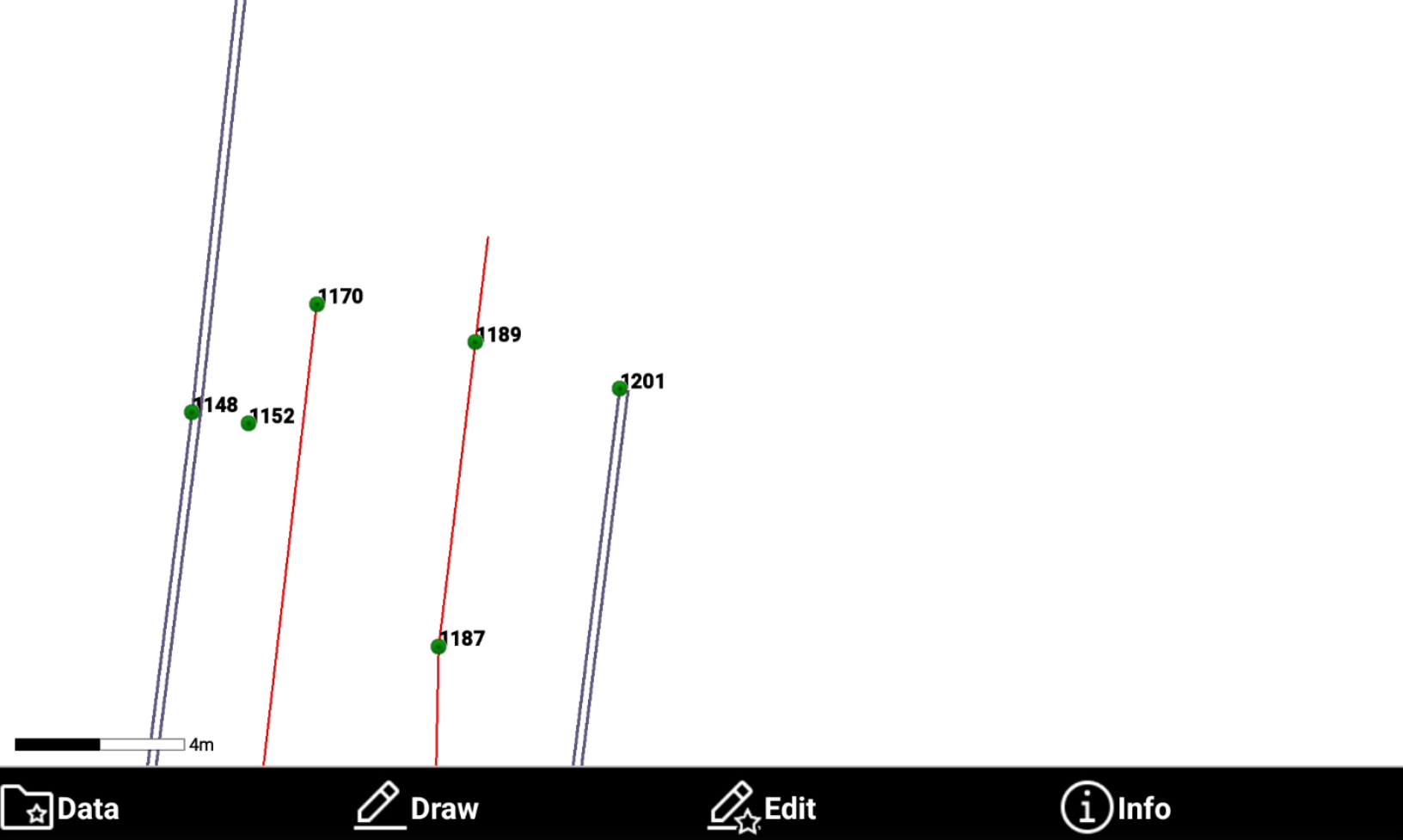
The object has been created.
Explode
-
Explode transforms selected polylines into the base elements composing it.
-
From the Edit toolbar select Explode.
-
Select the object in CAD and press OK to confirm the selection.
-
The selected objects are exploded.
Invert
-
Invert reverses the vertex order of a drawing element.
-
From the Edit toolbar select Invert.
-
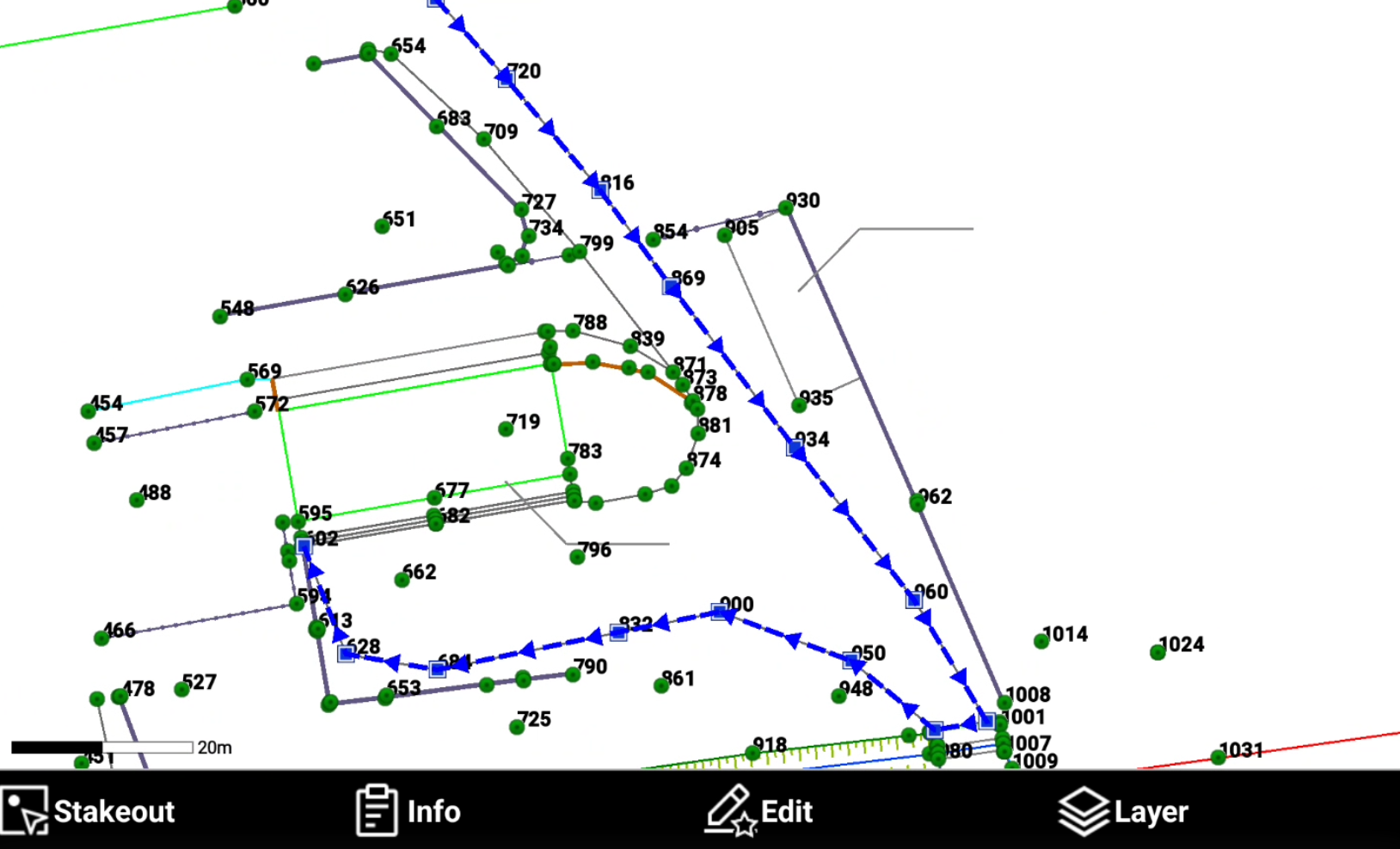
Select the object in CAD and press OK to confirm the selection.
-
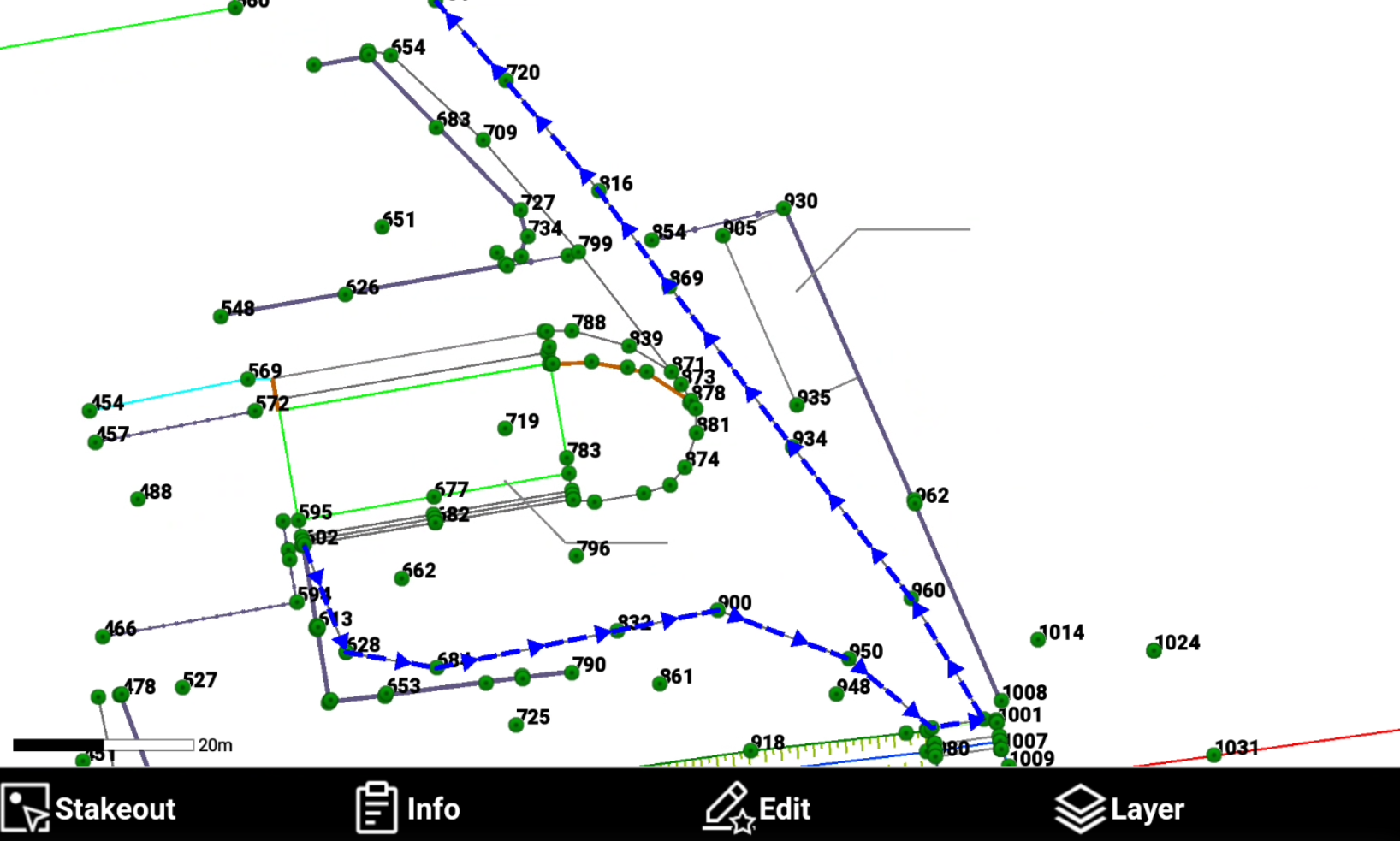
The selected objects are inverted.
Join
-
Join merges several entities so that they have one point in common. Example: Multiple lines that must be managed as a single polyline.
-
From the Edit toolbar select Join.
-
Select the object in CAD.
-
The selected objects are joined together.
Edit polyline
-
Edit polyline is a group of functions to edit a selected polyline in CAD.
-
From the Edit toolbar select Edit polyline.
-
Select the polyline in CAD.
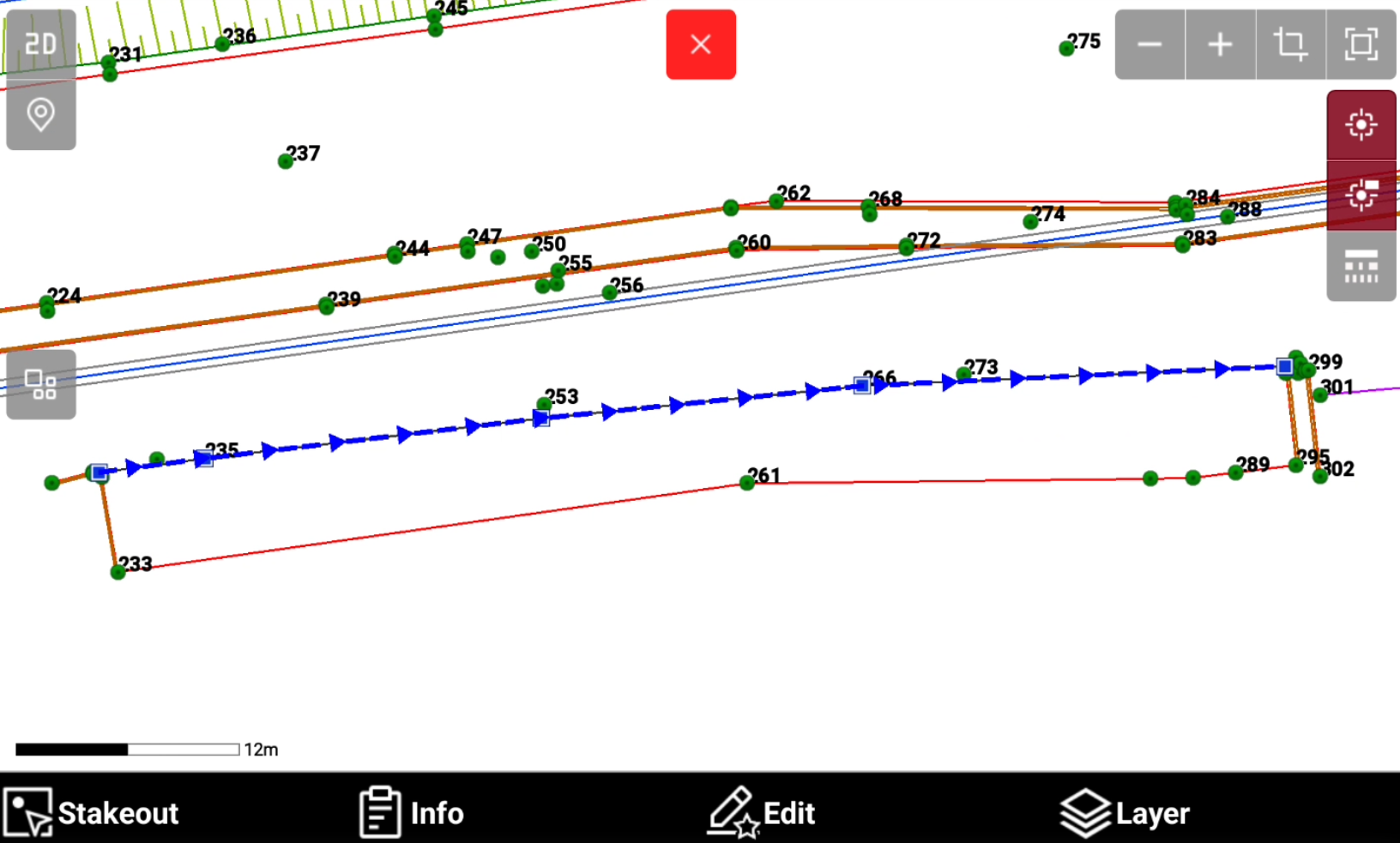
This toolbar can also be opened selecting a polyline and selecting Edit.
-
This opens a new toolbar with the polyline editing functions.
-
Delete: deletes the selected polyline.
-
Close: closes the polyline.
-
Invert: inverts the vertexes order of the polyline.
-
Insert vertex: inserts a new vertex in the selected segment of the polyline.
-
Delete vertex: deletes a polyline vertex.
-
Delete segment: deletes a selected polyline segment.
-
Delete
-
Delete allows to delete the selected polyline.
-
Select Delete.
-
Select OK to confirm and delete the polyline.
Close
-
Close closes the polyline connecting the first and last vertex.
-
Select Close.
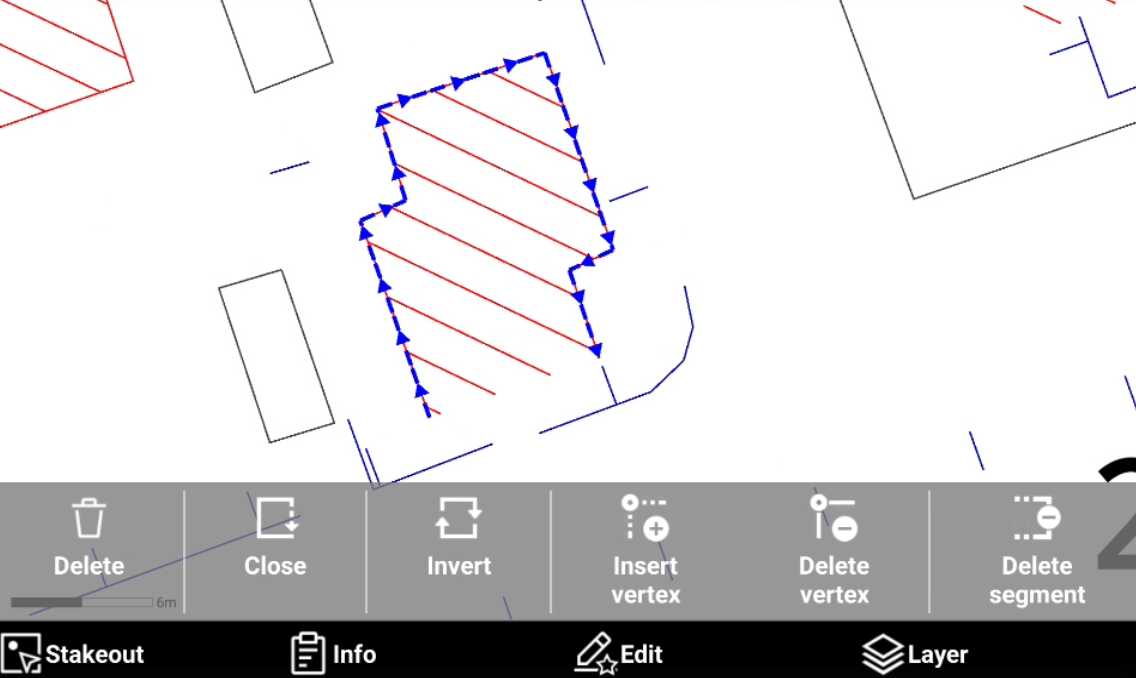
-
The software closes the polyline connecting the first and last vertex.
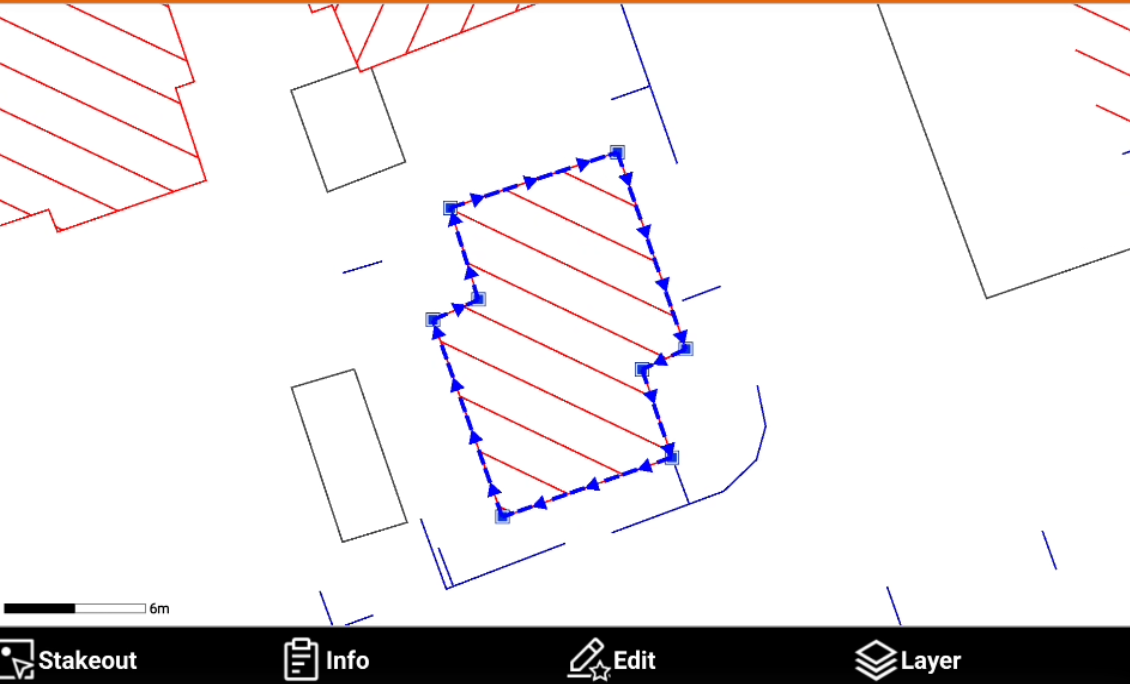
Invert
-
Invert reverses the vertex order of a drawing element.
-
Select Invert.
-
The vertex order of the selected polyline is inverted.
Insert vertex
-
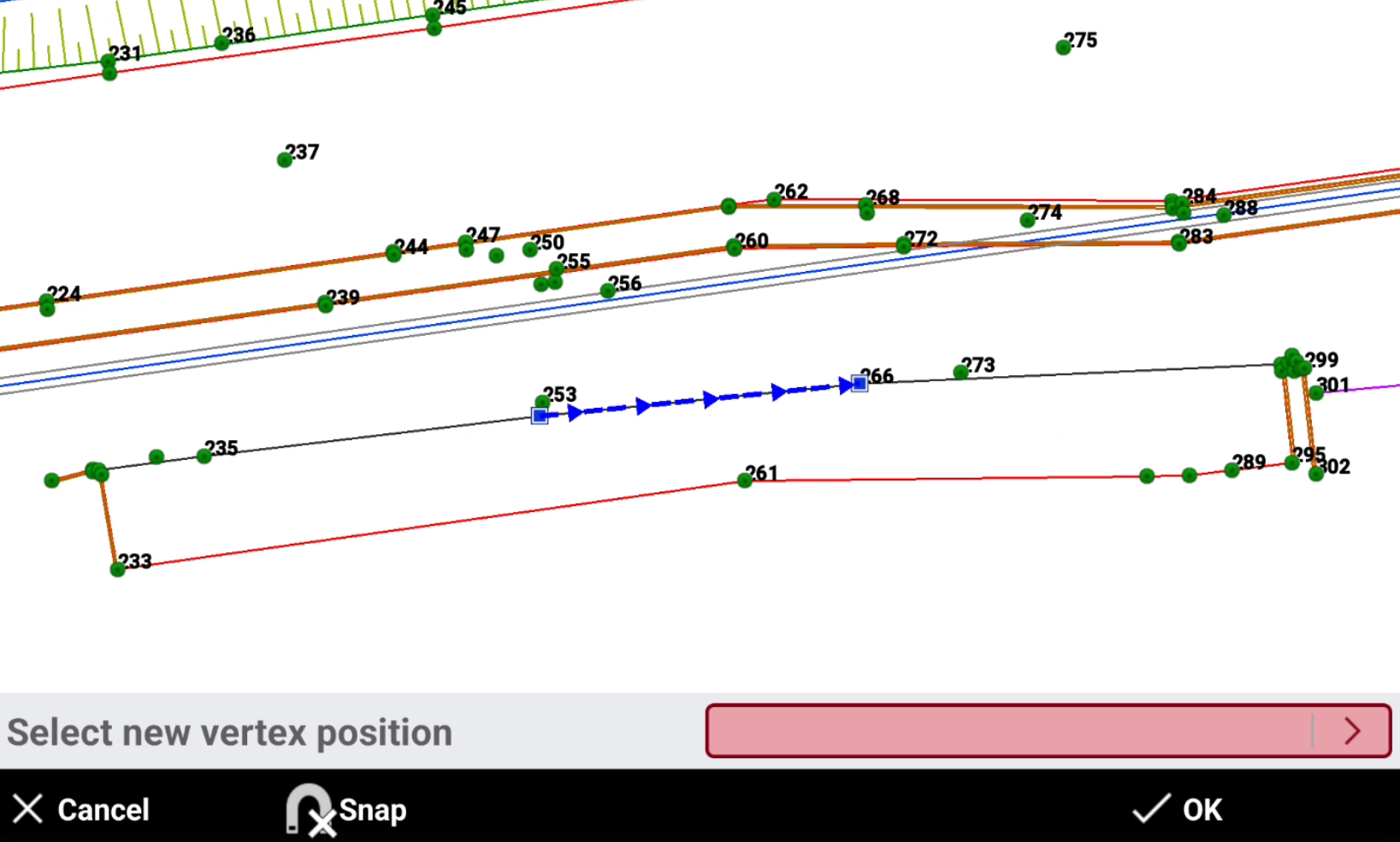
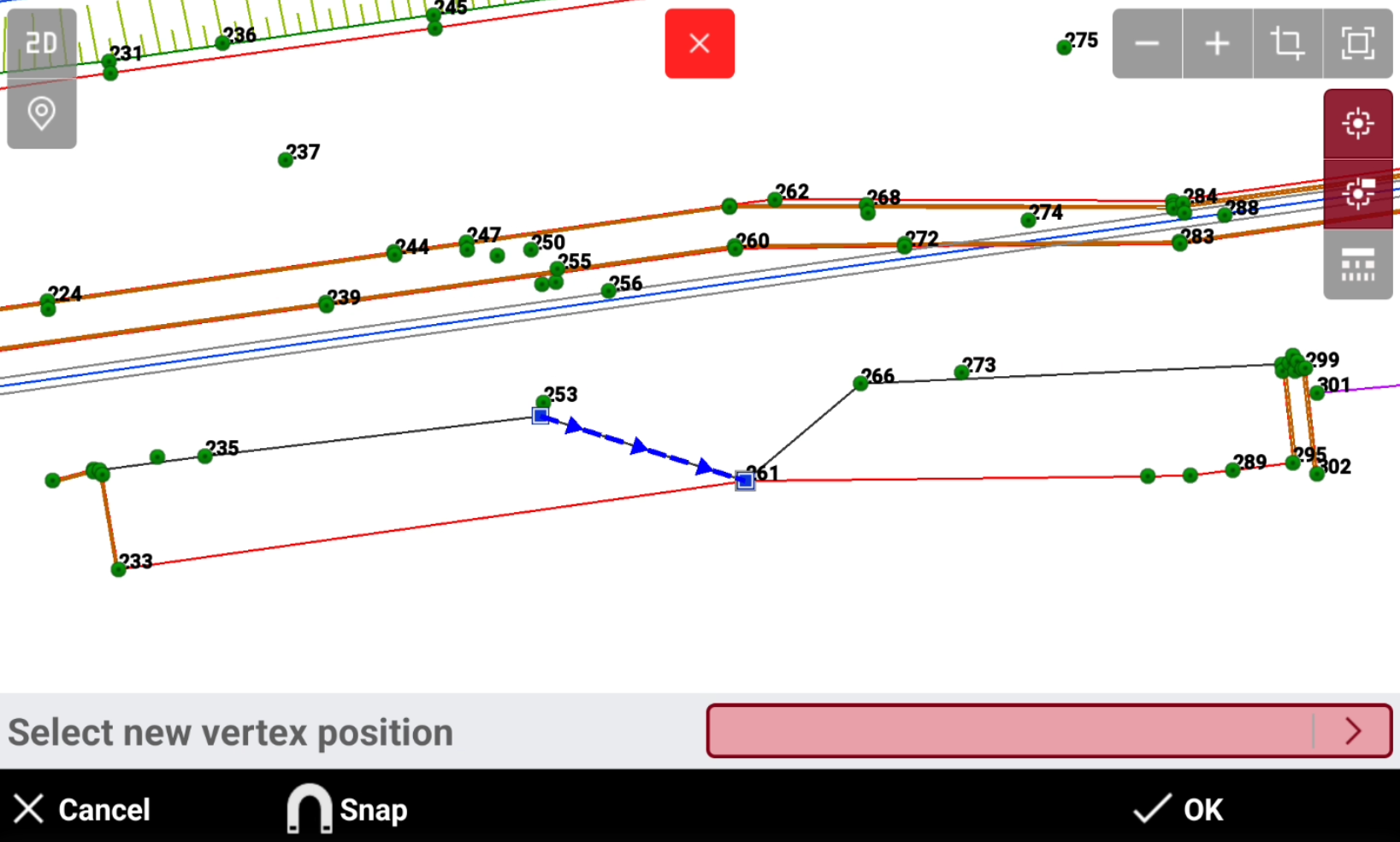
Insert vertex inserts a new vertex in the selected segment of the polyline.
-
Select Insert vertex.
-
Select the segment on which add a new vertex.
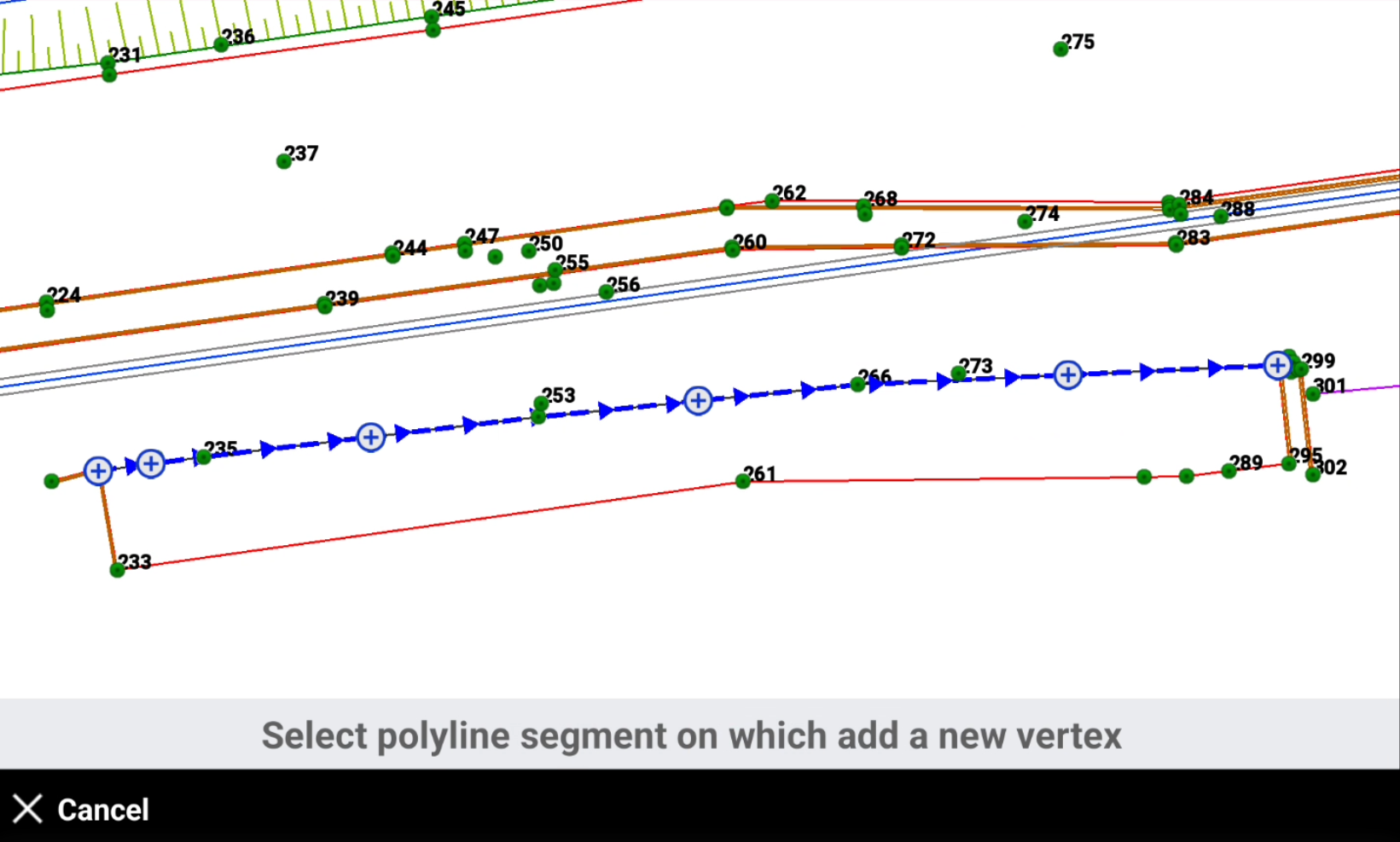
-
Select the new vertex position.
-
The new segments are created.
Delete vertex
-
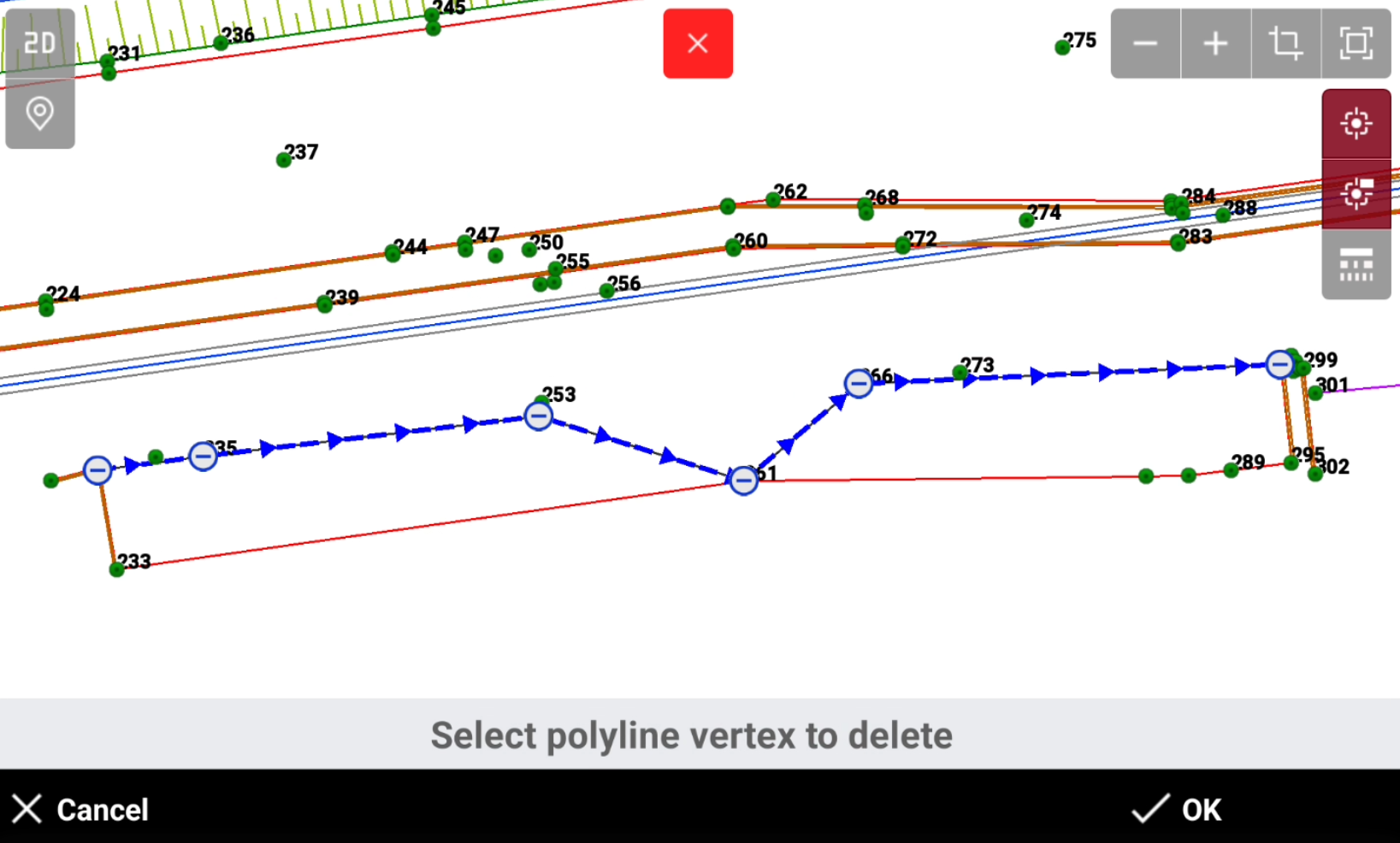
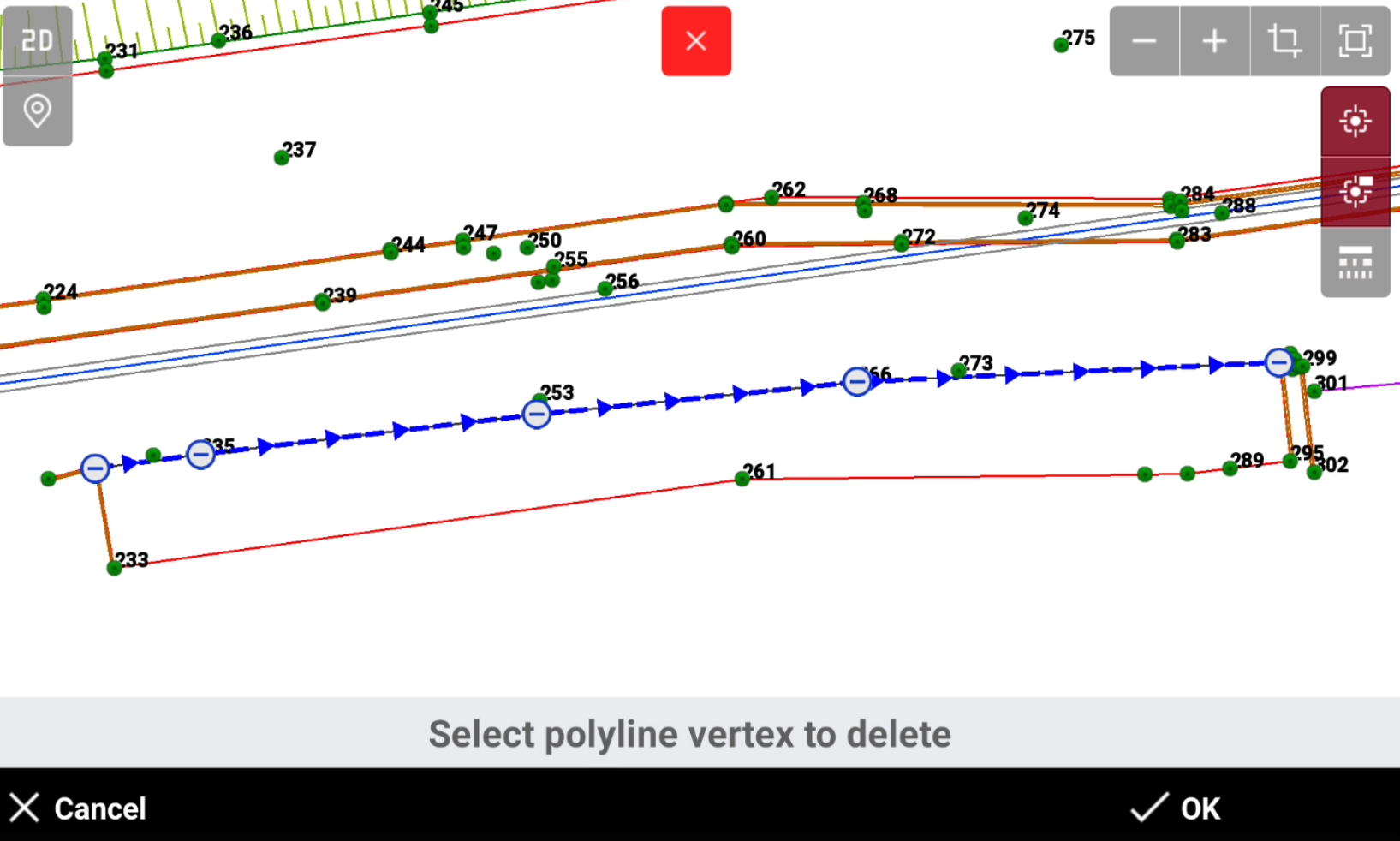
Delete vertex deletes a vertex from a selected polyline
-
Select Delete vertex.
-
Select the vertex to delete.
-
Press OK to save the result or delete other vertexes.
Delete segment
-
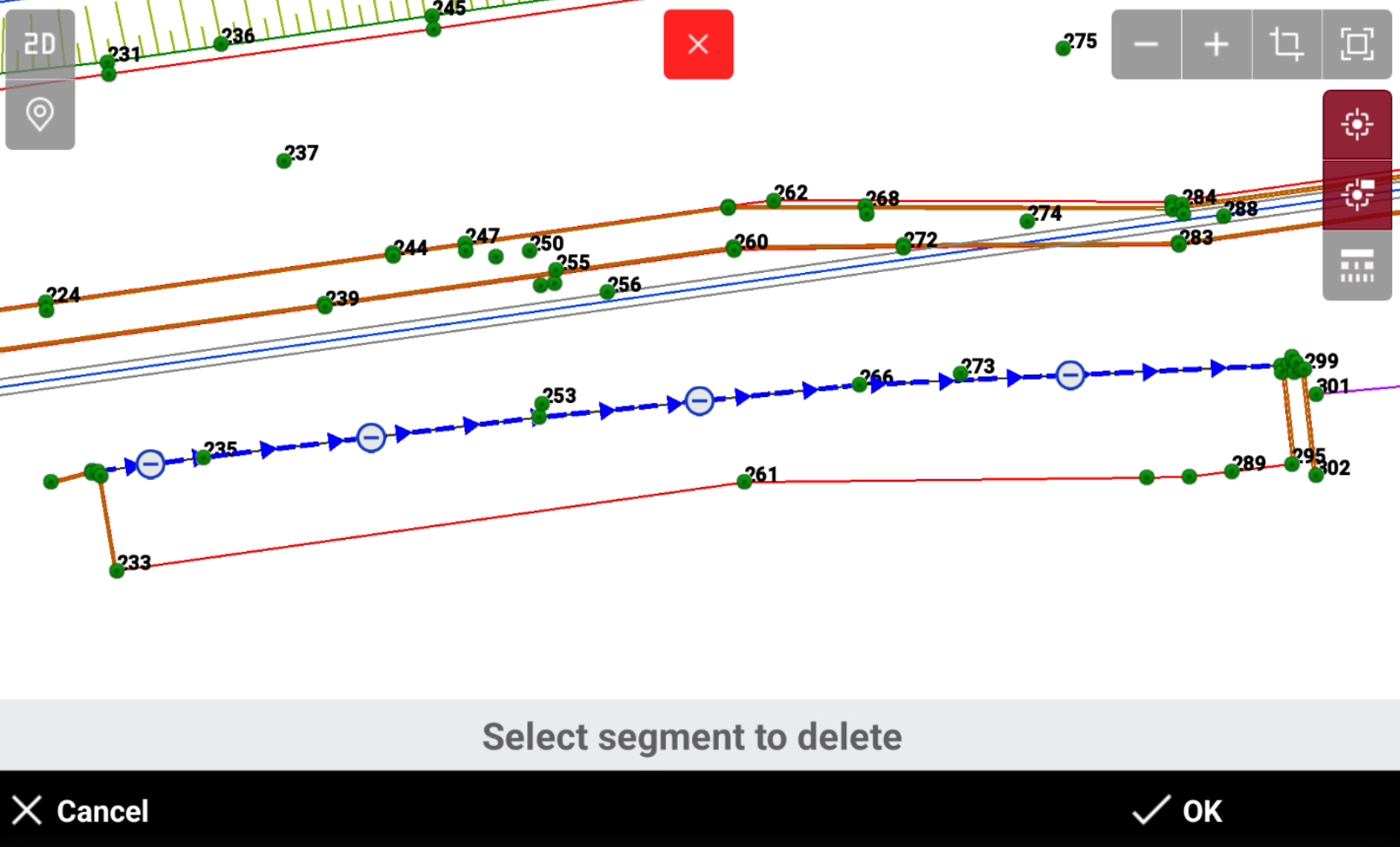
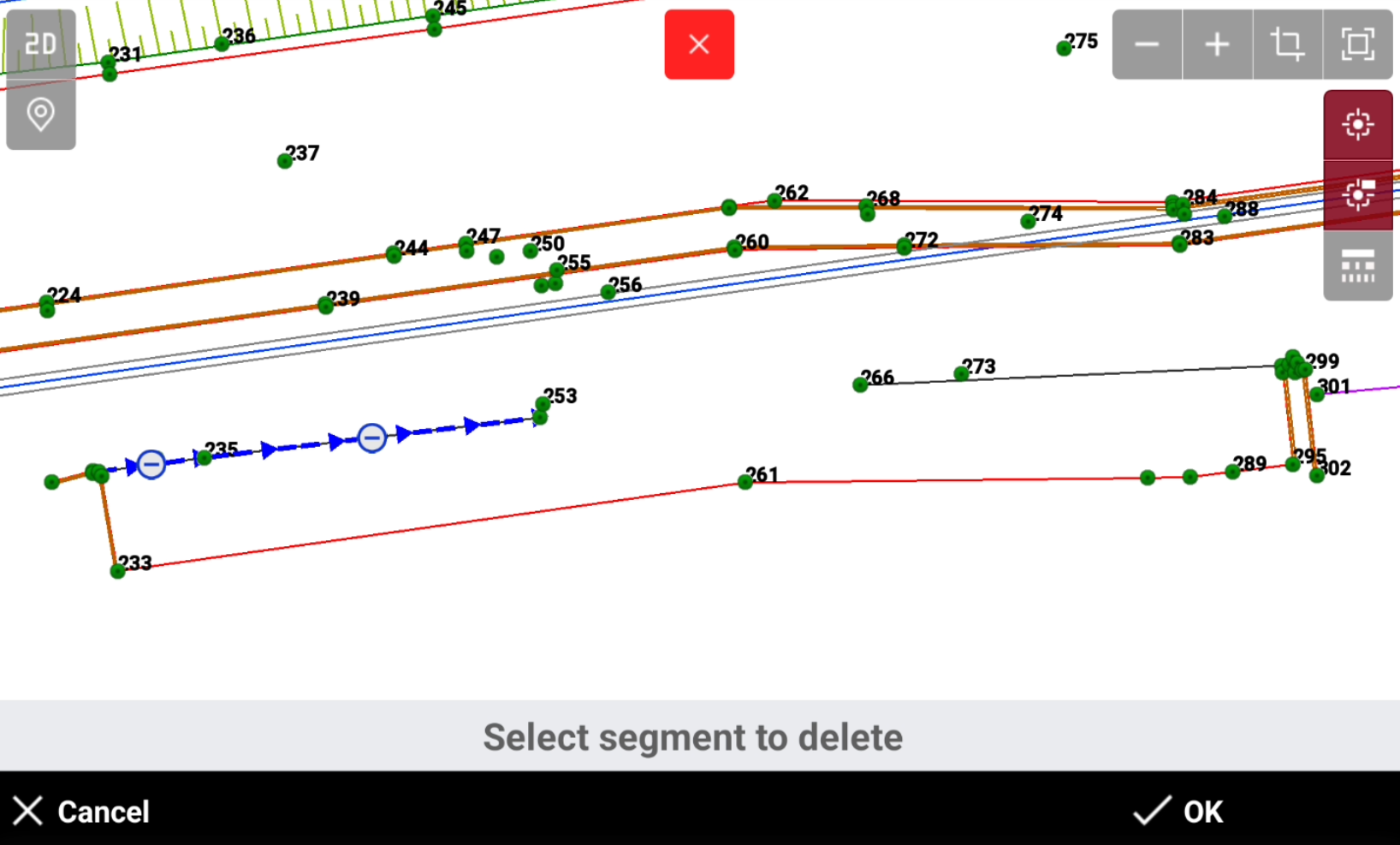
Delete segment deletes a segment from a selected polyline.
-
Select Delete segment.
-
Select the segment to delete.
-
Press OK to save the result or delete other segments.
Object properties
-
Access the management of the graphical properties of the selected objects such as layer, color and linetype.
-
The function allows to change properties of multiple selected items.
-
From the Edit toolbar select Properties.
-
Select the objects in CAD .
-
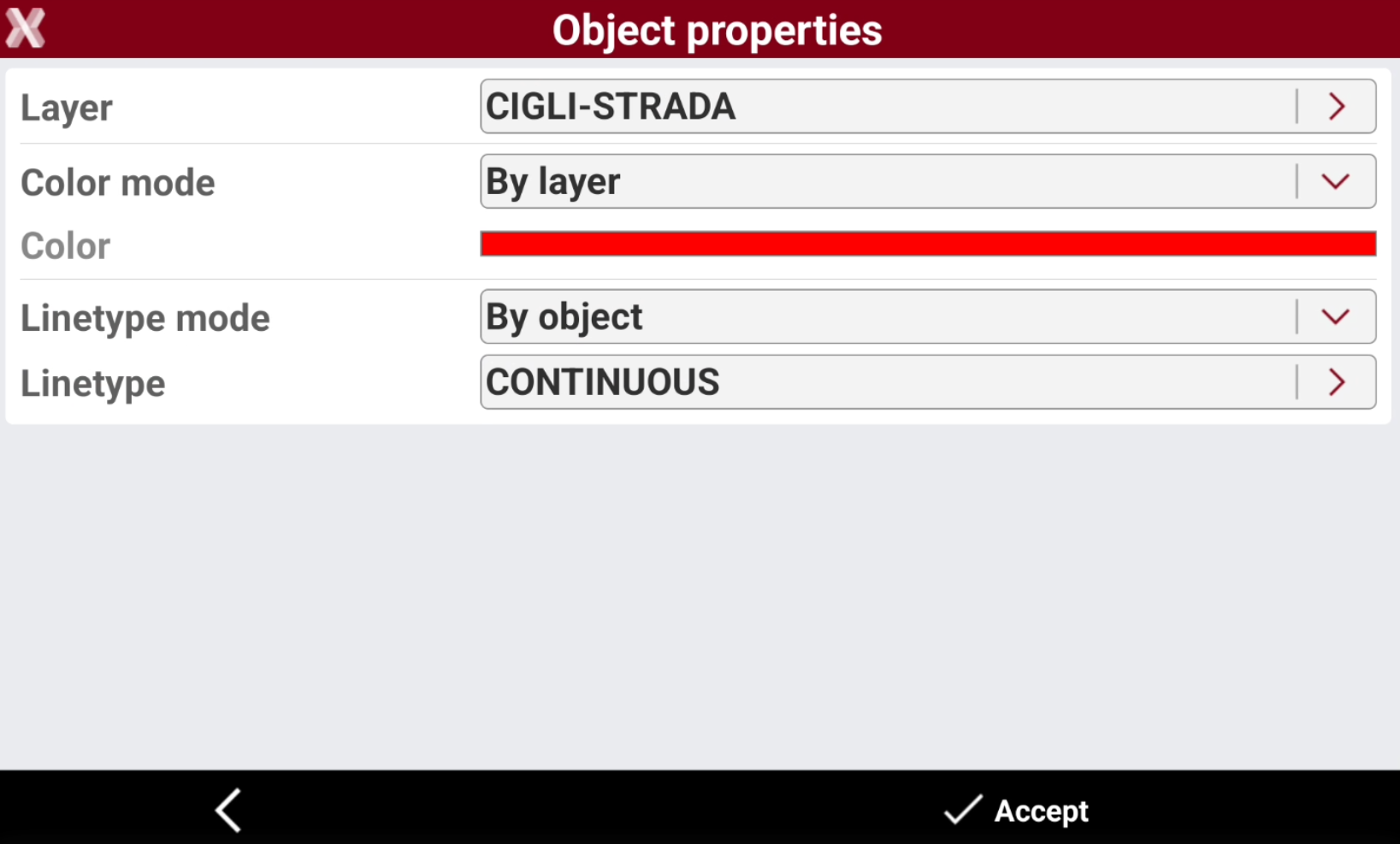
The software opens a new page where display and change the objects properties.
-
Layer: layer of the object. Tap on the layer to open the Layers manager.
-
Color mode: selects if the object color is defined by the layer or by object.
-
By layer: the color is defined by the layer.
-
By object: the color is defined in the Color field.
-
-
Color: if Color mode is By object, allows to specify the color.
-
Linetype mode: selects if the line type is defined by the layer or by object.
-
By layer: the line type is defined by the layer.
-
By object: the line type is defined in the Linetype field.
-
-
Linetype: if Linetype mode is By object, allows to specify the line type. Tap on the line type to open the Linetypes manager.
-
Symbol size: dimension of the symbol.
-