-
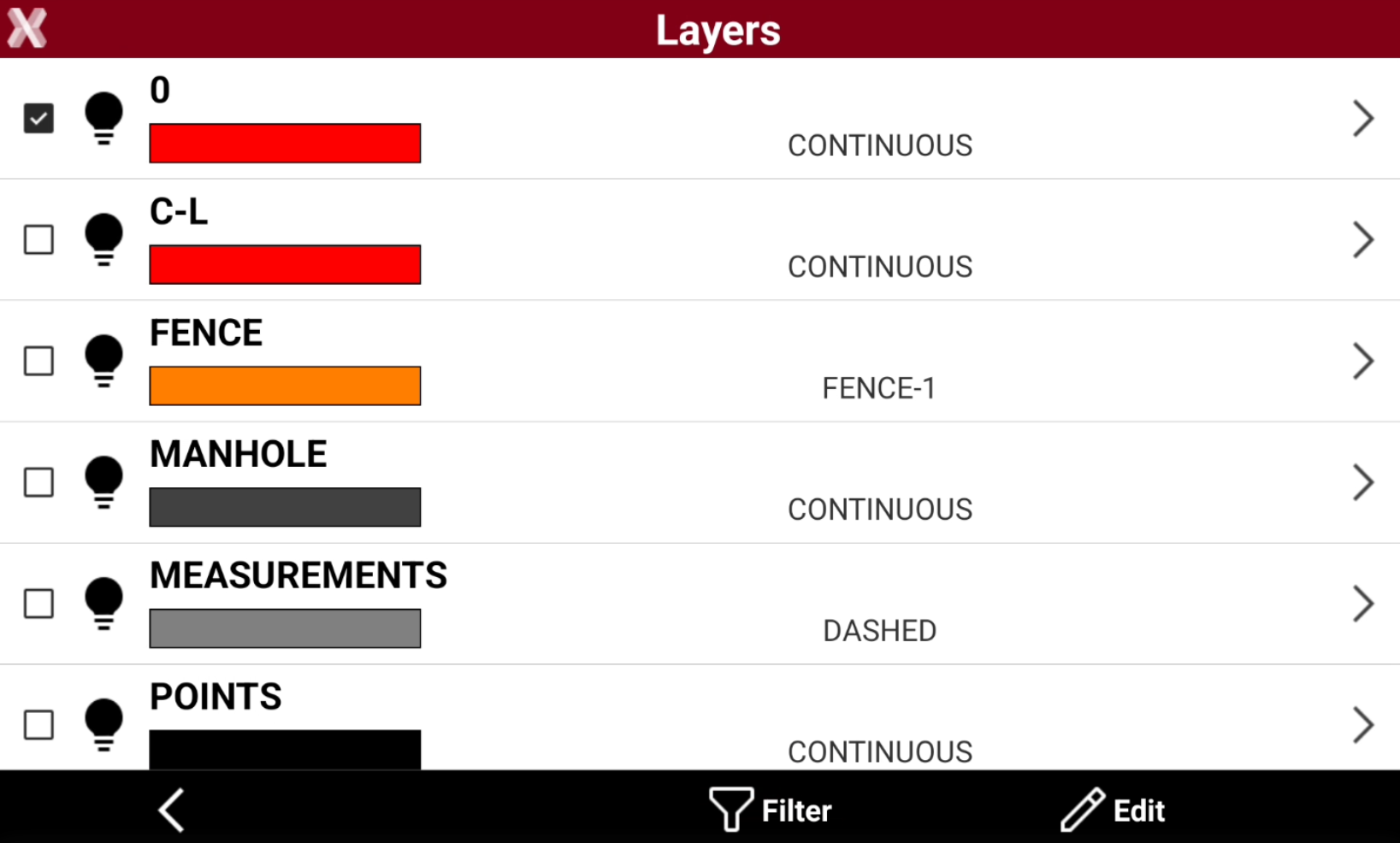
In the Layer manager page it is possible to view, edit or create new layers.
-
Each survey code has assigned a layer: to work using survey codes and layers means that the exported job is already organized in layers and ready for the office.
-
From the Codes tab press Add to open the page to add a new code, or select and Edit an existing code.
-
Open the Layer & color page and click Layer to open the Layer manager.
-
The page shows the used layers in the project.
If a code is in a specific layer, the layer will not be visualized in this page until an entity on that layer is created.
Layers can also be managed from CAD Project Manager.
Set the current layer
-
Tap on

-
The current layer is marked with

Filter the layers
-
Select Filter

Add a new layer
-
To create a new layer select Edit.
-
Select Add to create a new layer. After a new layer has been created it can be selected as current layer.
Edit a layer
-
Select Edit to edit a layer.
-
In the edit mode it is possible to change the layer color or the assigned linetype.
-
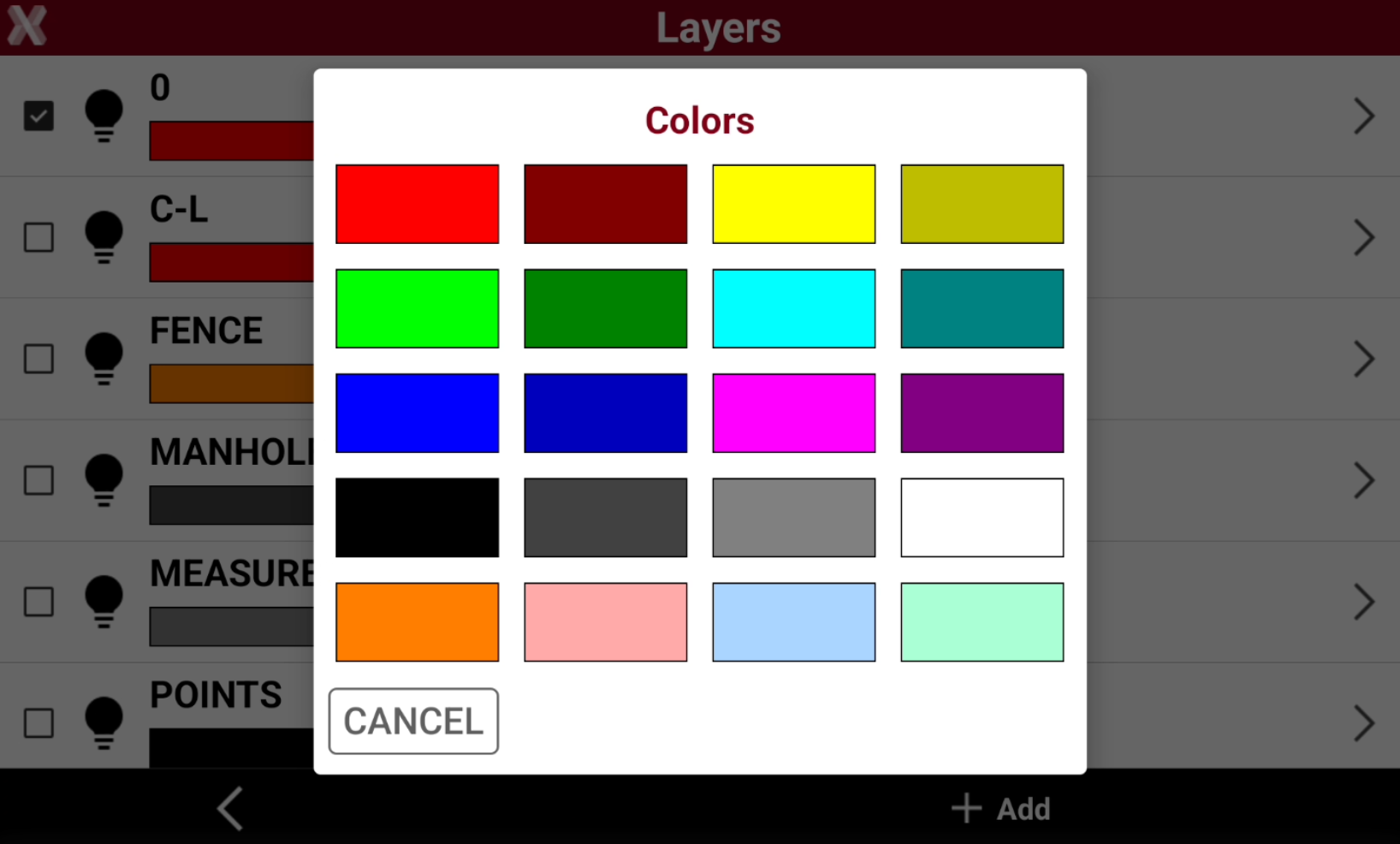
To change the color click on the color bar near the layer to select a different color.
-
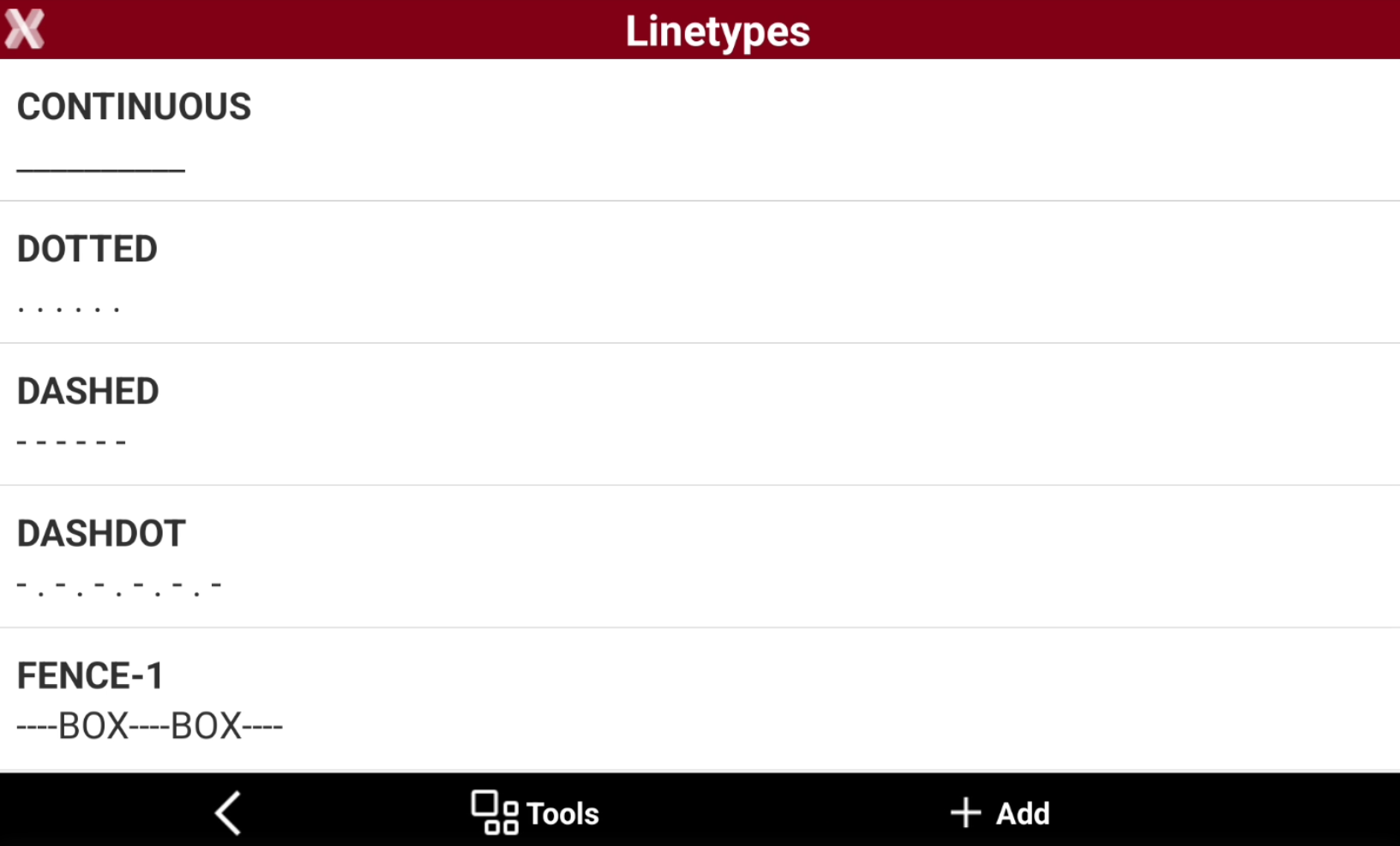
To change the linetype tap on a layer linetype to open the list of available linetypes.
Create a new linetype
-
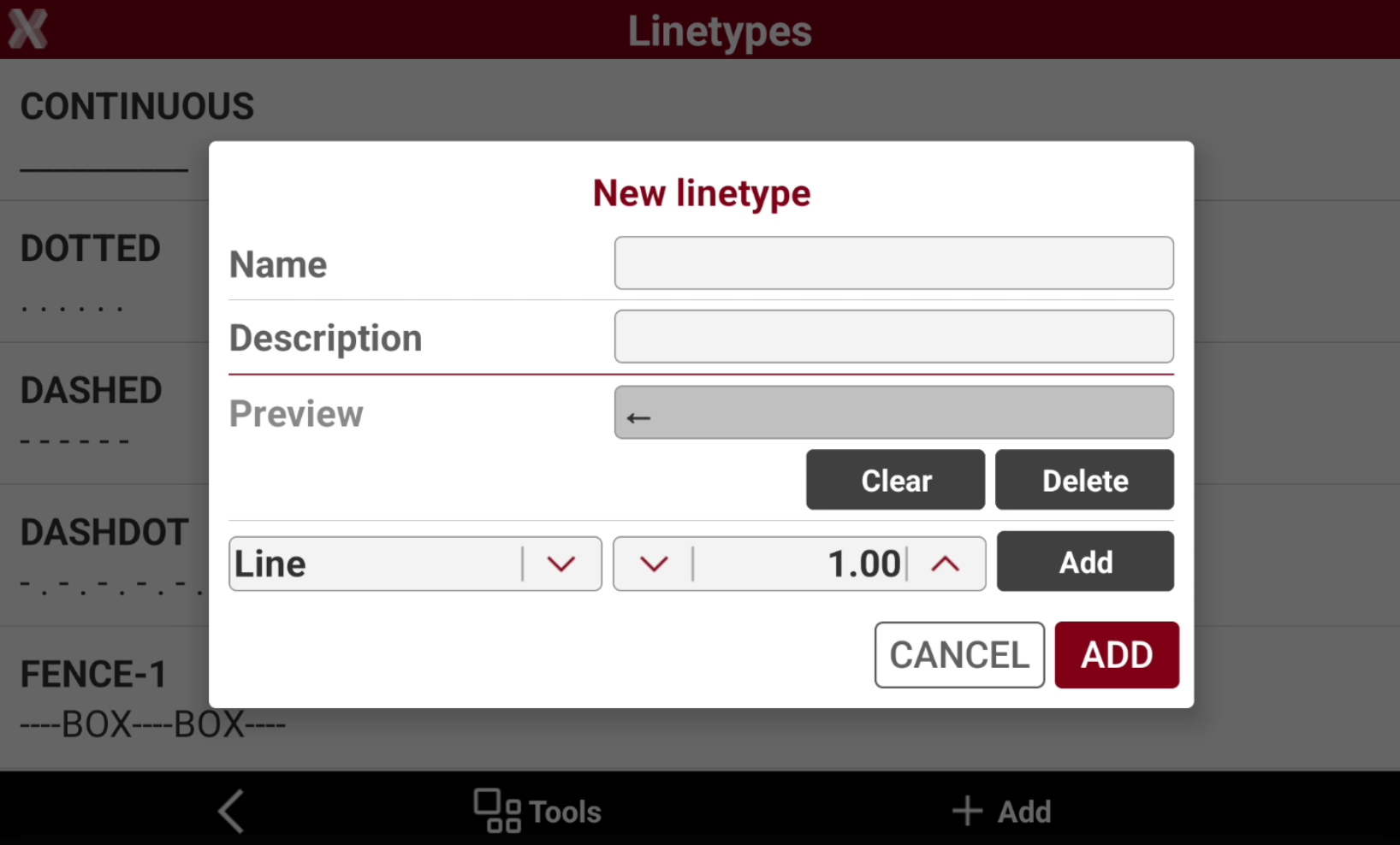
To create a new linetype press Add from the Linetypes page This opens a new window.
-
Name: the name of the new linetype.
-
Description: the elements of the new linetype. Press Add to add elements to the line.
-
Preview: shows the linetype preview.
-
Add: to add a line part. It is possible to select how many parts to add.
-
Line: to add a line element.
-
Space: to add a space.
-
Point: to add a point.
-
Symbol: to add a symbol.
-
-
Clear: to delete all elements in the line.
-
Delete: to delete the last element added to the line.
-
Create and apply a linetype step-by-step
-
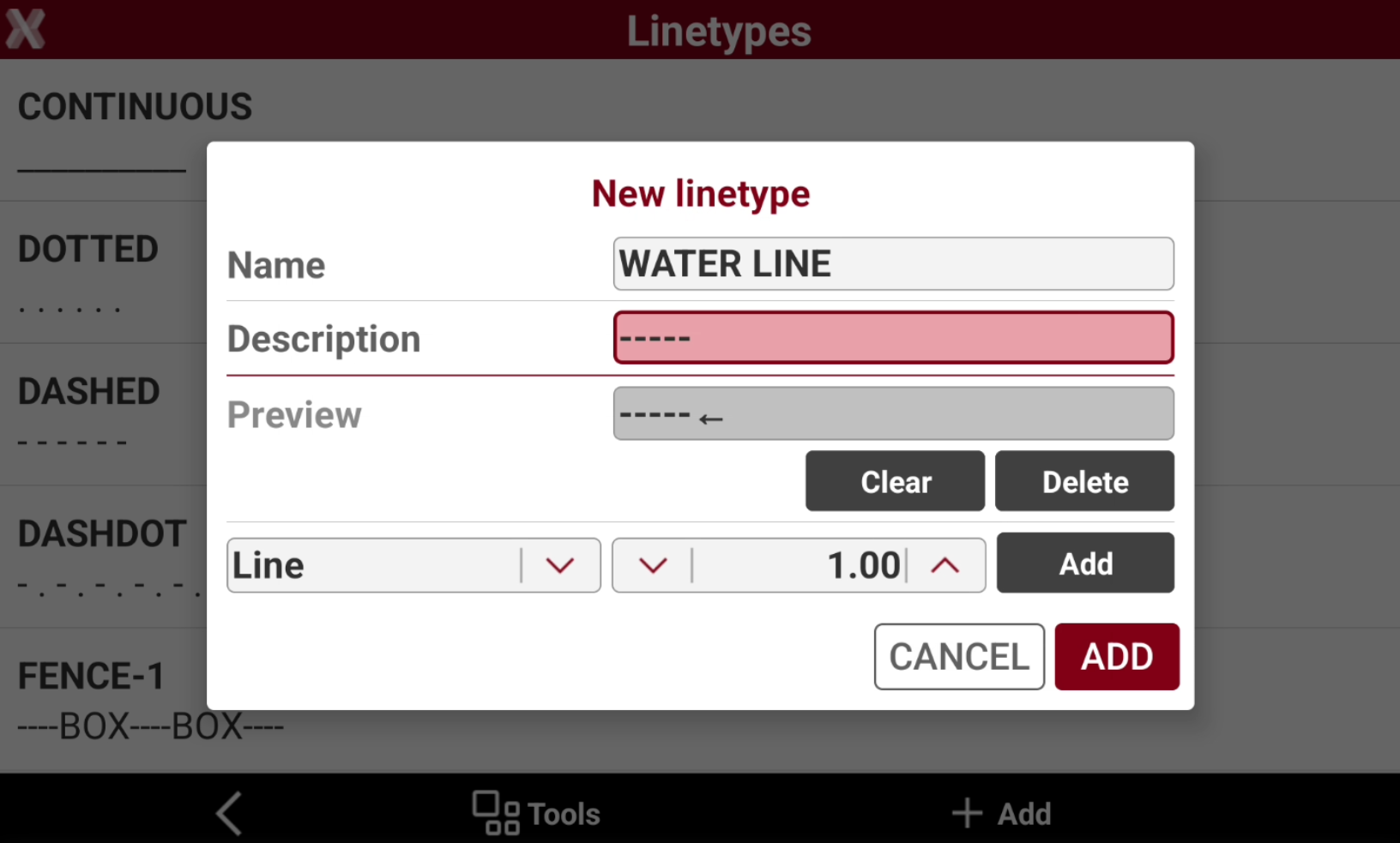
For example if we want to create a line with 5 parts of line and a symbol we can proceed in this way.
-
Select Line as element and press Add 5 times to create the line elements.
-
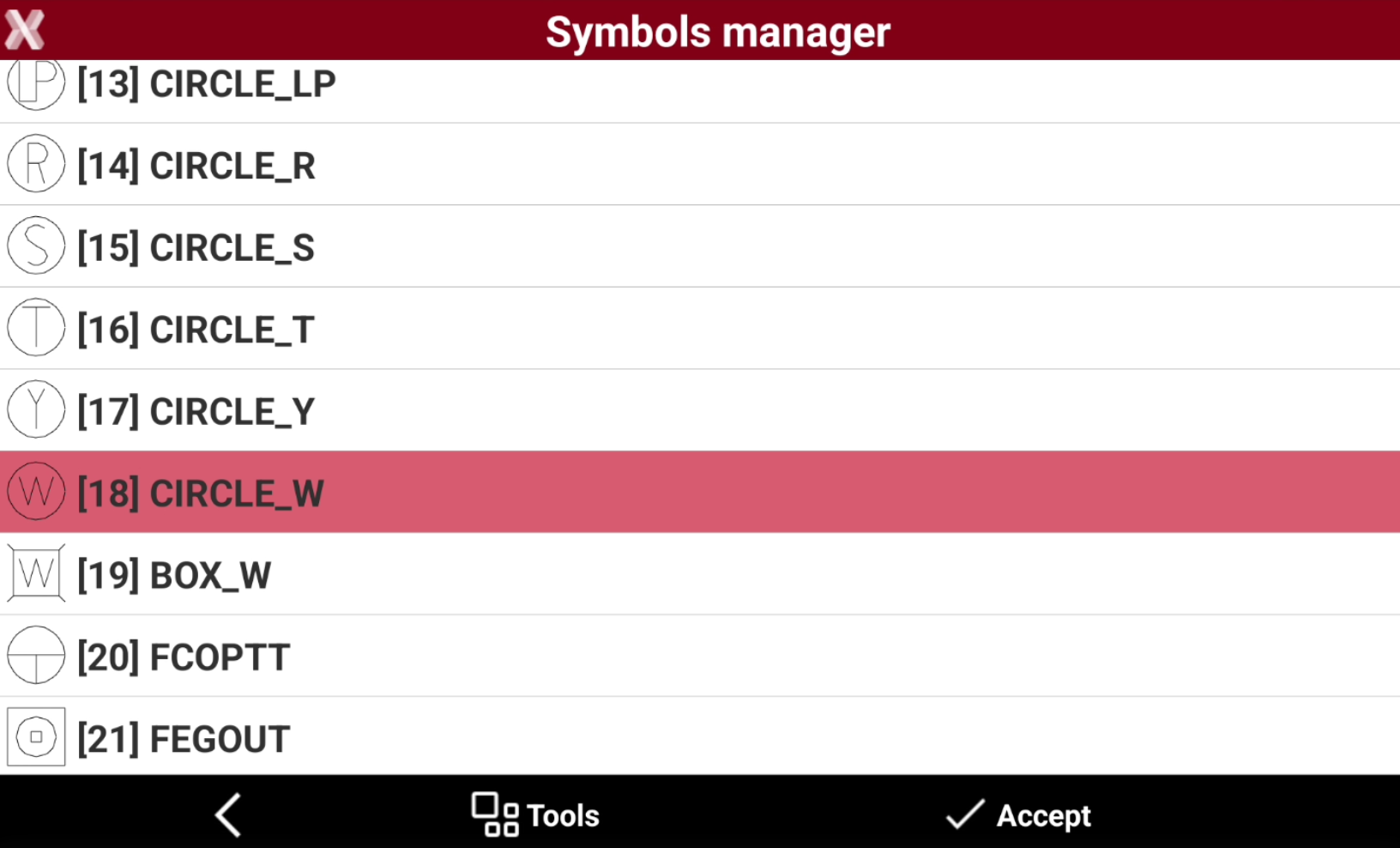
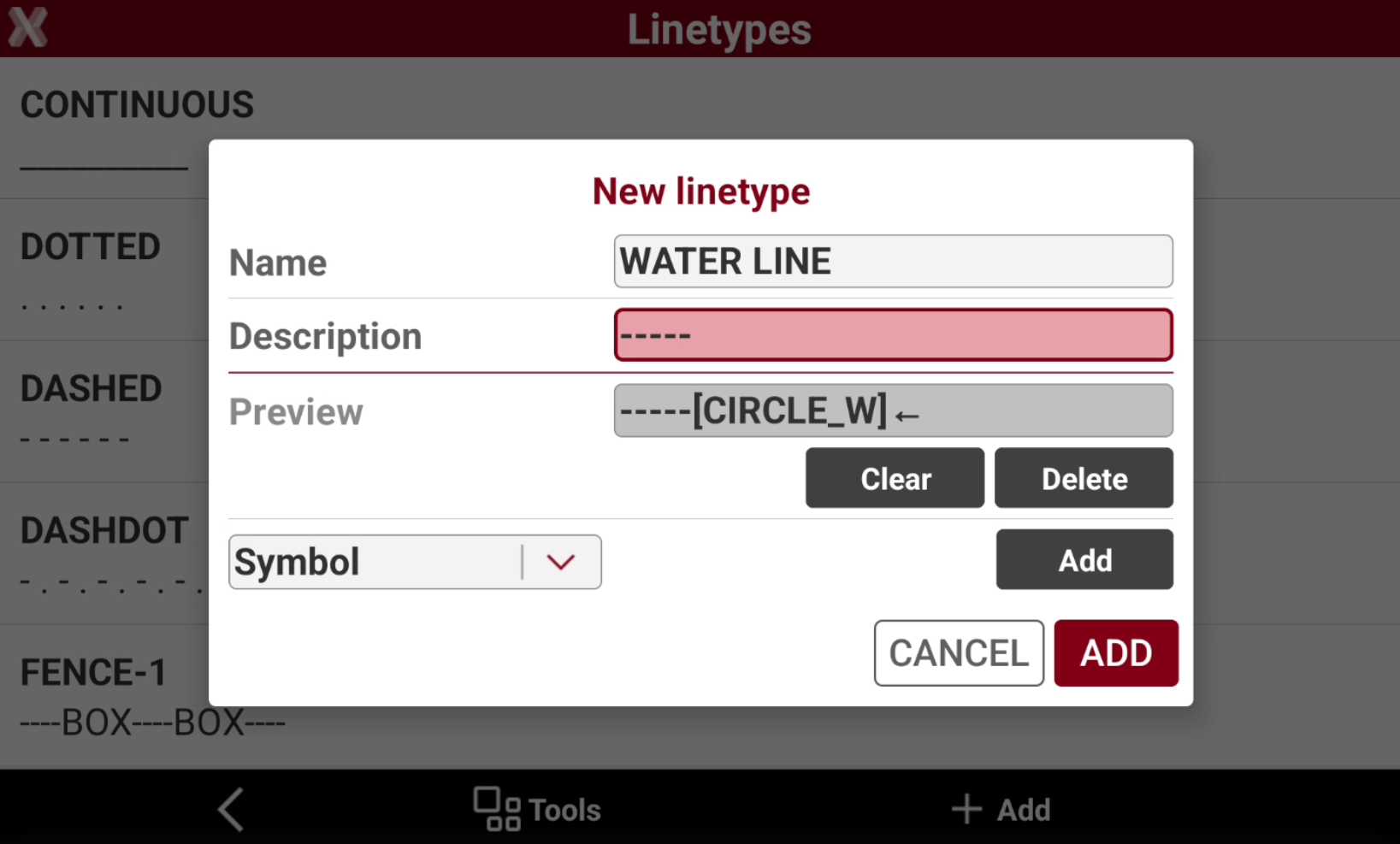
Then select Symbol and press Add to add the symbol to the line.
-
Press Add to create the new linetype.
-
Using the layer where this linetype is assigned allows to use this linetype.
-
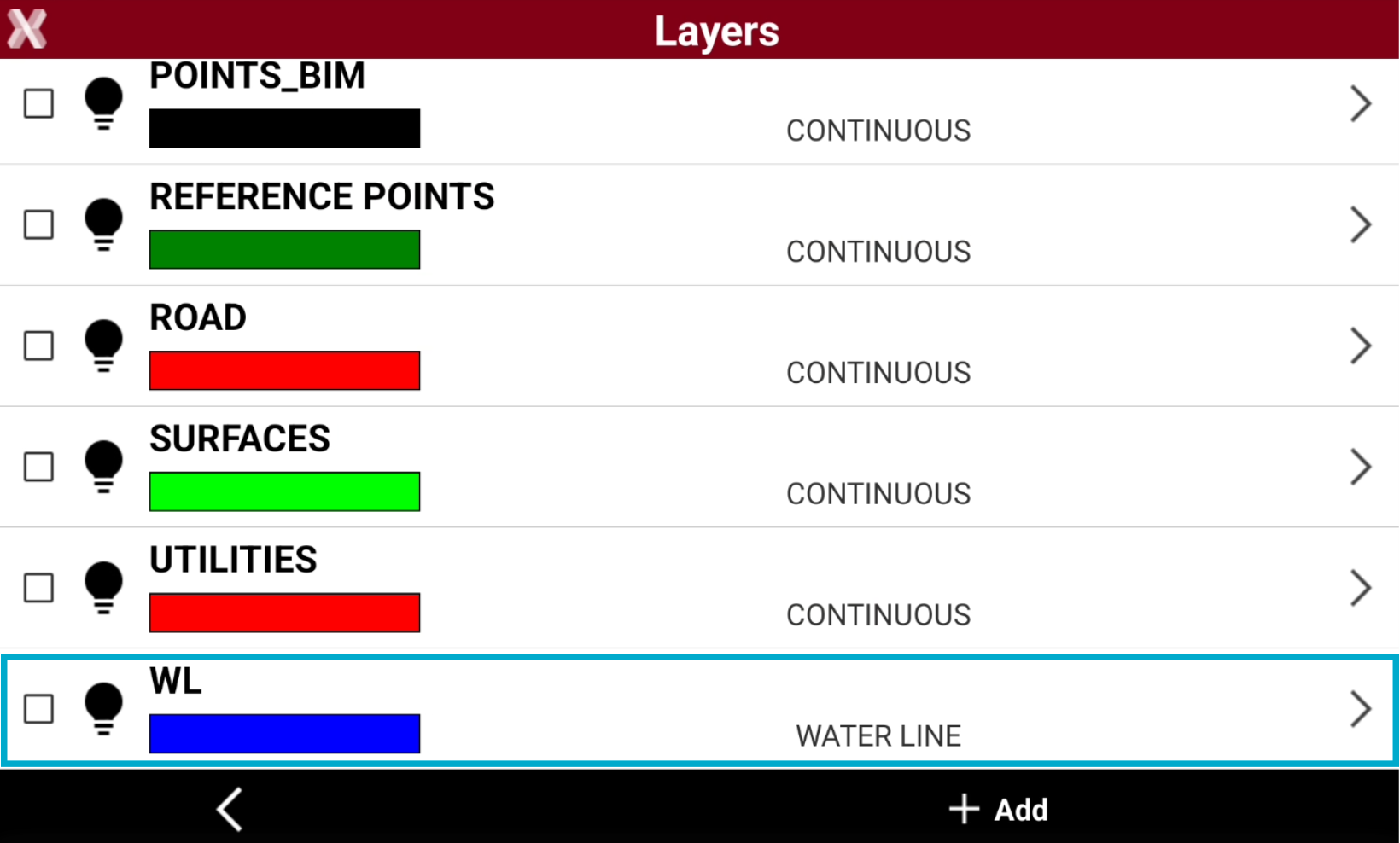
Now we assign the created linetype to the layer we want to use.
-
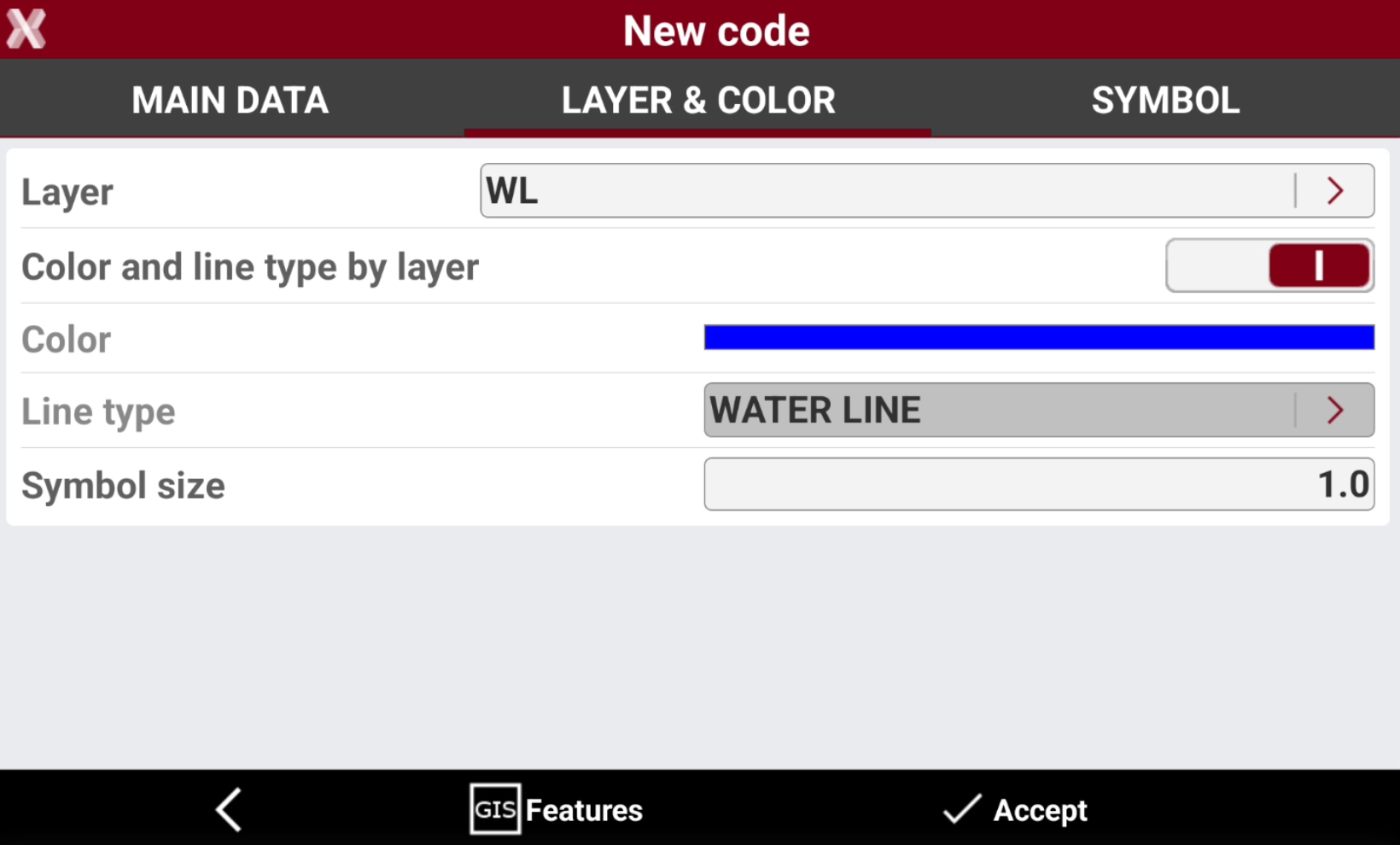
The survey code with layer WL will use the created line type.
-
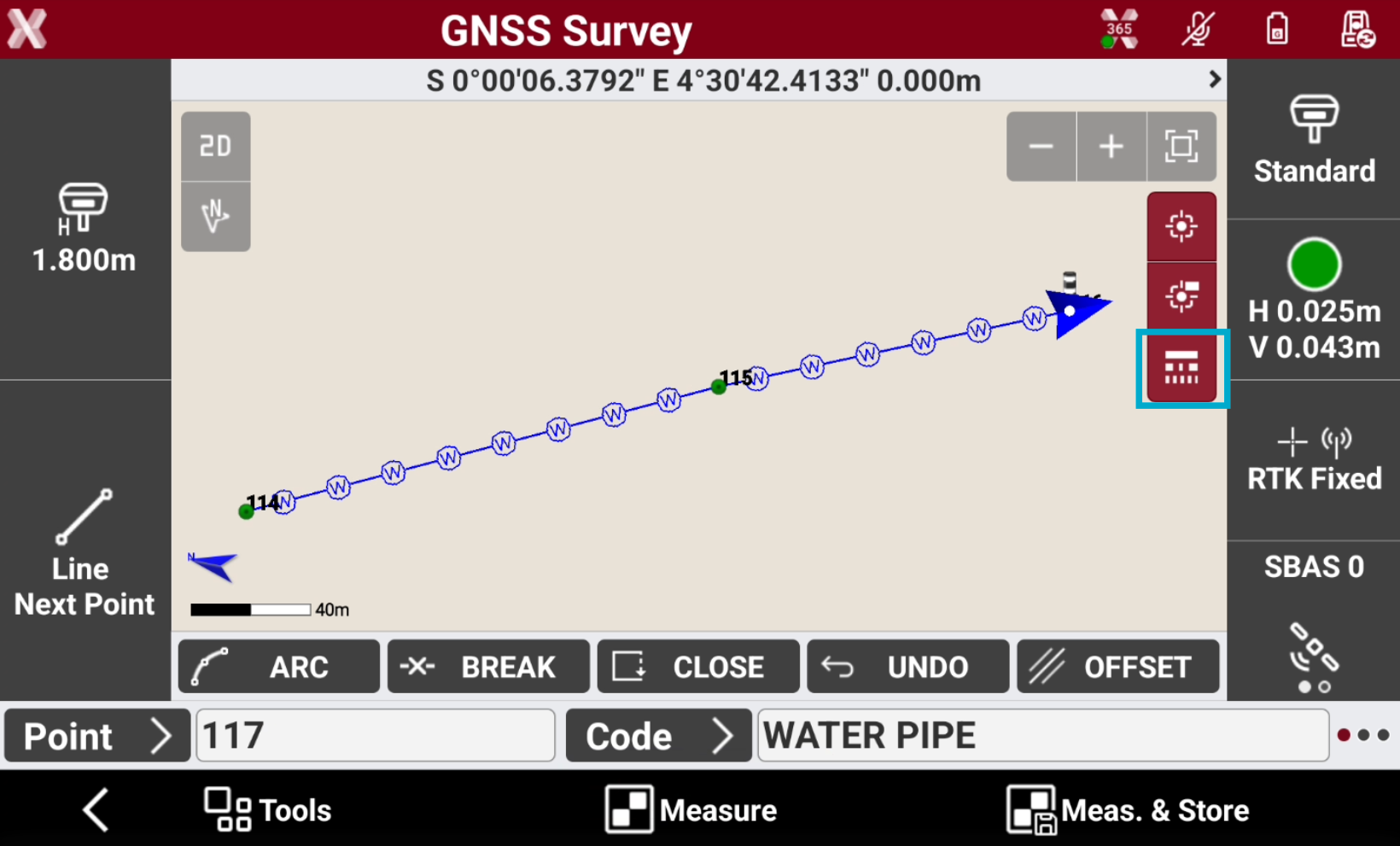
When a line is crated with the survey code using layer WL, it uses the created linetype.
-
Be sure to press the linetype icon

Import and export linetypes
-
Linetypes can be imported and exported using the standard format LIN.
-
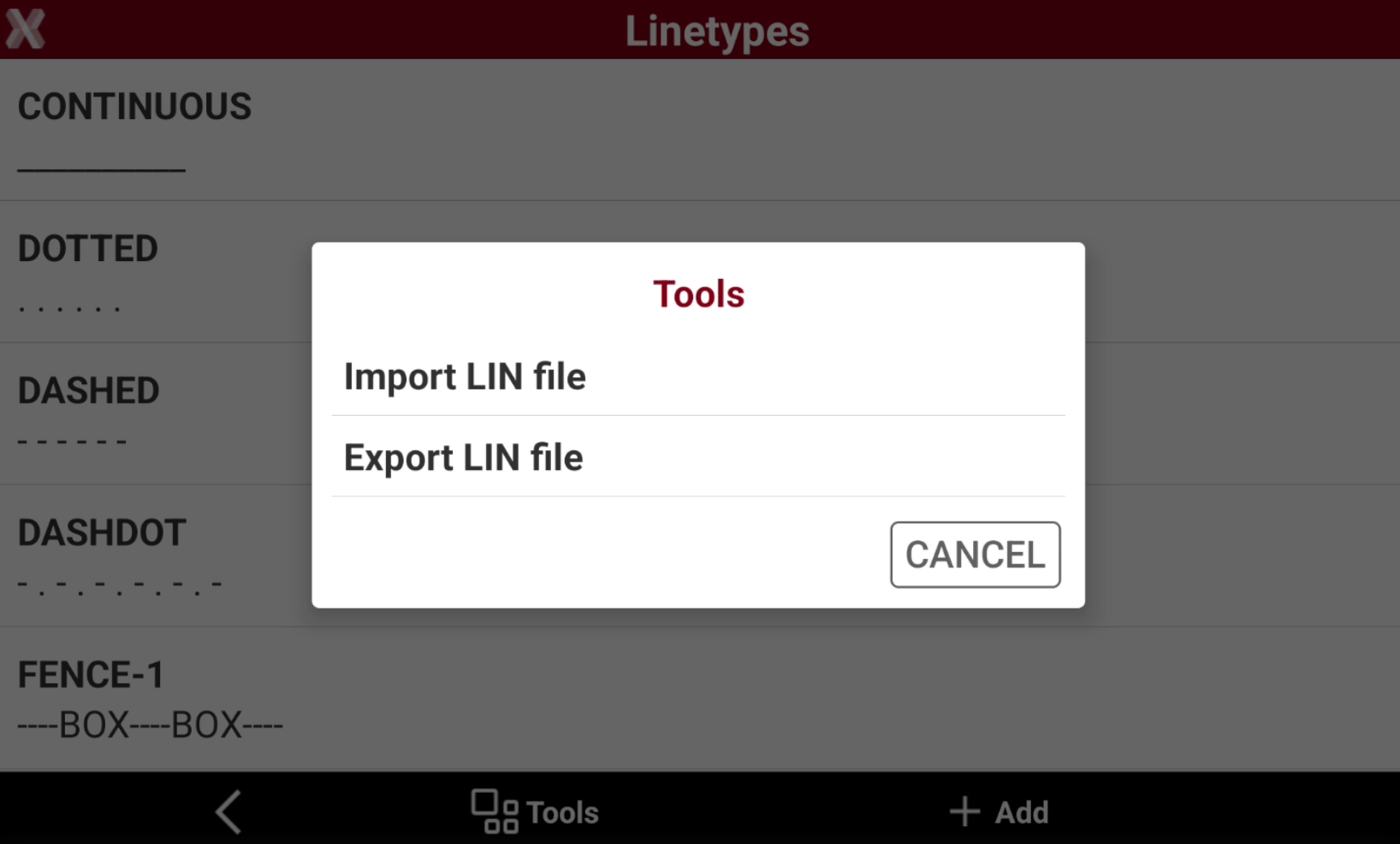
Select Tools to import or export the linetypes in the LIN format.