
-
A Survey code allows the precise identification of points and to automate many operations to complete a drawing of the survey.
In GNSS Settings and TPS Settings, in the Survey page, it is possible to enable the option Add new codes to library. With this option enabled, a new code entered during the survey is automatically included in the library.
-
To create a new code from the Codes tab click Add.
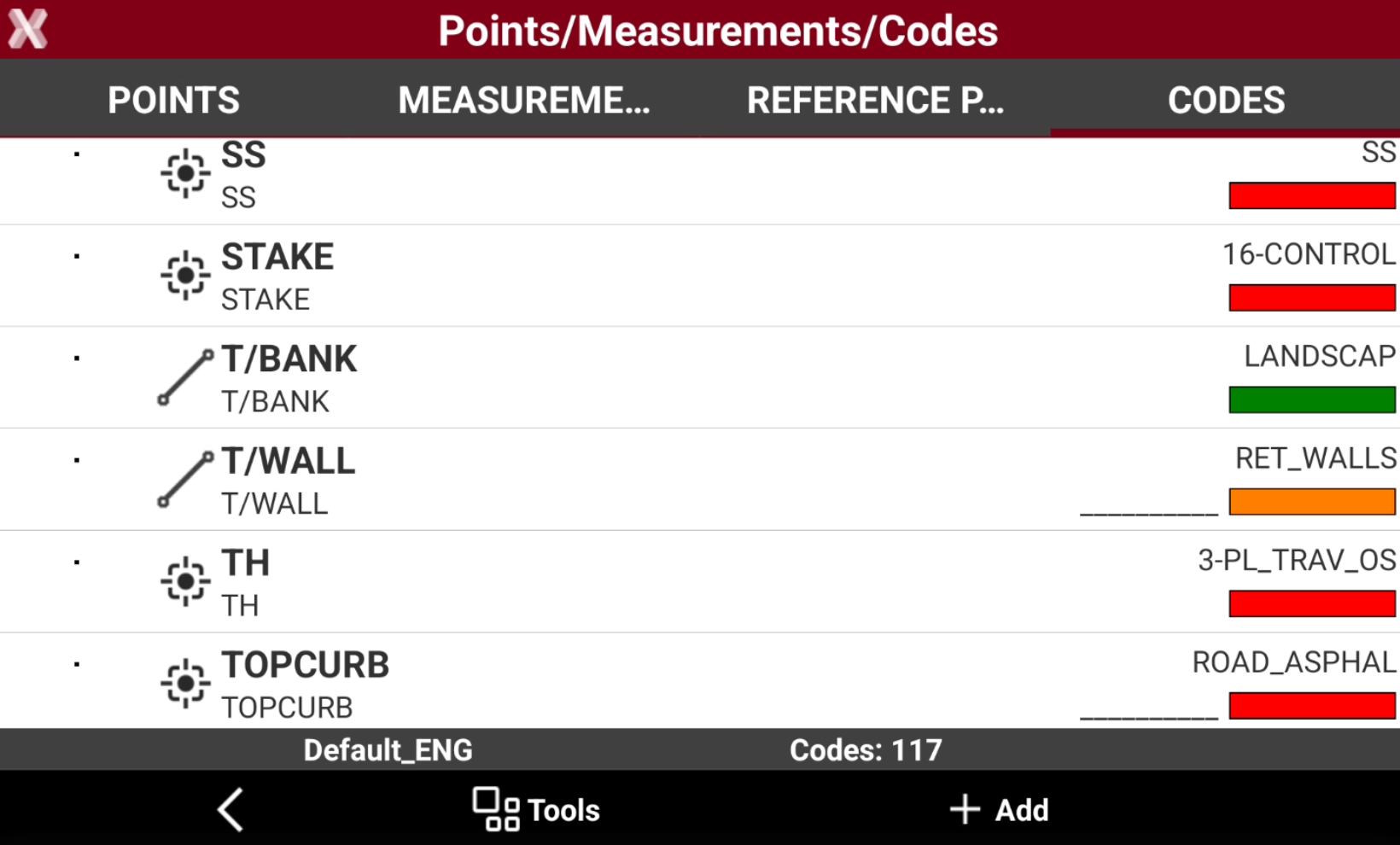
-
To edit a code long-press on a code to open the context-menu and press Edit.
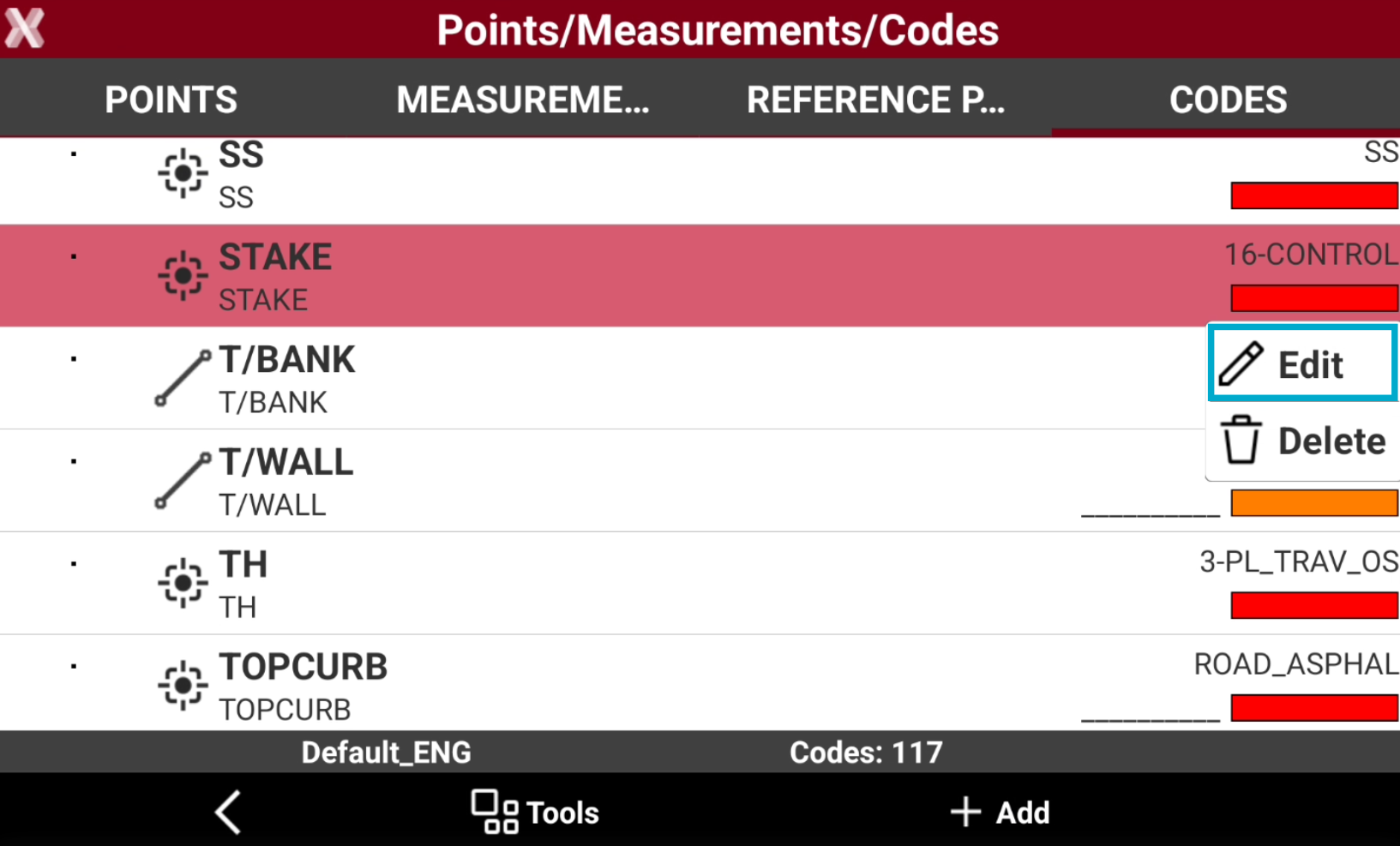
Main data page
-
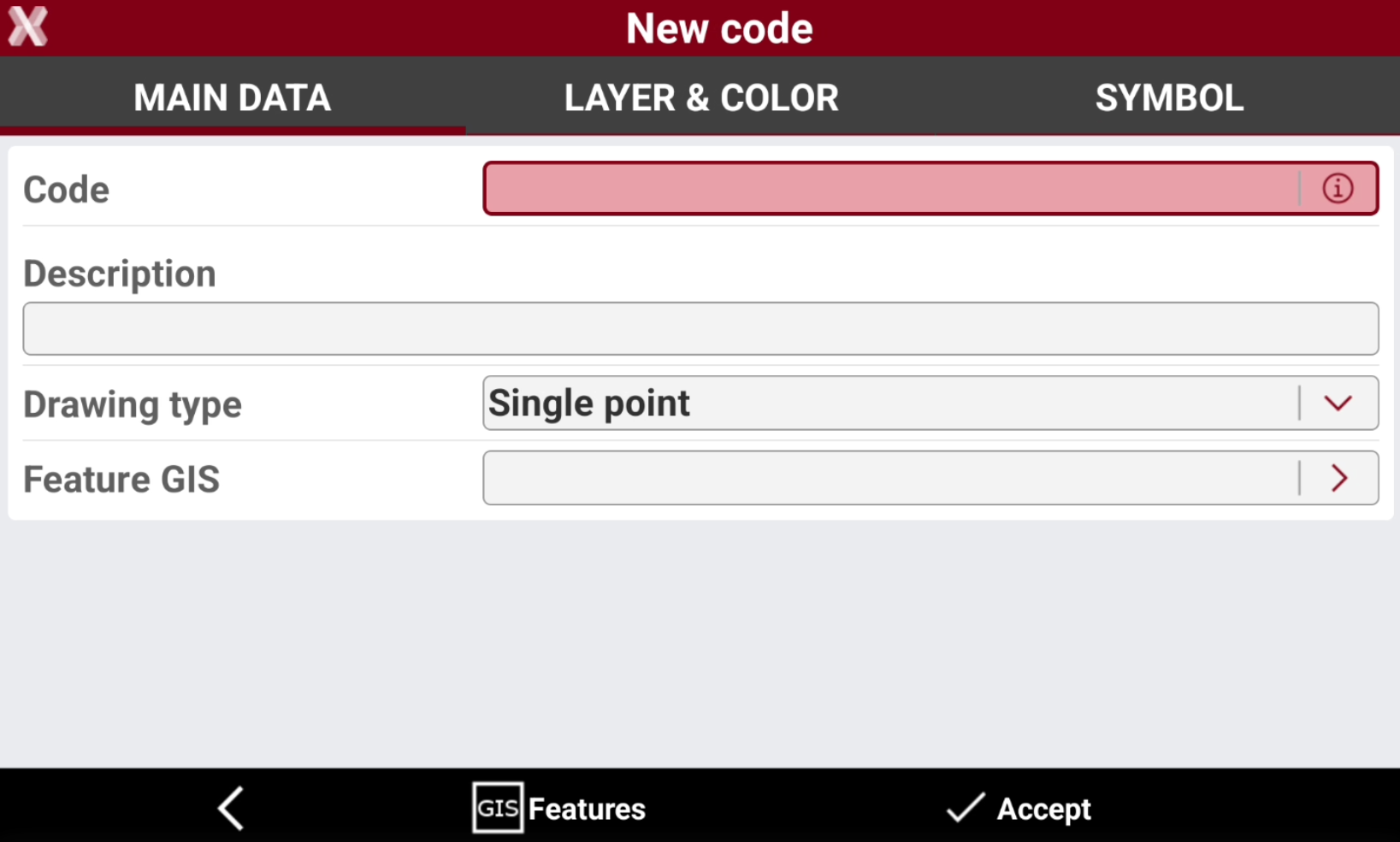
The Main data page allows to enter or change the main code properties.
-
Code: name of the code. For a parametric codes use symbol # in code name to pass a value from code name to description automatically. For example code “D#” and description “Distance #cm”: entering in application code “D25” will result in description “Distance 25cm”.
-
Description: extended description.
-
Drawing type: defines how the measured object is shown in graphics.
-
Single point: a single position is used, for example for a tree or an illumination pole.
-
Line: a polyline is used, for example for the side of a road or a wall.
-
Square diagonal: a square is used inserted at the opposite end of the measured point.
-
Square center: a square is used inserted at the centre of the measured object or in the middle of a measured line.
-
Rectangle base: a rectangle is used inserted at the opposite end of the measured point of the base and a point on the opposite side.
-
Rectangle center: a rectangle is used inserted at the centre, the middle point on a side and a third point on the other side.
-
Circle 3P: a circle is used inserted by measuring three points on the circumference.
-
Circle center: a circle is used inserted by measuring the center point and a point on the circumference.
-
Spline: a spline is used.
-
Control point: a control point measurement is used.
-
-
Feature GIS: a GIS features from the current GIS Features manager can be assigned to the point. More information can be added defined by the properties of the associated GIS feature. When a point with a code with associated a Feature GIS is measured, the user is prompted to enter the corresponding GIS attributes.
-
Layer & color page
-
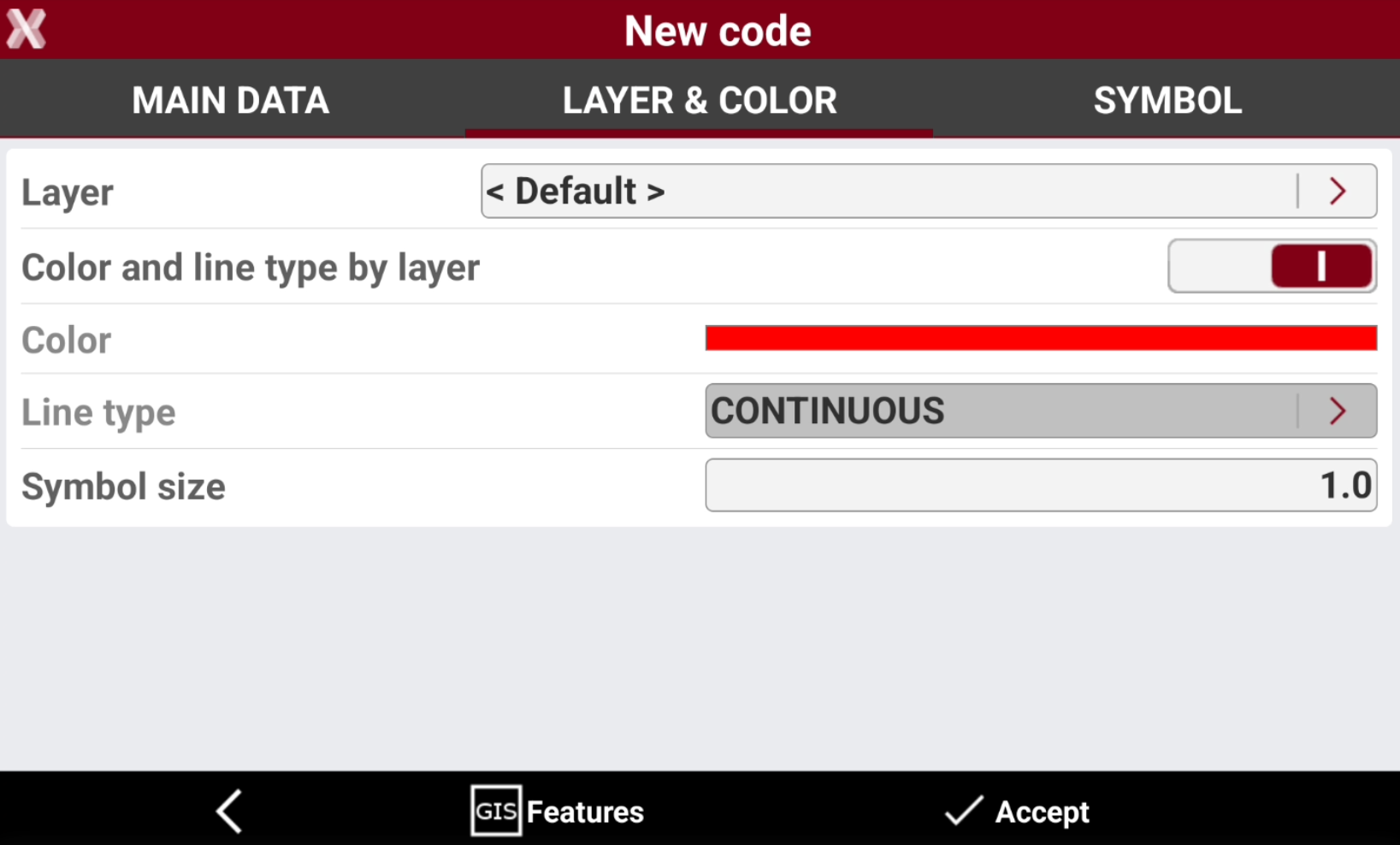
Layer & color page shows the layer and color properties of the objects associated with the code.
-
Layer: layer of the objects associated with the code. Tap on the layer to open the Layers manager.
-
Color and line type by layer: the color and line type of the layer is used for the drawing of the point symbol and its line type.
-
Color: if Color and line type by later is disabled, Color allows to select the color to use.
-
Line type: if Color and line type by later is disabled, Line type allows to define the line type. Tap on the line type to open the Linetypes manager.
-
Symbol size: dimension of the symbol.
-
Symbol
-
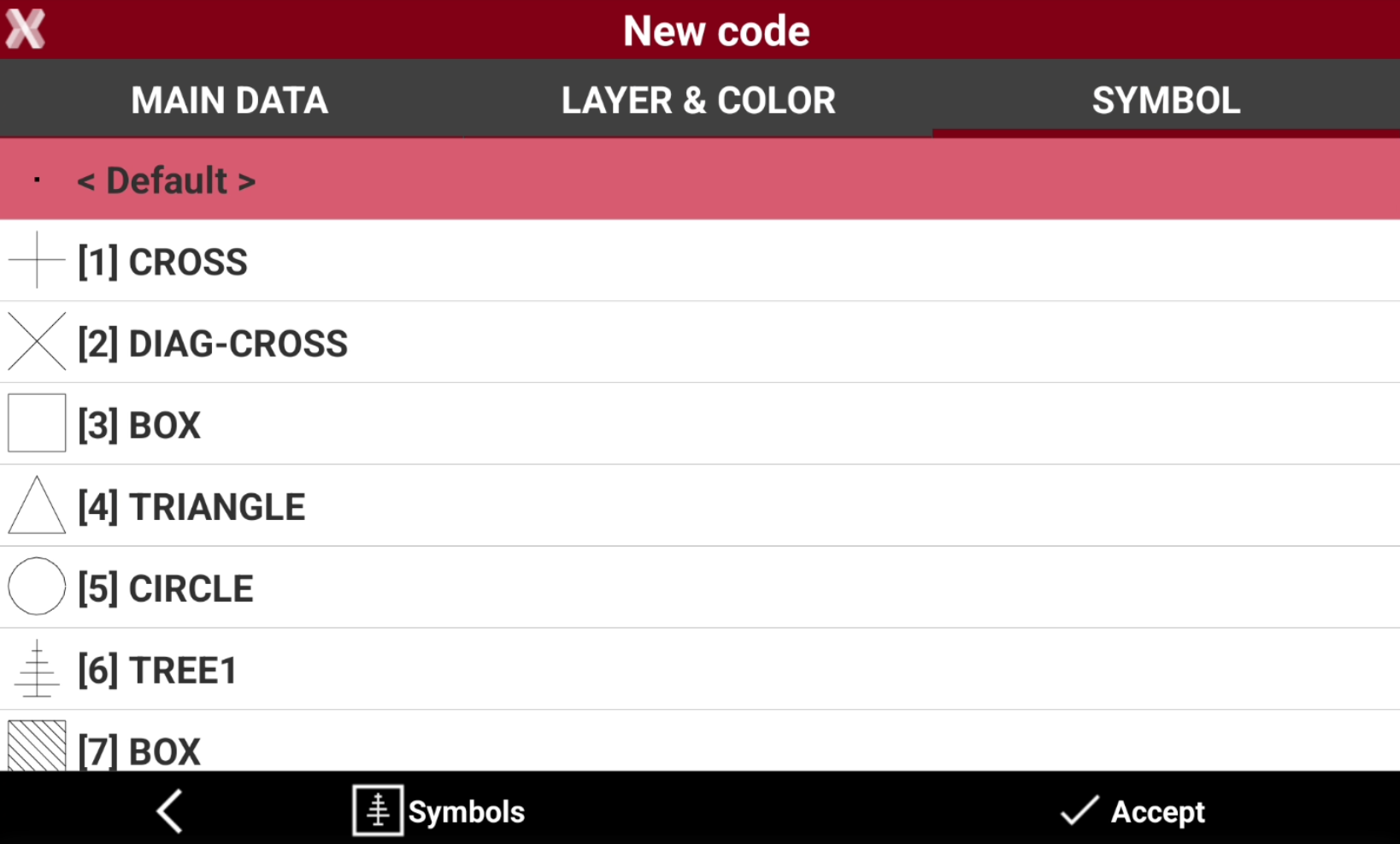
The Symbol page allows to assign a symbol to a code.
-
It is possible to use default symbols or import new symbols from DWG file.
-
Select a symbol from the list to assign it to the code.
-
Click Symbols button to open the Symbols manager and importing new symbols.