
-
Photographic survey function allows to perform different operations depending on the GNSS receiver connected:
-
GNSS receiver with imaging.
-
Measure on images: allows to take photos using GNSS receiver camera and measure topographic points directly on the images.
-
Panorama: takes a 360° panoramic image useful for documenting the survey.
-
-
GNSS receiver without imaging:
-
Photographic survey | Photographic survey: creates a sessions of photos that can be later processed with a photogrammetric office software in order to generate a point cloud and a mesh, depending on office software capabilities.
-
-
-
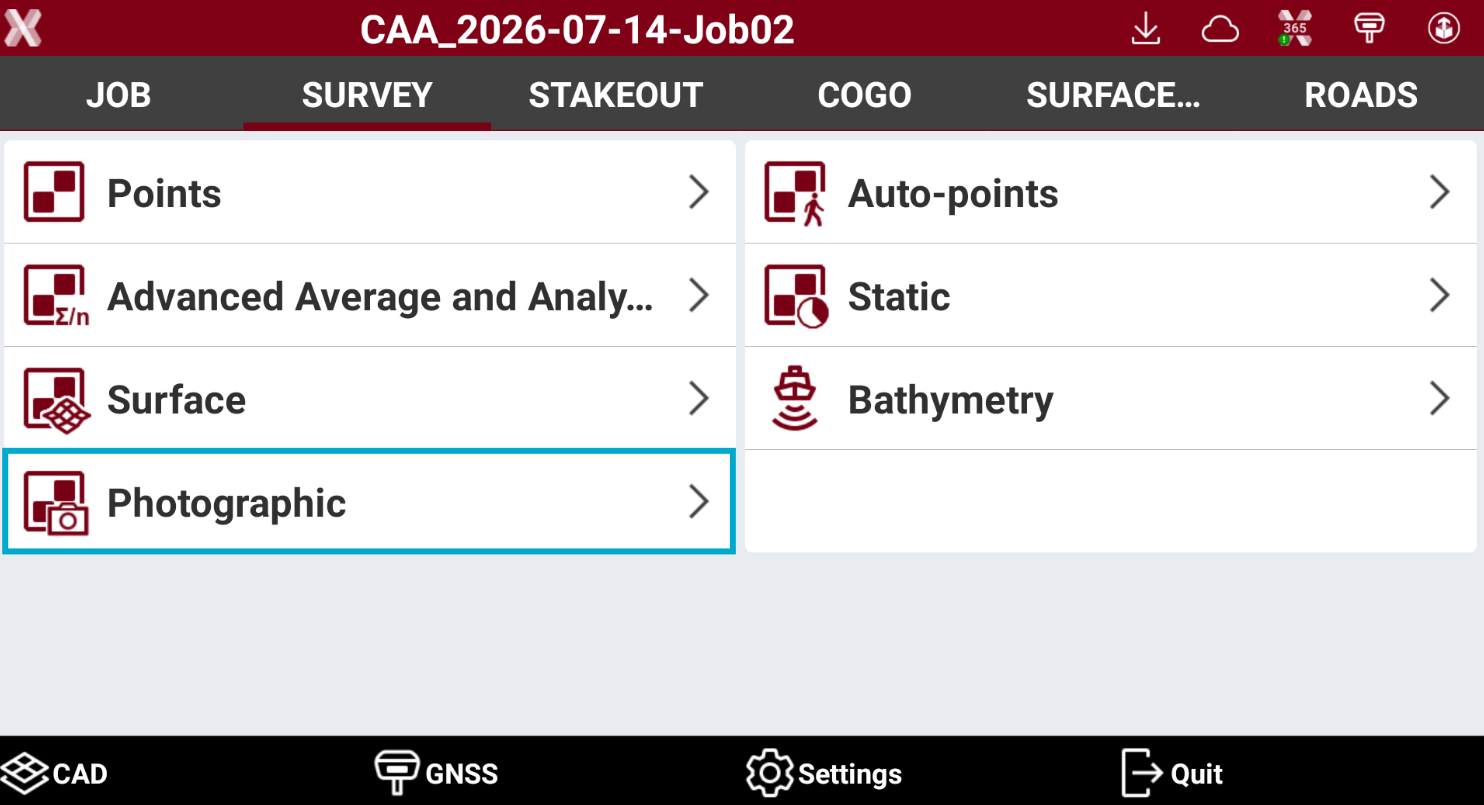
To open the Photographic survey open the Survey page.
-
Select Photographic survey.
Measure on images
Available for GNSS receiver with Imaging.
-
This function allows to take photos using the GNSS receiver camera and calculate topographic points on the images
The points can be calculated directly in the field or later in the office, since the session is stored within the project. The function Measure on images (quick) instead do not record the session.
-
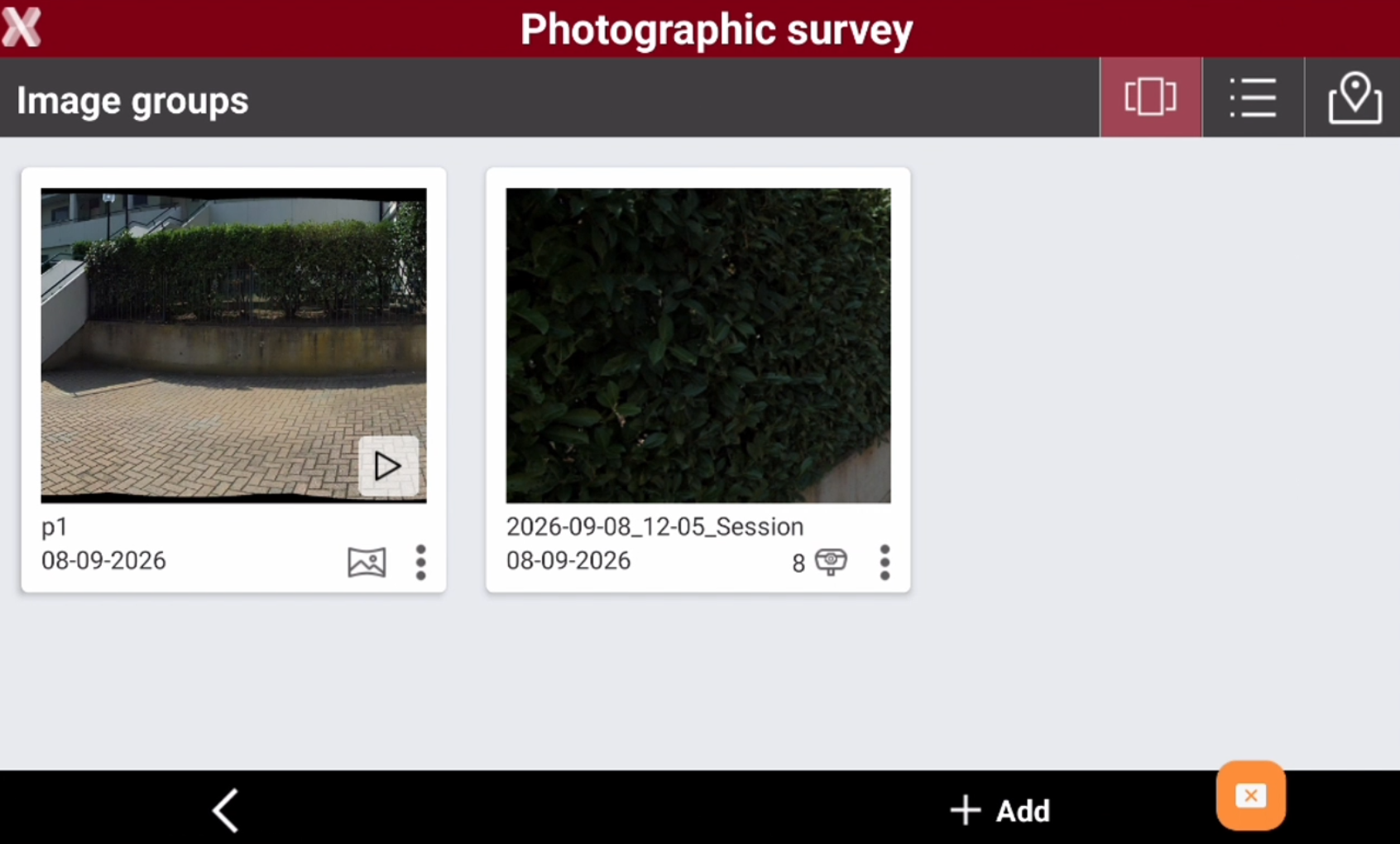
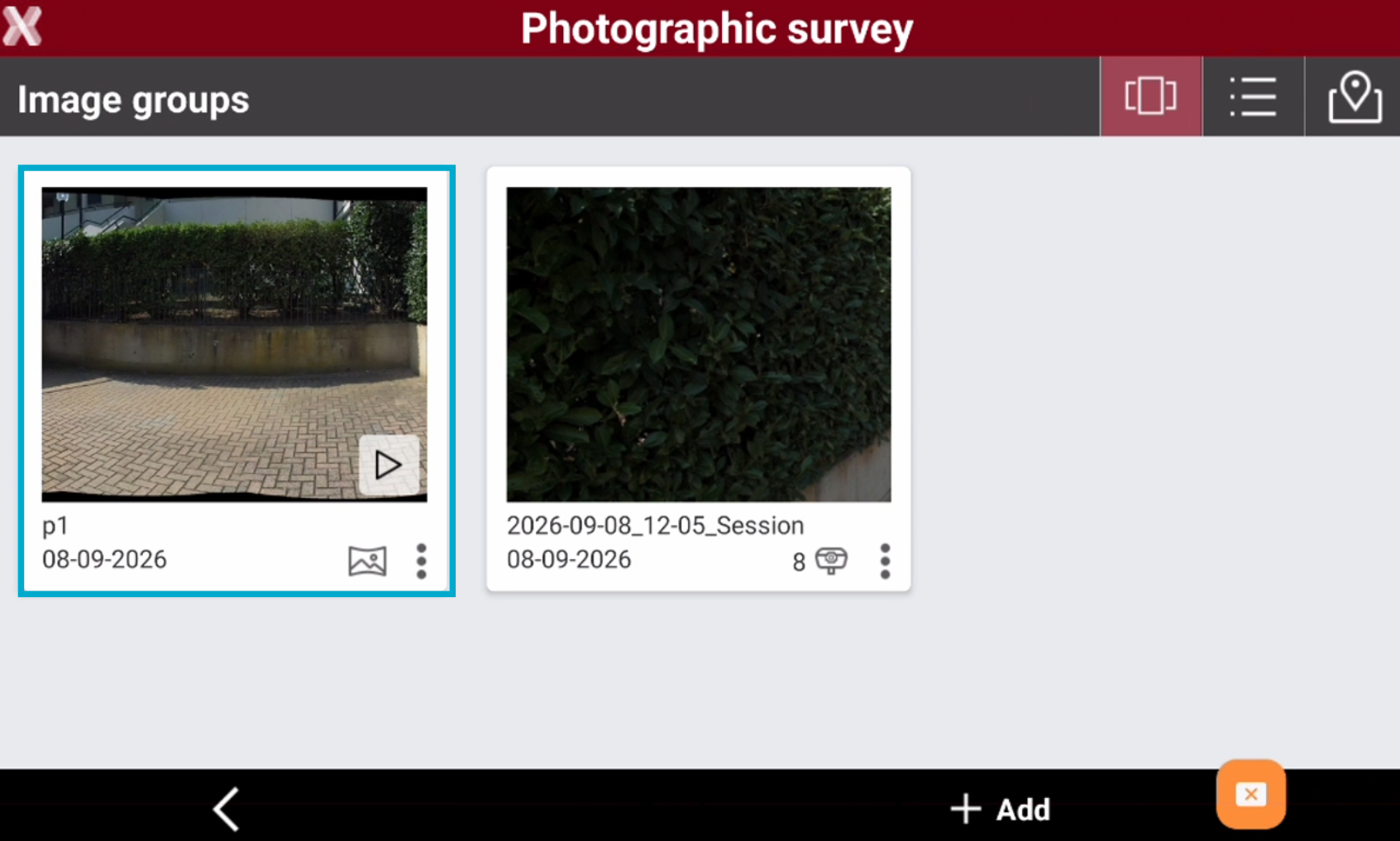
The Image groups page visualize the recorded photographic sessions and panoramas recorded in the project.
-
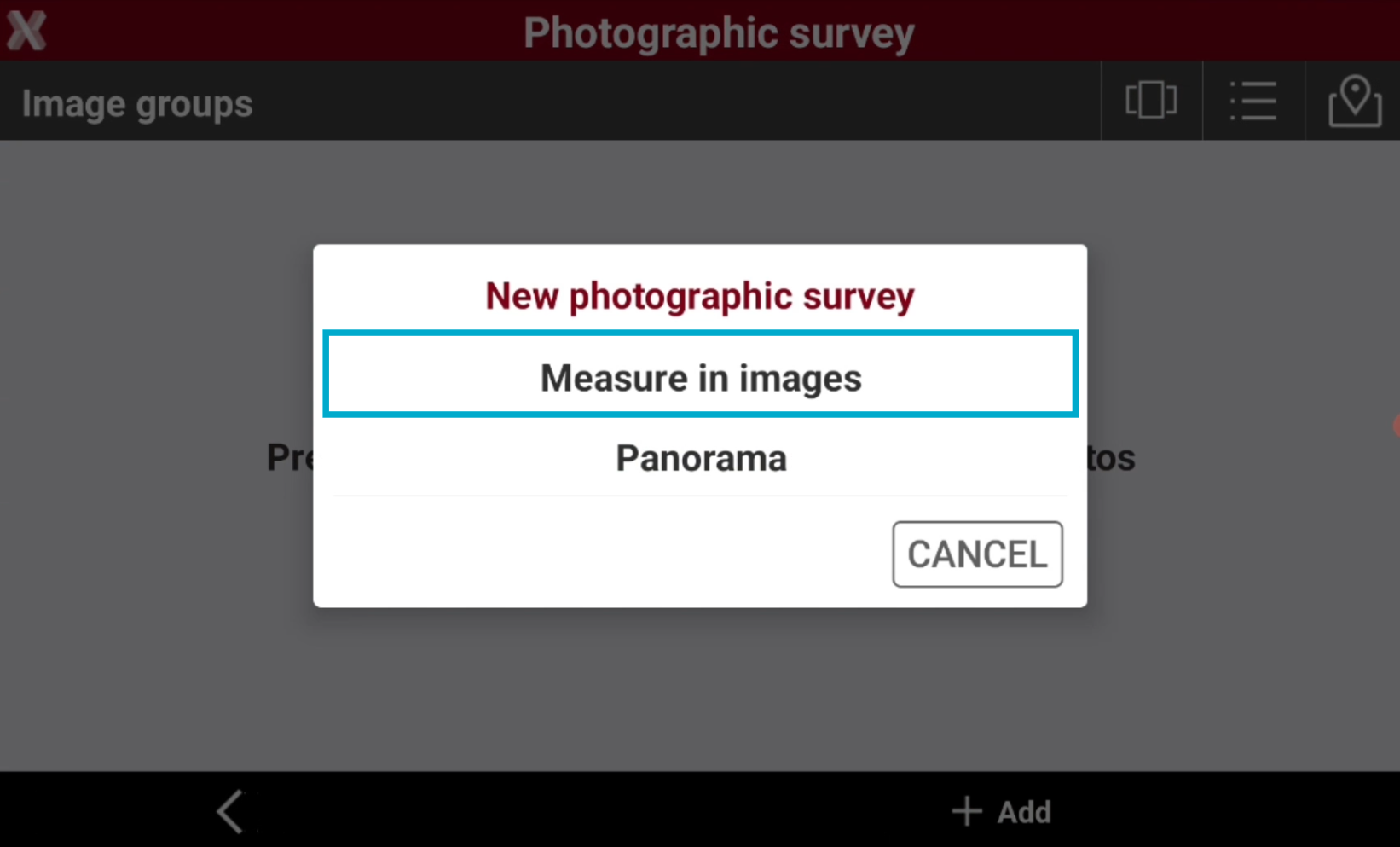
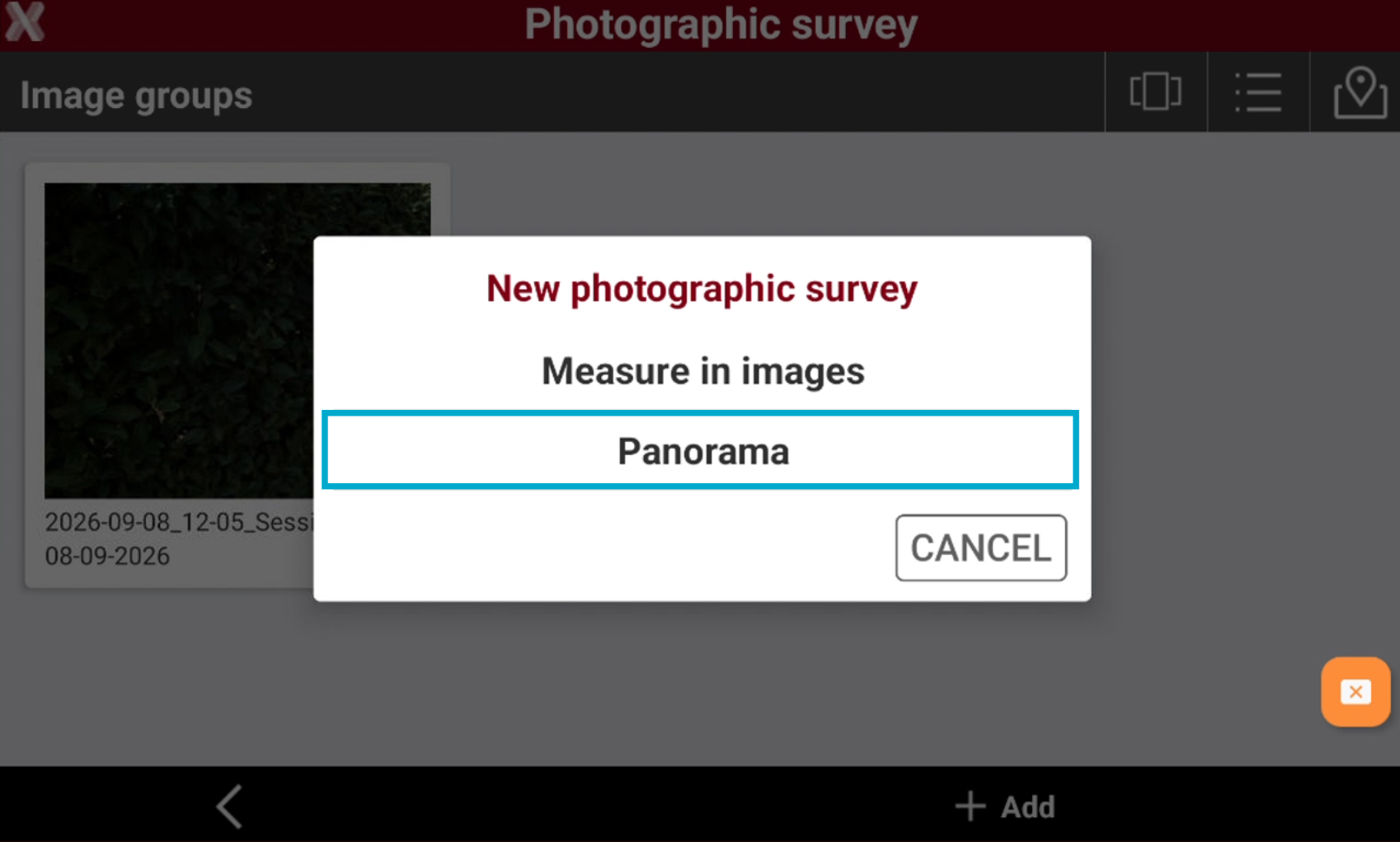
To create a new photographic survey press Add and select Measure on images.
-
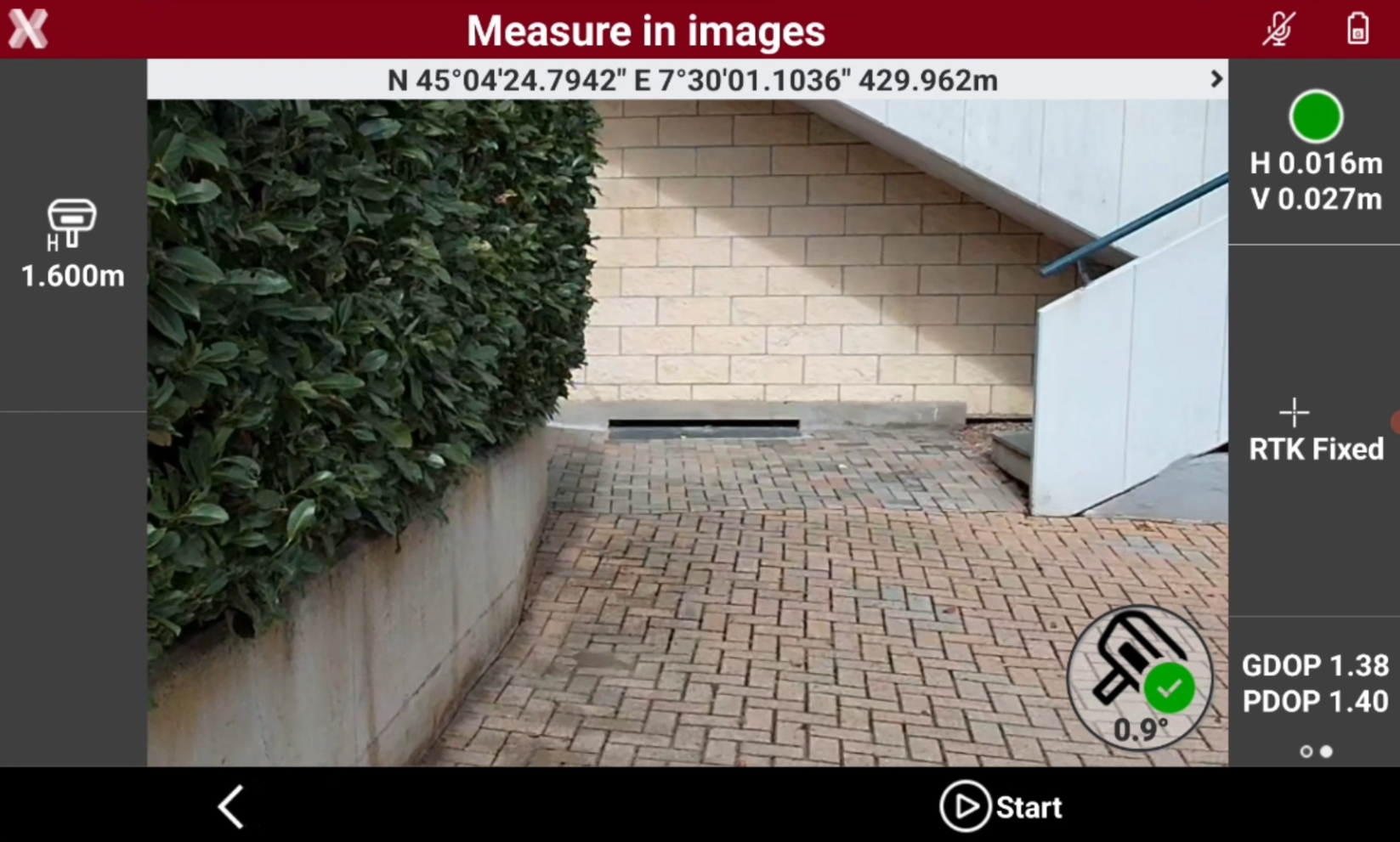
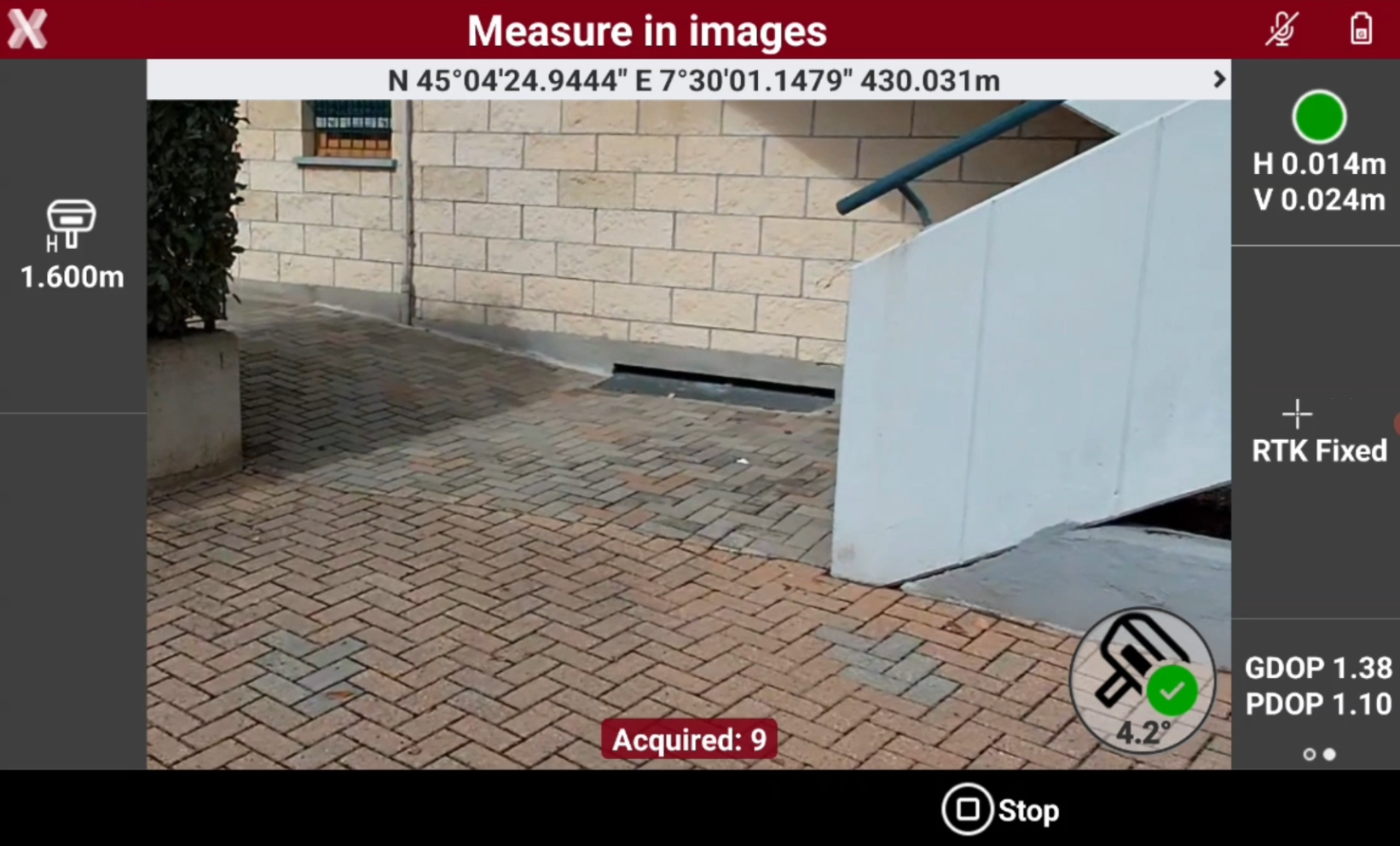
To take the photos move along the target objects, the software automatically takes the images using the receiver front camera.
-
Press Start to acquire the photos.
-
After a minimum of 5 photos, press Stop to stop recording the images.
-
Enter a name for the photographic session.
-
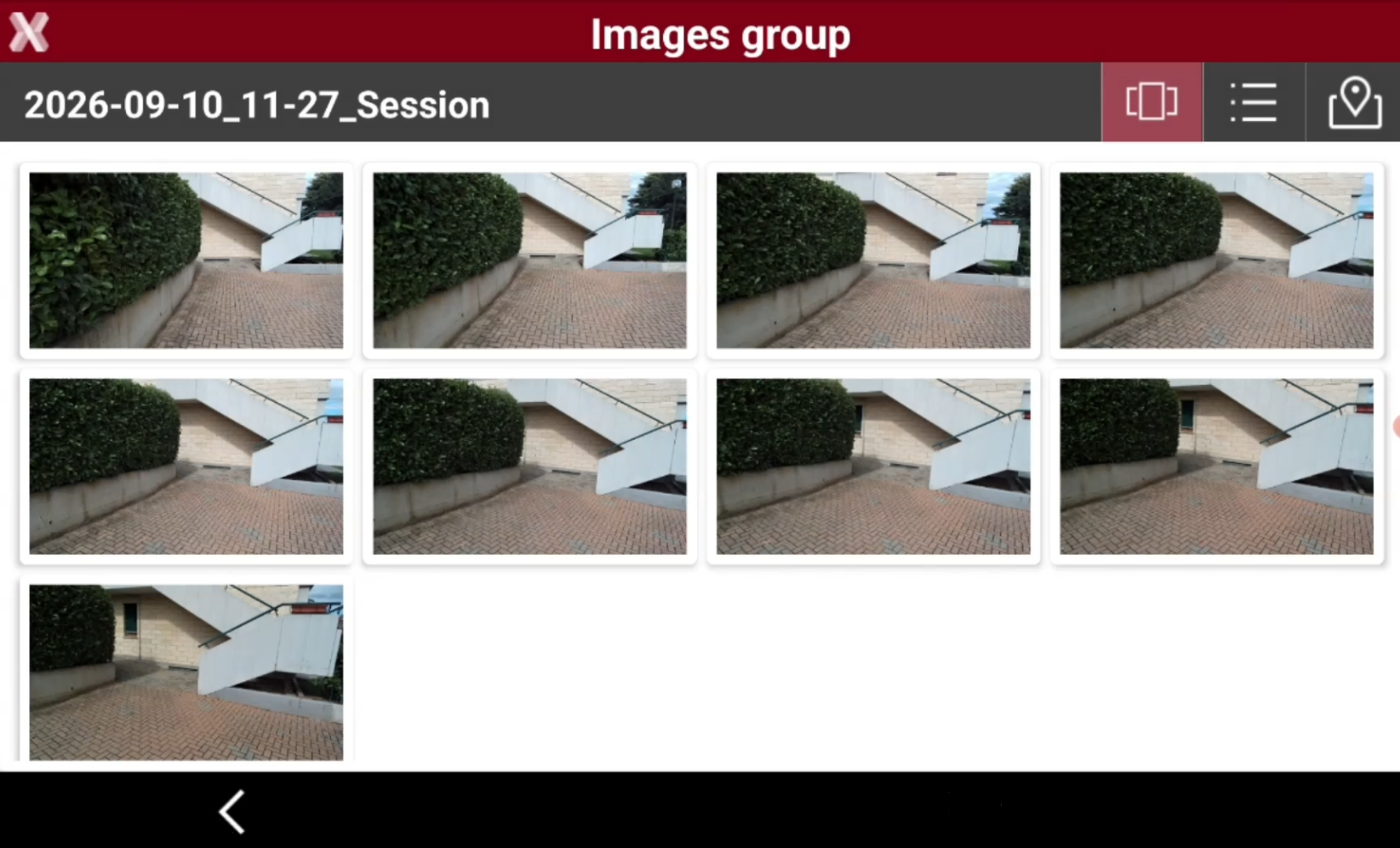
The photographic session is visualized and recorded in the project.
-
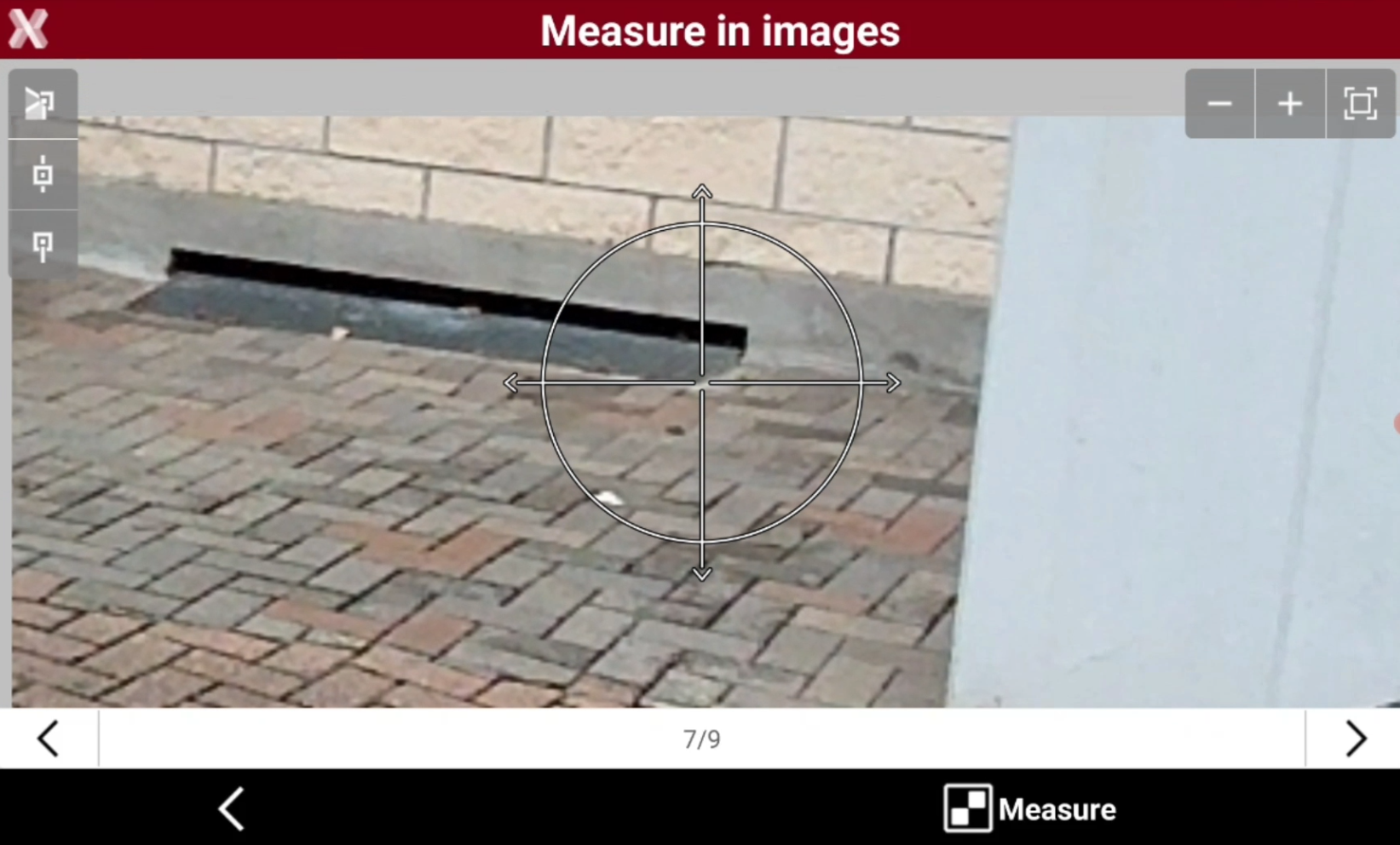
Tap on an image to open it and measure on the image.
-
Tap on the screen or pinch-zoom on the image to precisely select the point to measure.
-
It is also possible to select the snap functionalities to precisely measure on the image.
-

-

-

-
-
Press Measure to measure the point on the image.
-
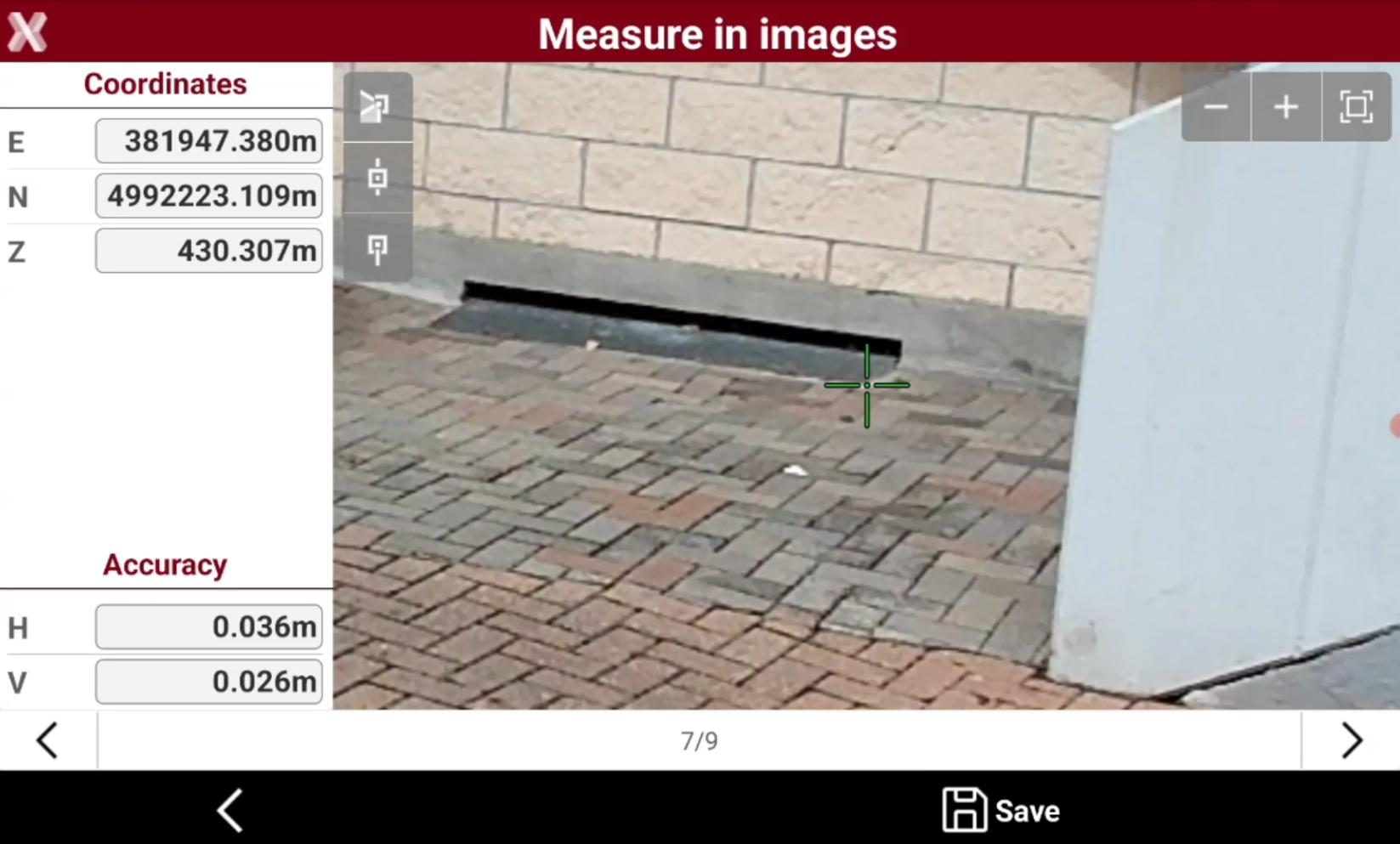
The software calculates the topographic point and visualize the point coordinates and the estimated error.
-
Press Save to save the topographic point.
-
The image is automatically saved as documentation for the recorded point.
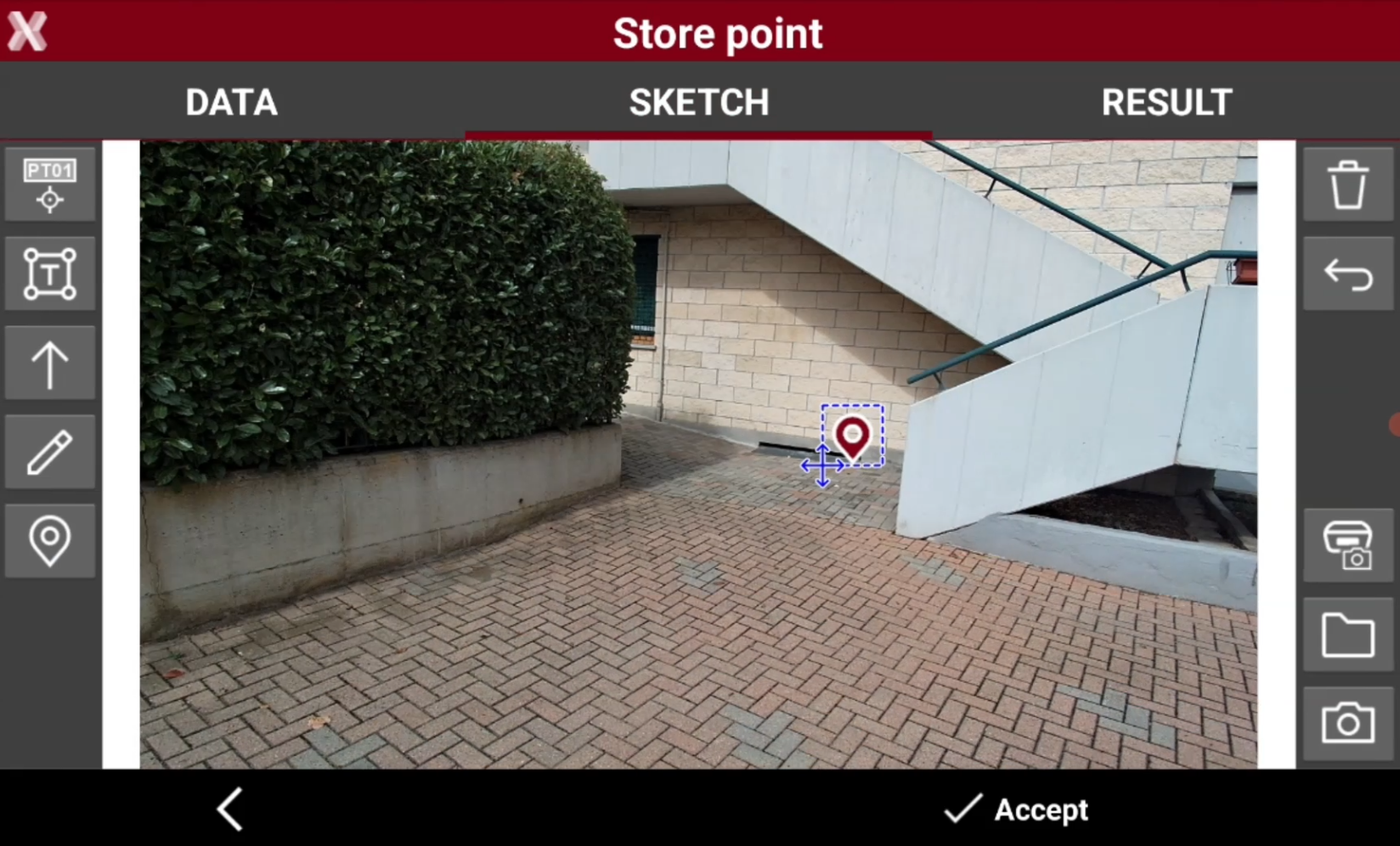
The photographic session is recorded and it is possible to open it again later to calculate new topographic points.
Panorama
Available for GNSS receiver with Imaging.
-
This function allows to take a panoramic photo using the GNSS receiver for documenting the survey area.
-
The Image groups page visualize the recorded photographic sessions and panoramas recorded in the project.
-
To take a new panorama press Add and select Panorama.
-
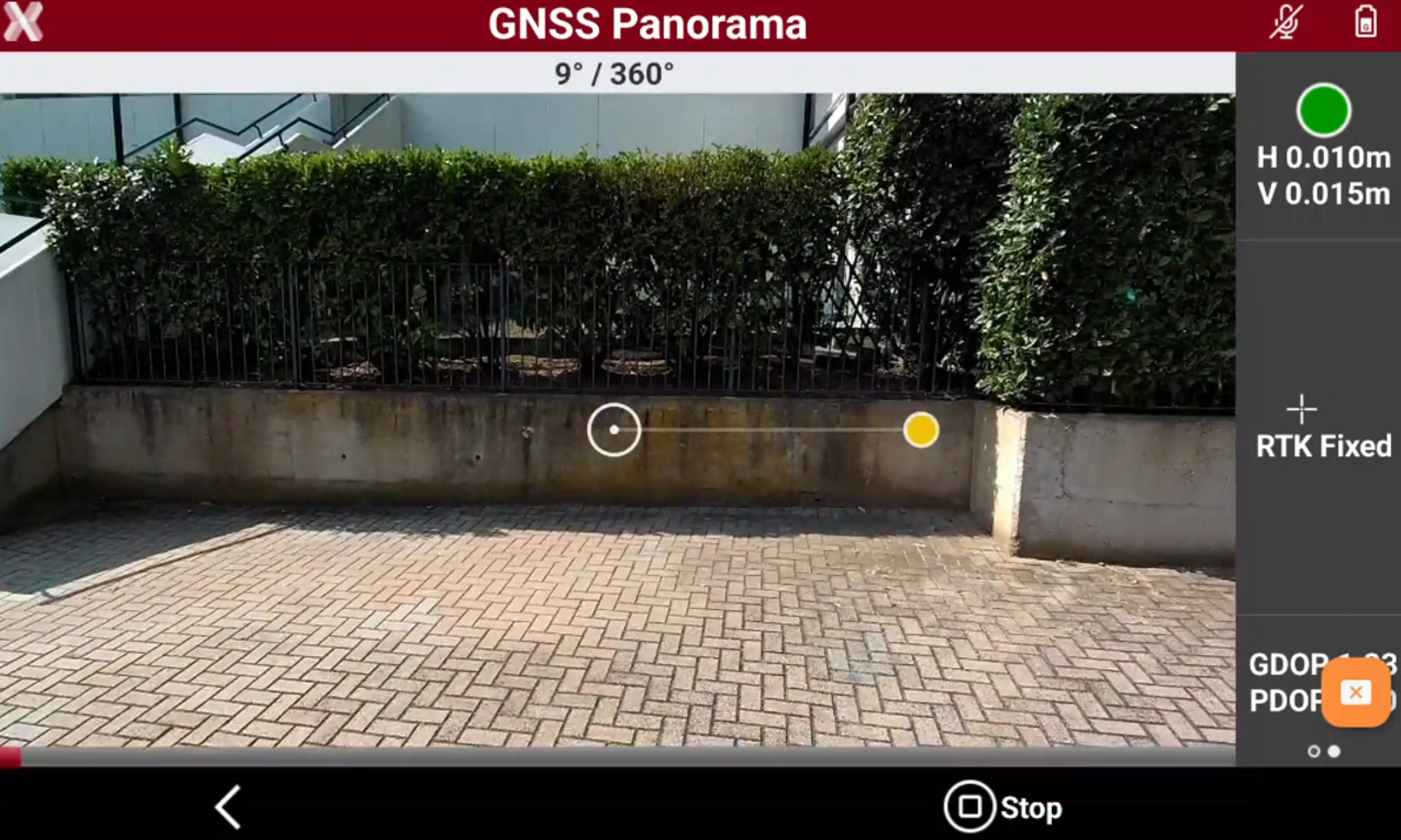
Press Start then slowly rotate without changing position. The GNSS receiver camera automatically takes the photos.
-
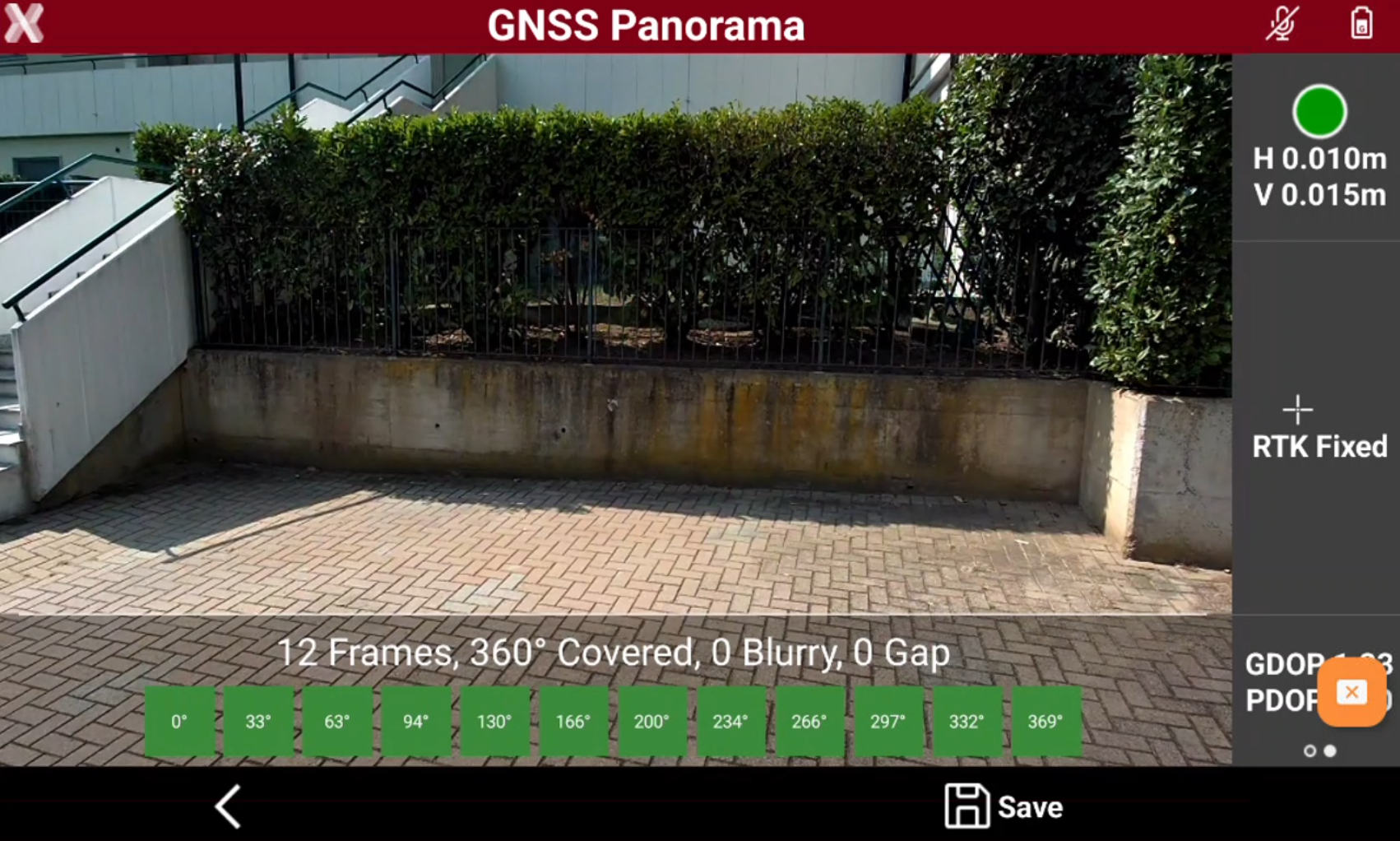
When rotation is complete, the software visualizes the report.
-
Press Save to record the panorama photo.
-
When a panorama photo is saved, it is possible to open it and move within the photo from the Image groups page.
Photographic survey
Available for GNSS receiver without Imaging.
-
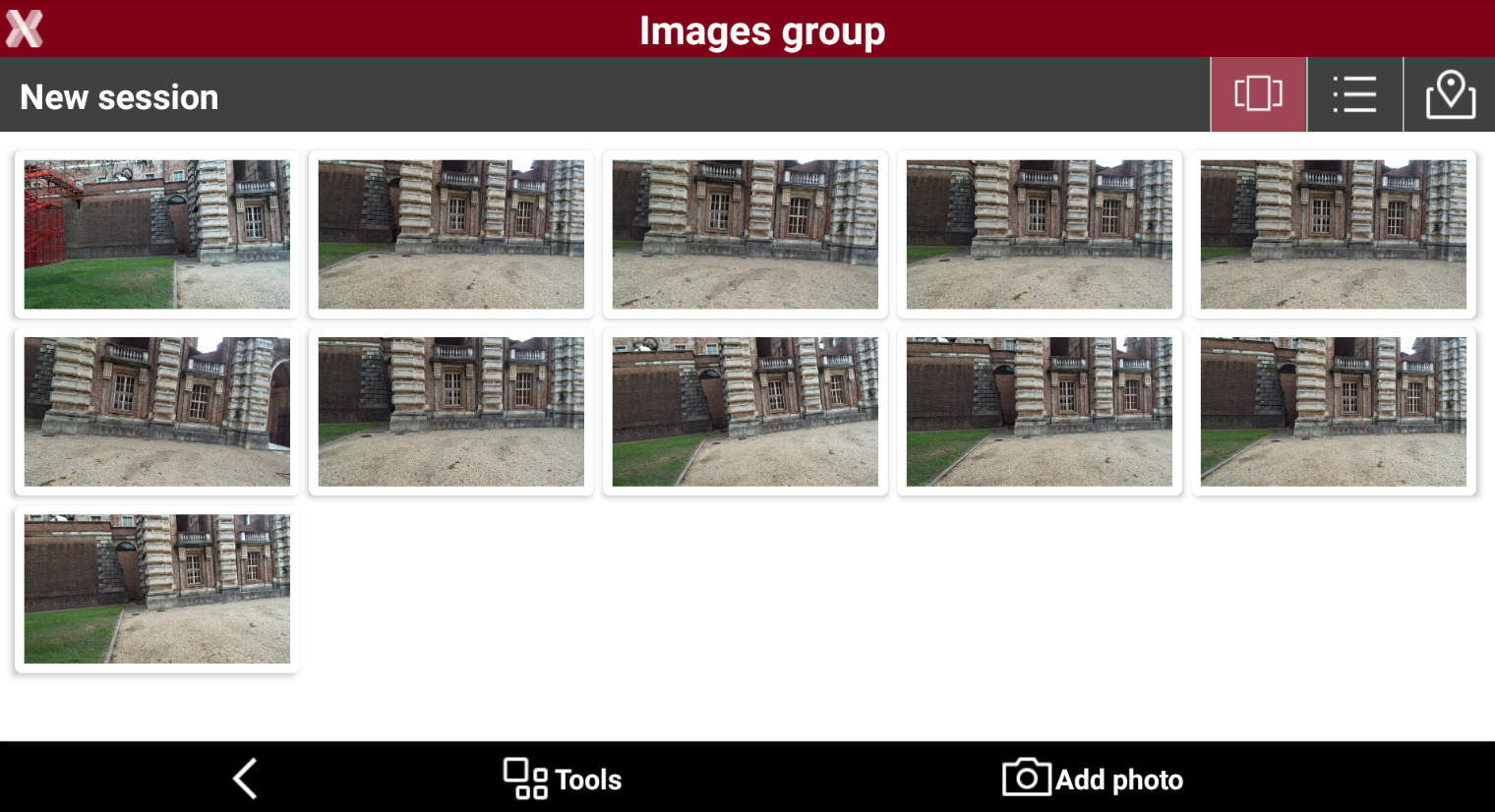
This function creates a sessions of photos that can be later processed with a photogrammetric office software in order to generate a point cloud and a mesh, depending on office software capabilities.
-
The Image groups page visualize the recorded photographic sessions.
-
Press New to create a new sessions.
-
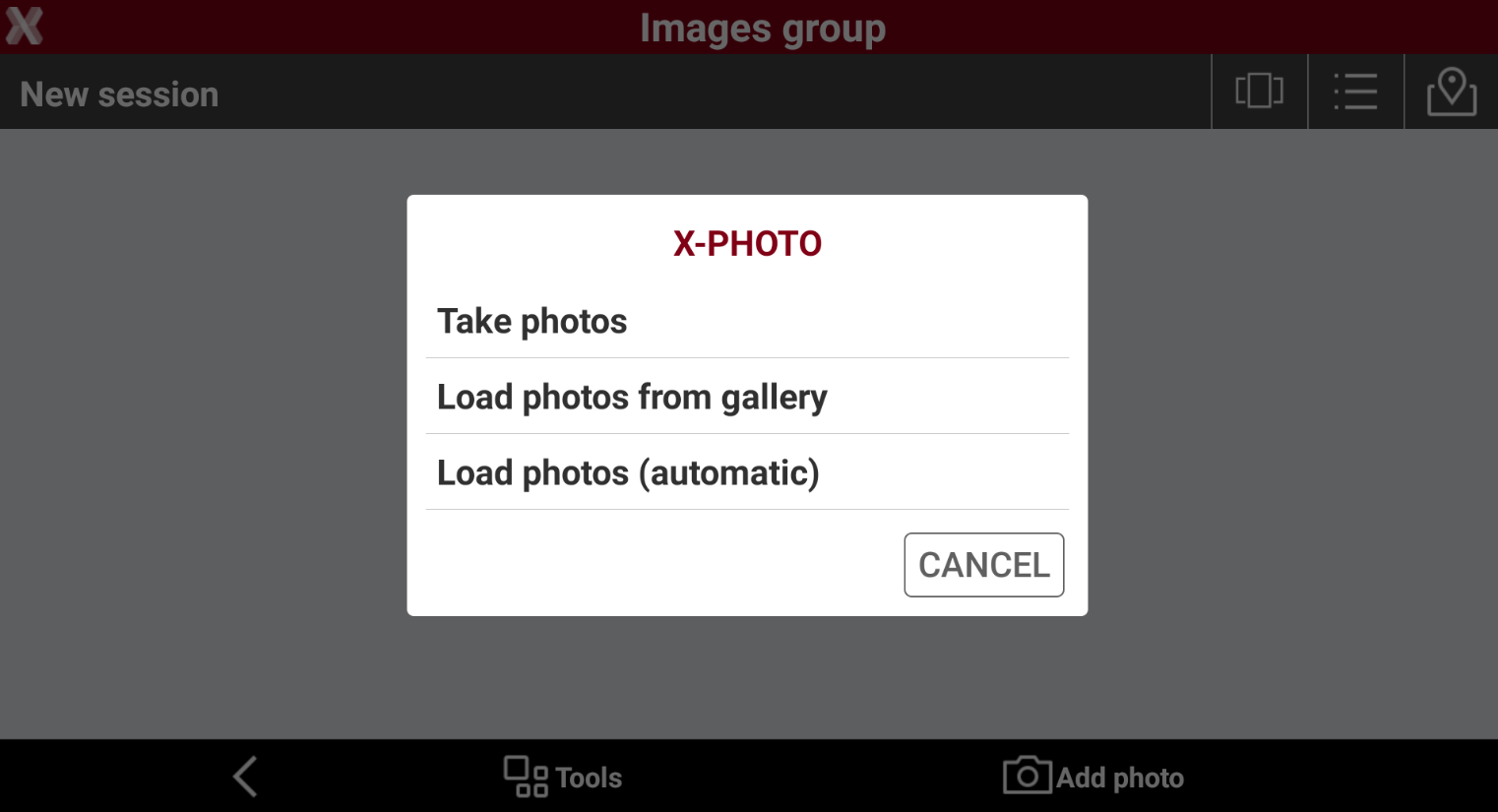
When new session is created. The session is initially empty, press Add photo to add photos.
-
Take photos: adds new photos using the controller camera.
-
Load photo from gallery: adds photos selecting them from controller gallery.
-
Load photos (automatically): adds photos selecting them from controller gallery. Select the first photo, the other photos are automatically selected if recorded in a short amount of time after the initial photo.
-
-
When all photos have been loaded press Back.
-
To export the photographic survey data open Job page and select Export & Share.
-
Select X-PAD Exchange format.
-
Select Export the photographic sessions and select Accept.
-
This creates a file with extension .xpad containing the survey data and the photographic survey data that can be imported in X-PAD Fusion.