
-
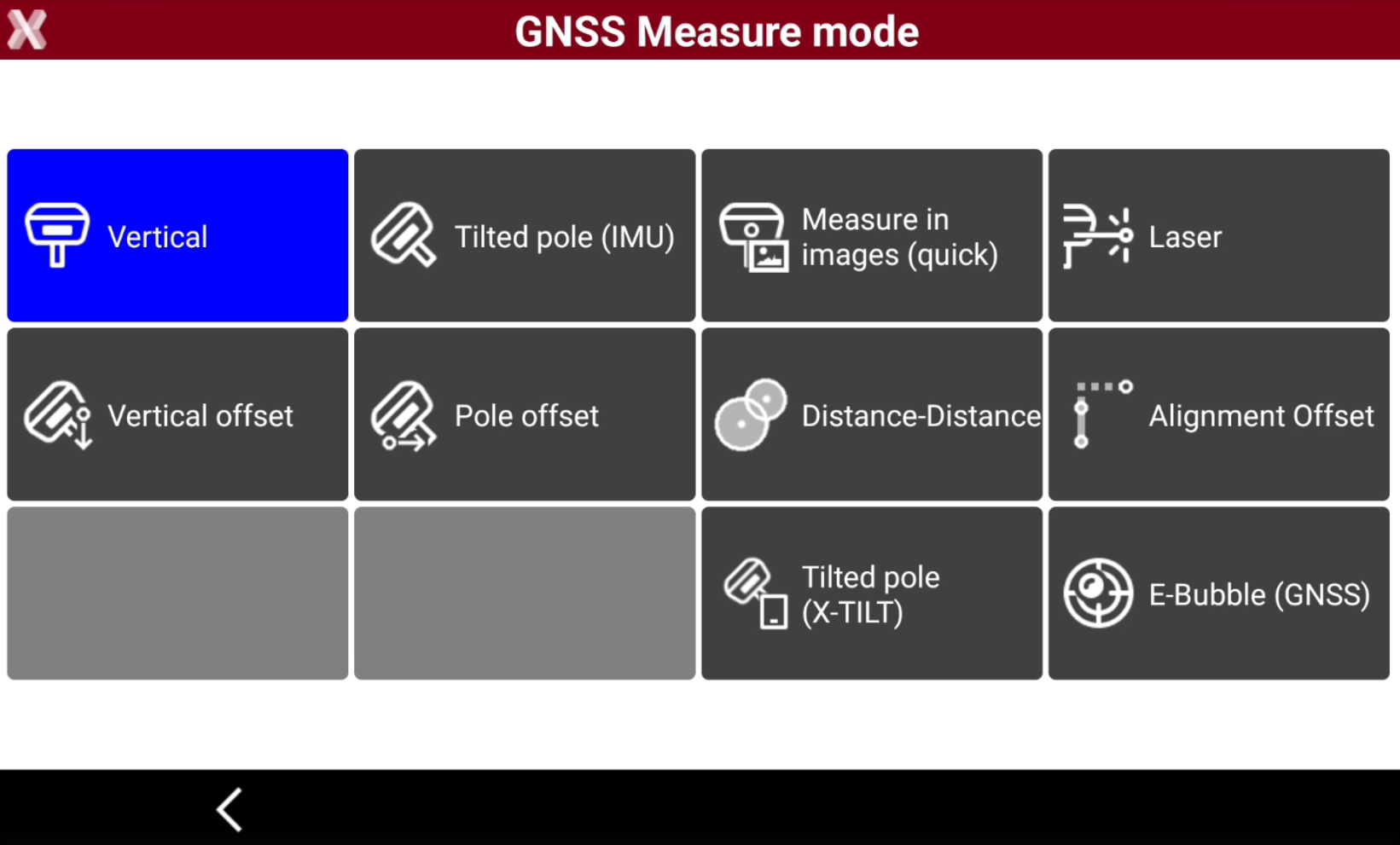
The Measure mode page allows to change the type of GNSS measurements.
-
The software offers different measure mode, for example to measure hidden points with a GNSS receiver.
-
To open the Measure mode page press on the corresponding icon on top of right side-panel.

-
This open the Measure mode page.
-
Standard: standard measurement with GNSS pole vertical.
-
Tilted pole (IMU): enables the GNSS receiver IMU to measure points with the pole tilted. Available for GNSS receivers with IMU sensor.
-
Laser: measures points using the green laser distancemeter. Available for GNSS receivers with laser distancemeter (GS11 and iCG11).
-
Measure in images (quick): allows to take images using the GNSS receiver camera and calculates points directly on the images. Available for GNSS receivers with imaging capabilities (GS11 and iCG11).
-
Pole offset: calculates the position of an hidden point by a distance from a measurement with pole tilted in the distance direction. Available for GNSS receivers with IMU sensor.
-
Distance-Distance: calculates the position of a hidden point or multiple points by two distances to two reference points.
-
Alignment Offset: calculates the position of a hidden point by an alignment defined by two reference points.
-
Vertical offset: calculates the position of an hidden point by applying a vertical offset from the current measure.
-
Tilted pole (X-TILT): using the sensors in the controller, allows to measure hidden points with pole tilted. Available for GNSS receivers without IMU sensor.
-
E-Bubble (X-TILT): using the sensors in the controller, allows to show on the display an electronic bubble.
-
Laser measurement mode
-
Allows to measure points using the GNSS receiver green laser distancementer. Different measure modes are available.
The Laser mode is only available for GNSS receivers with laser distancemeter (GS11 and iCG11).
The Laser mode can also be started pressing the GNSS receiver icon on the bottom-right of the screen and selecting Laser mode.
-
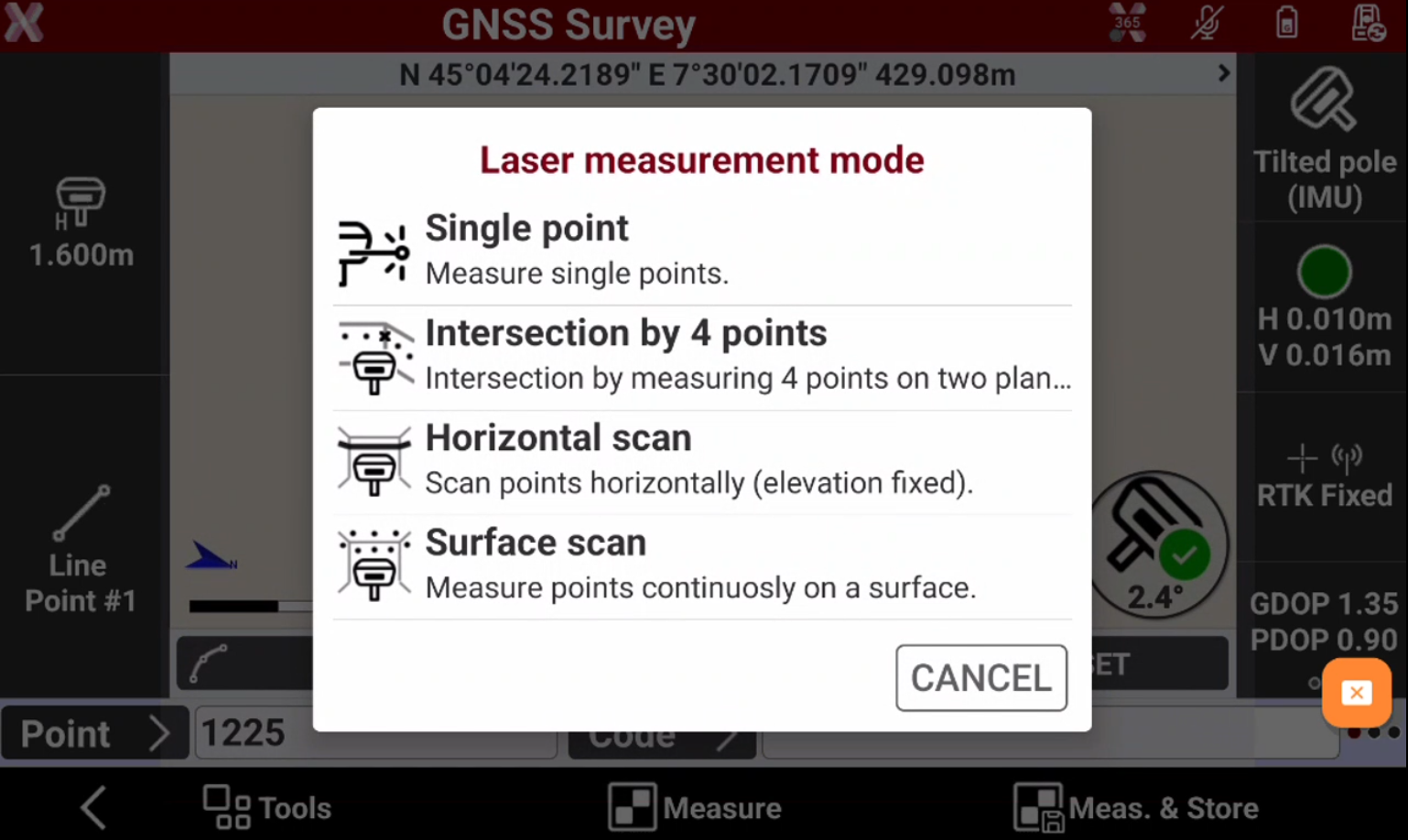
When Laser mode is selected, the software allows to measure points using different methods:
-
Single point: measures single points with laser distancemeter.
-
Intersection by 4 points: calculates a new point as intersection by measuring with distancemeter 4 points on 2 different planes.
-
Horizontal scan: scans points horizontally at a fixed elevation using distancemeter.
-
Surface scan: measures points continuously on a surface.
-
-
When measuring with laser distancemeter, Leica X-PAD activates the GNSS receiver camera to identify the point to measure not only with the green laser beam but also on the image.
-
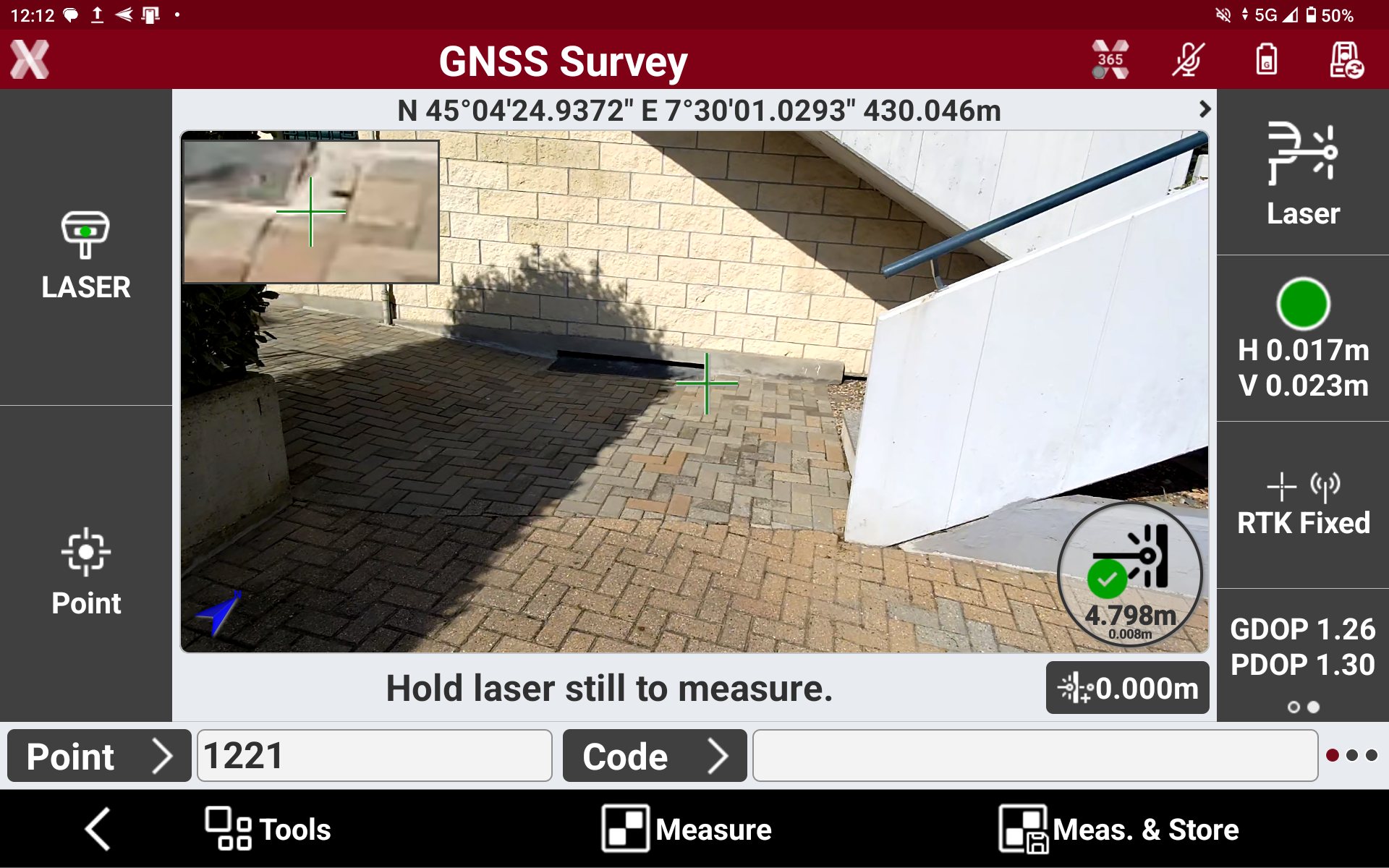
Measure the points aiming with the green laser.
-
The GNSS receiver laser distancemeter emits a green laser beam that can be easily recognized on the surfaces.
-
The point to measure is represented on the GNSS receiver camera by a cross. If the cross is green, the point can be measured.
-
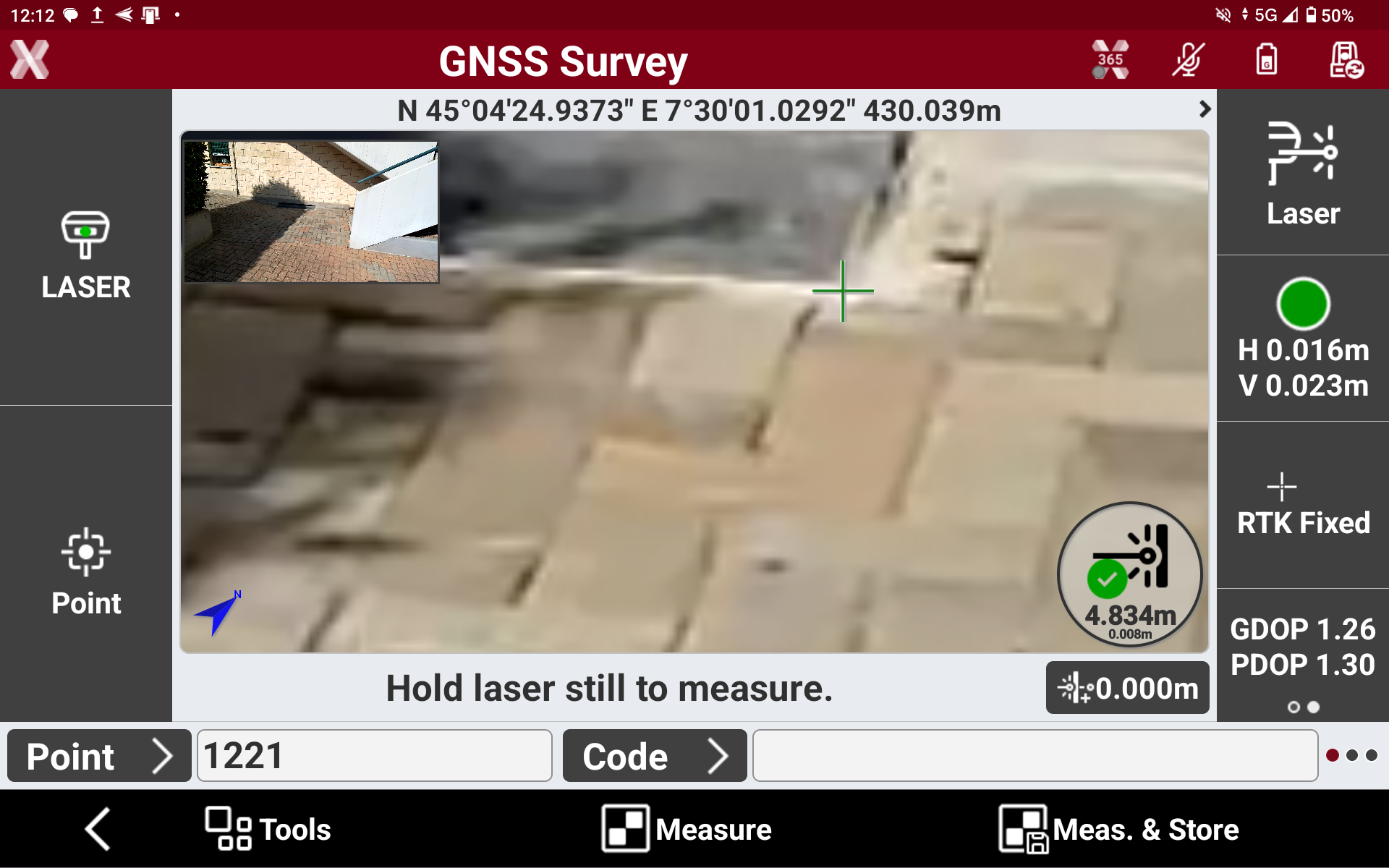
On the top-left of the screen the aiming area is zoomed to help to visualize the point to measure in case the green beam cannot be visualized on the surface. Press on the zoom screen to swap between standard view and zoomed view.
-
On the bottom-right of the screen it is visualized the laser beam status with point distance and estimated laser distancemeter error.
-
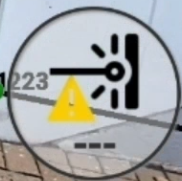
Measure possible: if the icon is green and the software displays distance and accuracy, the point can be measured with the laser.

-
Measure not possible: if the icon is yellow the point cannot be measured with the laser.
-
-
Single point
-
Select Single point to measures single points with laser distancemeter.
-
Measure the points aiming with the green laser.
-
Press

-
Press Measure to measure the point and review the results before storing it.
-
Press Meas & Store to measure the point and save it automatically.
Intersection by 4 points
-
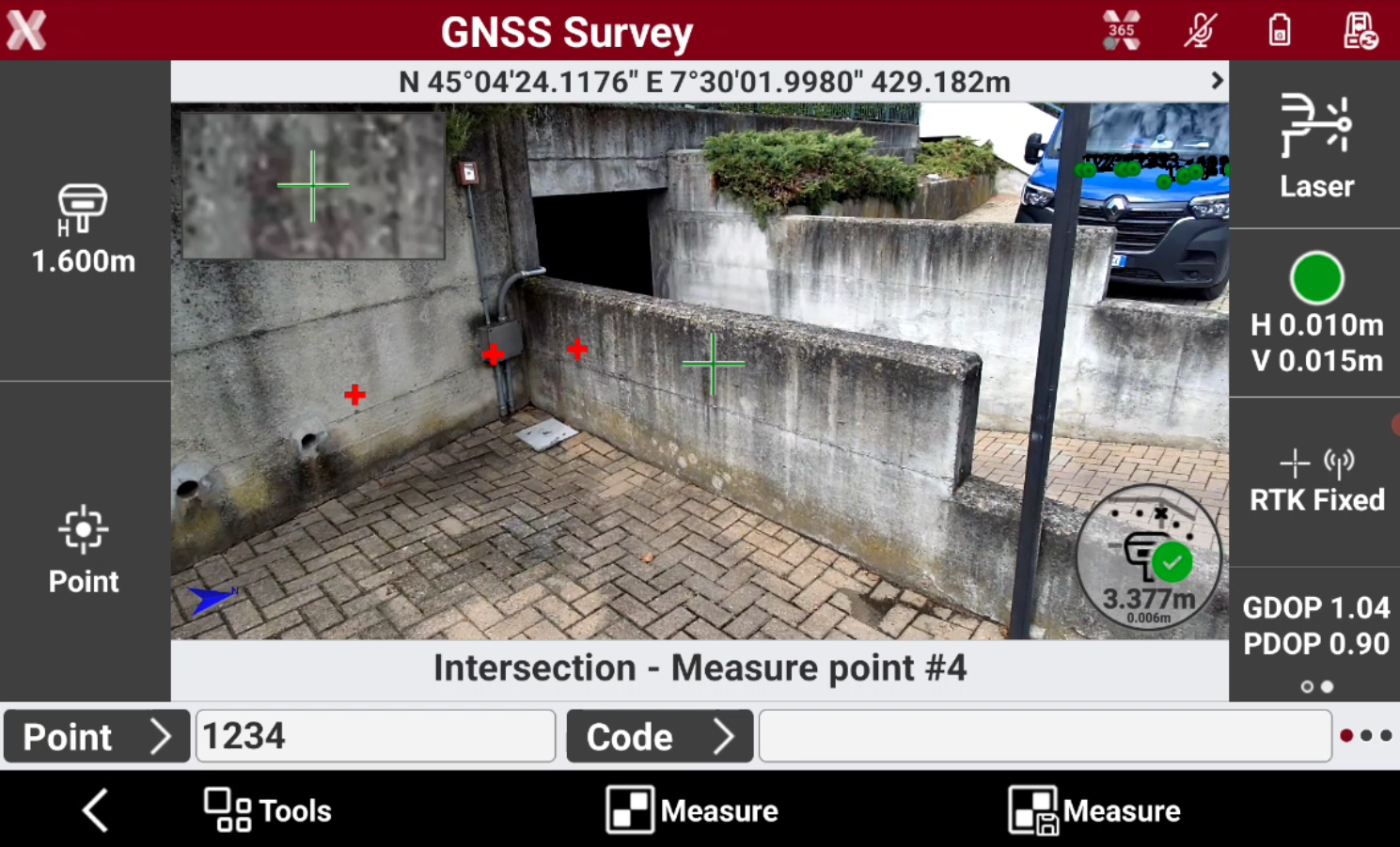
The Intersection by 4 points mode calculates a new point as intersection by measuring with distancemeter 4 points on 2 different planes.
-
Press Measure to measure 2 points on the first plane and 2 points on the second plane, the points are visualized on image with a red cross.
-
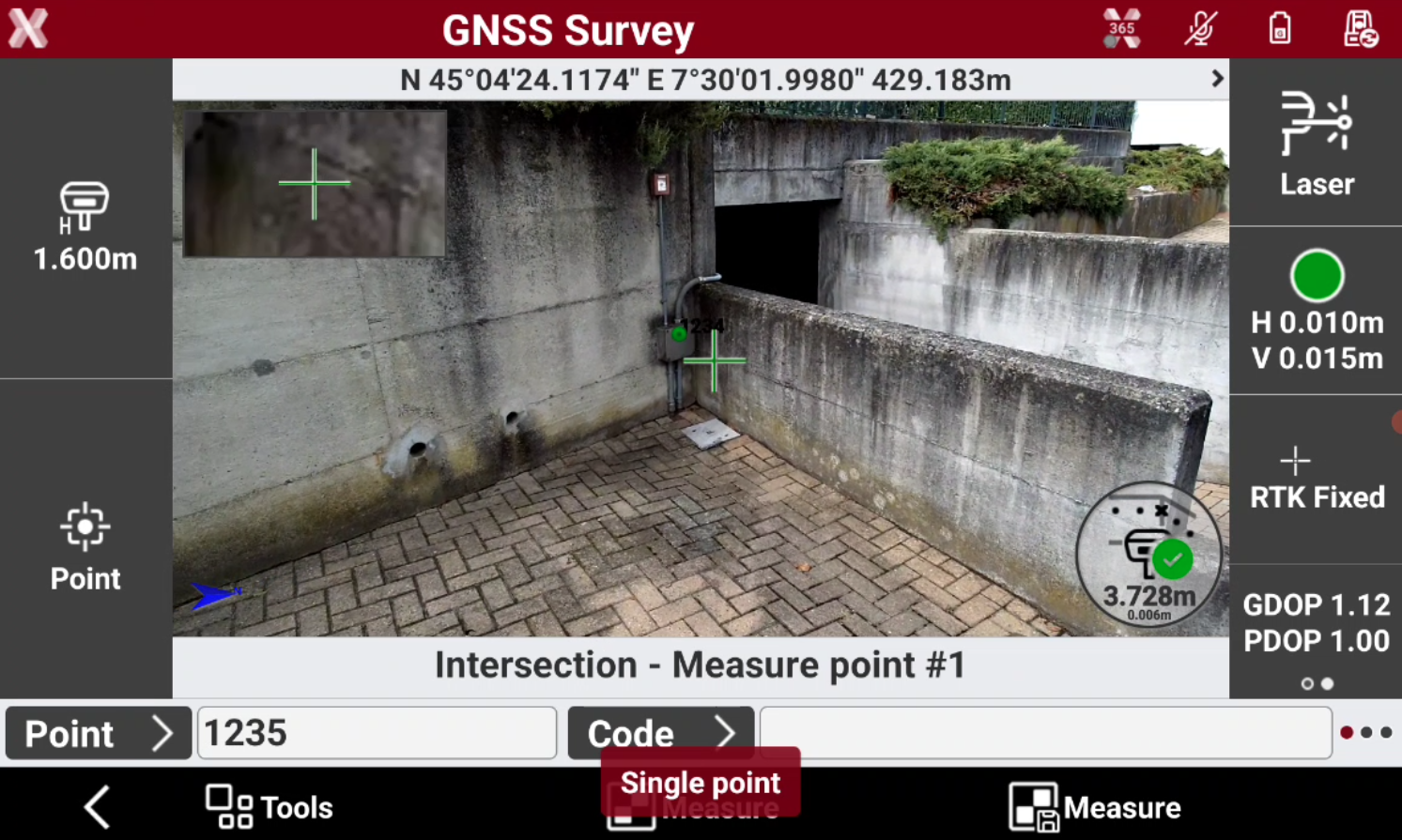
When the 4 points have been measured, the software calculates a new topographic point as the intersection.
Horizontal scan
-
The Horizontal scan mode scans points horizontally at a fixed elevation using distancemeter. This mode allows to quickly create horizontal cross sections.
-
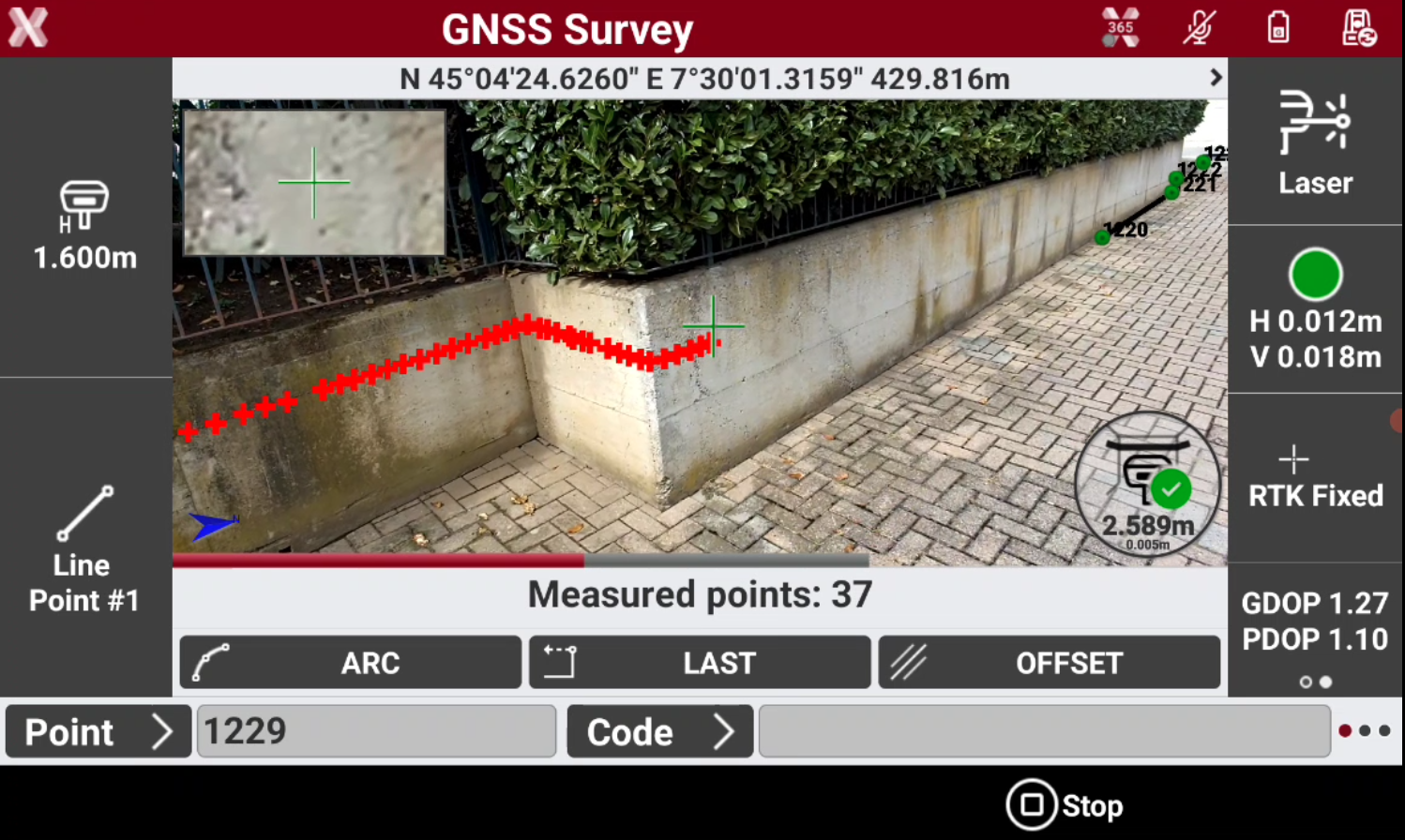
Press Start auto to start to measure points. Move the laser along the surface to scan.
-
Measured points are represented with a red cross.
-
Press Stop to complete the scan. The software automatically reduces the number of measured points on the scan corners.
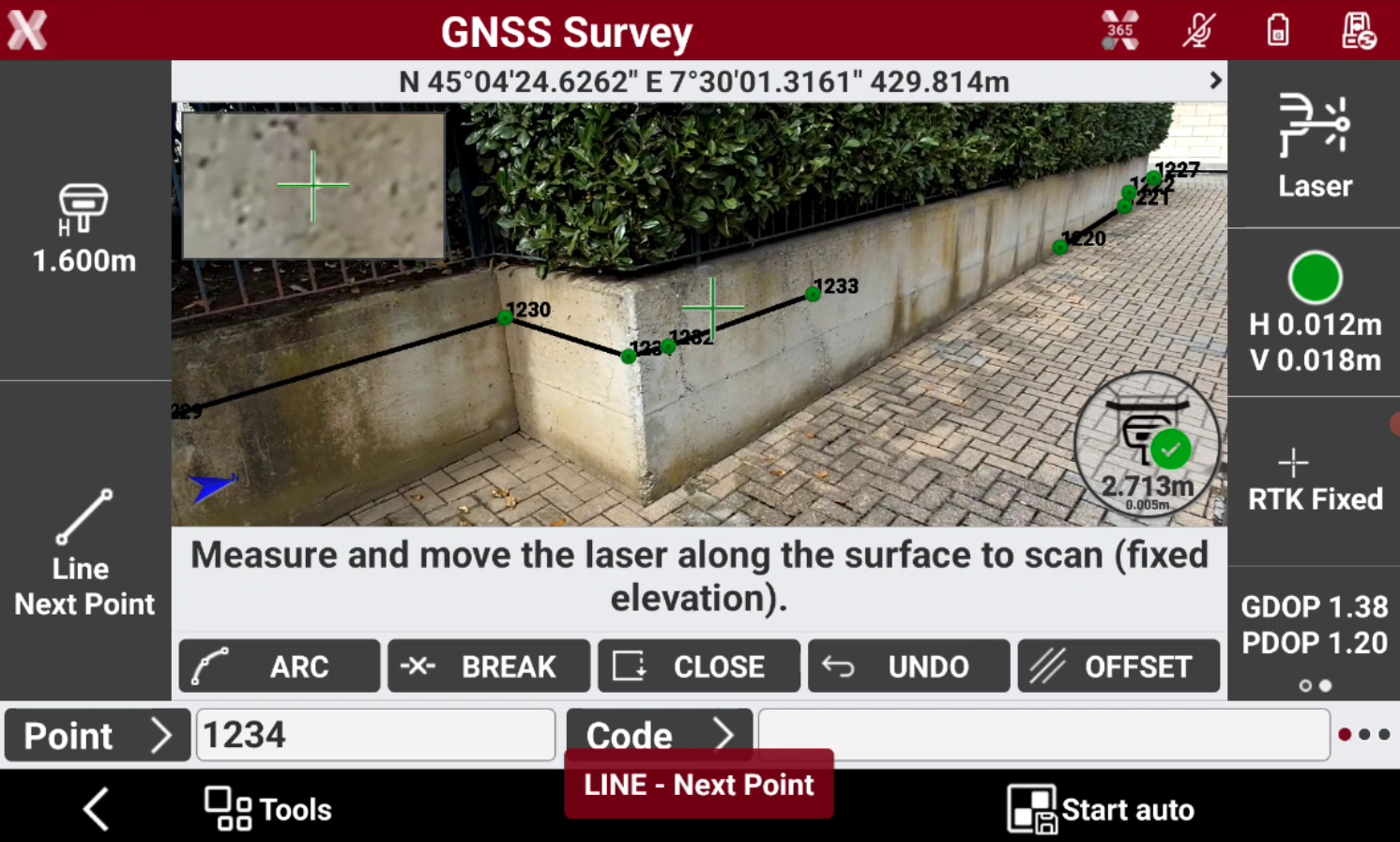
When measuring it is not necessary to stay on same position, but it is possible to move along the surface to scan.
Surface scan
-
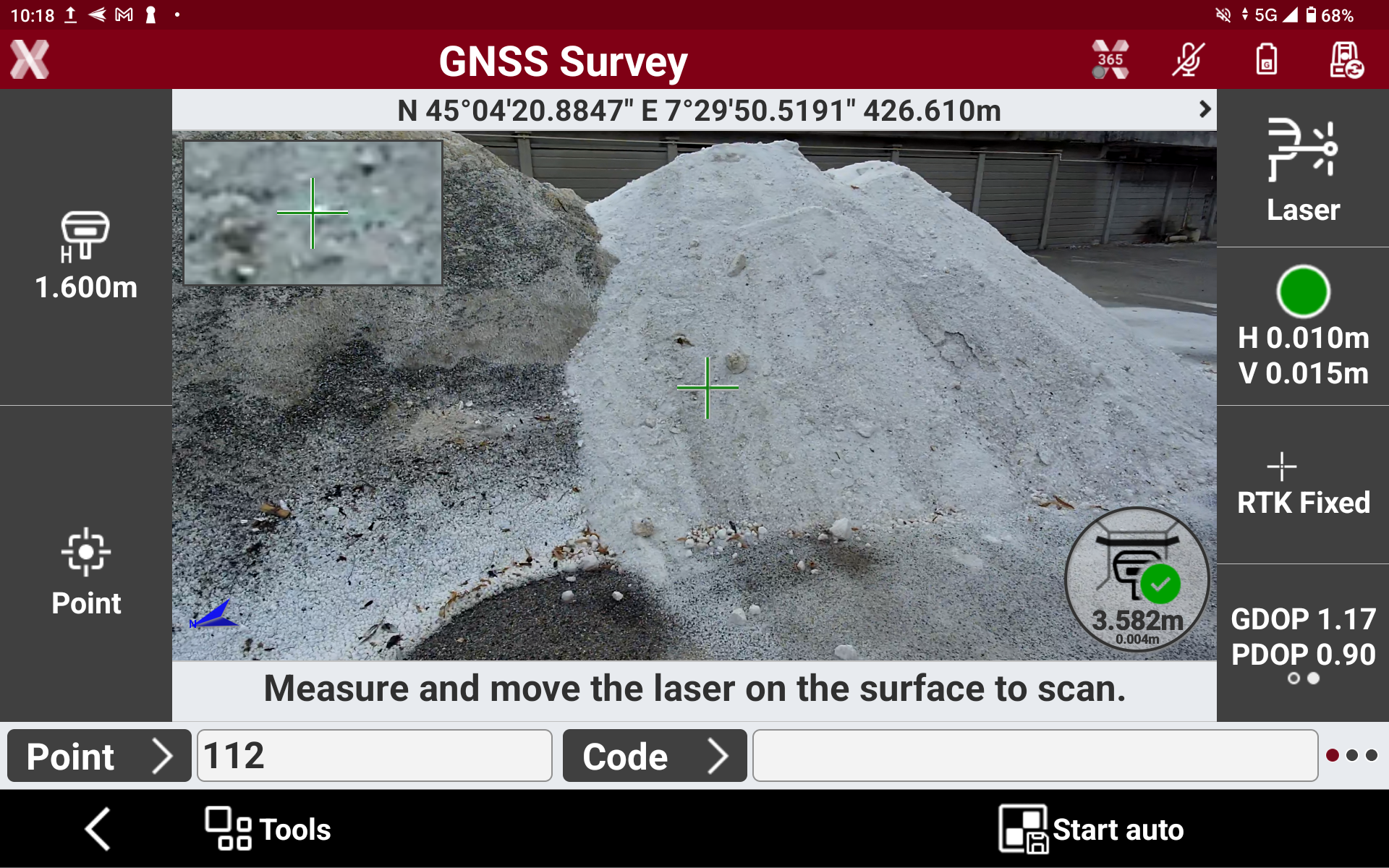
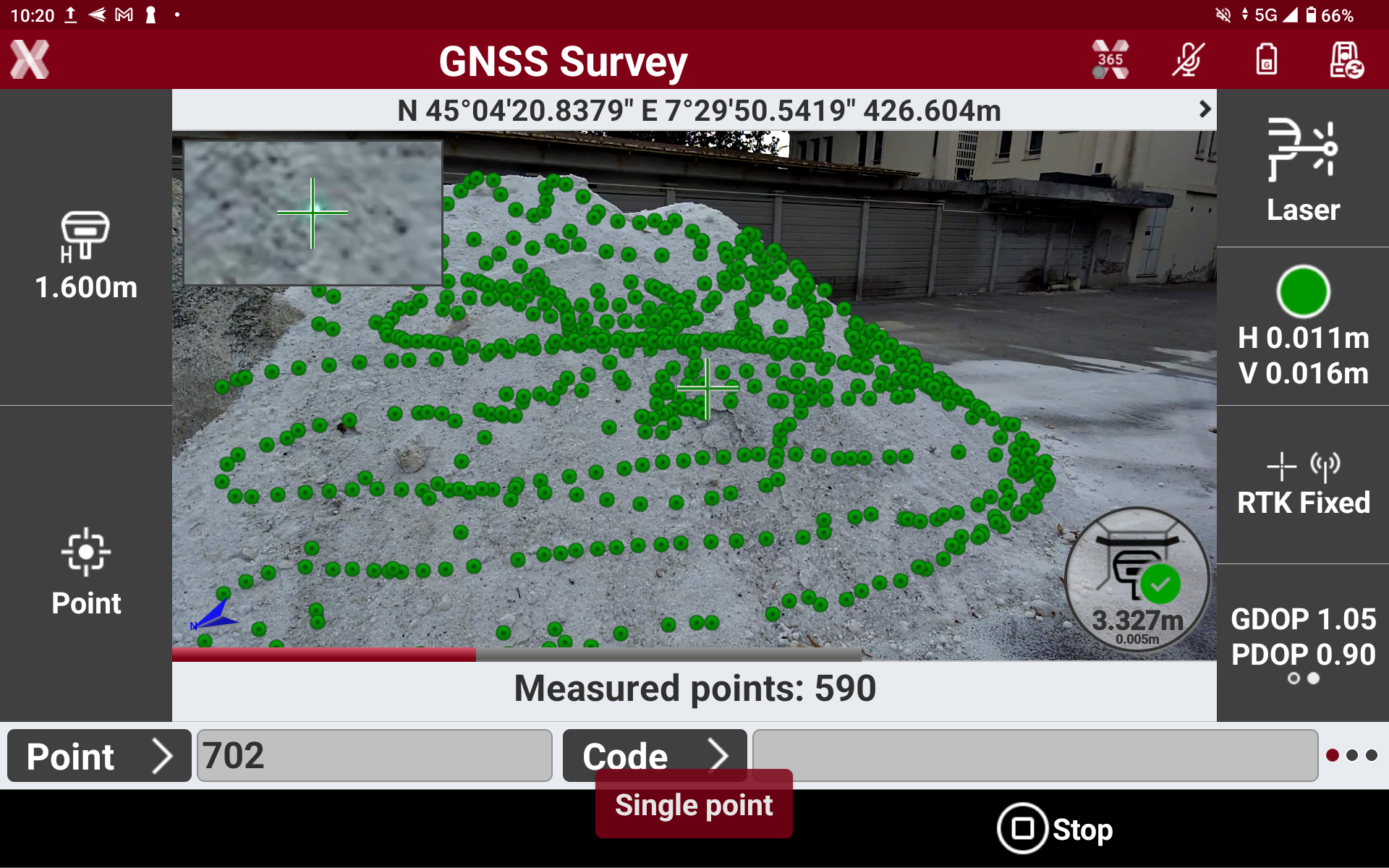
The Surface scan mode measures points continuously on a surface.
-
Press Start auto to measure the points.
When measuring it is not necessary to stay on same position, but it is possible to move along the surface to scan.
-
Press Stop to stop the measuring and save measured points.
Measure in images (quick)
-
The function Measure in images (quick) allows to take images using the GNSS receiver camera and calculates points directly on the images.
This measuring mode on images do not record the photos used. To record the photos and measure points on image in a second time use the Photographic survey function.
Available for GNSS receivers with imaging capabilities (GS11 and iCG11).
-
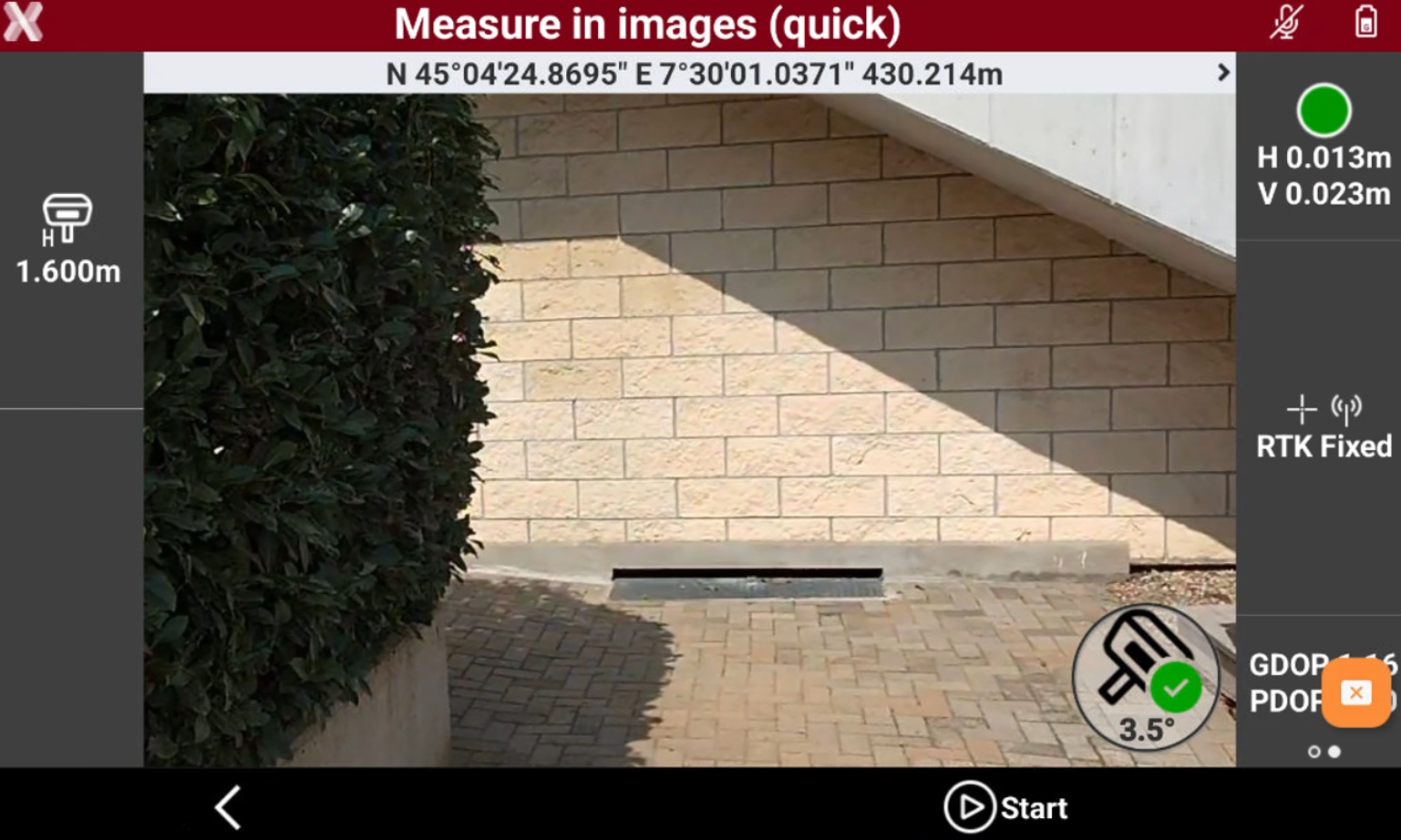
To take the photos move along the target objects, the software automatically takes 5 images using the receiver front camera.
-
Press Start to acquire the photos.
-
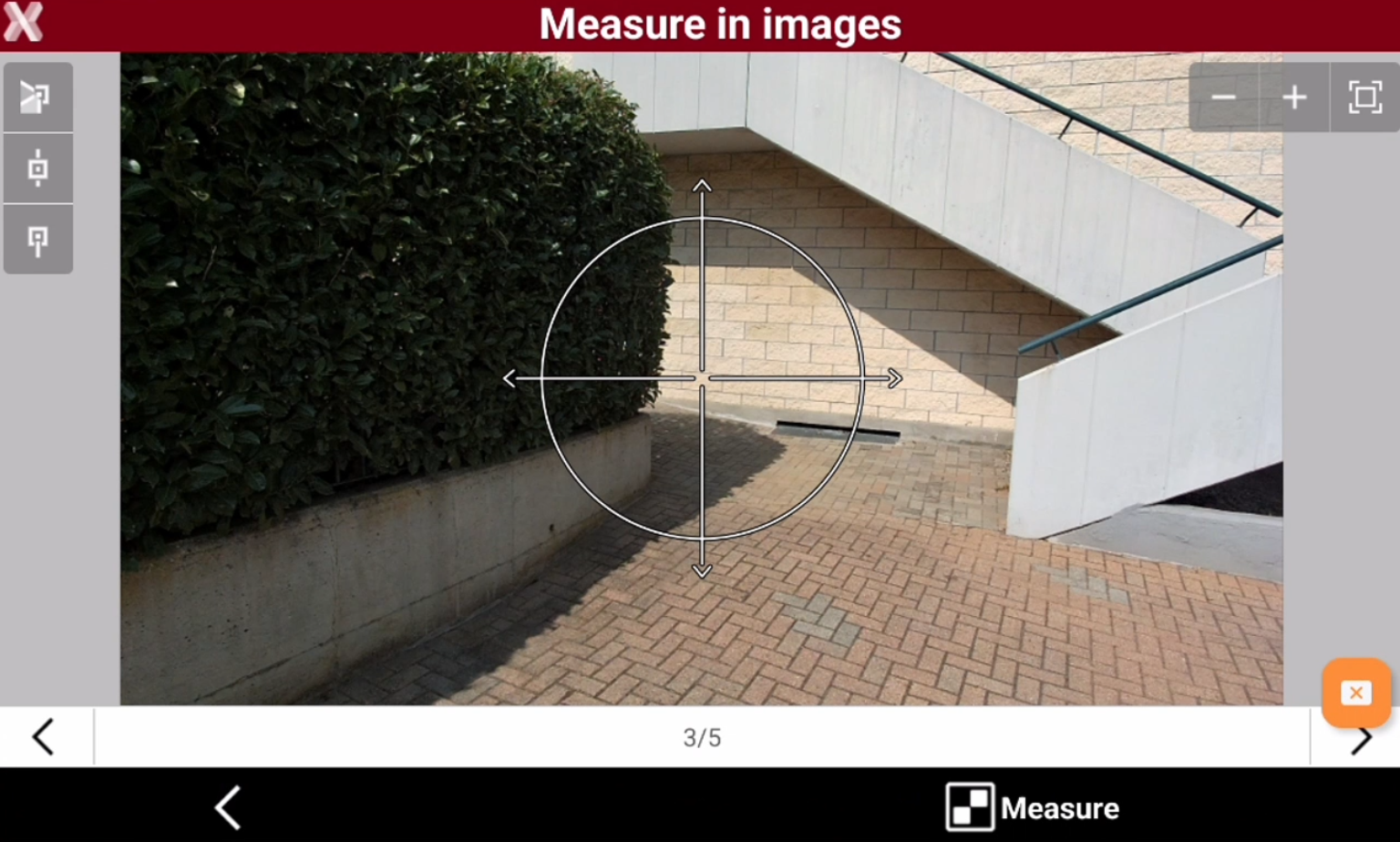
After the photos have been acquired and processed, it is possible to measure on the images.
-
Tap on the screen or pinch-zoom on the image to precisely select the point to measure.
-
It is also possible to select the snap functionalities to snap on image features. Select a snap method and tap on the image.
-

-

-

-
-
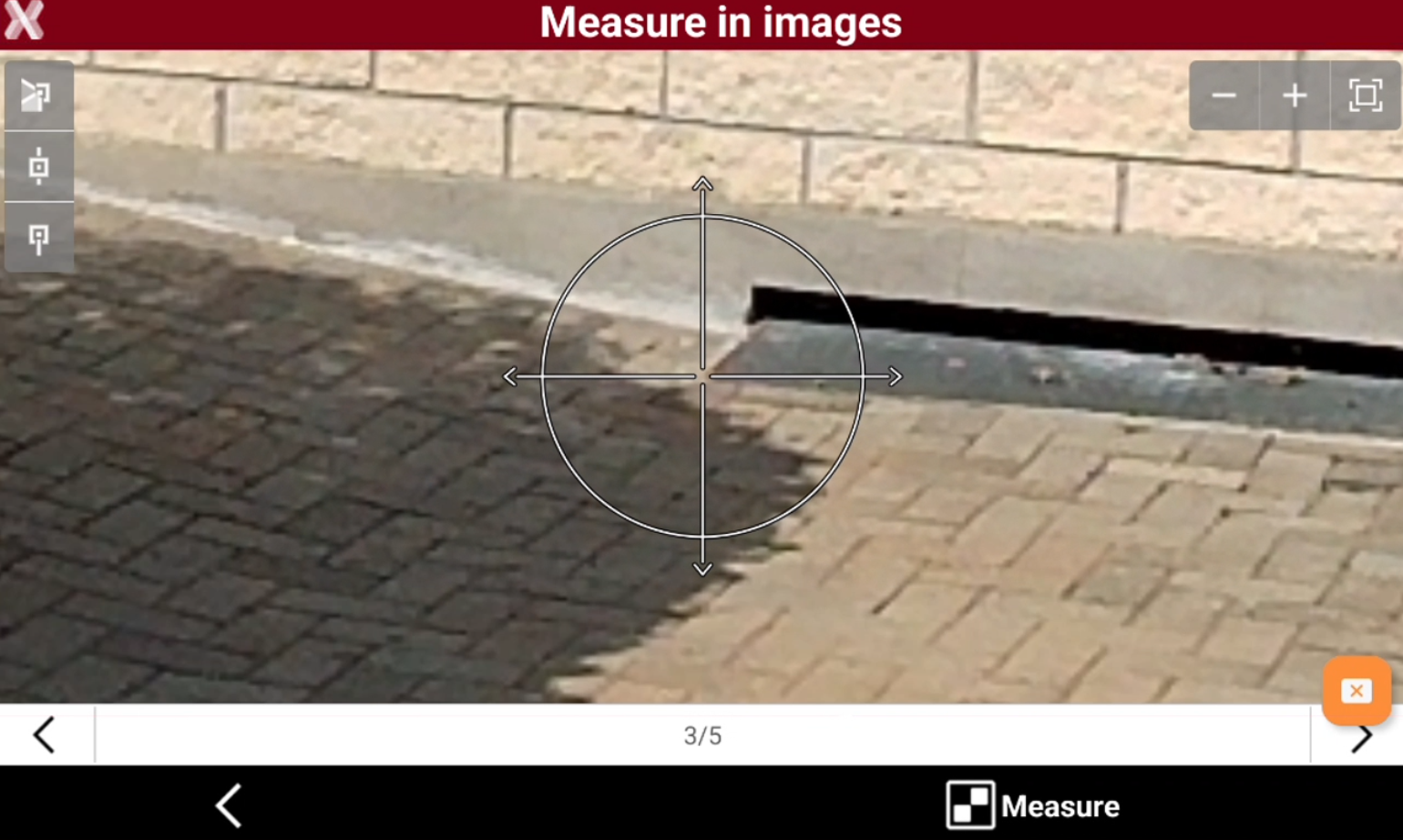
Press Measure to measure the point on the image.
-
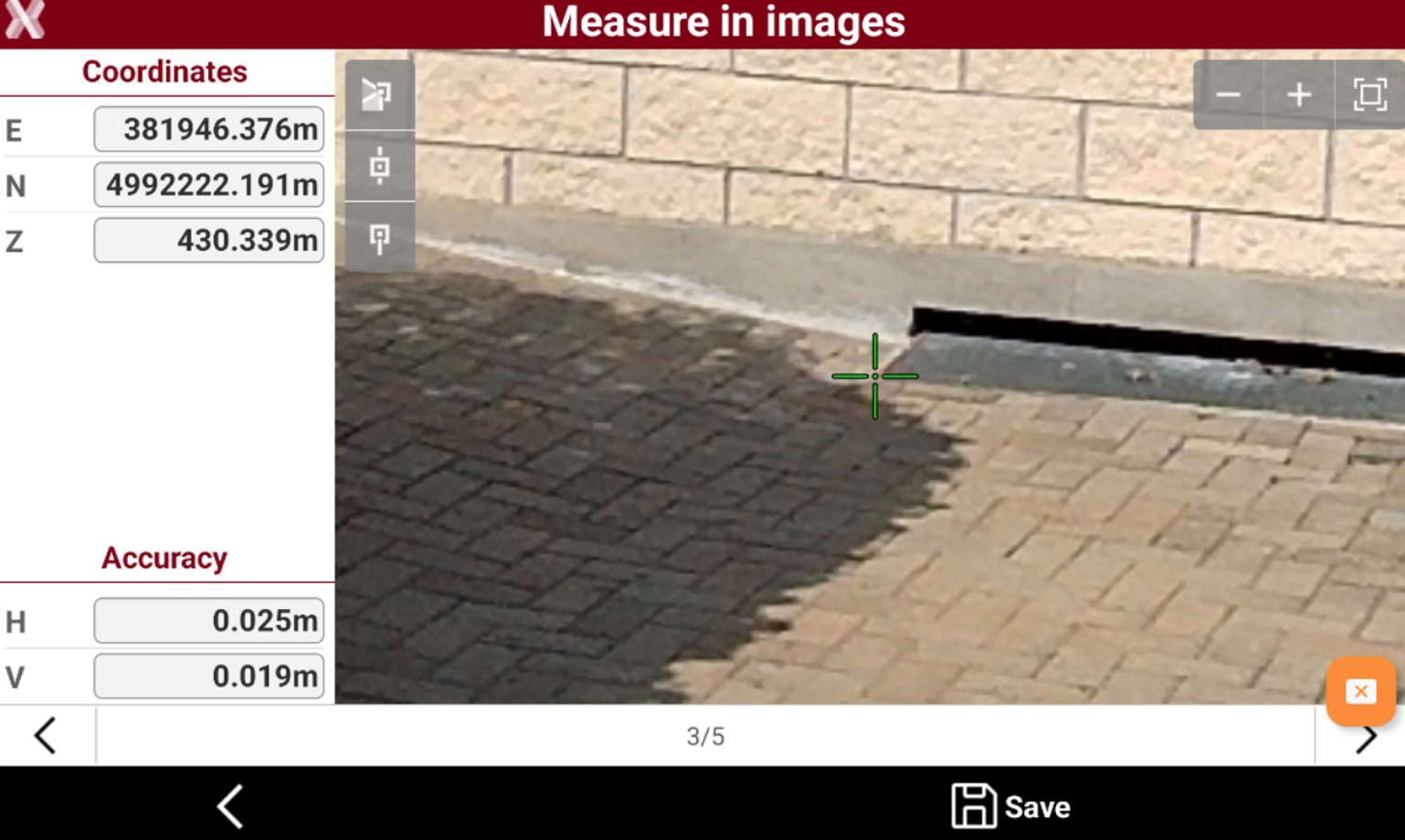
The software calculates the topographic point and visualize the point coordinates and the estimated error.
-
Press Save to save the topographic point.
-
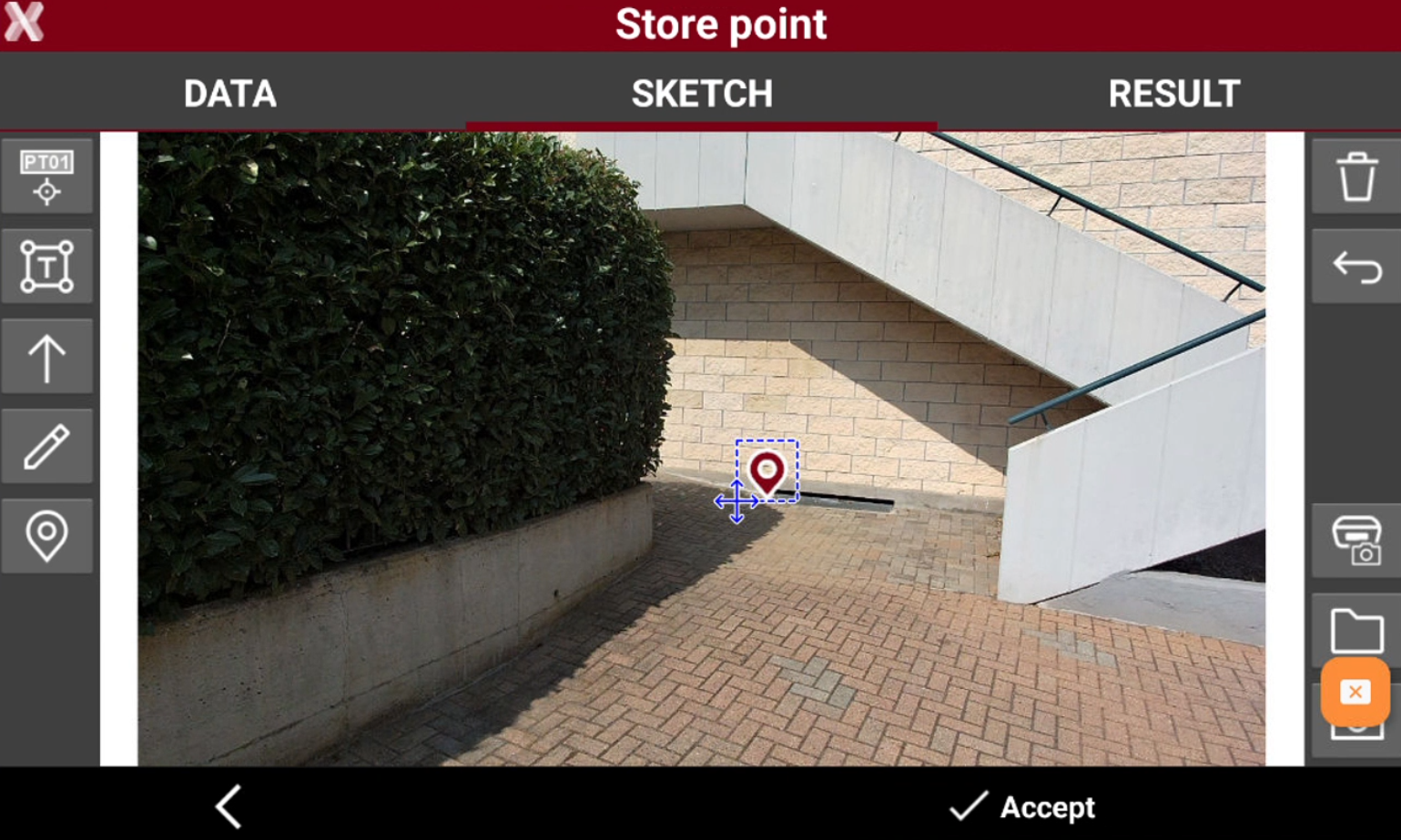
The image is automatically saved as documentation for the recorded point.
Intersection of two distances
-
Calculates the position of one point or multiple points by two distances to two reference points.
-
A guided procedure allows the definition of the two reference points, the measurement of distances and the selection of the preferred solution. The requested data relate to the first reference point.
-
Open the GPS Measure mode page.
-
Select Distance-Distance.
-
The software opens the Hidden point page.
-
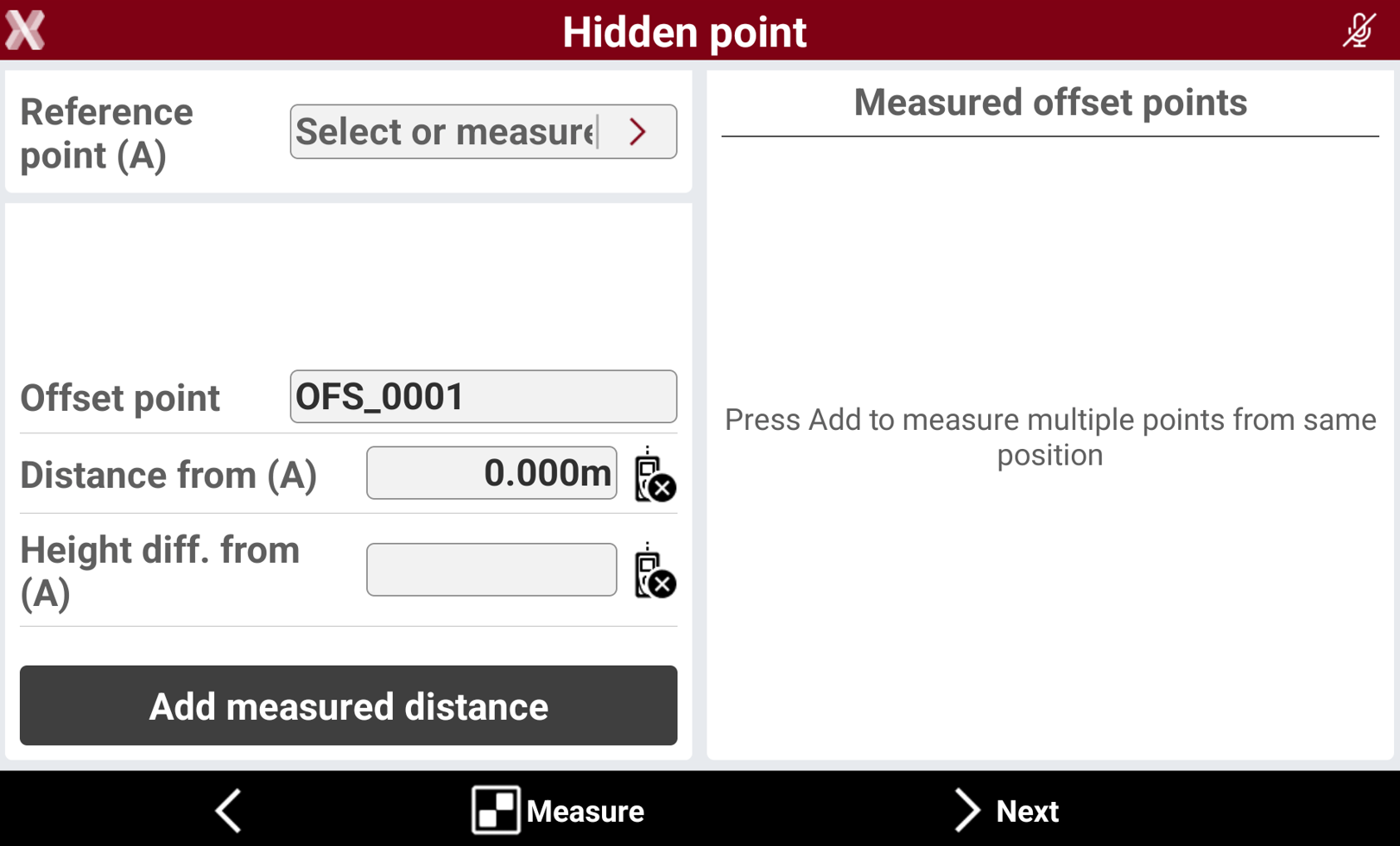
Select or measure the Reference point (A) and enter the distance from the first reference point to the hidden point.
-
Reference point (A): specify the name of the first reference point. Type in the name or select it from the graphic window or the table. Tap if the reference point has not been measured yet. Press Measure to measure the reference point (A).
-
Distance from A: distance from the reference point to the hidden point.
-
Height diff. from A: elevation difference between the point to measure and the reference point.
-
Laser height: elevation of the laser Disto from the ground. Used to determinate the exact value of the slope from the reference point.
-
Height diff. from laser: height difference measured from a laser distance meter, using the specific laser distance meter function that calculates the vertical distance (requires a compatible laser distance meter connected).
-
Distance can be measured with a laser distance meter. See Creating a profile for laser distance meter.
-
Press Add measured distance to measure multiple hidden points from the first reference point entering the distances.
-
Press Next.
-
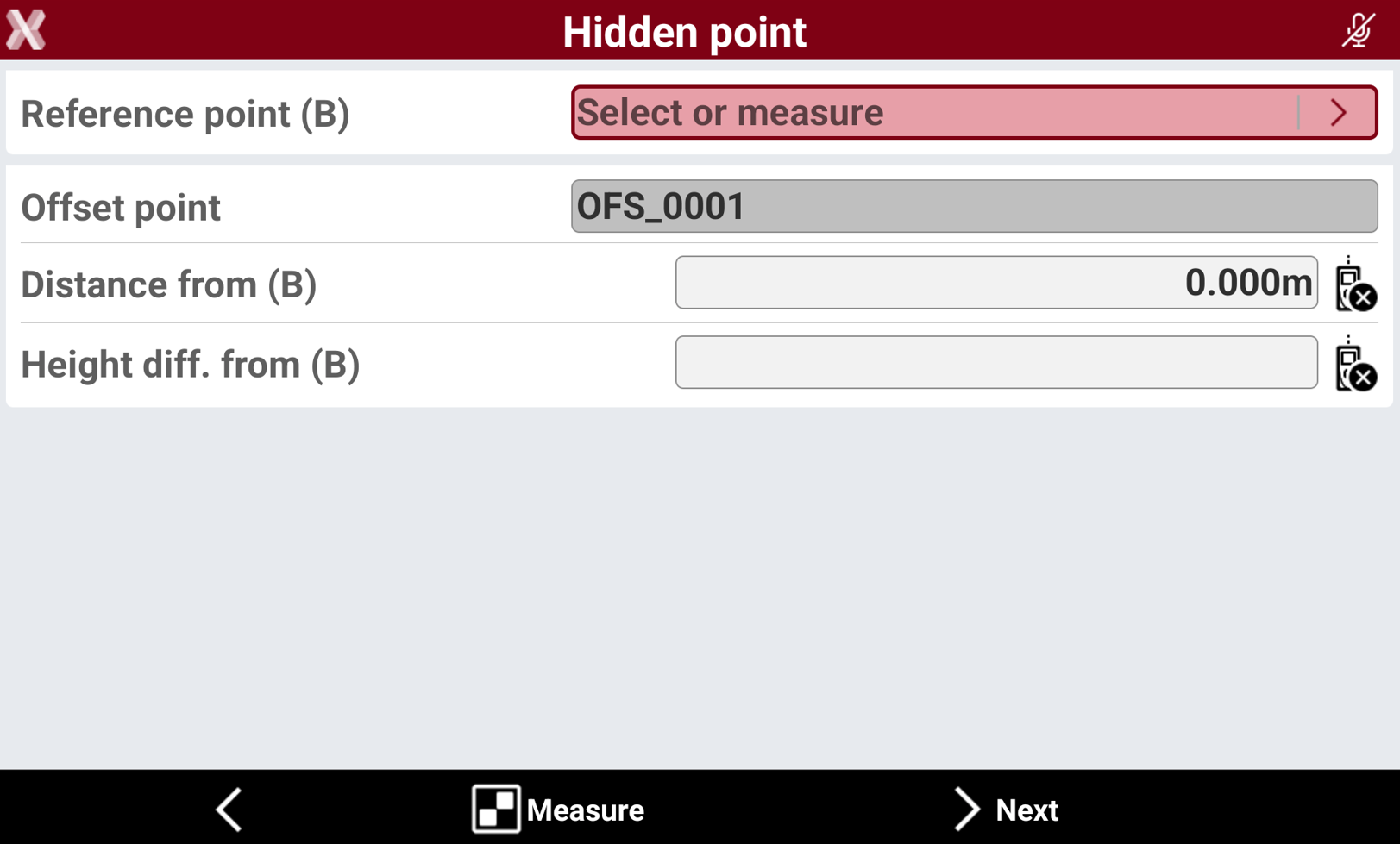
Select or measure the Reference point (B) and enter the distance from the reference point to the hidden point.
-
Reference point (B): specify the name of the first reference point. Type in the name or select it from the graphic window or the table. Tap if the reference point has not been measured yet. Press Measure to measure the reference point (B).
-
Distance from B: distance from the reference point to the hidden point.
-
Height diff. from B: elevation difference between the point to measure and the reference point.
-
Laser height: elevation of the laser Disto from the ground. Used to determinate the exact value of the slope from the reference point.
-
-
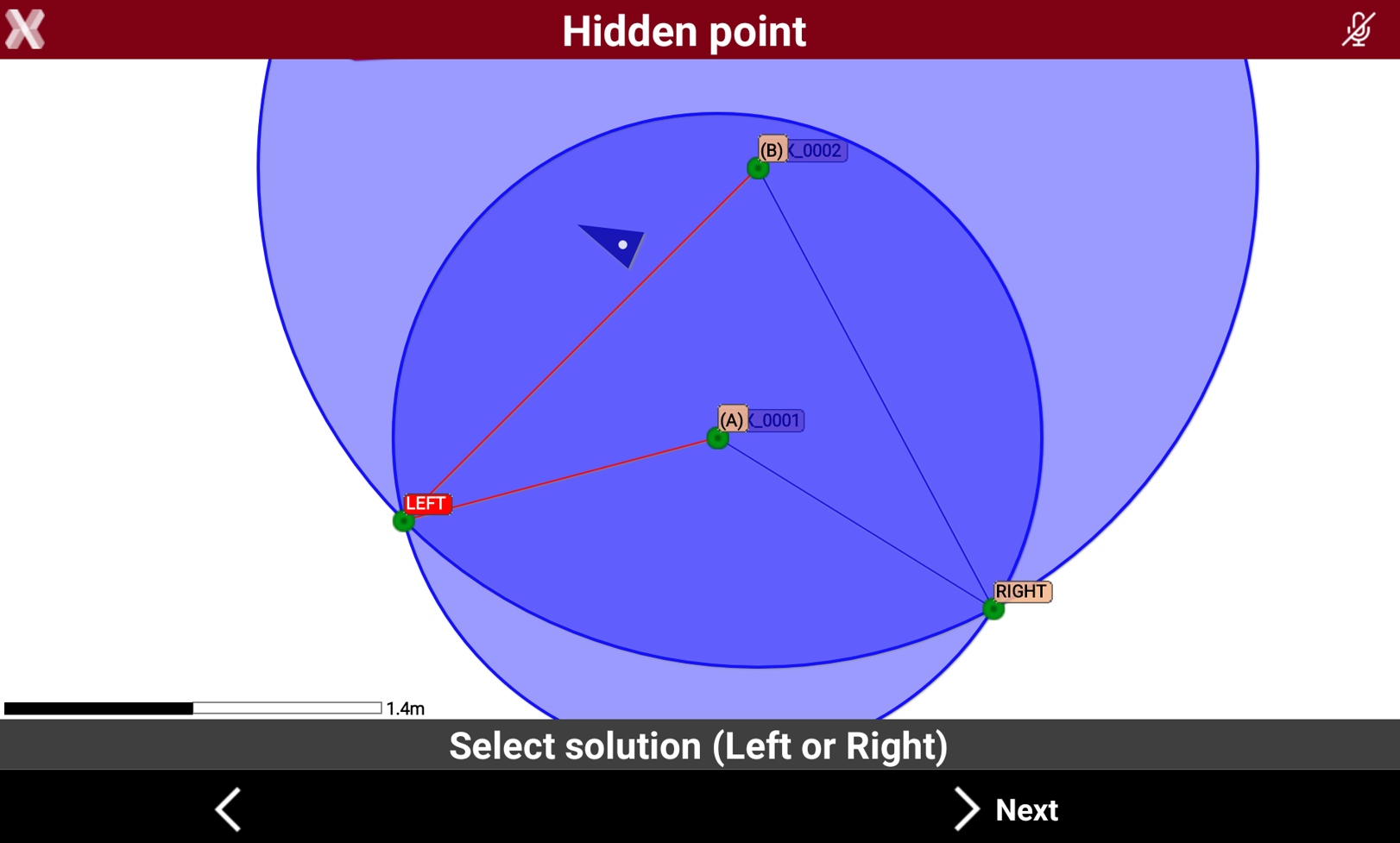
Tap Next to calculate the two reference points and the two possible solutions.
-
Choose the desired solution: Tap in the part to which the solution right or left belongs. The solution that will be used is shown in red.
-
Tap Next to proceed with the guided procedure.
-
Confirm the data on the pages.
-
Continue to measure other hidden points or return to the main measuring window.
Alignment and offset
-
Calculates the position of a point by an alignment defined by two reference points.
-
A guided procedure allows the definition of the two reference points, the measurement of the distance and position referring to the alignment and checking the desired solution. The requested data relate to two reference point.
-
Open the GPS Measure mode page.
-
Select Alignment Offset.
-
The software opens the Hidden point page.
-
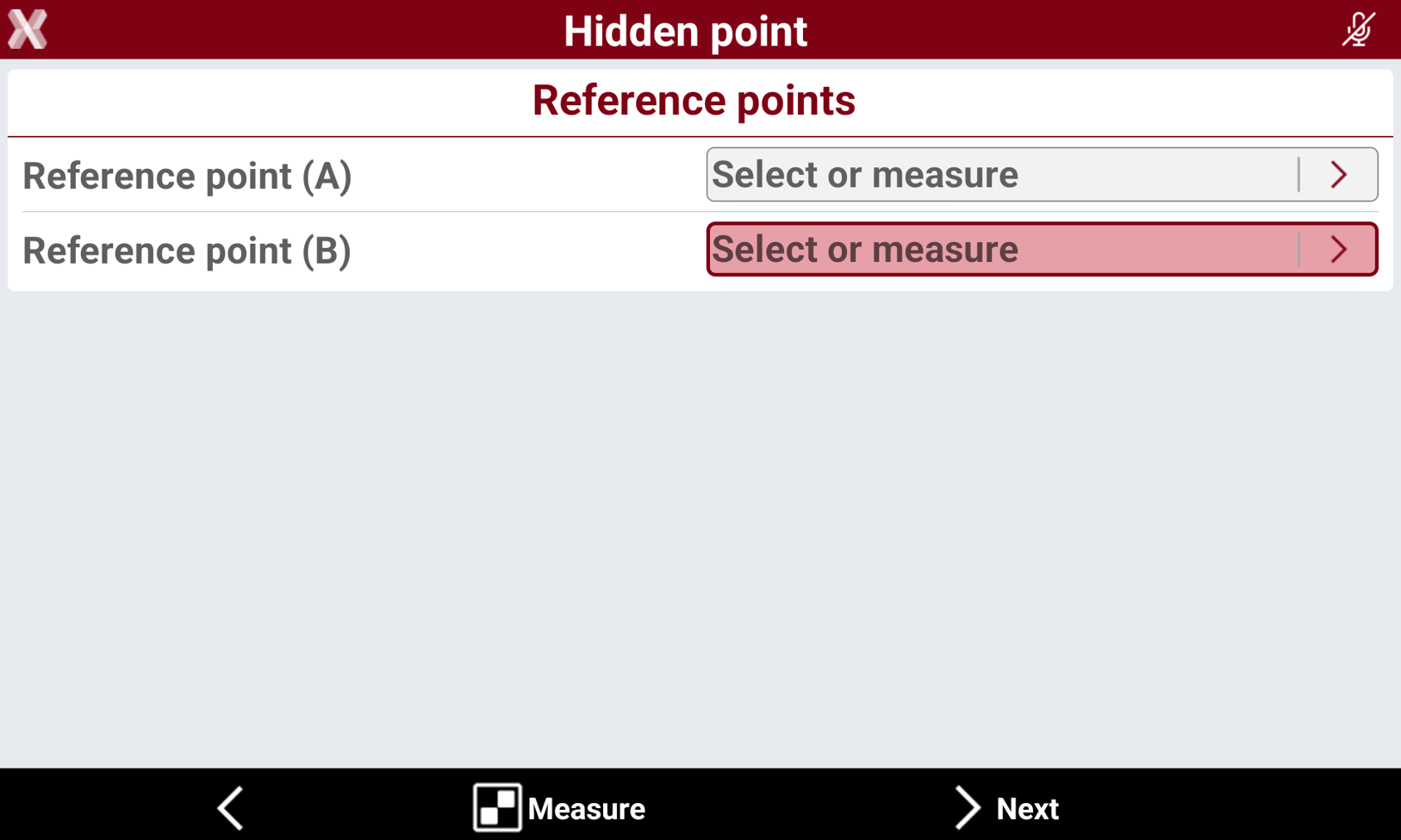
Select or measure the Reference point (A) and Reference point (B) that defines the alignment.
-
Reference point (A): specify the name of the first reference point. Type in the name or select it from the graphic window or the table. Tap if the reference point has not been measured yet. Press Measure to measure the reference point (A).
-
Reference point (B): specify the name of the first reference point. Type in the name or select it from the graphic window or the table. Tap if the reference point has not been measured yet. Press Measure to measure the reference point (B).
-
-
Select Next to proceed with the guided procedure.
-
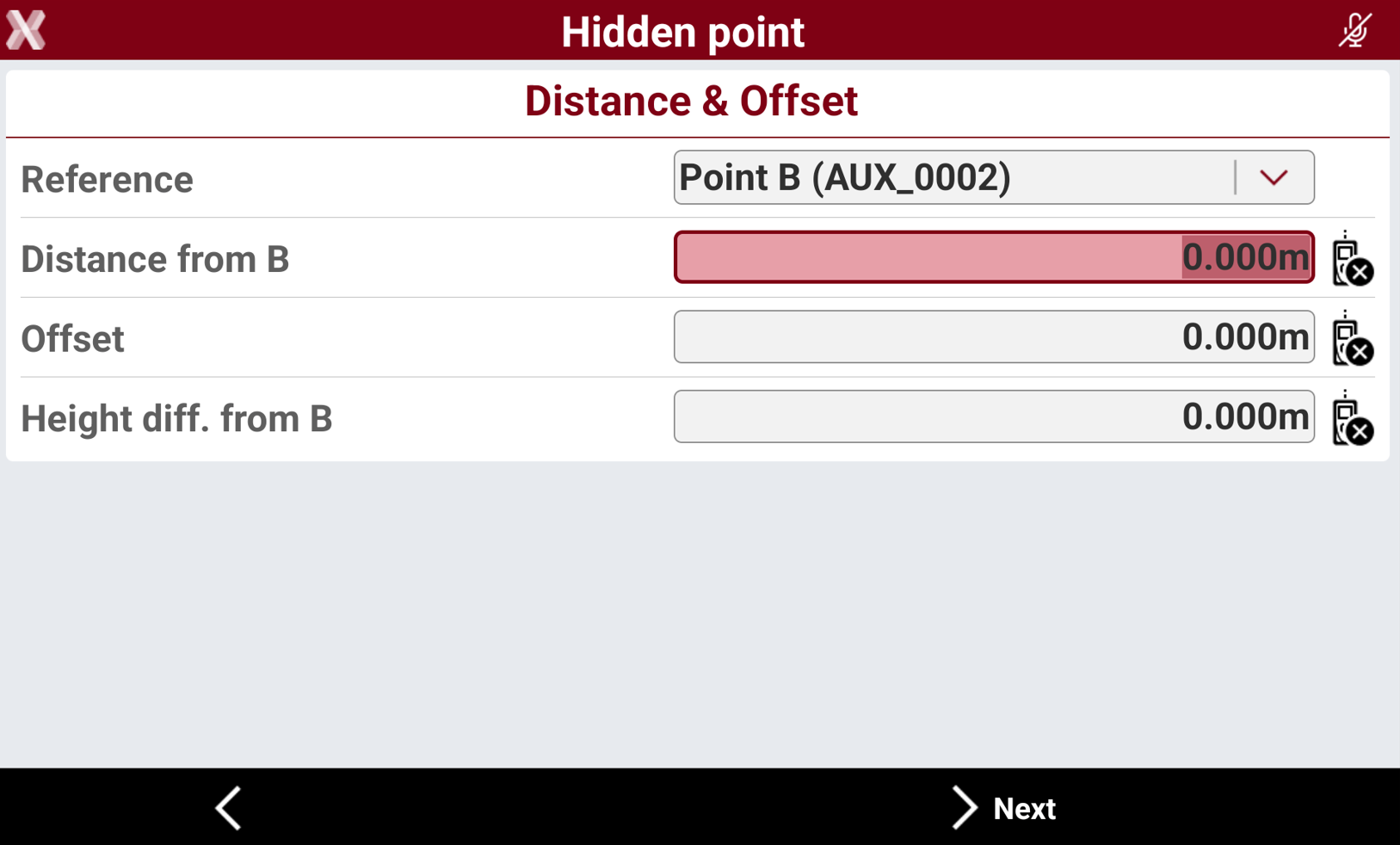
Enter the information of distance and offset from the second or first reference point).
-
Reference: reference distance along the alignment can be referred to starting point (A) or ending point (B).
-
Distance from: distance along the alignment, and referred to point A or B, of the projection of the point to measure.
-
Offset: distance of the point to measure in reference to the defined alignment. The position of the point referring to the alignment (left or right) is decided after in the graphic window.
-
Height diff. from: elevation difference between the point to measure and the reference point A or B.
-
Laser height: elevation of the laser Disto from the ground. Used to determinate the exact value of the slope from the reference point.
-
Height diff. from laser: height difference measured from a laser distance meter, using the specific laser distance meter function that calculates the vertical distance (requires a compatible laser distance meter connected).
-
Distance can be measured with a laser distance meter. See Creating a profile for laser distance meter.
-
Tap Next to calculate the two reference points and the two possible solutions. Right or left of the alignment.
-
Choose the desired solution: tap in the part to which the solution RIGHT or LEFT belongs. The solution that will be used is shown in red.
-
Tap Next to proceed with the guided procedure.
-
Confirm the data on the pages listed below this table.
-
Continue to measure other hidden points or return to the main measuring window.
Vertical offset
-
Calculates the position of one point applying a vertical offset to the measured elevation.
-
Open the GPS Measure mode page.
-
Select Vertical offset.
-
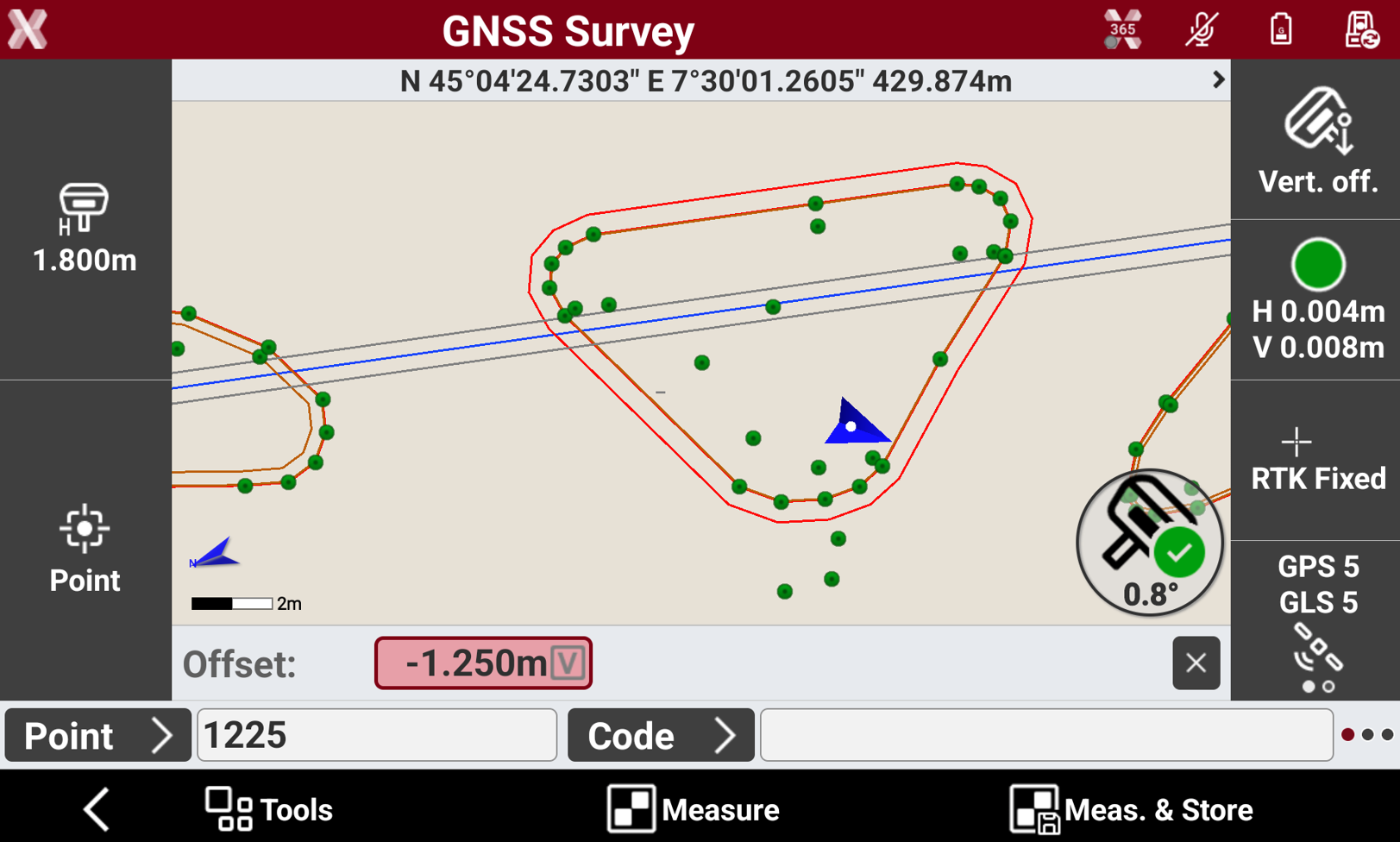
A new bar is visible with the possibility to enter the vertical offset in the field Offset.
-
Enter the vertical offset and proceed to measure the point.
If the point to measure is below the tip of the pole, enter a negative offset
-
The point is recorded with a depth value corresponding to the entered offset as description.
Pole offset
-
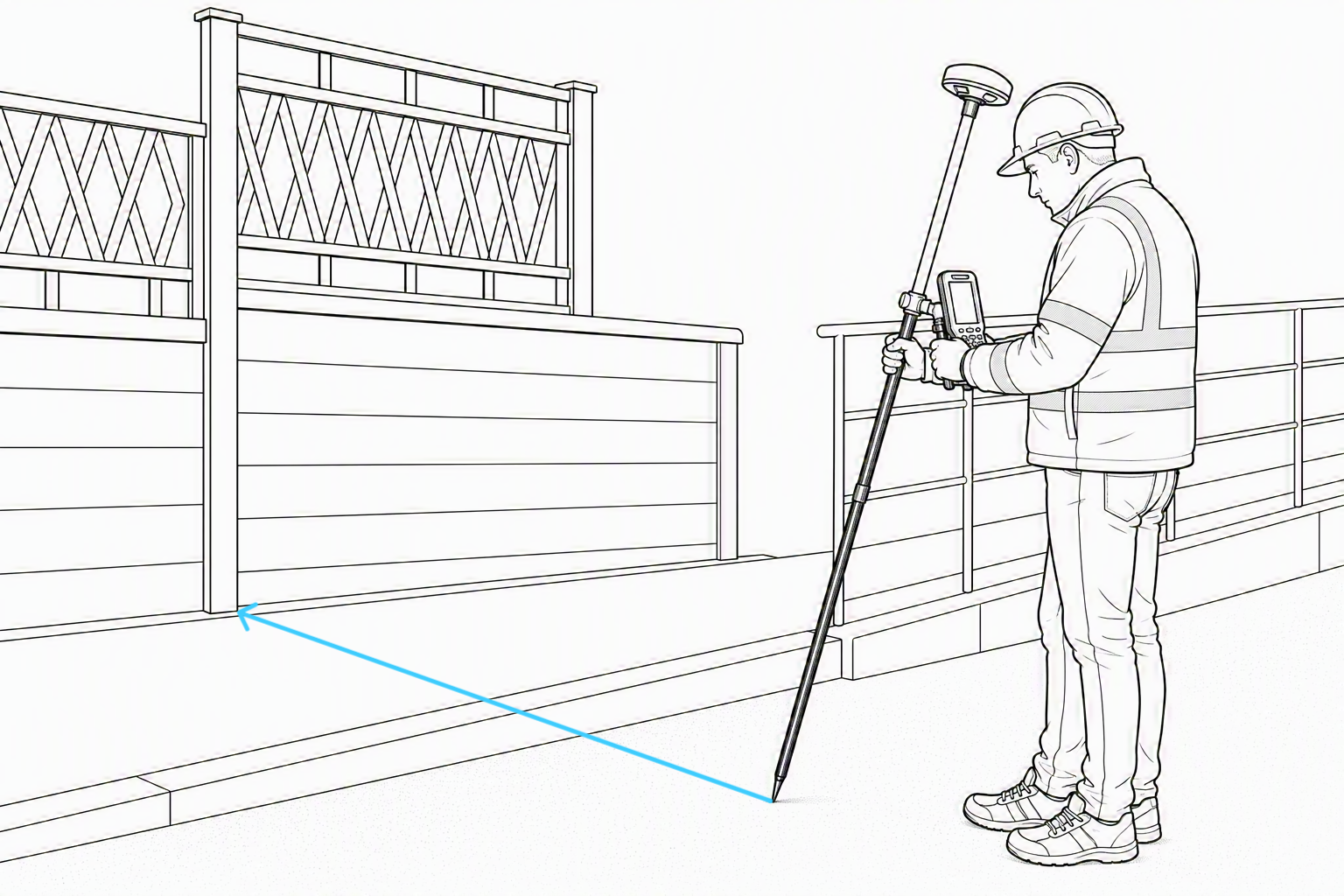
Calculates the position of an hidden point by a distance from a measurement with pole tilted in the distance direction.
Available for GNSS receivers with IMU sensor.
-
Open the GPS Measure mode page.
-
Select Pole offset.

-
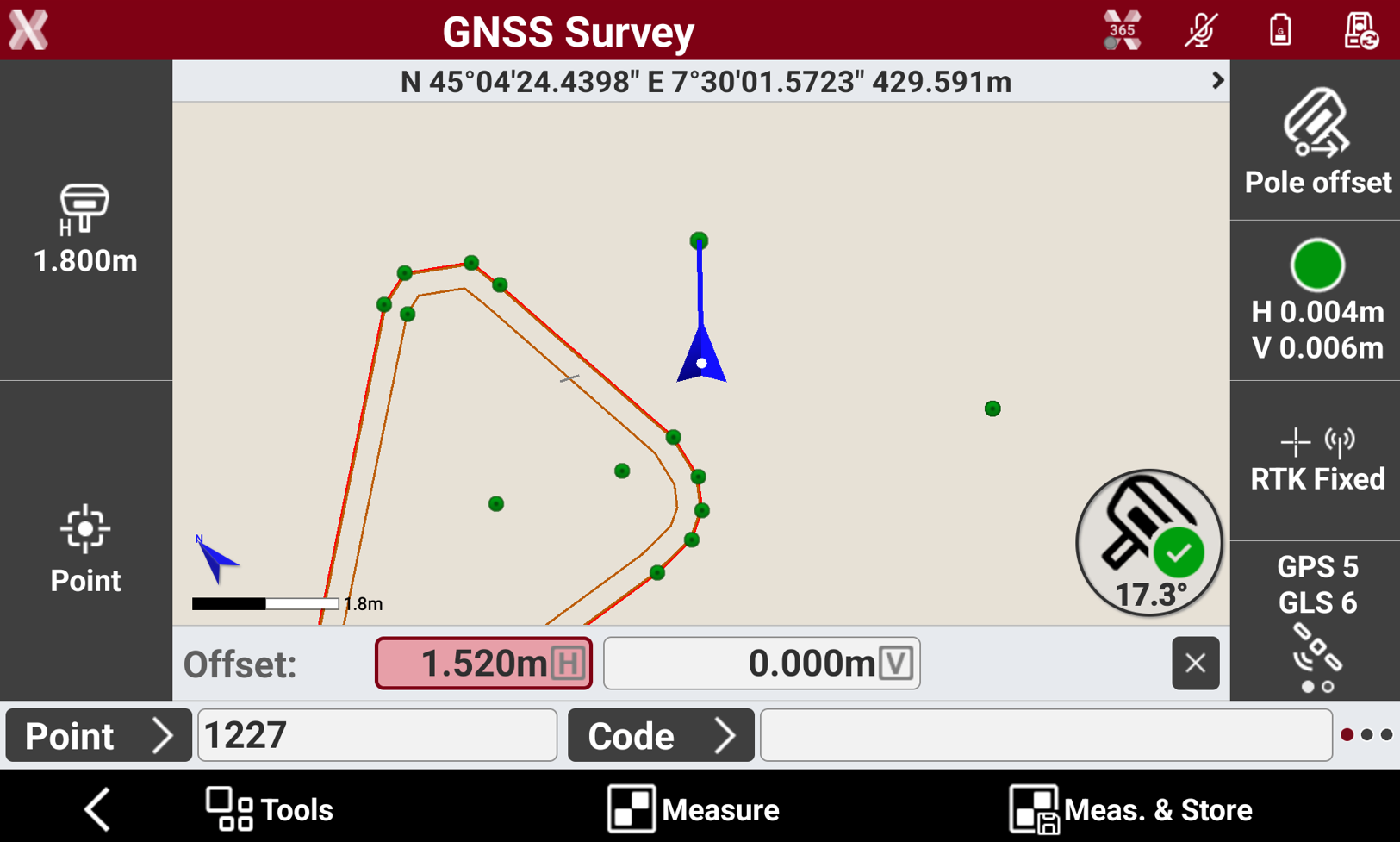
A new bar is visible with the possibility to enter the horizontal and vertical offset in the field Offset.
-
Measure and enter the offset from the pole to the hidden point.
-
Tilt the pole in the opposite direction of the hidden point with a minimum tilt of 10° and measure the point.
-
The hidden point is calculated.
X-TILT
-
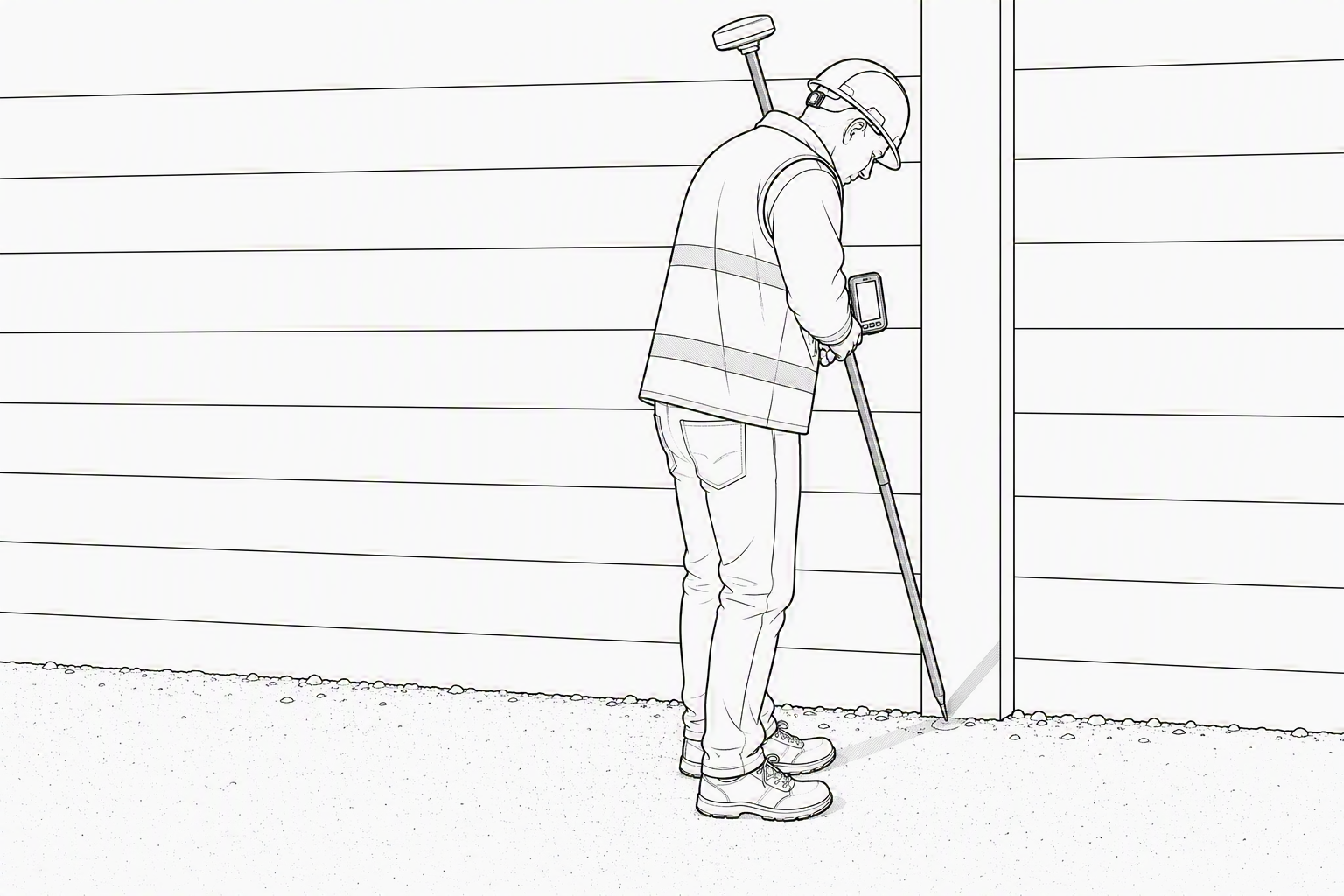
Performs a measurement to a point with two tilted pole measurements, using controller sensors.
Even if an IMU receiver is used, this method of two tilted measurements use controller sensors since it is designed for receivers without IMU.
To obtain accurate results, the controller must be firmly attached to the pole.
-
Open the Measure mode page.
-
Select Tilted pole X-TILT.
-
Keep the pole vertical and press Calibrate to start the sensor calibration.
-
Perform the first measurement with the pole tilted, with the tip of the pole on the point to measure.
-20260714-140220.png?cb=c126d3d5a3c4eabf09637c89acfa5253)
-
Press Measure to measure the point. On the bottom bar the current pole tilt is visualized.
-
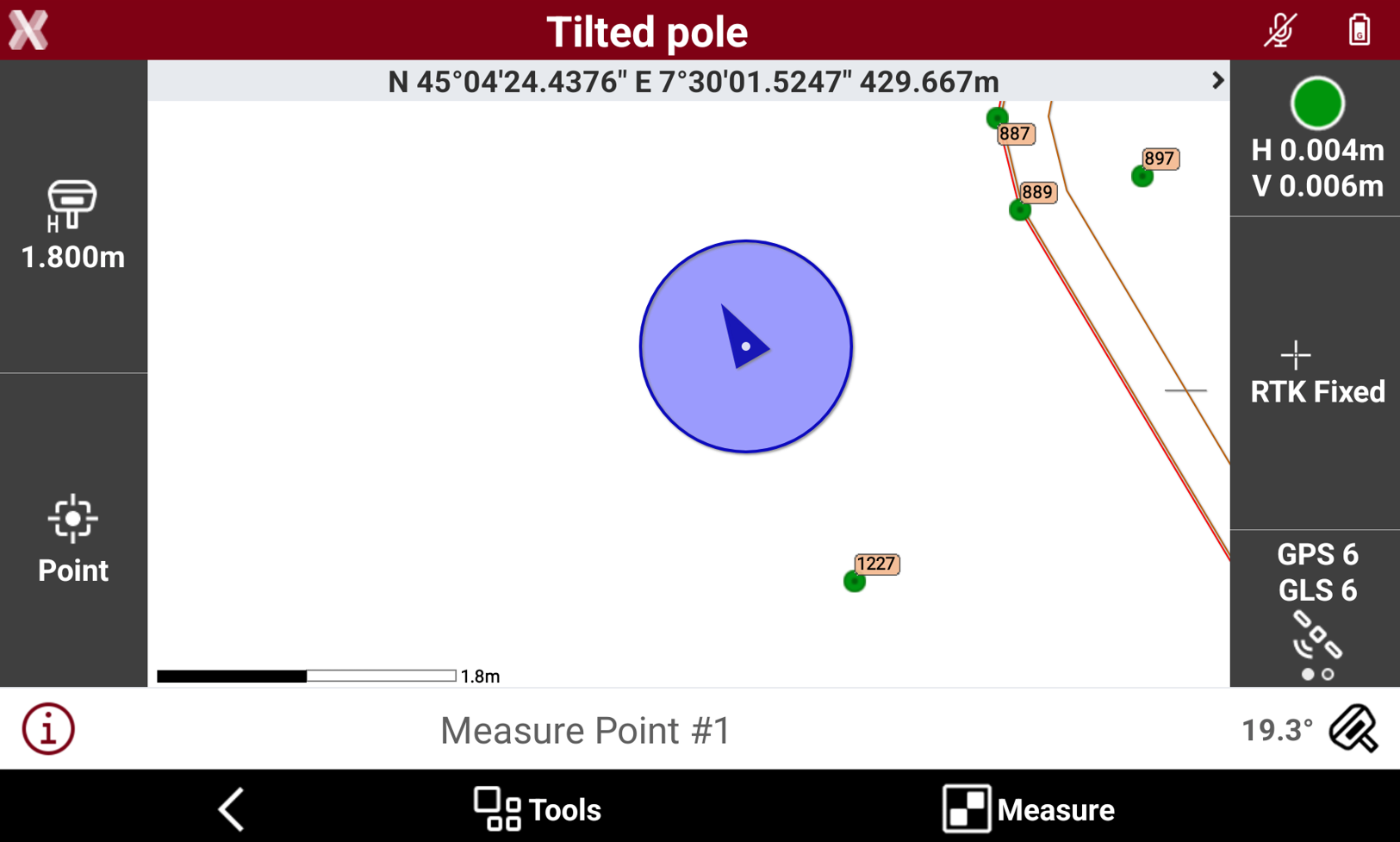
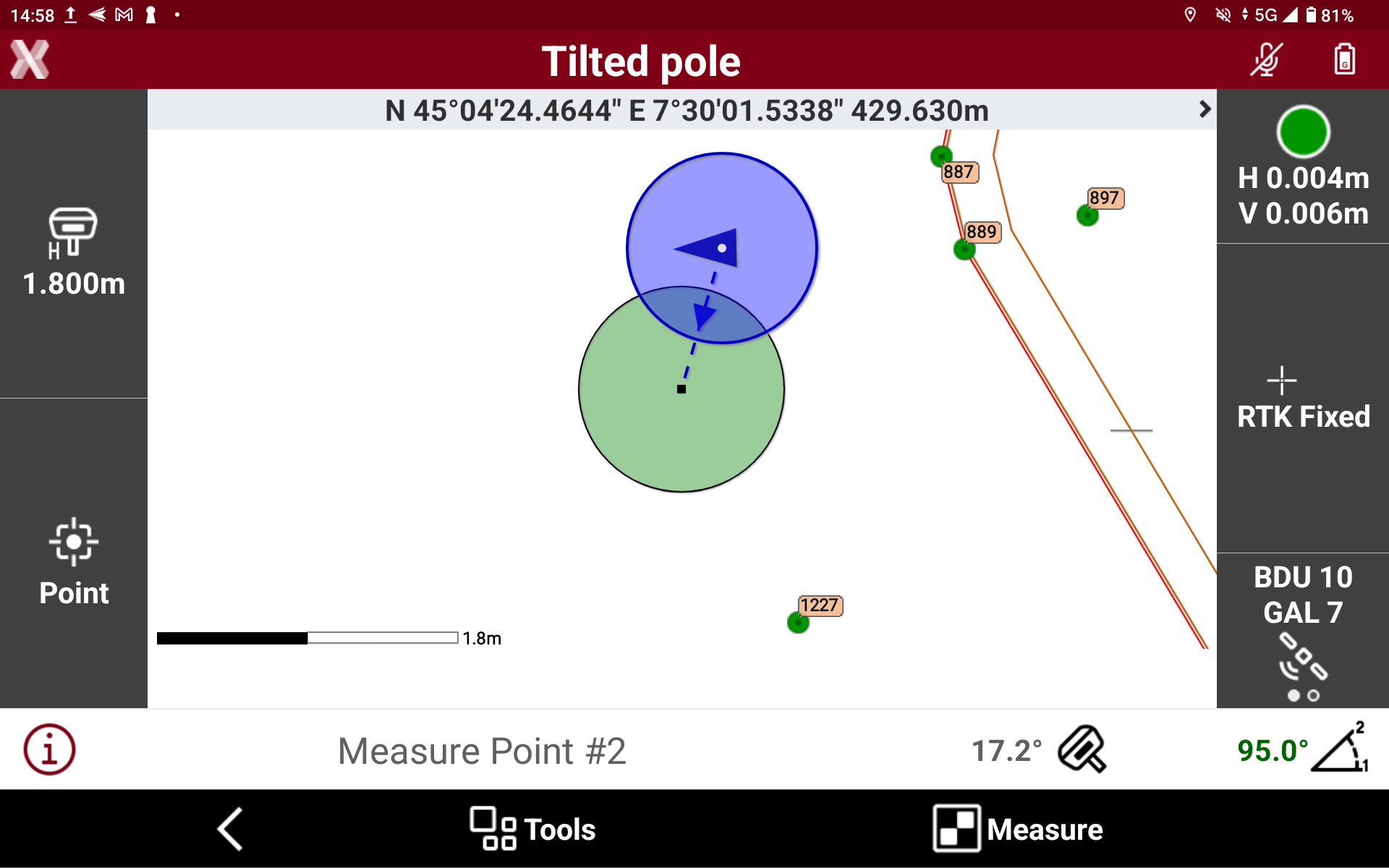
Perform the second measurement with the pole tilted in another direction. It is recommended to have an angle > 30° between the two measurements.
-
Press Measure to measure the point. On the bottom bar are visualized the current pole tilt and the horizontal angle from the first measurement direction.
-
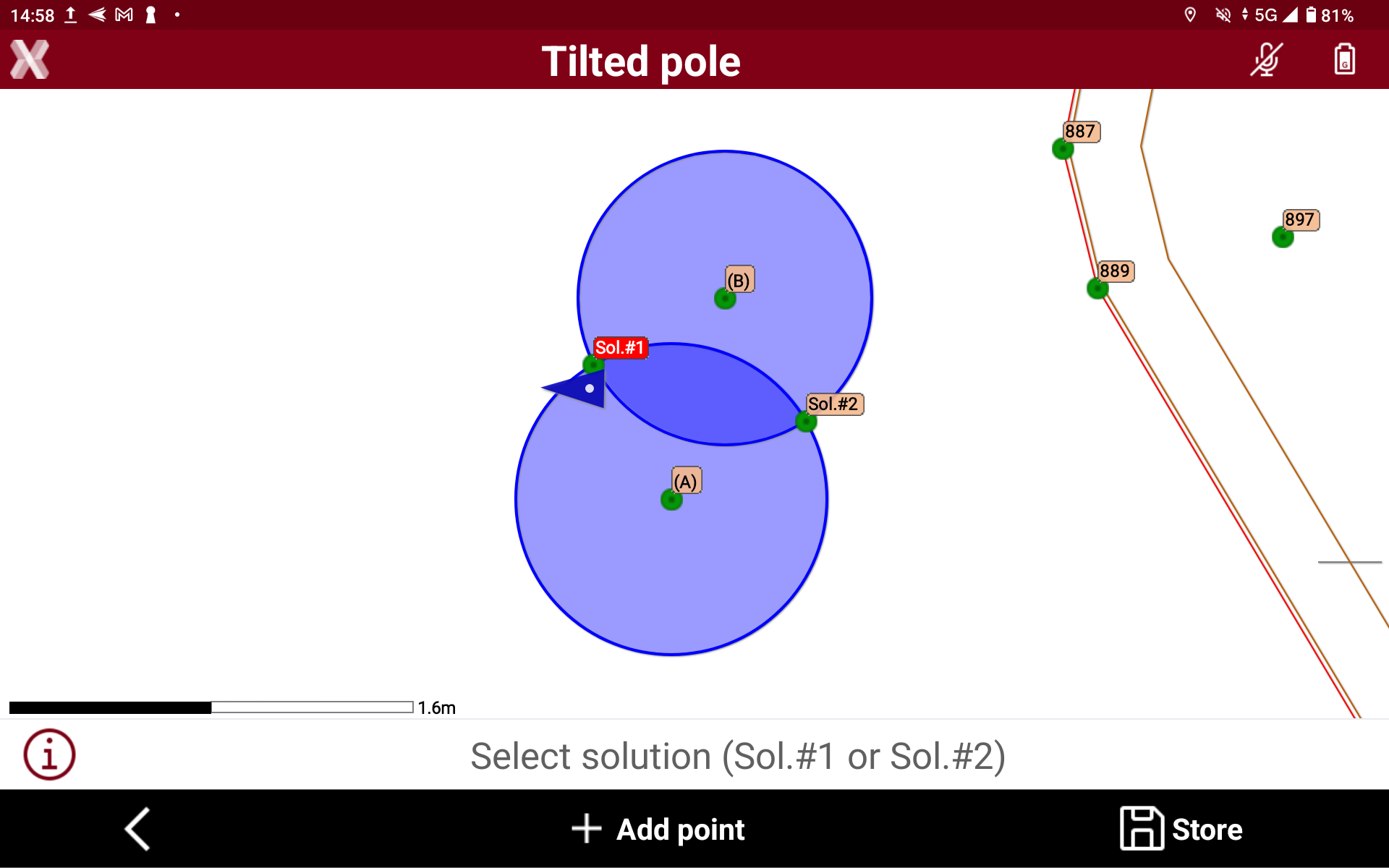
Select the correct solution (you can be helped raising the pole) and click Store to save the result.
-
Or select Add point to add a third measurement.
-
With three measurement the solution is automatically selected, and the software shows the calculation residuals.