-
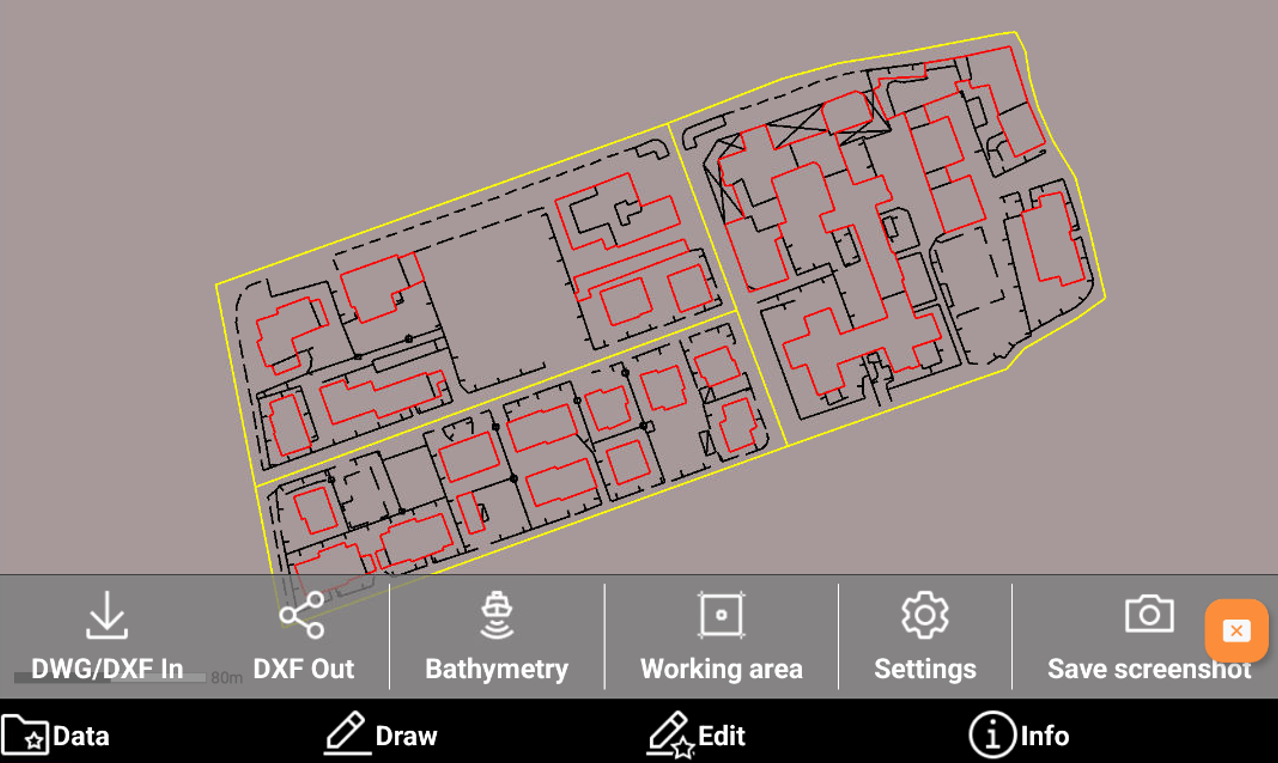
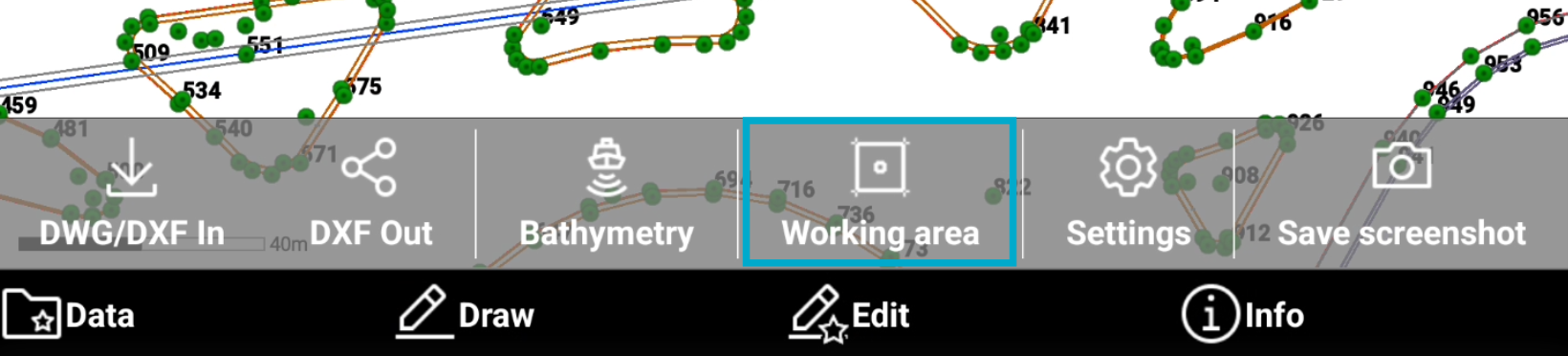
The CAD Data toolbar allows to access different CAD functions and settings.
-
Open the CAD.
-
Select Data
-
DWG/DXF In: to import a DWG/DXF file.
-
DXF Out: to export the data in a DXF file.
-
Bathymetry: opens the list of bathymetric sessions to be visualized in CAD.
-
Working area: allows to define the working area.
-
Settings: opens the CAD settings.
-
Save screenshot: allows to save a screenshot of the current CAD screen as jpg image.
-
Set the working area
-
When a working area is stored, the software uses it as default view for the CAD and Job window. If a working area is defined, the command Zoom Max. shows the defined working area. Working areas can be defined in the two ways:
-
Setting a working area directly.
-
Defining a working area.
-
-
A too large extension may occur, for example, when importing a DXF file, where blocks or other objects may be positioned in a completely different location from the main drawing. In this case the working area allows to work only on the area of interest.
-
When the drawing extension is too large to display all items correctly, this symbol

-
By clicking on the icon, the area to work on can be defined.
Setting the working area from warning icon
-
When the drawing extension is too large to display all items correctly, this symbol
-
Tap on
-
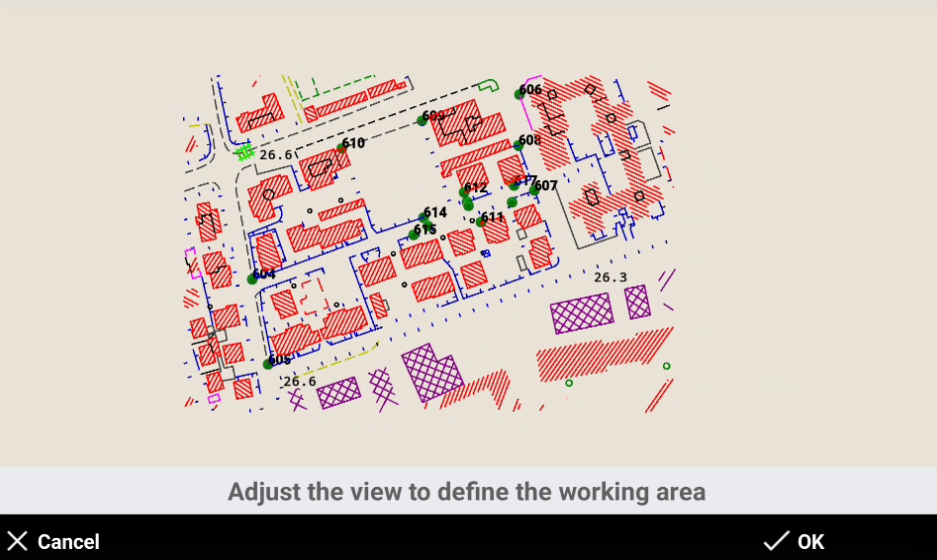
Perform the view adjustment.
-
Click OK to define the working area.
Defining a working area
-
A working area can be defined in case we want to force the zoom all to a defined area in CAD.
-
Select Data

-
Select Working area.
-
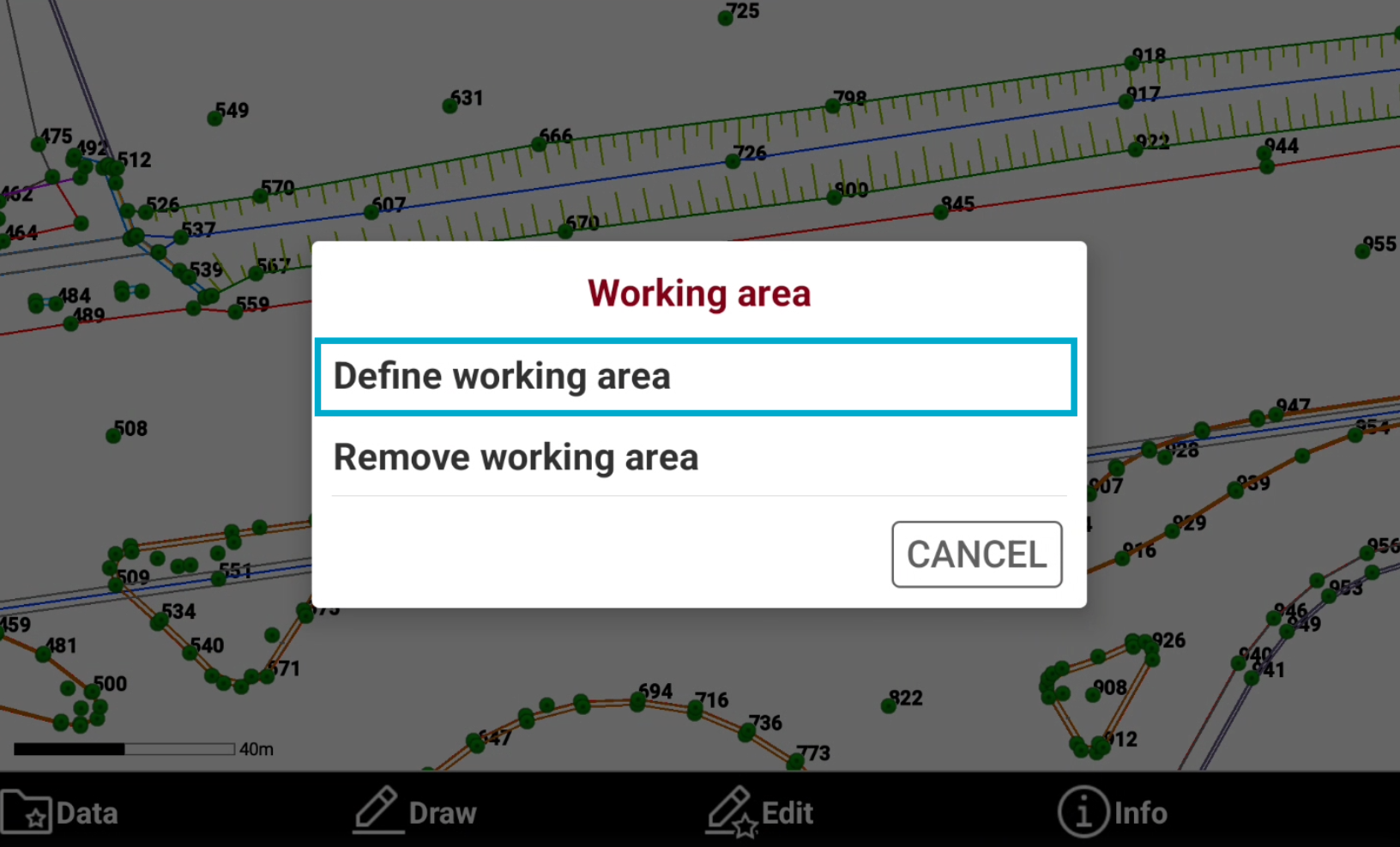
Select Define working area.
-
Adjust the view and click OK.
Remove a working area
-
It is possible to delete a defined working area.
-
Select Data
-
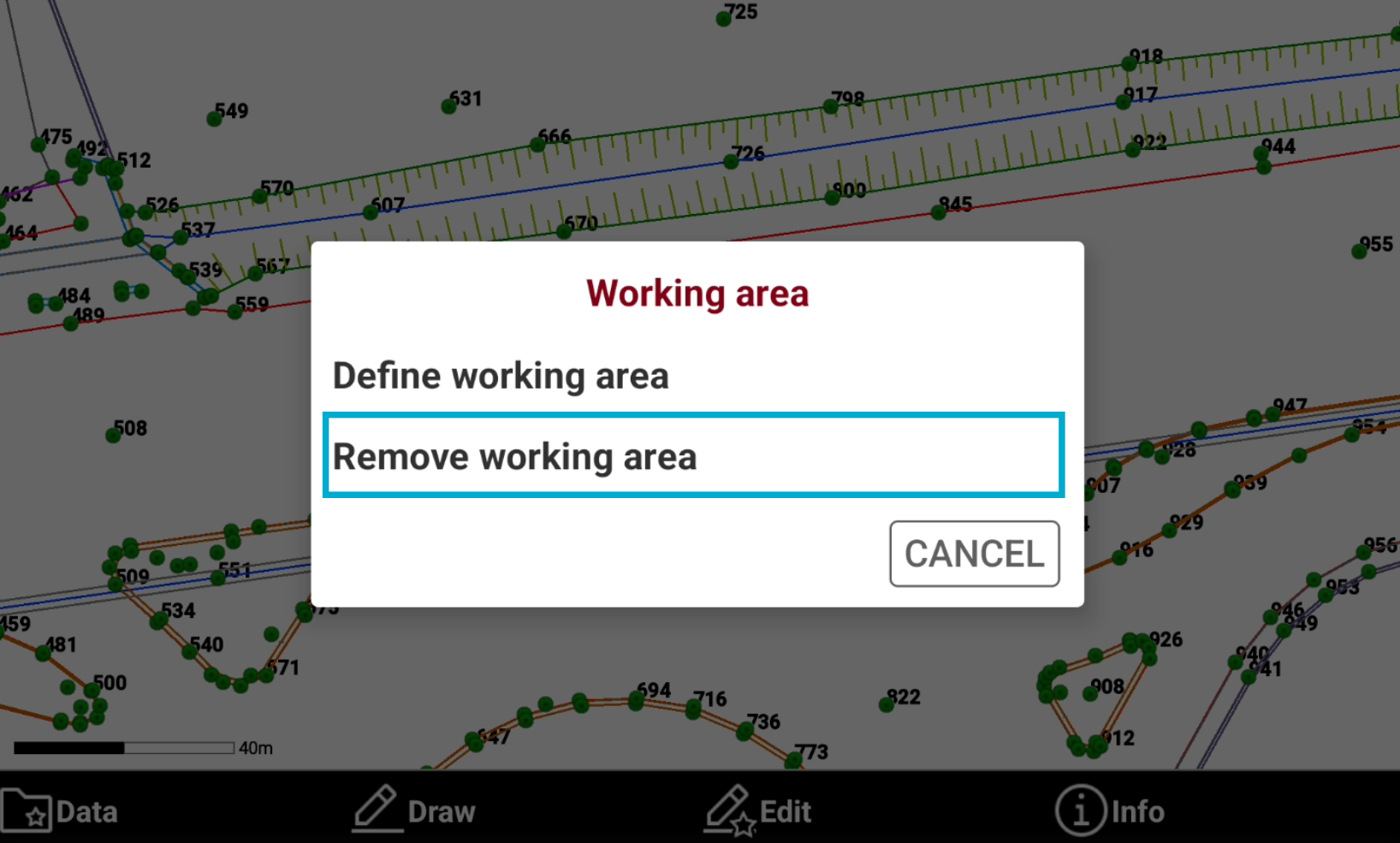
Select Working area.
-
Select Remove working area.