
-
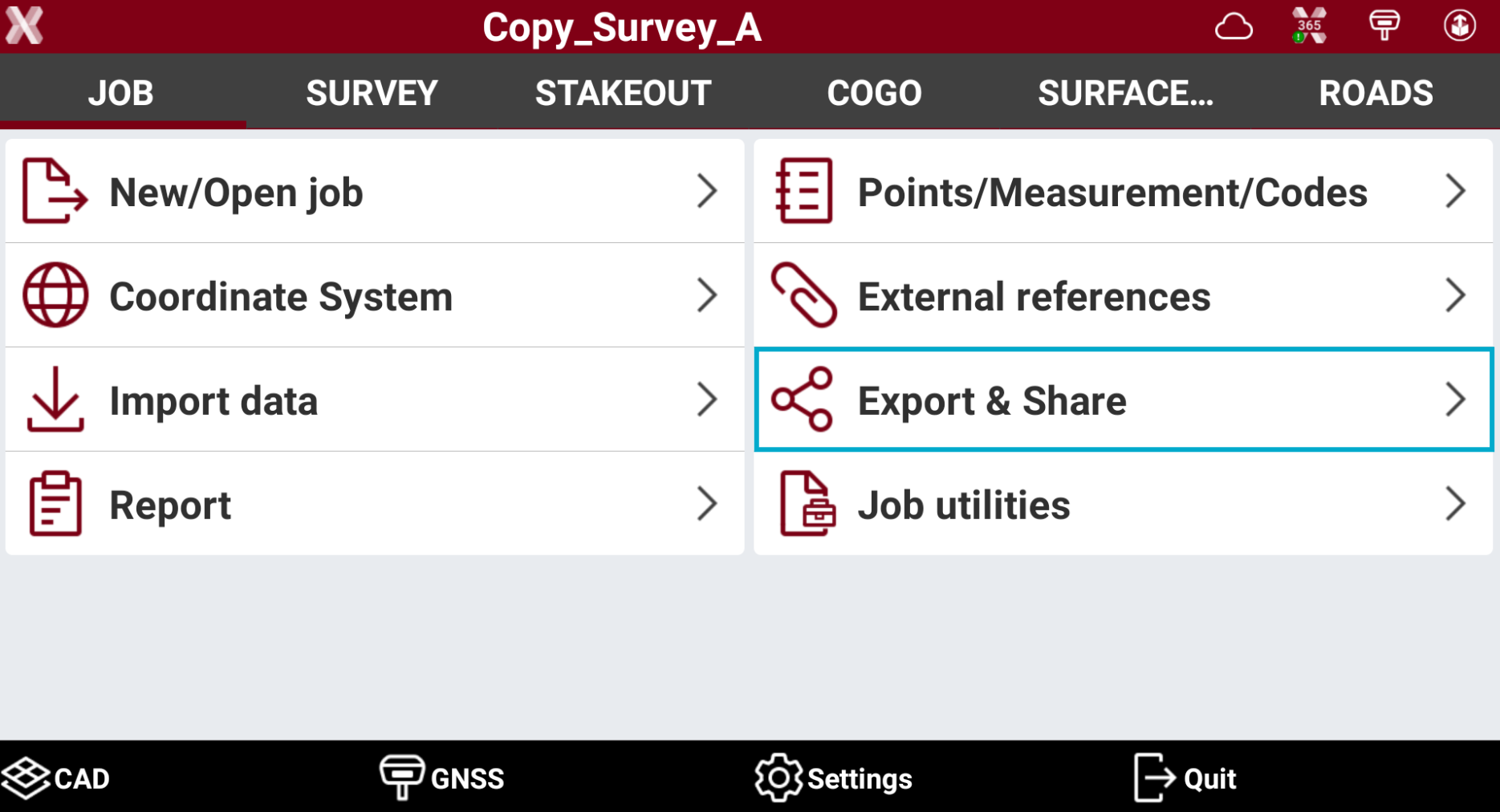
To export data from the current job open Job page.
-
Select Export & Share.
-
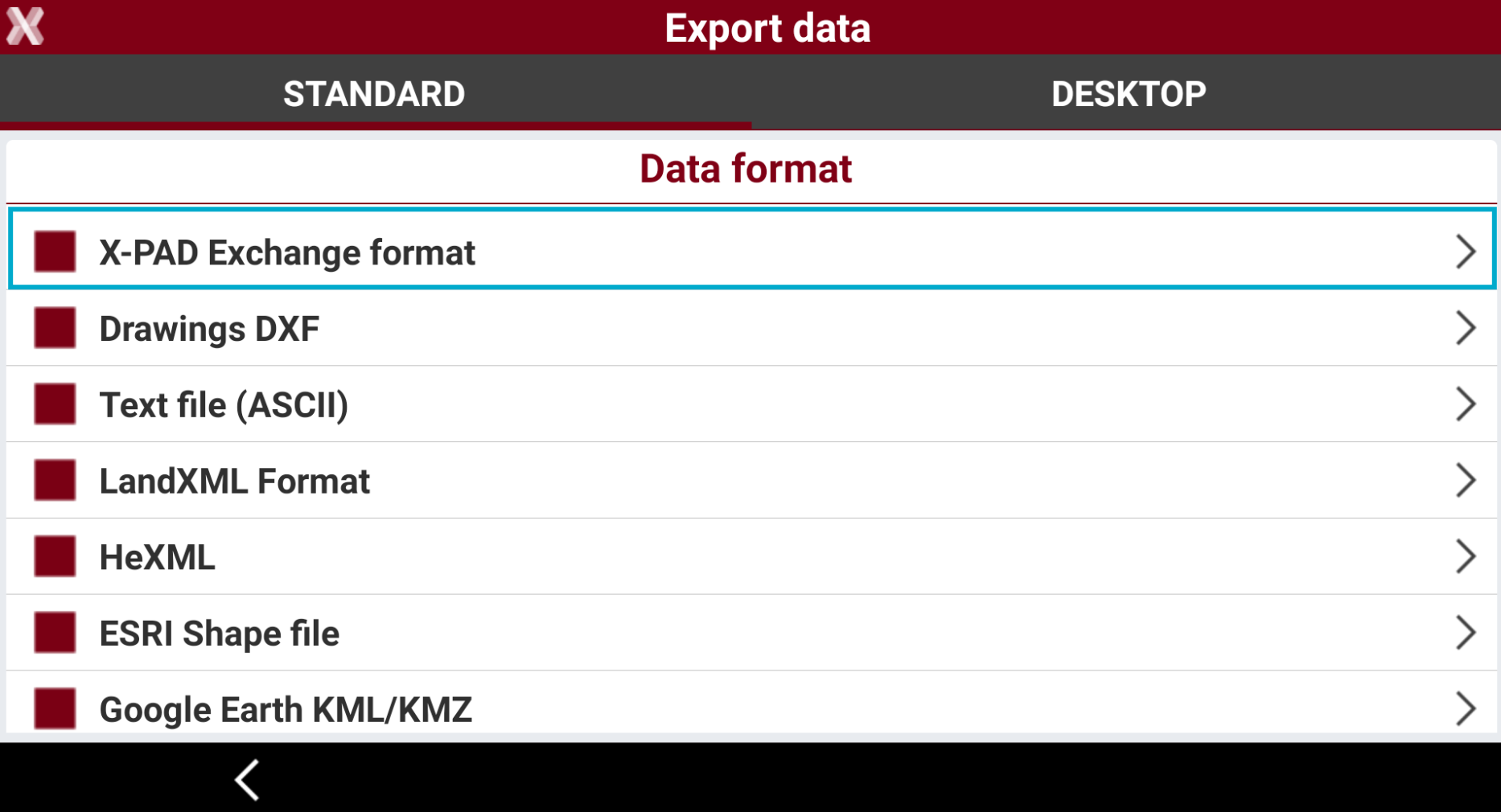
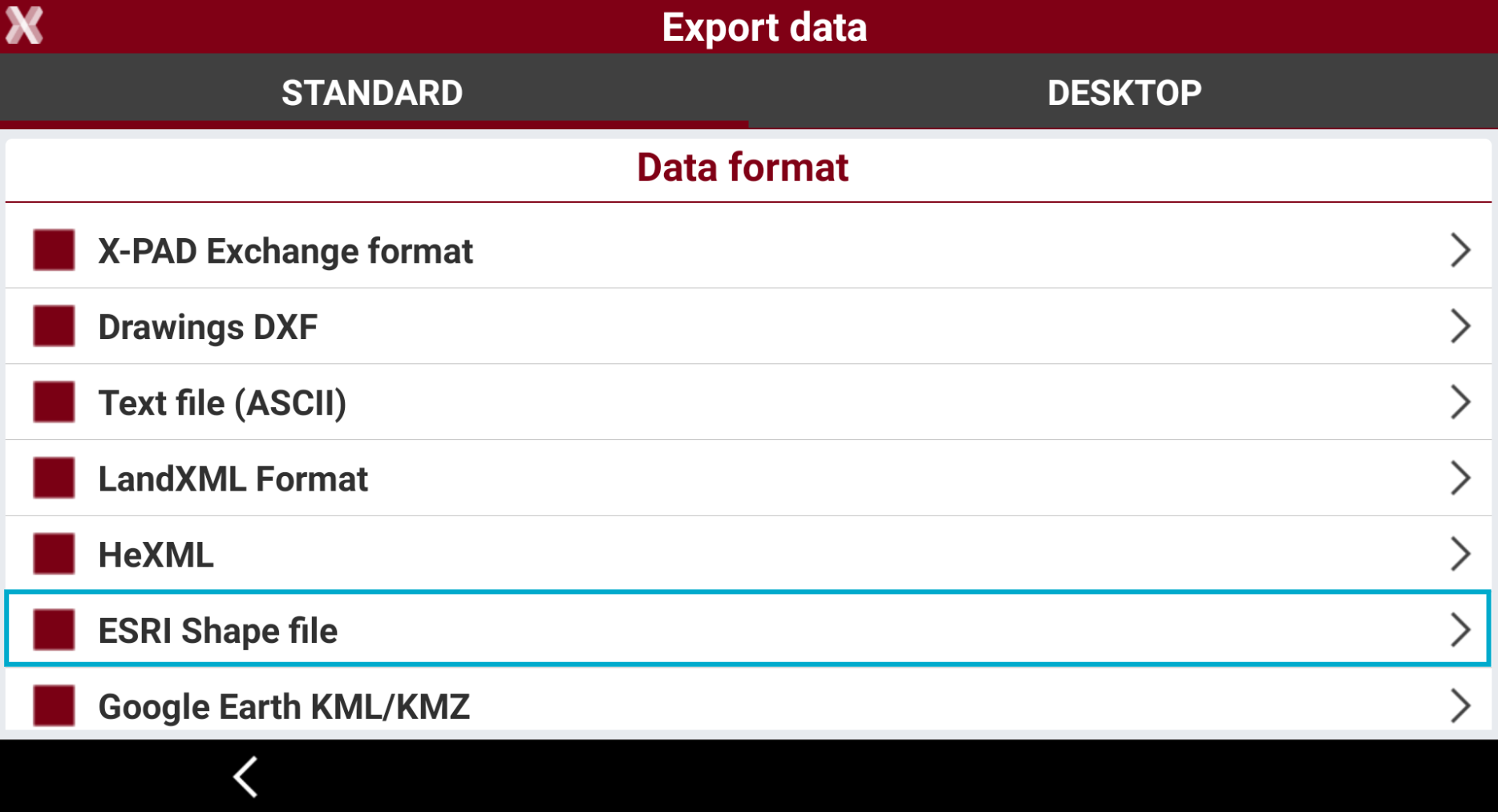
Select the format to export the data.
-
Below list shows the list of available export formats.
-
Standard data format: this page list the standard format to export the data.
-
X-PAD Exchange format: exports the data in xpad format. The format ensures better data transfer and collaboration between different X-PAD software.
-
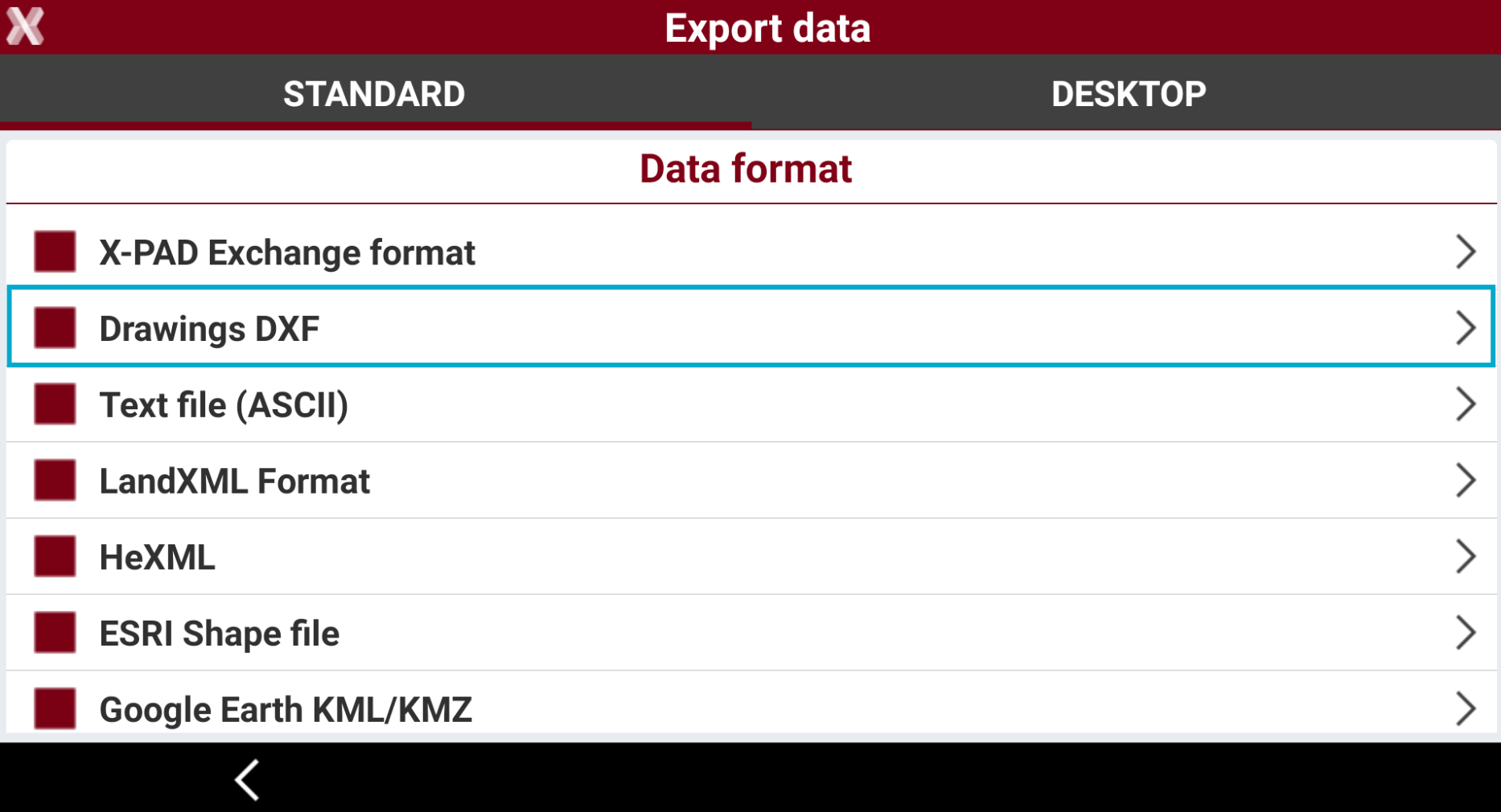
Drawing DXF: exports points and drawing in the standard DXF format.
-
Text file (ASCII): exports different data in a customized formatted text file.
-
LandXML: exports the data in the standard LandXML format.
-
HeXML: exports the data in the HeXML format.
-
ESRI shape file: exports the data in ESRI Shape format.
-
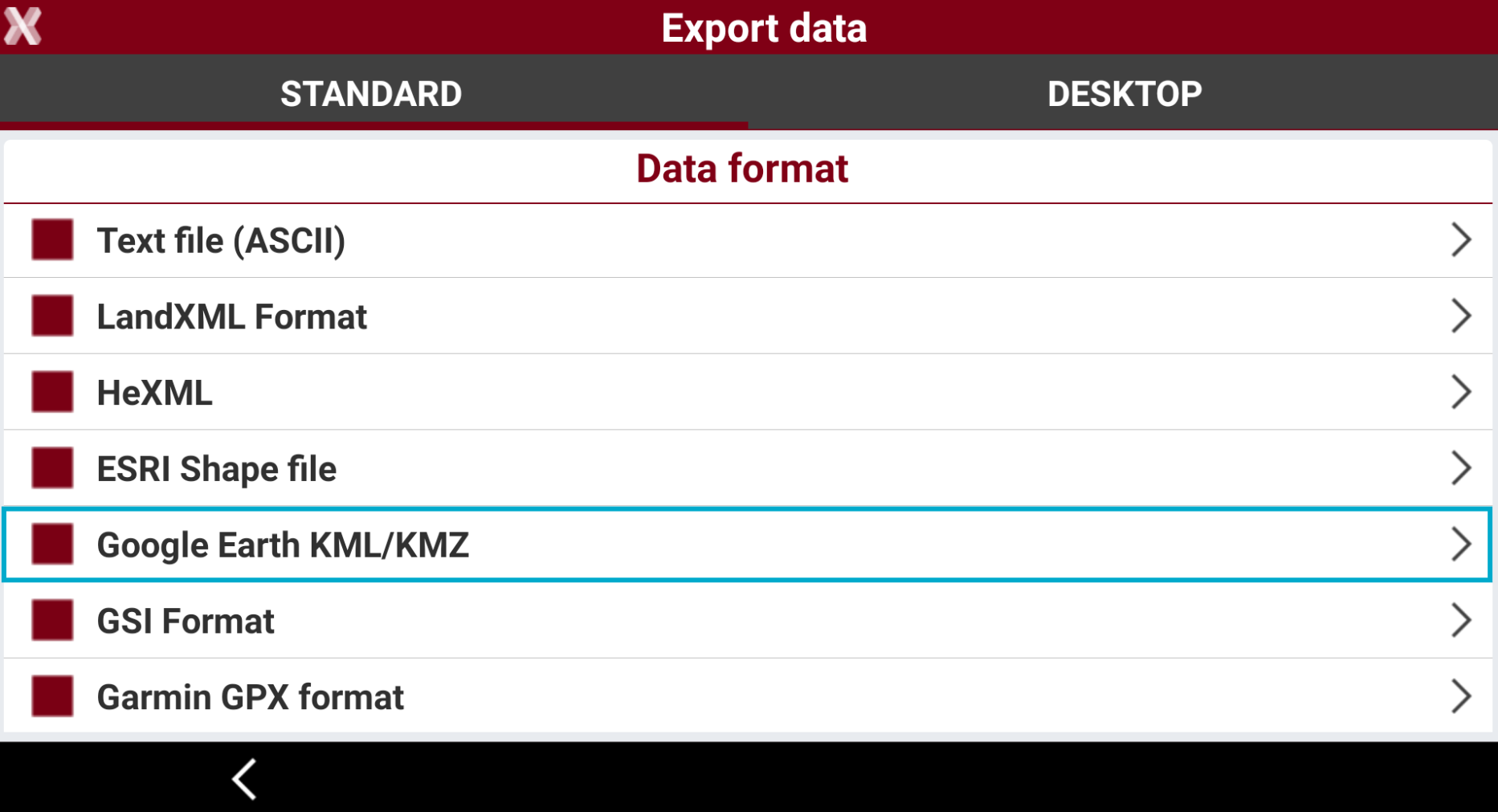
Google Earth KML/KMZ: exports the data in Google Earth KML or KMZ formats.
-
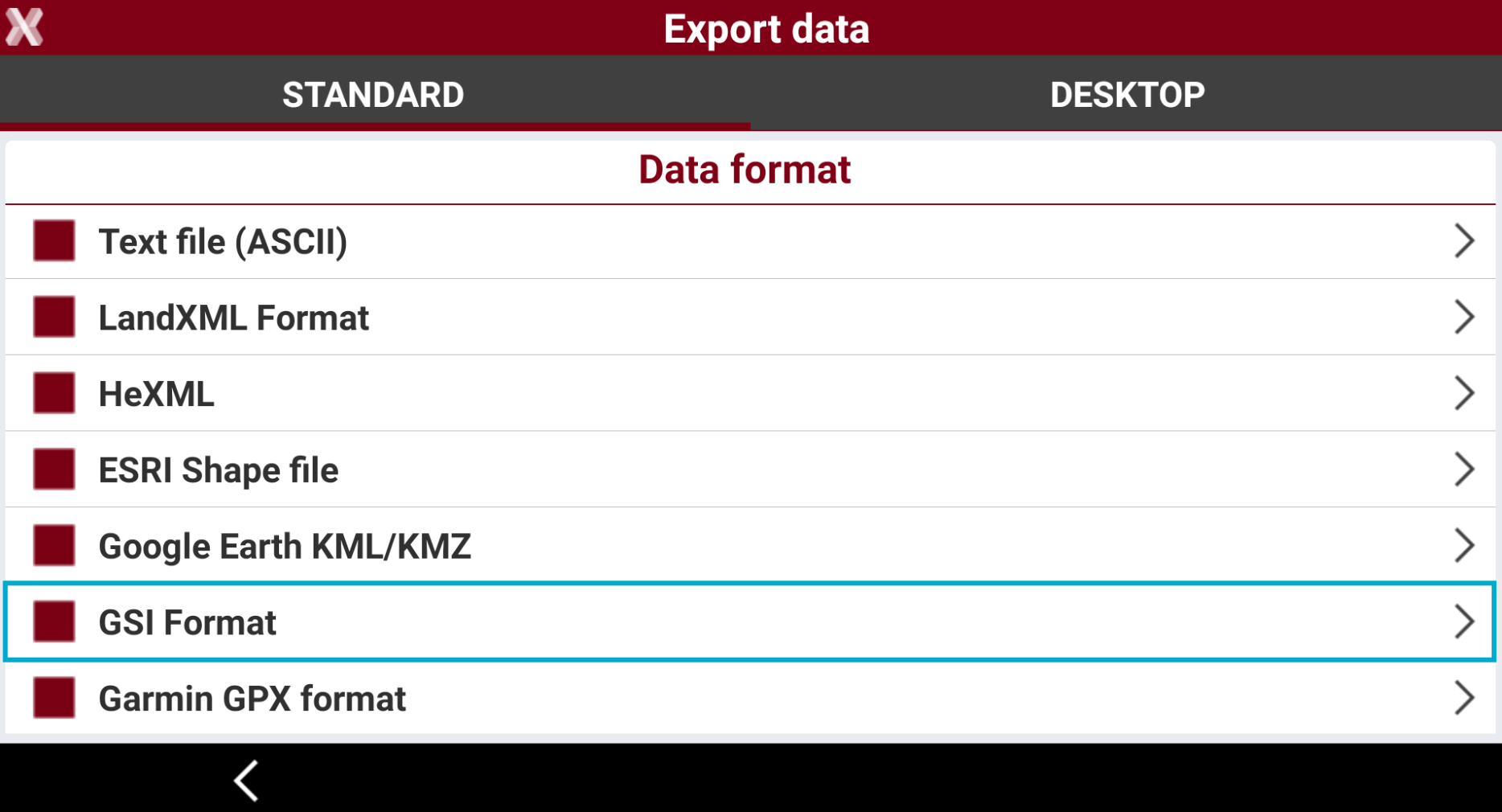
GSI Format: exports points and measurements in the GSI format.
-
Garmin GPX format: exports topographic points in the GPX format.
-
Leica IDX/IDEX: exports topographic points in Leica IDX/IDEX format.
-
Sokkia SDR format: exports topographic points in the Sokkia SDR format.
-
Carlson SurvCE RW5/CRD/CRDB: exports data in SurvCE RW5/CRD/CRDB formats.
-
Trimble JXL format: exports the data in Trimble JXL data format.
-
Trimble/Geodimeter format: exports the file in IDS format. (Only visible if language is Swedesh, Norwegian, Finnish)
-
GNSS Vector Exchange File Format (GVX): exports GNSS measurement data in GVX format. This NGS (National Geodetic Survey, USA) defined format allows users to integrate RTK Vectors into OPUS-Projects along with static data for combined network least squares adjustment. (Only visible if language is English US)
-
Berlin Protokoll: exports the data in BER format. (Only visible if language is German)
-
-
Desktop format: lists the formats that are commonly used in surveying office software.
-
STAR*NET format: exports the data in DAT format for office software STAR*NET.
-
12D format: exports the data in FLD format for 12D software.
-
N4ce format (.exp): exports the data in EXP format for N4ce surveying software. (Only visible if language is English or English UK)
-
N4ce format (.raw): exports the data in RAW format for N4ce surveying software. (Only visible if language is English or English UK)
-
LSS (DTM): exports the data in 001 format for LSS software. (Only visible if language is English or English UK)
-
LISCAD: exports the data in RAW format for LISCAD software.
-
GEOGraf: exports the data in PKT format. (Only visible if language is German or German ITA)
-
MDD format: exports the data in MDD format. (Only visible if language is German or German ITA)
-
DandasTV: exports the format in XML format for DANDAS. (Only visible if language is Danish)
-
V1Civil3D: exports the data in TXT format for Civil3D V1. (Only visible if language is Danish)
-
V2Civil3D: exports the data in TXT format for Civil3D V2. (Only visible if language is Danish)
-
SDL format: exports the data in PKT or OBS format. (Only visible if language is Danish)
-
TPLAN format: exports the data in TPLAN (DPI) format. (Only visible if language is Bulgarian)
-
-
Local format: lists the formats that are used only locally in some countries.
-
SBG Geo data: exports points or surface in SBG GEO/PXY/TRM format. (Only visible if language is Swedish, Finnish, English, English UK, Danish)
-
KOF format: exports the data in KOF format. (Only visible if language is Swedesh, Norwegian, Finnish)
-
KOF50 format: exports the data in KOF50 format. (Only visible if language is Swedish, Norwegian, Finnish)
-
Topko (1200/VIVA): exports the data in TXT format. Can be imported in Topko software as Leica System 1200/VIVA format. (Only visible if language is Italian)
-
LGE (1200/VIVA): exports the data in TXT format. Can be imported in LGE software as Leica System VIVA format. (Only visible if language is Italian)
-
Meridiana (1200/VIVA): exports the data in CST format. Can be imported in Meridiana software as Leica 1200/VIVA format. The file has to be imported in Meridiana in File -> Importa -> Strumento -> File GNSS -> Altri -> Leica Geo Office - Meridiana format. (Only visible if language is Italian)
-
Leonardo (1200/VIVA): exports the data in CST format. Can be imported in Leonardo software as Leica 1200/VIVA format. (Only visible if language is Italian)
-
GeoMAP: exports the data in GeoMAP (TXT) format. (Only visible if language is Lithuanian)
-
NetCAD NCN: exports the data in NetCAD NCN format. (Only visible if language is Turkish)
-
NetCAD YDE: exports the data in NetCAD YDE format. (Only visible if language is Turkish)
-
RTK GNSS format: exports the data in RTK format. (Only visible if language is Latvian)
-
VZD GNSS format: exports the data in VZD (TXT) format. (Only visible if language is Latvian)
-
MicroStation format: exports the data in MicroStation MUC format. (Only visible if language is Latvian)
-
3D System format: exports the data in 3D System (TXT) format. (Only visible if language is Swedish or Finnish)
-
Trimble NIS: exports the data in Trimble NIS, Trimble NIS3D or Trimble NIS Elenia formats. (Only visible if language is Swedish or Finnish)
-
KLI format: exports data in KLI format. (Only visible if language is Swedish)
-
GT format: exports data in GT (XYZ) format. (Only visible if language is Swedish or Finnish)
-
Generator raportow RTK: generates the report in different formats. (Only visible if language is Polish)
-
Report RTK/RTN do Osdodka: generates the report in different formats. (Only visible if language is Polish)
-
M-GEO: exports the data in M-GEO (TXT) format. (Only visible if language is Polish)
-
GML: exports the data in GML format. (Only visible if language is Spanish)
-
MAPA2: exports the data in MAPA2 format. (Only visible if language is Czech)
-
SEMA: exports the data in SEMA format. (Only visible if language is German or German ITA)
-
SEMA Point: exports the data in SEMA Point format. (Only visible if language is German or German ITA)
-
Dataflor: exports the data in Datafor format. (Only visible if language is German or German ITA)
-
AASHTO SDMS format: exports the data in PRJ format. (Only visible if language is English US)
-
-
Export a X-PAD Exchange format file
-
The X-PAD Exhange format (.xpad) ensures better data transfer and collaboration between office and field software:
-
Leica X-PAD for Android.
-
Leica Fusion.
-
X-PAD 3.5 Survey Windows Mobile.
-
The format consolidates all information stored in the field including photos and raw data.
-
To export the data in X-PAD Exhange format select X-PAD Exchange format.
Export a DXF drawing
-
The software allows to export in the standard DXF format, exporting points with labels and drawing.
-
To export the data in DXF select Drawing DXF.
-
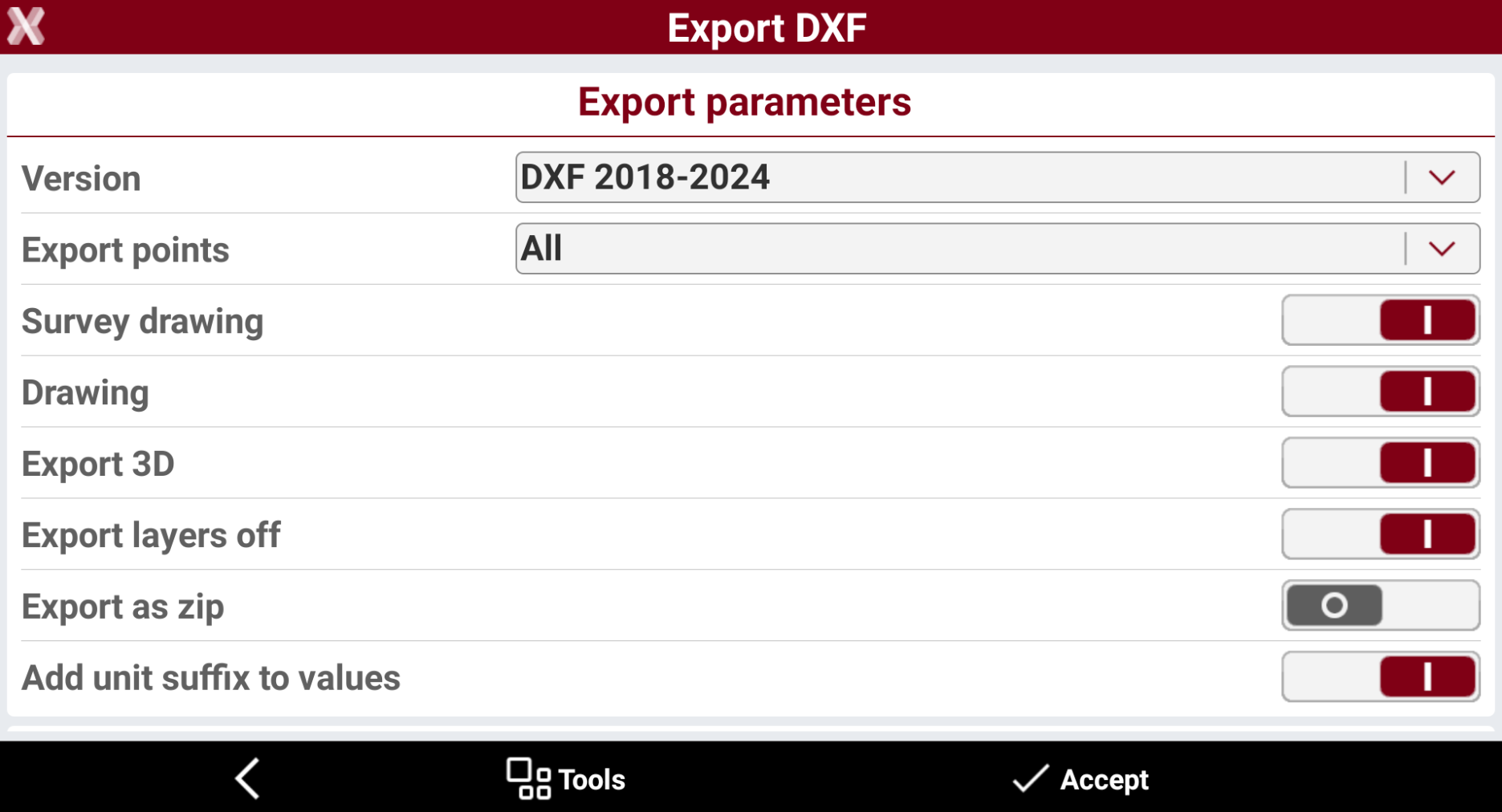
Enter the DXF Export parameters.
-
Version: version of the DXF format to create.
-
Export points:
-
All: exports all points in the job.
-
Only measured: exports only points that was measured in the field with an instrument.
-
Only measured TPS: exports only points that was measured in the field with a total station.
-
Only measured GNSS: exports only points that was measured in the field with a GNSS.
-
Selected: exports only selected points. It is possible to select the points to export from point table or from CAD clicking Points to export.
-
-
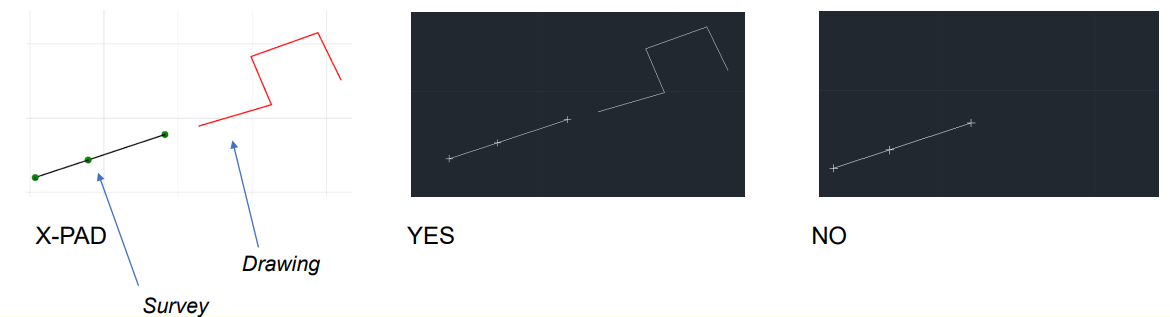
Survey drawing: activates the export of all the drawing elements that were created during the measurement operations with Smart drawing.

-
Drawing: activates the export of the drawings in the job. These elements was imported or created in CAD.
-
Export 3D: activates the export of data with elevation.
-
Export layers off: enables the export of data on layer that are turned off in CAD.
-
Export as zip: if enabled, the data is compressed in a zip file, including style files.
-
Add unit suffix to values: allows to specify if numeric labels in DXF export (elevations, distances, …) have to be exported with or without the suffix of the unit (m as meters, if as internation feet, …).
-
Points style: selects the style of exported points.
-
Block with attributes and symbol: point is exported with its point symbol. Attributes and symbol are exported as a block.

-
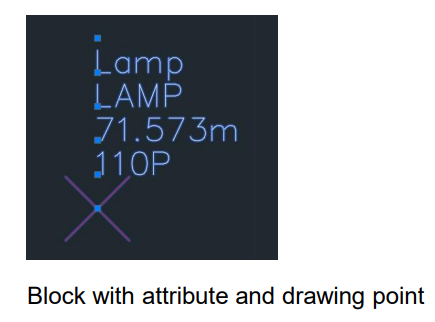
Block with attributes and drawing point: point is exported with drawing point. Attributes and symbol are exported as a block.
-
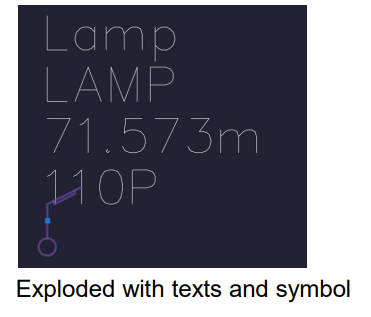
Exploded with texts and symbol: point is exported with its point symbol. Attributes are exported as text.
-
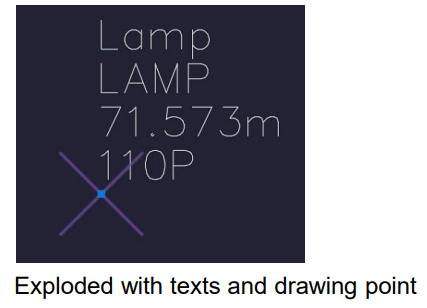
Exploded with texts and drawing point: point is exported with drawing point. Attributes are exported as text.
-
-
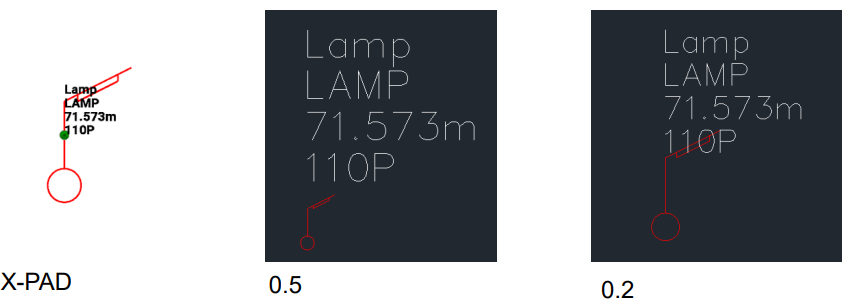
Label size: size of the text for the labels of the topographic point.
-
Layer of labels: select the layer for the labels.
-
Pre-defined layers: the layer for the labels is on the pre-defined layer.
-
Layer of points (same for all): the layer for the labels is on the same layer for all the points.
-
Layer of point (specific): the layer for the labels is on the layer of the specific point.
-
-
Export sketches: activates the export of the images associated with the points. The images are linked to the points to be opened as a reference (hyperlink) from CAD software.
-
Export collaborative survey points: activates the export of measured points also by the other members of a collaborative survey session.
-
-
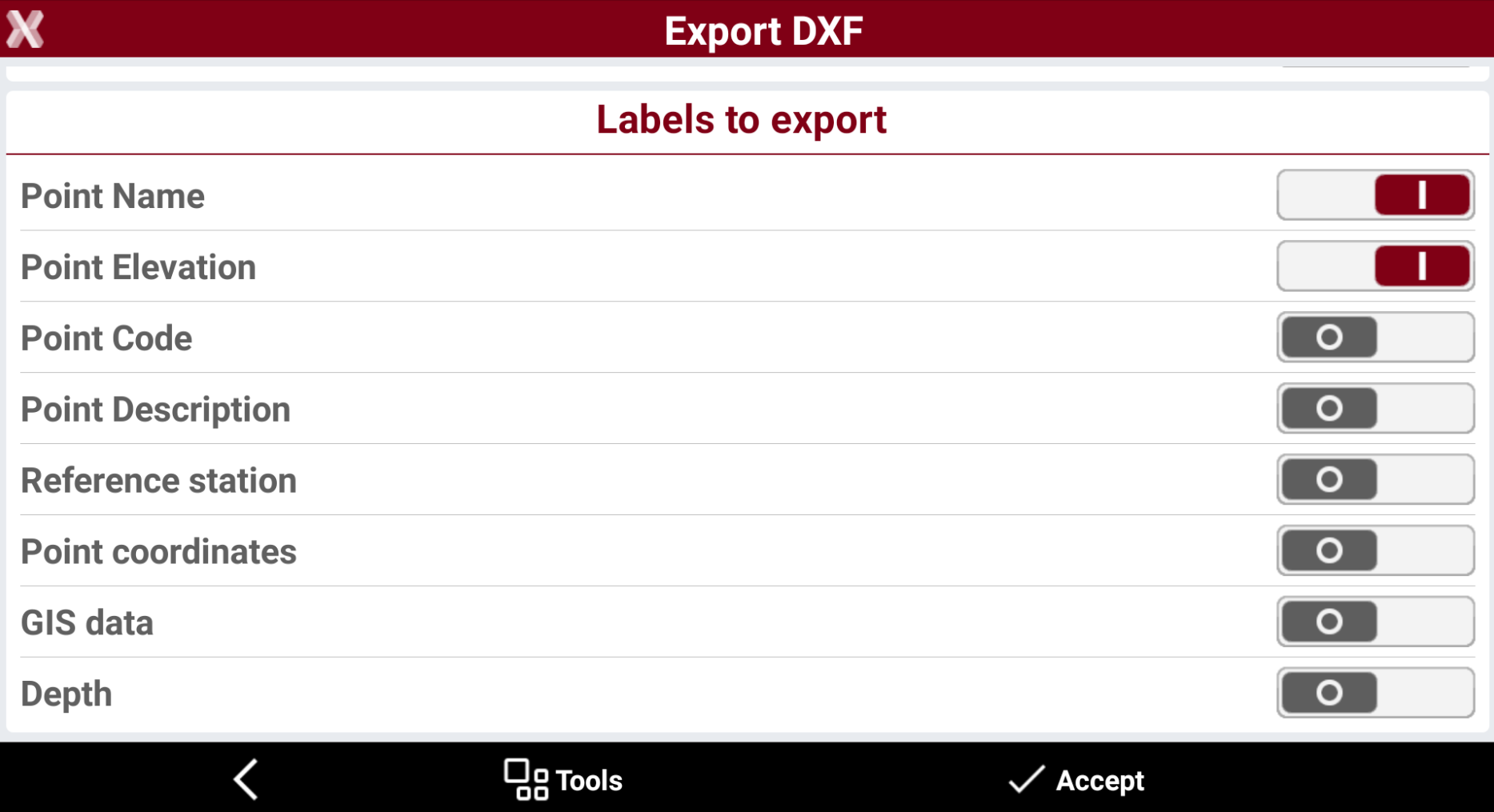
The Labels to export options allow to define which labels to export for the topographic points.
-
Point name: activates the export of the label with the point name.
-
Point elevation: activates the export of the label with the point elevation.
-
Point code: activates the export of the label with the point survey code.
-
Point description: activates the export of the label with the point description.
-
Reference station: activates the export of the label with the GNSS reference station.
-
Point coordinate: activates the export of the label with the point coordinate.
-
GIS data: activates the export of the label with the GIS attributes stored.
-
Depth: activates the export of the label with the depth value stored when working with a service locator.
-
-
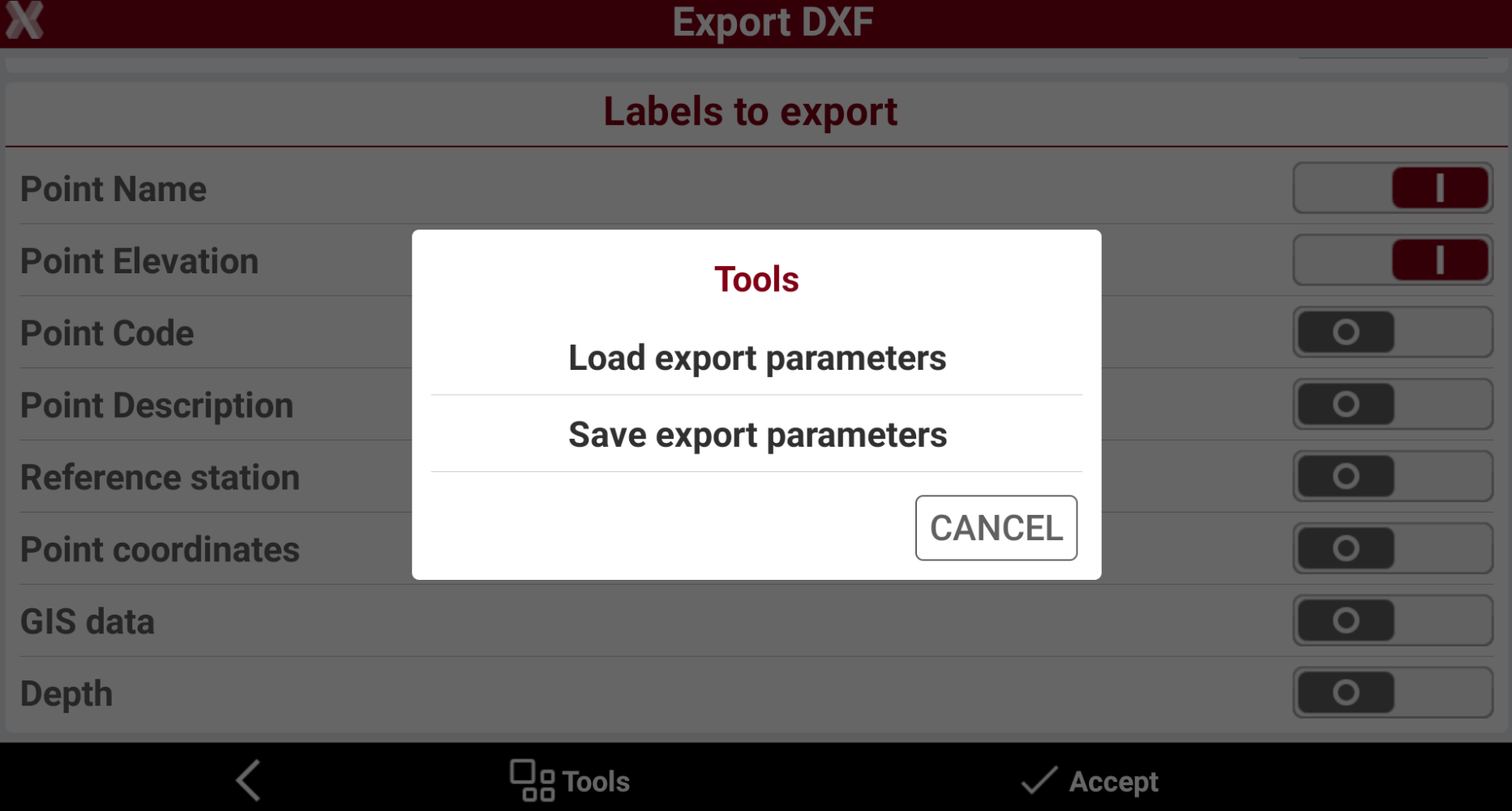
Press Tools to save or load the export parameters. This helps to save a set of customized export parameters.
-
Load export parameters: export the scheme of selected parameters.
-
Save export parameters: import a saved scheme of selected parameters.
-
-
Press Accept to export the file.
Export ASCII
-
Export topographic points, reference points, measurements and other data in ASCII customizable format.
-
Export parameters can be saved in a template which can be loaded for other import and export procedures.
-
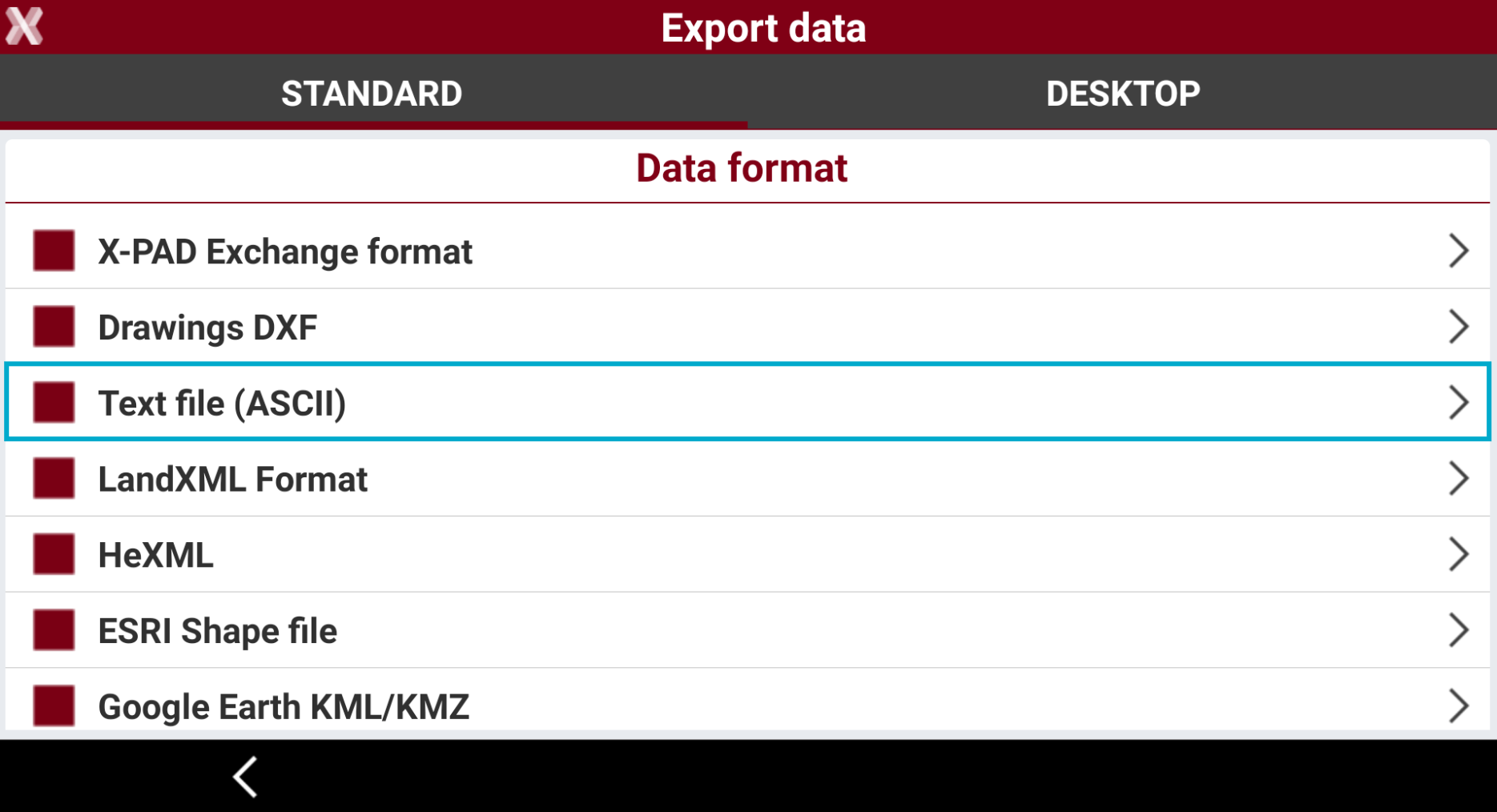
To export an ASCII file select Text file (ASCII).
-
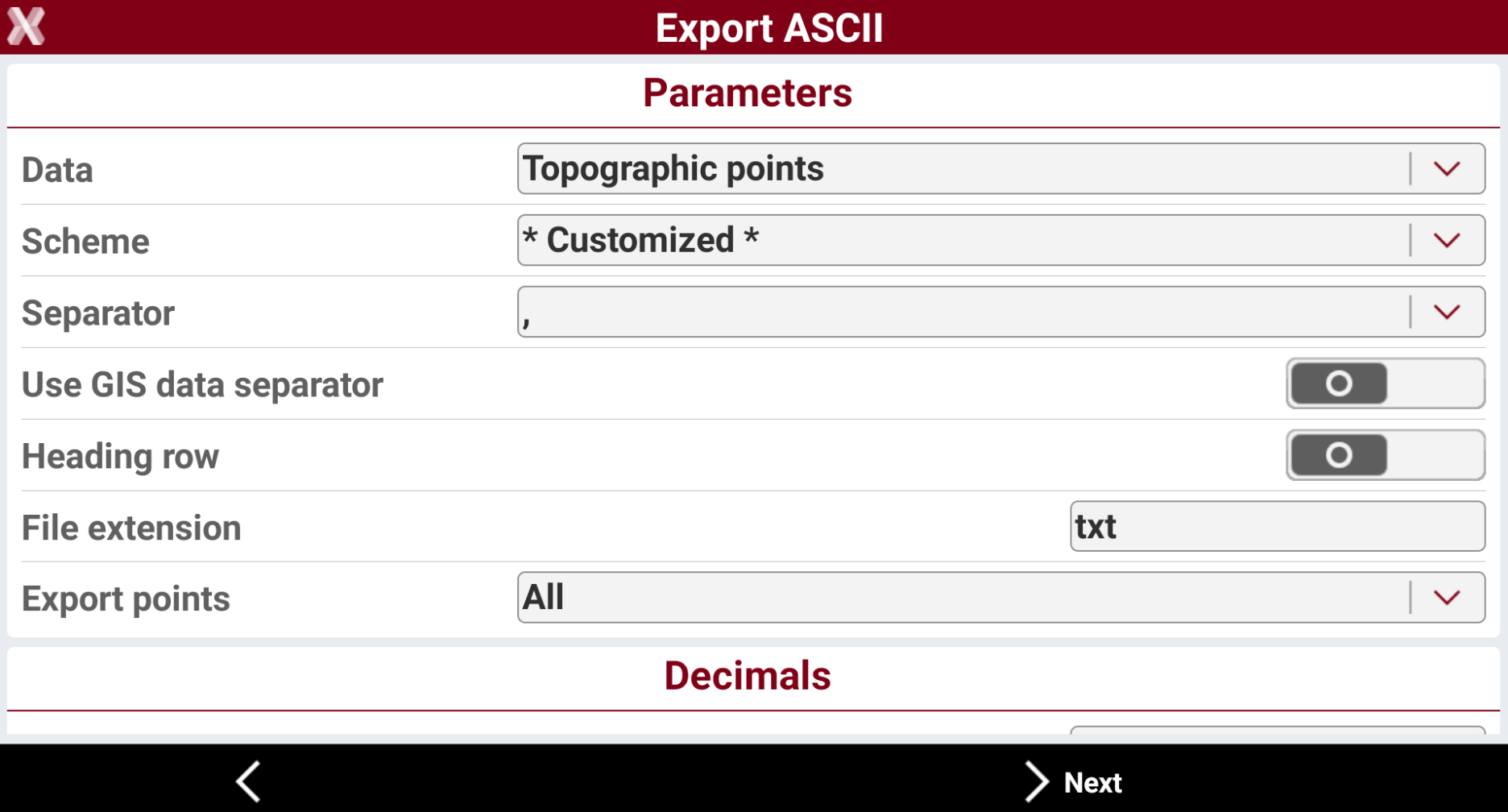
Enter the export parameters.
-
Data: select the data to export.
-
Topographic points: exports the topographic points.
-
Reference points: exports the reference points.
-
All points: exports topographic points and reference points.
-
GNSS Measurements: exports the GNSS measurements.
-
TPS Measurements: export the total station measurements.
-
Bathymetry sessions: exports the bathymetry sessions measured with Bathymetric Survey function.
-
GNSS Measurements and Averaged: exports the detailed GNSS measurements measured with GNSS Advanced and Analysis function.
-
-
Scheme: the currently available export scheme is suggested. Select a scheme or choose * Customized * to create a scheme.
-
Separator: select the character separating fields with content.
-
Use GIS data separator: if GIS data are exported, allows to select a specific character separating GIS data.
-
Heading row: activates the export of a heading row containing the name of the fields.
-
File extension: defined the exported file extension.
-
Export points: when exporting Topographic points, allows to define which points to export.
-
All: exports all points in the job.
-
Only measured: exports only points that was measured in the field with an instrument.
-
Only measured TPS: exports only points that was measured in the field with a total station.
-
Only measured GNSS: exports only points that was measured in the field with a GNSS.
-
Selected: exports only selected points. It is possible to select the points to export from point table or from CAD clicking Points to export.
-
-
Angles: the number of decimals for angle values.
-
Coordinates: the number of decimals for coordinate values.
-
Elevation: the number of decimals for elevation values.
-
Distances: the number of decimals for distance values.
-
Lat.de/Long.de: the number of decimals for latitude and longitude values.
-
Lat.de/Long.de format: the format to use when exporting latitude and longitude values.
-
-
Press Next.
-
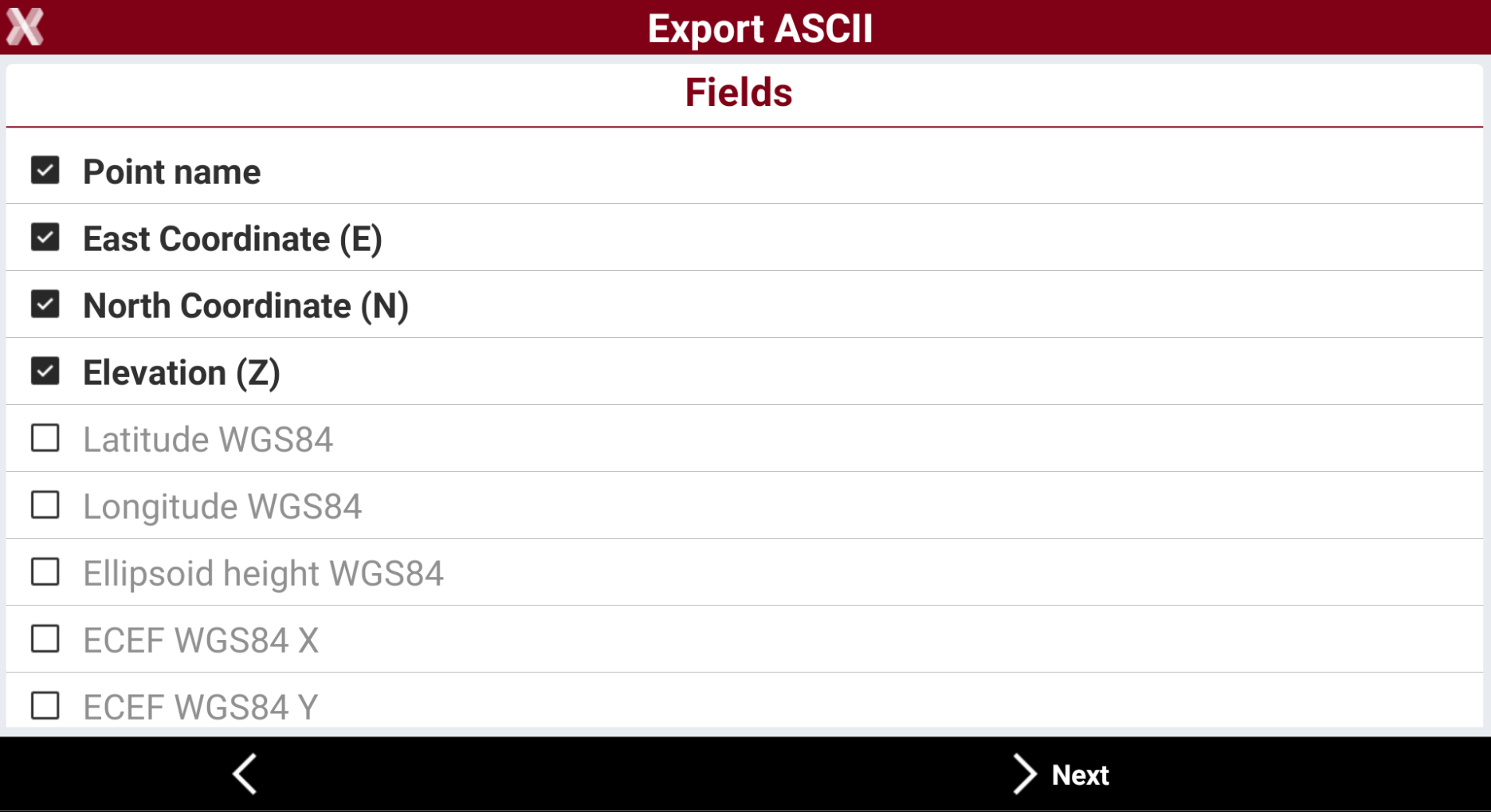
If the Scheme is * Customized * the software allows to select the fields to export and change the fields order.
-

-

-

-
-
Press Next.
-
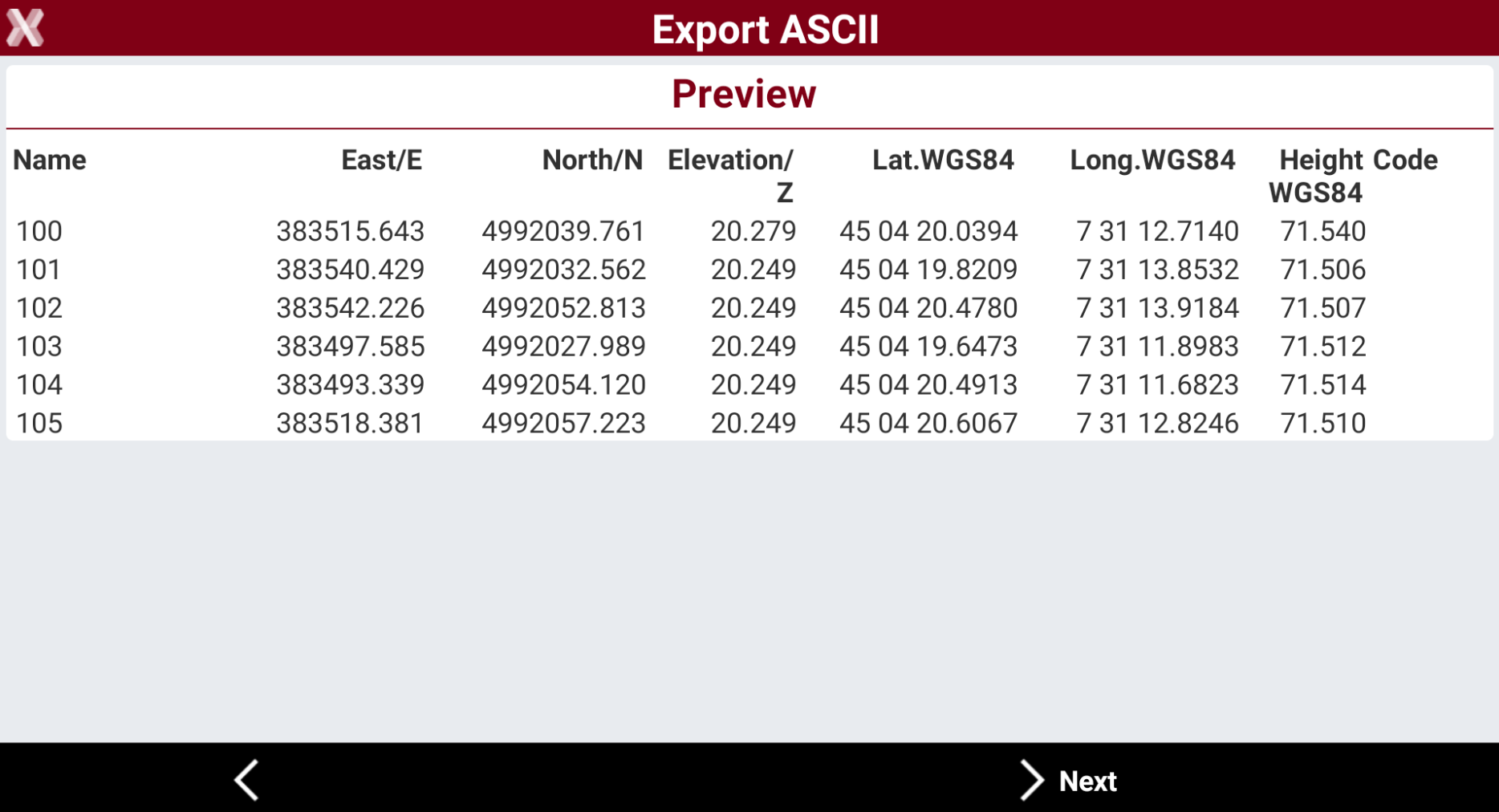
The software shows a preview.
-
Press Next.
-
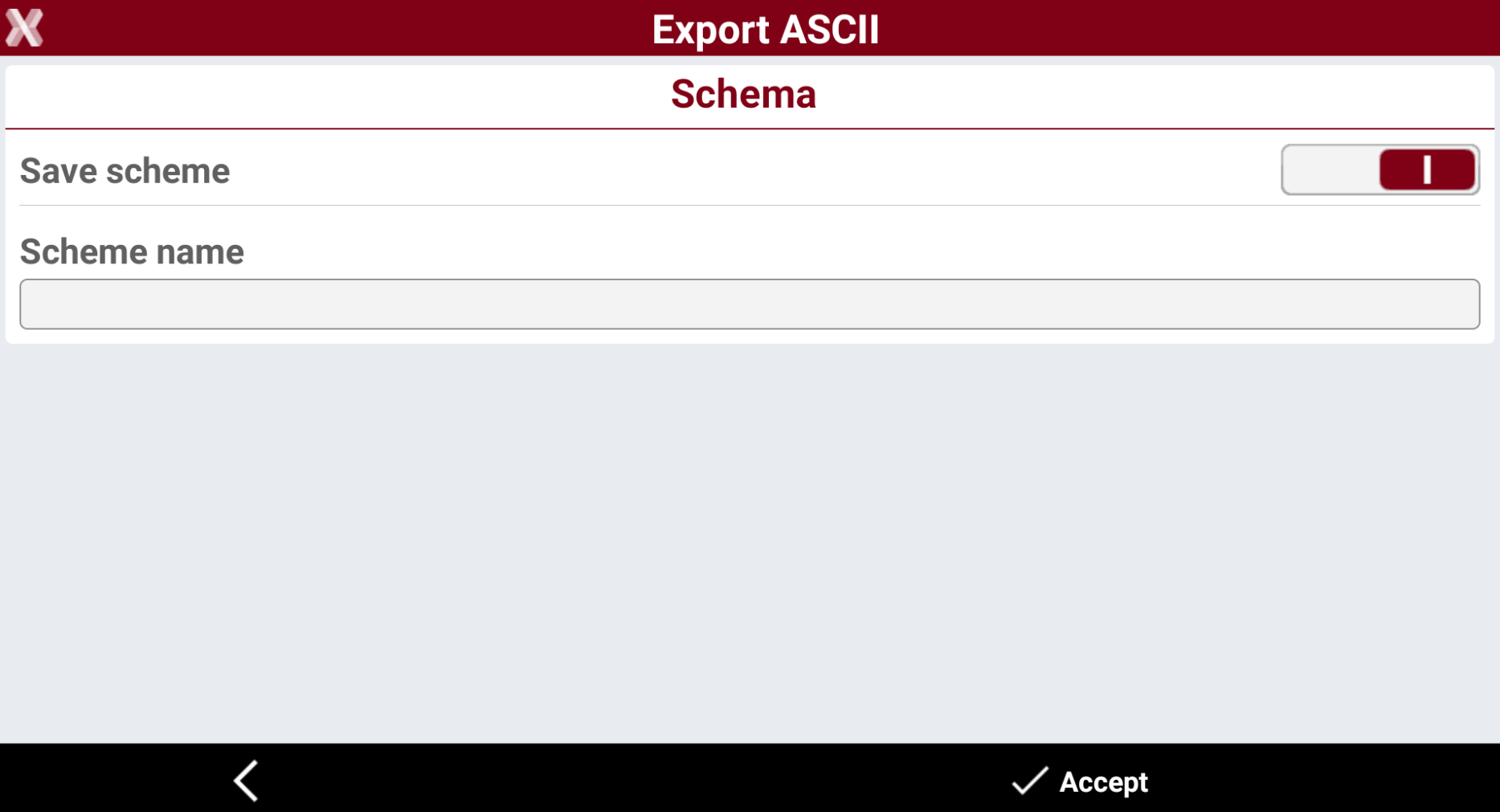
If the Scheme is * Customized * it is possible to save the scheme.
-
Save scheme: enables the saving of the current export scheme.
-
Scheme name: the name of the scheme to save.
-
-
Press Accept to export the data.
Export a LandXML file
-
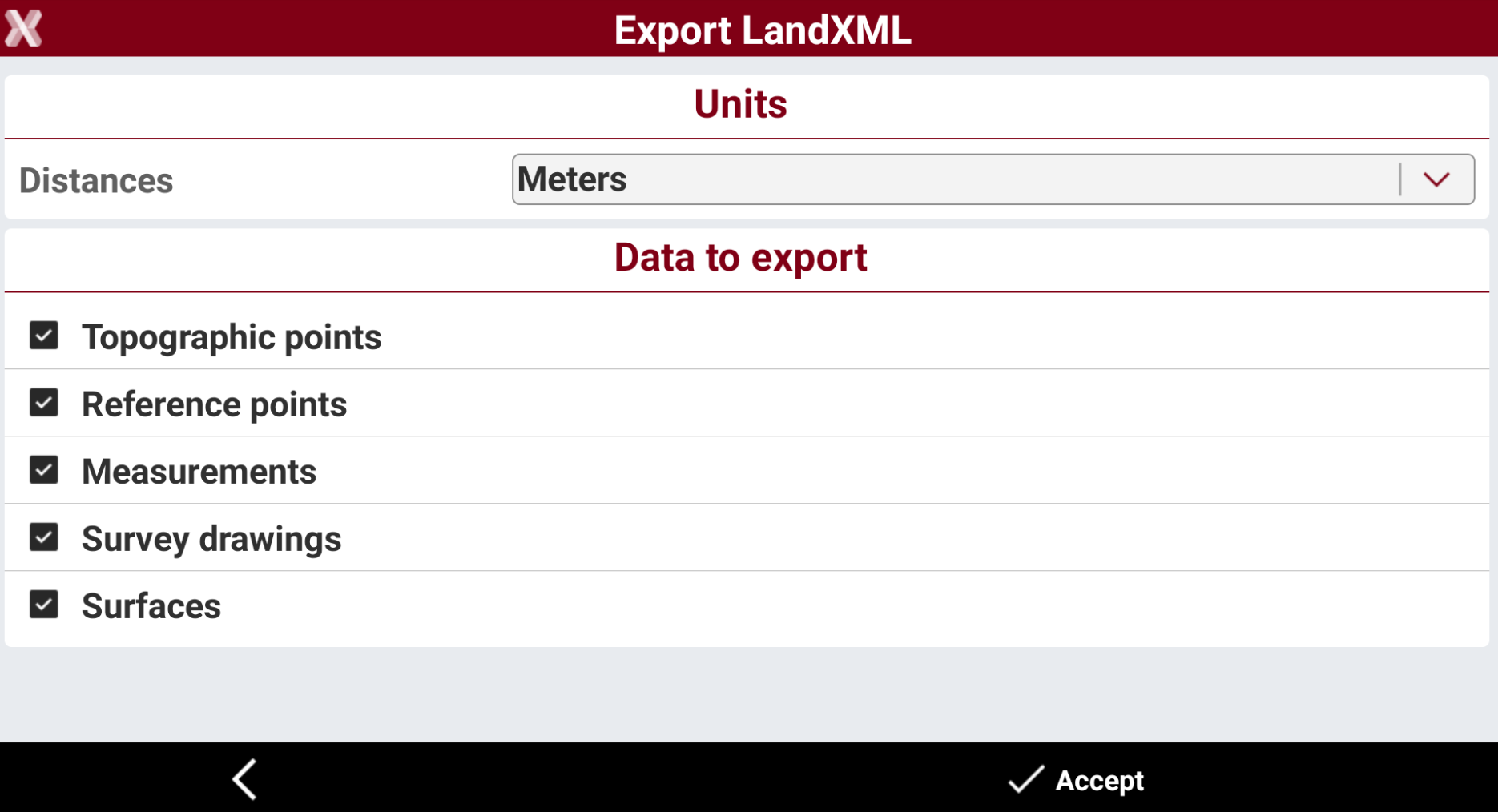
The software allows to export topographic points, reference points, measurements, drawing and surfaces in LandXML file format.
-
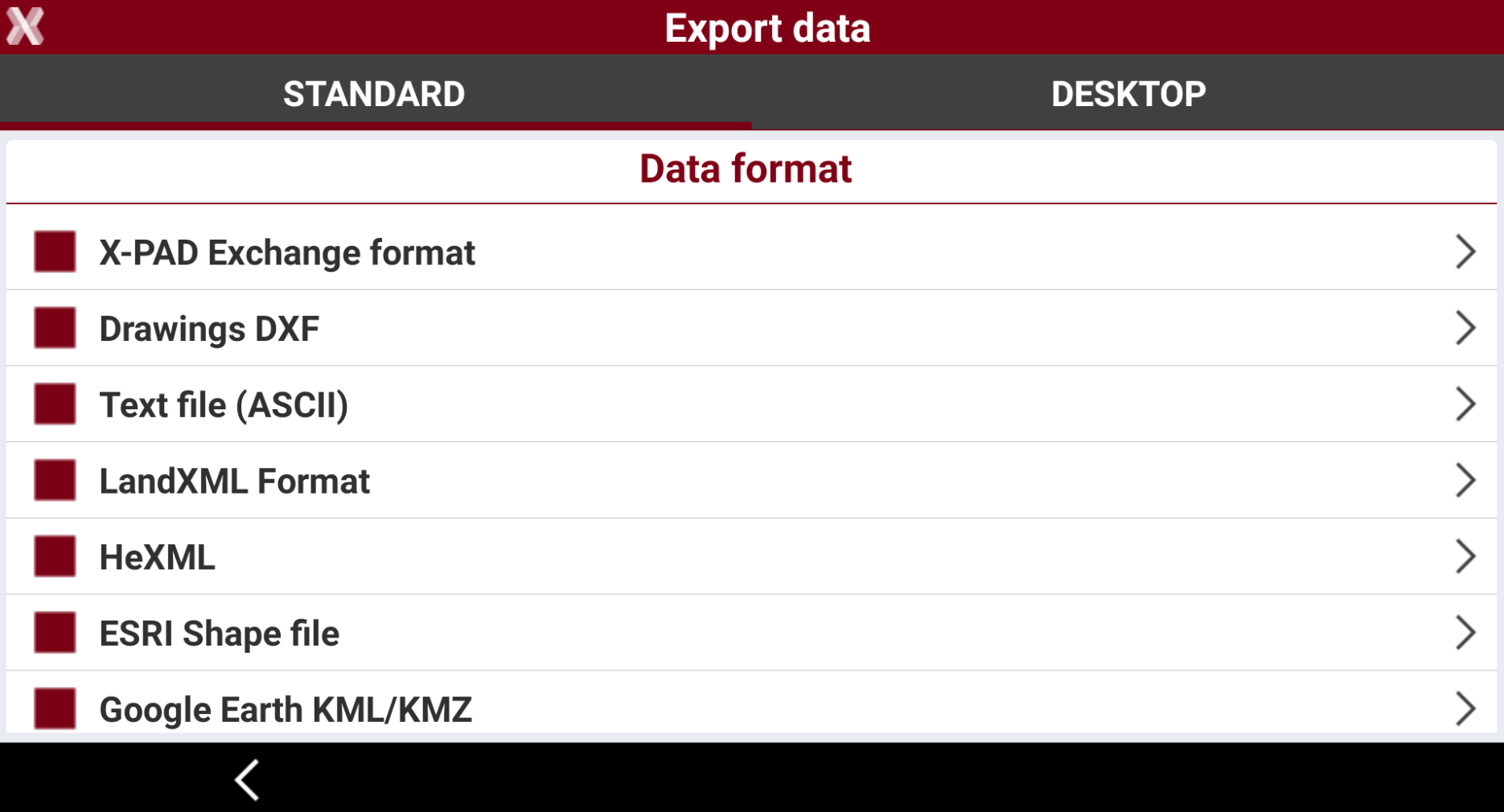
To export the data in LandXML select LandXML Format.
-
Enter the LandXML Export parameters.
-
Distances: the units used in the exported file.
-
Data to export: allows to select the data to export from the job.
-
-
Press Accept to export the file.
Export a HeXML file
The HeXML format is a XML-based data exchange format developed by Hexagon for the surveying and construction industry, enabling data transfer between Leica Captivate instruments and other software. It acts as a hybrid between the standard LandXML format and proprietary data structures, allowing for the export and import of various survey data.
-
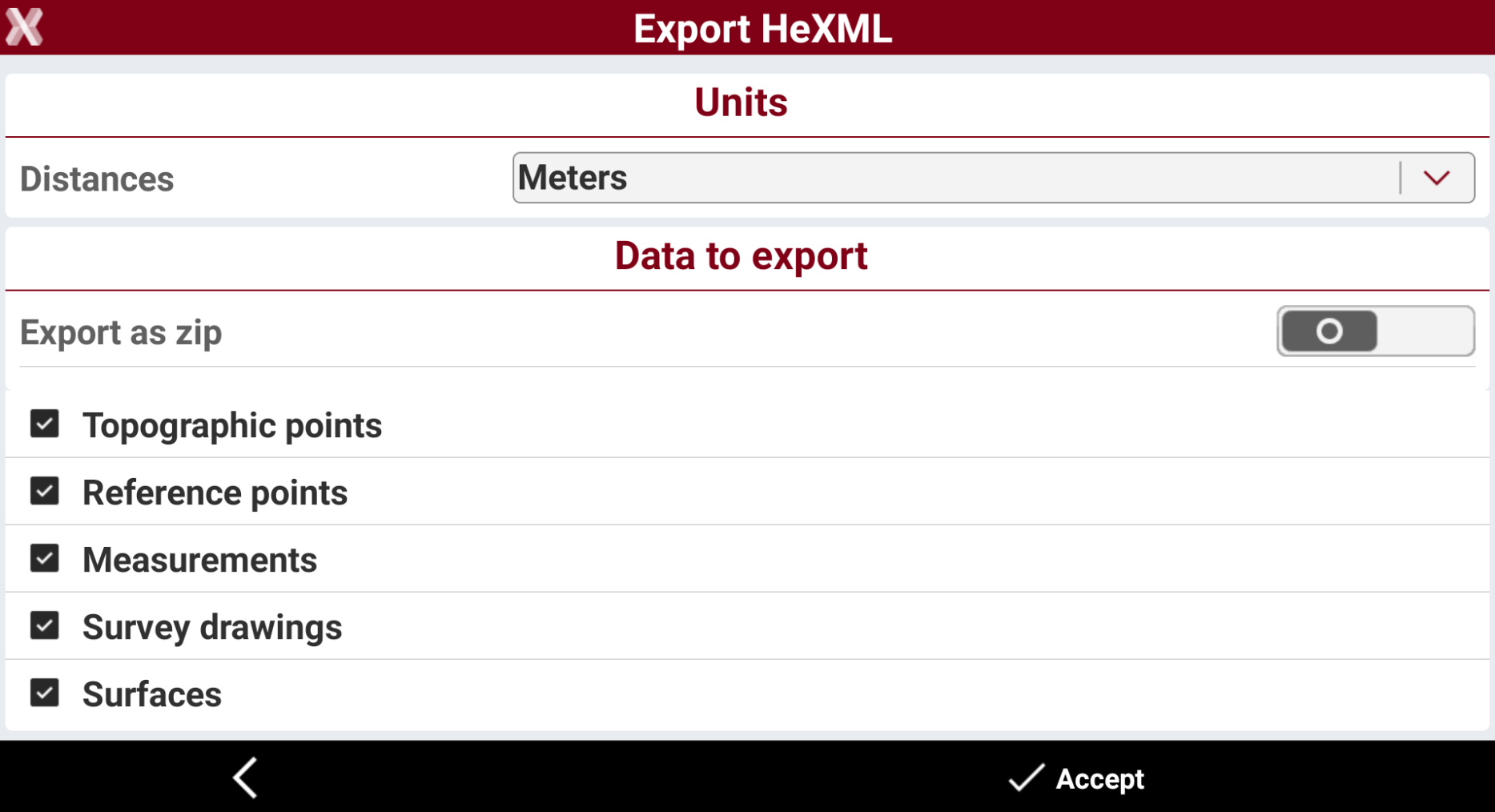
The software allows to export topographic points, reference points, measurements, drawing, code lists and surfaces in HeXML file format.
-
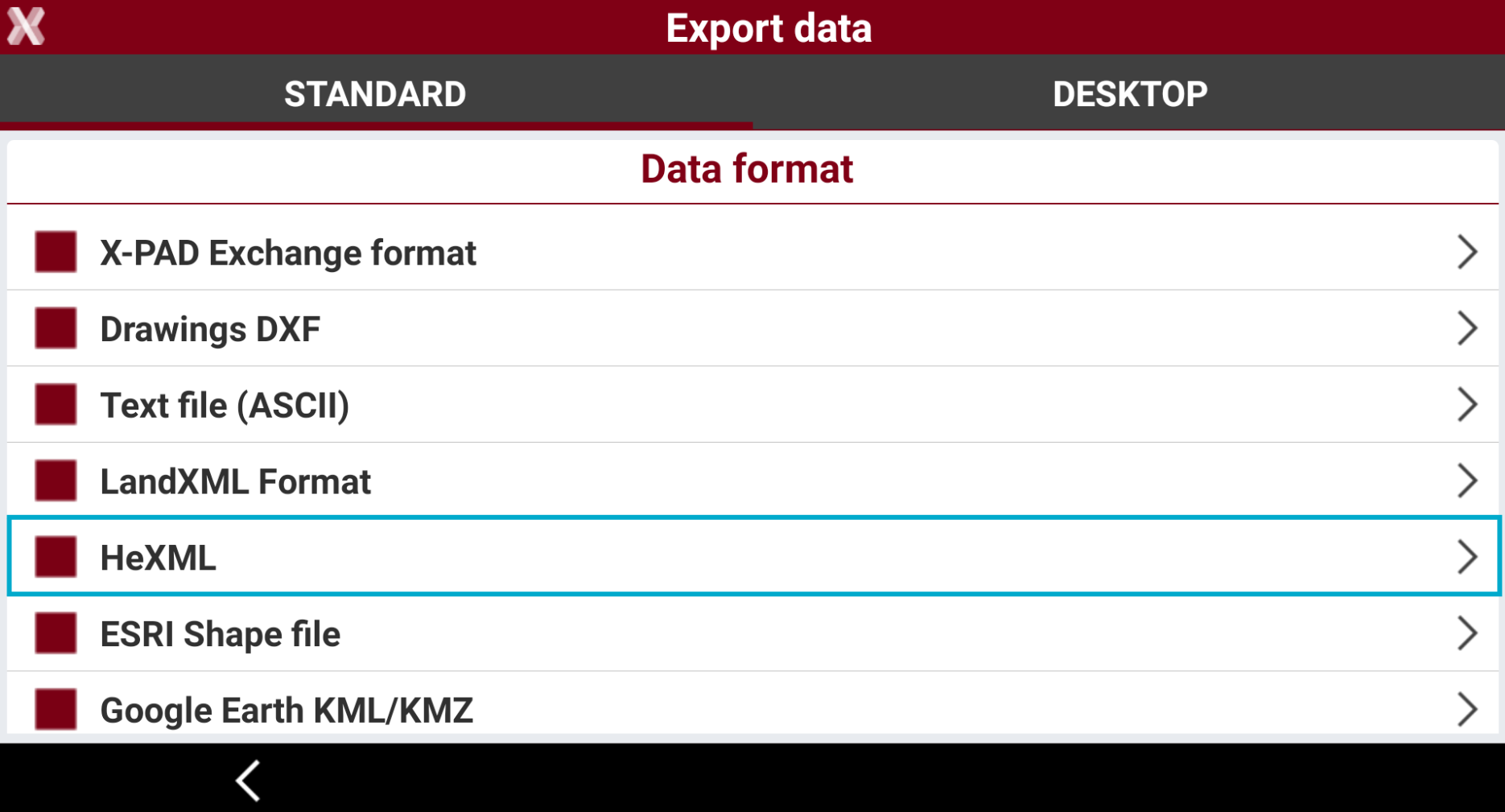
To export the data in HeXML select HeXML Format.
-
Enter the HeXML Export parameters.
-
Distances: the units used in the exported file.
-
Export as zip: the file exported will be compressed in a zip file.
-
Data to export: allows to select the data to export from the job.
-
-
Press Accept to export the file.
Export a ESRI Shape file
-
Exports points and lines in ESRI Shape format.
-
For topographic points which have an photo attached, the points are exported including the name of the photo name as additional attribute. The files of the photos files are included in the final export file. The photos can then be managed within a GIS tool which can import Shape files.
-
If GIS attributes have been stored for a topographic point, they are exported in the ESRI Shape file.
-
To export the data select ESRI Shape file.
-
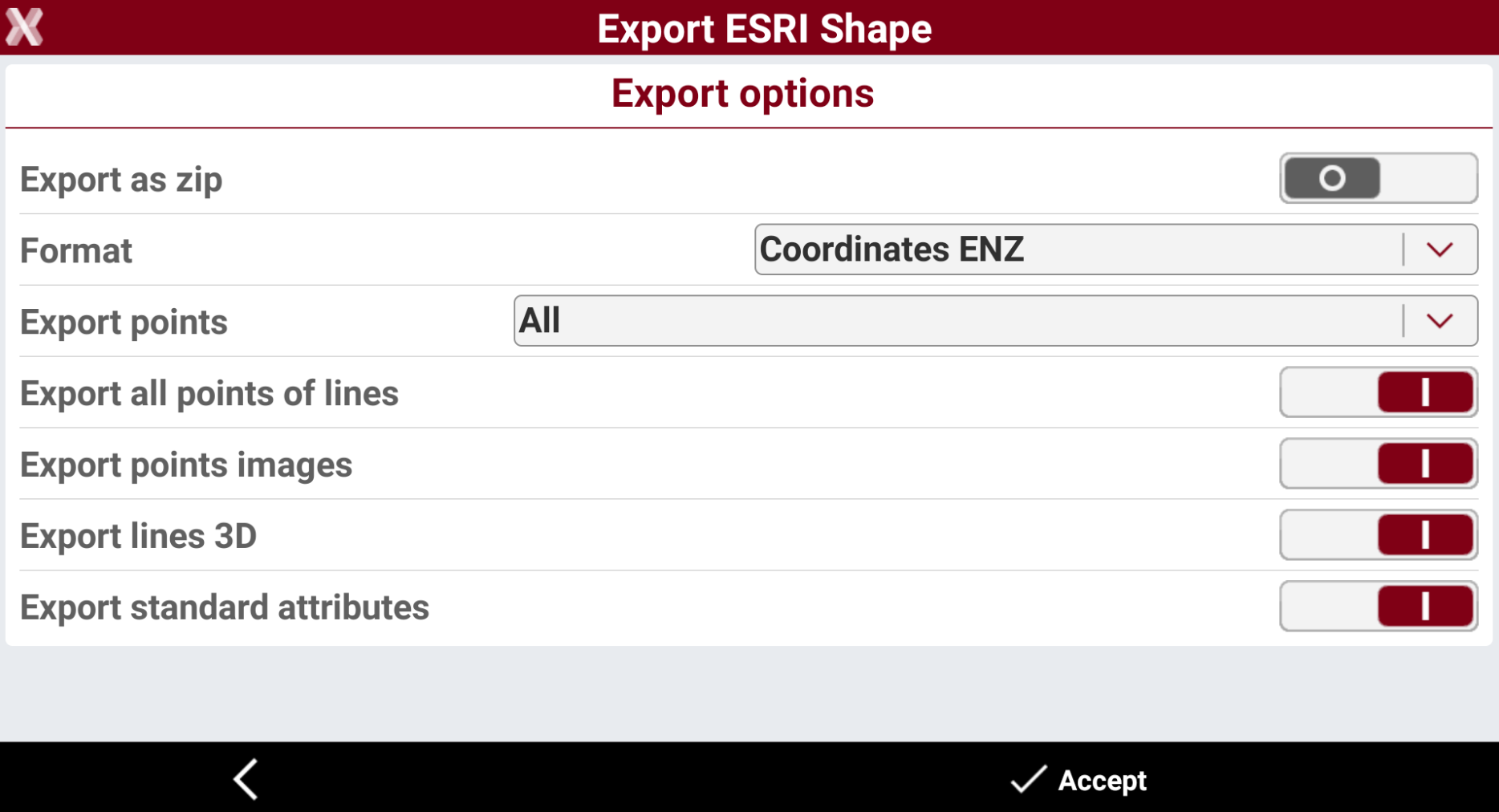
Enter the Export options.
-
Export as zip: the files exported are compressed in a zip file.
-
Format: selects how the format of the coordinates.
-
Coordinates ENZ: the coordinates are exported as East, North and Elevation coordinates.
-
Coordinates LLH: the coordinates are exported as Latitude, Longitude and Ellipsoidal elevation coordinates.
-
-
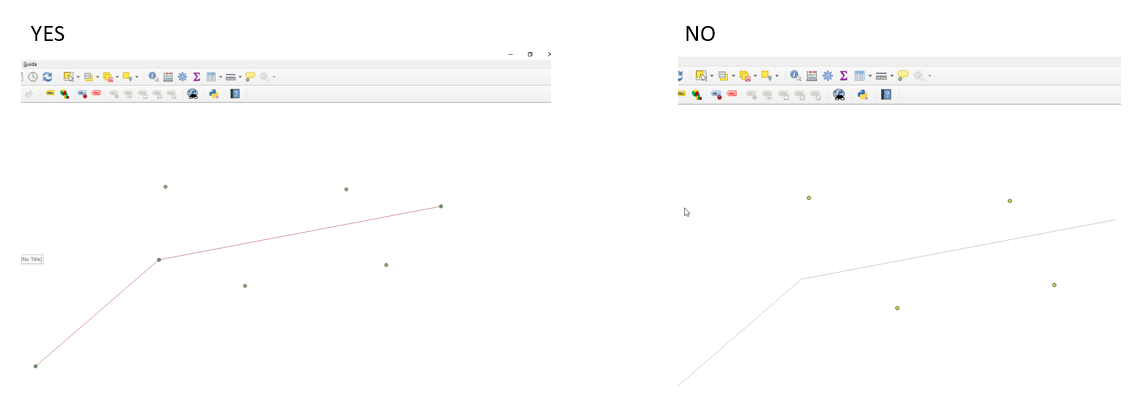
Export all points of lines: enables to export all line vertexes.
-
Export points images: export images attached to points.
-
Export lines 3D: enables to export lines in 3D.
-
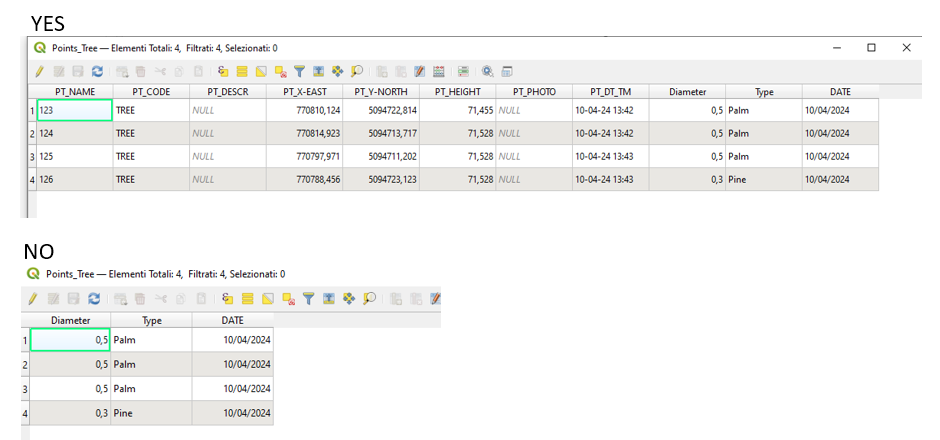
Export standard attributes: enables to export standard attributes (coordinates, code, date and time, quality). If disabled exports only entered GIS attributes.
-
-
Press Accept to export the file.
Export a Google Earth KML/KMZ file
-
Exports points, lines, measurement lines and surfaces in Google Earth KML/KMZ format.
The main difference is that the KML (Keyhole Markup Language) format is an XML-based file that describes geographic features, while the KMZ format is simply a compressed (ZIP-like) KML file that includes the KML file and other associated media files such as images and sounds, making it a single, smaller, and easier-to-share entity. To export images select KMZ.
-
To export the data select Google Earth KML/KMZ.
-
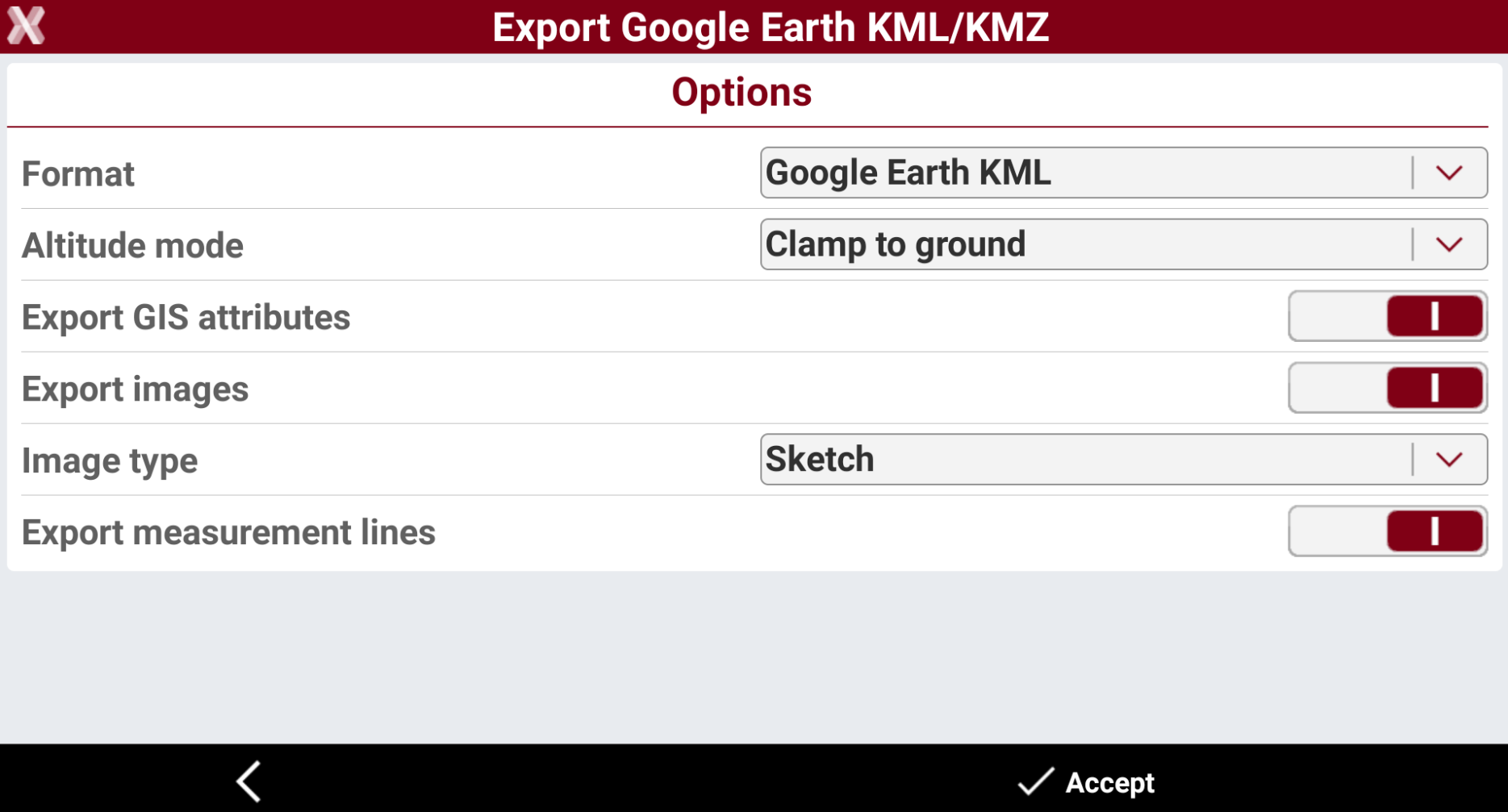
Enter the Export options.
-
Format: select to export the data in Google Earth KML or Google Earth KMZ.
-
Altitude mode: elevations can be defined in three ways:
-
Clamp to ground: elevations are leaned to the 3D model of Google Earth.
-
Relative to ground: elevations are referred to the 3D model of Google Earth.
-
Absolute: elevations are absolute.
-
-
Export GIS attributes: the GIS attributes that have been stored with topographic points can be exported.
-
Export images: enables the export of images. Requires to export in KMZ format.
-
Image type: to select the type of image to export.
-
Sketch: exports the sketch image.
-
Original: exports the original image.
-
Tag image: exports the tag image.
-
-
Export measurement lines: enables the export of measurement lines, for example GNSS baselines.
-
-
Press Accept to export the file.
Export a GSI file
-
Exports topographic points, reference points and TPS measurements in GSI format.
-
To export the data select GSI Format.
-
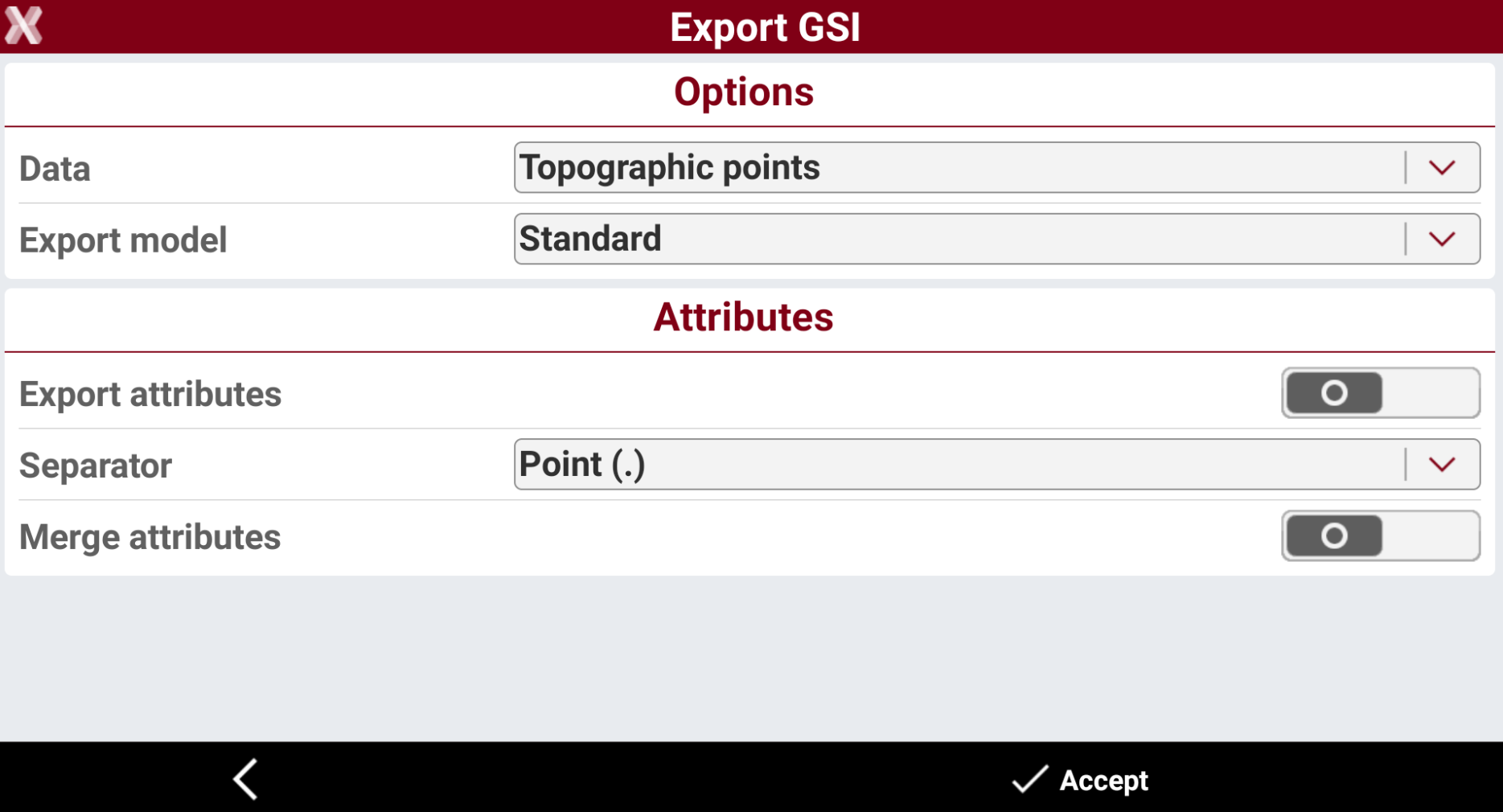
Enter the Export options.
-
Data: select the type of data to export:
-
Topographic points: export the topographic points.
-
Reference points: exports the reference points.
-
TPS measurements: export the total station measurements.
-
-
Export model for topographic points: for topographic points, select an export model.
-
Points for Phytagoras.
-
Points for CodeGrafik (rmData).
-
Points for SiteWorks (Sweden).
-
-
Export model for TPS measurements: for TPS measurements, select an export model.
-
TPS measurements Phytagoras.
-
TPS measurements LSS.
-
TPS measurements CodeGrafik (rmData).
-
TPS measurements RGM2000.
-
-
Export attributes: activates the export of the point codes as attribute of GSI format
-
Separator: separator used for composed codes. In the code of the point, more than one code can be saved separated by characters such as point, comma, space or other. During export of attributes, the complete code is divided in sub-codes based on separation characters.
-
Merge attributes: activates the export of single codes composing the complete code. A separa
-
-
Press Accept to export the file.