
-
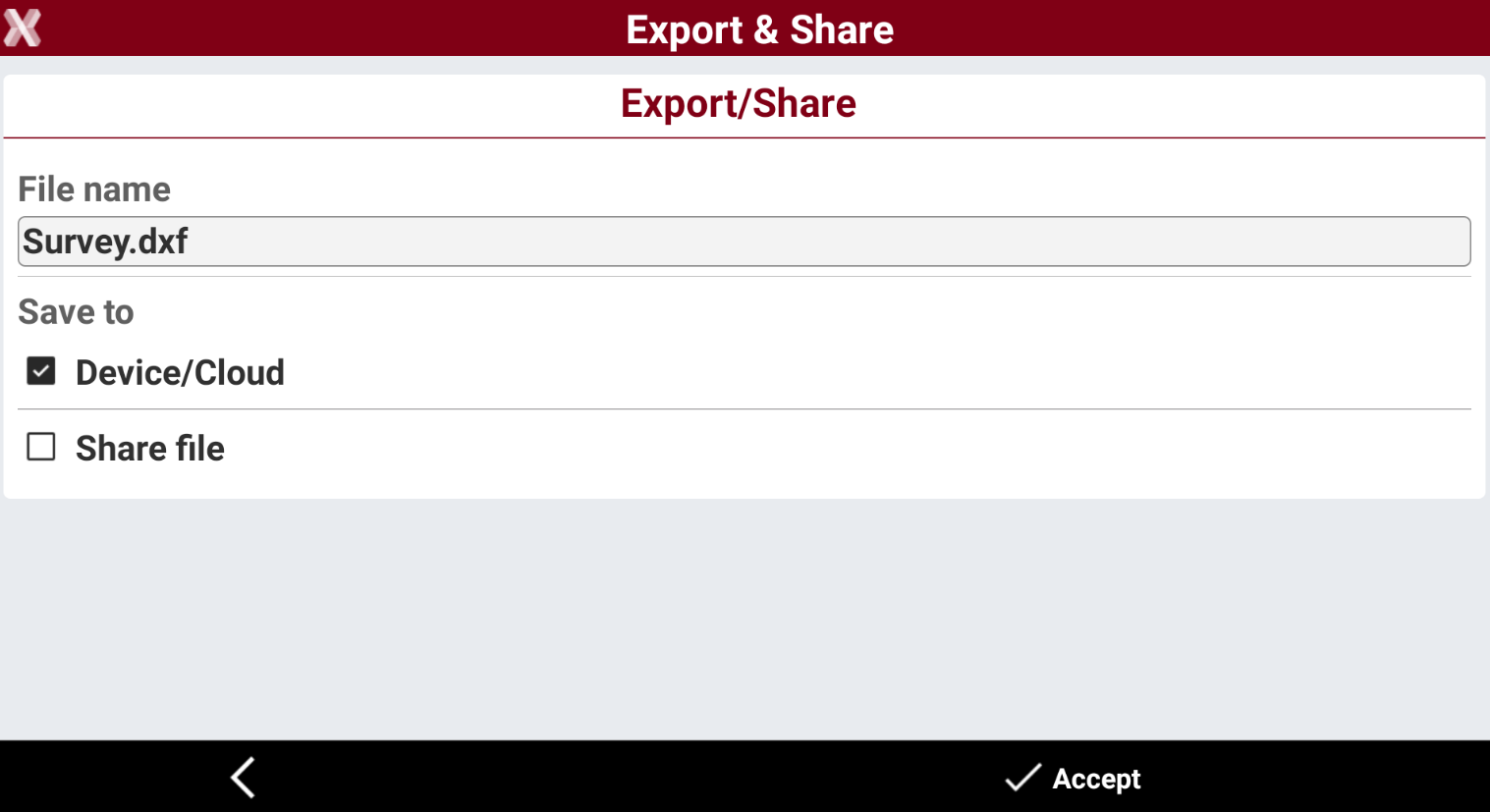
When a file is exported, the following page is opened to select the export folder.
-
File name: the name of the file to save.
-
Save to:
-
Device/Cloud: saves the file in the device, USB pen drive or in a cloud storage.
-
Share file: shares the file using compatible 3th party Android applications.
-
Open with: if the exported file is in a format like PDF, it is possible to open it using a compatible Android application.
-
-
Save a file in the device or USB drive
-
Select to save data in Device/Cloud.
-
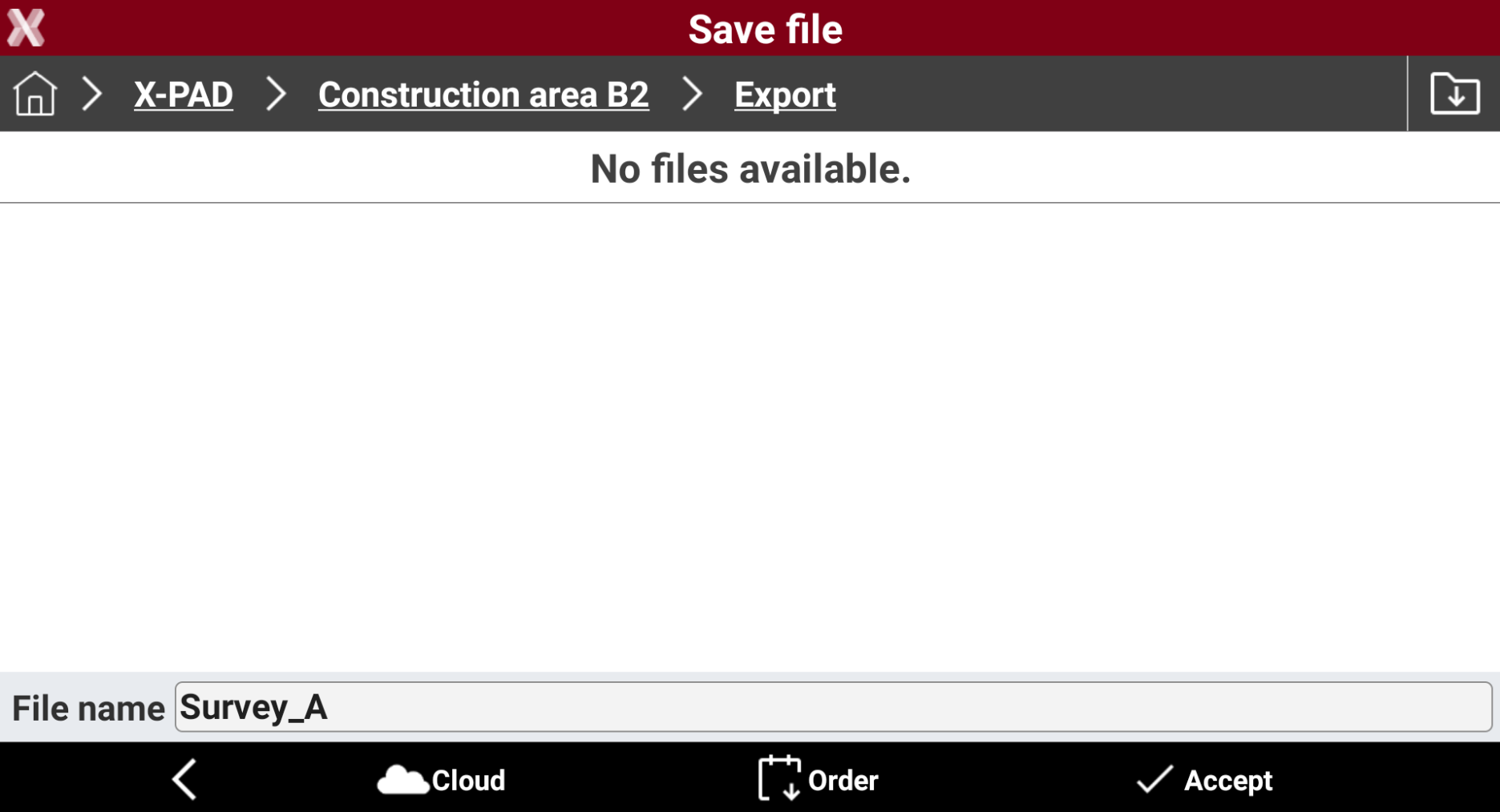
The page shows the selected folder in the internal memory in the top bar.
-
By default the software exports a file in the Export folder in the current site.
-
The page shows the folders and files in the selected folder.
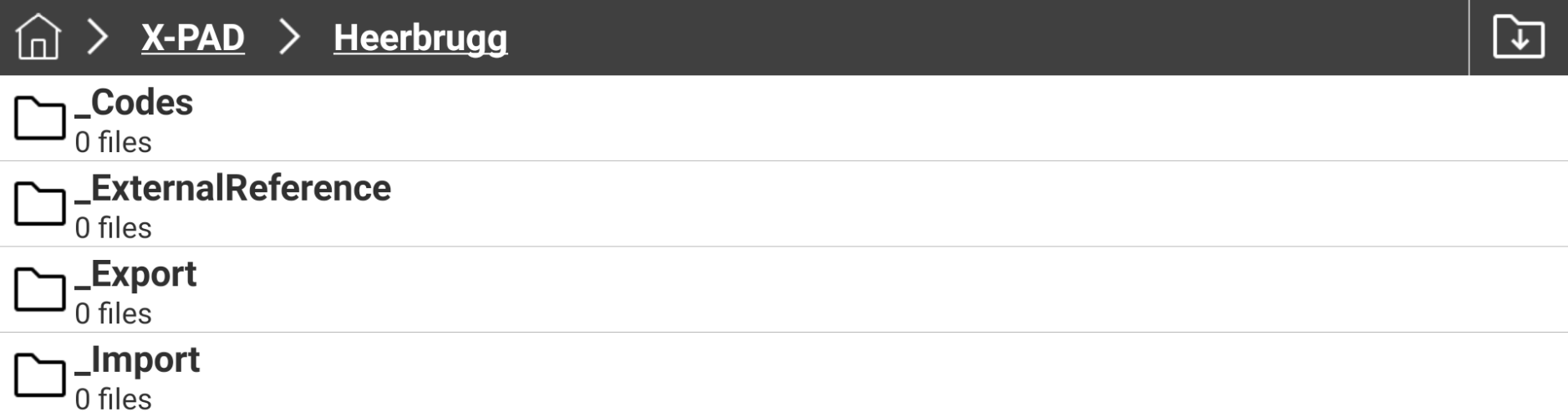
The software displays only the files with the same extension as the file we are exporting. For example when importing a DXF/DWG file, only files with DXF/DWG extension are visualized. The software shows the number of files with same extension in the sub folders.
-
Current path is displayed as separated links that allow to quickly jump to the main folder or to any other folder.
-
Tap on USB icon to open the USB memory, in case a USB pen drive is connected to the controller.

-
Tap on Download icon to open the internal memory Download folder.

-
Tap on Order icon to change the visualization order of the files in the selected folder.
-
Press Accept to export the file.
Save a file in a cloud storage
-
Select to save data in Device/Cloud.
-
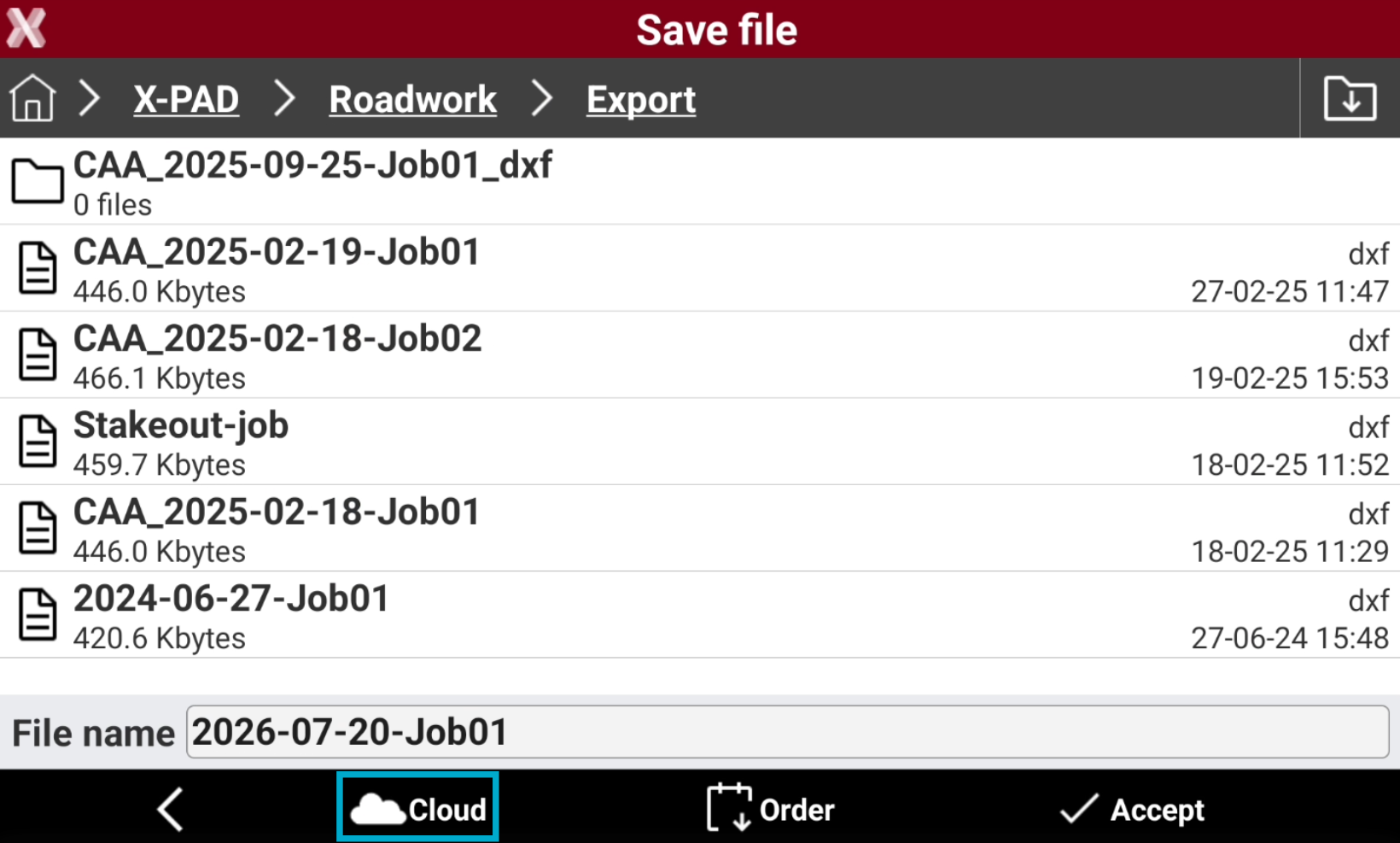
The page shows the selected folder in the internal memory in the top bar.
-
By default the software exports a file in the Export folder in the current site.
-
Press Cloud to open the list of Cloud Server.
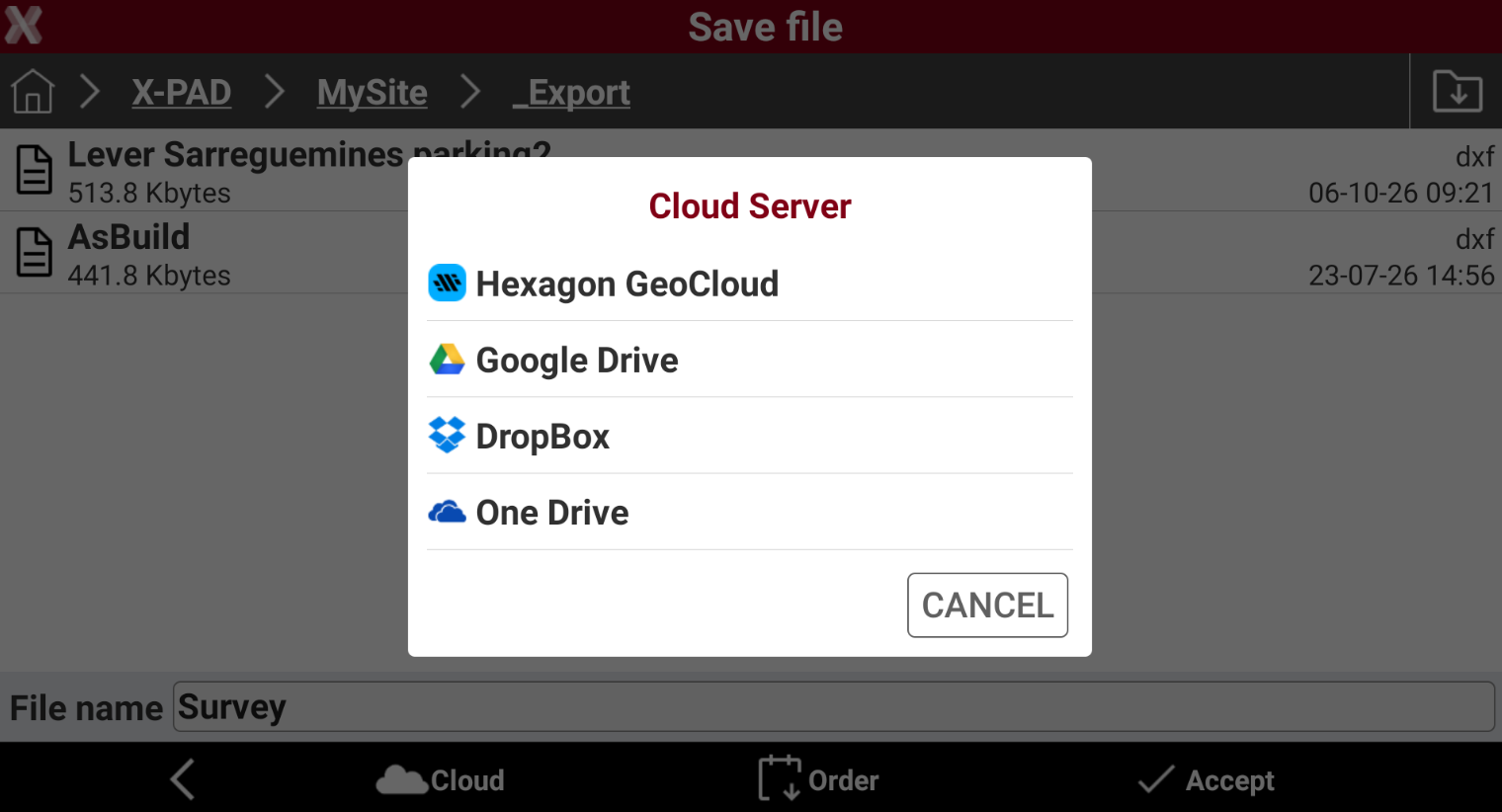
It is possible to enable and login in cloud servers from Cloud settings.
-
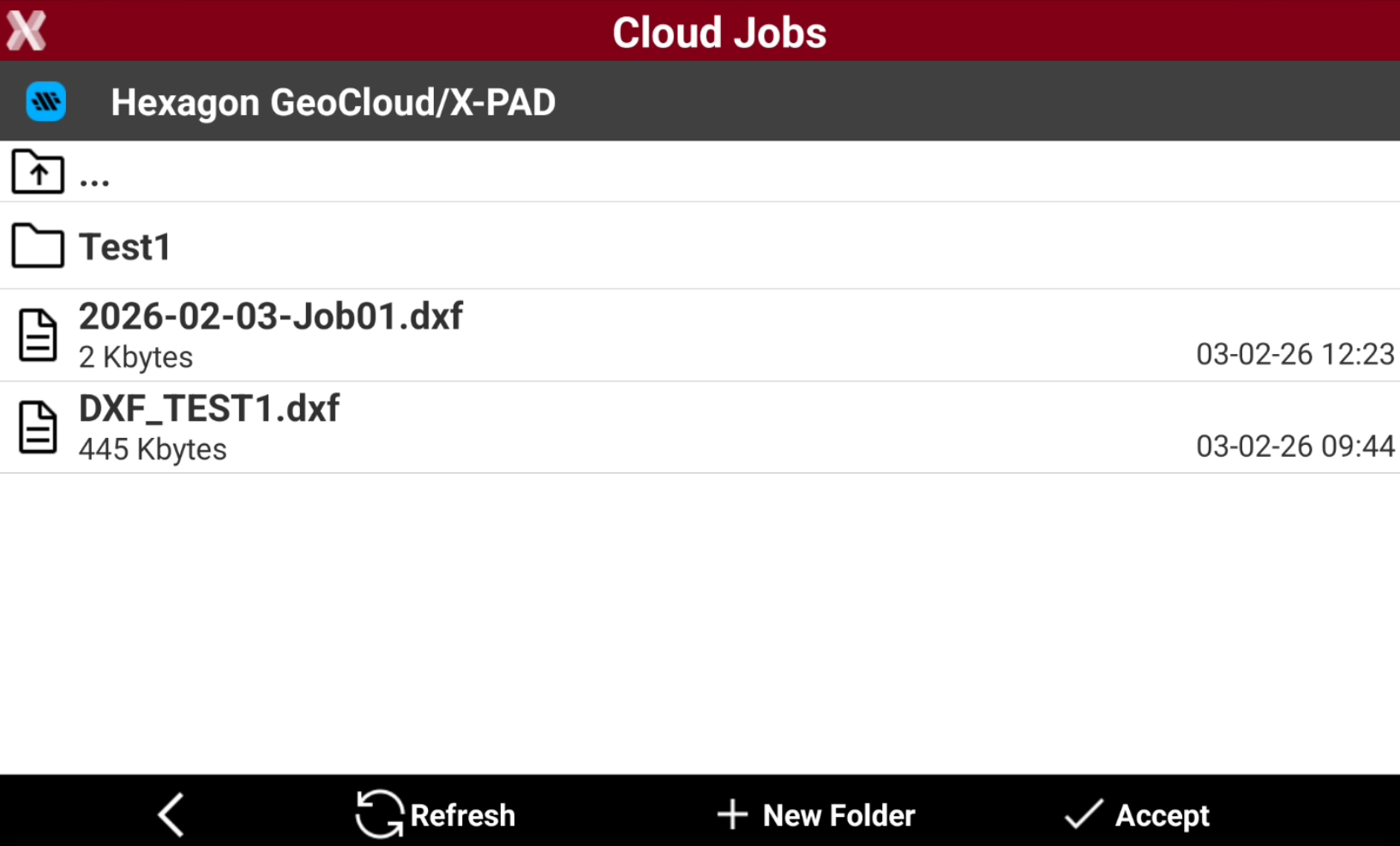
The software opens the folder in the cloud storage.
-
Tap
-
Press Refresh to refresh the files in the folder.
-
Press New Folder to create a new folder.
-
Press Accept to save the file.
Share a file
-
Select Share file.
-
The software lists the compatible 3th party Android application that can be used to share the file.
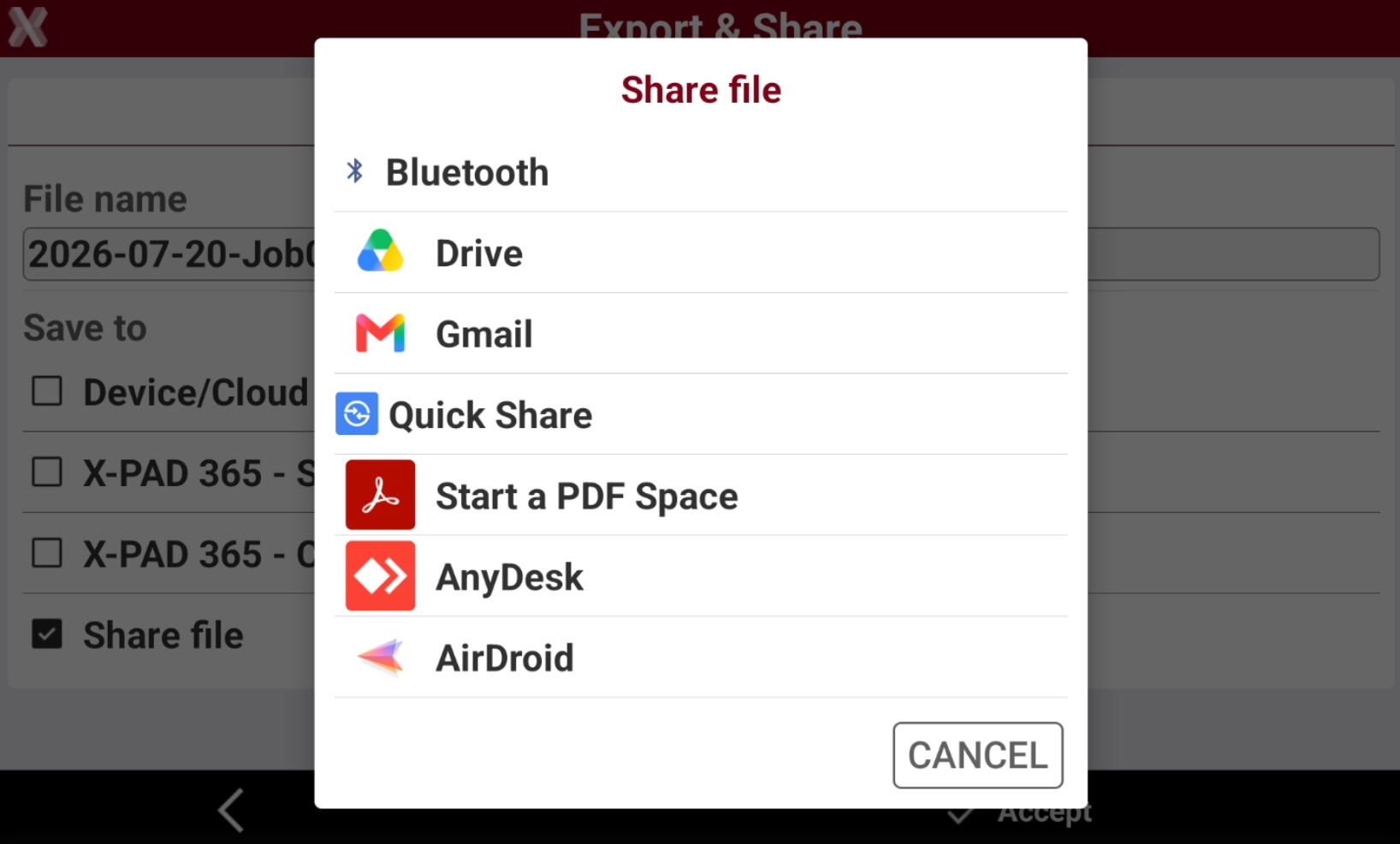
The applications in this list depends on which applications are installed on the Android controller.
-
Select the application to share the file.
-
For example to share a file by email select an email client. The software creates automatically an email with the exported file as attachment.