-
CAD Info functions are used to obtain different information from drawing and from present objects and generate reports.
-
Open CAD.
-
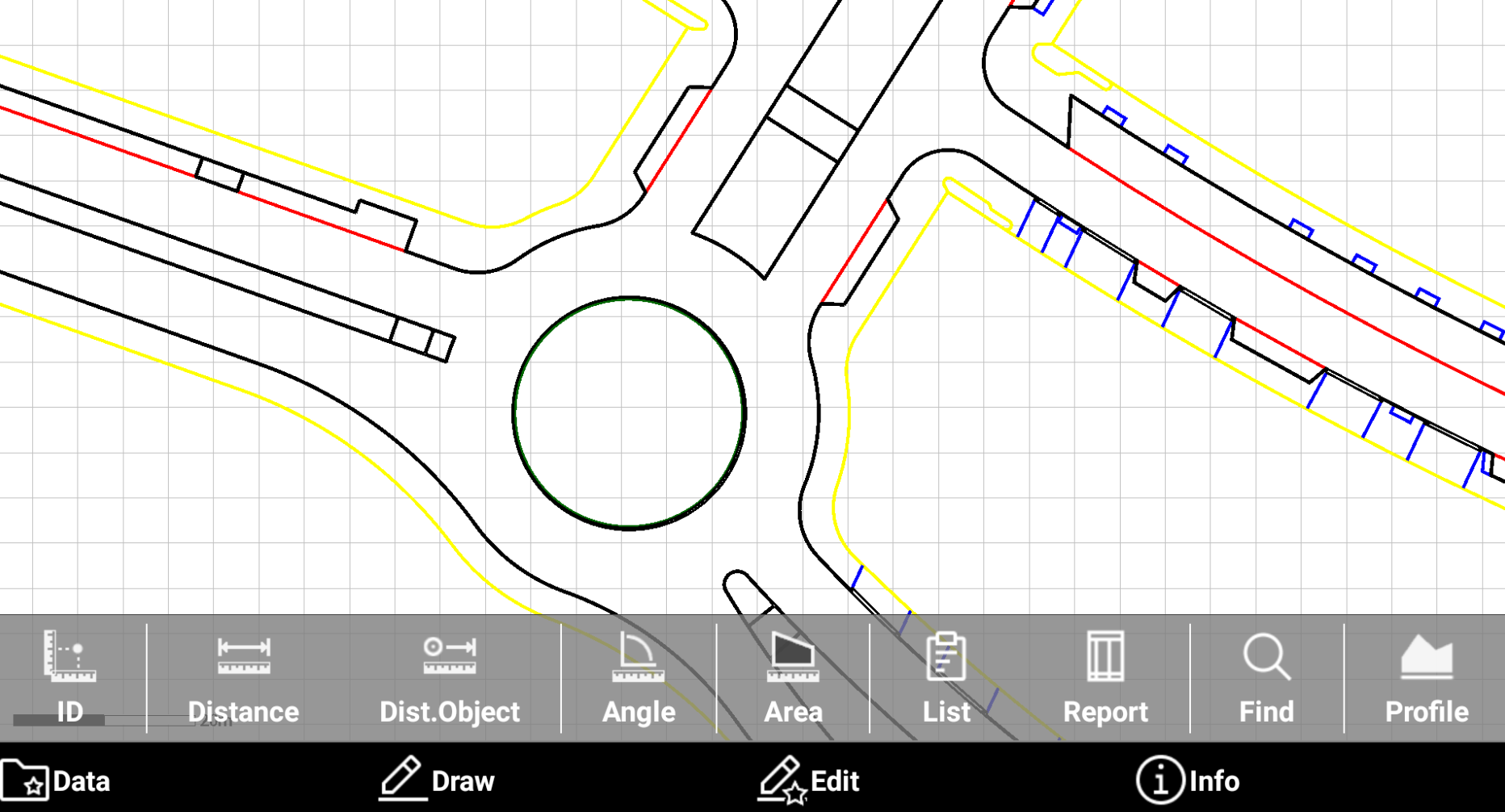
Select Info to open the toolbar.
-
The Info commands available are:
-
ID: provides information about the selected position.
-
Distance: provides information about the distance between two points.
-
Distance between point and object: provides information about the distance between a point and an object.
-
Angle: provides information about the angle between three points.
-
Area: provides information about the area of a polygon formed by a sequence of points.
-
List: provides information about a selected object.
-
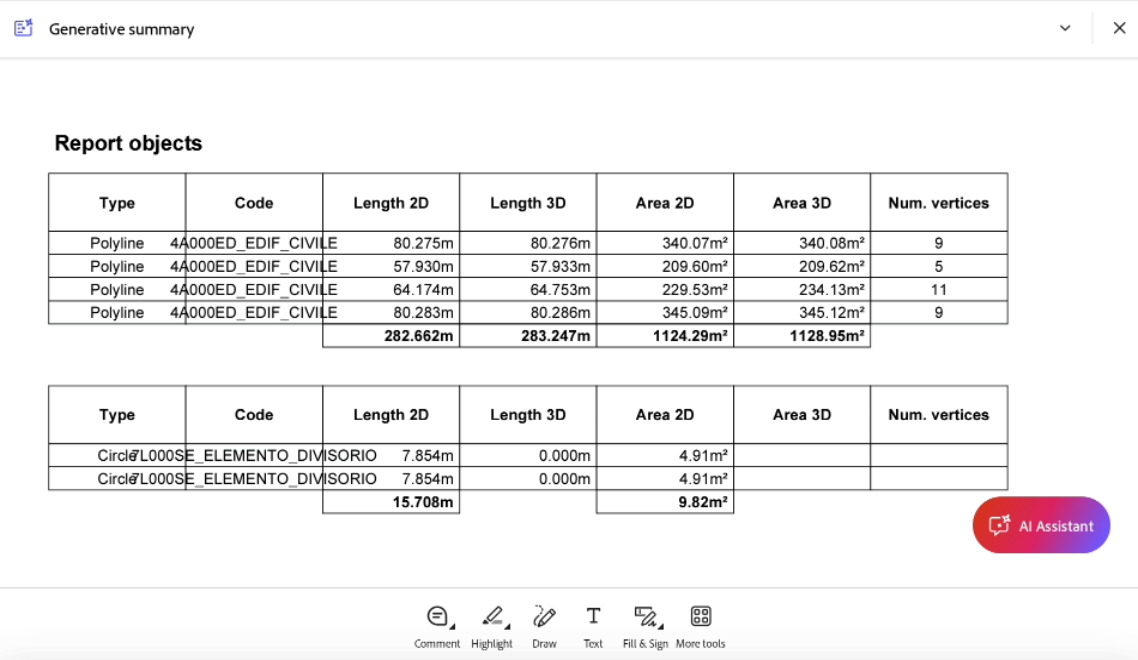
CAD report: creates a exportable document that has information about selected objects including information about the length, the area and the number of vertices.
-
Find: brings a topographic point into the center of the graphic window.
-
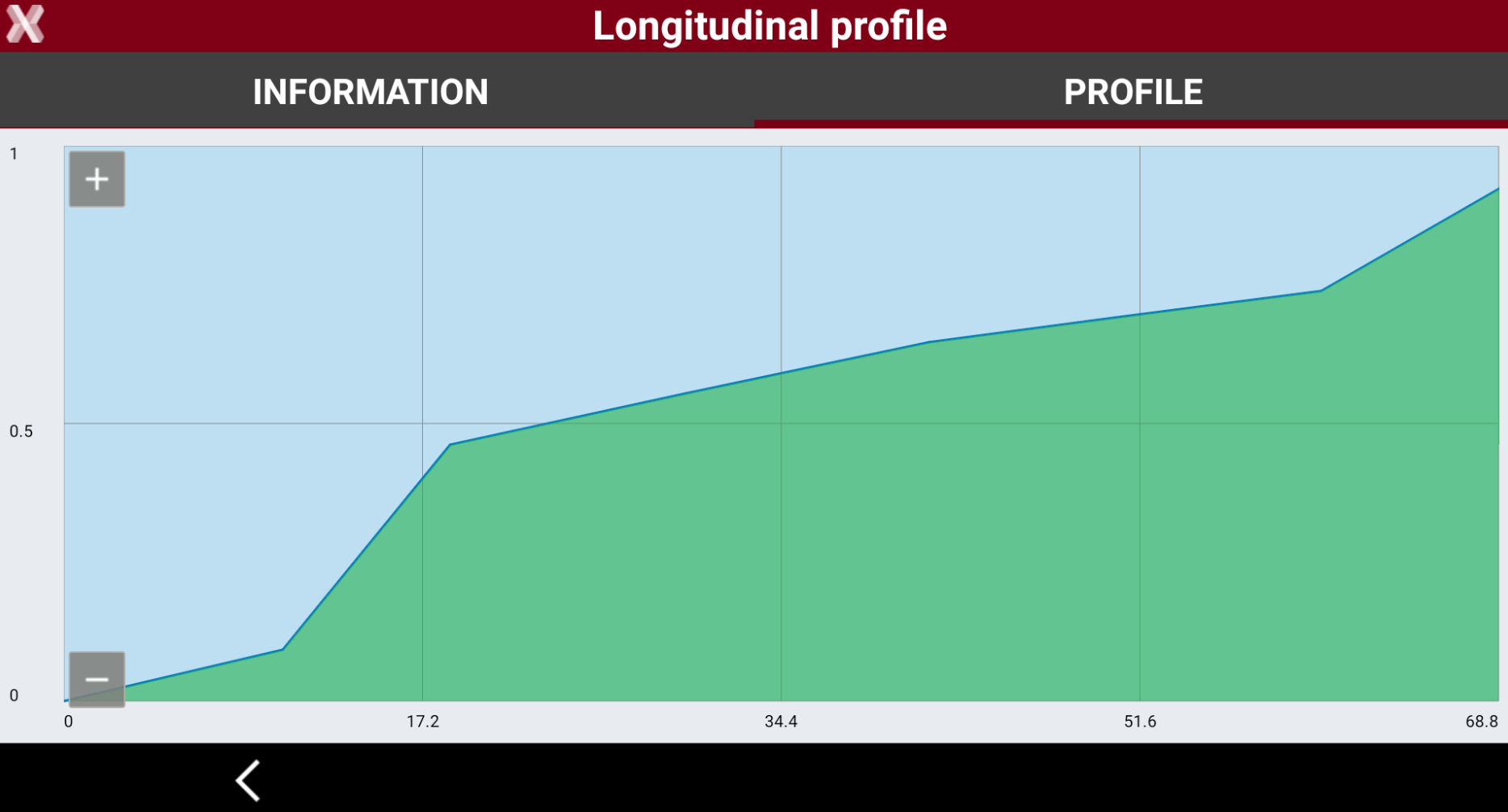
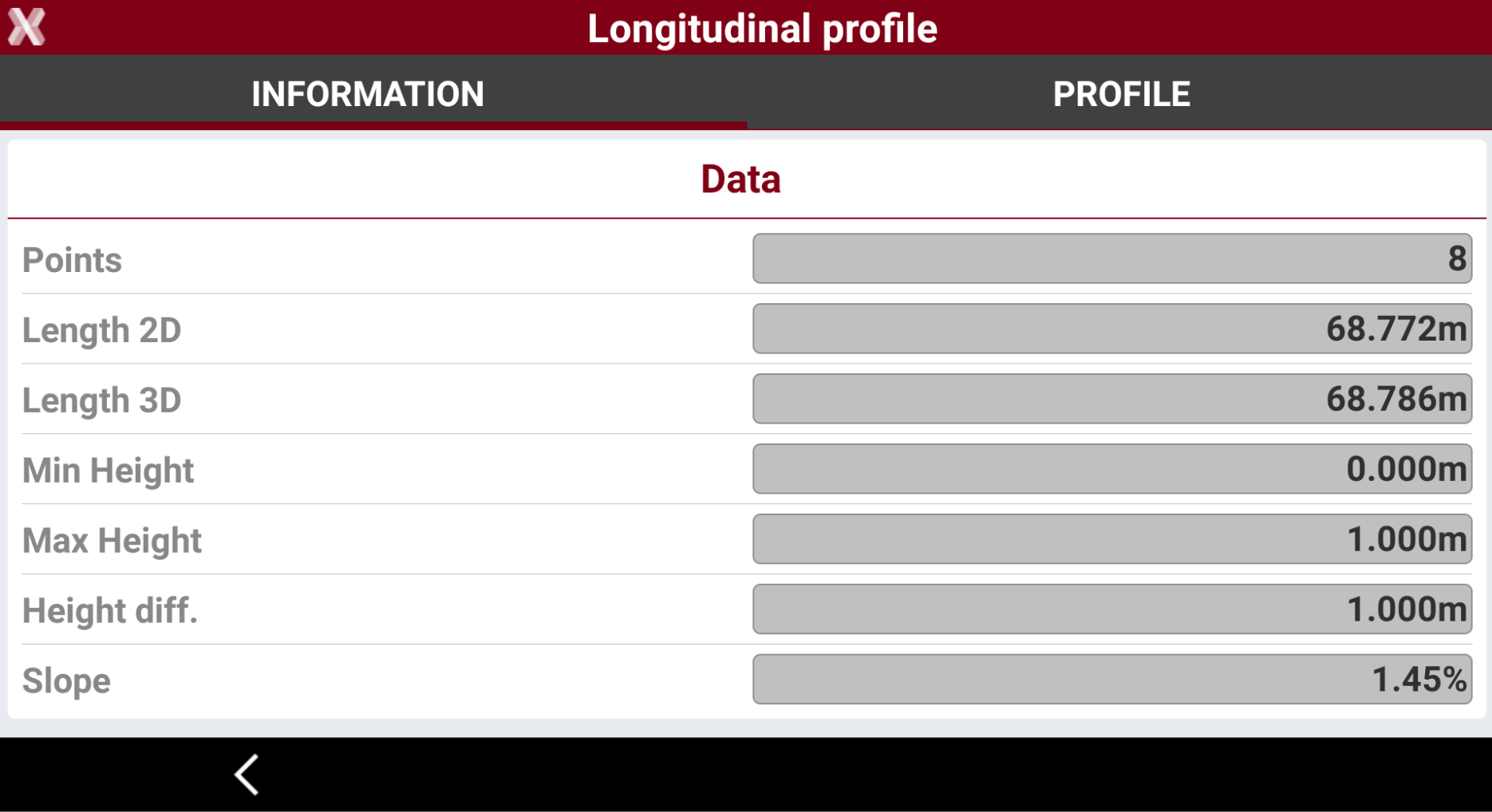
Profile: displays the longitudinal profile of the selected polyline including additional information about the polyline.
-
ID
-
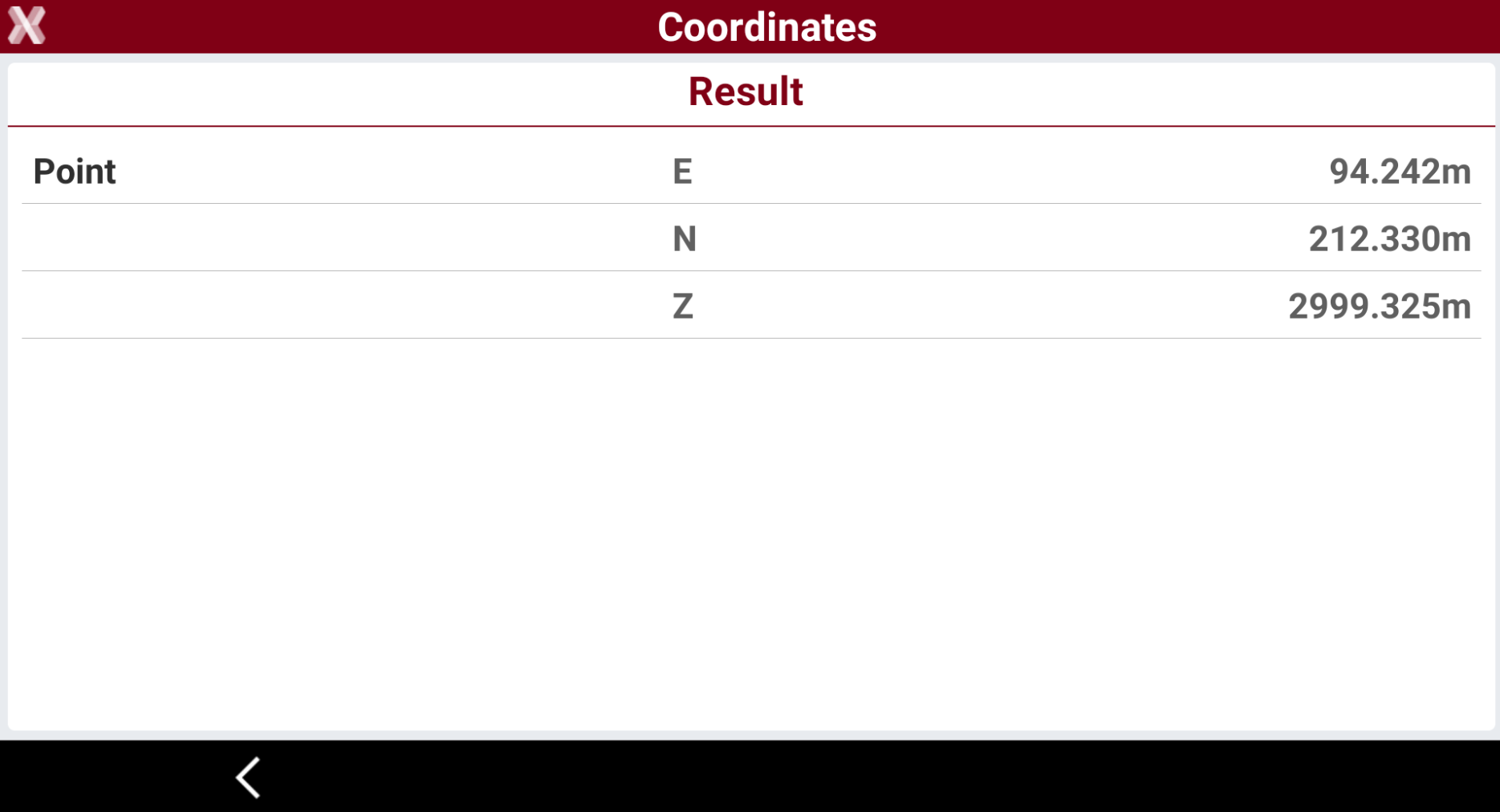
The ID command is used to obtain different information from a selected point.
-
From the Info toolbar select ID.
-
Select the object in CAD to obtain the coordinate information.
Distance
-
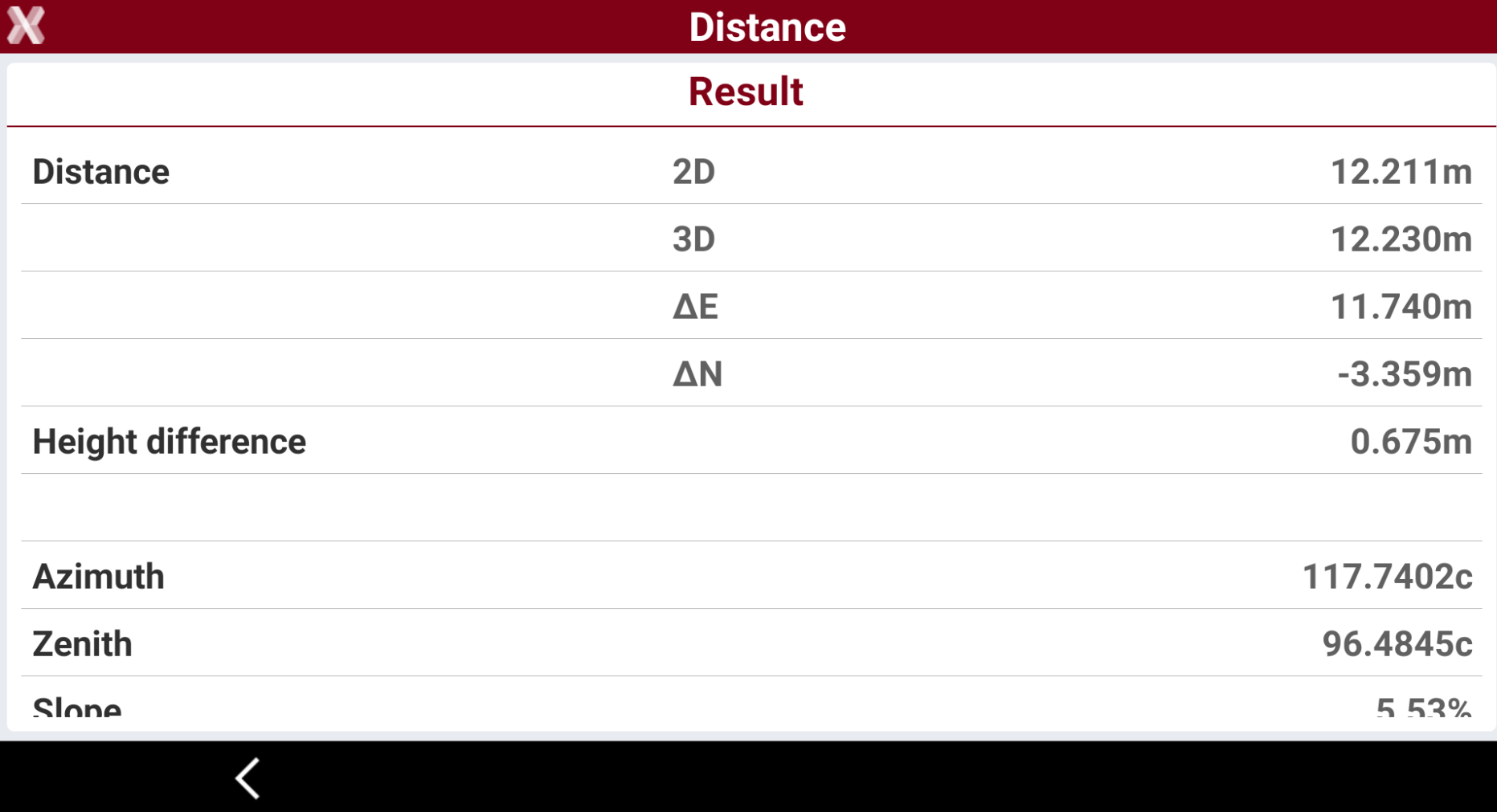
The Distance command is used to provides information about the distance between two points.
-
From the Info toolbar select Distance.
-
Select first and second point in CAD.
-
The distance (ground and ellipsoidal) and other information such as azimuth (ground and ellipsoidal) and slope between two points are displayed.
Distance between point and object
-
The Distance between point and object command provides information about the distance between a point and an object.
-
From the Info toolbar select Dist.Object.
-
Select the reference point in CAD.
-
Select the object to which to calculate distance.
-
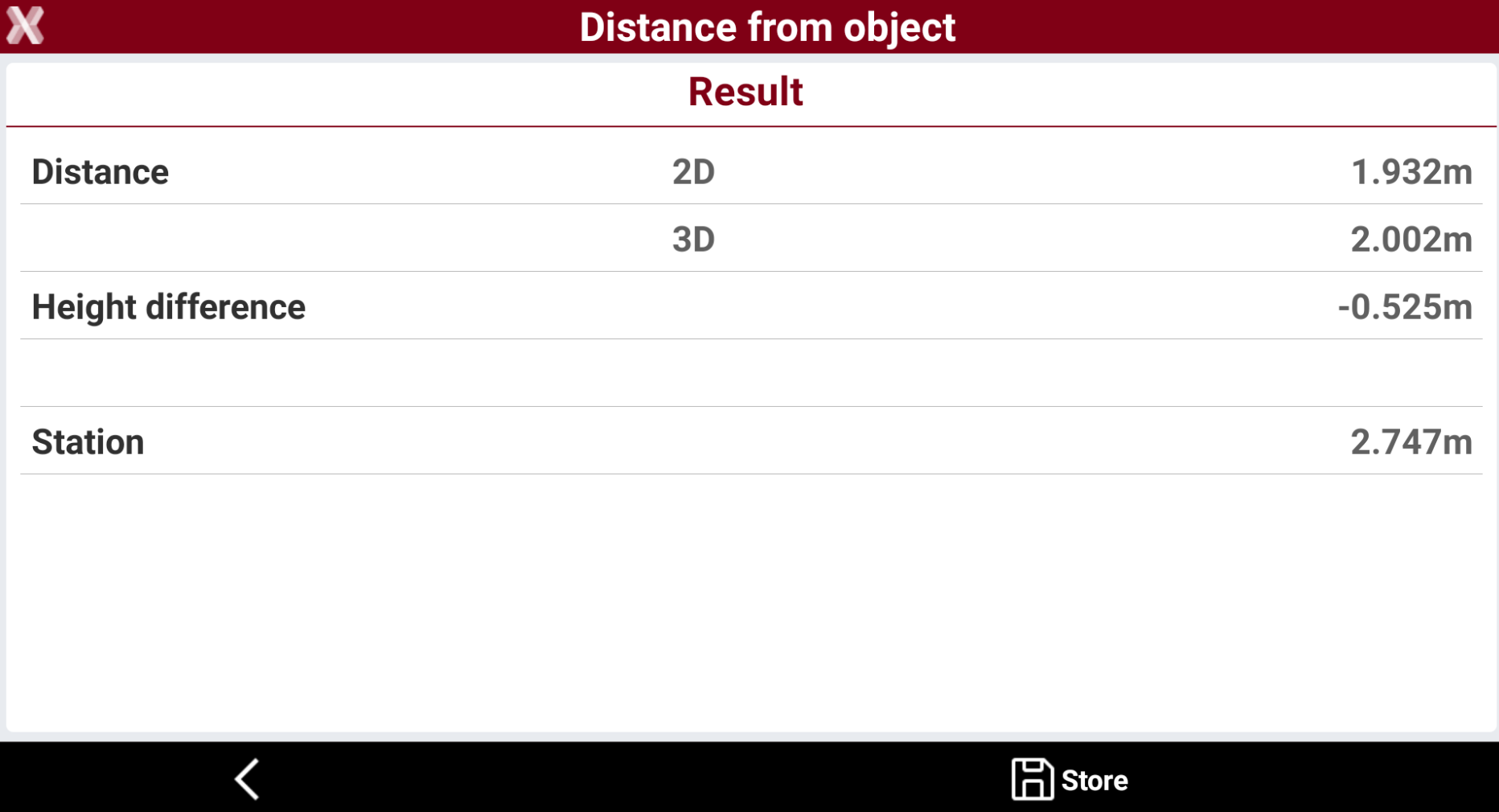
The software displays:
-
Distance from the point to the object.
-
Chainage of the projection of the point to the object.
-
-
Select Store to create a point on projection of the point on the object.
Angle
-
The Angle command provides information about the angle between three points.
-
From the Info toolbar select Angle.
-
Select the centre of the angle.
-
Select first point and second point.
-
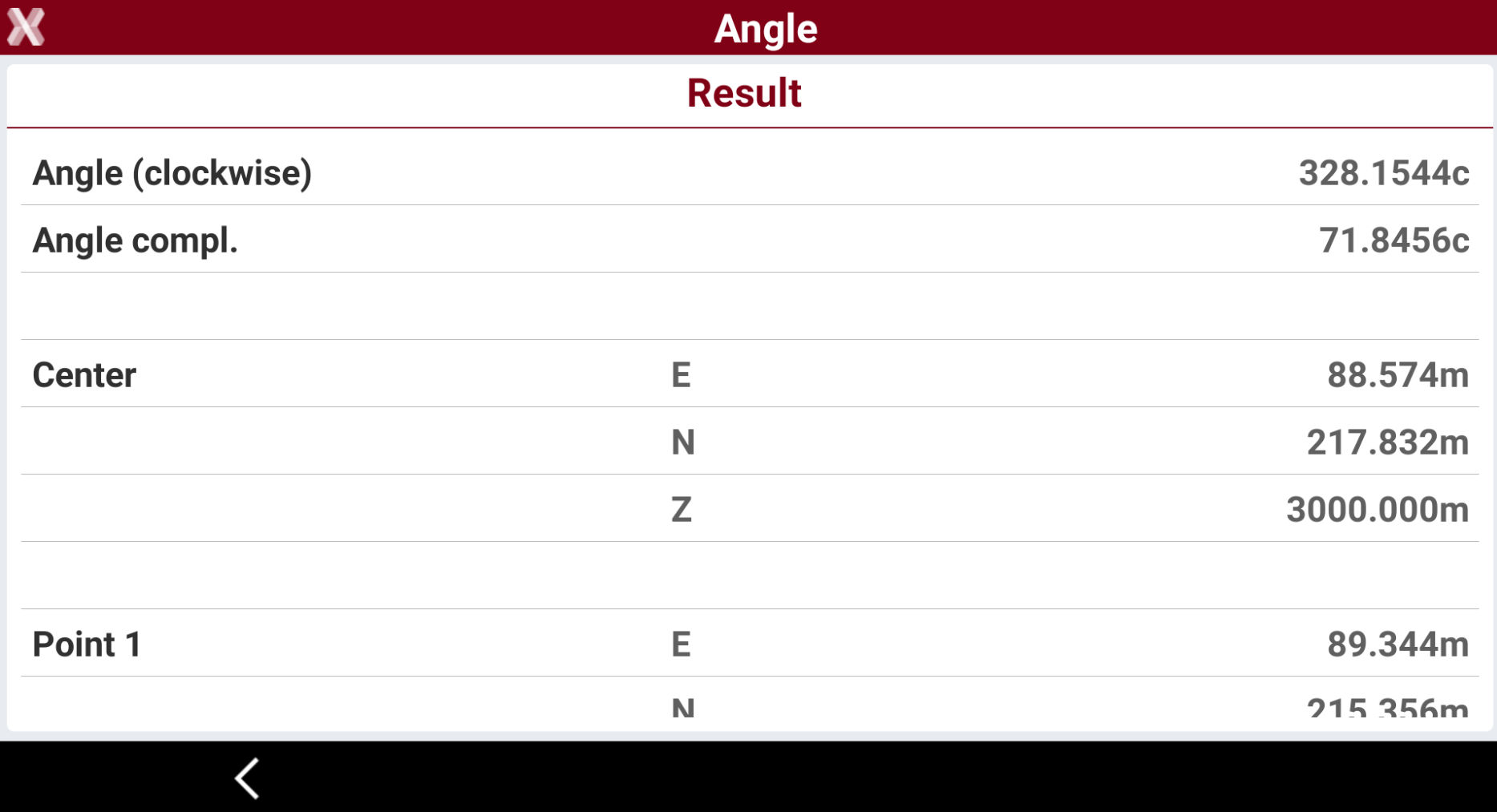
The software displays the angle included and the complementary angle.
Area
-
The Area command provides information about the area of a polygon formed by a sequence of points.
-
From the Info toolbar select Area.
-
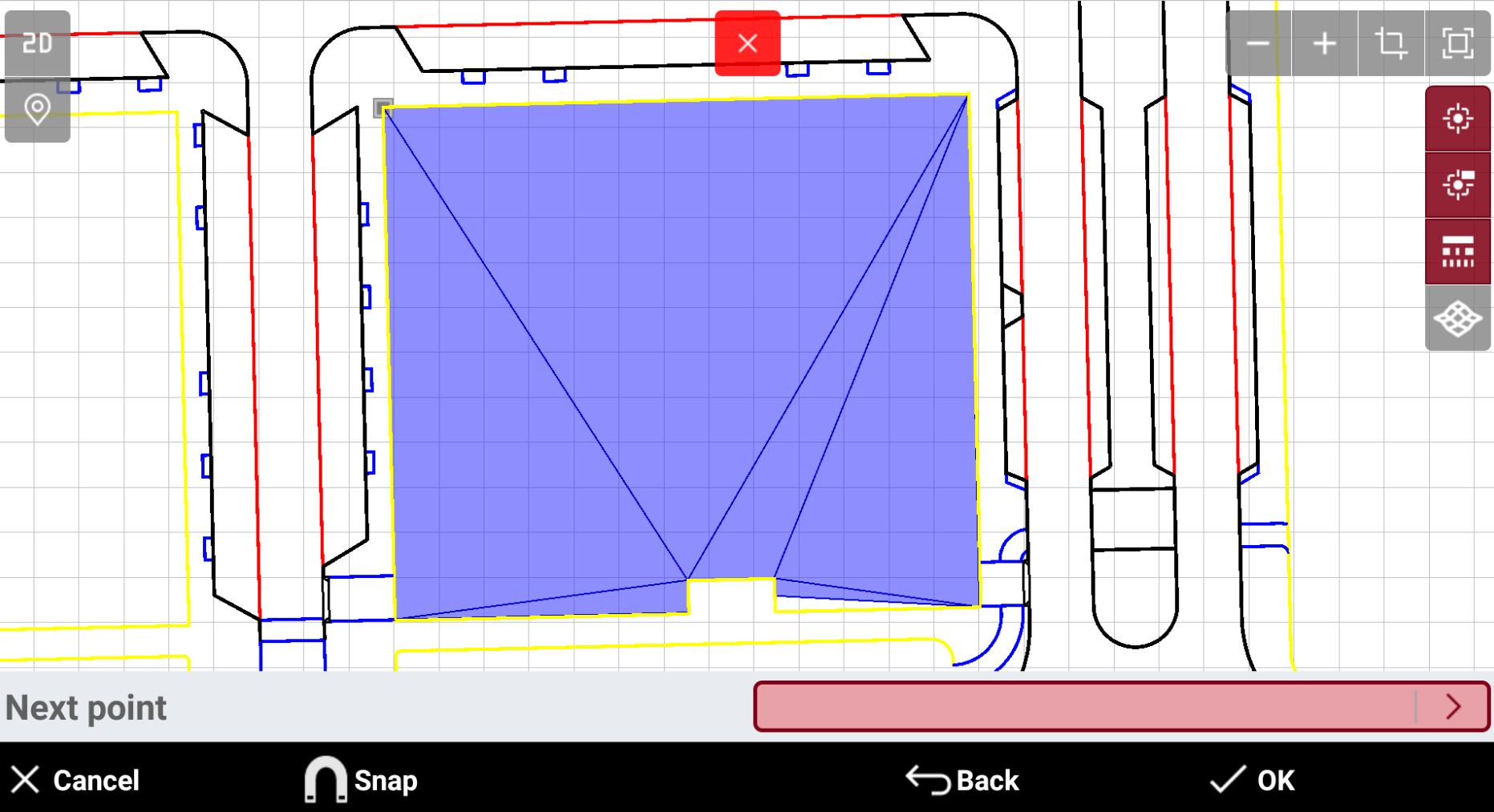
Select the first and the following points in CAD.
-
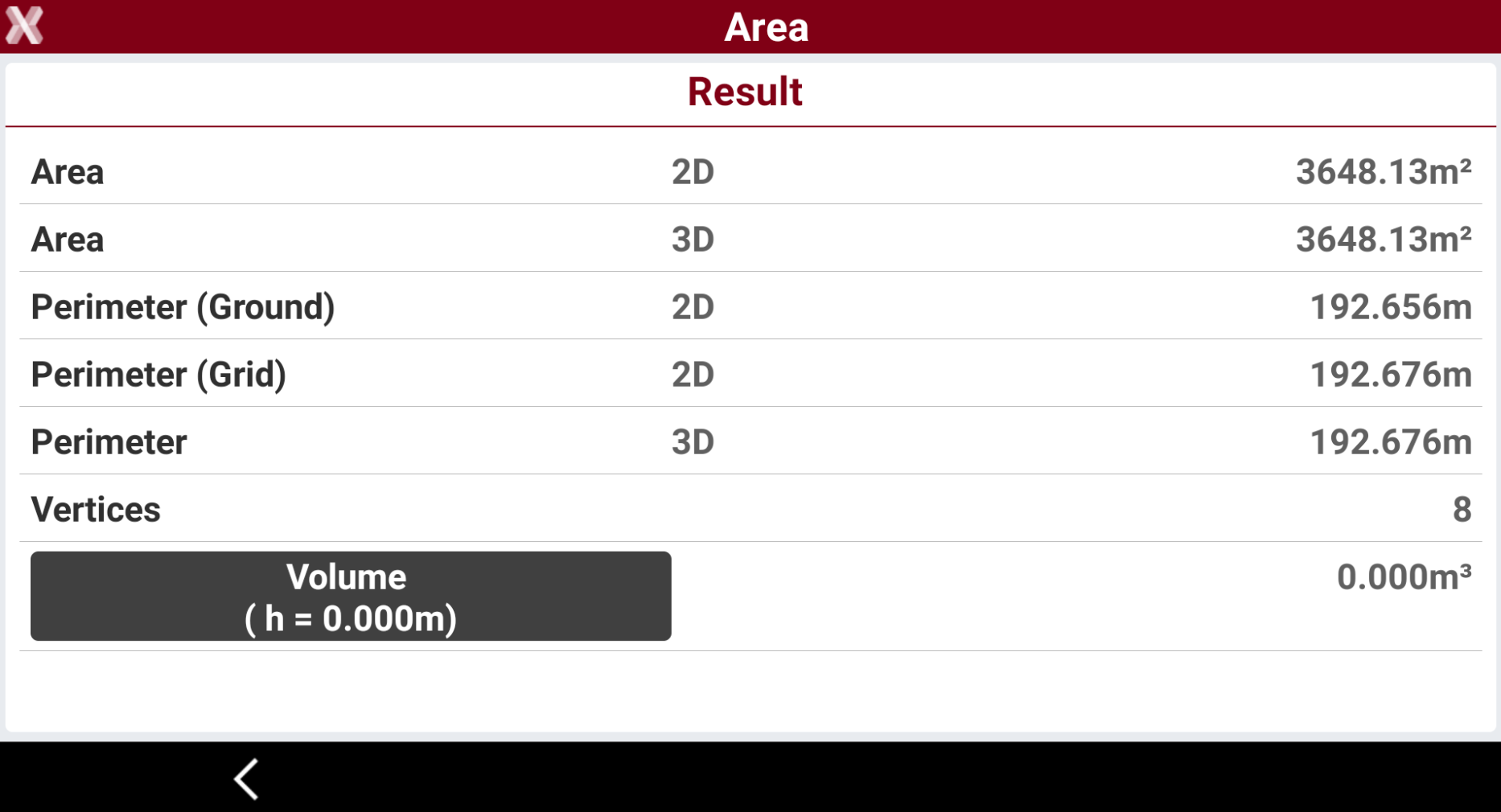
The software displays:
-
Area of the polygon.
-
Perimeter of the polygon.
-
-
Enter a height to calculate the volume.
List
-
The List command provides information about a selected object.
-
From the Info toolbar select List.
-
Select the object in CAD to get all its information in the Info page.
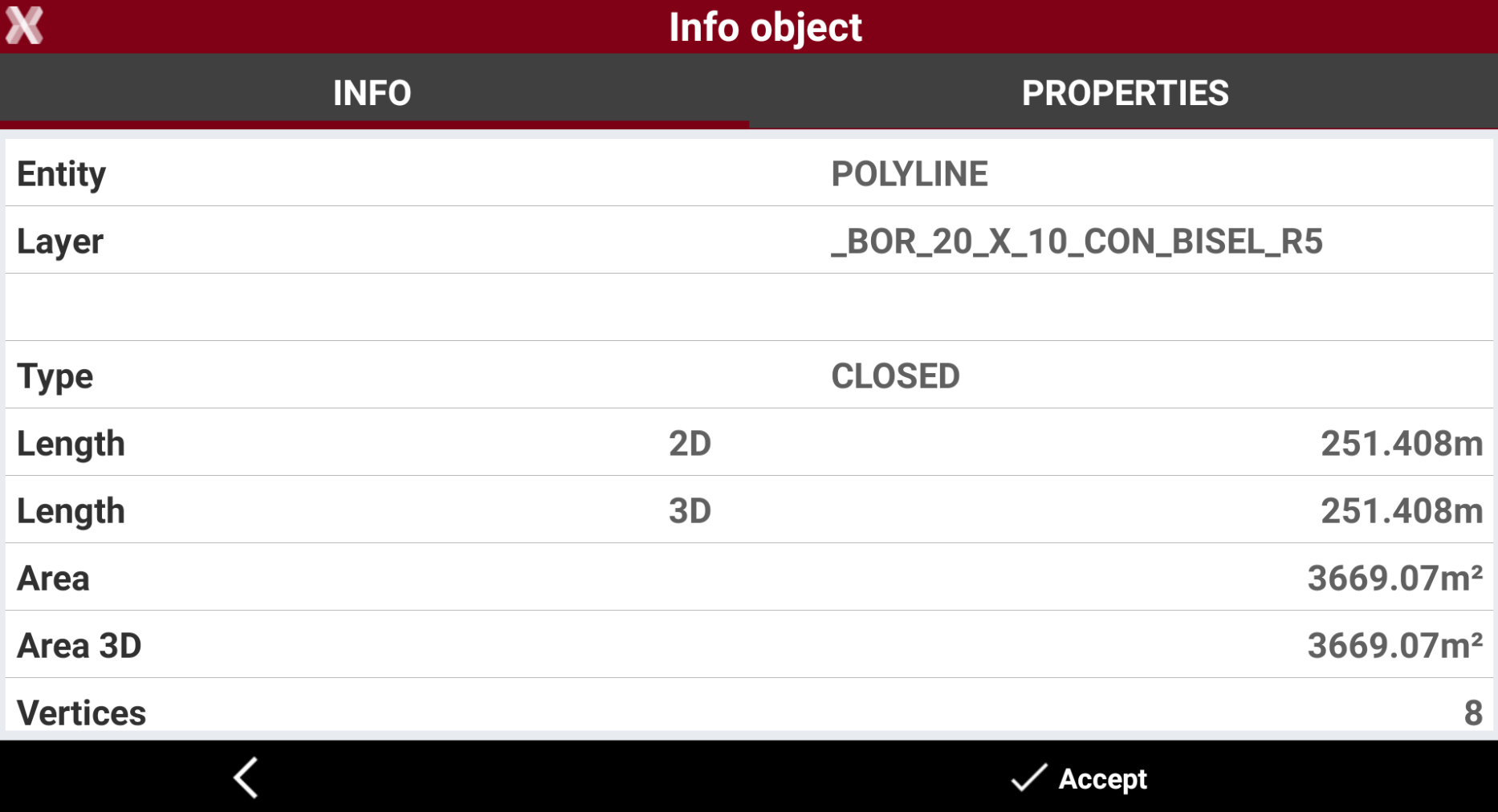
-
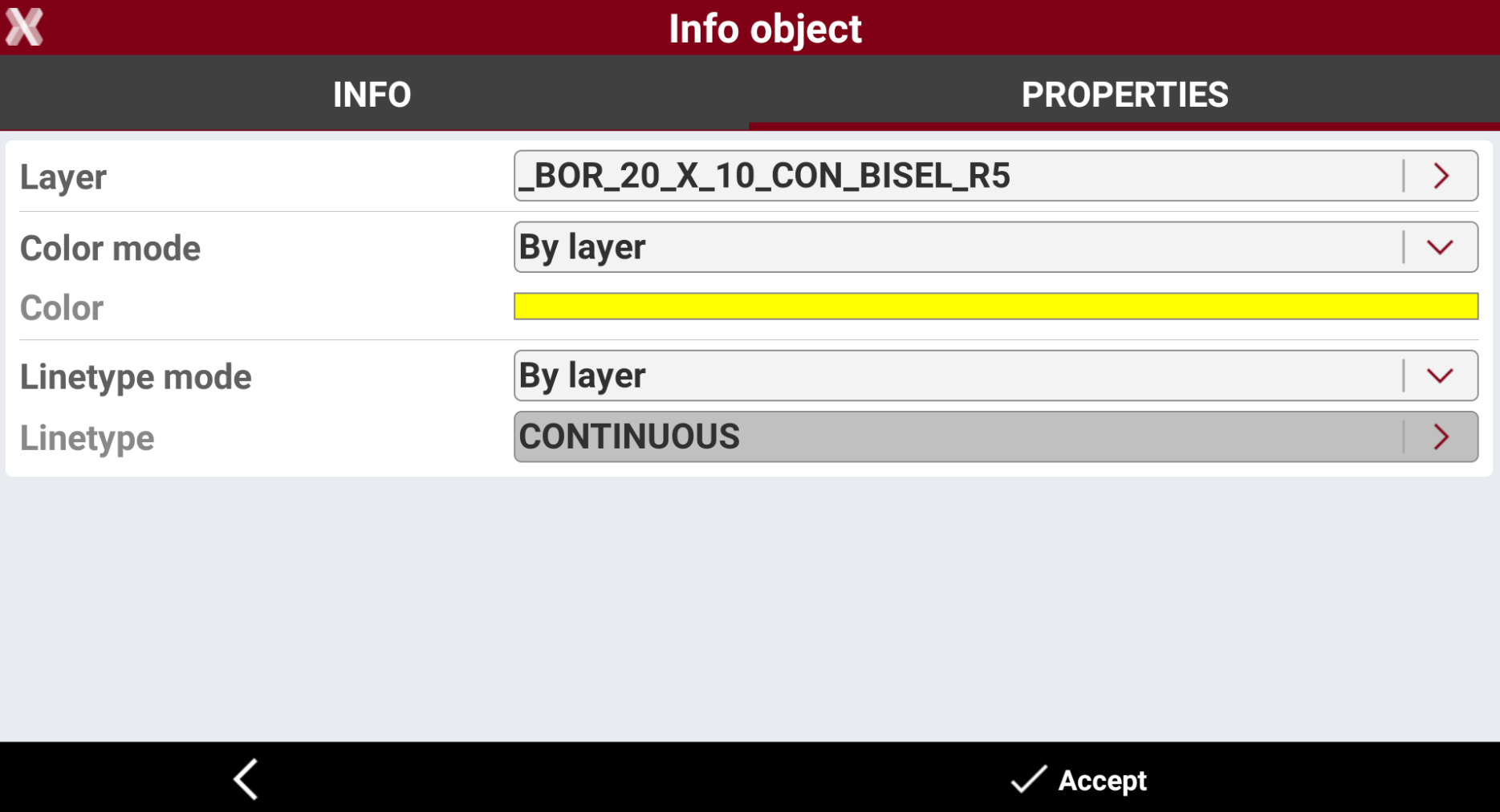
And its properties in the Properties page. The properties are editable.
Report objects
-
The Report function creates a document that has information about selected objects including information about the length, the area and the number of vertices.
-
From the Info toolbar select Report.
-
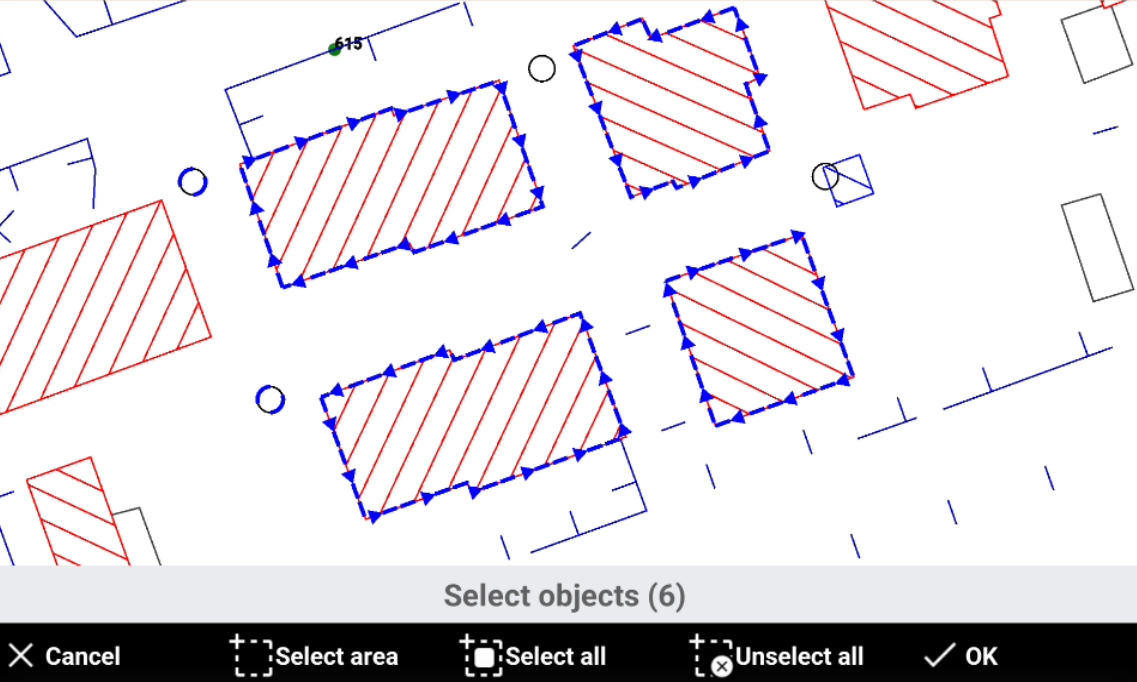
Select the objects in the CAD for which you want to generate.
-
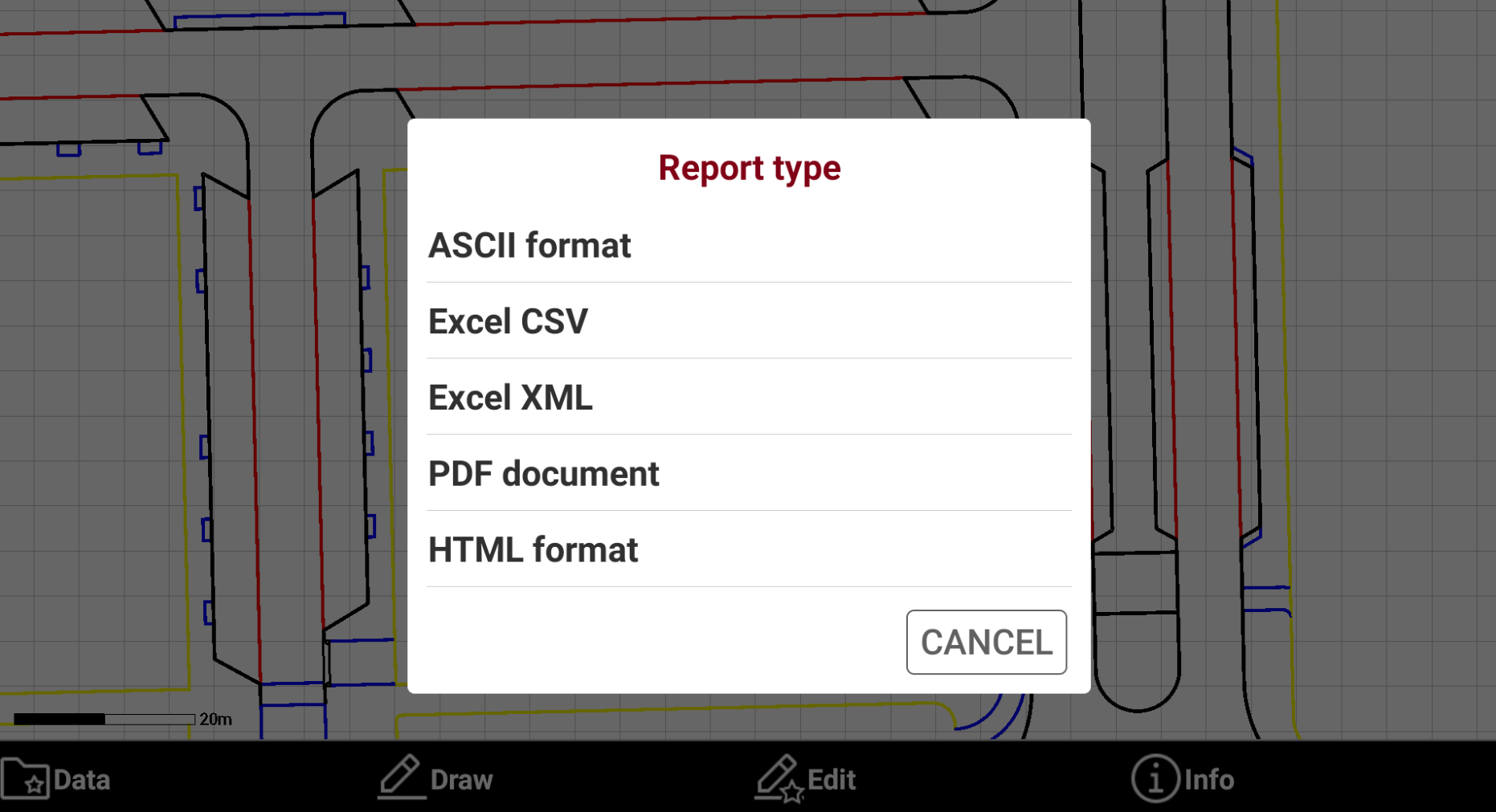
Select the report type from the list.
-
ASCII format: exports the report as a plain text file, suitable for simple viewing and compatibility with various software.
-
Excel CSV: exports the report as a comma-separated values file, ideal for import into spreadsheet applications.
-
Excel XML: exports the report in Excel XML format, preserving structure and allowing direct opening in Microsoft Excel.
-
PDF document: exports the report as a PDF file, suitable for printing and sharing while preserving layout.
-
HTML format: exports the report as a web page, viewable in any internet browser.
-
-
Save or export the generated report.
Find
-
The Find command brings a topographic point into the center of the graphic window.
-
From the Info toolbar select Find.
-
Enter the name of the topographic point to find.
-
The graphic view is centered to the topographic point.
Longitudinal profile
-
The Profile command displays the longitudinal profile of the selected polyline including additional information about the polyline.
-
From the Info toolbar select Profile.
-
Select a polyline in CAD.
-
The Information page displays the information on the polyline.
-
The Profile page displays the longitudinal profile of the selected polyline.