-
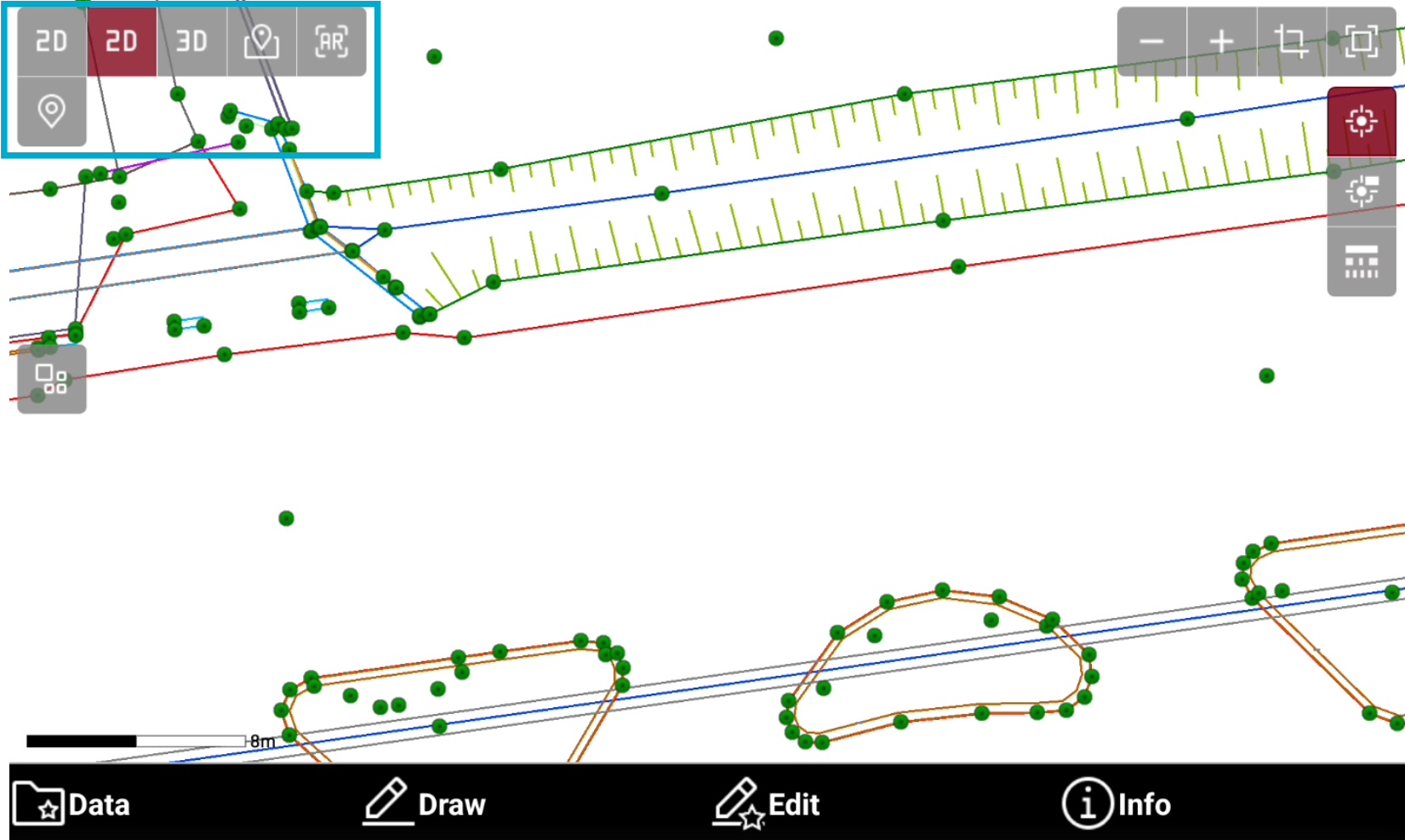
To change the visualization mode, while in CAD tap on screen to open the toolbar and change the display mode.
-
CAD elements can be visualized in different modes.
-
2D view: data is visualized in 2D.
-
3D view: data is visualized in 3D.
-
Online maps: data is visualized over an online map.
-
WMS: a Web Map Service is used in background.
-
WFS: a Web Feature Service is used in background.
-
Augmented reality: data is visualized in augmented reality using the controller or GNSS receiver camera.
-
2D view
-
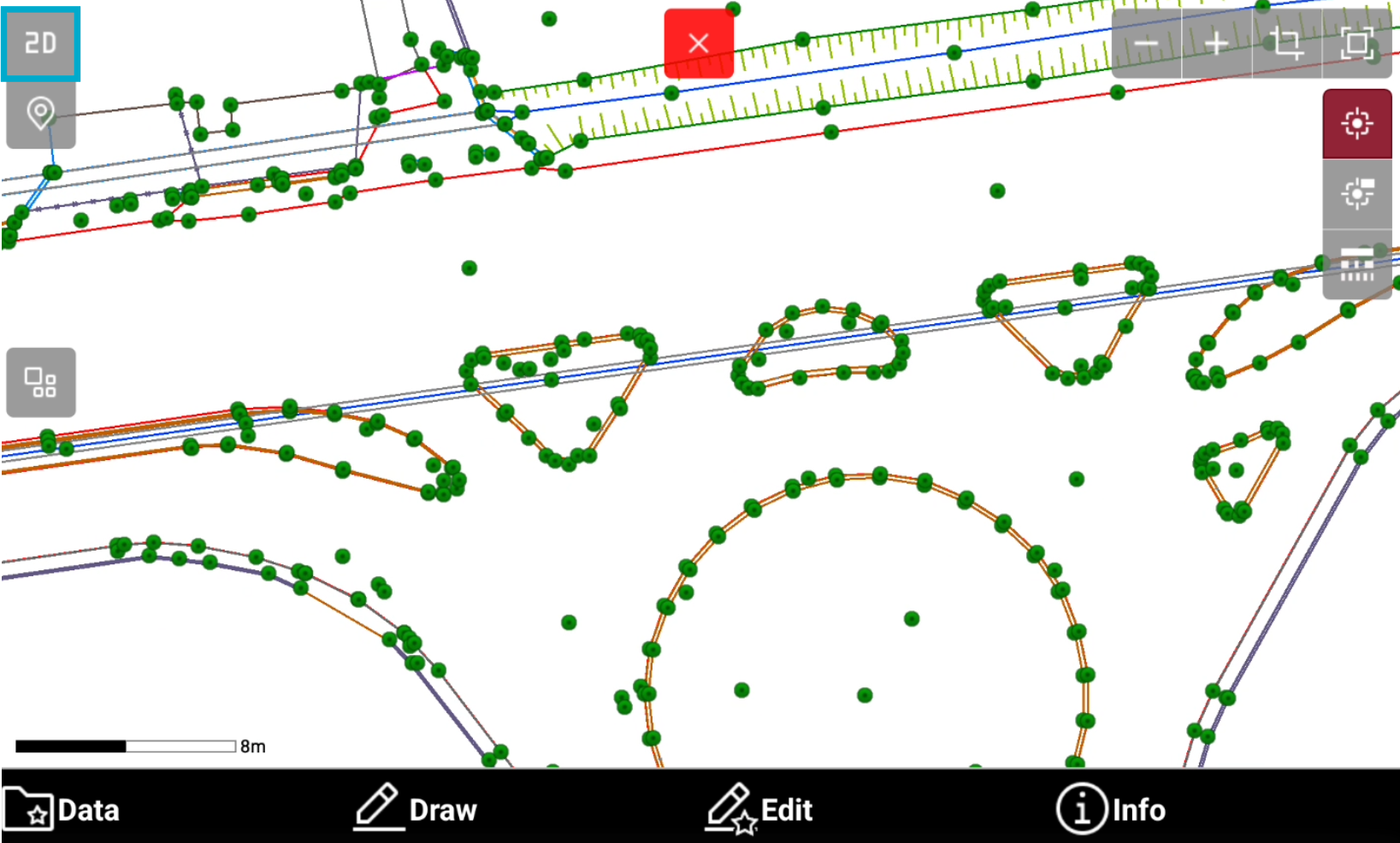
The CAD 2D view is the standard CAD view from the top.
-
Select 2D

3D view
-
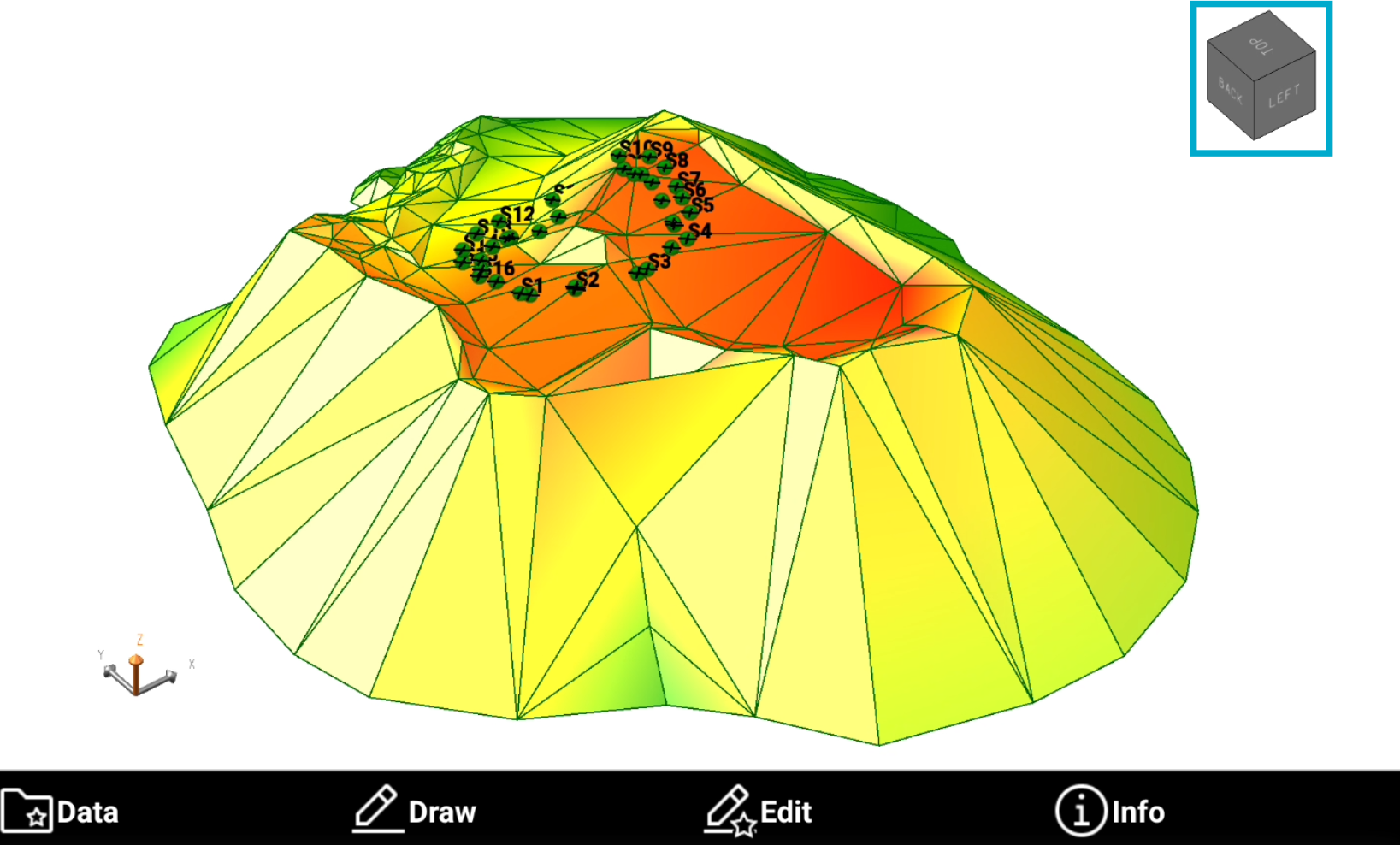
The software CAD allows the visualization in 3D. Select 3D

-
Select one of the predefined views using the faces of the cube or move the 3D view tapping and dragging the point of view.
Online maps view
-
The software allows to visualize in background an online map from different online services.
-
Select Map

-
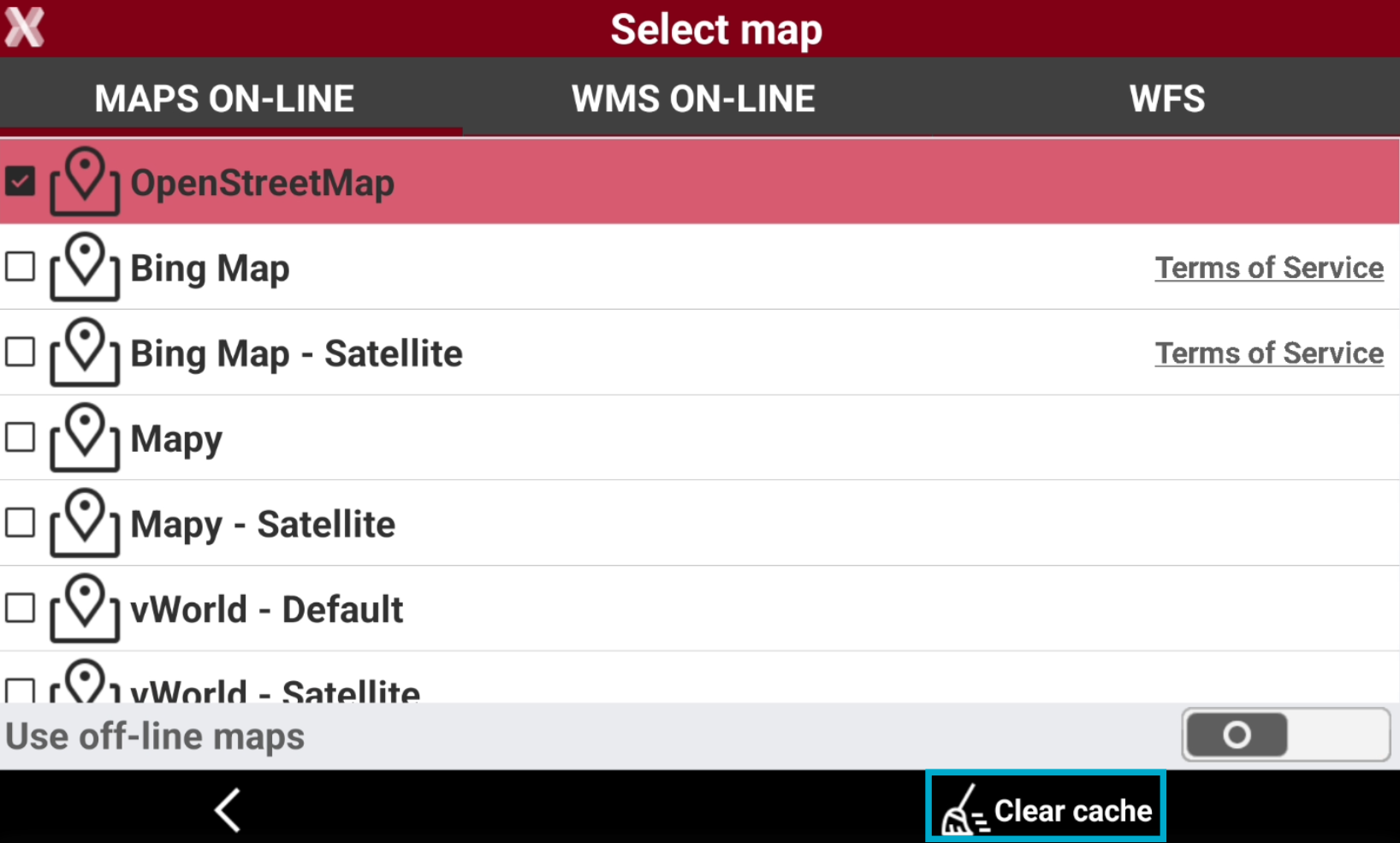
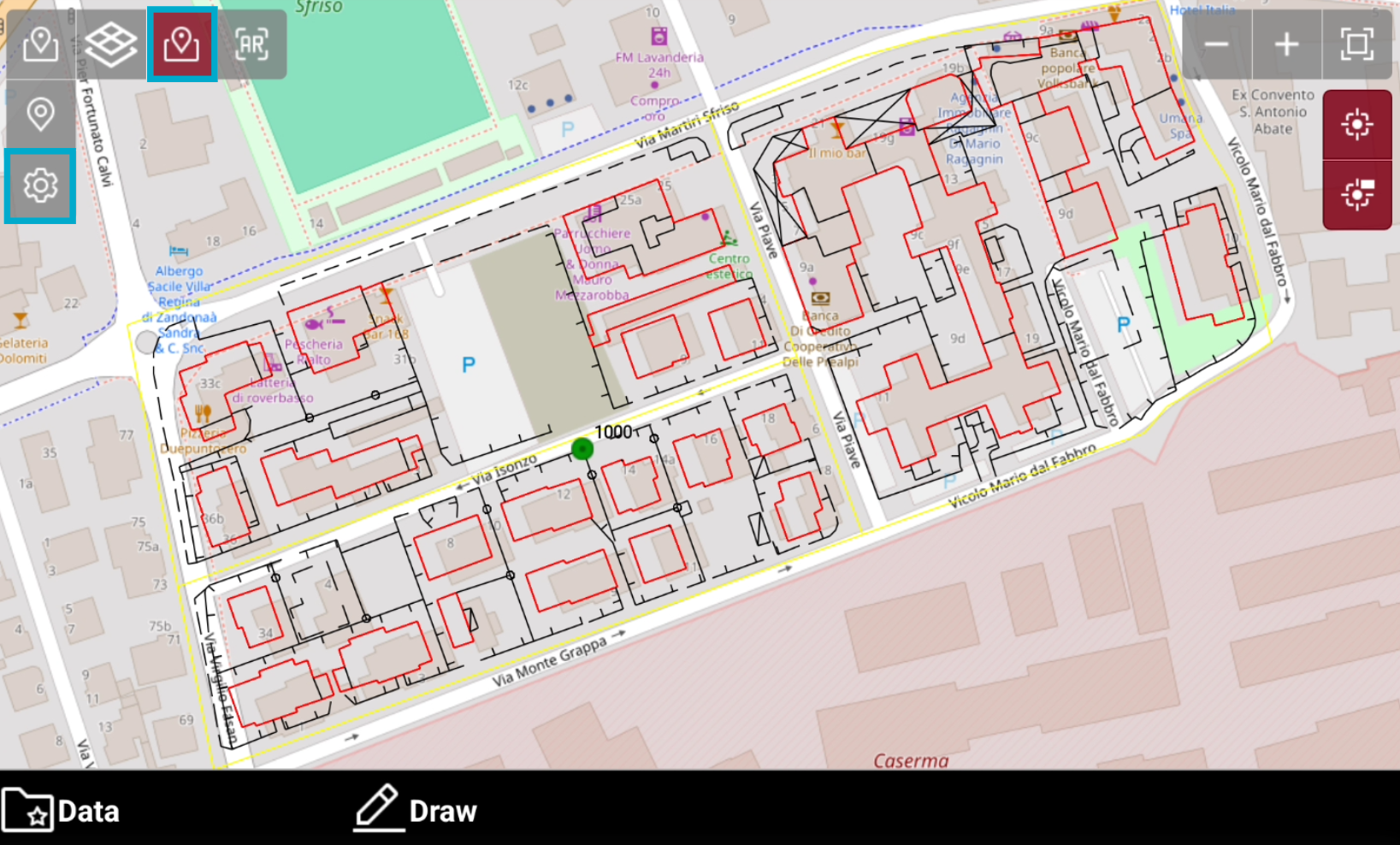
Tap on Select map

-
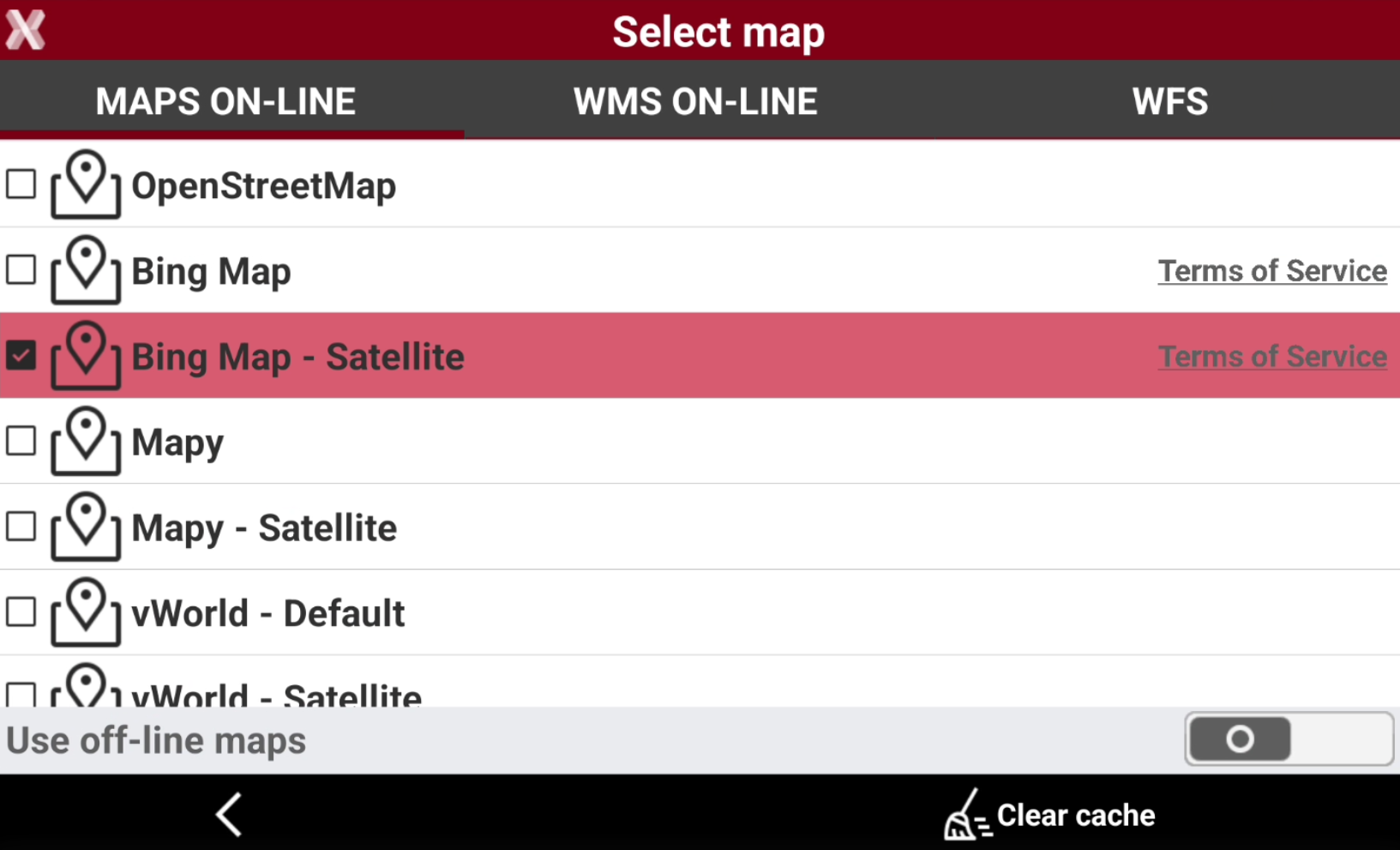
The Maps on-line page visualizes the available online map services. Select which map to visualize.
-
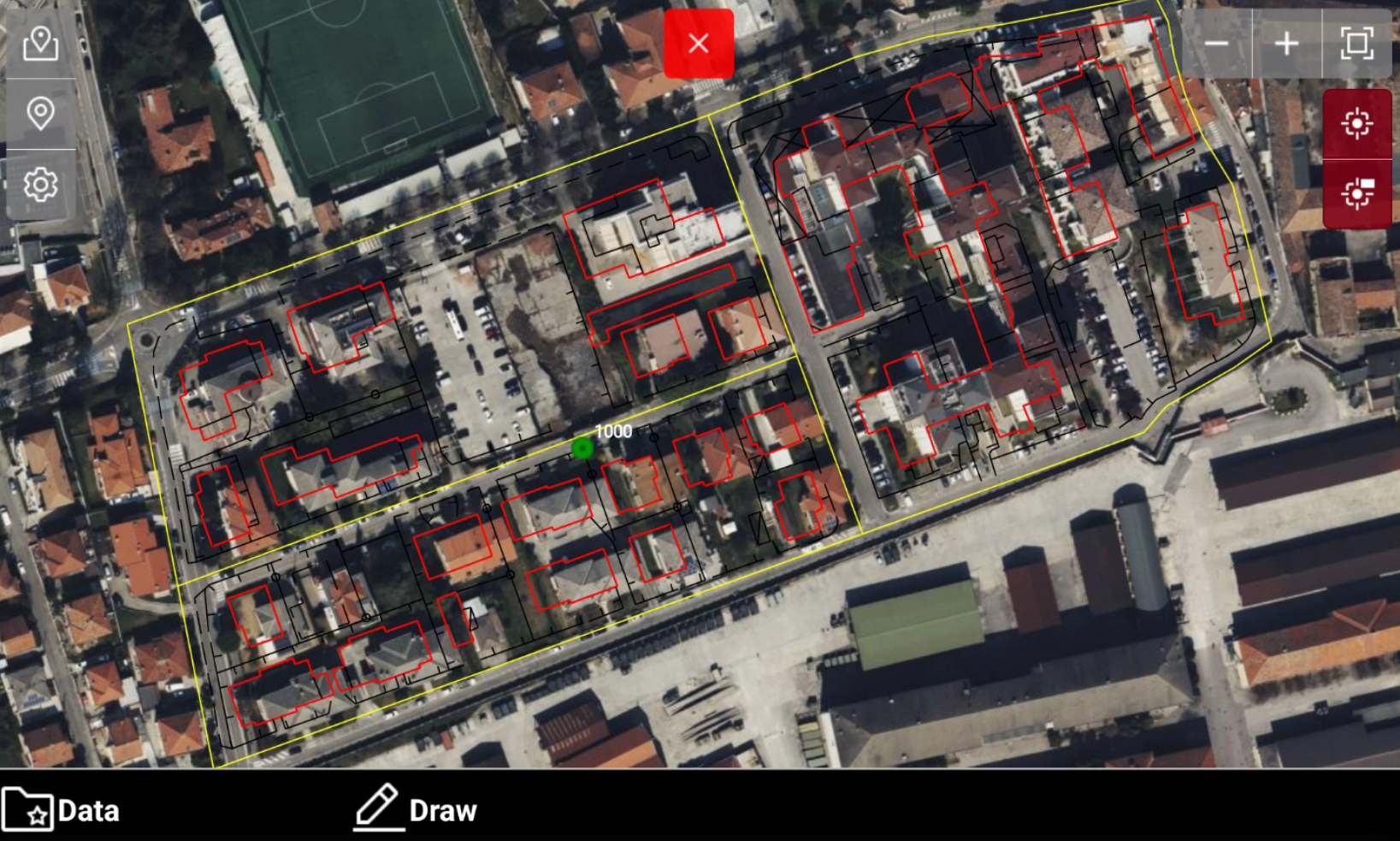
The online map is visualized.
WMS (web map services)
-
WMS is an acronym for Web Map Services, a standard protocol for sharing 2D maps online. This technology is used globally and has been around for many years. Governments and municipalities often utilize WMS to share public information.
-
Select Map
-
Tap on Select map
-
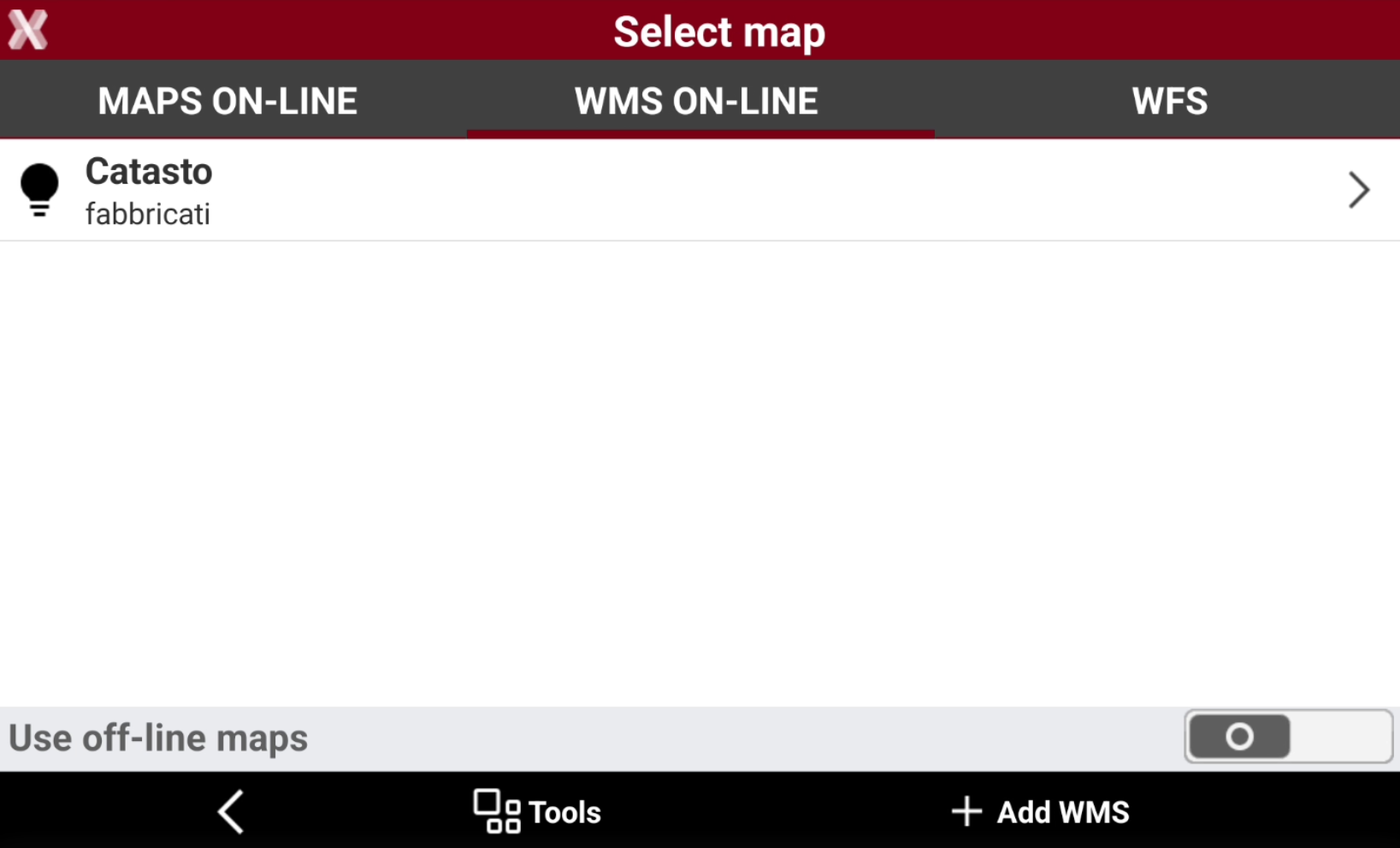
The WMS on-line page visualizes the available web map services. Press

-
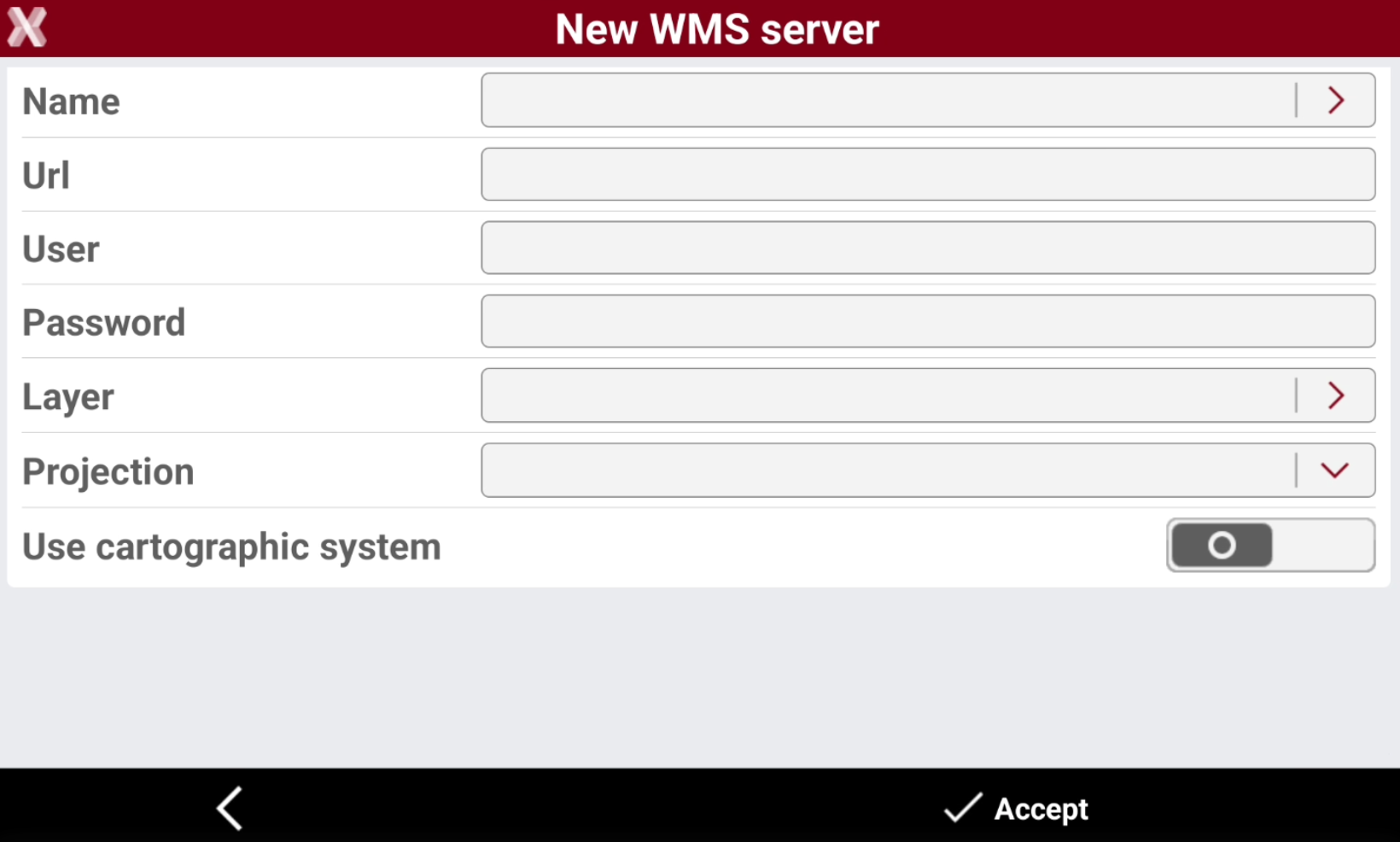
Select Add WMS to add a new WMS.
-
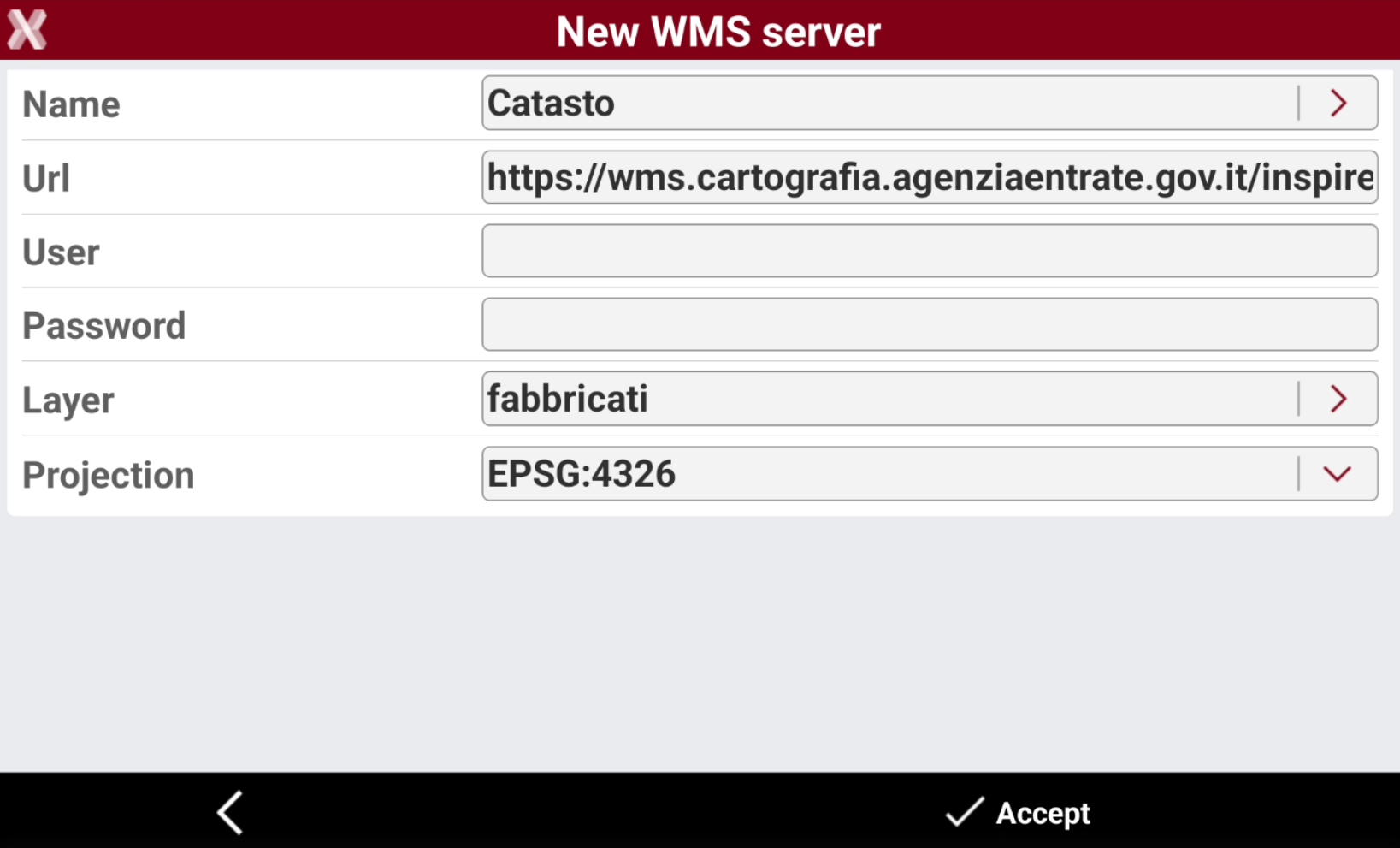
Name: Name to assign to the WMS map. Press > icon to load predefined WMS services.
-
Url: internet address of the WMS map.
-
User: user name for accessing the WMS service (optional).
-
Password: password for accessing the WMS service (optional).
-
Layer: to select the layer to visualize among the ones available in the server. Press > icon to load predefined WMS services.
-
Projection: projection used by the WMS service. Open the drop-down list to select the available projection.
-
-
Press Accept to load the WMS.
-
For some countries predefined WMS are available in the country package.
-
To display correctly the WMS, the selected projection has to match the job projection. If you have troubles to display correctly the WMS check the selected projection.
-
In general select 4326, which is the WGS84 system
-
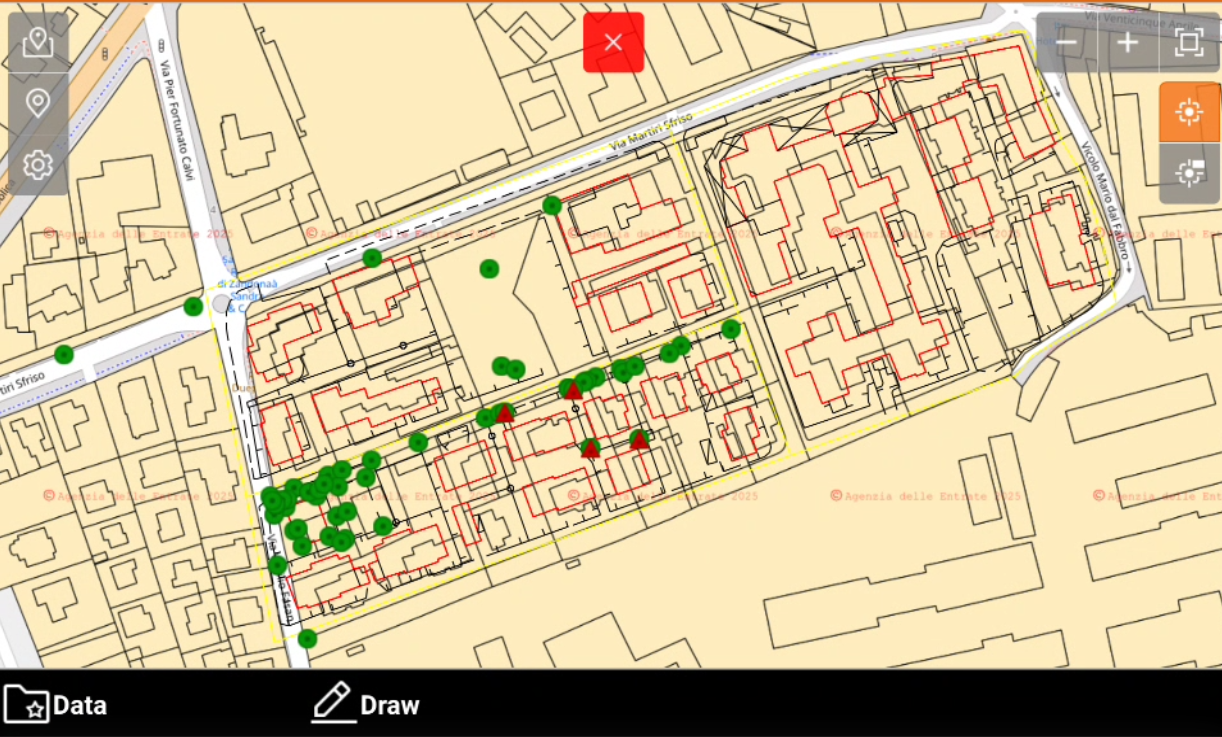
The WMS is overlay to the selected online map and the drawing data.
WFS (web feature service)
-
WFS (Web Feature Service) are cartographic services accessible through internet.
-
They can provide both spatial (vectorial) and not spatial data on different layers.
-
Governing entities are increasingly publishing information in this format. Accessing this information is extremely useful in situations where users need to work with public datasets such as cadastral parcels, reference points, utilities, and more.
-
Once the WFS service has been selected, is possible to choose the interested layer, have a full preview of its content and then define the interested area. All the elements in that area (polylines, polygons, points), can be imported in the current job as external reference GML files.
-
In most of the cases drawing elements have a set of attributes that give more information about each specific object; those attributes are accessible in the information page.
-
Select Map
-
Tap on Select map
-
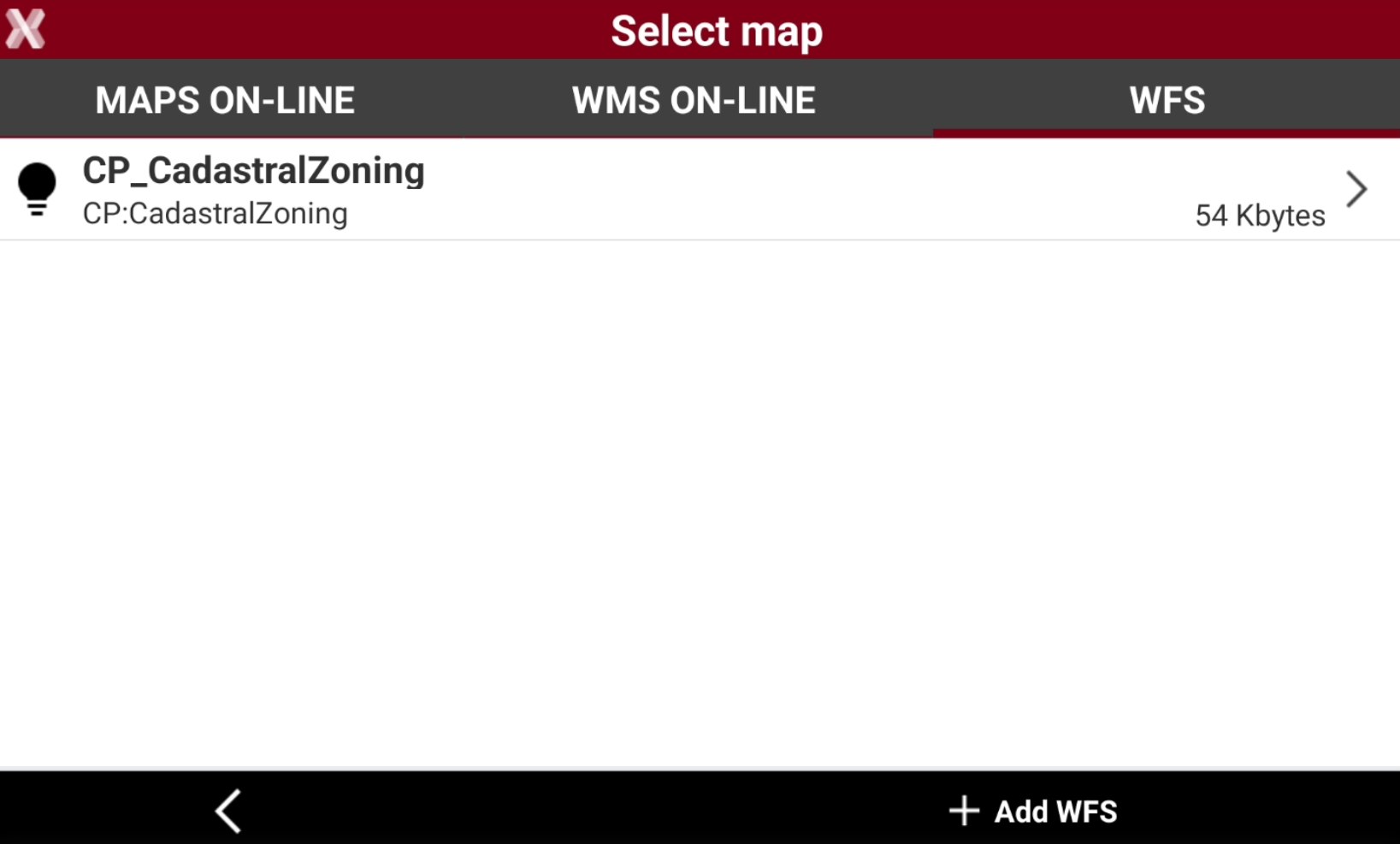
Open WFS page.
-
The WFS page visualizes the available web map services. Press
-
Select Add WFS to add a new WMS.
-
Select the map:
-
WFS - Online: allows to connect an online WFS.
-
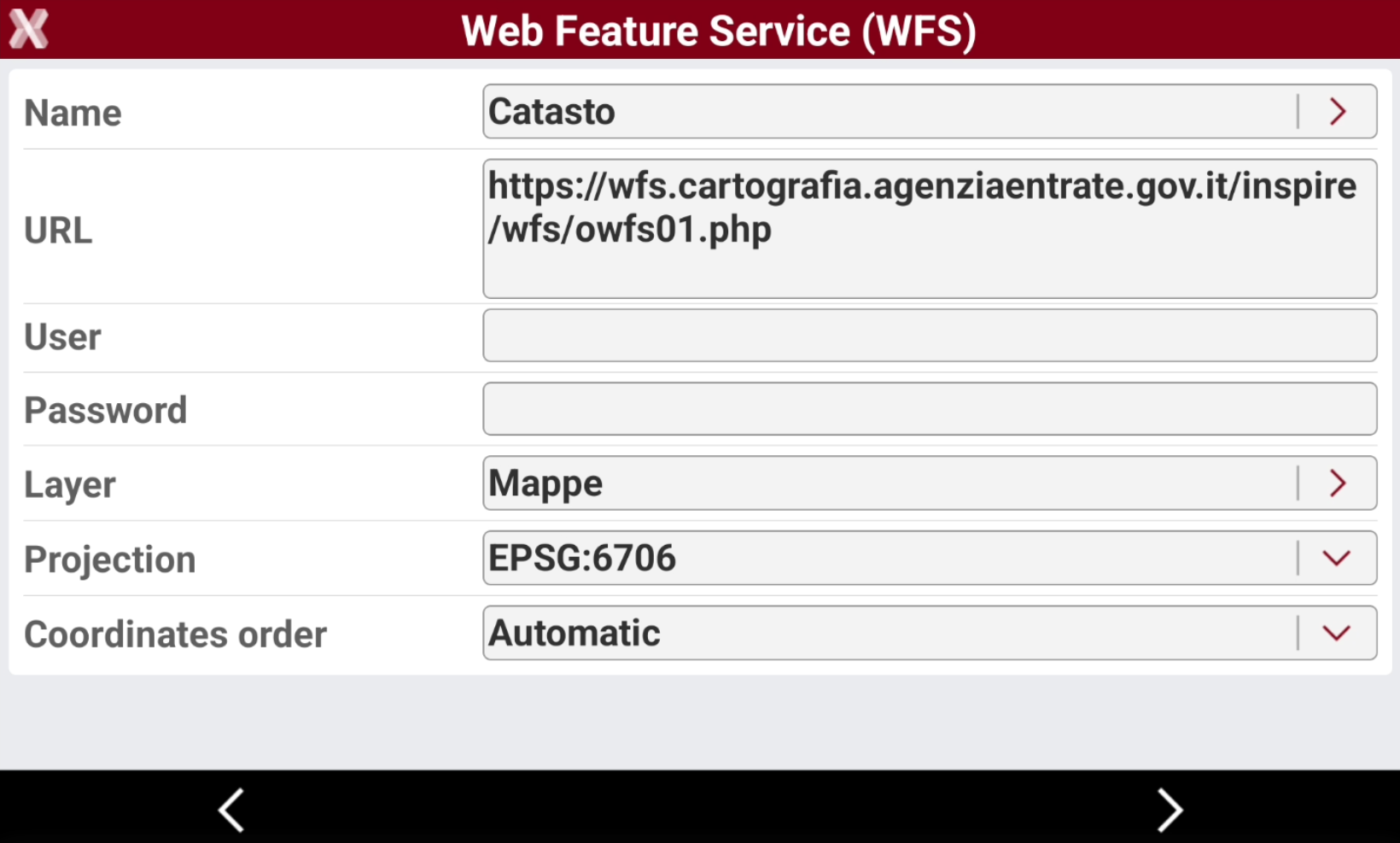
Name: Name to assign to the WFS map. Click the orange arrow to load predefined WFS services.
-
Url: internet address of the WFS map.
-
User: user name for accessing the WFS service (optional).
-
Password: password for accessing the WFS service (optional).
-
Layer: to select the layer to visualize among the ones available in the server, click the orange arrow to display the available layers.
-
Projection: projection used by the WFS service.
-
-
WFS - Offline/GML: to load a WFS layer from a stored GML (Geography Markup Language).
-
-
Select Accept to load the WMS.
For some countries predefined WMS are available in the country package.
To display correctly the WMS, the selected projection has to match the job projection. If you have troubles to display correctly the WMS check the selected projection.
-
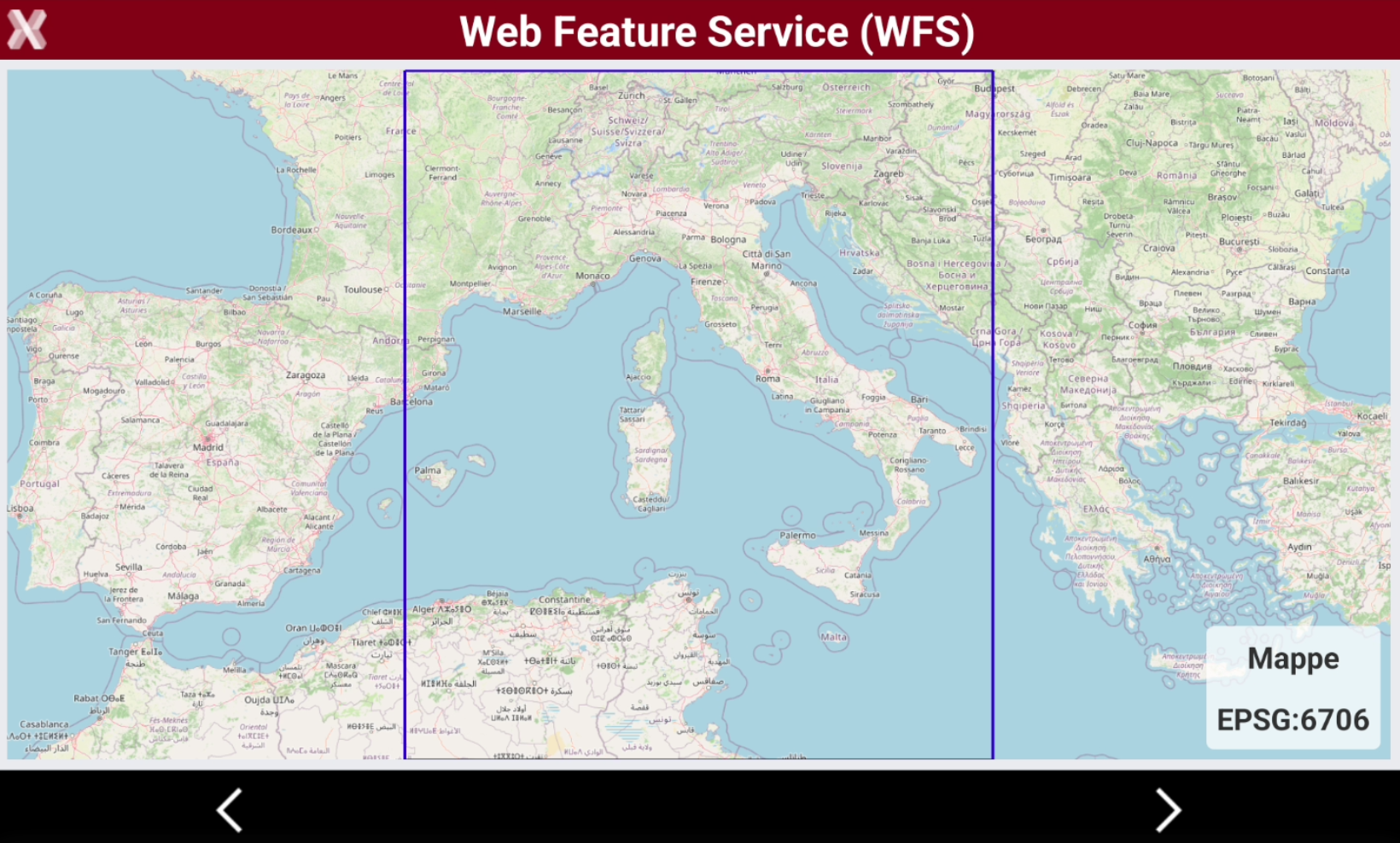
Click Next. The software shows the WFS extension.
-
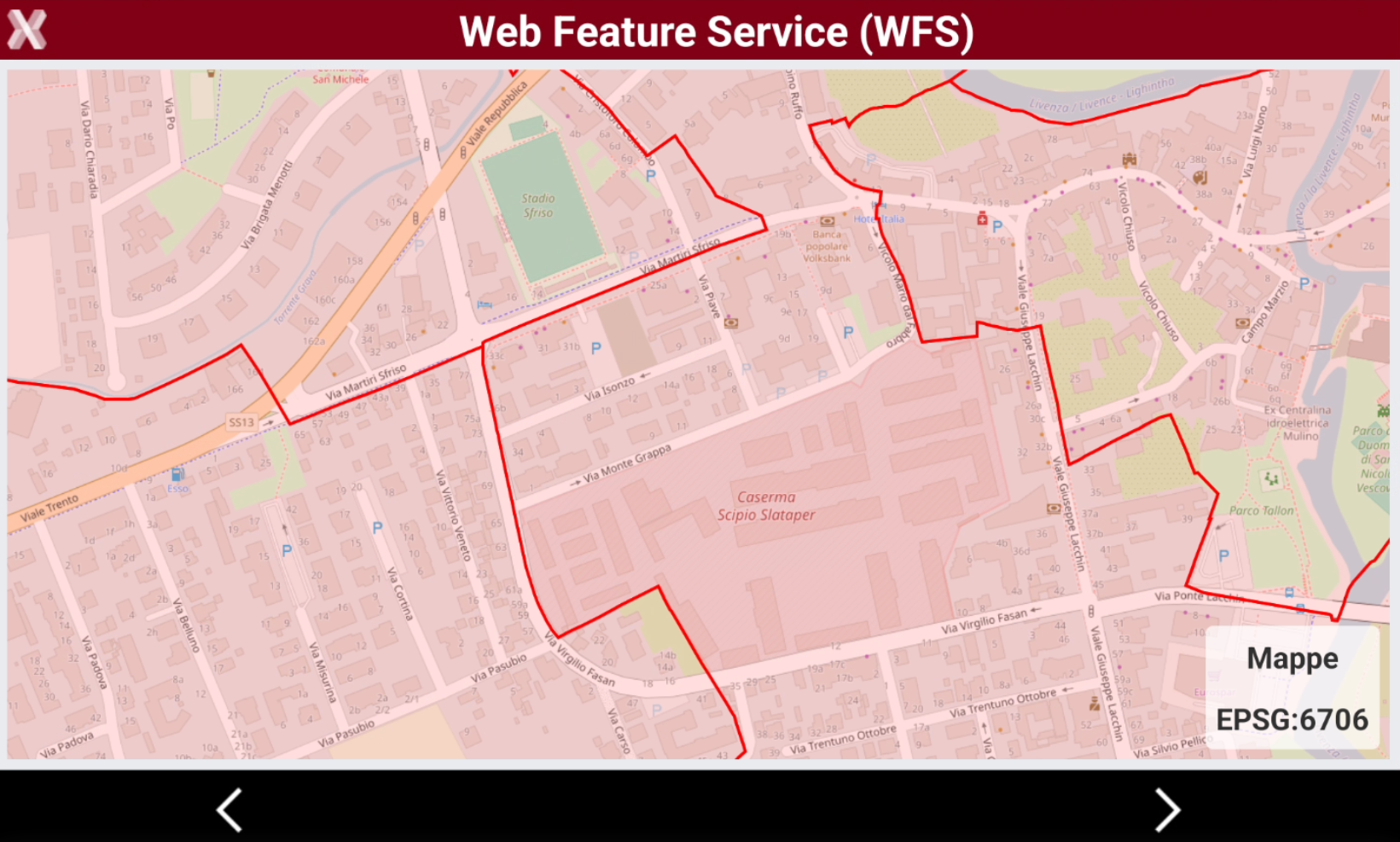
Reduce the displayed area to the zone of interest.
-
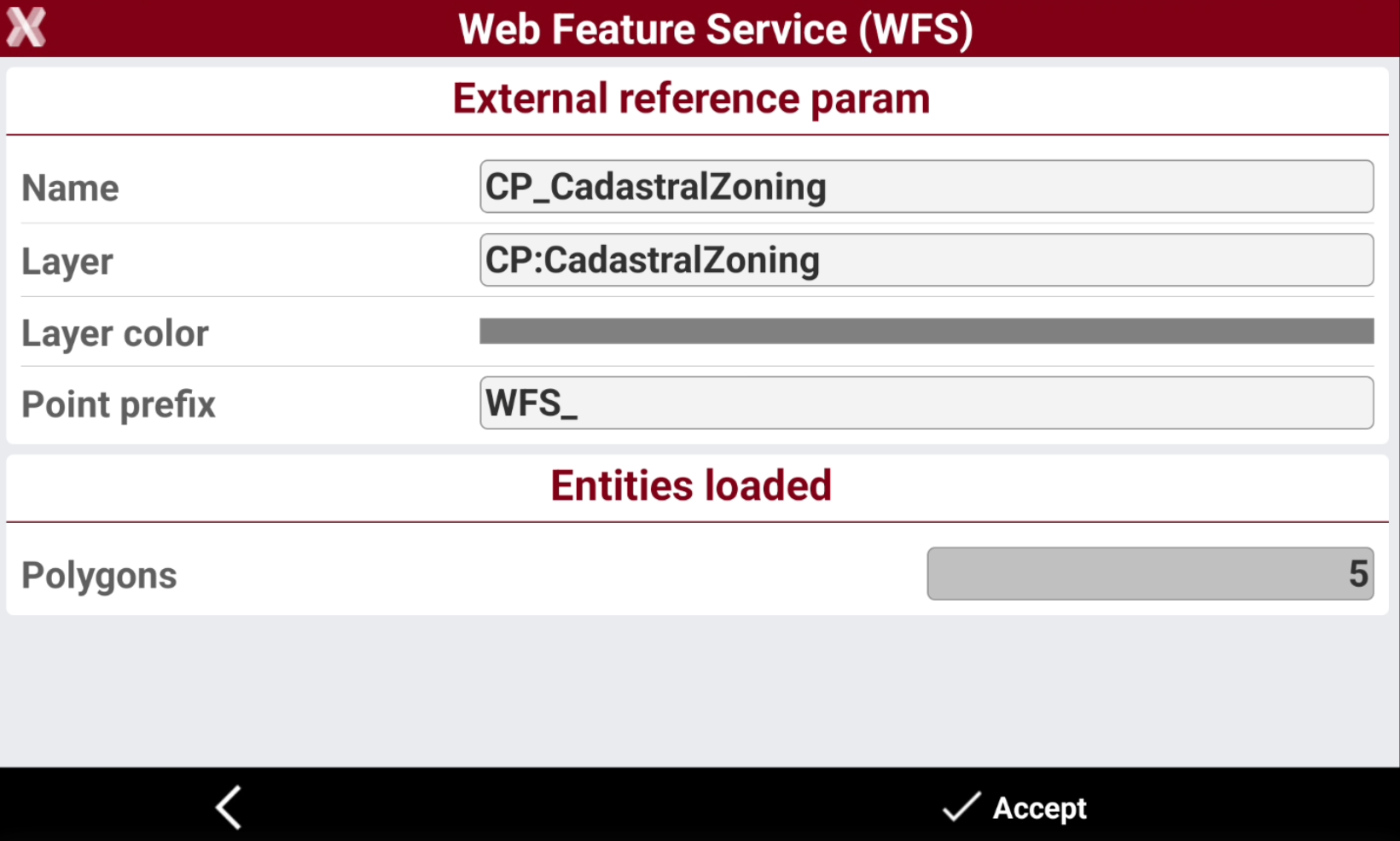
Click Next to save and import the WFS data in a new layer. The data will be recorded as external reference.
-
Name: the name of the external reference to save with the WFS data.
-
Layer: the name of layer where data is saved.
-
Layer color: the color of the layer where data is saved.
-
Point prefix: the prefix for points imported from the WFS.
-
-
Select Accept to import the data from WFS. The data will be saved as external reference GML file.
-
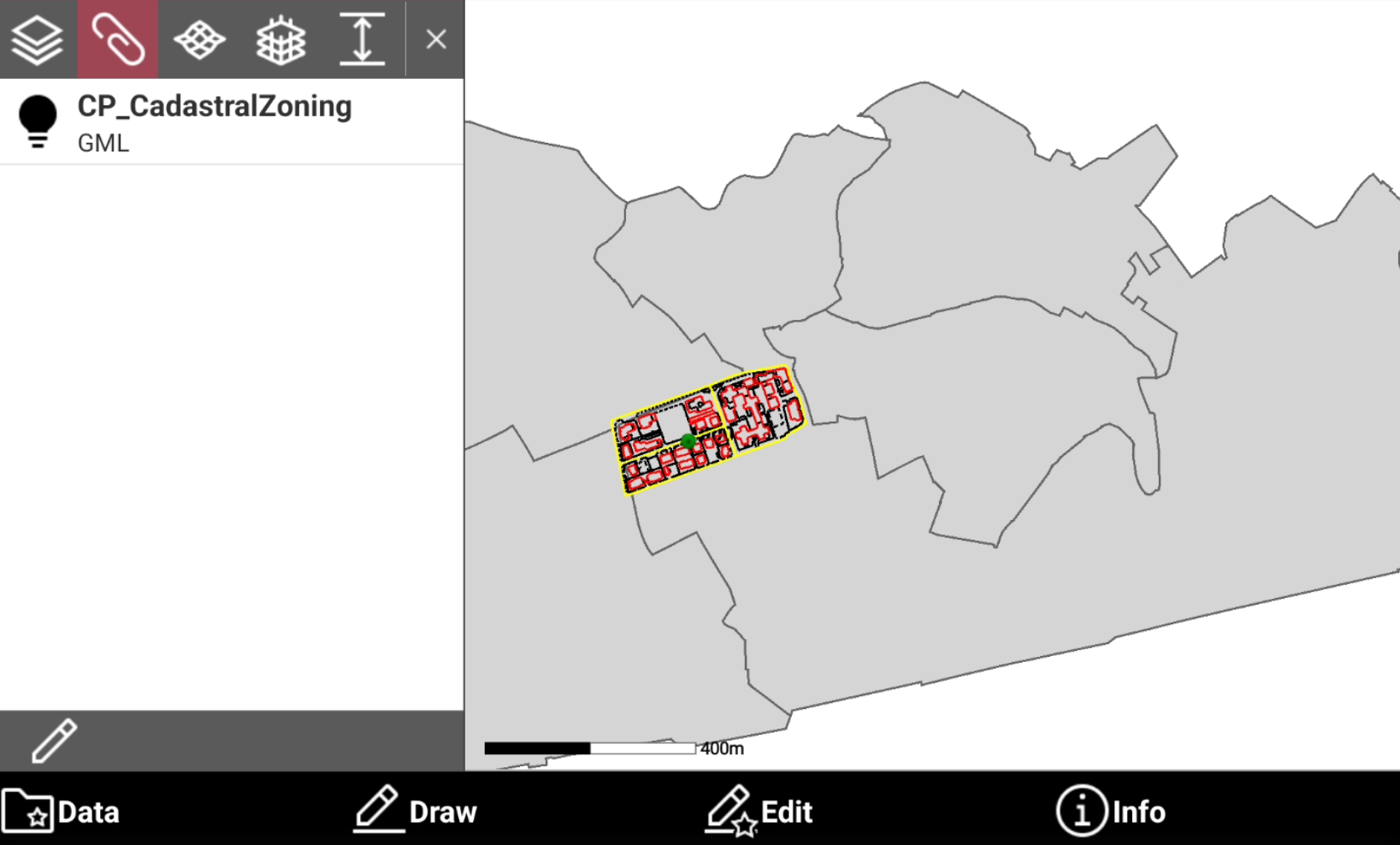
Data is visible as external reference in CAD.
Query WFS attributes
-
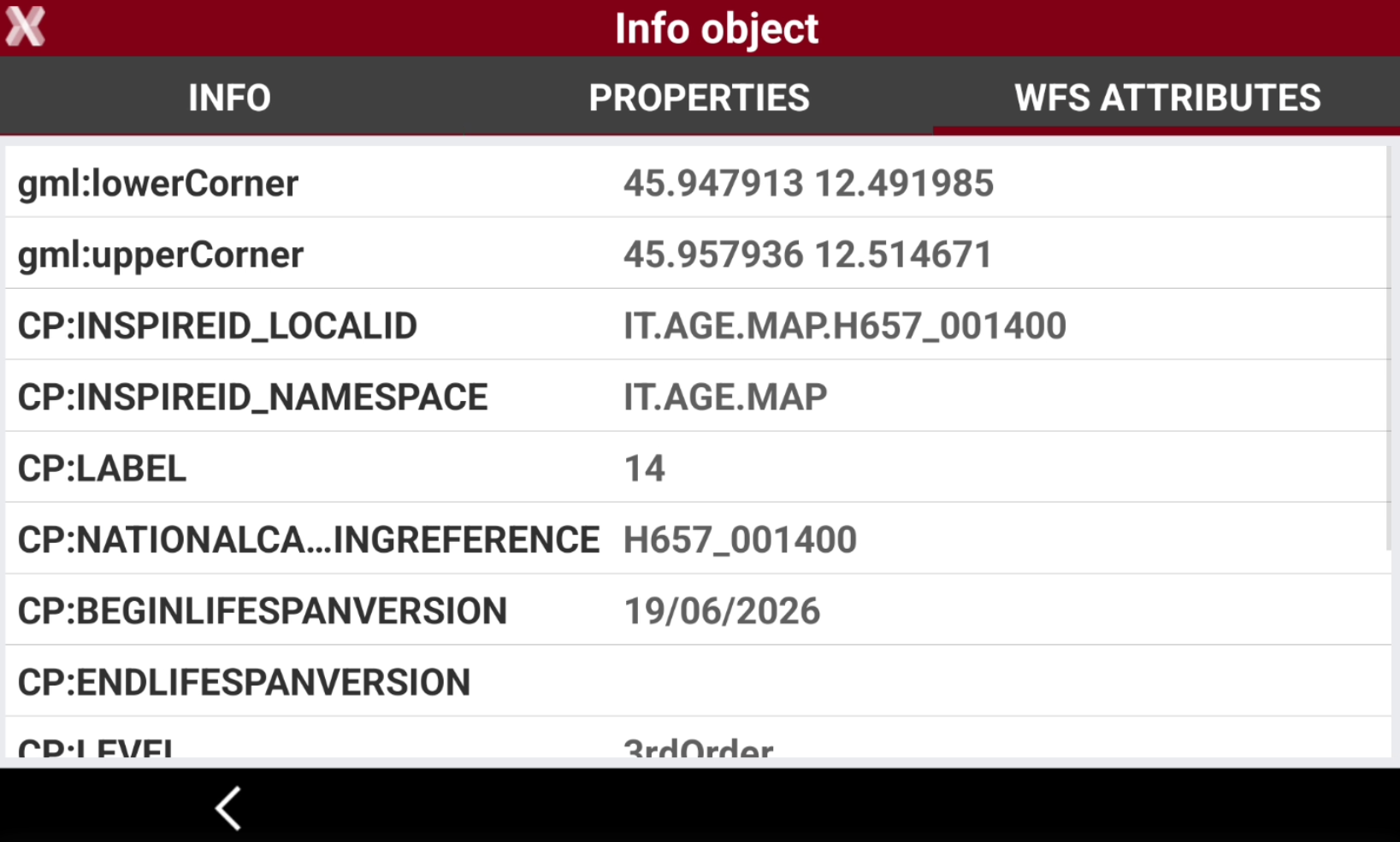
In most of the cases drawing elements have a set of attributes that give more information about each specific object; those attributes are accessible in the information page.
-
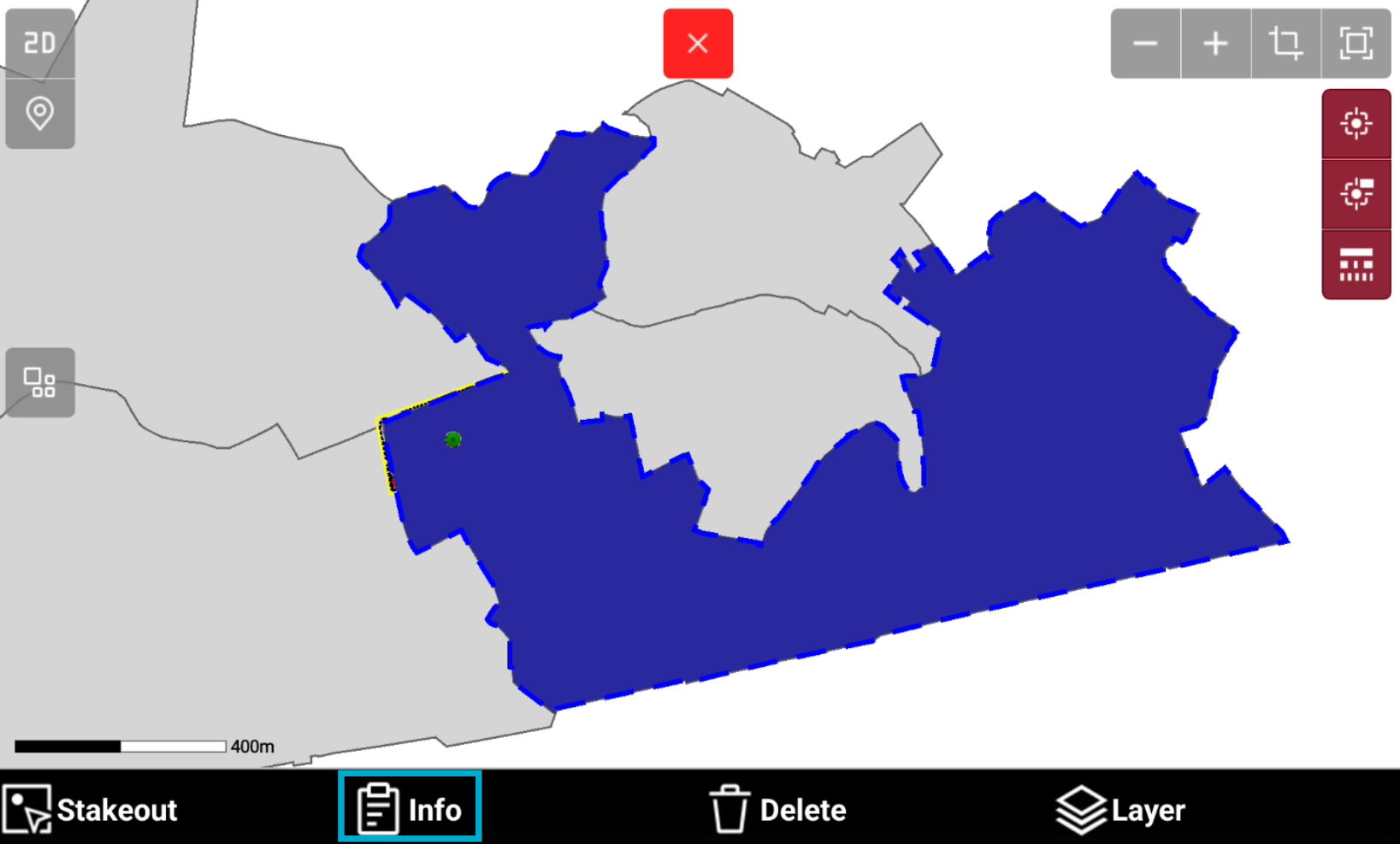
Select a WFS element and select Info.
-
Open the WFS attributes page to read the attributes of the selected element.
Augmented reality
-
The software allows the visualization of CAD objects and measured data in an augmented reality view, using controller camera or if available the GNSS receiver camera.
-
Select AR

AR view using controller’s camera
-
In case the GNSS receiver has not the imaging, the photo camera of the device is activated.
-
Based on the GNSS position, the parameters of the inclination and the direction of the device, the image from camera is shown on the map as overlap.
AR view using GNSS receiver camera
-
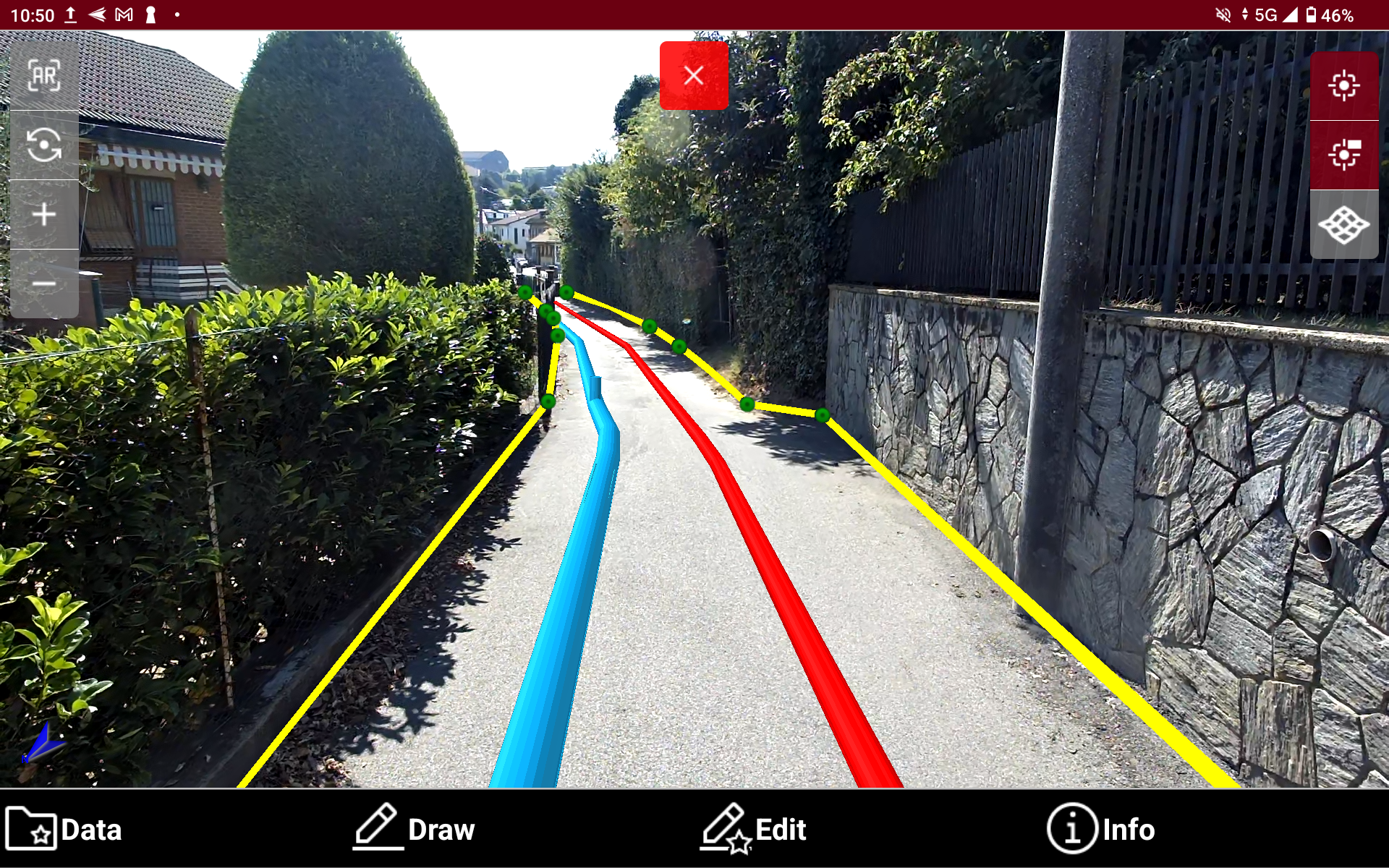
In case the GNSS receiver has imaging capabilities, the front photo camera of the GNSS receiver is activated.
-
Using GNSS receiver camera, IMU and other sensors the overlapping between CAD data and image is very accurate.
-
Press

Drawing over online maps
-
It is possible to draw points and lines while the CAD view is displayed on an online map.
-
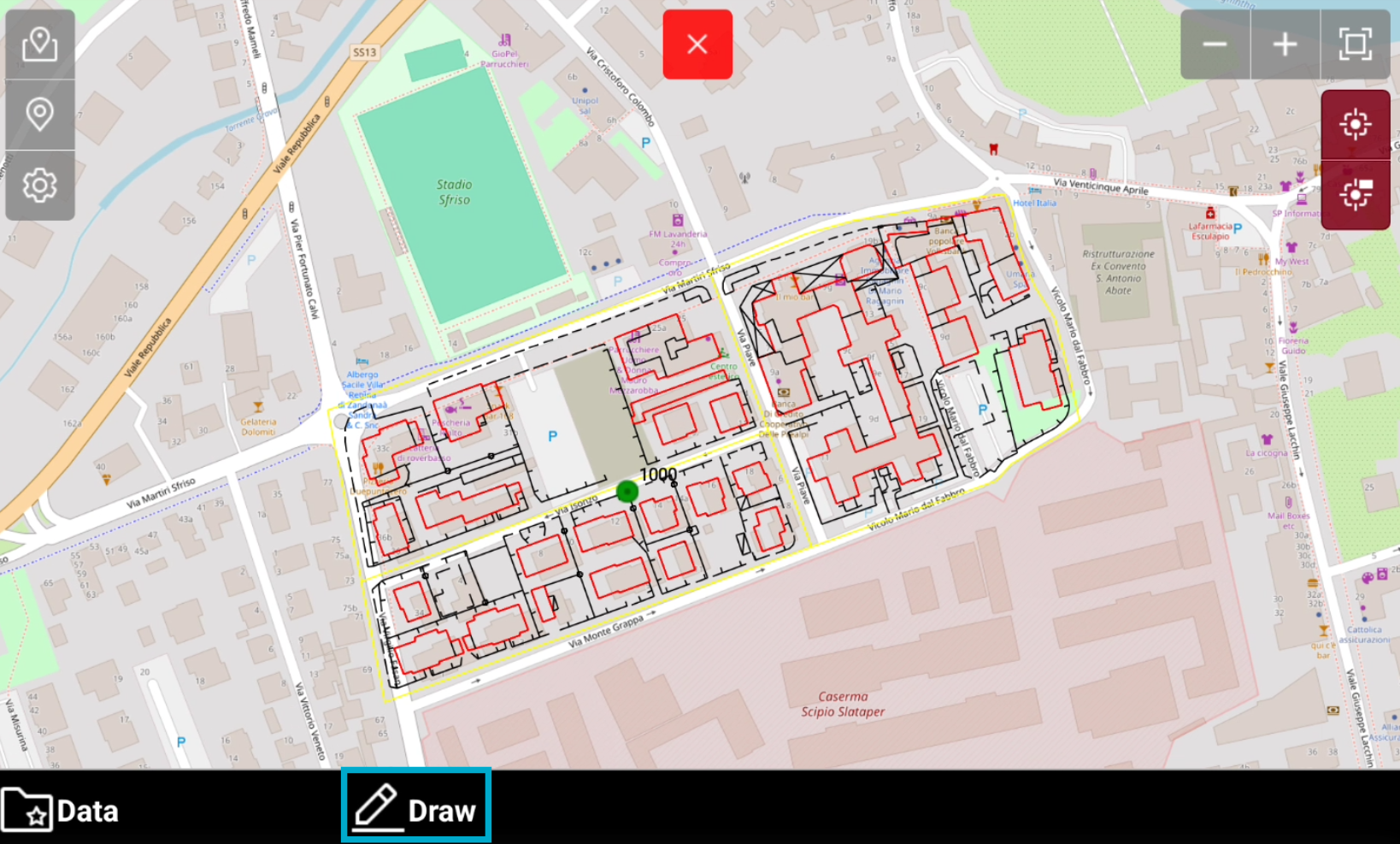
While in maps view select Draw

-
This opens a toolbar.

-
Point: to draw points on the map. Click directly on the map or use the snap to create new topographic points.
-
Line: to draw lines on the map. Click directly on the map or use the snap to create new lines.
-
Use maps in off-line mode
-
The software allows to save the reference map and the WMS maps visible offline, when an internet connection is not available.
Download a map to be used offline
-
Select the online map and the WMS to display.
-
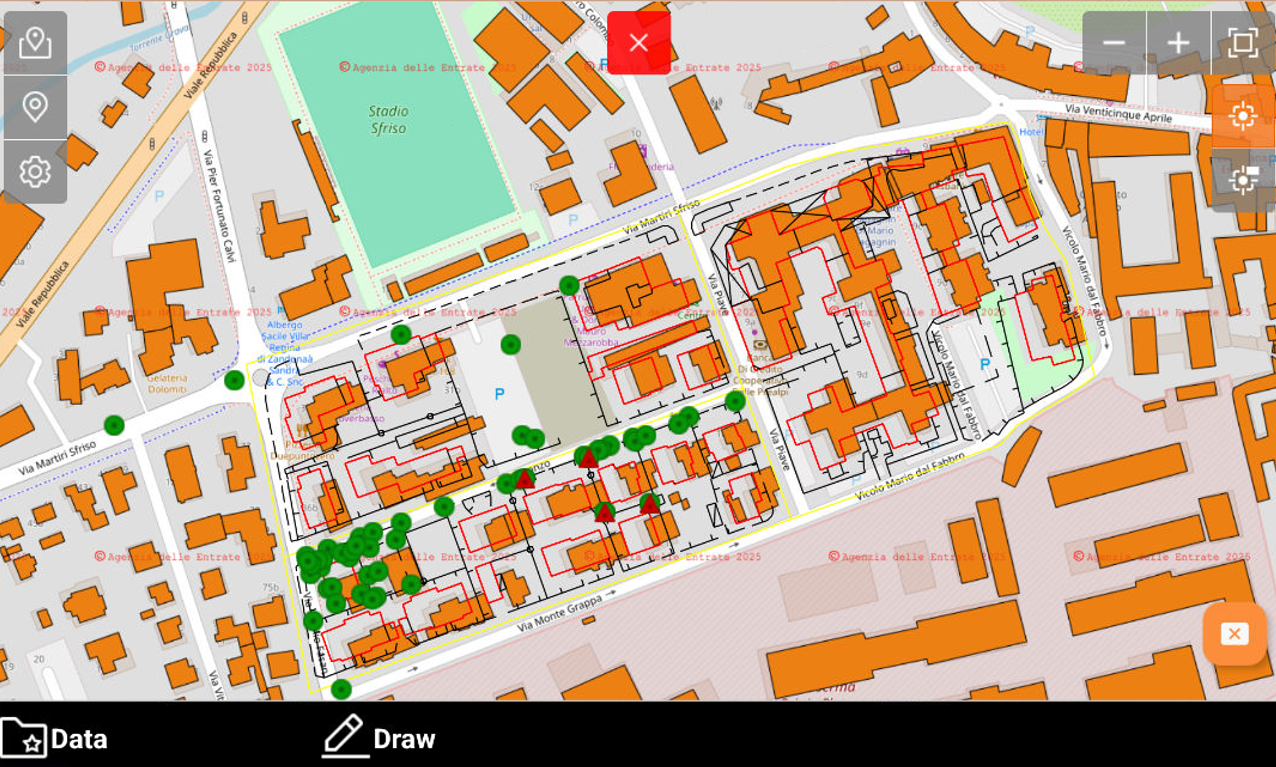
While the maps are visualized in CAD, press Data.
-
Select Save off-line map.
-
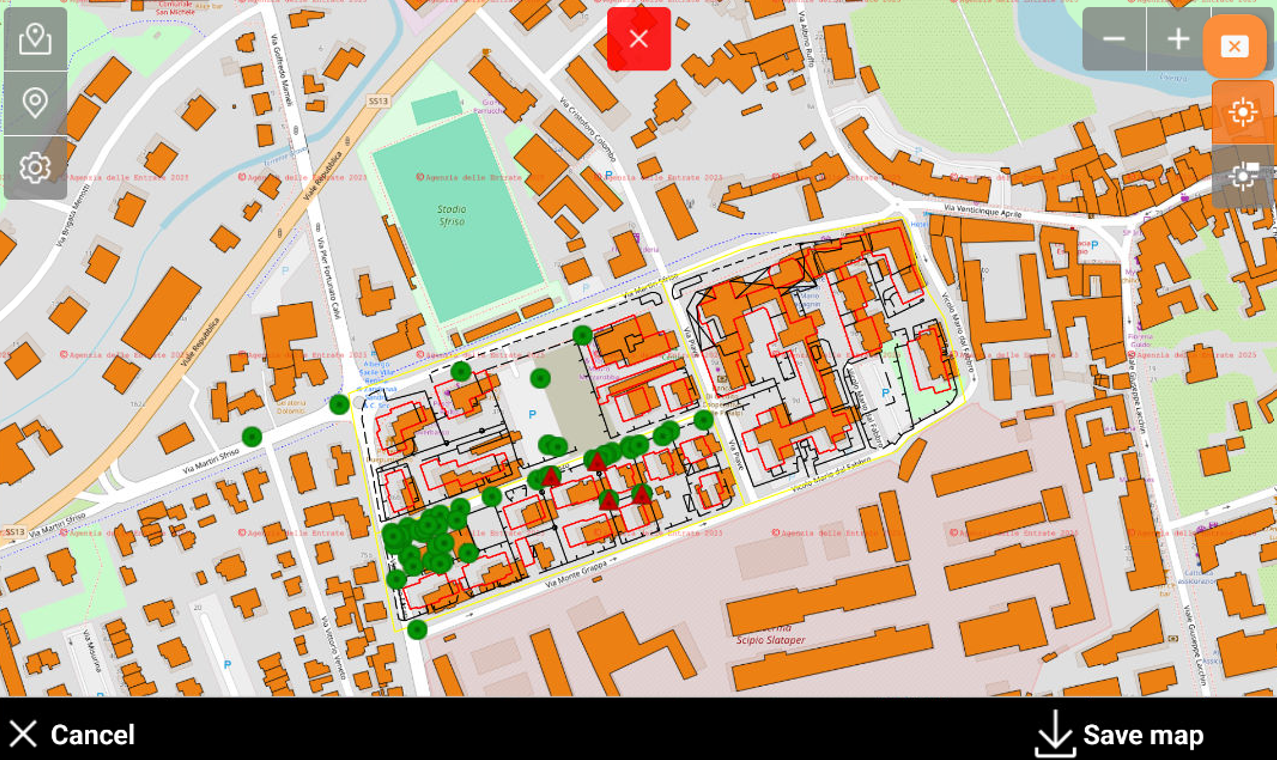
Adjust map area to store offline and press Save map button to save it.
-
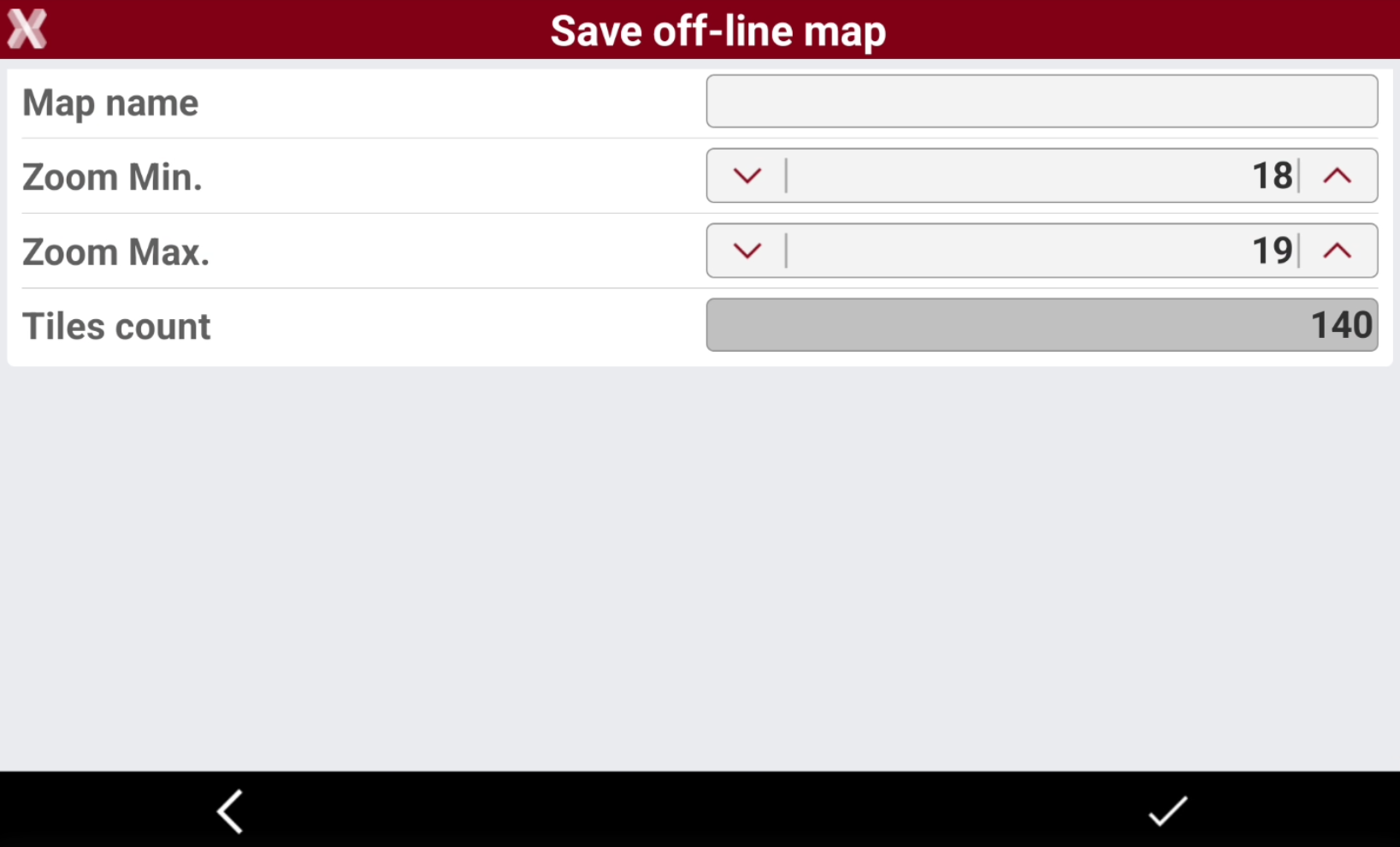
Enter the information required.
-
Map name: name for the off-line map.
-
Zoom Min: minimum zoom level.
-
Zoom Max: maximum zoom level.
-
Tiles count: based on the limits of the zone and of the zoom, the number of tiles to be downloaded is calculated.
-
Create off-line WMS: enables to save the available WFS offline.
-
The number of tiles can be great and request much time to complete downloading and take up much space on the disk. It is recommended to not exceed in the extension of the required zone and to save only the necessary levels of zoom
-
The software download the map for the offline use. The download time depends on the number of tiles.
Activate a saved offline map
-
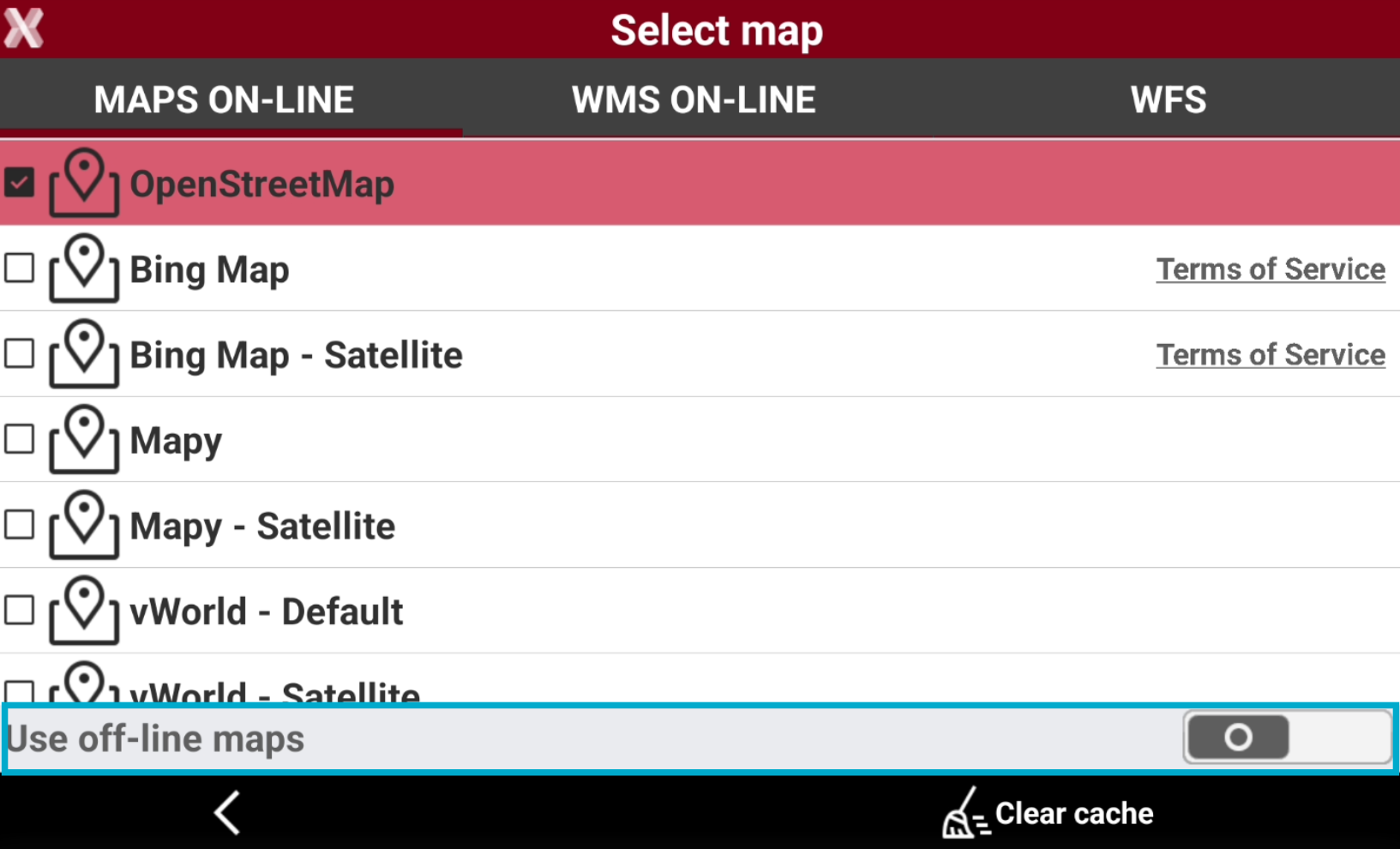
To use an offline saved map click Map

-
Enables Use off-line maps to visualize available offline maps.
-
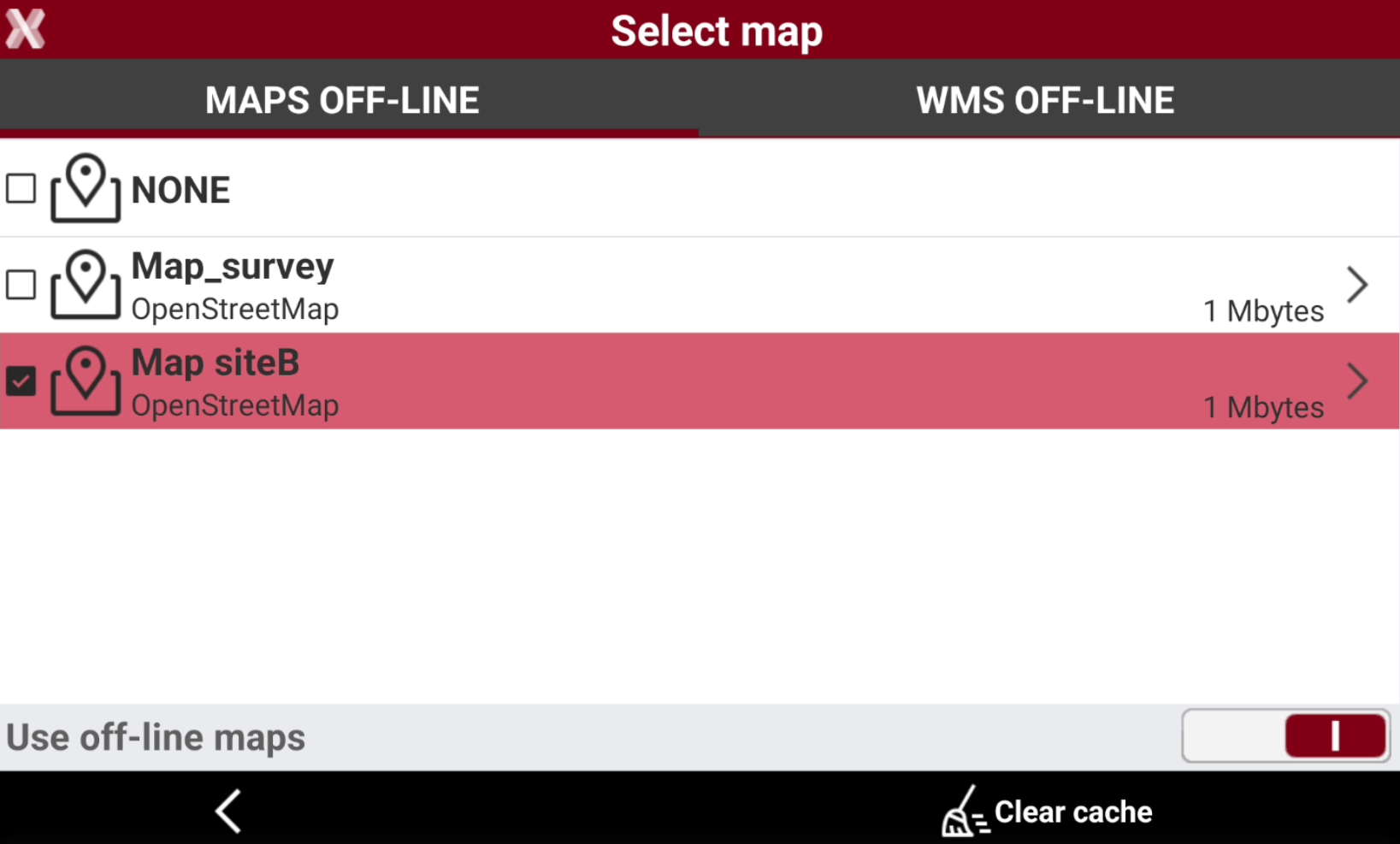
The windows shows the available offline maps and WMS. Check the offline maps to visualize.
Clear maps cache
This command is useful in case of issues to visualize online maps.
-
The command Clear cache is used to delete the stored cache with information on the online maps utilized.
-
Open the maps view.
-
Press Clear cache to delete the stored maps cache.