
CAD interface
-
The graphic interface in CAD is explained in this paragraph.
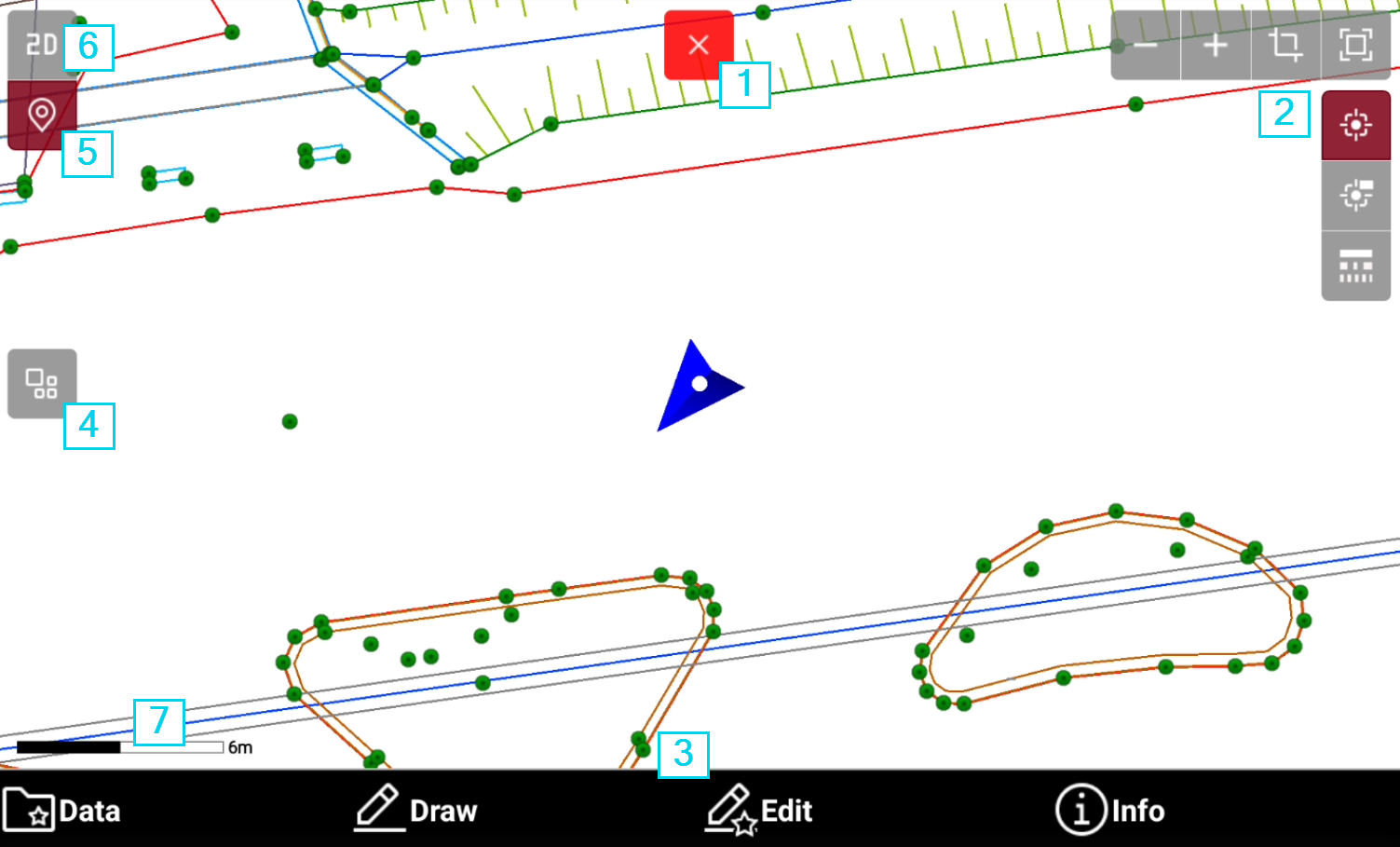
-
Close: press the button to close the CAD.
-
Drawing display: different commands to manage the display of drawing data.
-
Toolbar: allows to access the CAD commands.
-
Project manager: press this button to open the Project manager.
-
Locate me: activate this option to enable the visualization of current position in CAD.
-
Visualization mode: changes the visualization mode.
Operating in CAD
-
Tap on the graphic area and drag to change the point of view.
-
Tap in the graphic area using two fingers and move them apart to zoom in.

-
Tap in the graphic area using two fingers and bring them closer together to zoom out.

Change visualization mode
-
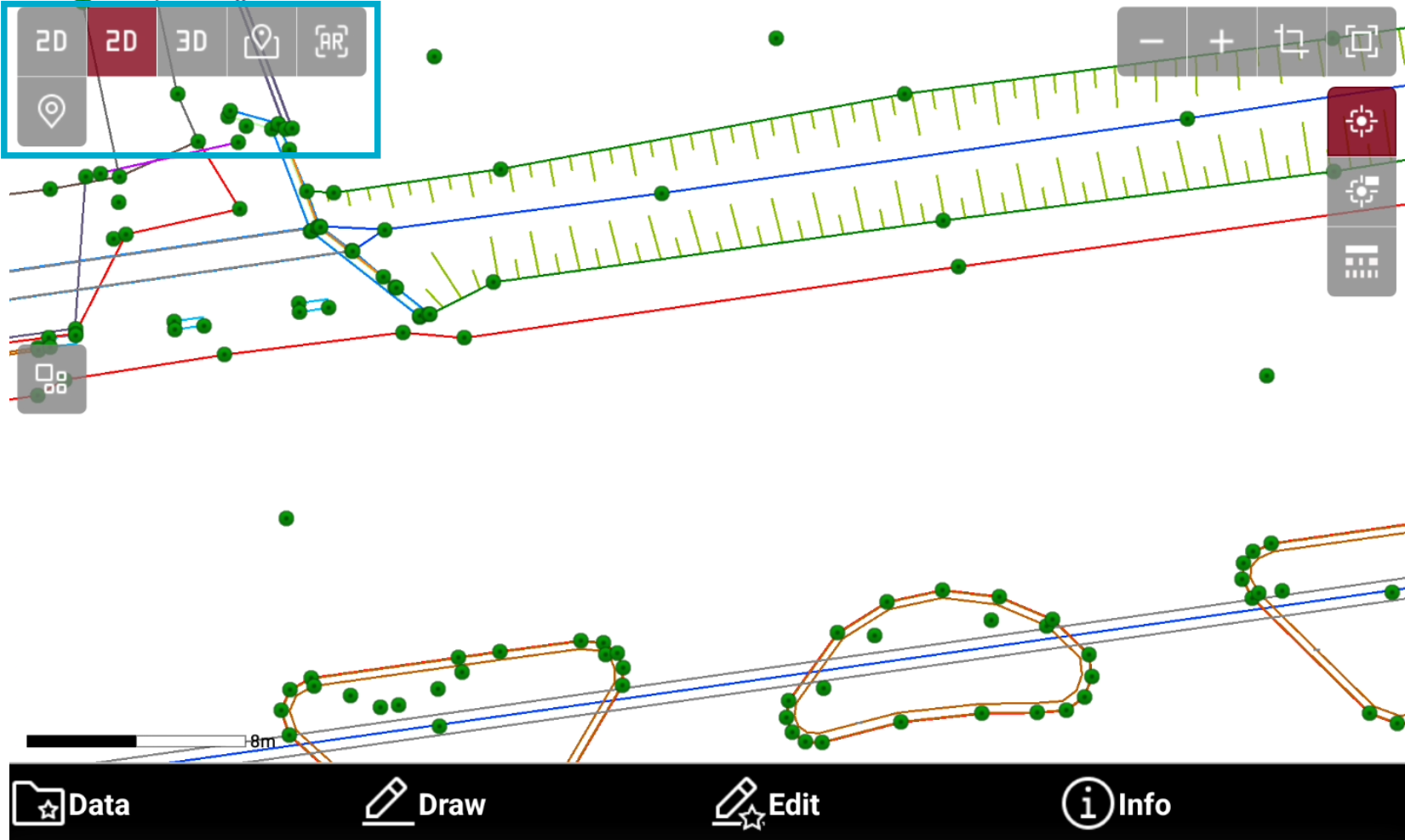
CAD elements can be visualized in different modes.
-
2D view: data is visualized in 2D.
-
3D view: data is visualized in 3D.
-
Online maps: data is visualized over an online map.
-
WMS: a Web Map Service is used in background.
-
WFS: a Web Feature Service is used in background.
-
Augmented reality: data is visualized in augmented reality using the controller or GNSS receiver camera.
-
-
To change the visualization mode, while in CAD tap on screen to open the toolbar and change the display mode.
-

-

-

-

-
Change drawing display
-
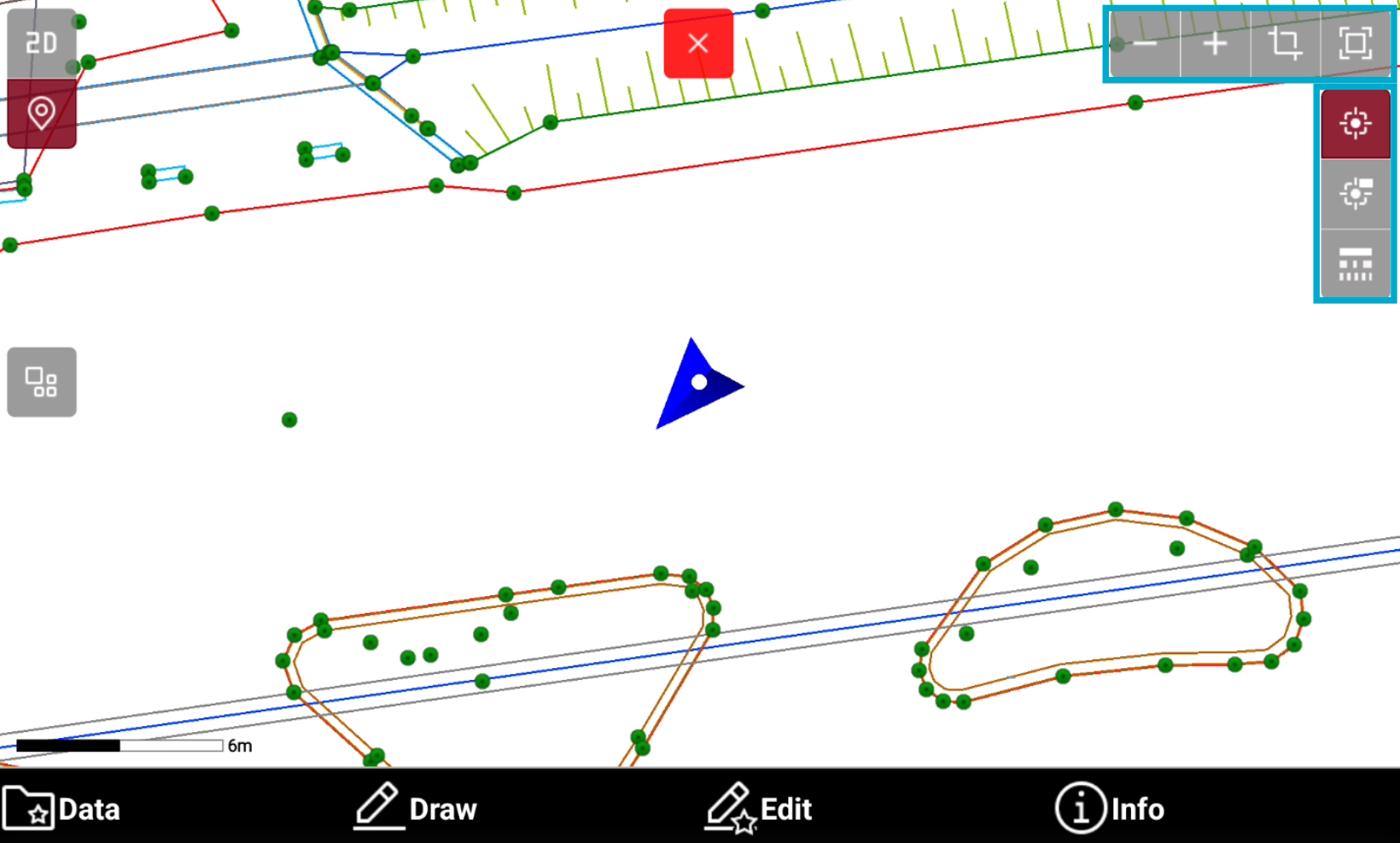
CAD offers commands to change the display of the drawing.
-
Tap in the graphical windows of the drawing display. The buttons and commands for displaying the drawing are activated.
-
Zoom all

-
Zoom window

-
Zoom in

-
Zoom out

-
Points

-
Points labels

-
Linetype

-
Working area

-
Surface

-

-

-
-
Object snap
Object snapping allows the precise identification of positions on drawing objects.
If object snap is inactive, free drawing indicating every position is available.
-
When using drawing functions, it is possible to use object snap to precisely select a position in CAD.
-
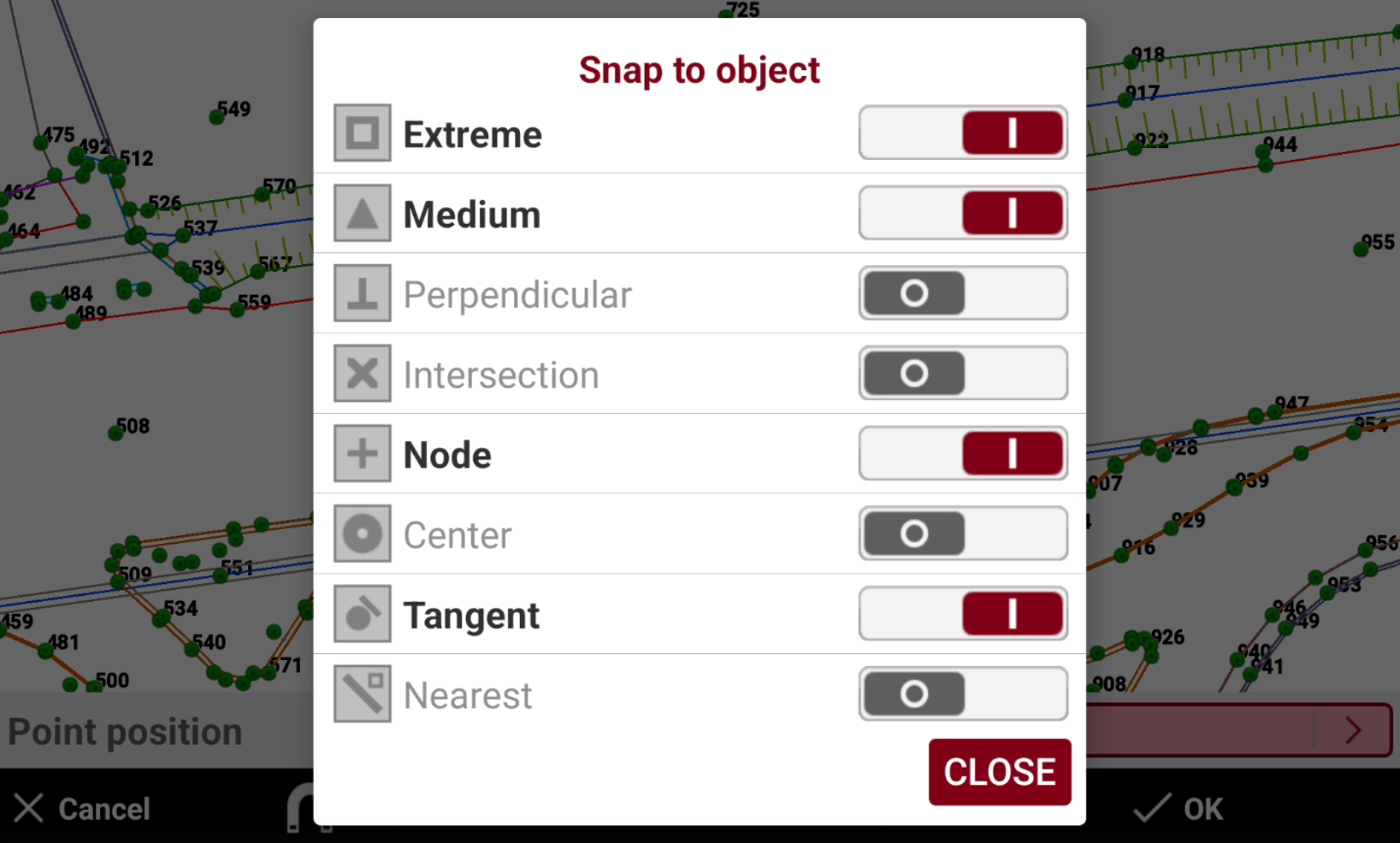
Click Snap to open the Snap to object panel.
-
Extreme: end point of objects such as lines and arcs.
-
Medium: middle of objects such as lines and arcs.
-
Perpendicular: point on the normal of a line, arch, circle object referring to the reference point.
-
Intersection: intersection point between objects such as lines and arcs.
-
Node: point of insertion of a topographic point.
-
Center: center of an arc or circle.
-
Tangent: point of the tangent from the reference point to an arc or circle.
-
Nearest: the nearest element is selected.
-
-
Select a command for object snapping.
-
Tap on the drawing object and near the point to identify. The multiple snap mode makes that the element gets snapped to the right coordinate if there are multiple options for it to be fixed to. The symbol corresponding to the selected snap is displayed before to get the coordinates.

CAD selection
-
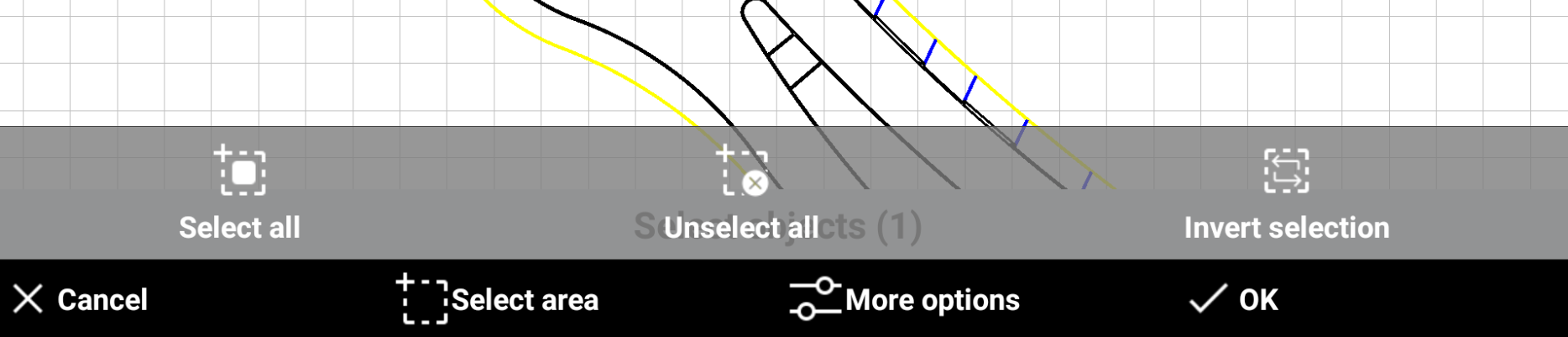
When selecting elements in CAD different options are available.
-
Cancel: cancel the current operation.
-
Select area: select all objects inside the defined area.
-
Select all: select all CAD objects.
-
More options: after object are selected, select it to access additional options:
-
Select all: select all CAD objects.
-
Unselect all: unselect all CAD objects that have been selected.
-
Invert selection: inverts the selection. Selected elements become unselected, and unselected elements become selected.
-
-
OK: confirms the selection.
-
CAD context commands for points and objects
-
The CAD page has different toolbar depending on what is selected.
-
If a point is selected a toolbar with context commands is displayed.

-
If a drawing object is selected a toolbar with context commands is displayed.

-
Toolbar for points
-
Select a topographic point without any command being active.
-
A toolbar with context commands is displayed.
-
Stakeout: allows to stakeout the selected point with Stakeout point method.
-
ID: opens the window allowing to display and edit the data of the point.
-
Distance: calculates the distance from the selected point to another point for displaying in the graphic window.
-
Dist.Object: calculates the distance from the selected point to an object for displaying in the graphic window.
-
Delete: deletes the selected point.
-
Layer: opens a new toolbar with commands on point layer.
-
Isolate: turns off all layers, except the layer of the selected point. To restore the previous display, select a point and click Restore layers.
-
Layer off: turns off the layer for the selected point.
-
-
-
Tap anywhere else in the graphic window. The main toolbar appears again.
Toolbar for CAD objects
-
Select a drawing object without any command being active.
-
A toolbar with context commands is displayed.
-
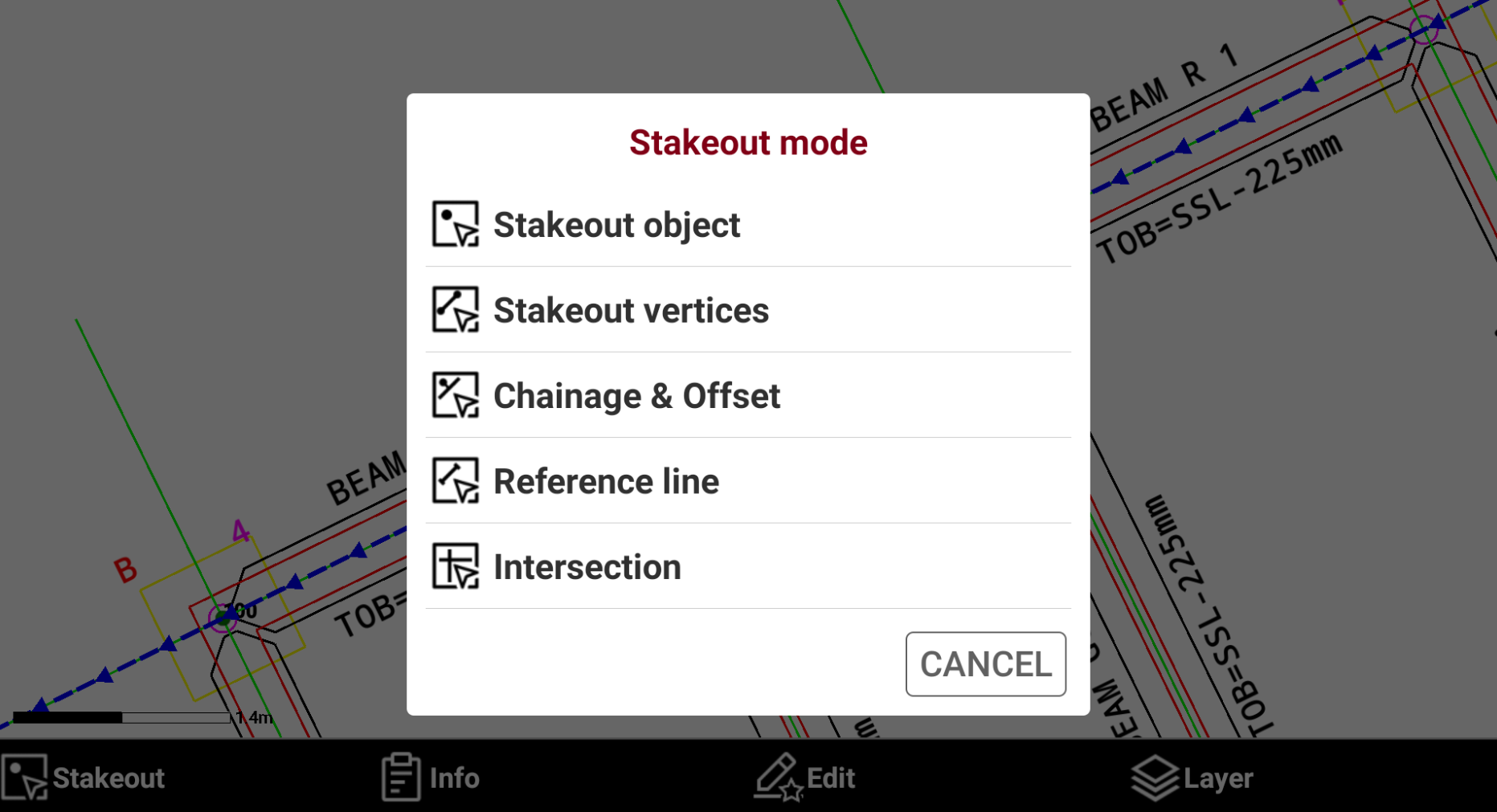
Stakeout: starts the stakeout procedure from CAD. When staking out an object different stakeout methods are available.
-
Use selected polyline: stakeout the selected polyline.
-
Use selected segment: stakeout the selected segment of the polyline.
-
Stakeout object: stakeout the entity using the Stakeout object function.
-
Stakeout vertices: stakeout the vertexes of the selected entity with the Stakeout point function.
-
Chainage & Offset: stakeout the entity using the Stakeout chainage & offset function.
-
Reference line: stakeout the entity using the Reference line function.
-
Intersection: allows to select an intersection point to stakeout. When Intersection is selected select the second object for intersection. Click Intersection to stakeout the intersection point with the Stakeout point function.
-
-
Info: opens the window allowing to display and edit the data of the object. When an area is selected as object, it is possible to enter the height and calculate a volume.
-
Edit: if selected object is a polyline, opens the edit polyline toolbar.
-
Delete: deletes the selected object.
-
Layer: opens a new toolbar with commands on point layer.
-
Isolate: turns off all layers, except the layer of the selected point. To restore the previous display, select a point and click Restore layers.
-
Layer off: turns off the layer for the selected point.
-
-
-
Tap anywhere else in the graphic window. The main toolbar appears again.
Locate me
-
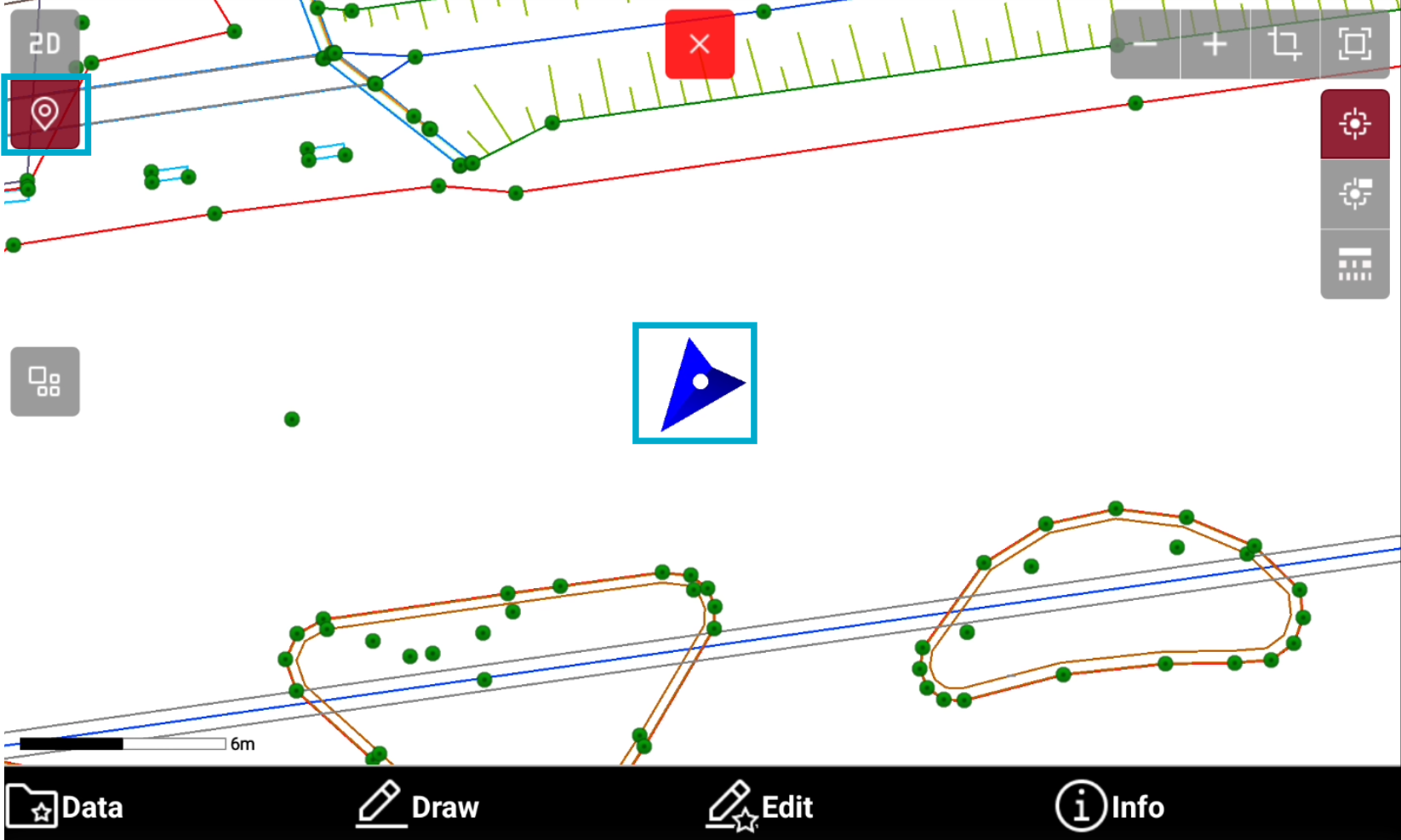
Select Locate me

-
The current position is displayed on the map. A coordinate system is required.
-
Current position is kept inside the graphic view.
-
For displaying the current position, the software can use the connected receiver or the GNSS inside the controller.