-
Use the Drawing commands to create new objects to a drawing.
For a precise drawing, use the object snap or type in the name of the point to which to link the vertex of the line.
-
To access the Drawing commands open CAD.
-
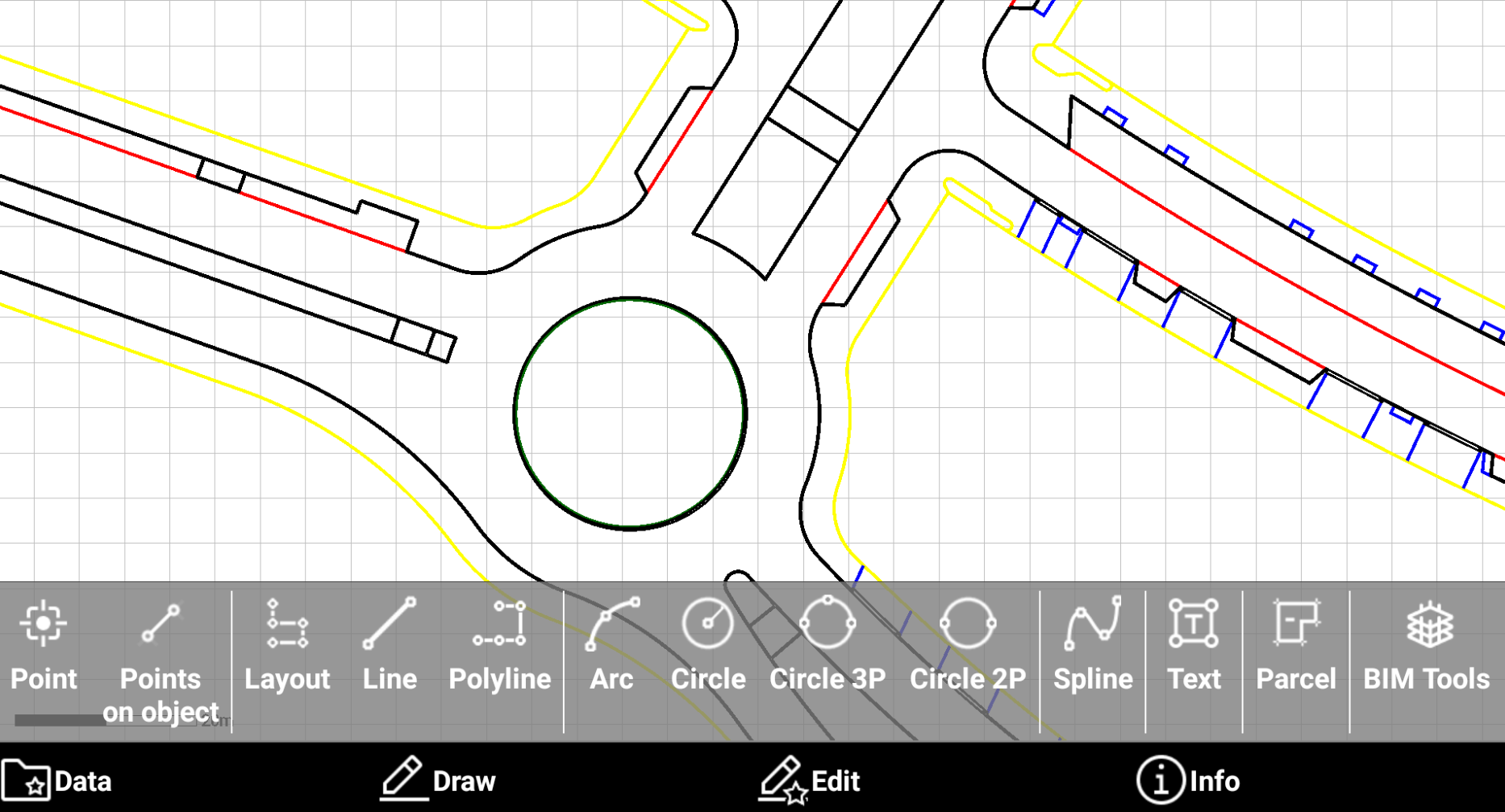
Select Draw to open the draw toolbar.
-
Available drawing commands are:
-
Point: creates a new topographic point.
-
Points on object: creates new topographic points on objects, for example by distance, dividing the object in parts or on vertices.
-
Layout: creates points and line entering direction and distance.
-
Line: creates a line.
-
Polyline: creates a polyline.
-
Arc: creates an arc.
-
Circle: creates a circle by center and radius.
-
Circle by three points: creates a circle by 3 points.
-
Circle by two points: creates a circle by 2 points.
-
Spline: creates a spline.
-
Text: creates a text object,
-
Parcel: creates a parcel.
-
BIM tools: functions to manage BIM models, for example to create cross sections from a BIM model.
-
Point
-
Allows to create topographic point.
-
From Draw toolbar select Point.
-
Enter the point name and click OK.
-
Tap in CAD to create the new point.
Use the object snap to precisely create the point in CAD.
-
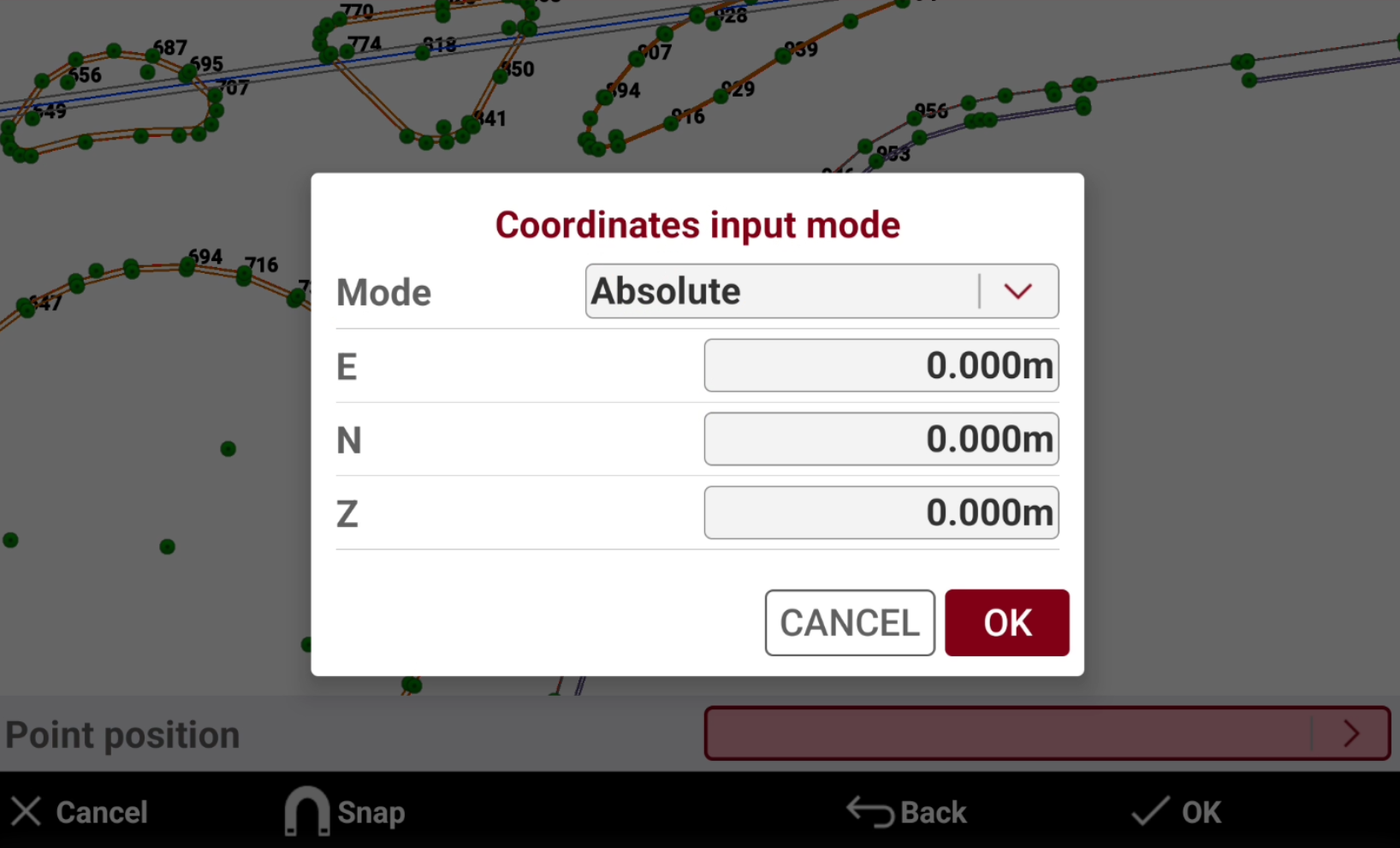
Or tap on the > icon to enter the coordinate manually.
Points on object
-
The function Points on object creates topographic point on selected objects according to different methods.
-
From the Draw toolbar select Points on object.
-
Select the method to use to create the points.
-
Divide in parts: creates points along the object by dividing it in parts.
-
By distance: creates points along the object at the specified distance.
-
On vertices: creates points on the vertices of the selected objects.
-
On intersections: creates points on the intersections of the selected object.
-
On circle centers: creates points on the center of selected circles.
-
Divide in parts
-
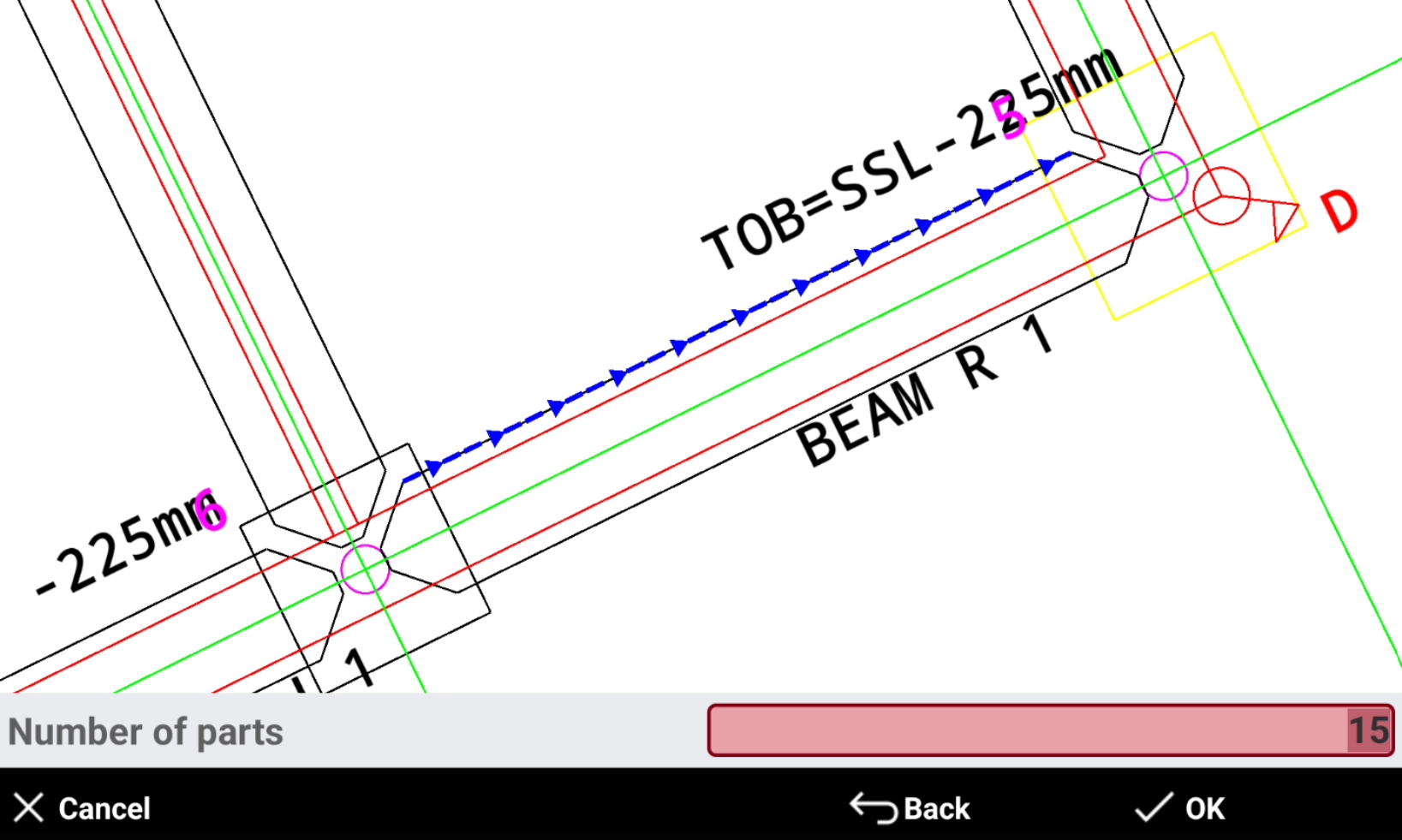
Divide in parts creates points along the object by dividing it in parts.
-
Select an object in CAD and press OK.
-
Enter the number of parts.
-
Enter the first point name and confirm the calculated points. The software creates the topographic points.
By distance
-
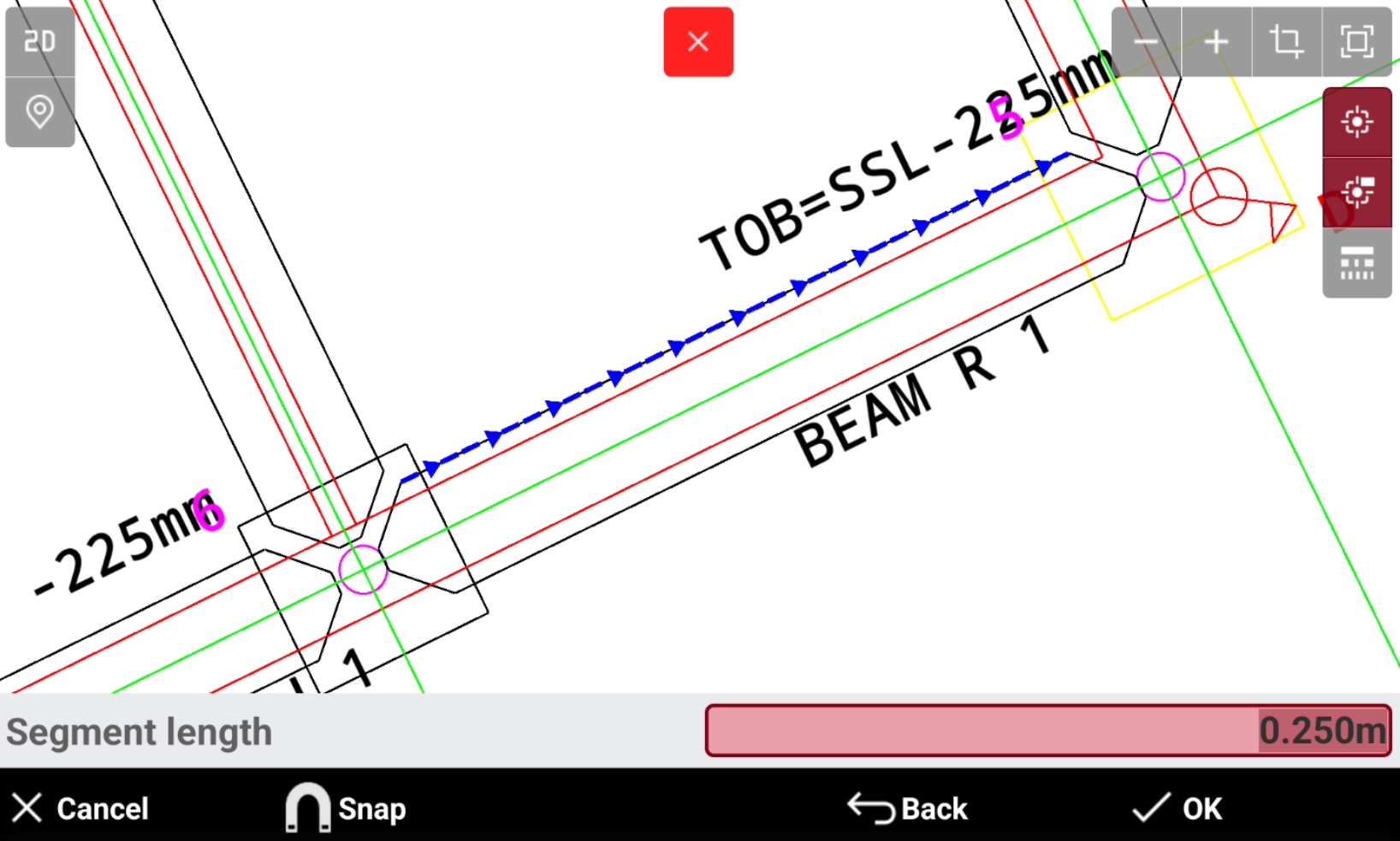
By distance creates points along the object at the specified distance.
-
Select an object in CAD and press OK.
-
Enter the length of the segments.
-
Enter the first point name and confirm the calculated points. The software creates the topographic points.
On vertices
-
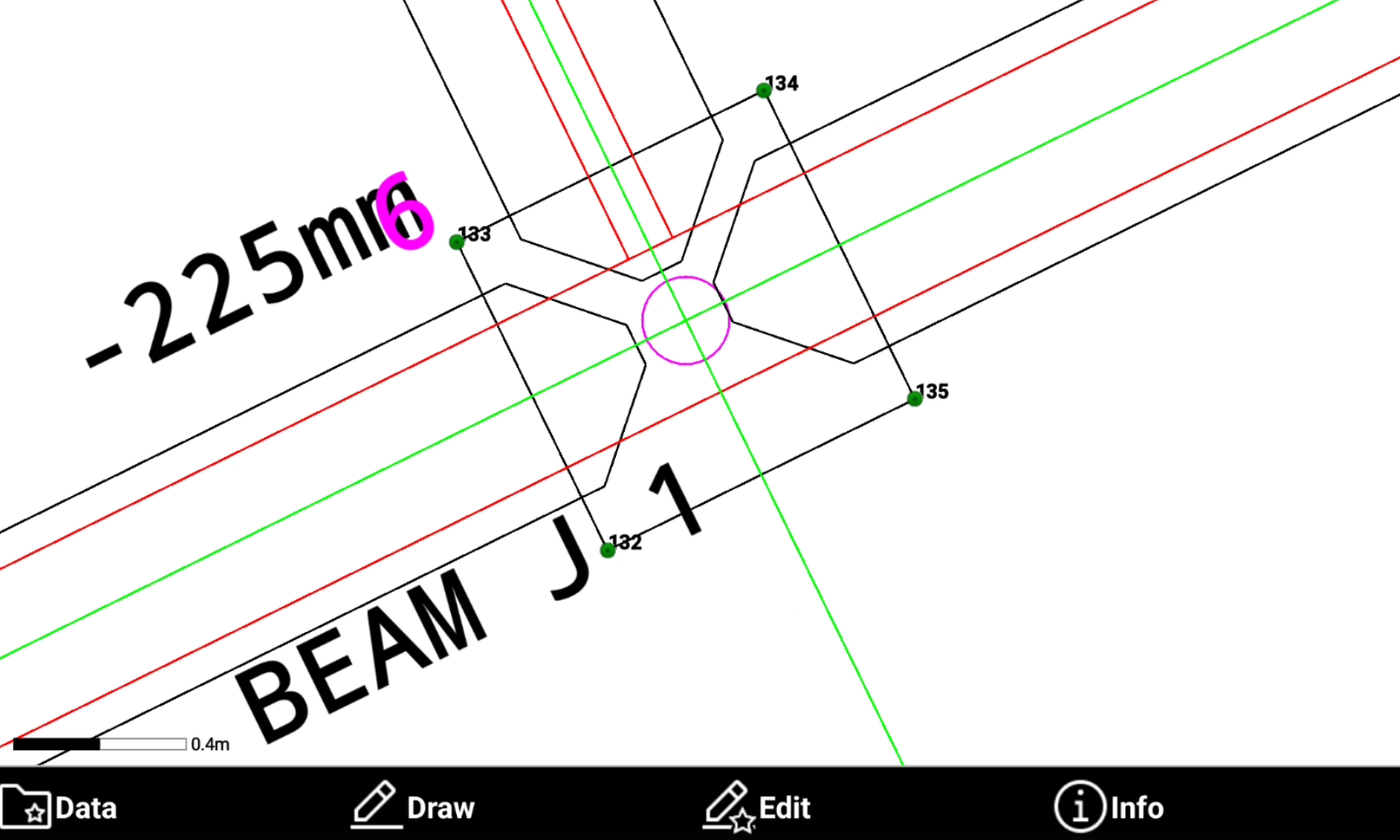
On vertices creates points on the vertices of the selected objects.
-
Select an object in CAD and press OK.
-
Enter the first point name and confirm the calculated points. The software creates the topographic points on the vertices of the selected objects.
On intersections
-
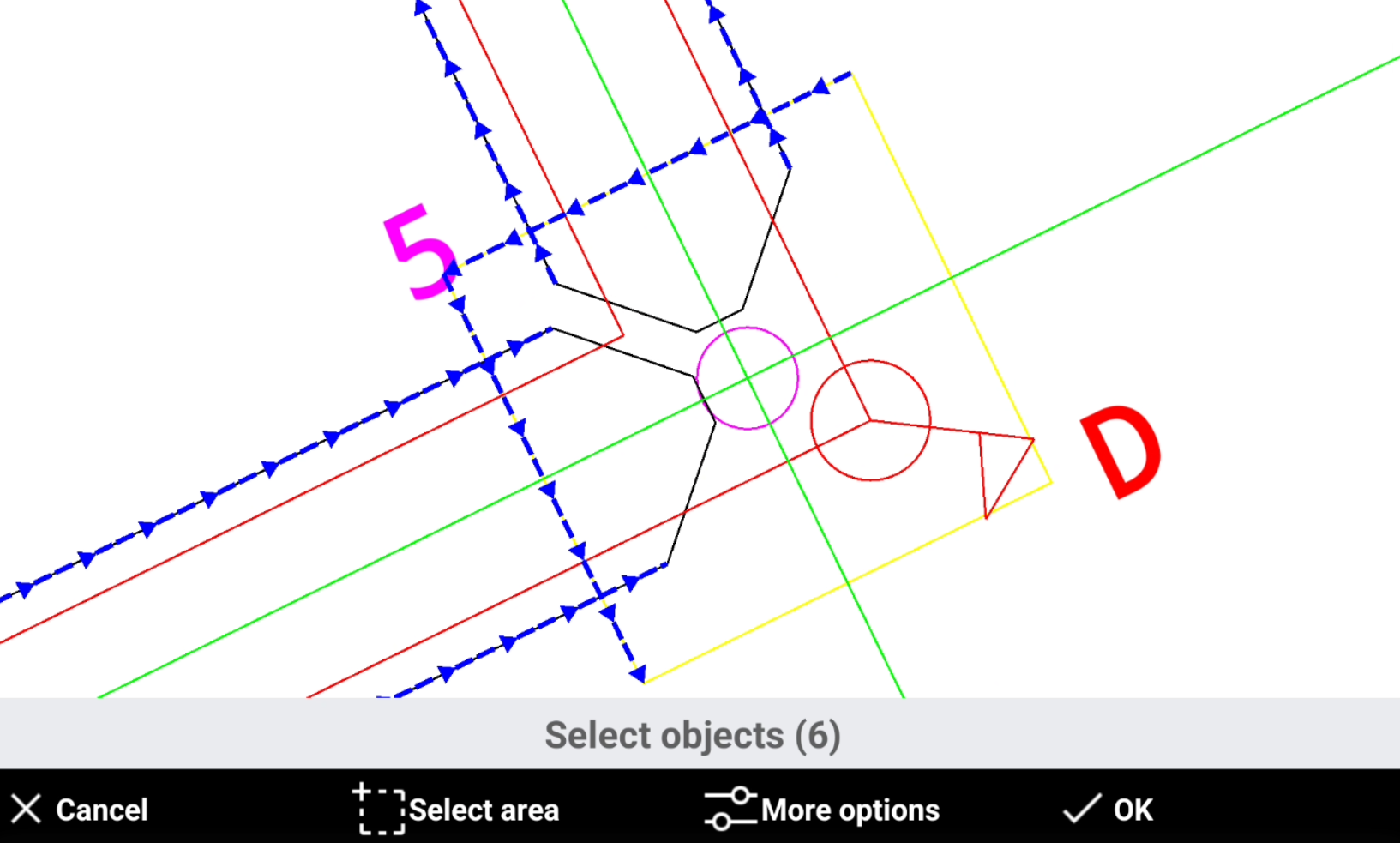
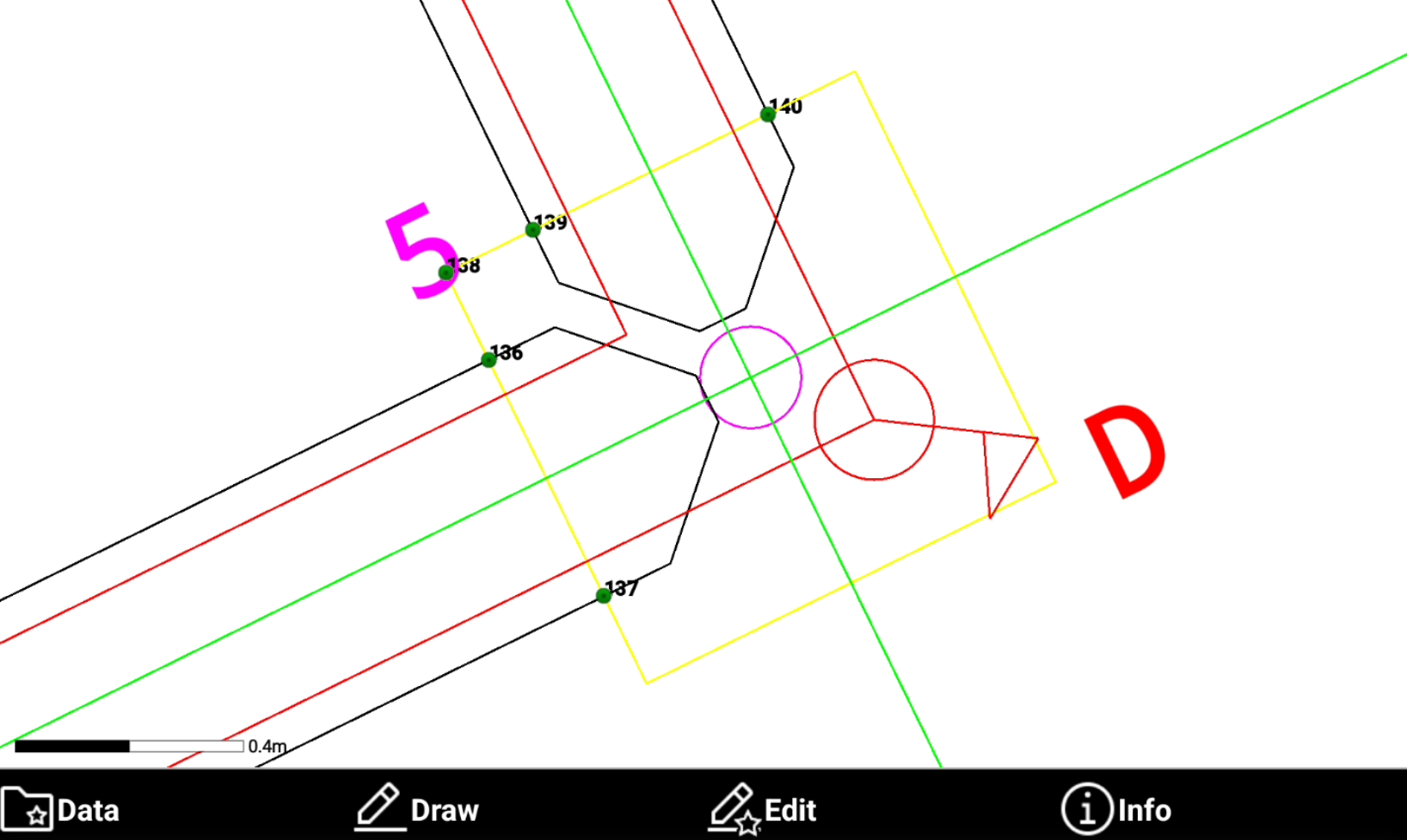
On intersections creates points on the intersections of the selected object.
-
Select the objects in CAD and press OK.
-
Enter the first point name and confirm the calculated points. The software creates the topographic points on the intersections.
On circle centers
-
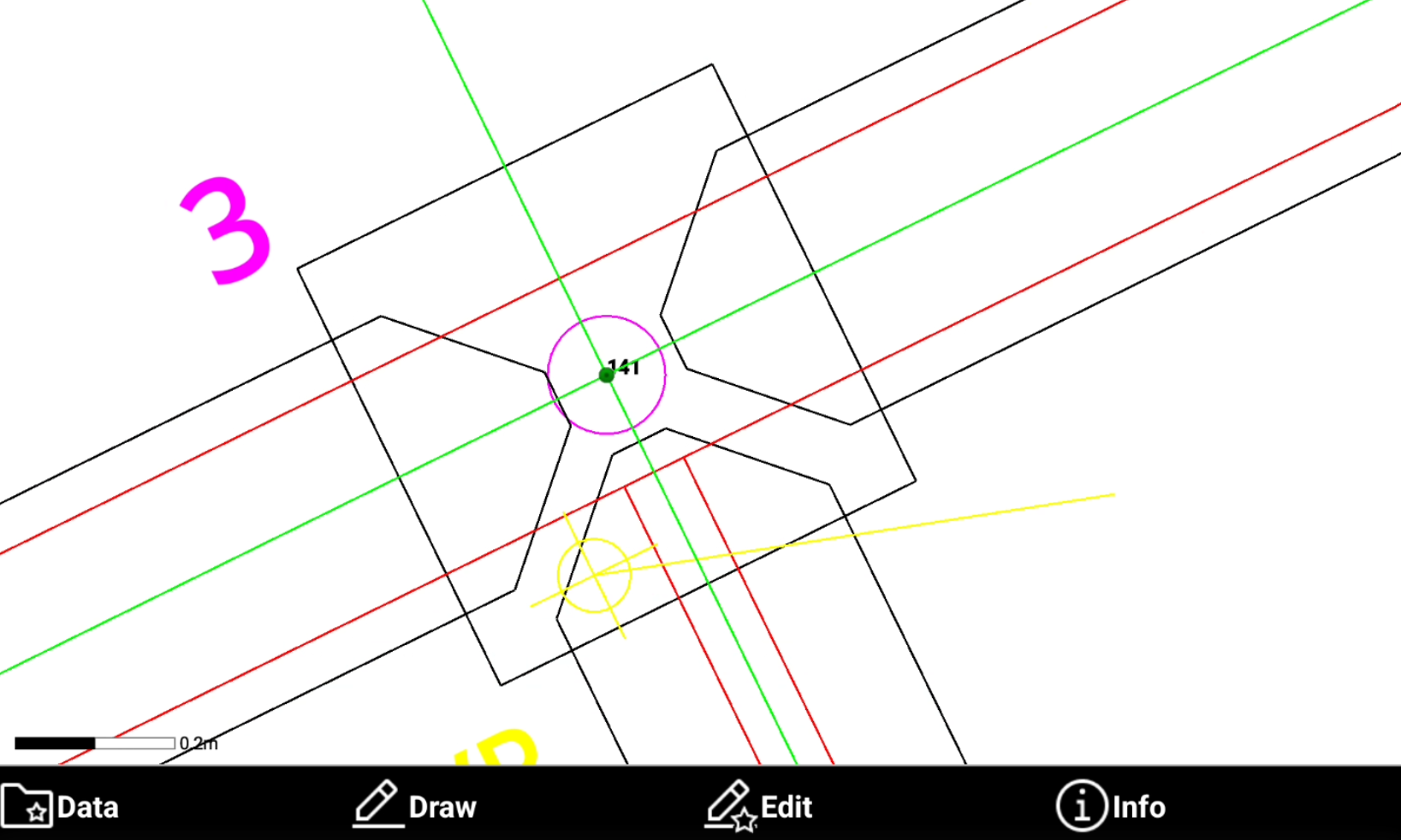
On circle centers creates points on the center of selected circles.
-
Select the circle objects in CAD and press OK.
-
Enter the first point name and confirm the calculated points. The software creates the topographic points on the center of selected circles.
Layout
-
Layout function draws consecutive elements setting distances and angles from a starting point. The starting point can be a topographic point or any other position.
-
From the Draw toolbar select Layout.
-
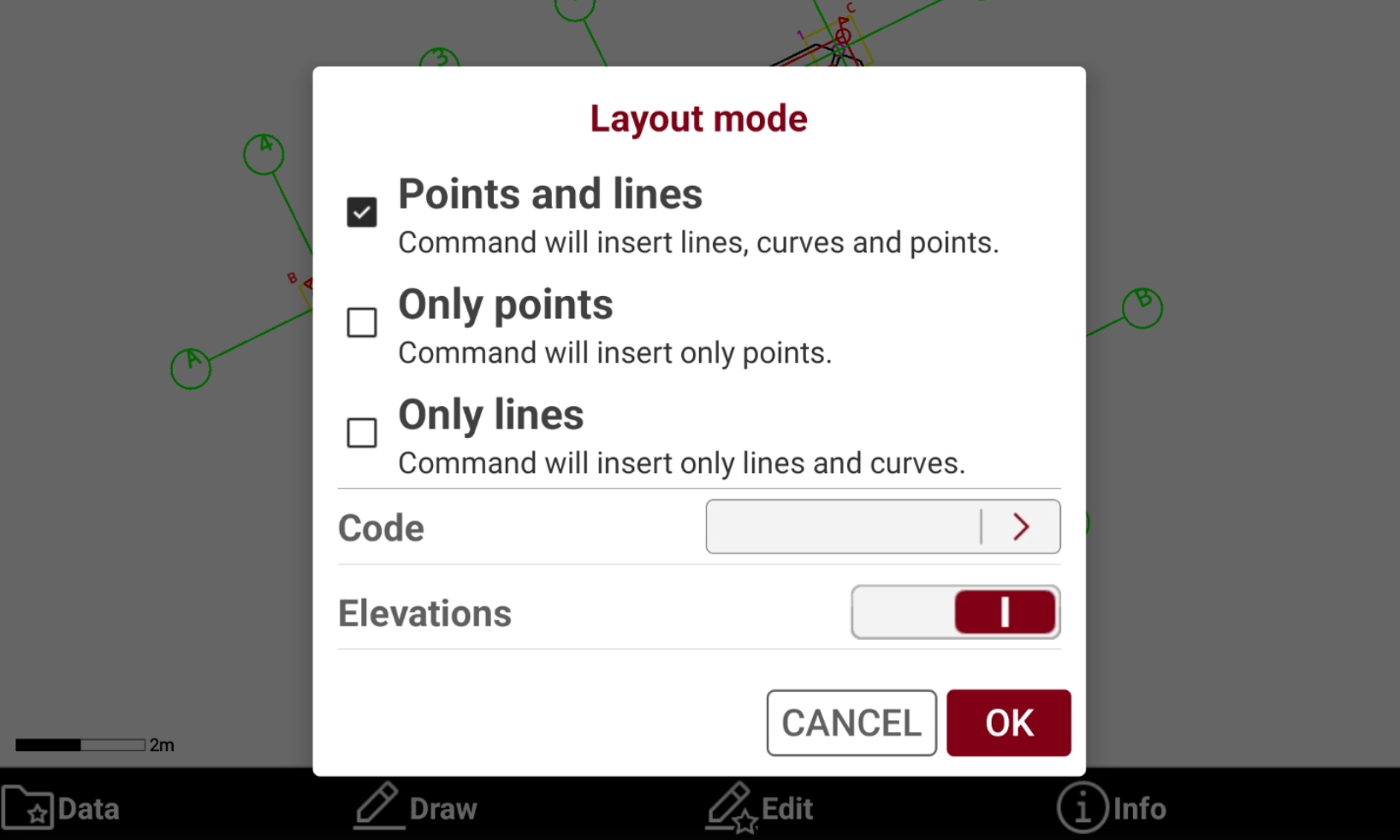
Select the items to insert.
-
Points and lines: enables the drawing of lines, arcs, and points.
-
Only points: enables the creation of points only.
-
Only lines: Enables the draw of lines only.
-
Code: assigns the code for the topographic points created with layout function.
-
Elevations: enables the insertion of the elevation for created items. When disabled, the program assigns the elevation start point to the items that are created.
-
-
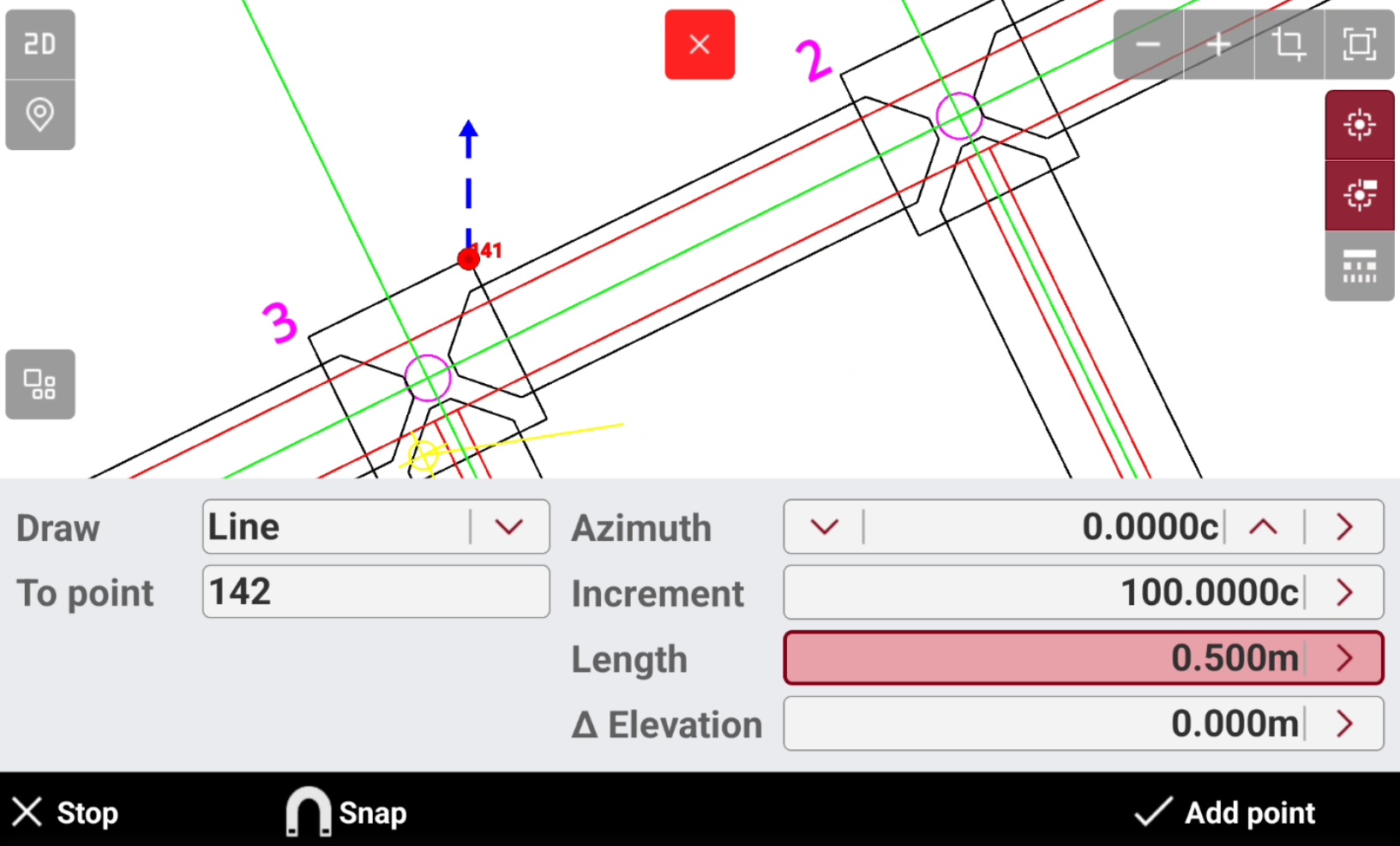
Press OK to enter in the drawing mode.
-
Draw: chooses the drawing element to create and calculate the second point. Use a line or an arc.
-
To point: sets the insertion point in one of the following ways:
-
Select the point in the CAD window. Tap on a point in CAD to start drawing from selected position.
-
Tap in the box to insert the point name.
-
Press icon > to select the point from the list of topographic points or from the list of reference points. The starting point can be defined every time again after drawing an element.
-
-
Azimuth: sets the azimuth. Enter the value in one of the following ways:
-
Type in the value in the box.
-
Press Up and Down to increase or decrease the value based on the increment value set in Increment field.
-
Press icon > and select By two points to set the azimuth value based on angle between the two selected points.
-
-
Increment: sets the value the software adds or subtracts in the azimuth input, when using Up and Down.
-
Length: sets the distance between the two points. Press icon > and select By two points to set the distance value based on distance between the two selected points.
-
Angle: sets the angular development value of the arc. Press icon > to open the Curve calculator where to calculate the angle based on entered Radius, Length and Chord.
-
Radius: sets the arc radius value and direction using


-
Elevation: sets the value of the elevation. Enter the value in one of the following ways:
-
Type in the value in the box.
-
Press icon > and select the elevation input mode. Select Absolute elevation to enter the absolute elevation of the new point. Select Delta elevation to enter the different elevation between the points. Select Slope to define the point elevation from the entered slope between the two points.
-
-
Draw a layout step by step
-
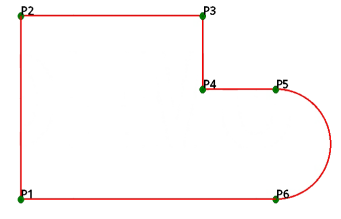
In this example we create a draw similar to this layout.
-
Line P1 - P2
-
Measure or enter the coordinates of point P1.
-
Set Draw: Line.
-
Set Point: P1.
-
Set Distance: 5 m.
-
Set Azimuth: 0 c.
-
Click Add point.
-
-
Line P2 - P3
-
Set Draw: Line.
-
Set Point: P2.
-
Set Distance: 8 m.
-
Set Azimuth: 100 c.
-
Click Add point.
-
-
Line P3 - P4
-
Set Draw: Line.
-
Set Point: P3.
-
Set Distance: 2 m.
-
Set Azimuth: 200 c.
-
Click Add point.
-
-
Line P4 – P5
-
Set Draw: Line.
-
Set Point: P4.
-
Set Distance: 2 m.
-
Set Azimuth: 100 c.
-
Click Add point.
-
-
Arc P5 – P6
-
Set Draw: Arc.
-
Set Point: P5.
-
Set Azimuth: 100 c.
-
Set Angle: 200 c.
-
Set Radius: 1.5 m.
-
Click Close to draw the line P5 – P1
-
Line
-
Line command creates a line between two topographic points.
-
From the Draw toolbar select Line.
-
Select the first and last point to create the line.
Polyline
-
Polyline command creates a polyline connecting topographic points.
-
From the Draw toolbar select Polyline.
-
Tap in CAD to create the polyline. Press Close in toolbar to connect the last created point with the first one.
Arc
-
Arc command creates an arc by three points.
-
From the Draw toolbar select Arc.
-
Select the first, the second and the third point to create the arc.
Circle
-
Circle command creates a circle selecting the circle center from CAD and entering the radius.
-
From the Draw toolbar select Circle.
-
Select in CAD the center of the circle.
-
Enter the radius and press OK. You can enter the numeric value of the radius or select a point in CAD to define the radius from the distance between the center of the circle and the selected point.
Circle by three points
-
Circle 3P command creates a circle passing by three points.
-
From the Draw toolbar select Circle 3P.
-
Select in CAD the three points to create the circle.
Circle by two points
-
Circle 2P command creates a circle passing by two points. The line between the two points represents the diameter of the circle.
-
From the Draw toolbar select Circle 2P.
-
Select in CAD the two points to create the circle.
Spline
-
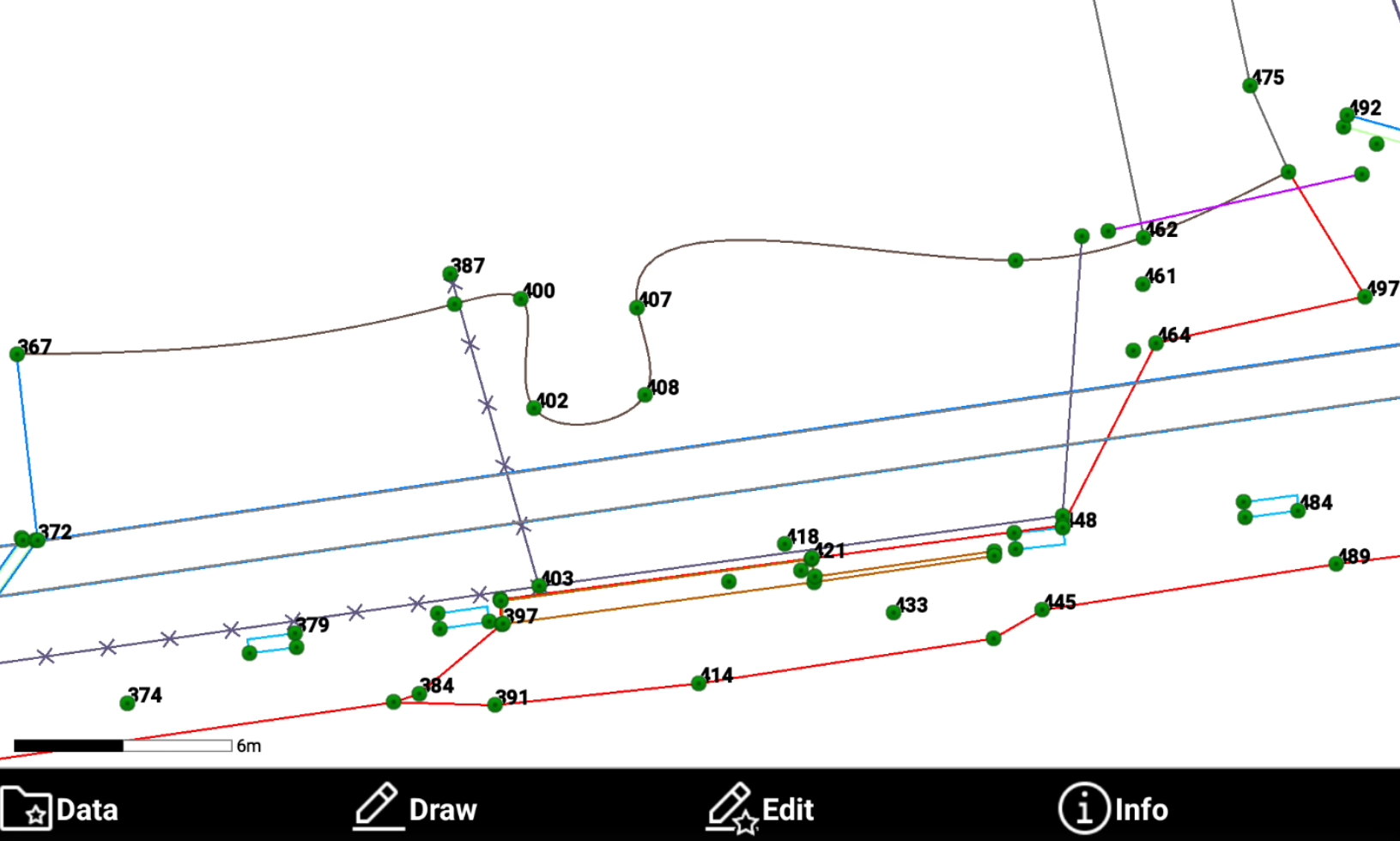
Spline command transforms a polyline into a spline.
-
From the Draw toolbar select Spline.
-
Select the polyline to transform.
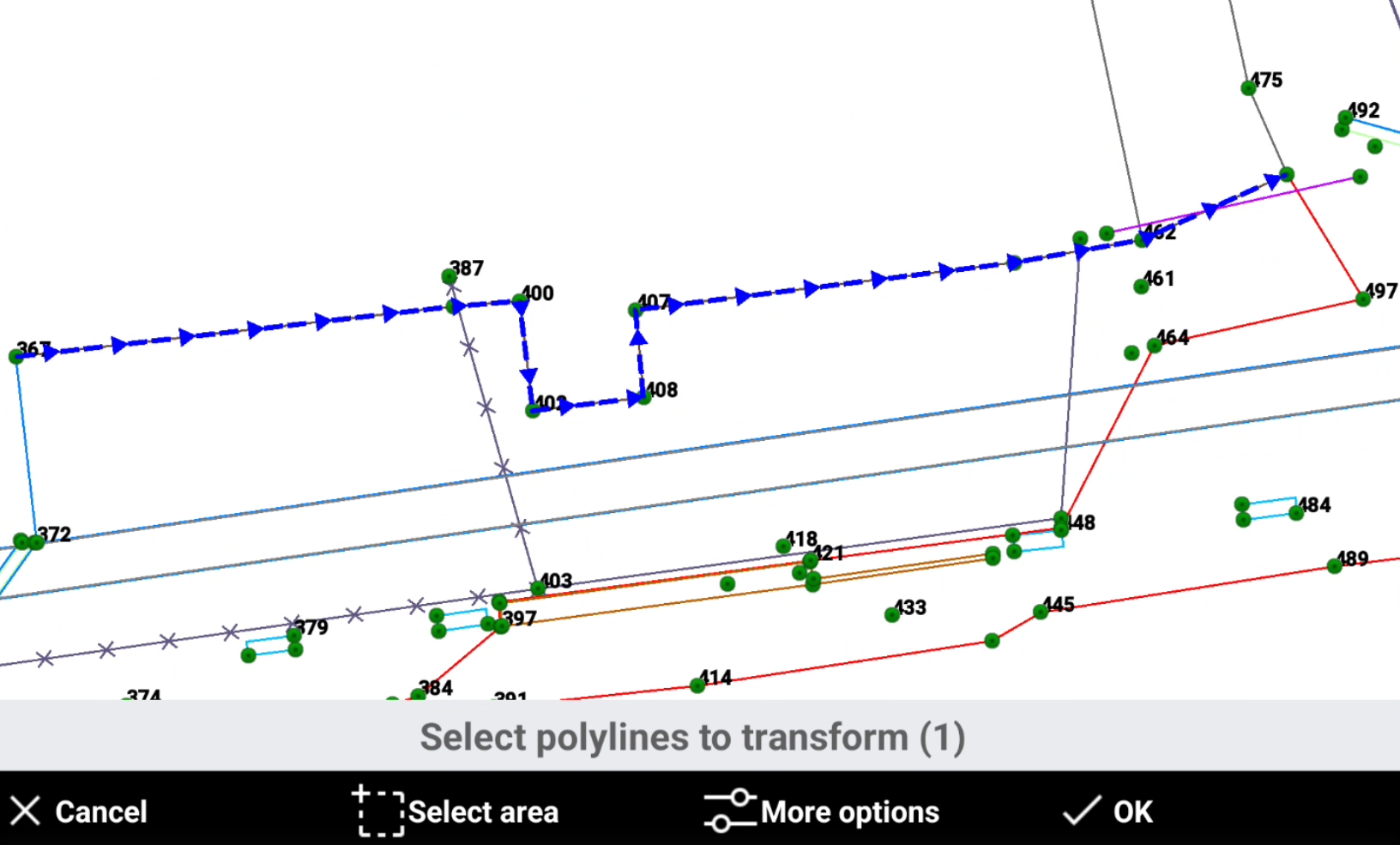
-
The software shows the preview. Click Ok to confirm the result or Back to cancel the transformation.
Text
-
Allows to enter free text in the drawing.
-
From the Draw toolbar select Text.
-
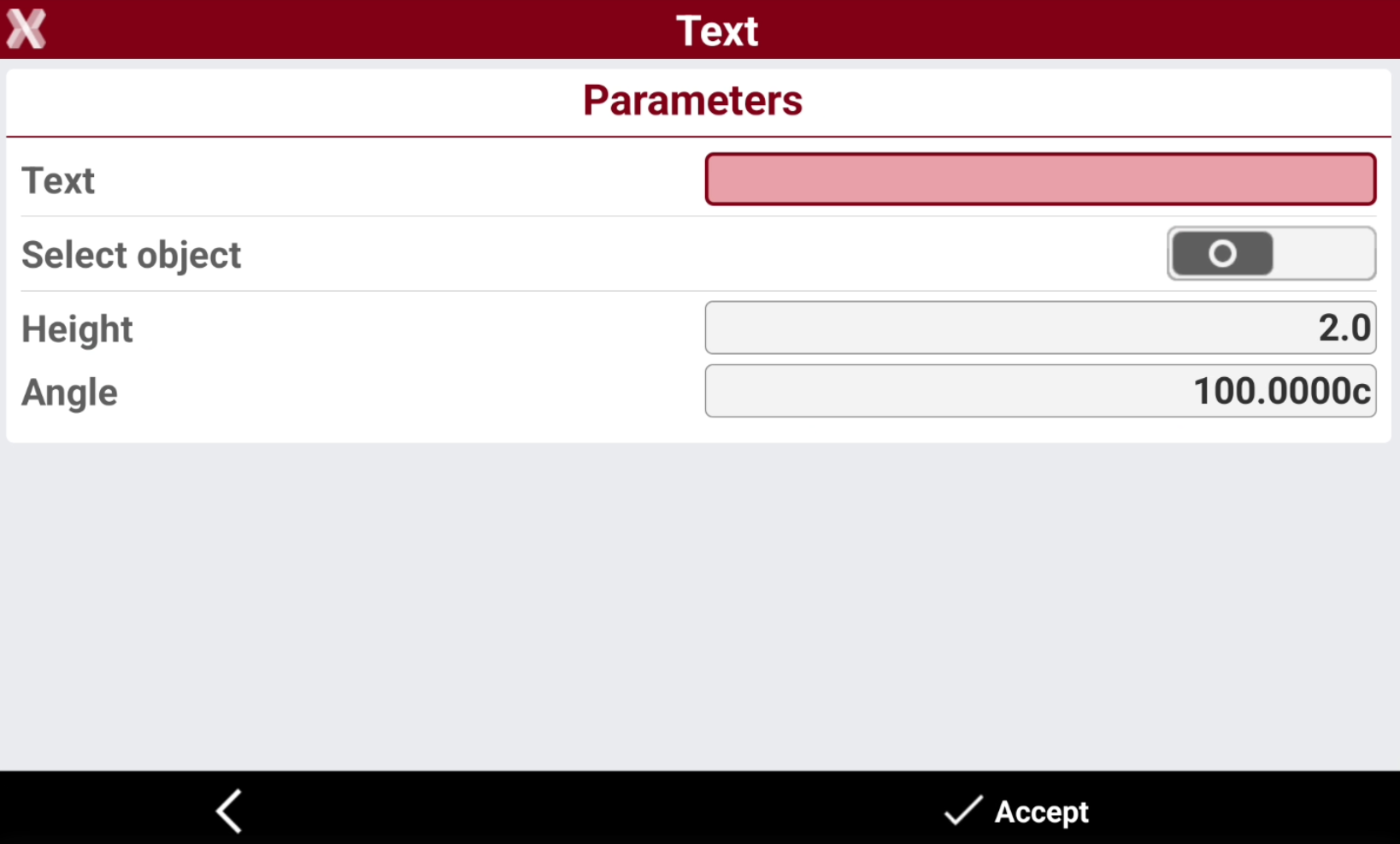
The command opens a new window.
-
Text: the text to enter.
-
Select object: allows to select an object in CAD where to enter the text; the entered text will be aligned to the object. Deselect this field to enter the text in a specific CAD position.
-
Height: the height of the text.
-
Angle: if select object is deactivated, allows to enter the text direction.
-
-
Select Accept to enter the text in CAD.
Parcel
-
Parcel command allows to define a parcel in CAD. A parcel can be used in the area subdivision and Grid of points function.
-
From the Draw toolbar select Parcel.
-
Select the creation method:
-
New: defines a new parcel selecting the vertexes in CAD.
-
From polyline: defines a new parcel from an existing polyline.
-
BIM tools
-
BIM tools can be used to extract points or polylines from an IFC/BIM model for subsequent operations.
-
From the Draw toolbar select BIM Tools.
-
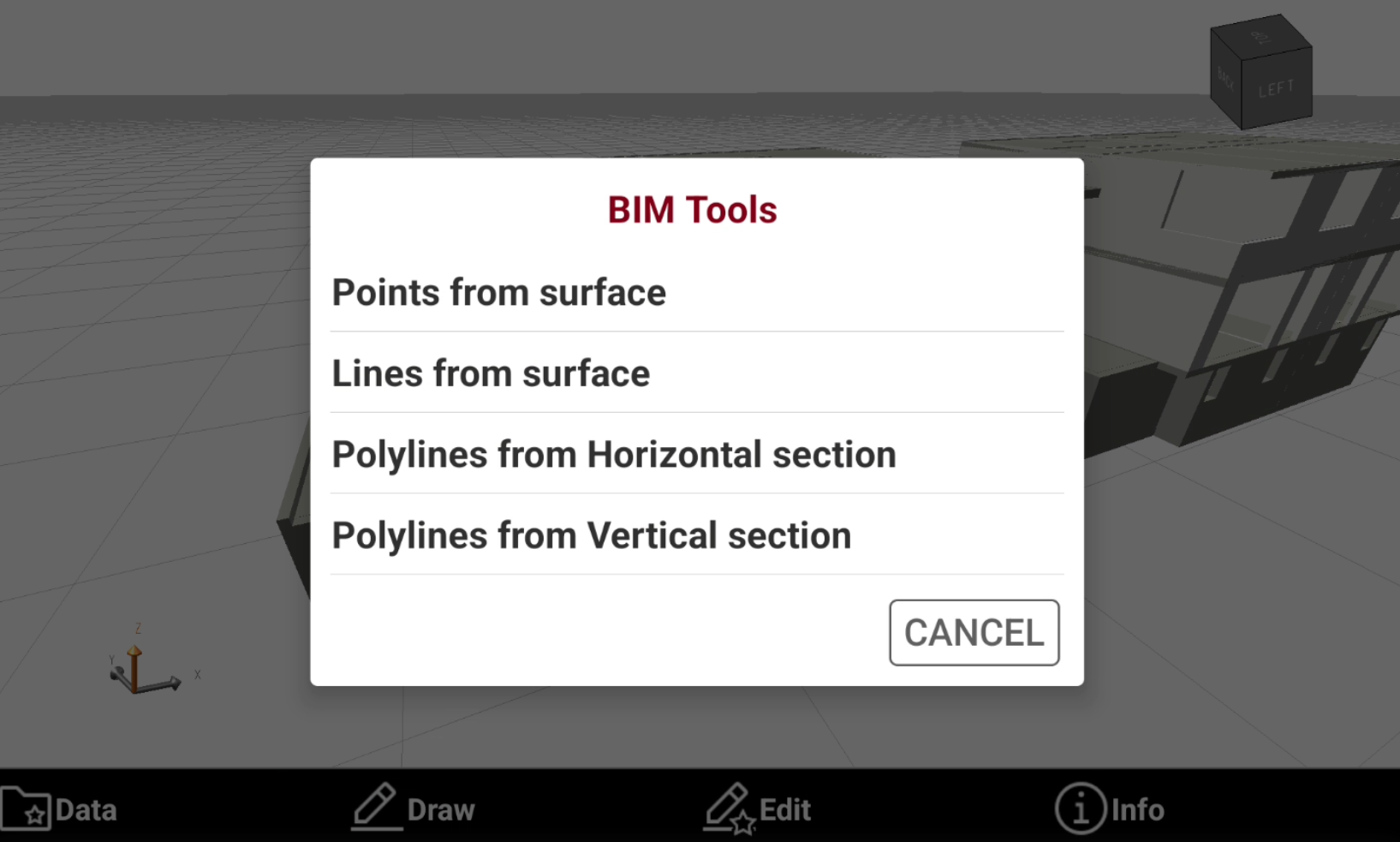
Select the function to use:
-
Points from surface: automatically inserts topographic points at the vertices of selected 3D objects.
-
Lines from surface: automatically inserts topographic points at the edges of selected 3D objects.
-
Polylines from Horizontal section: extracts the line of a horizontal section from the model. The model is cut using a horizontal plane based on the specified elevation. The command can create section lines as well as points at the intersection of the plane with the IFC elements.
-
Polylines from Vertical section: extracts the line of a vertical section from the model. The model is cut using a vertical plane based on selected points. The command can create section lines as well as points at the intersection of the plane with the IFC elements.
-
Points from surface
-
Points from surface automatically inserts topographic points at the vertices of selected 3D objects.
-
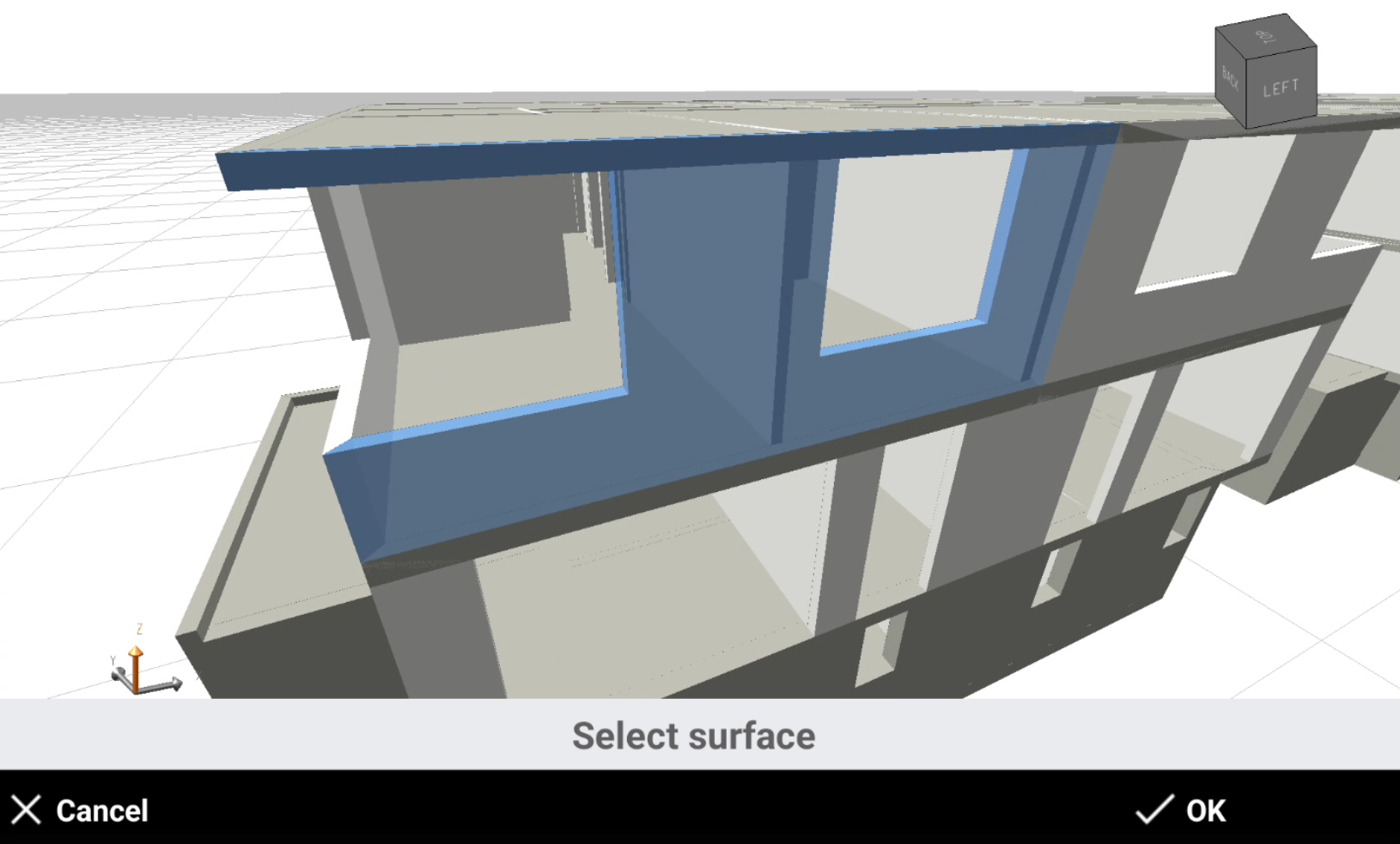
Select the surface on the model and press OK.
-
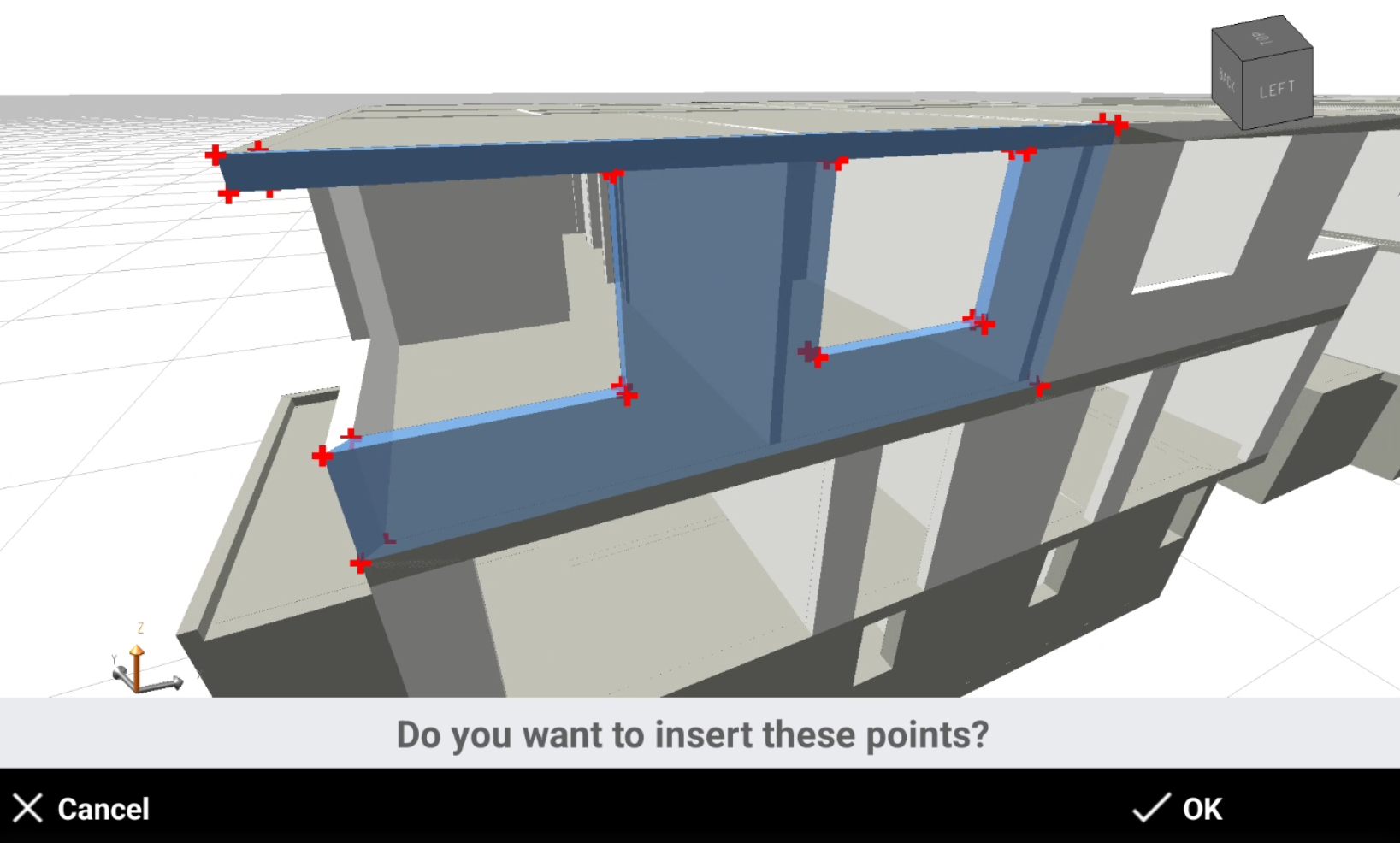
The software shows a preview for the new points. Press OK.
-
Enter the starting name for the new points and the layer. Press OK to create the topographic points.
Lines from surface
-
Lines from surface automatically inserts topographic points at the edges of selected 3D objects.
-
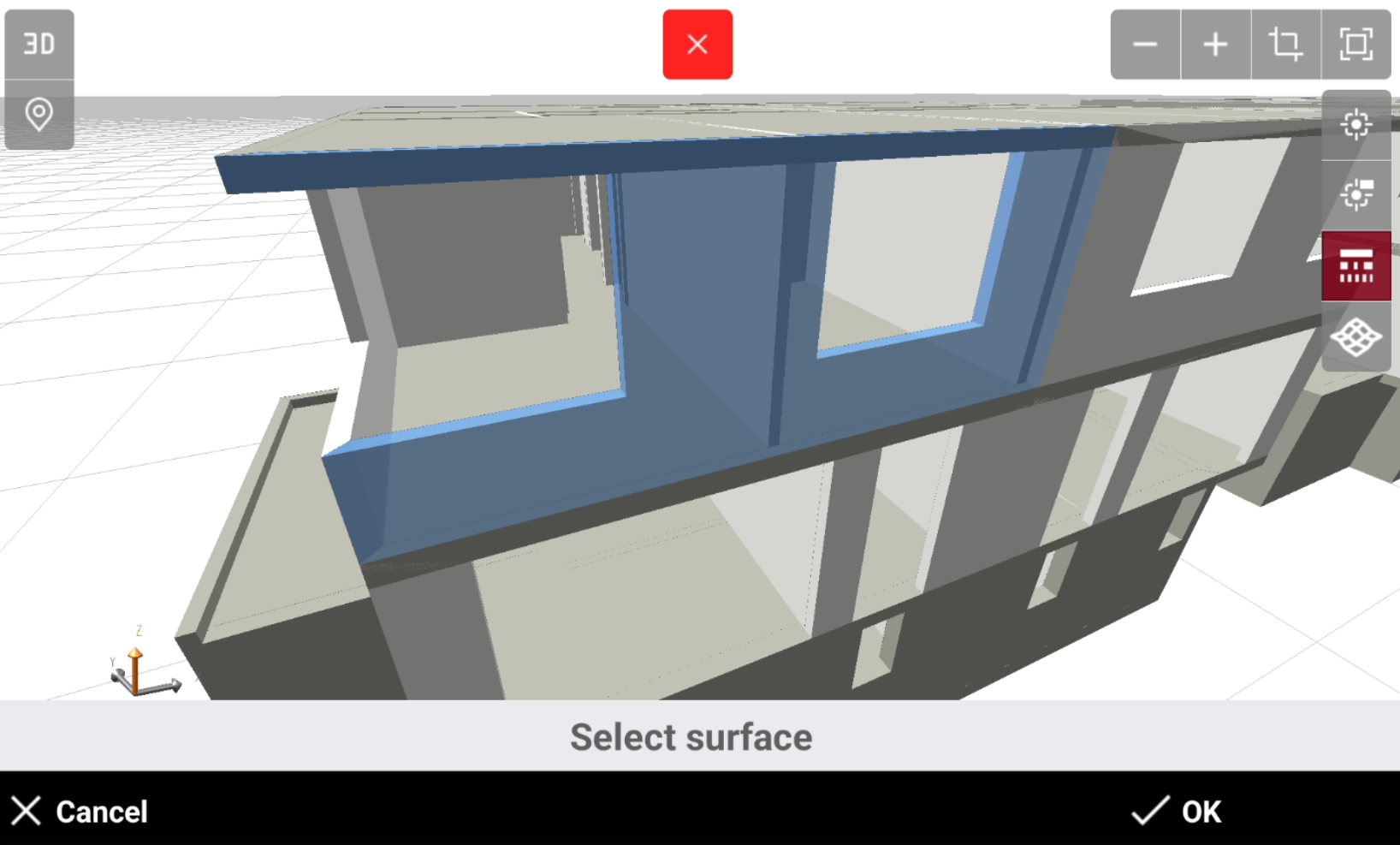
Select the surface on the model and press OK.
-
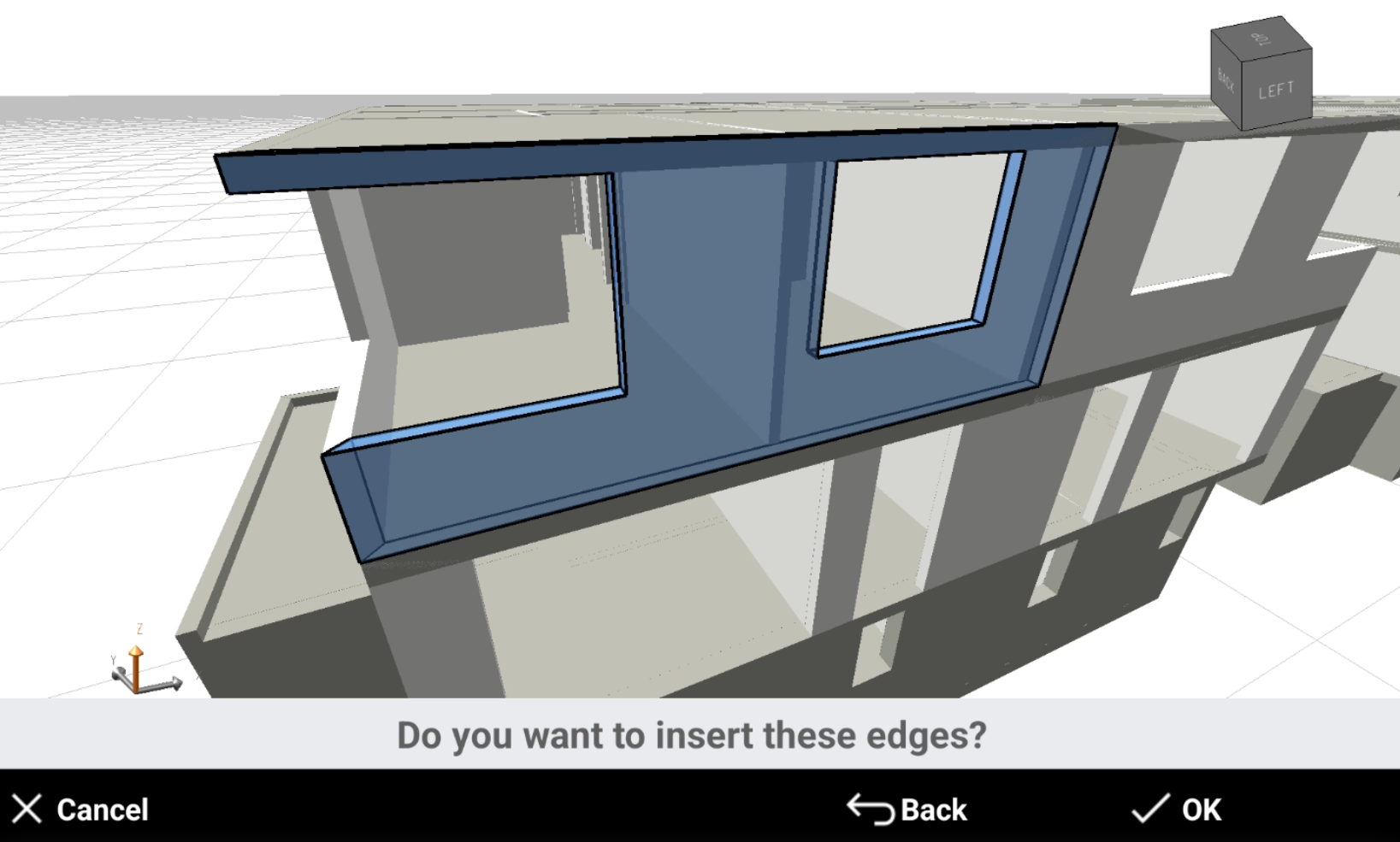
The software shows a preview for the new lines. Press OK.
-
Enter the layer. Press OK to create the lines.
Polylines from Horizontal/vertical section
-
Polylines from Horizontal/vertical section extracts the line of a horizontal or a vertical section from the model.
-
The model is cut using a horizontal or vertical plane.
-
The command can create section lines as well as points at the intersection of the plane with the IFC elements.
-
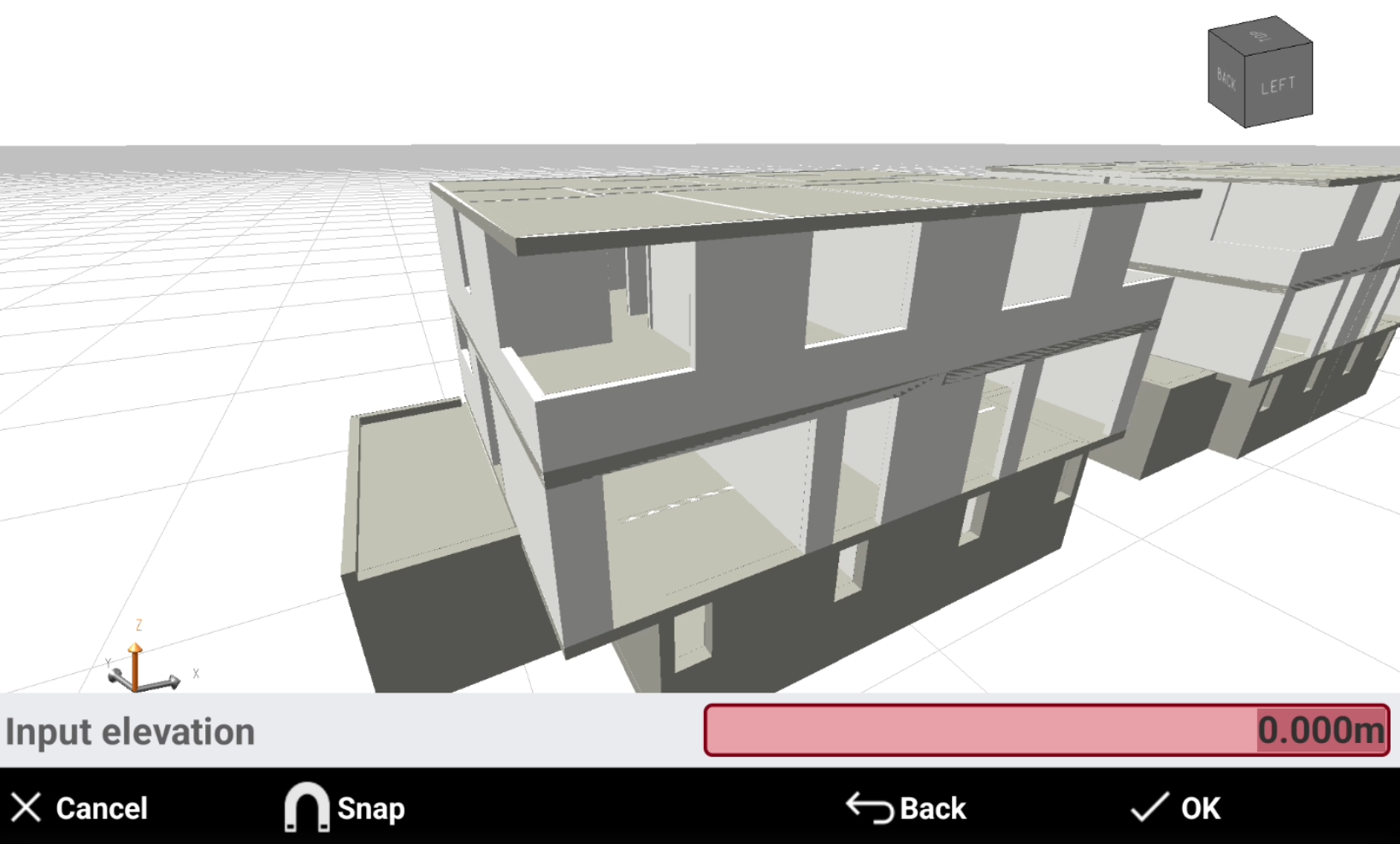
If has been selected an horizontal plane, enter the elevation or click on the model to define the elevation of the cross section.
-
If has been selected a vertical plane, define the vertical plane direction.
-
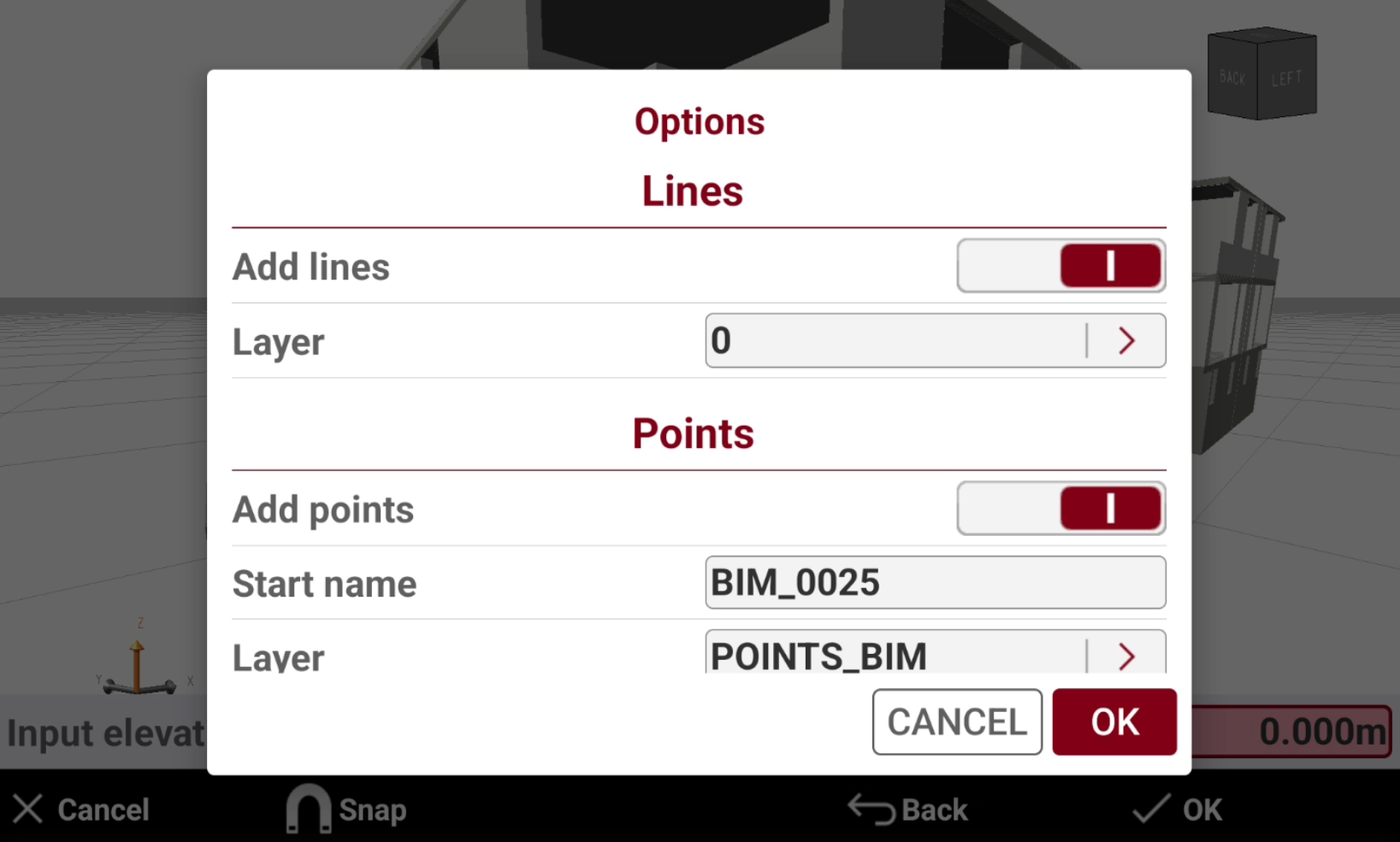
Select the options:
-
Add lines: enables the creation of lines.
-
Layer: select the layer where to create the lines.
-
Add points: enables the creation of points.
-
Start name: the starting name of the created points.
-
Layer: select the layer where to create the points.
-
-
Click OK.
-
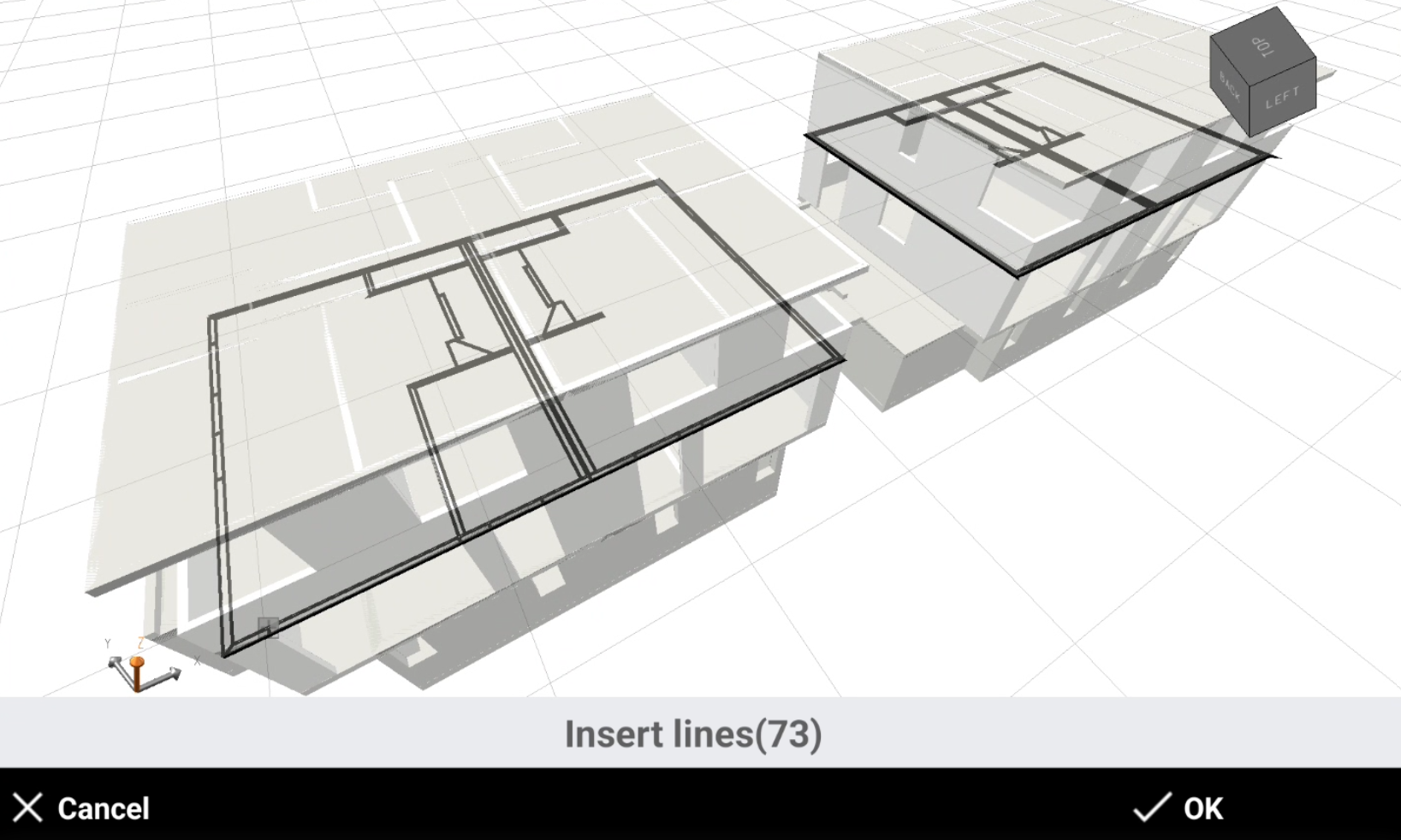
The software shows a preview of the cross section showing the lines and the points, depending on previous options. Press OK to create the points and lines.
-
The software creates the cross section.