
SURface&volume
-
The Surfaces page allows to create, visualize and manage different surfaces.
-
The page lists the available surfaces in the current job.
Surface list
-
Open the Surfaces and Volumes page.
-
Select Surfaces.
-
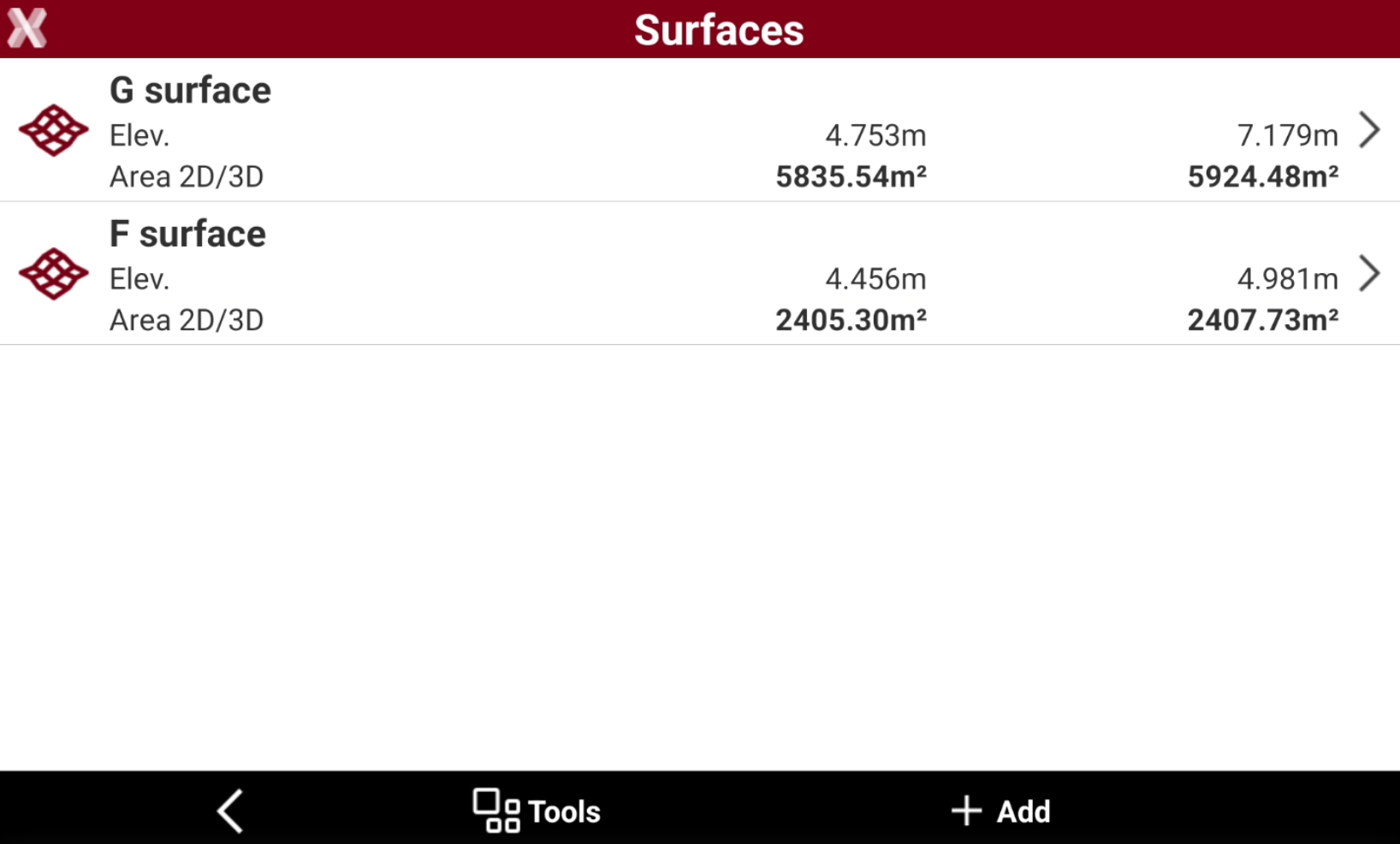
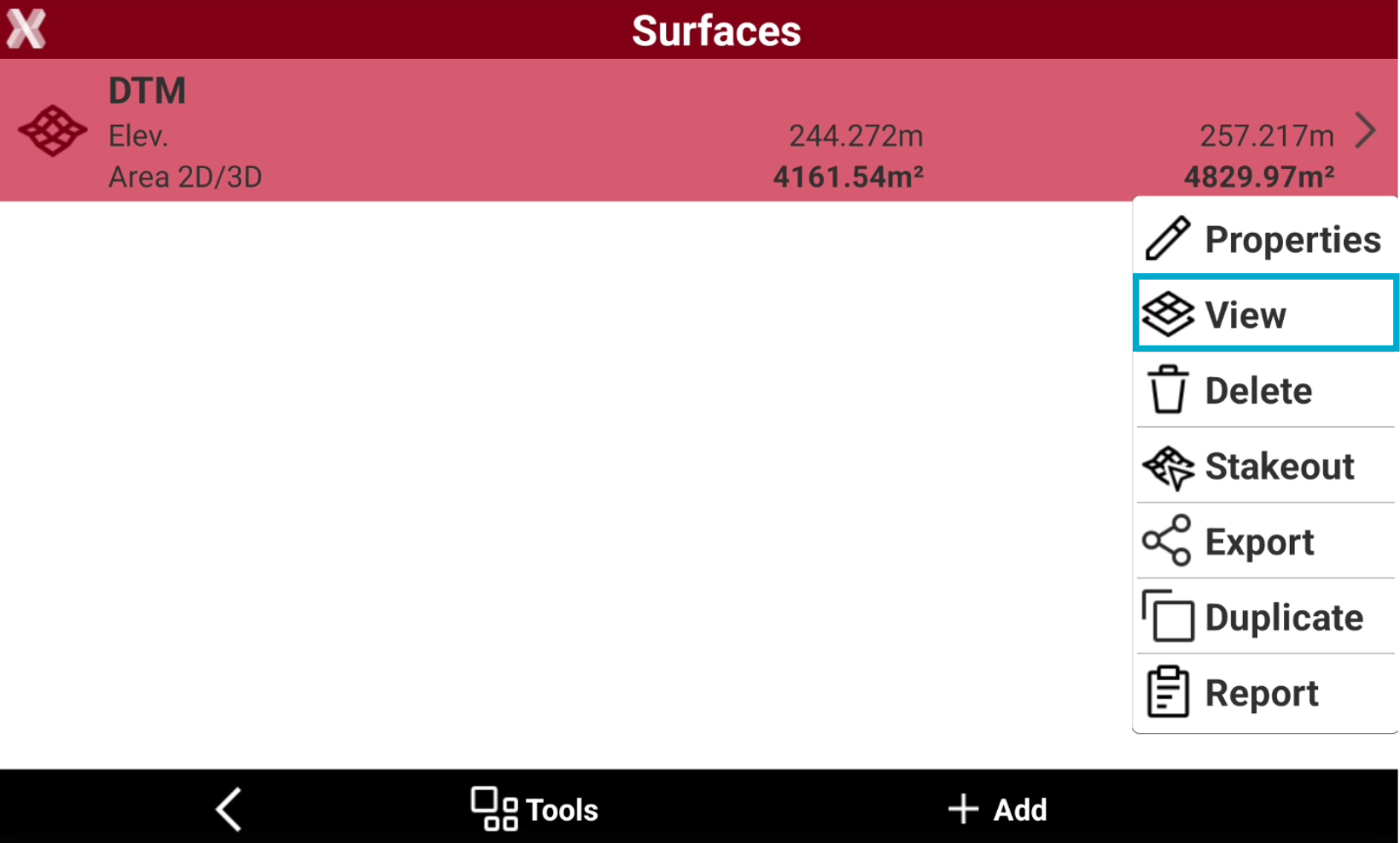
The page lists all surfaces available in the archive including the minimum and maximum elevation, the 2D surface and the 3D surface.
Edit surface properties
-
To edit the surface properties from the Surface and Volumes page select Surfaces.
-
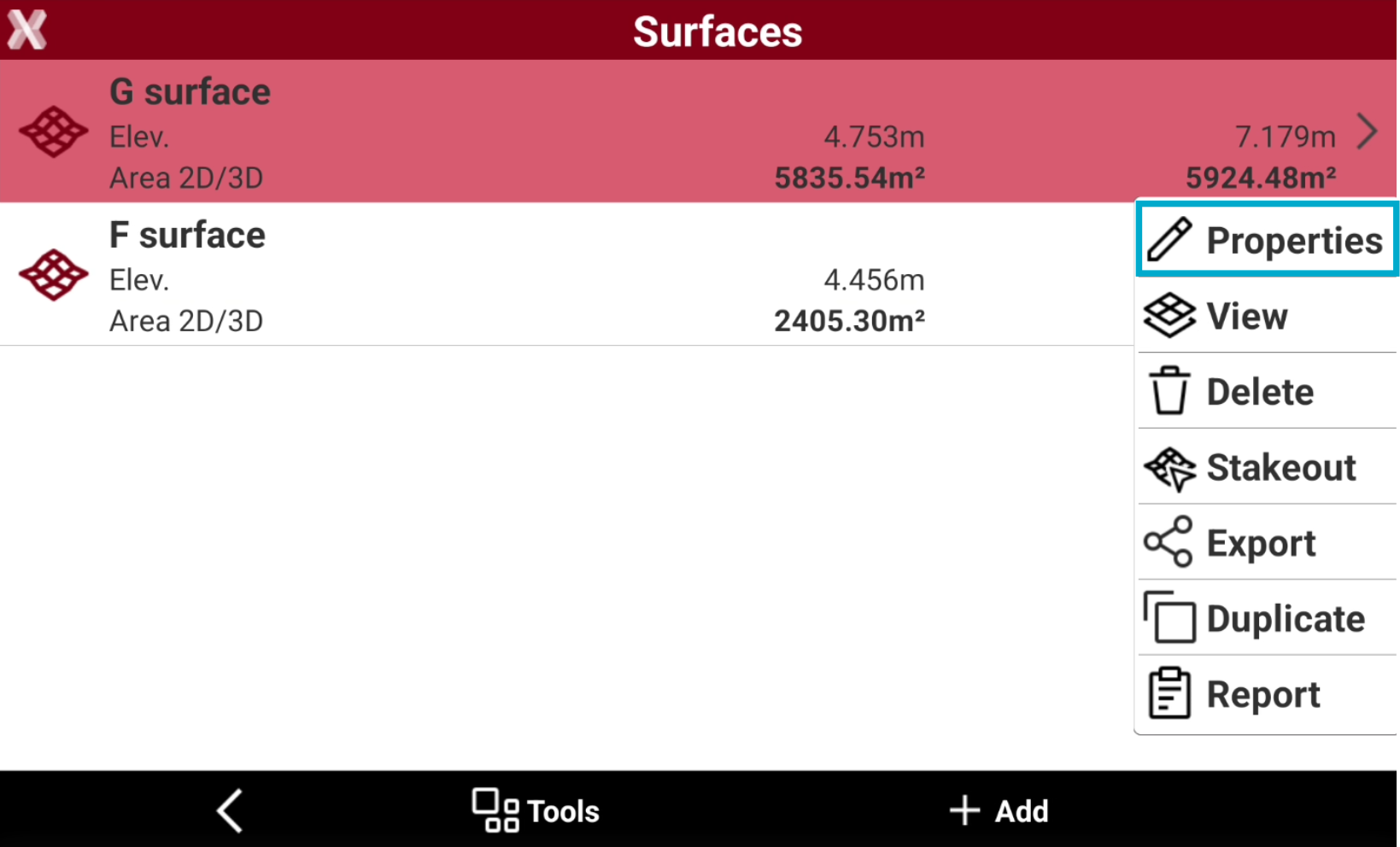
Select a surface from the list and tap on Properties.
-
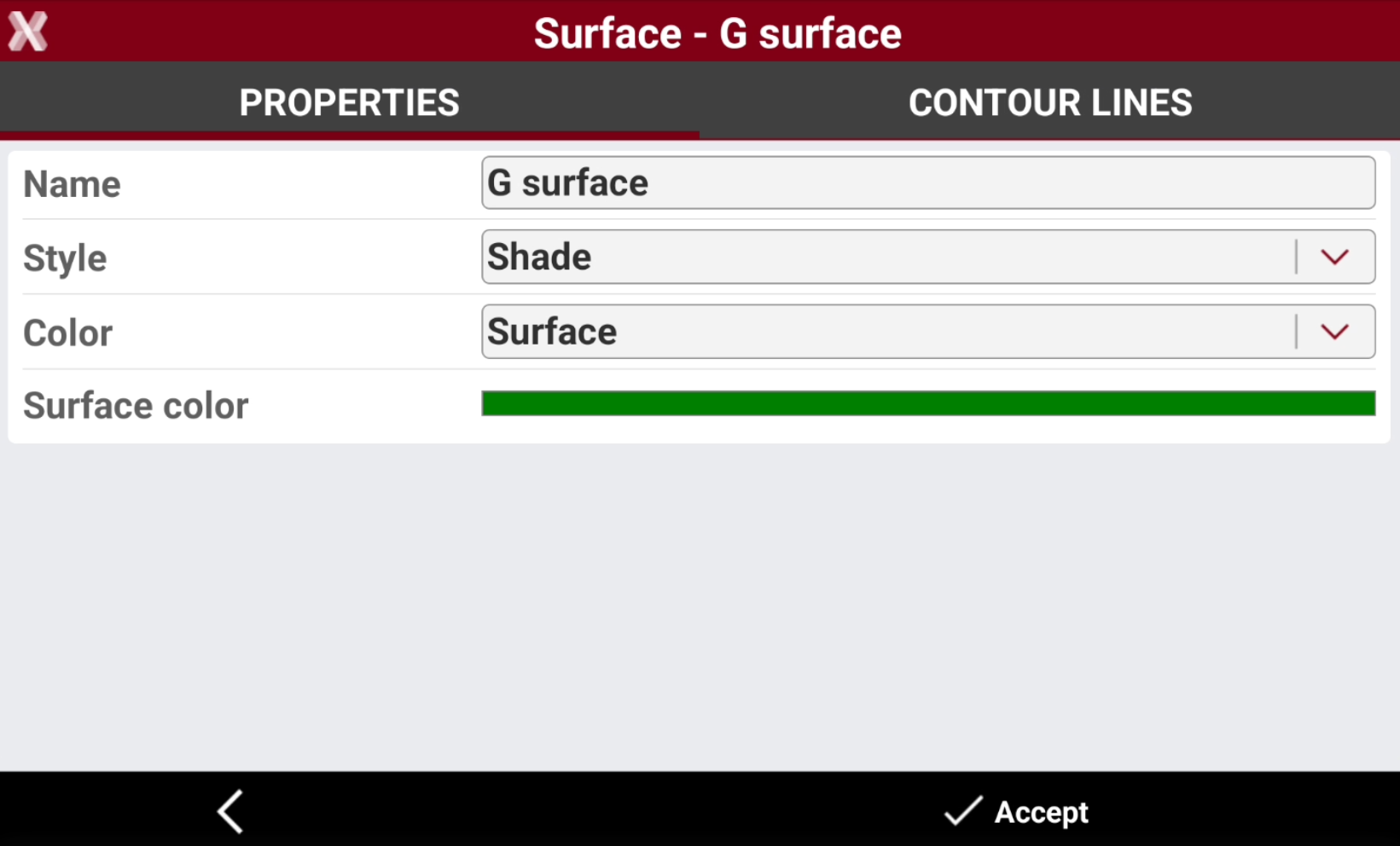
The Properties page allows to change the surface properties.
-
Name: name to assign to the surface.
-
Style: representation of the surface.
-
Wireframe: the segments of the triangles composing the surface are drawn.
-
Shade: the faces of the triangles are colored based on the direction of light exposure.
-
-
Color: color to use for the surface.
-
Original: the color of the layer containing the triangles is used.
-
By elevation (terrain): the faces are coloured based on the elevation of the centre of gravity. The color scale starts from green, passes through yellow and ends with red.
-
Surface: a color can be defined in the field Surface color.
-
By elevation (sea): the faces are coloured based on the elevation on sea level. The color scale starts from green, passes through blue and ends with white.
-
-
Press Accept to save the properties.
-
The page is also accessible from Surface → View → Data → Settings.
Create contour lines
-
A surface contour line is a line that connects points with the same elevation on a surface.
-
To create contour lines for an existing surface from the Surface and Volumes page select Surfaces.
-
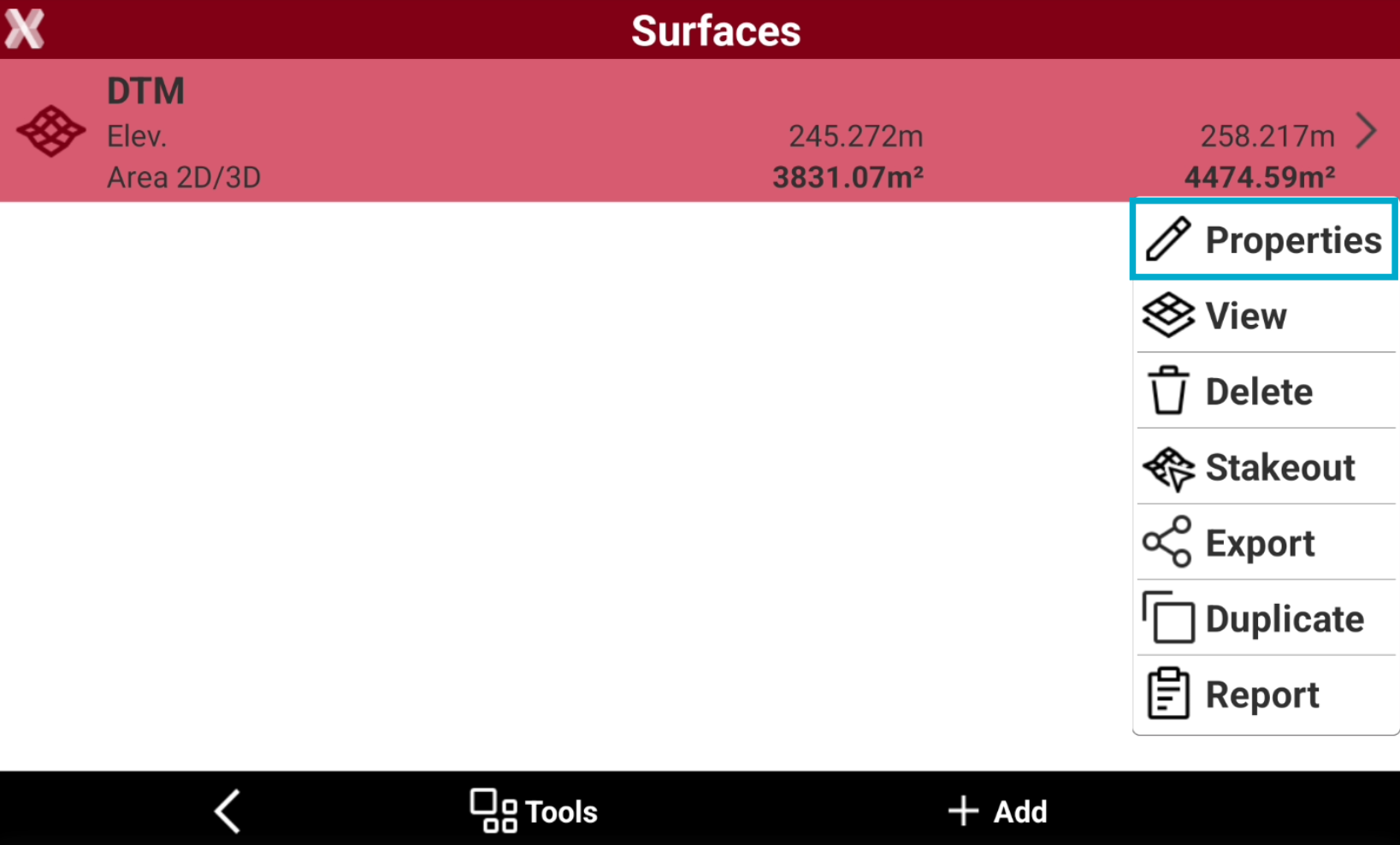
Select a surface from the list and select Properties.
-
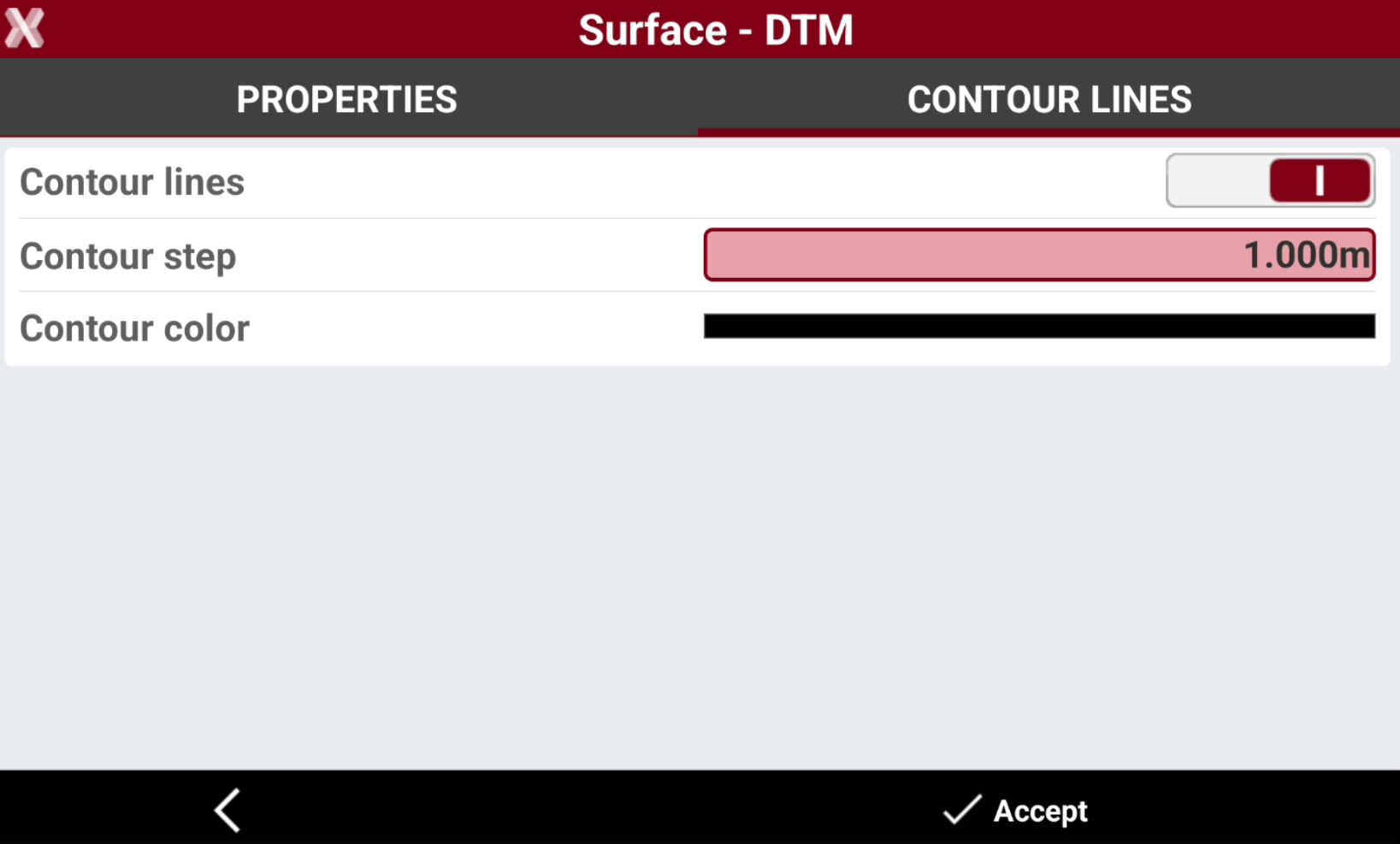
Open the Contour lines page.
-
Contour lines: activates the visualization of the contour lines of the surface.
-
Contour step: step to use to draw the contour lines.
-
Contour color: color to use to draw the contour lines.
-
-
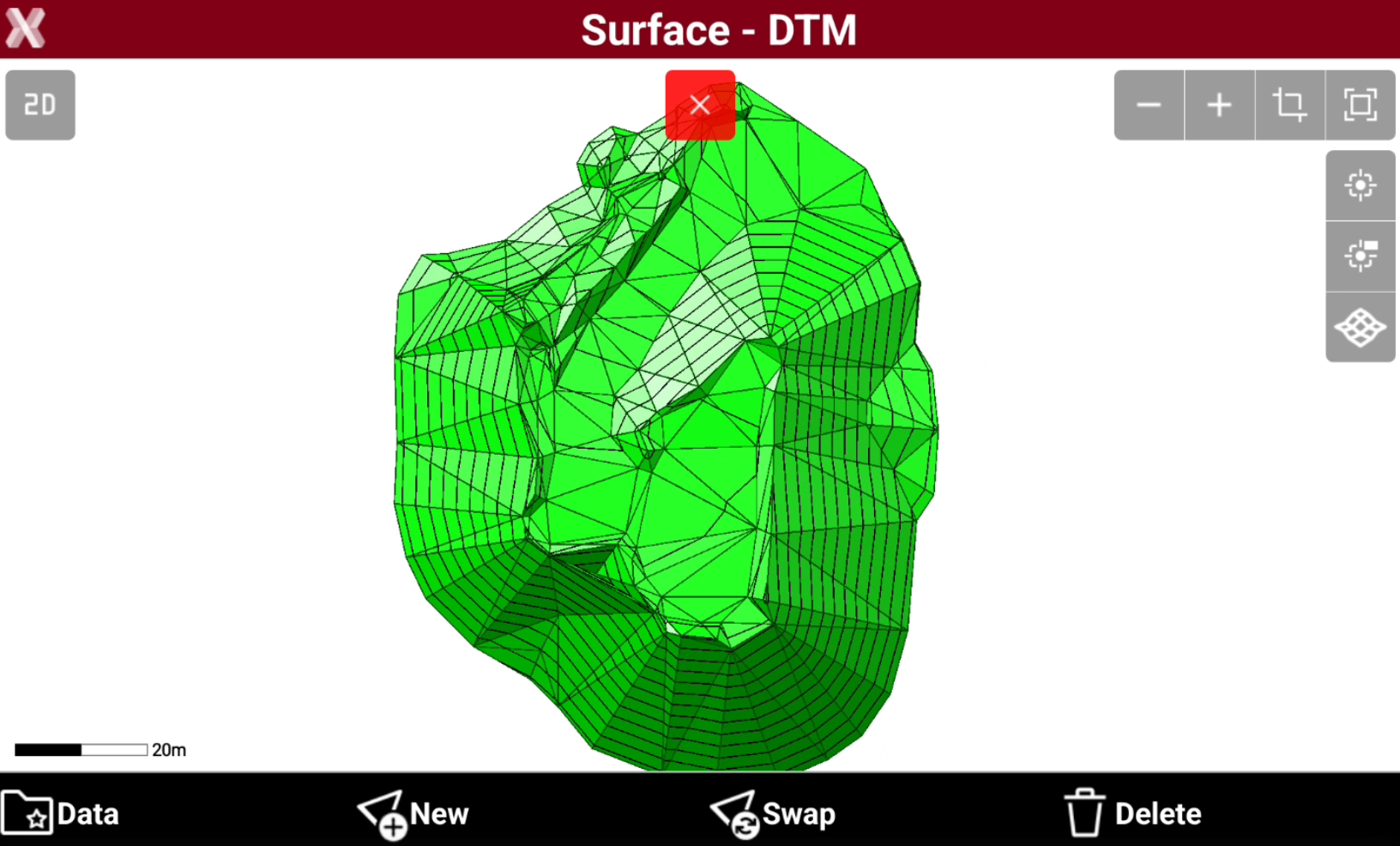
Press Accept to draw the contour lines.
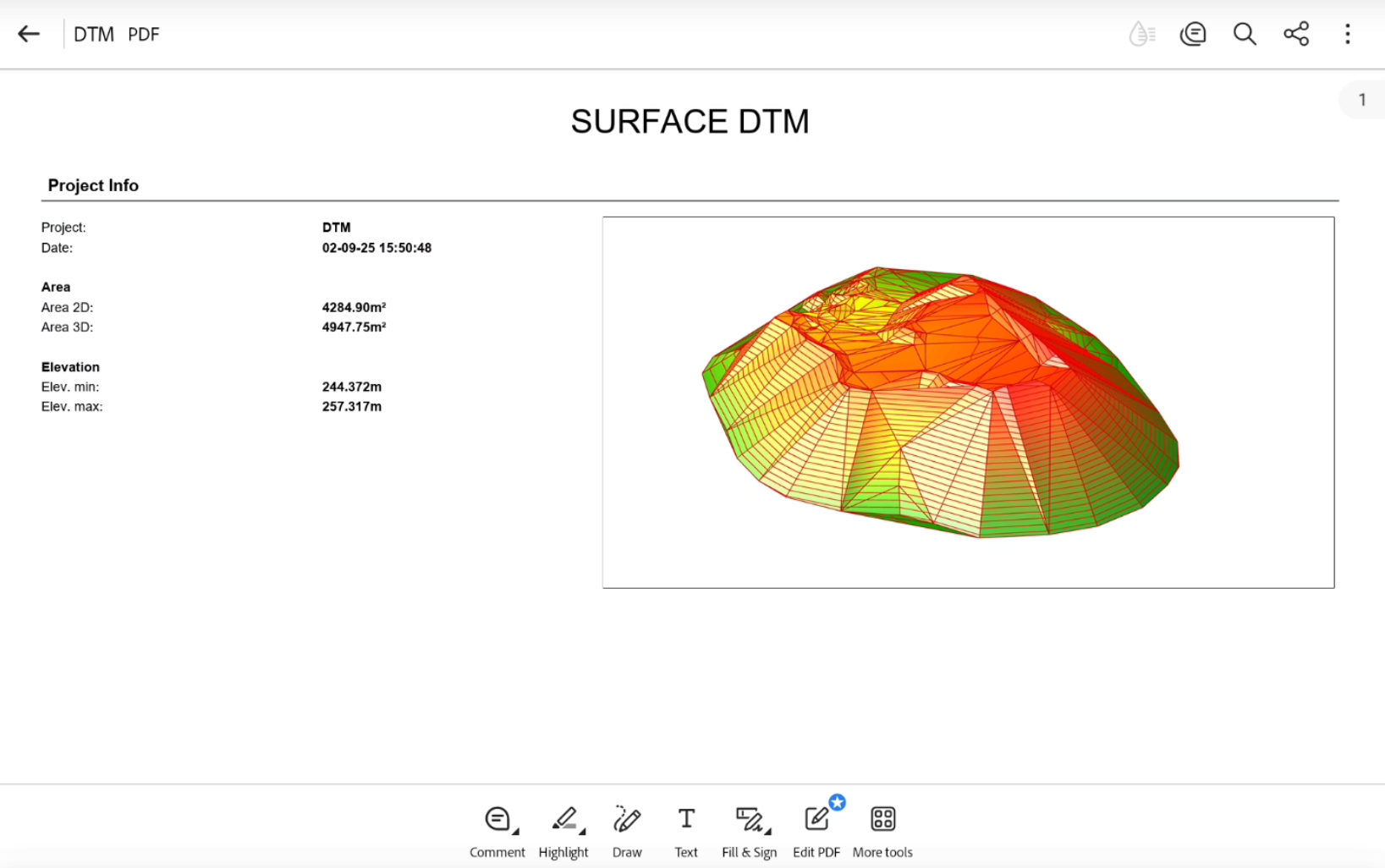
Generate a surface report
-
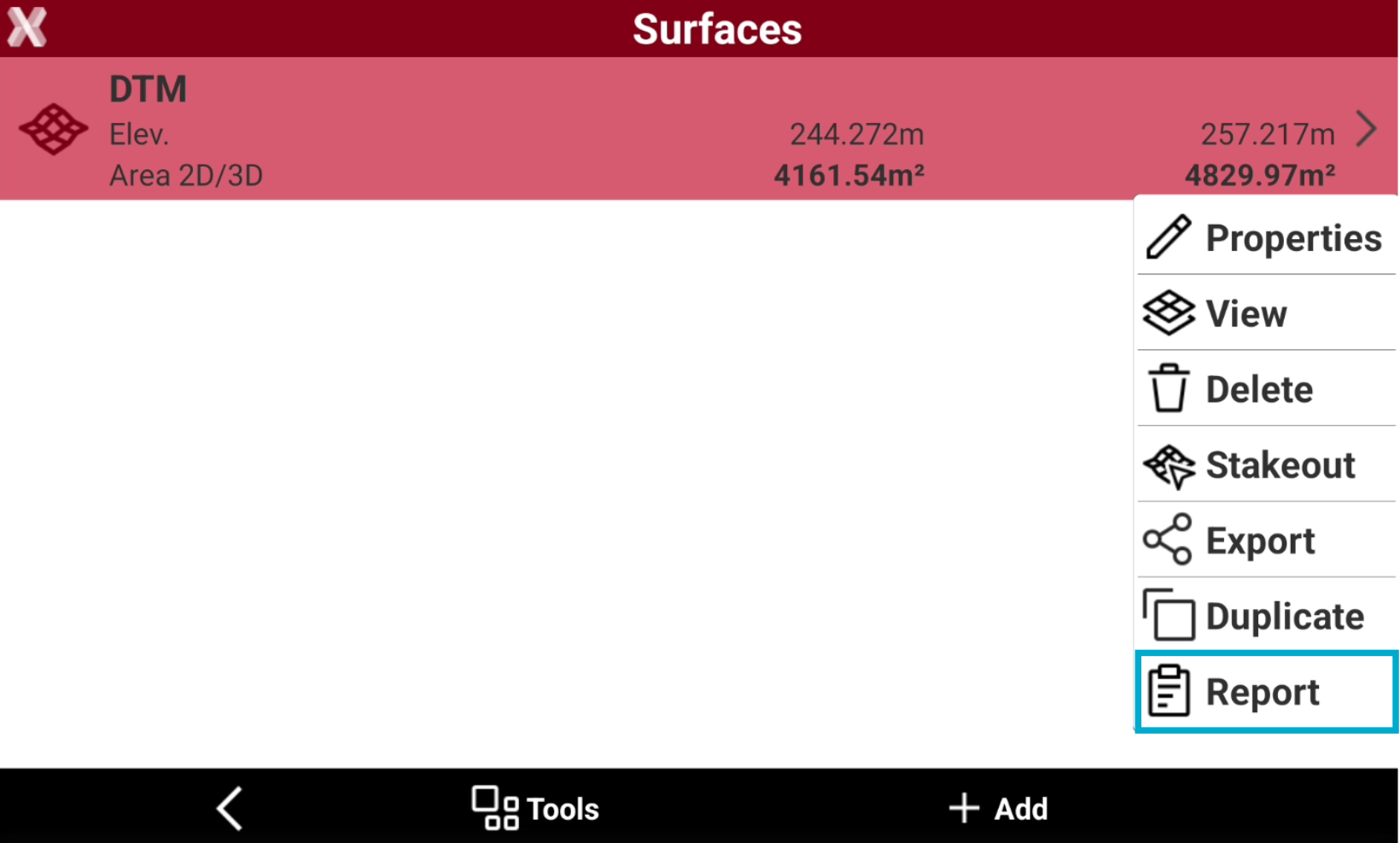
To generate a report of an existing surface from the Surface and Volumes page select Surfaces.
It is possible to generate a report also from Surface → View → Data → Report
-
Select a surface from the list and press Report.
-
Select the report type and the report options.
-
Report type:
-
Summary: includes the main surface information.
-
Complete: includes the detailed information for each triangle.
-
-
Add map in background: enables the background map in the surface view in report.
-
Show “Point name” column: shows the point name when listing the triangles. Available if Report type is Complete.
-
-
Press Ok.
-
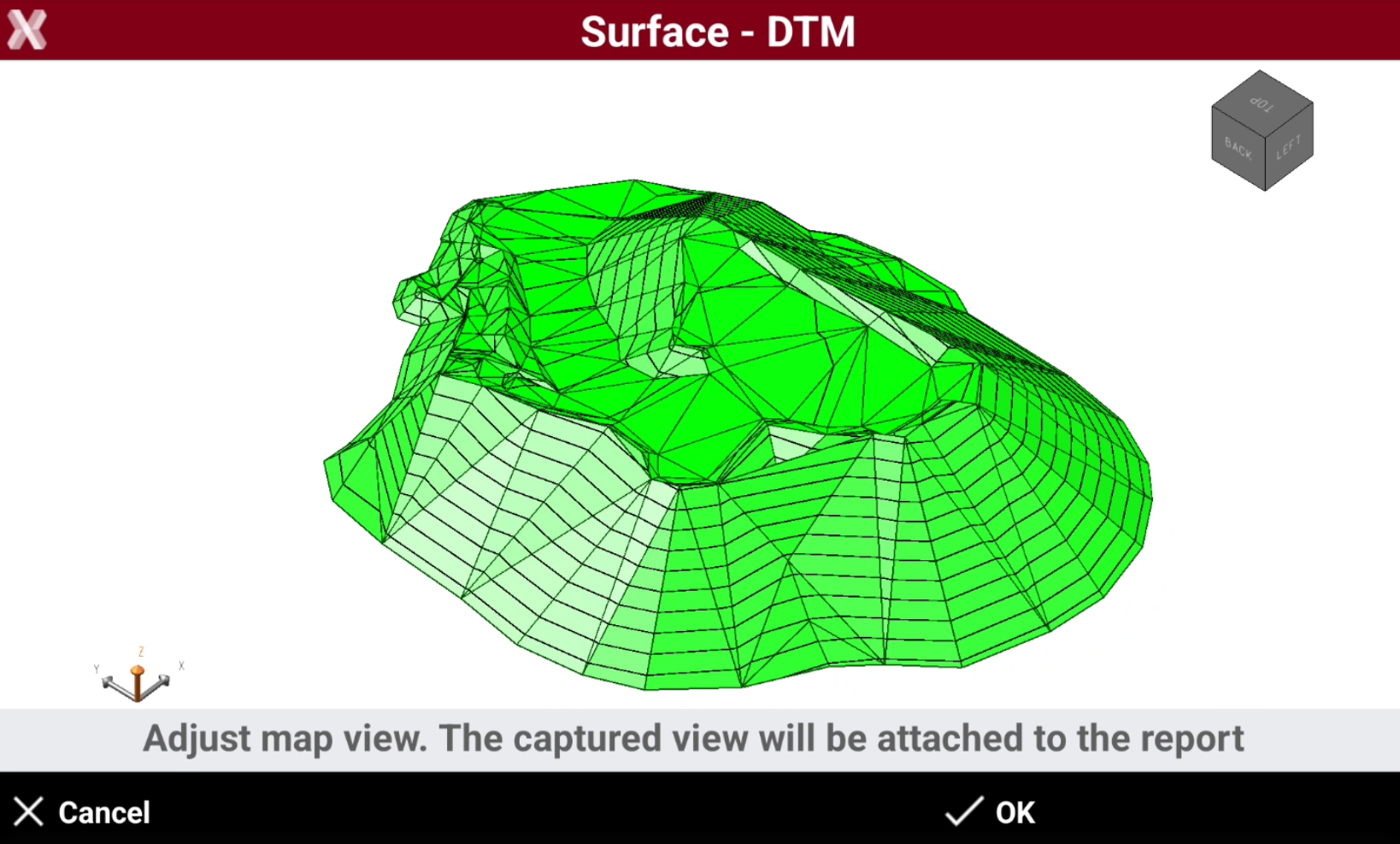
The following page allows to adjust the map view. The captured view will be attached to the report.
-
Use the CAD commands to adjust the view.
-
When done press OK to create the report.
-
Select the format to export and save the file.
Surface visualization
-
The surface can be visualized from the Surface and Volumes page or in CAD.
-
To view the surface from the Surface and Volumes page select Surfaces.
-
Select a surface from the list and press View.
-
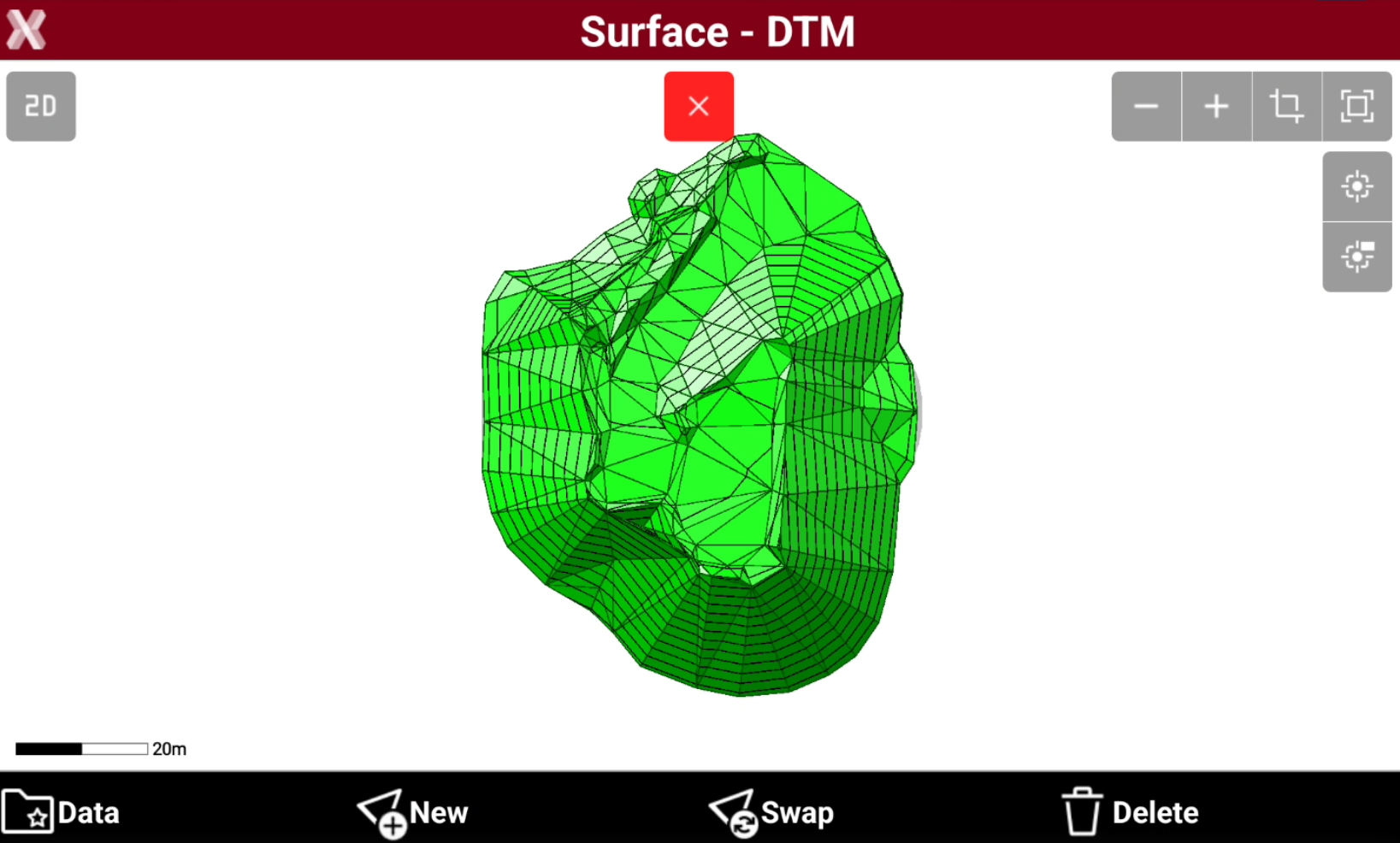
You can use the CAD commands to change the surface visualization.
-
It is possible to use CAD commands to change the view from 2D to 3D, add a background map, or show/hide topographic points.
-
Use the CAD commands to adjust the view.
Surface editing
-
To edit the surface triangles from the Surface and Volumes page select Surfaces.
-
Select a surface from the list and press View.
-
This opens the View page for the selected surface.
Add a triangle
-
To manually add a triangle press New.
-
Select graphically the 3 vertexes of the new triangle.
-
After the three vertexes have been selected, the new triangle is created.
Delete a triangle
-
To delete an incorrect triangle press Delete.
-
Select the triangle clicking in the graphic view. It is possible to click to select more triangles.
-
Press OK to delete the triangles.
Swap triangles
-
The command is used to change the direction of the faces of two triangles having a common side.
-
Press Swap.
-
Tap in graphic view to select the triangle.
Add offset
-
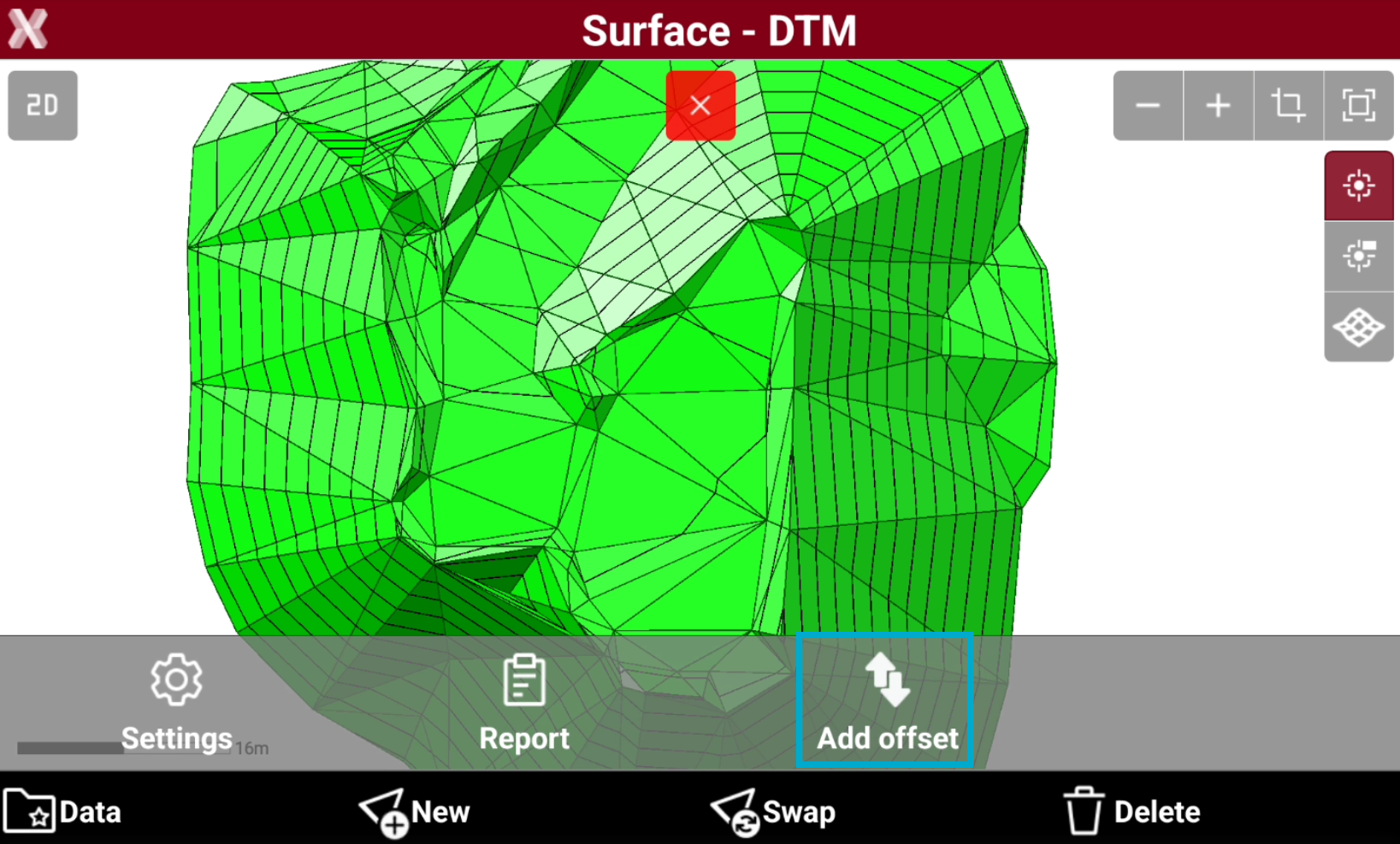
The command is used to apply an elevation offset to a surface, for example to moving entire surface up or down.
-
Press Data.
-
Select Add offset.
-
Enter the offset to apply and press OK.
Delete a surface
-
To delete an existing surface from the Surface and Volumes page select Surfaces.
-
Select a surface from the list and press Delete.
-
Press YES to confirm.
The operation cannot be undone.
Duplicate a surface
-
Duplicate a surface can be useful before editing a surface, for example before applying an offset, since creates a copy of selected surface within the same job.
-
To duplicate an existing surface from the Surface and Volumes page select Surfaces.
-
Select a surface from the list and press Duplicate.
-
Enter the new surface name and press OK.
Surface export
-
The command exports a file that contains the selected surface.
-
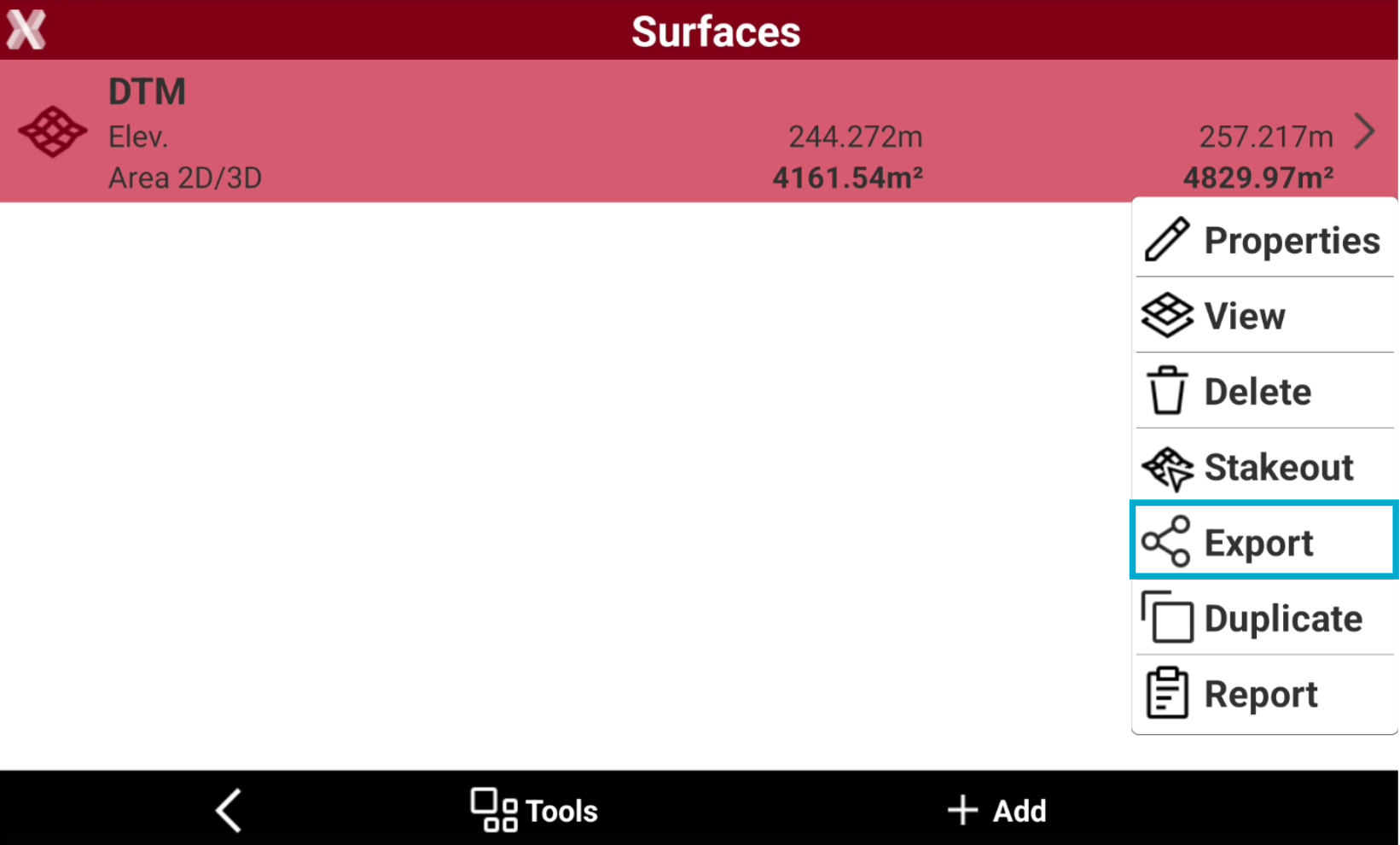
To export the surface triangles from the Surface and Volumes page select Surfaces.
Surfaces can also be exported in Export data using compatible file format as LandXML.
-
Select the surface to export and select Export.
-
Select the format to export.
-
Select the export location.