
SURface&volume
-
Leica X-PAD allows to include surfaces in the current job using different methods:
-
Create a new surface: a surface can be created starting from points, boundary and breaklines.
-
Survey a new surface: it is possible to create a surface in real time using surveying equipment, measuring the surface triangles, breaklines and boundaries.
-
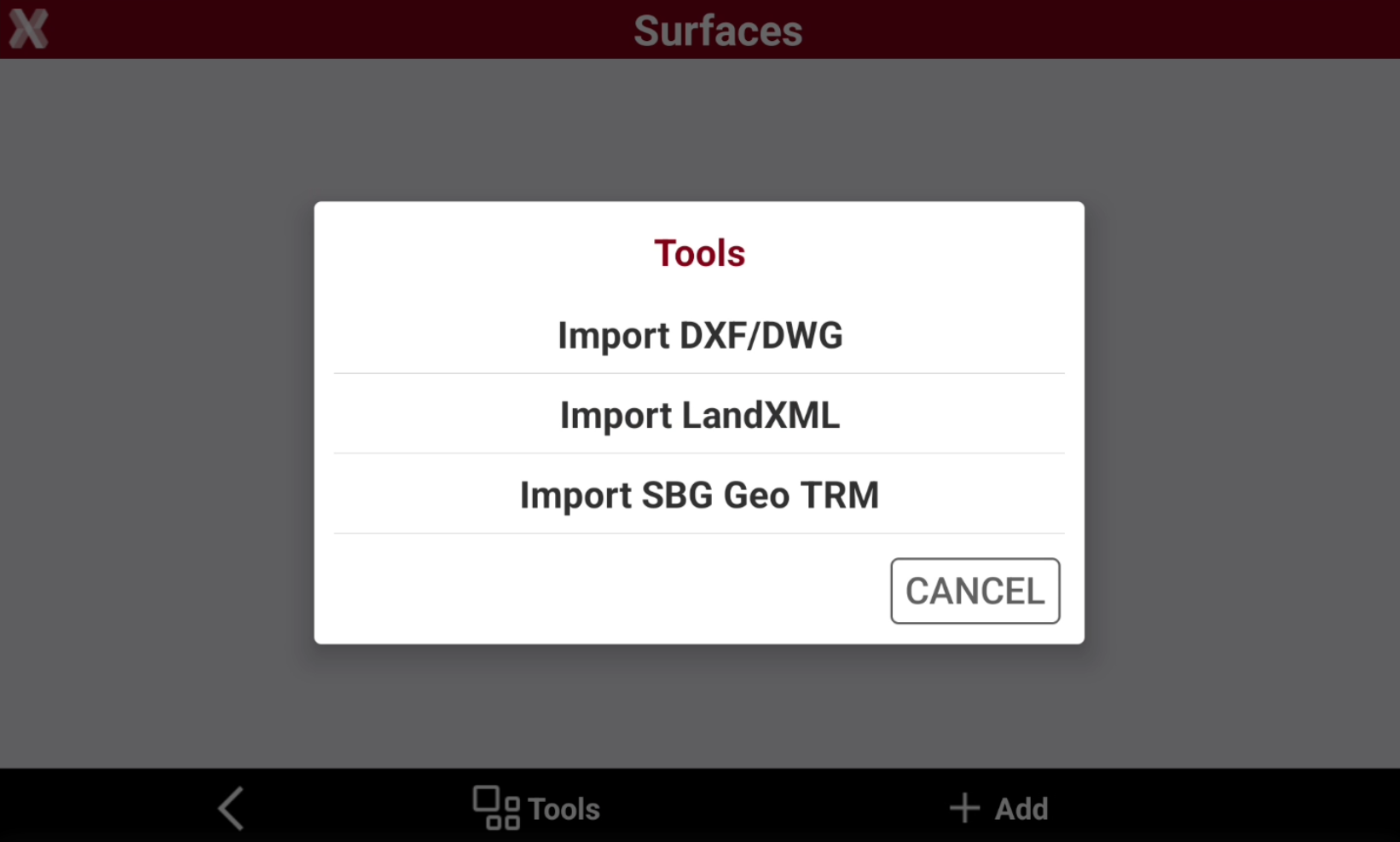
Import a new surface: the software allows to import a new surface from different external file formats.
-
Create a new surface
-
The Surface and Volumes module allows to create new surfaces automatically calculating the triangles based on the points available in the archive and on the defined breaklines. Or manually to obtain a result most to the real surface by improving the calculation results.
-
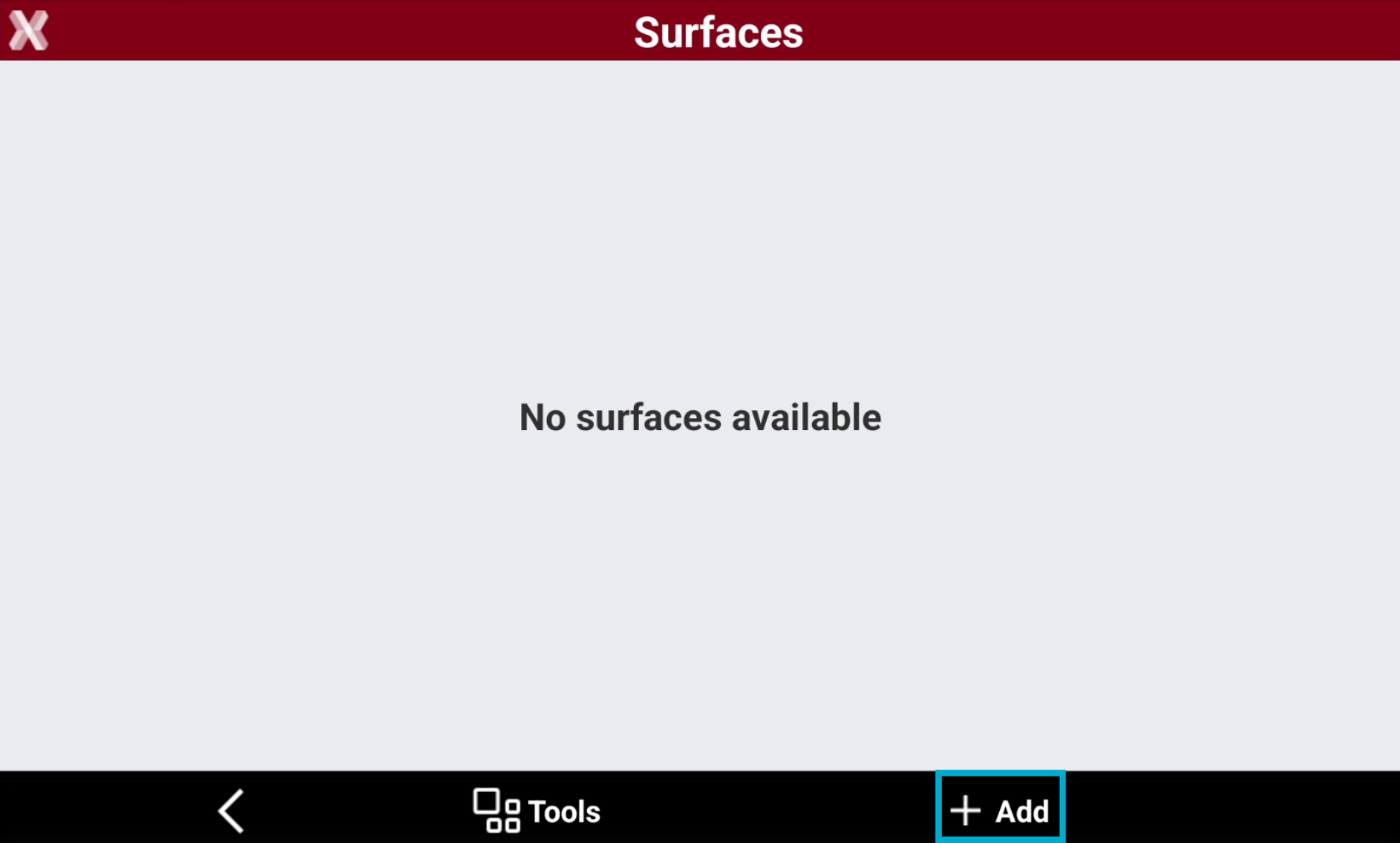
To create a new surface from the Surface and Volumes select Surfaces.
-
Press Add to create a new surface.
-
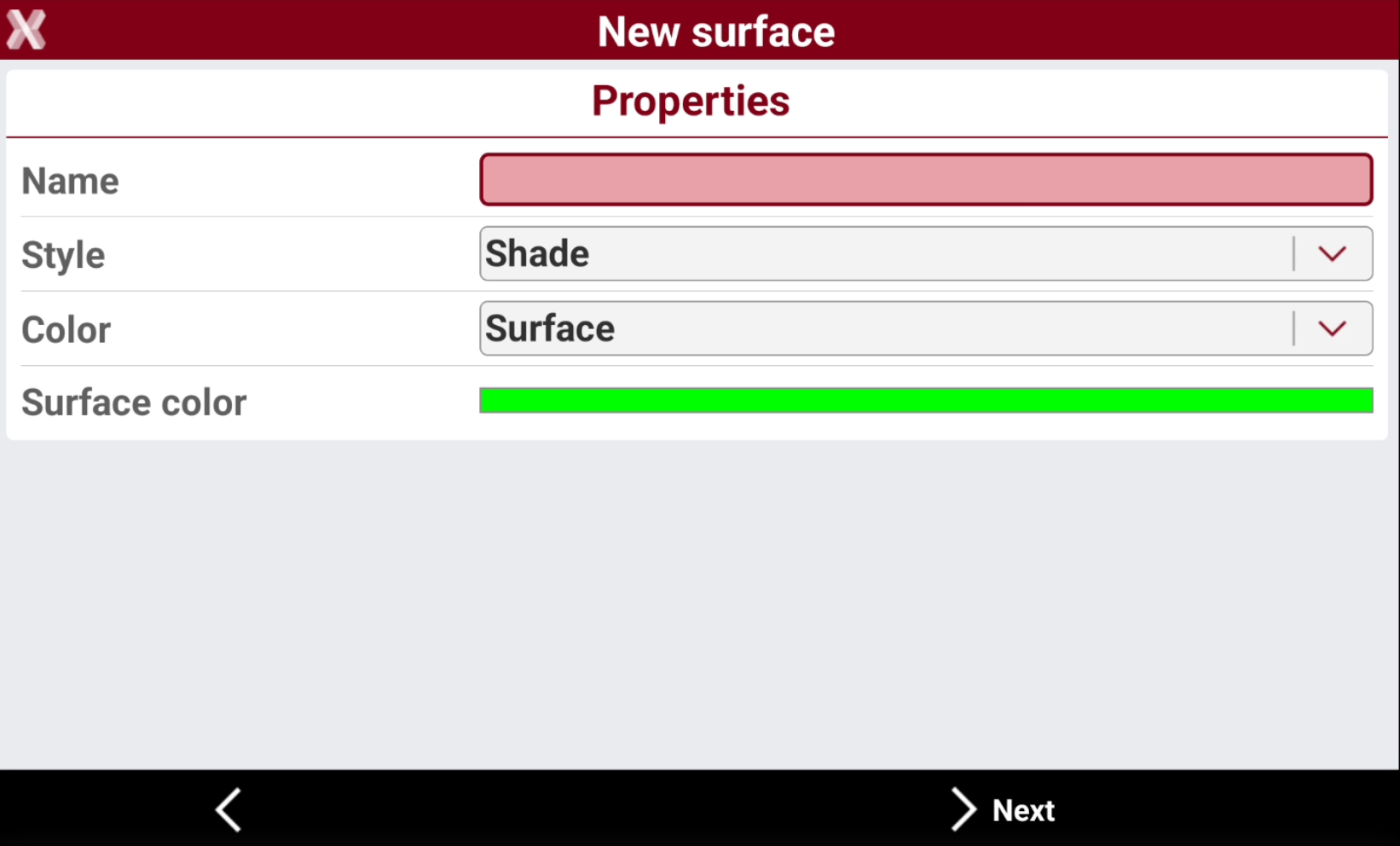
In the New surface page enter the new surface properties.
-
Name: name to assign to the surface.
-
Style: representation of the surface.
-
Wireframe: the segments of the triangles composing the surface are drawn.
-
Shade: the faces of the triangles are colored based on the direction of light exposure.
-
-
Color: color to use for the surface.
-
Original: the color of the layer containing the triangles is used.
-
By elevation (terrain): the faces are coloured based on the elevation of the centre of gravity. The color scale starts from green, passes through yellow and ends with red.
-
Surface: a color can be defined in the field Surface color.
-
By elevation (sea): the faces are coloured based on the elevation on sea level. The color scale starts from green, passes through blue and ends with white.
-
Surface color: color to use for the surface if the option Surface is chosen.
-
-
-
Press Next.
-
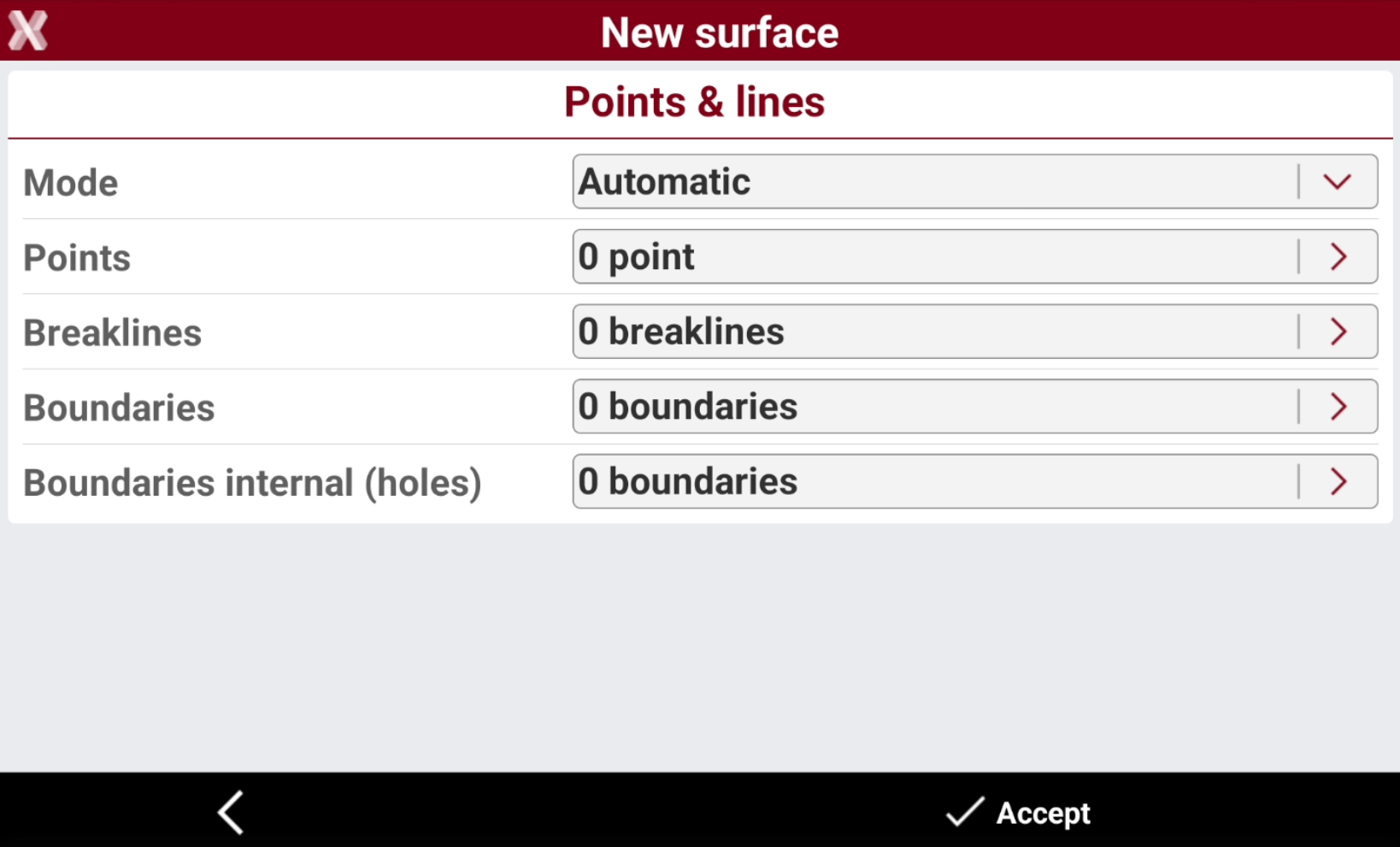
In Points & lines page it is requested to define the triangulation mode and the elements that will be used to generate the surface.
-
Mode: the triangulation mode can be manual or automatic.
-
Automatic: the surface is automatically triangulated using the defined points, breaklines and boundary lines.
-
Manual: activate this option to build the triangles composing the surface manually.
-
-
Points: define the set of points to use in case of automatic building. Press the button on the right of the input field to access the list of points or to a menu allowing to select points.
-
Load all points: all points from the archive are used to calculate the surface.
-
Select from table: select points from the points table. It is possible using this selection to use Selection rule function to select the points based on different rules, for example based on their code.
-
Select from CAD: select points from the graphic window.
-
Delete points list: delete the points loaded as vertexes of triangles.
-
-
Breaklines: specify the breaklines used to verify and preserve the shape of the surface during model generation. Breaklines must be created beforehand as polylines in the graphic window. Click the button next to the input field to open the selection menu and choose the required breaklines.
-
Select from CAD: select breaklines from the graphic window.
-
Clear all: delete the previously selected breaklines.
-
-
Boundaries: specify the contour lines that define the surface boundary. Boundary lines must be created beforehand as polylines in the graphic window. Click the button next to the input field to open the selection menu and choose the boundary lines to be used as the surface border.
-
Select from CAD: select boundary lines from the graphic window.
-
Clear all: delete the previously selected boundary lines.
-
-
Boundaries Internal (Holes): specify the contour lines that define internal boundaries within the surface. These boundaries create holes in the generated surface model. Internal boundary lines must be created beforehand as polylines in the graphic window. Click the button next to the input field to open the selection menu and choose the boundary lines to be used as holes in the surface.
-
Select from CAD: select boundary lines from the graphic window.
-
Clear all: delete the previously selected boundary lines.
-
-
-
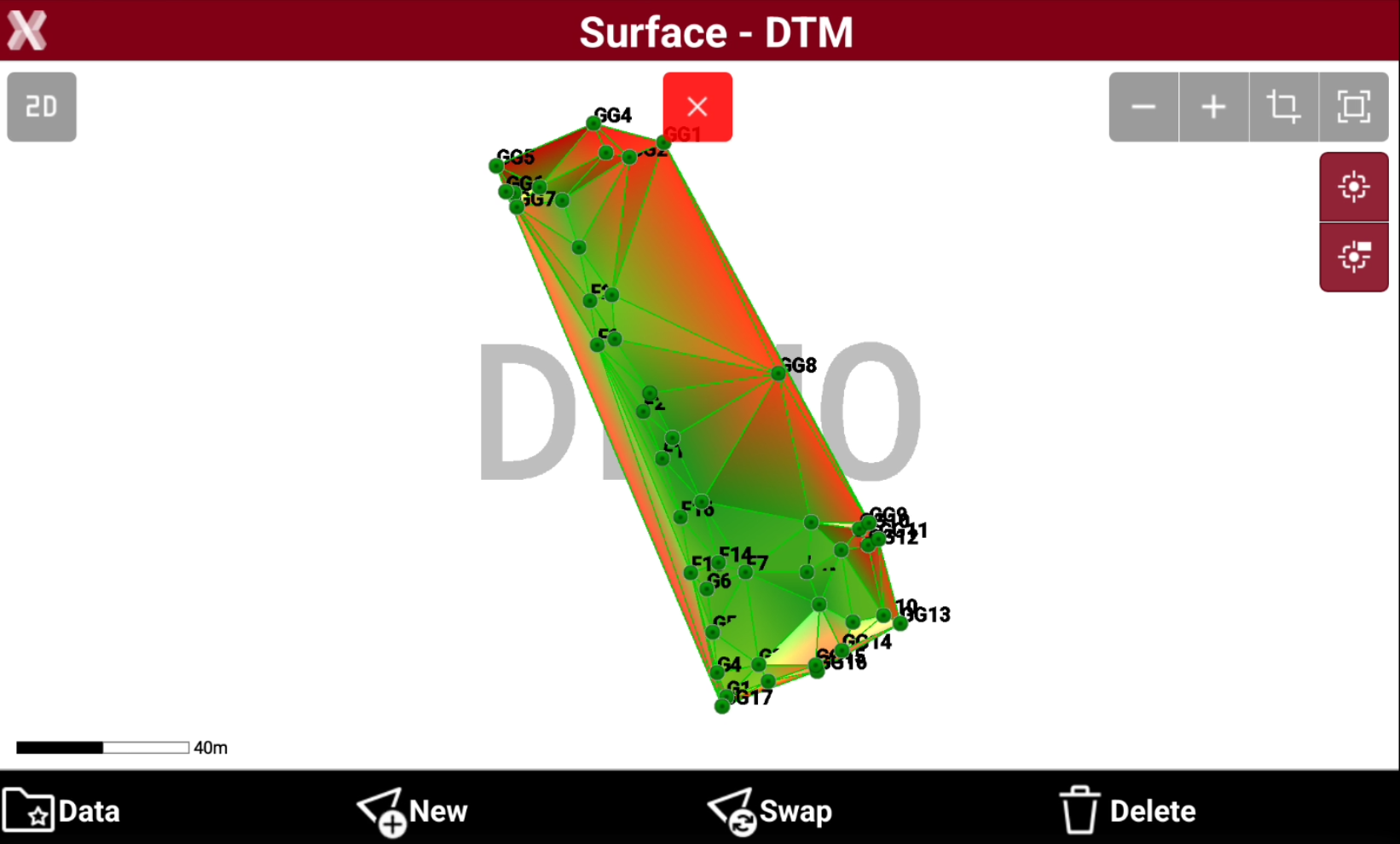
Press Accept to calculate the surface.
-
The software shows the calculated surface.
-
If instead the calculation mode was set to Manual, the triangles have to be manually created.
Survey a surface
-
From the Survey menu, you can create or edit a surface by measuring new triangles, boundary lines, and breaklines using the current total station or GNSS receiver.
-
This function allows you to create surfaces on the fly.
-
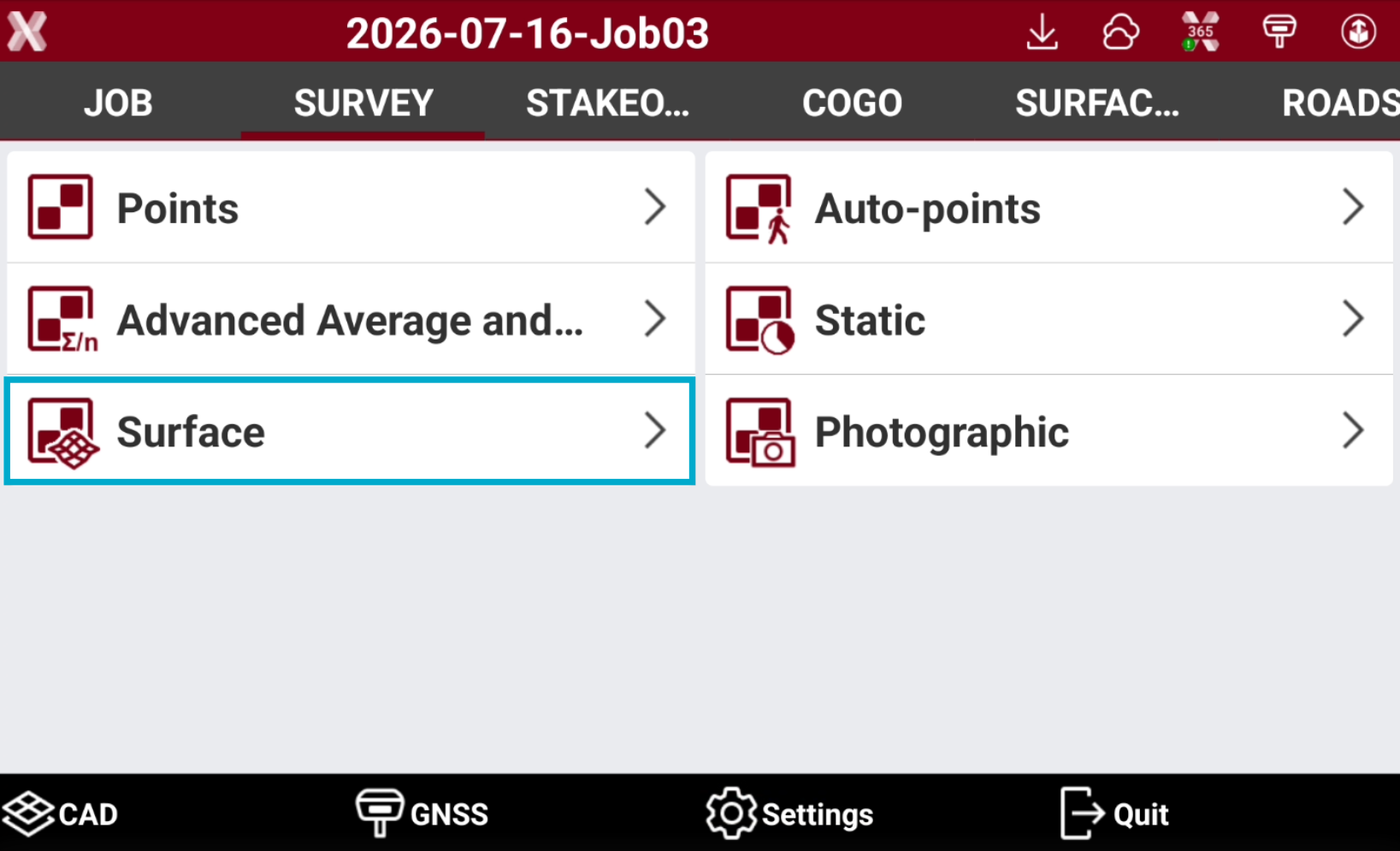
To survey a surface from the Survey page select Surface.
-
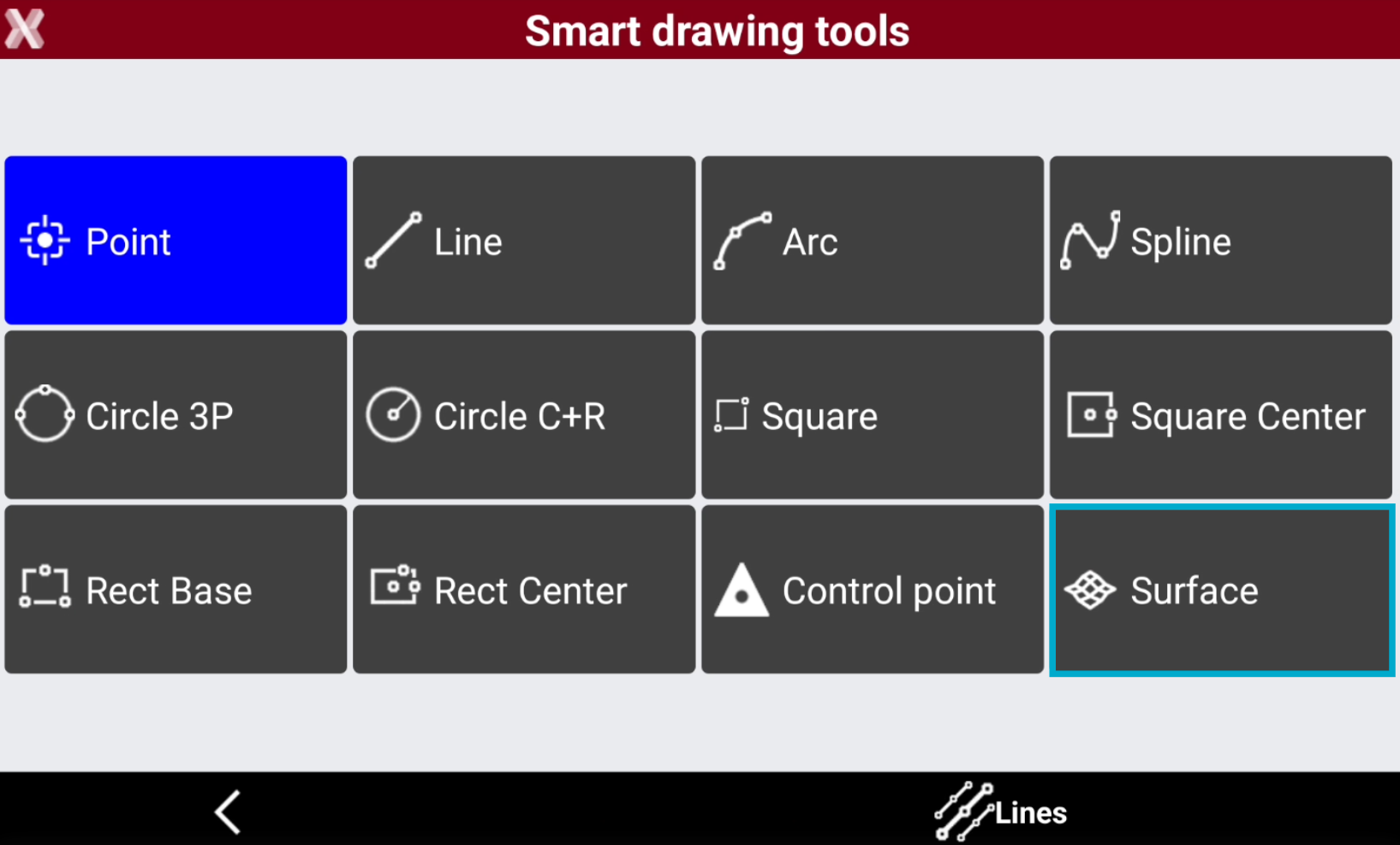
It is also possible to create points selecting Surface in Smart Drawing Tools. This command allows to quickly create points for a surface within the Survey Point application.
-
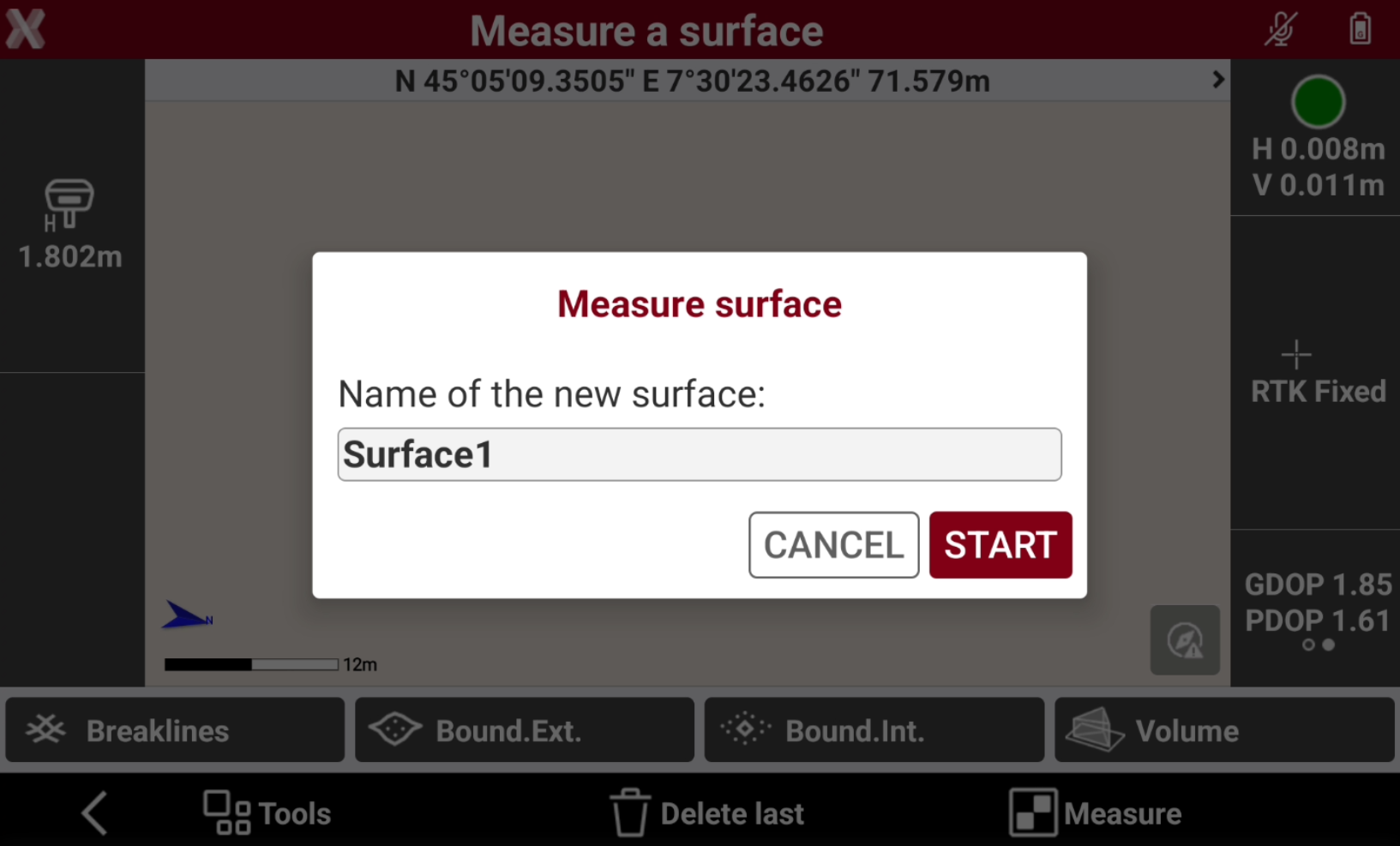
Select the surface to measure.
-
New surface: creates a new surface from scratch.
-
Existing surface: allows to edit an existing surface with new points, break lines and boundary lines.
-
-
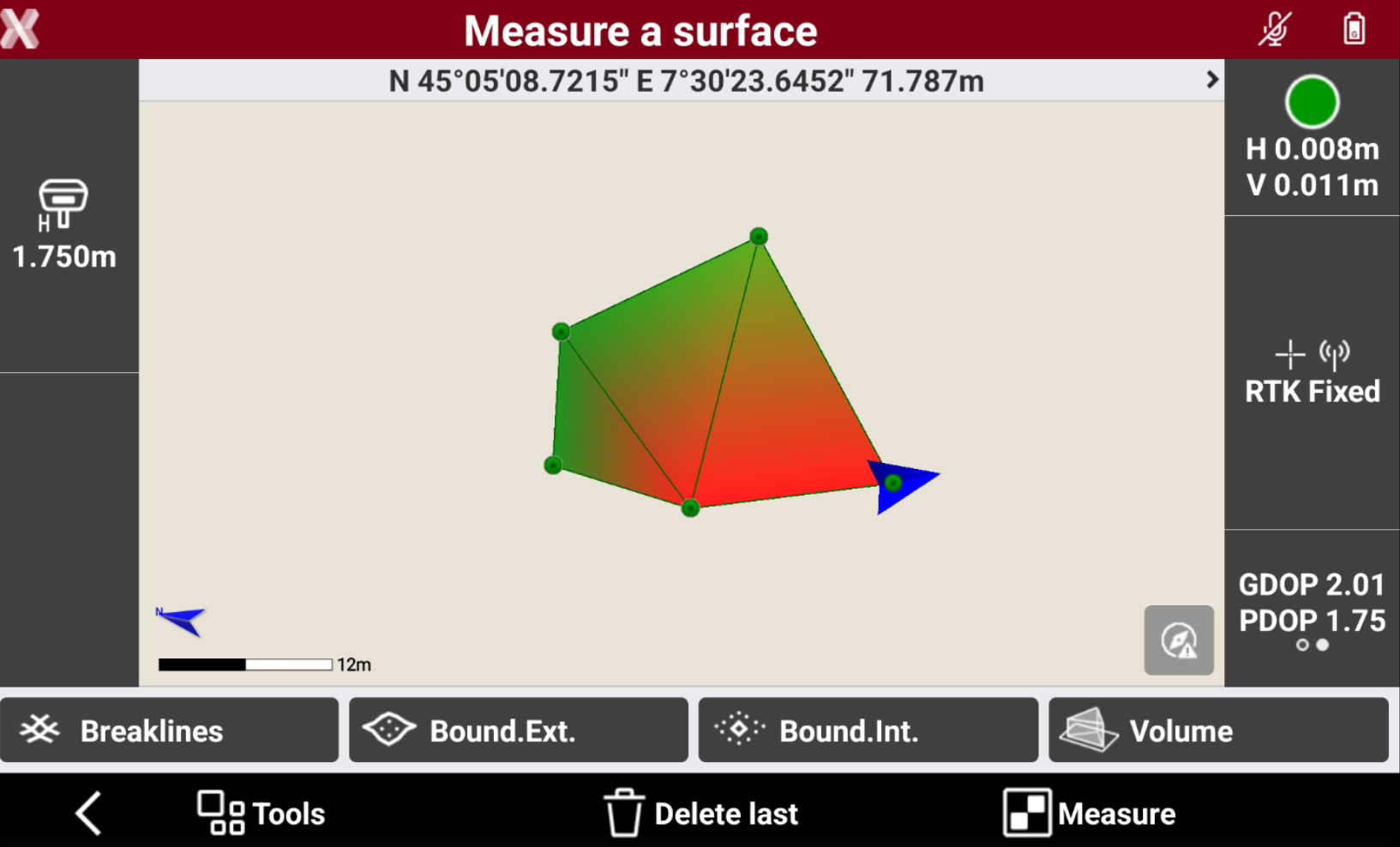
Press Start.
-
The commands in the bottom bar allow to measure the different surface elements:
-
Measure: measures new topographic points to be used for the surface.
-
Breaklines: surveys a polyline as new break line to be used for the surface.
-
Bound Ext: surveys a polyline as new external boundary line to be used for the surface. When the points have been measured, press Stop to close the boundary line.
-
Bound Int: surveys a polyline as new internal boundary line to be used for the surface. When the points have been measured, press Stop to close the boundary line.
-
Delete last: deletes the last measured point.
-
-
The surface is generated and updated after each element is measured.
-
When the measurement operations are complete, press Back and select the elements to save.
-
Save surfaces: saves the surface inside the surface list of the current project.
-
Save points: saves the measured topographic points inside the current project.
-
Save lines: save the measured polylines inside the current project.
-
-
Press Save. The surface is saved inside the Surfaces list.
Import a new surface
-
Surfaces can be imported in an X-PAD job from external files using different formats.
-
To import a surfaces from the Surface and Volumes open the Surfaces page.
Surfaces can also be imported in Import data and External references .
-
Press Tools to select the file to import.
-
Select the format to use to import.
-
Select the file to import.
-
The imported surface is displayed in the table.