
SURface&volume
-
The software allows to calculate a volume according to different calculation modes.
-
The performed calculations are listed in the Volumes page.
-
It is possible to extract different output from the calculations.
Perform a new volume calculation
-
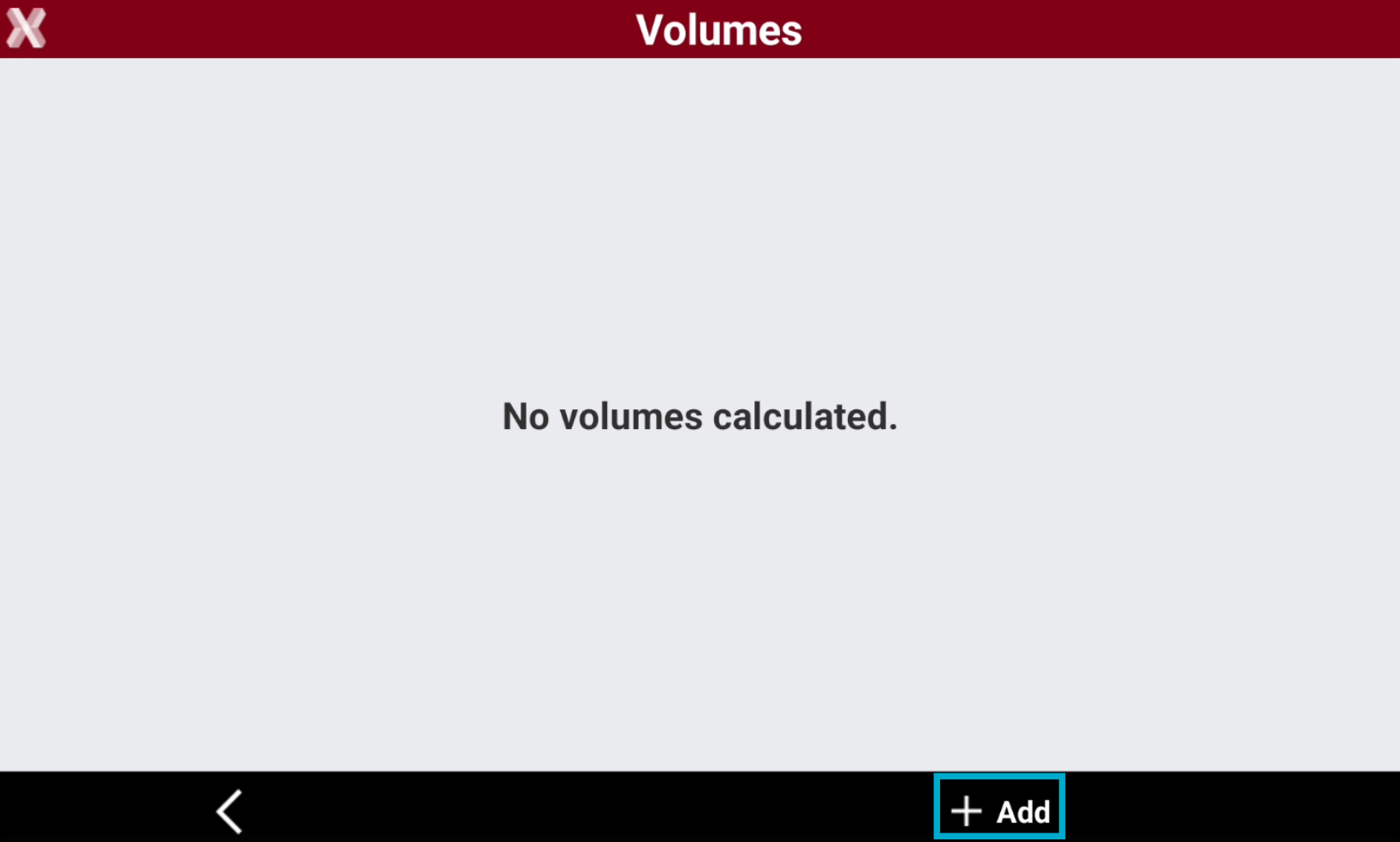
To start a volume calculation, from Surfaces and Volumes page select Volumes.
-
Press Add to perform a new calculation.
-
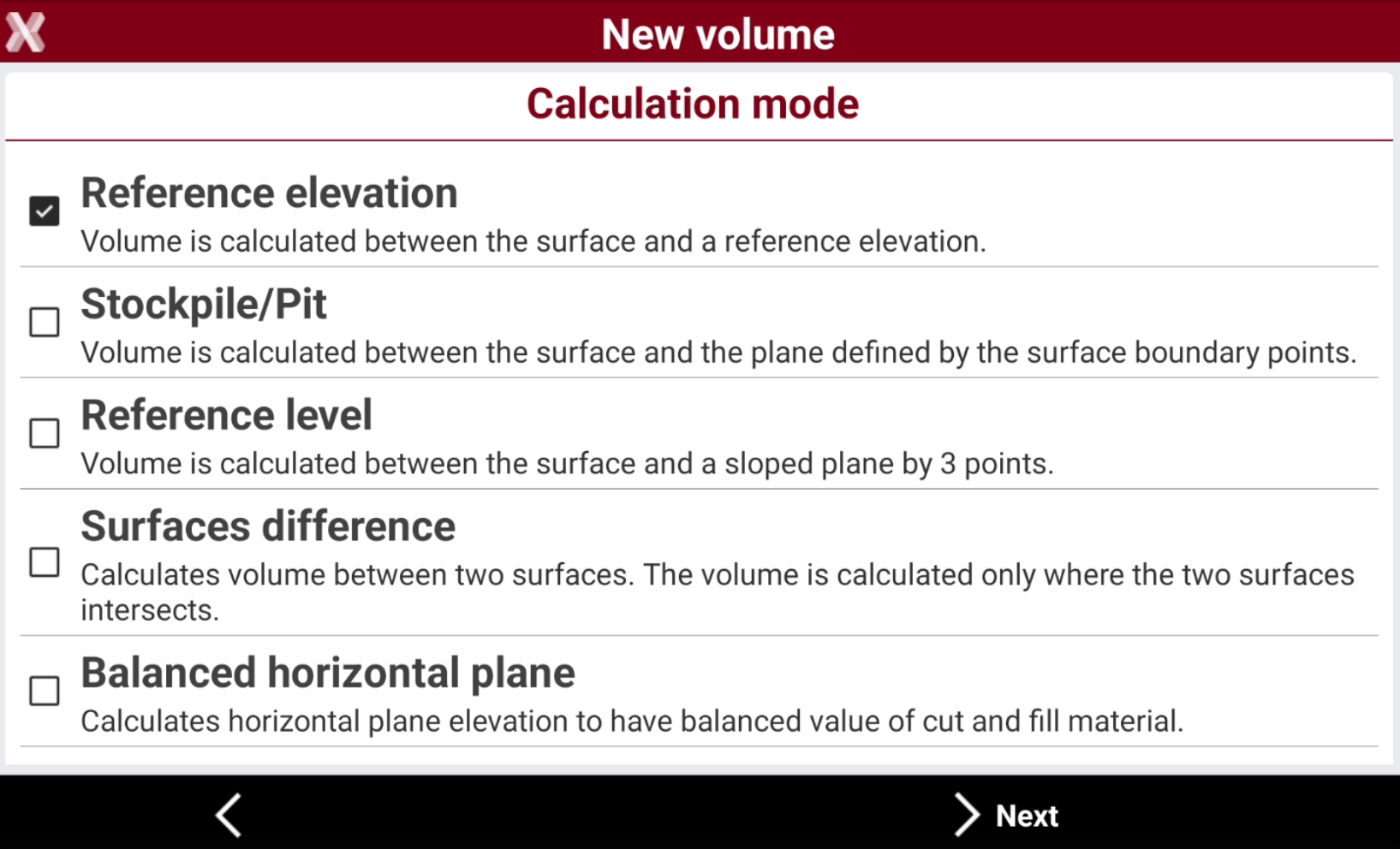
Select the calculation mode.
-
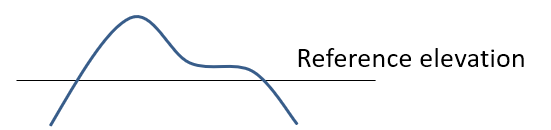
Reference elevation: the volume is calculated between the surface and a reference elevation.
-
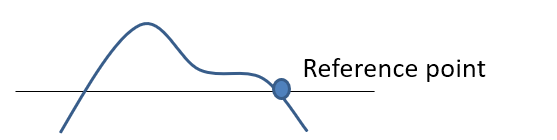
Reference point: the volume is calculated between the surface and the elevation of a reference point.
-
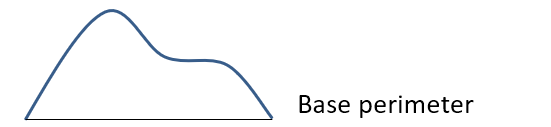
Stockpile/Pit: calculates, in reference to the reference surface, a second surface considering only the points present in the perimeter of the reference surface. Calculated is the volume between the reference surface and a second surface representing the bottom, in case of stockpile, or representing the top, in case of pit.
-
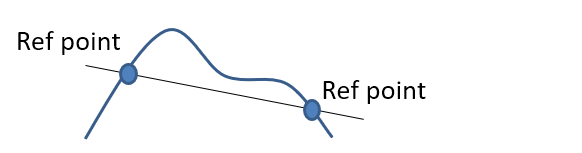
Reference level: the volume is calculated between the surface and a sloped plane by 3 points.
-
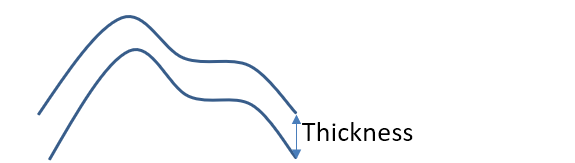
By thickness: the volume is calculated by considering a thickness on the selected surface.
-
Surface difference: calculates the volume between two surfaces. The volume is calculated only where the two surfaces intersects.

-
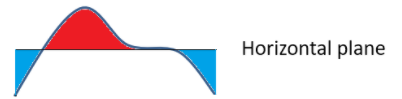
Balanced horizontal plane: calculates the optimal elevation of an horizontal plane where cut and fill volumes are balanced.
-
-
Press Next.
-
Depending on the calculation mode, enter the required information.
-
Reference elevation: select the surface and enter the reference elevation. The software creates an horizontal plane on the reference elevation.
-
Reference point: select the surface and select the reference point from CAD or from the list of topographic points. The software creates an horizontal plane on the reference elevation of the selected point.
-
Stockpile/Pit: select the surface.
-
Reference level: select the surface and select the 3 reference points from CAD or from the list of topographic points. These 3 points will be used to generate a plane.
-
By thickness: select the surface and the thickness value.
-
Surface difference: select surface 1 and surface 2. Surface 2 can be selected from the current job or from another job.
-
Balanced horizontal plane: select the surface.
-
-
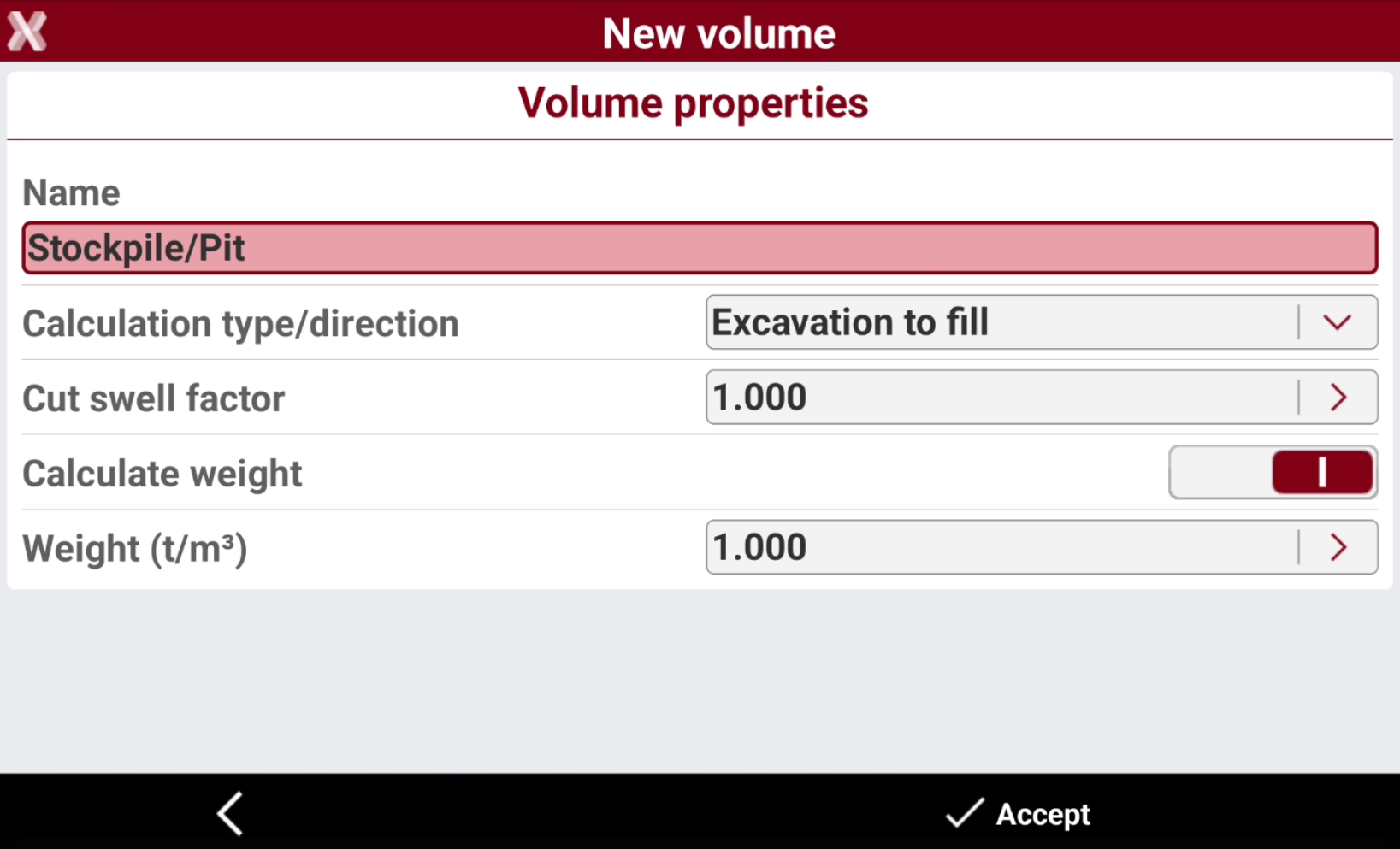
After having selected the calculation mode and set the corresponding parameters enter the Volume properties.
-
Name: name to assign to elaboration.
-
Cut swell factor: expansion factor for the cut volumes. The expansion factor can be inserted manually or chosen from a list of preset materials.
-
Calculate weight: activates the calculation of the weight of the material excavated and filled considering the specific weight.
-
Weight (t/m³): specific weight in tons per cubic meter. The specific weight can be inserted manually or chosen from a list of preset materials.
-
REB22.013 calculation: enables the calculation and report according to the REB22.013 rules (available for German language).
-
Auto adjust cut/fill: allows to automatically calculate the plane to automatically adjust the cut and fill values. This option is only available when the Calculation mode is Reference level.
-
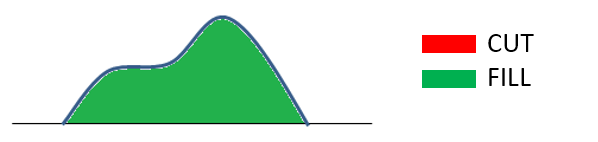
Calculation type/direction: the volume calculation of a surface can be interpreted as excavation (cut) or as a filling of material. Example: to calculate the material that must be removed that has already been removed (cut), calculate the volume of a surface below the reference elevation. To calculate the filling material to cover the excavation (fill), the amount is the same but the meaning is different. Select a case so that the volume is displayed as cut or fill.
-
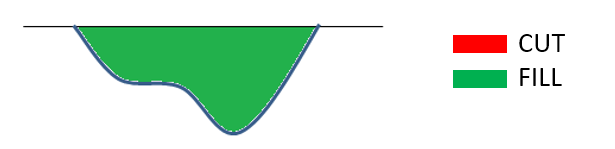
Excavation to fill: the surface represents an excavation. The goal is to calculate the material to fill that excavation. The volume over the reference surface is considered cut.
-
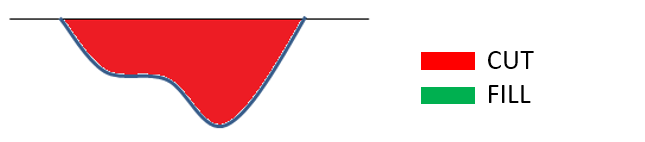
Excavation to be executed: : the surface represents an excavation. The goal is too execute the excavation to know the material to remove.
-
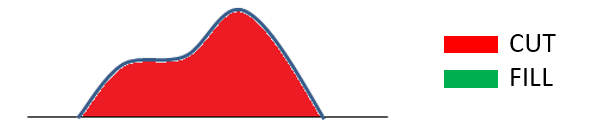
Fill material to remove: the surface represents a pile. The goal is to calculate the fill material to remove.
-
Fill material to build: the surface represents a pile. The goal is to execute the fill to know the material to realize the pile.
-
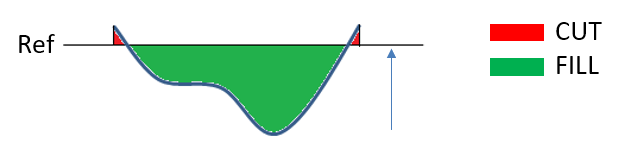
Surface to elevation: starting from a surface the volume calculation direction is towards the reference elevation. For example in an excavation the result is a fill volume.
-
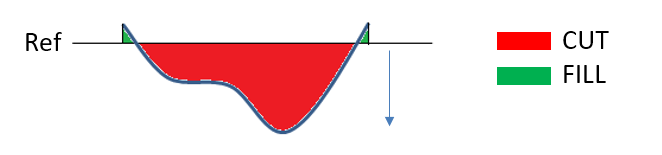
Elevation to surface: starting from a surface the volume calculation direction is from the reference elevation to the surface. For example in an excavation the result is a cut volume.
-
-
-
Press Accept to perform the calculation.
-
At the end of the calculation, all results are reported concerning volumes as well as cut and fill surfaces. See View calculated data.
Volume calculation result
-
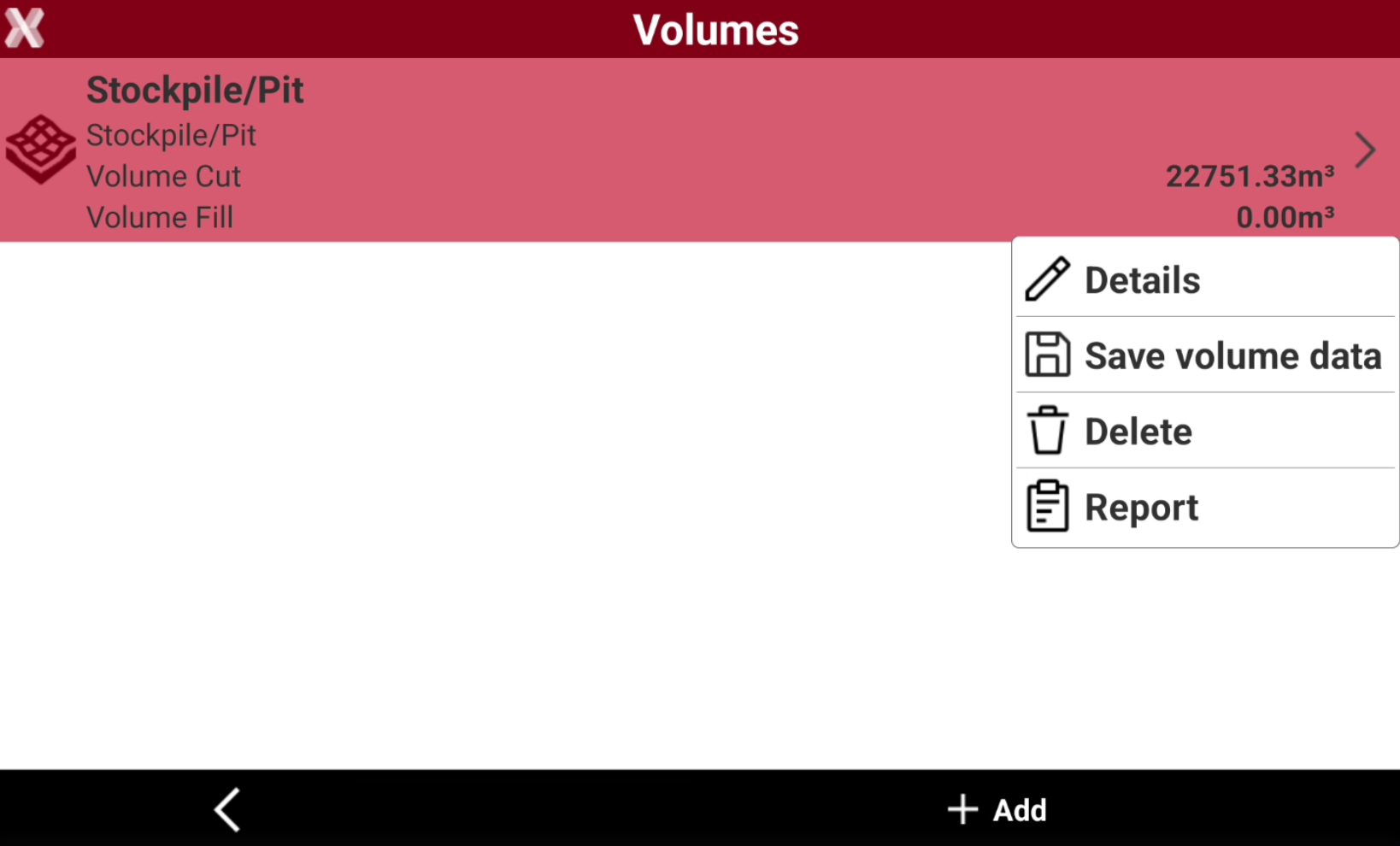
The volume calculation result are immediately available after a calculation or selecting Details from a performed calculation in Volumes page.
Details page
-
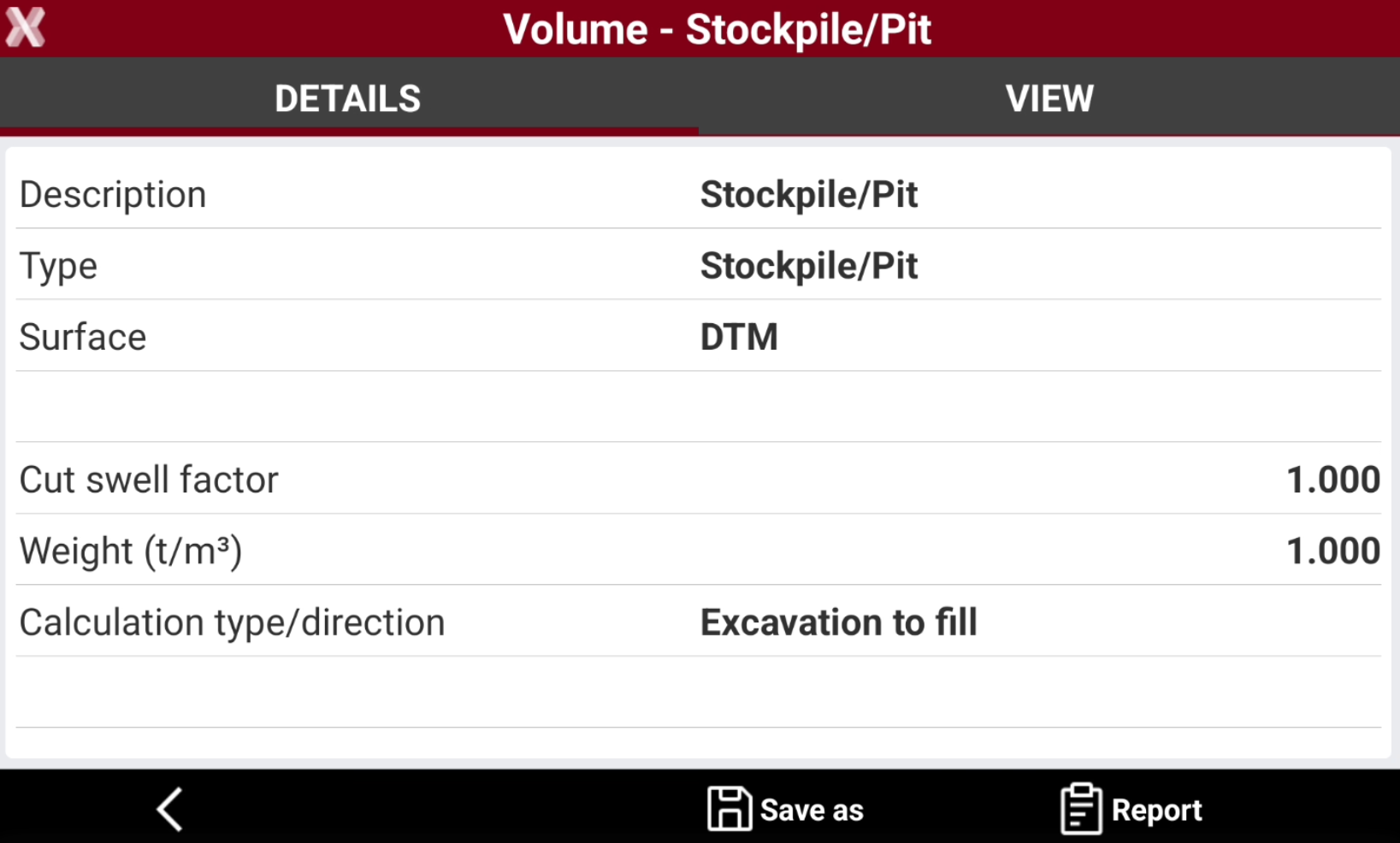
The Details page lists the result of the elaboration.
-
Press Save as to extract data from the volume calculation.
-
Press Report to generate a volume calculation report.
View page
-
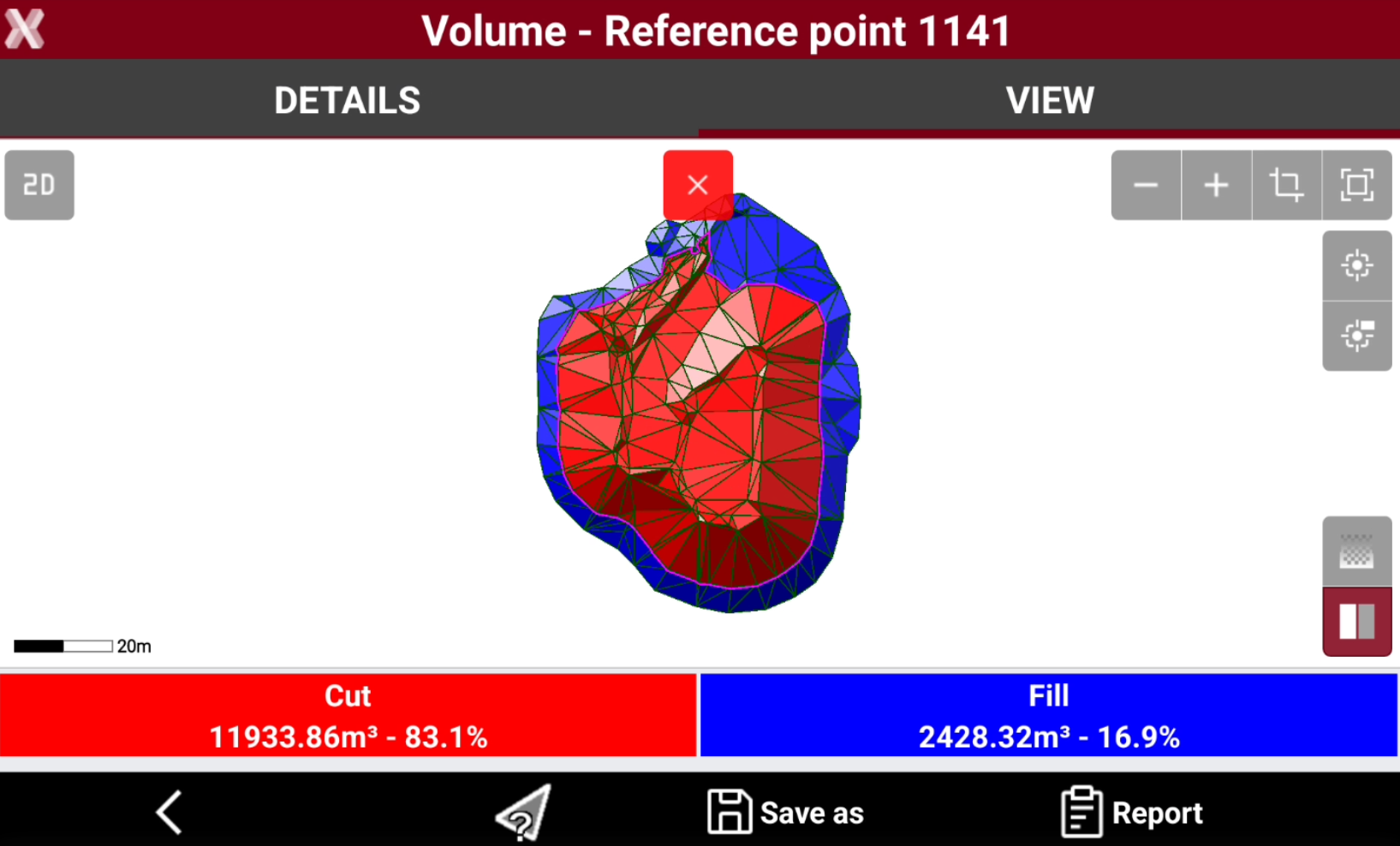
The View page has a graphic visualization of the elaboration.
-
Tap on the corresponding icons to change color visualization from fixed colors (red and blue) or gradient colors.
-

-
Red: maximum excavation zones.
-
Green: zones with no excavation or filling.
-
Blue: zones of maximum filling.
-
-

-
Red: excavation zones.
-
Blue: filling zones.
-
-
-
Tap on

Generate the calculation report
-
To generate a volume calculation report, from the Surfaces and Volumes page select Volumes.
The information are also available at the end of volume calculation selecting Report.
-
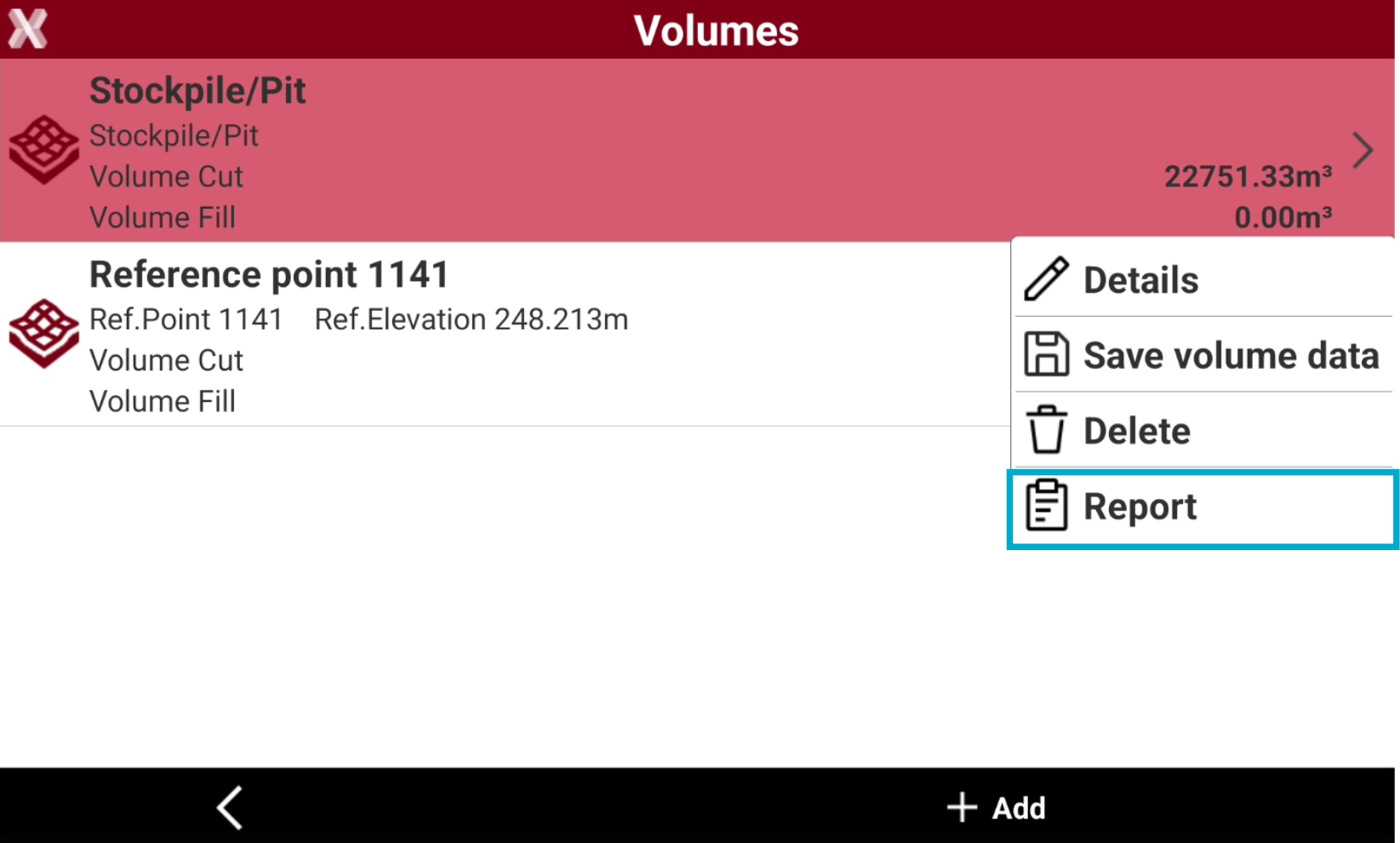
Tap on a volume calculation and select Report.
-
Select the report export options.
-
Report type:
-
Summary: includes the main volume calculation information.
-
Complete: includes the detailed information for each triangle.
-
-
Add map in background: enables the background map in the volume calculation view in report.
-
-
Press Ok.
-
The following page allows to adjust the map view. The captured view will be attached to the report.
-
Use the CAD commands to adjust the view.
-
When done click OK to create the report.
-
Select the format to export and save the file.
-
The report is saved in the selected folder.
Data extraction from volume calculation
-
From a performed volume calculations it is possible to extract data to be exported or used for stakeout operations.
-
Open the Volumes page.
The command is also available at the end of volume calculation.
-
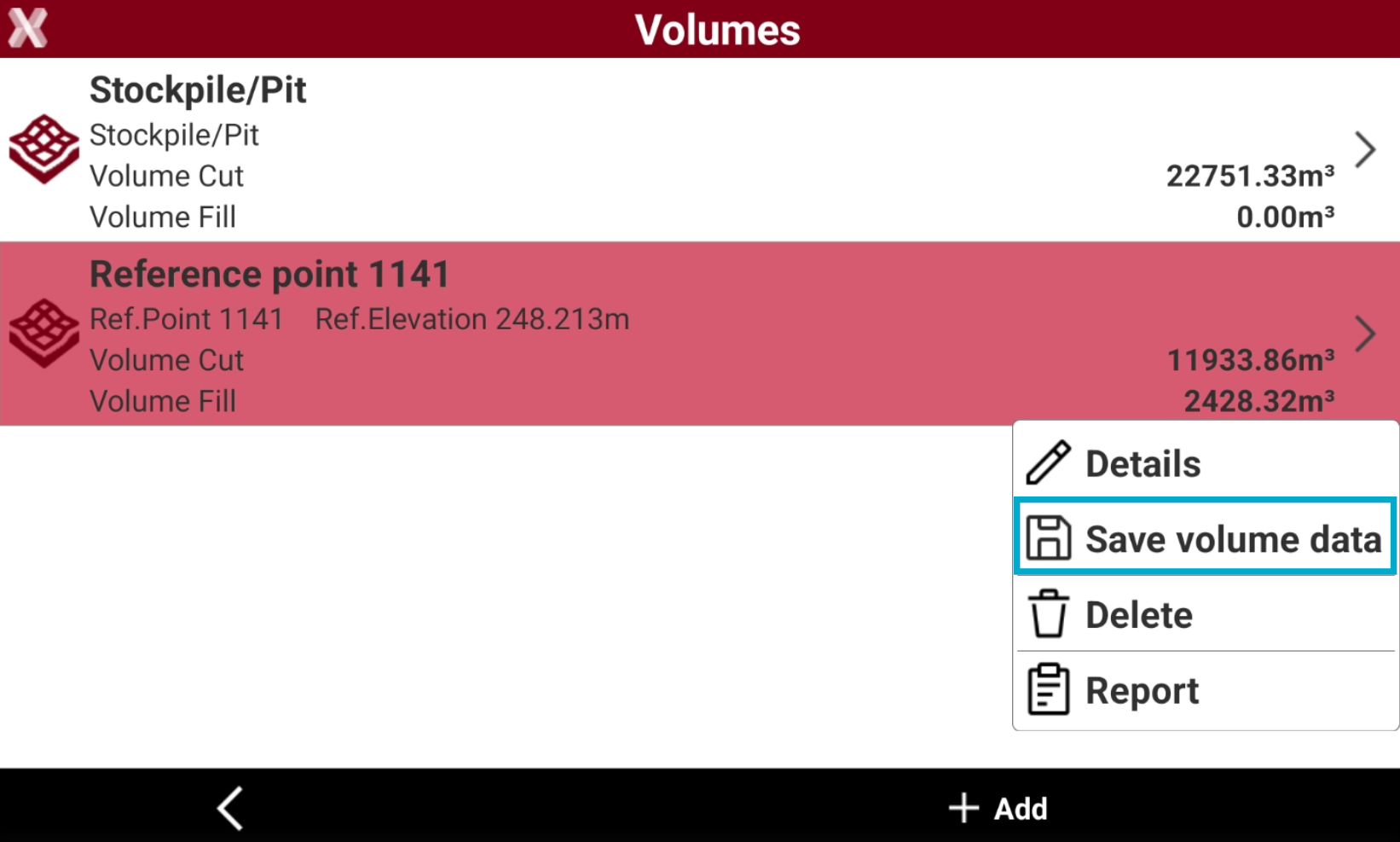
Select a volume calculation and select Save volume data.
-
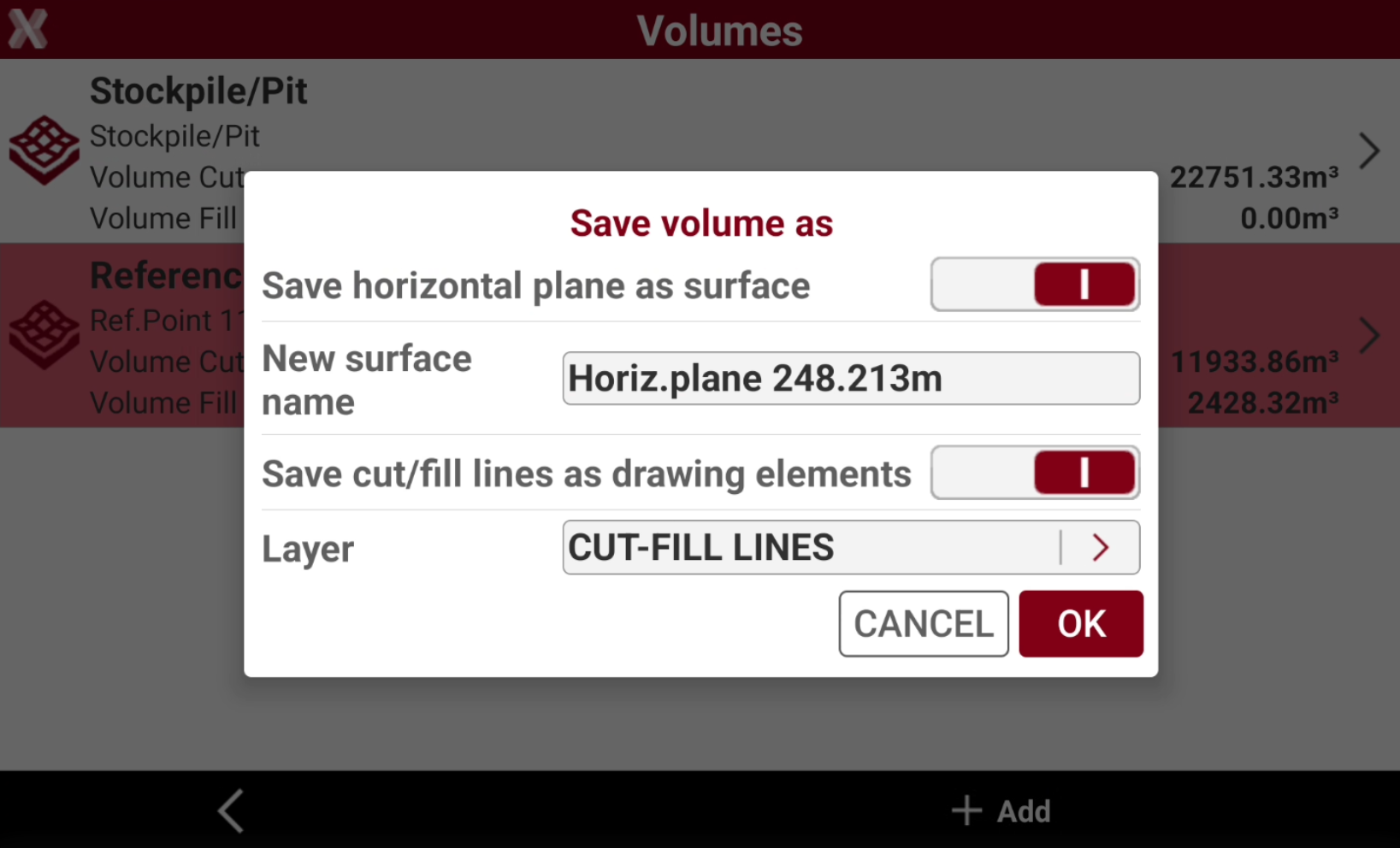
Press Save as to extract data from the volume calculation.
-
Save horizontal plane as surface: the design surface can be extracted from the volume calculation and used in stakeout. This is particularly important for volume calculation with cut-and-fill balancing. Enter the new surface name in New surface name.
-
Save cut/fill lines as drawing elements: these lines can be stored as part of the drawing and used in stakeout operations to mark the boundaries of cut and fill areas. Select the layer where to save the lines in Layer.
-
Delete a calculated volume
-
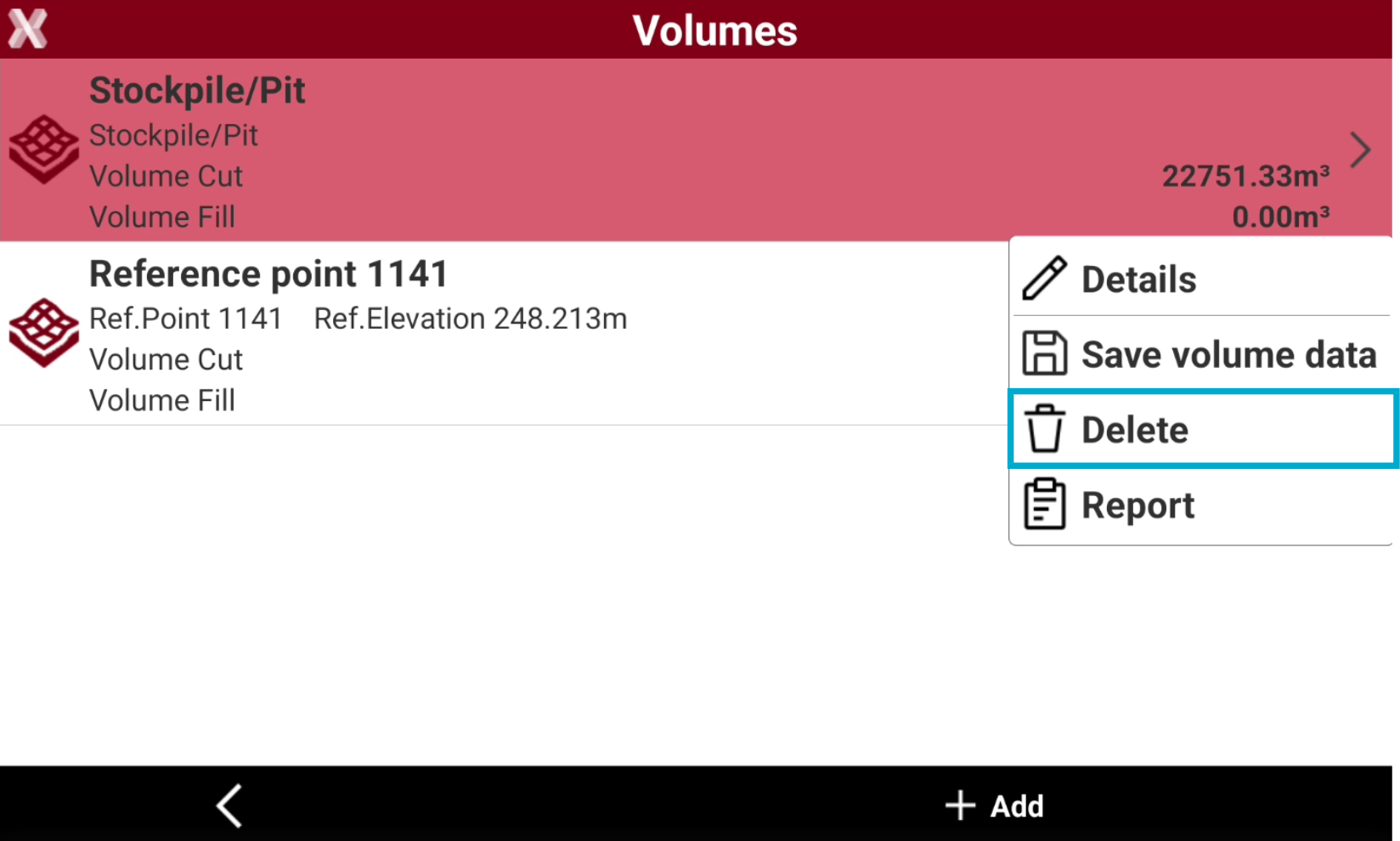
To delete a performed volume calculation from the list, from the Surfaces and Volumes page select Volumes.
-
Tap on a volume calculation and select Delete.
-
Press YES to confirm.
-
The operation cannot be undone.