-
If the current profile is related to a total station, a window to perform simple measurements without saving data can be opened from main menu at every moment.
-
The TPS Basic application do not require any setup. Measurements and points are not saved.
-
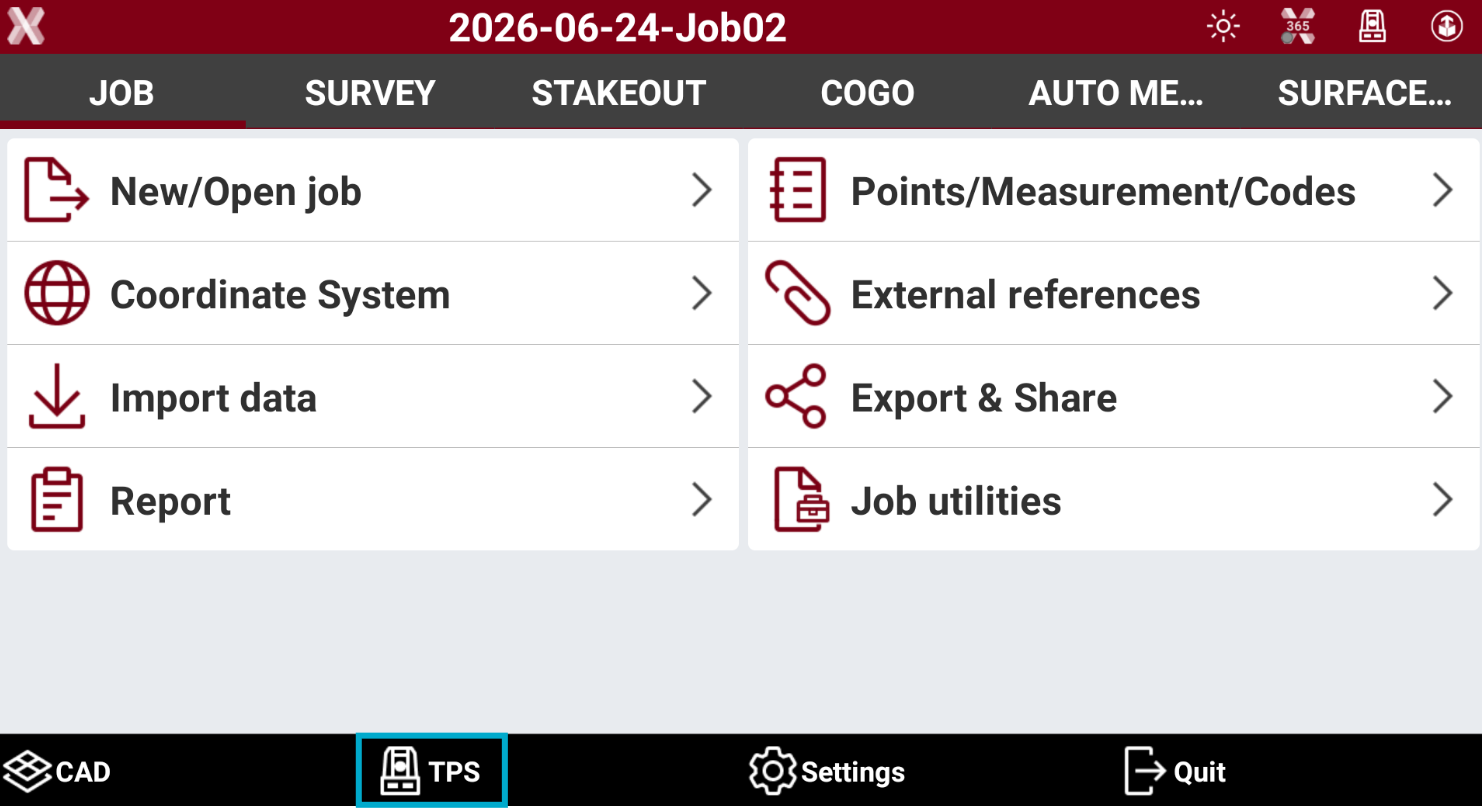
To open the TPS Basic application from the main menu tap on TPS.
-
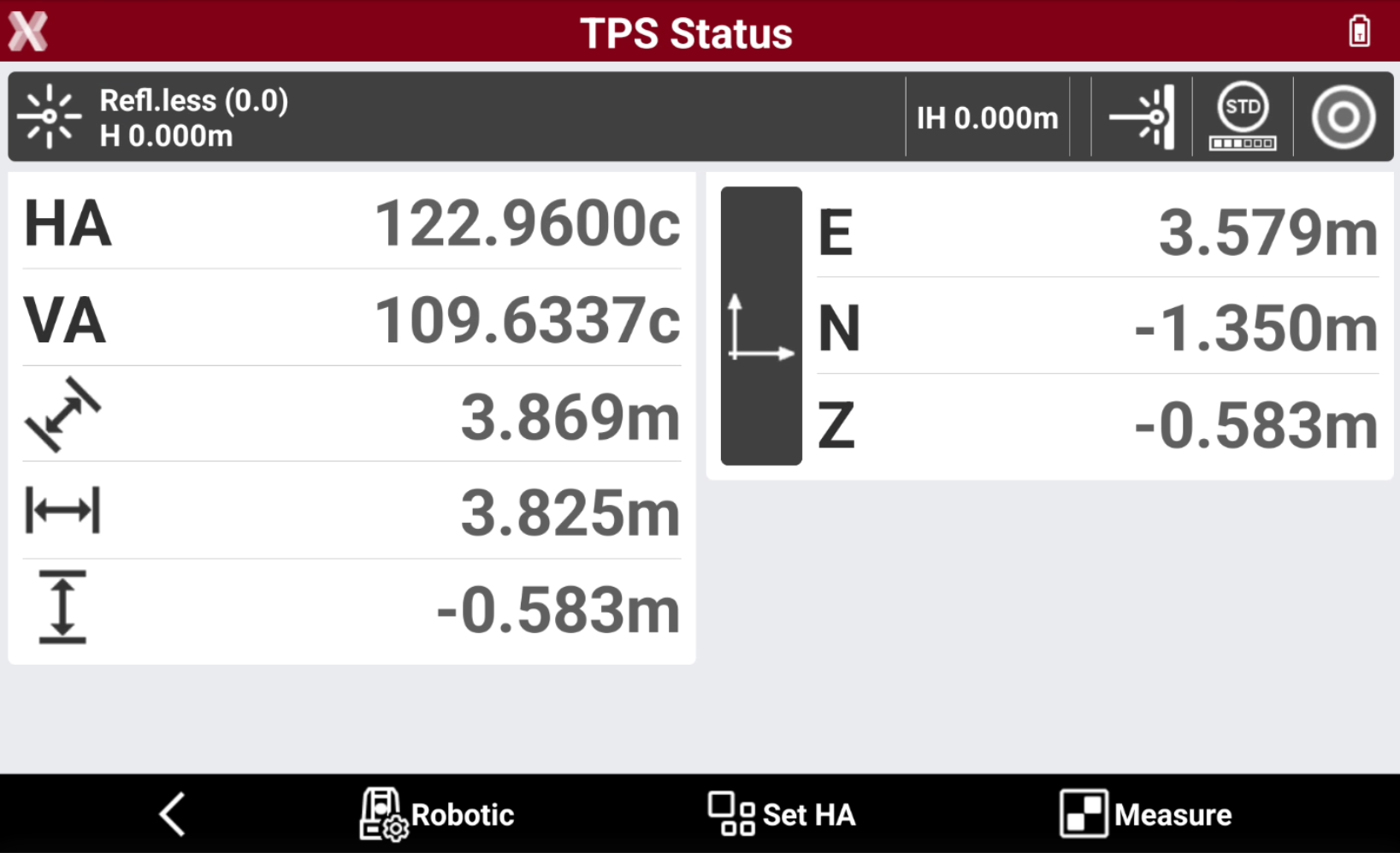
This opens the TPS Status page.
-
The bottom toolbar has the following functions:
-

Robotic/TPS: opens the total station control panel.
-
Set HA: sets the horizontal angle for the station.
-
Measure: starts the measure. At the end of the measurements, the distances measured are reported in the corresponding fields.
-
-
In the upper part of the window, a panel allows to access to other functions to control the total station.
-

Current target: the current type of target. Tap to access a window that allows to change the type of target and the target height.
-
Instrument height: select it to change height.
-
Laser pointer: enables/disables the red laser pointer.
-
EDM mode: changes the EDM measurement mode (standard, fast, tracking).
-
Electronic level status: the instrument electronic level status. Press to open the Electronic level page.
-
Green
: compensator is enabled and instrument is leveled.
-
Red
: compensator is enabled and instrument is not leveled.
-
Grey
: compensator is disabled.
-
-
-
After a measurement is performed the software shows different results:
-
HA: horizontal angle.
-
VA: vertical angle.
-
: sloped distance.
-
: horizontal distance.
-
: vertical distance.
-
ENZ: point coordinate in East, North and Elevation. Click on the bar to change to ΔE, ΔN, ΔZ.
-