-
Making the orientation of the station is usually the first step before measuring with a total station.
-
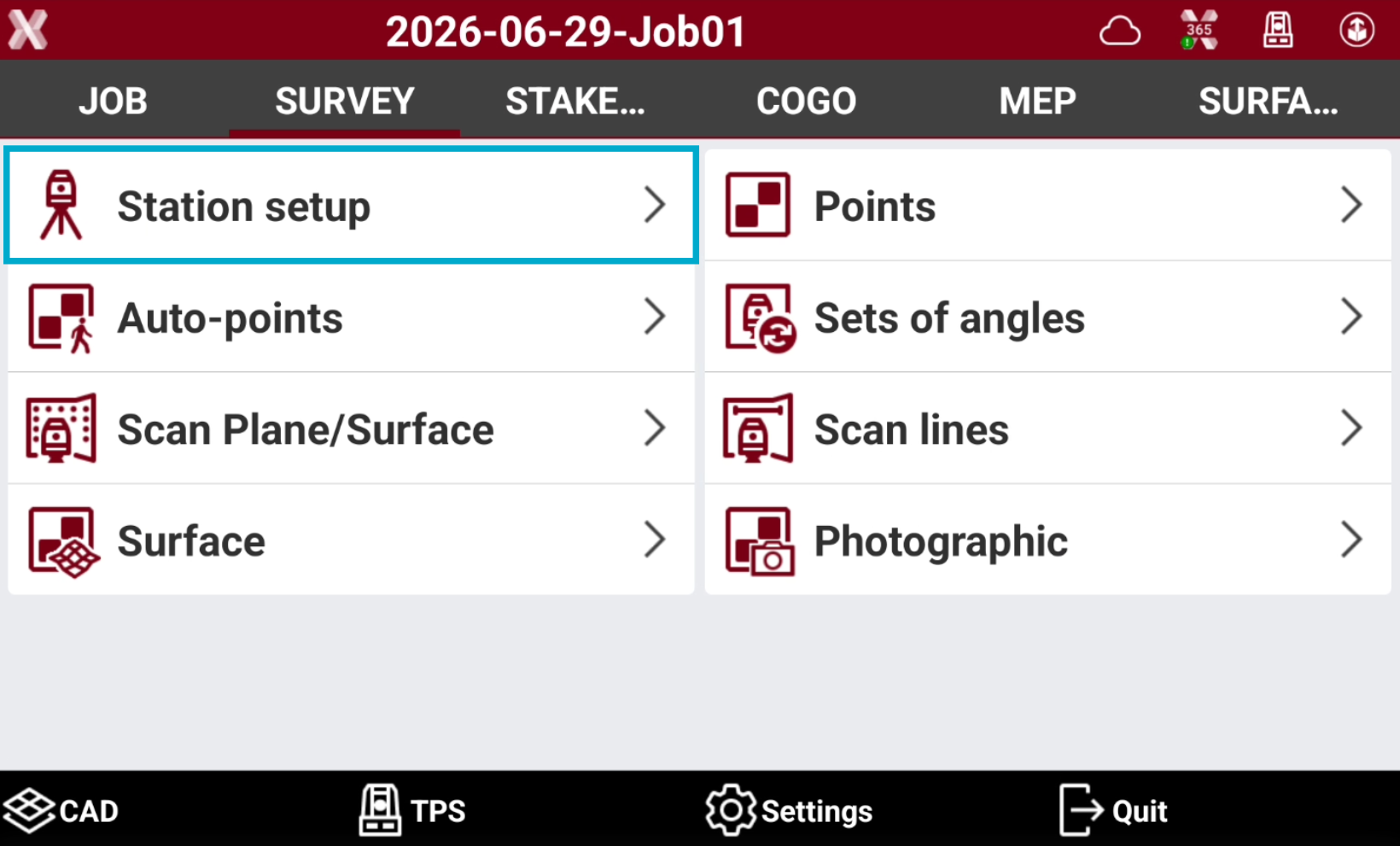
To perform the station setup open the Survey page.
-
Select Station setup.
-
Select a station method or click New setup.
Calculate instrument height
-
The procedures for the station setup share the following options for the instrument height calculation.
-
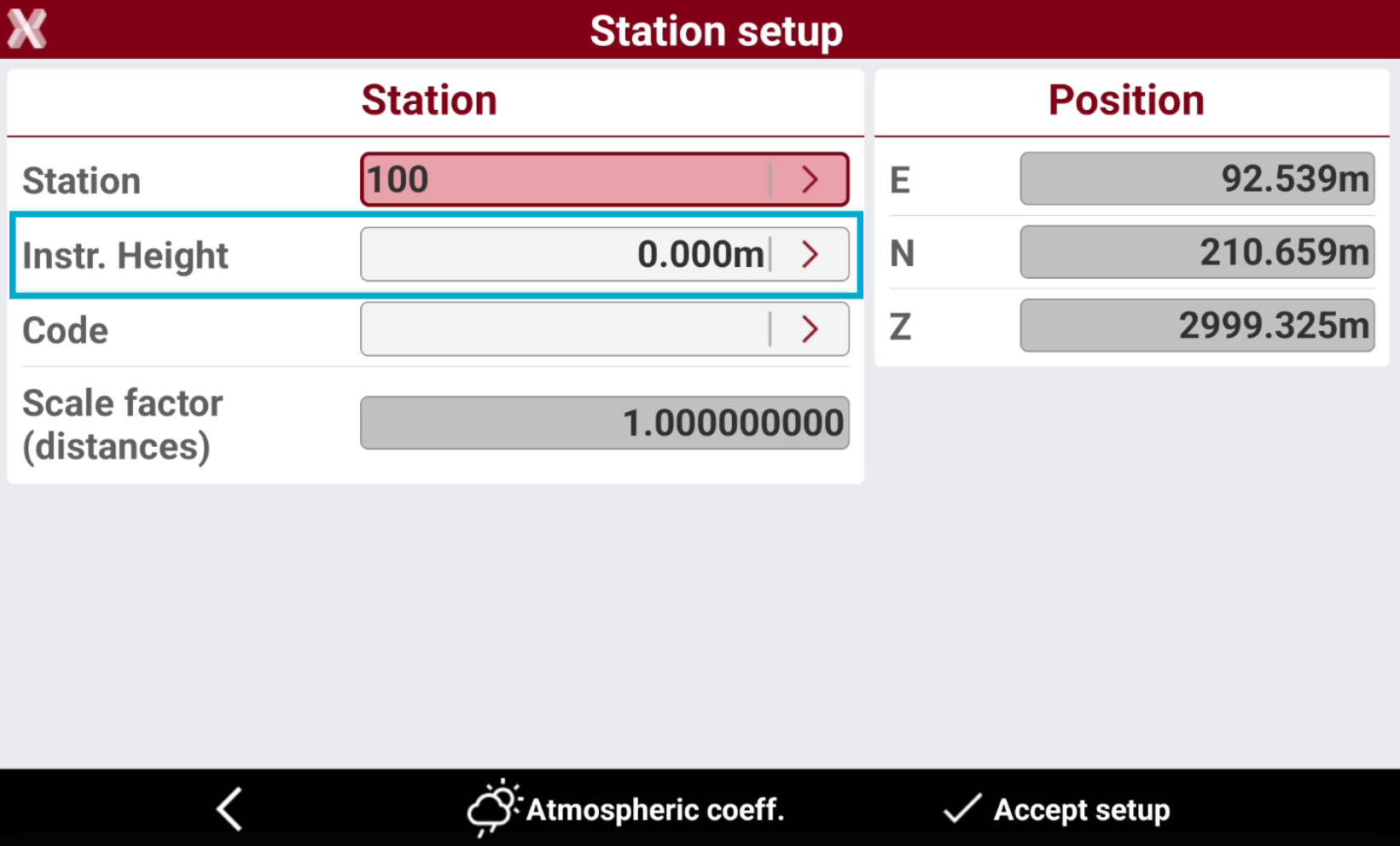
In the Station setup page tap on > icon in Instrument Height field to calculate the instrument height.
-
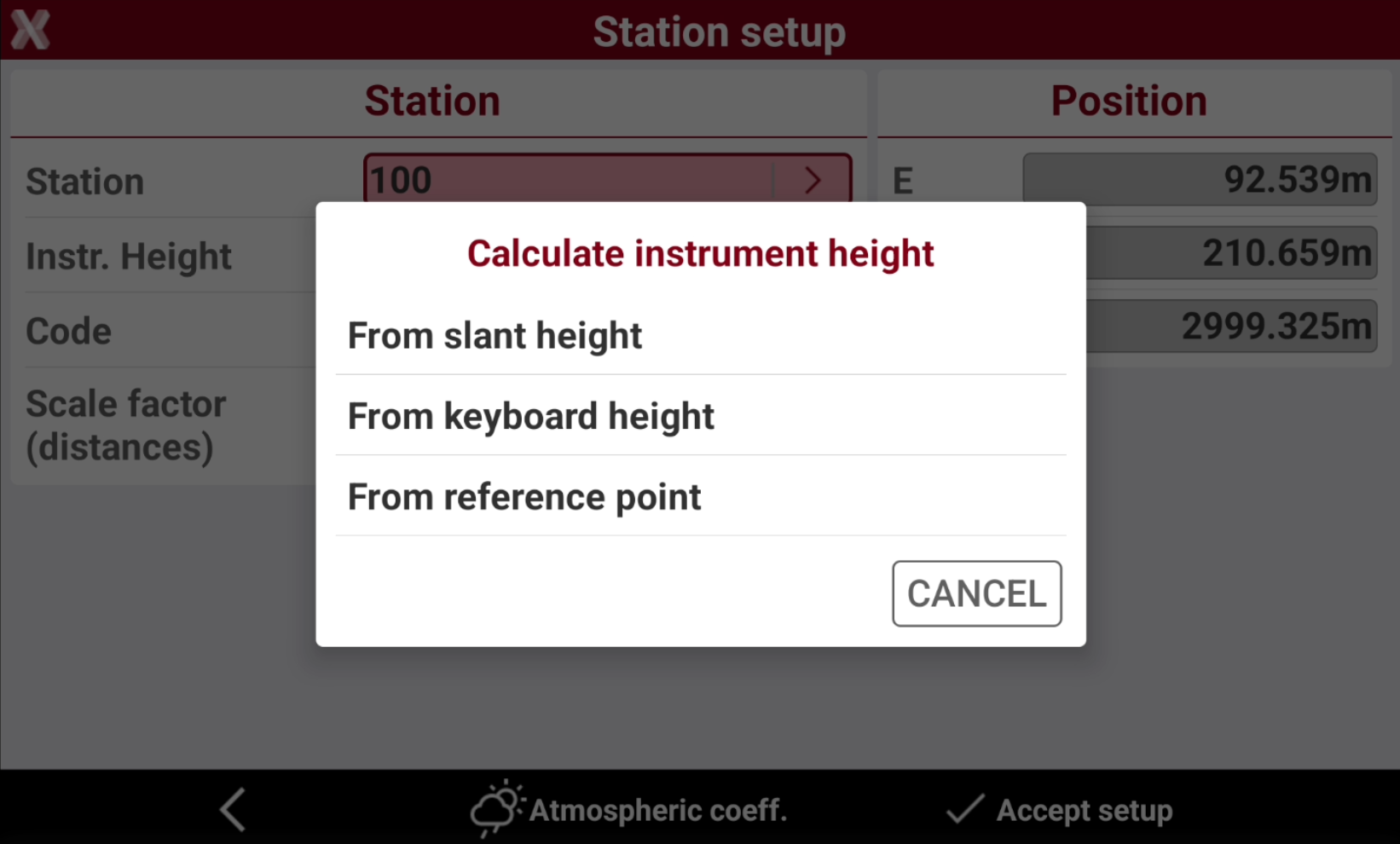
Select the calculation method.
-
From slant height: the instrument height is calculated from the slant height from the TPS side marker to the reference point.
-
From keyboard height: the instrument height is calculated from the slant height from the TPS keyboard to the reference point.
-
From reference point: the instrument height is calculated measuring a reference point.
-
Calculate instrument height from slant height
-
Measure the slant height on the TPS side marker. The instrument height is calculated using the reference width.
-
Select From slant height.
-
TPS model: brand and model of the active profile.
-
TPS reference width (R): the TPS reference width. This value is entered by the software on known models.
-
Slant height (S): slant height.
-
Instrument height (H): calculated instrument height.
-
Calculate instrument height from keyboard height
-
Measure the slant height to the bottom border of the keyboard. The instrument height is calculated using the offset values.
-
TPS model: brand and model of the active profile.
-
Keyboard horiz. offset (R): horizontal distance from the center of the telescope to the bottom border of the keyboard. This value is entered by the software on known models.
-
Keyboard vert. offset (O): vertical distance from the bottom border of the keyboard to the center of the telescope. This value is entered by the software on known models.
-
Slant height (S): slant height.
-
Instrument height (H): calculated instrument height.
-
Calculate instrument height from reference point
-
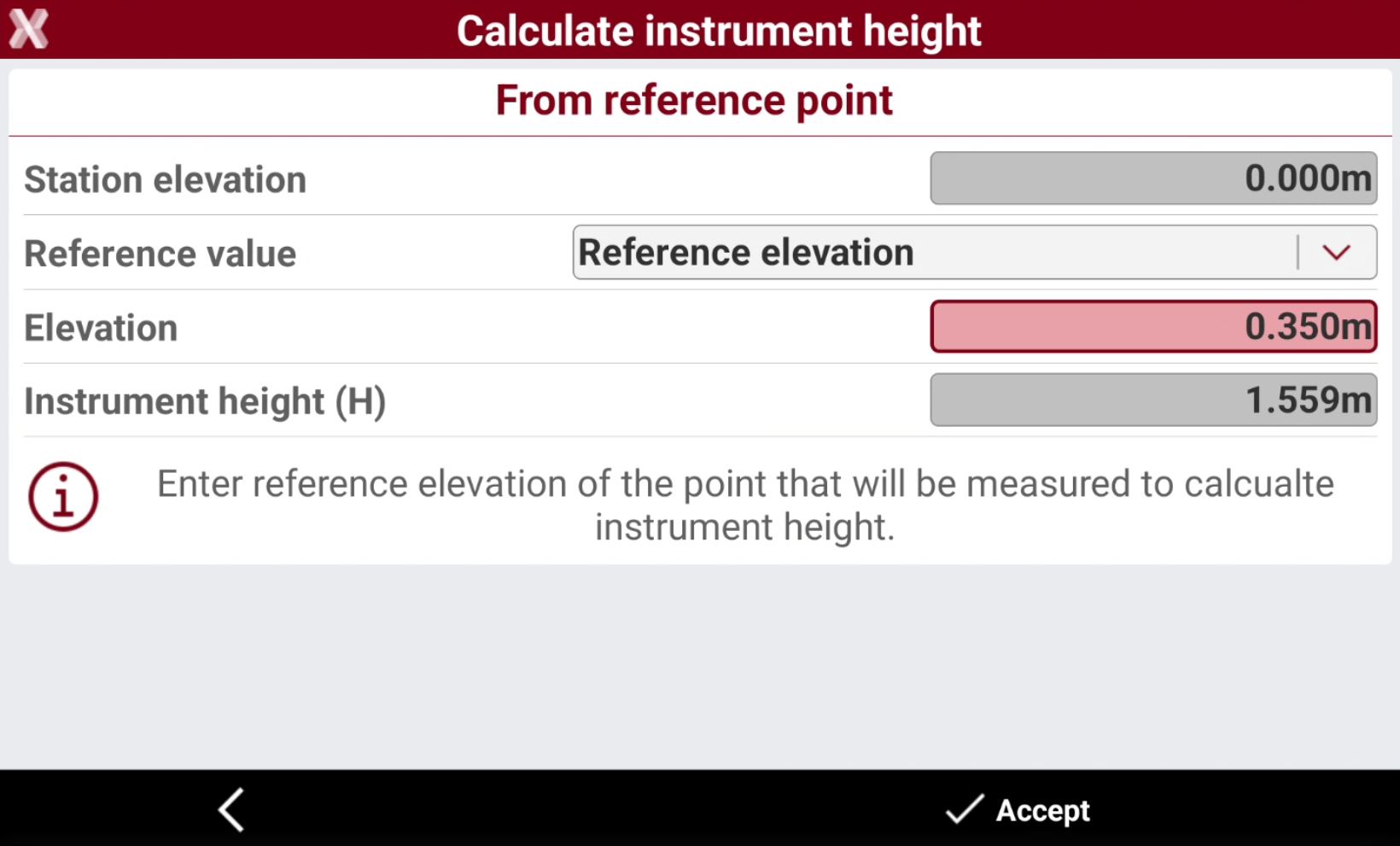
Measure a reference point with a known elevation to calculate the instrument height.
-
Station elevation: current elevation of the station.
-
Reference value: select:
-
Reference point: requires either the coordinates of a known point or pointing the telescope to and measure a known point.
-
Reference elevation: requires pointing the telescope to a known point with the desired elevation.
-
-
Point: reference point for the calculation. Tap to access to the options.
-
Elevation: shows or sets the reference elevation according to the set reference value.
-
Instrument height (H): calculated instrument height.
-
Backsight to known point
-
The station has been placed on a point of known coordinates and the orientation is determined through the measurement of a reference point with known coordinates.
The reference point must available in the list of topographic points or in the list of reference points.
-
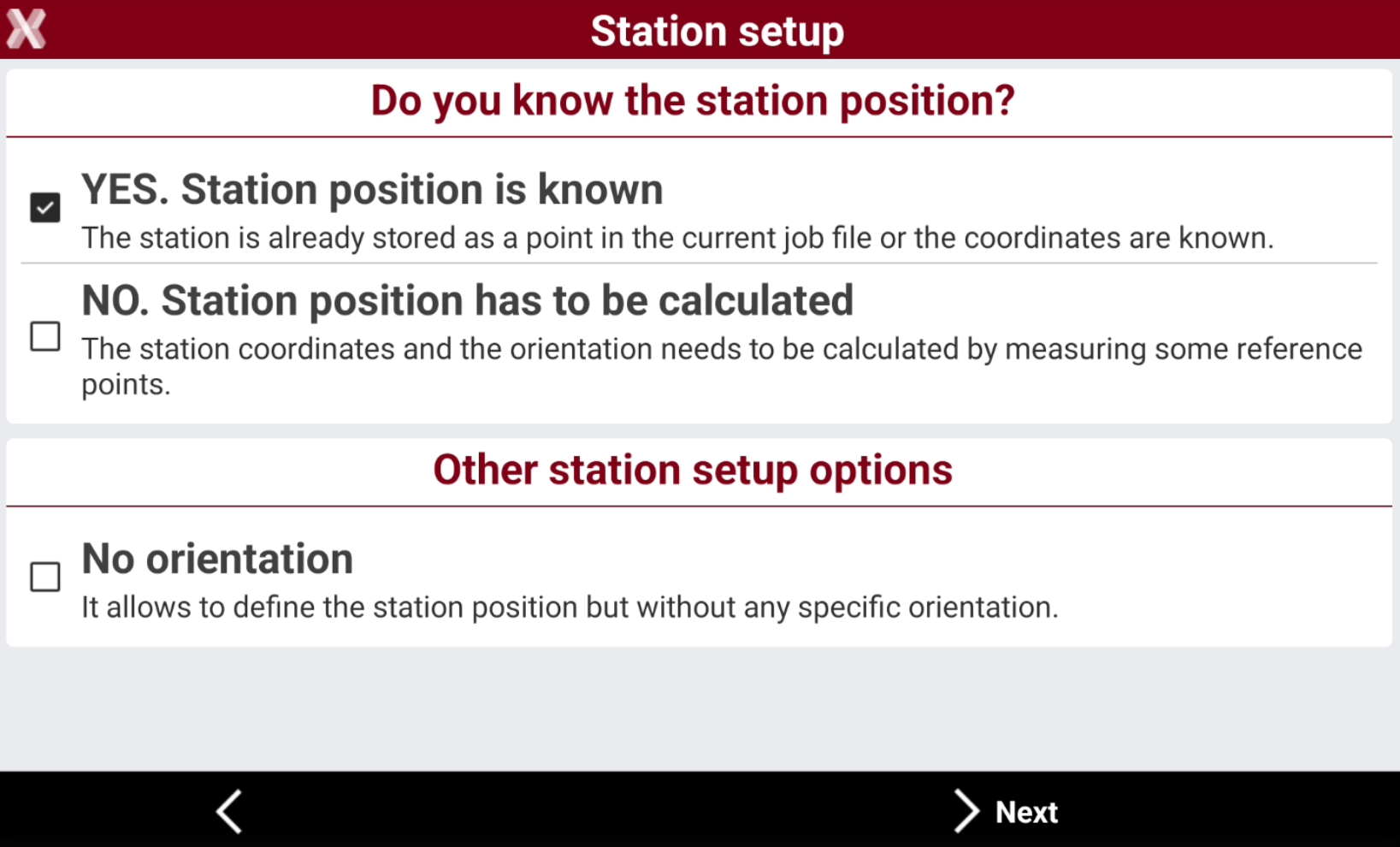
Select Yes. Station position is known.
-
Select Backsight to known point.
-
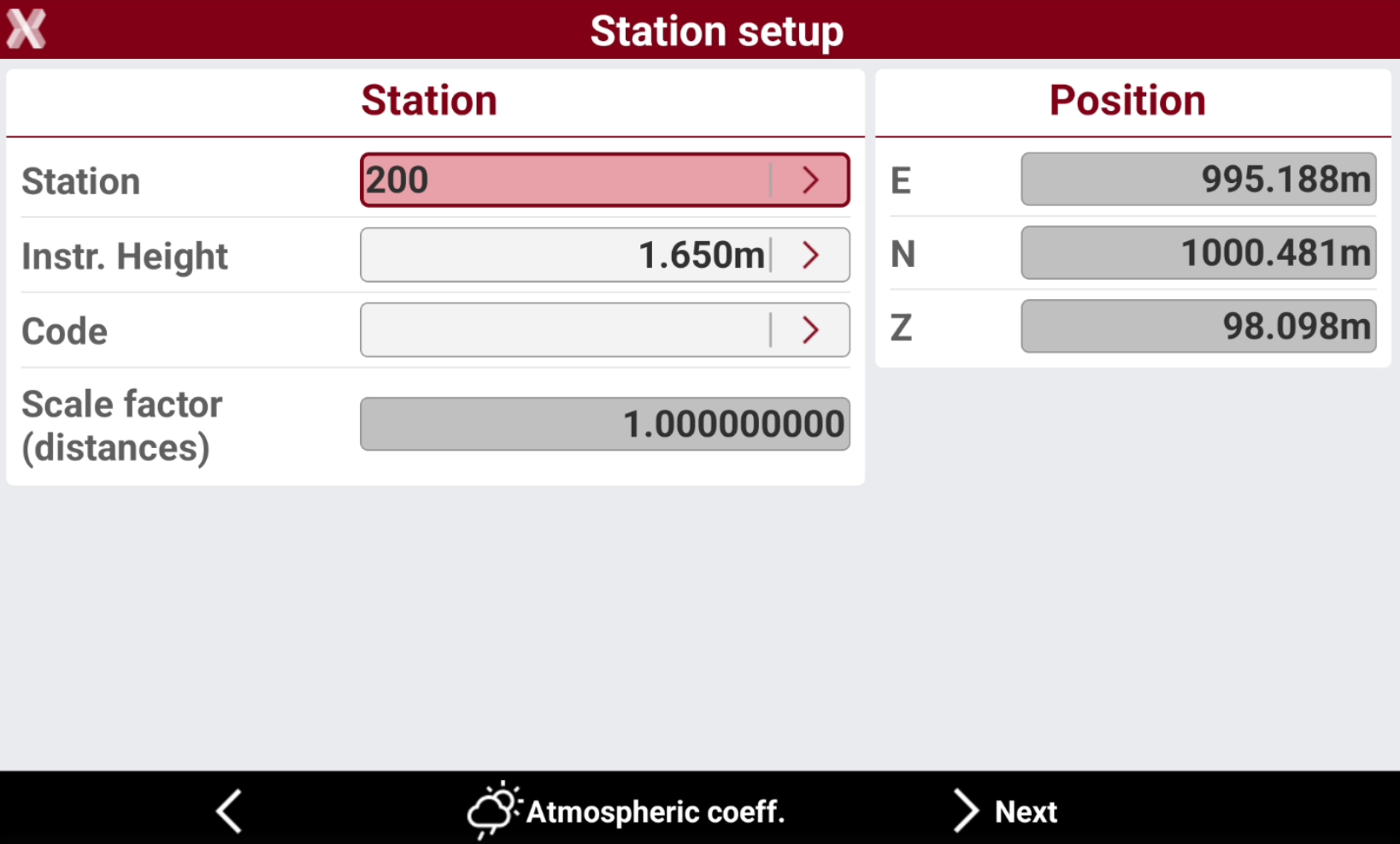
Station: name of the station. Select a point existing in the job.
-
Instrument height: elevation of the total station from the ground. It is possible to calculate the height of the instrument.
-
Code: code to assign to the station point in case a new point is created.
-
E, N, Z: coordinates of the station. When an existing point was selected, the values cannot be edited.
-
-
Select Atmospheric coeff to change the atmospheric coefficients.
-
Select Next to proceed to define the reference point.
-
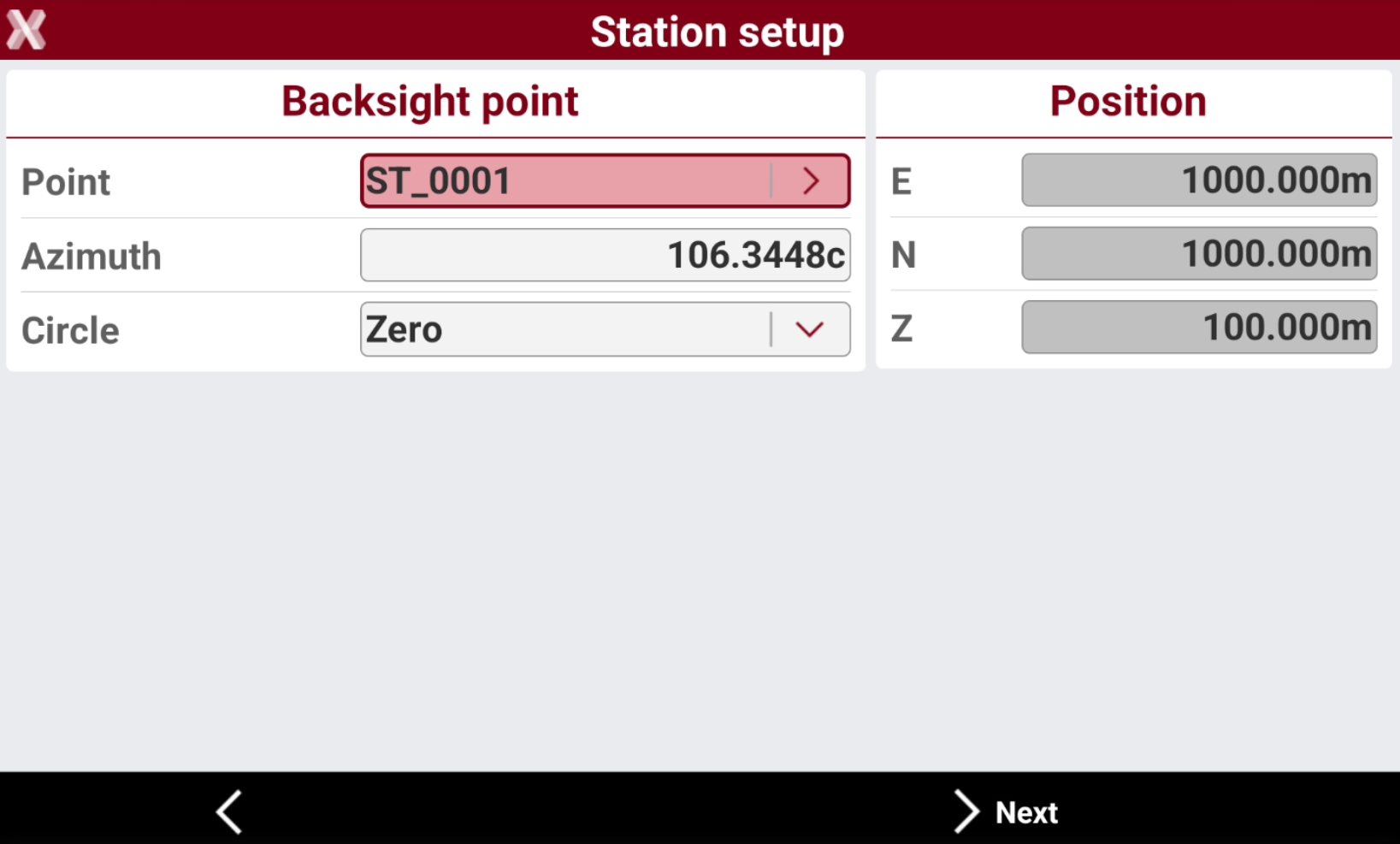
Point: specify the reference point which must be measured for the calculation of the station orientation.
-
Azimuth: the azimuth between the position of the station and the reference point is calculated.
-
Circle: define how to set the horizontal angle of the station:
-
Current value: the angle of the station is not modified.
-
Zero: the angle of the station is reset to the reference point.
-
Azimuth: the angle of the station is set to the azimuth value.
-
-
-
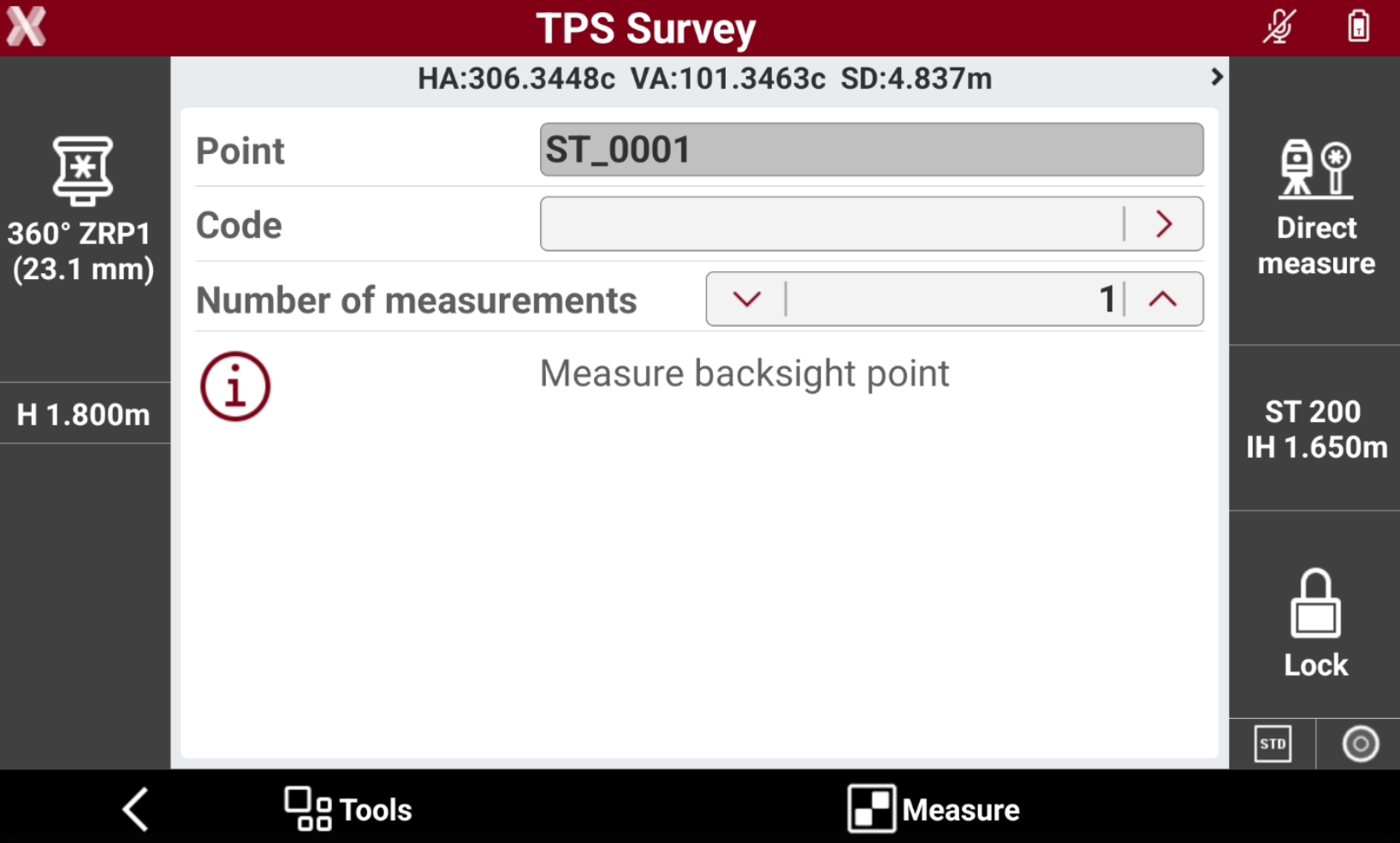
Press Next to measure the backsight point.
-
Aim the point of orientation.
-
Tap Measure.
-
The calculated data and the differences for angle and distance are displayed.
-
Tap Accept setup to confirm set data and complete procedure.
Backsight by azimuth
-
The station has been placed on a point of known coordinates and the orientation is determined through the measurement of a known azimuth.
-
Select Yes. Station position is known.
-
Select Backsight by azimuth.
-
Station: name of the station. Select a point existing in the job.
-
Instrument height: elevation of the total station from the ground. It is possible to calculate the height of the instrument.
-
Code: code to assign to the station point in case a new point is created.
-
E, N, Z: coordinates of the station. When an existing point was selected, the values cannot be edited.
-
-
Click Atmospheric coeff to change the atmospheric coefficients.
-
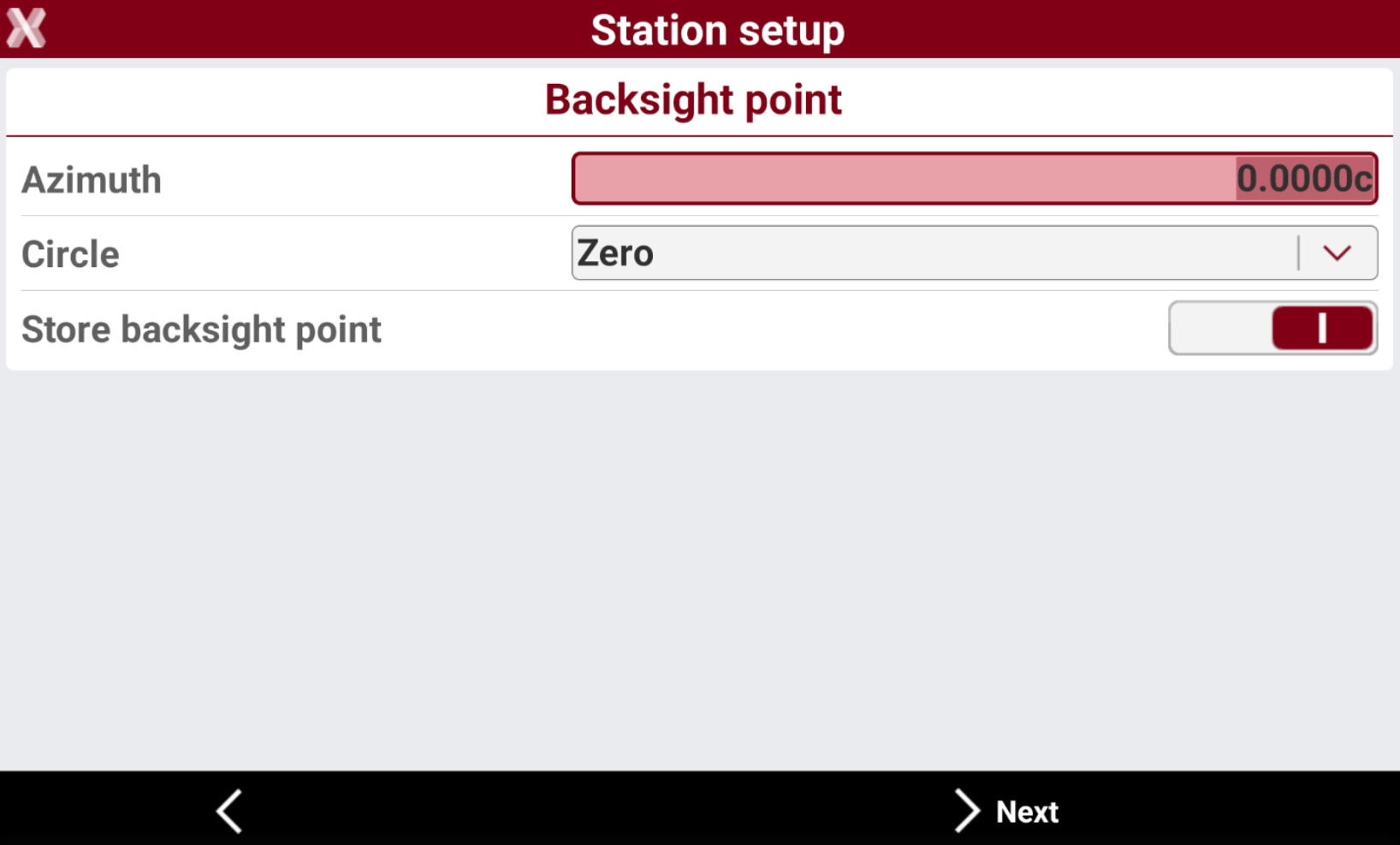
Click Next to proceed to define the backsight point.
-
Azimuth: the azimuth between the position of the station and the reference point is calculated.
-
Circle: define how to set the horizontal angle of the station:
-
Current value: the angle of the station is not modified.
-
Zero: the angle of the station is reset to the reference point.
-
Azimuth: the angle of the station is set to the azimuth value.
-
-
Store backsight point: enables the storing in the point list of the backsight point.
-
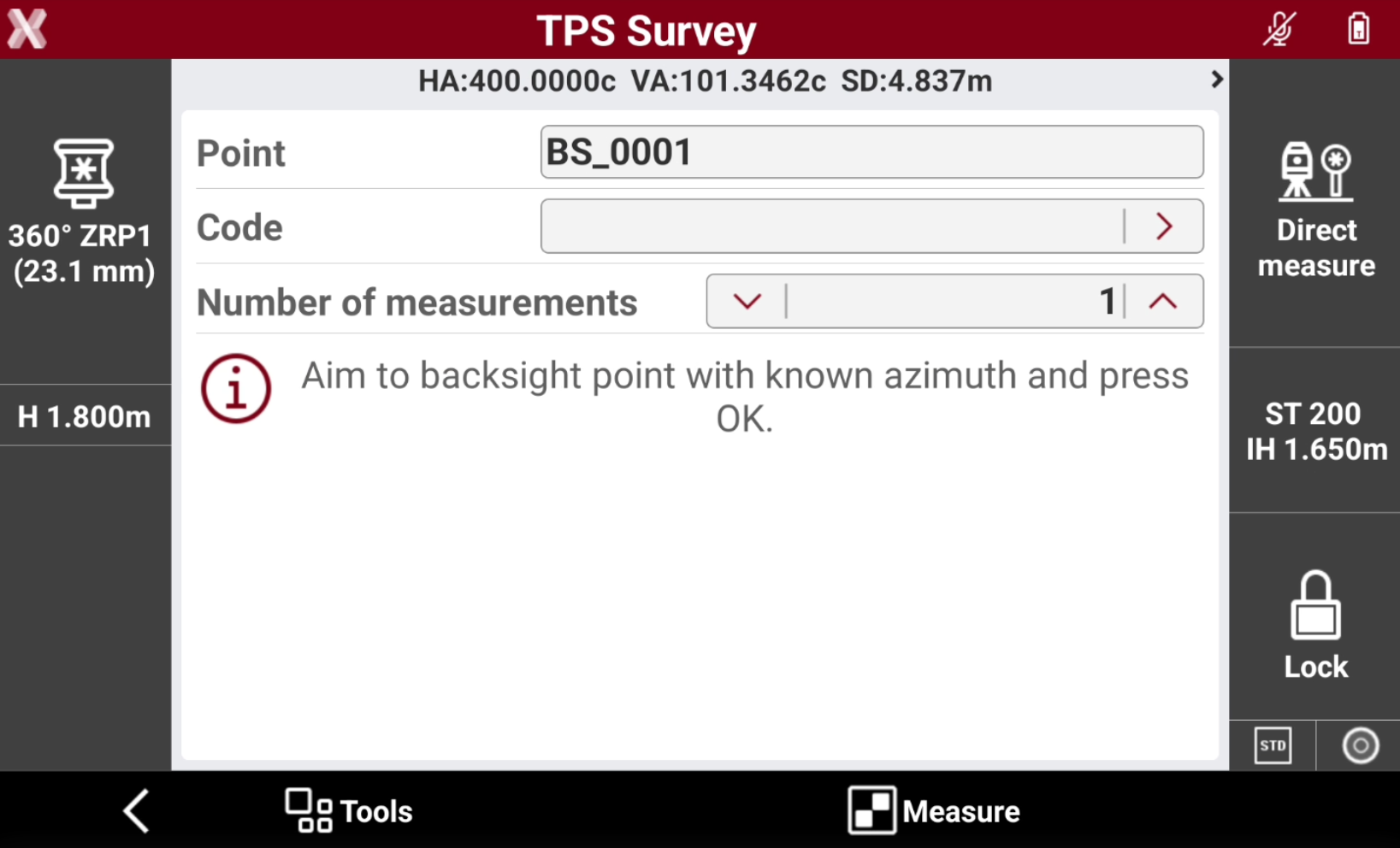
Press Next to measure the backsight point.
-
-
Aim the point of orientation.
-
Tap Measure.
-
The calculated data and the differences are displayed.
-
Tap Accept setup to confirm set data and complete procedure.
Orientation to multi points
-
The station has been placed on a point of known coordinates and the orientation is determined through the measurement of multiple reference point with known coordinates.
The reference points must available in the list of topographic points or in the list of reference points.
-
Select Yes. Station position is known.
-
Select Orientation to multiple points.
-
Station: name of the station. Select a point existing in the job.
-
Instrument height: elevation of the total station from the ground. It is possible to calculate the height of the instrument.
-
Code: code to assign to the station point in case a new point is created.
-
E, N, Z: coordinates of the station. When an existing point was selected, the values cannot be edited.
-
-
Click Atmospheric coeff to change the atmospheric coefficients.
-
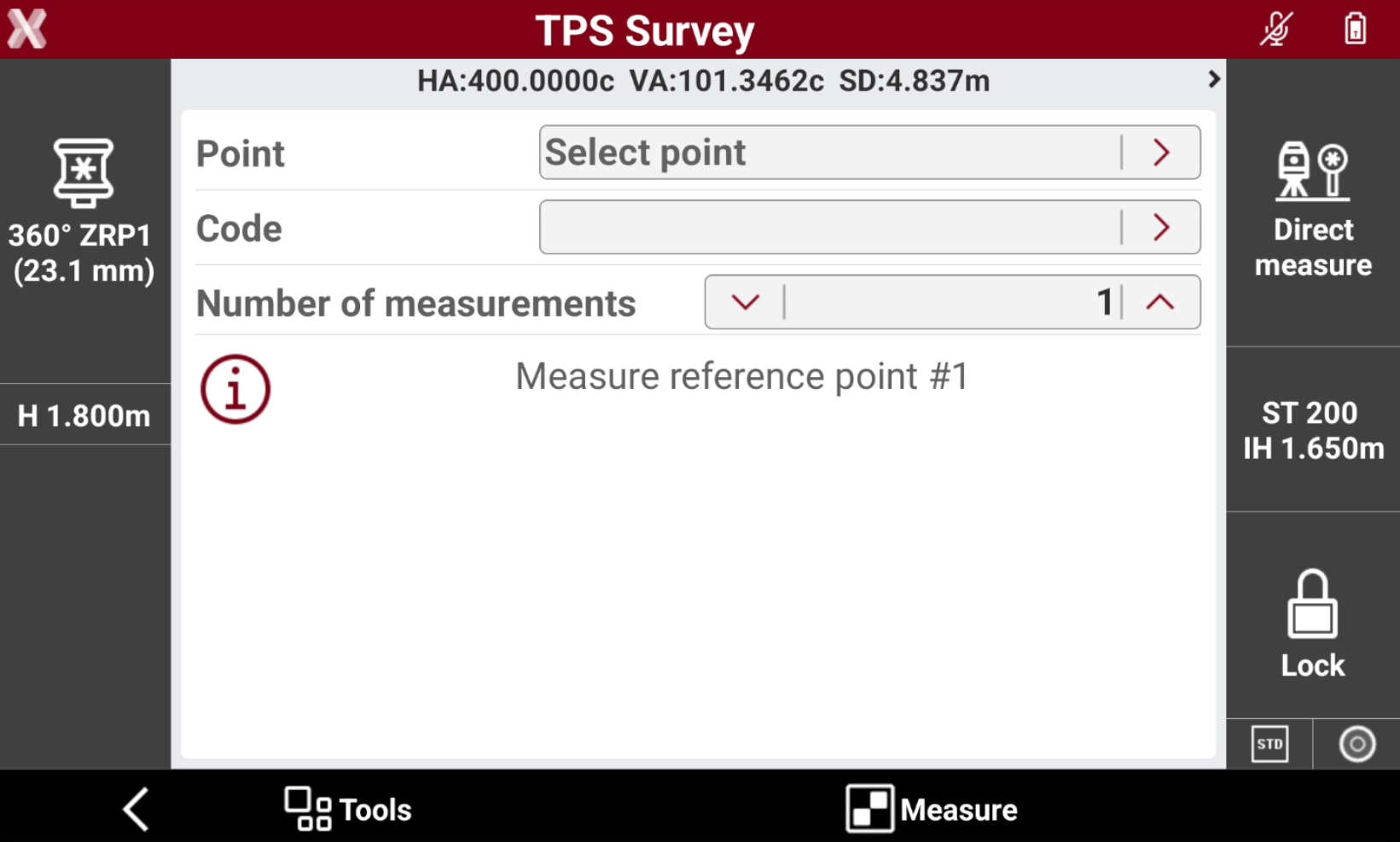
Press Next to measure the first backsight point.
-
Aim the point of orientation.
-
Tap Measure.
-
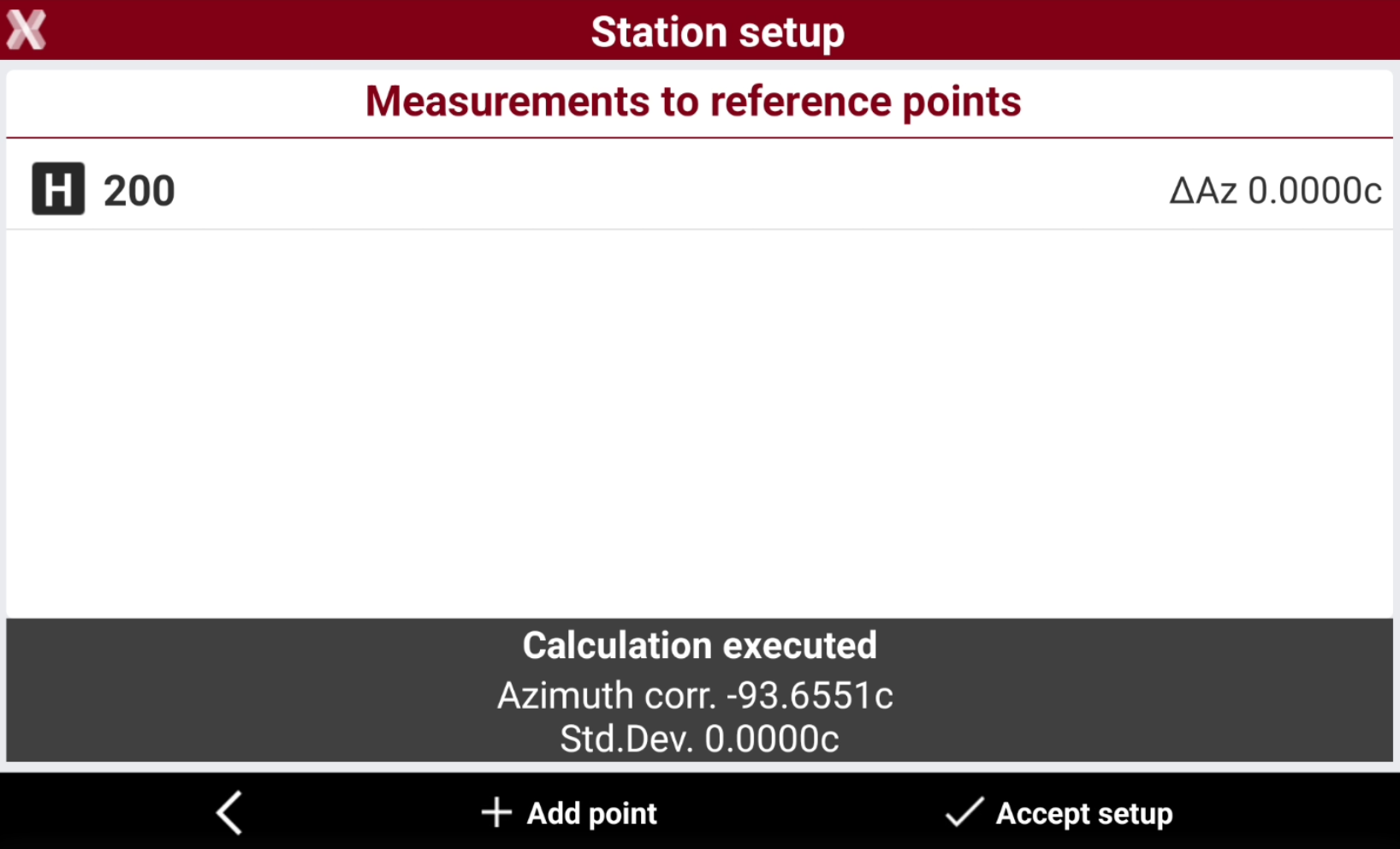
The first measurement to the reference point is added to the list of measurements.
-
Click Add point to add a measurement to a new reference point.
-
The measured points are reported in a table showing the differences calculated at each point and the total standard deviation on the orientation calculation.
-
Press H to enables and disables the use of the measurement for the orientation calculation.
-
Tap Accept setup to confirm set data and complete procedure.
Backsight to known point and traverse
-
The station has been placed on a point with known coordinates and the orientation is determined through the measurement of a reference point with known coordinates and a foresight traverse point.
-
Select Yes. Station position is known.
-
Select Backsight to known point and traverse.
-
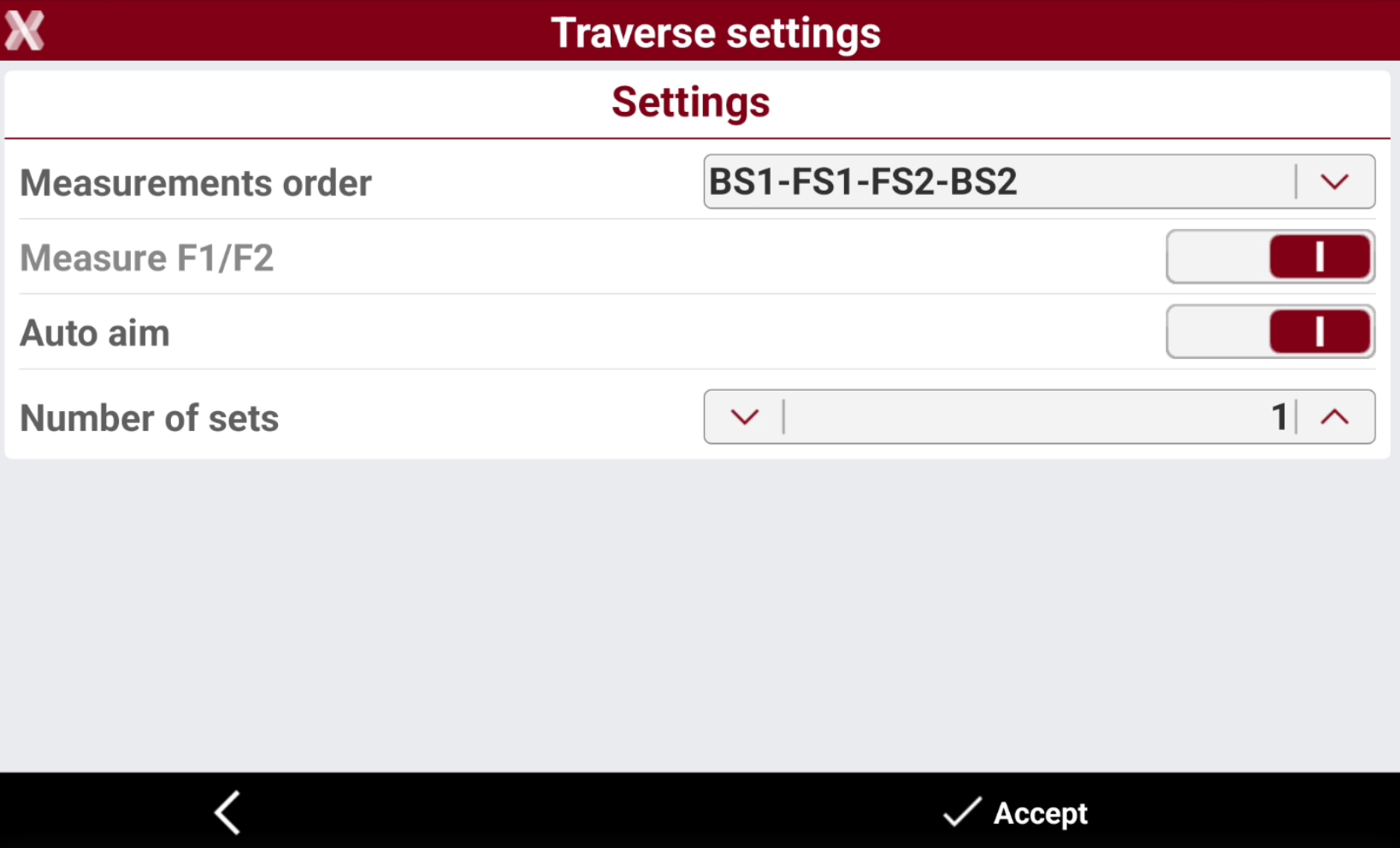
Define the traverse settings.
-
Measurements order:
-
BS1-FS1-FS2-BS2: all points are measured in face I, then measured in face II.
-
BS1-BS2-FS1-FS2: backsight point is measured in face I immediately followed by face II. Other points are measured in face I, face II order.
-
-
Auto aim: enables/disables the aim functionality with robotic total stations.
-
Number of sets: the number of measured sets.
-
-
Click Accept to proceed to define the station setup.
-
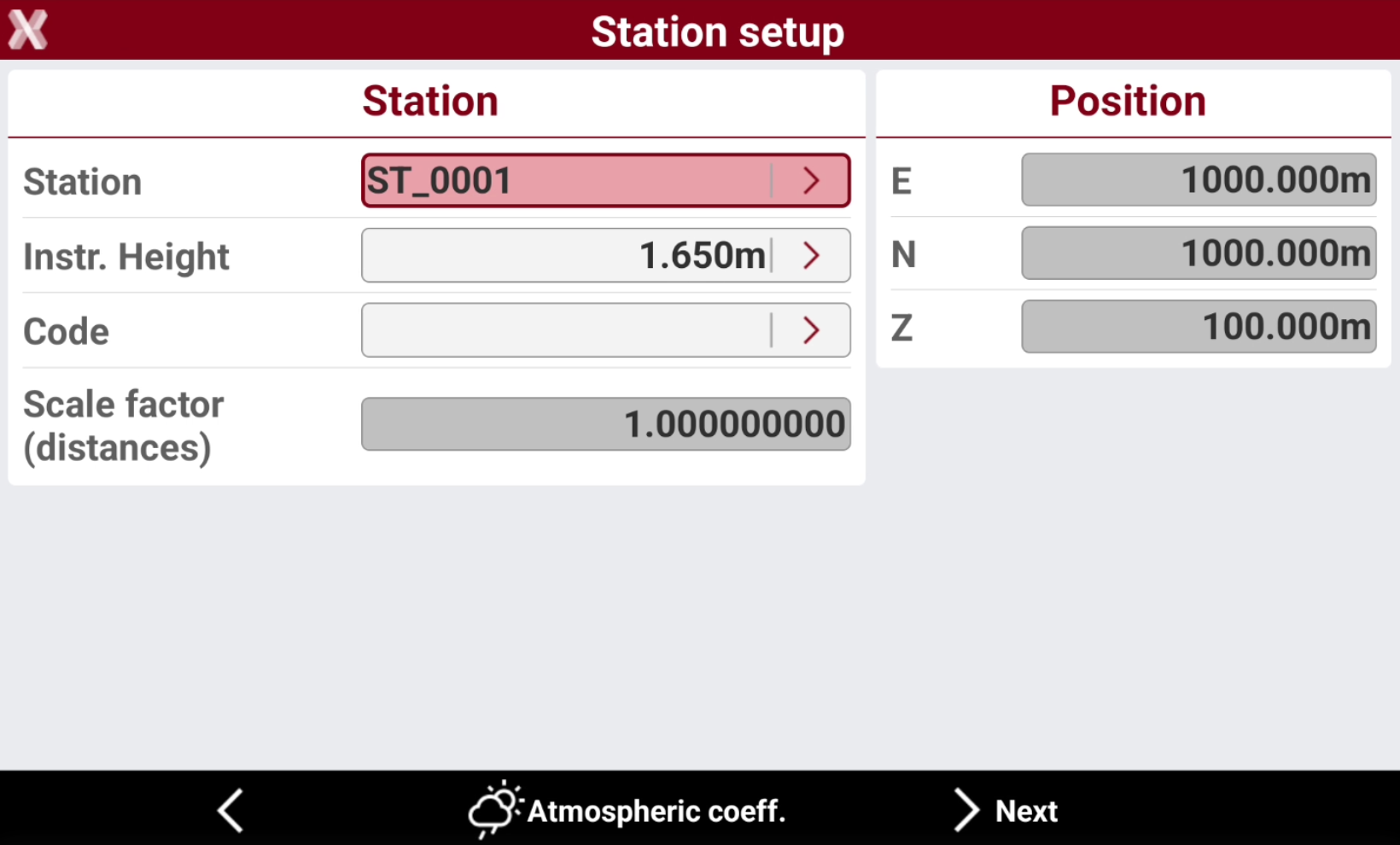
Station: name of the station. Select a point existing in the job.
-
Instrument height: elevation of the total station from the ground. It is possible to calculate the height of the instrument.
-
Code: code to assign to the station point in case a new point is created.
-
E, N, Z: coordinates of the station. When an existing point was selected, the values cannot be edited.
-
-
Click Atmospheric coeff to change the atmospheric coefficients.
-
Click Next to proceed to define the backsight point.
-
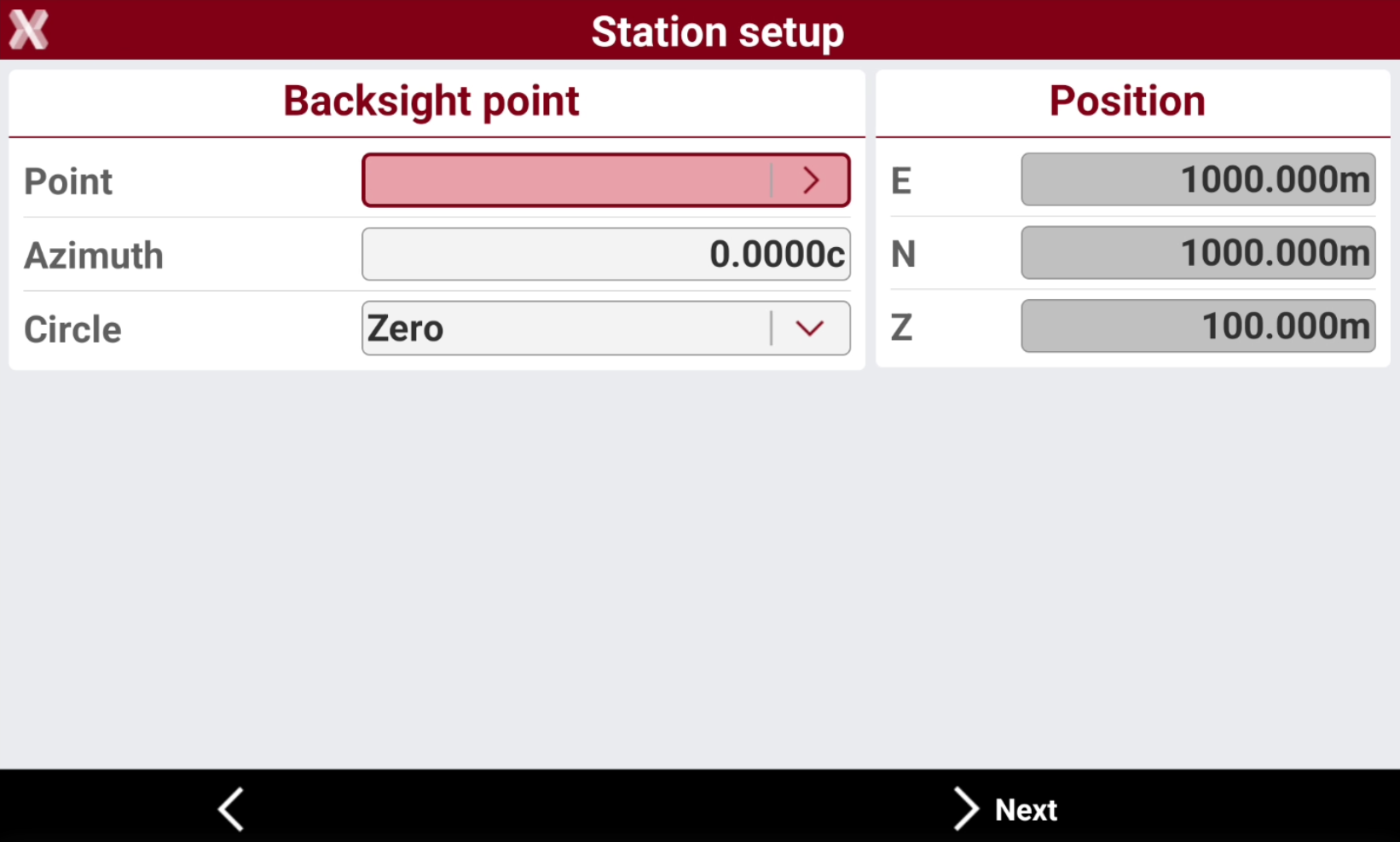
Point: specify the reference point which must be measured for the calculation of the station orientation.
-
Azimuth: the azimuth between the position of the station and the reference point is calculated.
-
Circle: define how to set the horizontal angle of the station:
-
Current value: the angle of the station is not modified.
-
Zero: the angle of the station is reset to the reference point.
-
Azimuth: the angle of the station is set to the azimuth value.
-
-
-
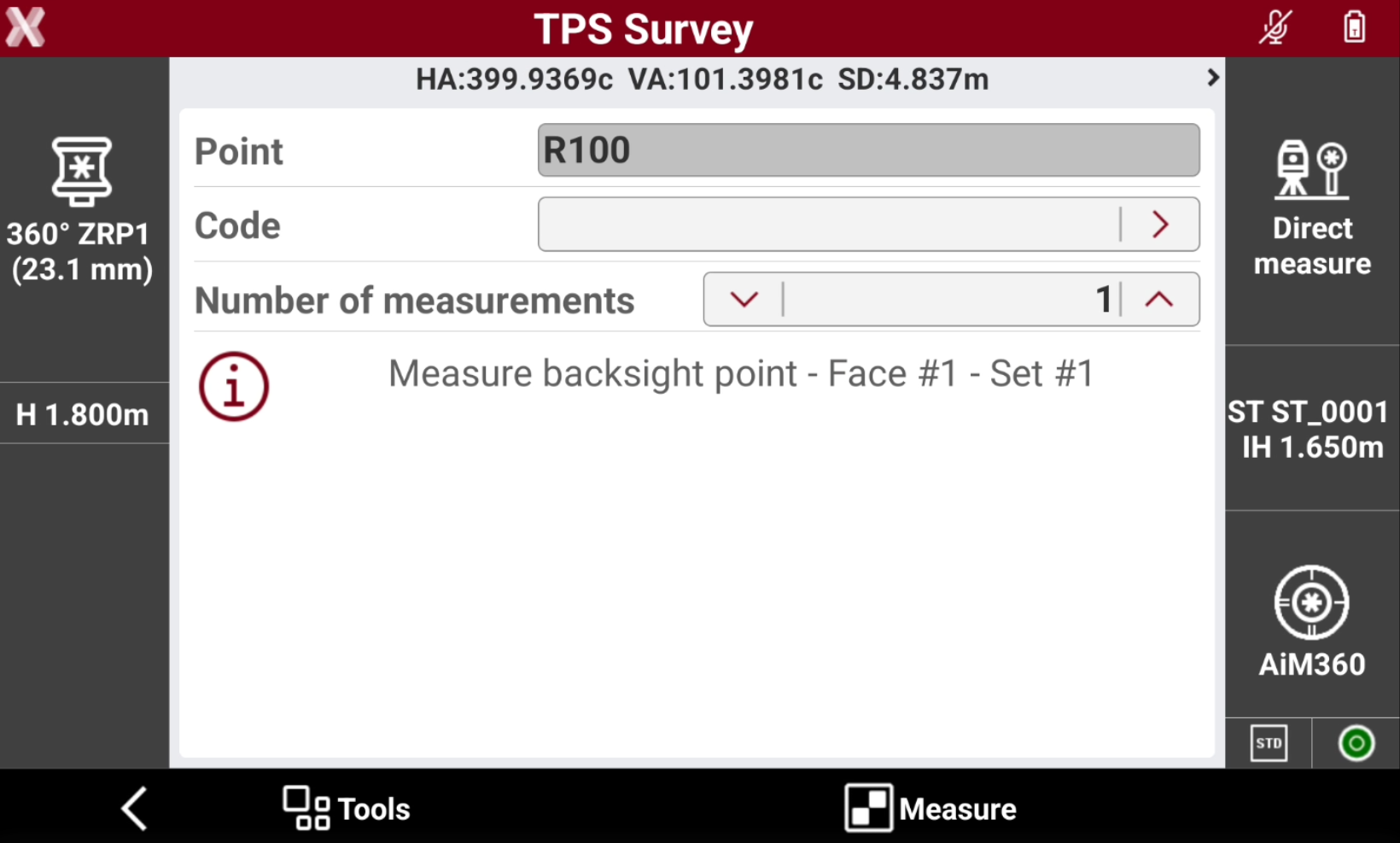
Press Next to measure the backsight point.
-
Aim the point of orientation.
-
Tap Measure.
-
The procedure guides to measure the backsight point, the next foresight traverse point in direct and reverse face and checks the errors.
-
When stationing is completed, the procedure guides to move to the next traverse point and continue the process with the backsight of the previous traverse point.
Free station
-
The position and the orientation of the station are determined by measuring at least two reference points with known coordinates.
-
Select No. Station position has to be calculated.
-
Select Free station.
-
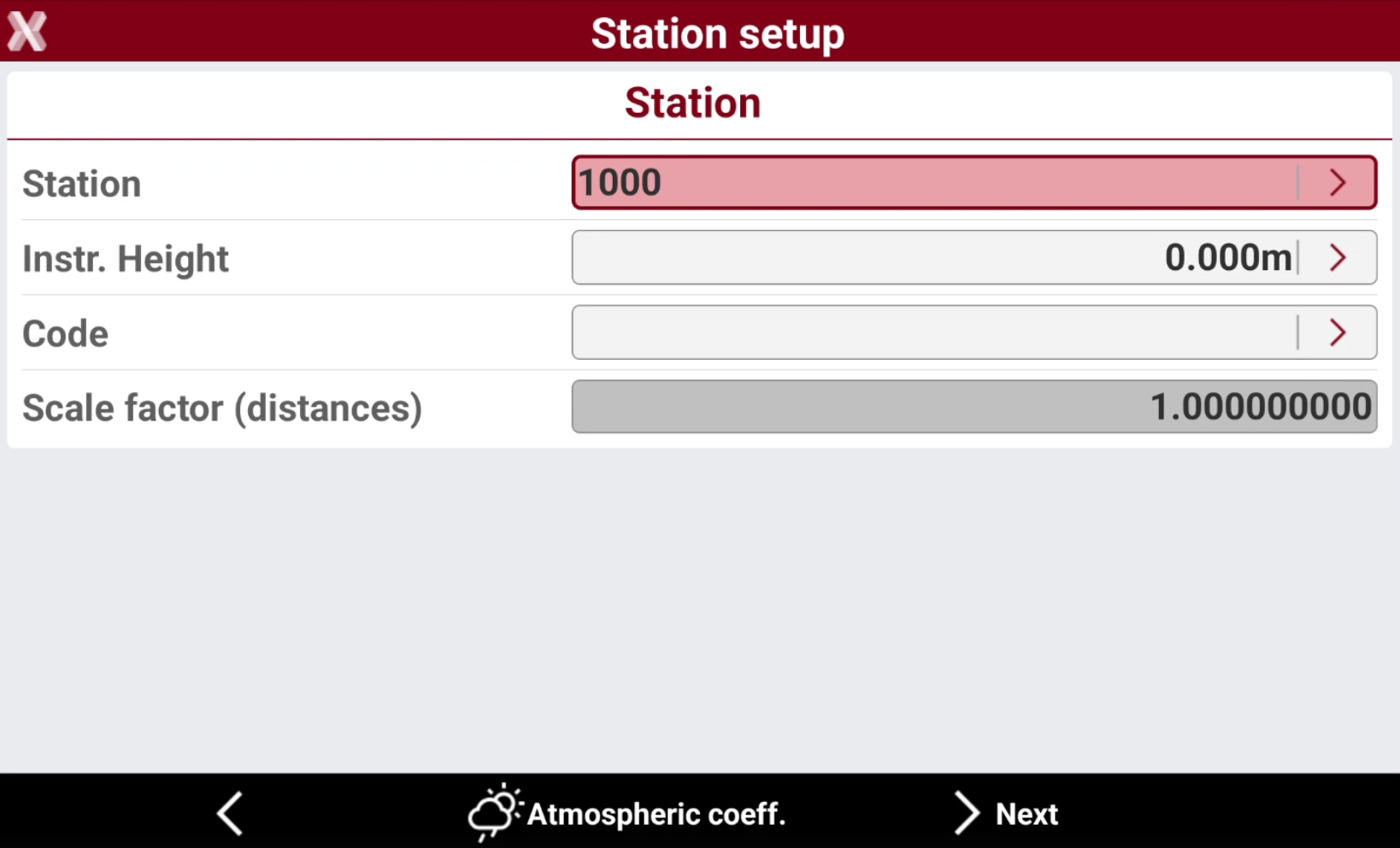
Station: name of the station. Select a point existing in the job.
-
Instrument height: elevation of the total station from the ground. It is possible to calculate the height of the instrument.
-
Code: code to assign to the station point in case a new point is created.
-
-
Click Atmospheric coeff to change the atmospheric coefficients.
-
Click Next to proceed with the guided procedure.
-
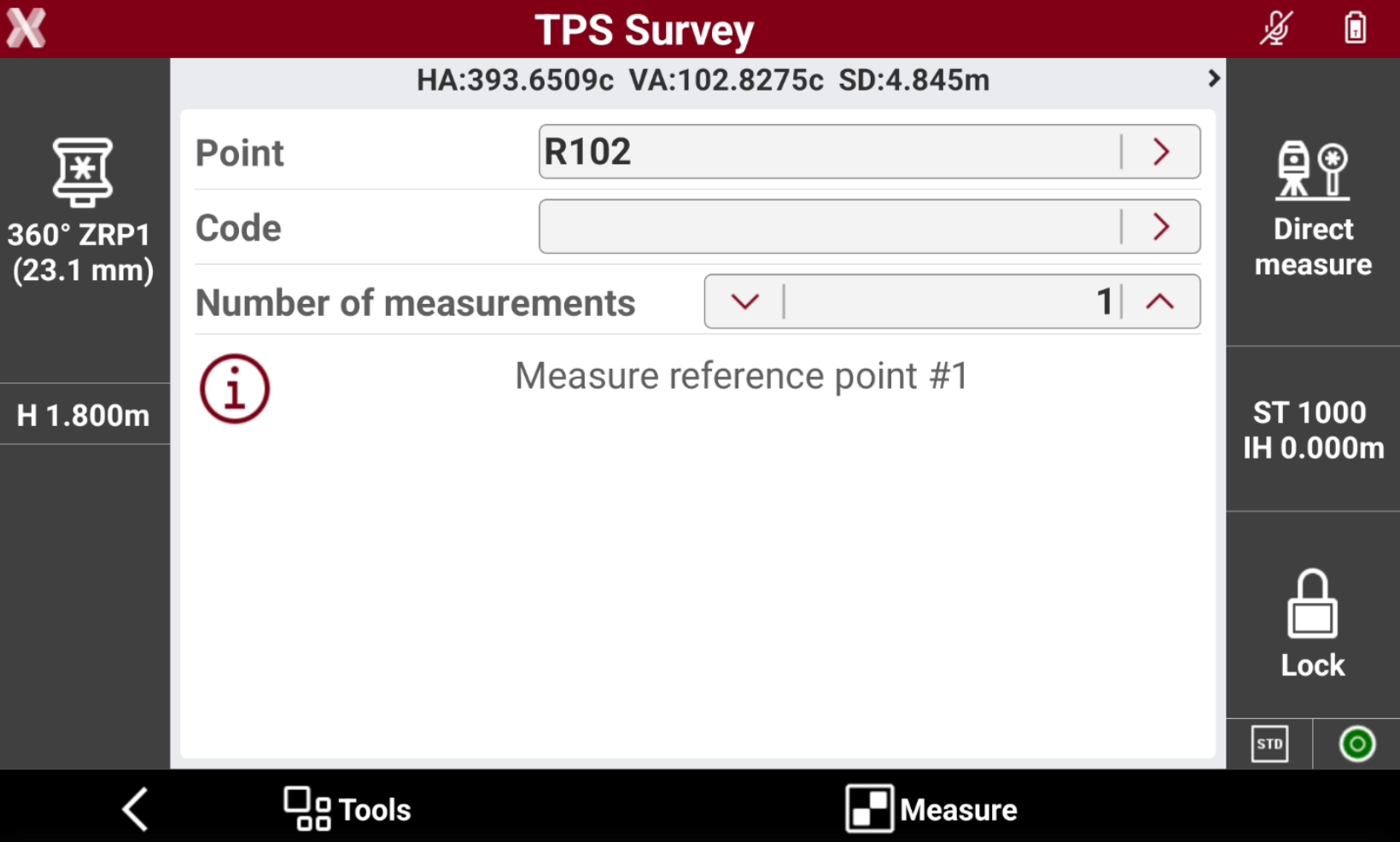
Define the first reference point and perform the corresponding measurement. It is possible to enter the reference name, select it from the list of points, from the list of the reference points or from the graphic window.
-
Aim the reference point.
-
Select Measure.
-
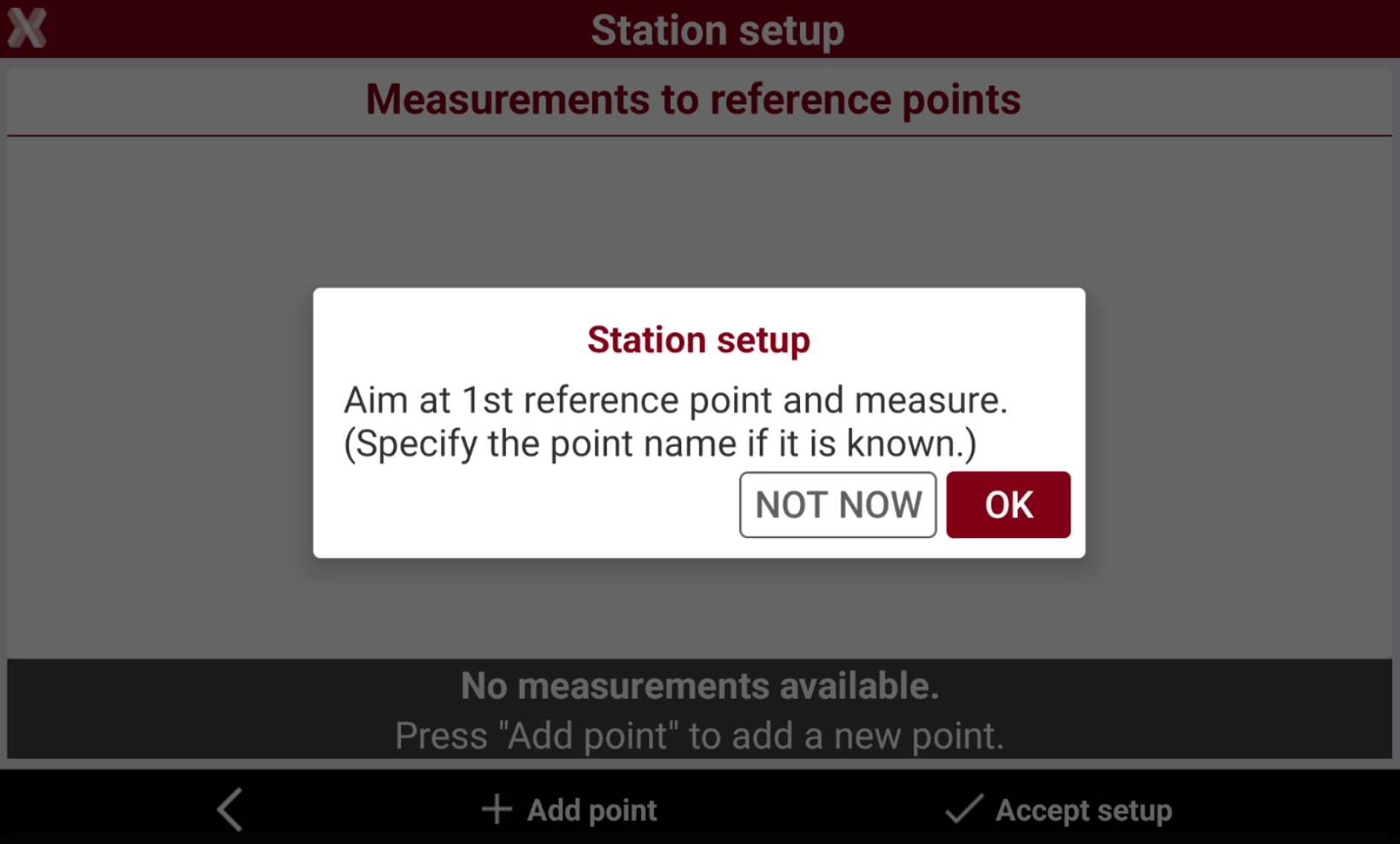
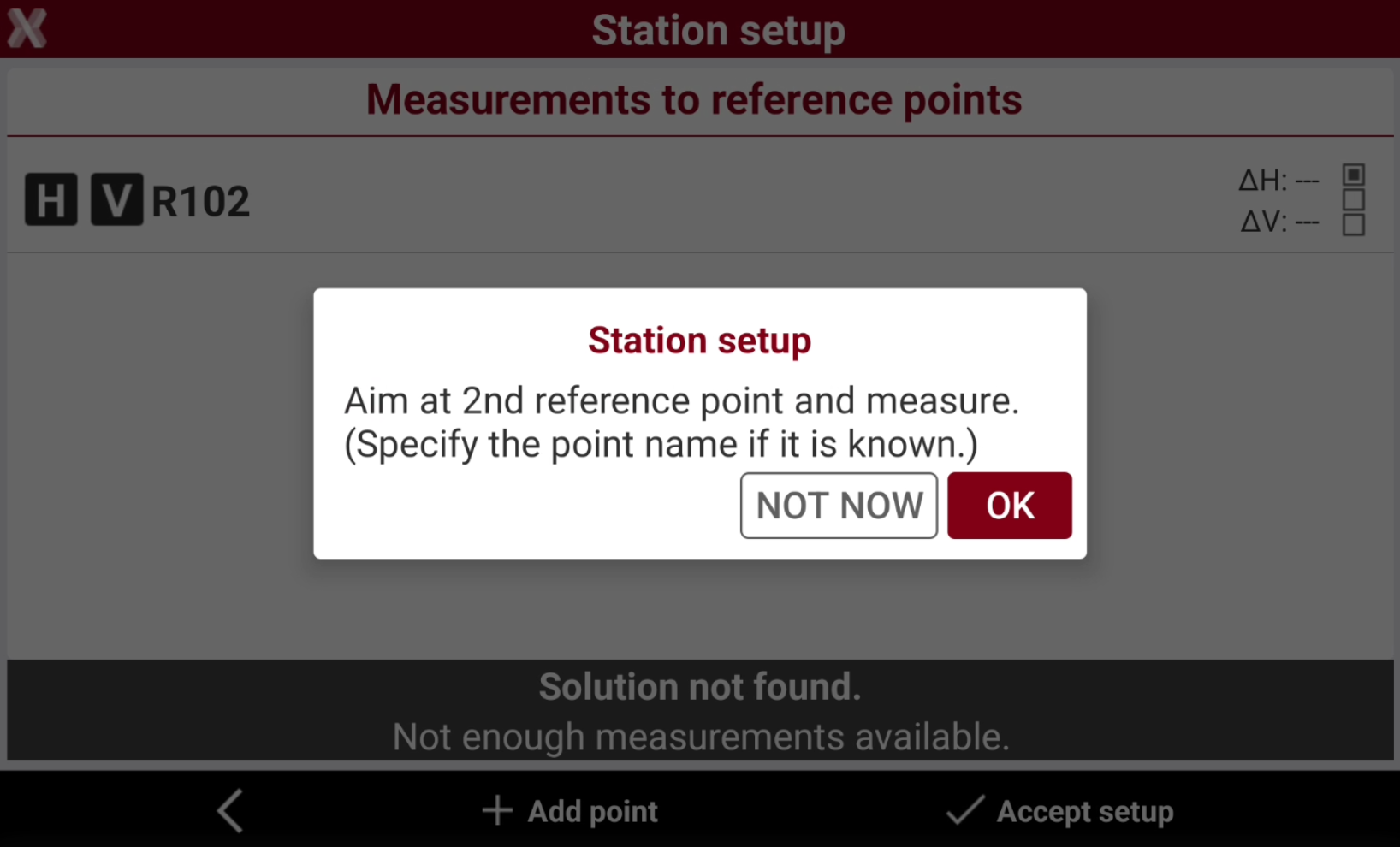
After the first reference point has been measured, press OK to continue to add measurements. Press Not now to perform an Open free station.
-
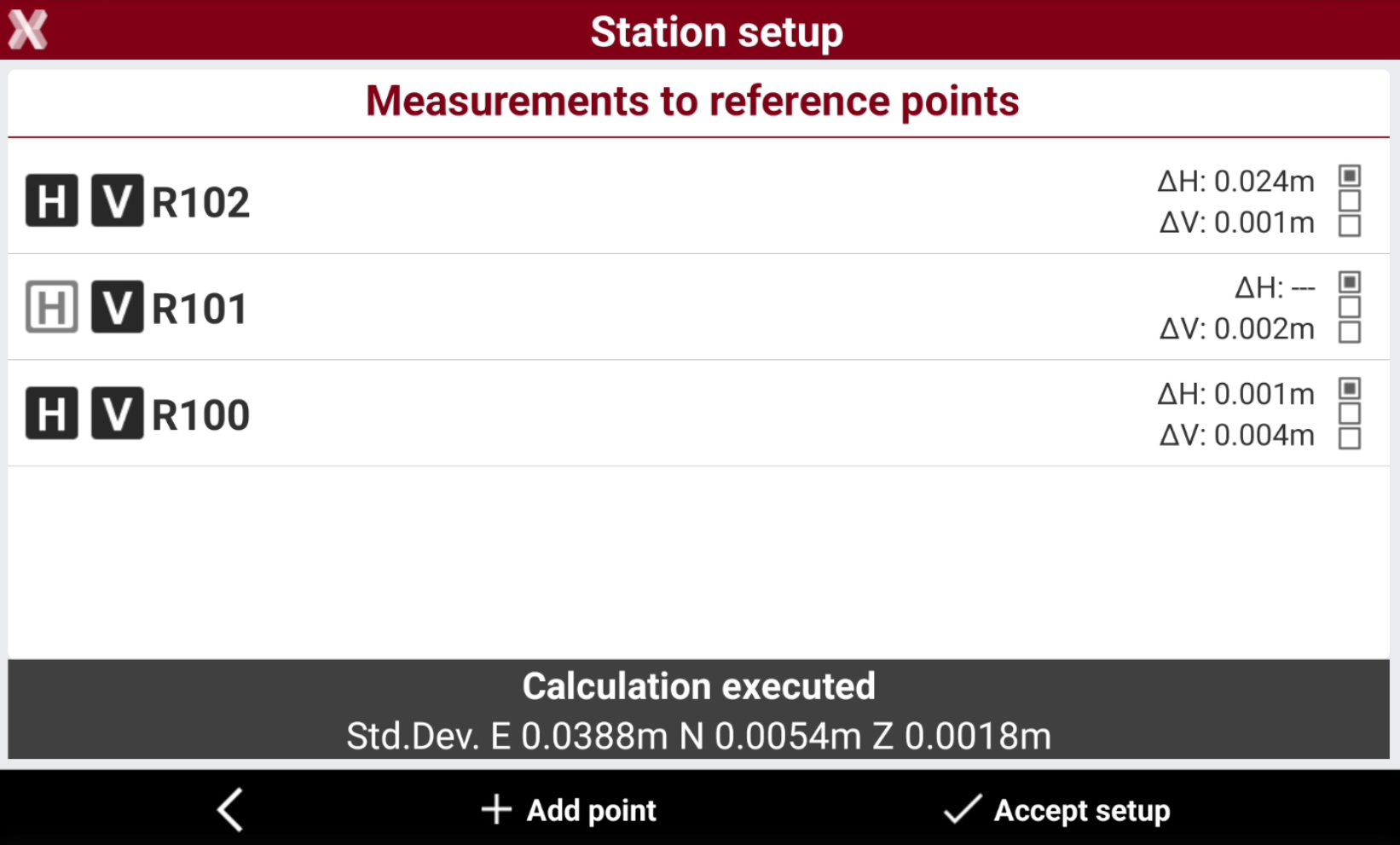
The software shows the list of measured reference points.
-
The points measured are displayed in a table. Displayed is:
-
The calculated standard deviation of every point.
-
The total standard deviation for the calculated station position.
-
-
Select H and V to enables and disables the use of the measurement for the orientation calculation of the station for the horizontal or vertical component.
-
Press

-
Select Accept setup to confirm set data and complete the procedure.
-
Select Report to generate and export the calculation report.
-
The instrument relocks to the prism automatically after the free station results have been accepted.
Free station working with X-POLE
-
Working with X-POLE allows the use the position provided by the GPS receiver as a known position as station for the total station.
-
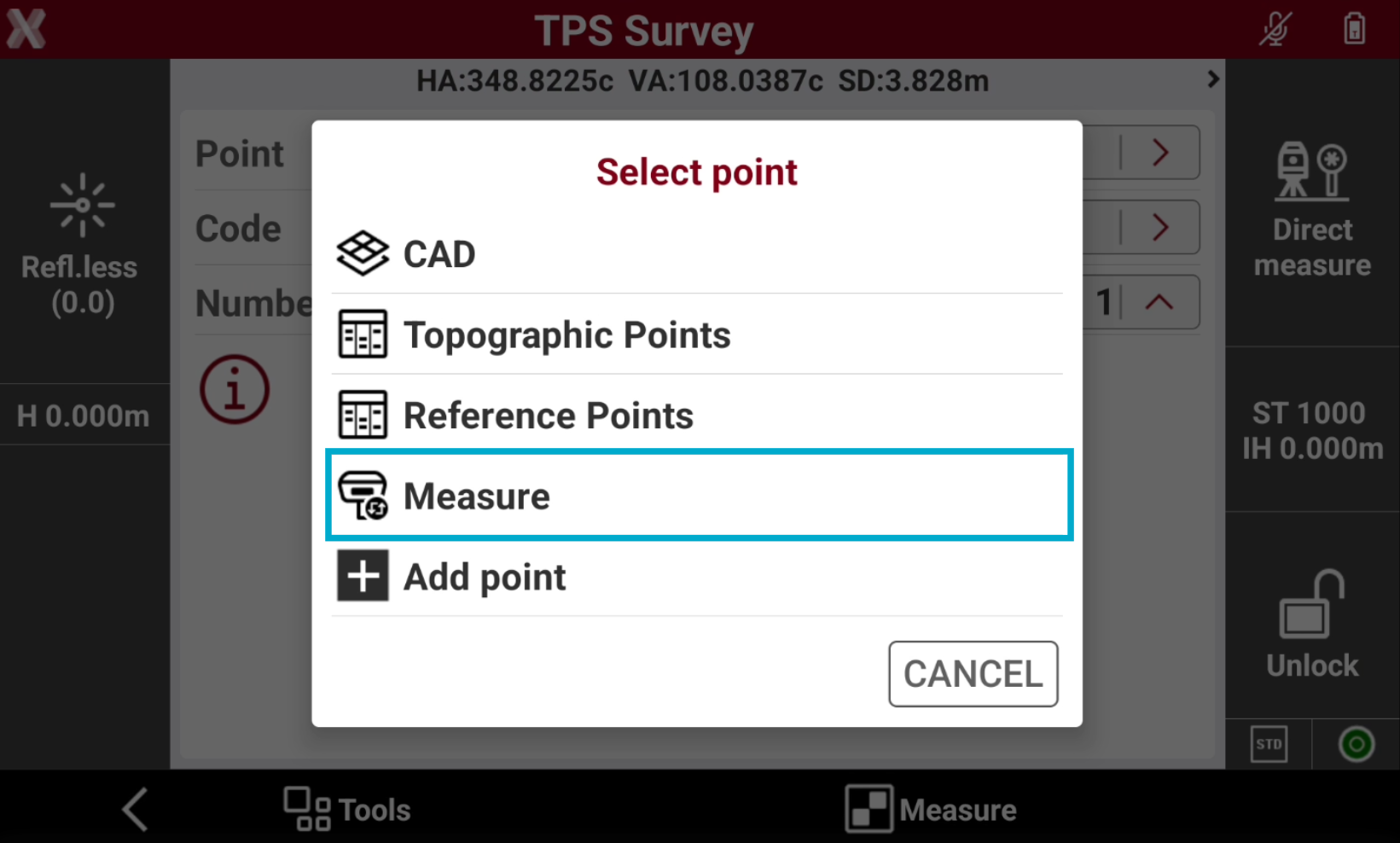
When being asked to indicate the point of known coordinates, choose item Measure.
-
Measure the point for the free station with the GNSS receiver.
-
The point is added in the list of points and becomes the requested known point.
-
Measure the same point with total station and complete the measuring procedure of the known point for calculating the station orientation.
Open free station
-
The procedure of the station setup in Free station mode can be completed at later time, during the survey operation.
-
However, it is good practice to complete the procedure before starting the point survey, with X-PAD it is not mandatory.
-
The possibility to leave the free station open, allows to measure the control points when in their proximity, without necessarily having to measure all the control points which could also be very far from each other.
-
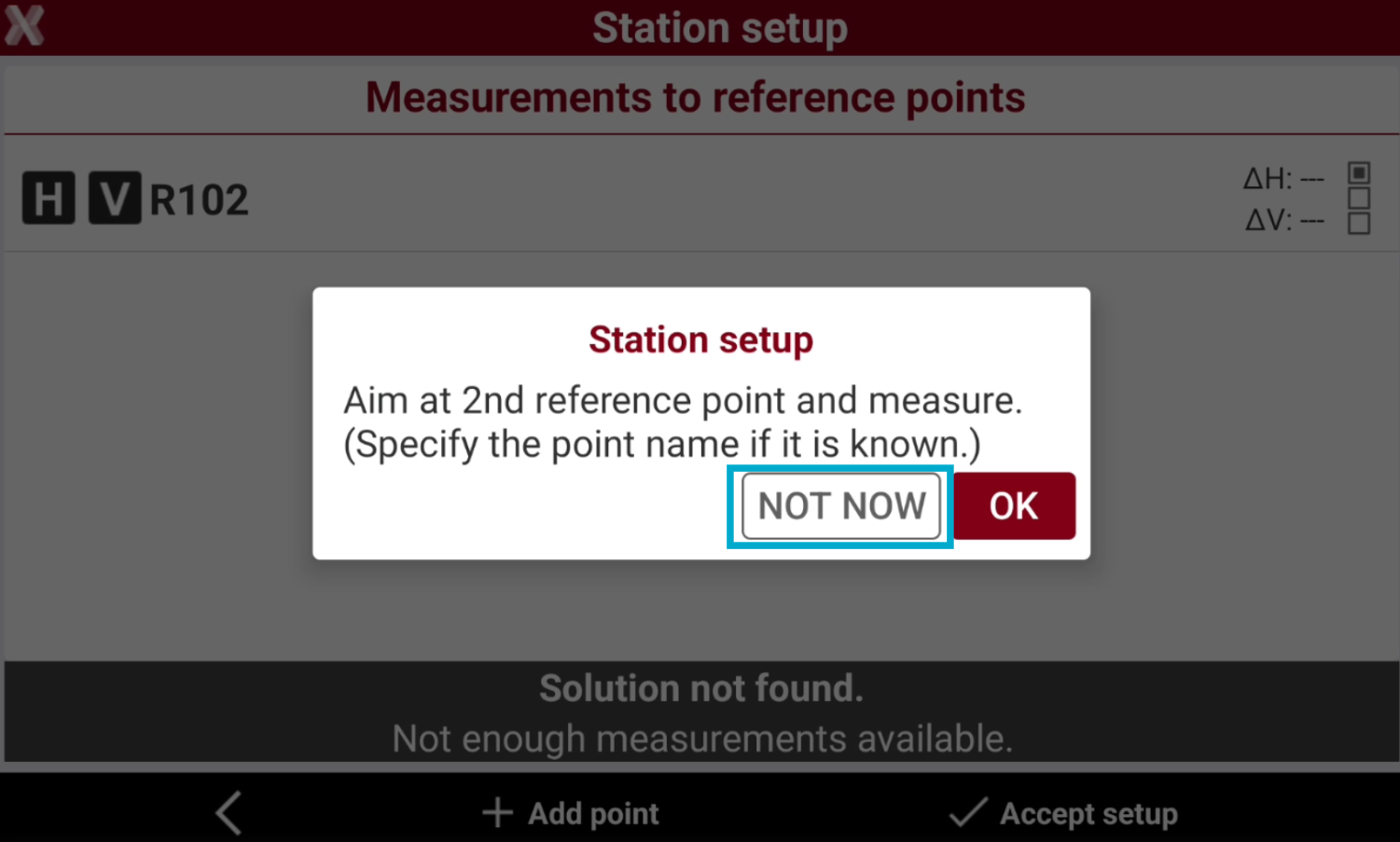
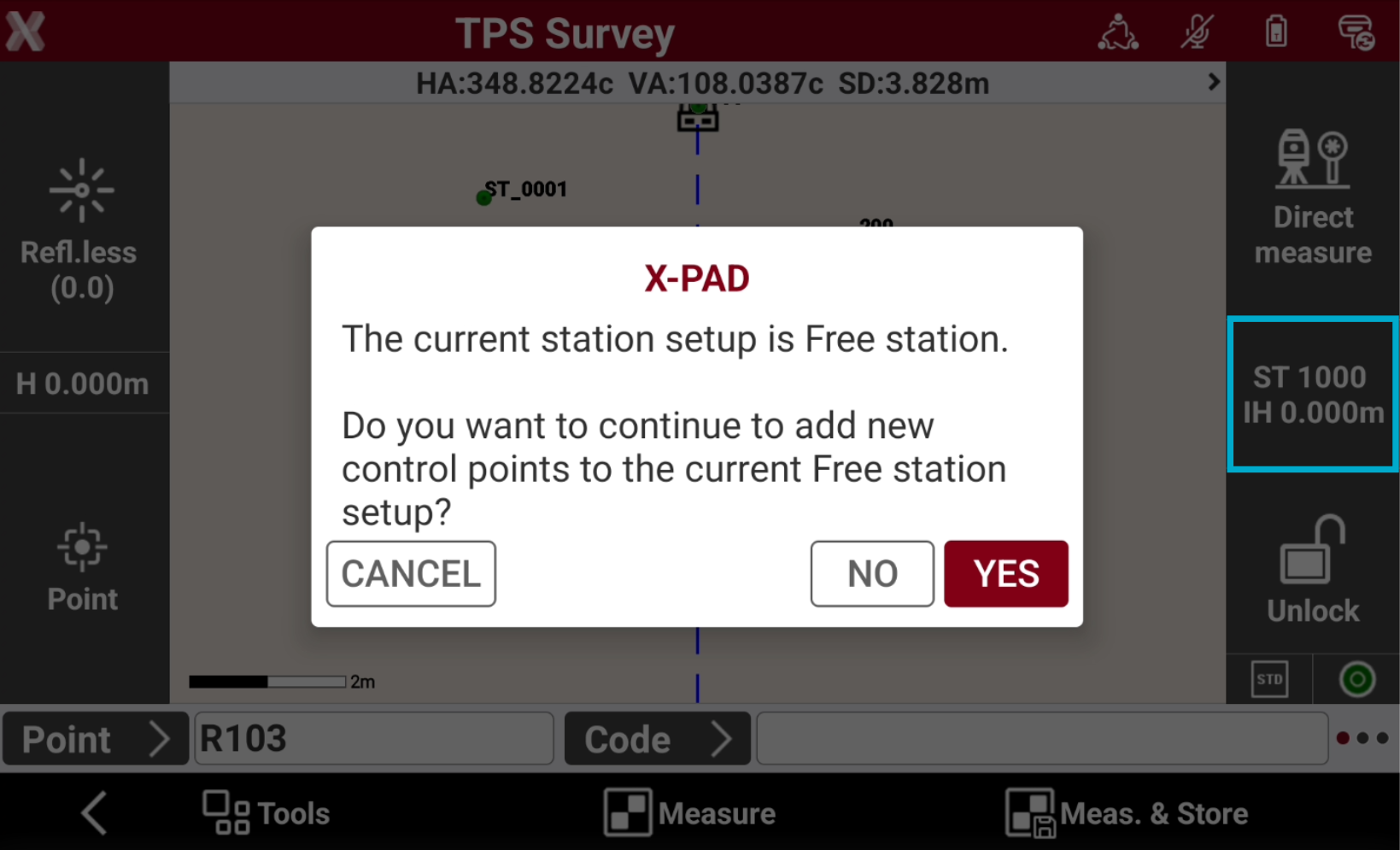
The free station setup requires the measurement of at least two control points. The software asks if you want to proceed with the measurement of control points.. Tap NOT NOW to postpone the measurement of the control points to a later step.
-
Depending on the measurements there are different scenarios:
-
starting the free station without measuring any control points: the station assumes arbitrary local coordinates and no orientation.
-
If only one control point has been measured: the station assumes local coordinates with respect to the control point but without any orientation.
-
If two or more control points have been measured: the station can already have a correct position and orientation.
-
-
To add new control points to a free station which has been left open click on the station data panel to go back to the command Survey points of the station setup procedure.
-
After adding a new control point to the free station:
-
The position and the orientation of the station are recalculated.
-
The position of all the points previously measured by the station is recalculated. Free station 3D.
-
Free station 3D
-
The orientation mode Free station 3D defines the position and orientation of station based on measurements of three or more reference point.
-
The calculation is based on a 3D transformation instead of a separate coordinate and elevation calculation.
-
The procedure is similar to the one for a normal free station.
-
Select No. Station position has to be calculated.
-
Select Free station 3D.
-
Follow the Free station procedure.
Auto free station
ROBOTIC
-
Performs an automatic search and measurement of all the targets around the station.
-
The position and orientation of the station are determined by comparing the measurements with the reference points which have to be present in the job.
The reference points to automatically measure must be available in the Reference Points list.
-
Select No. Station position has to be calculated.
-
Select Auto Free station.
-
Station: name of the station. Select a point existing in the job.
-
Instrument height: elevation of the total station from the ground. It is possible to calculate the height of the instrument.
-
Code: code to assign to the station point in case a new point is created.
-
-
Click Atmospheric coeff to change the atmospheric coefficients.
-
Click Next to proceed with the automatic procedure.
-
The instrument performs an automatic search and automatic measurement of all targets around the station.
-
The measurements are compared with the coordinates of the reference points, which must have been added to the job previously. Then, the software calculates the position and orientation of the station.
Reference axis
BUILD
-
The position and orientation of the station are determined by measuring a reference axis. The two points set the origin and direction of the X axis.
-
After have measured the origin and direction points, these definition can be paired to points and position in the drawing.
-
Select NO. Station position has to be calculated.
-
Select Reference axis.
-
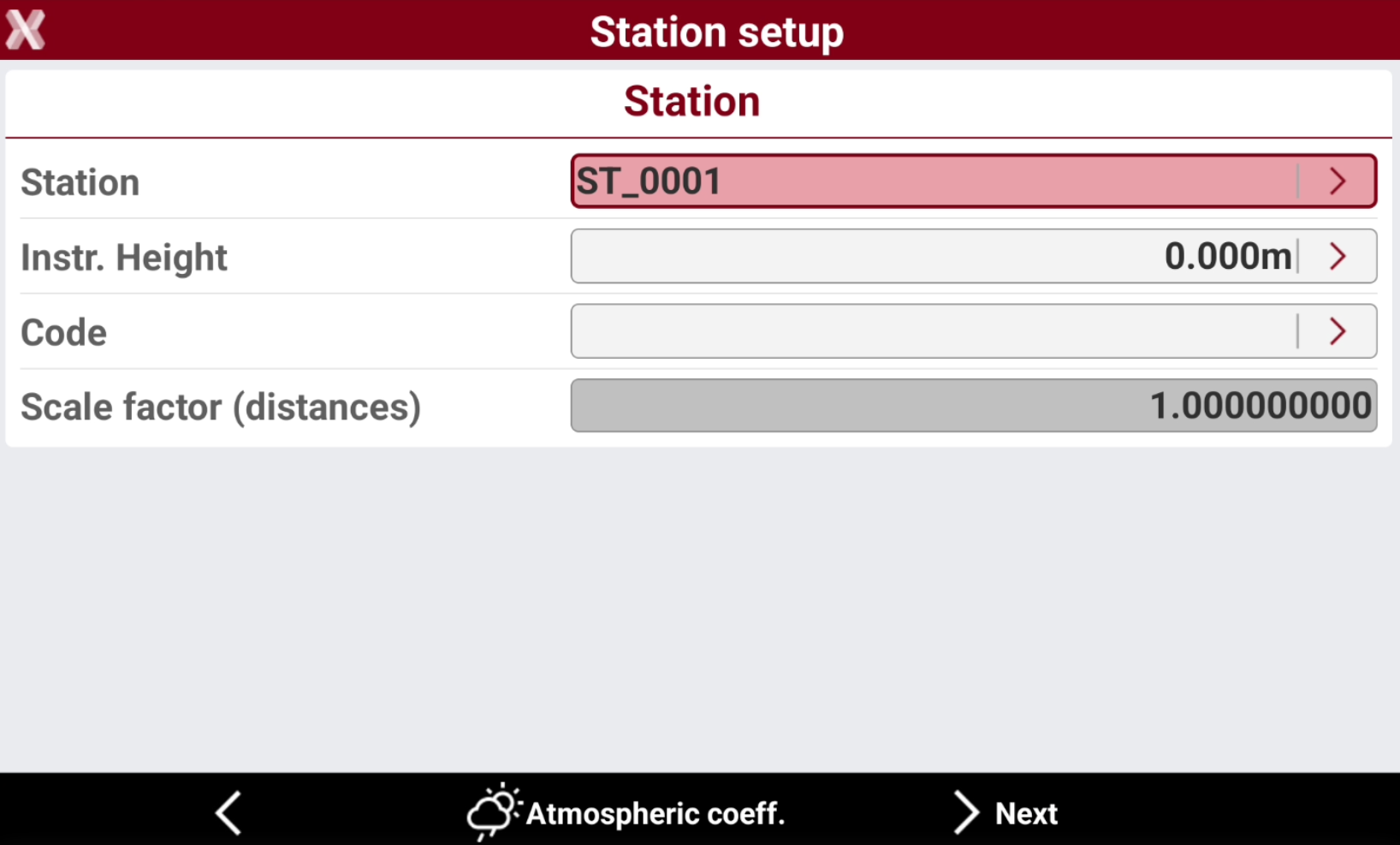
Station: name of the station. Select a point existing in the job.
-
Instrument height: elevation of the total station from the ground. It is possible to calculate the height of the instrument.
-
Code: code to assign to the station point in case a new point is created.
-
Click Atmospheric coeff to change the atmospheric coefficients.
-
-
Click Next to proceed to define the reference point.
-
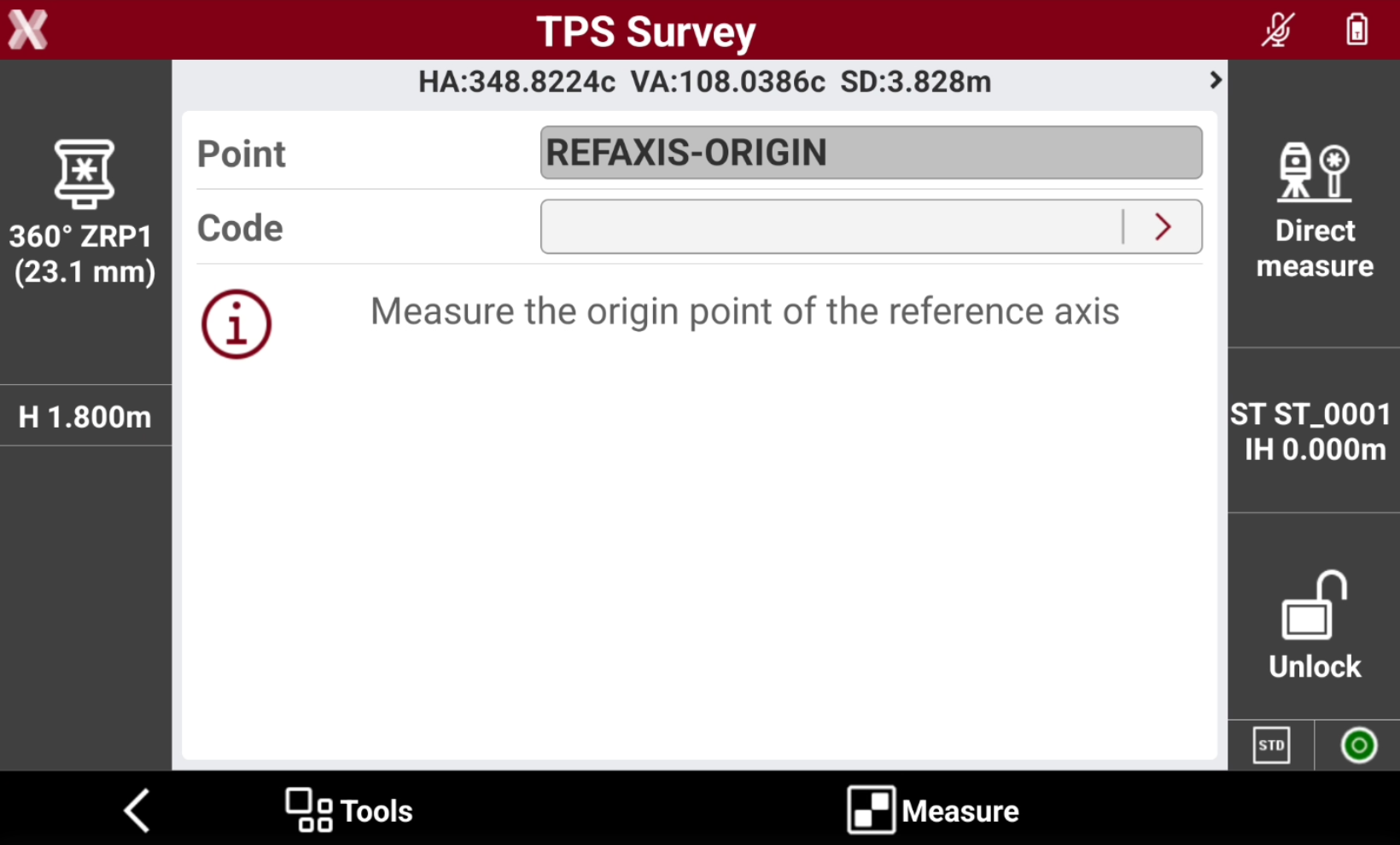
Measure the origin point of the reference axis and the direction of the reference axis.
-
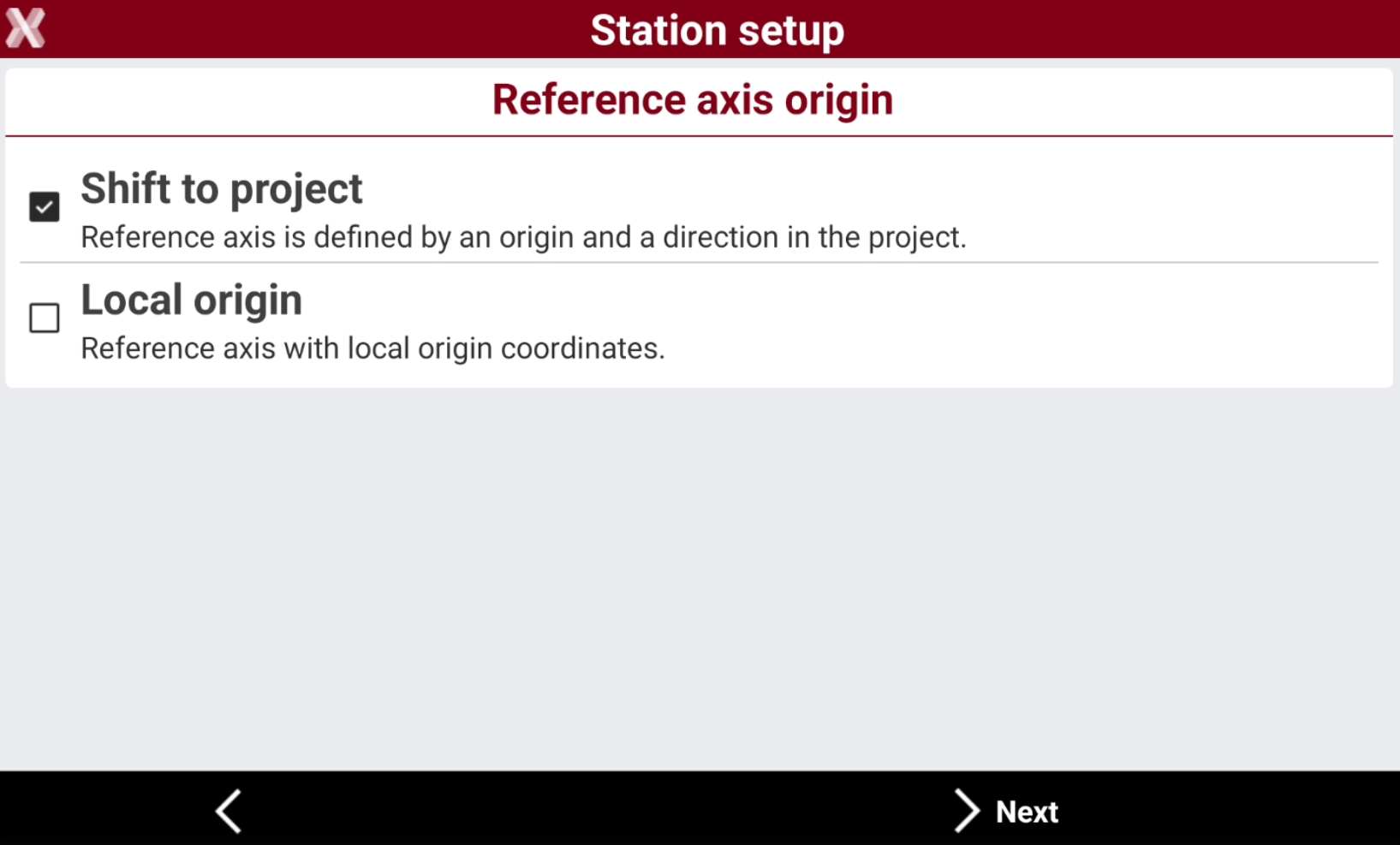
Select how the reference axis is defined.
-
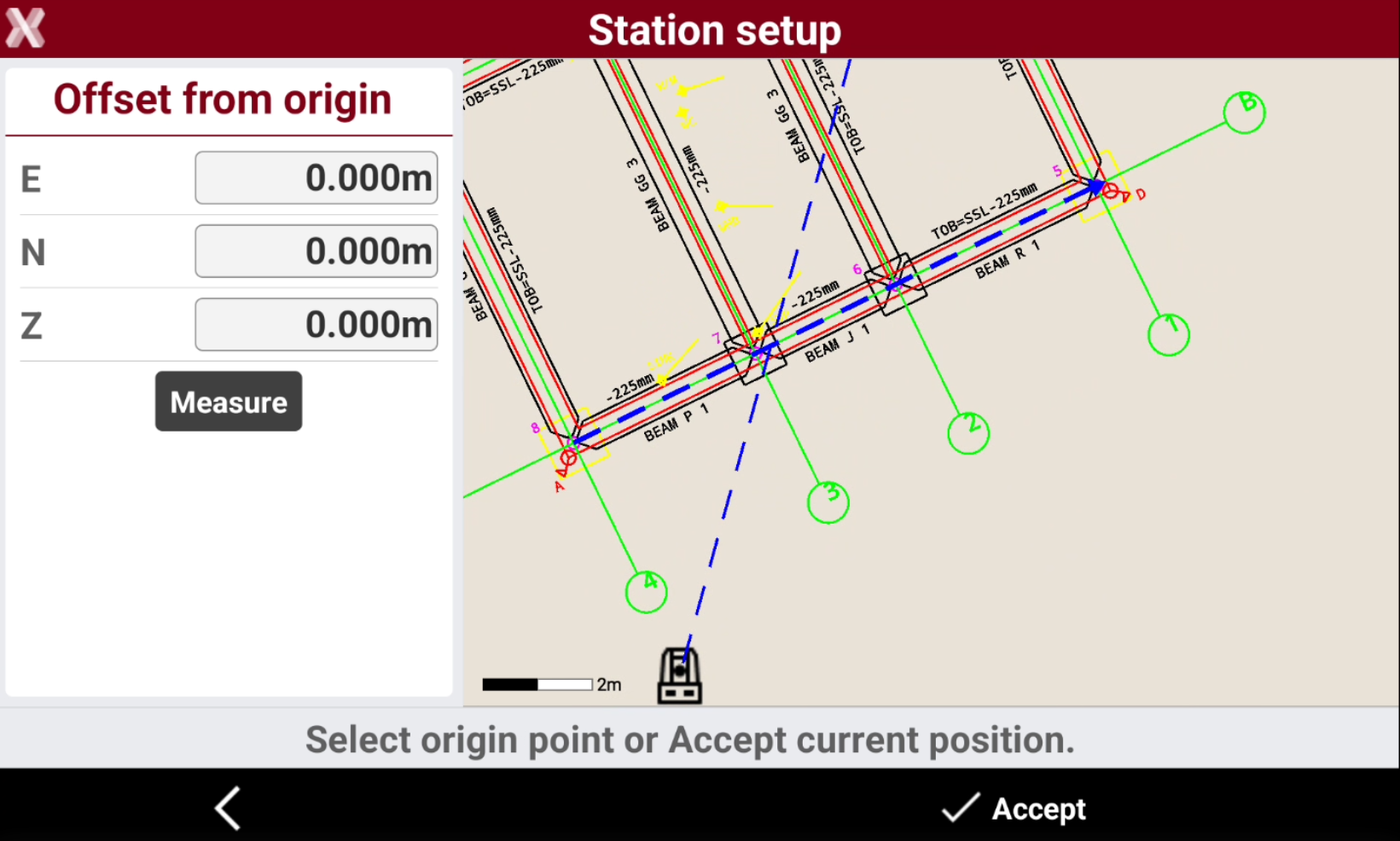
Shift to project: the origin and direction are selected graphically in the drawing. Click in the CAD drawing to select the origin and the direction, represented by a blue arrow. It is also possible to define an offset from the previously measured axis origin.
-
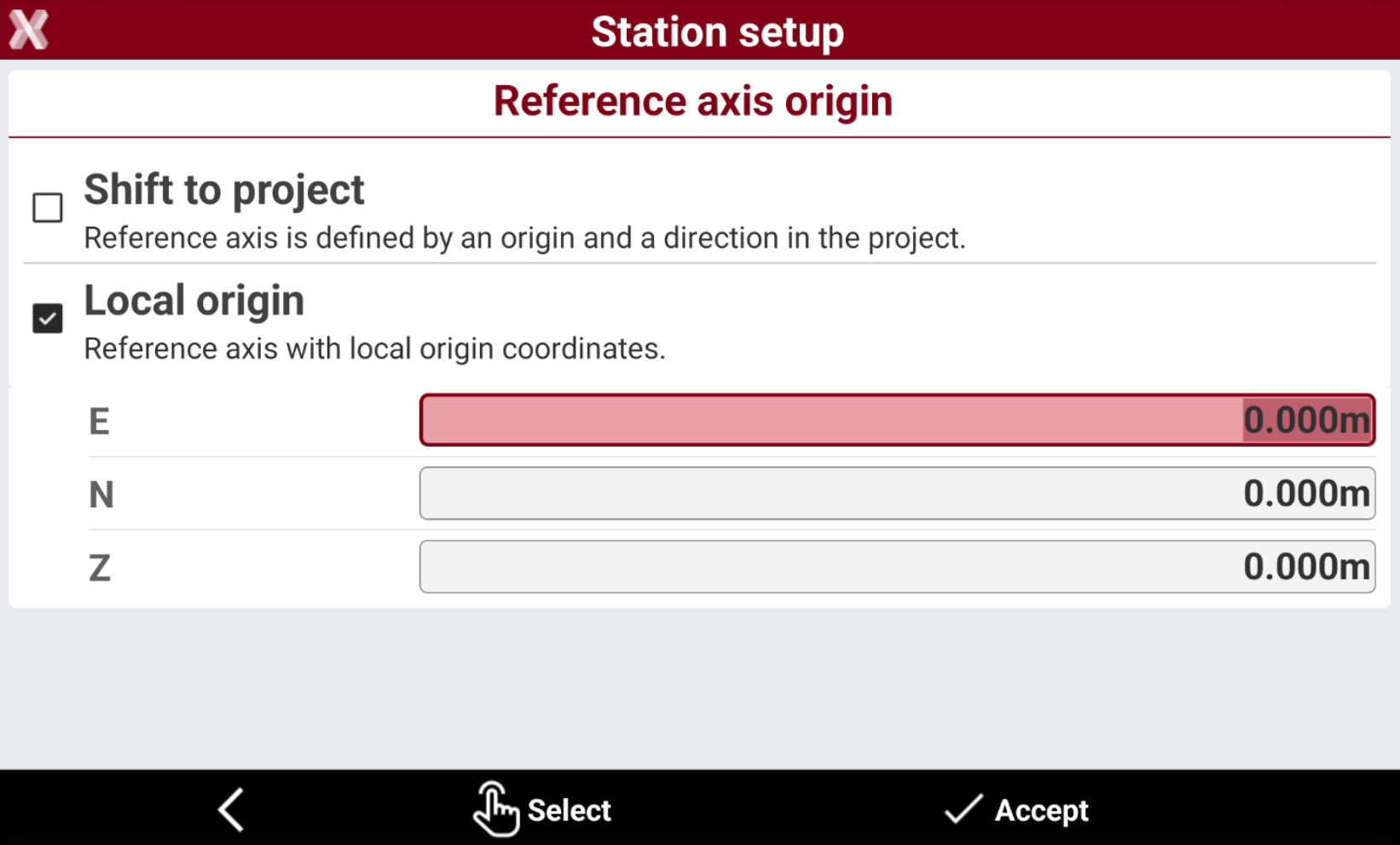
Local origin: the reference axis is defined with local origin coordinates. Enter the coordinates of the origin of the reference axis, or click Select to select the origin graphically on the drawing. The direction of the reference axis is the drawing X direction.
-
-
Press Accept setup to confirm the setup.
2 reference axis
BUILD
-
The position and orientation of the station are determined by measuring four reference points. The points set two axes which, intersecting each other, determine the position of the station.
-
Select NO. Station position has to be calculated.
-
Select 2 Reference axis.
-
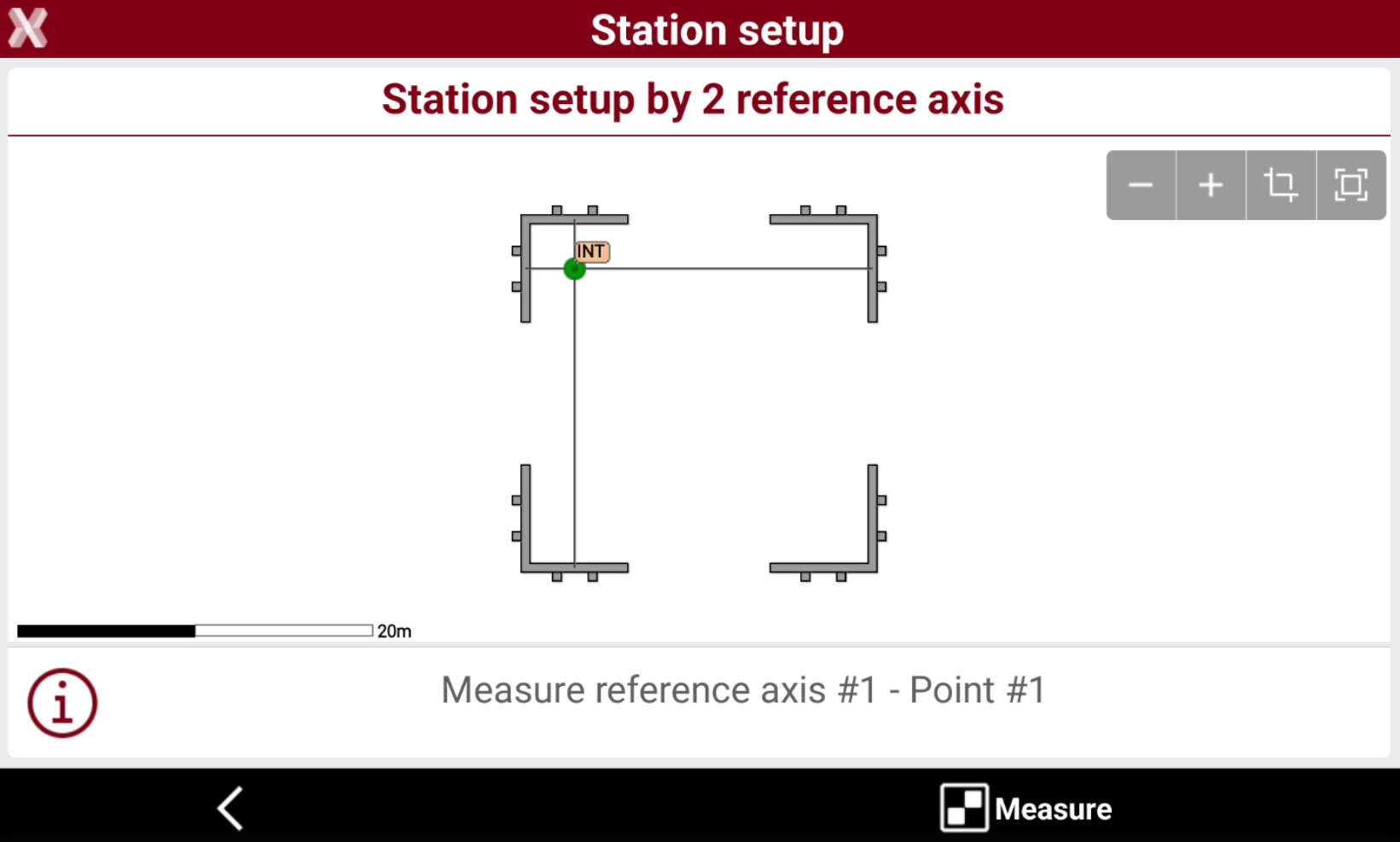
Measure the first reference axis, measuring two points on the axis.
-
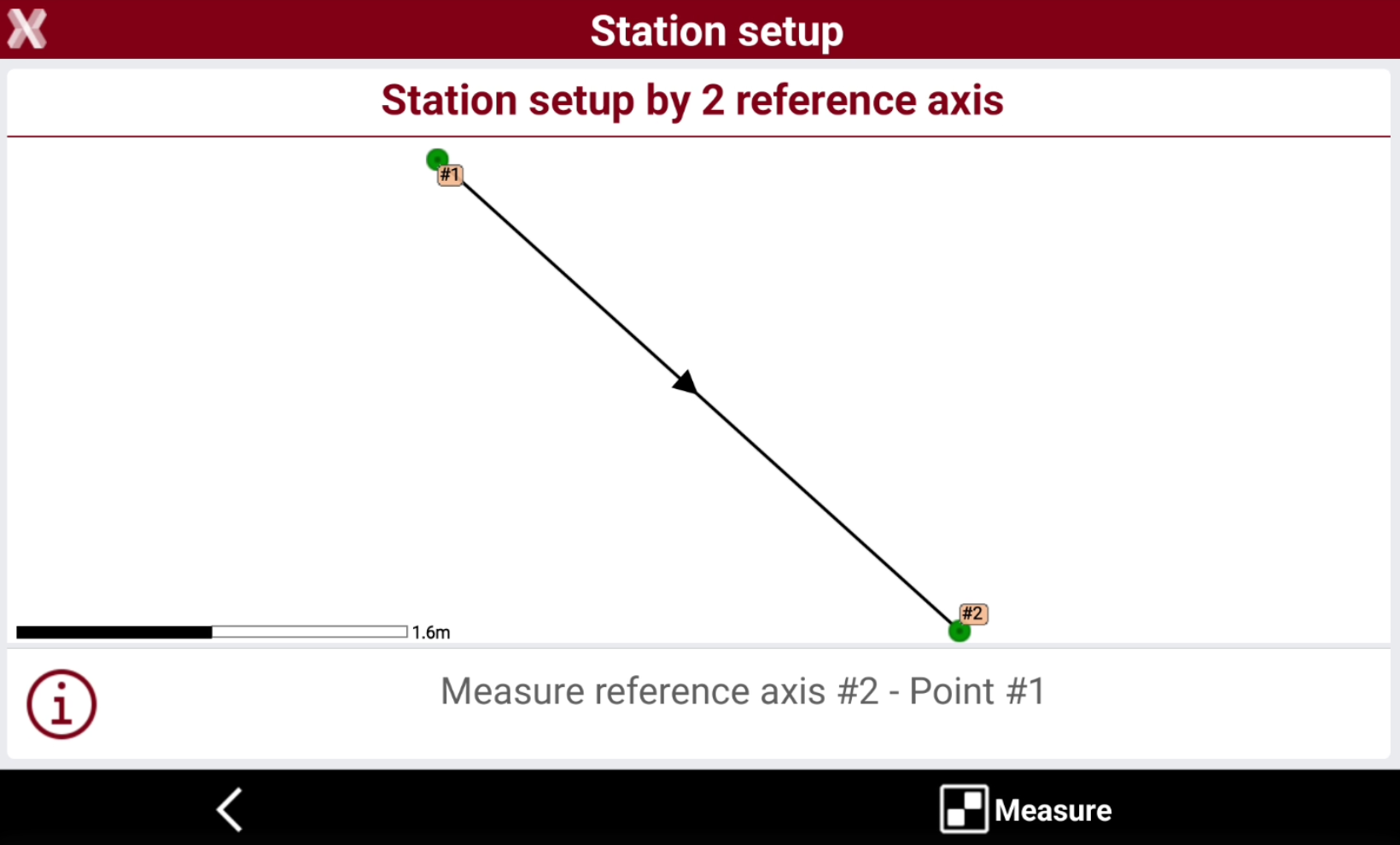
Continue measuring two points on the second reference axis.
-
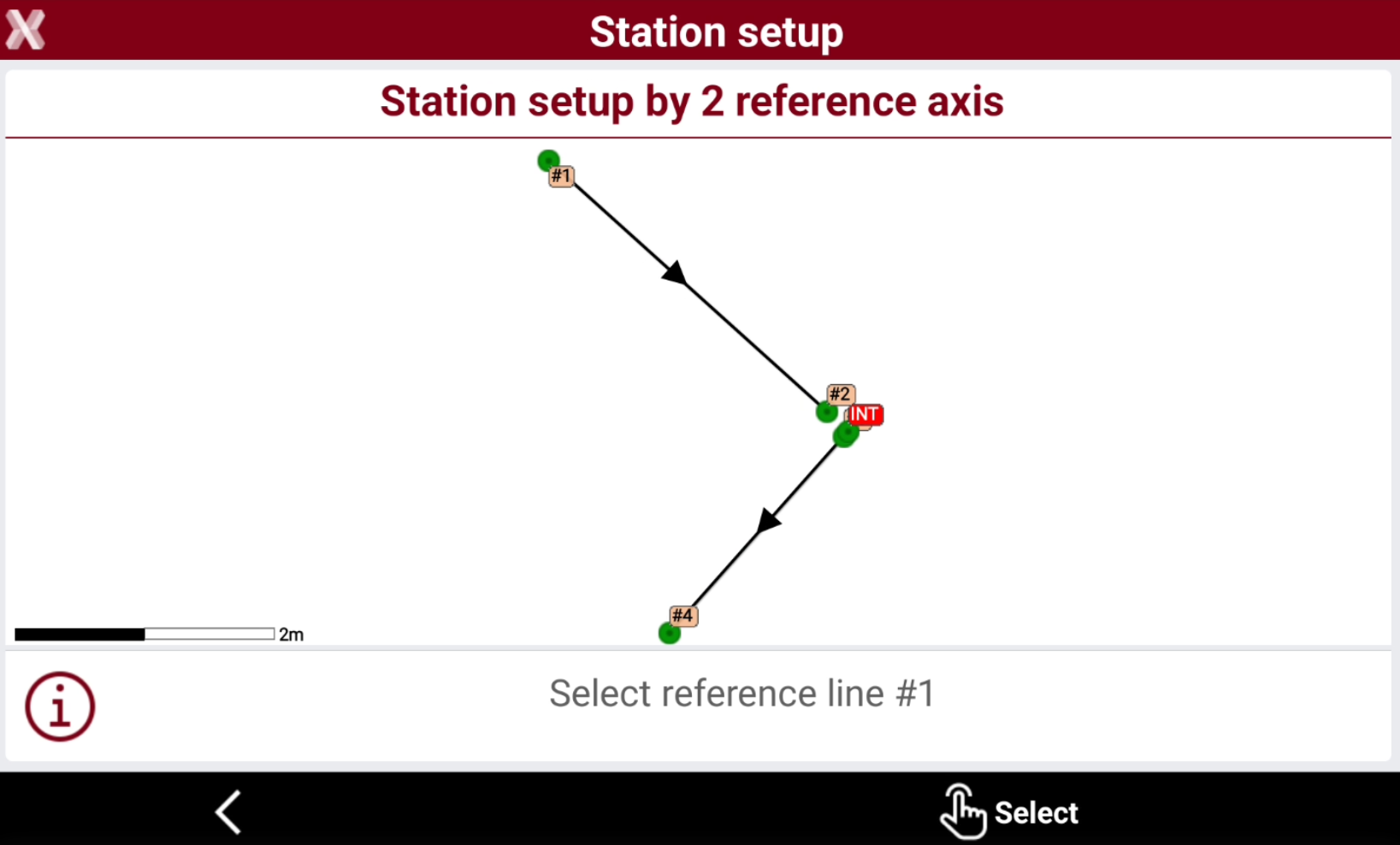
Select graphically the first reference line, press Select.
-
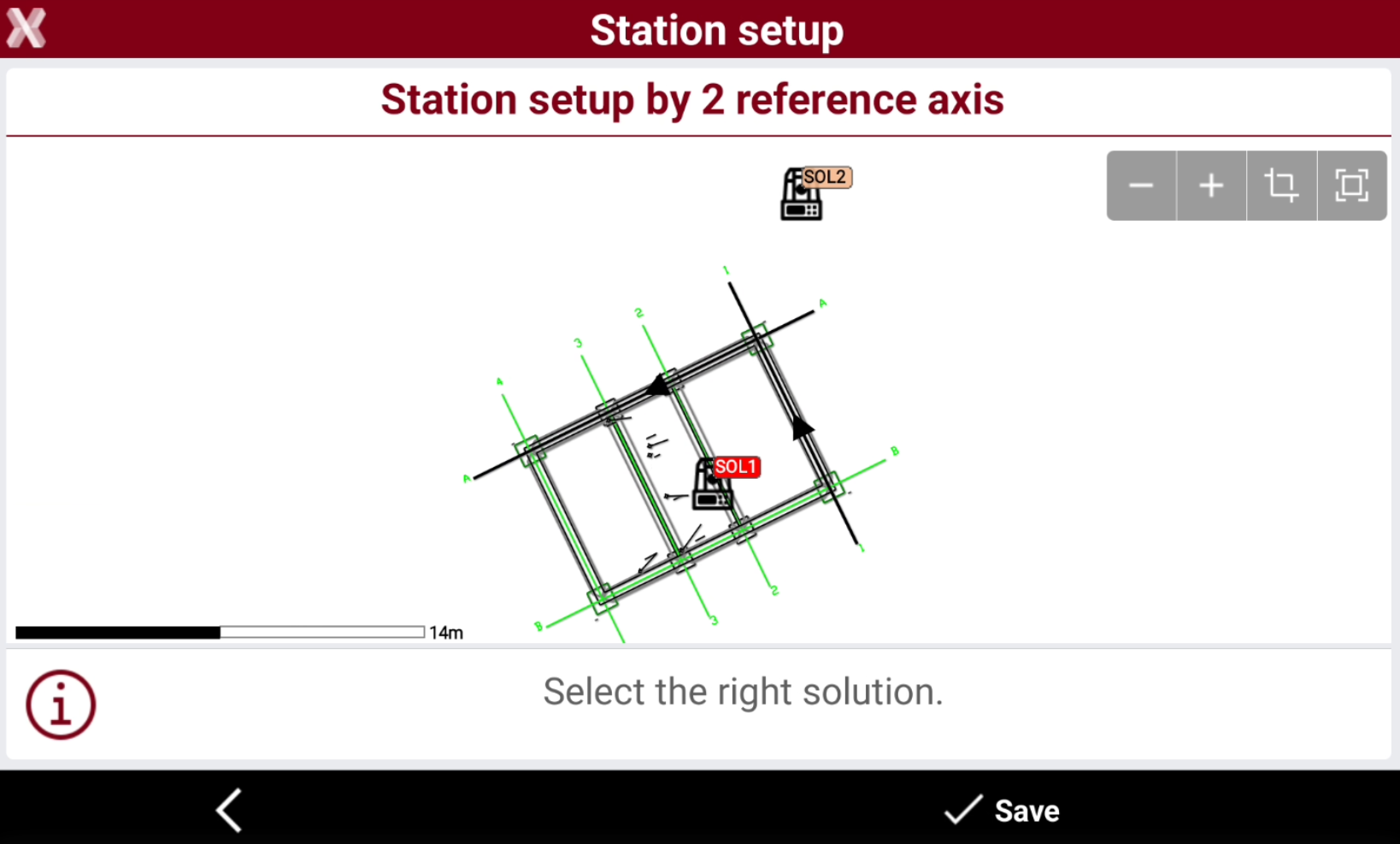
Select the two reference lines in CAD.
-
Select the right solution among the two proposed solutions.
-
Click Accept setup to complete the setup process.
Batter board
BUILD
-
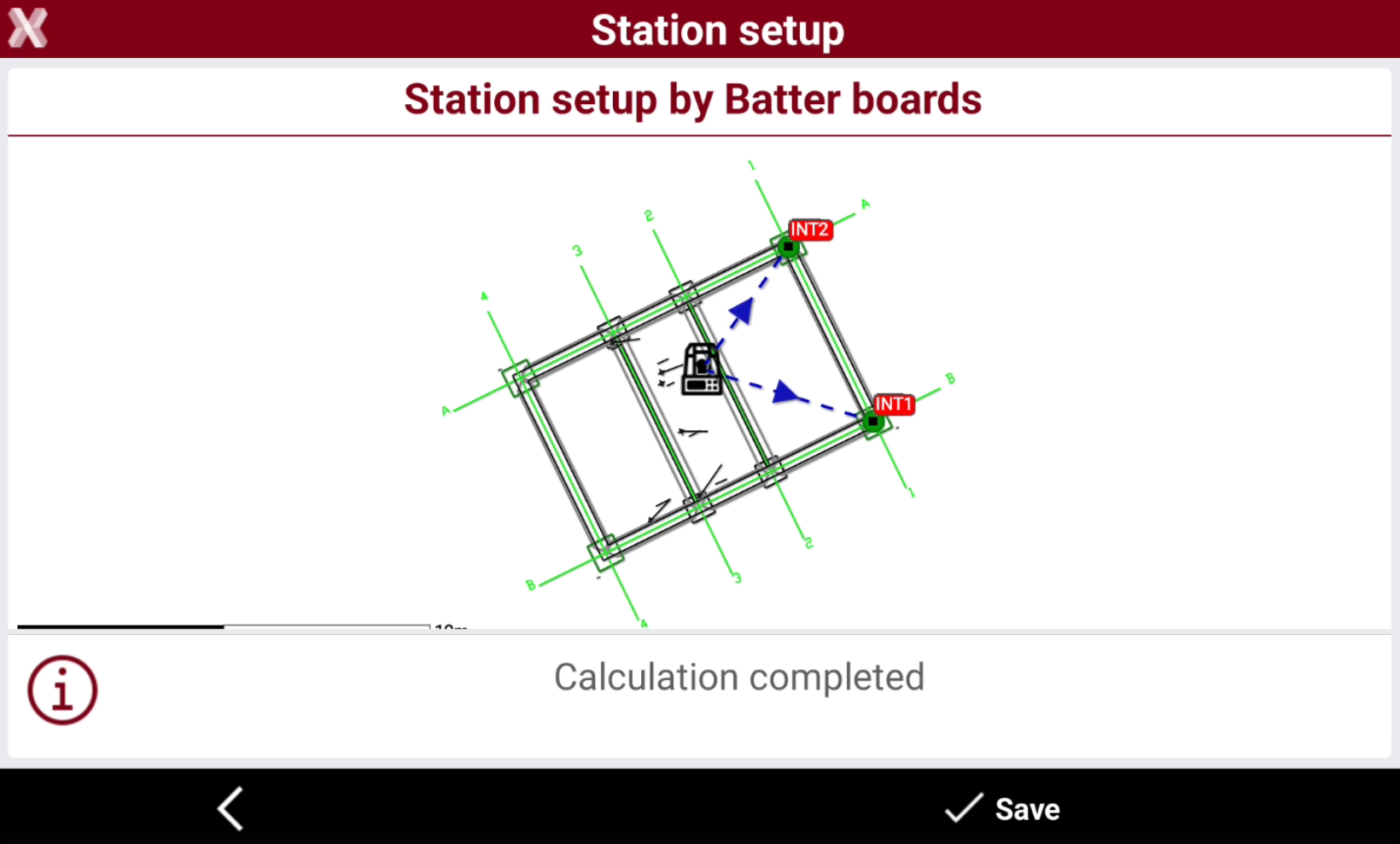
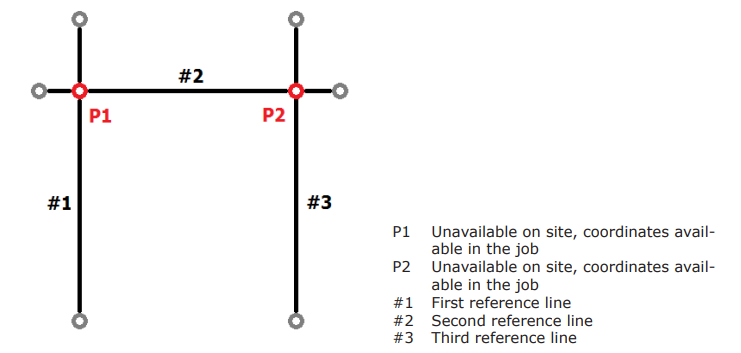
The position and orientation of the station are determined by measurements of three reference lines which, intersecting each other, determine the two postions corresponding to two reference point of the project.
-
Select NO. Station position has to be calculated.
-
Select Batter board.
-
Measure the first reference axis, measuring two points on the axis.
-
Continue measuring two points on the second reference axis and two points on the third reference axis.
-
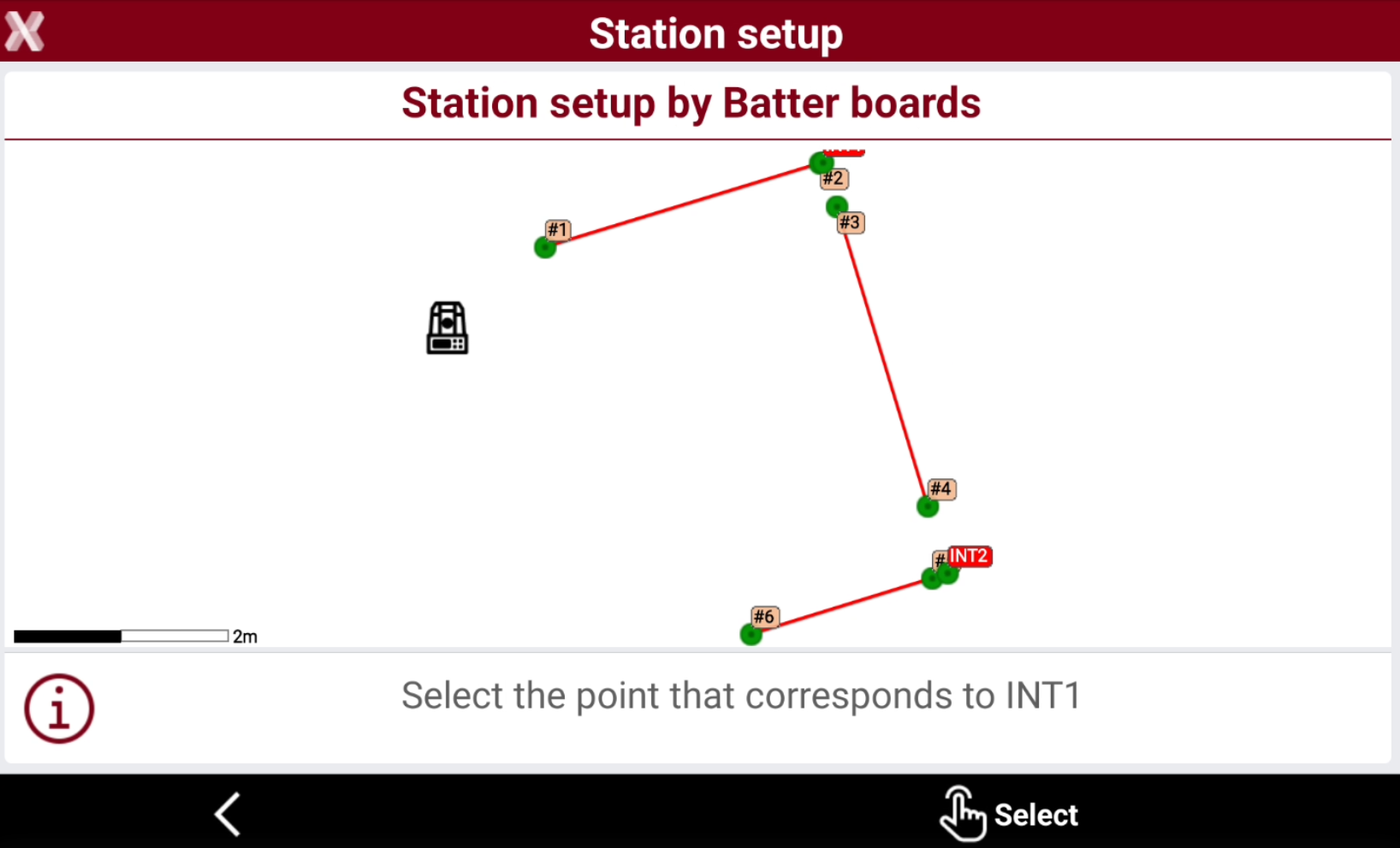
Select in CAD the points corresponding to the two intersection points P1 and P2. Press Select.
-
Click Save to complete the setup.