
-
This page explains how to configure the software to stream out different data (GSI, NMEA GGA, coordinates, etc…) using the serial cable or Bluetooth from a robotic total station.
-
In this configuration the coordinate measured by total station is continuously streamed out and can be used by 3th party applications (for example machine control systems).
-
The data is streamed out from the field controller, connected by bluetooth to the total station.
Data streaming by Bluetooth
-
In this paragraph we will explain on how to stream data from a robotic total station to a Windows computer on a COM port using Bluetooth connection.
-
First step is to configure the total station profile to stream the data on Bluetooth.
-
Open Settings.
-
Click GNSS & Total stations and create or edit the robotic total station profile.
-
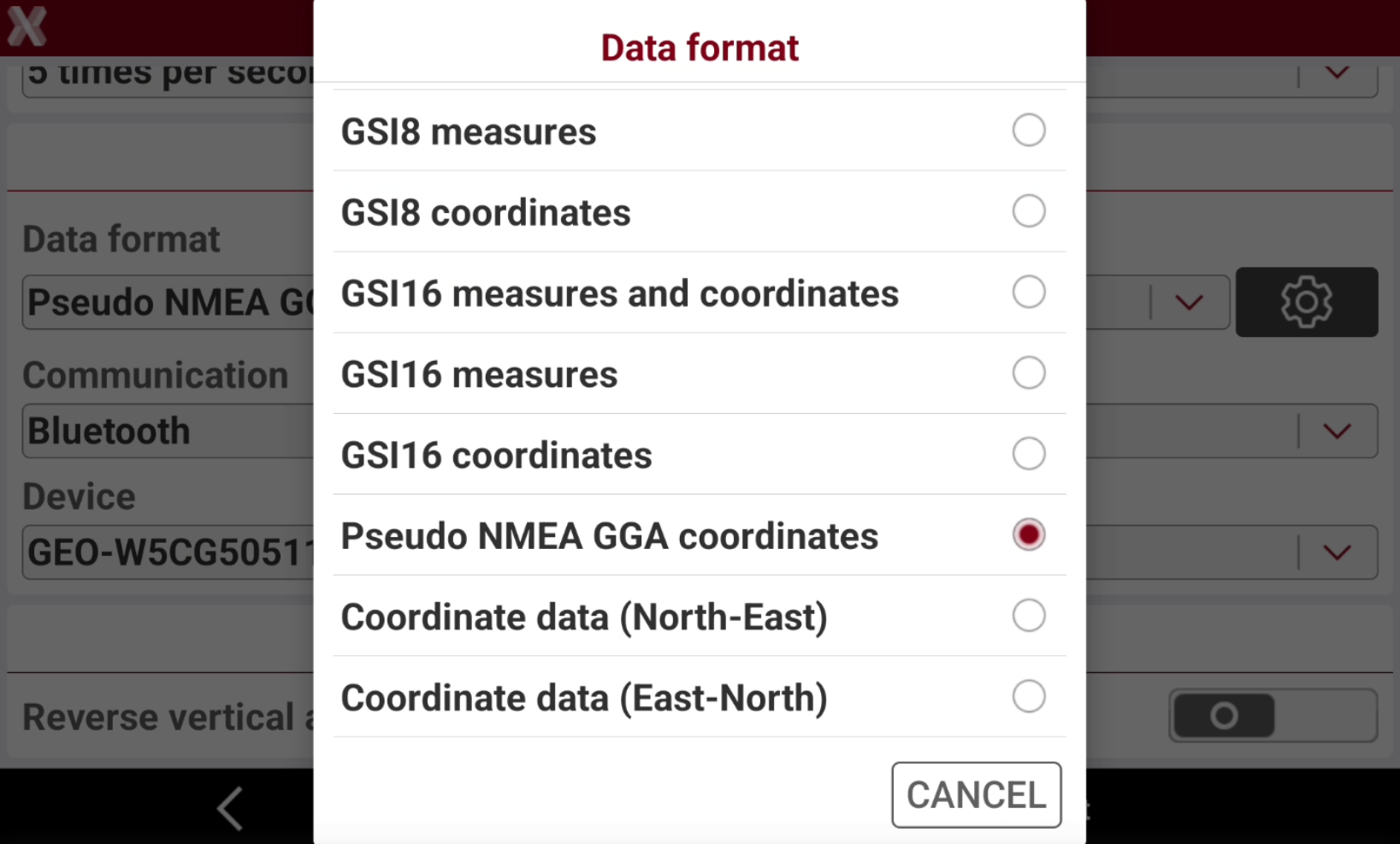
In Output Measures & Coordinates select the data format to output.
-
If selected data format is Pseudo NMEA GGA, click
-
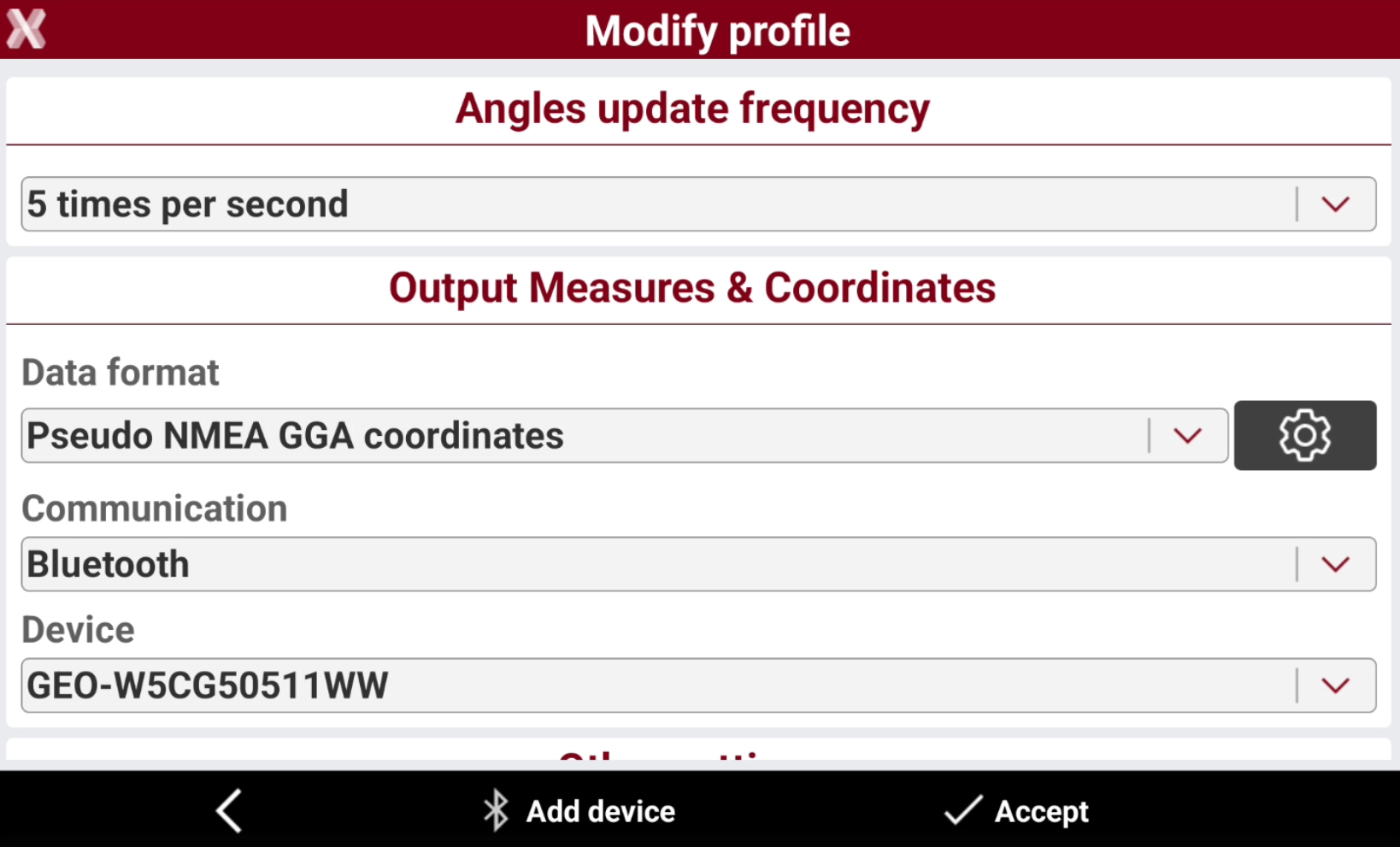
In Communication select the communication method. Select Bluetooth.
-
In Device select the device, connected by Bluetooth, where to stream the data, for example a Windows computer. If the device is not in the list select Add device to search and pair the device.
-
Press Accept to complete the configuration on X-PAD.
-
Since the computer will be connected to the tablet to get the streaming, the next step is to open a COM port on the Bluetooth connection.
-
In Windows search and pair the field controller by Bluetooth.

-
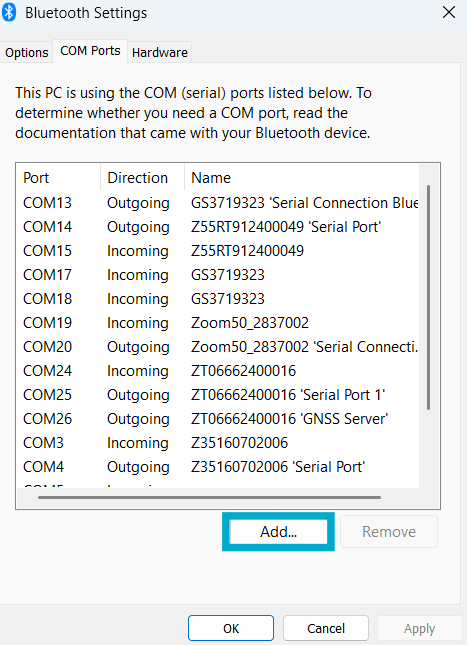
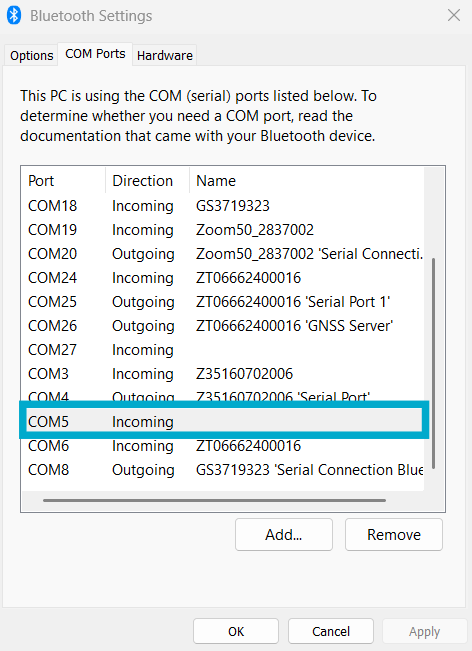
In Windows click More Bluetooth settings and click Add.
-
Open the Incoming port page and click OK. Note the COM port number since we need to connect to this port.
-
Open a job in X-PAD and open TPS Basic application or Survey Points application.
-
Select the EDM Mode as Tracking.
-
Press Measure to start to measure the target in tracking mode. It is necessary to measure the point in tracking mode, in order for the total station to have the point coordinate.
-
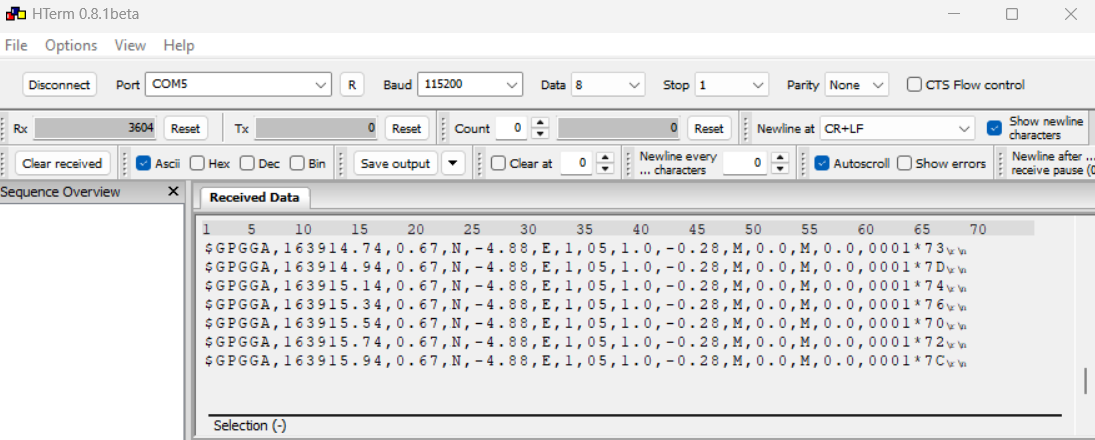
Open the 3th party application and connect to the previously created Bluetooth incoming COM port to start to receive the data.
Data streaming by cable
-
In this paragraph we will explain on how to stream data from a robotic total station to a Windows computer on a COM port using a serial cable.
-
First step is to configure the total station profile to stream the data on serial cable.
-
If the USB-serial cable is connected from the Android controller to a Windows PC please note:
-
Not all chipset are recognized by Android controller. This depends also on controller model. FTDI chipset provides better compatibility with X-PAD.
-
If field controller has a USB-A port and USB-C port the cable has to be connected to USB-C port.
-
-
Open Settings.
-
Click GNSS & Total stations and create or edit the robotic total station profile.
-
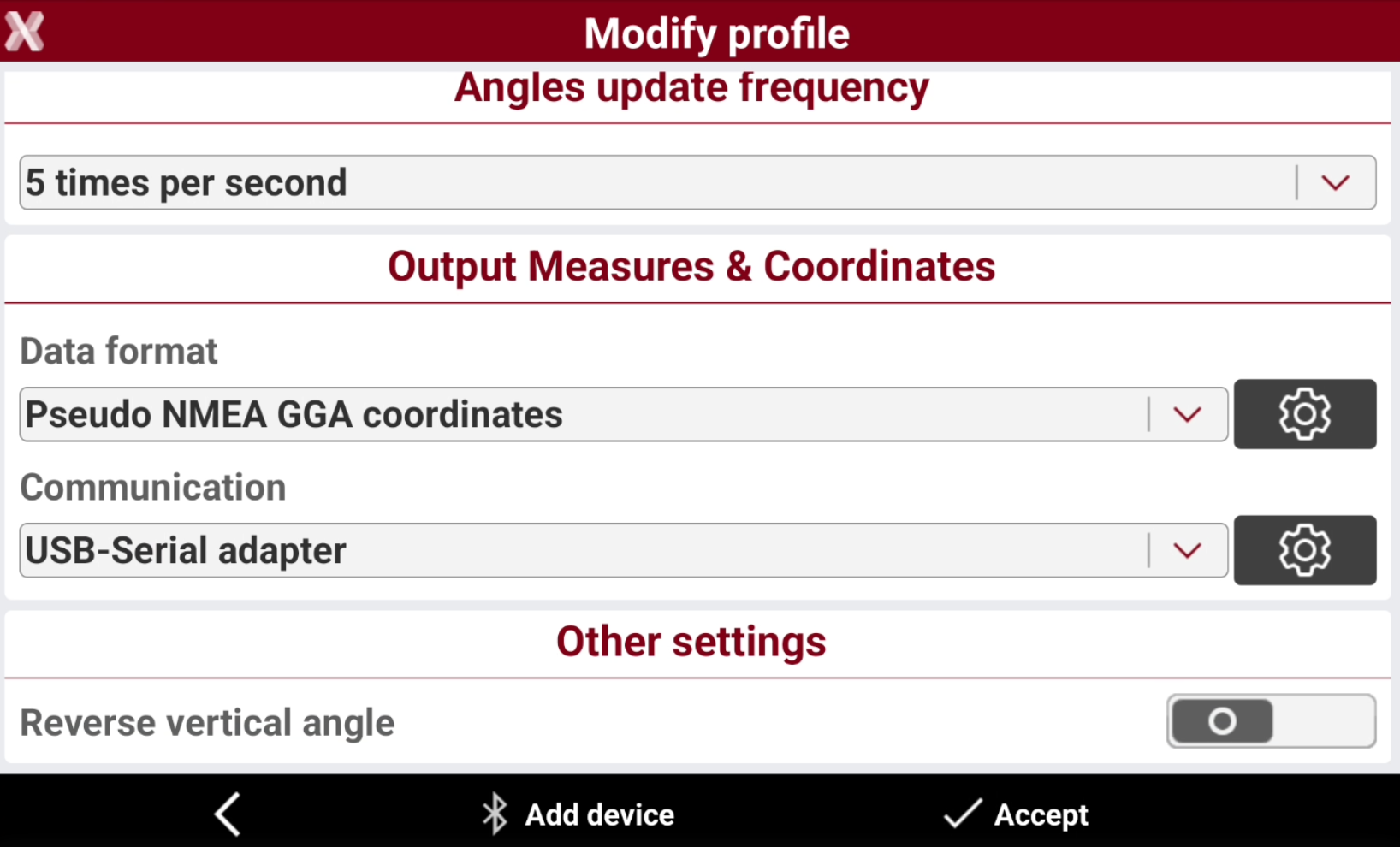
In Output Measures & Coordinates select the data format to output.
-
If selected data format is Pseudo NMEA GGA, click
-
In Communication select the communication method. Select USB-Serial adapter.
-
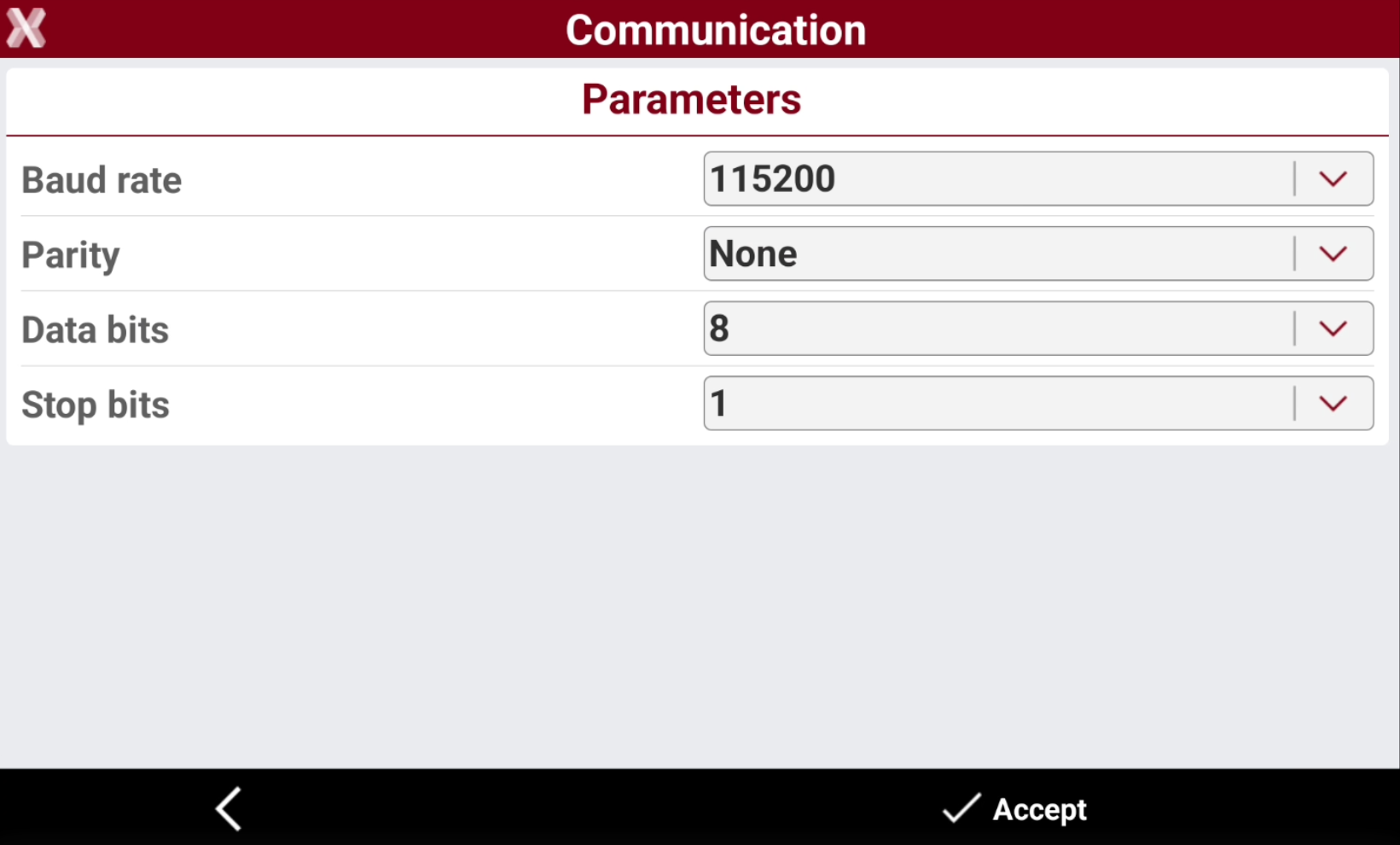
Click
-
Press Accept to complete the configuration on X-PAD.
-
Since the computer will be connected to the tablet to get the streaming using serial cable, open Device Manager and check the COM port to use. Check that the baud rate is the same baud rate selected in X-PAD.
-
Open a job in X-PAD and open TPS Basic application or Survey Points application.
-
Select the EDM Mode as Tracking.
-
Press Measure to start to measure the target in tracking mode. It is necessary to measure the point in tracking mode, in order for the total station to have the point coordinate.
-
Open the 3th party application and connect to the COM port to start to receive the data.