
GIS
-
If a GIS feature is associated with a code, a window displays the attributes that must be completed.
-
The window can be organized into pages, one for each GIS feature, as multiple features can be associated with a single code (composite codes).
-
On each page, the attributes to be filled in are displayed.
-
All information associated to points can be exported in different ways. For example as ESRI Shape file, as labels in the DXF export or in an ASCII file.
For more information on how to assign GIS features to survey code see GIS manager.
Enter GIS features
-
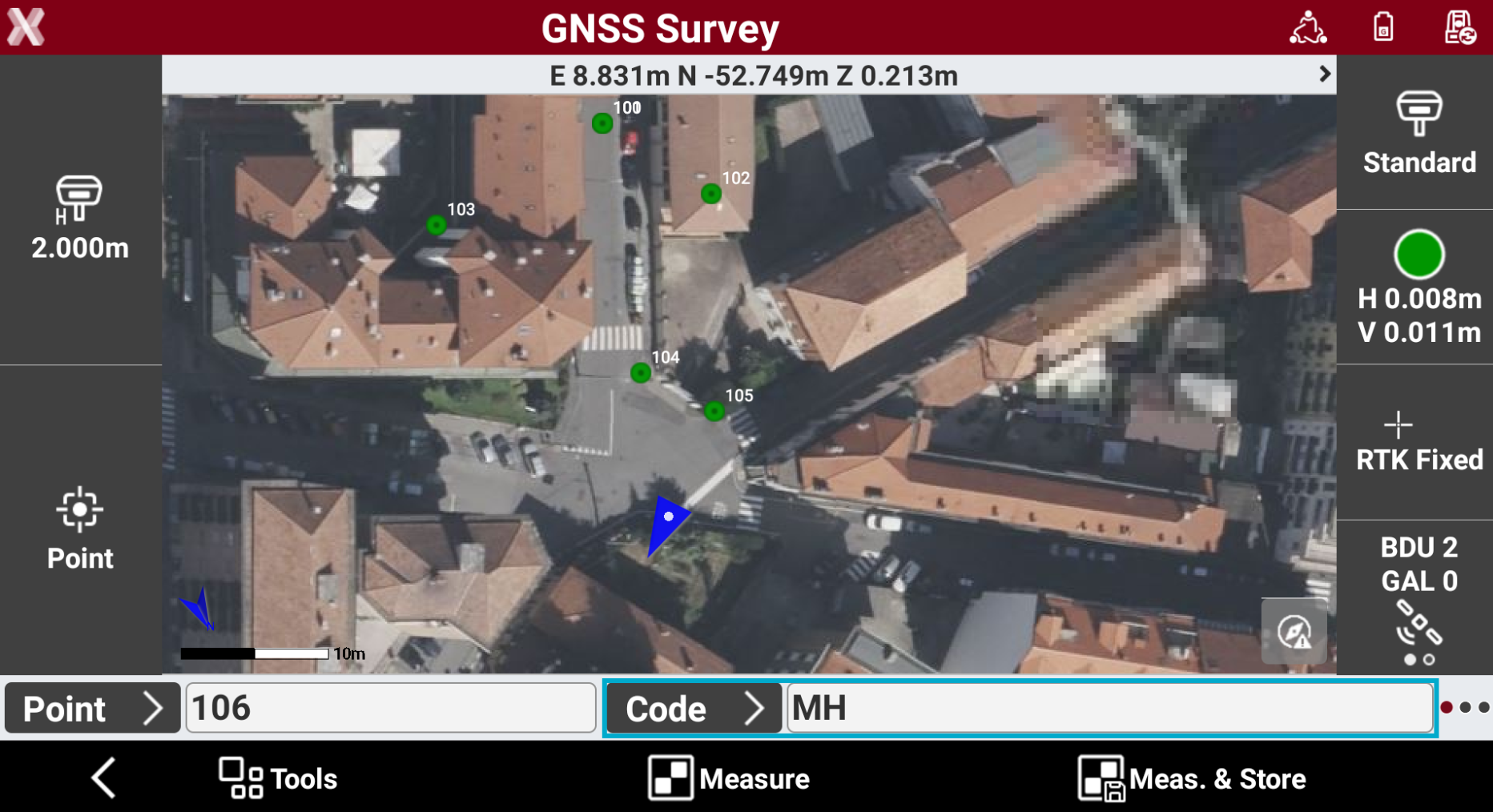
Select a Survey code with a GIS feature associated.

-
Measure the point.
-
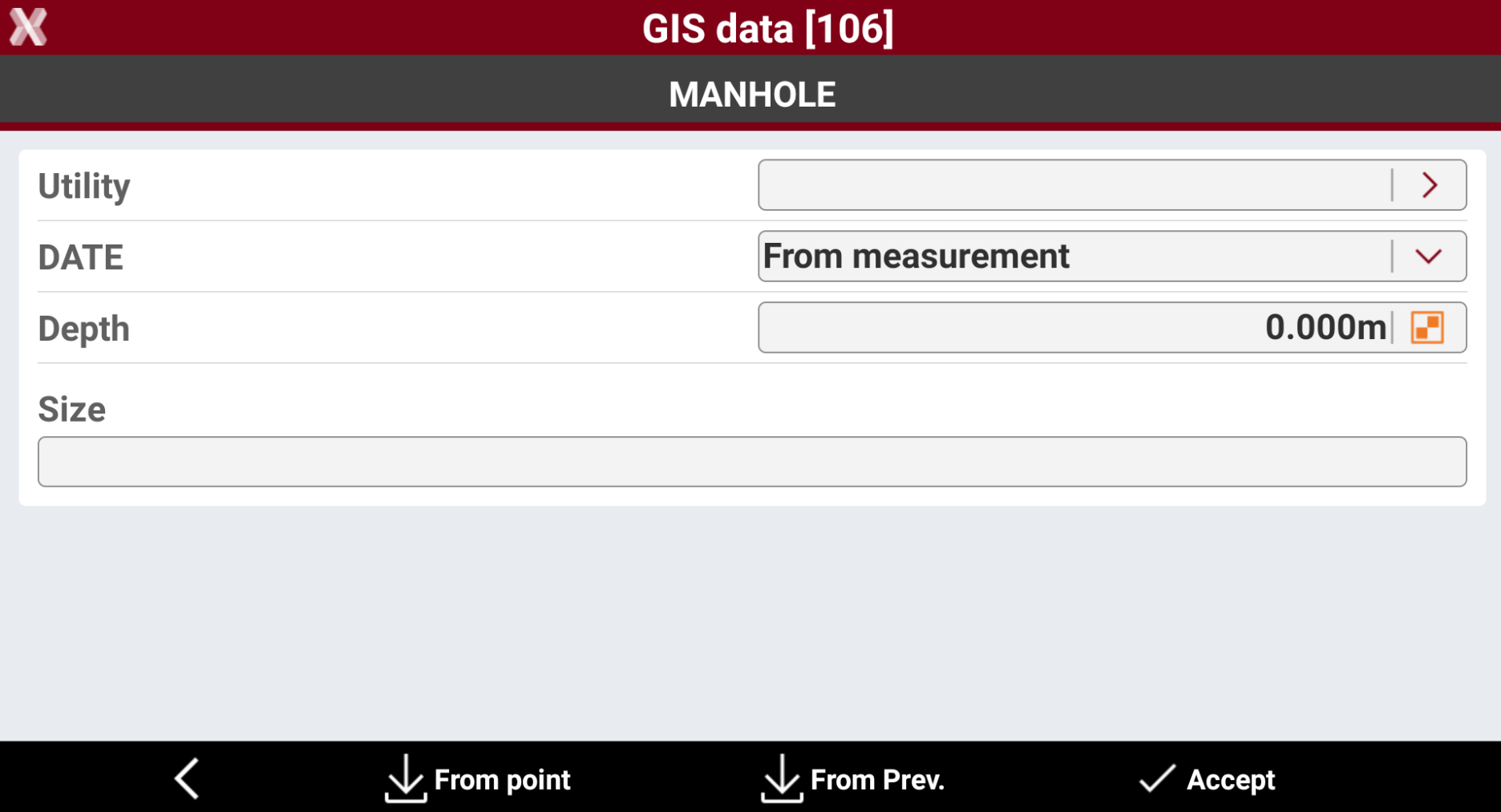
The GIS data page is opened.
-
The page allows to enter all GIS attributes configured for the specific survey code.
-
If attribute is a Free attribute, enter the value or press


-
If attribute is a Pre-defined attribute, its value is set to From measurement and automatically calculated by the software.
-
If attribute is a Measured attribute, press

-
-
Select From point to load values of the attributes saved in one of the points in the job. Select the point from which to load values of the attributes.
-
Select From Prev to load values of the attributes saved with the previous point.
-
Select Accept to save the attributes.