GIS
-
Every GIS feature has to be associated to a Survey code to be used during a survey.
-
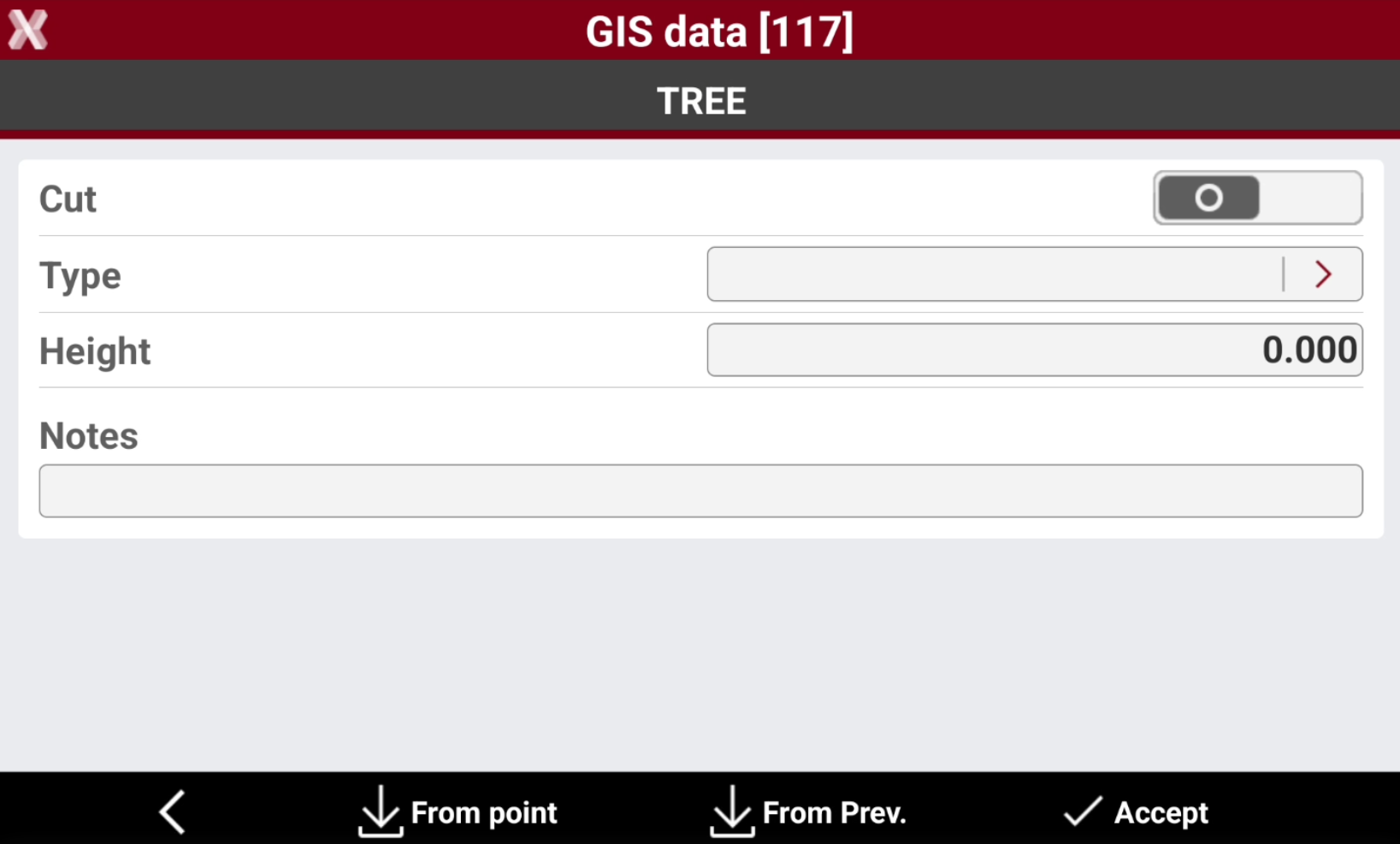
Saving a point: the software checks the survey code associated with the point. If a GIS feature is associated to the survey code, a window is displayed allowing to add the corresponding attributes.
-
Saving a line: the attributes can be assigned to the first point of the line, to all points or to the last point of the line. In most cases, the last point of the line is the best solution because more information about the line is available. The option GIS line attributes is available in TPS Survey Settings and GNSS Survey settings.
-
-
To assign a feature to a survey code, first of all load or create a GIS feature list.
-
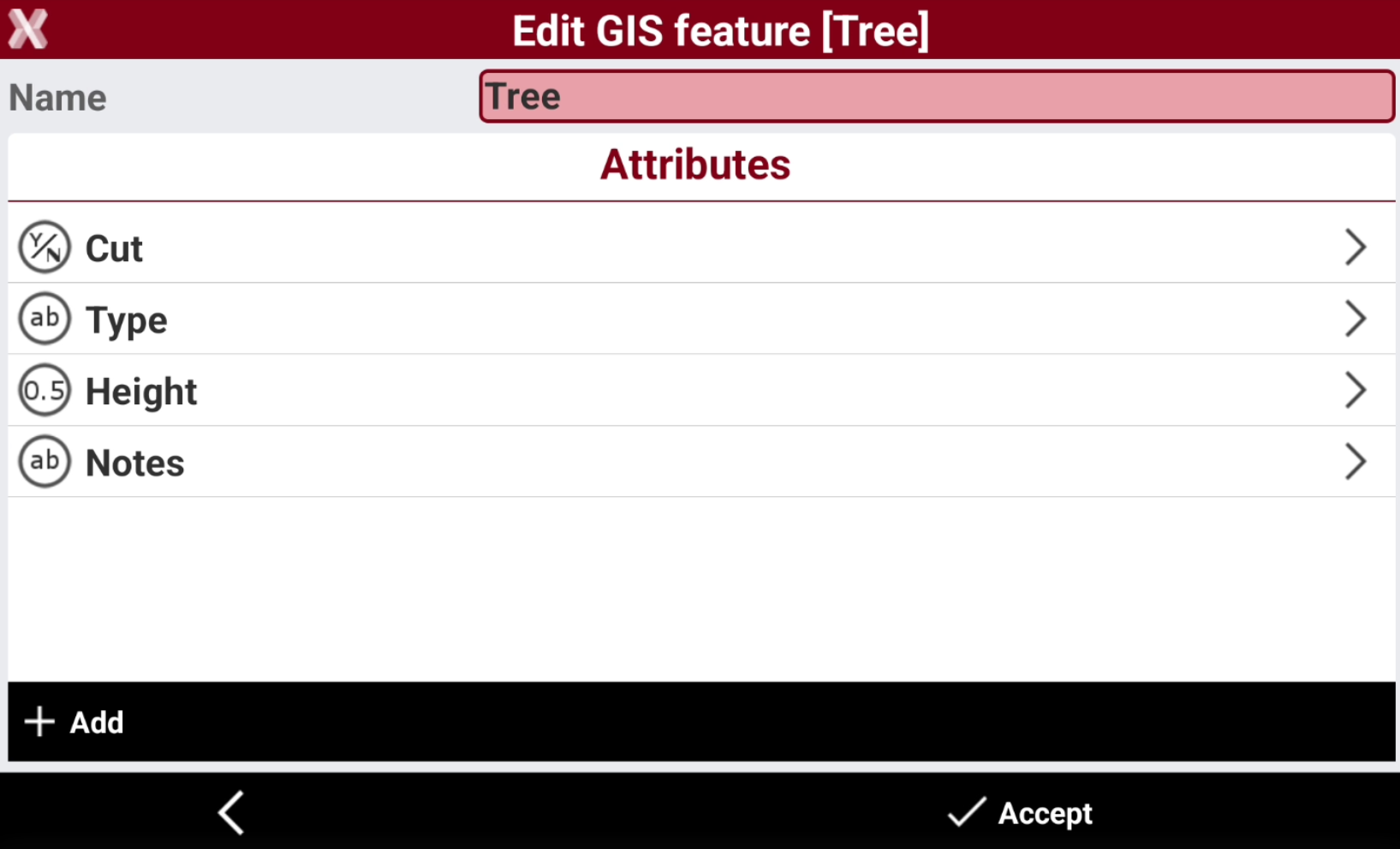
Create the GIS feature and the corresponding attributes.
-
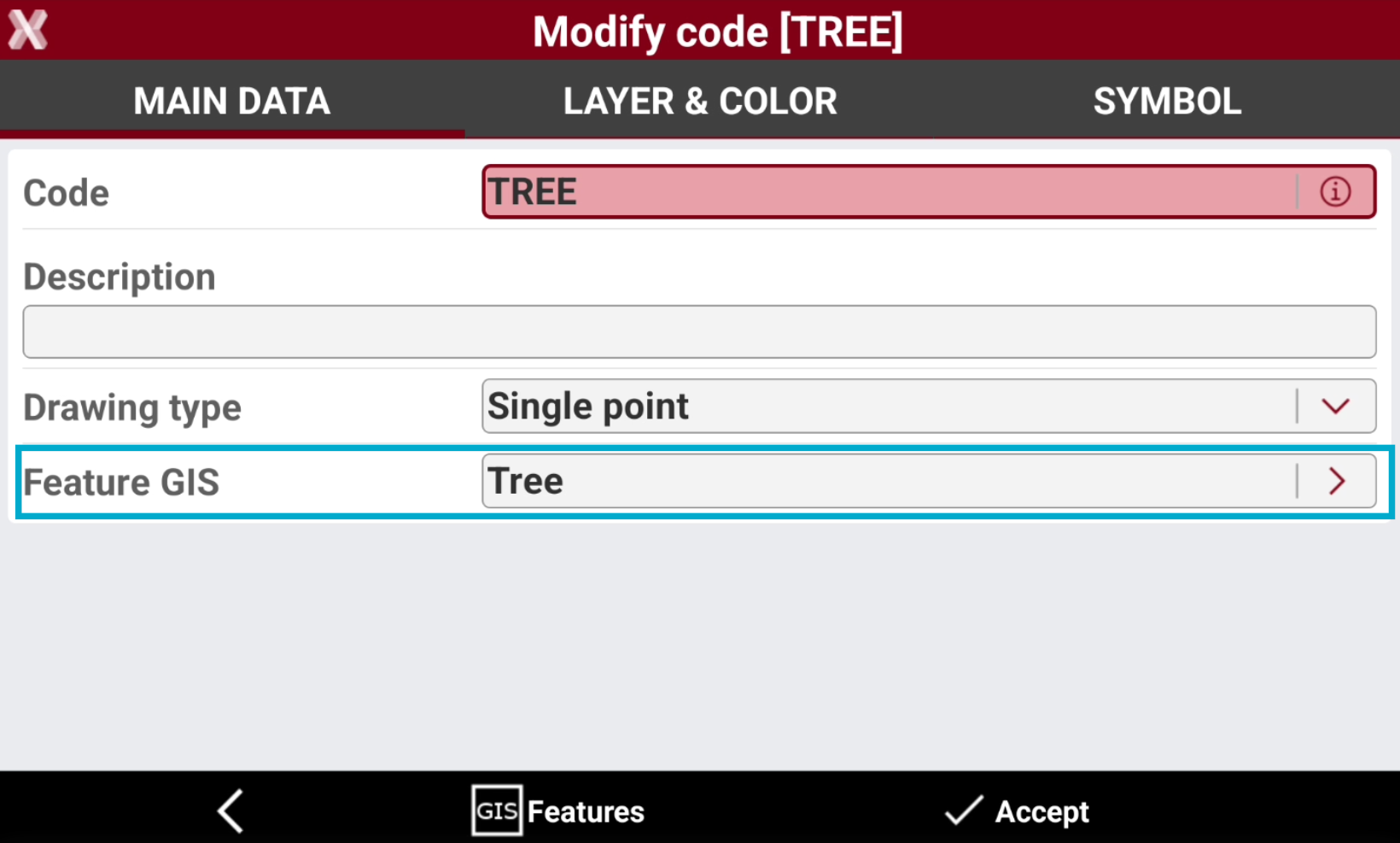
Create or edit a survey code. In the Main data page press Feature GIS to assign to the code a feature GIS.
-
Select a GIS feature, available in the GIS features list loaded, to use when a point is measured with this specific code.
-
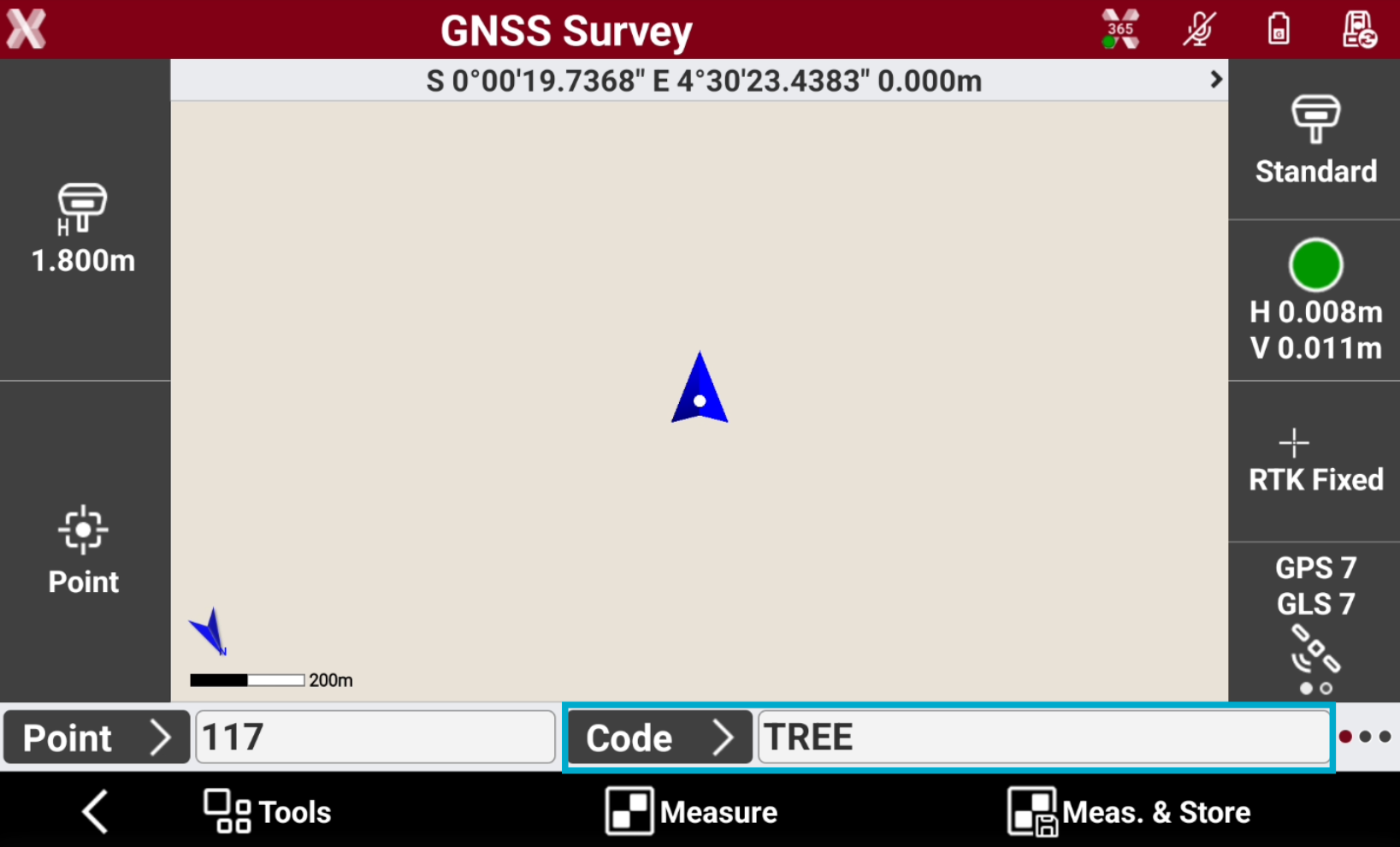
During the survey select the Survey code.
-
User is prompted to enter the corresponding attributes.