
GIS
-
GIS features can be created/modified inside the GIS features manager.
-
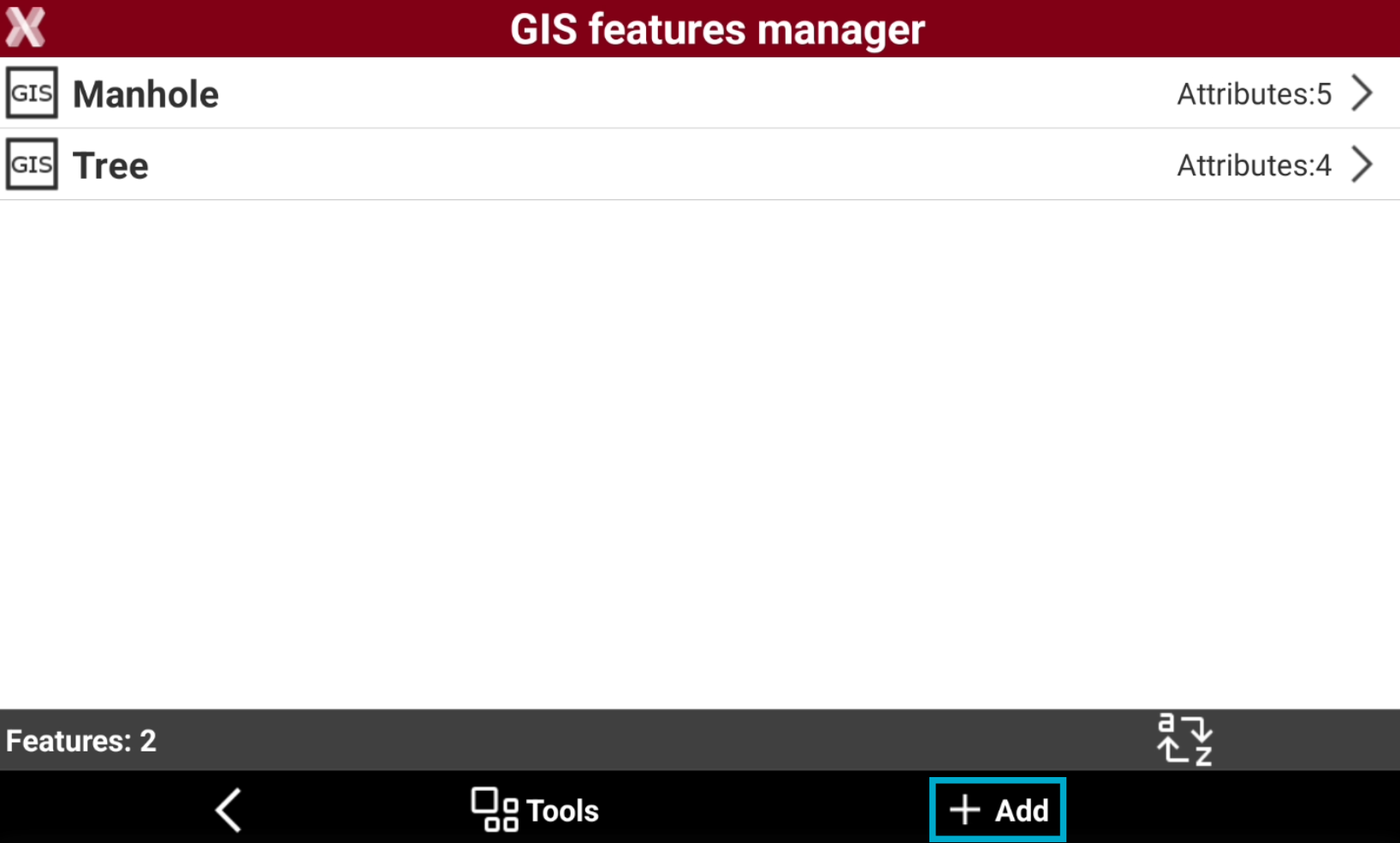
In the GIS features manager press Add to create a new feature.
-
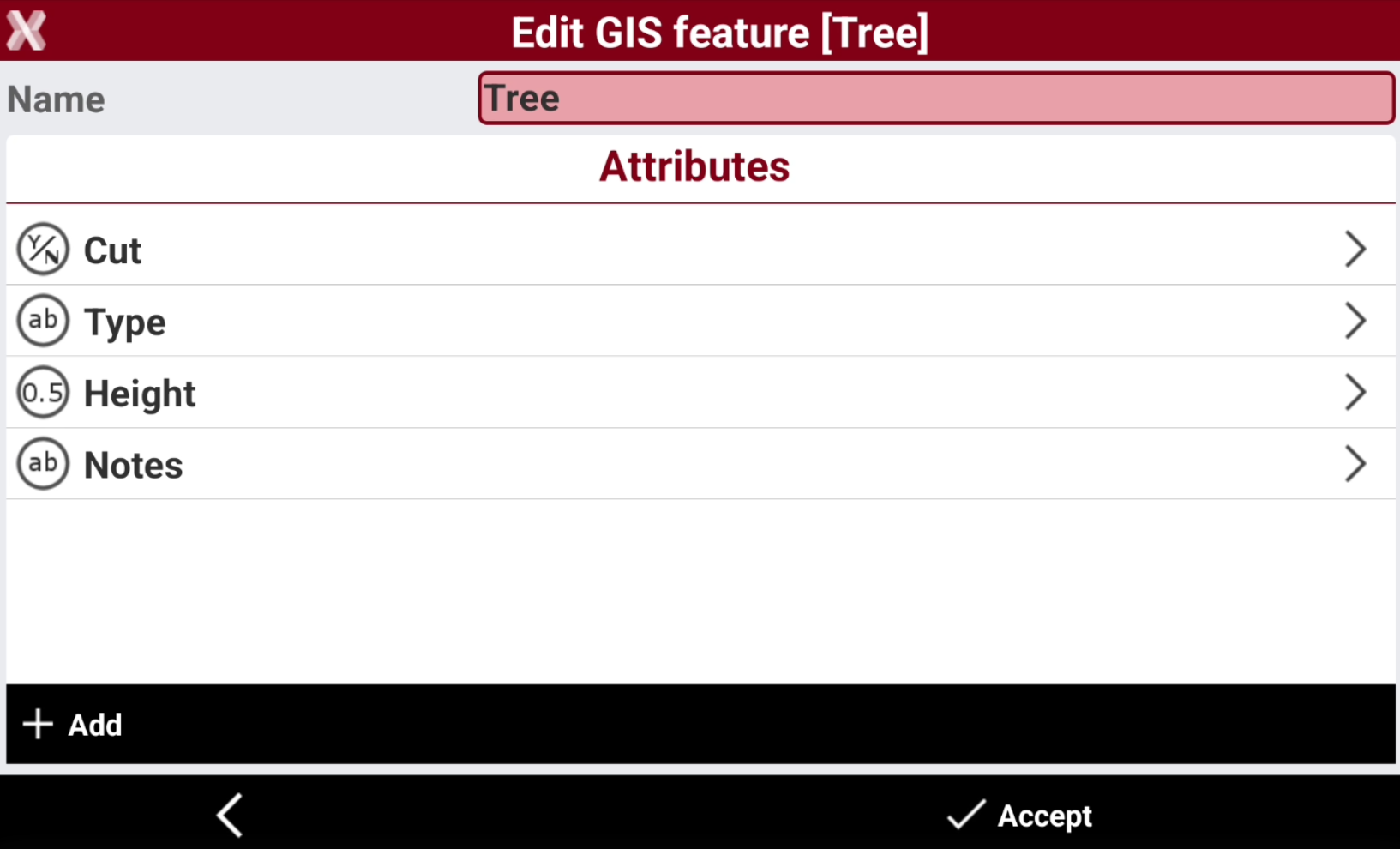
This opens the New GIS feature page showing the list of attributes for the GIS feature.
-
Name: name of the GIS feature.
-
Attributes: list of attributes defined by the feature.
-
-
To create new attributes select Add.
-
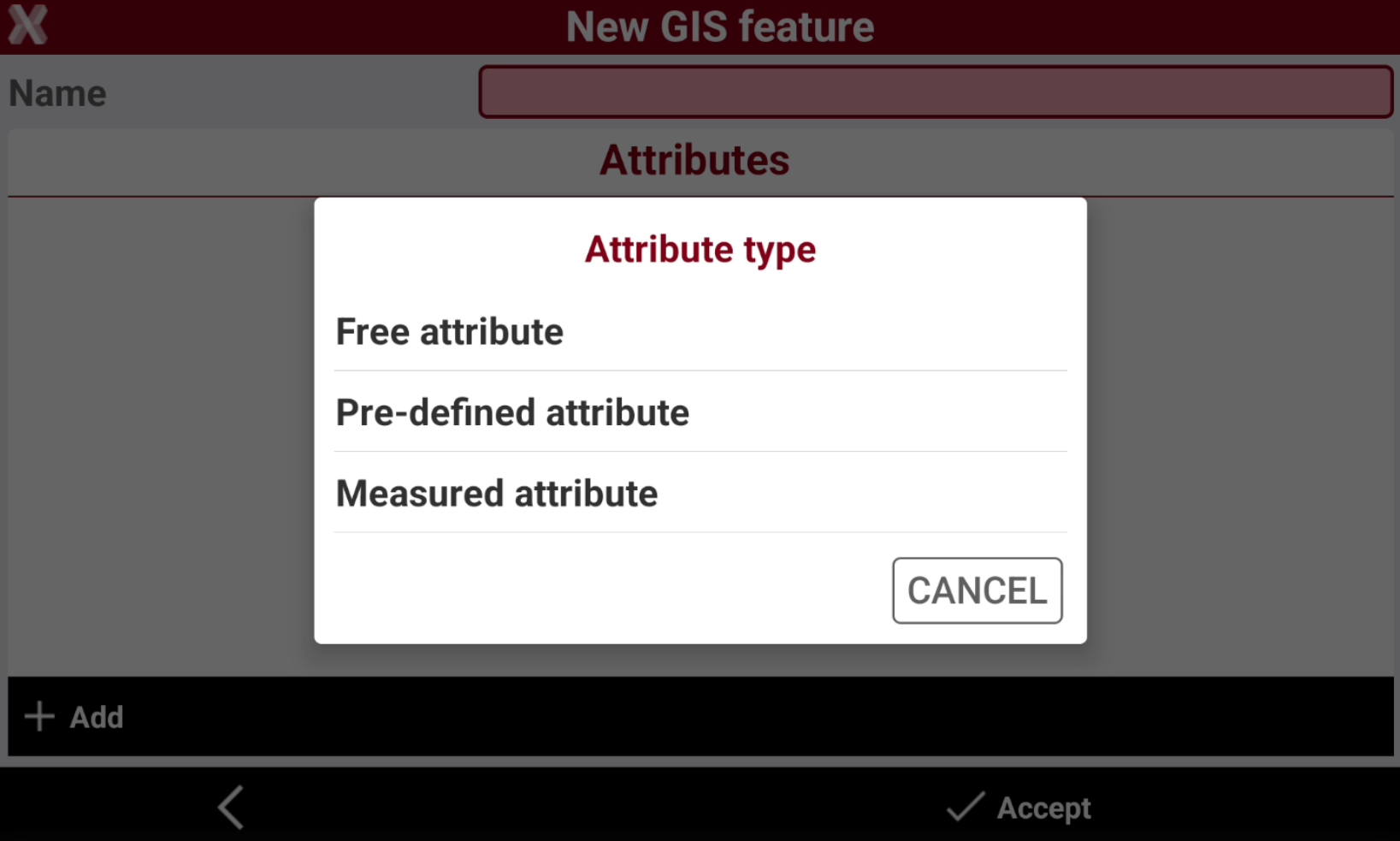
Select the type of attribute:
-
Free attribute: this attribute requires the operator to manually enter or select the value
-
Pre-defined attribute: this attribute is automatically entered by the software, for example the date or the GNSS accuracy.
-
Measured attribute: this attribute is measured by the operator.
-
Free attribute
-
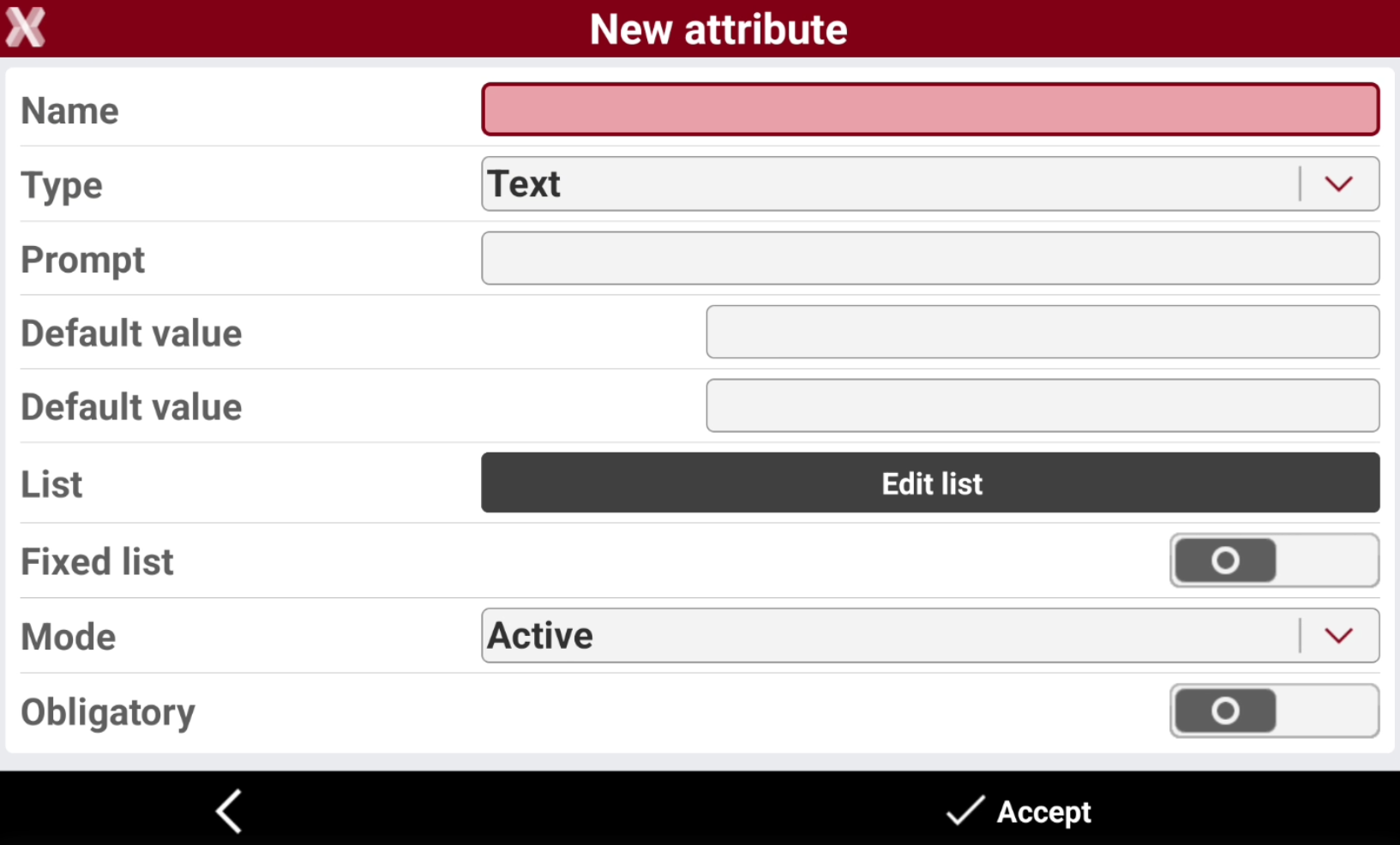
A free attribute requires the operator to enter the attribute value.
-
Name: the name of the attribute.
-
Type: the type of attribute.
-
Text: alpha-numeric text.
-
Integer number: any number, positive or negative, without fraction, including 0. Examples: 1, 108, -43.
-
Real number: any number, positive or negative, with fraction, without 0. Examples: 1.5, 108.46, -43.98.
-
Yes/No: the field value can be yes or no.
-
Title: the title is not an attribute but the title of the group of the following attributes.
-
Date: the attribute is a date.
-
Time: the attribute is a time.
-
-
Prompt: text requesting the attribute.
-
Default value: the value proposed by default.
-
List: list of values. Click Edit list to edit the values inside the list.
-
Fixed list: when activated, the value of the attribute must be selected from the list of values and can not be entered manually.
-
Mode: mode of request of value.
-
Active: normal request.
-
Read only: the attribute is not editable.
-
Hidden: the attribute is hidden and is not visible.
-
Disabled: the attribute is disabled.
-
-
Obligatory: when activated, a value must be assigned to the attribute; it cannot be left unspecified.
-
-
Click Accept to save the attribute.
Pre-defined attribute
-
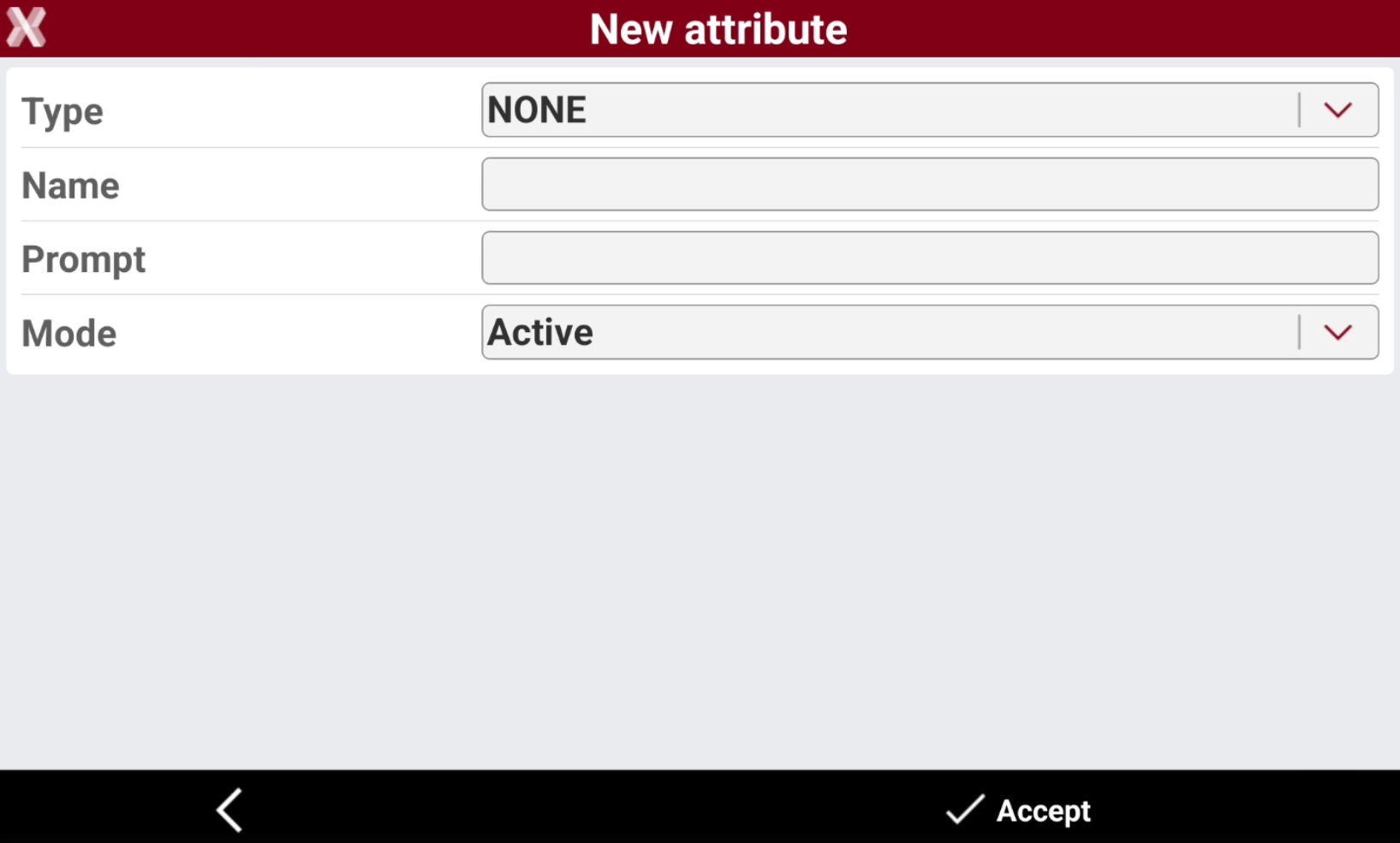
The value of predefined attributes is extracted from the measurement.
-
Type: the type of attribute that can be extracted from measurements.
-
Point data: date when measurement is done.
-
Point time: time when the measurement is done.
-
GNSS Horizontal accuracy: the RTK estimated error when a GNSS measurement is performed.
-
GNSS Vertical accuracy: the RTK estimated error when a GNSS measurement is performed.
-
Depth: the point depth. The value is the cable locator depth, in case of jobs with cable locators connected to X-PAD, or the depth value from vertical offset measurements.
-
Site name: the name of the current site.
-
Point code: the code assigned to the measured point.
-
-
Name: the name of the attribute.
-
Prompt: text requesting the attribute.
-
Mode: mode of request of value.
-
Active: normal request.
-
Read only: the attribute is not editable.
-
Hidden: the attribute is hidden and is not visible.
-
-
-
Click Accept to save the attribute.
Measured attribute
-
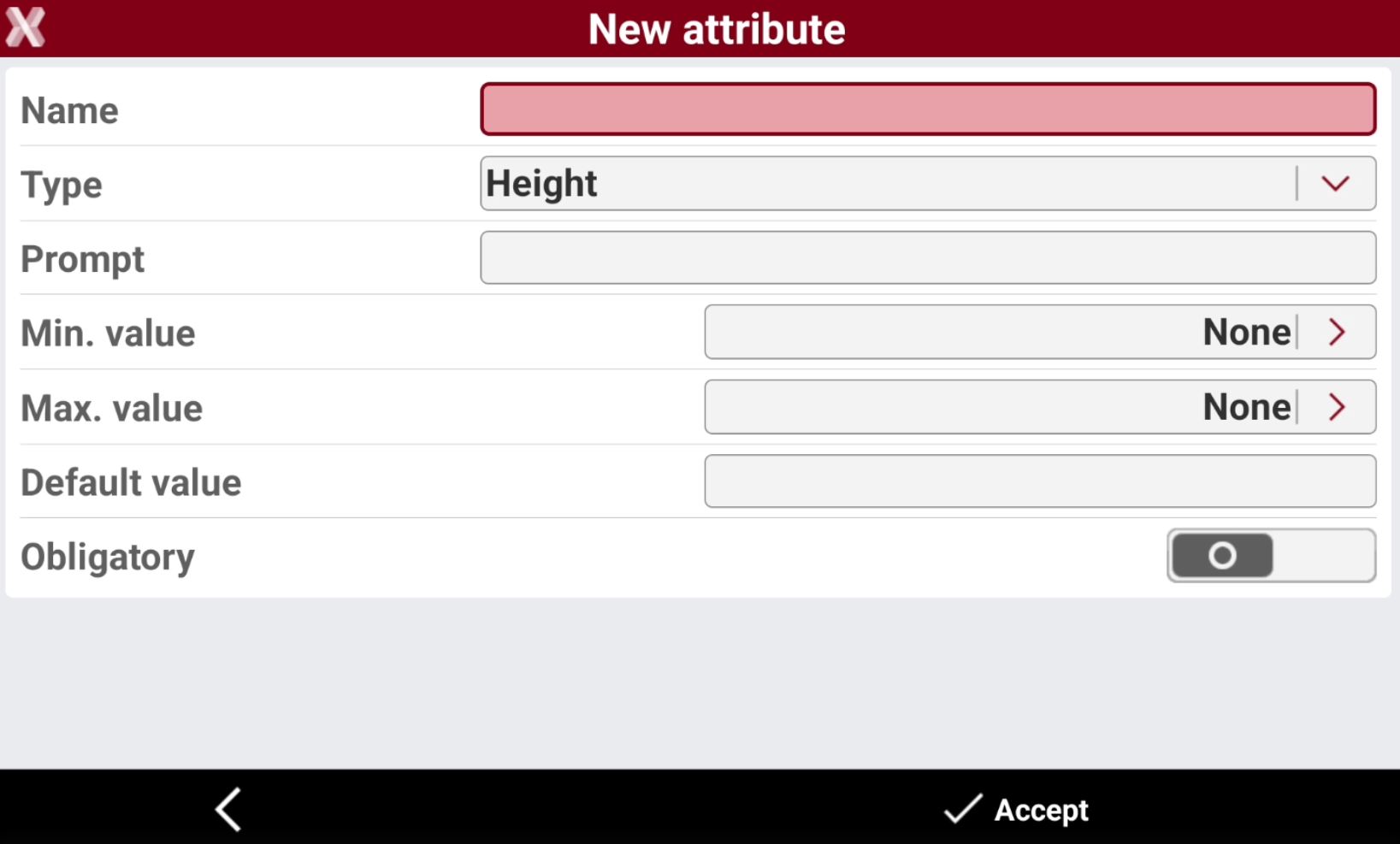
The value of a measured attribute is manually measured using TPS or GNSS before storing the point.
-
Name: the name of the attribute.
-
Type: the type of measured attribute.
-
Height: elevation measured with current instrument.
-
Δ Height: different elevation between main point and an additional measure.
-
2D Distance: distance in 2D between main point and an additional measure.
-
3D Distance: distance in 2D between main point and an additional measure.
-
-
Min. value: the minimum acceptable value for the attribute. Any measured value below this threshold is set to the minimum value.
-
Max. value: the maximum acceptable value for the attribute. Any measured value below this threshold is set to the minimum value.
-
Default value: the value proposed by default.
-
Obligatory: when activated, a value must be assigned to the attribute; it cannot be left unspecified.
-
-
Click Accept to save the attribute.