CAD view in survey

  • In survey functions the software offers a CAD view where the current instrument position is visible with the measured points and all graphic entities.
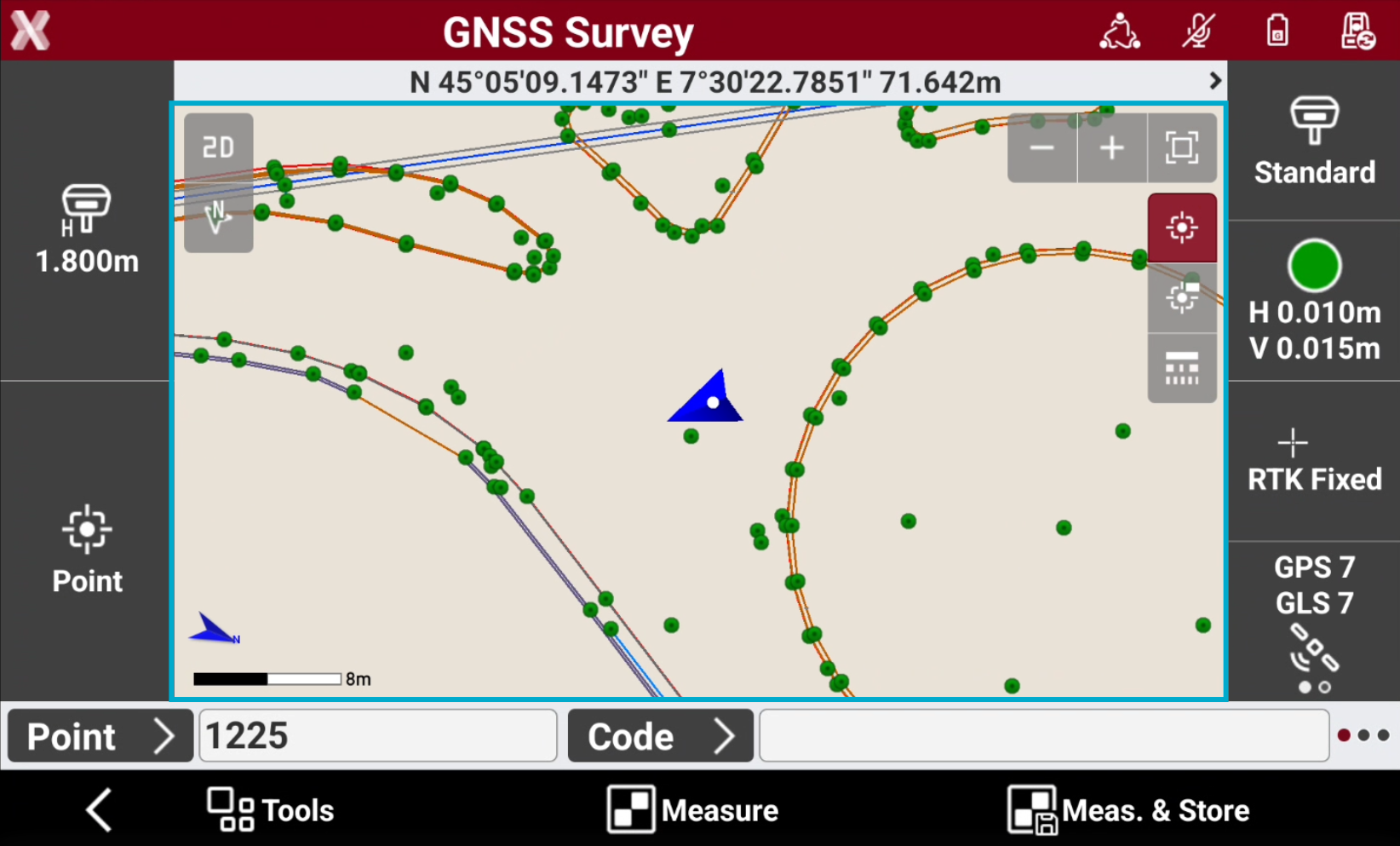
    image-20260701-150709.png

Drawing display

  • The commands to change the drawing display are the same as available in the main CAD window.
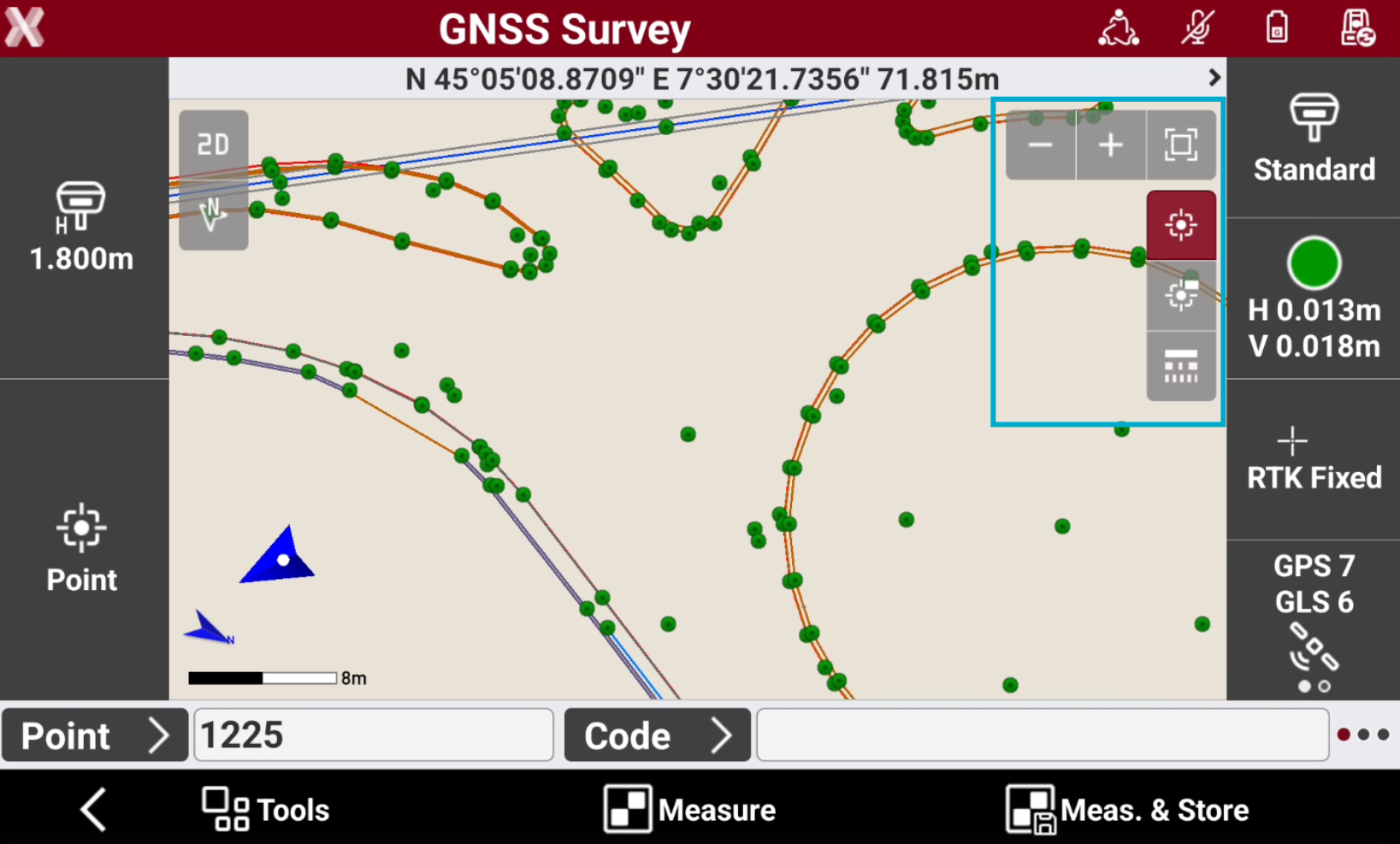
    image-20260701-150753.png
  • Tap on the graphical windows of the drawing display. The buttons and commands for displaying the drawing are activated.

    • Zoom all image-20250508-091517.png : displays of all the drawing elements.

    • Zoom window image-20250508-091552.png : allows to specify the visualization area through indication of the opposite angles.

    • Zoom in image-20250508-091701.png : enlarging the visualization.

    • Zoom out image-20250508-091723.png : reducing the visualization.

    • Points image-20250508-091836.png : enables and disables the visibility of points.

    • Points labels image-20250508-091928.png : enables and disables displaying point labels.

    • Linetype image-20250508-092015.png : enables and disables the visibility of linetypes.

    • Working area image-20250508-092051.png : the icon notifies that the drawing extension is too large to display all elements appropriately. Open the CAD to define the working area.

    • Controller not calibrated image-20250704-083830.png : notifies that the compass of the controller is not calibrated and it is required to perform the calibration procedure. Tap the icon to perform the calibration procedure by the movement showed in the following image.

      image-20250704-091327.png

Operating in CAD

  • Pan: shifting of the view is always active. Tap in the graphic area and drag the view.

  • Pinch out : tap in the graphic area using two fingers and spread them on the screen.

    image-20250508-092231.png
  • Pinch in: tap in the graphic area using two fingers and merge them on the screen.

    image-20250508-092254.png
  • Double click: opens the main CAD.