
-
Smart Drawing tools are used to generate drawing while measuring points.
-
These tools helps to create the final drawing directly in the field.
-
Two drawing modes are available:
-
Smart Drawing Tools: creates a single line between points or draw a circle, rectangles or squared objects.
-
Advanced linework: create more lines, even with the same code. For complex survey situations.
-
-
Combine Smart Drawing tools with Survey codes and layers to have the final drawing on the final layers completed in the field.
Smart Drawing Tools
-
Smart Drawing Tools allow to draw and create lines and objects during the survey.
-
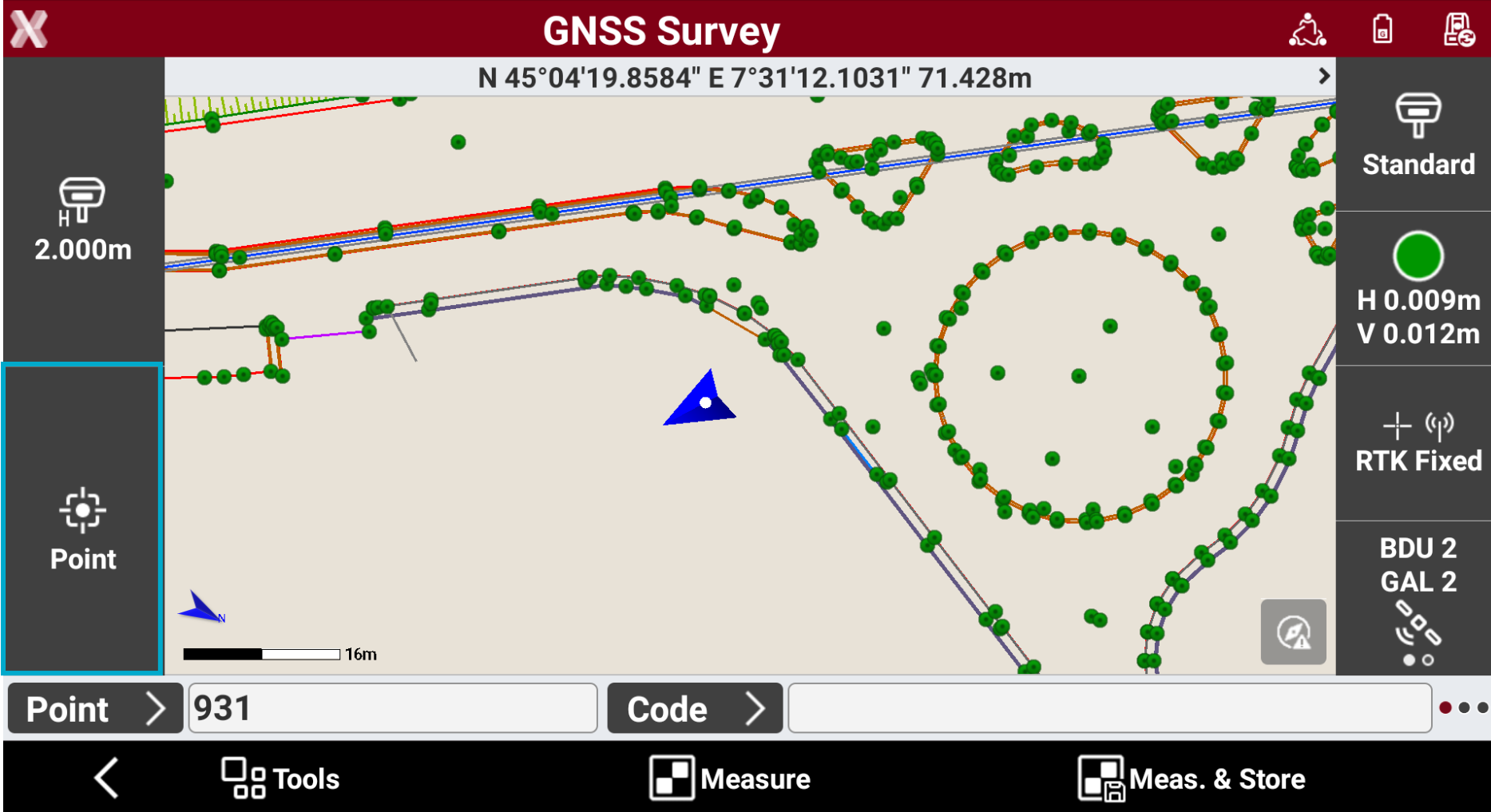
To open the Smart Drawing Tools tap on the lower button of the left side panel in the survey window.
-
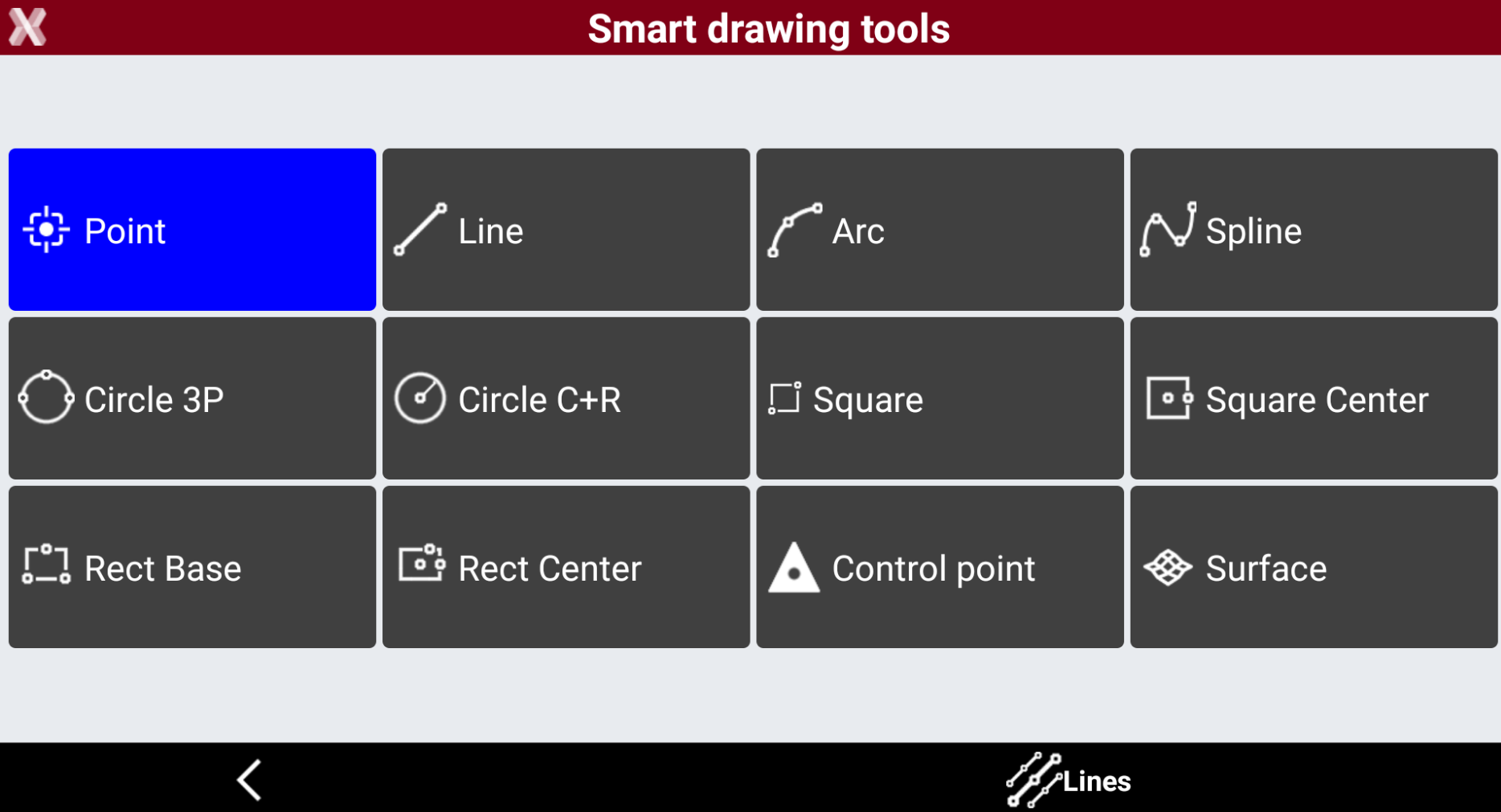
This opens the Smart Drawing tools page.
-
Select a box to start drawing the selected entity.
-
Point: save single points.
-
Line: creates lines between points.
-
Arc: creates arcs between points.
-
Spline: creates a spline from measured points automatically.
-
Circle 3P: creates a circle by measuring of three points.
-
Circle C+R: creates a circle by measuring the center and one point on the circle.
-
Square: creates a square by measuring two opposite angles.
-
Square Center: creates a square by measuring the centre point and the middle point of a side.
-
Rectangle base: creates a rectangle by measuring two points of the base and any point on the opposite side from the base.
-
Rectangle center: creates a rectangle by measuring the center, one middle point of a side and any point on opposite side.
-
Control point: stores a point of type Control point. This allows to customize the occupation time.
-
Surface: if this option is selected, the software will ask to enter the name of the new surface or select an existing surface. All points measured while this option is enabled, creates vertexes for the selected surface.
-
-
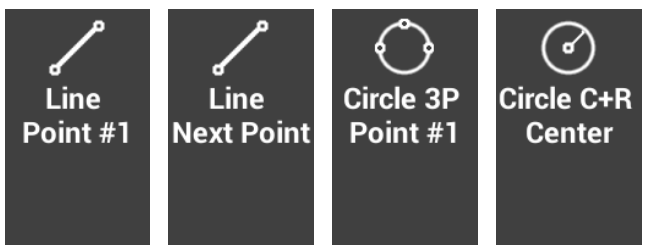
When a tool is selected from the toolbar, a button appears showing the action to be performed on the point to be measured.
-
When a survey code is selected, the tool corresponding to the type of drawing set in the code properties is selected automatically.
Smart drawing bar
-
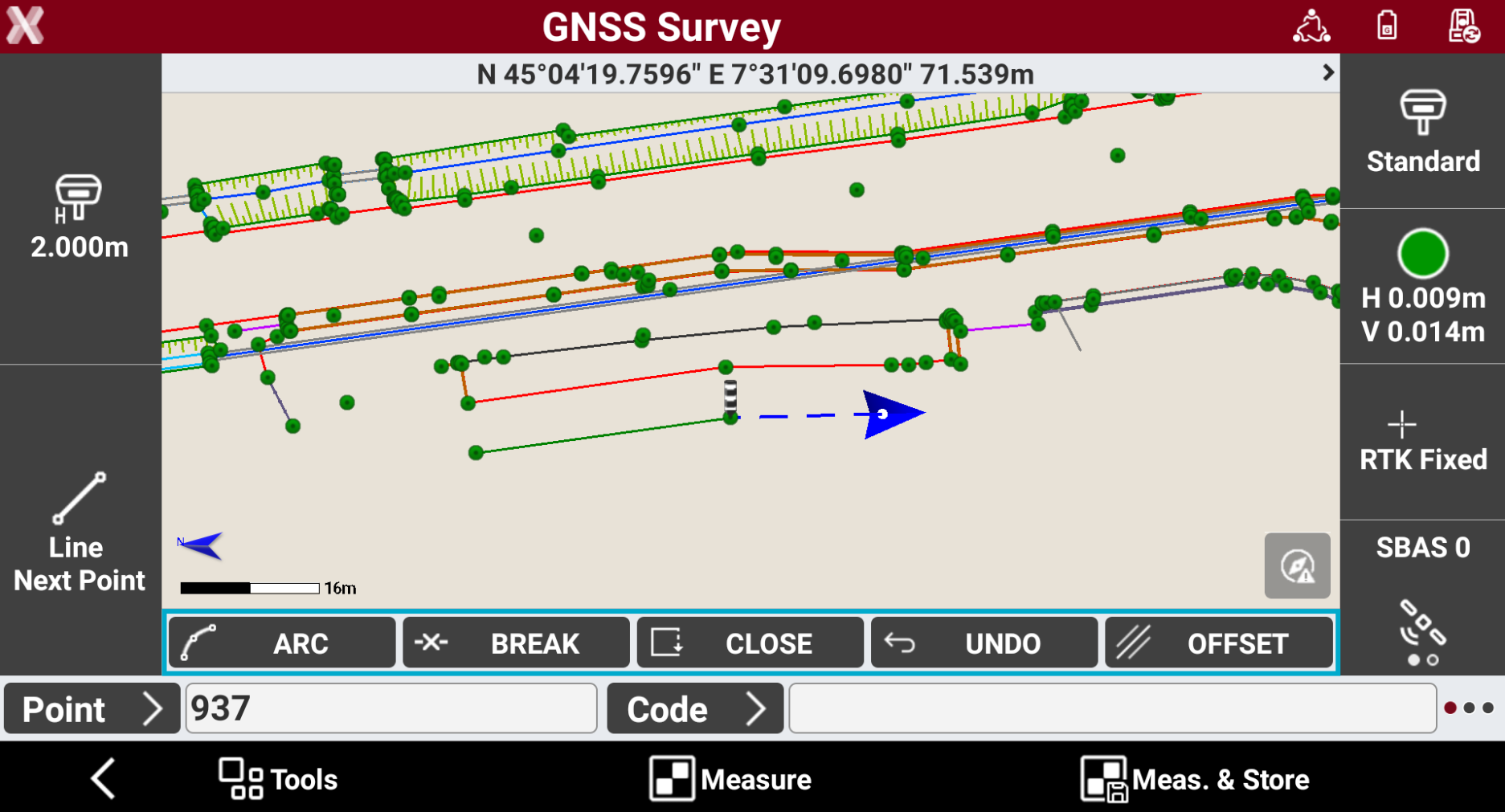
When a Smart drawing tool is selected, the software visualizes a bar in the survey page with a set of actions to manage the current drawing.
-
The available actions depend on the selected tool.
-
Close: closes the current polyline.
-
Arc/Line: switches between arc and line.
-
Break: breaks a line and restart.
-
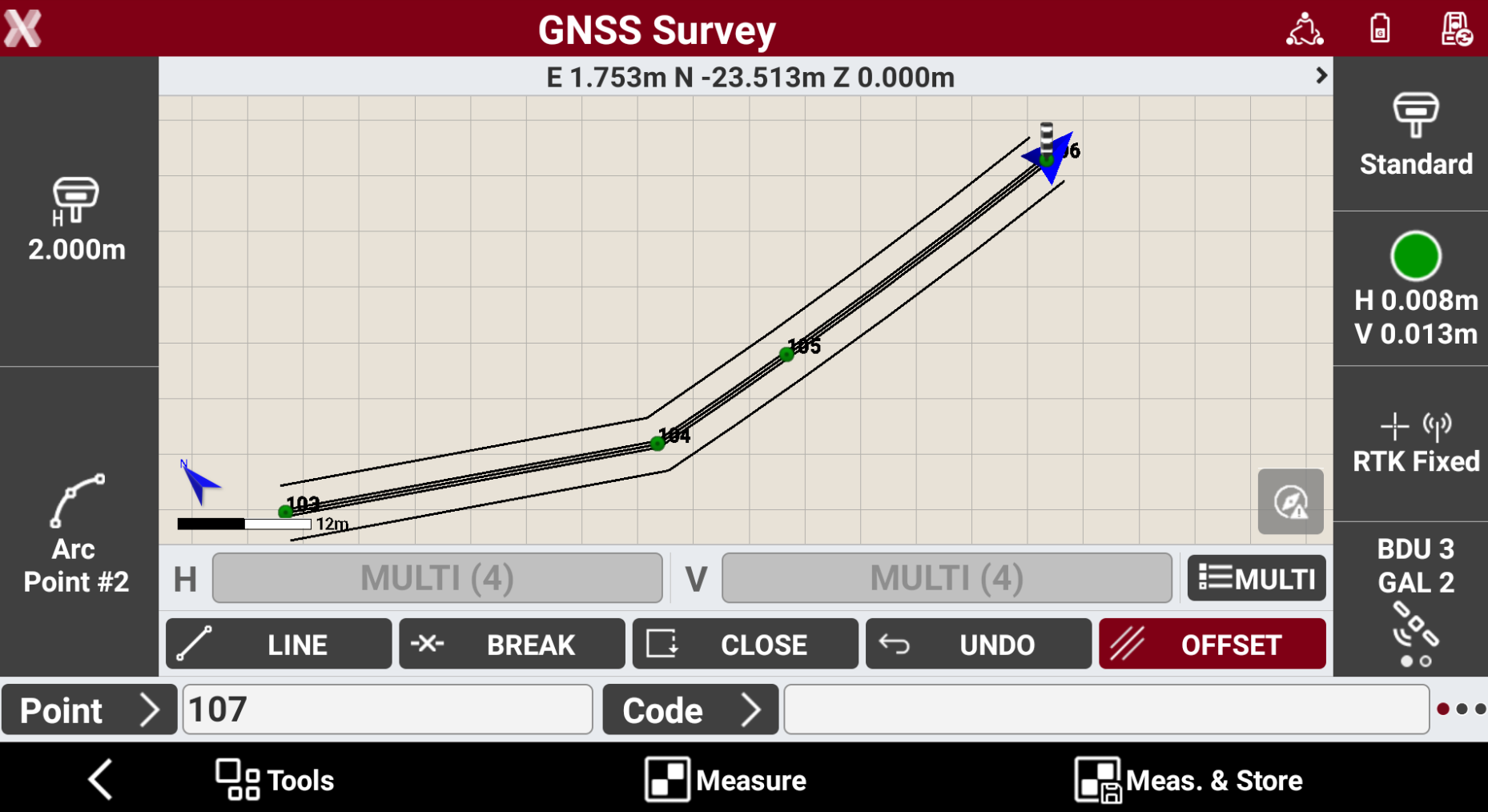
Offset: manages offset drawings. With this mode it is possible to specify one or more offsets to be applied to the current drawing. It is possible to define up to four different horizontal and vertical offsets, resulting in the automatic generation of parallel drawings.
-
Undo: removes the last measured points.
-
Last point: uses the last measured point.
-
Advanced linework
-
Advanced linework allows to generate lines between points based on the code of the point and the number of the line.
-
Two line types exist:
-
Active: lines currently used in survey and their drawing is not yet completed. Points that form a line are integrated. At the end it becomes a not active line.
-
Not active: lines measured, drawn and completed. Can again become an active line in case points must be added.
-
Starting linework drawing mode
-
X-PAD allows to switch easily between Smart Drawing Tools and Advanced linework, giving flexibility to choose the best drawing method depending on the task.
-
To start to use advanced linework:
-
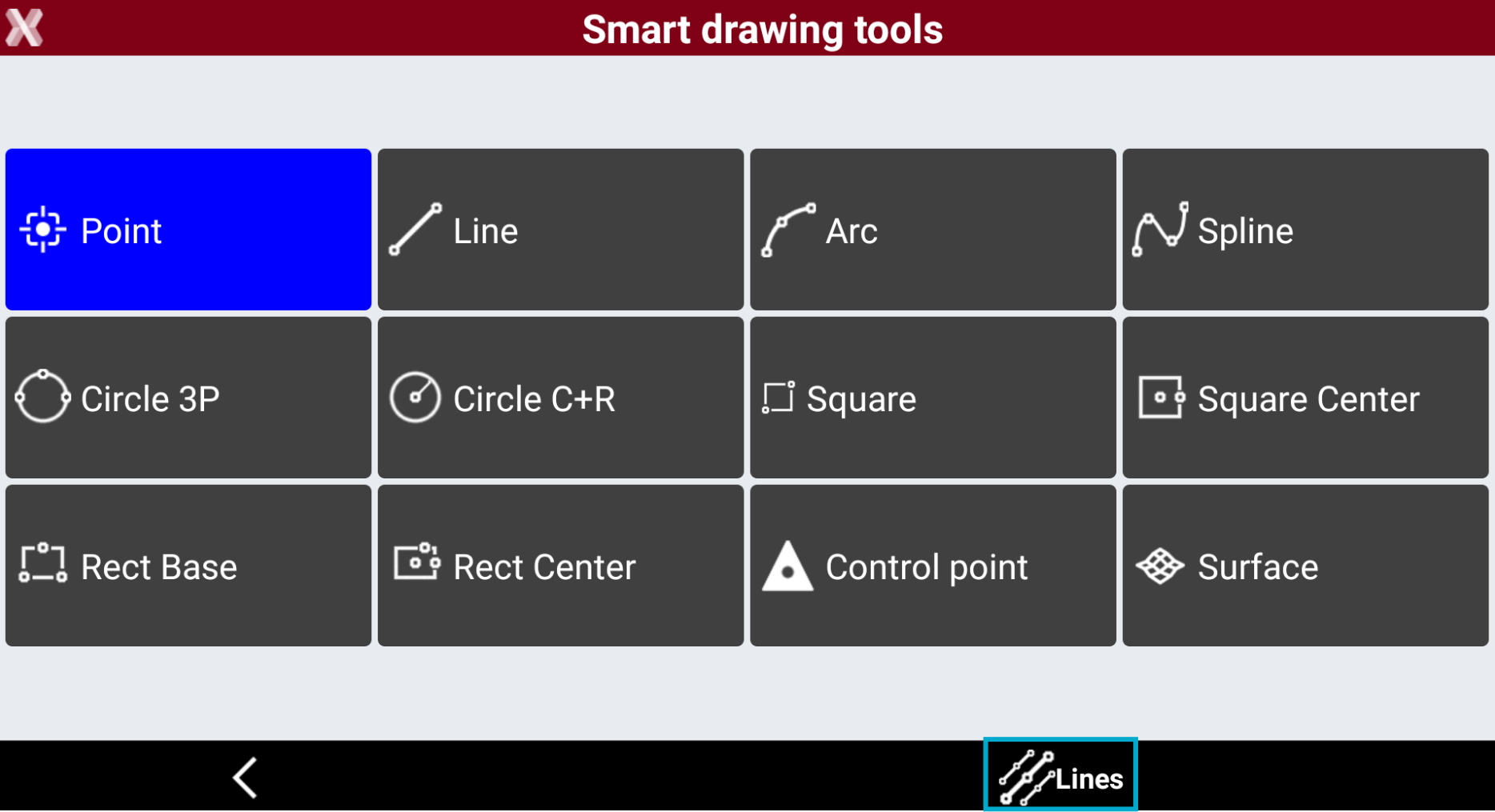
Tap on Smart Drawing tool icon and select Lines or long-press the Smart Drawing tools icon.
-
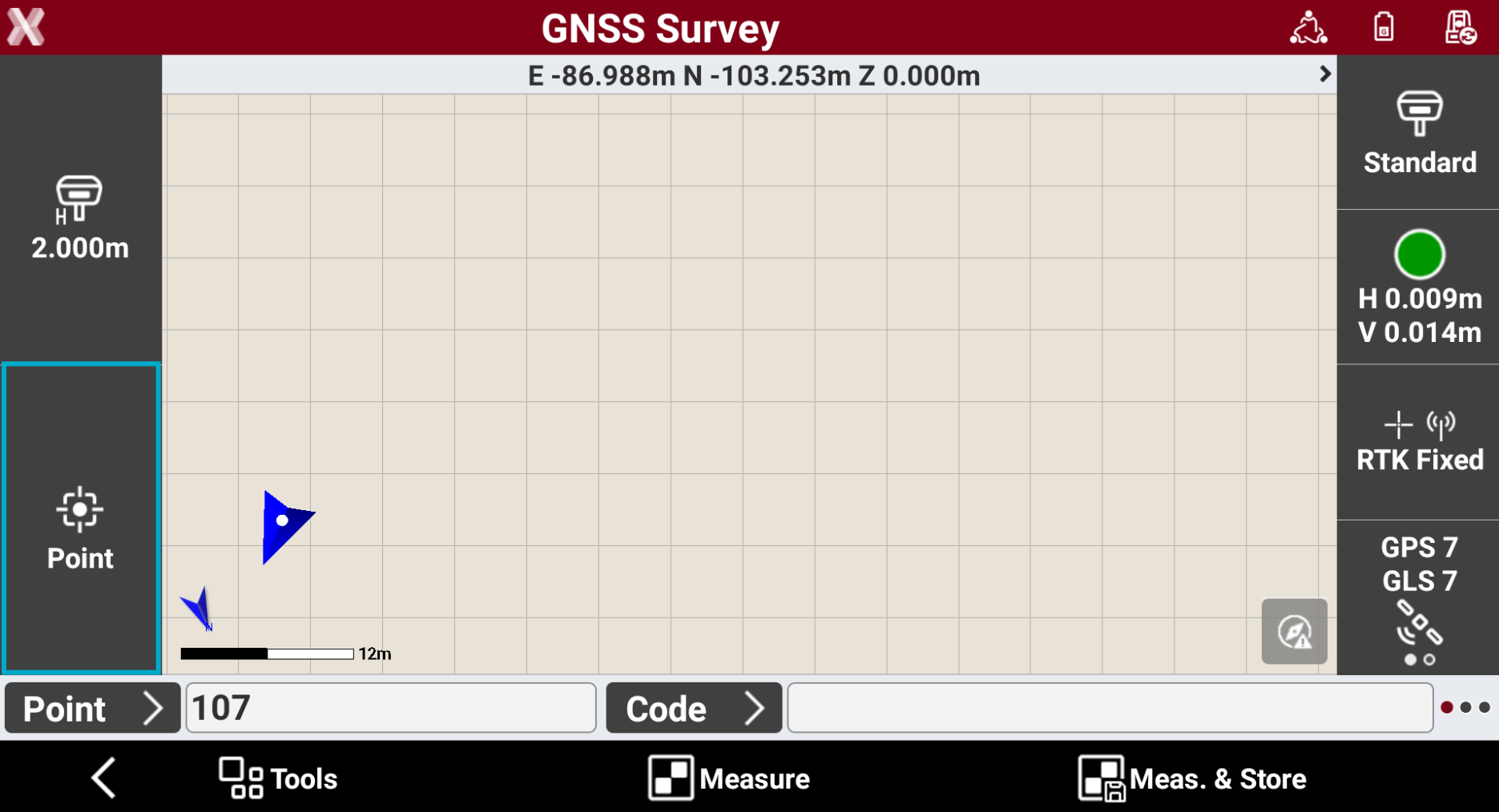
Long press the Smart Drawing button in the survey page.
-
Enable a Survey code with drawing element Line.
-
Smart drawing lines table
-
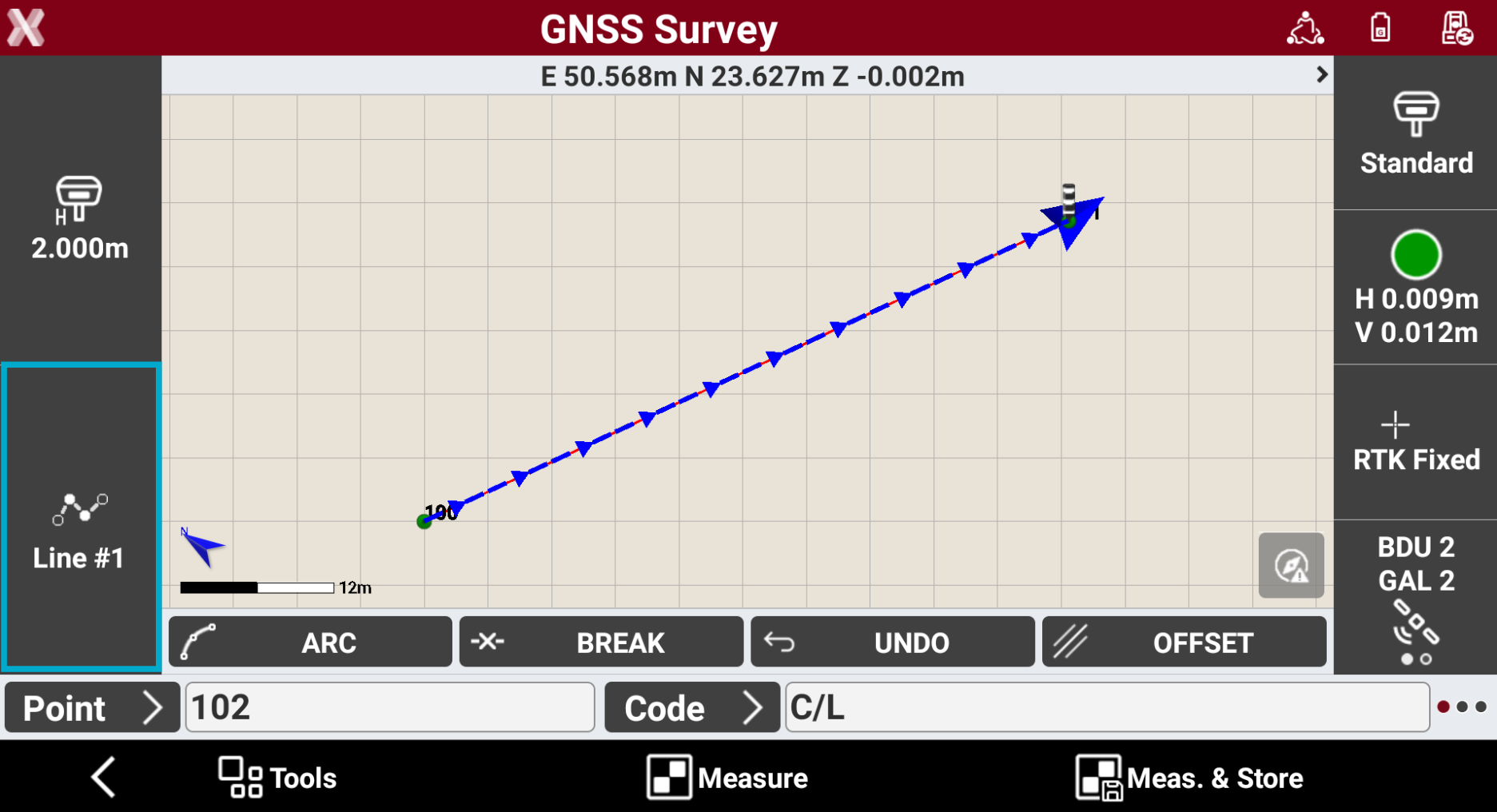
When working with Advanced linework, pressing on Line icon opens the Smart drawing lines page where manage different lines.
-
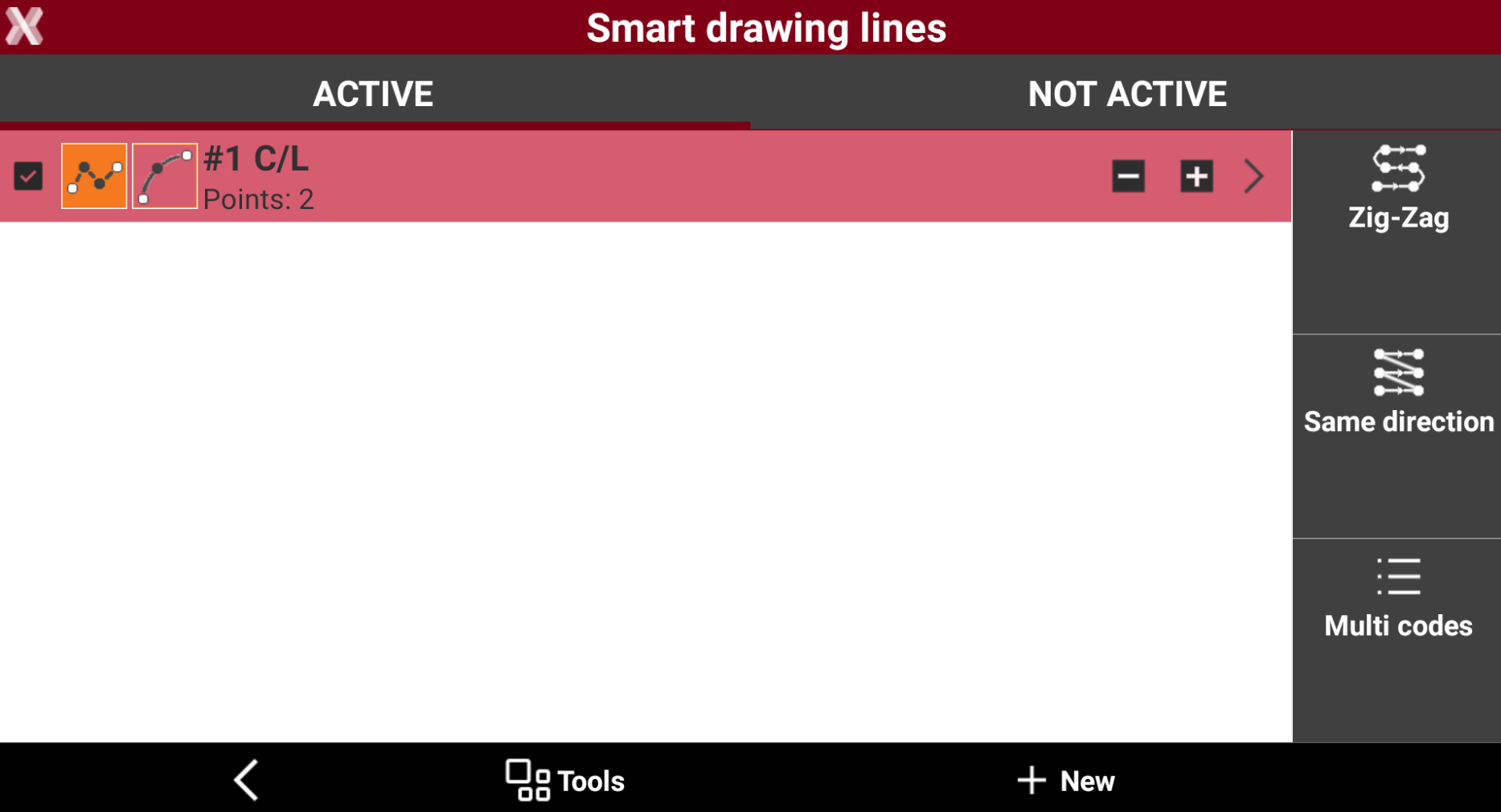
The Smart drawing lines page lists active and not active lines and offers the commands to manage the lines.
Add a new line
-
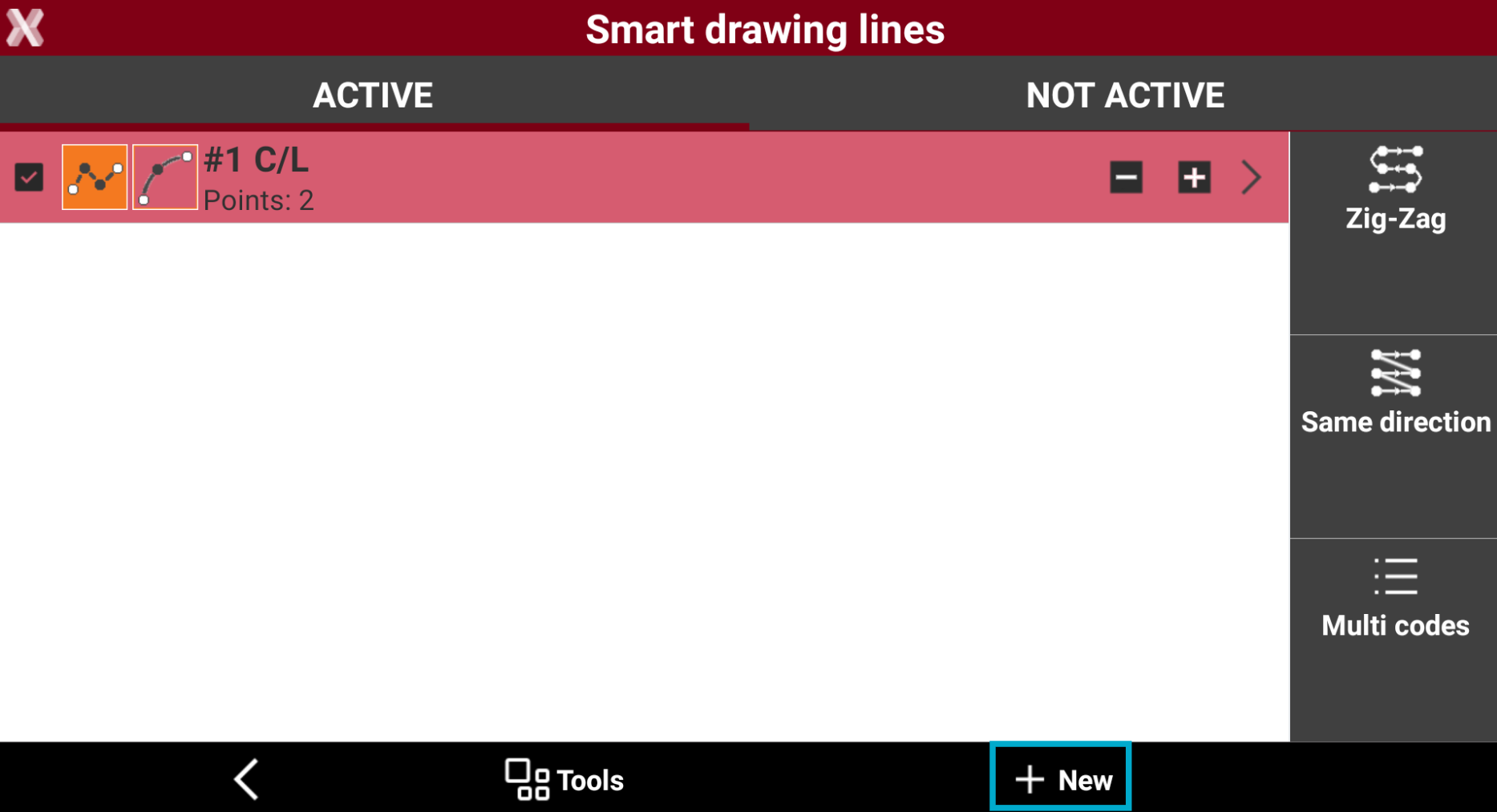
Open the Smart drawing lines page and press New to add a new line.
-
Specify the code to assign to the line. The code must be of type Line. The line number will be the first free number available considering the lines still present with the same code. If the code is not type Line then the software asks to transform the code type to Line.
-
Another way to create a new line is to insert the code directly in the points survey window. if the inserted code is of type Line, a line with that code will be automatic created.
Duplicate a line
-
Open the Smart drawing lines page.
-
Press + to duplicate an existing line.
Select a line
-
Open the Smart drawing lines page.
-
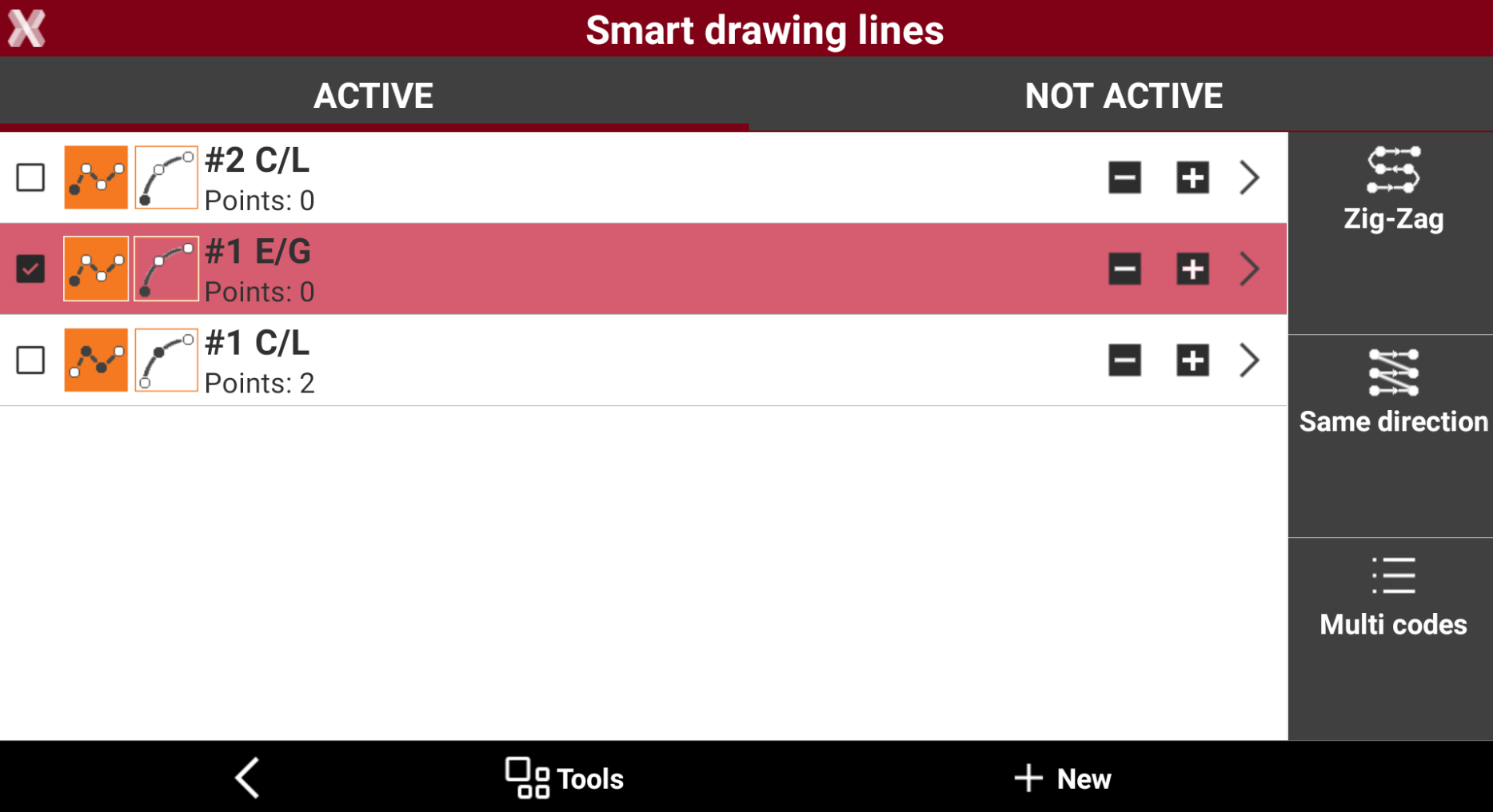
Select the line, that will be used for the next measure, from the list. Active line is checked.
-
Coming back to the survey window, the code of the line is set as current code.
-
Another way to select a line to use for the next measurement is to select it directly from the graphic window.
Deactivate a line
-
When the drawing of a line is completed, it is not necessary to maintain it in the list of the active lines.
-
Open the Smart drawing lines page.
-
Click

-
The line is moved to the list of not active lines.
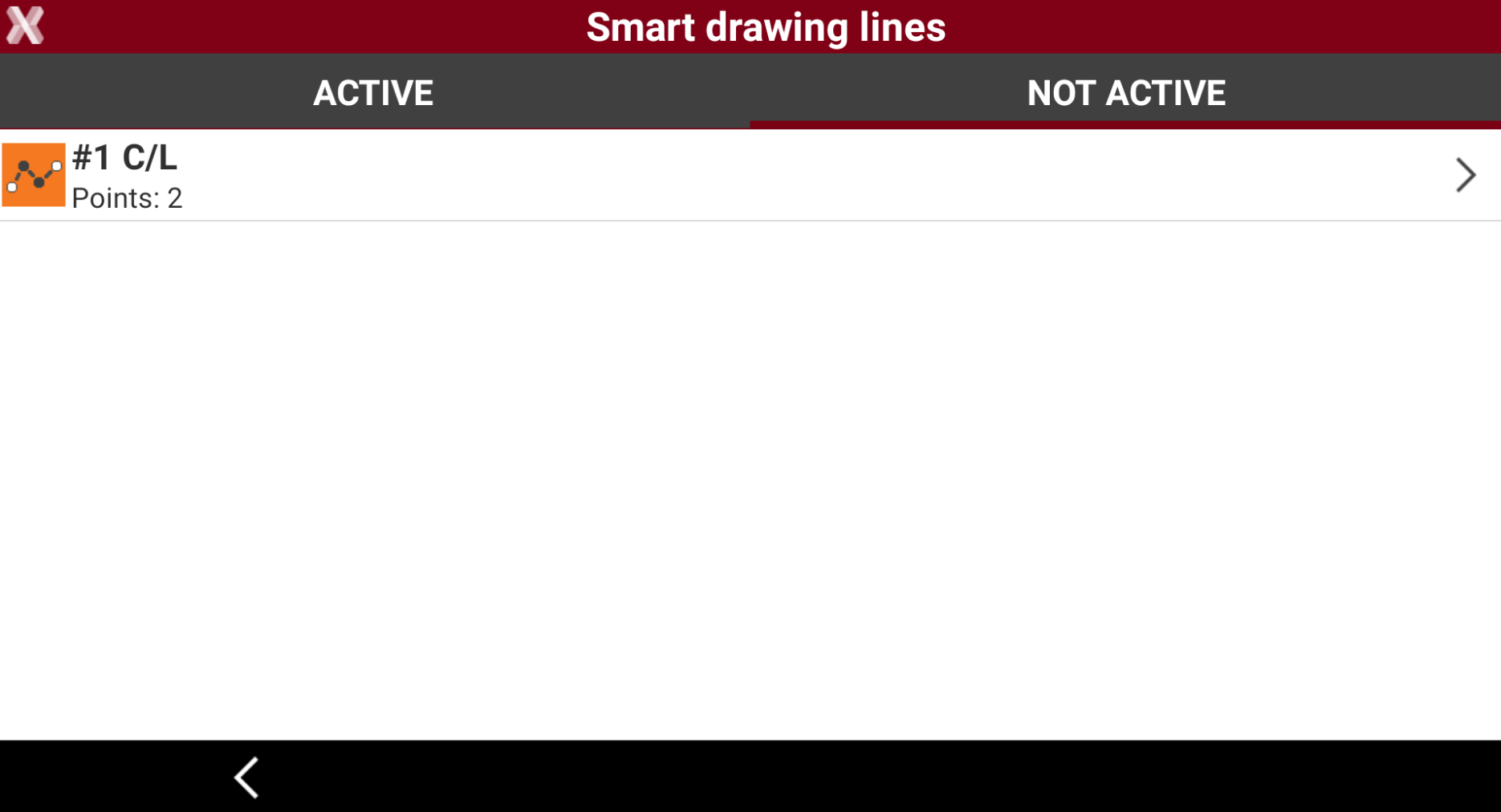
To make a not active line again active, click > on the line and select Activate.
Delete a line
-
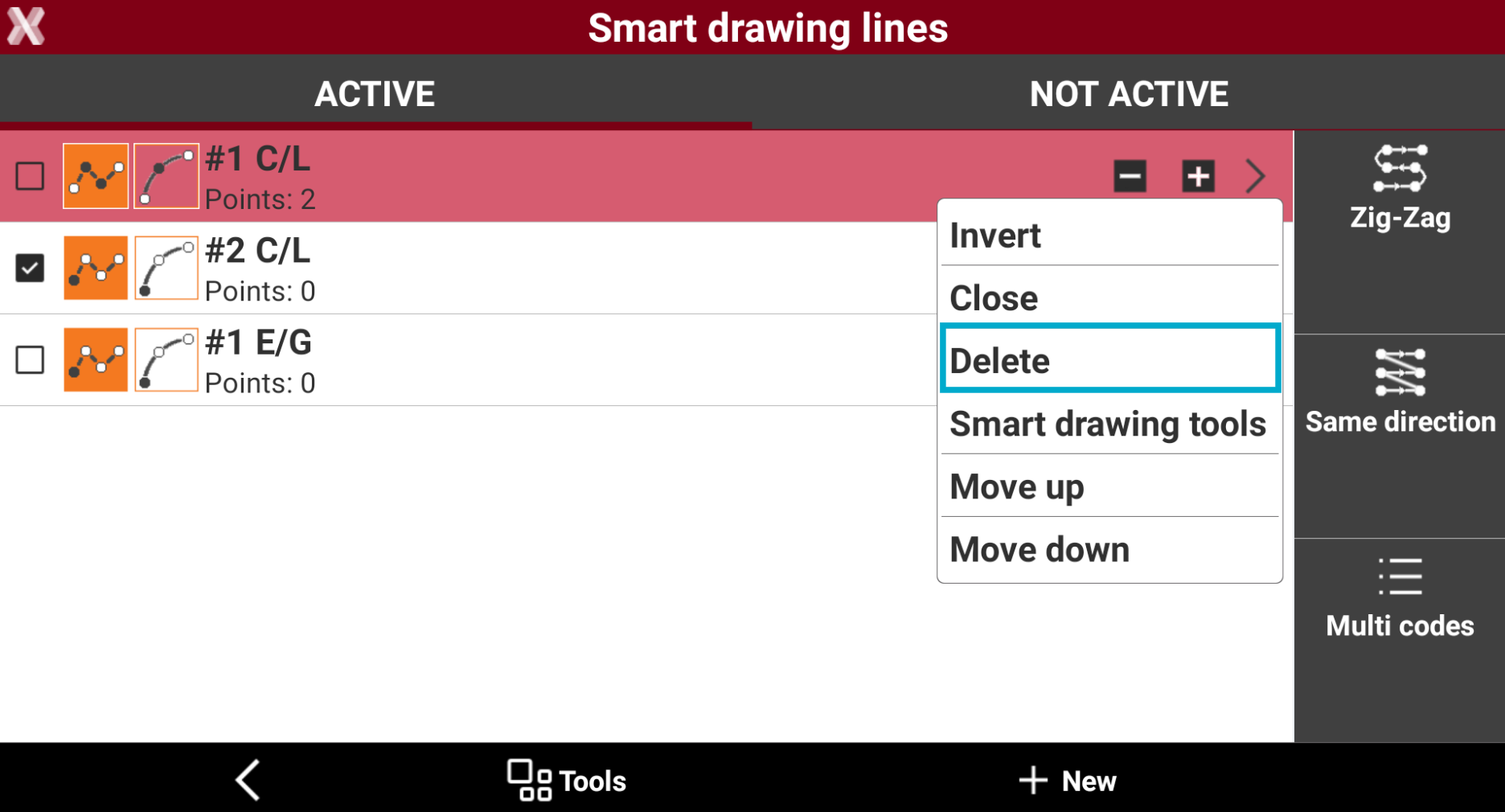
From Smart drawing lines page press > to open the context menu.
-
Select Delete.
Invert a line
-
When a line is selected, measured points are always added at the end of the line. In some cases, it may be necessary to add points at the beginning of the line. In this case, reverse the line direction before adding new points.
-
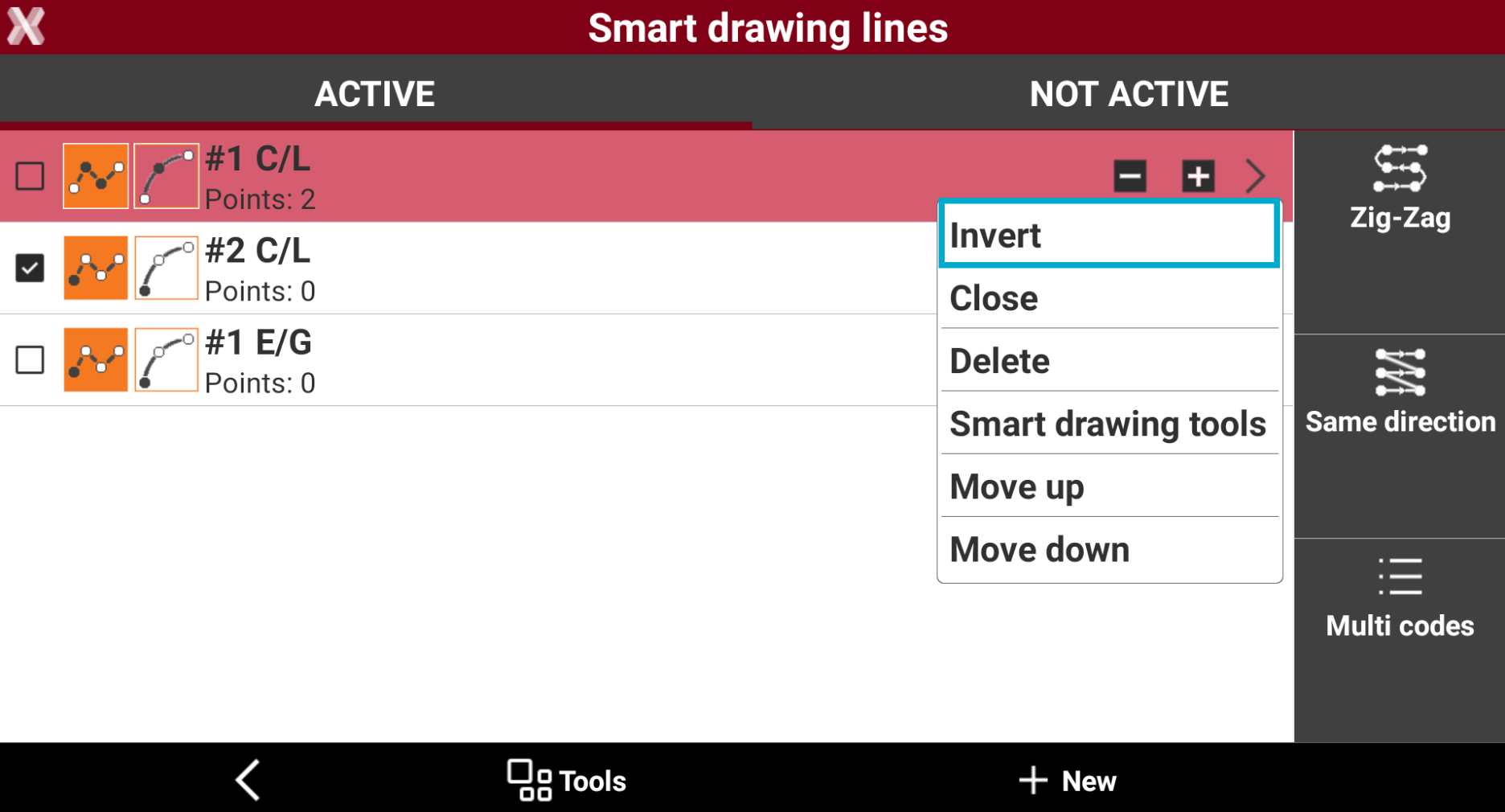
From Smart drawing lines page press > to open the context menu.
-
Select Invert.
Close a line
-
If a line must form a closed element, for example the contour of a building, it can be closed by connecting the first vertex to the last vertex.
-
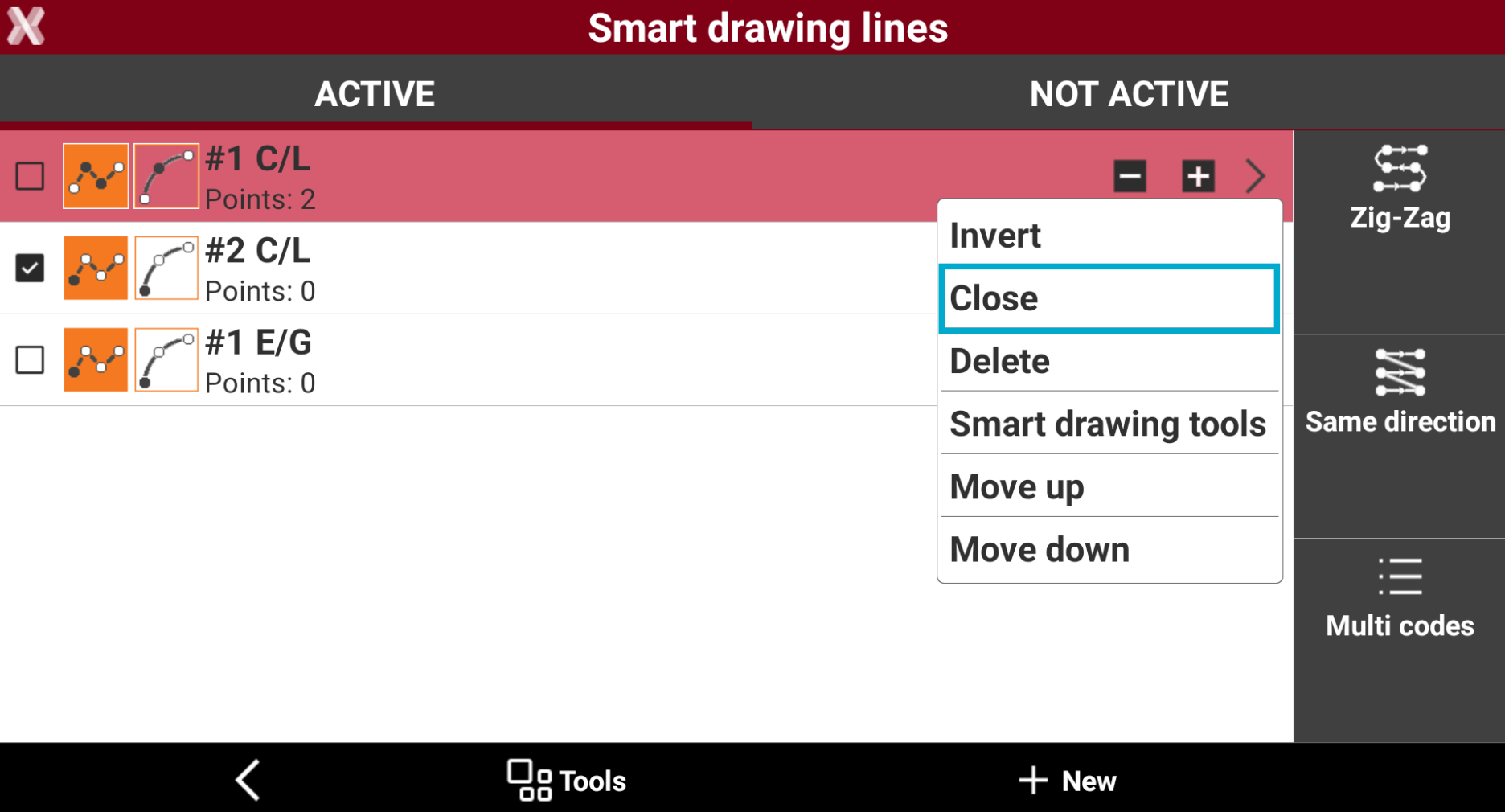
From Smart drawing lines page press > to open the context menu.
-
Select Close.
-
The line is moved to the list of the non active lines. Not active lines are visible in the Not active tab.
Multi codes for a line
-
In some cases, a measured point belongs to several open lines.
-
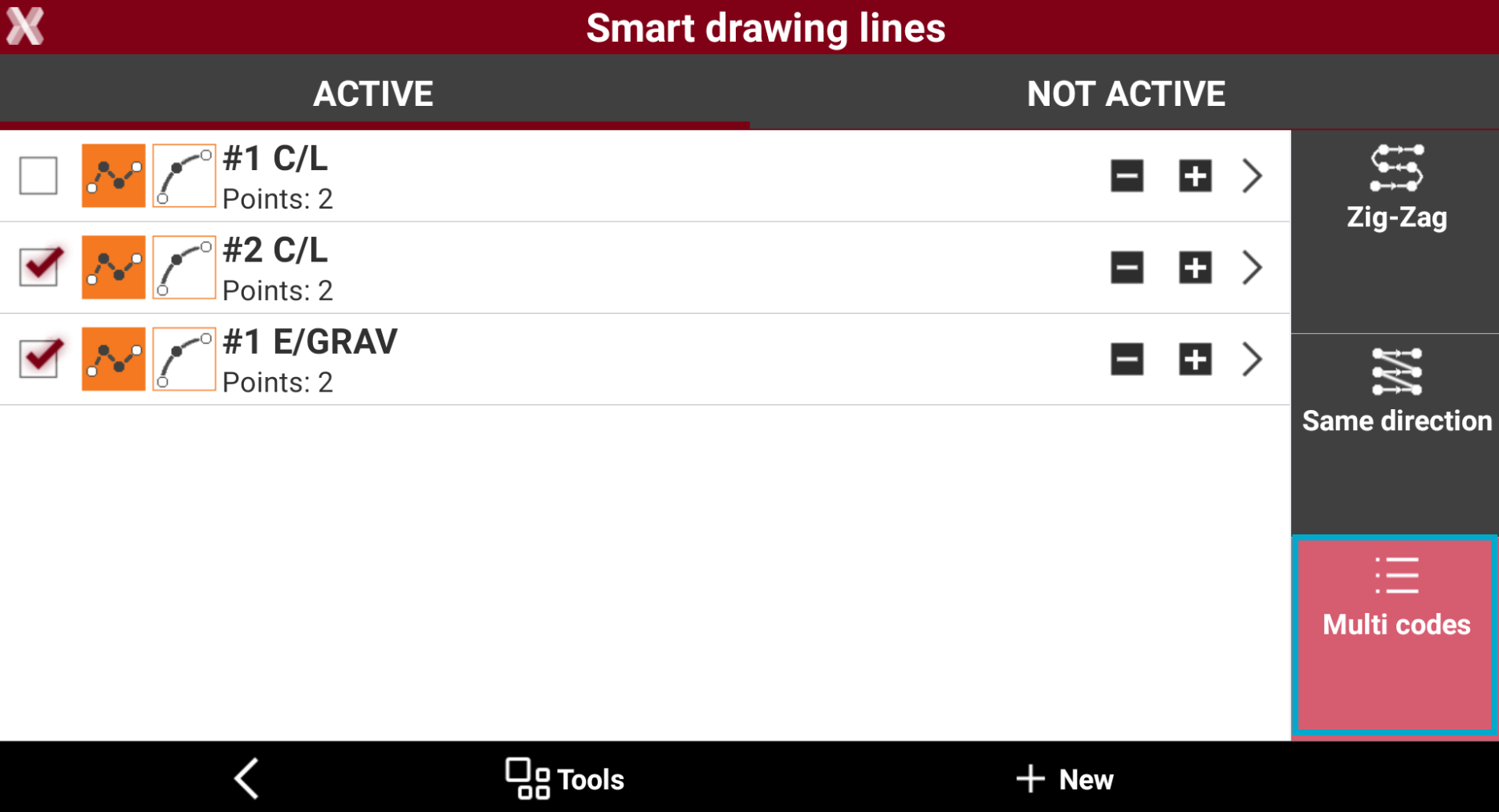
Open the Smart drawing lines page.
-
Select Multi codes.
-
Select the lines to which the measured point must be added. the point is added to all selected lines as new vertex.
Automatic coding of a line
-
Automatic coding speeds up surveying operations when elements to be measured occur regularly.
-
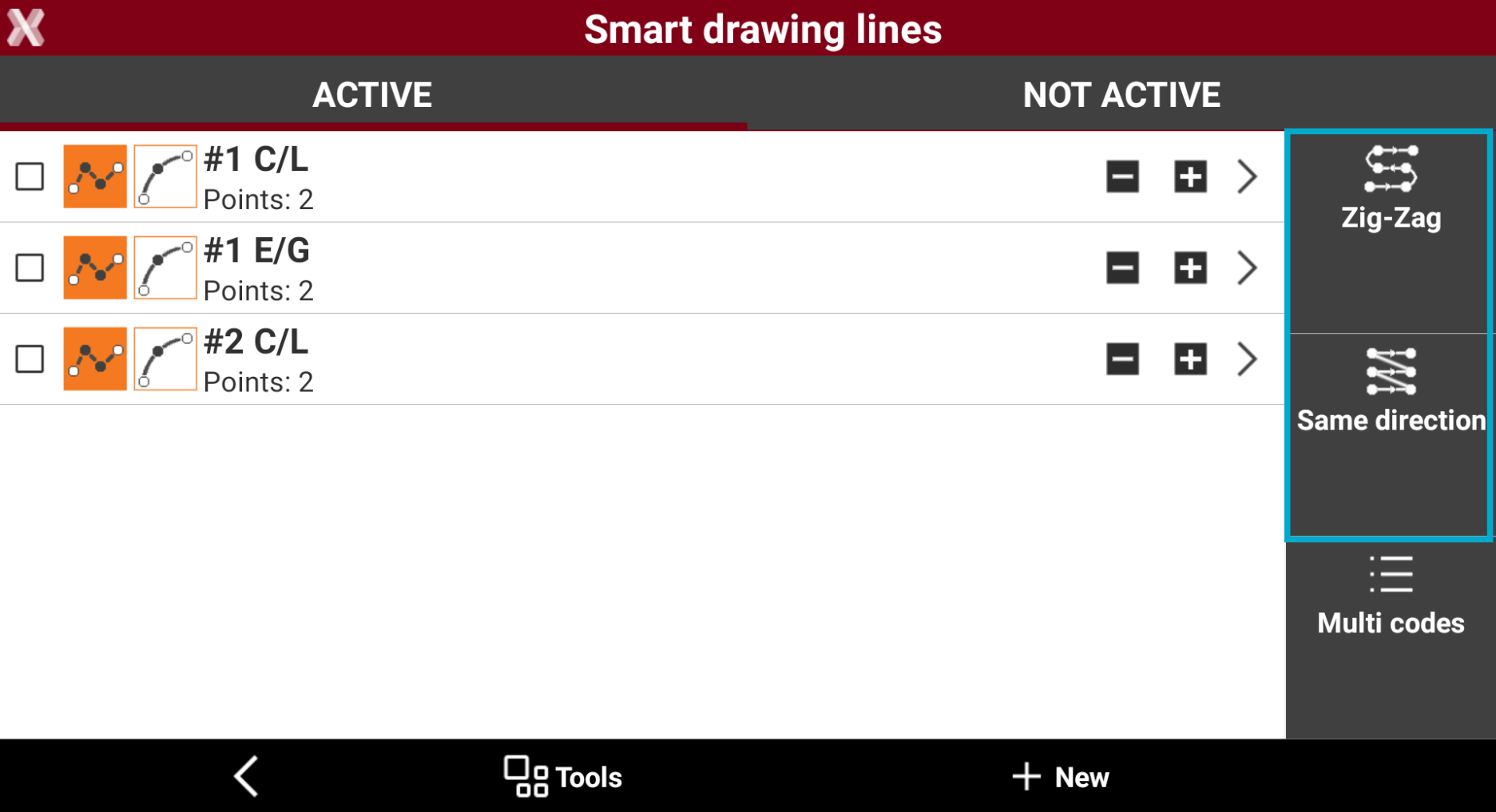
To automatic coding lines, define a list of lines to measure in the correct order and activate the Zig-Zag mode or Same direction mode.
-
When one of these modes is active, it is no longer necessary to select the line to draw, as the system automatically suggests the line based on the defined order.
-
From Smart drawing tools select Lines.
-
Zig-Zag: the survey must be performed from left to right, then from right to left, and again from left to right.
-
Same direction: the survey must be executed always from left to right or always from right to left.
-
To change the order of codes when working with automatic coding, press > for the code, and select Move up or Move down.
-
The code of the first line in the list is the active code.
-
Measure the first point. The code of the second line in the list is now the active code.
-
Continue the procedure measuring the different lines.
-
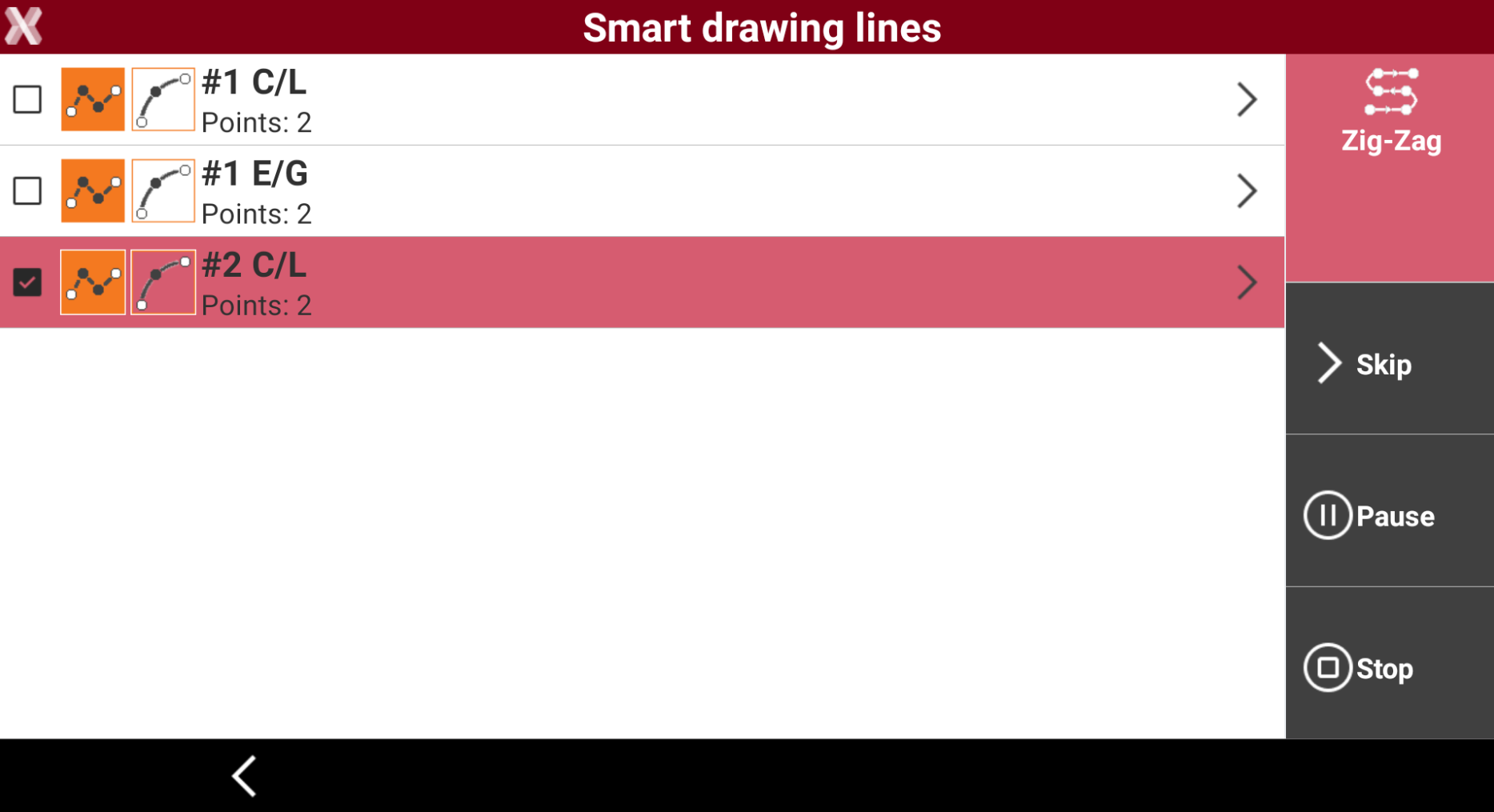
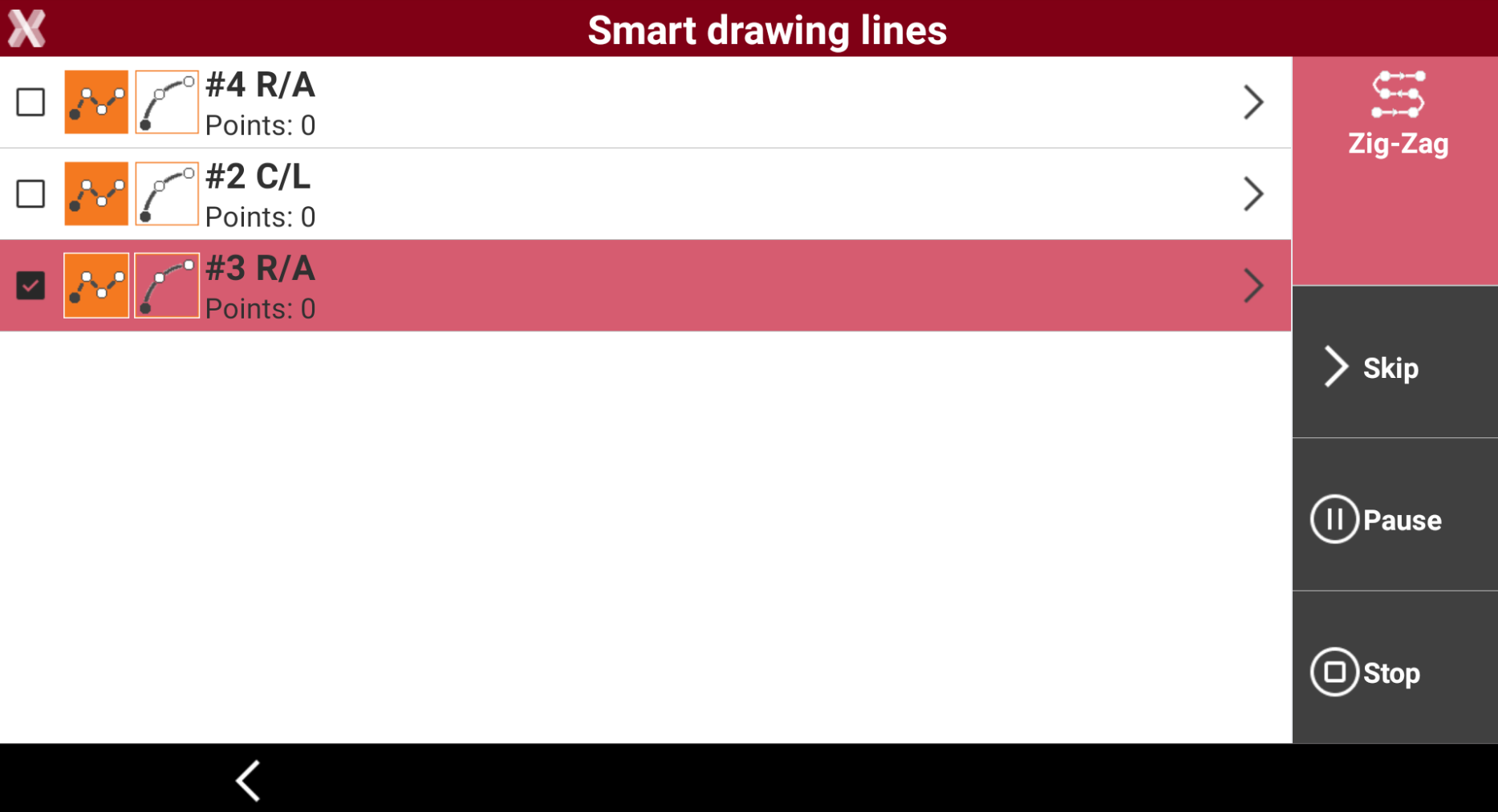
To stop the sequence, skip a code and pass to the next or pause the system because before proceeding it is necessary to measure other single points not included in the sequence use the commands available in the Smart drawing lines page.
-
Skip: skips the current code and moves to the following code.
-
Pause: pauses the automatic coding.
-
Stop: stops the automatic coding.
-
Use the smart drawing tools when working with advanced linework
-
While working with Advanced linework, to measure the points with Smart Drawing Tools there are two ways:
-
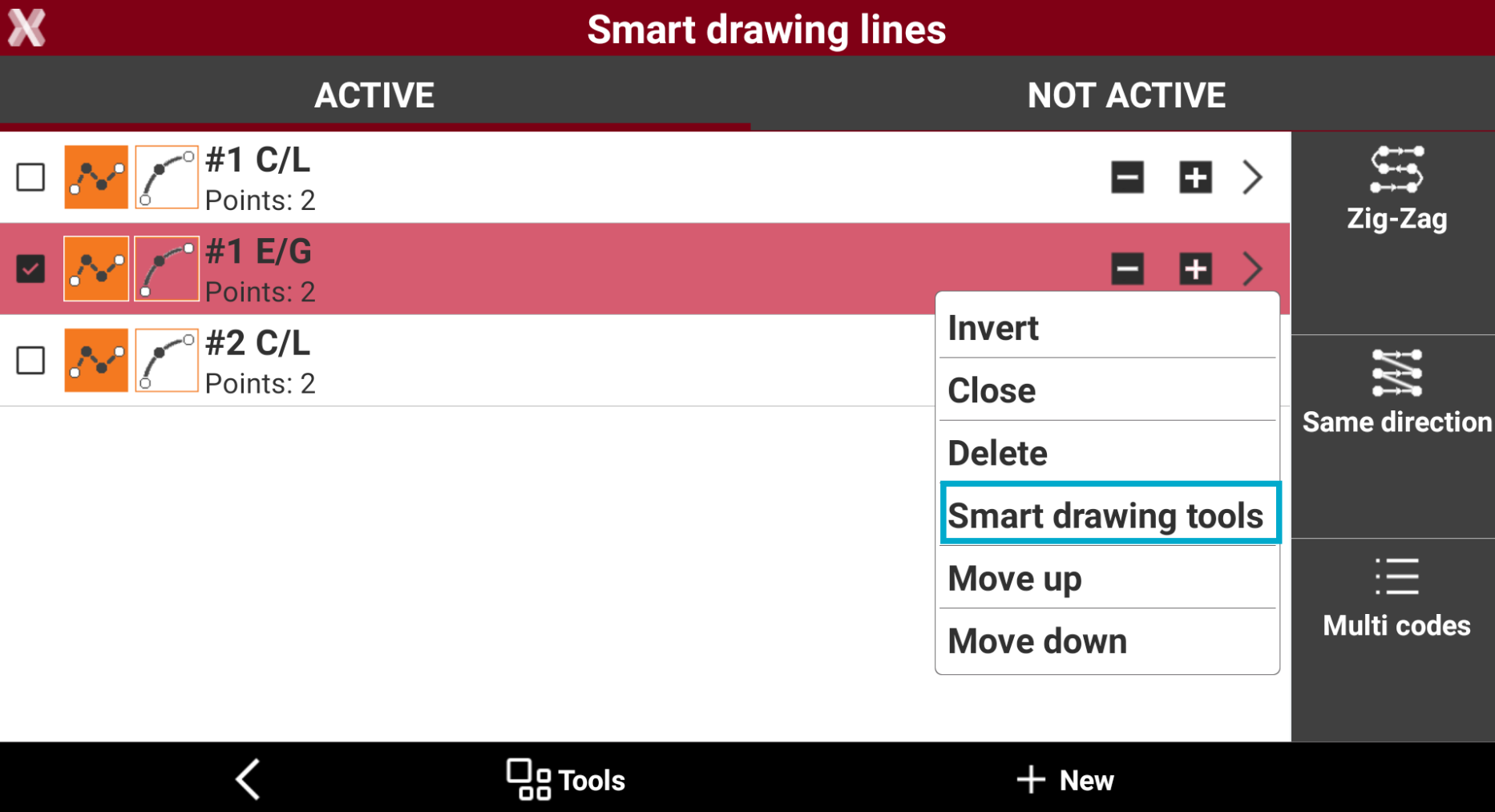
Open the Smart drawing lines page. Click on > icon and select Smart drawing tools.
-
Deselect all the lines. If no lines are selected then the software proposes the Smart Drawing Tools commands.
-
Select a Survey code that has not drawing element Line.
-
Drawing lines with Advanced linework step-by-step
-
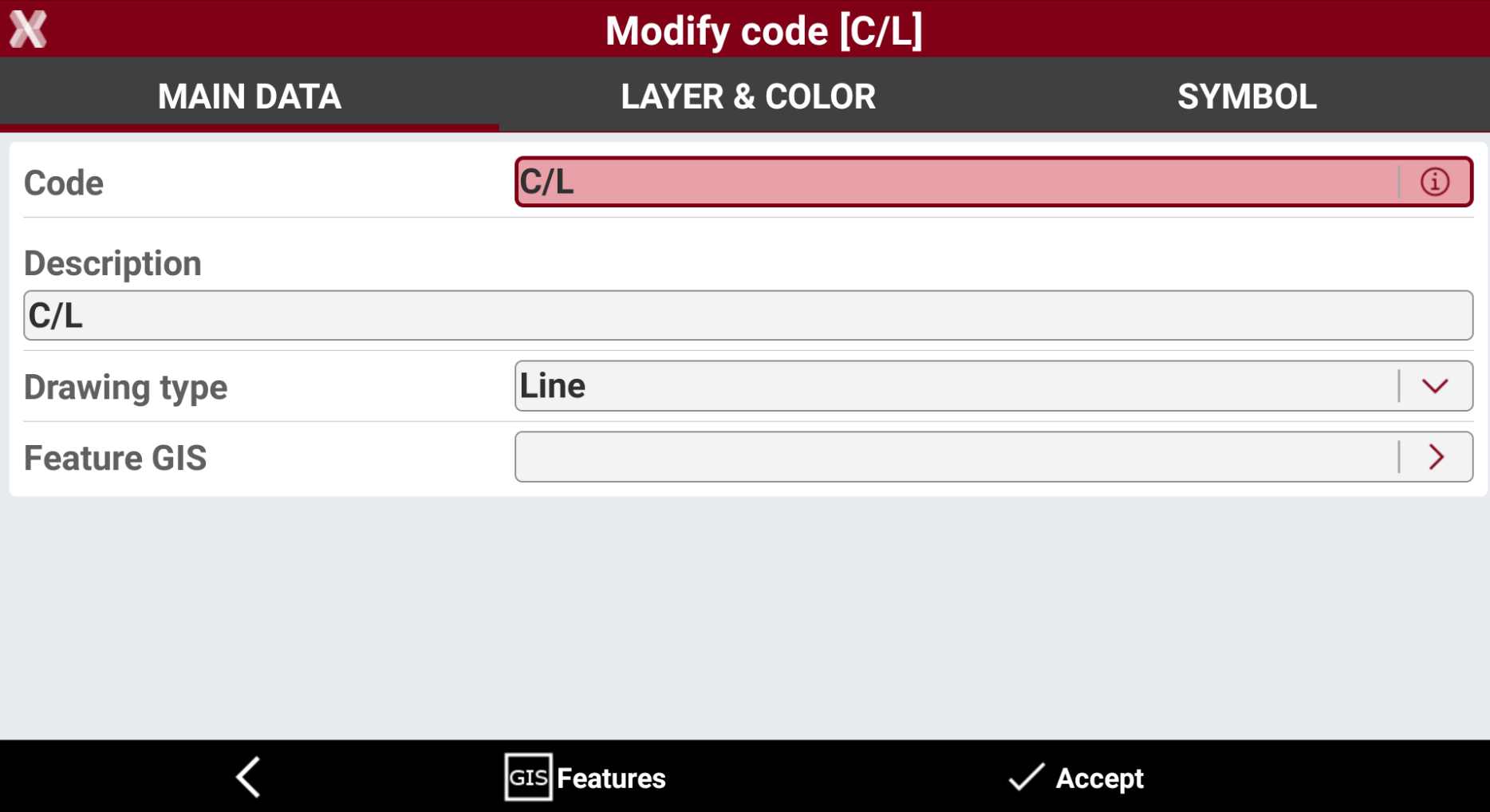
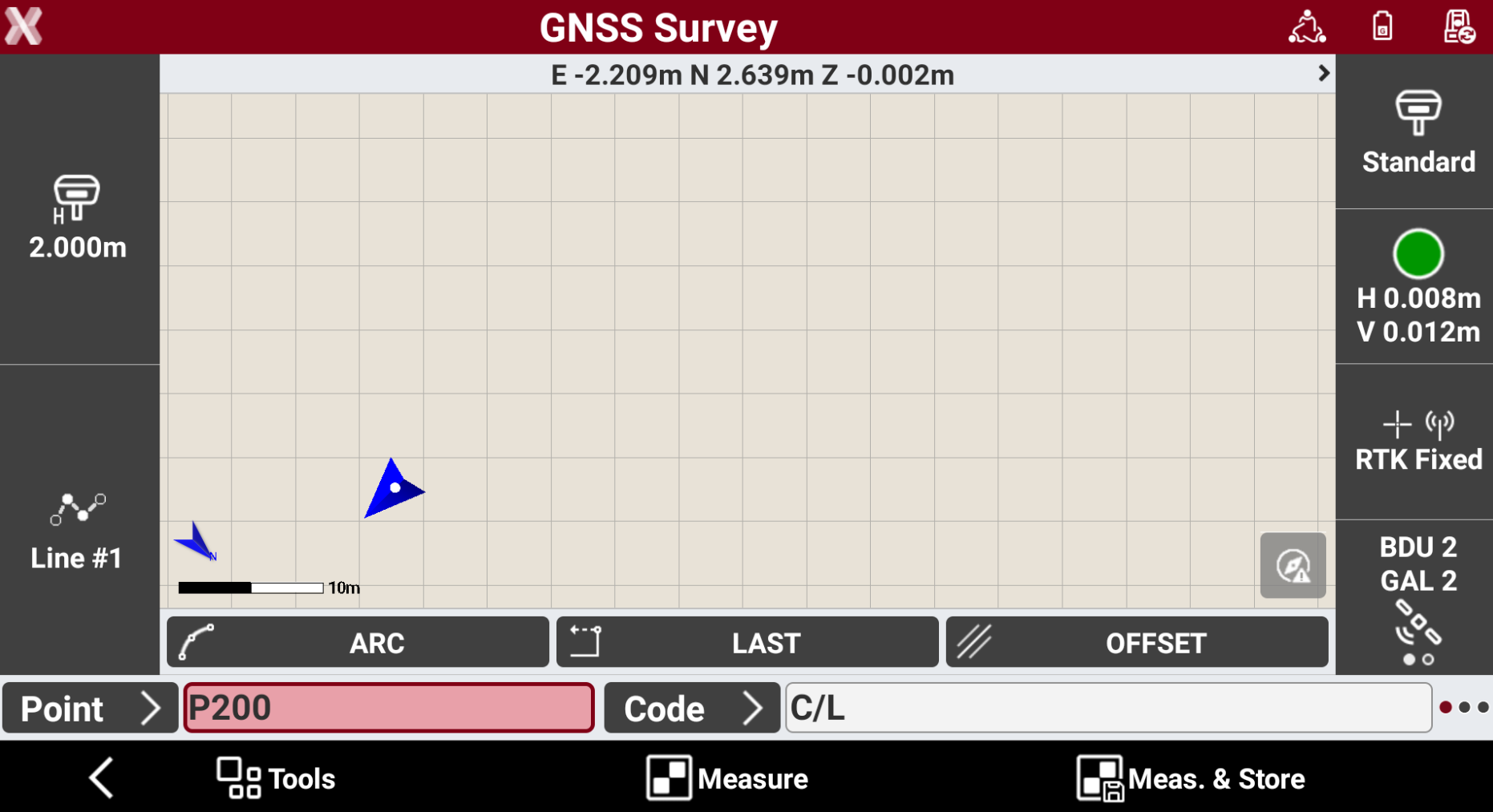
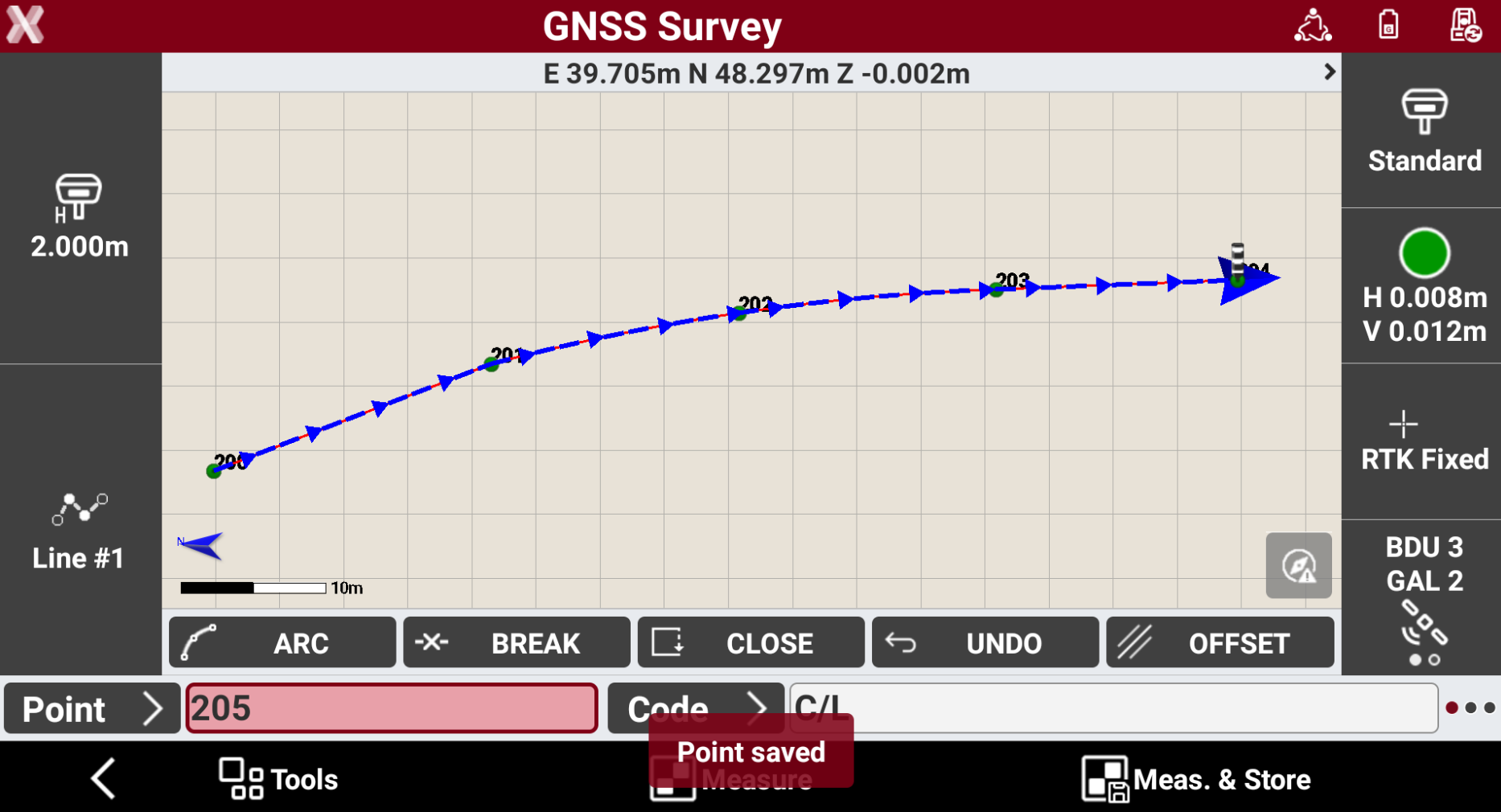
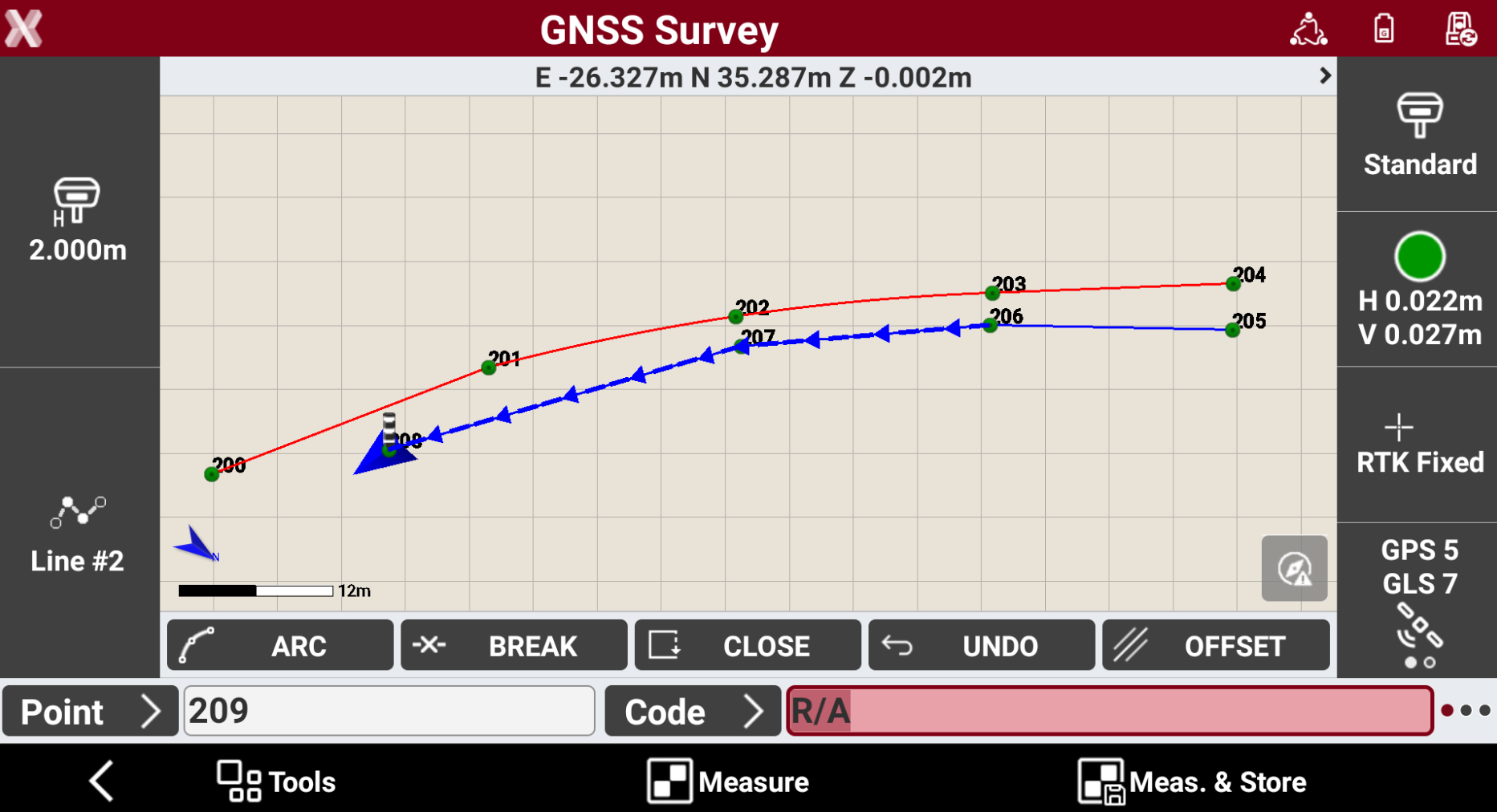
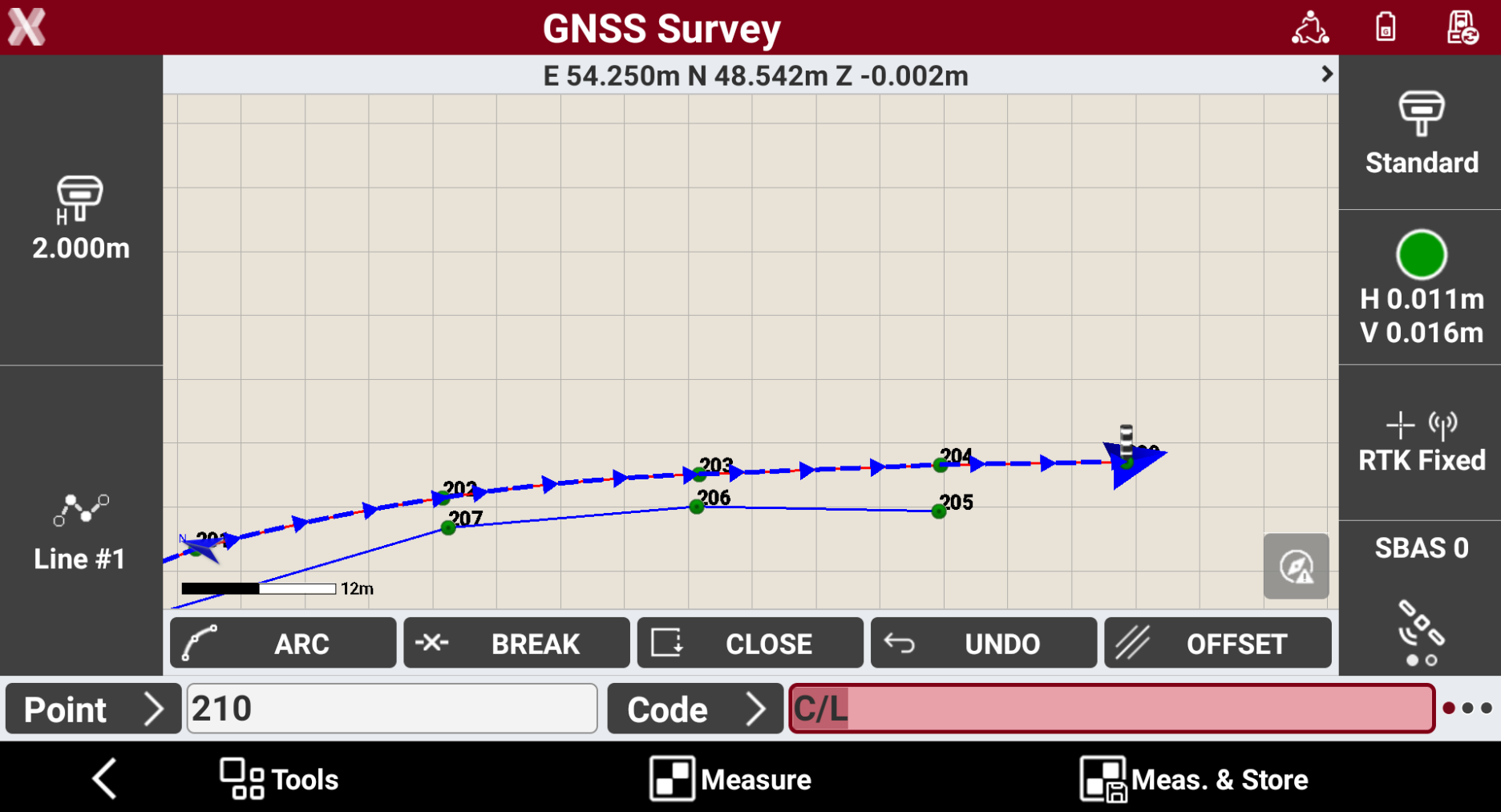
In this example we will survey two lines with a different survey code. The survey code used has already been defined with drawing type Line.
-
Open the Survey function and activate the Survey code with Drawing type as Line.
-
The Smart Drawing button shows the information Line #1 since we are starting to draw on line #1.
-
Survey few points using this code.
-
Now we start drawing a different line on a different Survey code. To create the new line select in the Code field a new code or open the Smart drawing lines page and press New to create the new line. The line has the id #2.
-
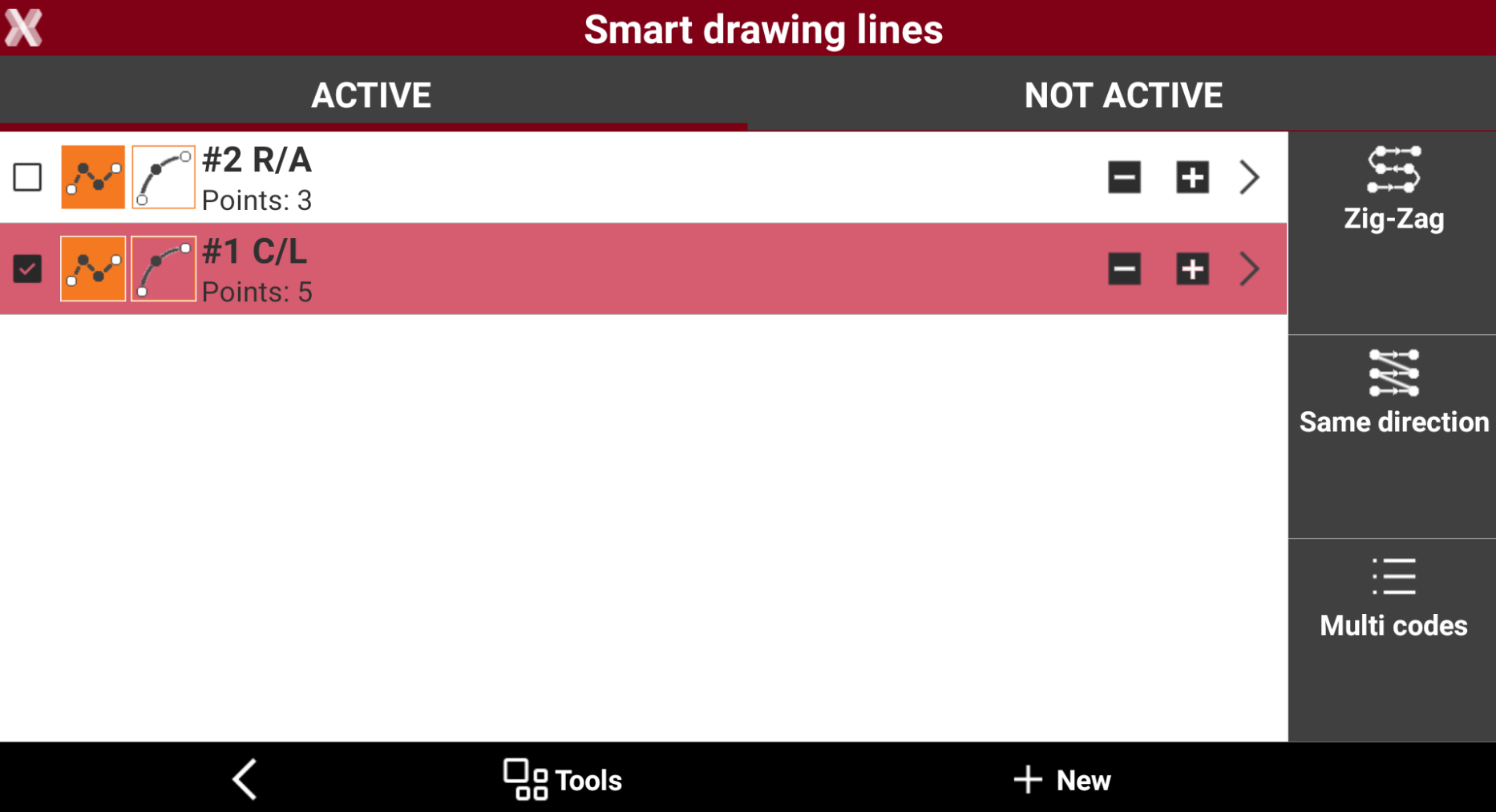
When the survey on line #2 is complete and we want to continue to survey on line #1, open the Smart Drawing Lines page and select line #1 as active.
-
Measured points are now on line #1 continuing from the last measured point.
Drawing lines with Advanced linework and automatic coding step-by-step
-
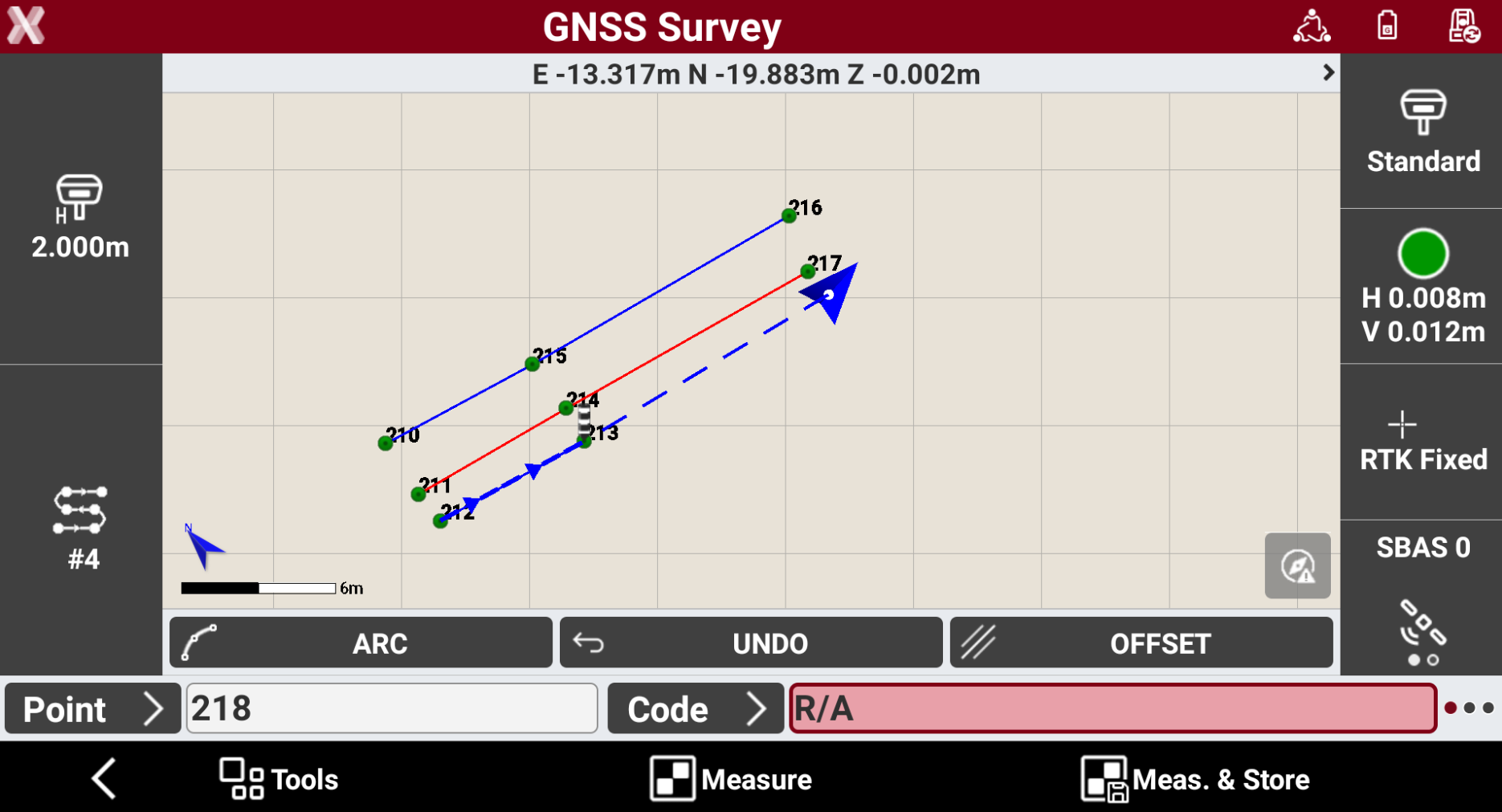
In this example we will survey three parallel lines with a different survey codes and using Zig-Zag method to automatically change the code. The survey code used has already been defined with drawing type Line.
-
Open the Smart drawing line page and create the three lines on the corresponding codes.
-
Press Zig-Zag to activate it.
-
Press Back to return to Survey and measure the first point on the first line.
-
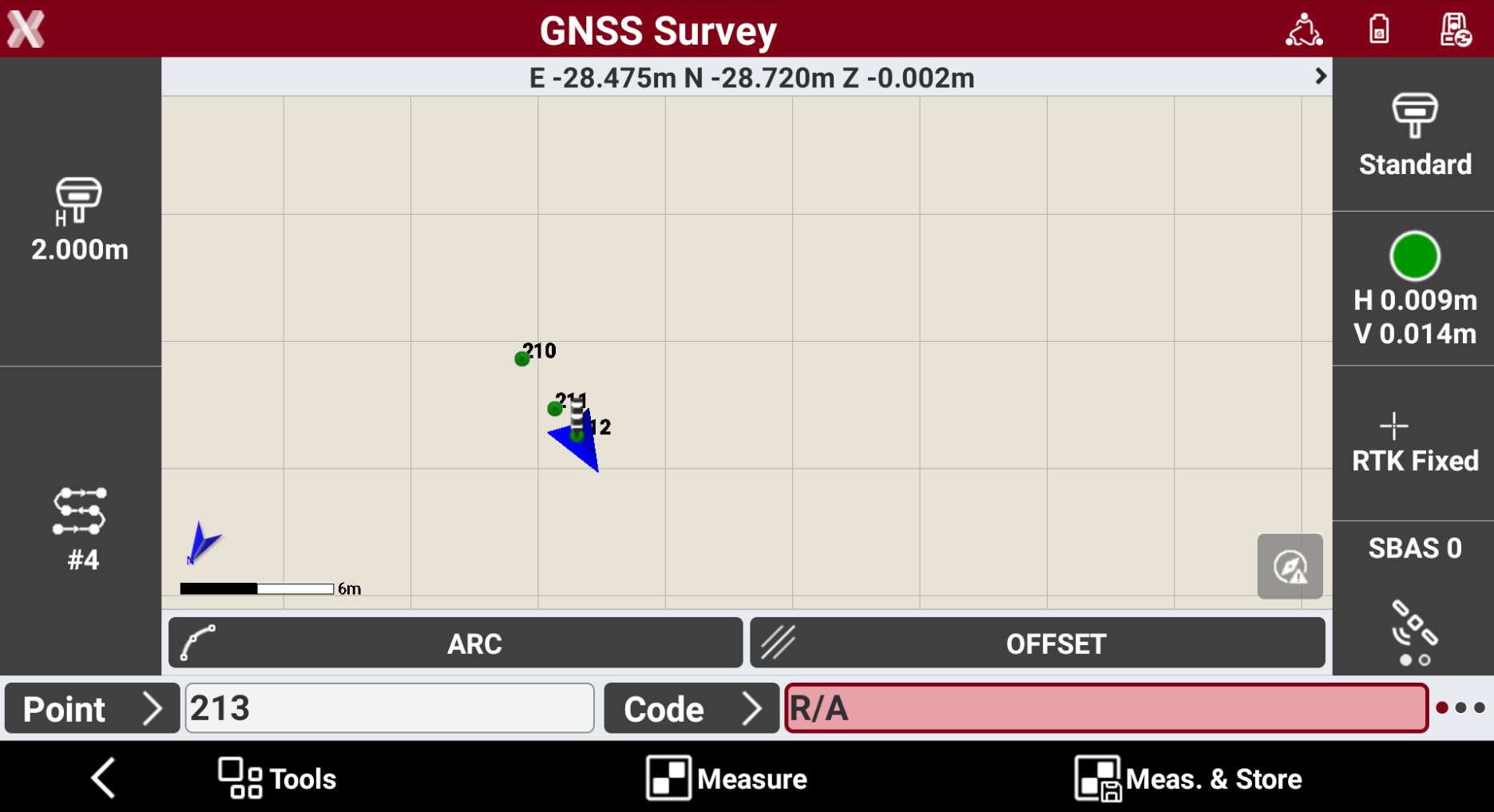
Continue measuring the first point on the second line and the first point on the third line. The software automatically changes the Survey code.
-
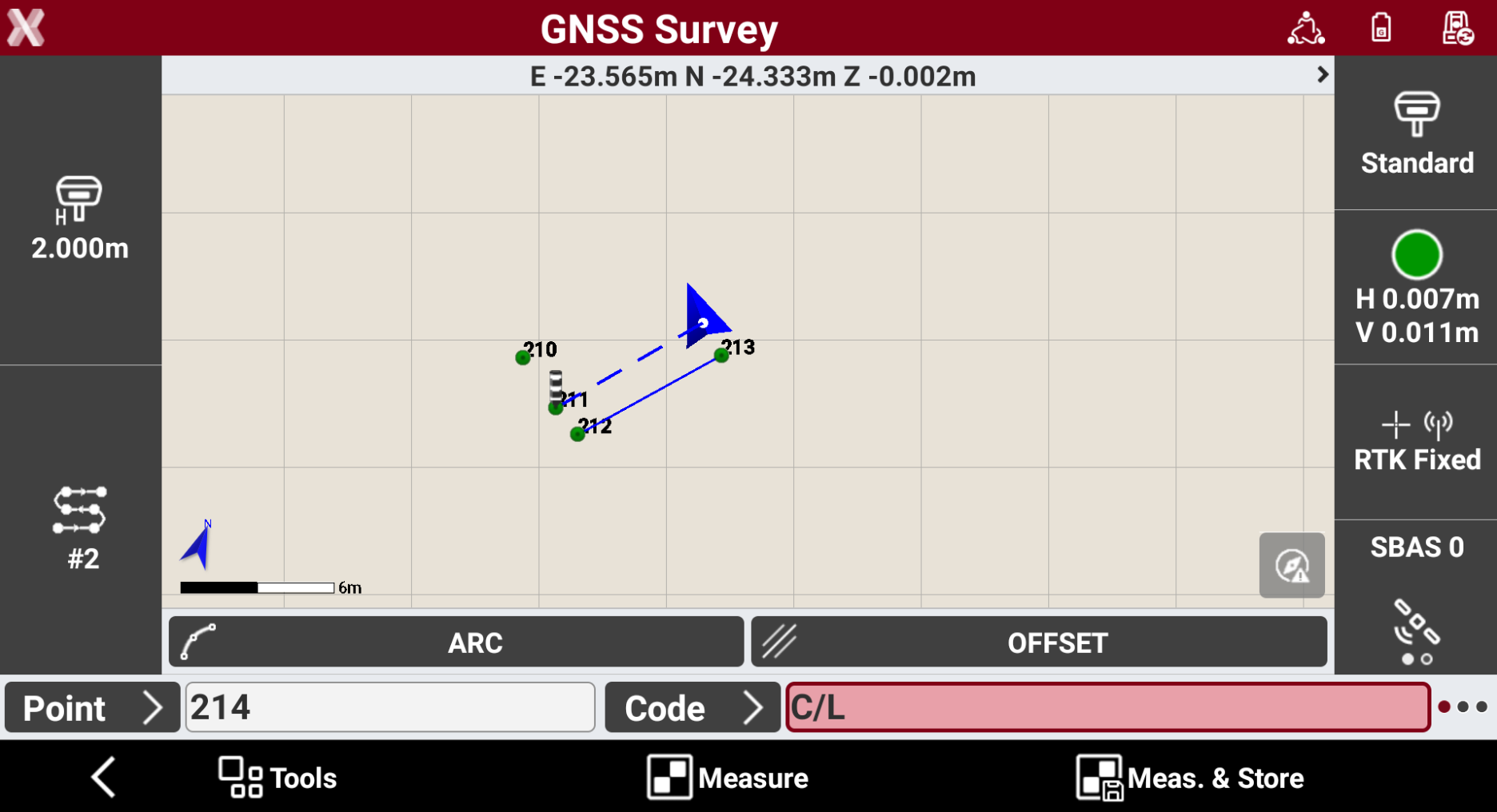
Since we selected Zig-Zag method, continue measuring the second point of the third line.
-
And then proceed measuring the second point of the second line and the second point of the first line.
-
The drawing process is First line → Second line → Third line → Third line → Second line → First line → First line → etc…
-
In every moment press the Line button and use the buttons Skip, Pause or Stop to command the automatic coding.