
-
There are different ways to assign survey codes to a topographic point:
-
Manual insertion of code.
-
Selection from a table of codes.
-
Using quick codes table and quick codes toolbar.
-
For more information on how to create and manage survey code lists refer to Survey codes.
Manual insertion of code
-
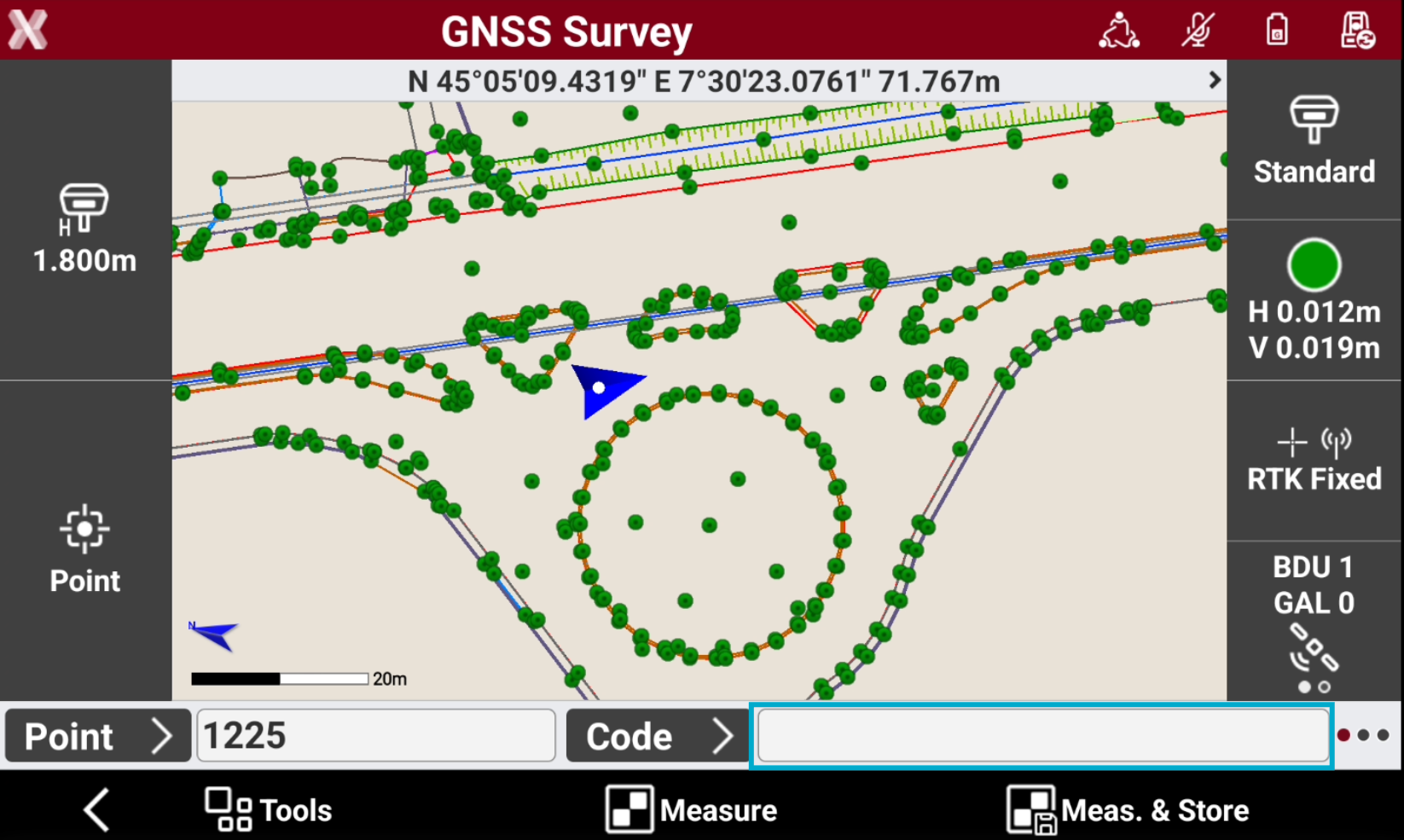
Type code directly in the field Code.
Select a code from the codes list
-
Press Code button to open the codes list.
-
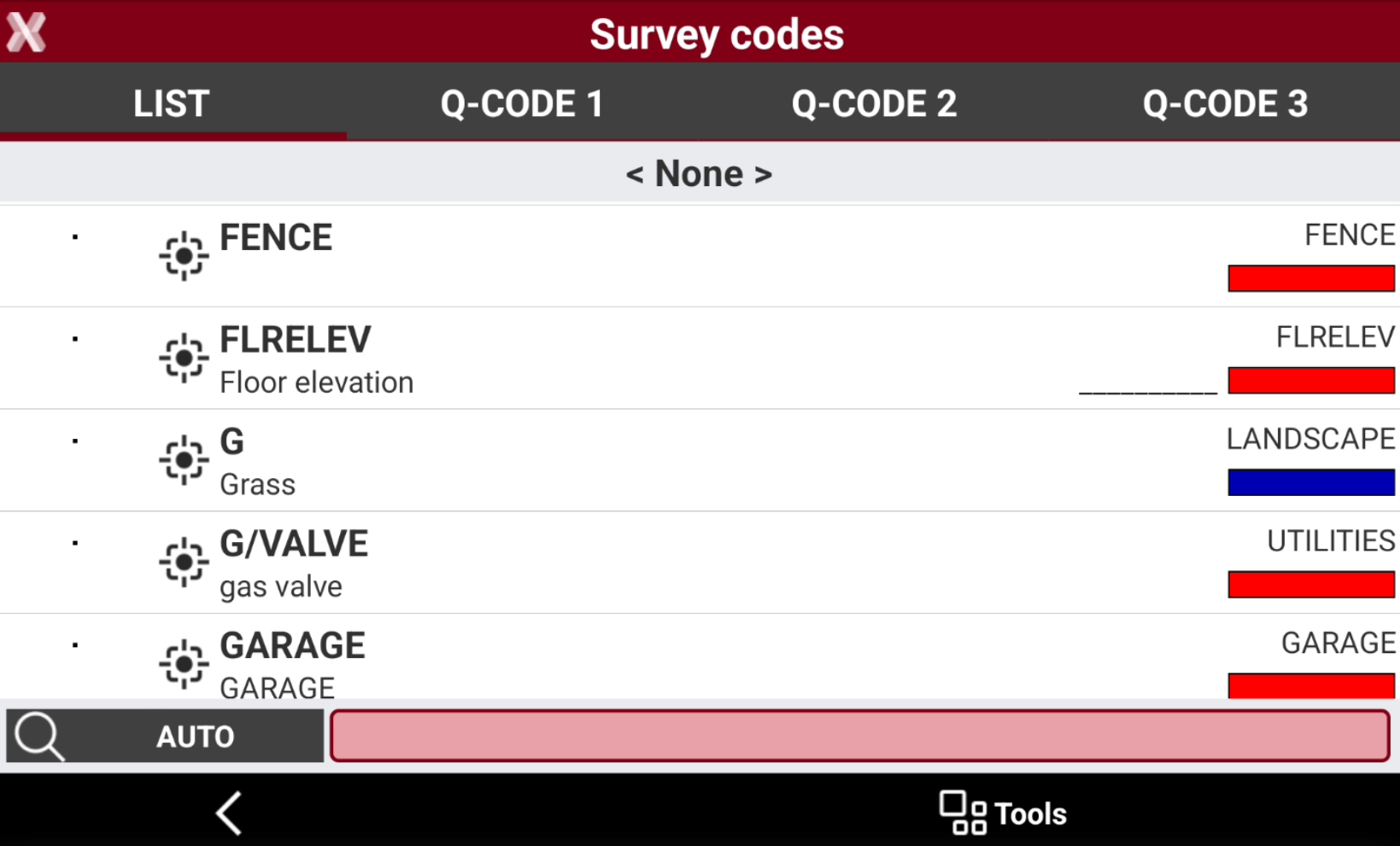
This opens the Survey codes list. On the List page, the survey codes are displayed. Select a code from the list.
-
The input field located in the lower part allows to perform a search among codes.
-
The button on the left allows to specify a search:
-
AUTO: codes and descriptions are considered.
-
CODE: only codes are considered.
-
DESC: only descriptions are considered.
-
-
Codes can be listed in alphabetical order or according to use.
-
Press Tools to sort the codes.
-
Sort alphabetic: sorts the survey codes alphabetically.
-
Sort last used: sorts the survey codes from the last used.
-
Edit a code during surveying
-
Press Code button to open the codes list.
-
This opens the Survey codes list.
-
Press Tools and select Modify codes.
Quick codes table
-
Press Code to open the codes list.
-
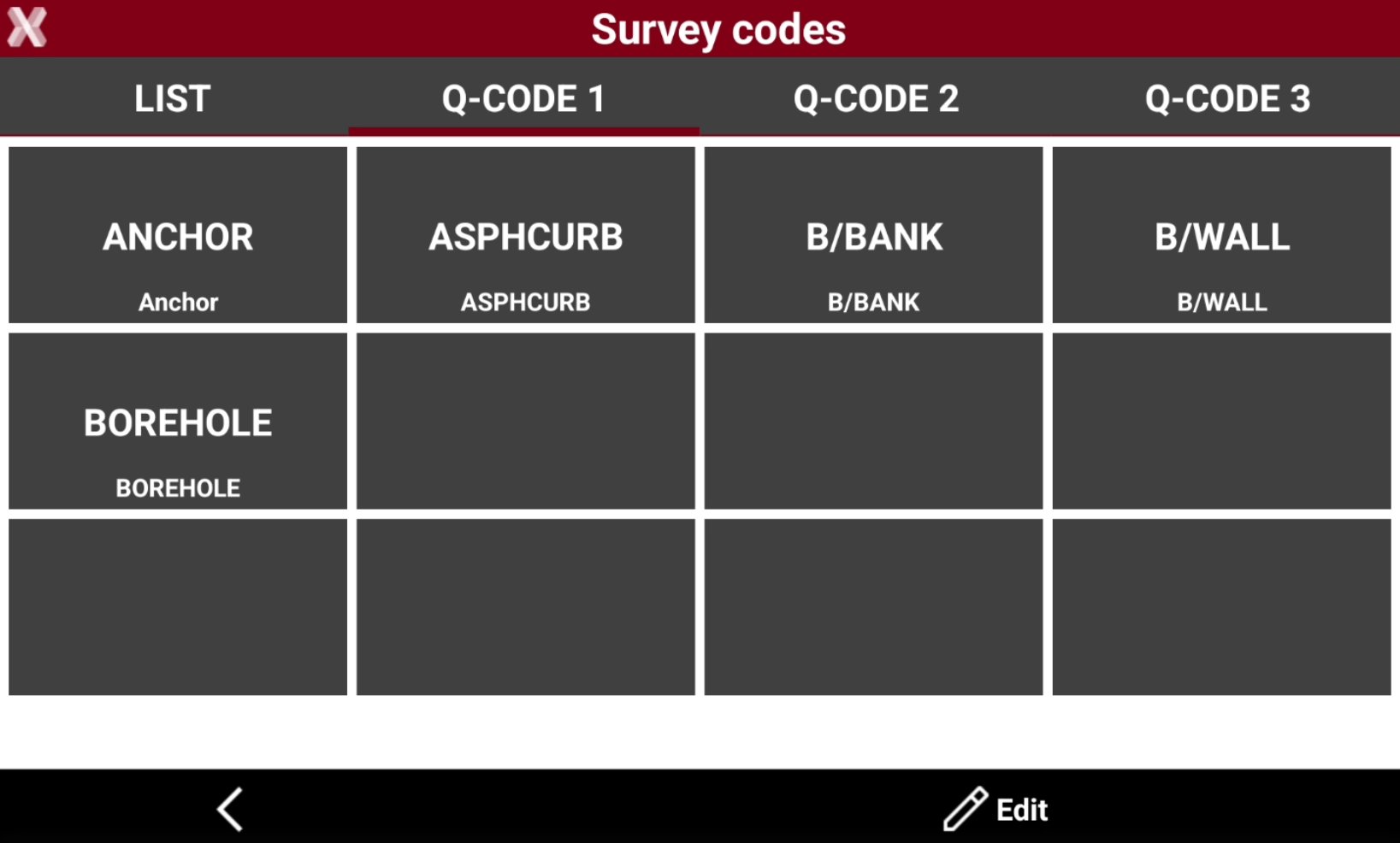
On the Q-Code 1, Q-Code 2, Q-Code 3 page, some buttons corresponding to some codes are available. Select the code hitting the corresponding button.
Customize the quick codes
-
Open the Quick codes table page to customize.
-
Select Edit.
-
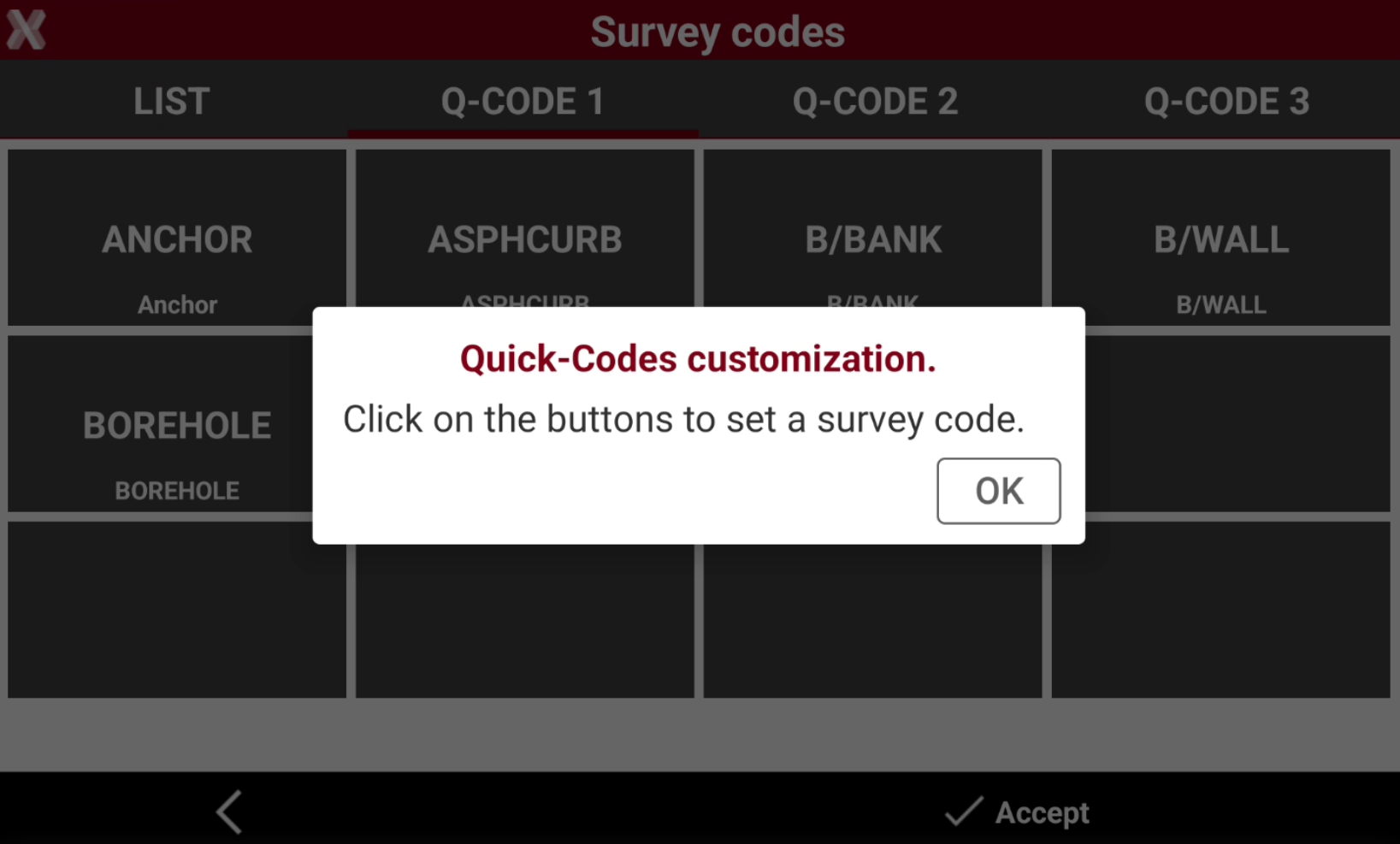
Select Quick-Codes customization.
-
Tap on the buttons in the table to set a survey code selecting it from the list of codes.
-
Select Accept to complete the procedure.
Add a new Quick-codes page
-
Open the Quick codes table.
-
Select Edit.
-
Select Add Quick-Codes page.
-
Enter the new page name to create a new page available to be customized with quick-codes.
Rename a Quick-codes page
-
Open the Quick codes table page to rename.
-
Select Edit.
-
Select Rename Quick-Codes page.
-
Enter the new page name.
Delete a Quick-codes page
-
Open the Quick codes table page to delete.
-
Select Edit.
-
Select Delete current page.
Quick codes toolbar
-
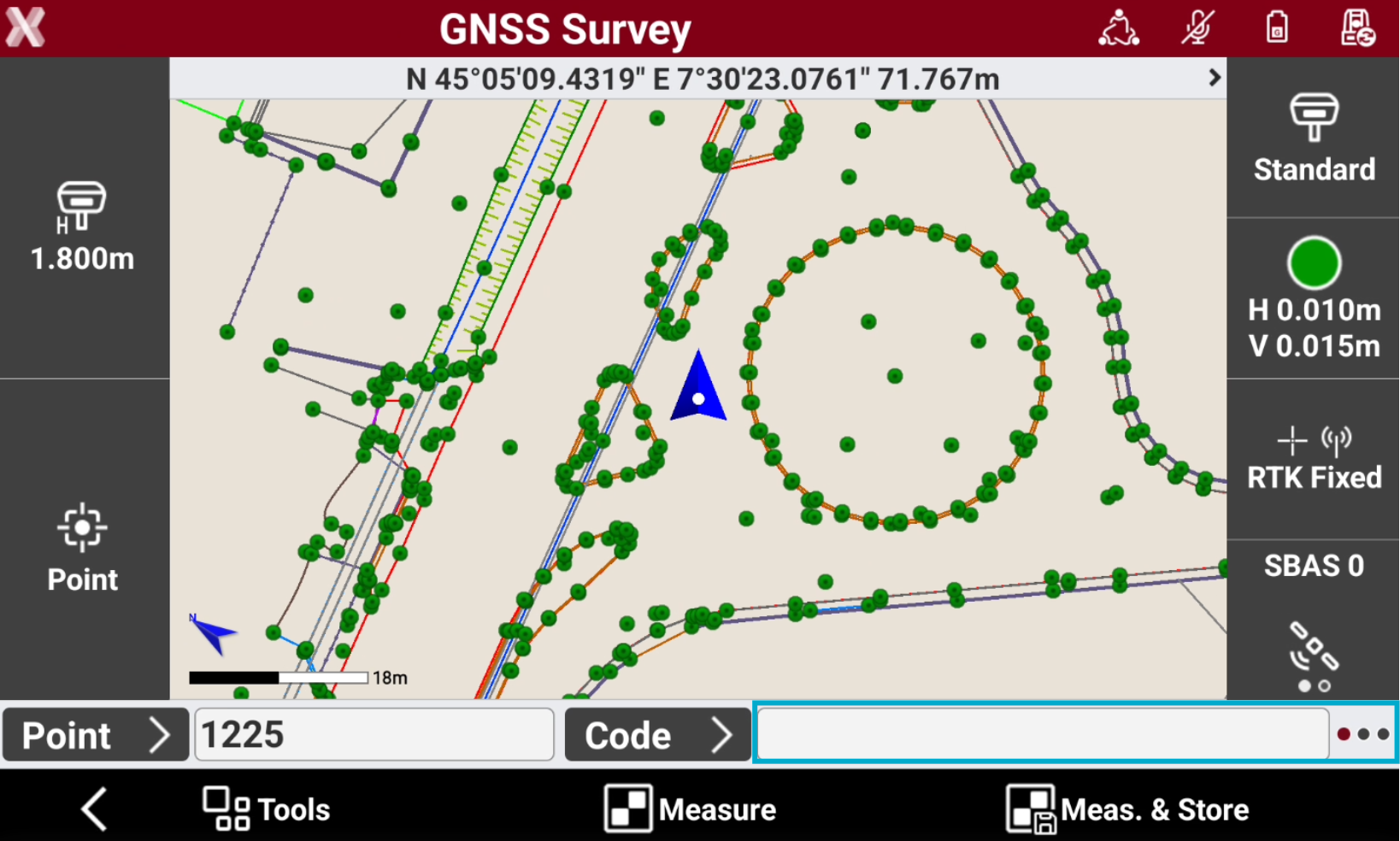
To access the Quick codes toolbar scroll the code bar to the left.
-
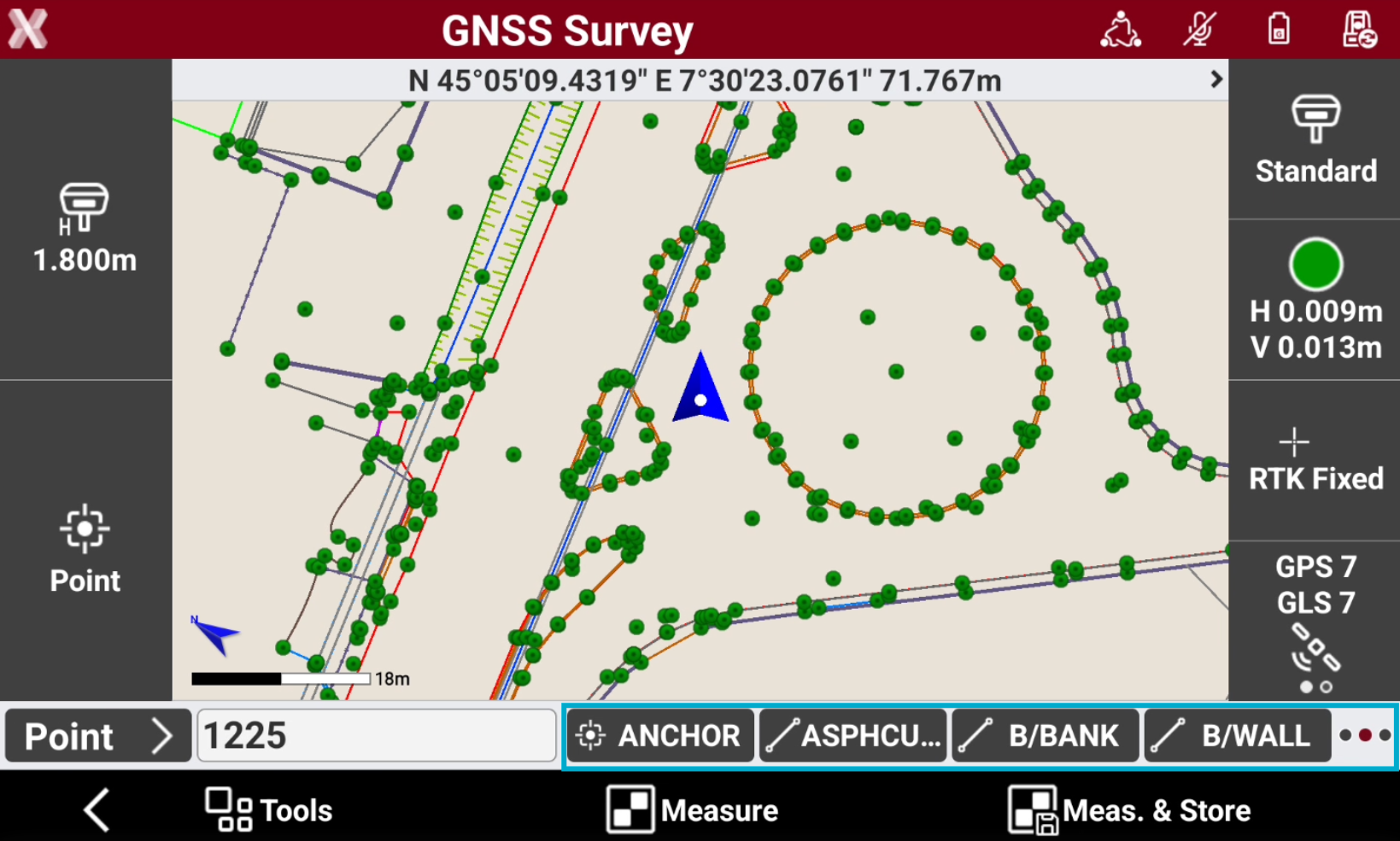
The toolbar shows the codes. Select a code to use it in the measurement.
Customize the quick codes
-
The toolbar can show the favorite codes or the last used codes.
-
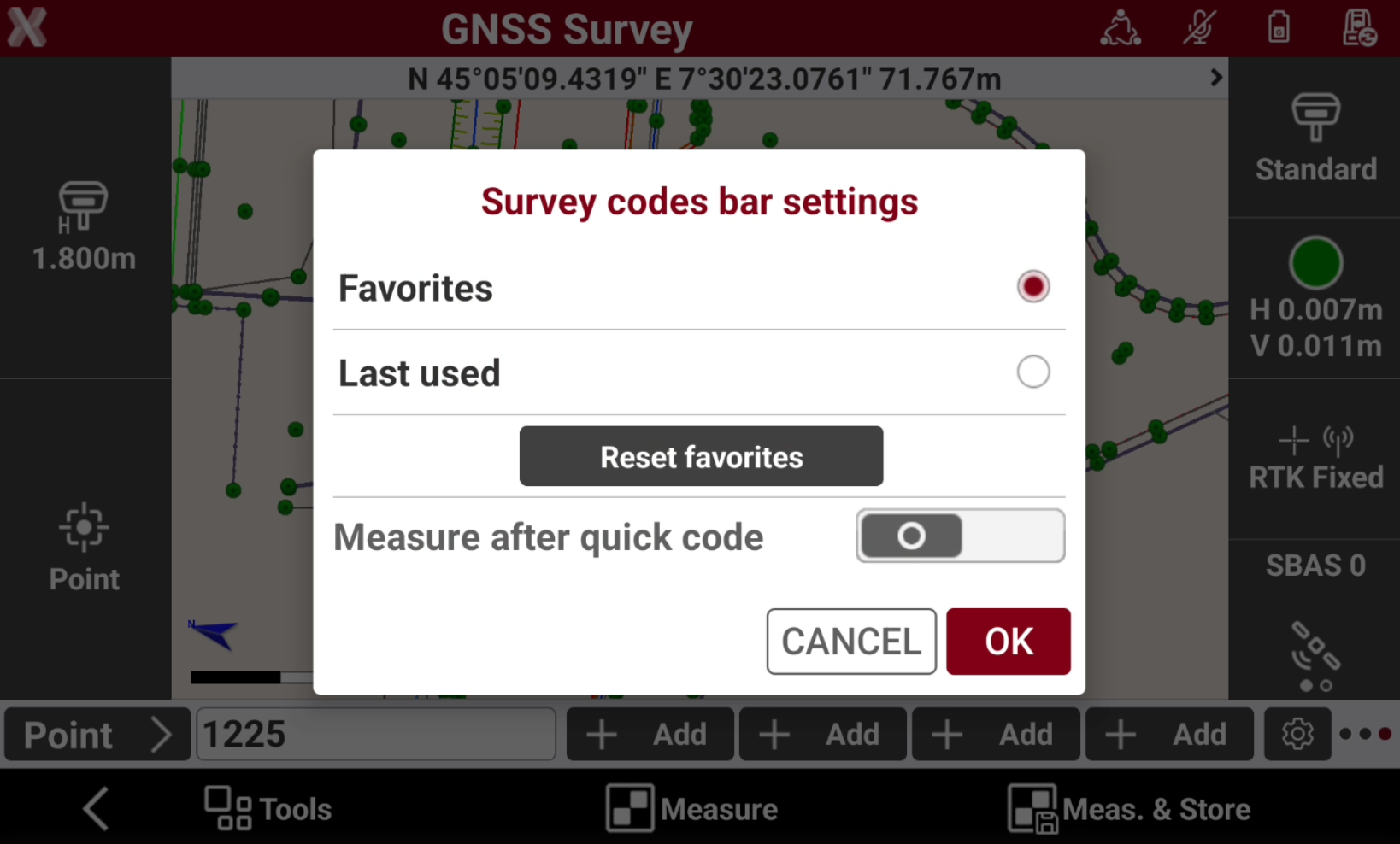
To edit the codes tap on Setting icon.
-
Favorites: allows to select customized codes in the toolbar. If Favorites is selected, click Add to add the code for each button.

-
Last used: the buttons shows the last used survey codes.
-
Reset favorites: reset all the favorites quick codes.
-
Measure after quick code: if enables, measure and store the point after the quick code is selected.
-