
-
The survey display mode can be changed to provide the most suitable view for the operator and the current surveying task.
-
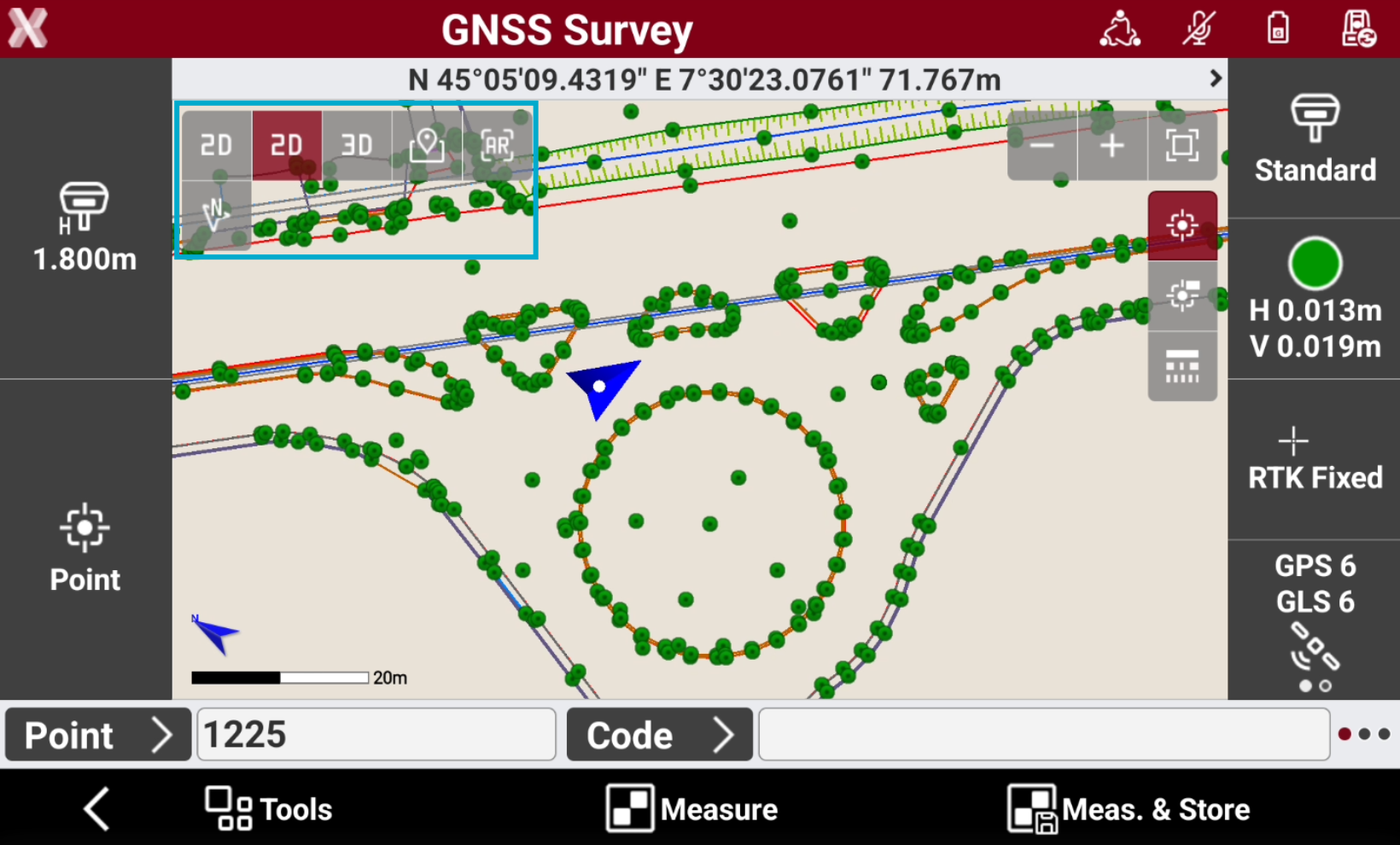
Tap on screen to open the toolbar and change the display mode.
-
2D: enables 2D drawing display.
-
3D: enables 3D drawing display.
-
Maps: enables 2D display of a reference map.
-
AR: enables the use of augmented reality using controller’s camera or GNSS receiver camera if compatible.
-
2D display mode
-
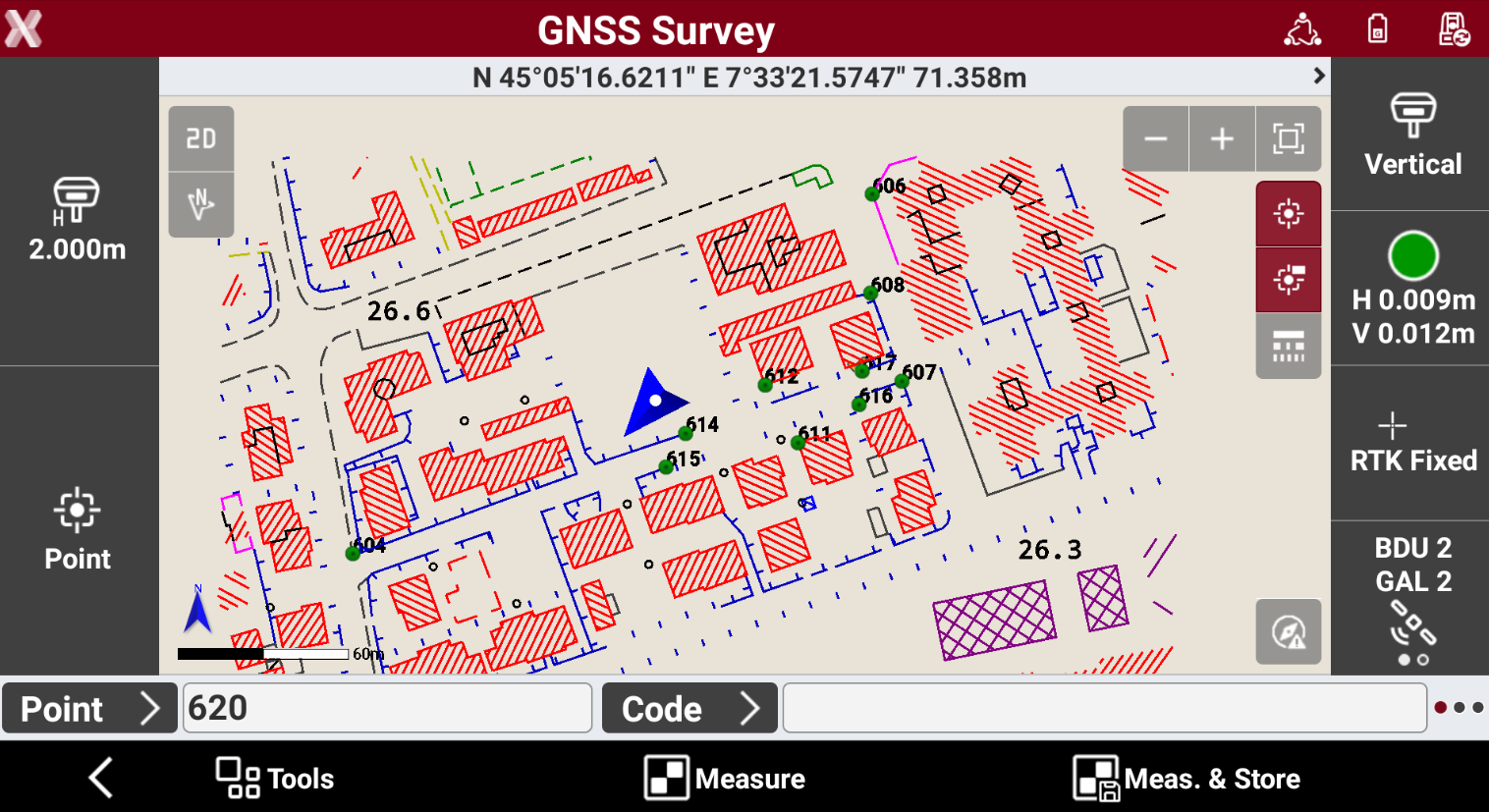
The CAD 2D view is the standard CAD view from the top.
-
Select 2D

-
While the 2D view is selected, it is possible to change the view orientation:
-
GPS direction

-
TPS direction

-
GPS north direction

-
TPS north direction

-
Manual view

-
3D display mode
-
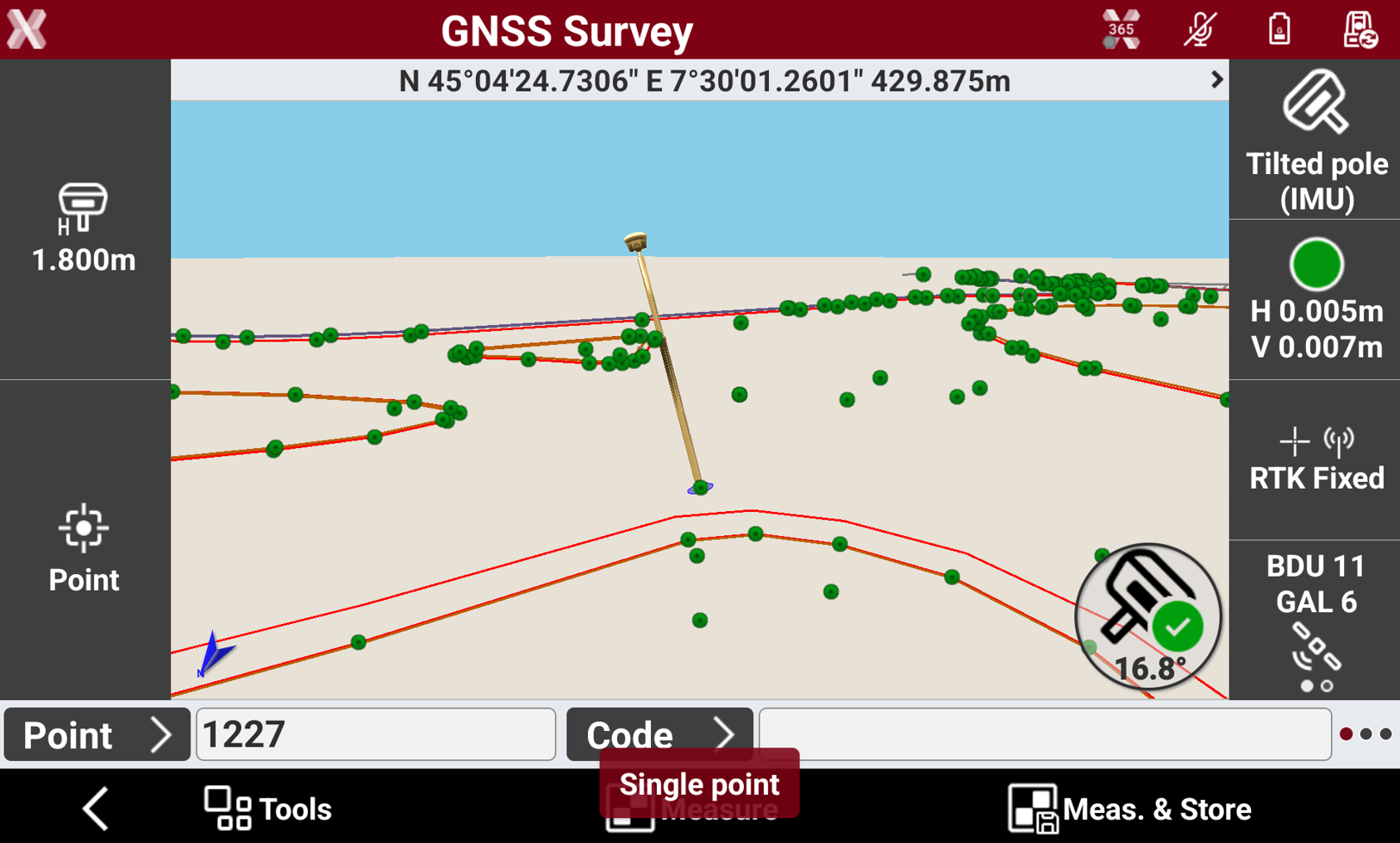
The software CAD allows the visualization in 3D.
-
Select 3D

-
The CAD renders not only the drawing in 3D but also the current instrument.
-
While the 3D view is selected, it is possible to change the view direction:
-
GPS direction
-
TPS direction
-
Cross section

-
Manual view
-
Maps
-
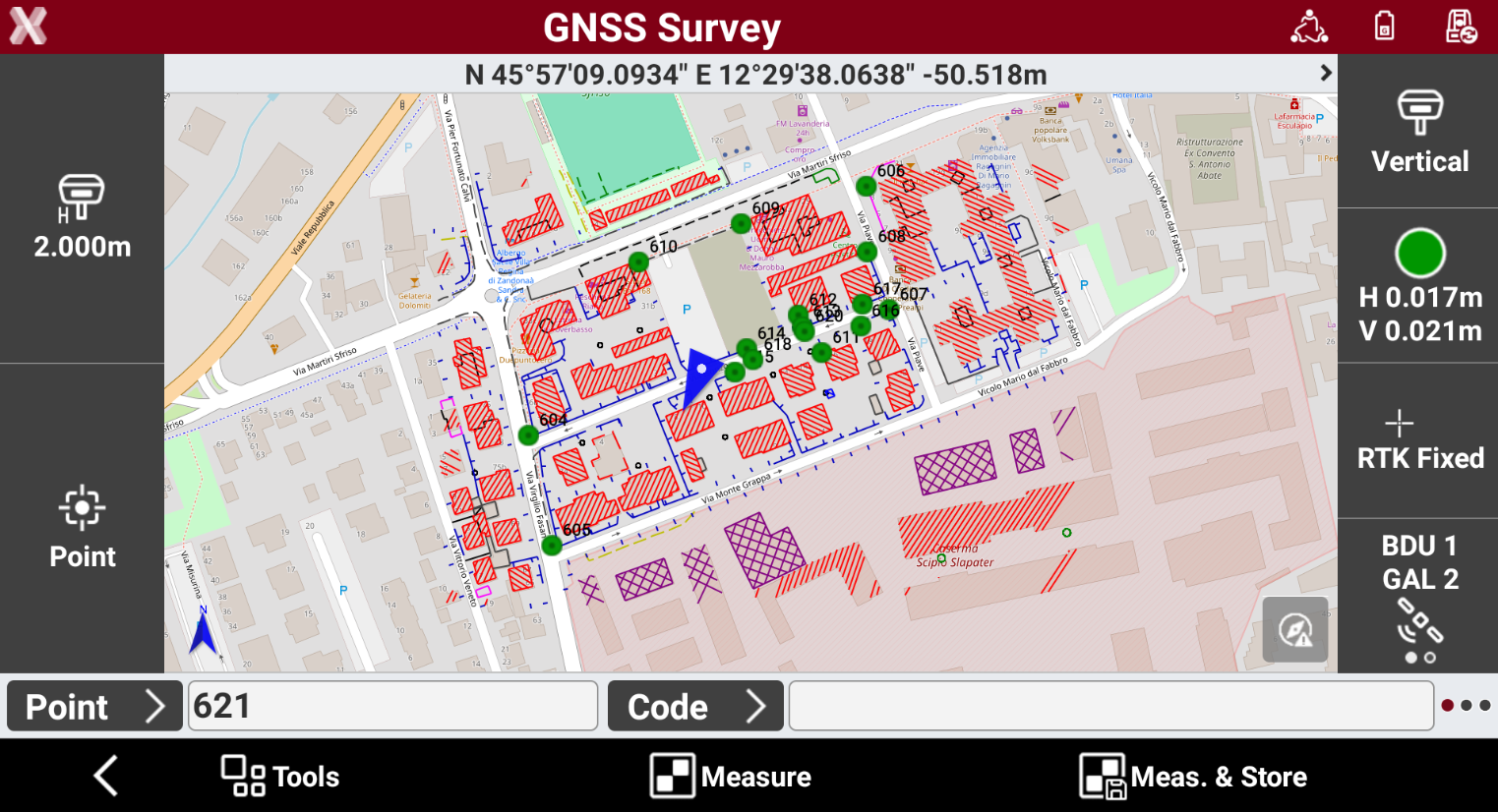
The software allows to visualize in background an online map from different online services.
-
Select Map

-
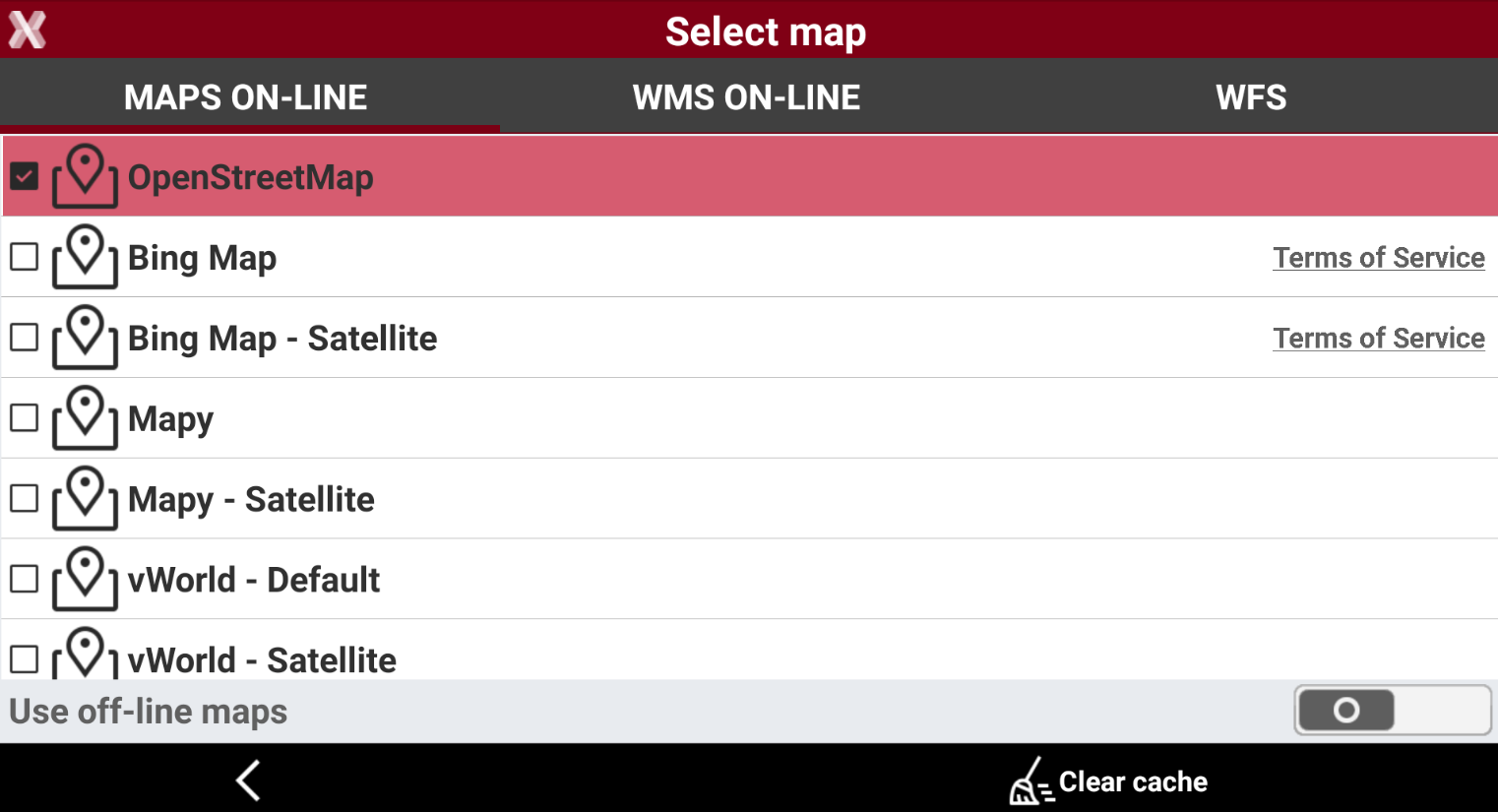
Tap on Select map

-
It is possible to use different online maps, WMS and WFS:
-
Maps on-line: select one online map service to use in background.
-
WMS: Web Map Services is a standard protocol for sharing 2D maps online. This technology is used globally and has been around for many years. Governments and municipalities often utilize WMS to share public information. For more information on how to configure a WMS refer to WMS (Web Map Services).
-
WFS: Web Feature Service are cartographic services accessible through internet. They can provide both spatial (vectorial) and not spatial data on different layers. For more information on how to configure a WFS refer to WFS (Web Feature Services).
-
-
While the maps view is selected, it is possible to change the view direction:
-
GPS north direction
-
TPS north direction
-
Manual view
-
Augmented reality
Working with a GNSS receiver with imaging provides a more accurate result.
-
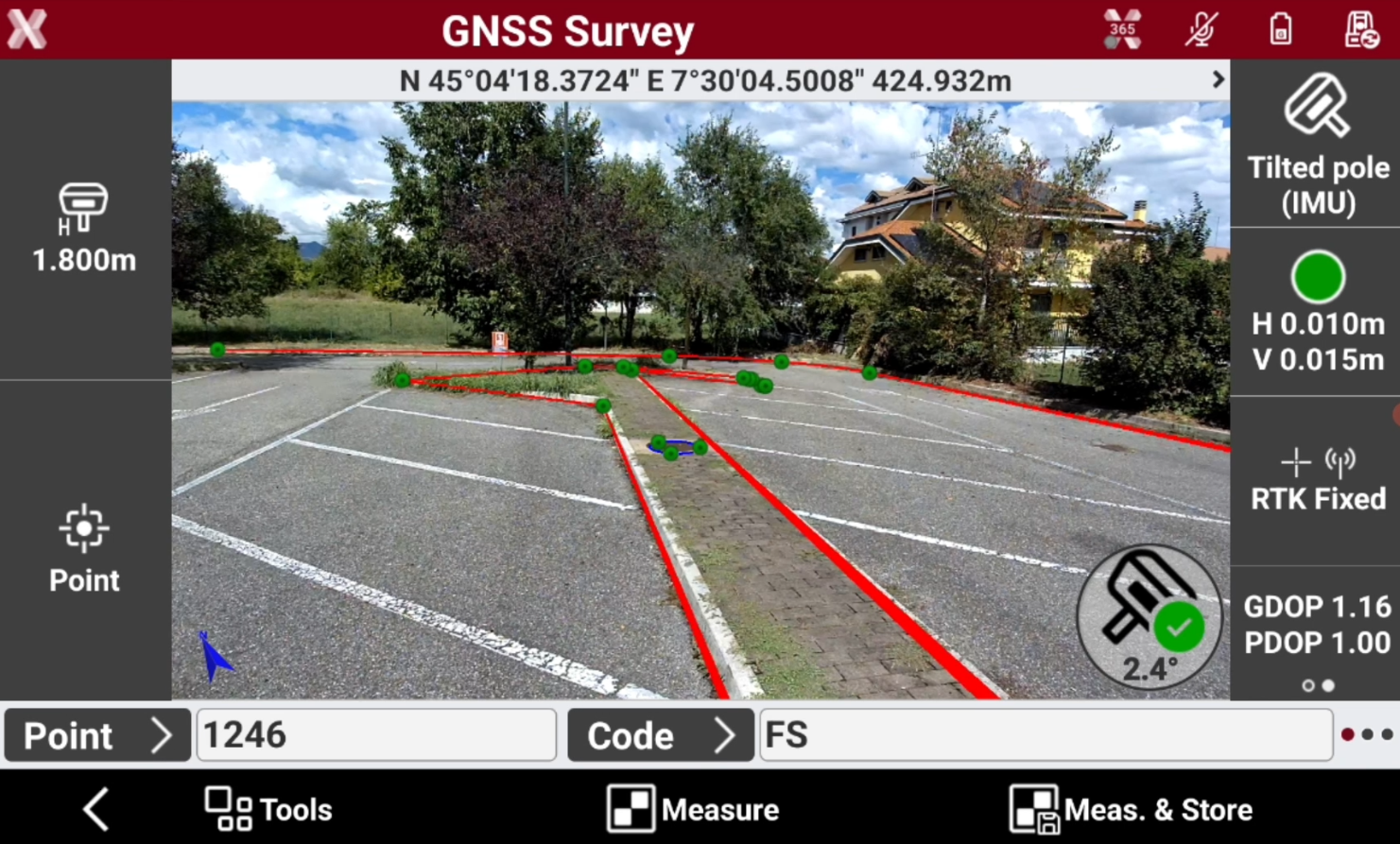
When AR is activated the data is overlapped to the camera image. If a GNSS receiver with imaging is used, the front and bottom GNSS receiver’s cameras are used, otherwise the software utilizes the controller’s camera.
-
Press

-
The software overlaps CAD data with camera, using GNSS receiver position and orientation.
-
When operating with a GNSS receiver with imaging press
