
-
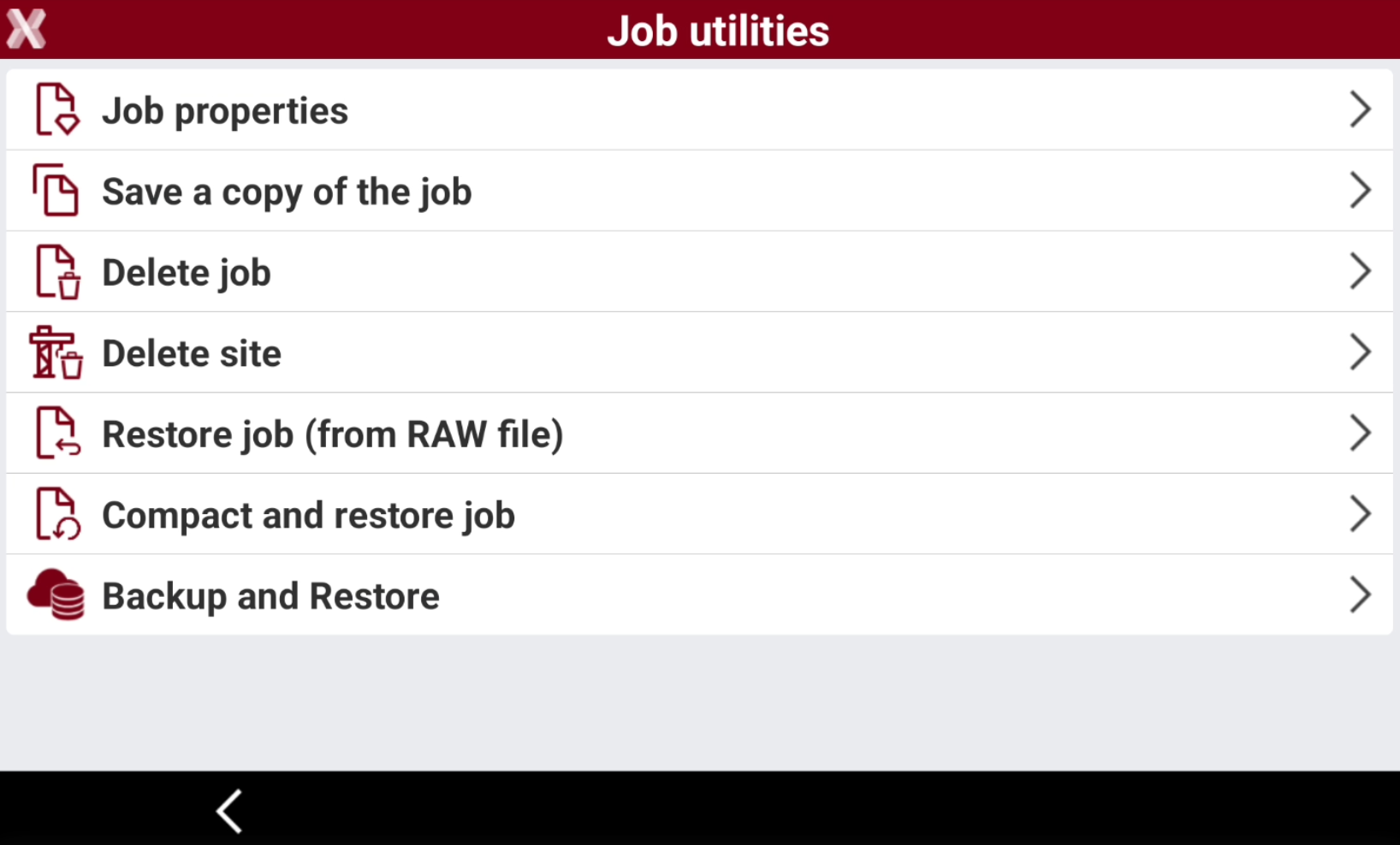
The software has different tools to manage the jobs in the Job utilities menu.
-
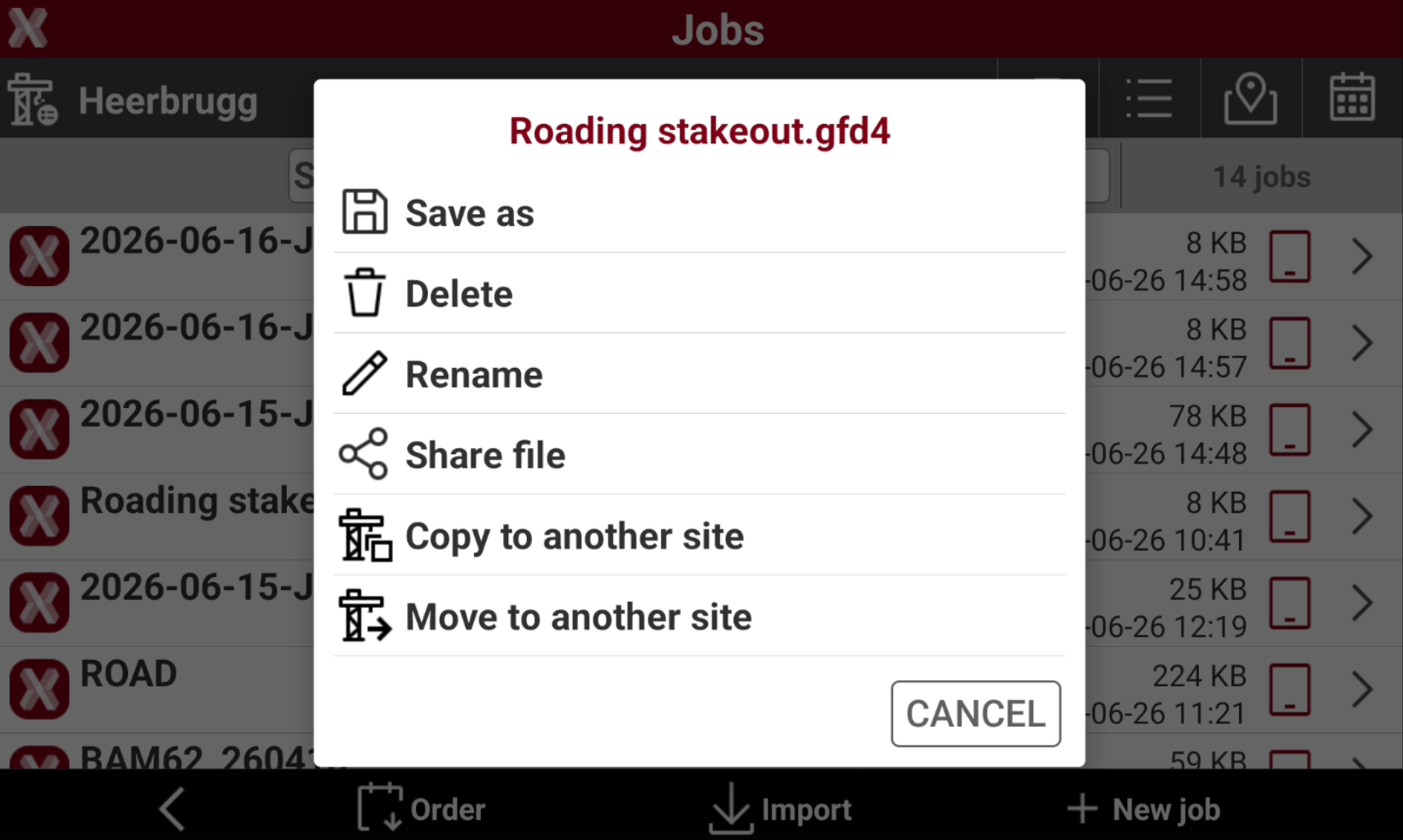
It is possible to access the utilities from the page Job utilities within the Job page, or directly from the list of jobs long-pressing on a job to open the context menu.
Accessing the job utilities
-
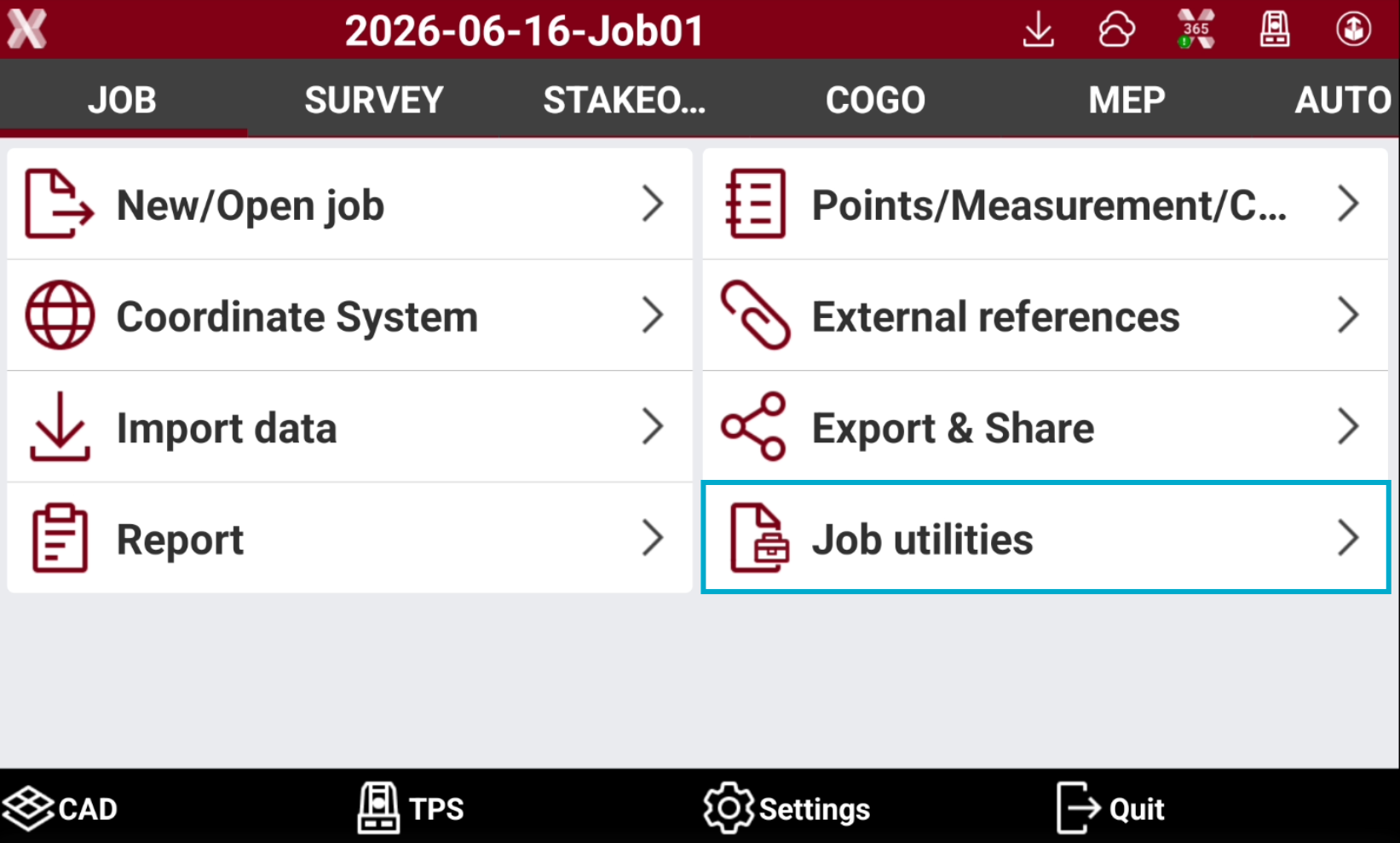
To access the Job utilities page select Job and select Job utilities.
-
This opens a new page with different utilities.
-
It is possible to access some job utilities from the job context menu long-clicking on a job from job list or pressing > icon.
Job properties
-
Job properties allows to edit the properties of the current job.
-
From the Job page select Job utilities.
-
Select Job properties.
-
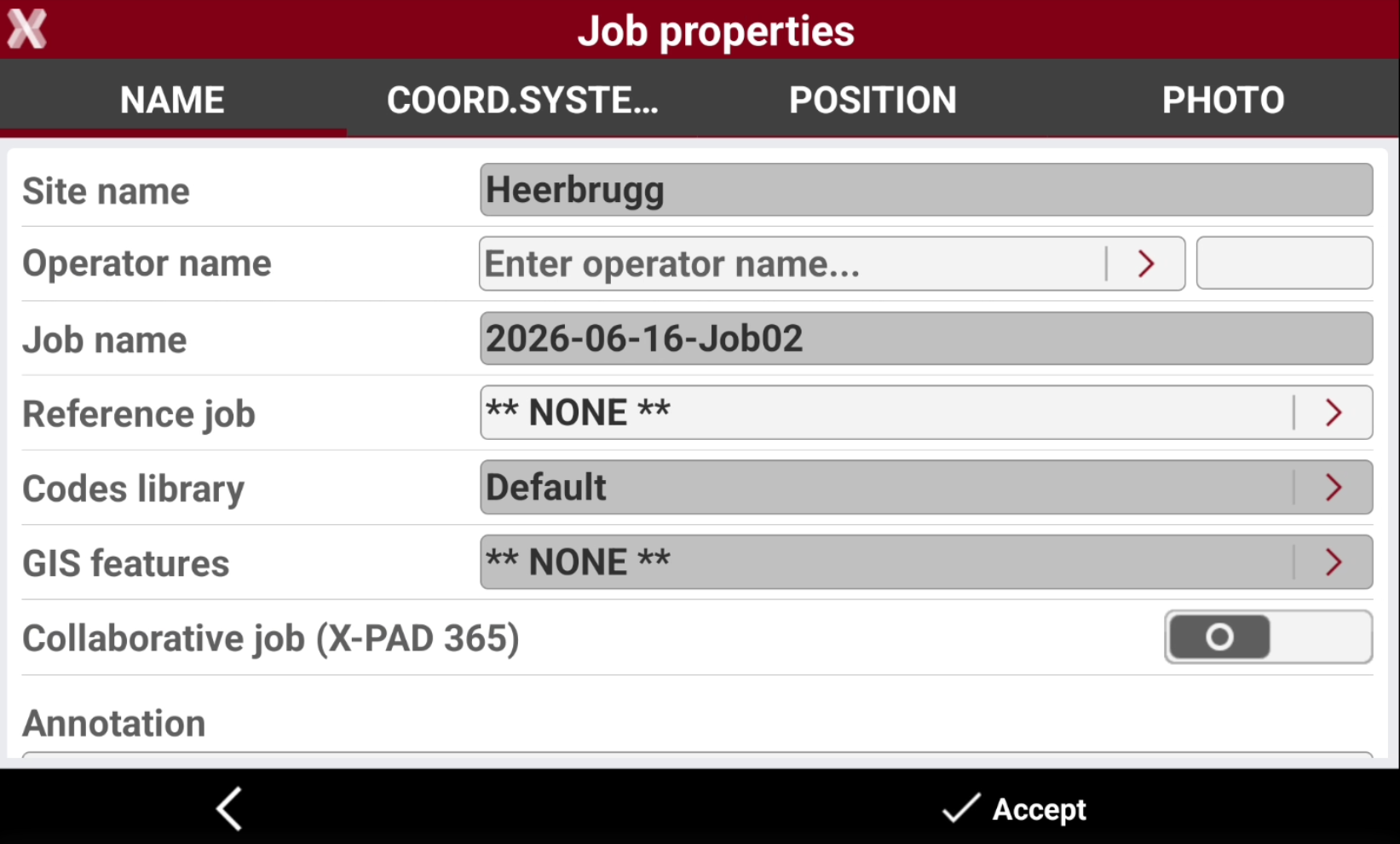
This opens the Job properties page.
-
The function allows to edit the properties of the job.
-
Press Accept to close the page and save the changes.
Save a copy of the job
-
This function allows to save a copy of the selected job.
The same function is also available selecting Save as from the job context menu.
-
From the Job page select Job utilities.
-
Select Save a copy of the job.
-
Select where to save the copy.
-
Press Accept to save the file.
Delete job
-
The function deletes the selected jobs.
The operation is permanent.
The same function is also available selecting Delete from the job context menu.
-
From the Job page select Job utilities.
-
Select Delete job.
-
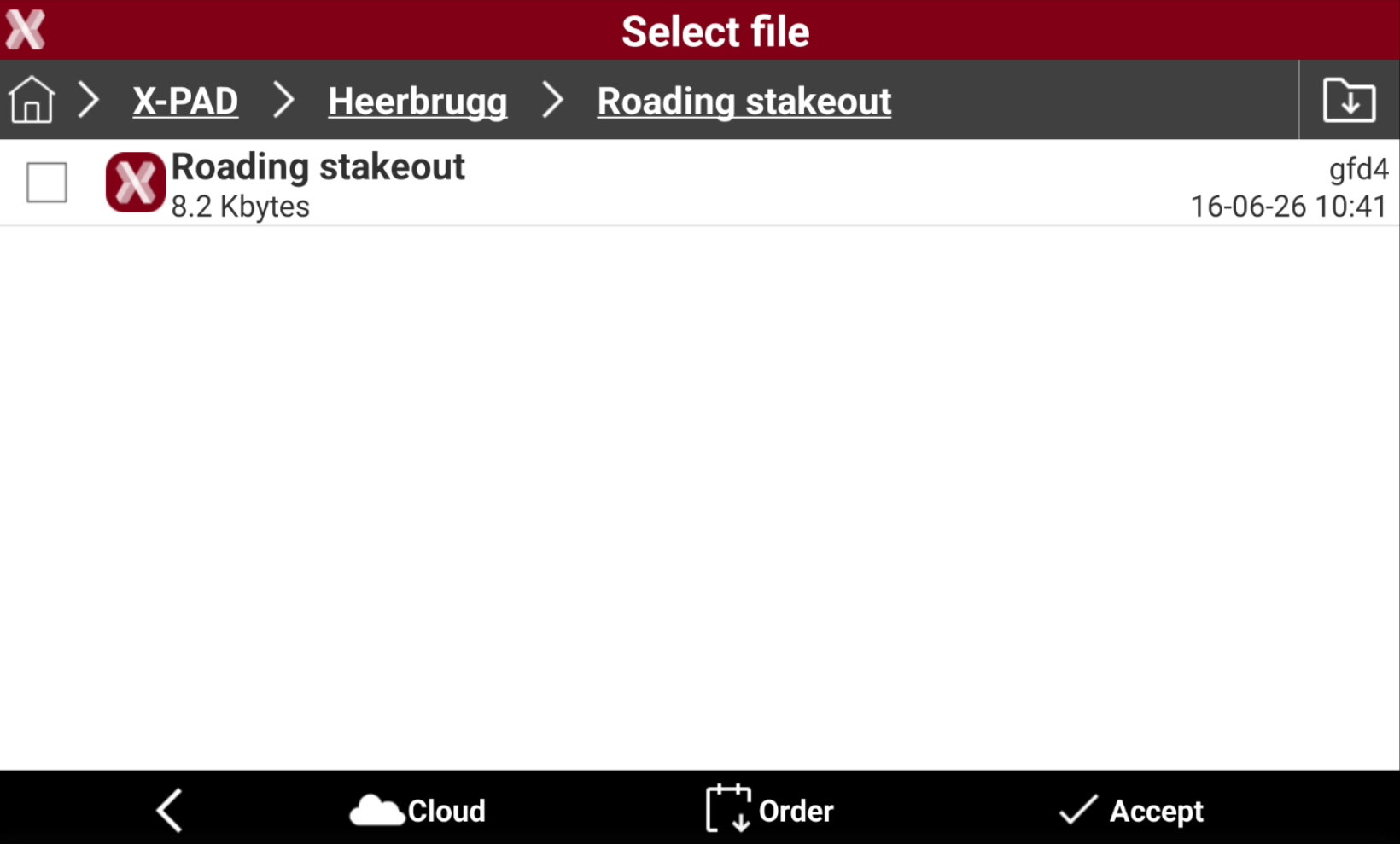
This operation opens job folder in the current Site.
-
Select or change folder to select the jobs to delete.
-
Click Accept and then Yes to permanently delete the selected job.
Delete site
-
The function deletes the selected sites.
The operation is permanent. Deleting a site will delete all site data inside.
The same function is also available selecting Delete from the site context menu.
-
From the Job page select Job utilities.
-
Select Delete site.
-
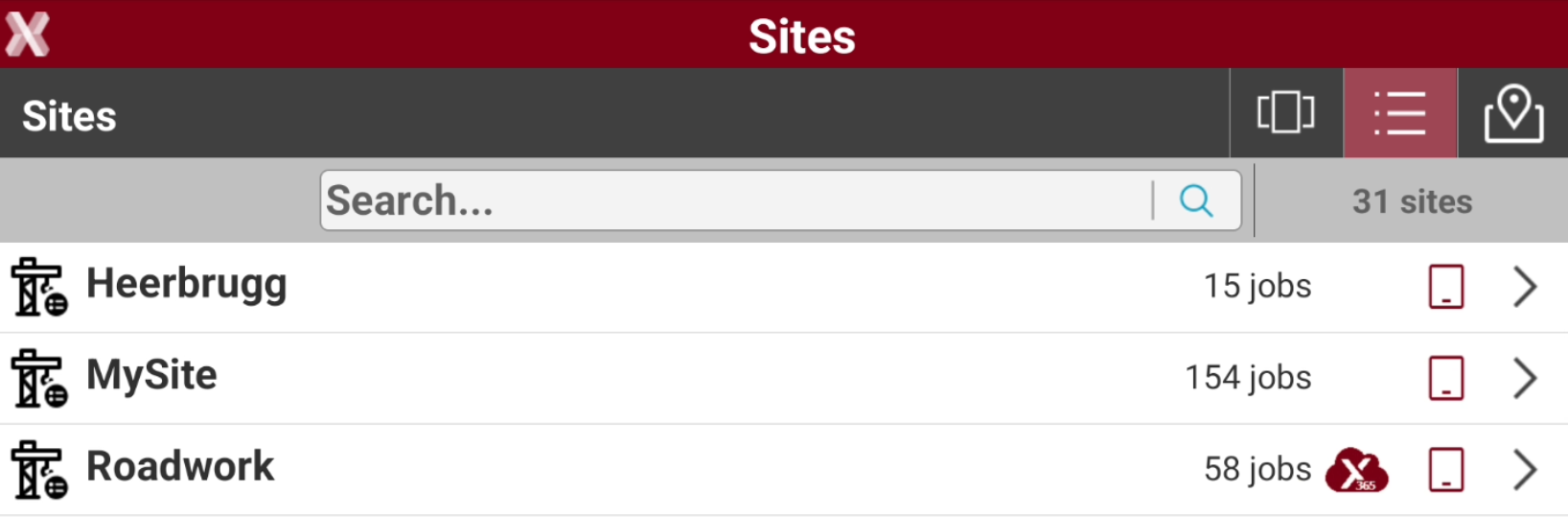
This operation opens the list of Sites.
-
Tap on a Site, and then Yes to permanently delete the site and all jobs inside the site.
Rename job
-
Changes the name of a selected job.
-
Open the the job list.
-
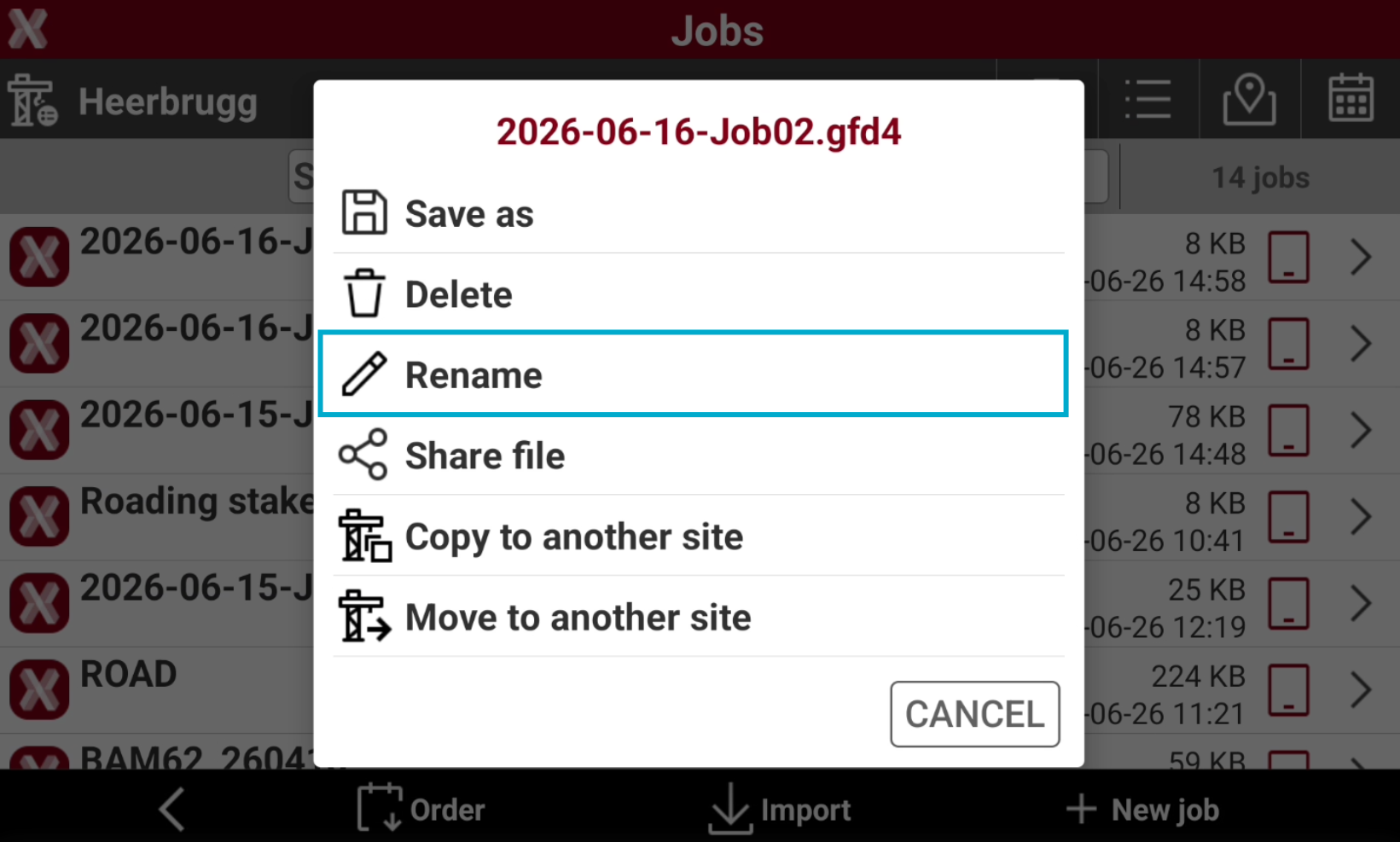
Long-press on a job or select > to open the context menu. Select Rename to rename the job.
-
Enter the new name and press OK.
Share a job
-
Allows to share a job file using the Android sharing options, for example as an email attachment.
-
Open the the job list.
-
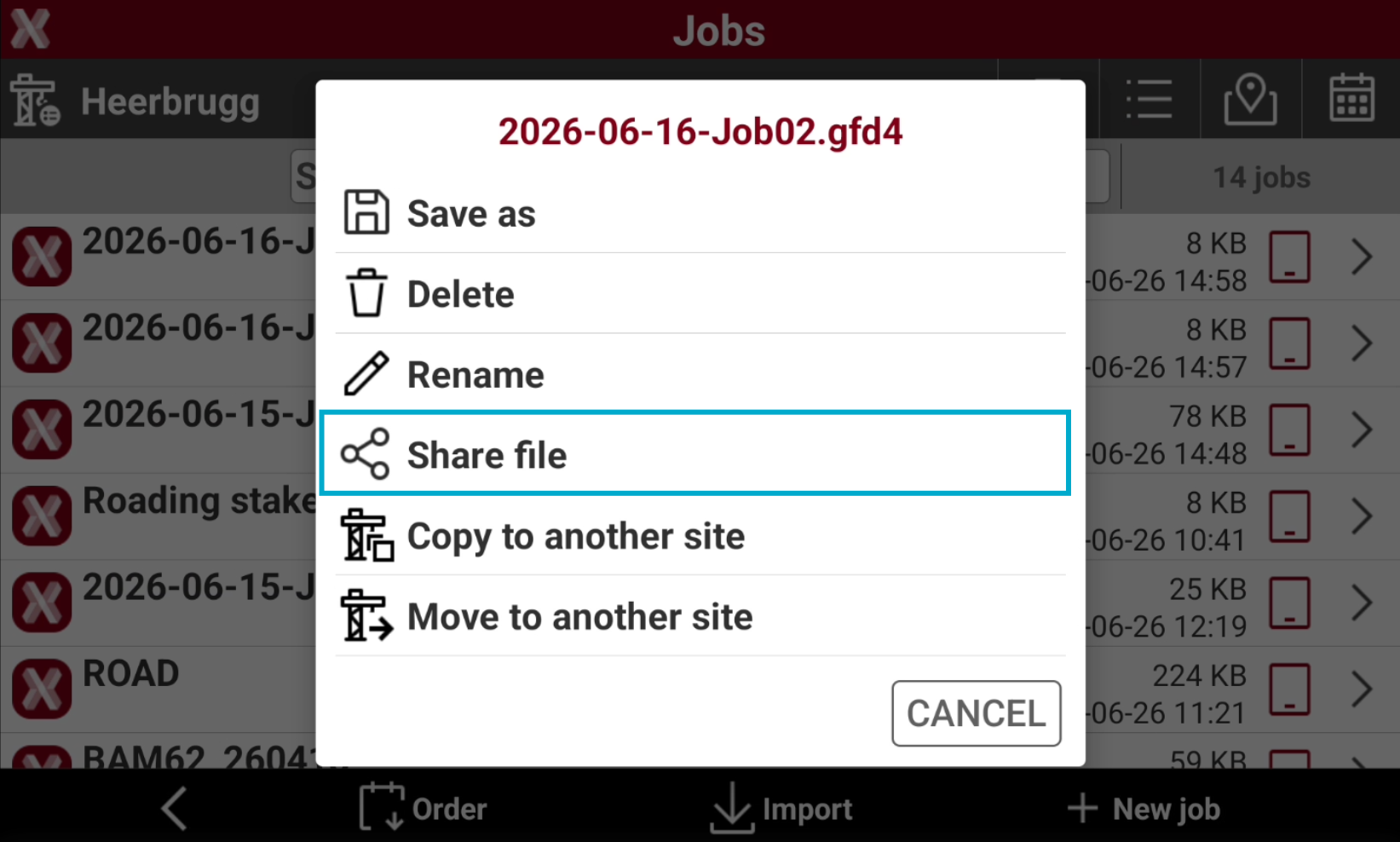
Long-press on a job or select > to open the context menu. Select Share file.
-
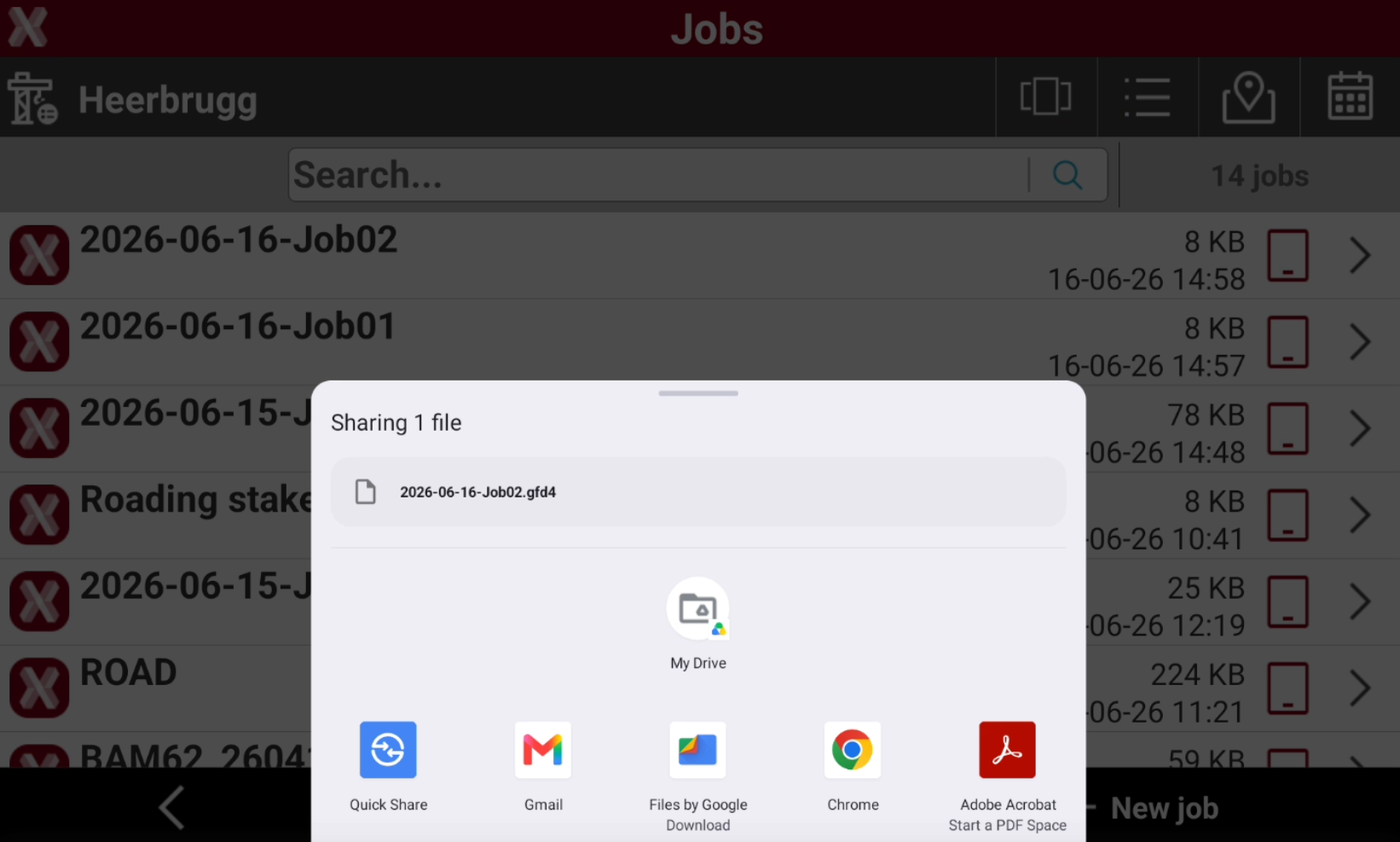
This operation opens a page displaying the services available on the Android device, such as sending files via email, Wi‑Fi, Bluetooth, or uploading to a cloud.
-
Select one of the services to proceed. For example selecting an email service, the software creates an email with the selected job attached ready to be sent.
Copy job to another site
-
This function allows to copy a selected job to a different Site.
-
Open the the job list.
-
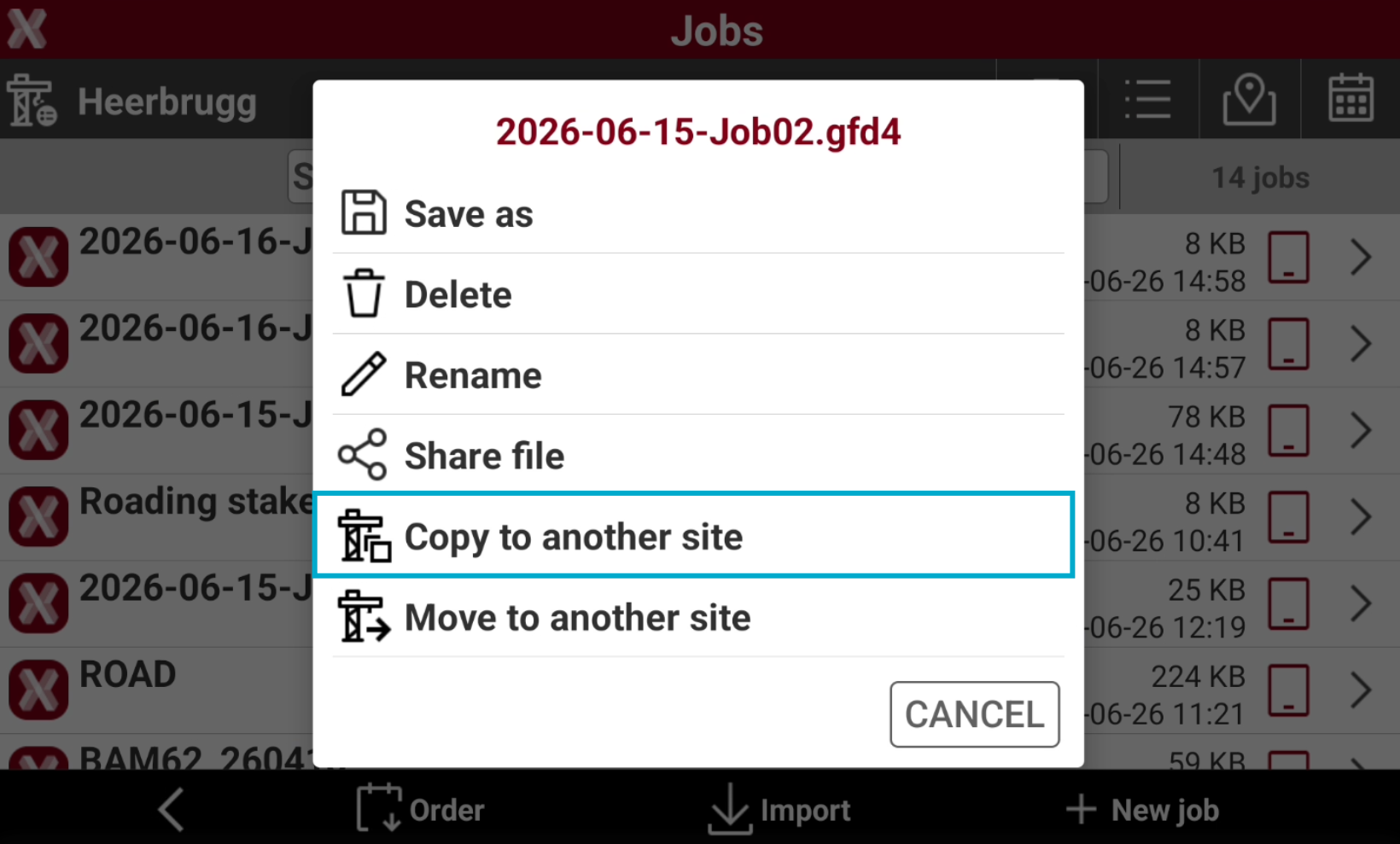
Long-press on a job or select > to open the context menu. Select Copy to another site.
-
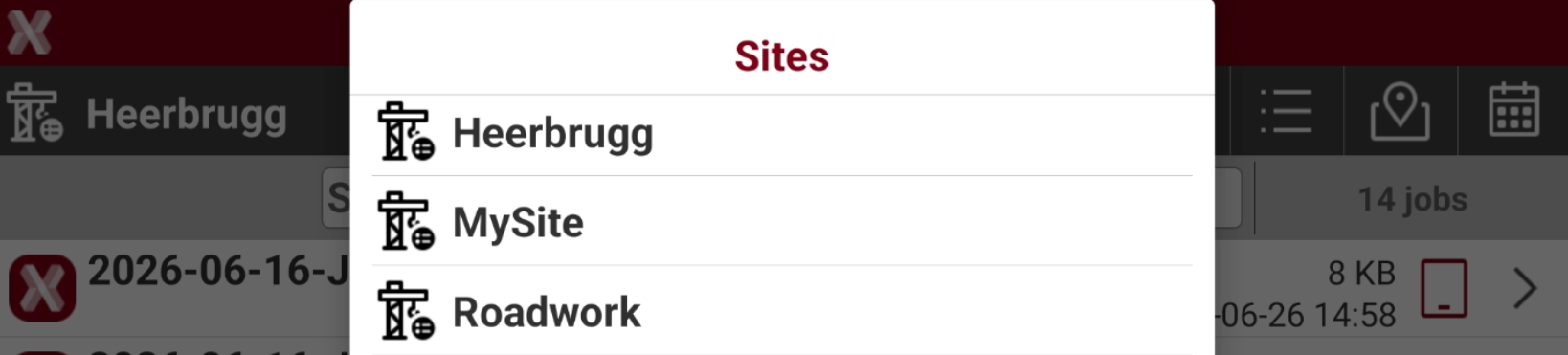
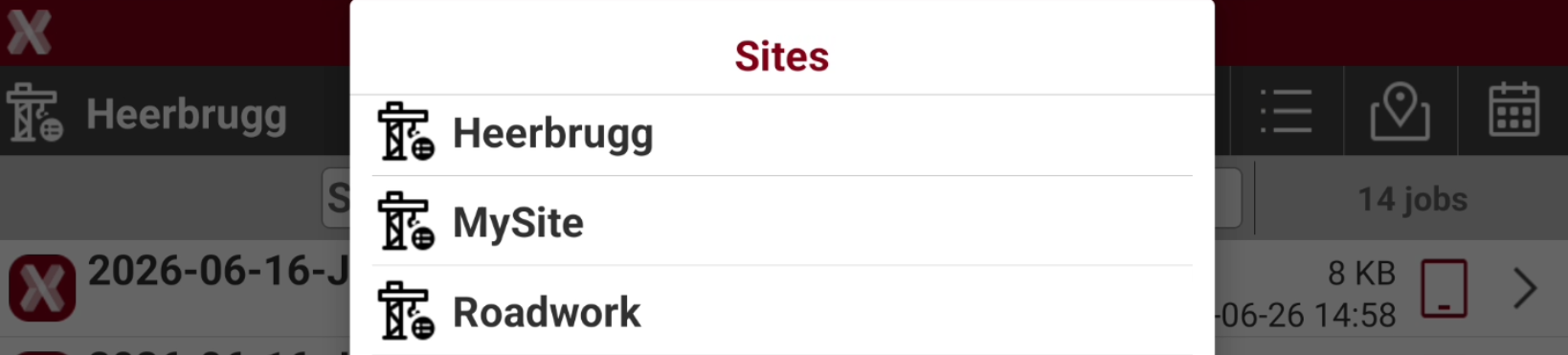
Select the Site from the list of available sites to copy the job.
Move job to another site
-
This function allows to copy a selected job to a different Site.
-
Open the Job tab.
-
Select New/Open job to open the job list.
-
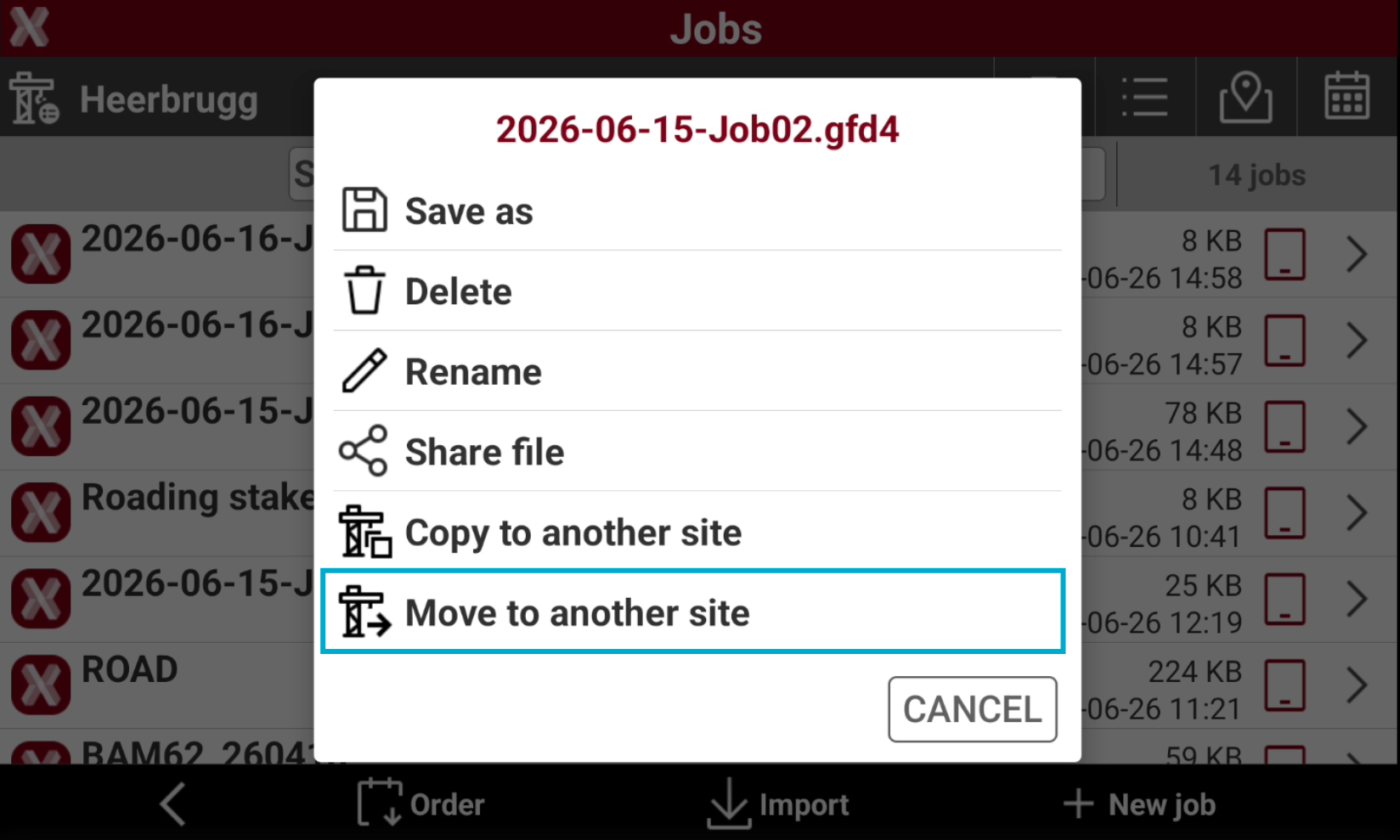
Long-press on a job to open the context menu or select >. Select Move to another site.
-
Select the Site from the list of available Sites to move the job to the selected site.
Restore job (from RAW file)
-
This function allows to import the RAW file of a job which is damaged and cannot be opened anymore, restoring the original job.
The RAW file is a file which is automatically created in parallel to the main GFD4 job file.
-
From the Job page select Job utilities.
-
Select Restore job (from RAW file).
-
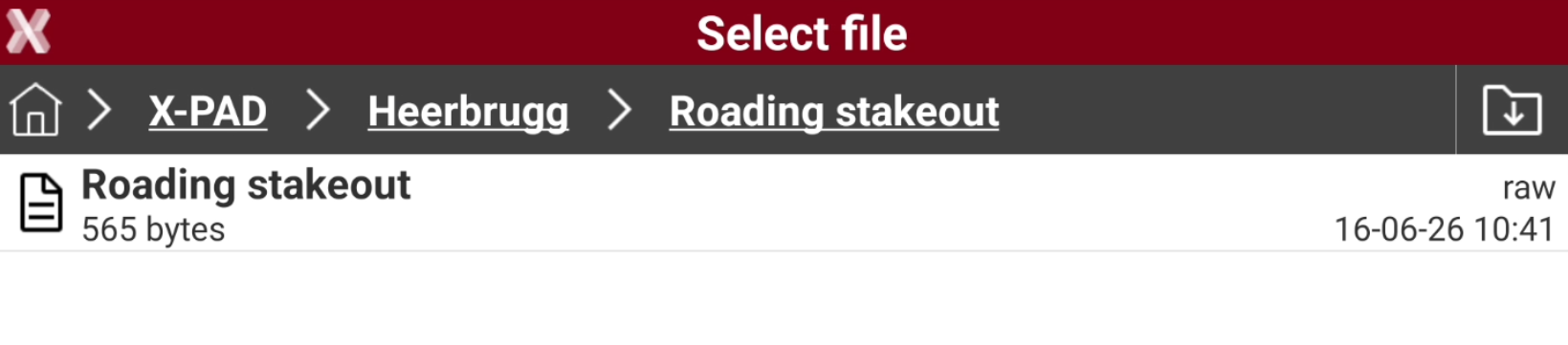
Select from the file manager the raw file to restore, and generate again the GFD4 job file starting from selected RAW file.
-
Enter a name for the job.
-
Select Accept to create and open the job.
Compact and restore job
-
This option performs a compaction and, if necessary, restores an existing job when a large amount of data has been deleted or when the job is corrupted.
-
From the Job page select Job utilities.
-
Select Compact and restore job.
-
Select from the file manager the job file to compact and restore.
-
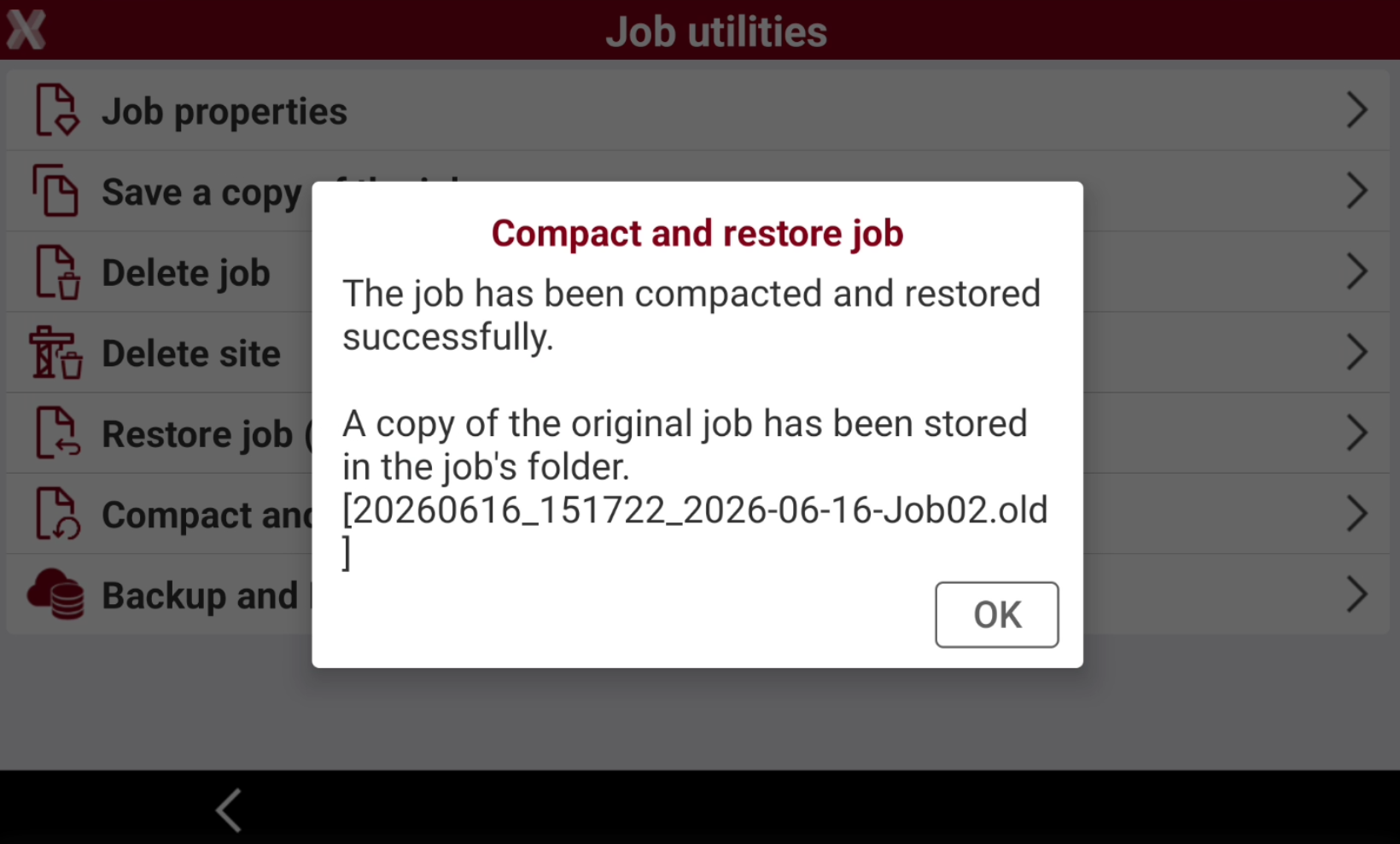
If operation is successful, a copy of the original job is also stored. Press OK to close the page.
Jobs merge
-
The functionality allows to merge data collected in different jobs.
-
Users can specify the list of jobs to merge, whether stored locally on the controller or remotely, as well as the merging rules.
-
The rules define how to handle cases where two or more points have the same position or the same name.
-
The result of the merge command is a new job in which all points, measurements, and drawings are combined into a single dataset.
-
Open the Job tab.
-
Select New/Open job to open the job list.
-
Select Jobs merge.
-
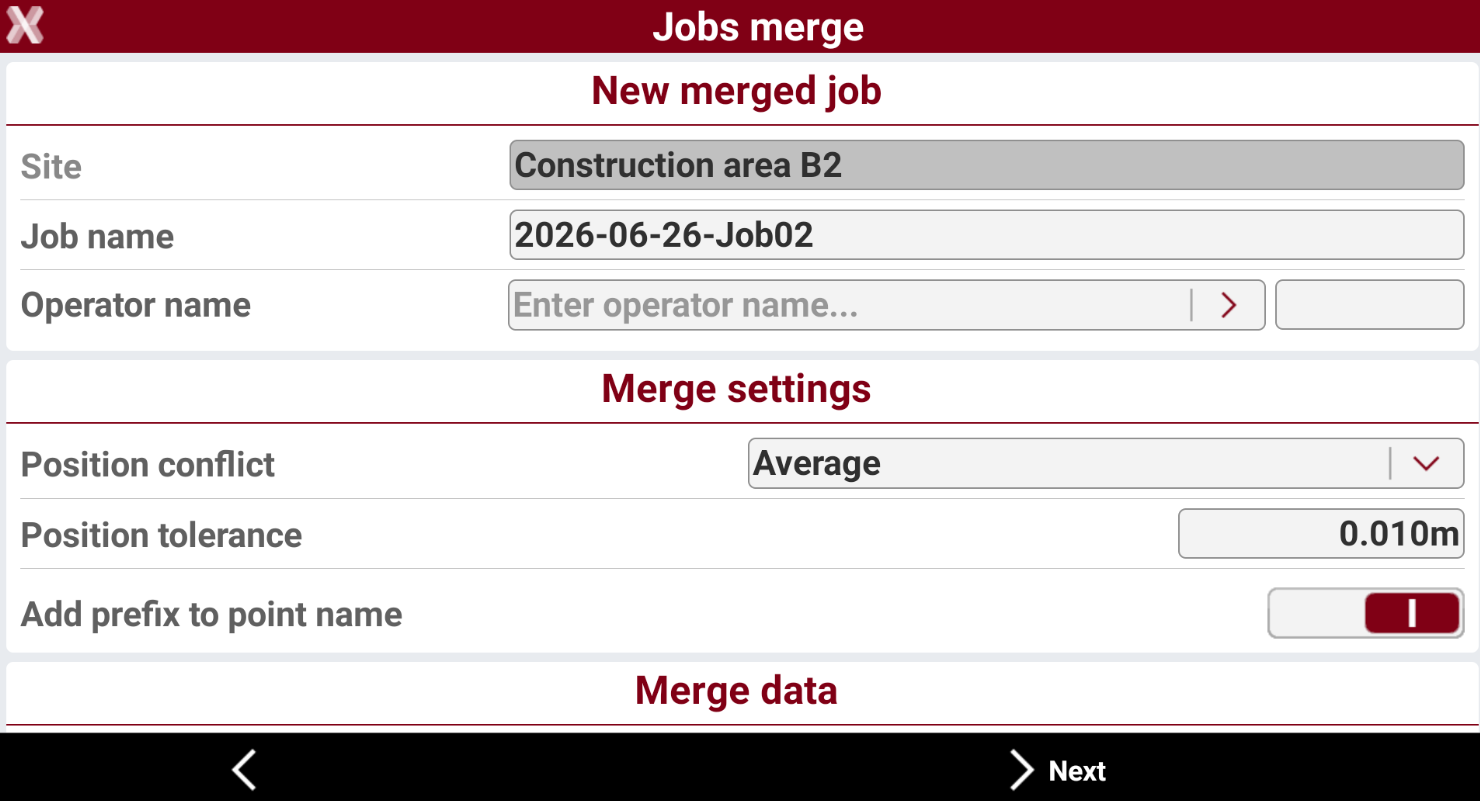
New merged job: to define information regarding the merged job.
-
Site: the current job site.
-
Job name: the name of the merged job.
-
Operator name: allows to select the operator name to be used as prefix for the job name.
-
-
Merge settings: to define the merging rules.
-
Position conflict: if two different points are within the tolerance defined in Position tolerance are merged.
-
Average: the coordinate of the merged point is the average coordinate between the two points.
-
Keep first position: the coordinate of the merged point is the coordinate of the first job.
-
-
Position tolerance: the threshold to merge different points.
-
Add prefix to point name: if enabled, allows to add a prefix to point names specifying from which job they come from.
-
-
Merge data: to define what data to merge.
-
Topographic points: merges topographic points.
-
TPS & GNSS measurements: merged TPS and GNSS measurements.
-
Survey drawings: merged drawing data.
-
-
Click Next to select the jobs to merge.
-
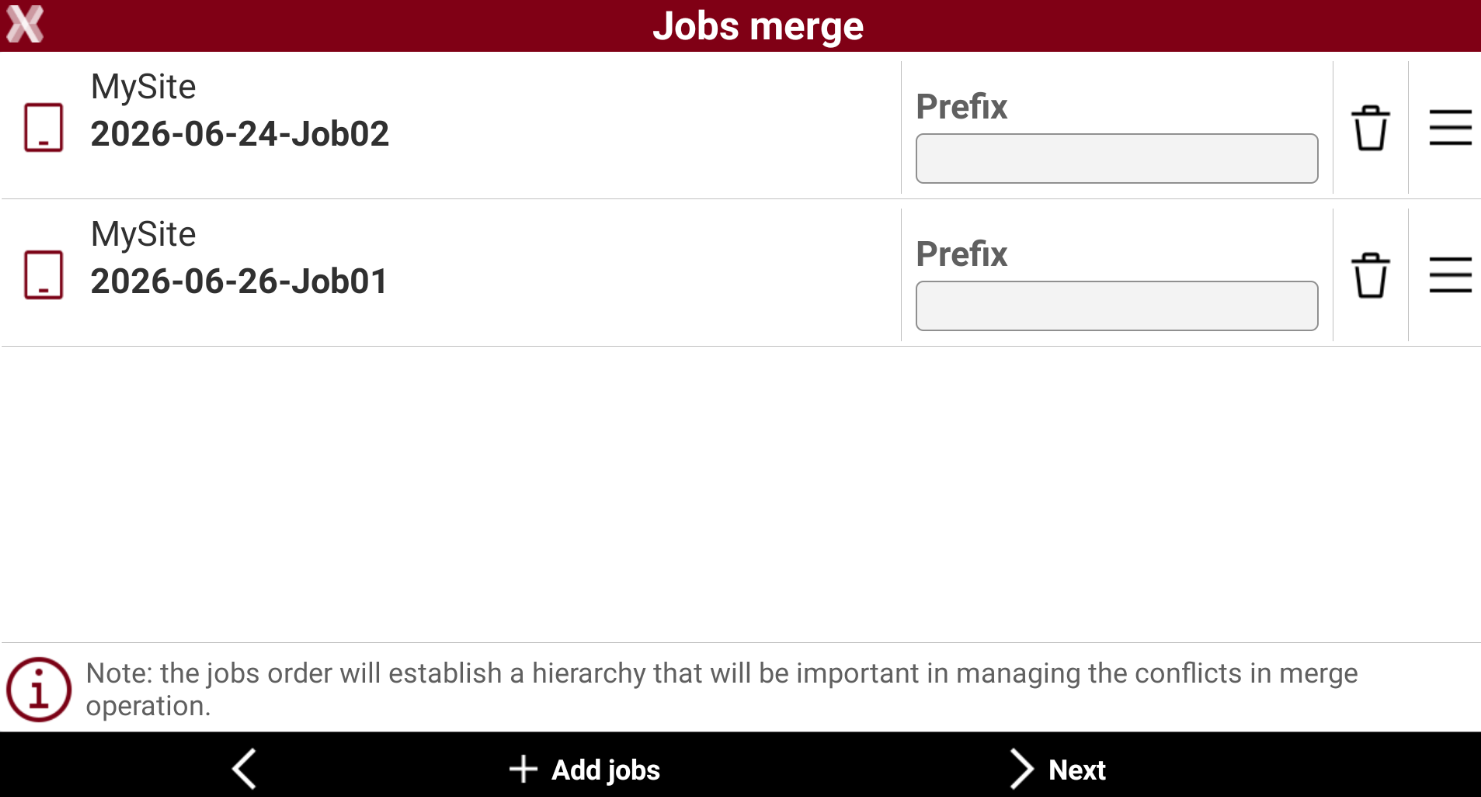
Click Add jobs to select the jobs to merge. Jobs can be selected from current or different sites.
-
The page shows the selected jobs. The job order establish the hierarchy that will be used in managing conflicts in merge operation. Press

-
If Add prefix to point name was enabled, it is possible to select the prefix applied to the points.
-
Click Next to complete the merging.
-
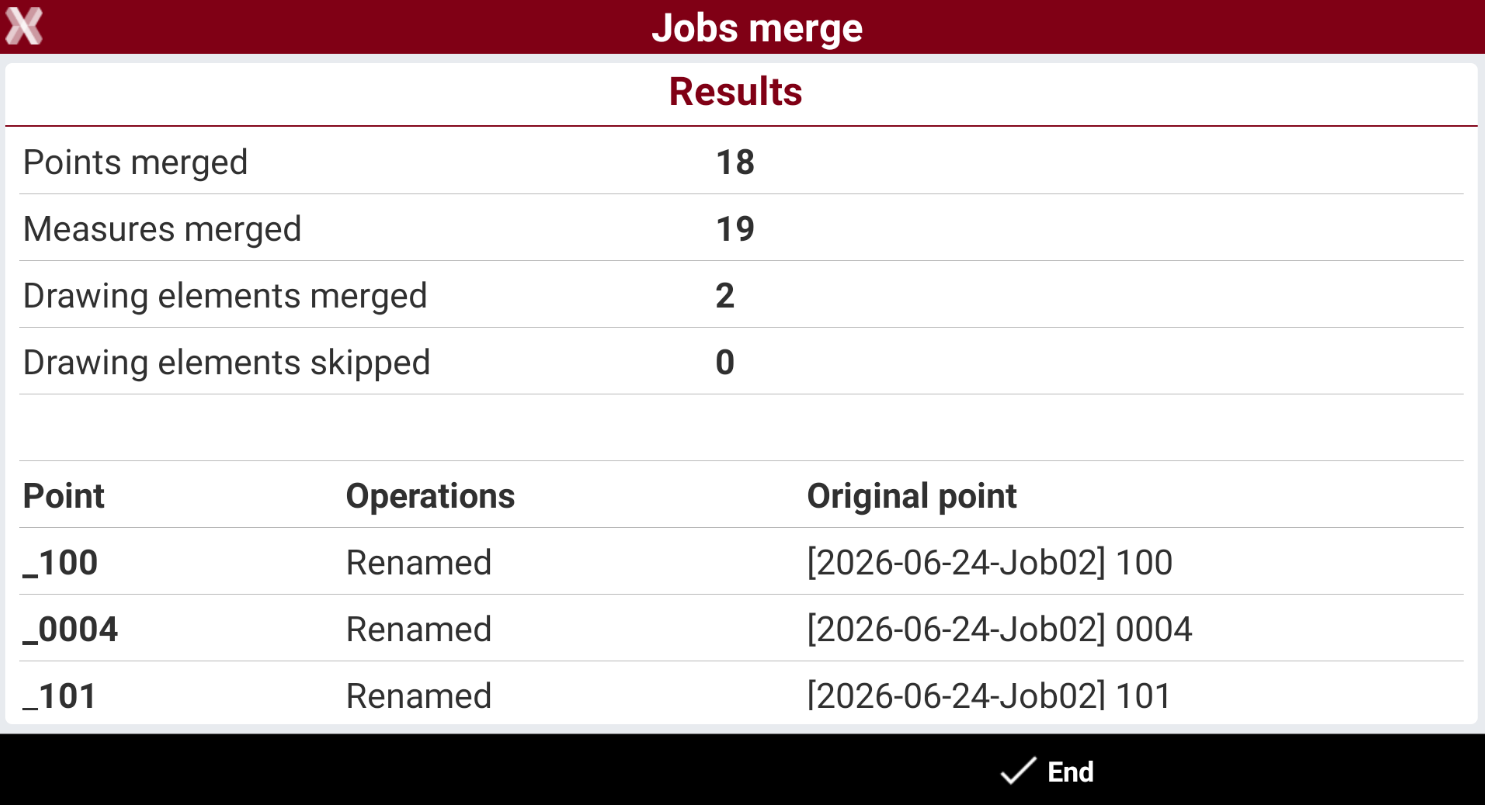
The software shows the result.
Backup and restore
-
This function opens the function to backup X-PAD sites and settings locally or on the cloud, and restore stored backup.
-
Open the Job tab.
-
Select New/Open job to open the job list.
-
Select Backup & Restore.