
-
To create a new empty job, from the Job page select New / Open job to open the list of jobs.
-
Select + New job to open the New job page and enter the required information.
-
Click Accept to save and open the new job.
Name page
-
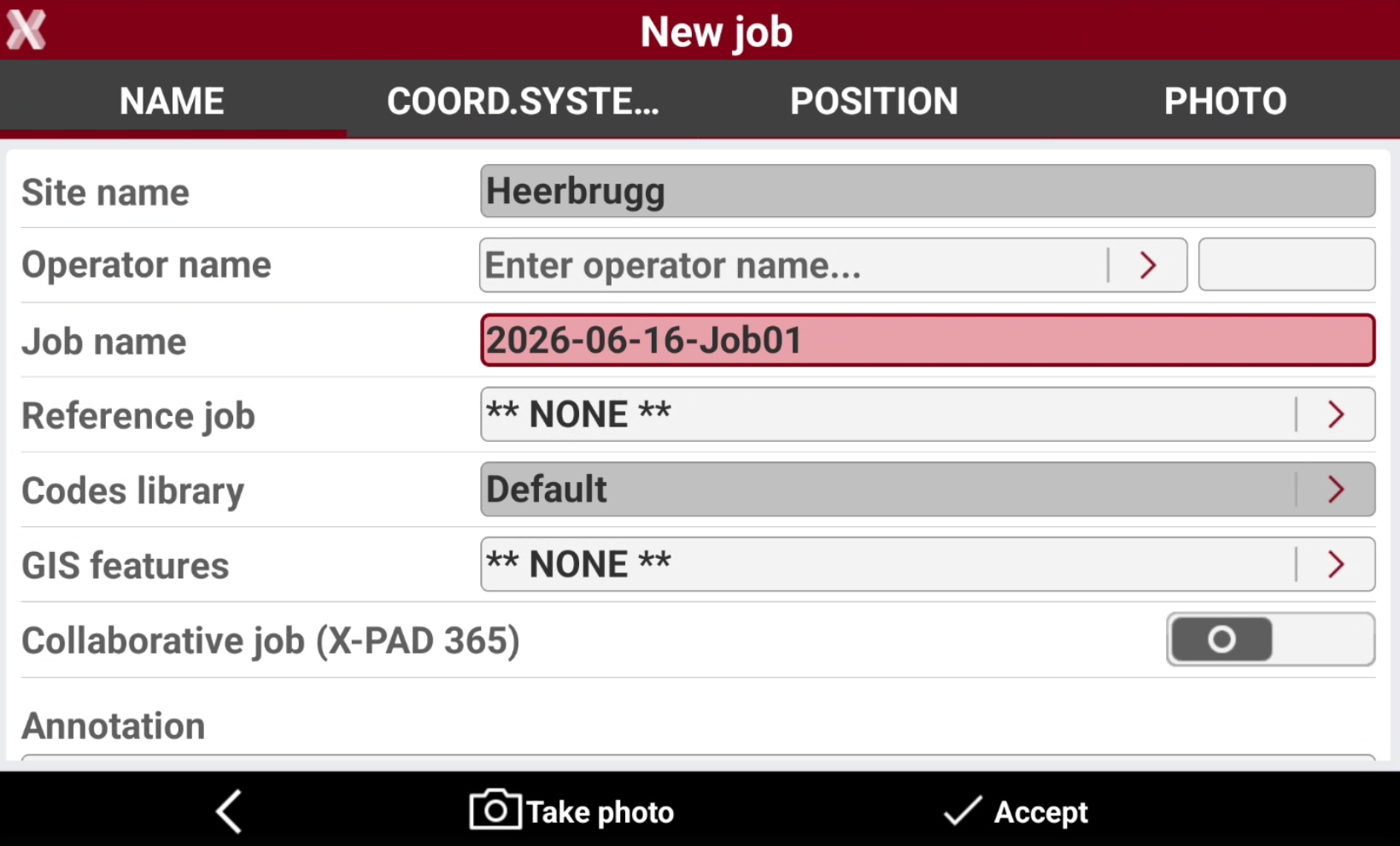
The Name tab allows to define the job name and other job settings.
-
Site: site in which the job is created. This field cannot be edited.
-
Operator name: the name of the operator. Click > to create a new operator.
-
Job name: name of the job.
-
Reference job: creates a link between the new job and an existing job. When opening the new job, the points from the reference job are loaded into the new job as reference points.
-
Codes library: library of survey codes used in the job. The library has a list of codes, descriptions and symbols that can be used to describe the measured points. Tap on > to select a codes library.
-
GIS features: GIS features library used in the job. The library has definitions of GIS features and of properties that can be associated to the survey codes. When a point is stored, the associated GIS features are stored additionally. Tap on > to select a GIS features library.
-
Collaborative job: configures the job as collaborative.
-
Automatic upload: if the job is a collaborative job, this option allows to choose if a job is automatically uploaded to the cloud without asking for confirmation when it’s closed.
-
Annotation: descriptive notes of the job.
-
Coordinate system tab
-
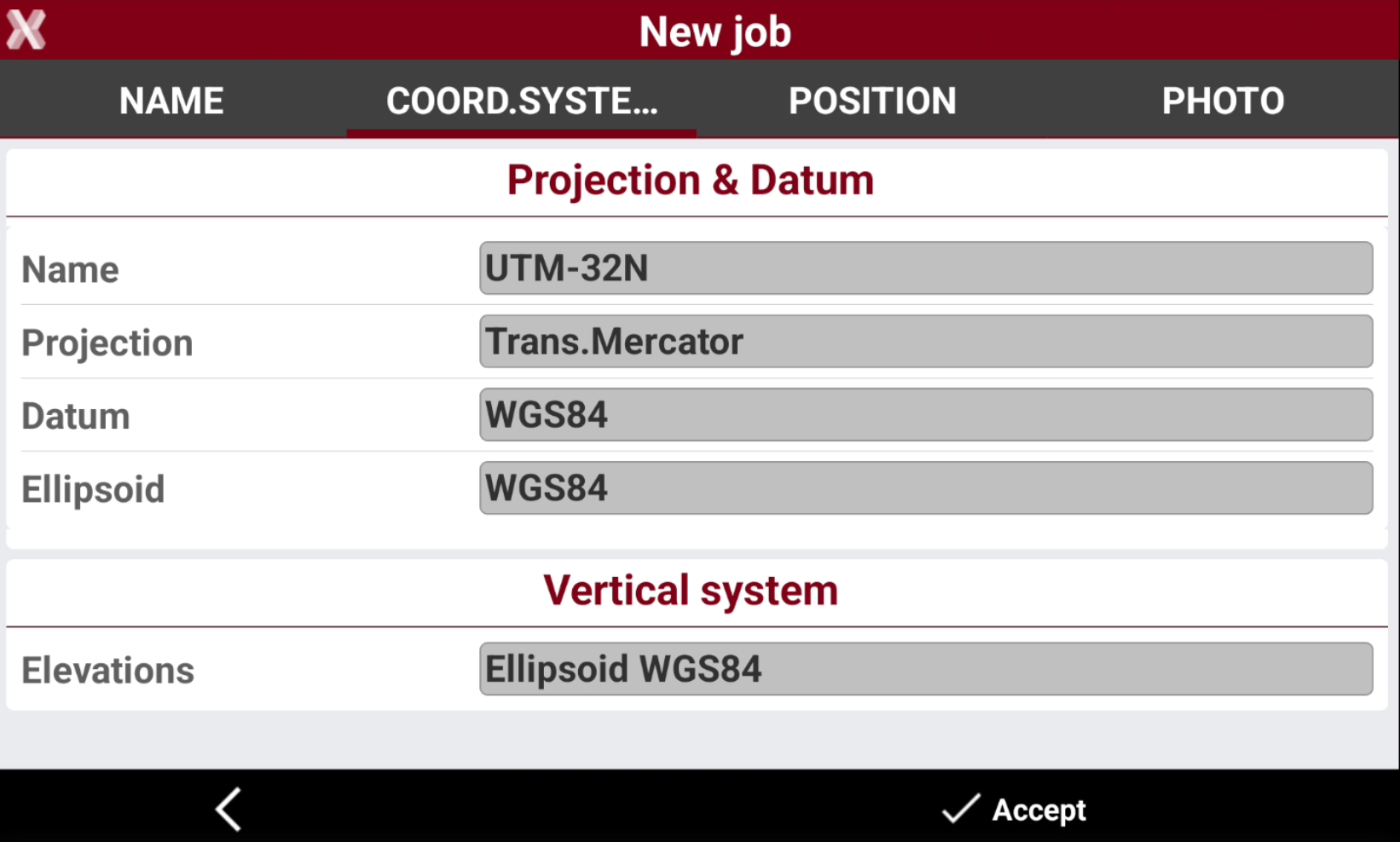
Coordinate system tab shows the coordinate system assigned to the new job.
-
The coordinate system depends on defined default coordinate system or on the coordinate system configured at site level.
-
The fields cannot be edited.
-
Name: the name of the coordinate system.
-
Projection: the name of the coordinate system projection.
-
Datum: the name of the coordinate system datum.
-
Ellipsoid: the name of the ellipsoid used by the coordinate system.
-
Elevations: the vertical system to be used.
-
Position tab
-
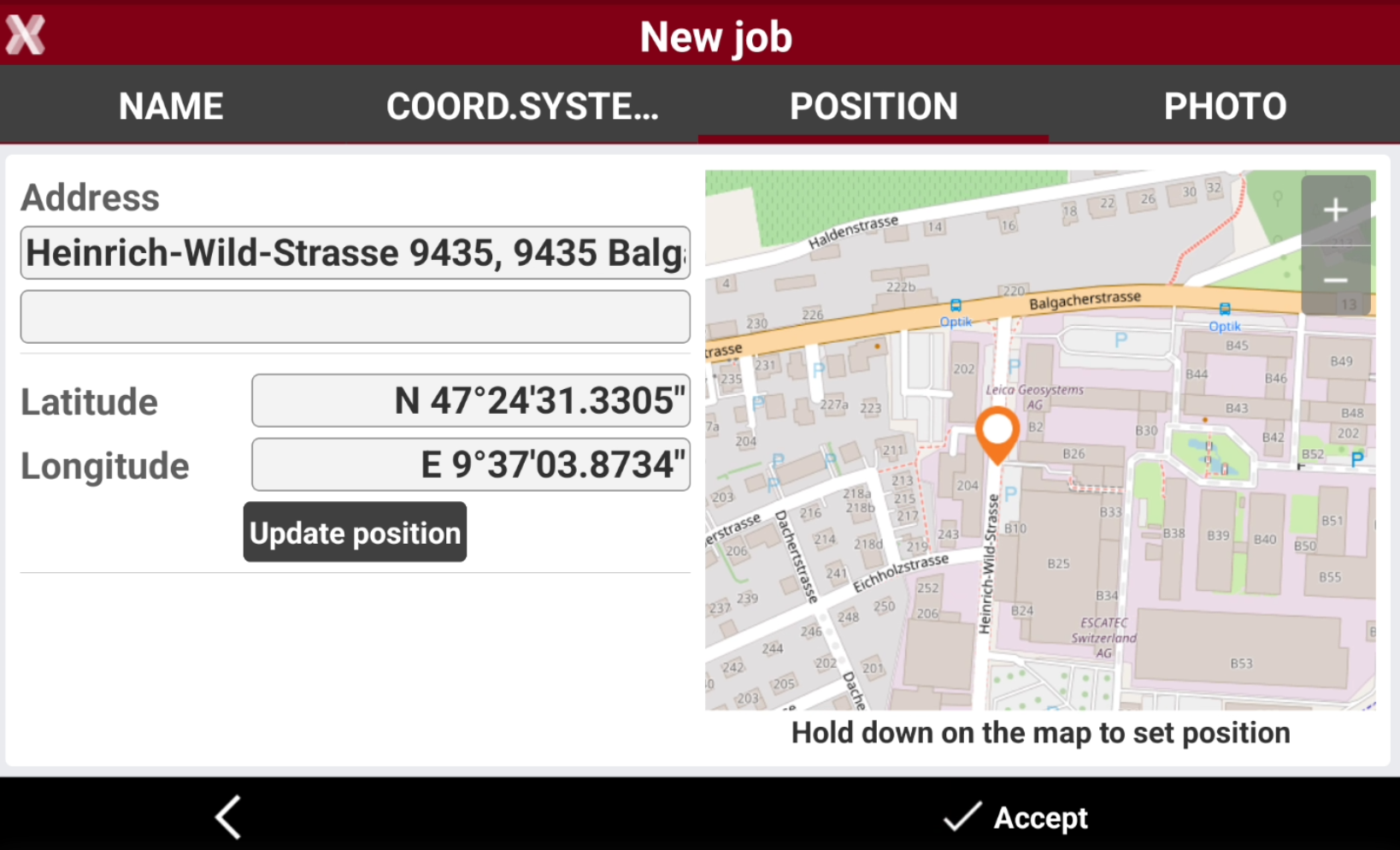
Position tab allows to define the location of the job. If the tablet position is available, the location is automatically provided.
-
The position will be used to display the job location on the map in the list of the sites.
-
Long-press on the map to define manually a new position.
-
Press Update position to update the position provided from controller GNSS sensor.
Photo tab
-
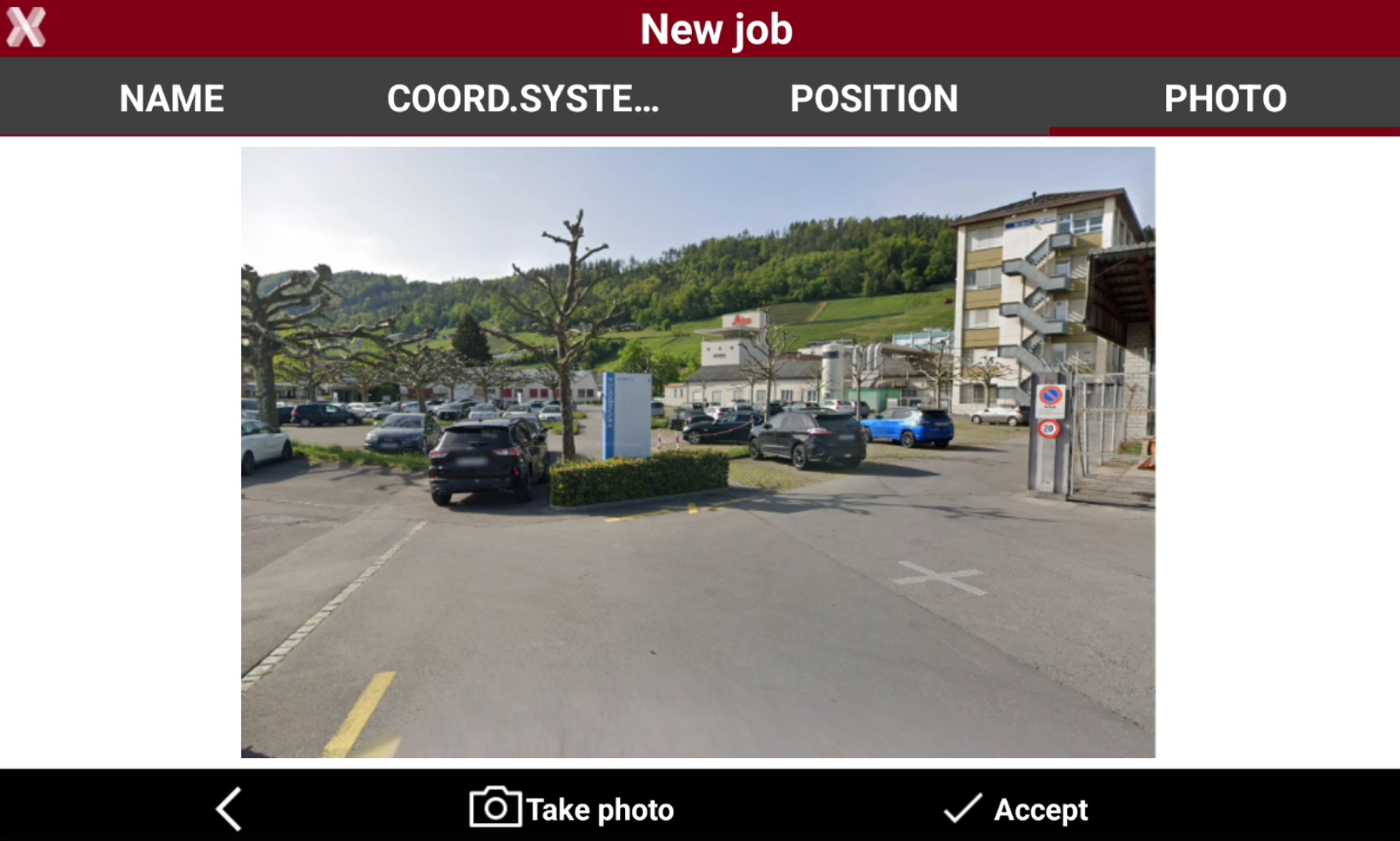
In the Photo tab it is possible to load a photo of the job, which will be available in the site page Carousel view. Image available on the controller or new photos taken can be used.
-
Press Take Photo to load or take a photo.