
-
To create a new site, select New site from the Sites view page.
-
This opens the New site page.
-
Enter the requires information. Click Accept to save and open the site.
Name tab
-
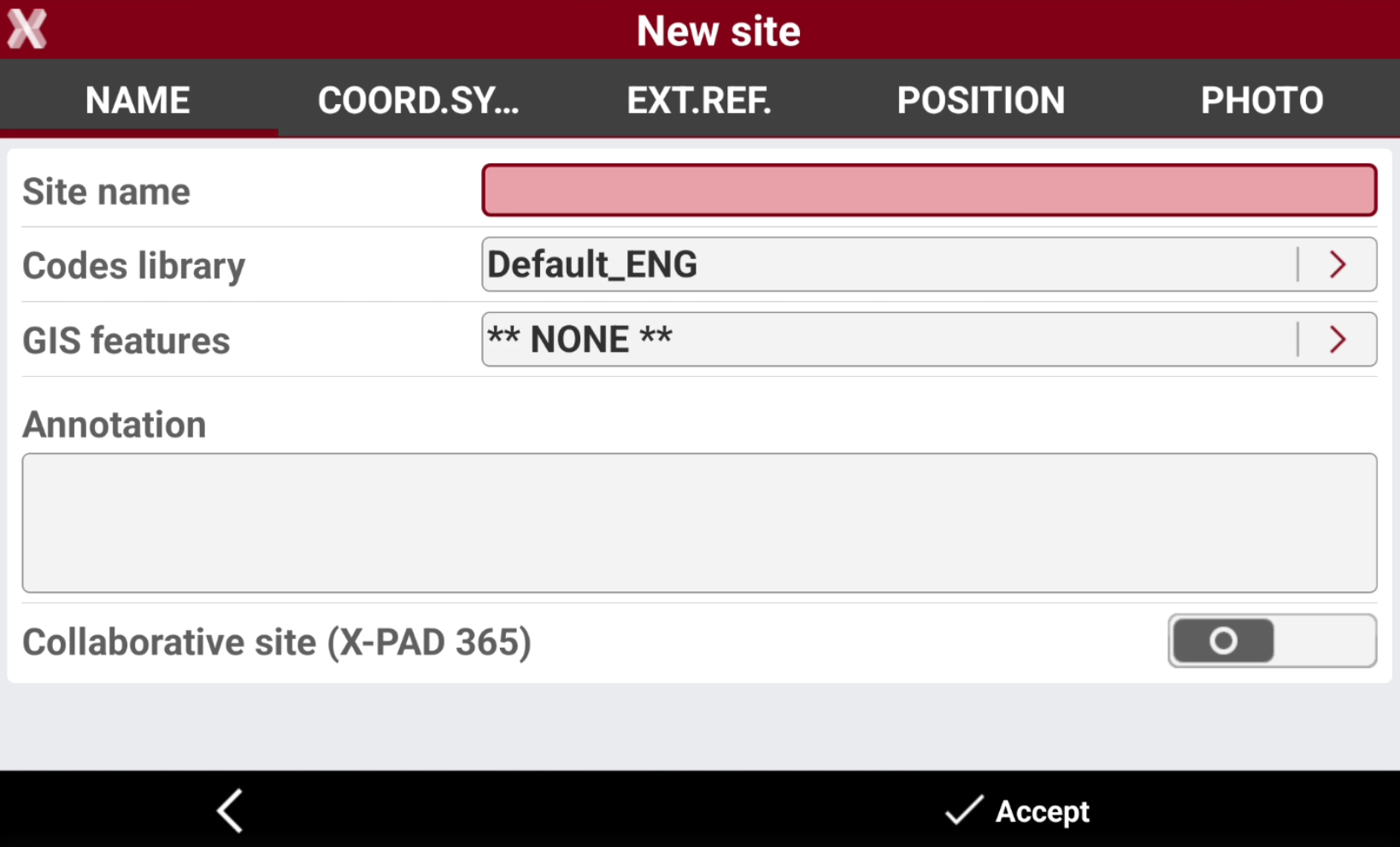
The Name tab allows to define the name of the site, the default codelist to be used in the jobs, and other general settings.
-
Site name: the name of the site.
-
Codes library: the default code library for all jobs in this site. Tap on

-
GIS features: the default GIS features library for all jobs in this site. Tap on
-
Annotation: optional notes related to the site.
-
Collaborative site: if an X-PAD 365 Professional or Enterprise subscription is available, it is possible to create collaborative sites. A collaborative site is a site in which jobs are automatically uploaded in X-PAD 365 cloud.
-
Coordinate system tab
-
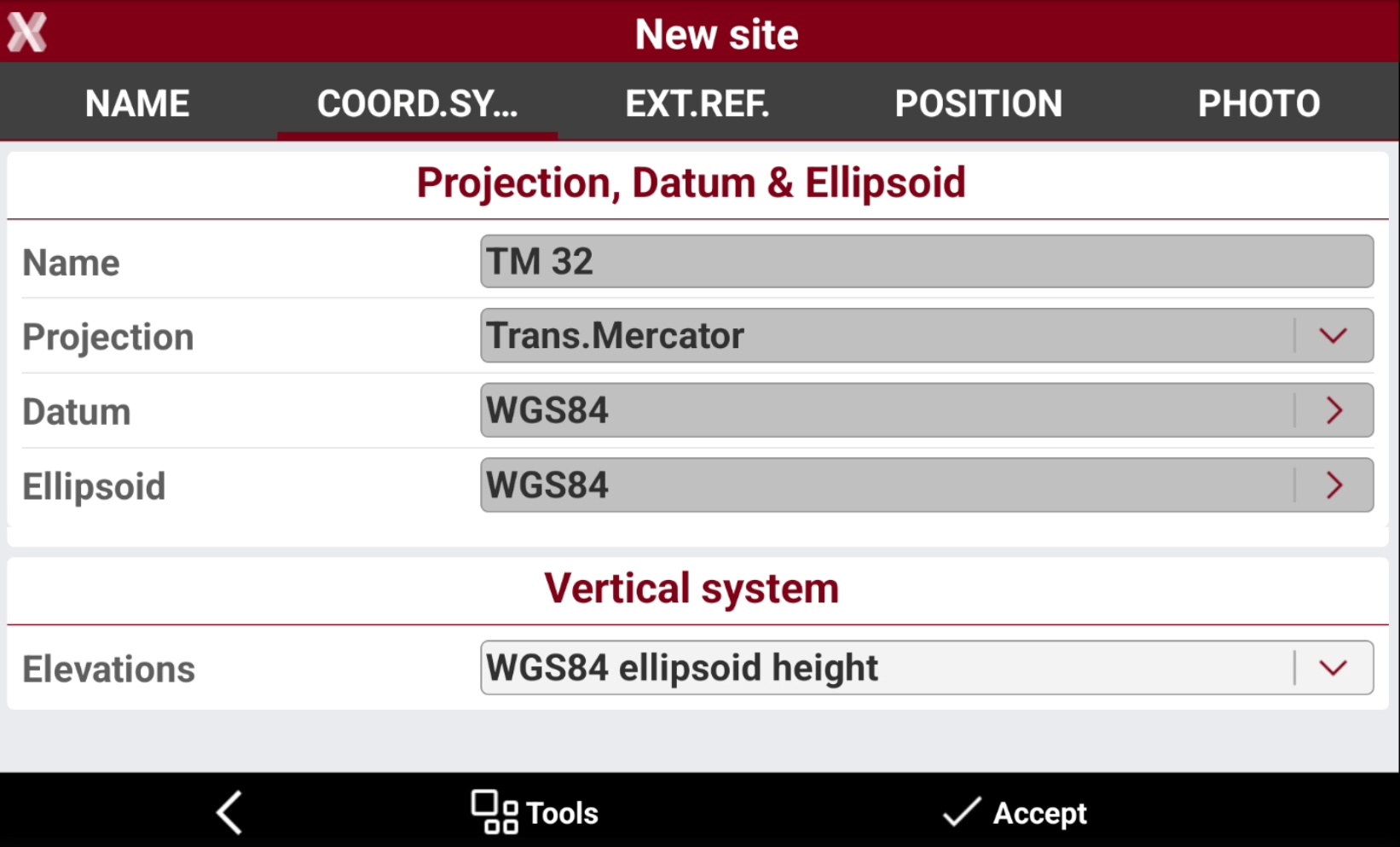
In Coordinate system tab it is possible to define the default coordinate system for the jobs in this site.
-
Select Tools to load a predefined system or load a coordinate system from a file, for example a previously saved GNSS localization.
-
Name: the name of the selected coordinate system.
-
Projection: the name of the coordinate system projection.
-
Datum: the name of the coordinate system datum.
-
Ellipsoid: the name of the ellipsoid used by the coordinate system.
-
Elevations: defines the vertical system to be used.
-
External reference tab
-
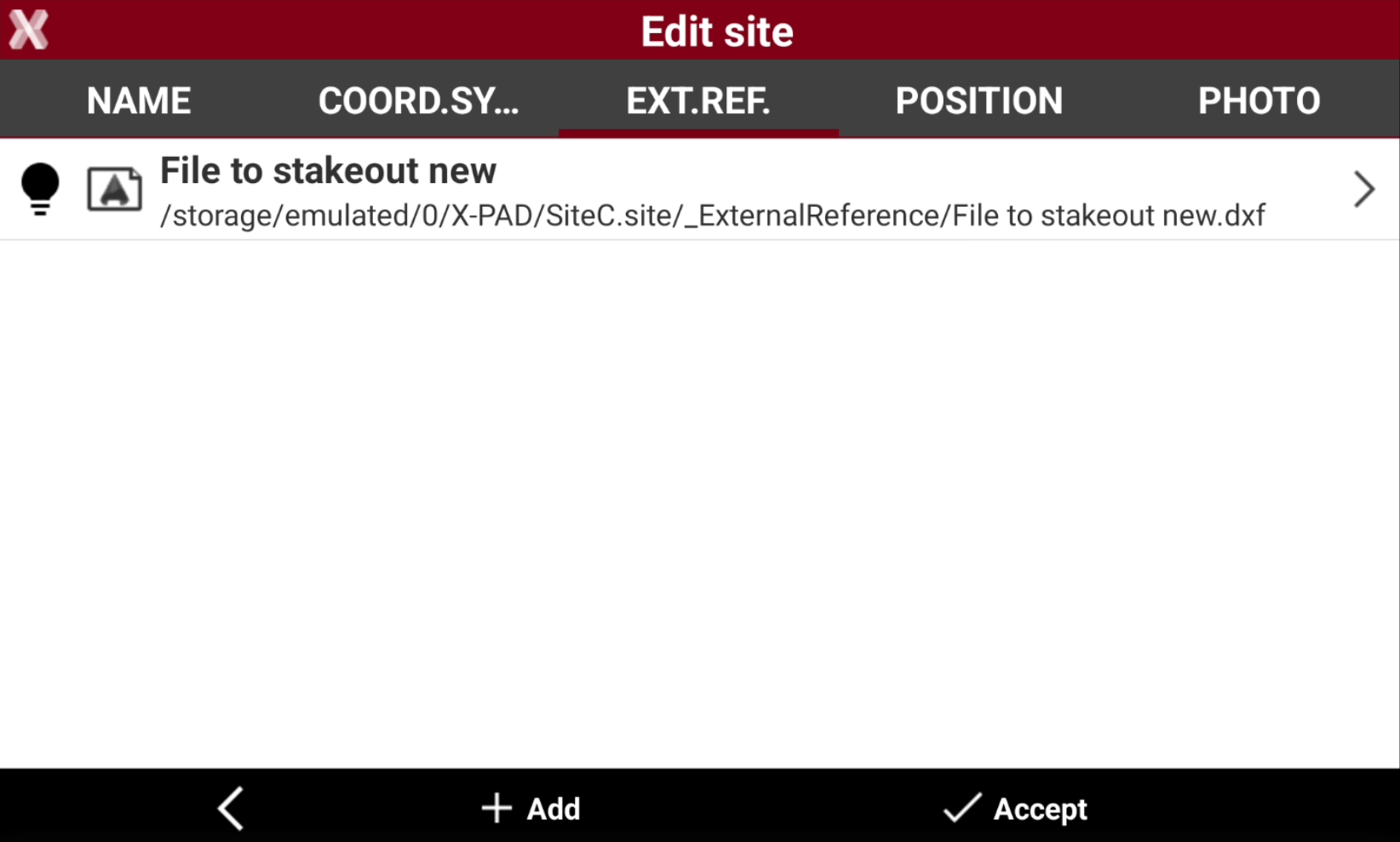
In External reference tab it is possible to load external reference files in different formats. These files will be immediately available to be loaded from all jobs in the site.
-
Select Add to add an external document.
Position tab
-
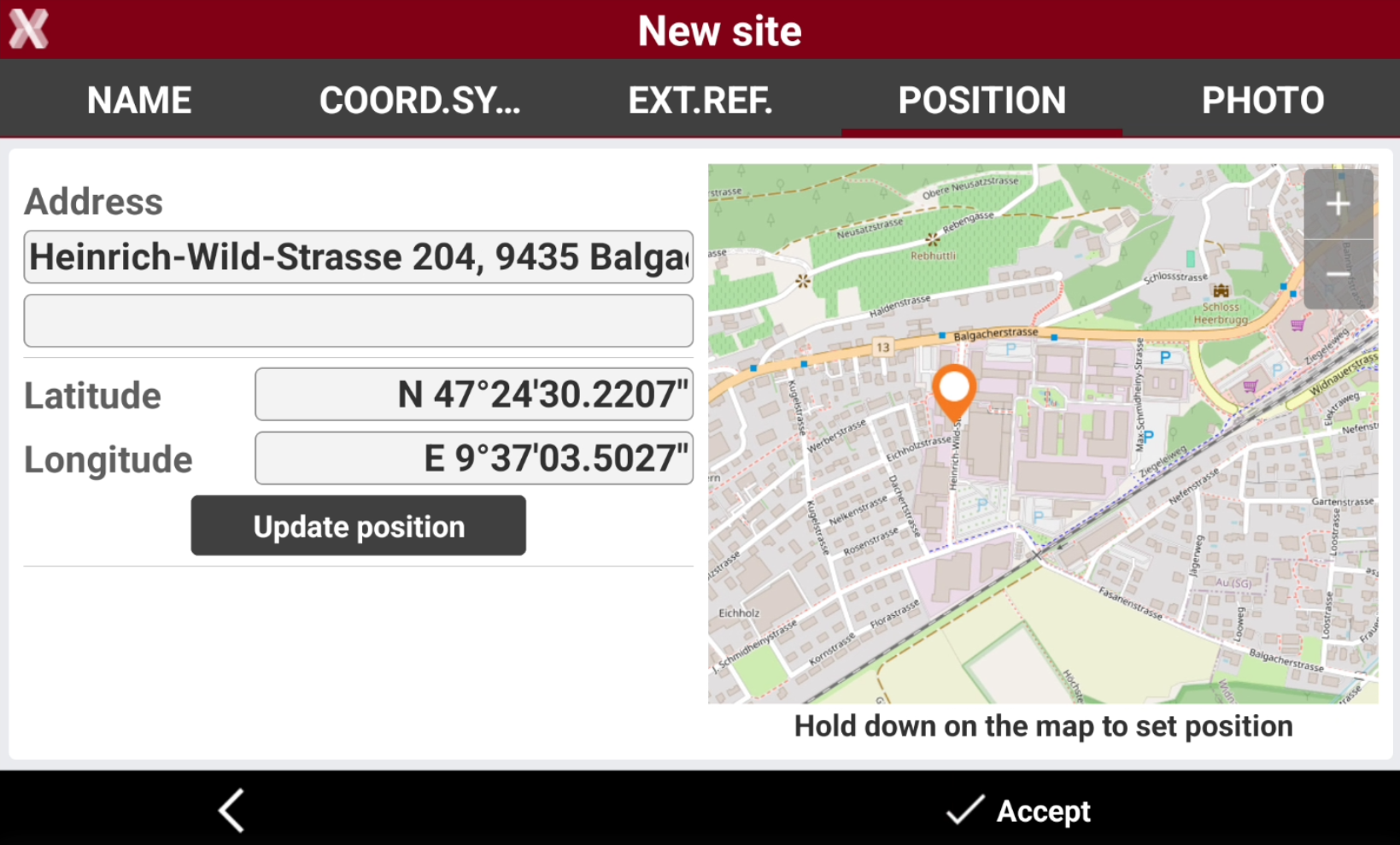
Position tab allows to define the location of the site. If the tablet position is available, the location is automatically provided.
-
The location is used to display the site position on the map in the list of the sites.
-
Long-press on the map to define manually a new position.
-
Select Update position to update the position provided from controller GNSS sensor.
-
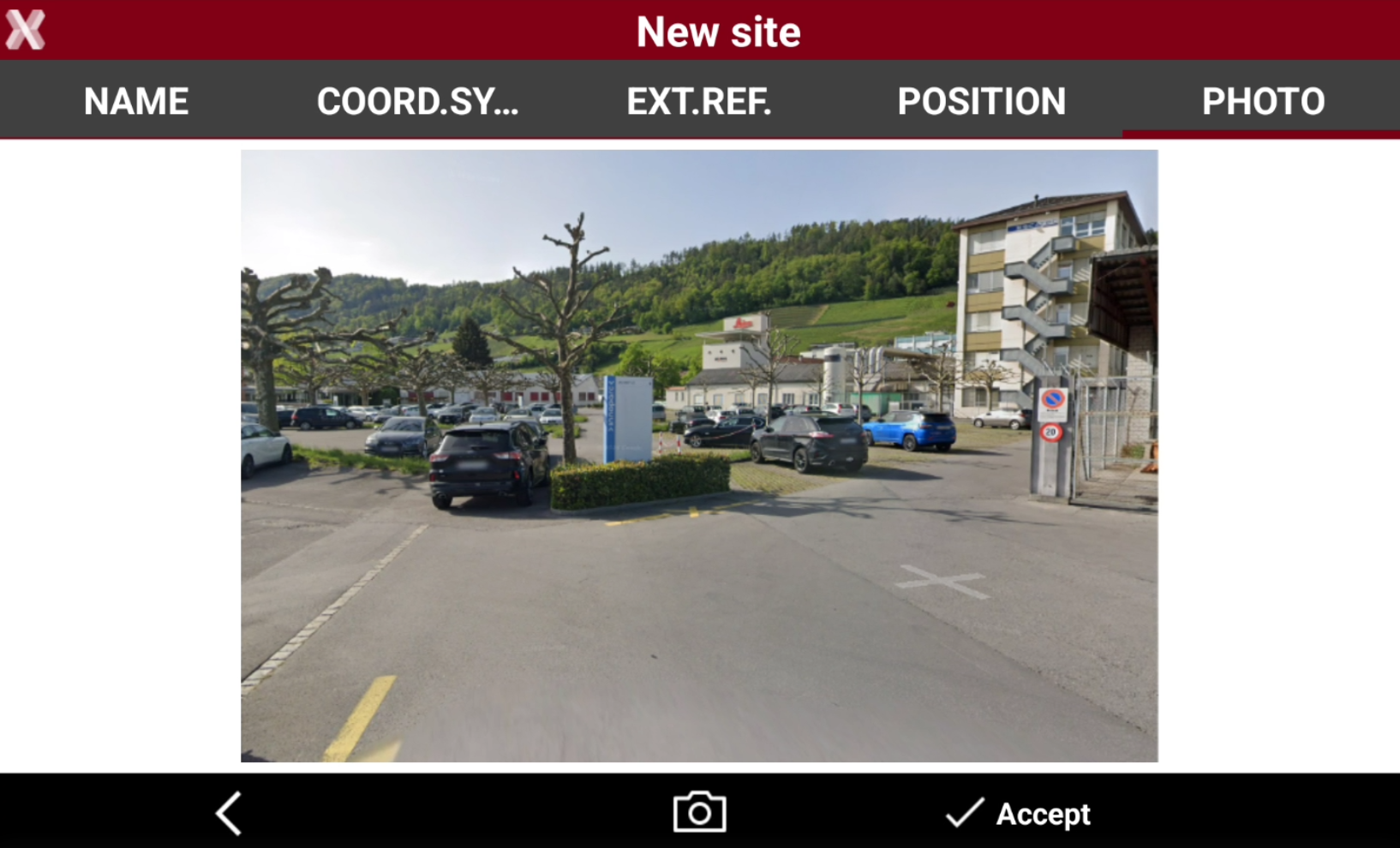
Photo tab
-
In the Photo tab it is possible to load a photo of the site, which will be available in the site page Carousel view.
-
Click Photo

-