
-
When X-PAD is started, it automatically opens the jobs list from the latest used site.
-
To visualize the jobs within a specific site, open the corresponding site from the Sites manager.
-
When a site is opened, the list of jobs is displayed.
-
If you are already in a job, select New/Open job to open the list of jobs in the current site.
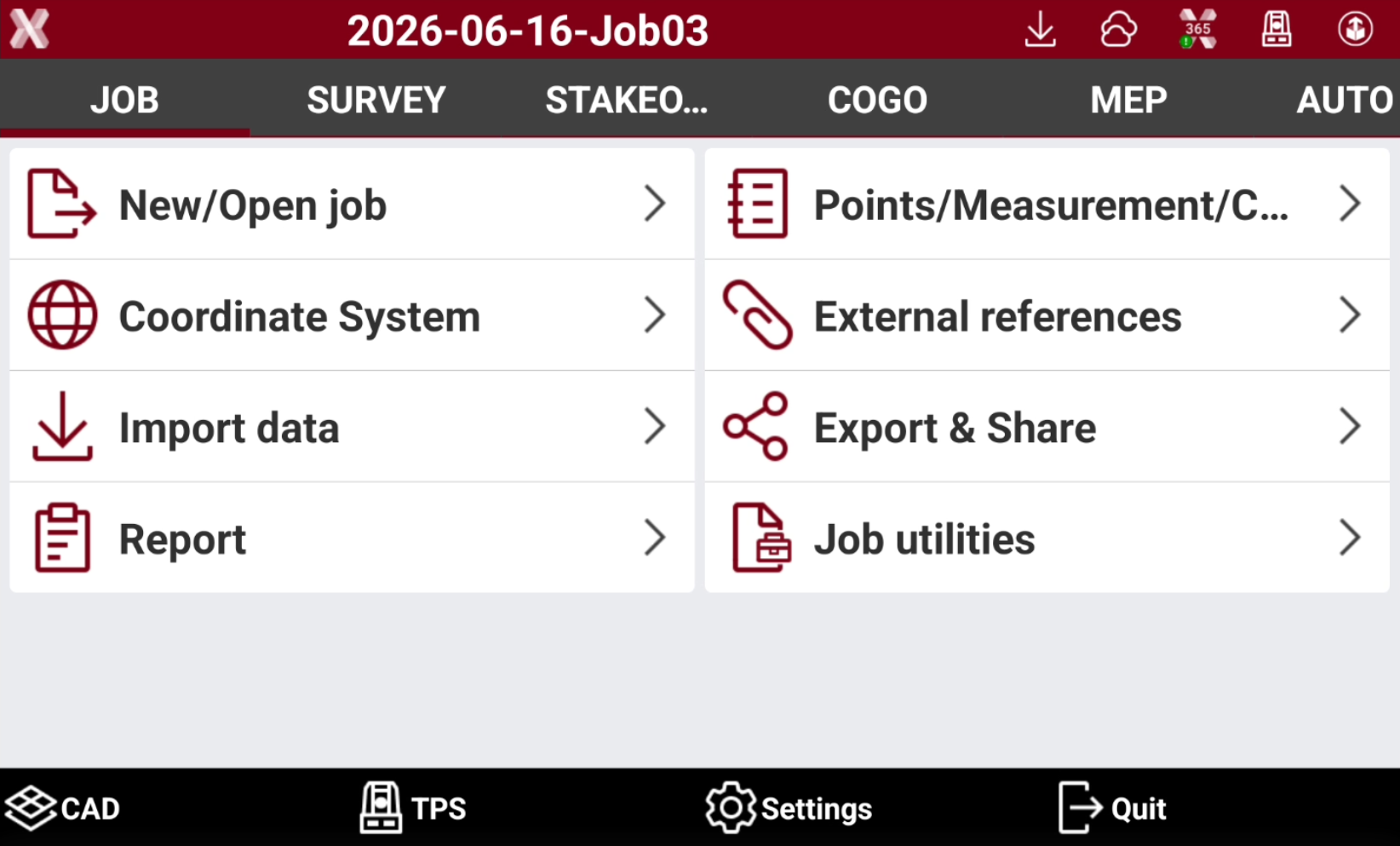
Jobs visualization
-
The list of the jobs available on the device is displayed according to different modes.
-
Select a job to open it.
-
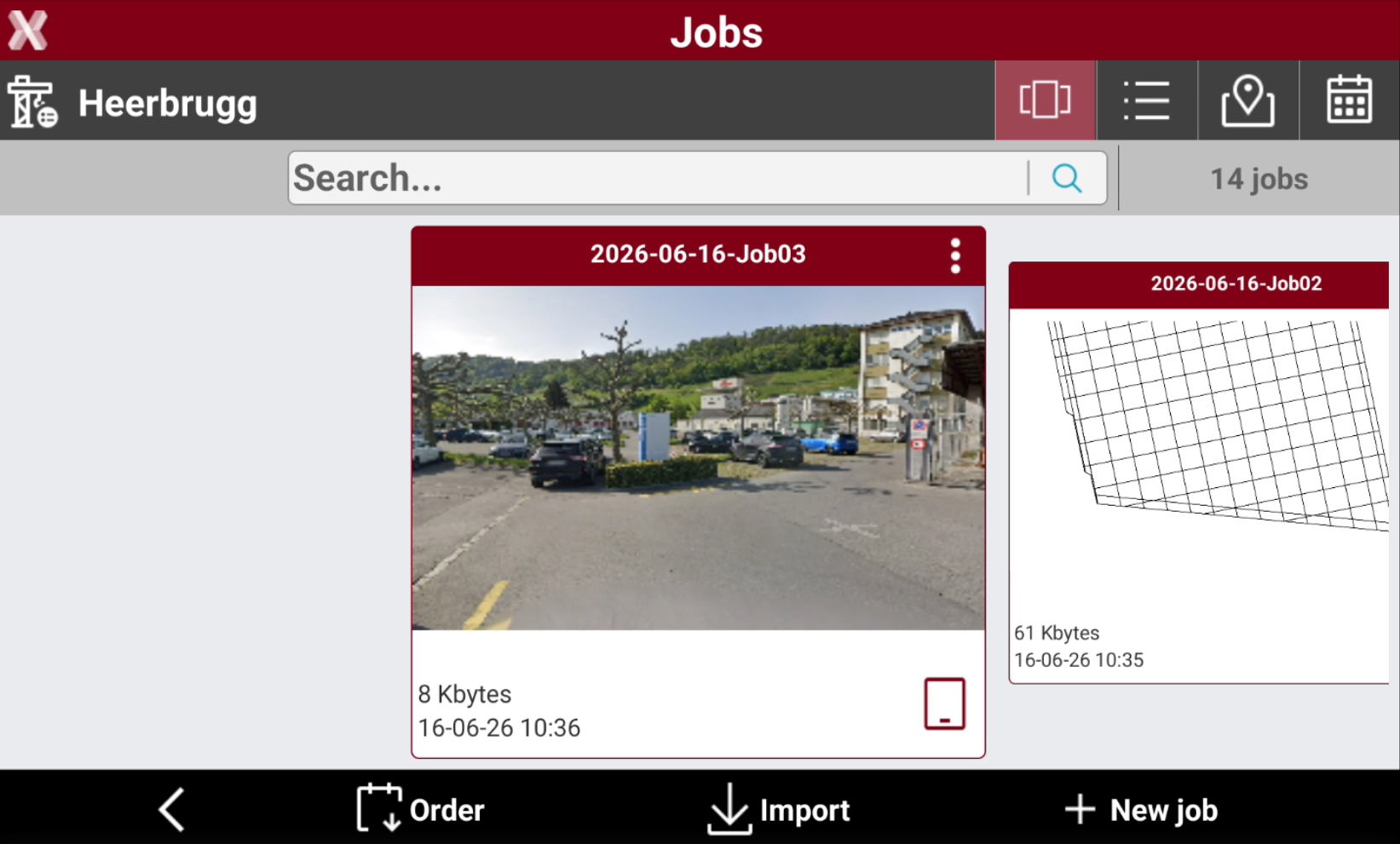
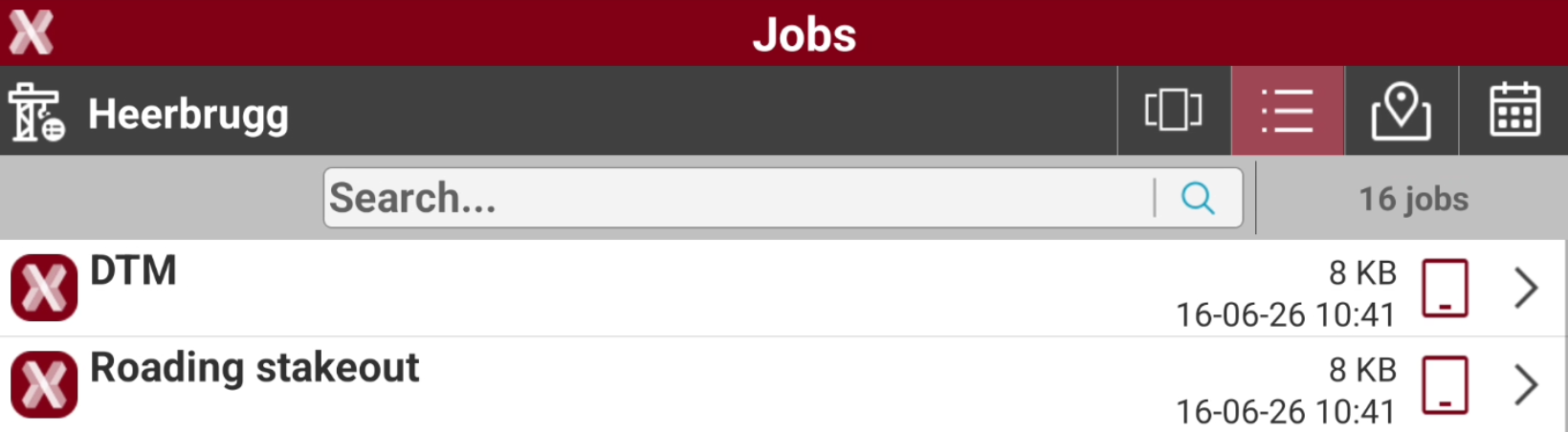
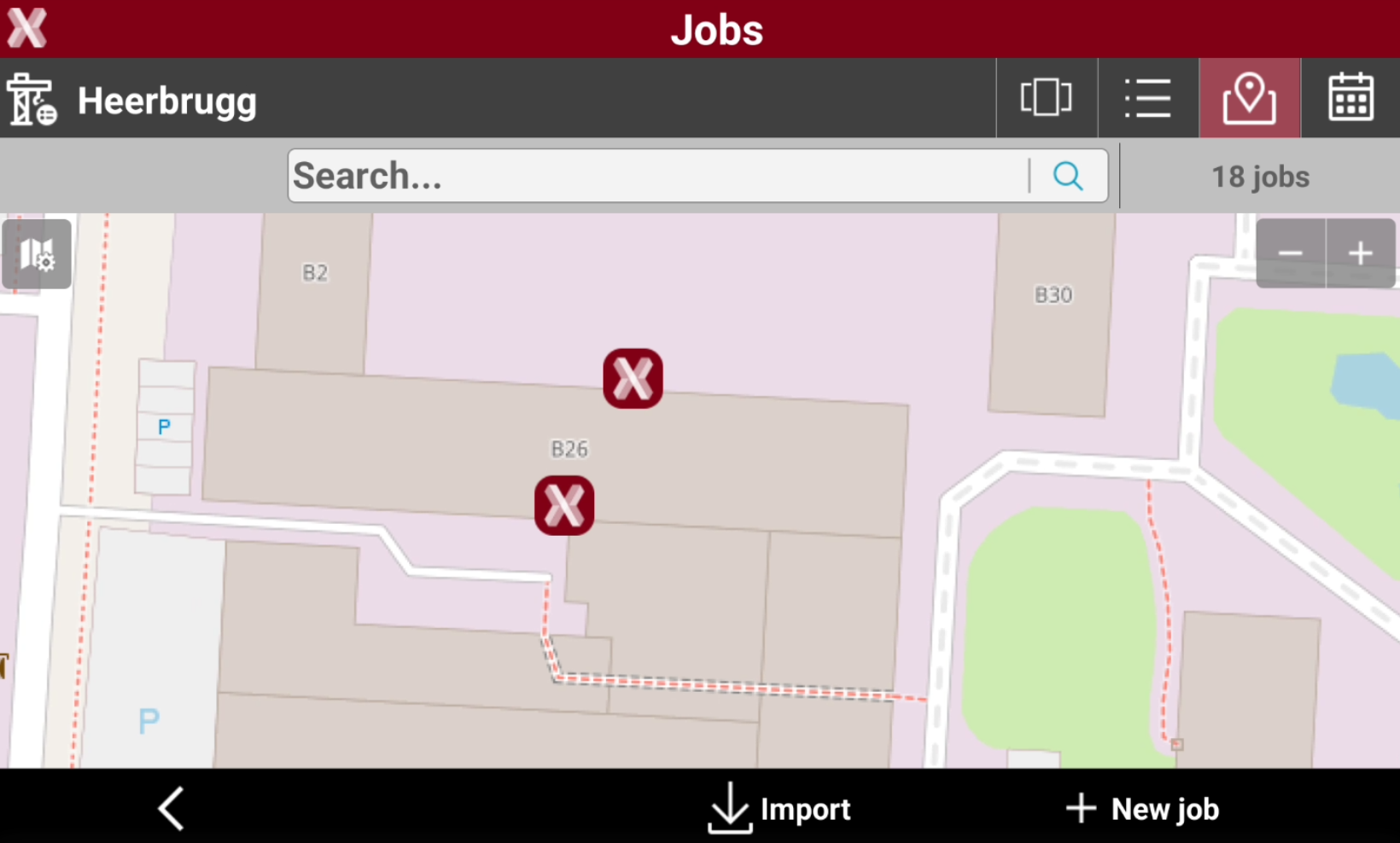
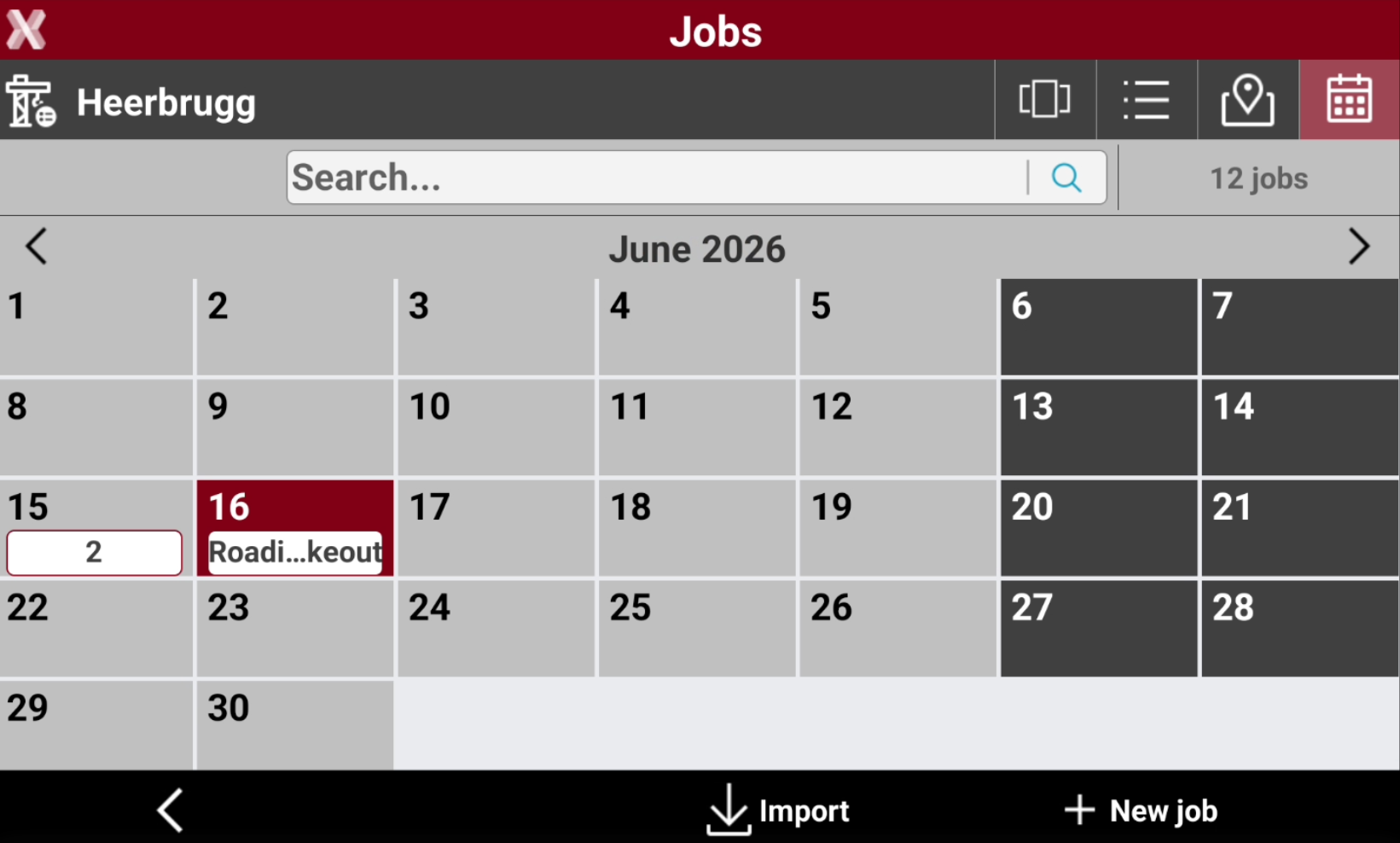
From the Jobs list page, select the visualization mode from the top toolbar.

-
Gallery

-
List

-
Map

-
Calendar

-
Jobs search and advanced search
-
In the Search field it is possible to enter a job name to search.

-
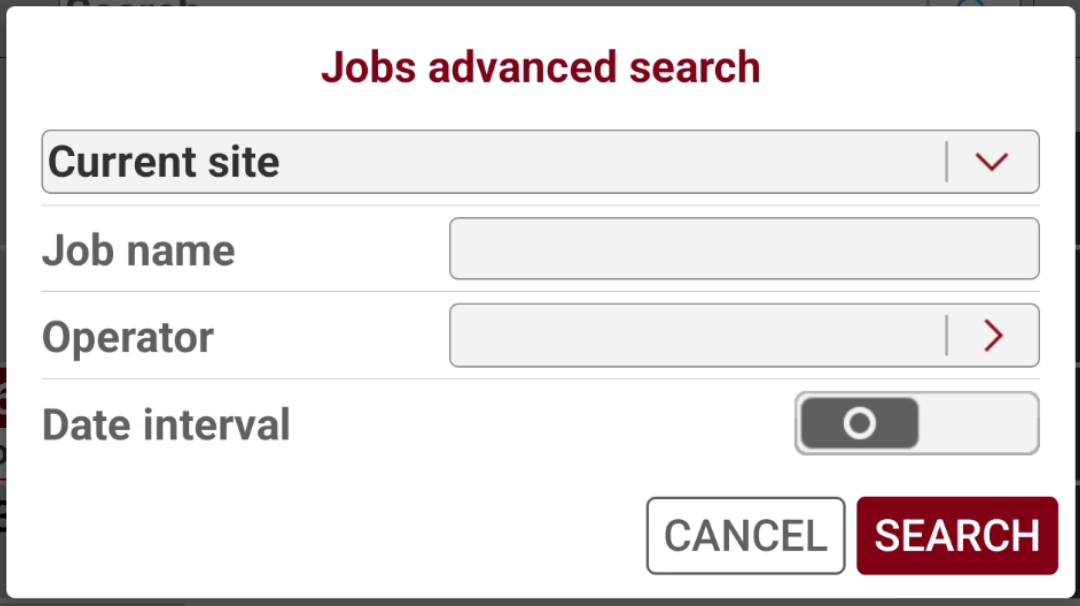
Tap on the icon

-
Site: select whether the search is limited to the current site or extended to all available sites.
-
Job Name: specifies the name of the job to search for.
-
Operator: allows you to select the operator who created the job. This option filters the jobs created by the selected operator.
-
Date (interval): filters jobs based on their editing date.
-
-
Press Search to search the jobs.
Jobs import
-
The Import command allows to import a job in .gfd4 format
-
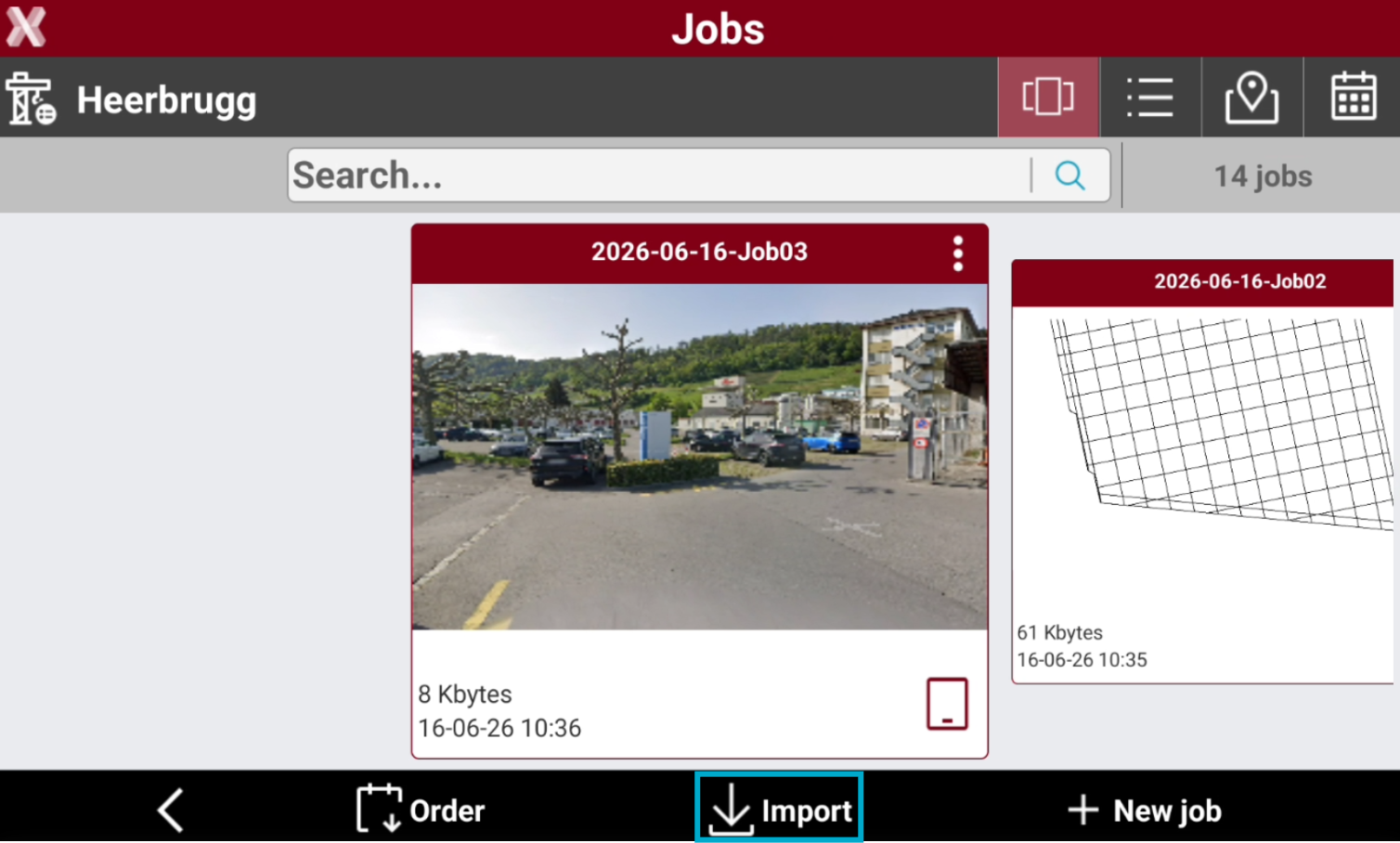
From the list of jobs select Import.
-
Browse the controller folders to select an X-PAD job in .gfd4 format to import in the current site.
-
The job structure is automatically created within the current site.