
-
Jobs are organized in Sites.
-
For each site, the main information required for all jobs associated with that site can be entered:
-
Coordinate system.
-
Survey codes and GIS codes.
-
External references.
-
Position and photo.
-
Sites list
-
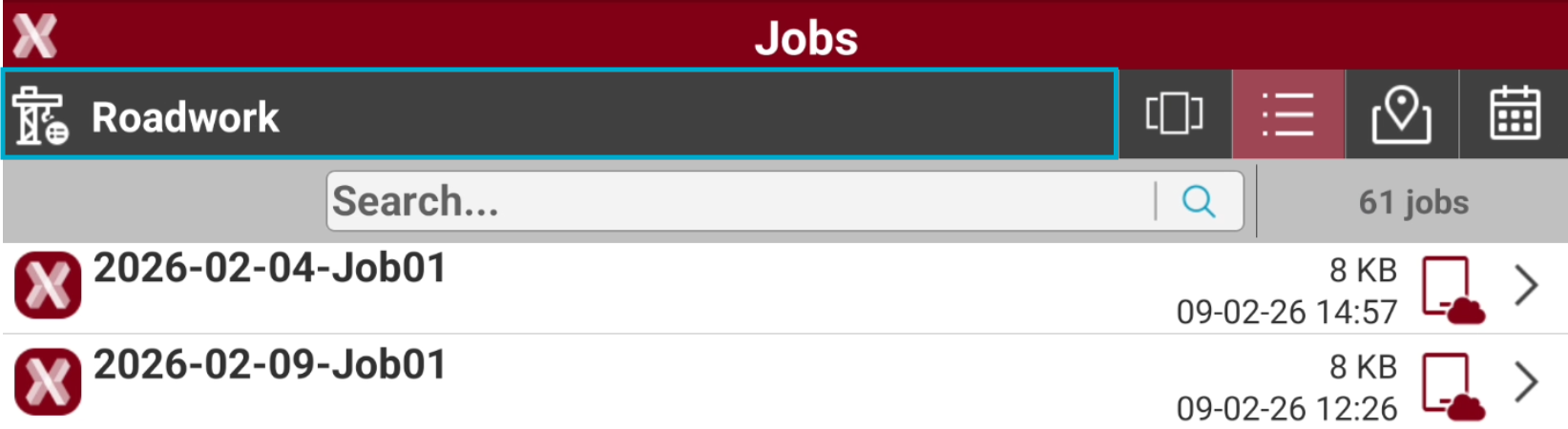
From the Jobs page, to open the Sites Manager, tap on the Site bar on the top of jobs list.
-
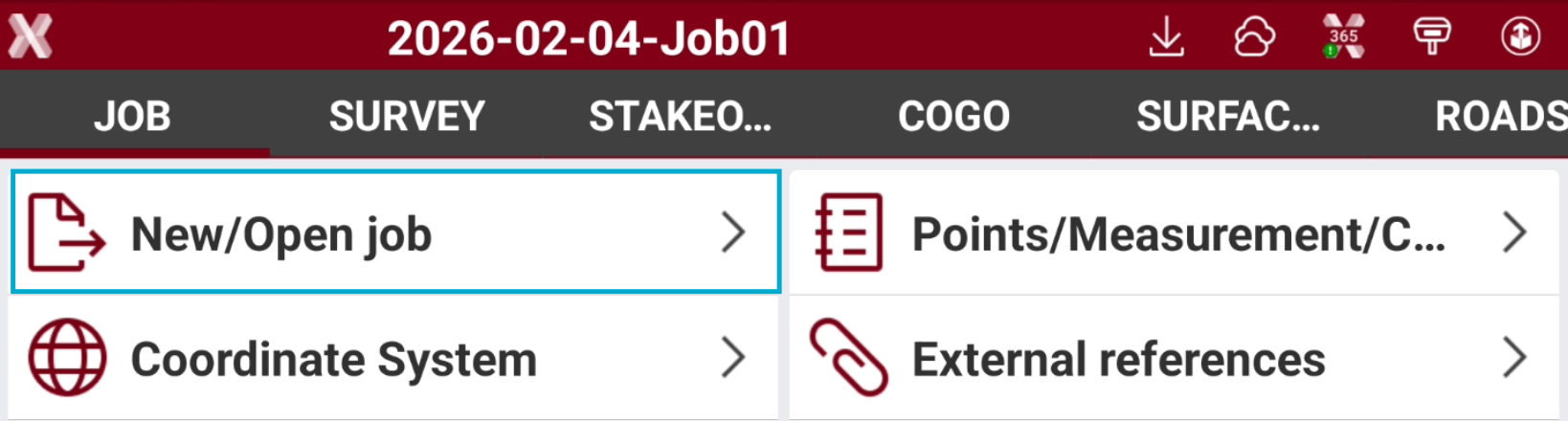
If instead a job has been already opened, select New/Open Job from the Job page. Then tap on the Site bar.
-
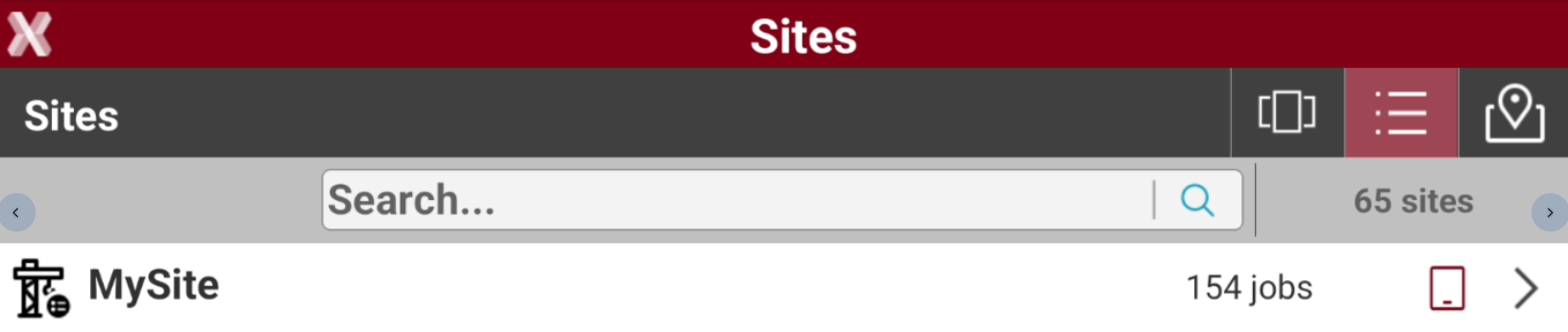
This opens the Sites list, which displays all available job sites.
-
To open a site select it from one of the available views.
Sites visualization
-
The software offers different ways to visualize the available sites.
-
From the Sites list page select from the top toolbar the visualization mode.
-
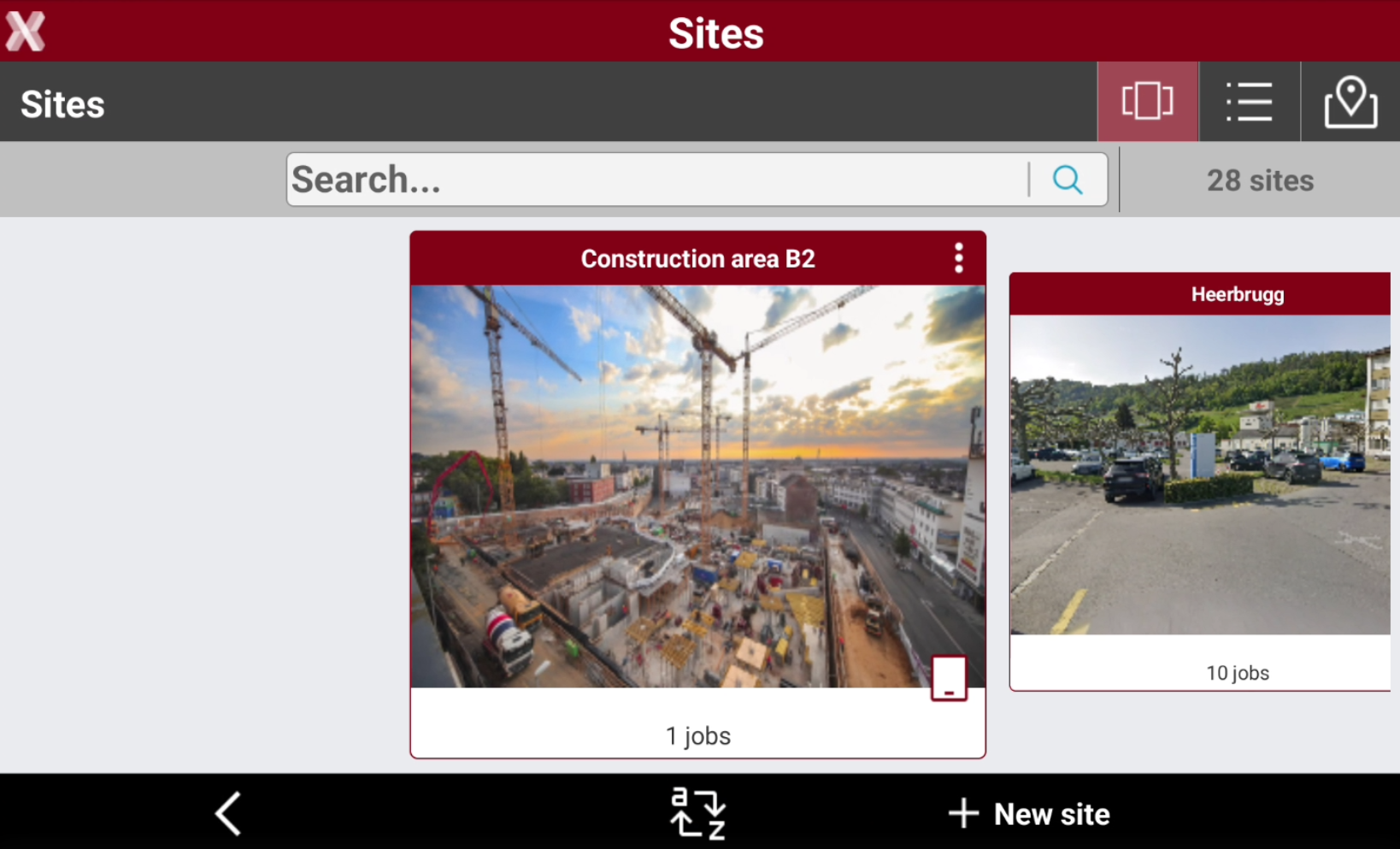
Carousel view: shows the sites in a carousel view with their associated picture.
-
List view: lists the sites. Select

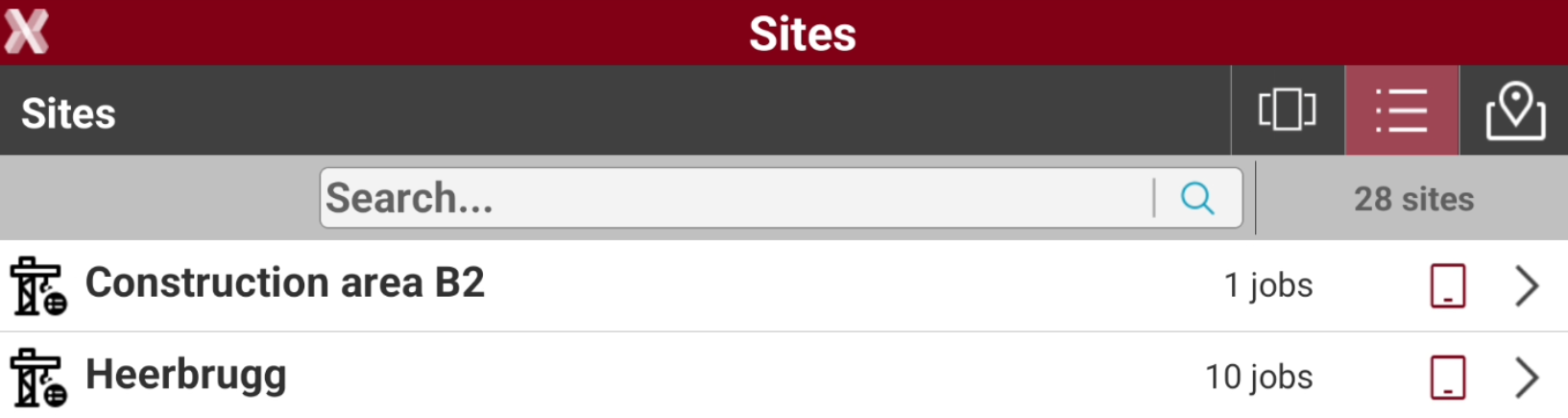
-
Map view: shows the sites on a map, based on their position.
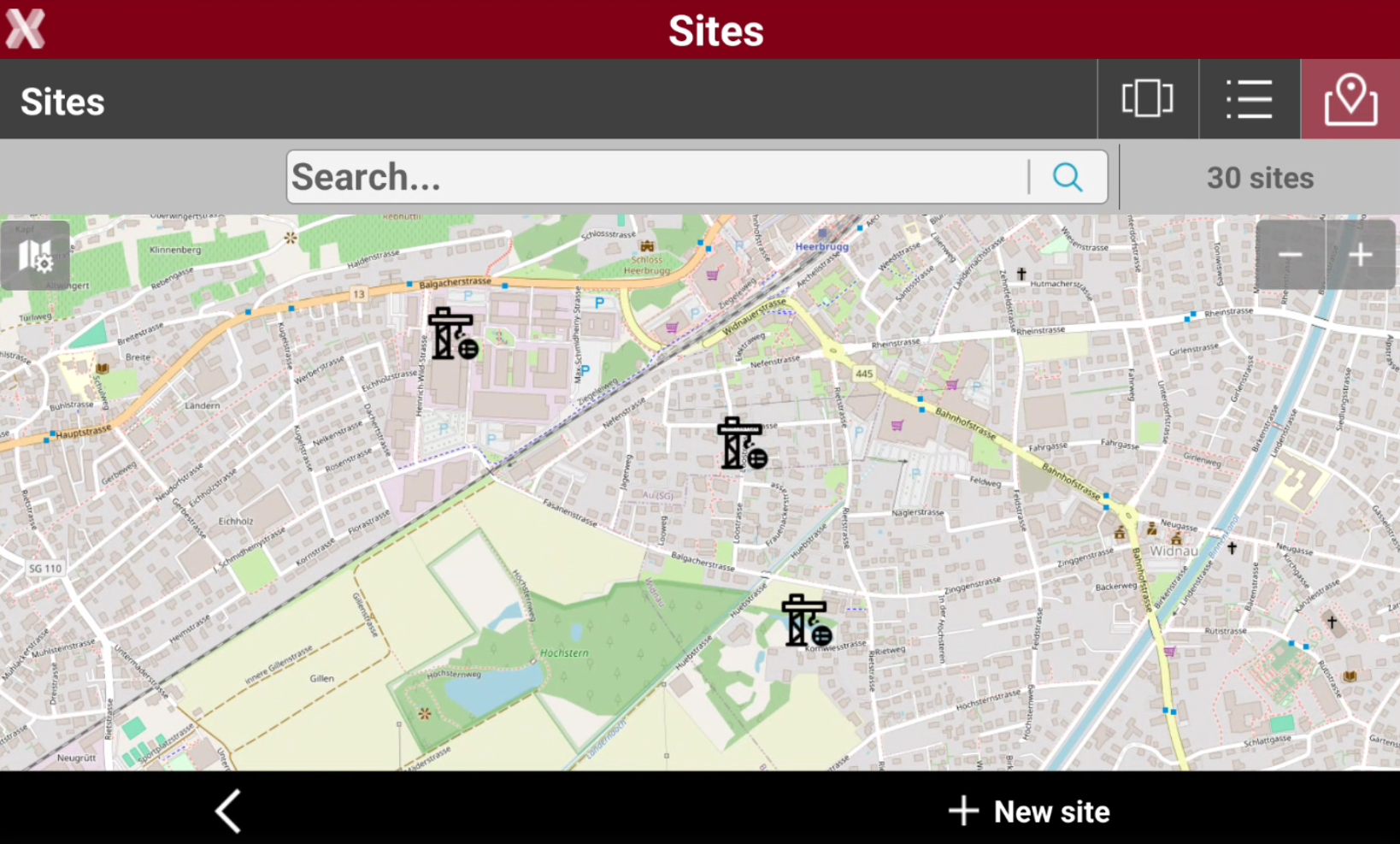
-
Delete a site
-
To delete a site long press on a site to open the context menu or press > icon.
-
Select Delete to delete the site.
Deleting a site will delete all jobs in the site. The operation is permanent.
Edit a site
-
Editing a site allows you to modify its properties. Refer to Create a New Site for details about the page fields and content.
-
To edit a site long press on a site to open the context menu or press > icon.
-
Select Edit to edit the site.