
-
For instruments with an active rover GNSS or base GNSS profile, the general status of the GNSS receiver can be displayed at any moment.
-
The GNSS Status page allows to:
-
Display information includes position, quality of the signal, number and position of satellites, information about the base and the position in a map. The displayed information includes position, quality of the signal, number and position of satellites, information about the base and the position on a map.
-
Change GNSS parameters like NTRIP mountpoint, cut-off angle, tracked constellations.
-
Accessing the GNSS Status page
-
It is possible to access the GNSS Status page from the main toolbar or from the panel in survey and stakeout windows:
-
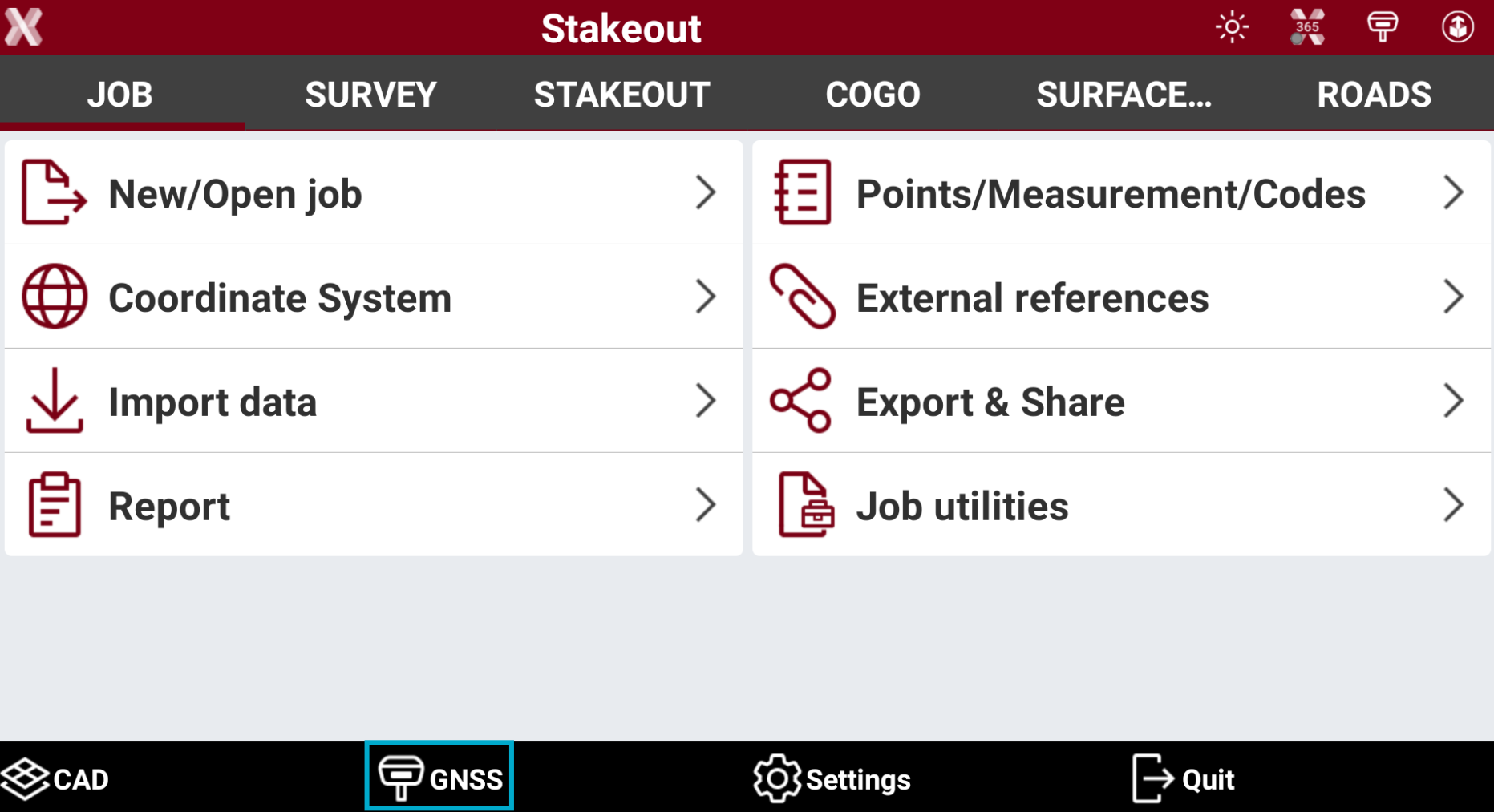
For a GNSS rover: select GNSS on the toolbar in the main menu.
-
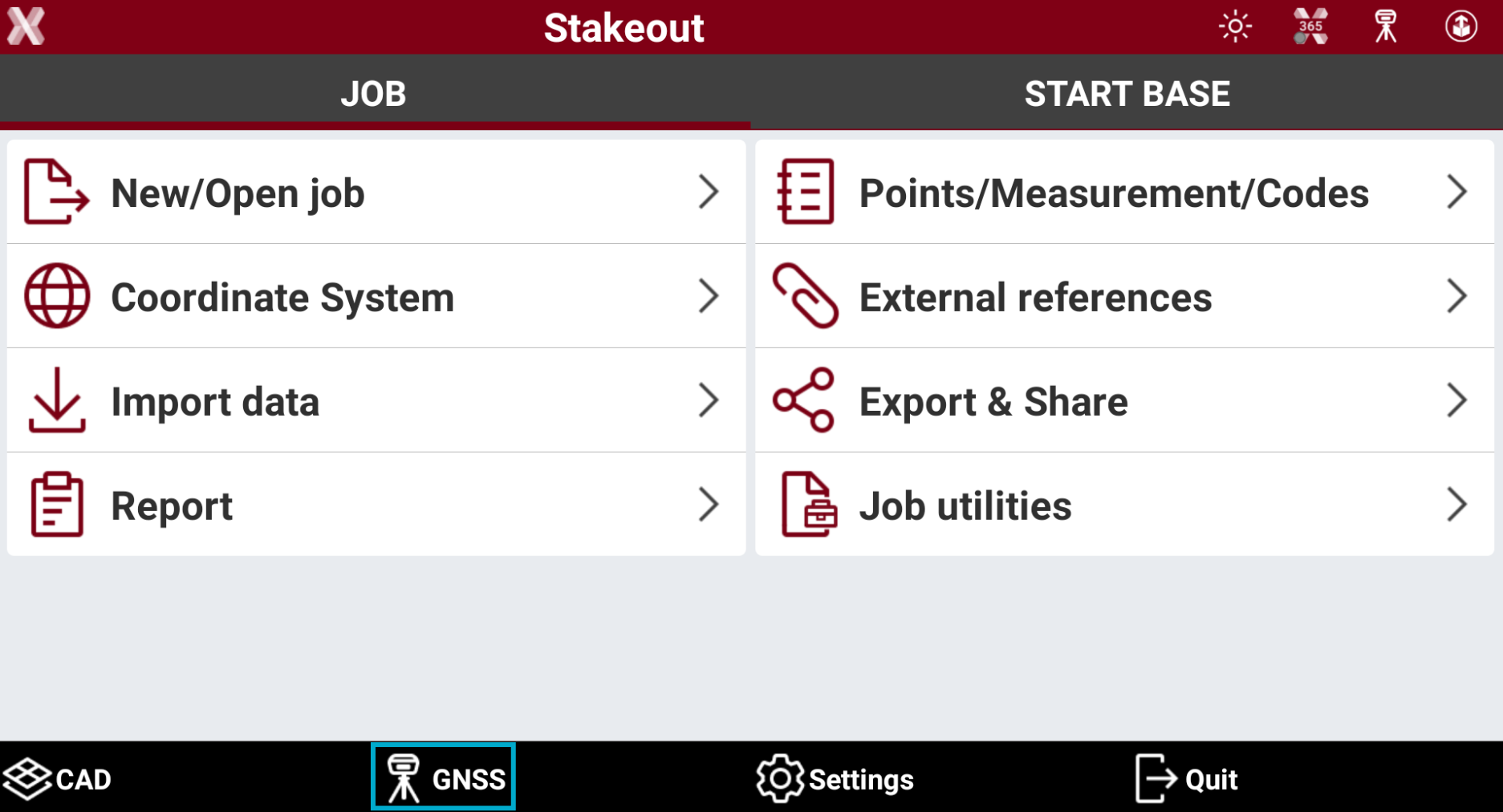
For a GNSS base: select GNSS on the toolbar in the main menu.
-
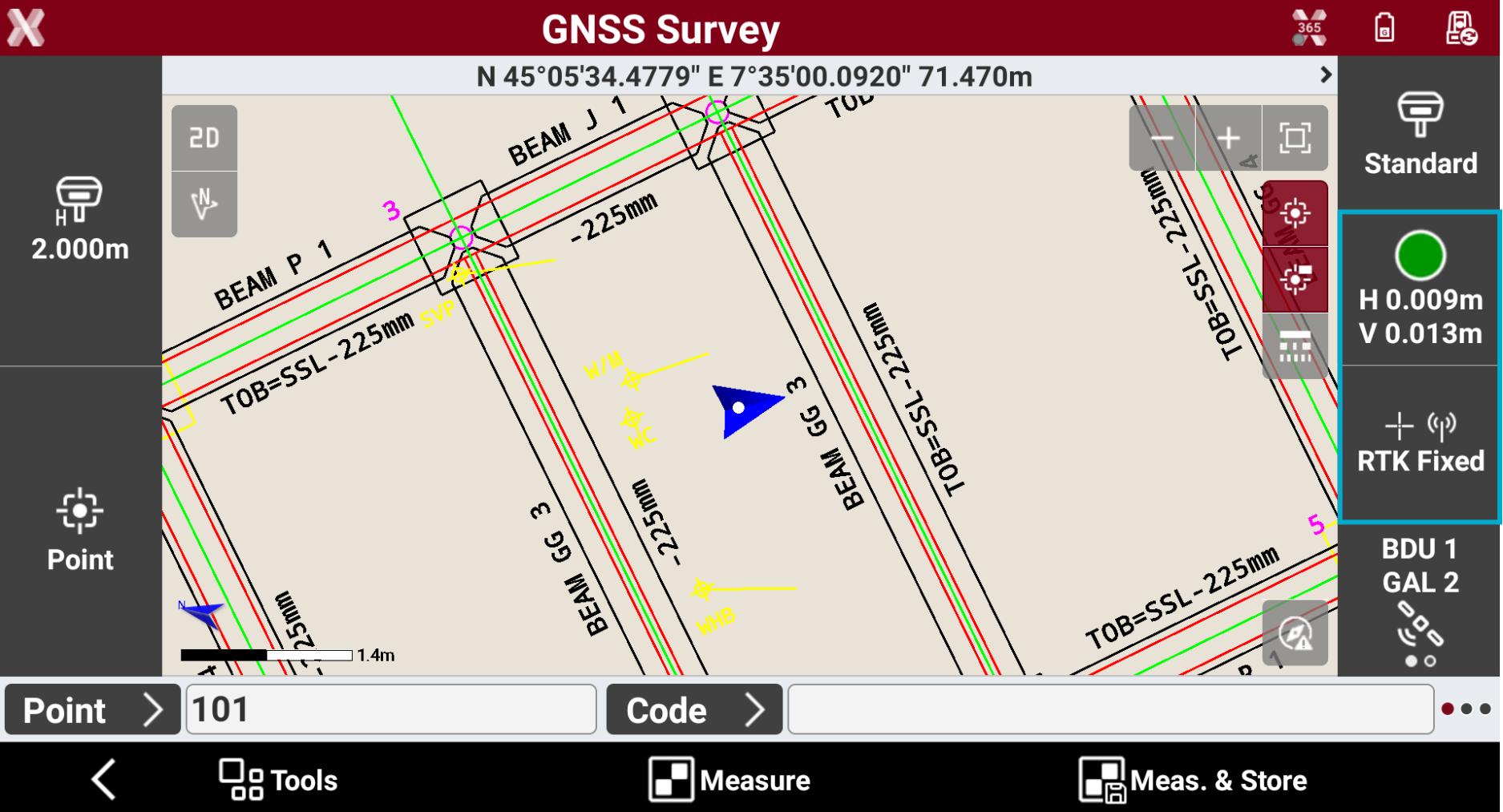
In survey and stakeout windows: tap on the right panel.
-
This opens the GNSS Status page.
GNSS Status page
-
The GNSS Status page allows to display different information on the GNSS receiver connected:
-
Quality of the signal.
-
Number and position of satellites.
-
Current coordinate.
-
Information about the base and the distance to the base.
-
Position on a map.
-
Quality page
-
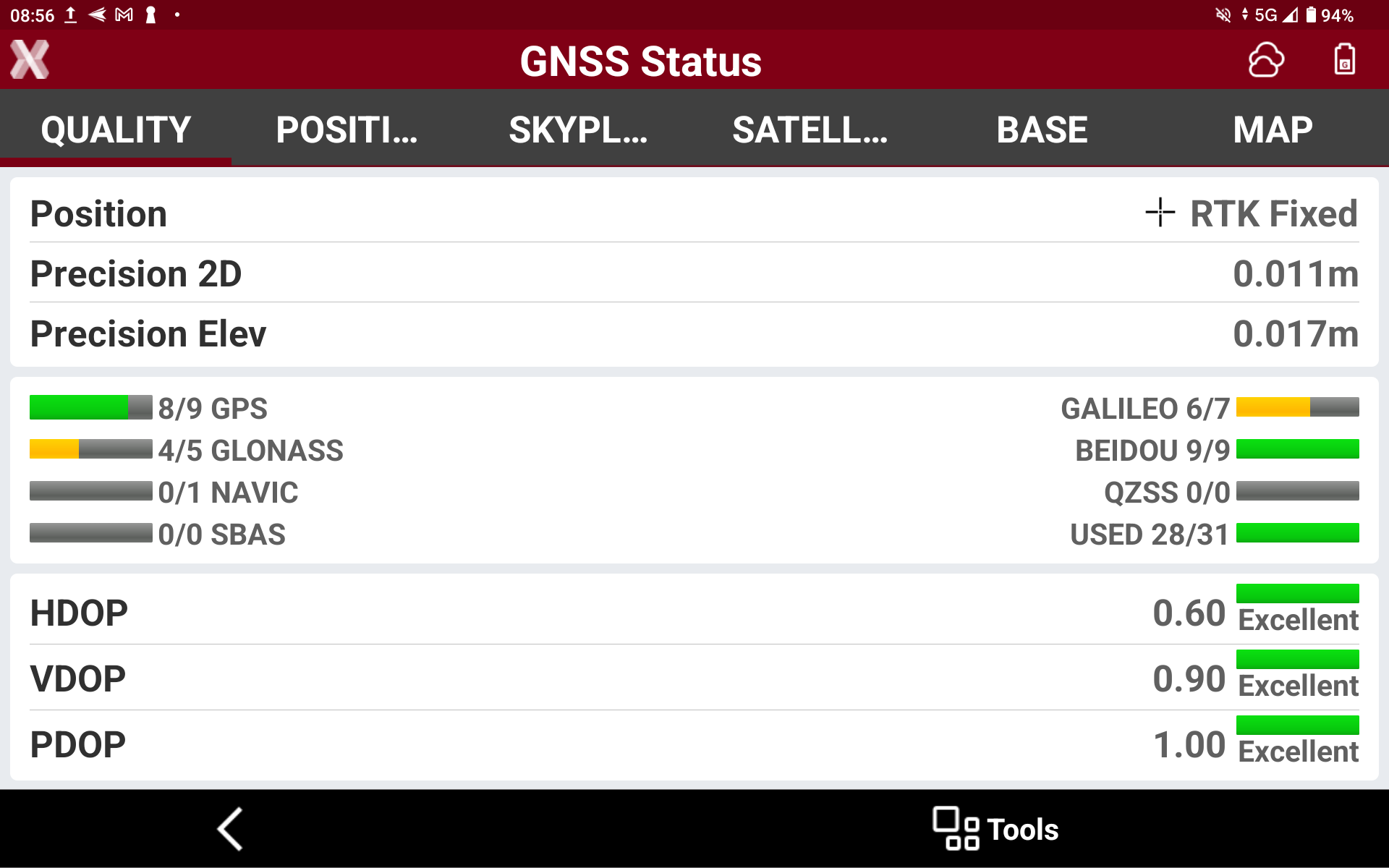
Quality page shows information on the current quality of the GNSS receiver.
-
Position: displays the RTK quality of position.
-
RTK Extra-Safe / RTK SureFix: available for some GNSS receiver models. The receiver gets corrections from a source and has fixed the ambiguities in RTK Extra-Safe / RTK SureFix.
-
RTK Fixed: the receiver gets corrections from a source and has fixed the ambiguities with maximum precision.
-
Quick-Fix: available for some GNSS receiver models. The receiver has fixed the ambiguities but has not reached the maximum precision level yet.
-
RTK Float: the receiver gets corrections from a source but it has not yet fixed ambiguities.
-
DGPS: the receiver gets differential corrections in DGPS mode.
-
Autonomous: the receiver gets positions without receiving corrections from any source in minimum precision.
-
PPP-Fixed: the receiver is receiving corrections using PPP service and ambiguity is fixed.
-
PPP-Float: the receiver is receiving corrections using PPP service and ambiguity is still not fixed.
-
-
Precision 2D: precision of the current position regarding coordinates.
-
Precision Elev: precision of the current position regarding elevation.
-
RTK Extra-Safe / RTK SureFix: available for some GNSS models. Using this option in environments with signal partially blocked allows to have a solution slower getting the fix status but likely less to be erroneous.
-
Satellites: number of satellites of the different constellations. Each constellation visualizes the number of used/tracked satellites.
-
GPS: United States satellite navigation system.
-
GLONASS: Russian satellite navigation system.
-
GALILEO: European satellite navigation system.
-
BEIDOU: Chinese satellite navigation system.
-
NAVIC: Indian regional satellite navigation system.
-
QZSS: Japanese regional satellite navigation system.
-
SBAS: regional augmentation satellites supporting more accurate GNSS positioning.
-
USED: shows the total number of used and tracked satellite.
-
-
HDOP: Horizontal Dilution of Precision.
-
VDOP: Vertical Dilution of Precision.
-
PDOP: General Dilution of Precision related to the satellites position.
-
Age corrections: delay in receiving RTK corrections in seconds when GNSS receiver is configured as rover. No correction indicates that no RTK corrections are received. A high value indicates missing reception of corrections or a very high latency in receiving RTK corrections.
-
GSM Signal: level of GSM signal in case SIM card is inside the GNSS receiver.
-
NTRIP Server: name of the used NTRIP server.
-
Mountpoint: name of the mountpoint with available access. Tap on the mountpoint to change the mountpoint.
-
Position page
-
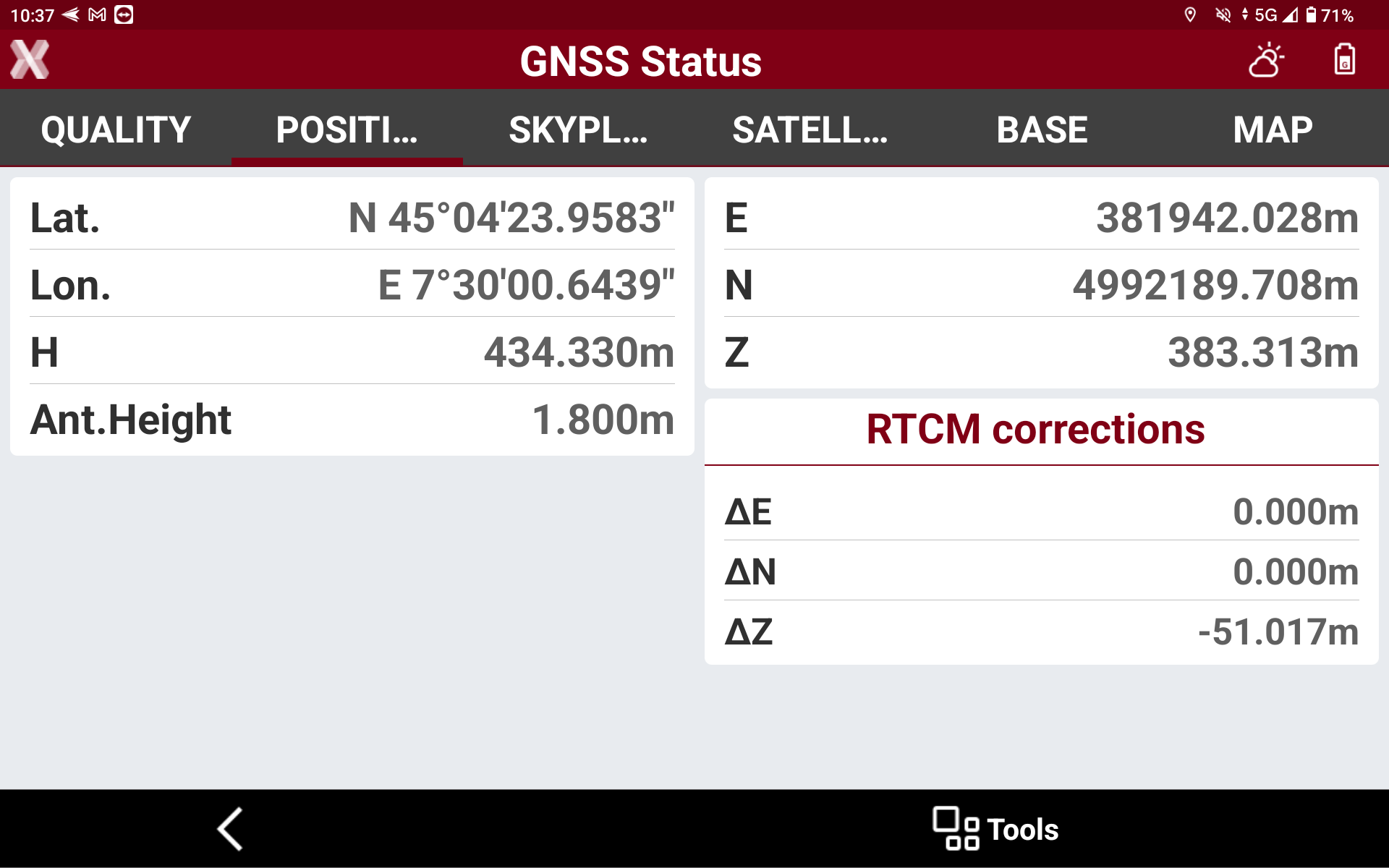
Position page shows the current GNSS receiver position with its geodetic coordinate and local coordinate based on the defined GNSS localization method.
-
WGS84 coordinate: the WGS84 coordinate from the GNSS receiver.
-
Lat: current latitude.
-
Lon: current longitude.
-
H: current elevation over the ellipsoid.
-
-
Ant height: GNSS receiver antenna height.
-
Tilt: current GNSS receiver tilt when working with IMU.
-
Local coordinate: the projected coordinate depending on the defined GNSS localization or cartographic system.
-
E: current East on the defined GNSS localization.
-
N: current North on the defined GNSS localization.
-
Z: current Height on the defined localization.
-
-
RTCM corrections: this field is only visible if the instrument profile is configured to receive and process RTCM 3.1 messages from CORS network, in case the network is also providing the specific RTCM messages to correct the position horizontally, vertically or both. If the profile is configured to receive RTCM 3.1 messages, the received offsets are visualized here.
-
ΔE: correction received in the RTCM message to correct east coordinate.
-
ΔN: correction received in the RTCM message to correct north coordinate.
-
ΔZ: correction received in the RTCM message to correct elevation.
-
-
Skyplot page
-
Skyplot page displays position and elevation of the tracked satellites.
-
Tap on a satellite icon to show all related information.
![Screenshot_20260910-165027[1]-20260910-145027.png](/__attachments/a_bda0c63d8d443f6409cb1e9f35e7596f97f921147450d6a842617e9a22d71dba/Screenshot_20260910-165027%5B1%5D-20260910-145027.png?cb=d0dd2d9eb6c04c146ed13dfb09c95778)
Satellite page
-
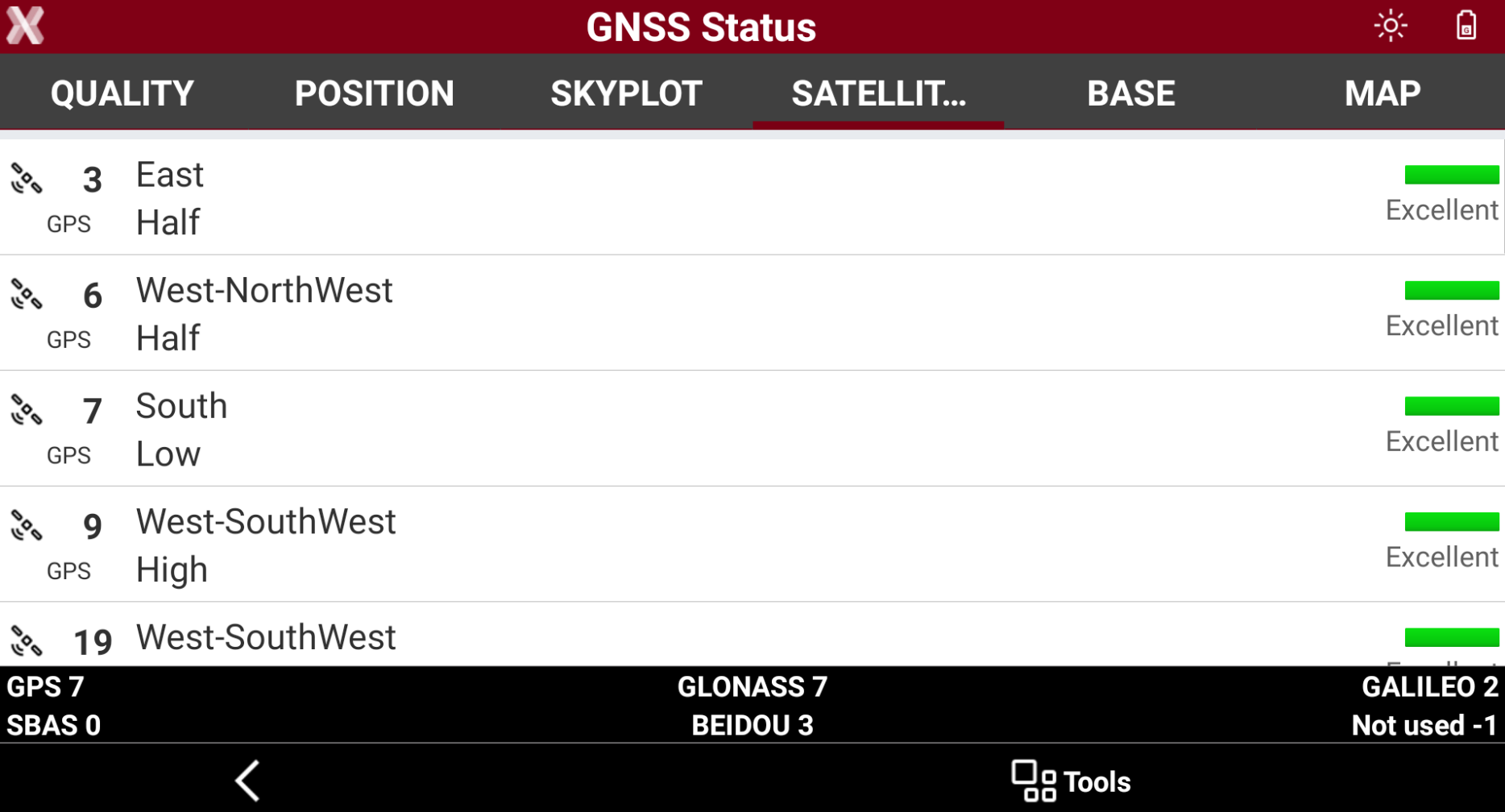
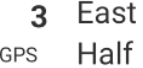
Satellite page displays a list of all tracked satellites including related information.
-

-

-
-
-
Base page
-
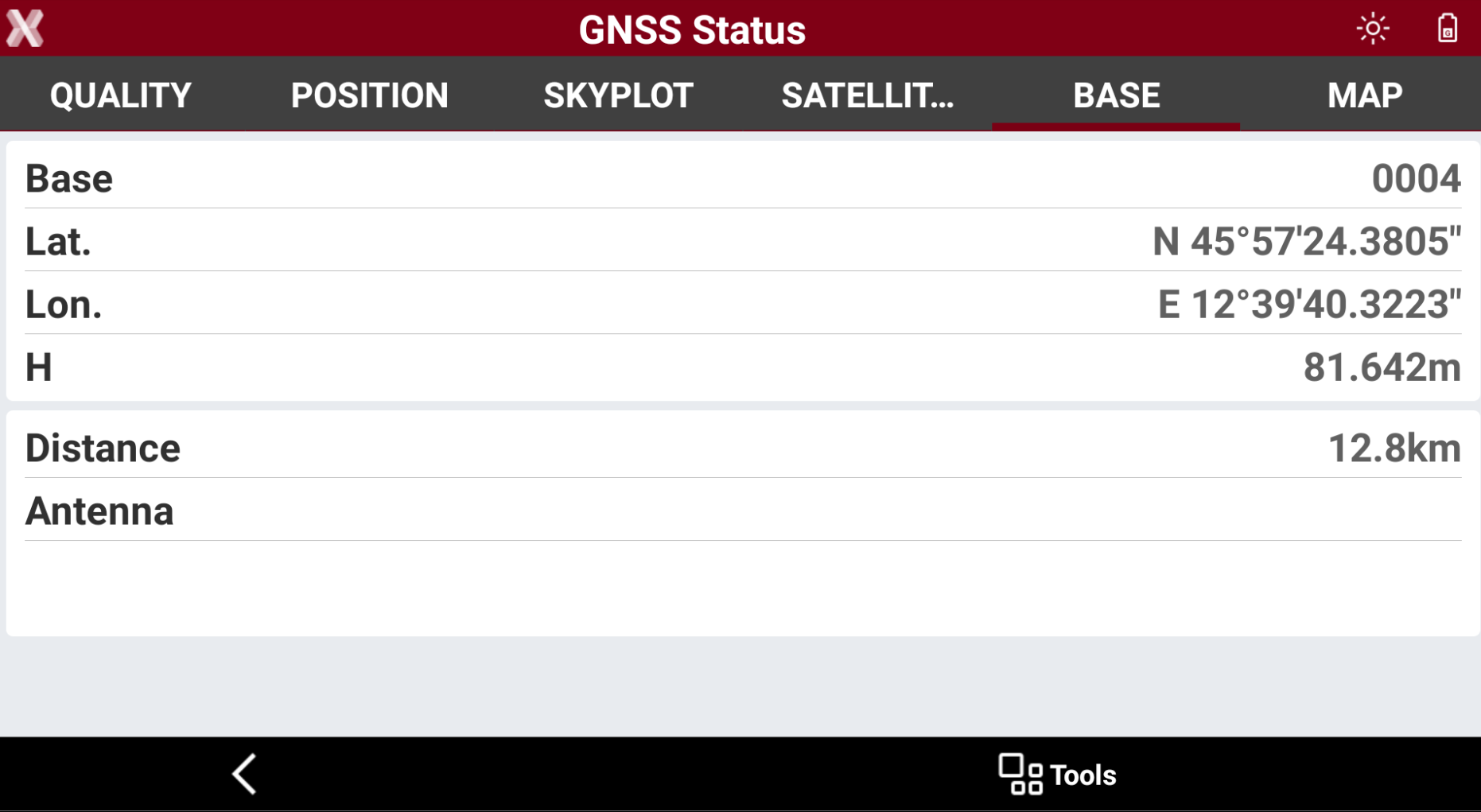
The Base page displays information related to the reference base.
-
Base: name of the base.
-
Lat., Lon., Elevation: coordinates of the base.
-
Distance: distance between base and current position.
-
Antenna: antenna model of the base.
-
Map page
-
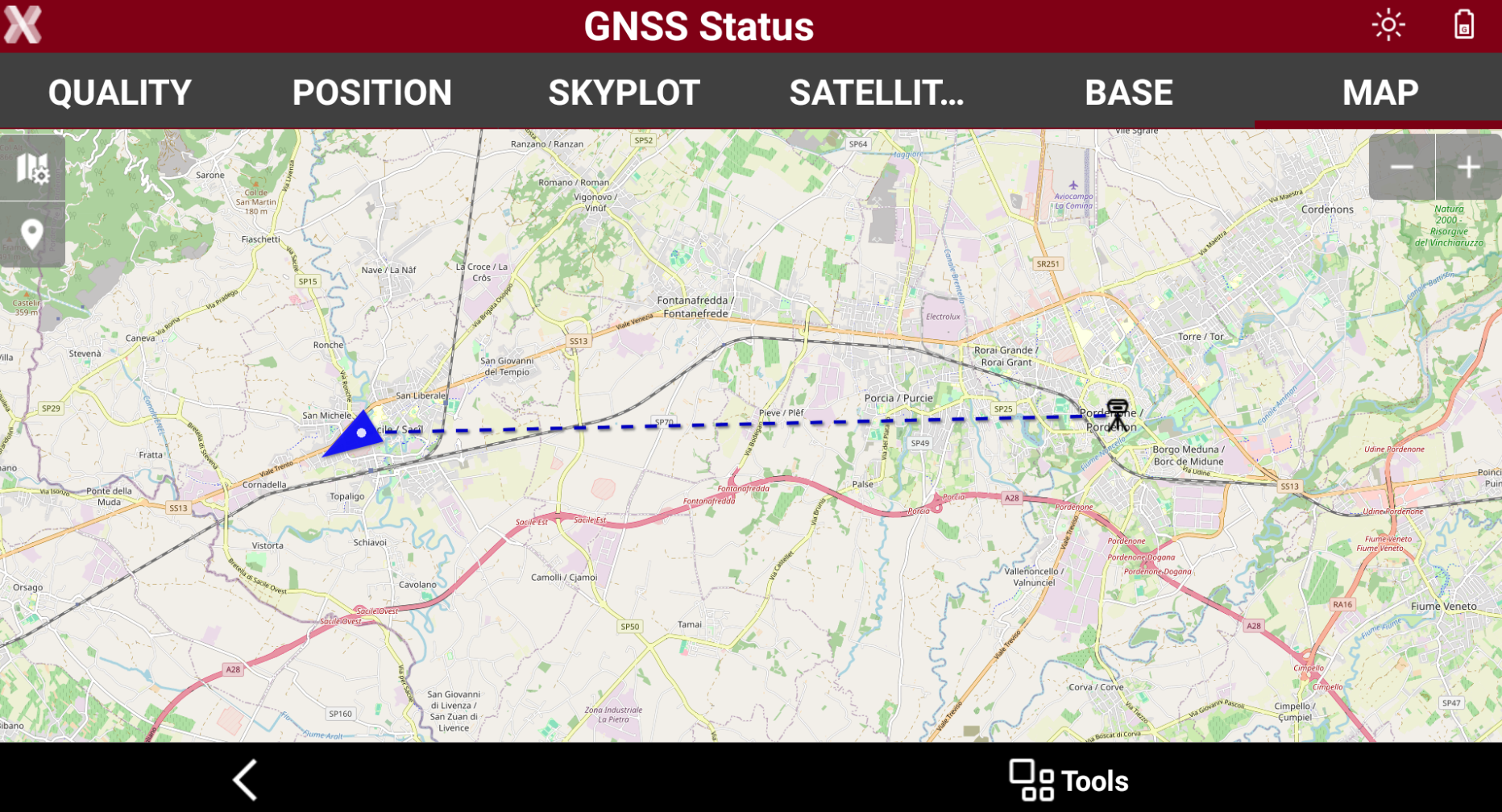
Map page displays the current position in a map.
-
The map visualizes the rover and base position.
GNSS Status panel
-
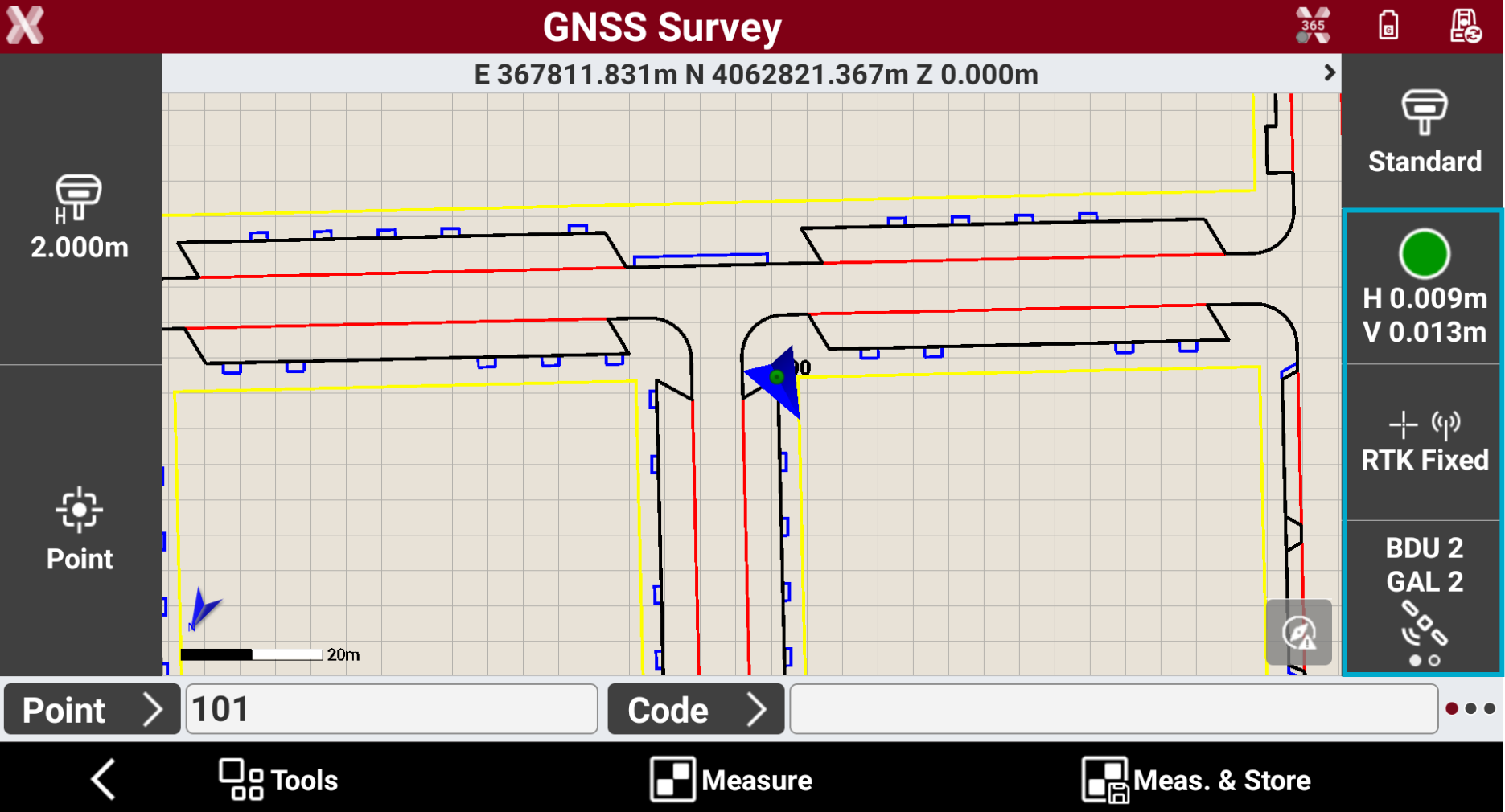
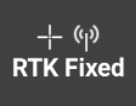
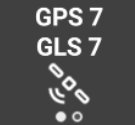
All GNSS survey and stakeout functions have a side panel that visualizes the main GNSS Status information.
-
Pressing the GNSS Status panel provides different action:
-
Single press: opens the GNSS Status page.
-
Long press: connects and disconnects the GPRS.
-
Double tap: reset RTK corrections.
-
|
|
|
|

|
|
|
|
GNSS Status tools
-
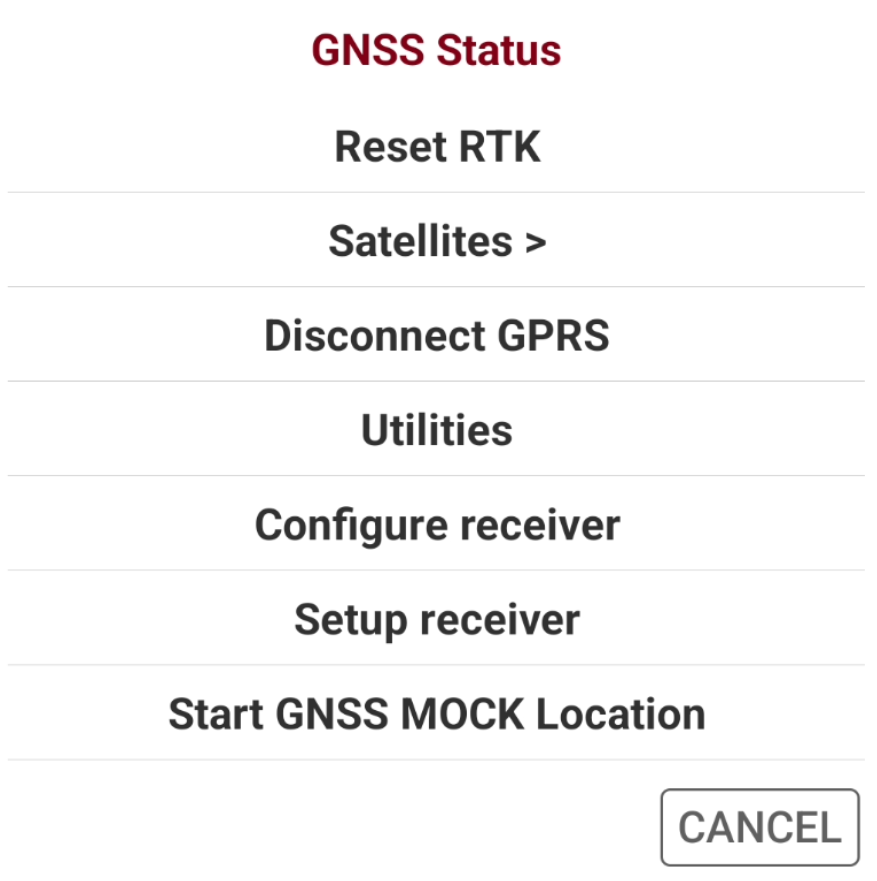
From the GNSS Status window, it is possible to change some GNSS receiver settings and perform some operations.
-
Select Tools to open the list of available tools.
Reset RTK
-
The command is used to force the receiver to re-initialize the calculation of the ambiguity.
-
Select Reset RTK.
To force the receiver to re-initialize the position, double tap for a longer while on the GNSS status.
Change satellites tracking parameters
-
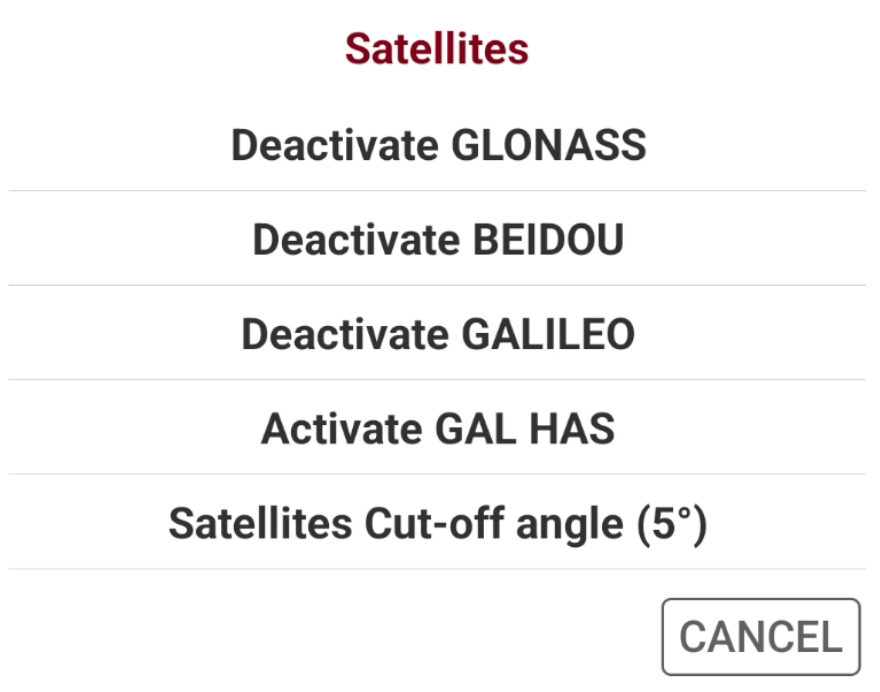
The command is used to activate and deactivate the use of satellites constellations and change the satellite cut-off.
-
Select Satellites.
-
Select the options to enable/disable the constellations and change the satellite cut-off angle.
Connecting and disconnecting GPRS
-
The command is used to connect or disconnect the internet connection when the receiver is configured as network rover.
-
Select Connect GPRS to connect the receiver in internet.
-
Select Disconnect GPRS to disconnect the receiver from internet.
To quickly connect and disconnect, tap for a longer while on the GNSS status.
Start NMEA streaming
-
The command is used to start to stream the NMEA messages from the receiver to be used by other devices, for example as echosounders or georadar, and by external software.
-
See GNSS receiver NMEA data streaming for a step-by-step guide.
-
Select Utilities and select NMEA output.
-
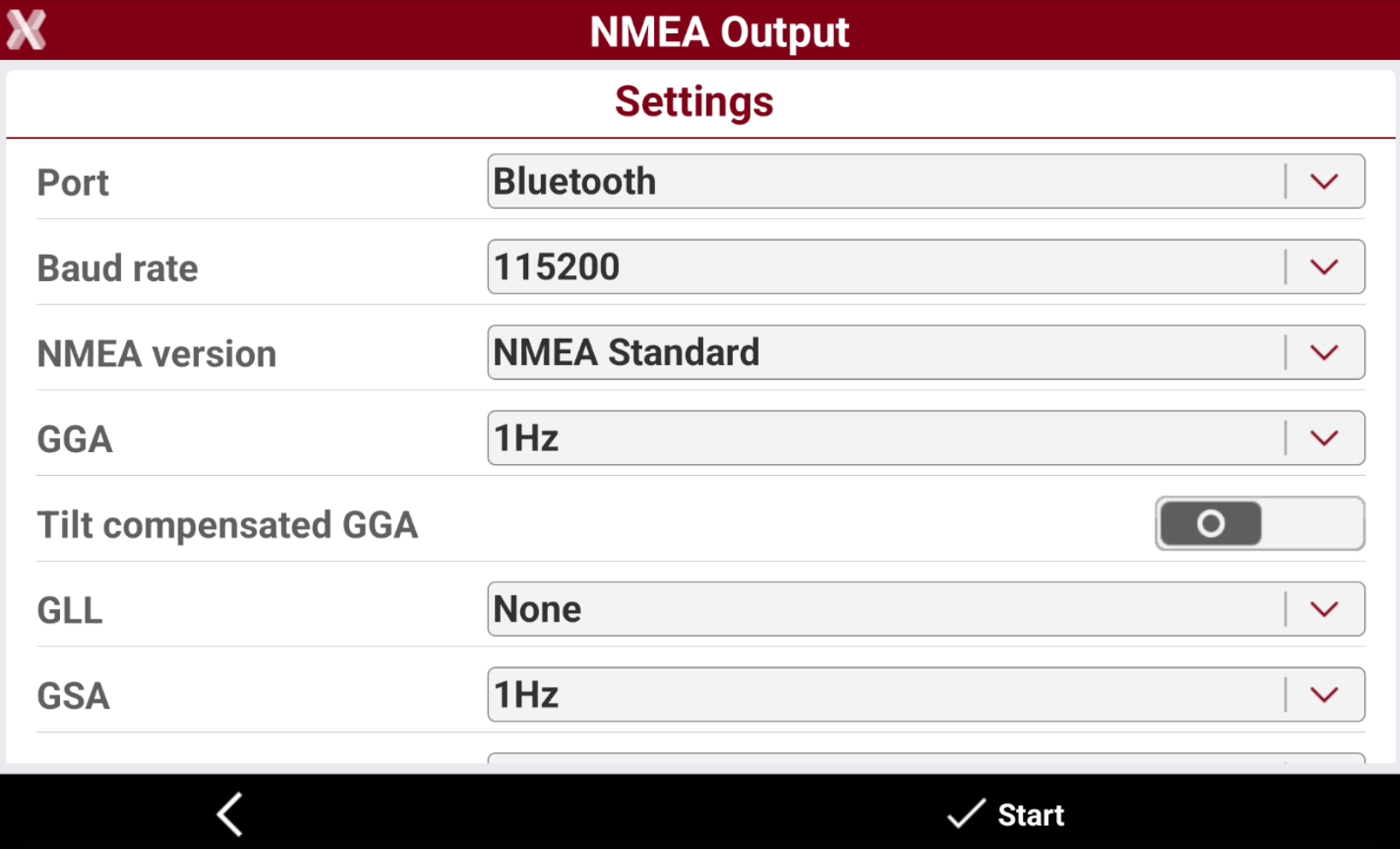
The software opens a new window.
-
Port: the connection to be used to stream the NMEA messages (RS232 cable, bluetooth, USB cable).
-
Baud rate: the connection baud rate.
-
NMEA version: the version of NMEA to use.
-
NMEA messages: select for each standard NMEA message the output rate. Select None to not stream the selected message.
-
Tilt compensated GGA: allows to stream the GGA message compensated by the tilt value.
-
-
Press Start to start to stream the NMEA messages.
Reconfigure the receiver
-
The command is used to reconfigure the GNSS receiver using the current instrument profile.
-
Select Configure receiver.
Setup receiver
-
The command is used to modify the current instrument profile.
-
Select Setup.
-
The software opens the windows to modify the current instrument profile.
Manage GNSS receiver files
This command is available on supported GNSS recievers.
-
Displays all files with raw data present in the receiver memory. Select or deselect files to be copied to the controller memory.
-
Select Tools.
-
Select Utilities and select File Manager.
Changing radio channel
-
If the receiver is a UHF profile, it is possible to change the radio channel.
-
Select Change radio channel.
-
Modify the number of the channel used by the receiver radio.
Stopping raw data log
-
If the receiver is currently logging raw data it is possible from to stop the raw data logging.
-
Select Stop raw data logging.
-
The software stops recording of raw data by receiver.
Start GNSS MOCK Location
-
This command starts the GNSS Mock location.
PPP (Precise Point Positioning)
-
If the receiver is configured to work with PPP, the tool PPP (Precise Point Positioning) is available
-
Activate PPP: allows to activate the PPP when working with a GNSS receiver with PPP corrections.
-
Open PPP manager: allows to open the PPP manager to select or create a new PPP adjustment.
-