-
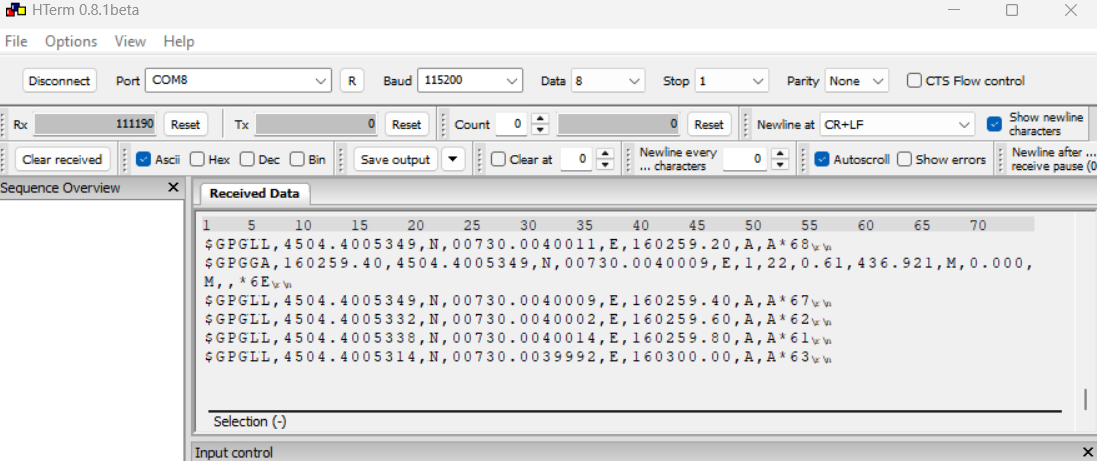
When working with a GNSS receivers and 3th party software and devices (for example georadar) it is common to stream out the NMEA position from the GNSS receiver to be used from the 3th party device.
-
In this guide we will see how to start the NMEA data streaming from X-PAD software.
Depending on the GNSS receiver model it is also possible to start the NMEA data streaming from X-PAD Connect or the WebUI. Refer to the specific GNSS receiver help page for more information.
In case of working with RTK corrections by internet, with some GNSS models it is possible to configure the GNSS receiver to use internet from controller to get RTK corrections and in parallel to stream out the NMEA messages. With others GNSS receivers the SIM card must be inside the receiver.
-
To start the NMEA data streaming, open the GNSS Status page.
-
Select Tools.
-
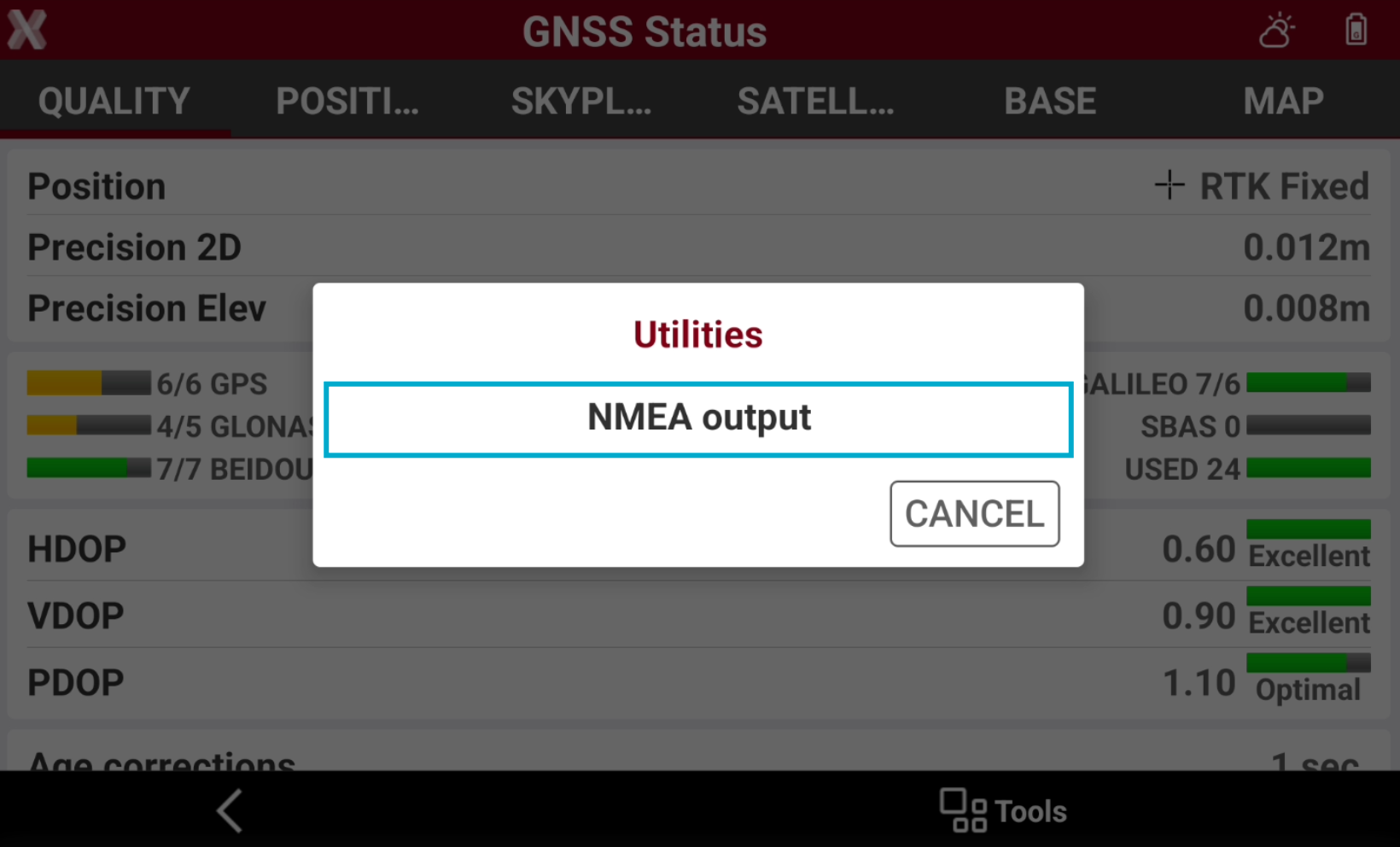
Select Utilities and select NMEA output.
-
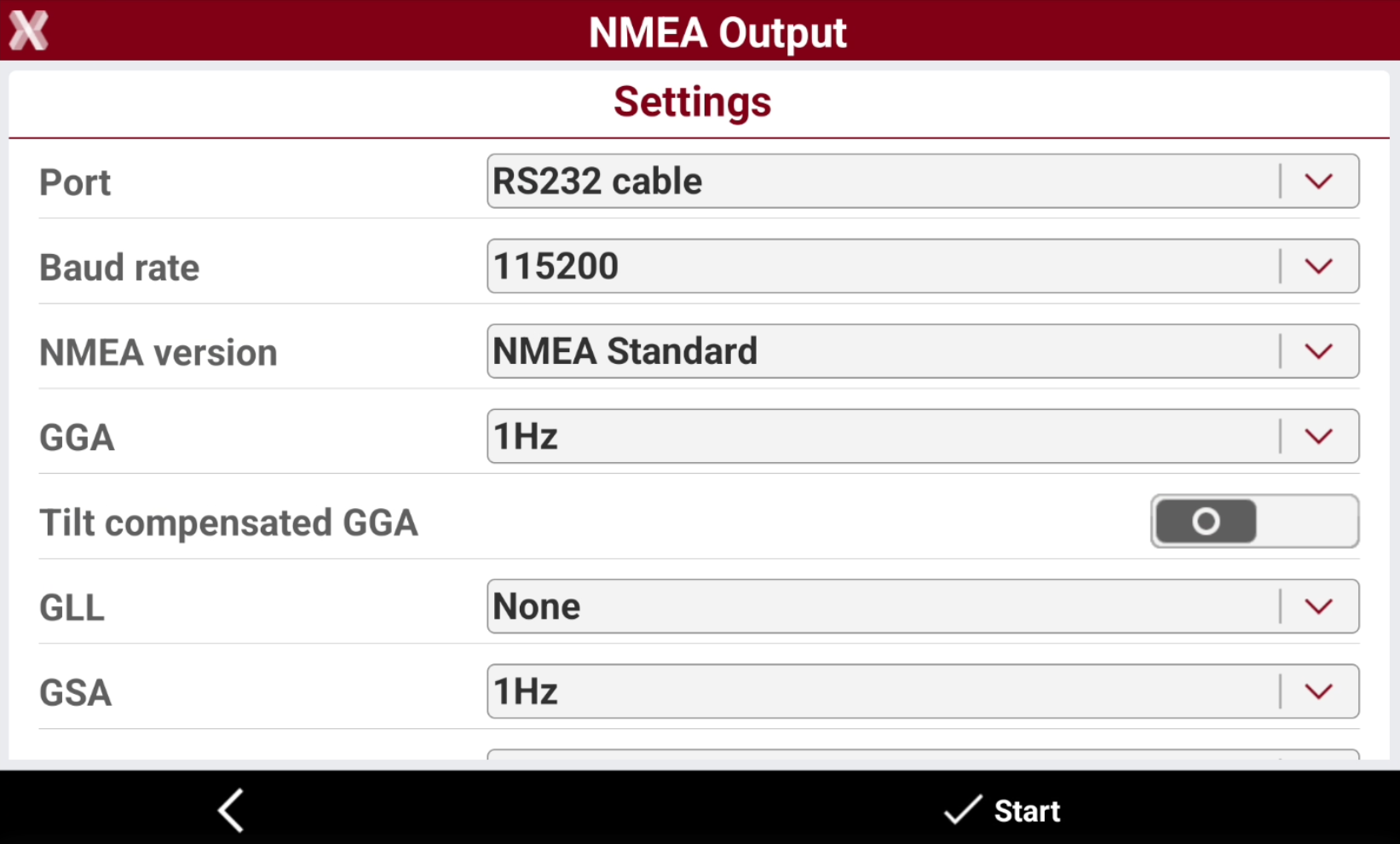
Enter the NMEA output settings.
-
Port: select if the NMEA data streaming from the GNSS receiver is using Bluetooth or serial cable.
-
RS232 cable: the NMEA data streaming is from the serial cable connected to the GNSS receiver. This option is available for some GNSS models.
-
Bluetooth: the NMEA data streaming is from a Bluetooth connection to the GNSS receiver Bluetooth.
-
USB cable: the NMEA data streaming is from the USB cable connected to the GNSS receiver. This option is available for some GNSS models.
-
-
Baud rate: select the connection baud rate.
-
NMEA version: to select the NMEA version. This option is available for some GNSS models.
-
Tilt compensated GGA: if enabled the GGA message is compensated by the tilt. This is particularly useful when the GGA is streamed out to 3th party devices such as georadar so that position is better calculated with pole tilted. When option is activated the GGA position is compensated by GNSS receiver pole height and pole tilt. This option is available for some GNSS models.
-
NMEA messages (GGA, GLL, GSA, etc..): to select what NMEA message to stream and the update rate. If a message has not to be streamed, select None.
-
-
Click Start to start the NMEA data streaming.
How to read the NMEA data streaming on a Windows PC by Bluetooth step-by-step
-
To read the NMEA streaming on Windows using Bluetooth by applications on Windows, it is required to create a COM port.
-
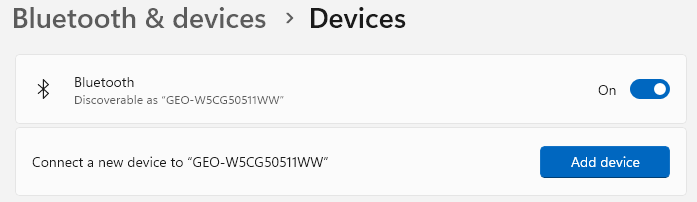
Connect the GNSS receiver to Windows PC using Windows Bluetooth & devices options, adding the new device.
-
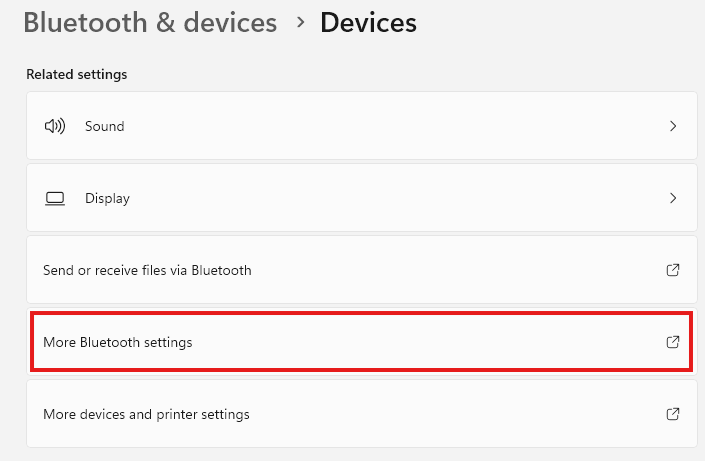
After receiver is connected, open More Bluetooth settings.
-
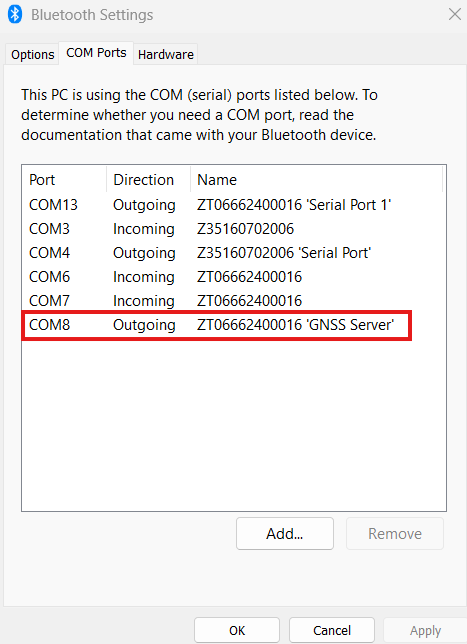
Open COM ports page and check what is the Outgoing COM port assigned. This is the COM port that we need to connect from the application where NMEA is required.
-
Port: the COM port assigned. This is the port that 3th party application has to use to read the NMEA streaming.
-
Direction: the data direction. In our case we want to select the Outgoing.
-
Name: the device name, usually it is the GNSS receiver serial number.
-
-
Connect the 3th party application to this COM port to start to see NMEA data streaming.