
-
Starting a GNSS base is a main operation and the first thing to do when working with base and rover setup.
-
The first receiver (base) remains in a fixed position on the ground and sends corrections through radio to a second receiver (rover).
-
The second receiver is free to move on the ground, according to radio range, measuring or staking out positions.
Commands allowing to start a base are only available when a GNSS instrument profile is defined and the profile is for a Base instrument.
-
If the current profile is related to a GNSS receiver configured as base, the software shows only the Start base page.
-
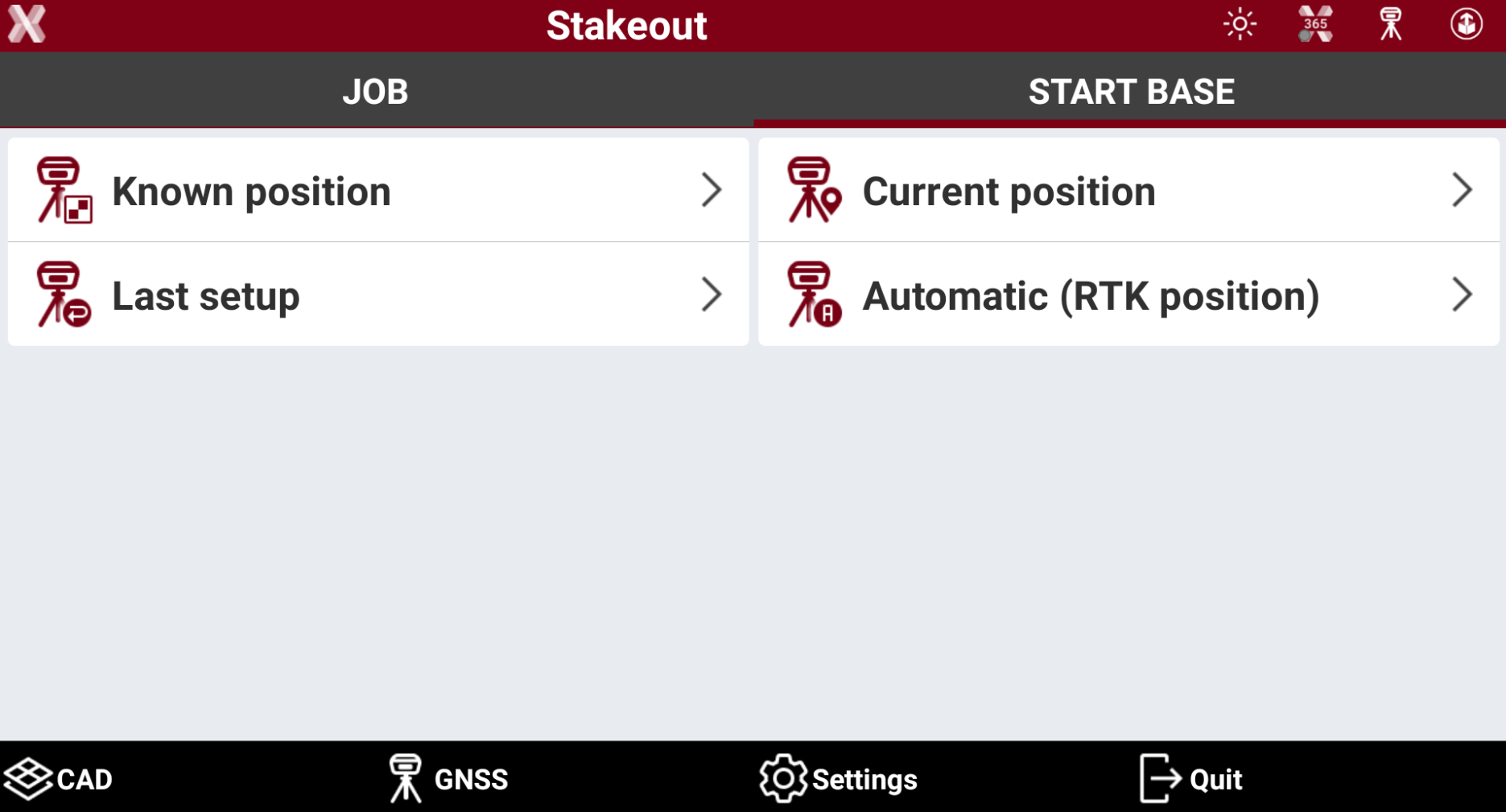
A base can be started in different modes.
-
Known position: start the base over a point with known coordinates.
-
Current position: start the base over the current position measured by the GNSS receiver.
-
Last setup: start the base over the last base setup.
-
Automatic (RTK position): start the base over a point with known coordinates measured with the same receiver in RTK.
-
Start base on known position
-
Use this method when the base is positioned over a position with known coordinates.
-
If only plane coordinates are available, you must define the coordinate system that allows to calculate the geographic coordinates.
-
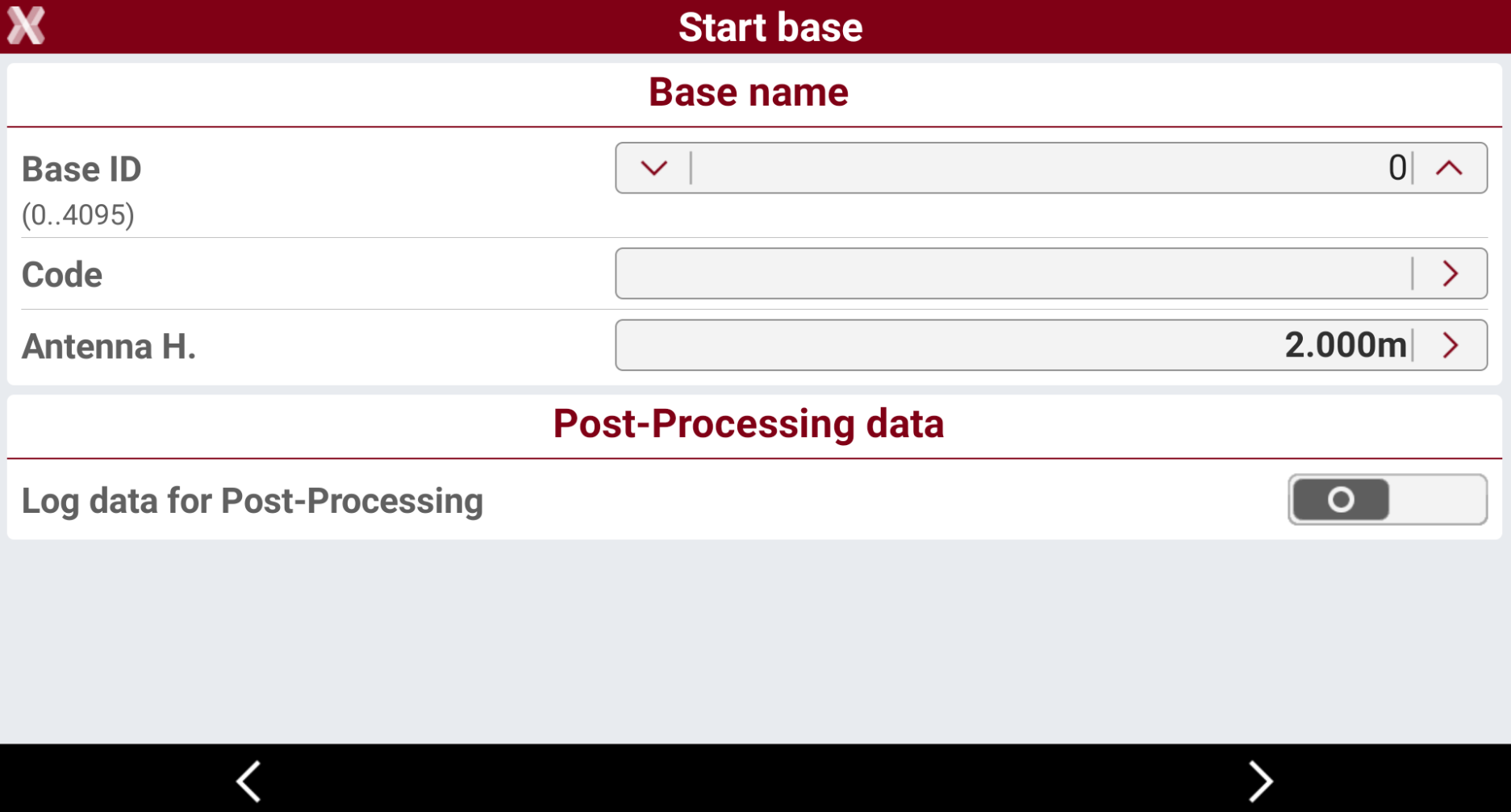
From the Start base page select Known position. This opens the Start base page.
-
Base ID: the name of the base. The name of the base is displayed on the rover. The rover can be set so that it only accepts corrections coming from the base with a certain ID.
-
Code: code to assign to the point that is created in correspondence of the position of the base.
-
Antenna height: the antenna elevation from the Antenna Reference Point (ARP) to the ground. Click on arrow to open the Calculate antenna height page.
-
Log data for Post-Processing: activates the recording of raw data on the base. Recorded raw data can be used for data post-processing.
-
Logging rate: frequency for recording raw data.
-
File for PP: name of file where to save raw data.
-
File type: the raw data file type to store.
-
-
-
Select Next to open the next page.
-
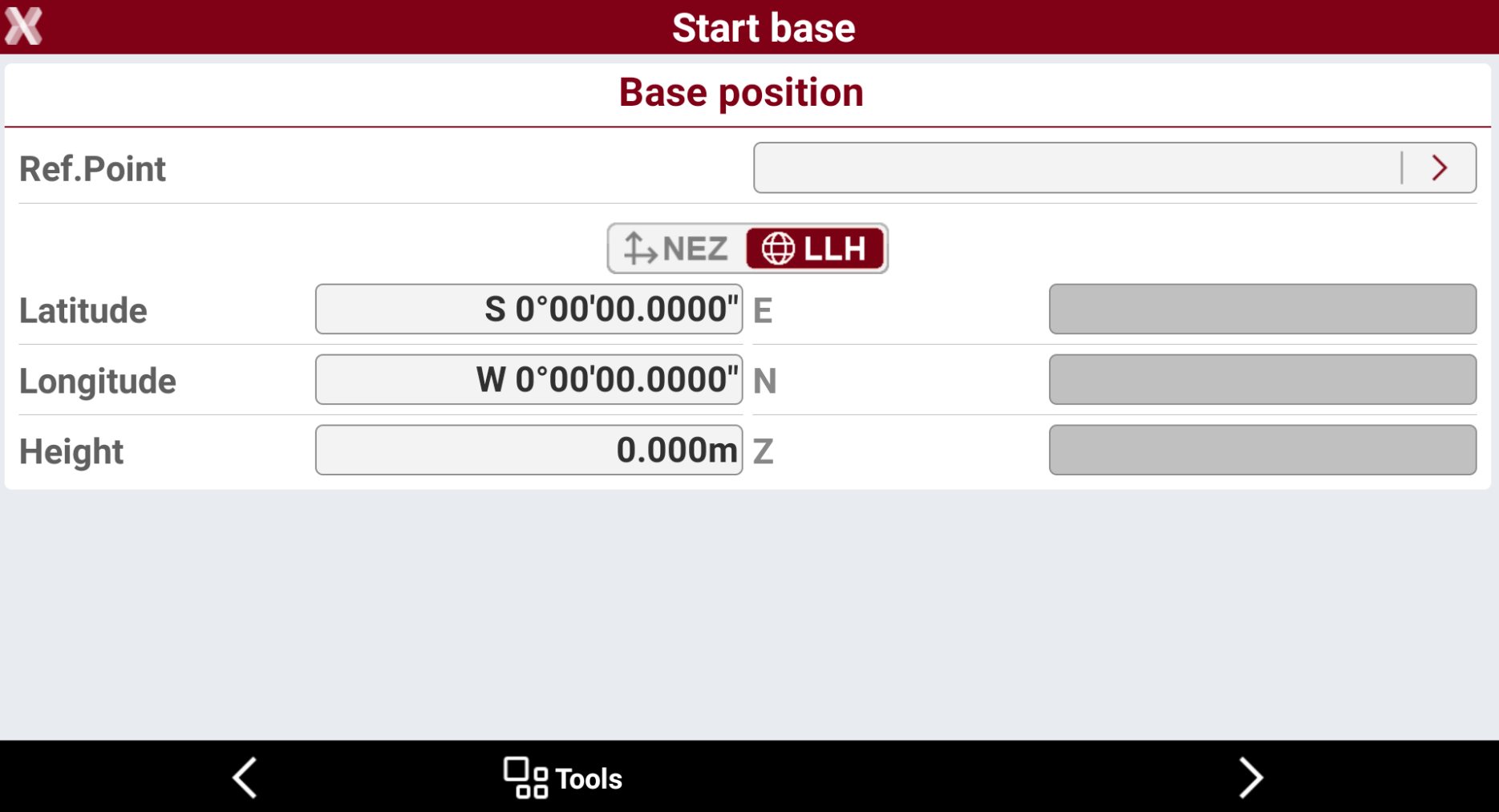
Reference point: assign coordinates to base with one of the options:
-
Select a point from a table, from a graphic or enter a point. Coordinates of the point are displayed. Select the > icon to select the point.
-
Enter the geographic coordinates of the base. Select LLH to enable this option.
-
Enter the plane coordinates of the base In every case, if only plane coordinates are available, define a coordinate system first so that the corresponding geographic coordinates can be calculated. Select NEZ to enable this option.
-
-
-
Select Next when the known base coordinate has been defined to open the next page.
-
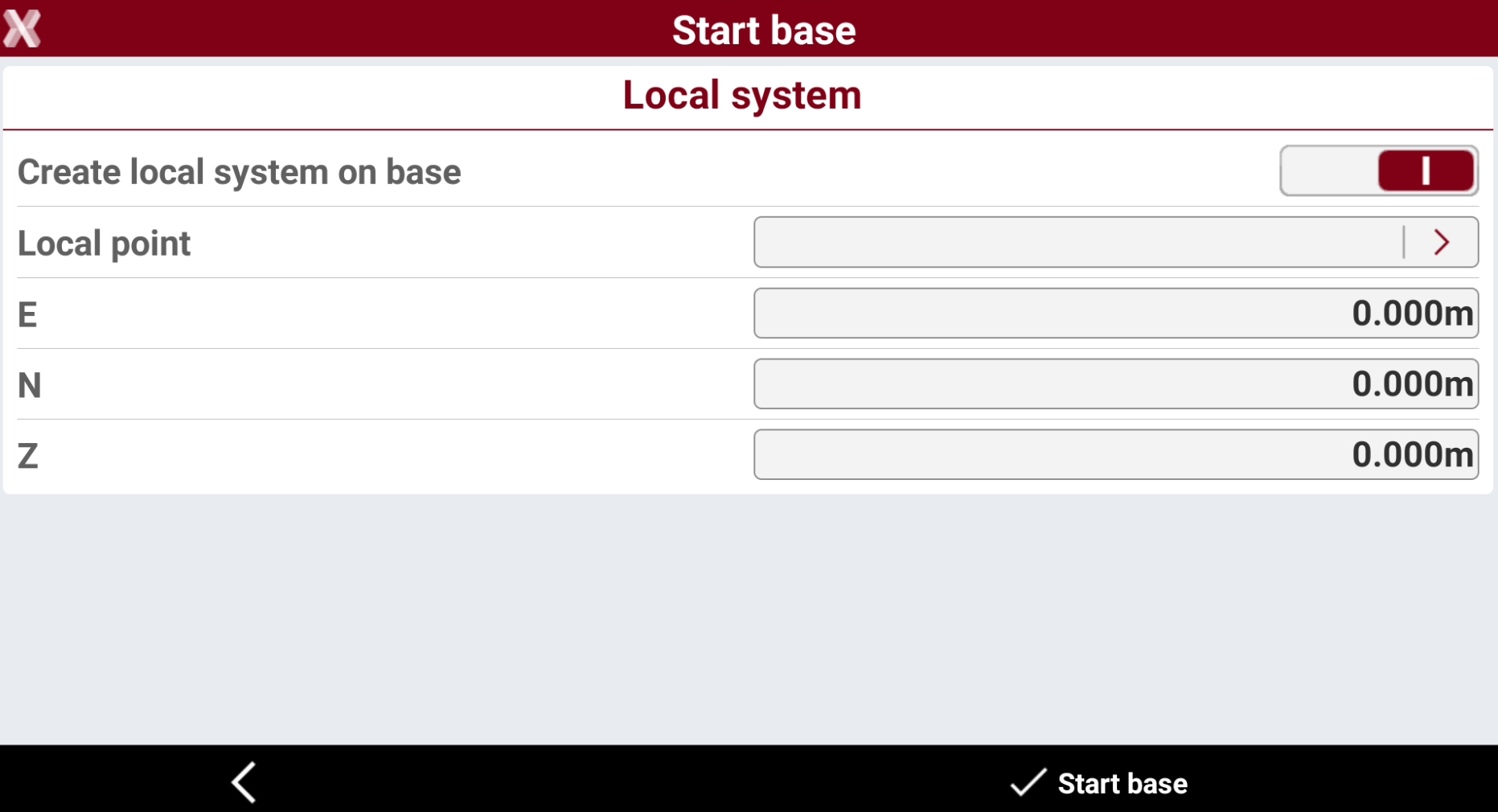
This page allows to create, simultaneously to configuring the base, a local coordinate system on one point having just the base as reference point. If the option is activated, the local coordinates can be specified to the position of the base.
-
Select Start base to start the GNSS base.
Start base on current position
-
Use this method when the base point is located in a position with unknown coordinates.
-
The base is started with the approximate position calculated from the GNSS receiver.
The position of the GNSS base can be later be corrected in the field with Base position adjustment function or Move the GNSS base.
-
From the Start base page select Current position. This opens the Start base page.
-
Base ID: the name of the base. The name of the base is displayed on the rover. The rover can be set so that it only accepts corrections coming from the base with a certain ID.
-
Code: code to assign to the point that is created in correspondence of the position of the base.
-
Antenna height: the antenna elevation from the Antenna Reference Point (ARP) to the ground. Click on arrow to open the Calculate antenna height page.
-
Log data for PostProcessing: activates the recording of raw data on the base. Recorded raw data can be used for data post-processing.
-
Logging rate: frequency for recording raw data.
-
File for PP: name of file where to save raw data.
-
File type: the raw data file type to store.
-
-
-
Select Next to open the following page.
-
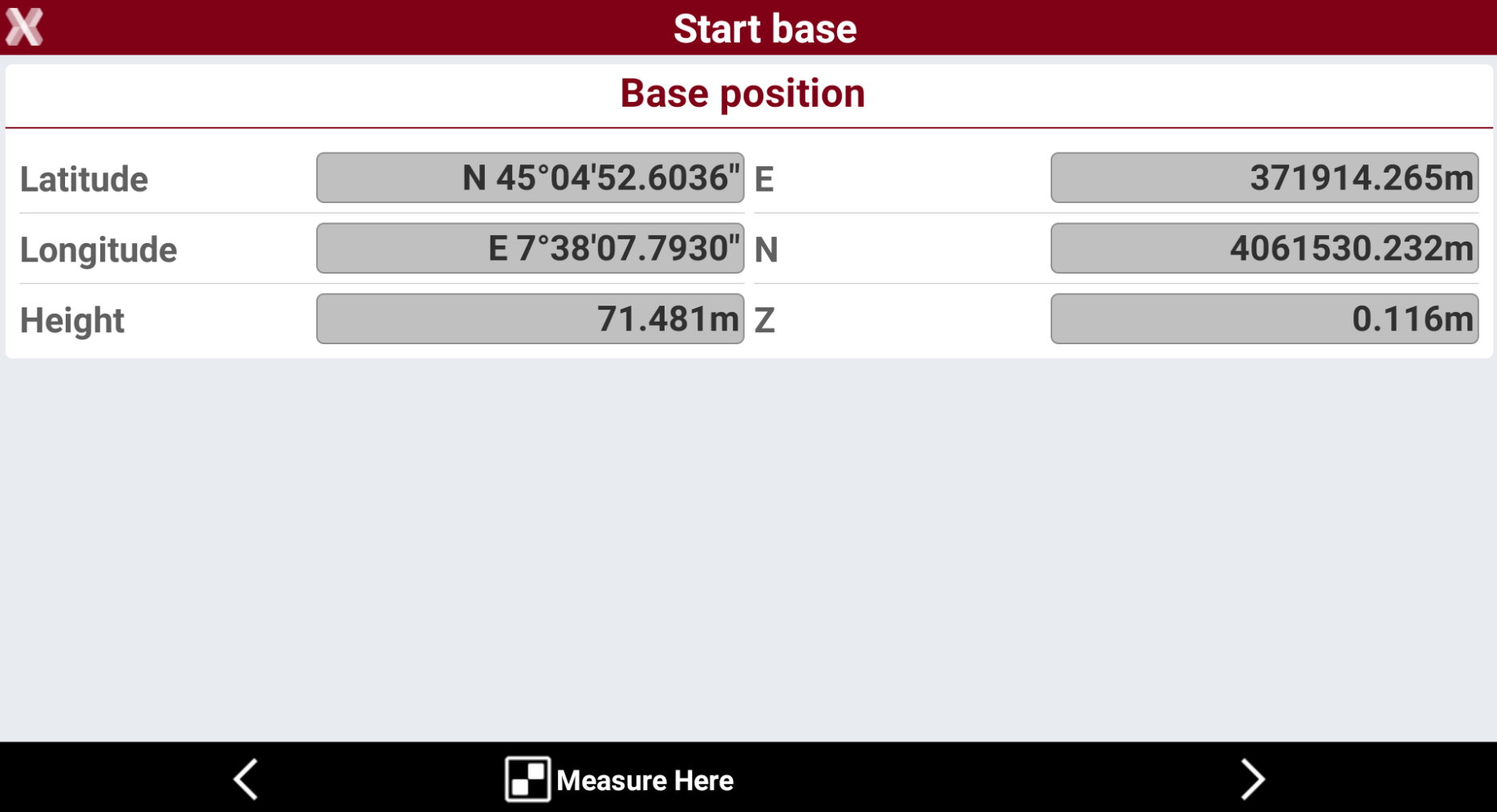
Tap on Measure here to measure the base coordinates.
-
Get approximate position: stores the approximate position of the receiver.
-
Get RTK position from NTRIP: if a network RTK profile is available for this GNSS receiver, an accurate positions of the base can be obtained configuring the receiver as network rover and calculating a fix position from an NTRIP connection. In this case the method is similar to Start a GNSS base with automatic RTK position mode.
-
-
Select Next when the coordinate has been defined to open the next page.
-
This page allows to create, simultaneously to configuring the base, a local coordinate system on one point having just the base as reference point. If the option is activated, the local coordinates can be specified to the position of the base.
-
Select Start base to start the GNSS base.
Start base on last setup
-
Use this mode to repeat the configuration of the base using previous data.
-
From the Start base page select Last setup. This opens the Start base page.
-
Base ID: the name of the base. The name of the base is displayed on the rover. The rover can be set so that it only accepts corrections coming from the base with a certain ID.
-
Code: code to assign to the point that is created in correspondence of the position of the base.
-
Antenna height: the antenna elevation from the Antenna Reference Point (ARP) to the ground. Click on arrow to open the Calculate antenna height page.
-
Log data for PostProcessing: activates the recording of raw data on the base. Recorded raw data can be used for data post-processing.
-
Logging rate: frequency for recording raw data.
-
File for PP: name of file where to save raw data.
-
File type: the raw data file type to store.
-
-
-
Press Next to open the next page.
-
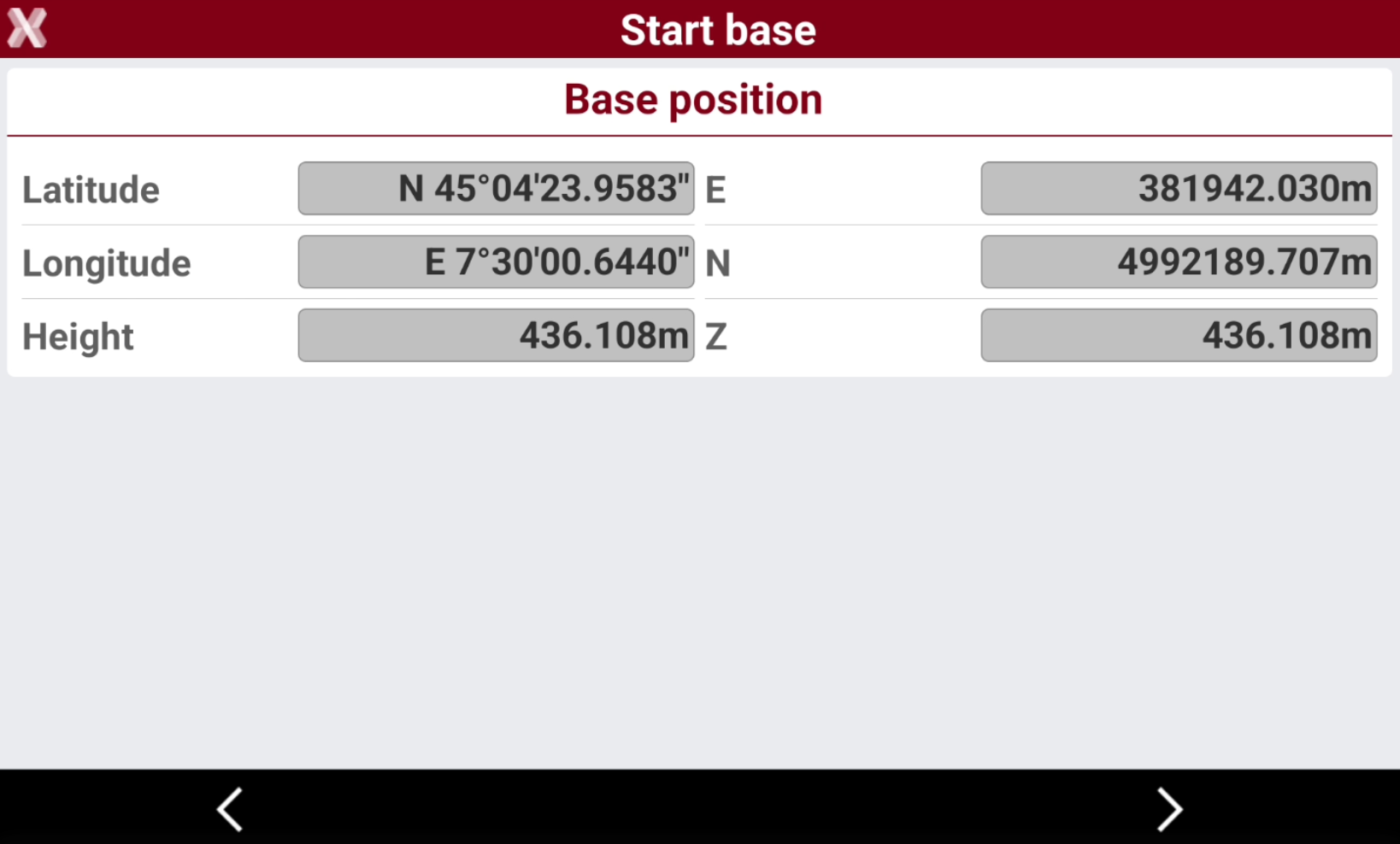
The software automatically loads the coordinate used in the last setup.
-
Select Next and to open the following page.
-
This page allows to create, simultaneously to configuring the base, a local coordinate system on one point having just the base as reference point. If the option is activated, the local coordinates can be specified to the position of the base.
-
Press Start base to start the GNSS base.
Start a GNSS base with automatic (RTK position) mode
-
Use this method when the base point coordinates are unknown.
-
The software configures the receiver in GPS RTK – NTRIP mode to determine the base position. After acquiring the precise position, the receiver is started as a base with the mode “known position”.
To use this mode it is required to have a GNSS profile for the receiver configured as base and configured as rover. The rover profile for the selected receiver will be used to connect to an RTK source to get the RTK position.
-
From the Start base page select Automatic (RTK position).
-
The software connects to the base receiver and configure it as NTRIP rover, using the available instrument rover profile.
-
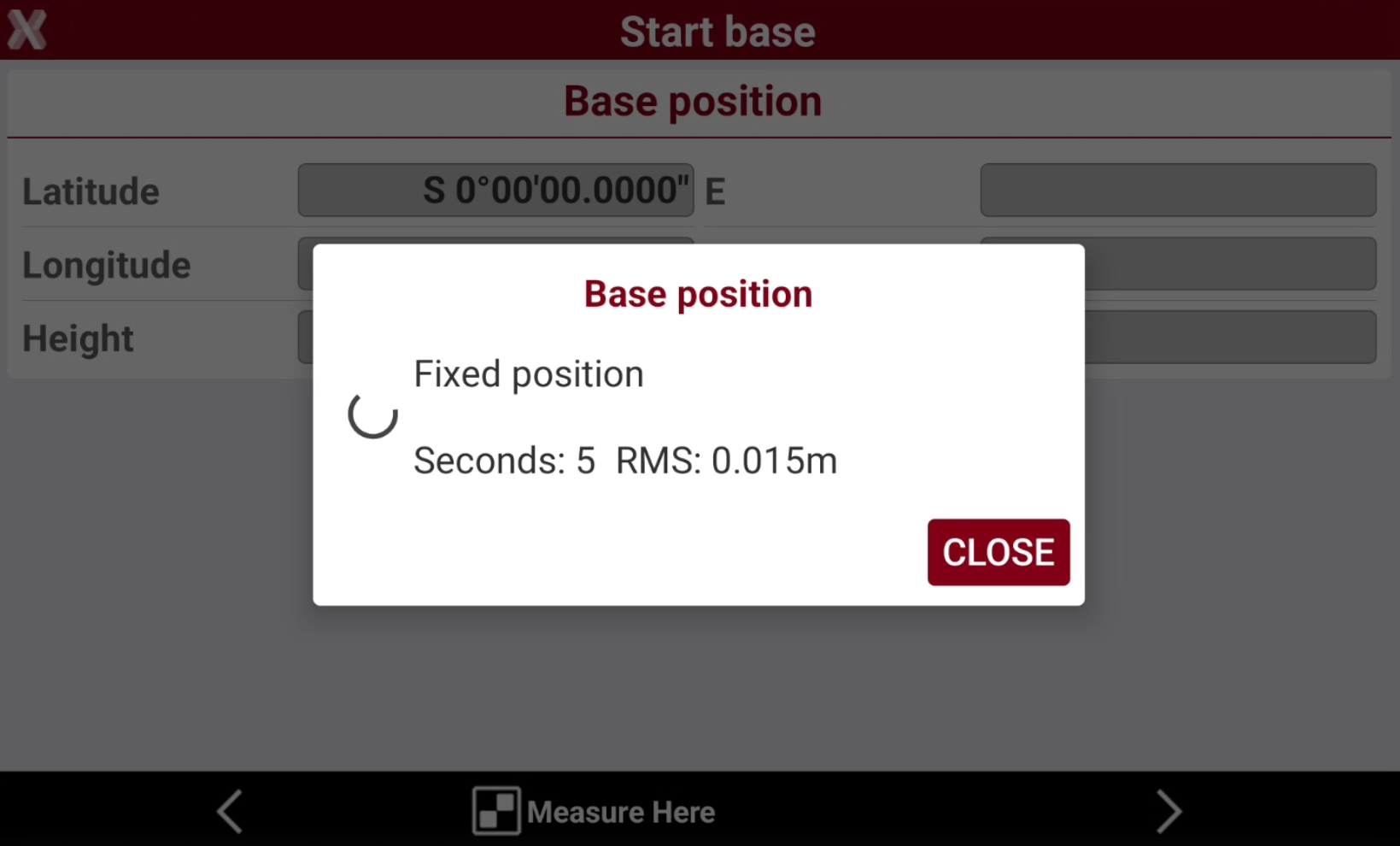
The receiver is connected to the NTRIP to acquire a fix position.
-
As soon as the fix has been achieved, the software measures accurately the position.
-
After the position has been accurately measured, the receiver is reconfigured with the original base profile and automatically started to transmit RTK corrections.
-
The base is then started automatically on calculated coordinate.
Move the GNSS base
-
When measuring with a GNSS receiver, the rover is usually connected to a base to receive RTK corrections.
-
The software offers the possibility to change the GNSS base coordinate. This operation is for example common after post-processing the raw data from the base and obtaining more accurate coordinates. The coordinates of all other points in the job are updated.
-
From the Job page select Points/Measurements/Codes and open the Measurements tab.
-
Select Tools to open the list of available tools.
-
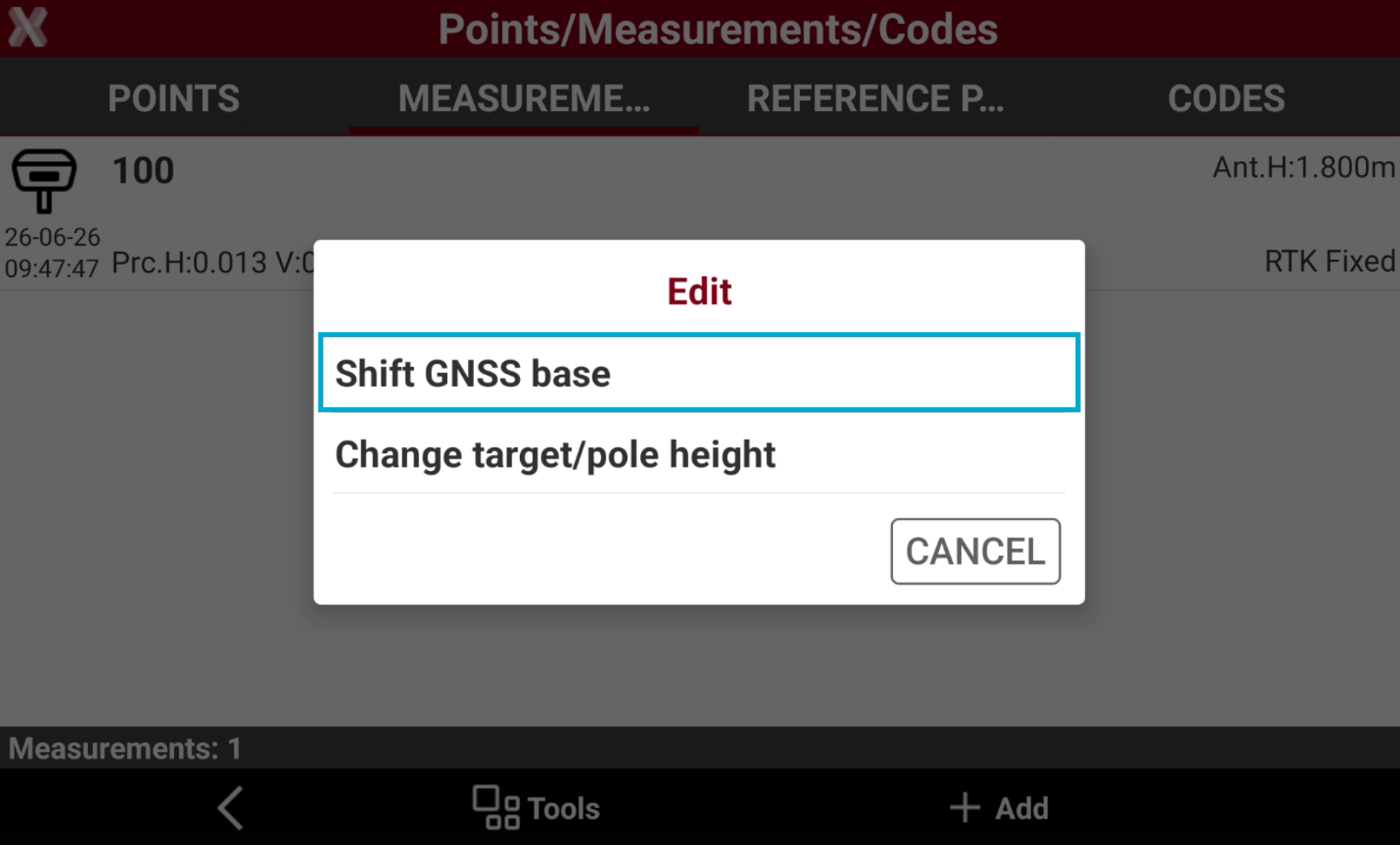
Select Edit and select Shift GNSS base.
-
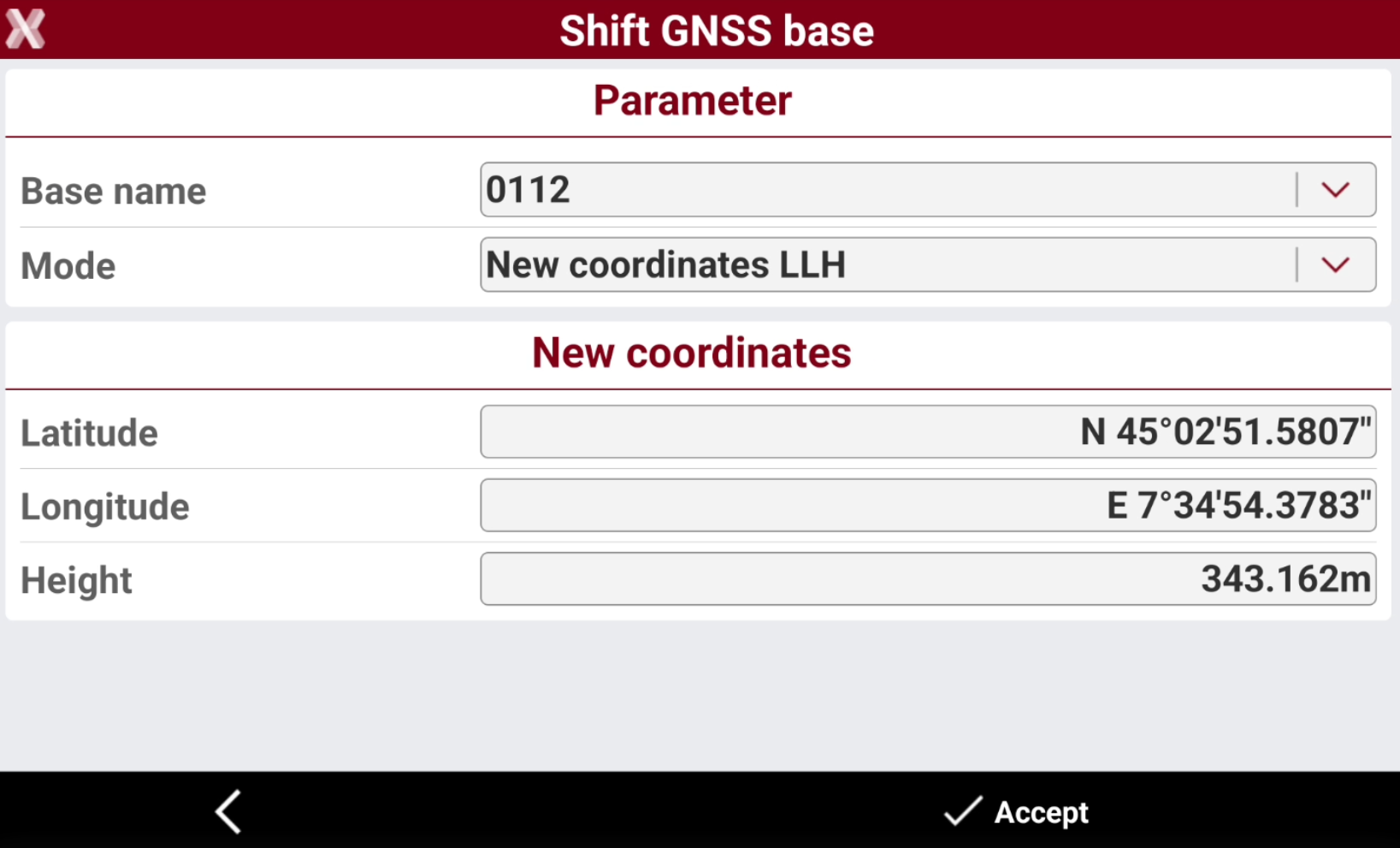
This opens the Shift GNSS base page.
-
Base name: list of base points present in the job. Select the base for which to insert the new coordinates.
-
Mode: decide between adding new coordinates and shifting the existing values.
-
New coordinates LLH: to insert new values for longitude, latitude and height.
-
Latitude: new value for latitude.
-
Longitude: new value for longitude.
-
Height: new value for height.
-
-
Shifting values LLH: to insert values for shifting in longitude, latitude and height.
-
Δ Latitude: shift value for latitude.
-
Δ Longitude: shift value for longitude.
-
Δ Height: shift value for height.
-
-
New coordinates ENZ: to insert new values for East, North and elevation.
-
E: new value for east.
-
N: new value for north.
-
Z: new value for elevation.
-
-
Shifting values ENZ: to insert values for shifting in East, North and elevation.
-
Δ E: shift value for east.
-
Δ N: shift value for north.
-
Δ Z: shift value for elevation.
-
-
Updating base coordinate allows to update all points measured from the base.
Base position adjustment
-
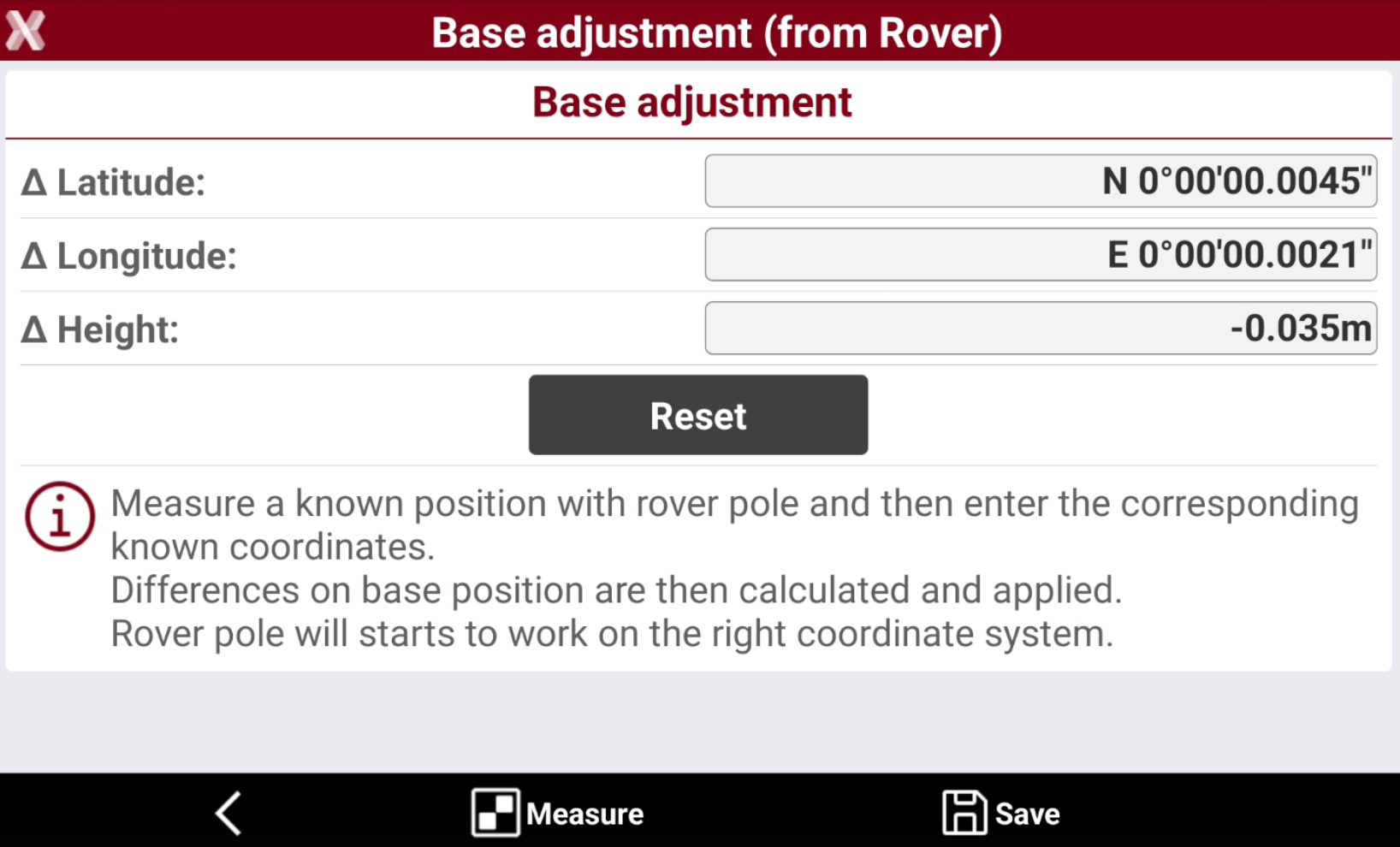
This function enters or calculates a correction factor for the base position so that the rover has exact coordinates.
Example: Start the base on an unknown position. Then go with the rover to a point with known coordinates and measure it. The difference between the known position and the position provided by the base represent the correction in latitude, longitude and height that must be applied continuously to coordinates of the rover.
-
From Job page select Coordinate System page
-
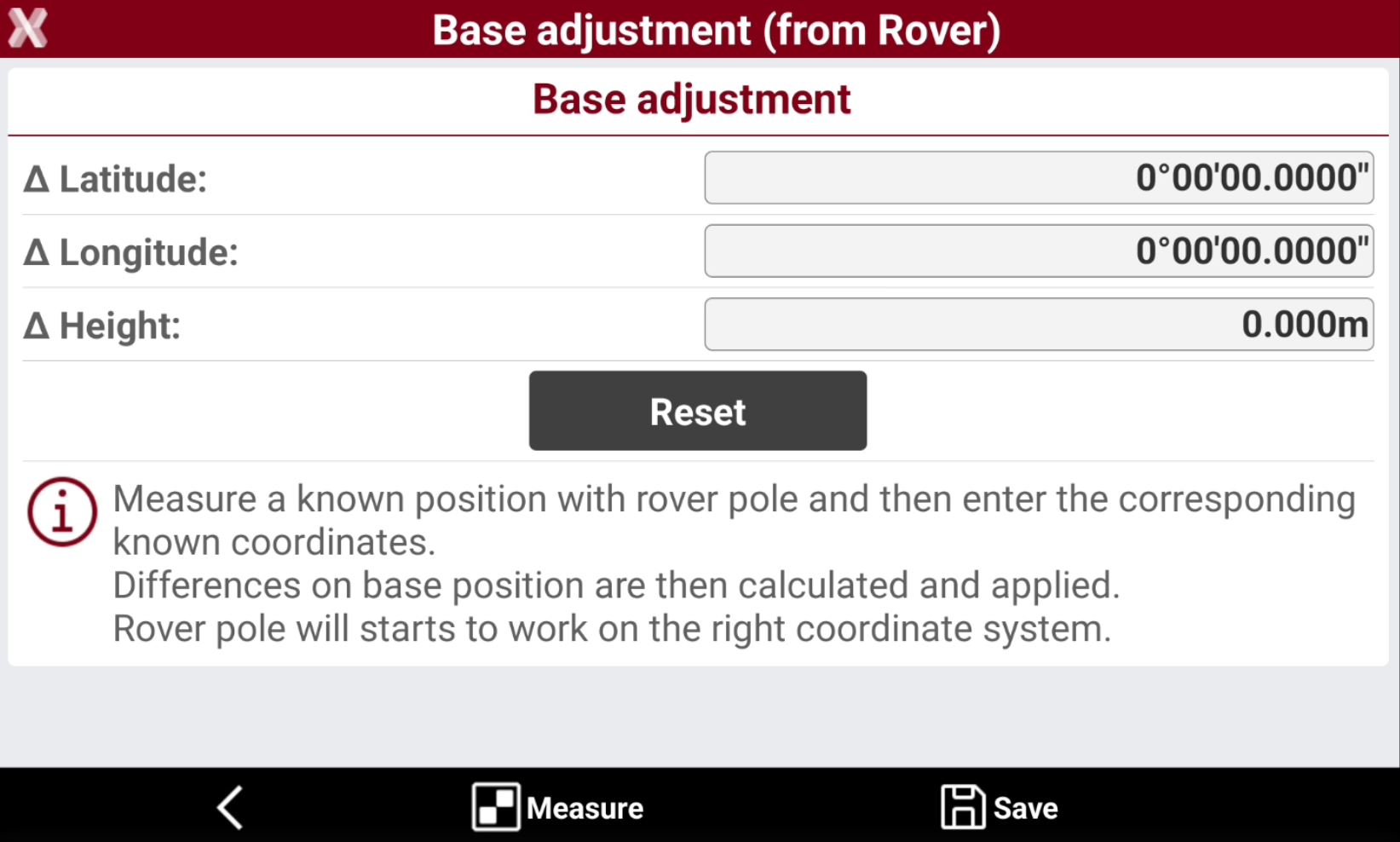
Select Base pos. adjustment. The page shows the current adjustment.
-
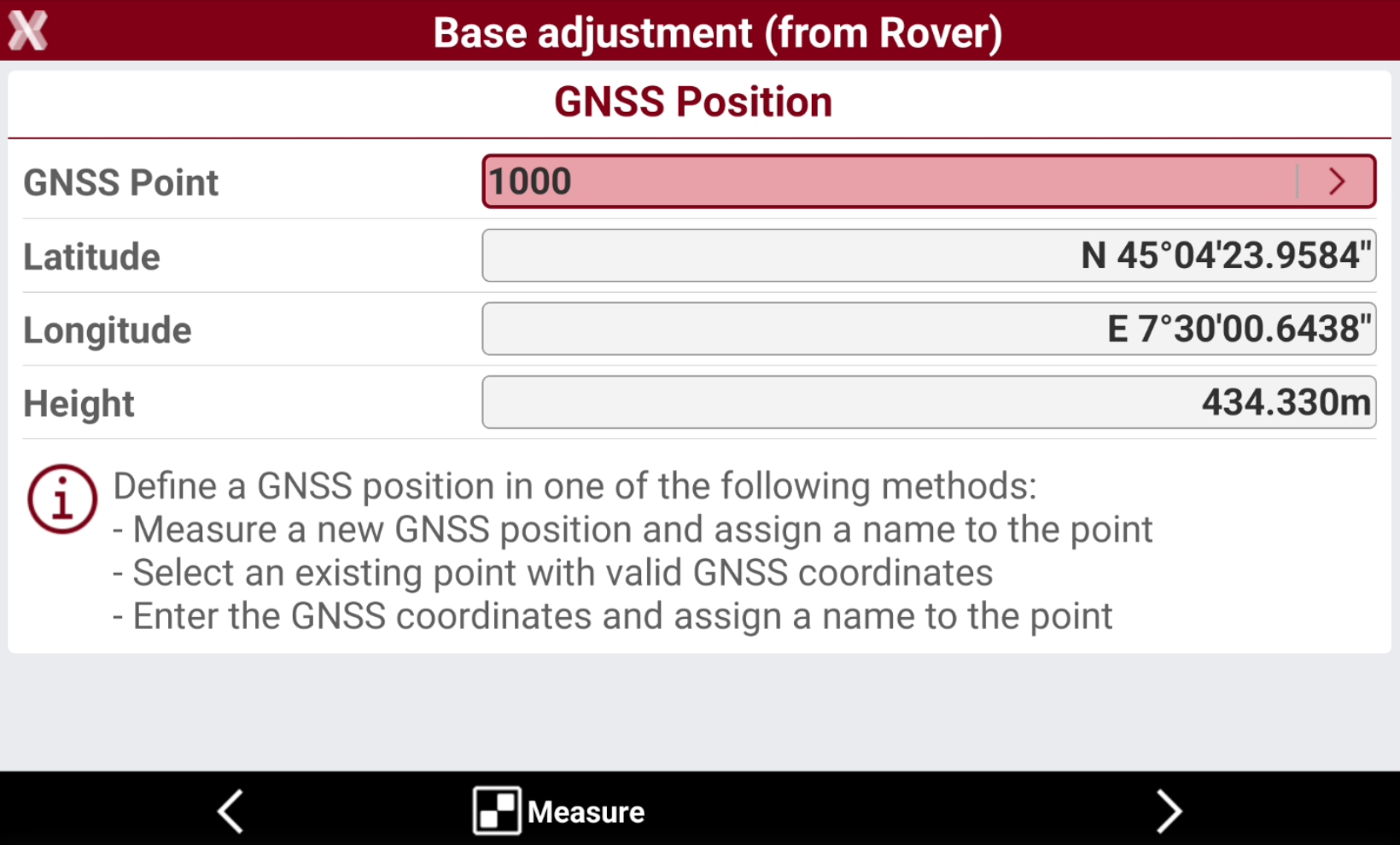
Select Measure to measure with the rover a point with known coordinates in the defined coordinates system.
-
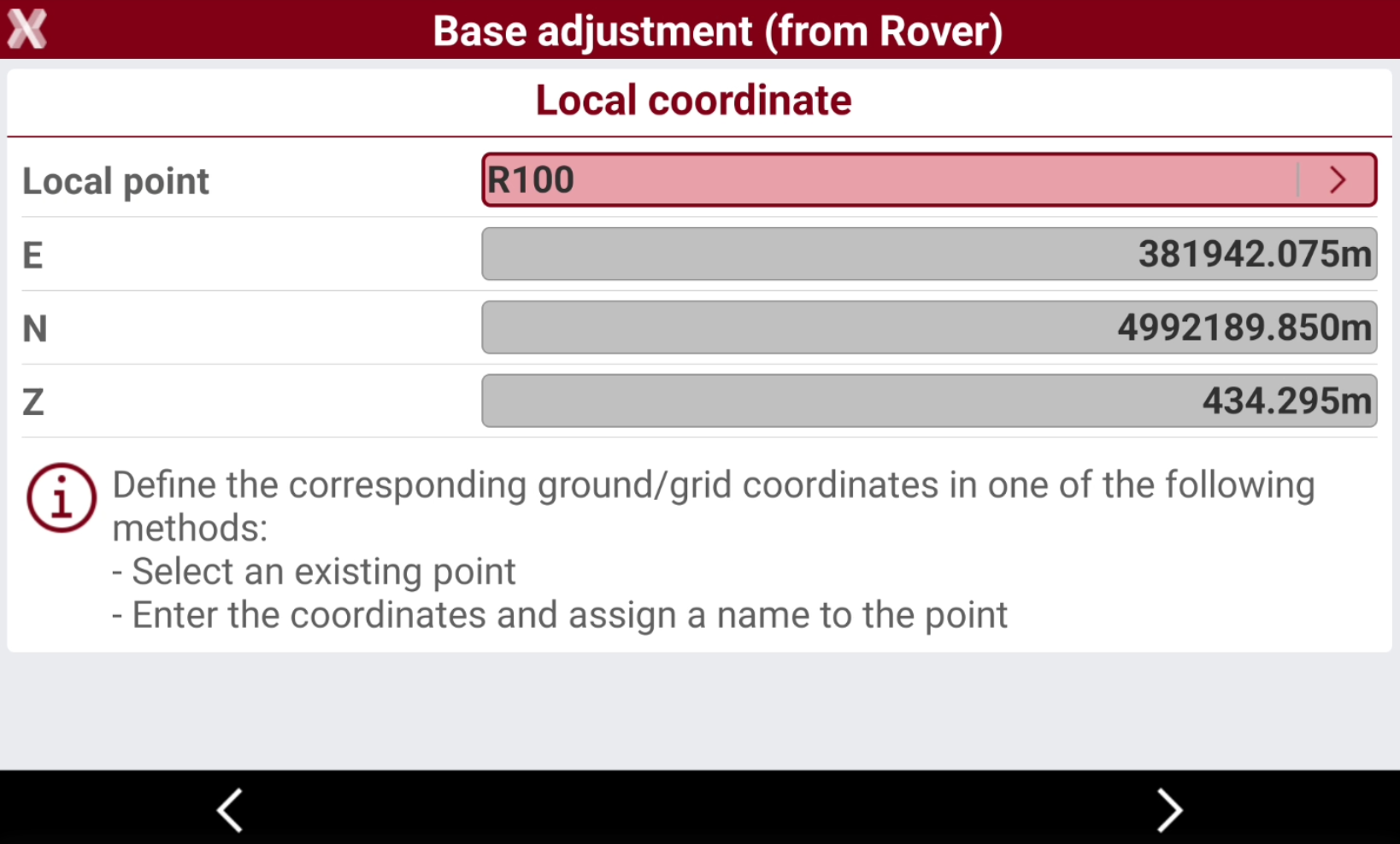
Define the local coordinates corresponding to the reference point. Select an existing point from the job by typing the name, selecting it from the graphic or selecting it from a table.
-
The difference between the coordinates of the point provided by the base and the coordinates calculated from the known point is the difference which will be saved and applied to coordinates of the rover automatically.
-
Δ Latitude, Δ Longitude, Δ Elevation: correction in geographic coordinates to apply to coordinates received from the base to have the correct coordinates (as if the base were located on a known point).
-
-
Select Save to save and apply the Δ.