
-
X-PAD includes an Augmented Reality (AR) view that can be used in various software functions, such as CAD, survey, stakeout, X-PLORE, road stakeout, and other workflows.
-
Depending on the GNSS receiver capabilities, Augmented Reality is initialized and operated in different ways:
-
GNSS receiver with imaging:
The GNSS receiver, such as the Leica GS11, includes a built-in front camera, a bottom camera, and an internal IMU. When AR is activated, no calibration is required. You can switch between the front and bottom cameras at any time.
-
GNSS receiver without imaging and with IMU
The GNSS receiver does not include built-in cameras but is equipped with an internal IMU. When AR is activated, the software uses the controller camera together with the GNSS receiver IMU. Camera calibration is required before using AR.
-
GNSS receiver without imaging and without IMU
Augmented Reality is not supported with this type of GNSS receiver.
-
-
To start the AR view, tap the CAD area and select AR.
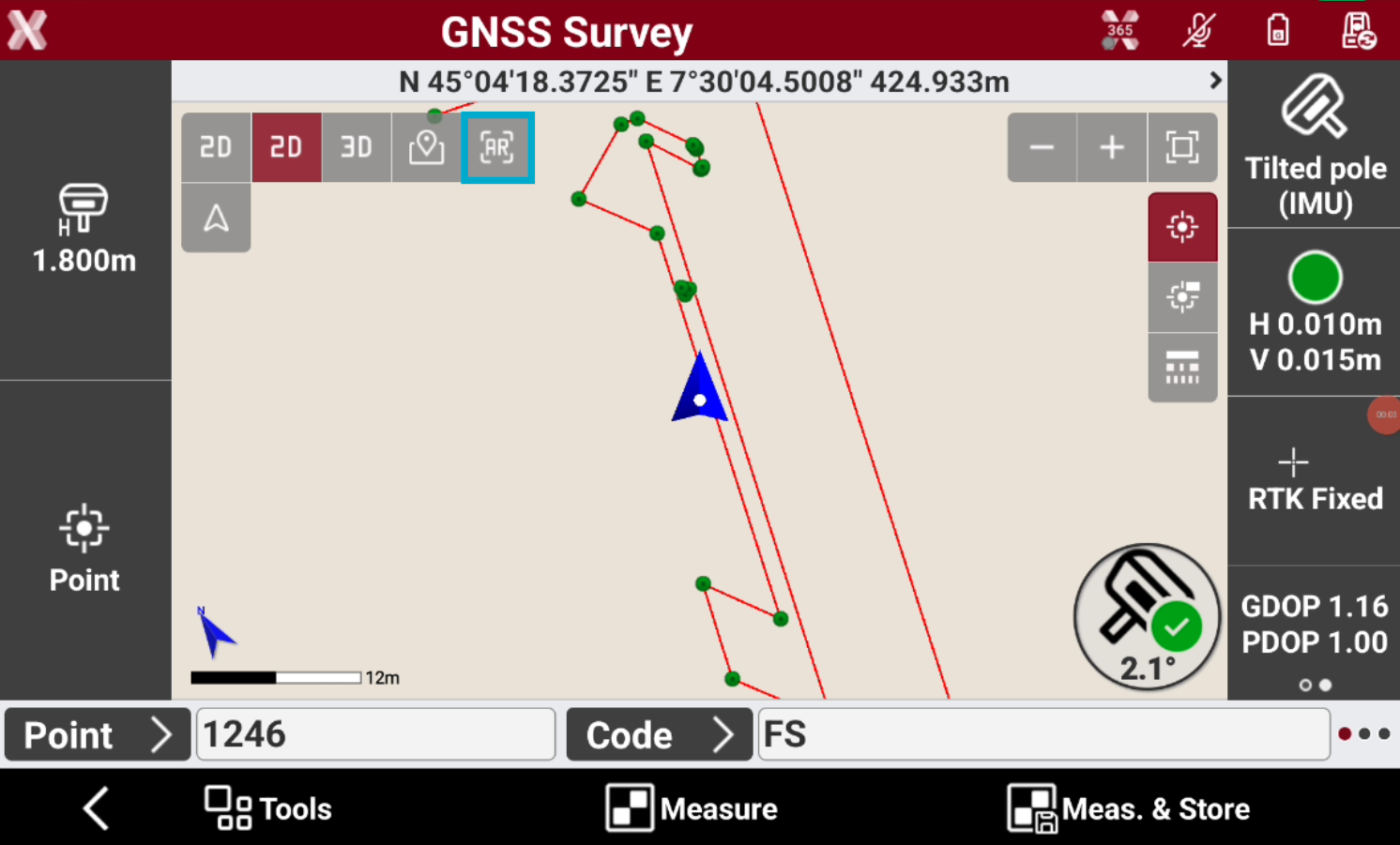
GNSS receiver with imaging
To use AR with an imaging GNSS receiver, a WiFi connection instead of a BT connection to the receiver is required.
-
When AR is activated, the software verifies that the IMU is available.
-
The software uses the GNSS receiver camera and sensors to accurately align CAD entities with the camera view. No additional configuration or calibration is required.
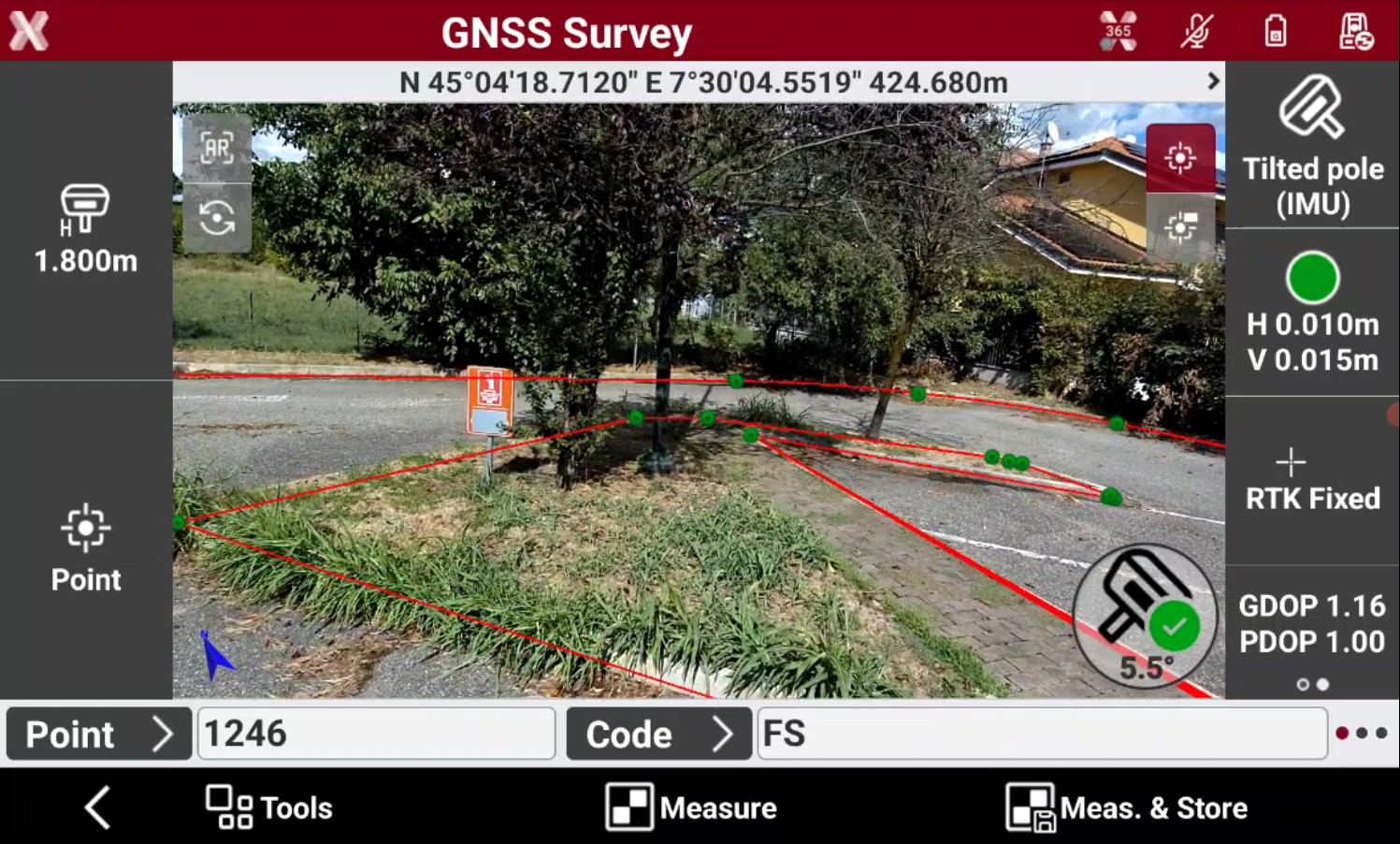
-
Press

GNSS receiver without imaging and IMU
-
For GNSS receivers equipped with an IMU but without integrated cameras, the software uses the field controller's camera for Augmented Reality operations.
-
To ensure accurate alignment, the offsets between the field controller camera and the GNSS receiver ARP (Antenna Reference Point) must be measured and entered in the software.
-
When AR is activated, the software verifies that the IMU is available. The controller’s camera is activated.
-
Press AR settings icon to open the controller’s camera offset settings.
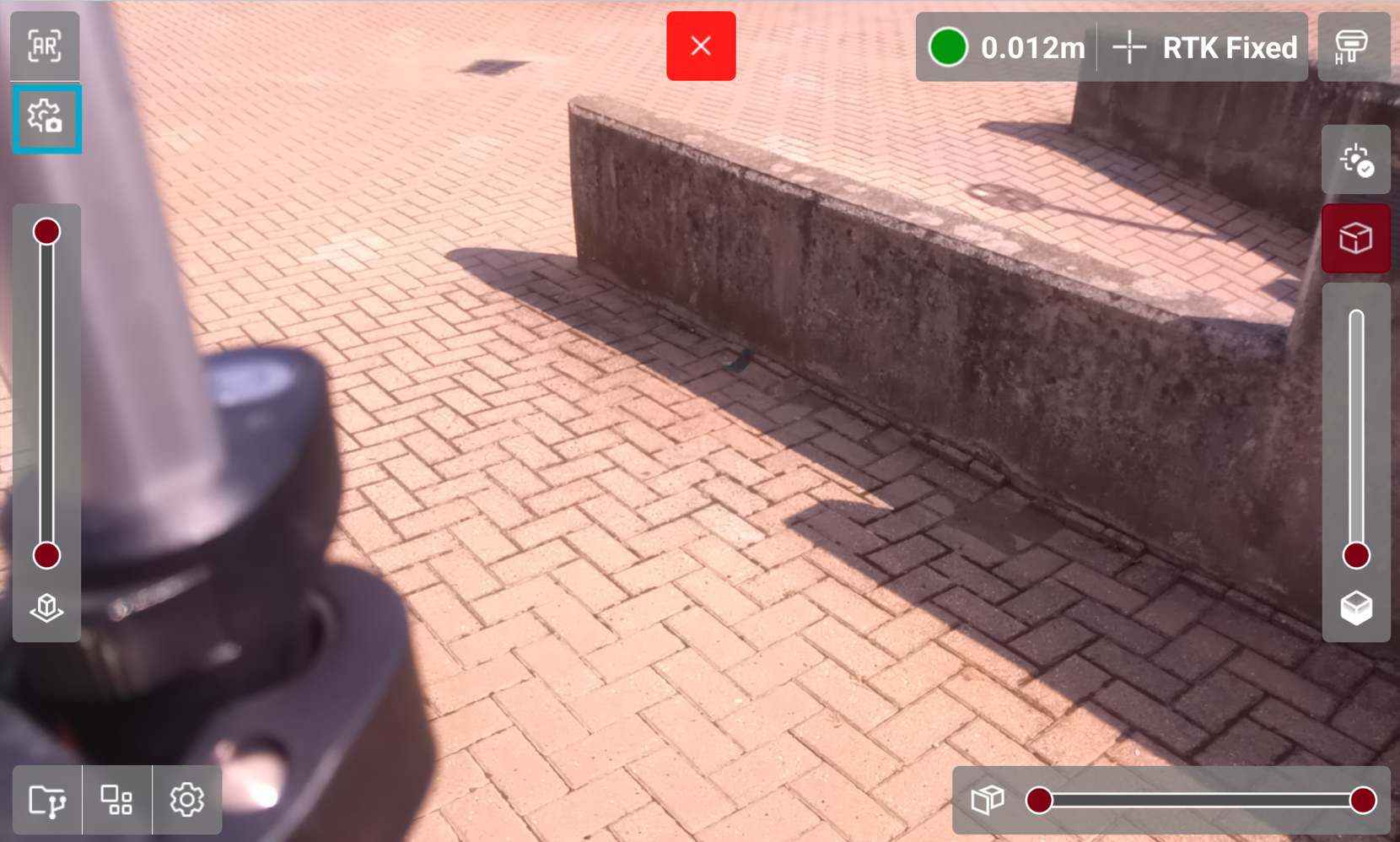
-
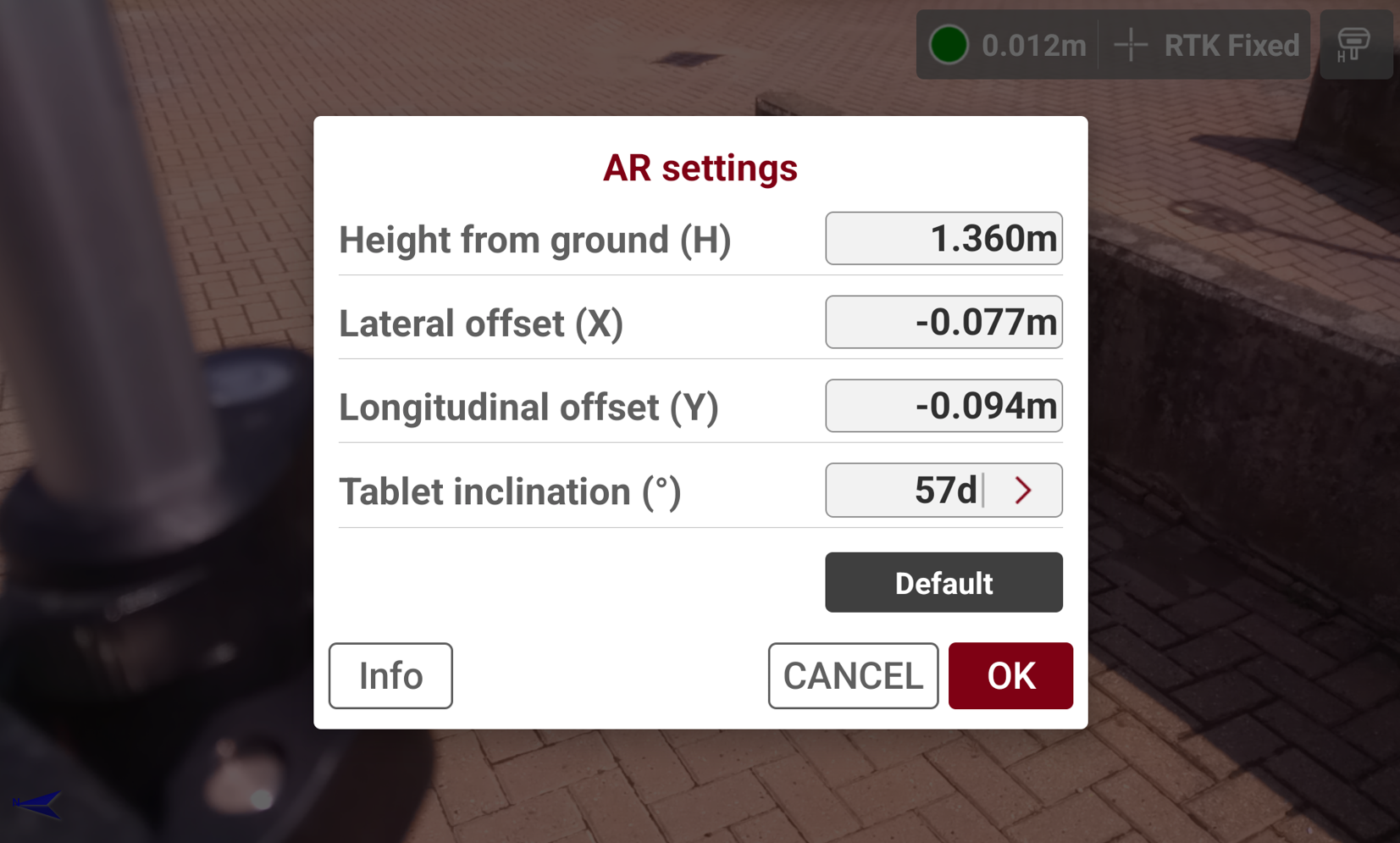
The software requires to enter the offsets between the field controller camera and the GNSS receiver ARP (Antenna Reference Point).
-
Tap Default to load the predefined offsets for supported field controllers. For example, when using a Leica CSX8 or Zenius08 field controller, tap this button to automatically load the preconfigured offset values.
-
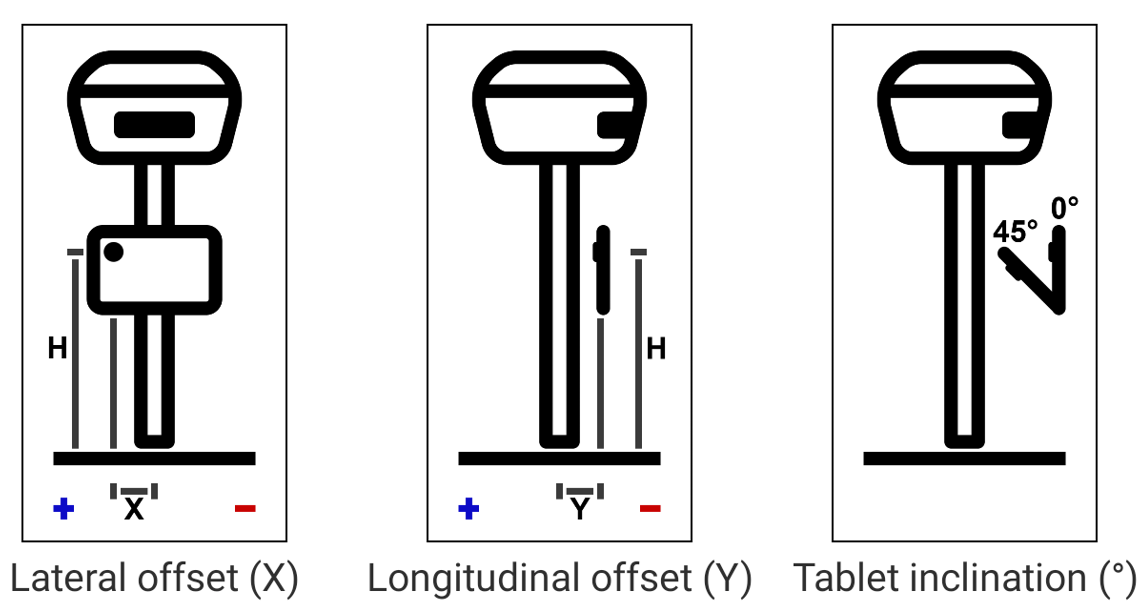
Verify or calculate and enter the values in the table:
-
Height from ground (H): specifies the vertical distance between the ground and the field controller camera.
-
Lateral offset (X): specifies the lateral distance between the GNSS pole and the field controller camera. When looking at the GNSS pole, the value is positive if the camera is located on the left side of the pole and negative if it is located on the right side.
-
Longitudinal offset (Y): specifies the longitudinal distance between the GNSS pole and the field controller camera. The value is negative when the field controller is positioned between the GNSS pole and the operator.
-
Tablet inclination (°): specifies the inclination angle of the field controller in degrees. An angle of 0° indicates that the tablet is vertical, while an angle of 90° indicates that it is horizontal.
-
-
Press OK to store the values and start using AR view with IMU GNSS receivers.