
-
The GNSS localization defines the method to use for transformation of the WGS84 latitude/longitude coordinates in plane coordinates and vice versa.
Without an assigned GNSS localisation, only the geographic coordinates of the points are recorded and visualized. A visualization of the points in the graphic window is impossible.
-
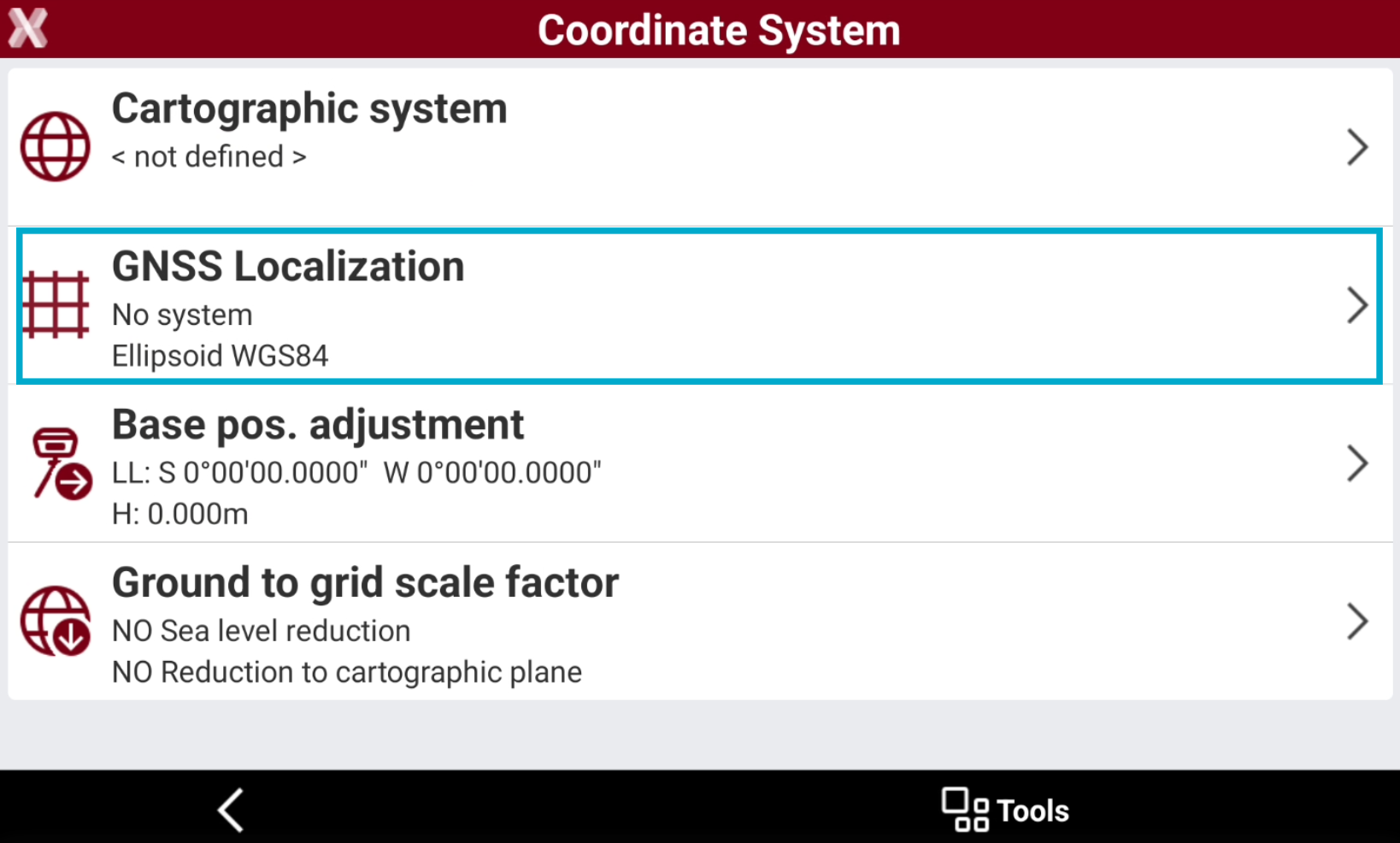
The GNSS localization method is visualized in the Coordinate system page.
-
The field visualizes the current system used to transform WGS84 coordinates and the vertical system used.
-
To assign or change transformation method select GNSS Localization.
-
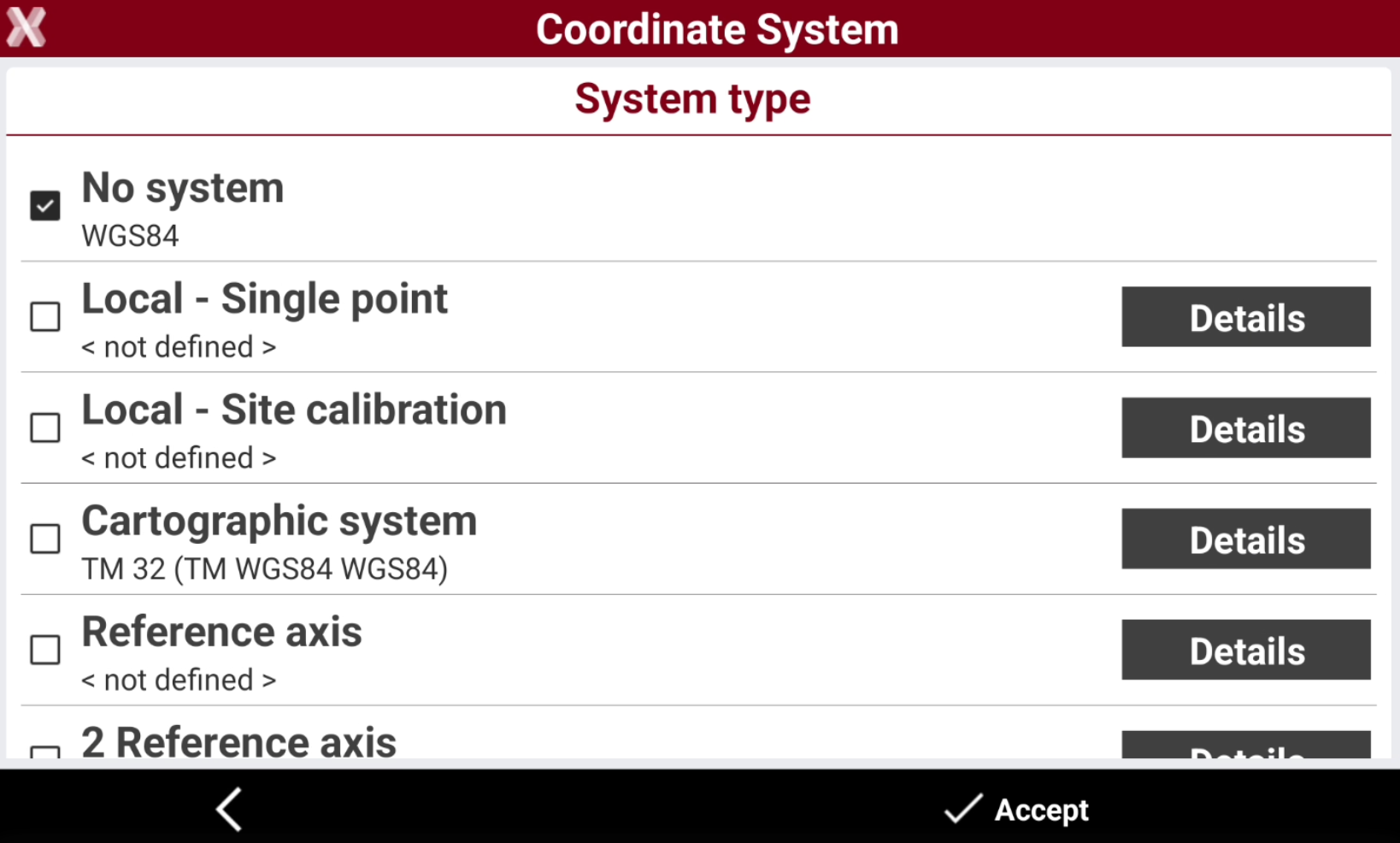
The available methods are:
-
No system: no coordinate system is applied. If this method is selected the geographic coordinates are not transformed.
-
Local - Single point: a system is created based on a local projection referred to one origin point.
-
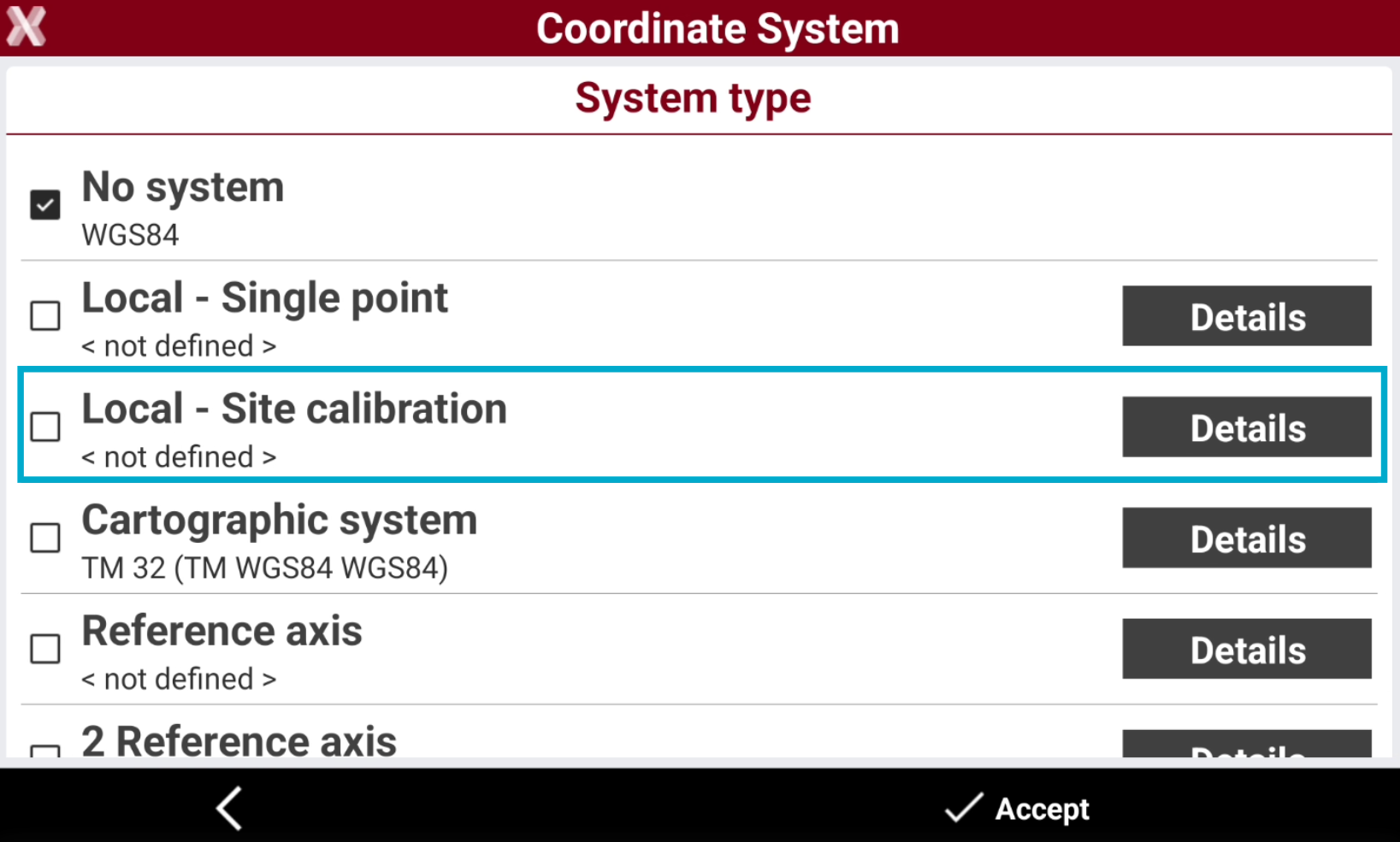
Local - Site calibration: a system is created based on several points with known geographic and local plane coordinates.
-
Cartographic system: for the transformation from geographic to plane coordinates a cartographic system is used. The system can be manually entered or selected from a list of predefined systems.
-
Reference axis: a system is created based on the measurement of a point of origin and the measurement of a second point which defines the direction of the axis.
-
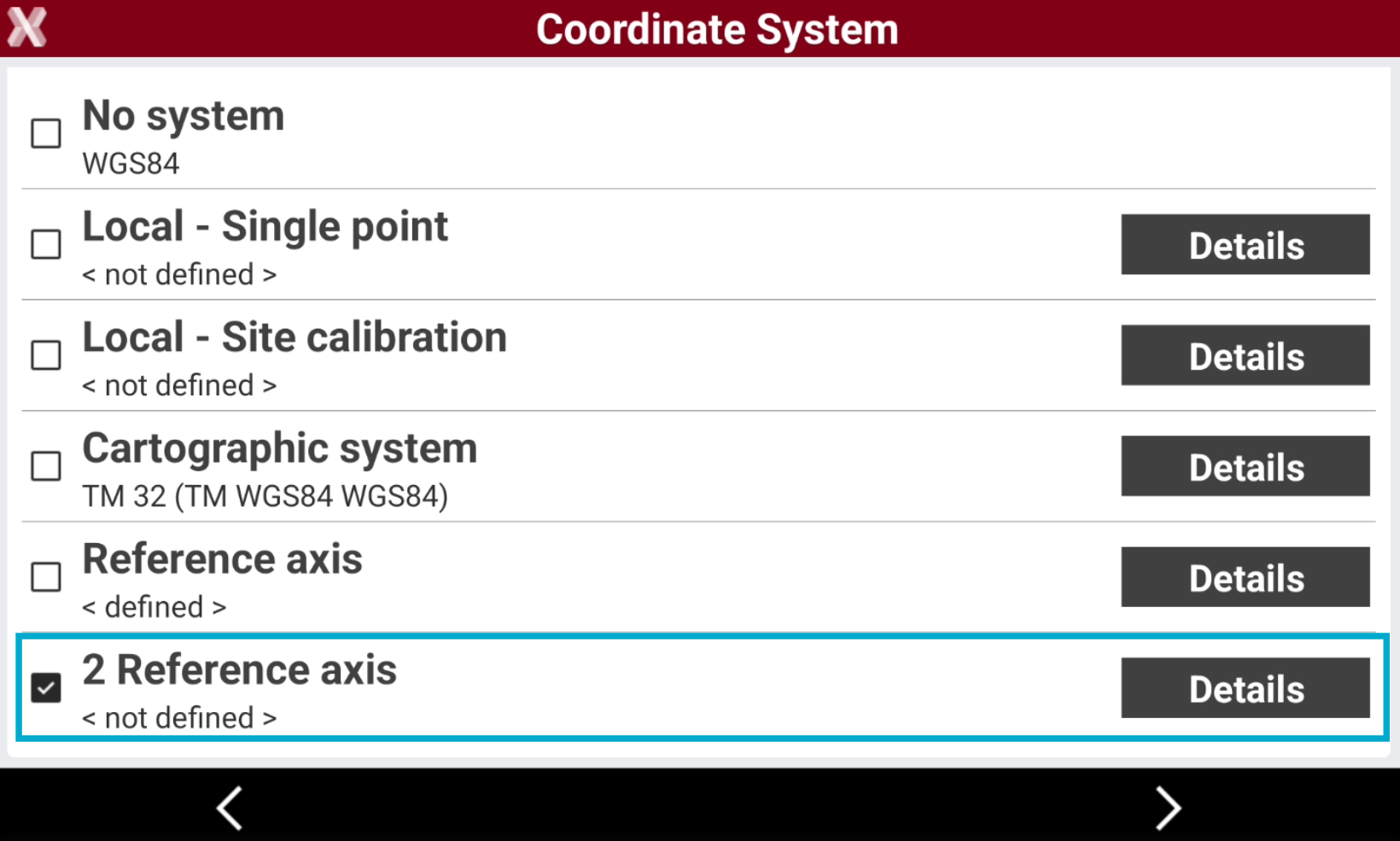
2 Reference axis: the position and orientation of the station are determined by measuring four reference points. The points define two axes which, intersecting each other, determine the position of the station.
-
Vertical elevation: after a system has been defined, the software allows to choose what system use to calculate the elevation.
-
No system (WGS84)
-
No coordinate system is applied.
-
If this method is selected the geographic coordinates are not transformed.
Local single point system
-
The Local single point system is created based on a local projection referred to one origin point.
-
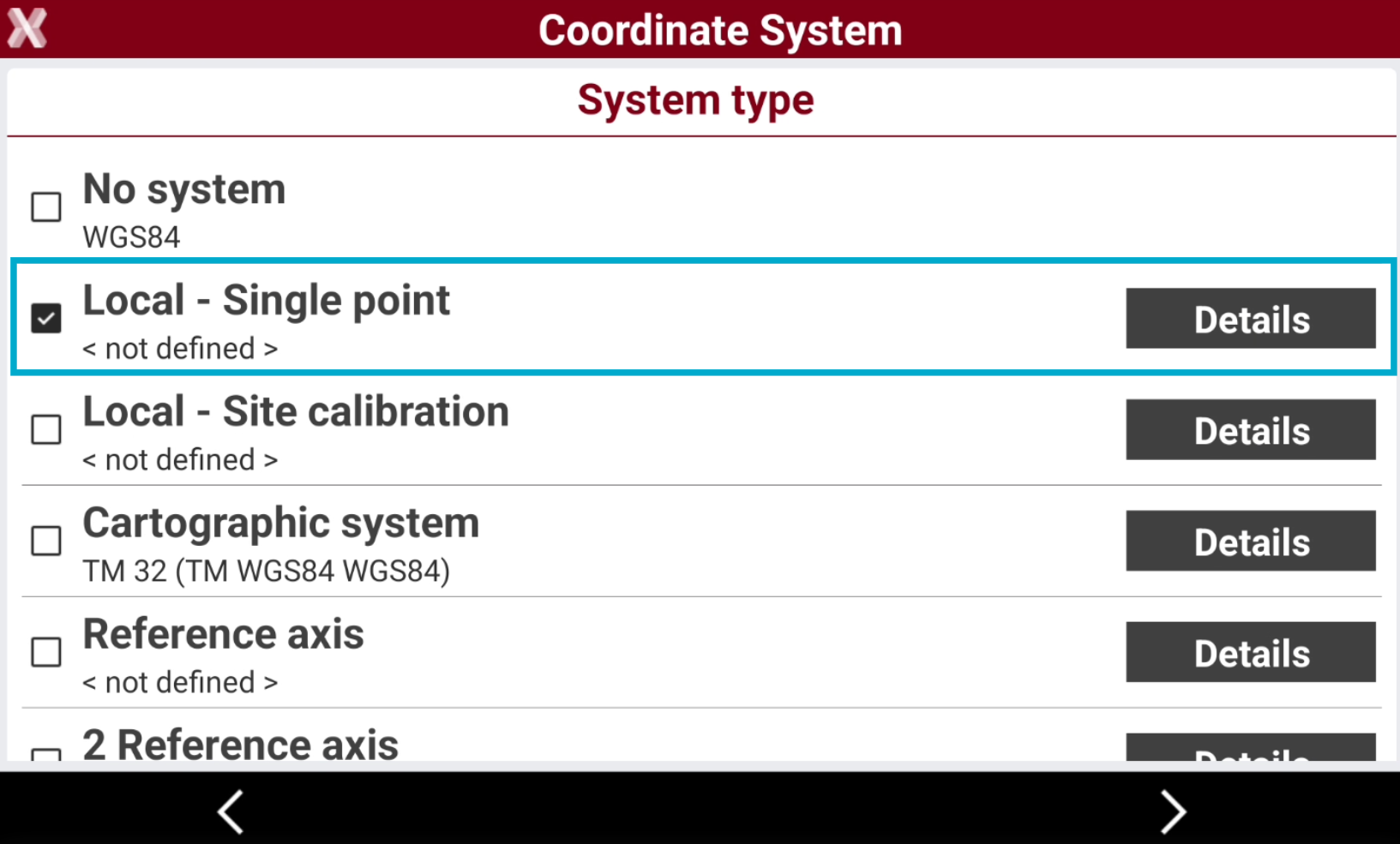
From GNSS localization select Local - Single point.
-
Select Next or Details.
-
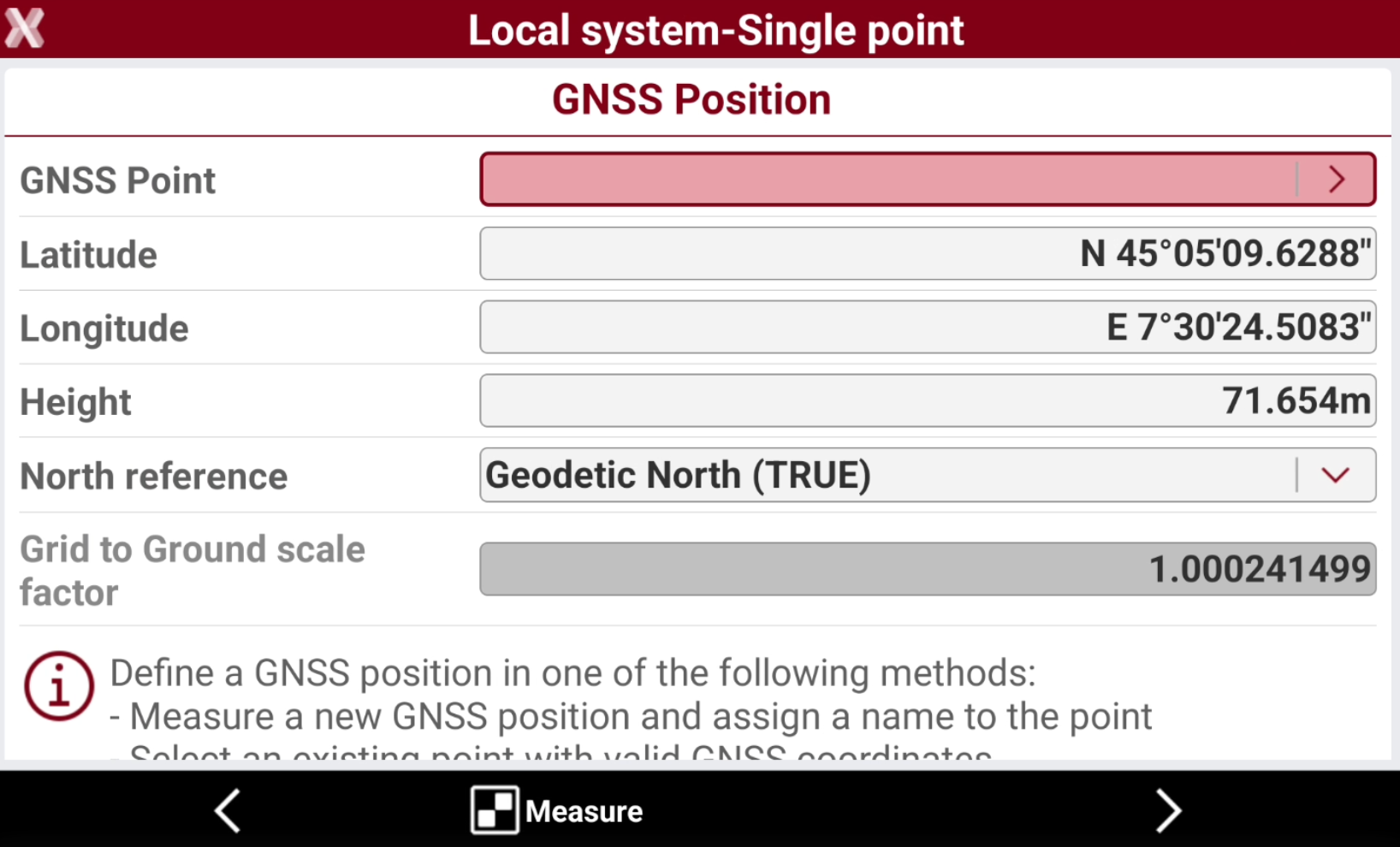
Specify the geographic coordinates of the reference point.
-
The GNSS reference point can be selected using different methods:
-
Measure a new GNSS position and assign a name to the point. Press Measure to connect to GNSS receiver and measure the point.
-
Select an existing point from the job by typing the name or selecting it from the graphic or selecting it from a table. Press > icon to open the selection page.
-
Enter the GNSS coordinates and assign a name to the point.
-
If a cartographic system is assigned to the job, the grid to ground scale factor is calculated based on the cartographic system assigned. Please check that the cartographic system is coherent with the measured GNSS position to calculated a valid grid to ground scale factor. Otherwise remove the cartographic system from the job.
-
Select Next.
-
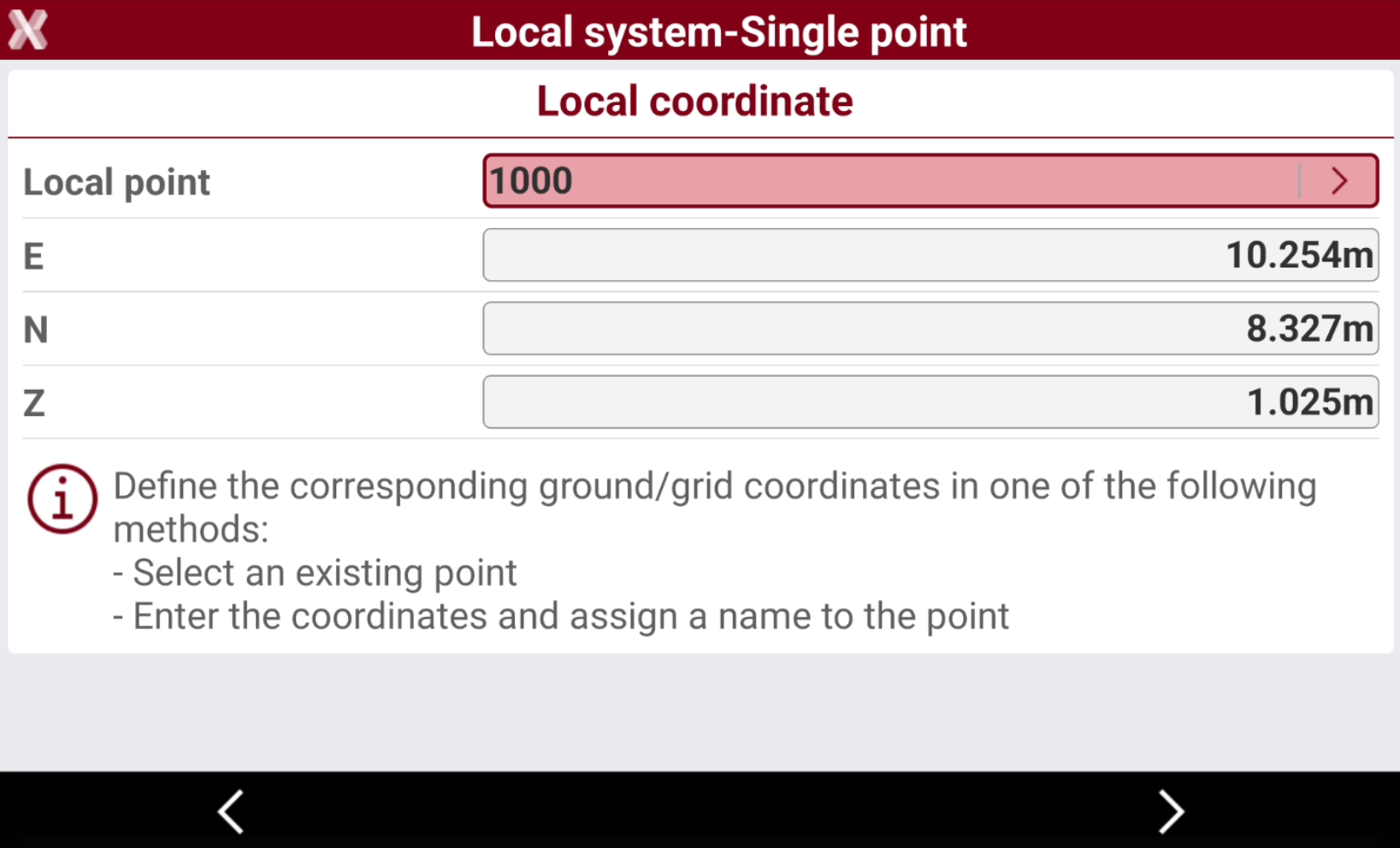
Specify the local coordinates of the reference point.
-
The local point can be selected using different methods:
-
Select an existing point from the job by typing the name, selecting it from the graphic or selecting it from a table. Press > icon to open the selection page.
-
Enter the local coordinates.
-
-
Select Next.
-
Specify the vertical system.
-
Click Accept to accept the system.
Site calibration
-
The system is created based on several points with known geographic and local plane coordinates.
-
The software allows to import the site calibration in different formats and export the site calibration.
Perform a field site calibration
-
From GNSS localization select Local - Site calibration.
-
Select Next or Details.
-
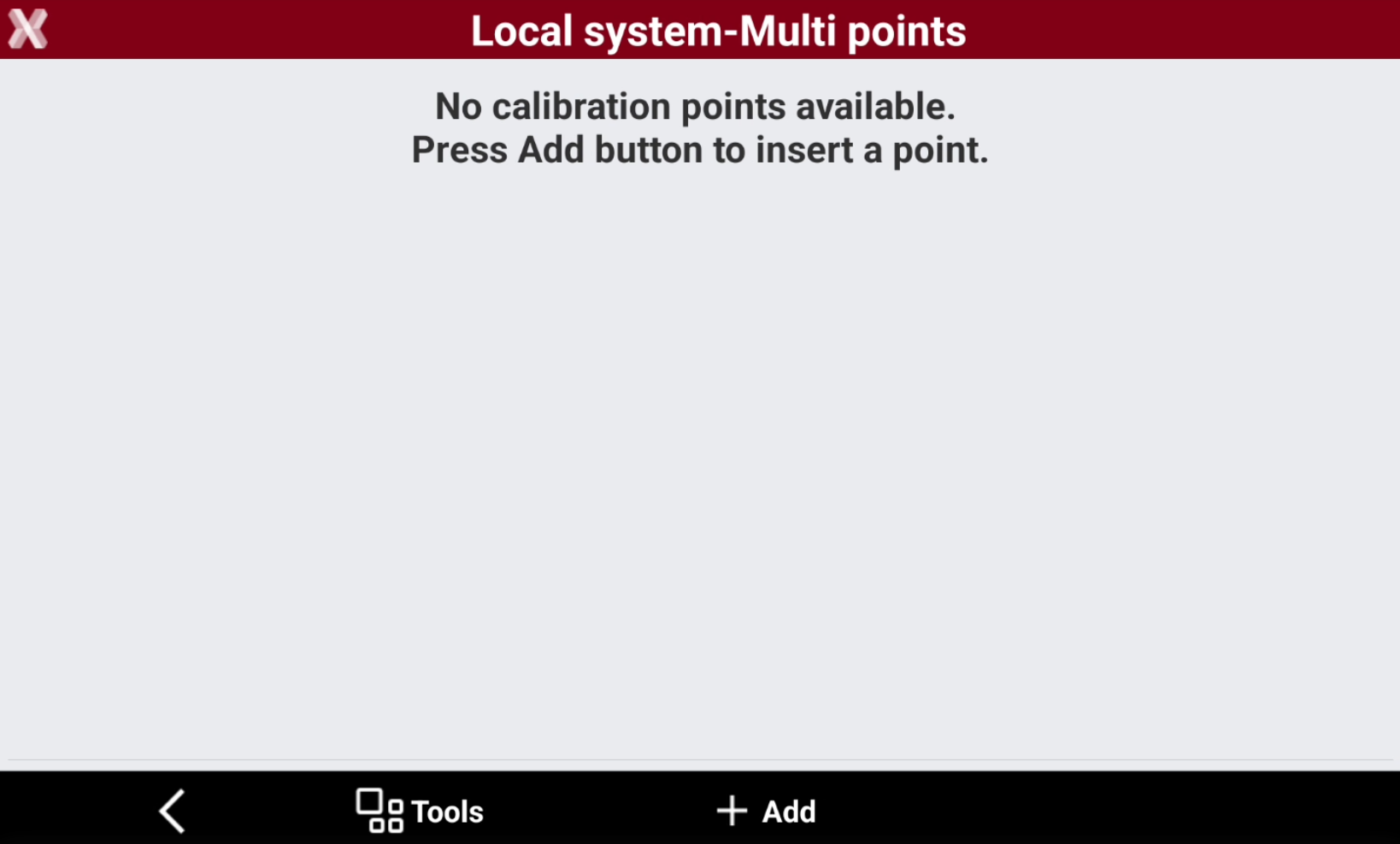
This opens a new page with the list of calibration points. Initially this list is empty.
-
In the table, pairs of points are listed which can be used for the calculation of the local system. For each pair, it can be defined if the data are used for the calculation of the plane transformation and for the elevation.
-
Based on the selection, the method for the calculation of the plane coordinates is selected automatically. For each pair, the deviations regarding the coordinates and elevations are calculated.
-
Press Add to add a new pair.
-
Specify the geographic coordinates of the GNSS point.
-
Select Measure to measure the GNSS point using the current GNSS profile
-
Or press > icon to select an existing point from the job.
-
Click Next to proceed in the following page, to define the local coordinate.
-
This page allows to enter or select the local coordinate corresponding to the GNSS position previously entered.
-
The local point can be selected using different methods:
-
Select an existing point from the job by typing the name, selecting it from the graphic or selecting it from a table. Press > icon to open the selection page.
-
Enter the local coordinates.
-
-
Press Next to create the first pair.
-
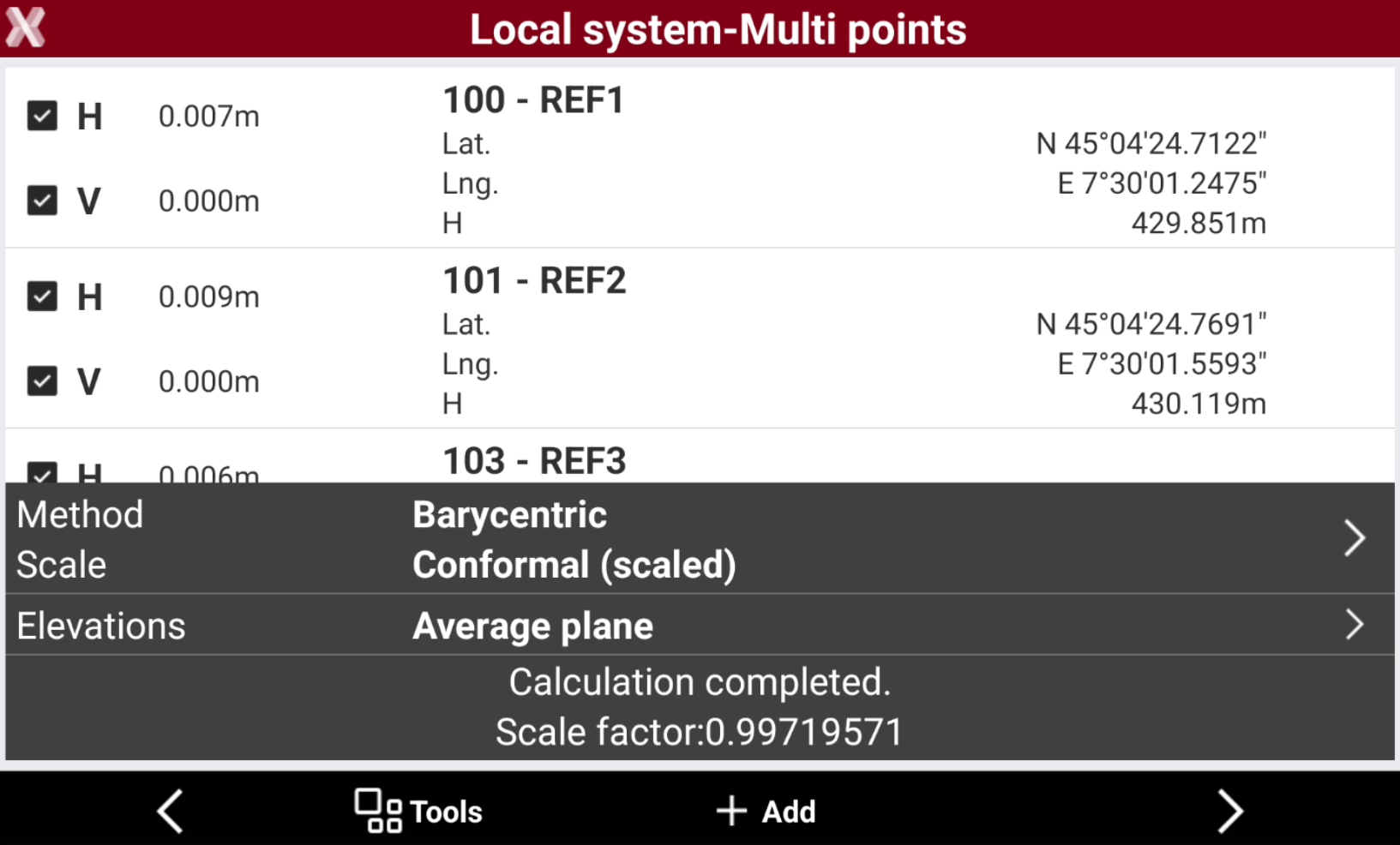
Once a pair has been added, you can review them in the table.
-
The software shows the deviations calculated for every point and the scale factor visualized in the lower part of the window.
-
Tap on H and V to disable the use of planimetric coordinate or vertical coordinate for the selected pair.
-
Select the mode of calculation to use for elevations.
-
Rigid body (unscaled): no scale factor is applied. The original distances between measured points are maintained.
-
Conformal (scaled): a scale factor is calculated and applied.
-
Helmert 3D: geometric transformation with 7-parameters within a three-dimensional space. A scale factor is calculated and applied.
-
-
Select the method for elevations:
-
Average plane: the software calculates the elevations using a sloped plane that minimizes the elevation differences.
-
Average shifts: the software calculates the elevations using the average shifts.
-
-
Press Add to add additional control points or select Next to proceed with the vertical system selection.
-
Specify the vertical system.
-
Select Accept to accept the system.
Import a site calibration
-
To import a site calibration from GNSS localization select Local - Site calibration.
-
Select Next or Details.
-
This opens a new page with the list of calibration points.
-
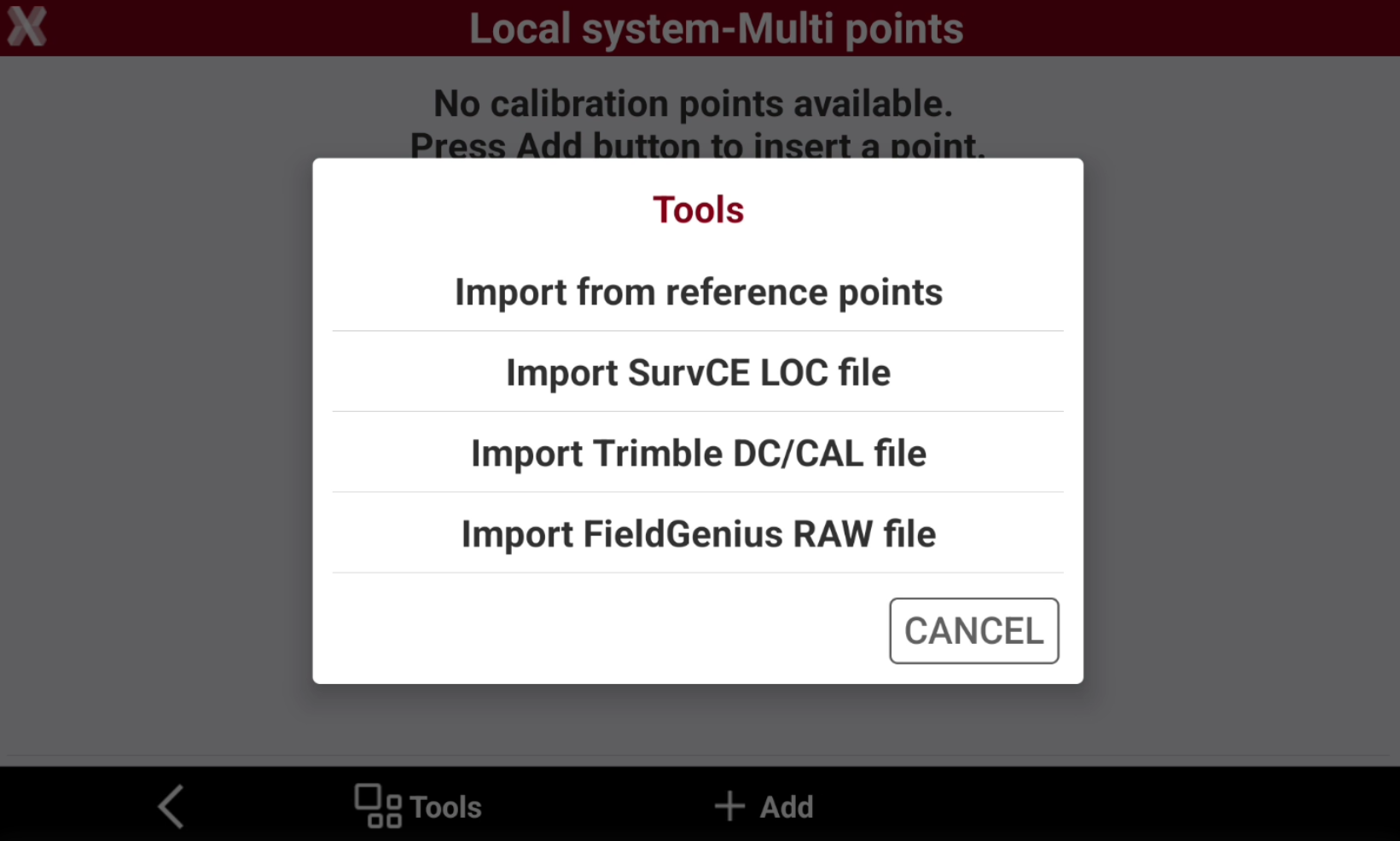
Press Tools and select the calibration file.
-
Import SurvCE LOC file: imports a local calibration from SurvCE .loc file.
-
Import Trimble DC/CAL file: imports a local calibration from Trimble .dc or .cal file.
-
Import FieldGenius RAW file: imports a local calibration from Fieldgenius .raw file.
-
Export a site calibration
-
A site calibration can be exported to be used in different software.
-
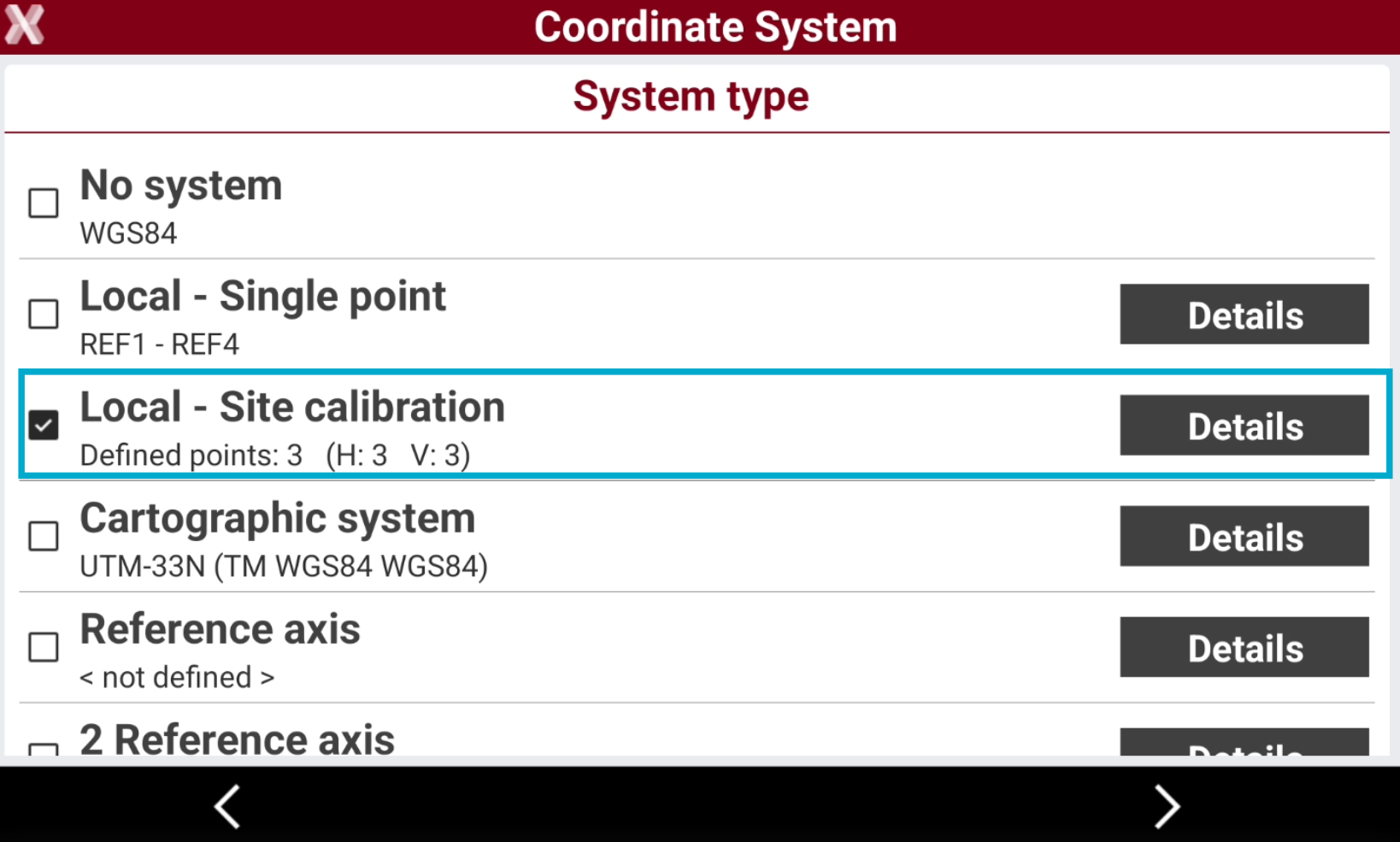
To export a site calibration from GNSS localization select Local - Site calibration. A site calibration has to be defined.
-
Select Next or Details.
-
This opens a new page with the list of calibration points.
-
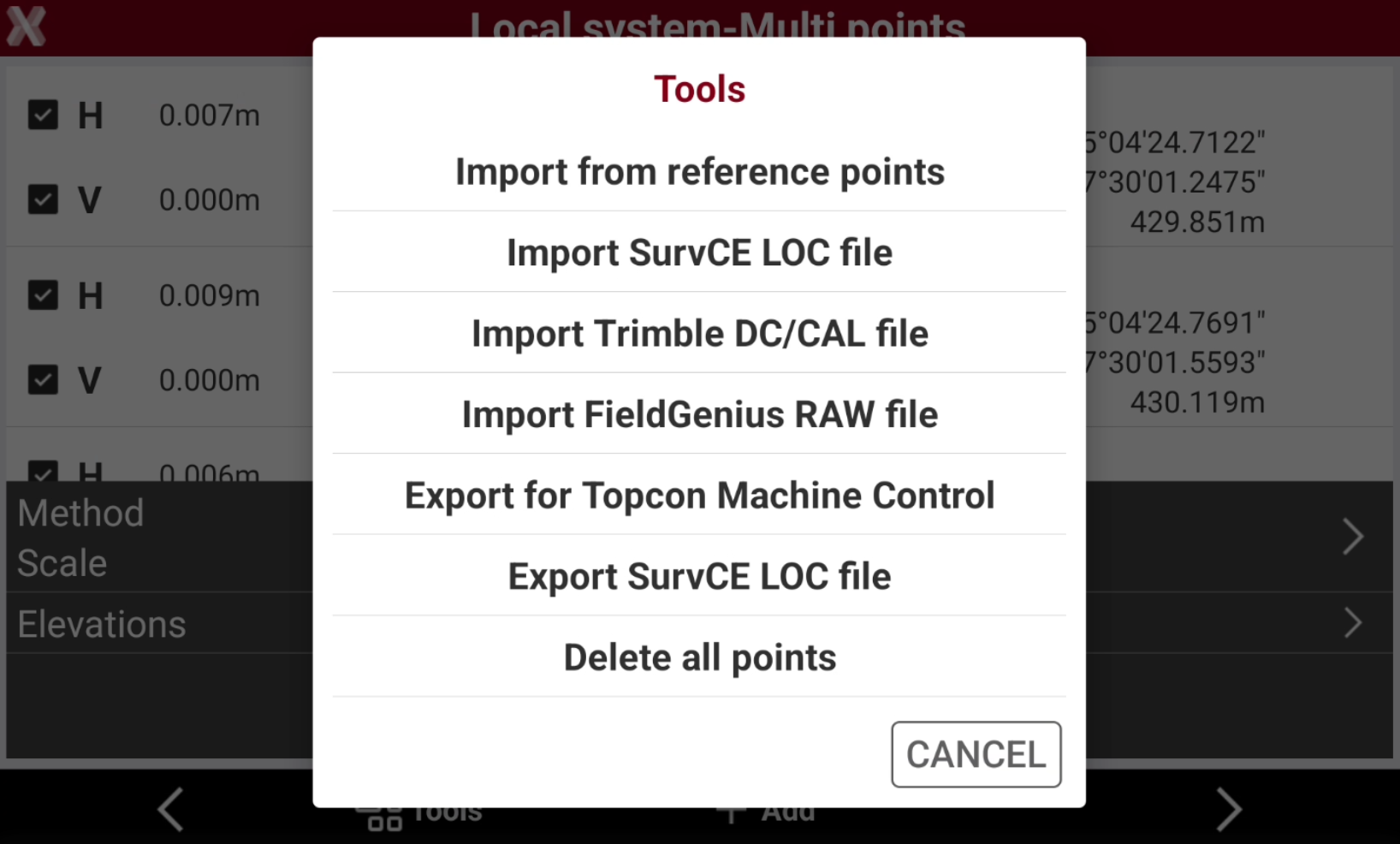
Press Tools and export a calibration file.
-
Export for Topcon machine control: exports the local calibration in .csv format for Topcon machine control.
-
Export SurvCE LOC file: exports the local calibration in .loc format for SurvCE.
-
Reference axis
BUILD
-
The system is created based on the measurement of a point of origin and the measurement of a second point which defines the direction of the axis.
-
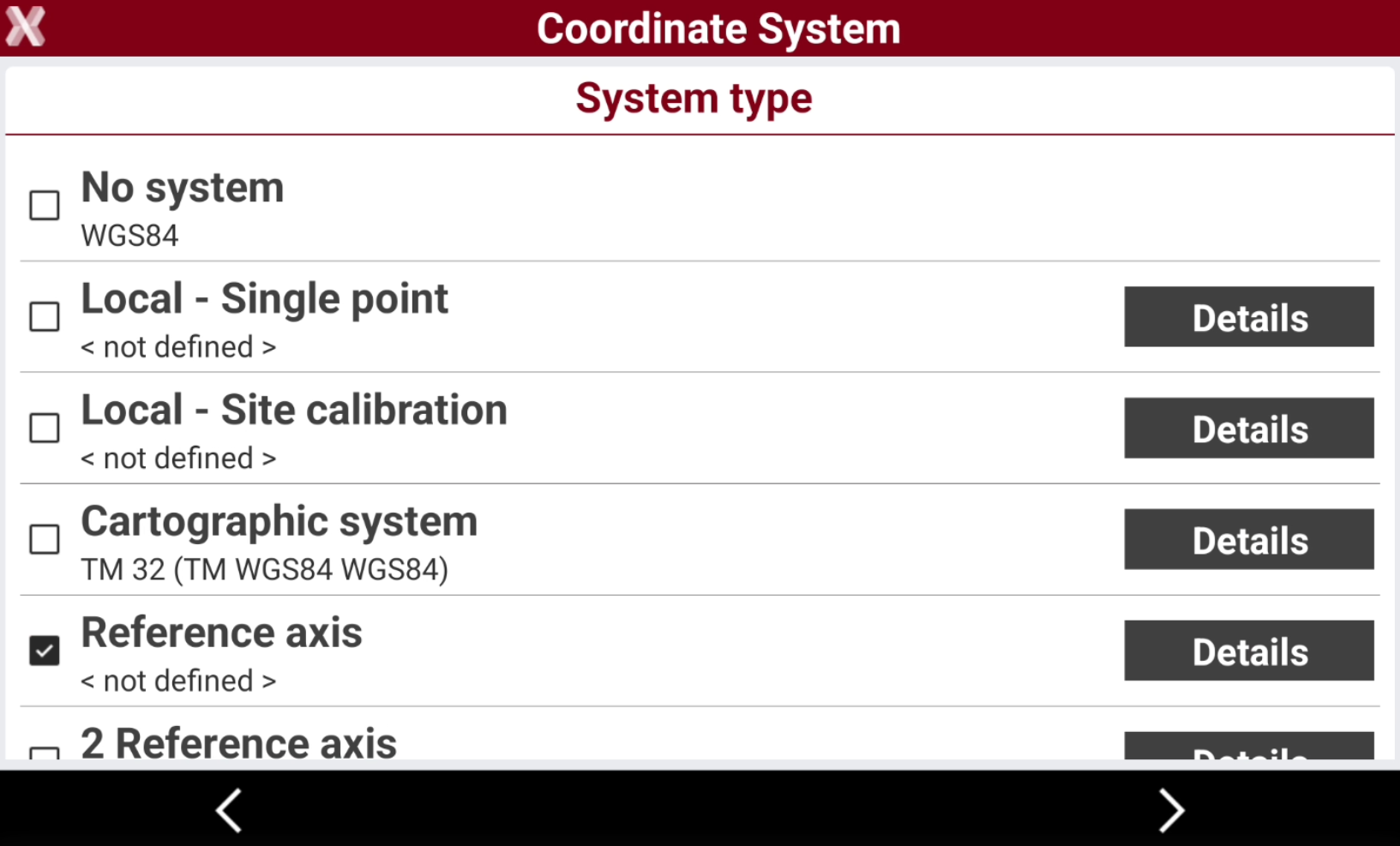
From GNSS localization select Reference axis.
-
Select Next or press Details.
-
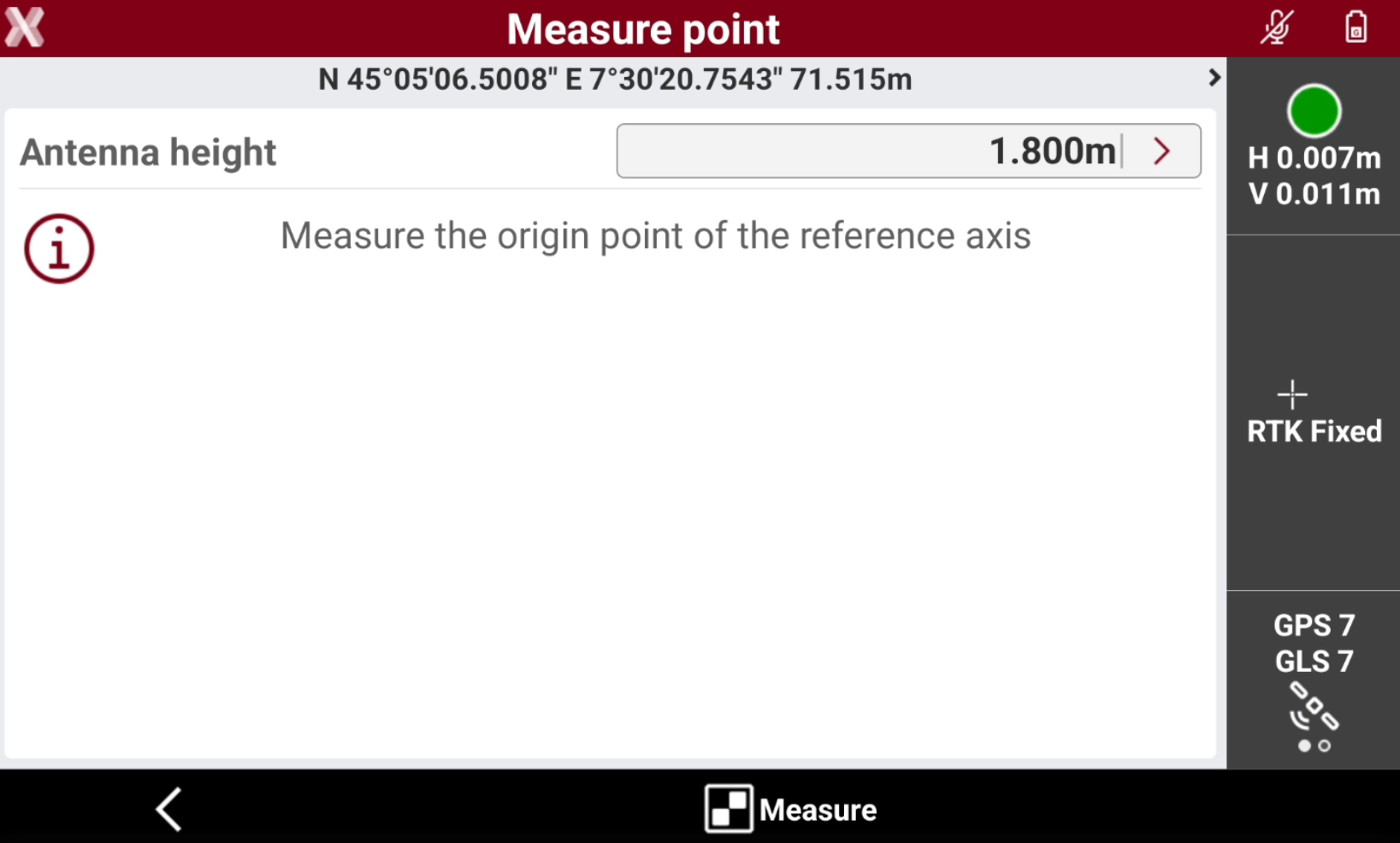
Measure with the GNSS receiver the origin points of the reference axis.
-
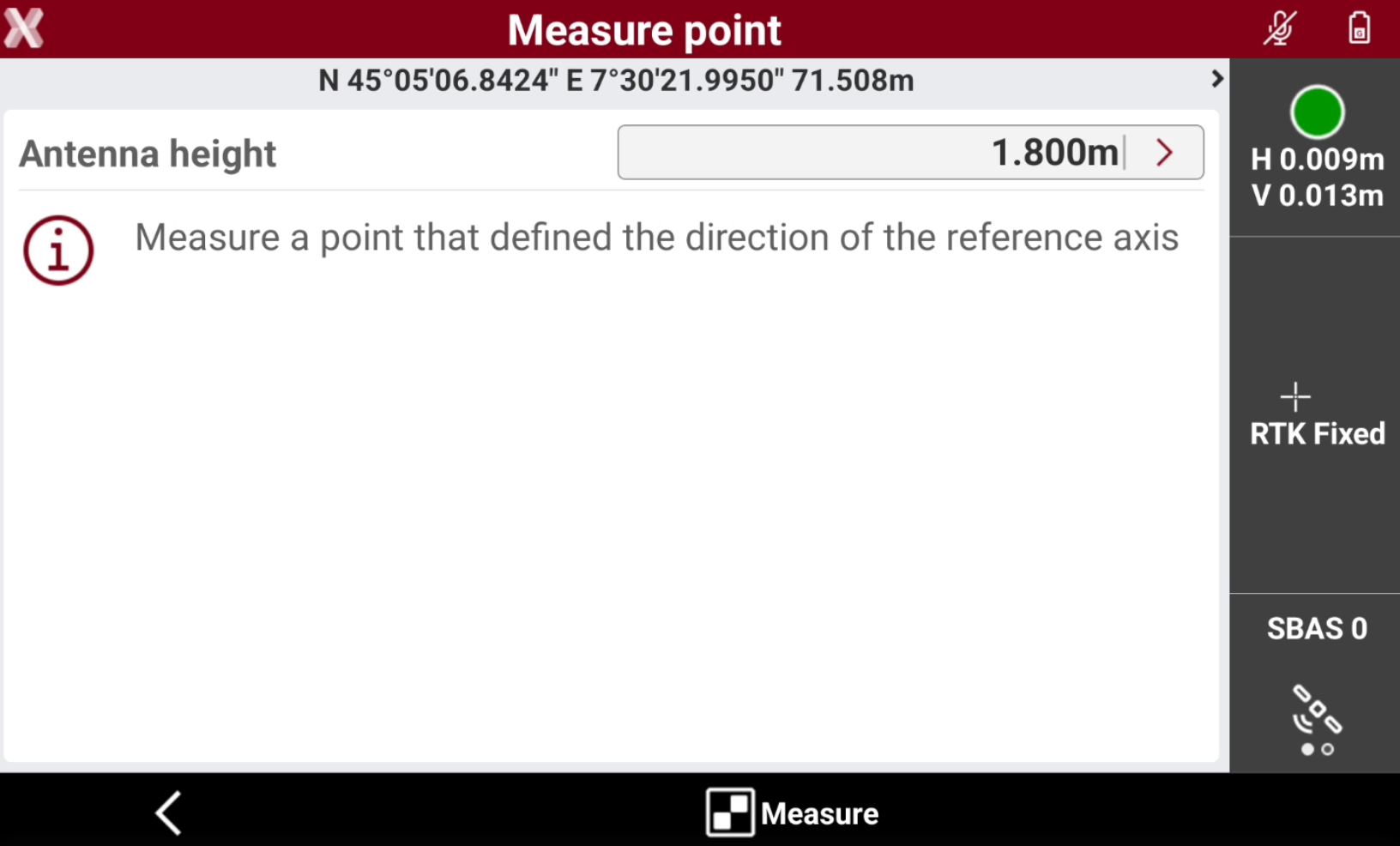
Measure a point that defines the direction of the reference axis.
-
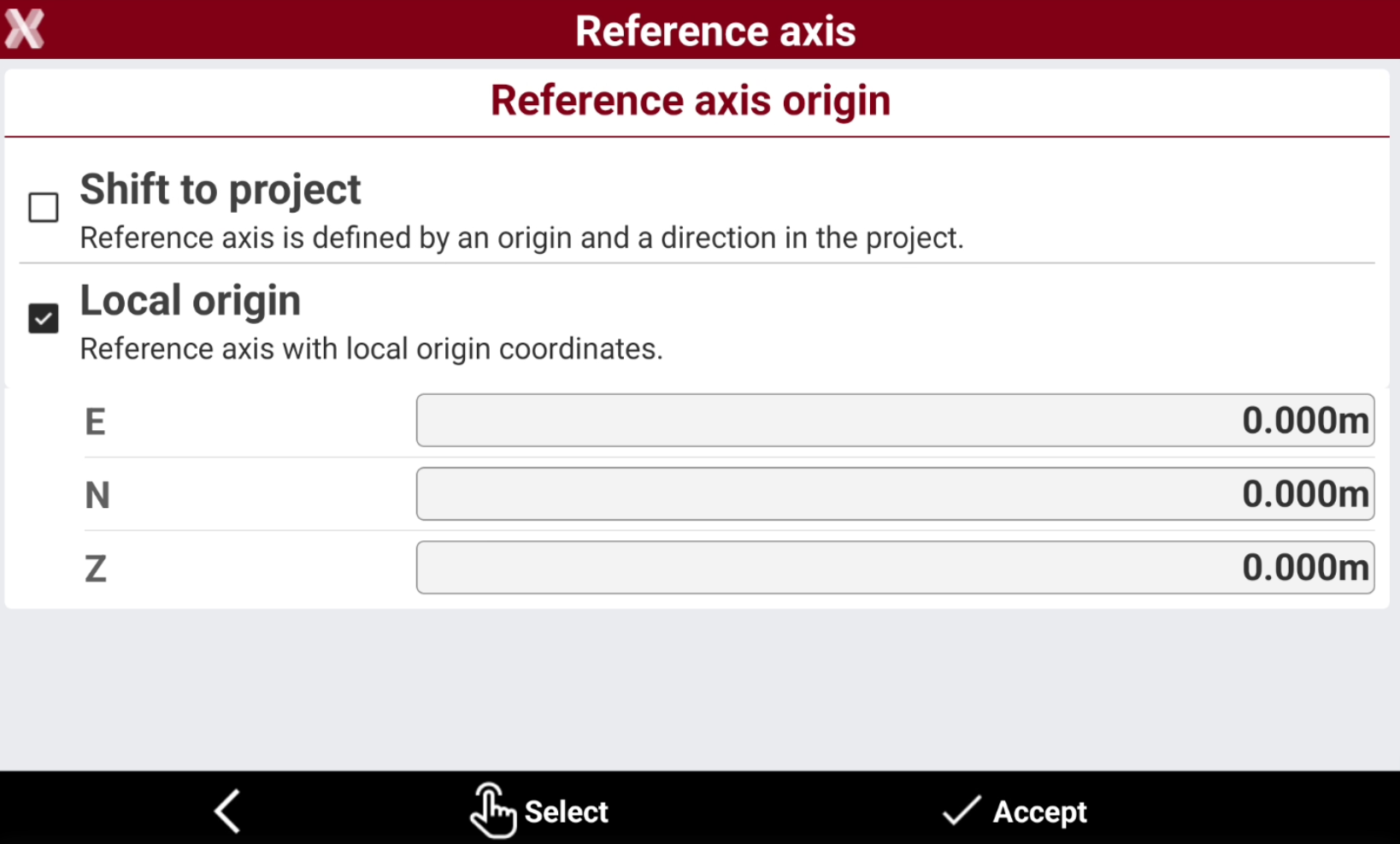
After that the reference axis has been measured, select how the reference axis is defined.
-
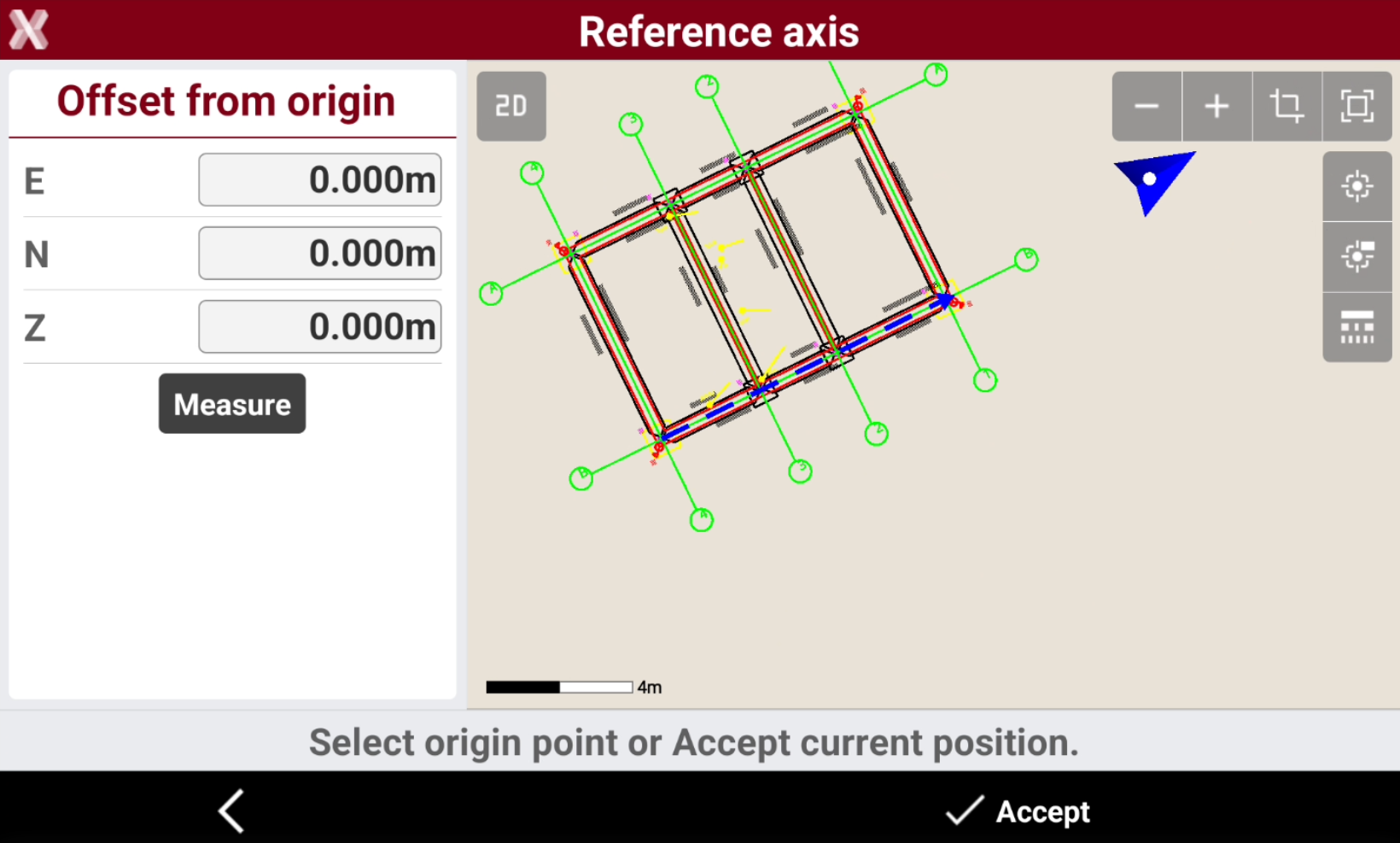
Shift to project: the origin and direction are selected graphically in the drawing. Tap in the CAD drawing to select the origin and the direction, represented by a blue arrow. It is also possible to define an offset from the previously measured axis origin.
-
Local origin: the reference axis is defined with local origin coordinates. Enter the coordinates of the origin of the reference axis, or press Select to select the origin graphically on the drawing. The direction of the reference axis is the drawing X direction.
-
-
Press Accept to select the vertical system.
Two reference axis (to review)
BUILD
-
The system is created based on the measurement of a point of origin and the measurement of a two points which defines the direction of the two axis.
-
From GNSS localization select Two reference axis.
-
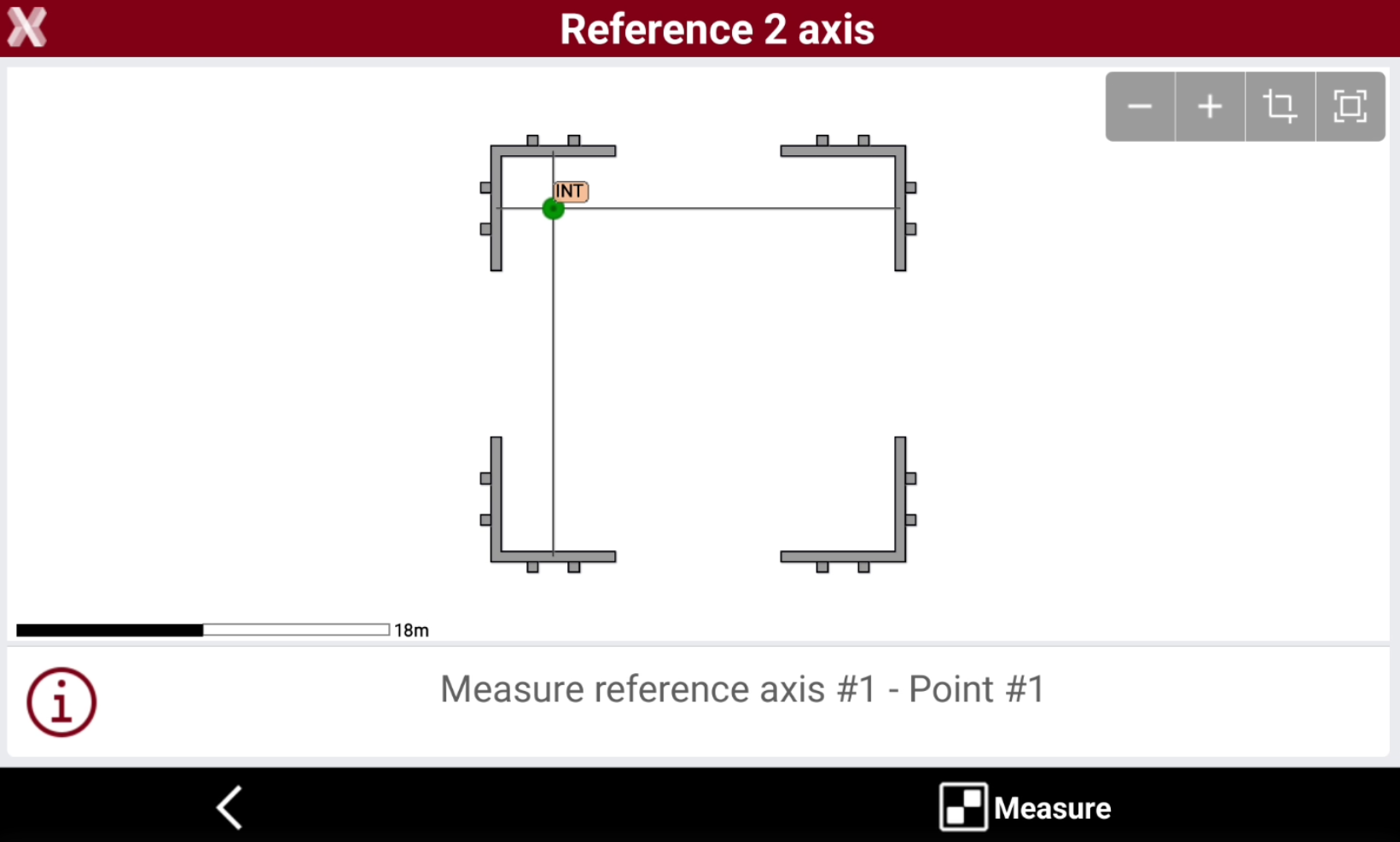
The procedure requires to measure 2 points on the 2 reference axis, and then identify the 2 axis in CAD.
-
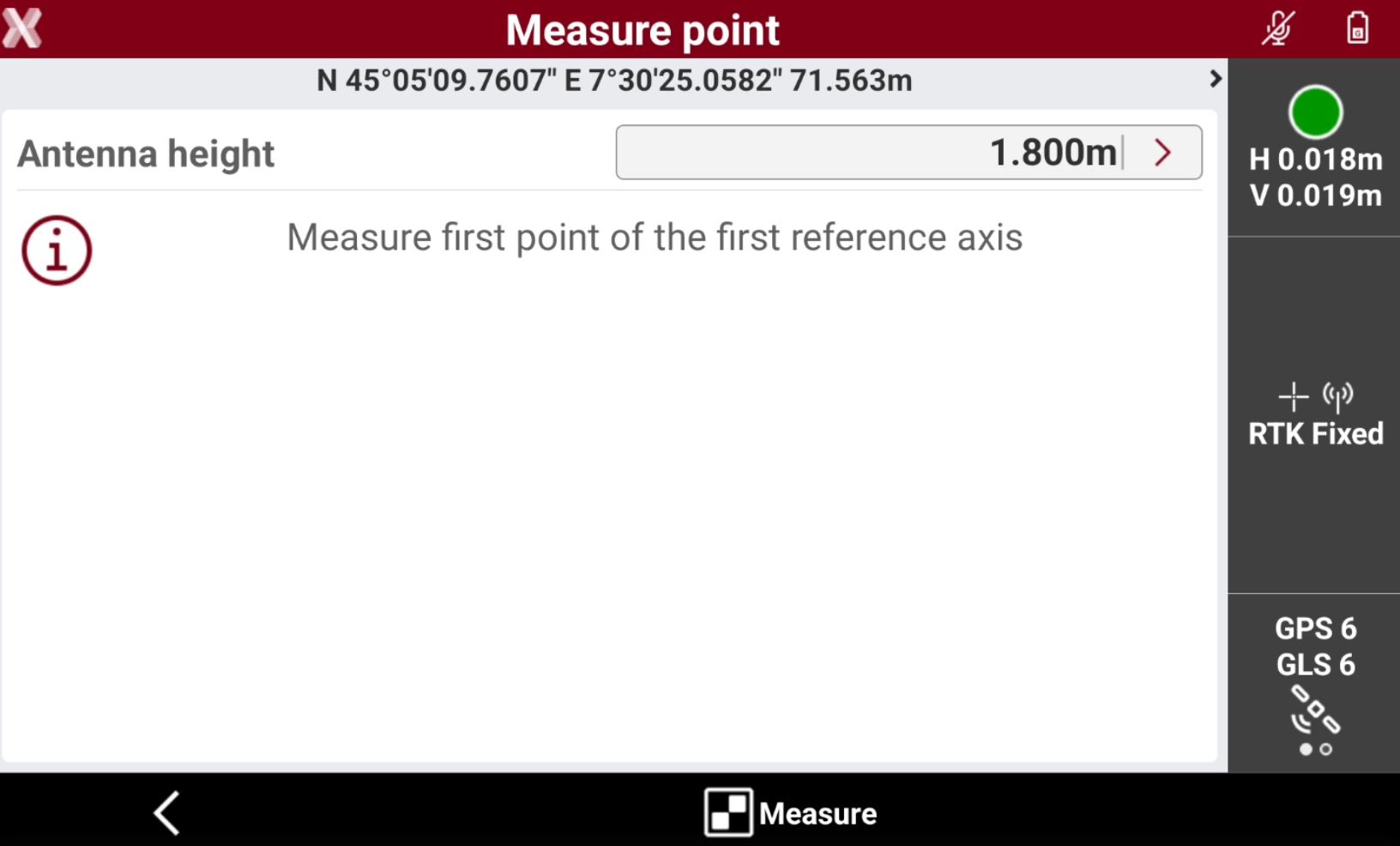
Select Measure to measure the first point on the first reference axis.
-
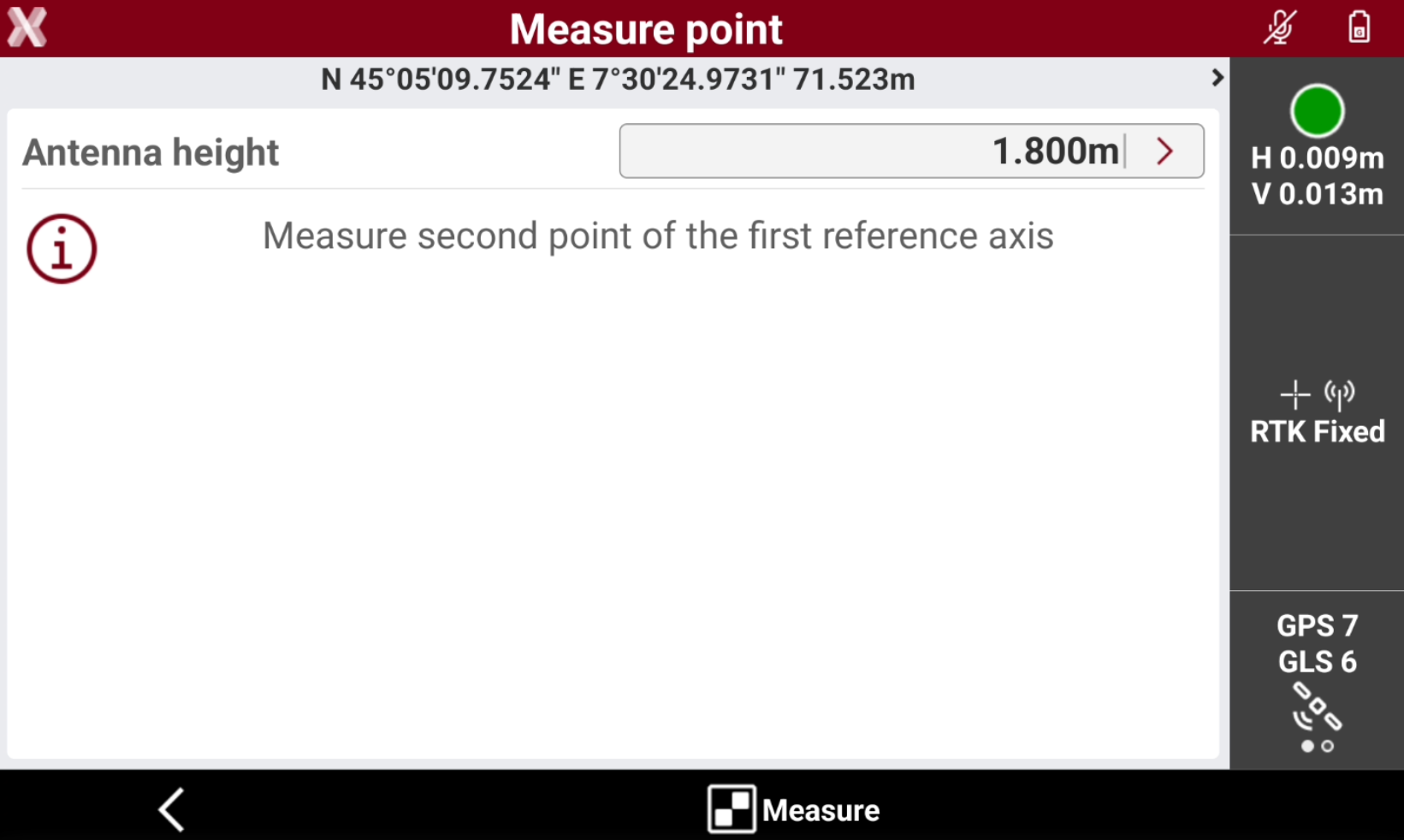
Select Measure again to measure the second point of the first reference axis.
-
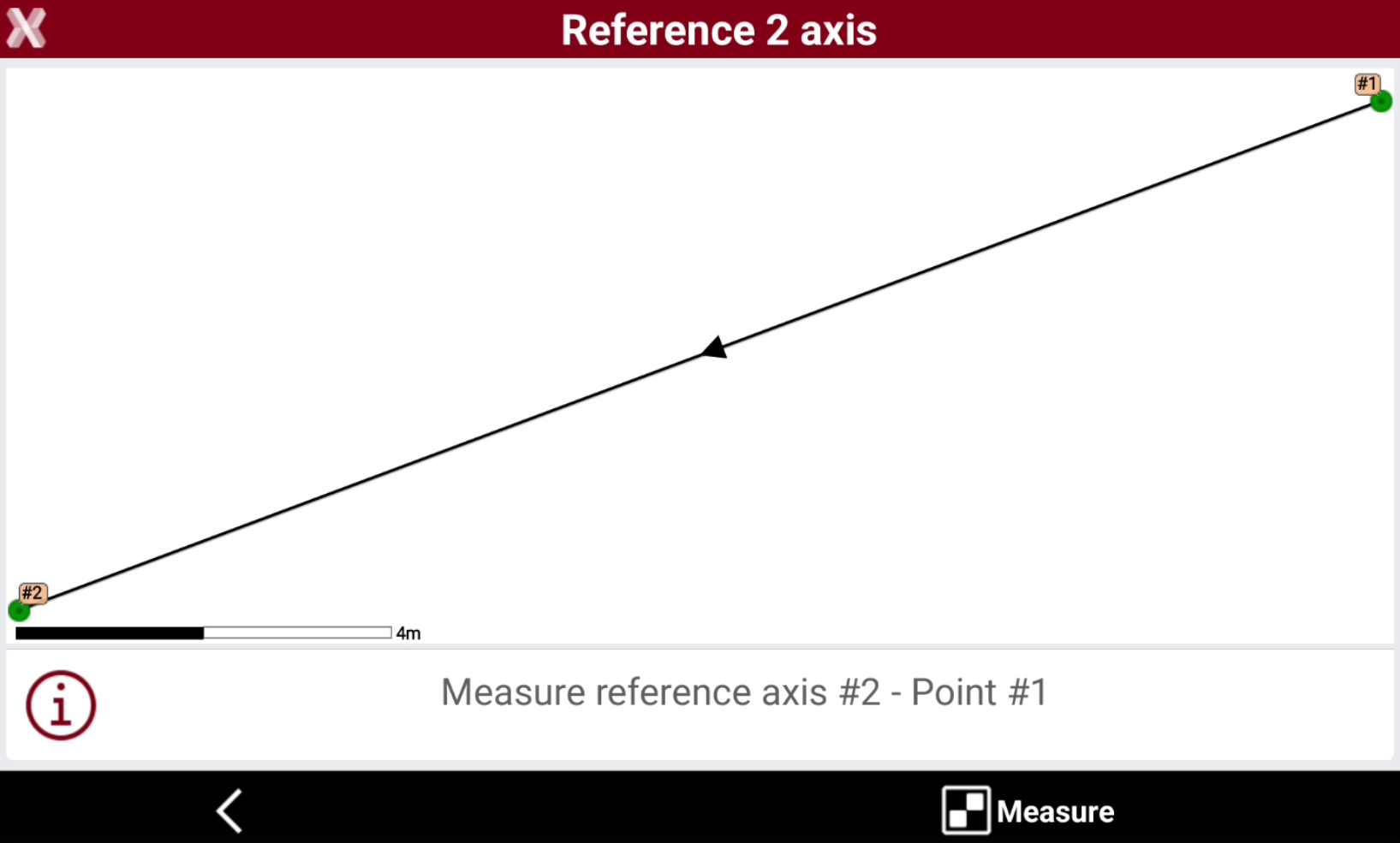
The software shows on video the first measured reference axis.
-
Select Measure and proceed to measure 2 points on the second reference axis.
-
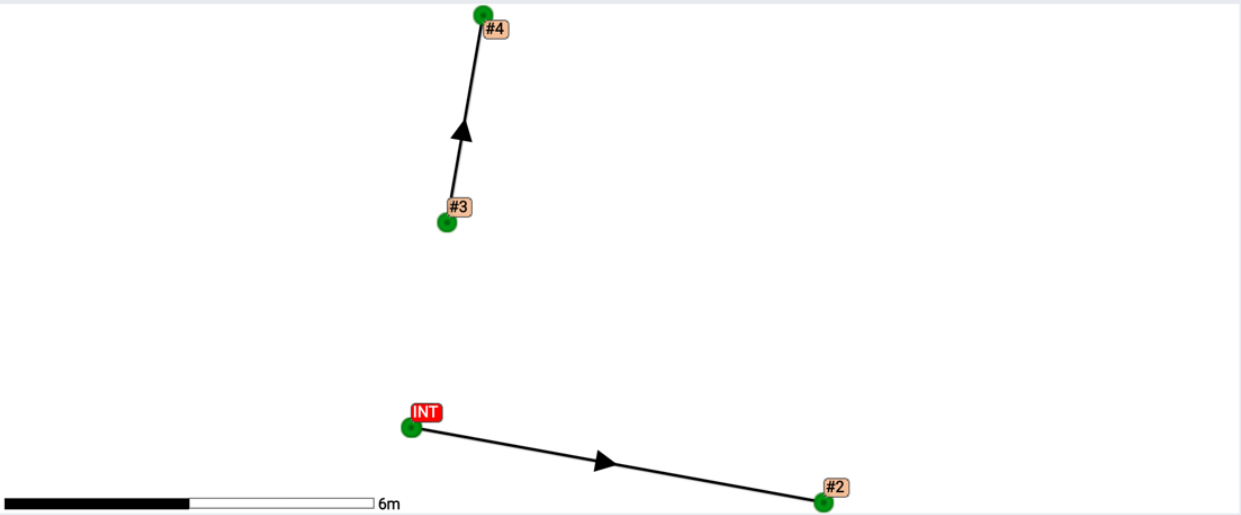
The software shows the 2 measured reference axis.
-
Tap on Select to select the 2 measured reference axis in CAD, selecting reference line 1 and reference line 2.
-
Press OK to calculate the local system.
-
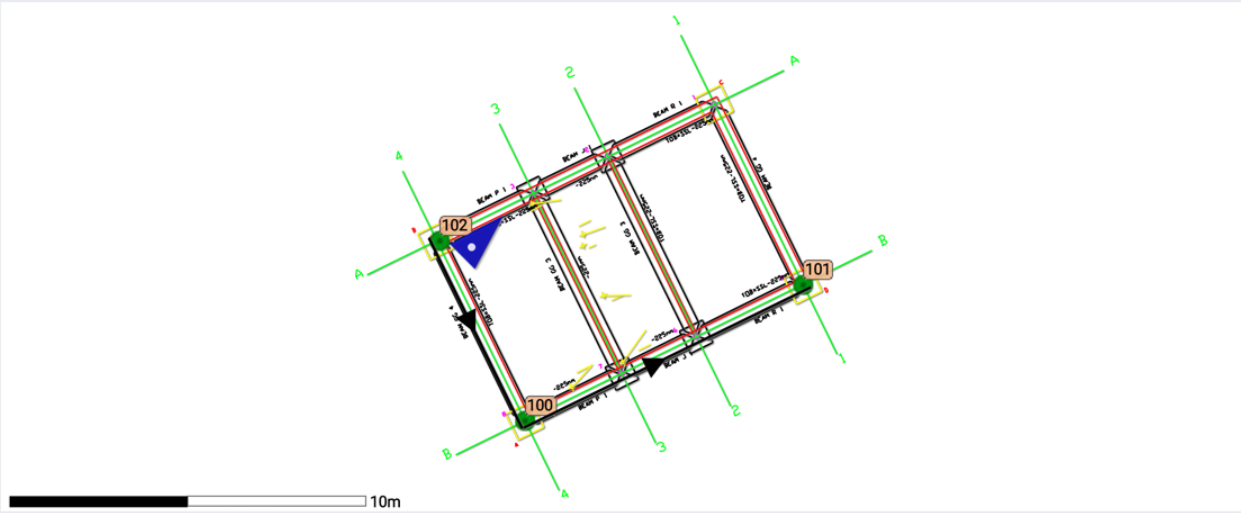
Check the GNSS position in the drawing if it is correct.
-
Select Switch in case position in not correct, to switch the axis, or click Accept to accept the system.
-
Select the vertical system and click Accept.
Vertical system
-
X- PAD allows to select a vertical system independently from the used projection.
-
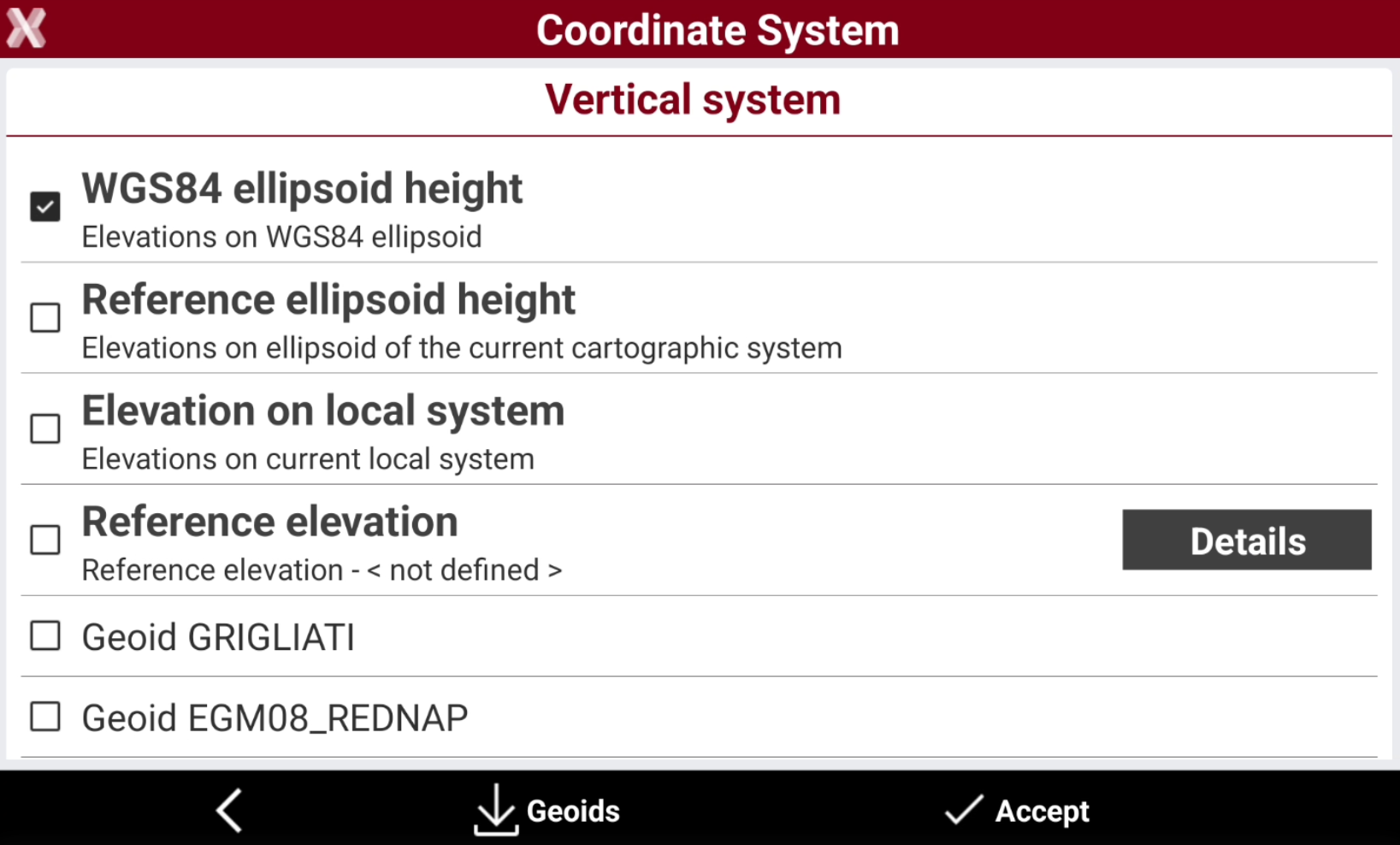
At the end of each GNSS localization selection, the Vertical system page is visualized. This page allows to select the vertical system to use.
-
WGS84 ellipsoid height: the elevation is calculated on the WGS84 ellipsoid.
-
Elevation on local system: the elevation is calculation using the parameters from the current local system. For example if a single point or site calibration local systems have been calculated, the elevation is calculated from the local system parameters.
-
Reference elevation: allows to define a reference elevation. Click Details to measure a GNSS point and assign to it a reference elevation. The elevations will be calculated referred to a plane passing by this point.
-
Geoid: allows to calculate the elevation over the sea level using a geoid. The available geoids are geoids that have been already downloaded.
-
Download and use a geoid file
-
In order to calculate GNSS elevations over the sea level a geoid file is required.
-
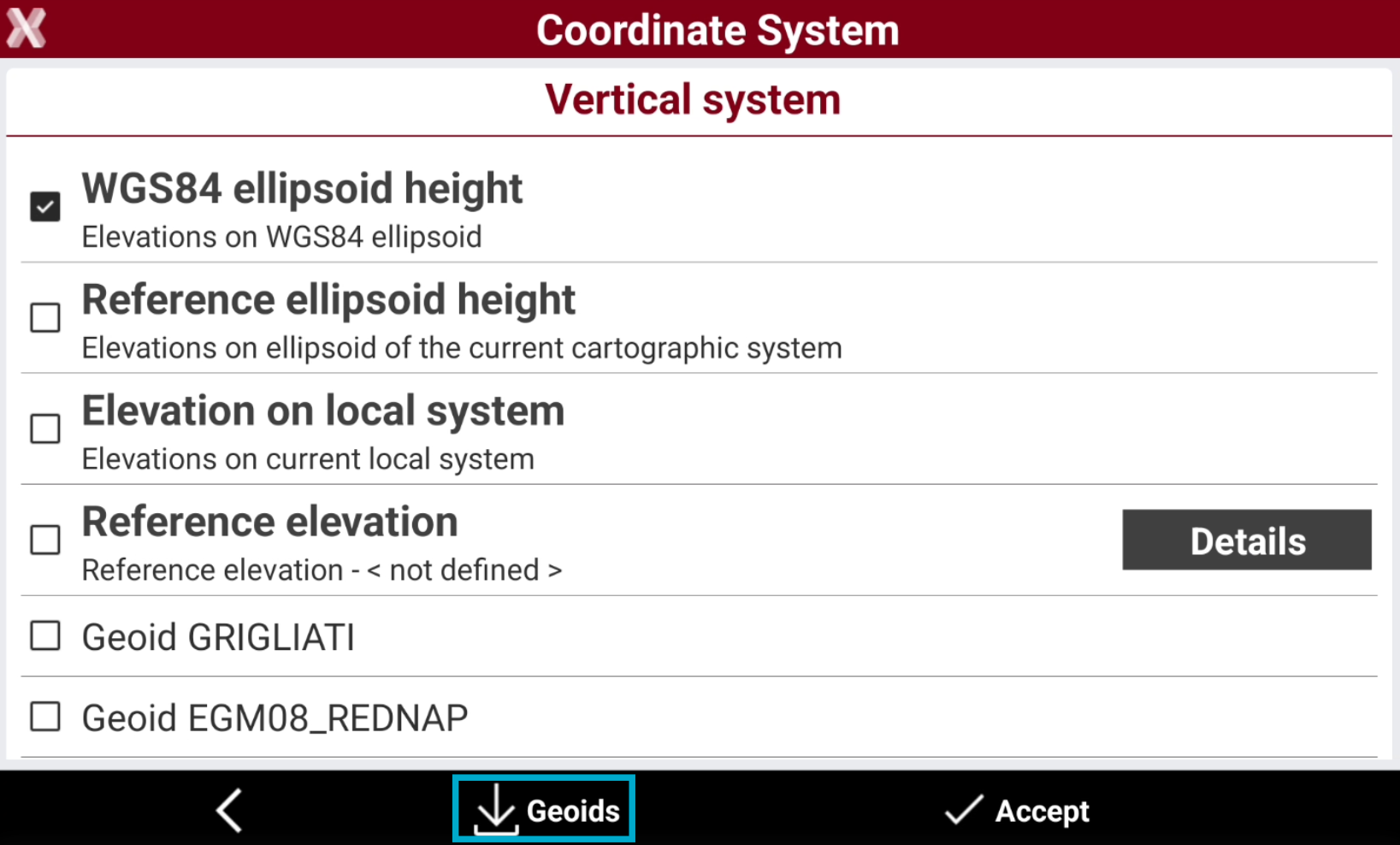
To download the corresponding geoid press Geoids.
-
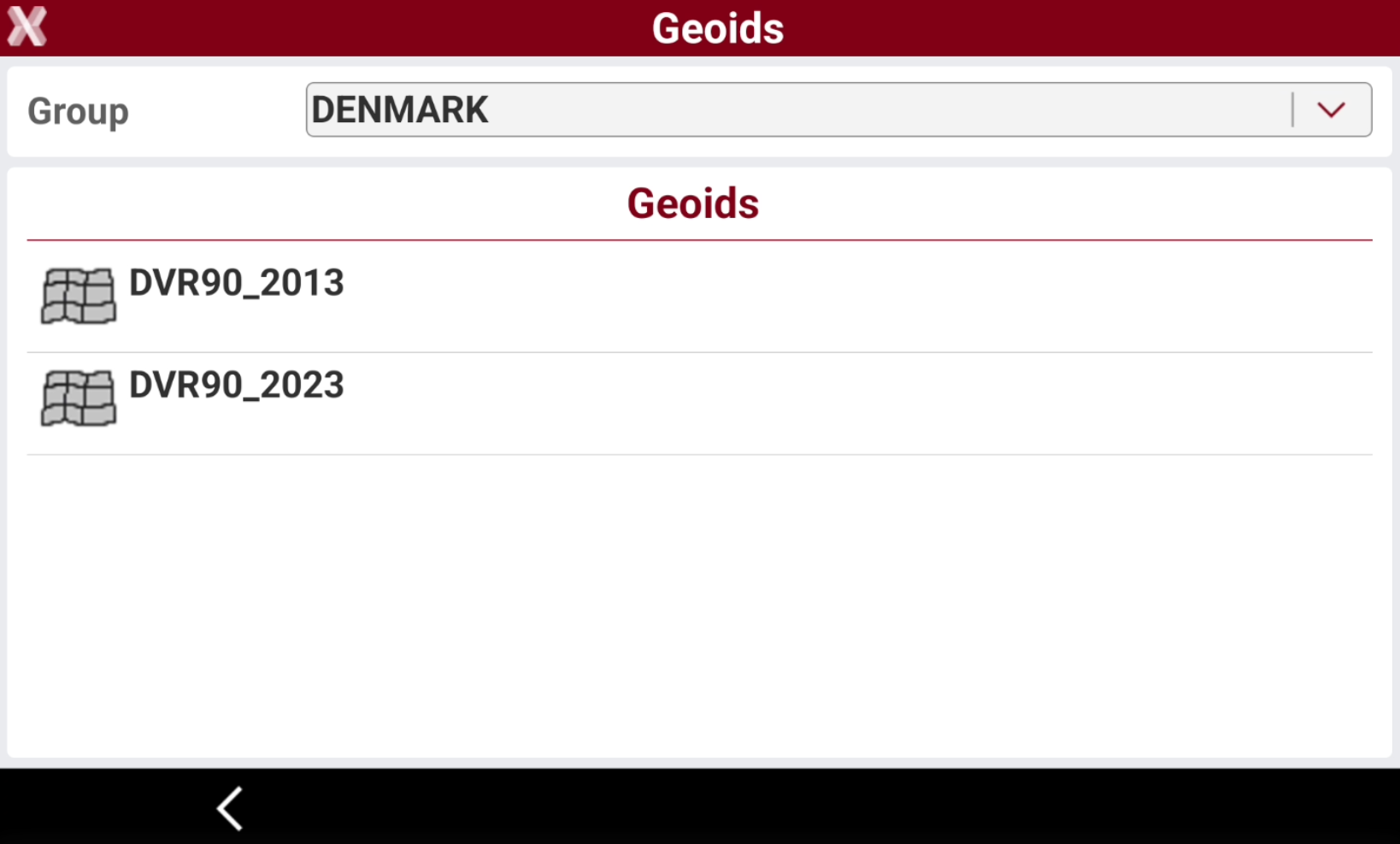
Select the country from the drop-down menu to visualize the available geoids to download.
-
The file is downloaded to the controller and selected as vertical system.
The geoids can also be downloaded from the country package.
If a geoid is missing contact the technical support.
Coordinate recalculation
-
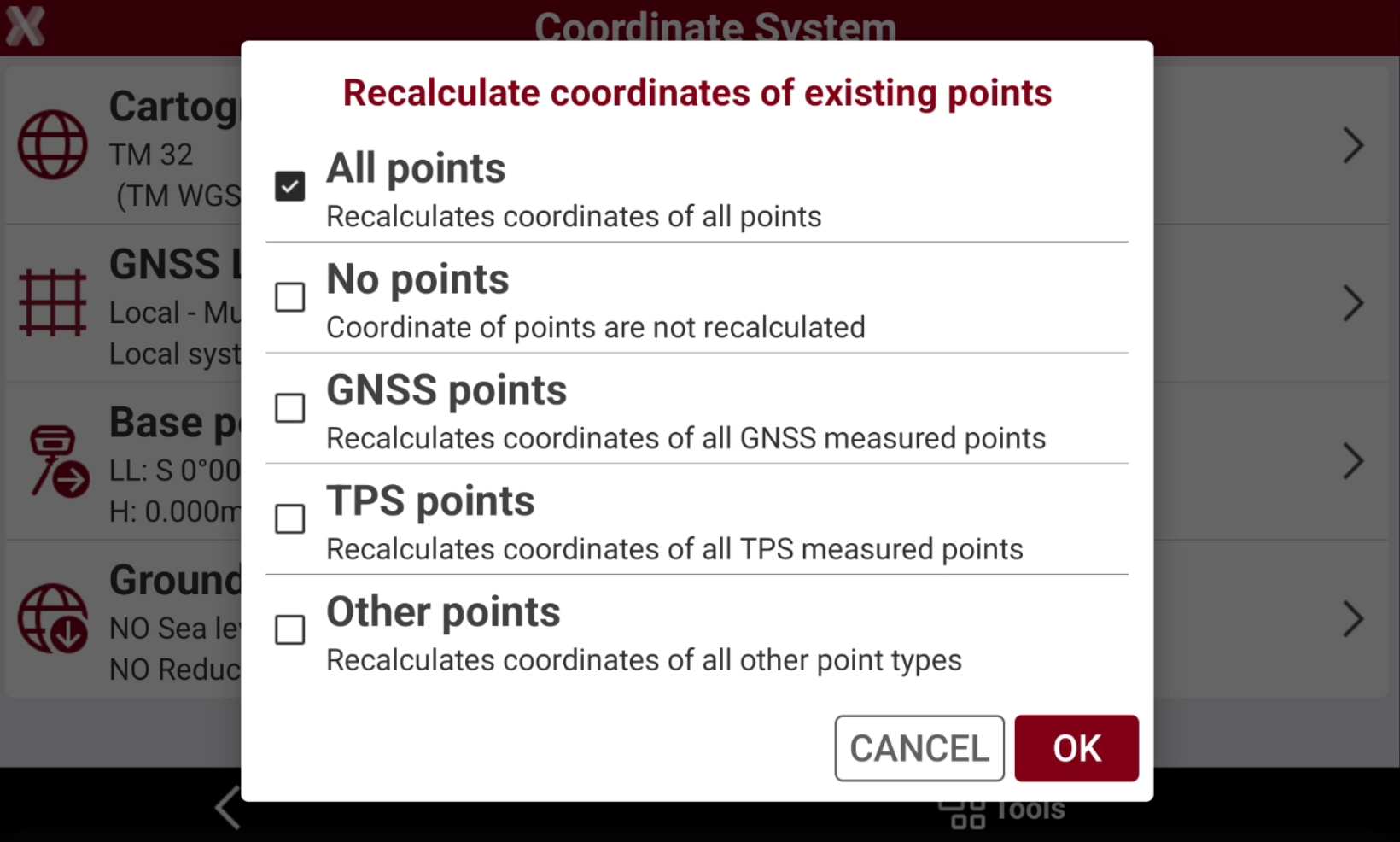
If the job has already a GNSS localization and the cartographic system is changed, the software asks if the points already available in the job, with a valid latitude and longitude, have to be recalculated in the new system.
-
All points: recalculates the coordinates for all points in the job with a valid latitude and longitude in the job.
-
No points: coordinate of points are not recalculated in the new system.
-
GNSS points: recalculates the coordinate only for points measured with a GNSS receiver.
-
TPS points: recalculates the coordinate only for points measured with a total station.
-
Imported points: recalculates the coordinate only for points imported in the job.
-
Other points: recalculates the coordinate for points calculated, for example in COGO, or manually entered.
-
-
Press OK to recalculate the points.