
-
From Coordinate system page it is possible to save and import the coordinate system or generate a report of the current system.
Save current system
-
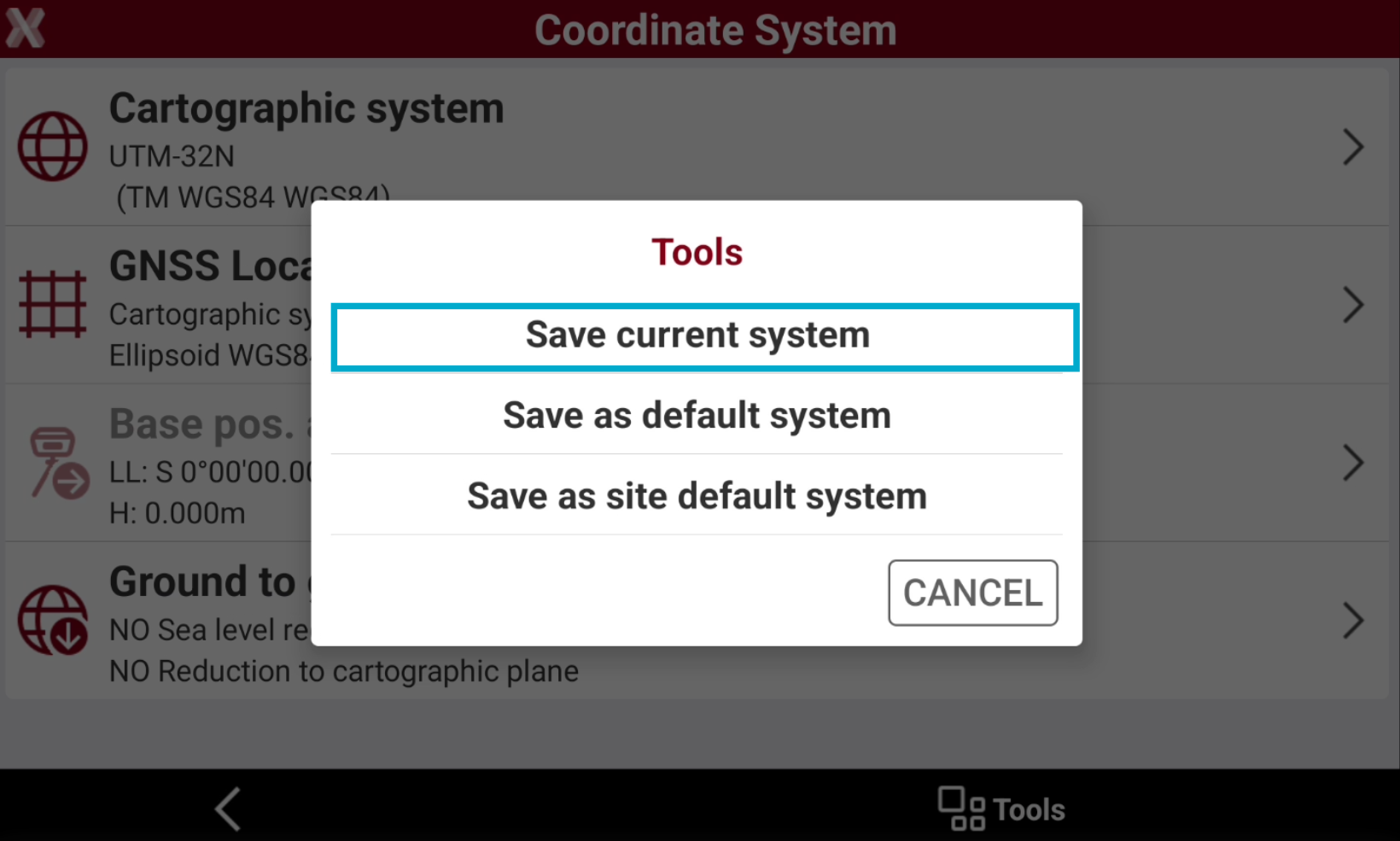
X-PAD allows to save the current system in the X-PAD .pcs format.
-
From Coordinate System page, select Tools and select Save.
-
Select Save current system.
-
Select the saving location to save the current system in .pcs format.
Load system
-
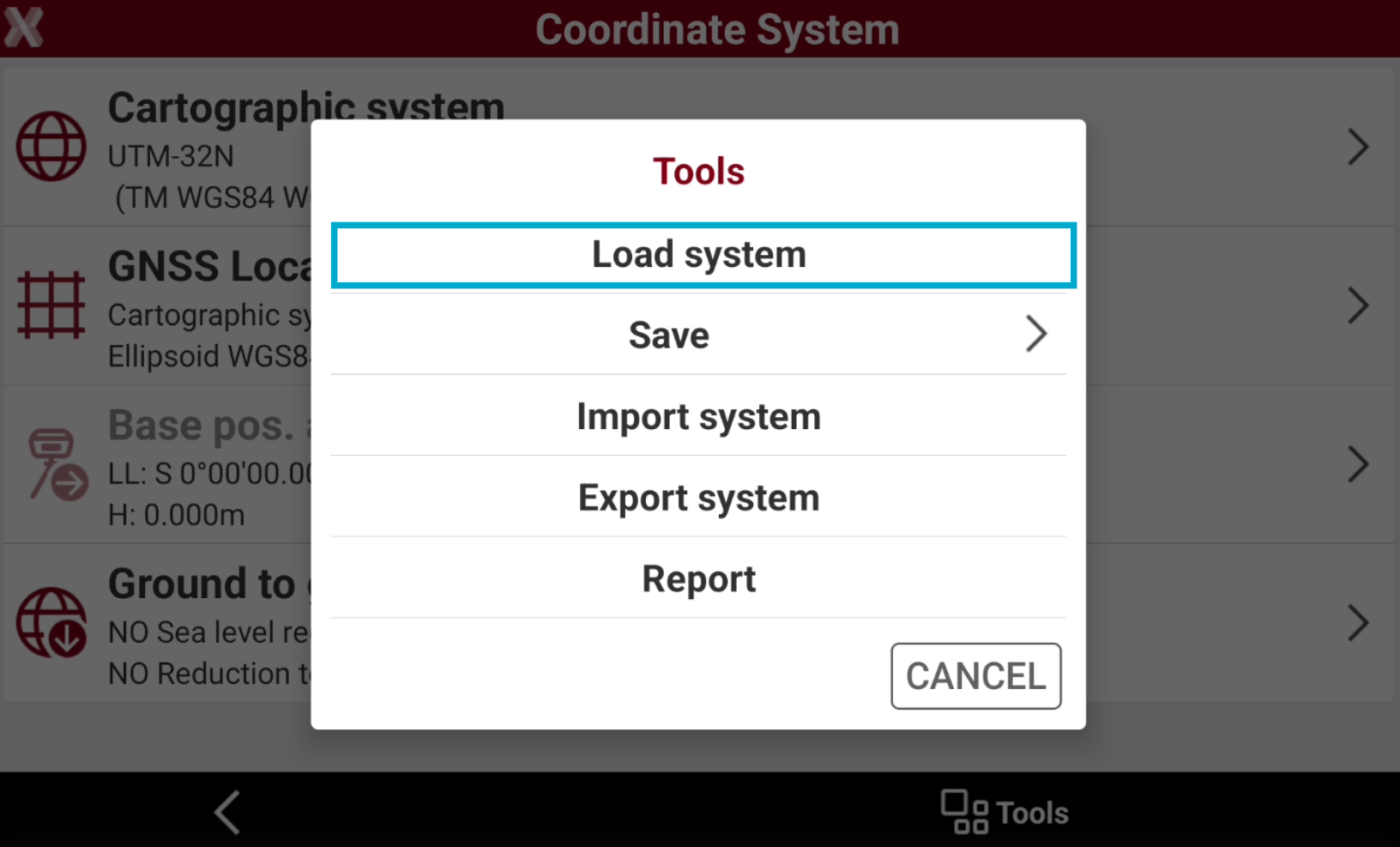
The function Load system allows to load a previously saved system in the .pcs format.
-
Select Load system.
-
Select a .pcs file from the internal memory or the cloud to load it.
Save system and save as default
-
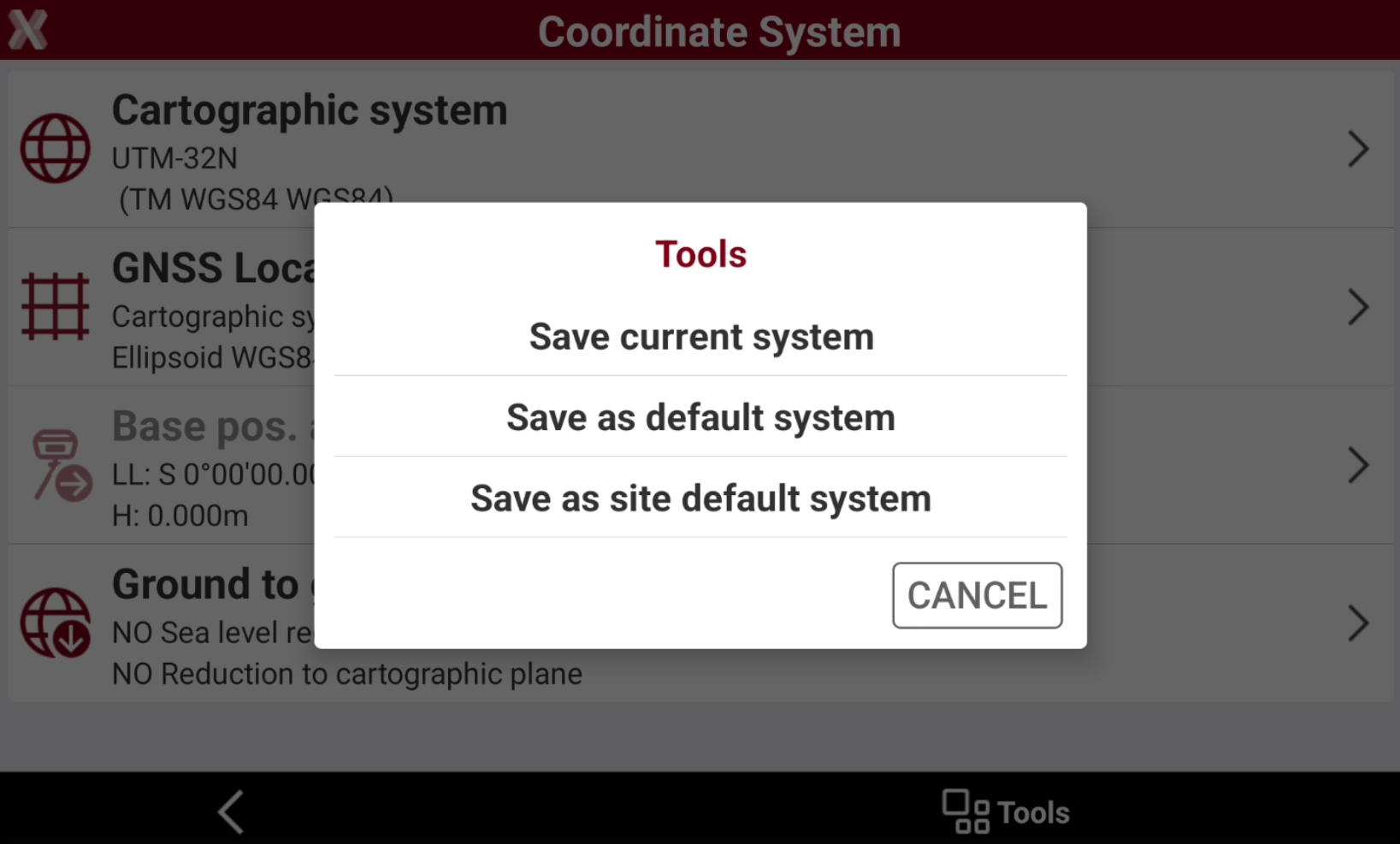
The function Save system allows to save the current coordinate system.
-
From Coordinate System page, select Tools and select Save.
-
Save as default system: to save the current coordinate system as default system for all job sites that will be created.
-
Save as site default system: to save the current coordinate system as default system for the current job site.
-
Import system in Leica iCON LOK format
-
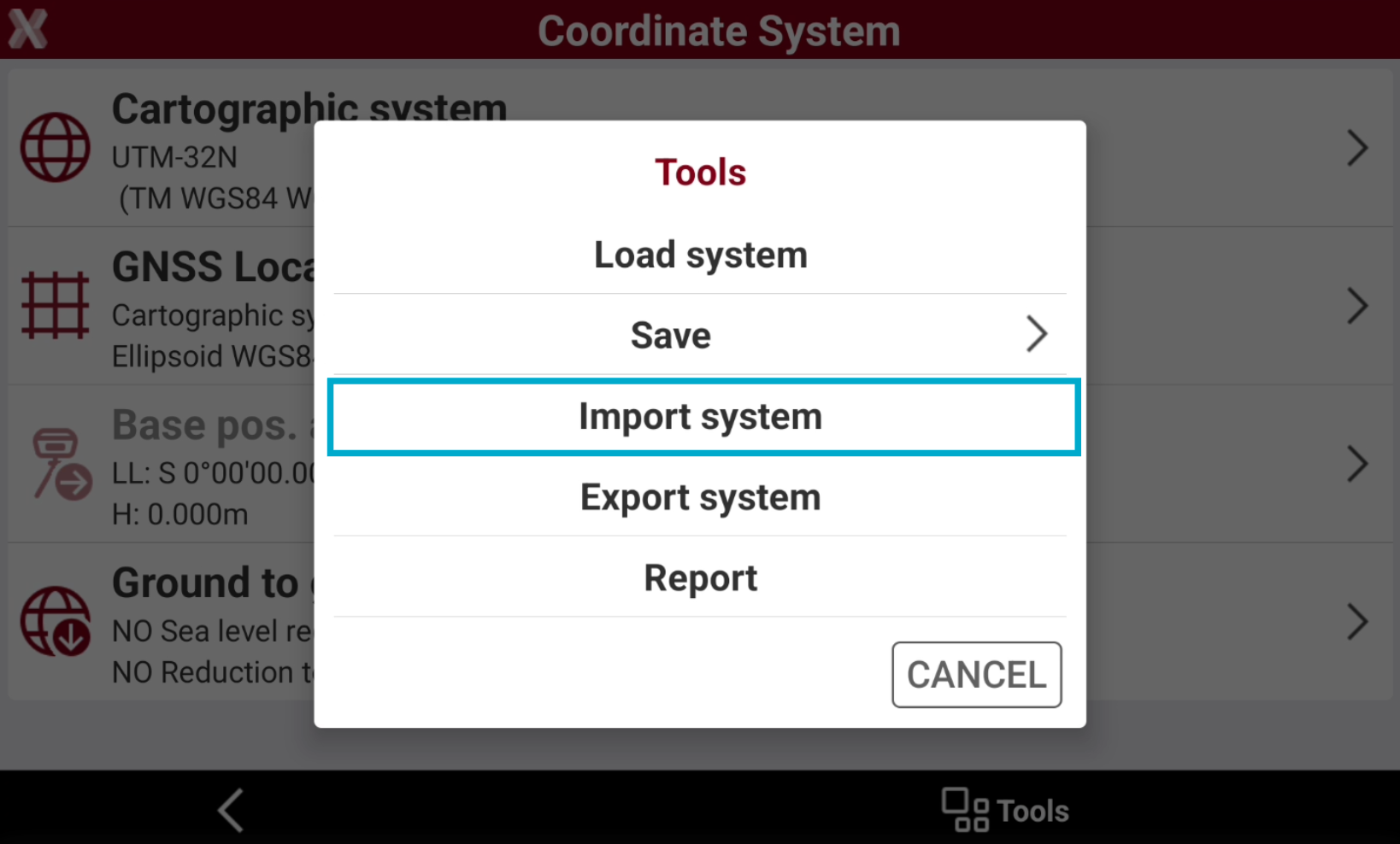
The function Import system allows to import a coordinate system in Leica LOK format.
-
From Coordinate System page, select Tools and select Import system.
-
Select iCON LOK file.
-
Select a .lok file from the internal memory or the cloud.
Export system in Leica iCON LOK file format
-
The function Export system allows to import a coordinate system in Leica LOK format.
-
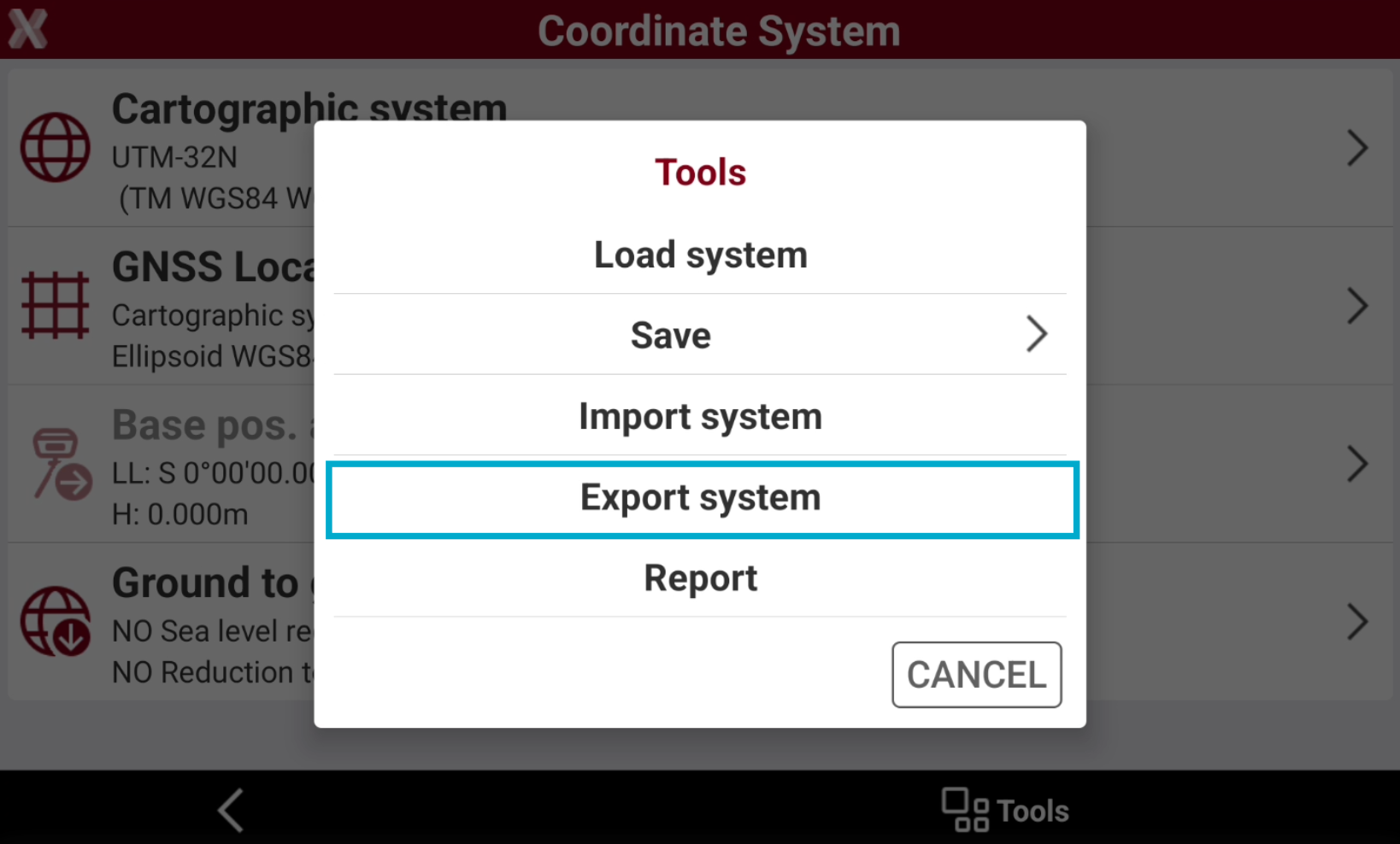
From Coordinate System page, select Tools and select Export system.
-
Select iCON LOK file.
-
Export the current coordinate system in the cloud or internal memory in .lok format.
Generate a report
-
The function Report allows to generate a report of the current coordinate system.
-
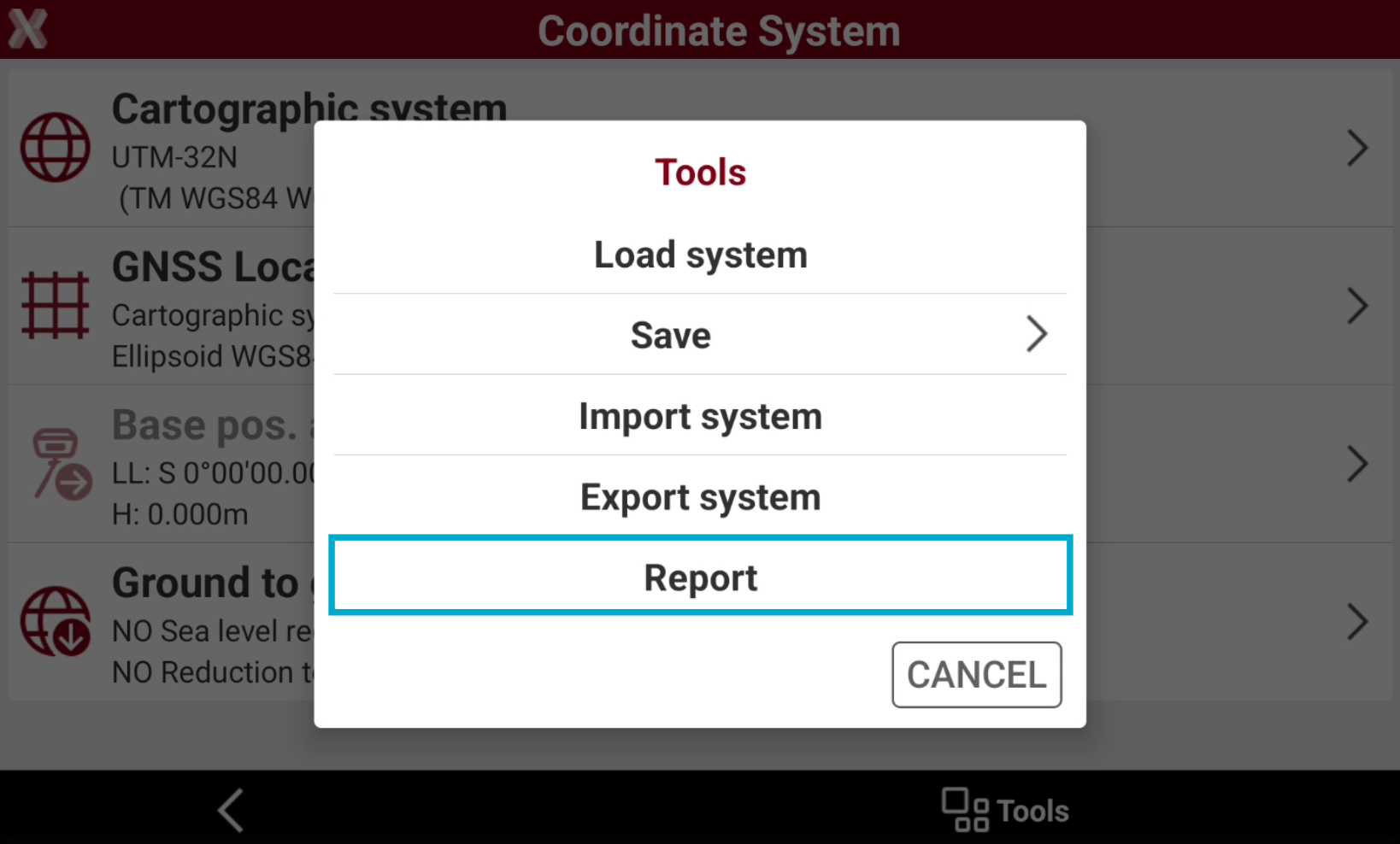
From Coordinate System page, select Tools and select Report.
-
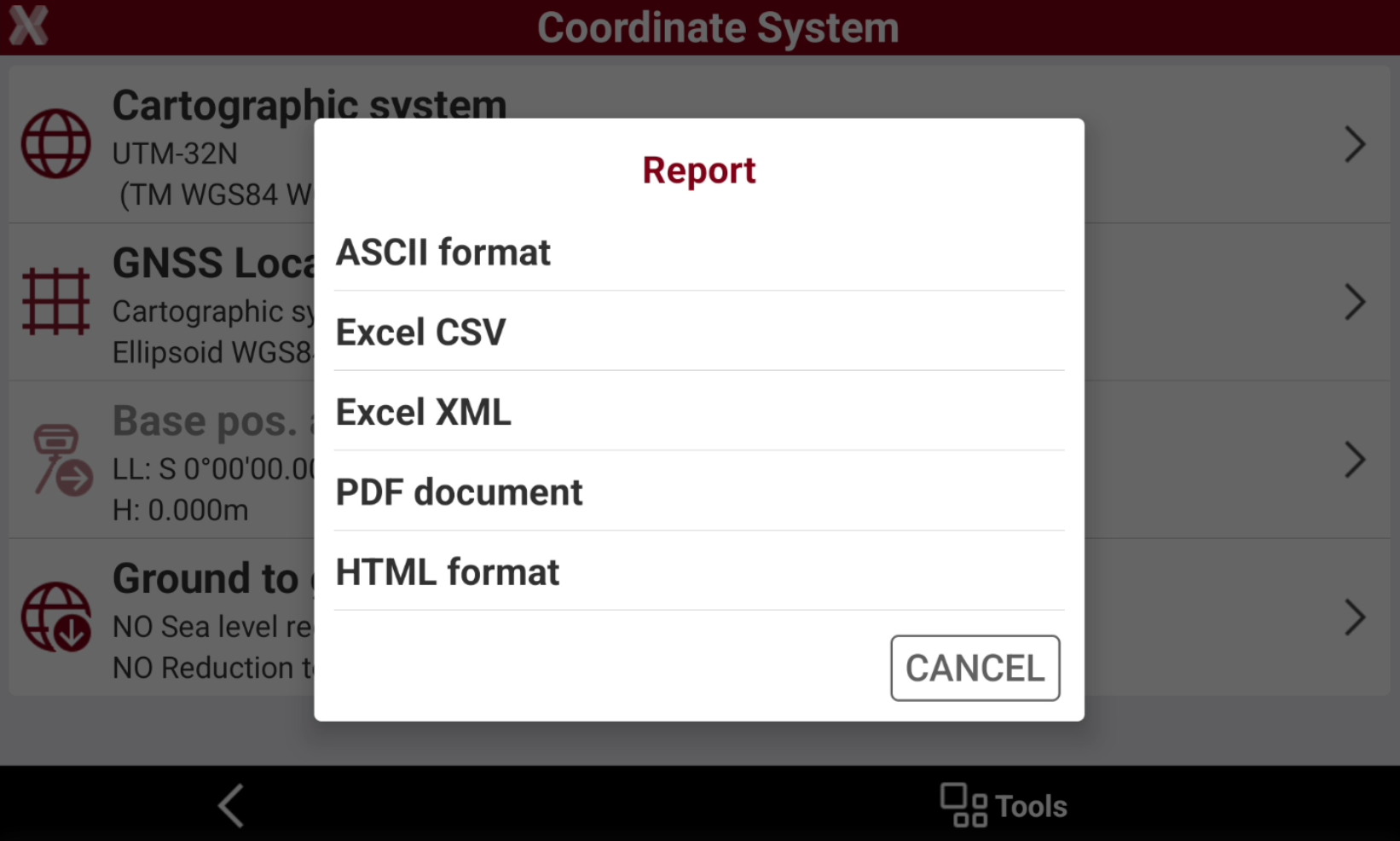
Exports the report in the selected format. Available formats are:
-
ASCII format: exports the report as a plain text file, suitable for simple viewing and compatibility with various software.
-
Excel CSV: exports the report as a comma-separated values file, ideal for import into spreadsheet applications.
-
Excel XML: exports the report in Excel XML format, preserving structure and allowing direct opening in Microsoft Excel.
-
PDF document: exports the report as a PDF file, suitable for printing and sharing while preserving layout.
-
HTML format: exports the report as a web page, viewable in any internet browser.
-