-
Setting the cartographic system is necessary when coordinates of points must refer to a system defined by a reference projection, datum, ellipsoid and transformation parameters.
-
The cartographic system can be used for:
-
The calculation of geographic coordinates of GNSS instruments.
-
The calculation of the scale factor to apply to distances measured with total stations
-
-
The software allows to select a predefined system or define a system with specific parameters.
-
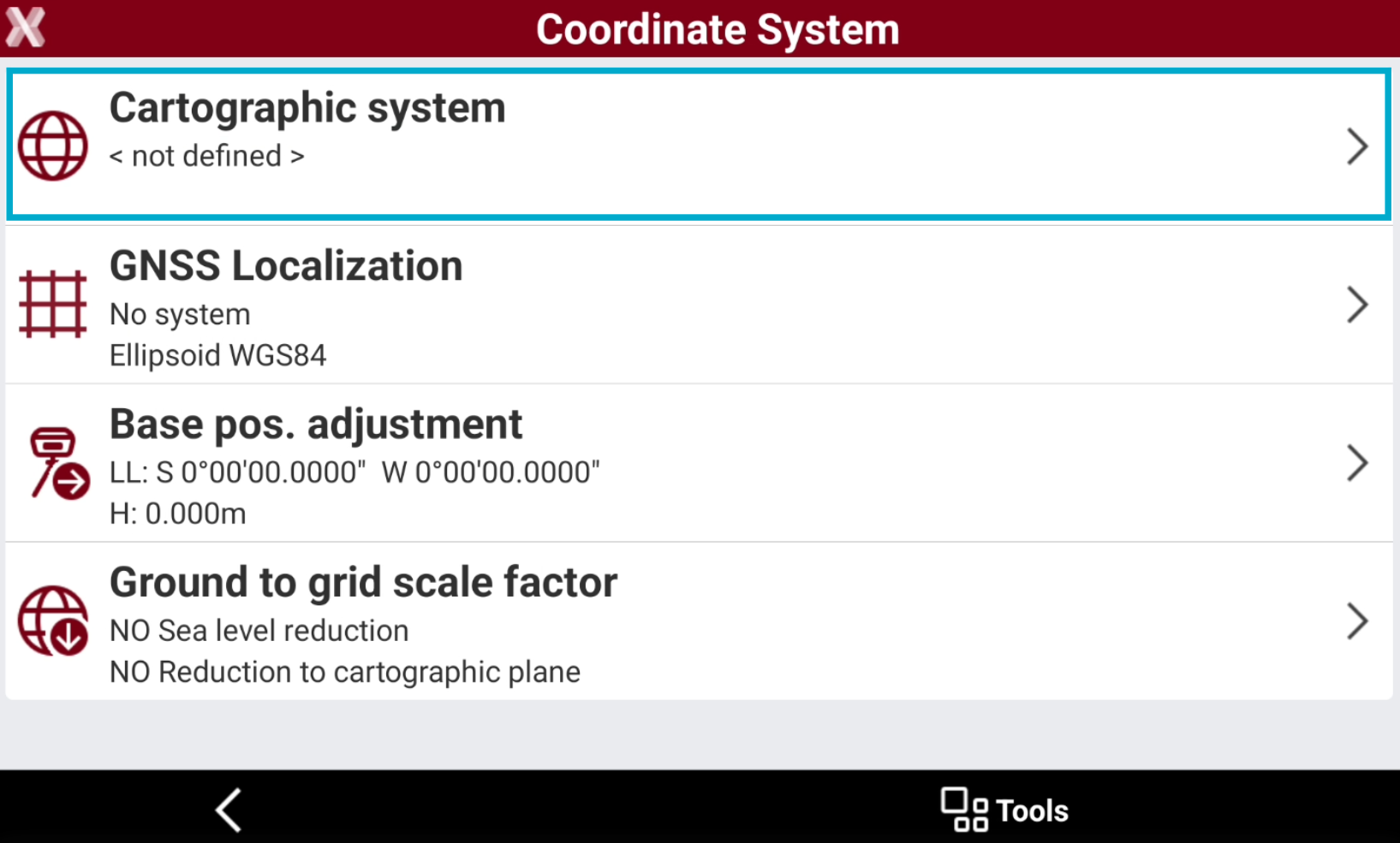
From the Job tab select Coordinate System.
-
Select Cartographic system.
Select a predefined system
-
X-PAD includes predefined cartographic systems for most of countries.
-
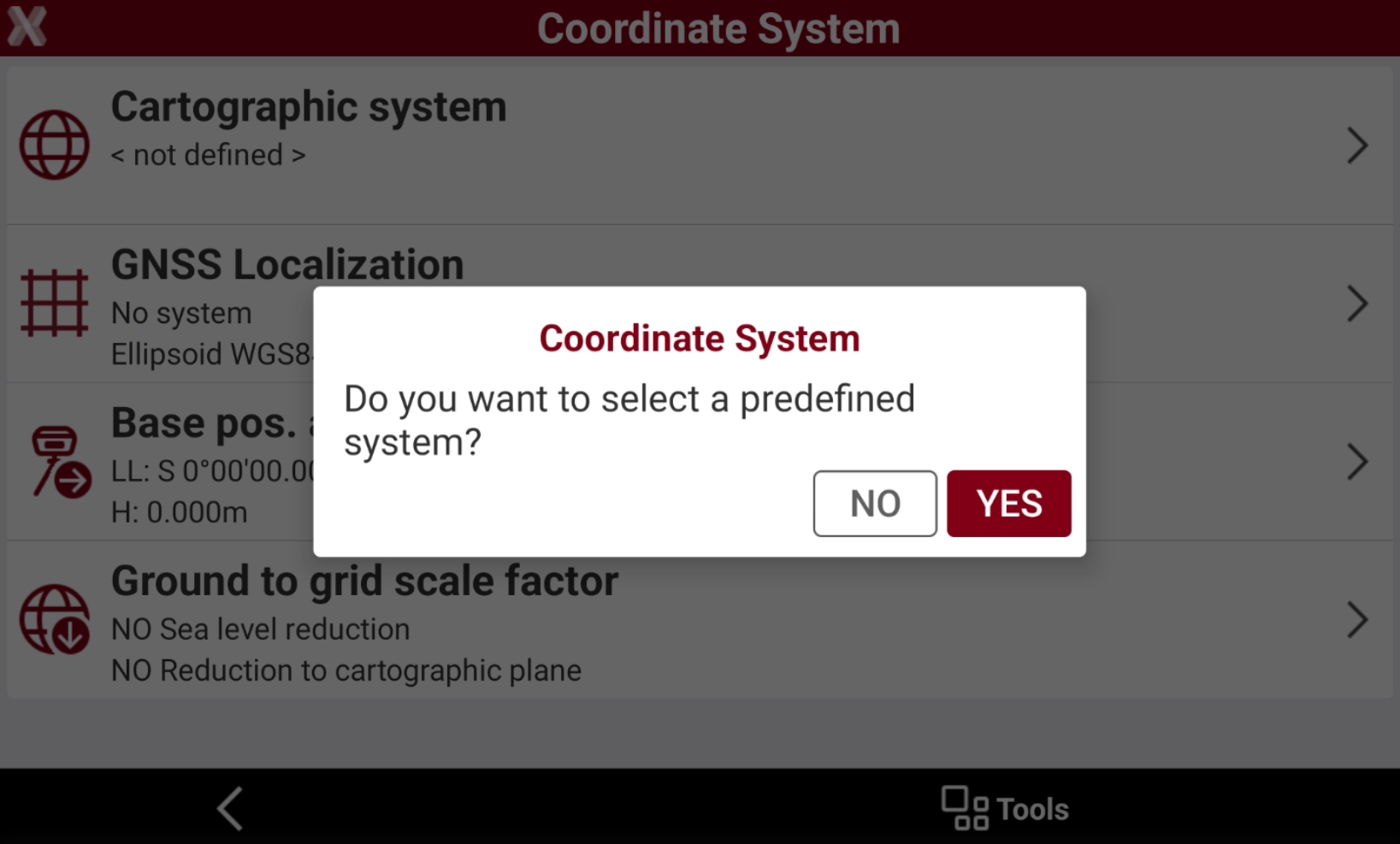
If a cartographic system is not already assigned, selecting Cartographic system this message is displayed.
-
Select YES to select a predefined system. Or select NO to manually input the parameters.
-
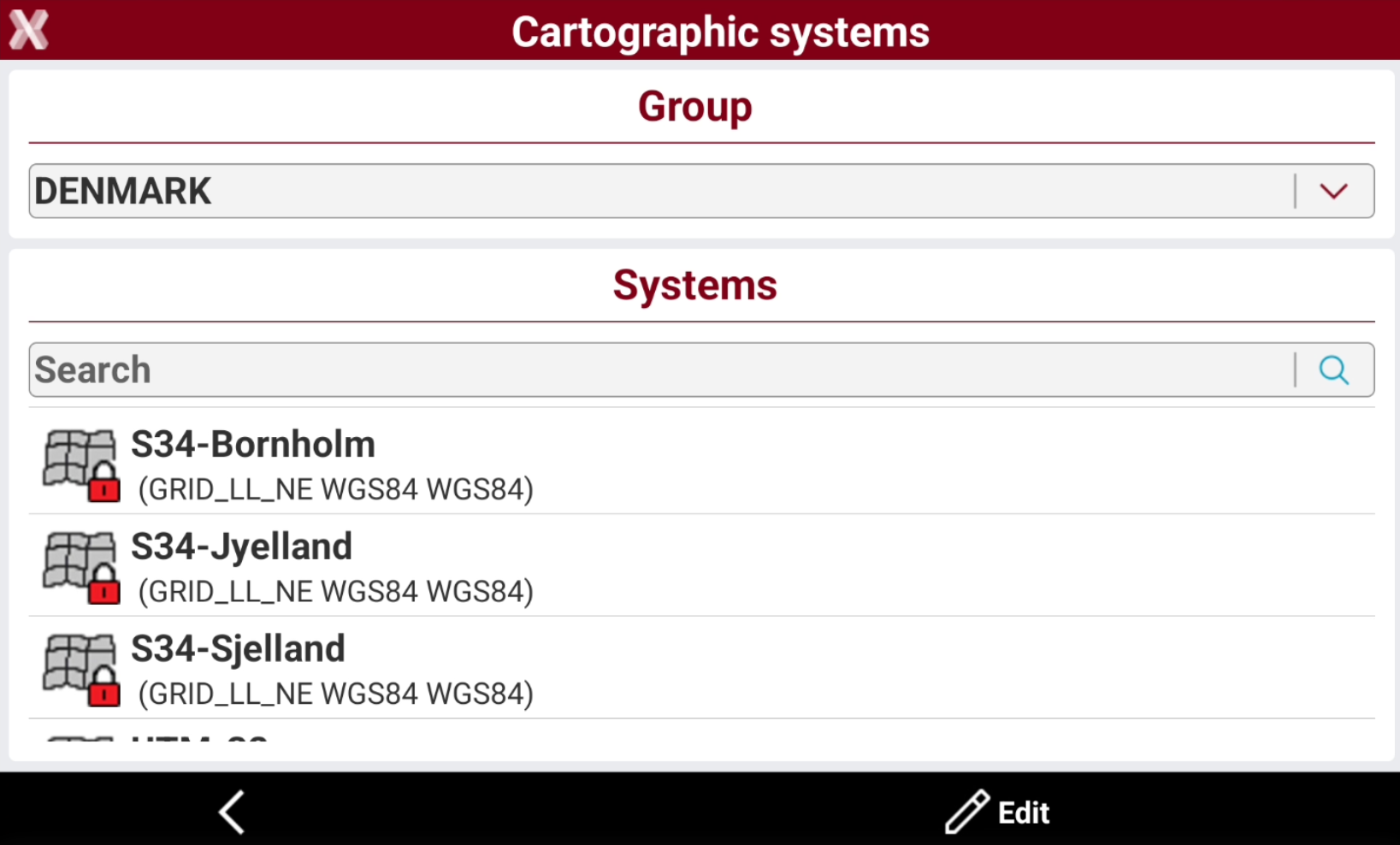
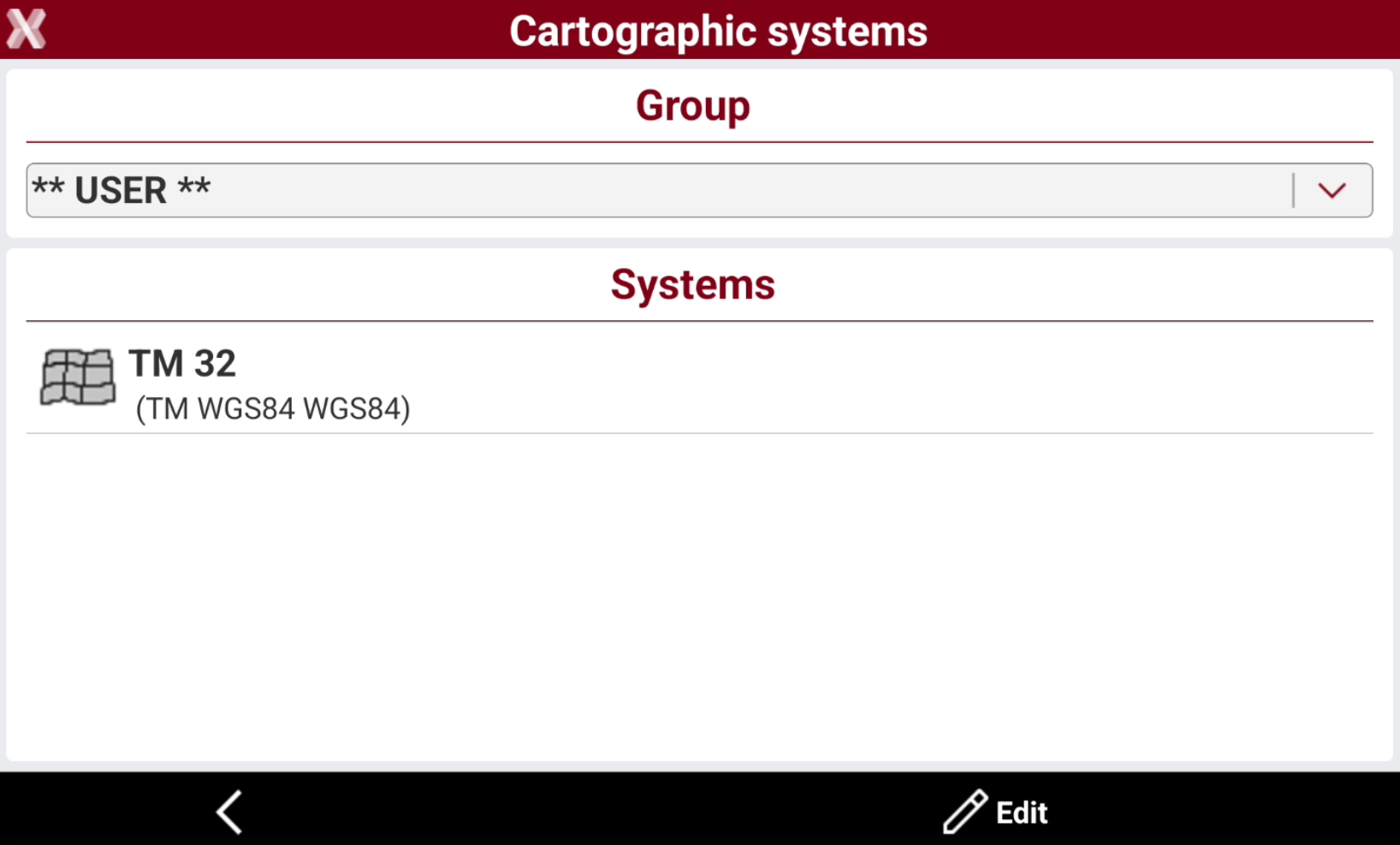
If is selected to load a predefined system, this page is opened.
-
Group: select the country or a group of systems (like UTM systems).
-
Systems: shows the available systems for the selected group.
-
-
Select a system to load the parameters.
If the selected cartographic system utilizes grid file, the software prompts to download the corresponding grid file.
-
Select Accept to confirm the selection.
-
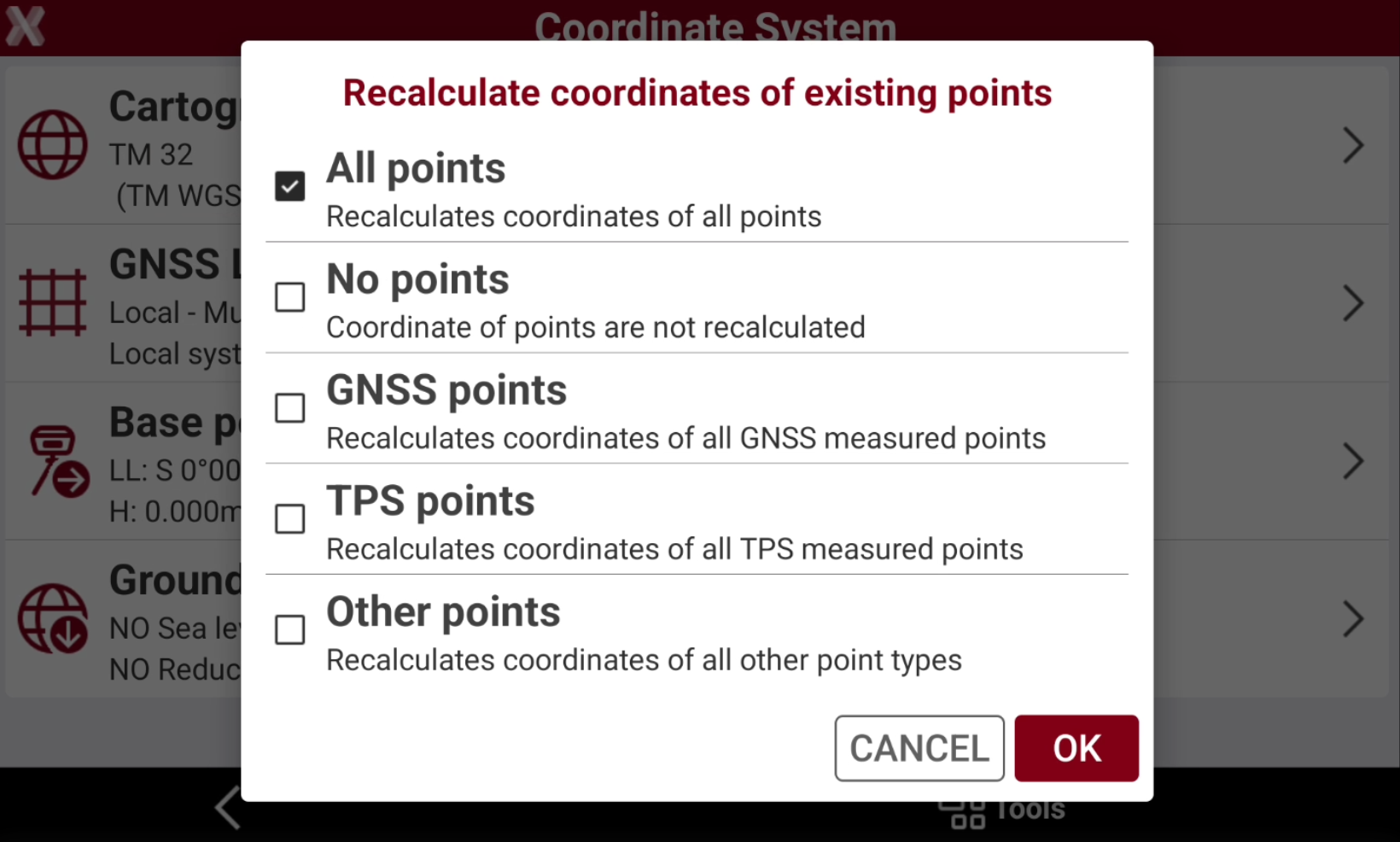
If the job has already a GNSS localization and the cartographic system is changed, the software asks if the points already available in the job, with a valid latitude and longitude, have to be recalculated in the new system.
-
All points: recalculates the coordinates for all points in the job with a valid latitude and longitude in the job.
-
No points: coordinate of points are not recalculated in the new system.
-
GNSS points: recalculates the coordinate only for points measured with a GNSS receiver.
-
TPS points: recalculates the coordinate only for points measured with a total station.
-
Imported points: recalculates the coordinate only for points imported in the job.
-
Other points: recalculates the coordinate for points calculated, for example in COGO, or manually entered.
-
Cartographic system parameters
-
Each system, predefined or manually entered, is defined by different parameters.
-
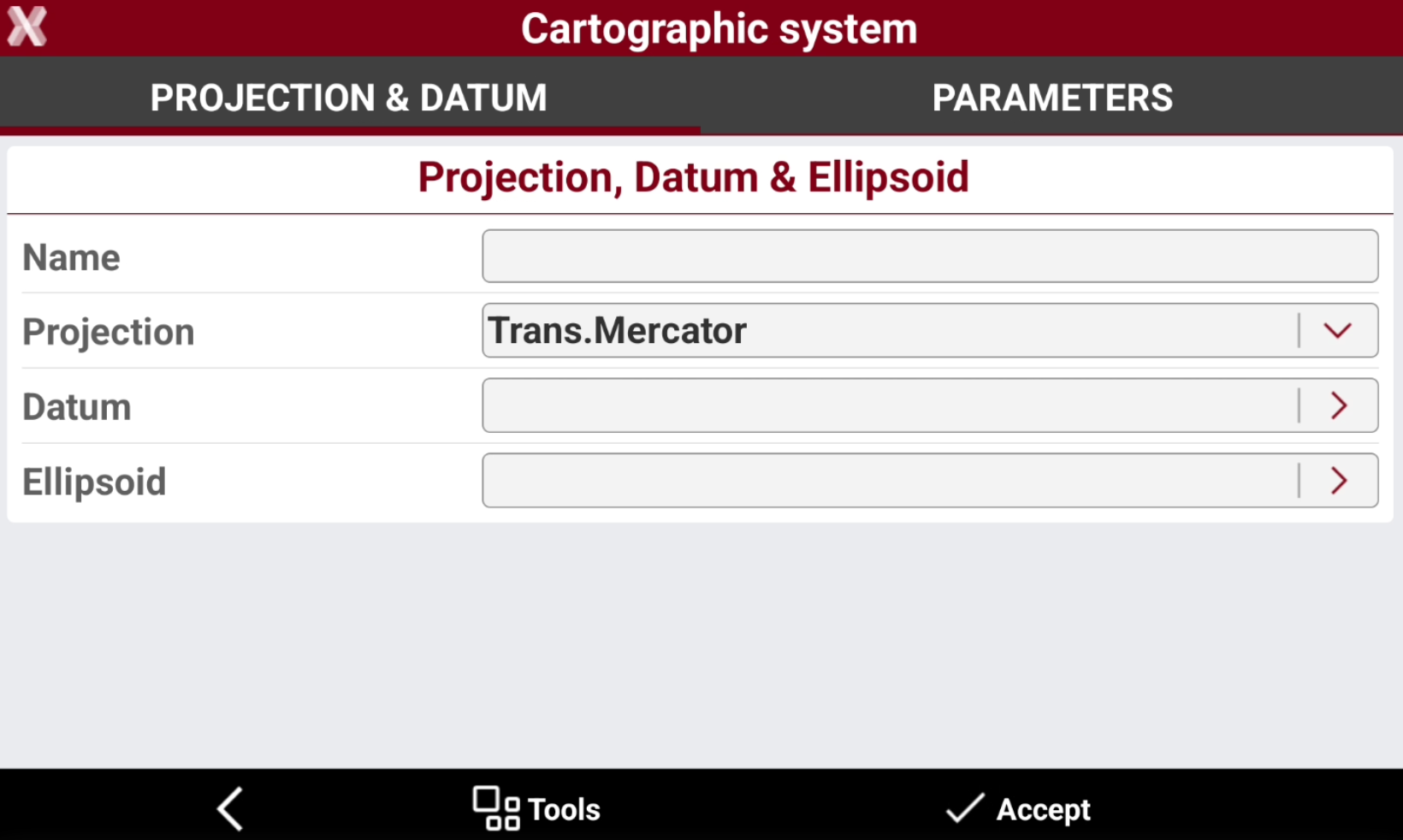
In Projection & Datum page the type of projection, datum and ellipsoid is defined.
-
Name: name to assign to the system.
-
Projection: cartographic projection to use. Open the drop-down list to select a projection. The projection parameters are defined in the Parameters tab.
-
Datum: datum to use to convert from the WGS84 ellipsoid to the cartographic system ellipsoid. Press to access a list of default and user-defined datum.
-
Ellipsoid: ellipsoid of the cartographic system. Press to access a list of default and user-defined ellipsoids.
-
-
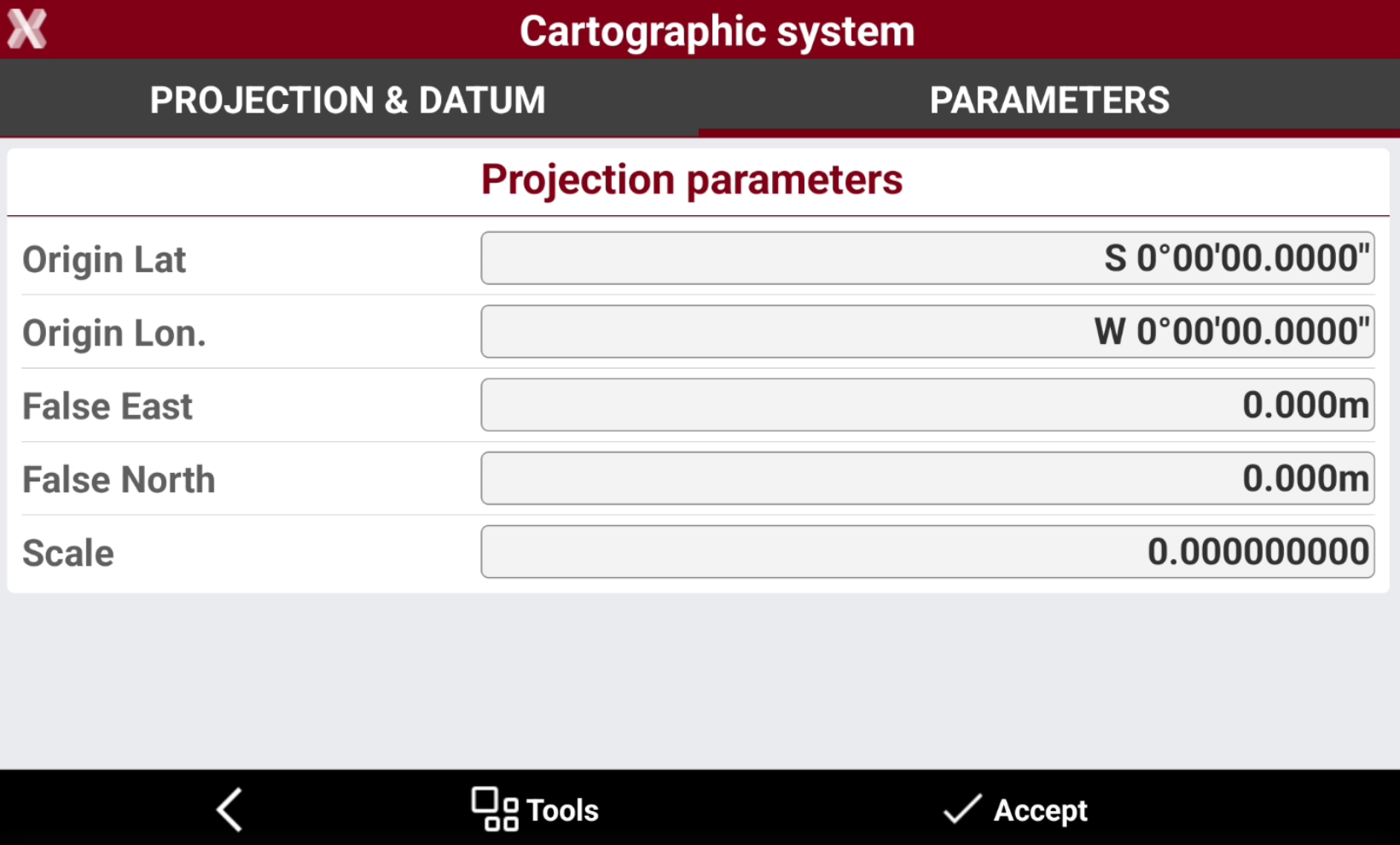
Parameters page lists the parameters of the projection. The parameters in this page depends on the projection selected.
-
Lat. Origin: Defines the latitude of the origin of the coordinate system.
-
Long. Origin: Defines the longitude of the origin of the coordinate system.
-
Parallel 1: Specifies the first parallel for the coordinate system.
-
Parallel 2: Specifies the second parallel for the coordinate system.
-
False East: Defines the coordinate for the false East of the coordinate system.
-
False North: Defines the coordinate for the false North of the coordinate system.
-
Scale: Sets the scale factor of the coordinate system.
-
Save a cartographic system as predefined
-
It is possible to save a cartographic system as predefined for all the jobs.
-
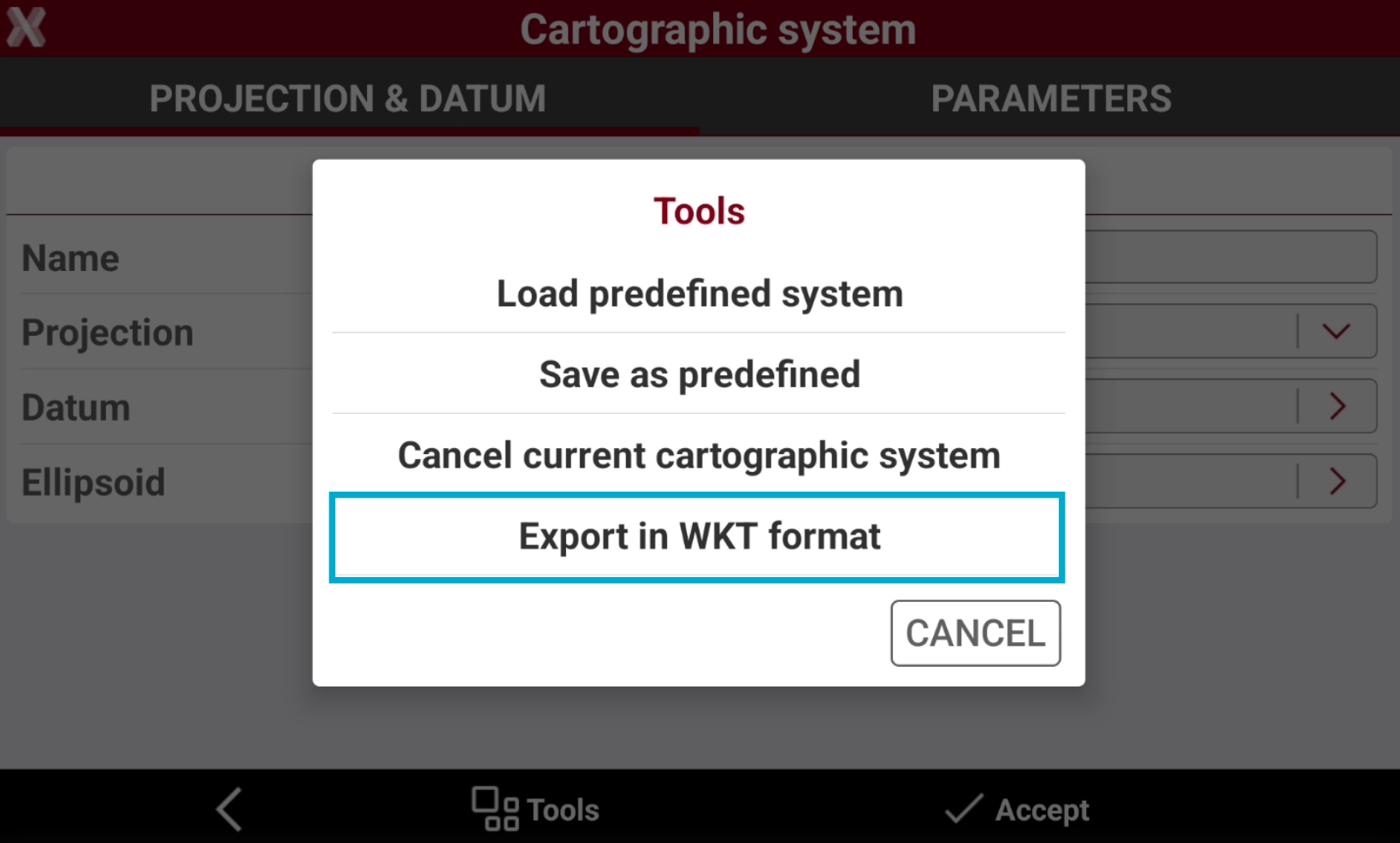
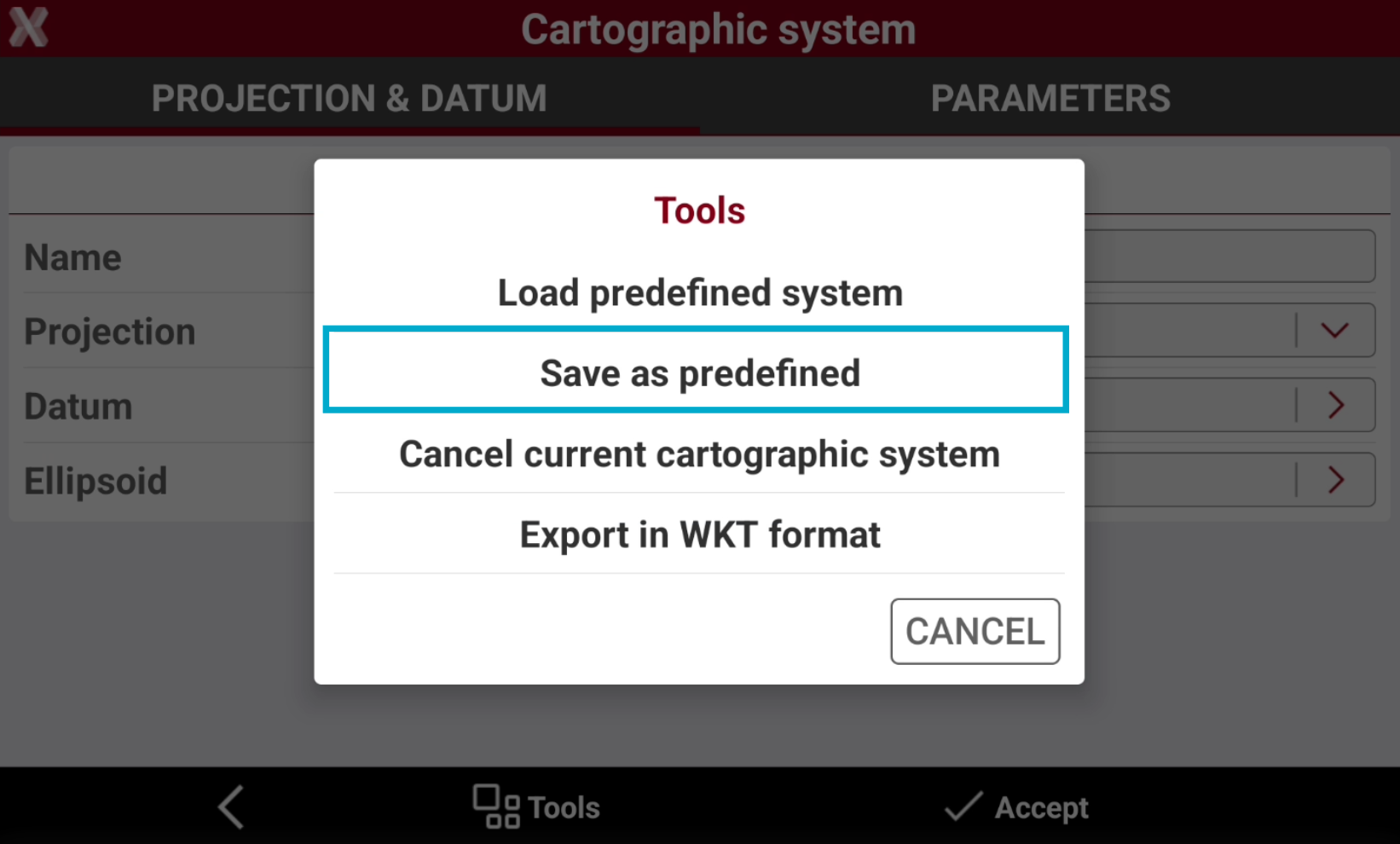
In the Cartographic system page select Tools.
-
Select Save as predefined.
-
Save the current system in the User group of the predefined systems to be quickly accessed.
Cancel current cartographic system
-
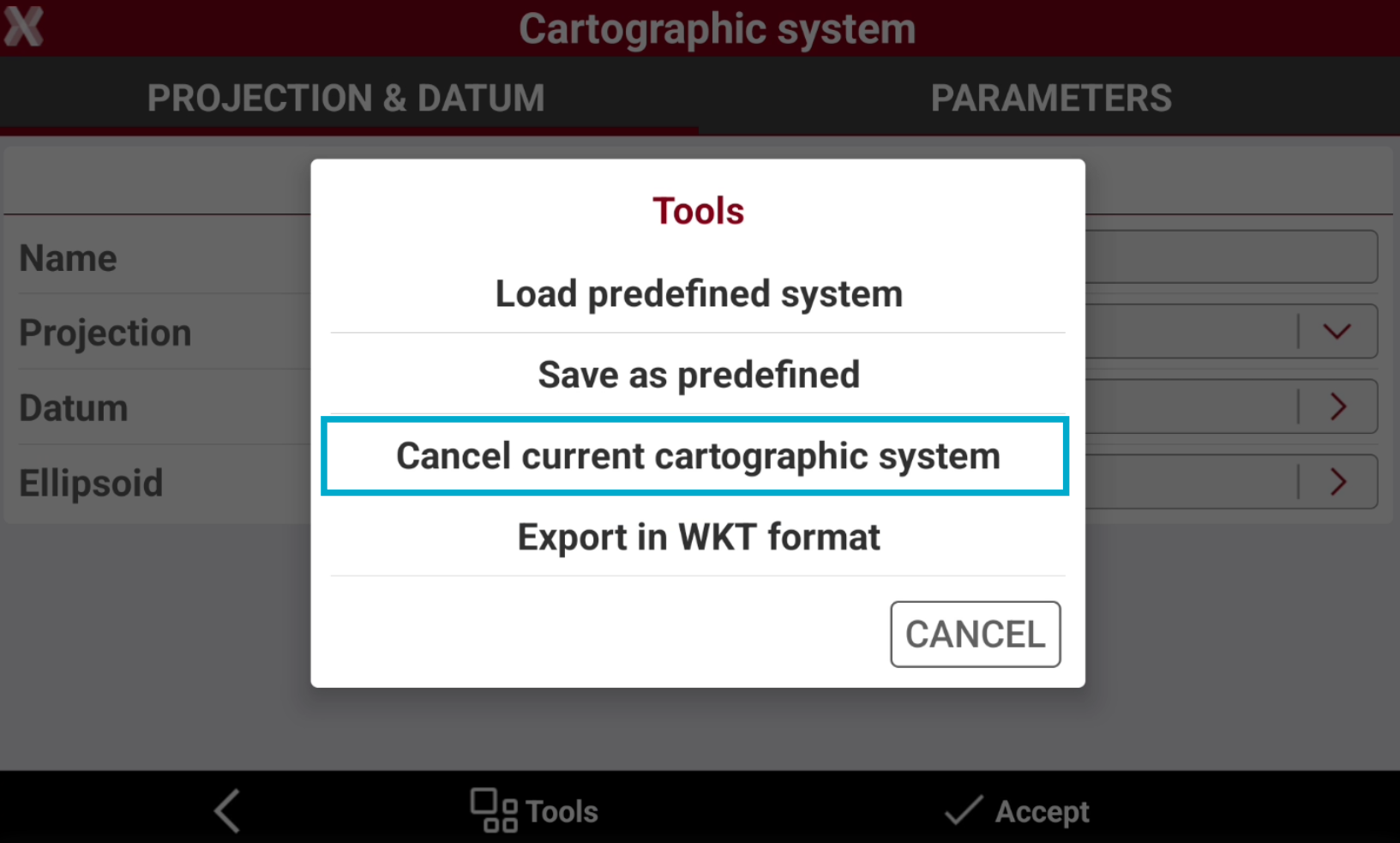
This command allows to cancel the current selected cartographic system.
-
In the Cartographic system page press Tools.
-
Select Cancel current cartographic system.
-
Now the cartographic system is not defined.

Export in WKT format
-
A cartographic system can be exported in the standard format WKT. Well-known text (WKT) is a standard text format for describing coordinate reference systems. It's used in geographic information systems (GIS) and web mapping APIs and can be used in different software.
-
In the Cartographic system page select Tools.
-
Select Export in WKT format.