
-
This paragraph shows how to create a profile for a GNSS receiver.
-
From Settings page select GNSS & Total stations.
-
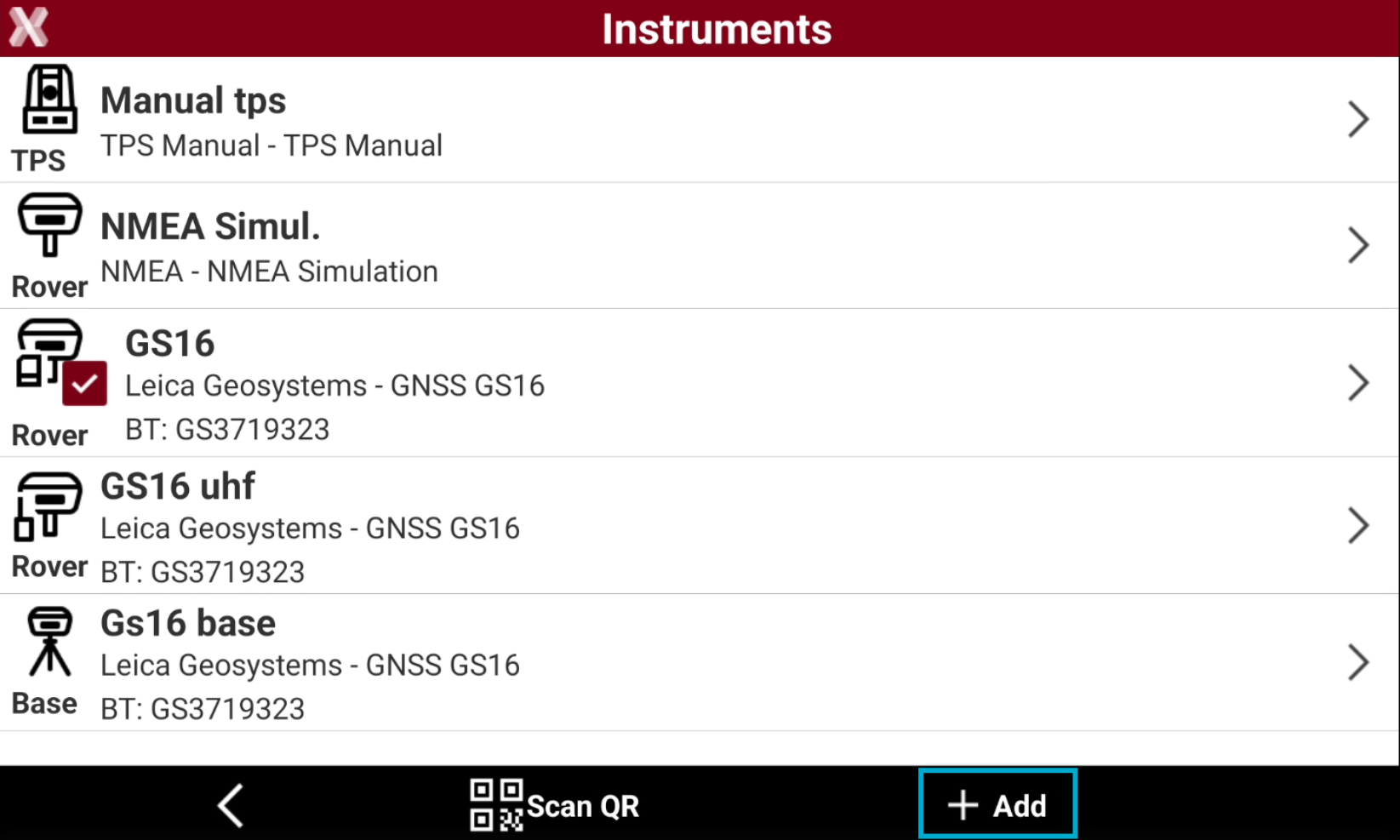
Select Add to create a new profile.
-
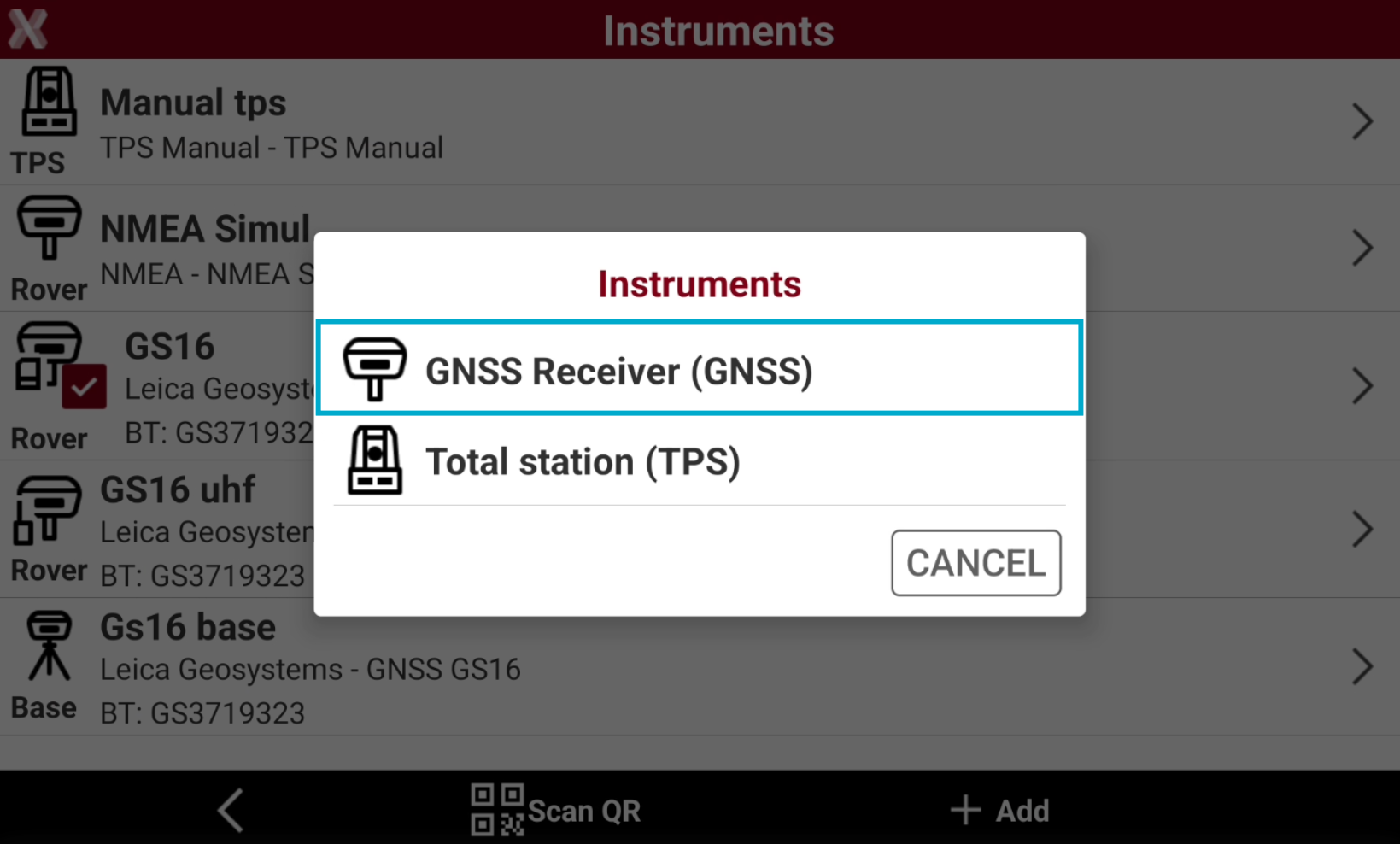
Select GNSS Receiver (GNSS).
Profile page
-
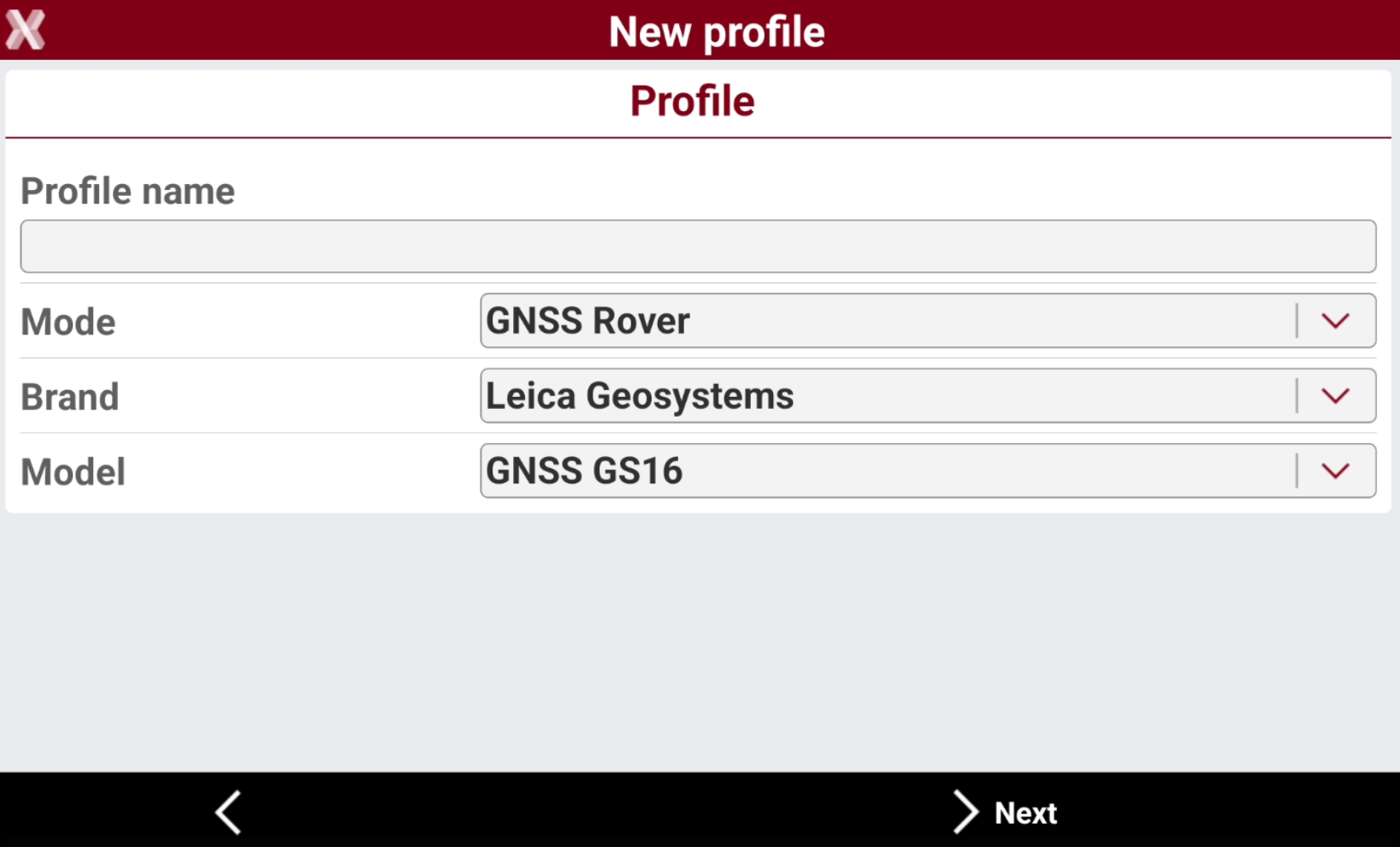
The Profile page allows to enter the information on the profile type and the instrument connected, selecting the brand and the model.
-
Profile name: name to assign to the profile
-
Mode: the receiver working mode, rover or base.
-
GNSS Rover: receiver operates as rover, receiving RTK corrections.
-
GNSS Base: receiver operates as base, sending out RTK corrections.
-
-
Brand: brand of the receiver.
-
Model: model of the receiver.
-
If selected Brand is NMEA and Model is GPS Hardware, it is possible to create a rover profile where the GNSS sensor of the field controller is used.
Device page
The options available on this page depend on the GNSS receiver model.
-
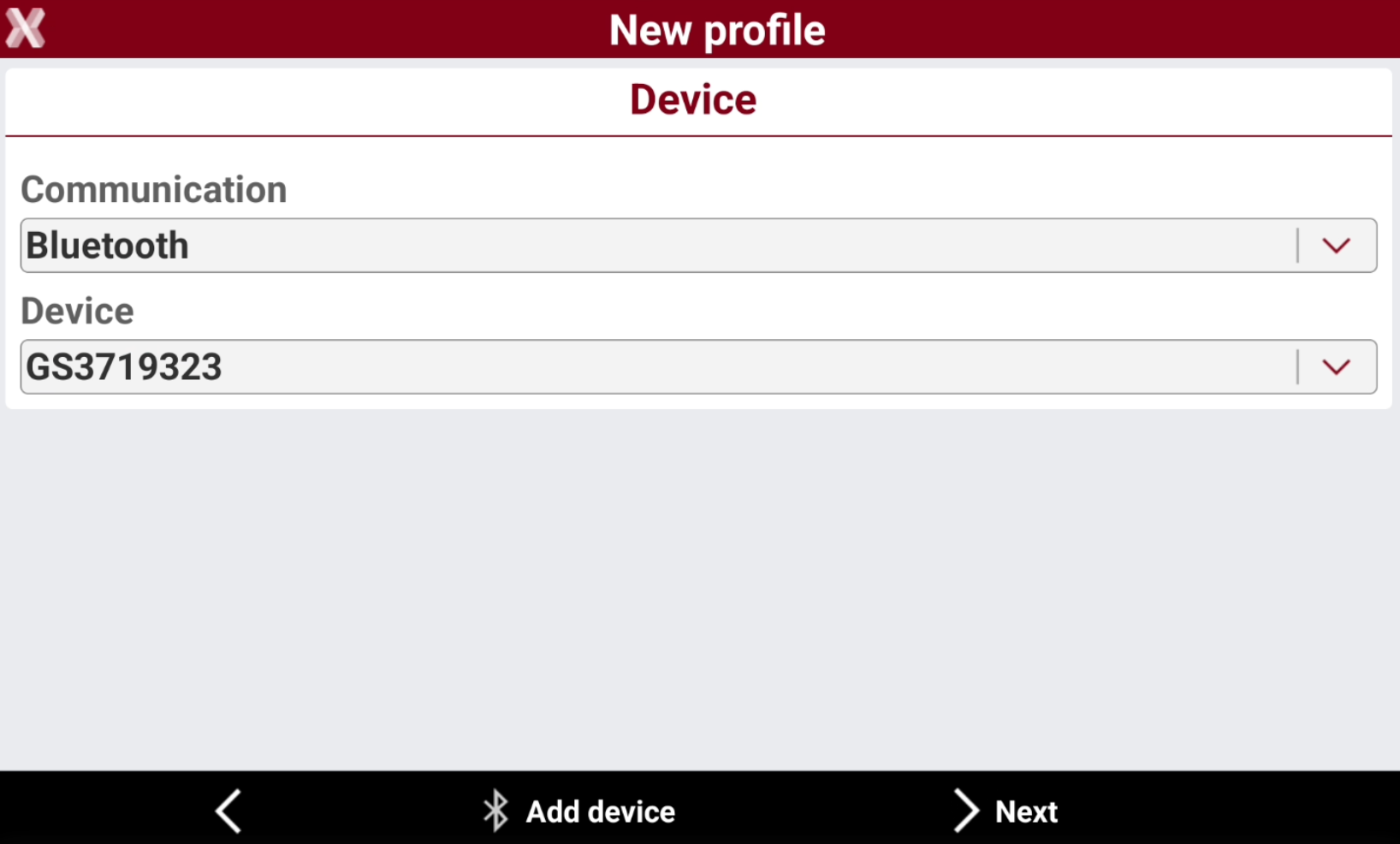
The Device page configures how the communication mode between field controller and GNSS receiver.
-
Communication: select the communication mode. Usually the communication mode is Bluetooth or Wi-Fi, depending on the communication modes supported by the selected GNSS receiver model.
-
Bluetooth: the communication between GNSS receiver and field controller is by Bluetooth. This is the most common communication method.
-
Wi-Fi: the communication between GNSS receiver and field controller is by Wi-Fi.
-
USB-Serial adapter: the communication between GNSS receiver and field controller uses a USB-Serial adapter connected between field controller and cable to the GNSS receiver. If this method is selected, it is possible to configure the communication parameters.
-
USB-Bluetooth adapter: the communication between GNSS receiver and field controller uses a USB-Bluetooth adapter. If this method is selected, it is possible to configure the communication parameters.
-
-
Device: name of the Bluetooth device to connect. This list shows the already searched device.
-
Network: name of the Wi-Fi network to connect. This list shows the already searched device.
-
-
If it is the first time the GNSS receiver has to be connected, press Add device to search the device. After the device is selected, it is available in Device list.
If the GNSS receiver has Imaging to use the camera the connection method must be Wi-Fi.
RTK page
The options available depend on the GNSS receiver model.
-
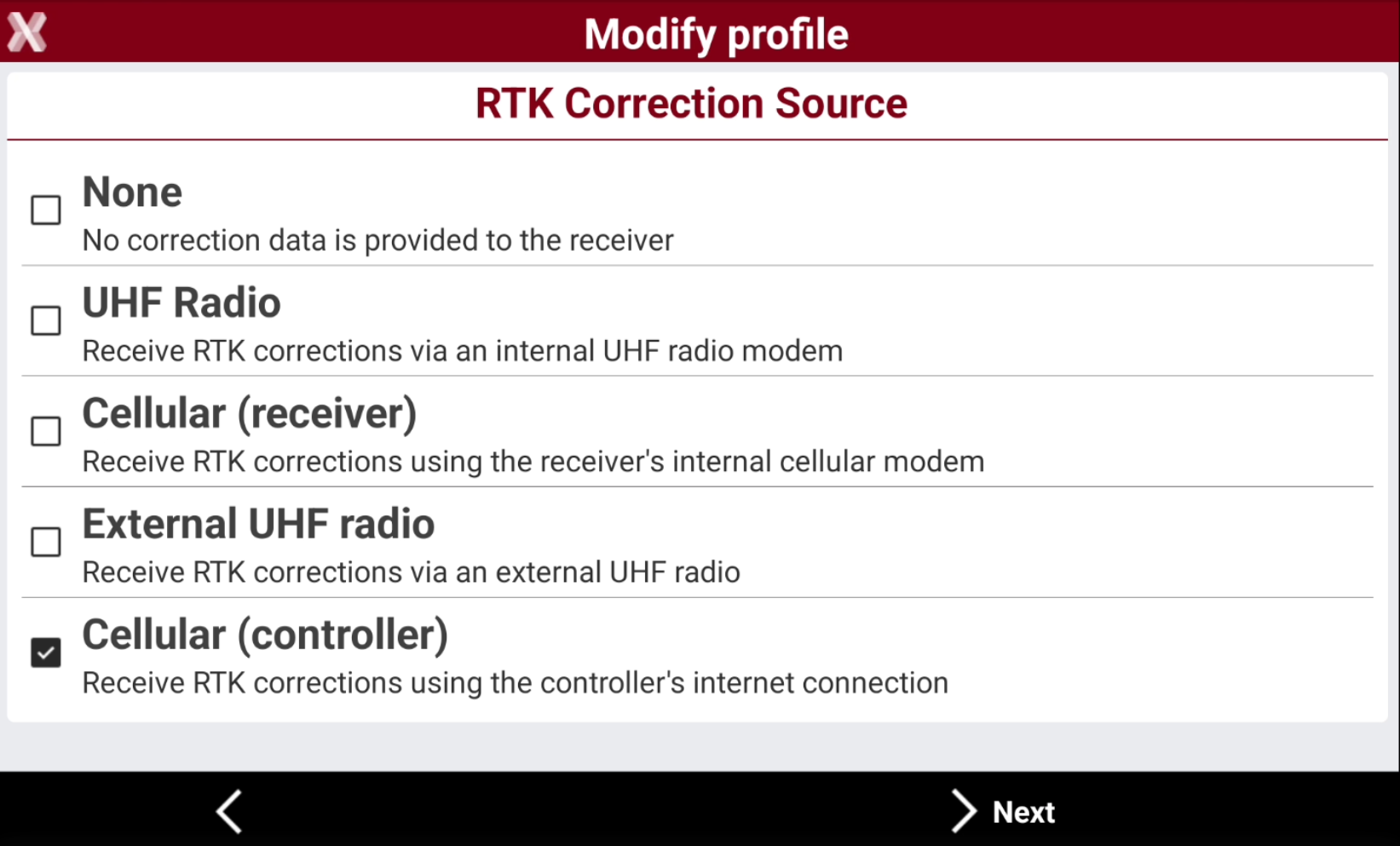
The RTK page allows to specify the type of device to use to send (base) or receive (rover) differential corrections.
-
None: no RTK connection. Receiver operates in autonomous mode.
-
Internal radio: utilizes the internal radio of receiver to transmit or receive RTK corrections.
-
Cellular (receiver): utilizes the internal cellular modem of the receiver to transmit or receive RTK corrections.
-
External radio: utilizes an external radio to transmit RTK corrections.
-
Cellular (controller): utilizes internet from the field controller to transmit or receive RTK corrections.
-
PPP (Precise Point Positioning): activates the PPP mode. It requires a PPP license and is available only for certain GNSS receivers.
-
RTK Radio page (internal radio)
The options available depend on the GNSS receiver model.
In order to accomplish radio regulations active in several countries, the access to some advanced settings (radio frequencies and spacing.) of the radio are protected with a password. Contact the technical support for more information.
-
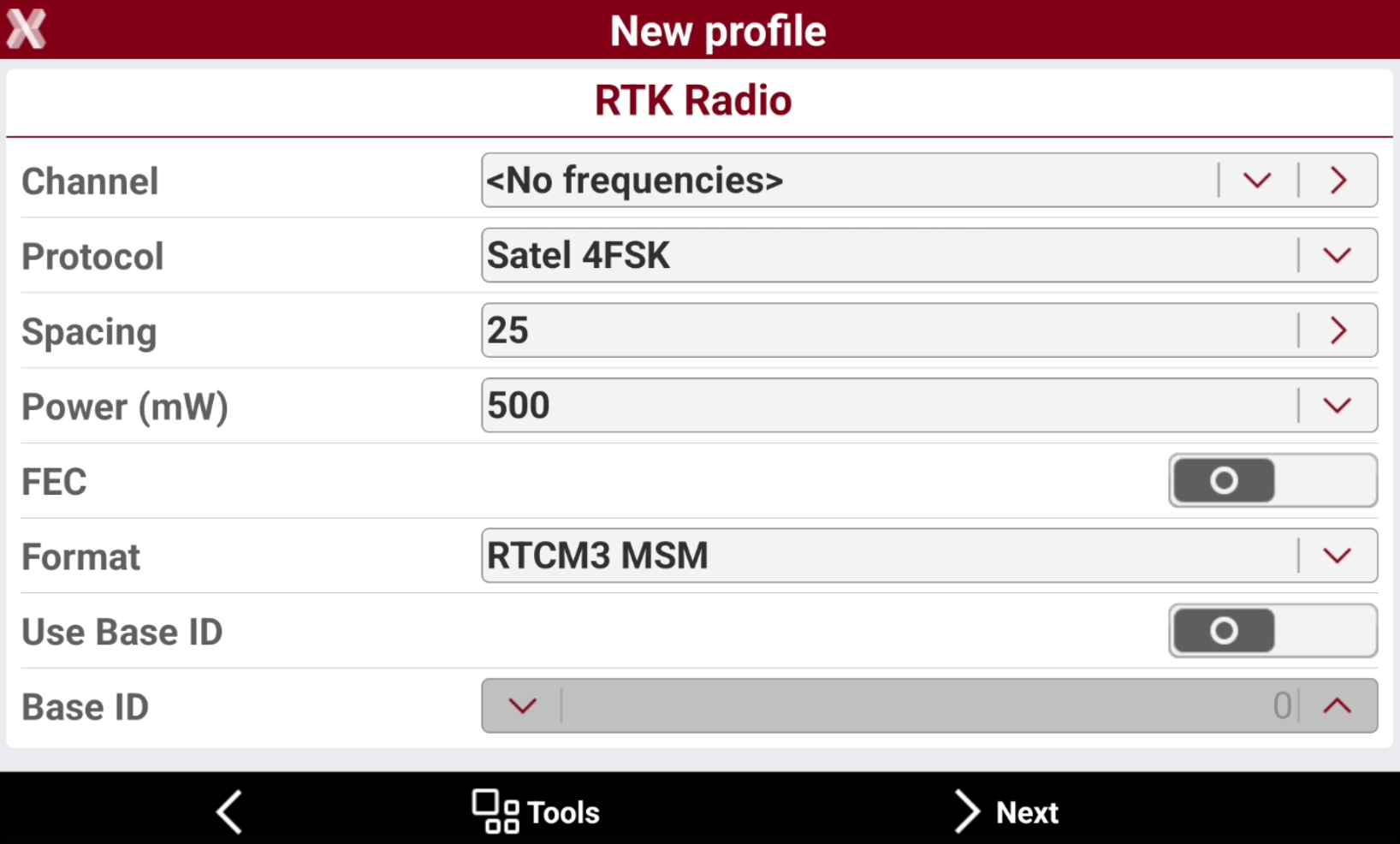
In case the RTK has been selected as Internal radio, the software gives the possibility for certain models to configure the internal radio.
-
Select Tools to load the configuration saved in the GNSS receiver, or edit the parameters.
-
Channel: radio channel to use for transmitting and receiving data.
-
Protocol: the UHF data protocol.
-
Spacing: the UHF data spacing.
-
Power: allows to select the output power of the radio.
-
FEC (Forward Error Correction): improves the reliability of data transfer over the radio by adding additional correction information to the messages. If enabled on the base, it must also be enabled on the rover.
-
Format: the RTK corrections format. Base and rover must use the same format. For GNSS receiver with multi-constellation it is recommended to work with RTCM3 MSM format.
-
Use Base ID:
-
For Rover: sets the receiver to receive the corrections only from the base identified by the specified Base ID.
-
For Base: sets the name of the base. Base ID Identification of the base.
-
-
RTK GPRS page (internal/external GPRS)
The options available on this page depend on the GNSS receiver model.
-
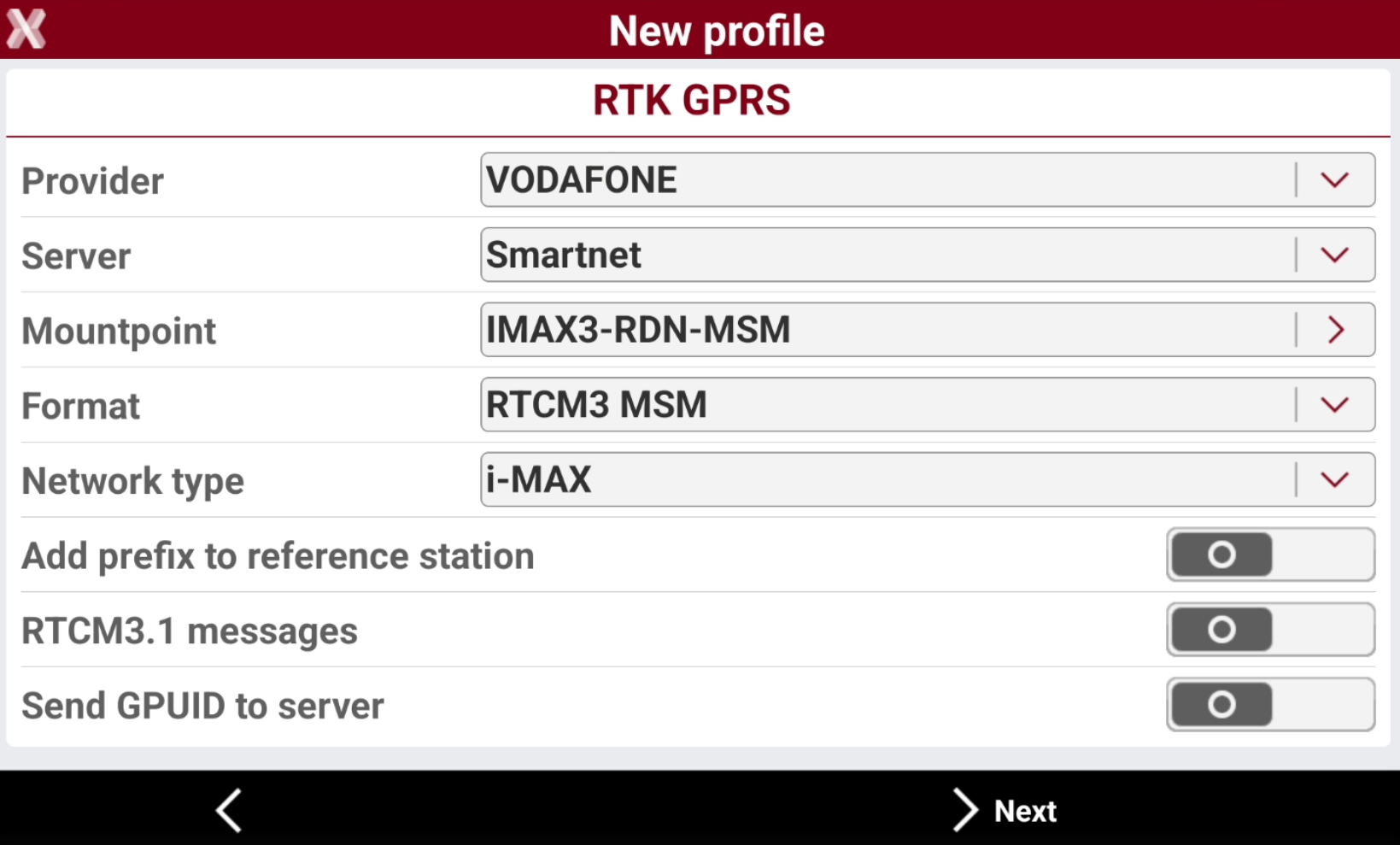
In case the RTK has been selected as GPRS internal or GPRS external, the RTK GPRS page allows to define the connection parameters to receive or transmit RTK corrections.
-
Provider: available if RTK mode is Internal GPRS (SIM card is inside the GNSS receiver). Name of the phone provider providing GPRS service. Select Providers… from the list to define a new provider or to modify parameters of an existing provider. See Managing profiles of internet providers for more information on how edit this field.
-
Server: service utilized to transmit or receive RTK corrections using internet. Select NTRIP servers… from the list to define a new service or to modify parameters of an existing service.
-
NTRIP: name of the permanent station service to connect using the NTRIP protocol. See Managing profiles of NTRIP for more information how to create and edit NTRIP servers.
-
CSD (Direct call): name of the profile. See Managing profiles of direct call for more information how to edit the fields.
-
DDNS (Dynamic DNS): sets a base and rover system in which the base is able to support up to 10 rovers at the same time using GPRS network and Dynamic DNS. See Managing dynamic DNS (DDNS) profiles for more information.
-
Point to point: allows to receive RTK corrections directly from an IP address and port, not using the NTRIP protocol. See Managing point to point profiles for more information.
-
-
Mountpoint: name of mountpoint to use. Type in the name or select from a list. Only if an NTRIP server has been set. See Managing the mountpoints for more information how to load the mountpoint list.
-
Format Data: format of corrections. Set the same data format sent by permanent station (source). For multi-constellation receivers it is recommended to work with RTCM3 MSM protocol.
-
Network type: type of network corrections to use. Only if an NTRIP server has been set. This field is available only for certain models.
-
Add prefix to reference station: allows to define a prefix before the reference station name. This setting helps to identify the reference station in the points database.
-
RTCM3.1 messages: when activated, the software can process some of the messages provided by the RTCM3.1 protocol. In particular:
-
Messages referring to transformation parameters of the coordinate system.
-
Messages referring to corrections to apply for coordinates calculation
-
-
RTCM3.1 mode: available if RTCM3.1 messages is enabled. RTCM3.1 can only be used with CORS network providing these messages. Allows to choose how RTCM3.1 messages are used:
-
Horizontal & Vertical: correction and calculation of coordinates and of elevations.
-
Horizontal only: correction and calculation only of coordinates.
-
Vertical only: correction and calculation only of elevations
-
-
Process RTCM1025: available if RTCM3.1 messages is enabled. Selects to process RTCM 1025 message if transmitted from the network. Message 1025 includes projection parameters.
-
Send GPUID to server: if enabled, allows to transmit a Job ID and a User ID to the server.
-
Parameters page
The options available depend on the GNSS receiver model.
-
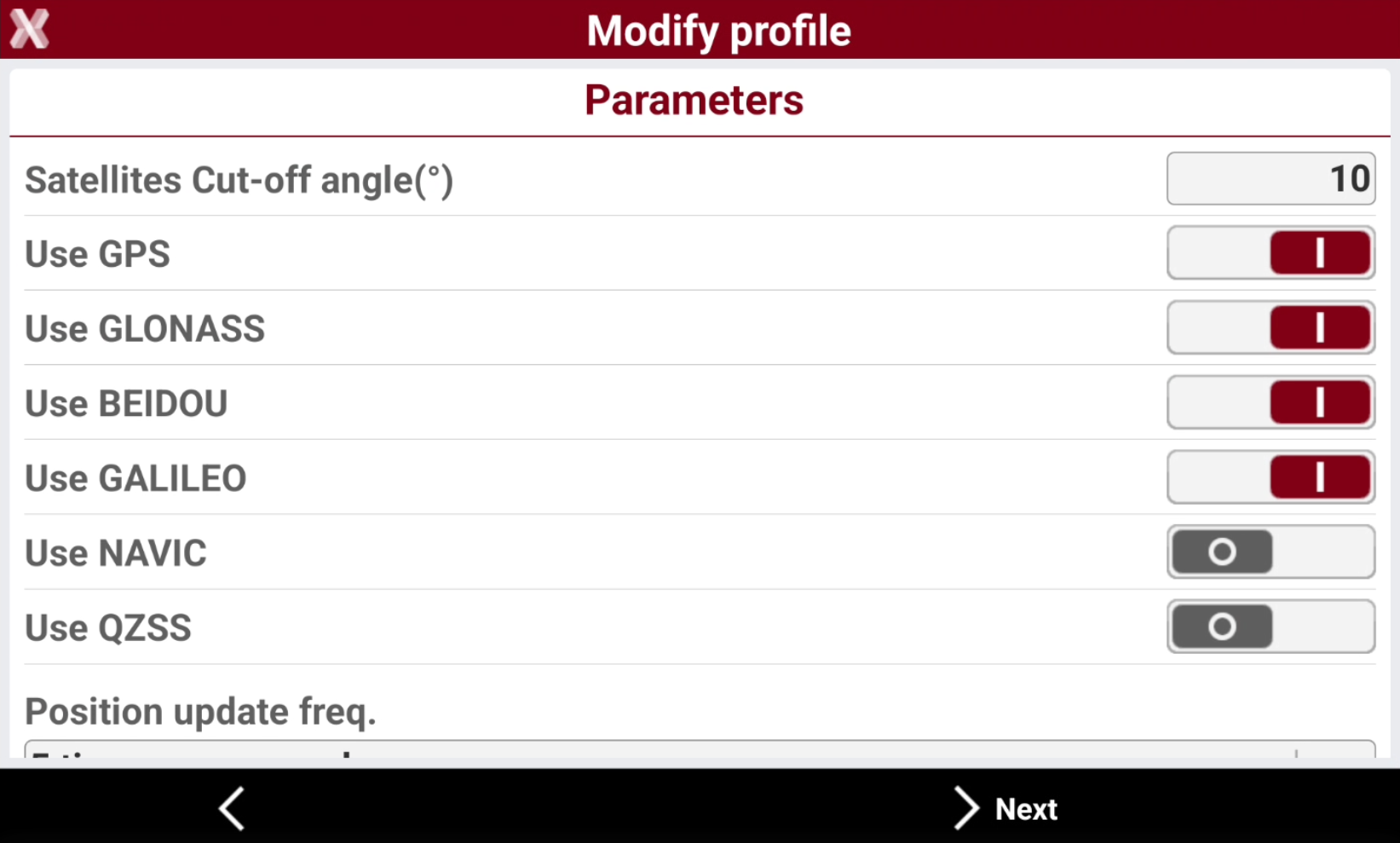
The Parameters page allows to edit the GNSS receiver satellite tracking settings.
-
Satellites Cut-off angle(°): minimum elevation above the horizon in degrees to consider satellites usable. To increase precision by avoiding satellites too low above the horizon.
-
Tracking GPS L2C: enables the tracking of GPS L2C signal, available for some GNSS receiver models.
-
Use GLONASS: enables the use of satellites in the GLONASS constellation.
-
Use GALILEO: enables the use of satellites in the GALILEO constellation.
-
Use BEIDOU: enables the use of satellites in the BeiDou constellation.
-
Use Navic: enables the use of satellites in the Navic constellation.
-
Use QZSS: enables the use of satellites in the QZSS constellation.
-
Use SBAS: available if None is selected as device on the RTK page. Enables the use of geostationary satellites of SBAS. The receiver can receive correction directly from SBAS satellites and improve the quality of the position without any type of RTK connection.
-
Use Galileo HAS: available if None is selected as device on the RTK page. Enables the use of Galileo-HAS satellite correction service.
-
Position update freq.: frequency with which the value of the position is updated. For tracking operations, use a value of 5 times per second.
-
Hotspot: allows to use the GNSS receiver as internet hotspot, when a SIM card is active in the GNSS receiver.
-
Antenna page
-
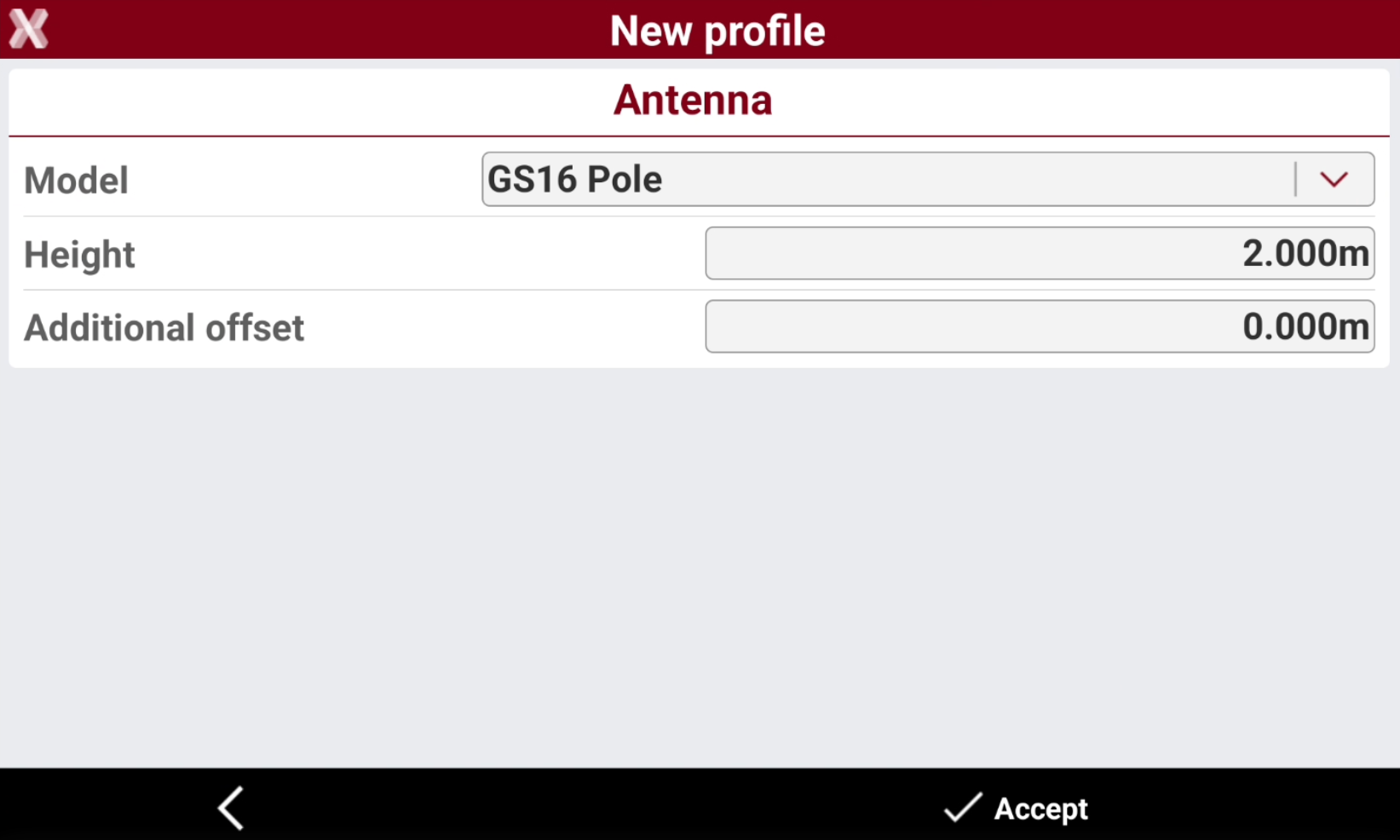
The Antenna page allows to edit the antenna settings.
-
Model: type of the antenna of the receiver.
-
Height: default receiver antenna elevation.
-
Additional offset: vertical additional offset to be applied.
-
Managing internet providers
-
A Provider is the service providing data traffic to the SIM card inside the GNSS receiver.
-
The provider has to be defined and selected when working with Internal GPRS and a SIM card is inside the GNSS receiver.
-
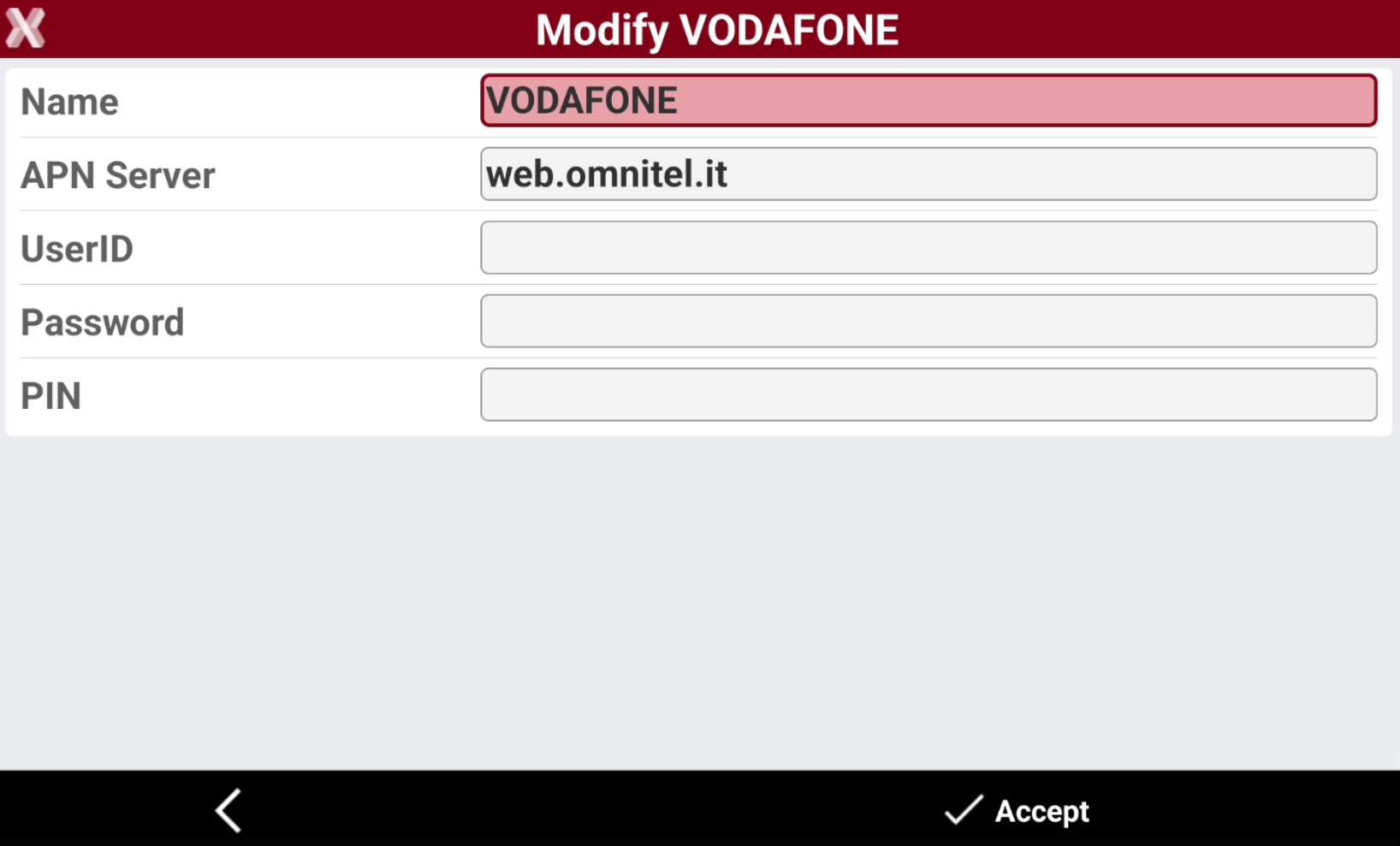
Parameters required to define a provider are:
-
Name: description of the provider.
-
APN Server: name of the access point for GPRS and UMTS nets.
-
User ID: identification of the user to access the service. Necessary if the access is protected by a user ID and a password.
-
Password: set the password to access the service. Necessary if the access is protected by a user ID and a password.
-
PIN: PIN to use the SIM card.
-
-
Select Accept to save the provider.
Managing internet server
-
A server is in general an online service/server which provides/transmits RTK corrections using different protocols.
The most used protocol is NTRIP. It is a permanent station service to connect through the internet receiving differential corrections in real time.
-
The Server page allows to create and edit RTK servers.
-
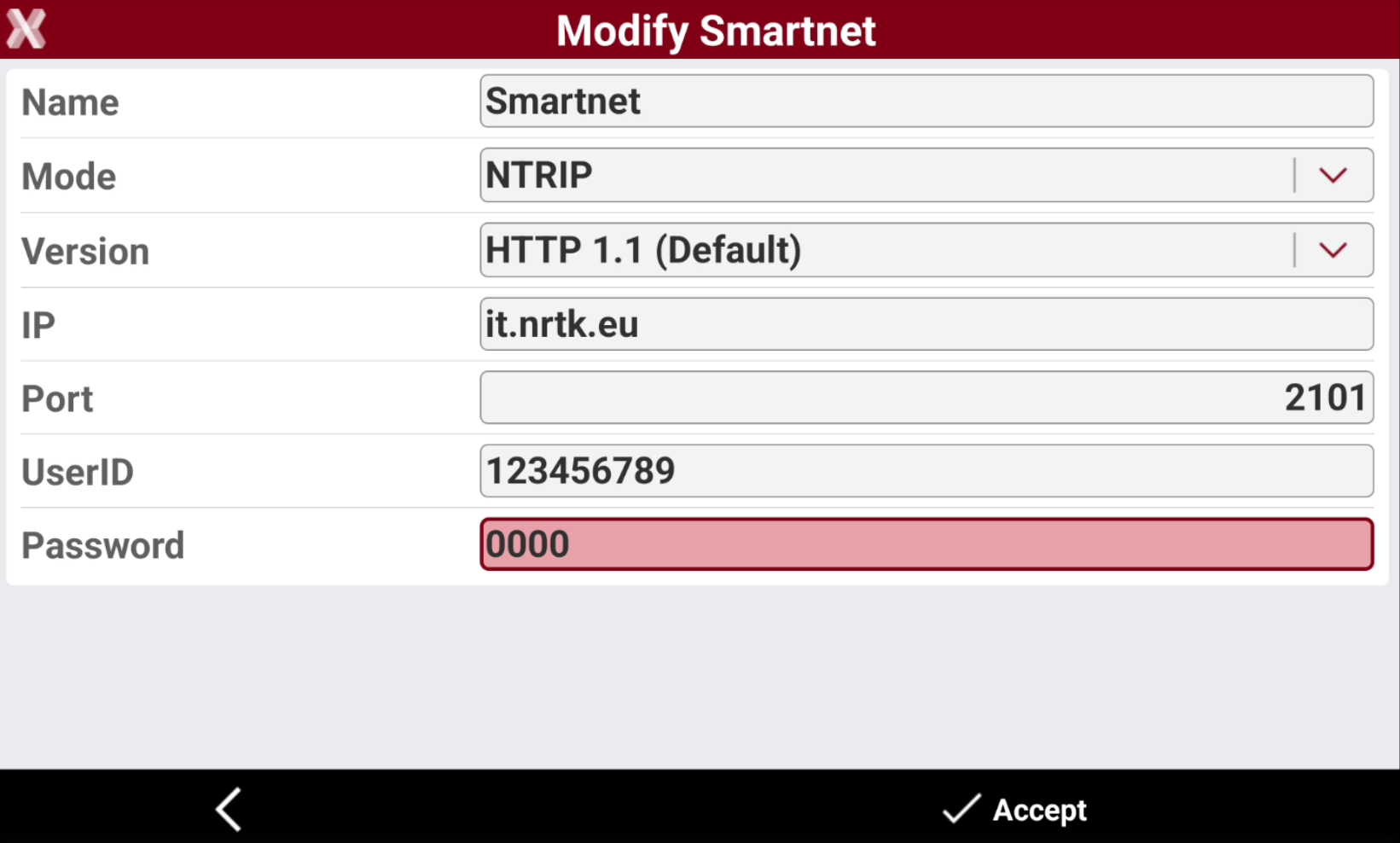
Parameters required are:
-
Name: description of the provider
-
Mode: select the server mode.
-
NTRIP: a permanent station service to connect through the internet receiving differential corrections in real time. The NTRIP protocol is the most used protocol to receive RTK corrections from a network rover.
-
Direct call: allows setting the telephone number of the SIM card used by the base. It allows the rover to receive corrections from the base using the modem GPRS instead of radio.
-
DDNS: sets a base and rover system in which the base is able to support up to 10 rovers at the same time using GPRS network. The rover connects to an IP address defined by DDNS service.
-
Point to point: allows to receive RTK corrections directly from an IP address and port, not using the NTRIP protocol.
-
-
NTRIP mode
-
If selected Server is NTRIP, the following parameters are available:
-
Version: select if NTRIP connection version is HTTP 1.0 and HTTP 1.1. HTTP 1.1 is the standard connection method.
-
IP: IP address where the service answers. Provided when you register yourself to the service.
-
Port: number of the port used. Provided when you register yourself to the service.
-
UserID: identification of the user registered to the service. Provided when you register yourself to the service.
-
Password: password assigned to the registered user by the service. Provided when you register yourself to the service.
-
For partners who run a rental business, the NTRIP password can be hidden. This prevents the abuse after the rental is completed. Please contact the technical support to activate this option.
Direct call mode
-
If selected Server is Direct call, the following parameters are available:
-
Base phone number: telephone number of the SIM used by the base.
-
Protocol: transmission protocol.
-
Speed: transmission speed.
-
Connection: type of connection.
-
DDNS (Dynamic DNS) mode
-
If selected Server is DDNS, the following parameters are available:
-
Service Provider: insert the address of the service provider. It is necessary to subscribe service to one of these providers.
-
Host name: host name assigned by the service provider. Provided when you register yourself to the service.
-
Port: number of the port used:
-
UserID: identification of the user registered to the service. Provided when you register yourself to the service.
-
Password: password assigned to the registered user by the service. Provided when you register yourself to the service.
-
Point to point
-
If selected Server is Point to point, the following parameters are available:
-
IP: IP address to use.
-
Port: number of the port to use.
-
UserID: identification of the user registered to the service.
-
Password: password assigned to the registered user by the service.
-
Managing NTRIP mountpoints
-
An NTRIP mountpoint is a specific data stream within an NTRIP (Networked Transport of RTCM via Internet Protocol) system.
-
It represents a unique connection point on an NTRIP caster, providing access to real-time correction data.
-
Normally an NTRIP system provides different mountpoints with different parameters (data format, single station or network corrections).
-
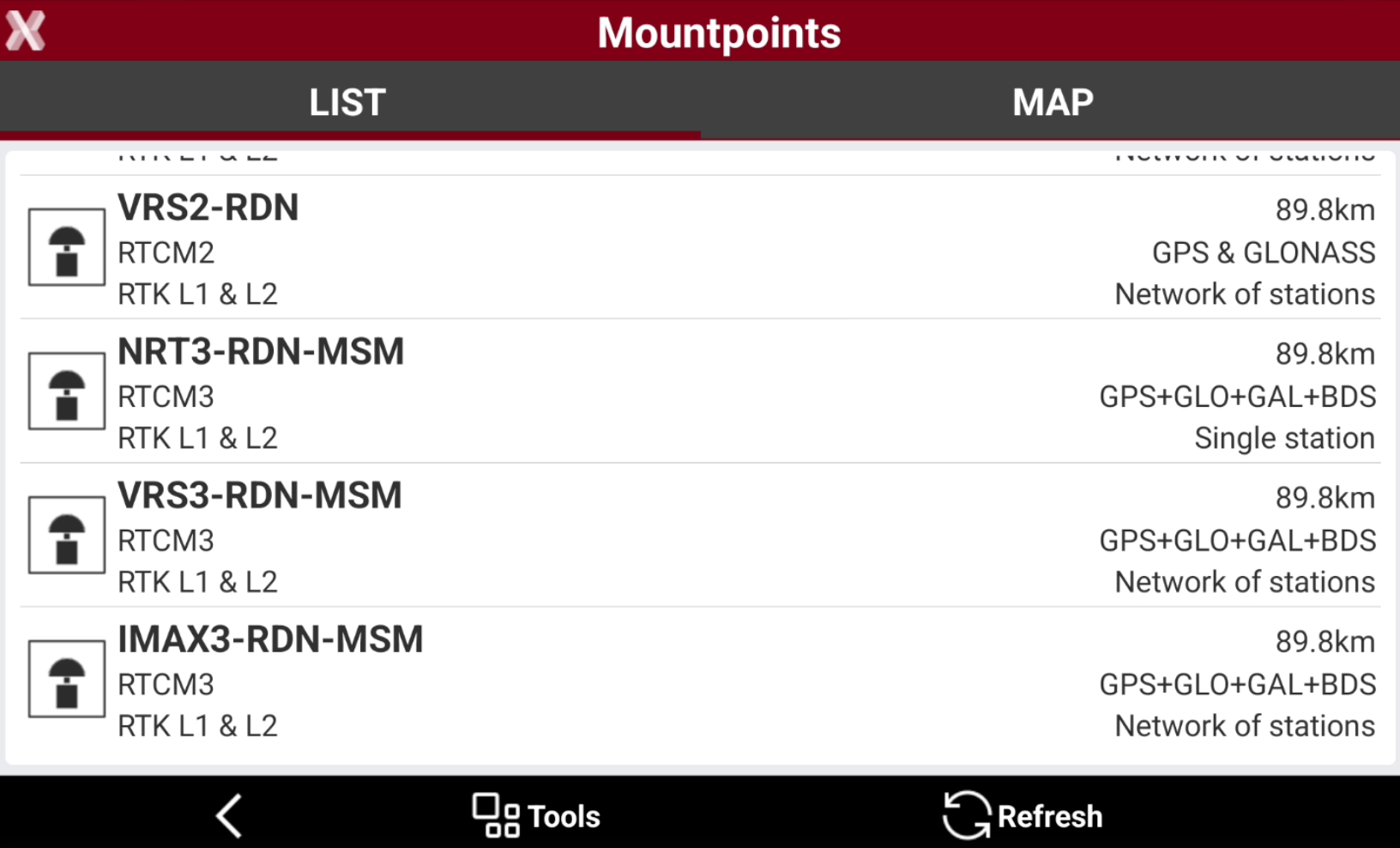
The Mountpoints page shows the list of mountpoints available.
-
The page lists the available mountpoints, with their features.
-
Select Tools to search and sort the mountpoints list.
-
Select Refresh to download the list from the network.
-
Map page shows the position of mountpoints in the map.
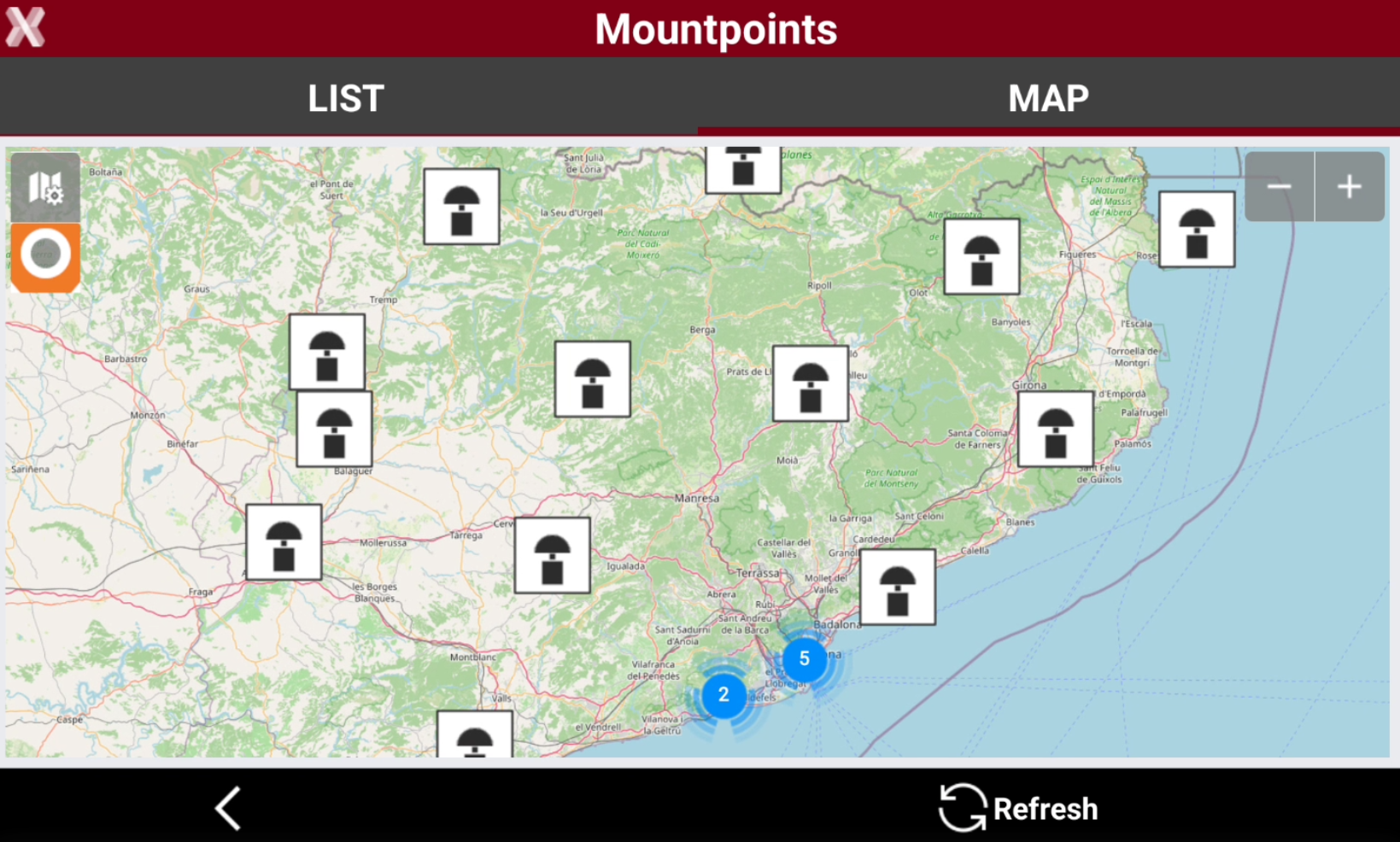
The position is available for single stations. If a mountpoint is a network product, the position do not reflect the real coordinate of the stations.