
-
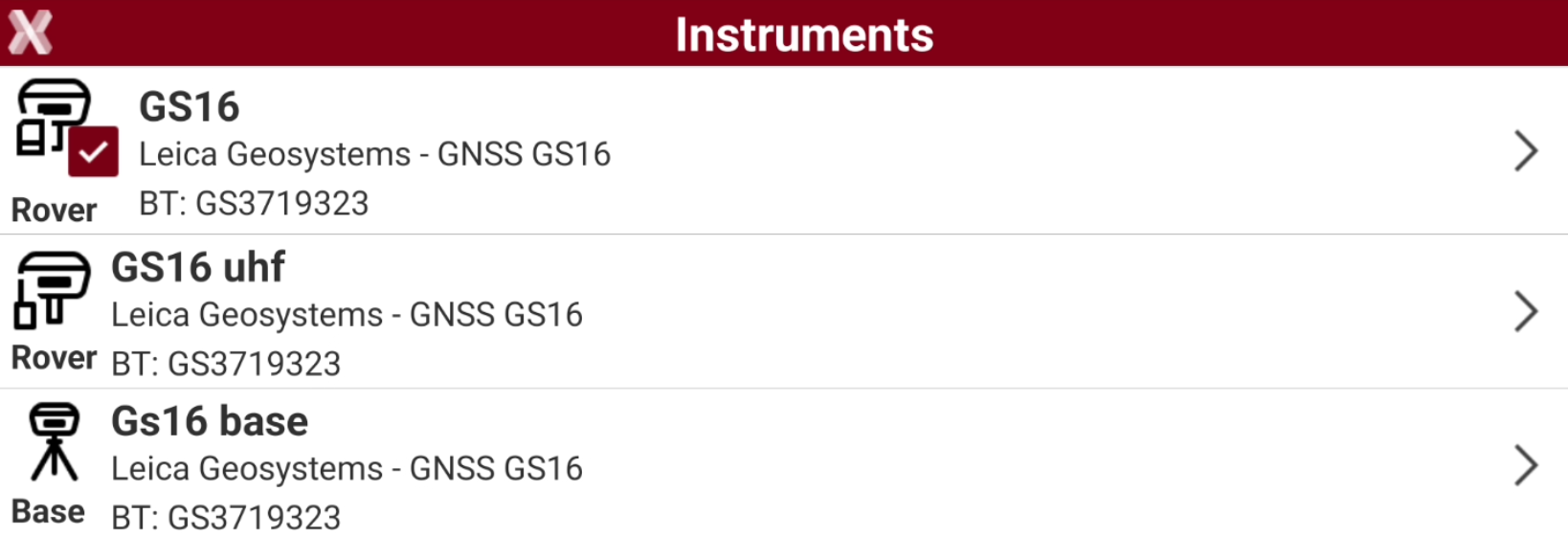
The Instruments page shows the list of available profiles and allows to create new profile.
-
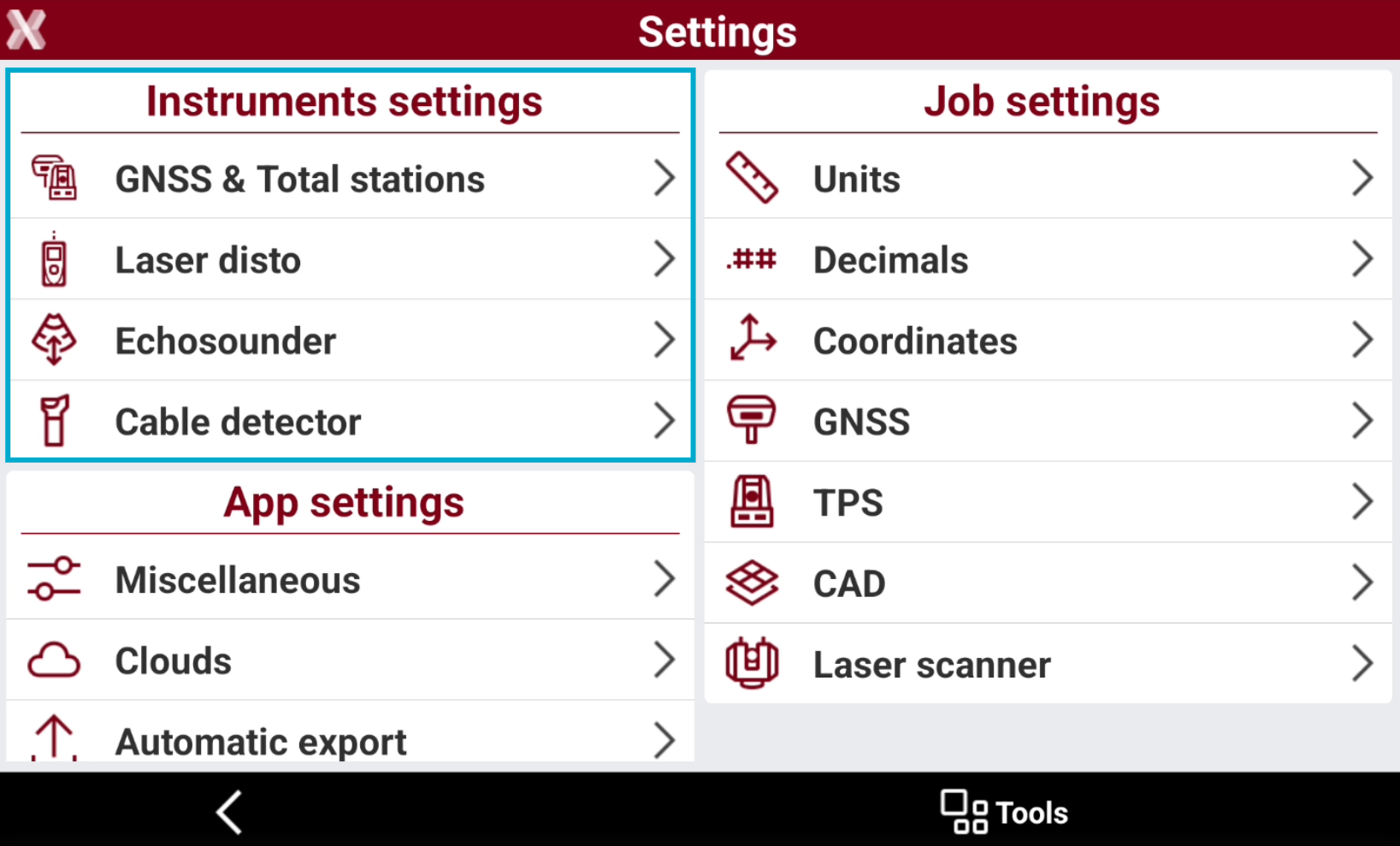
To open the list of profiles, select the instrument from Settings page.
-
The profile icon represents the profile model.
-

-

-

-

-

-

-

-
Set a profile as current
-
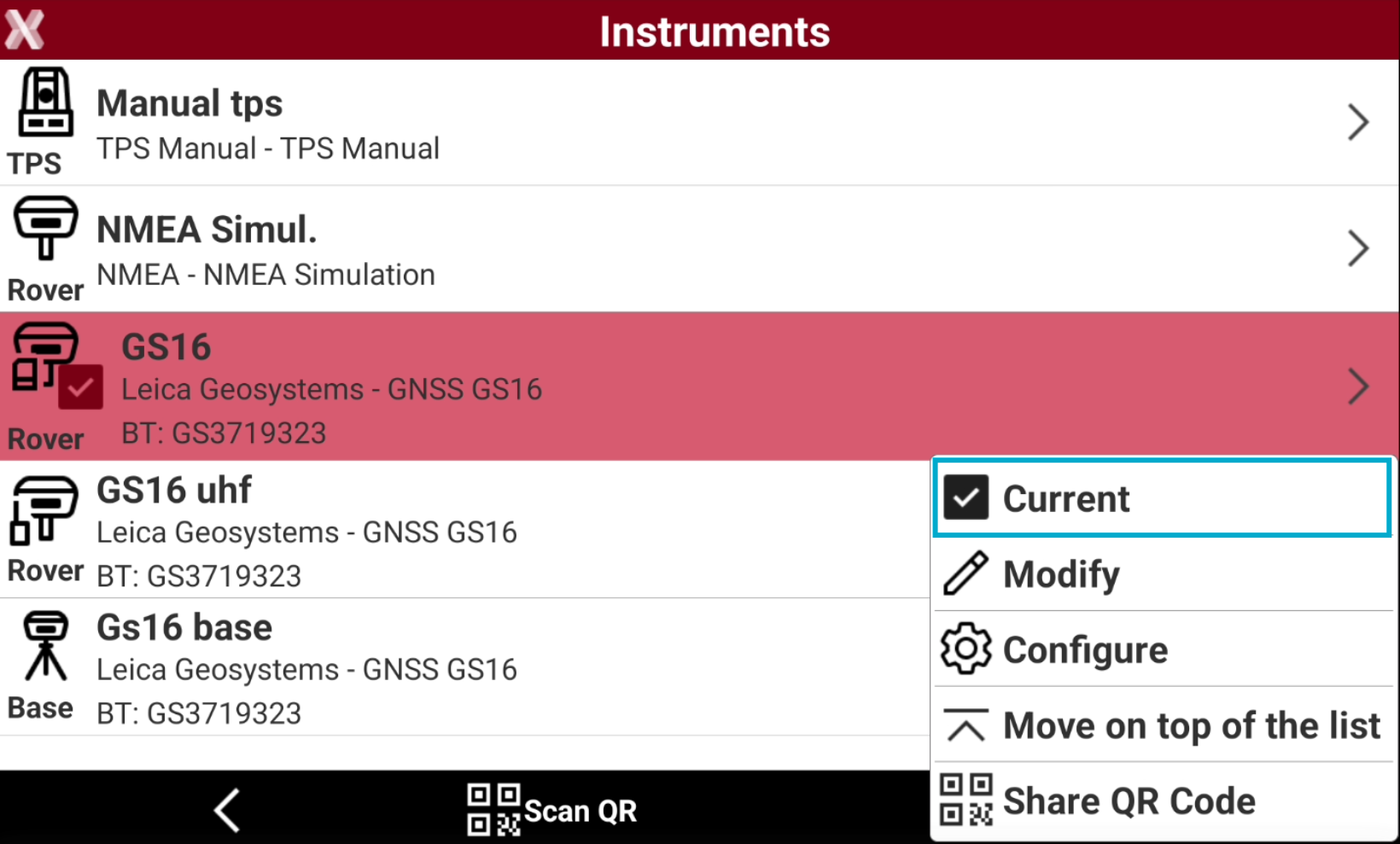
In the Instruments page select the profile.
-
Select Current from the context menu.
-
The selected profile becomes the active profile to use. The software will connect to selected instrument.
Edit a profile
-
It is possible to edit a previously saved profile.
-
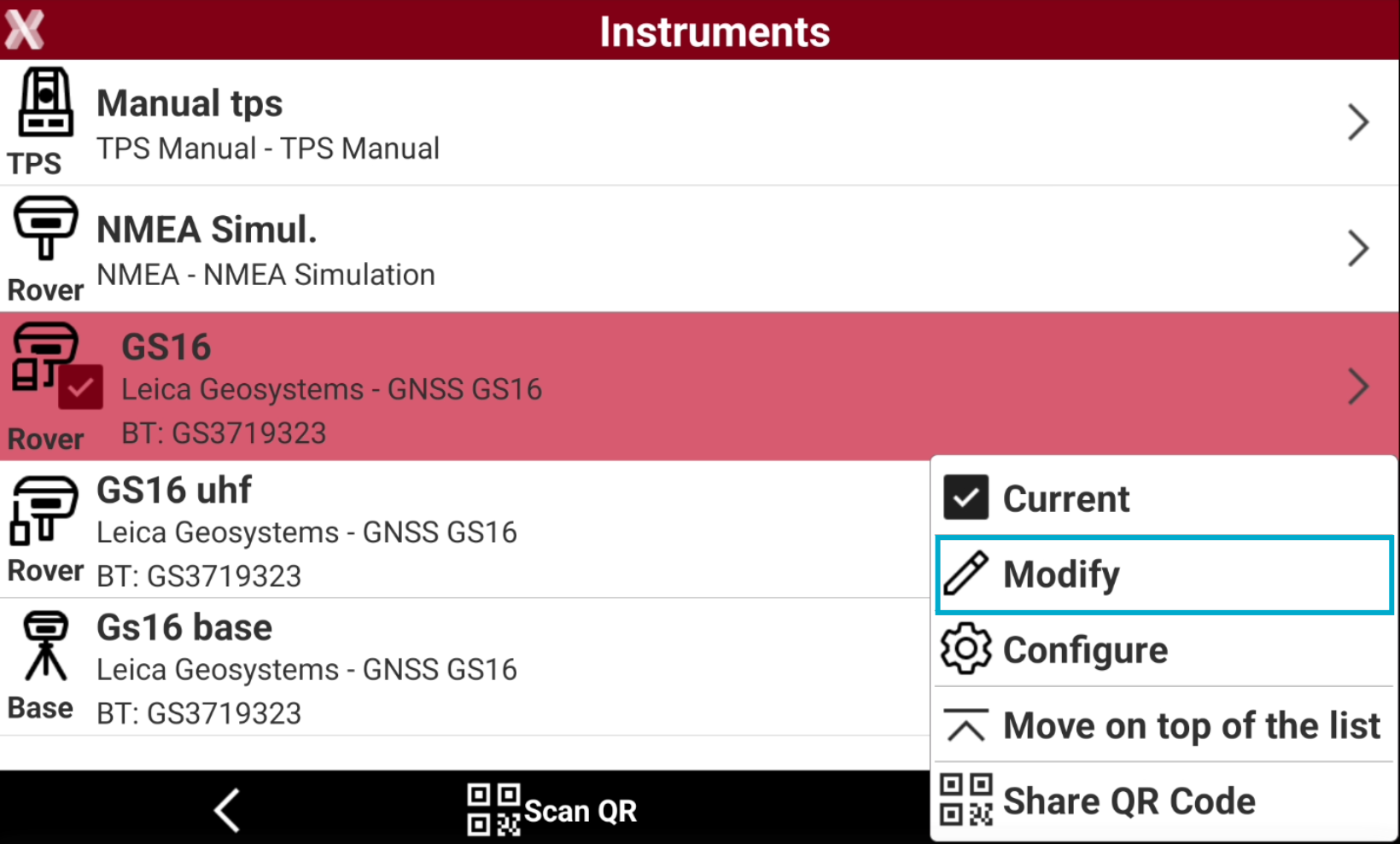
In the Instruments page select the profile.
-
Select Modify from the context menu.
Delete a profile
-
It is possible to delete a previously saved profile from the list.
-
In the Instruments page select the profile.
-
Select Delete from the context menu.
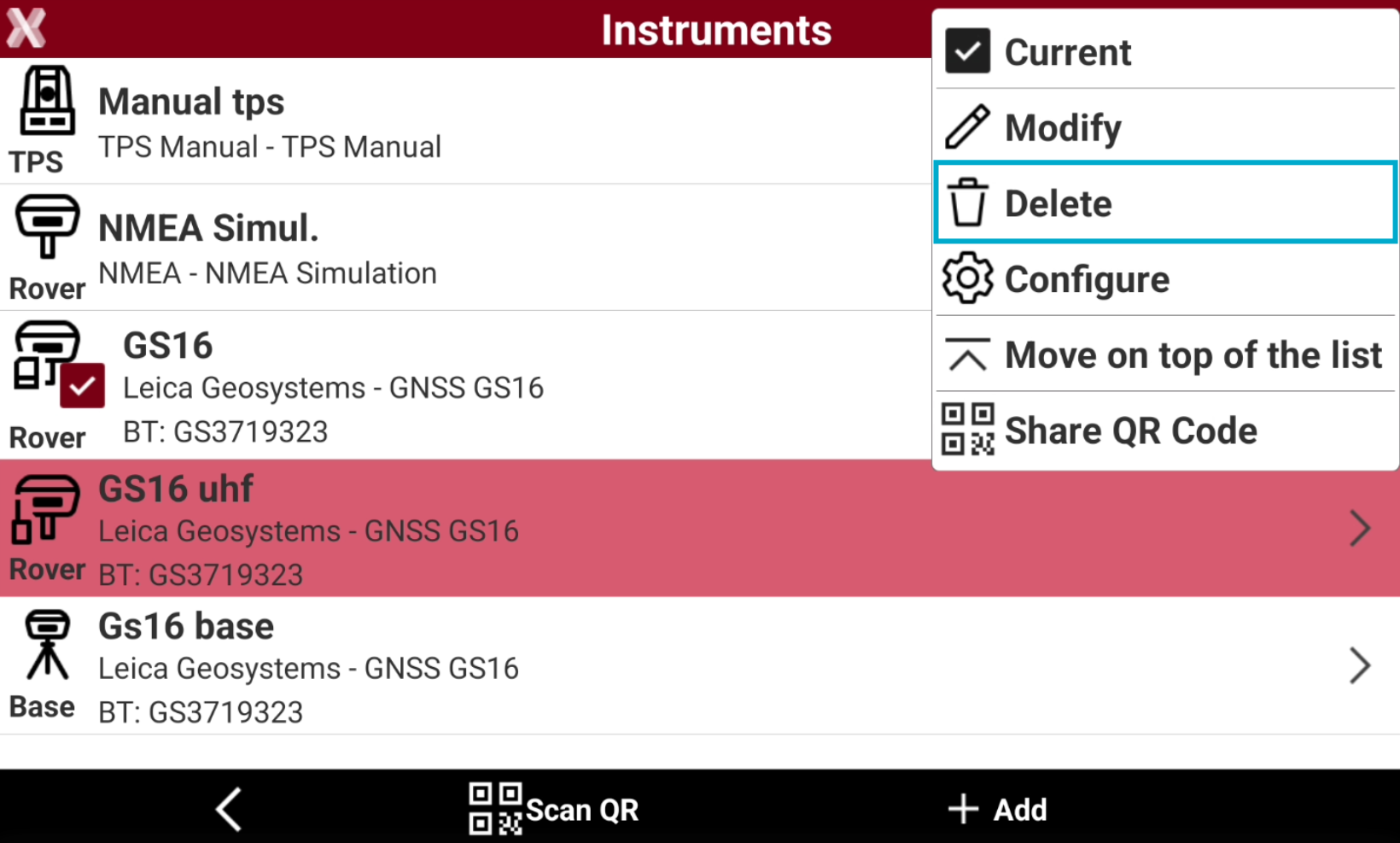
The current profile cannot be deleted.
Reconfigure instruments
-
This command is used to reconfigure the instrument using the selected profile.
-
In the Instruments page select the profile.
-
Select Configure from the context menu.
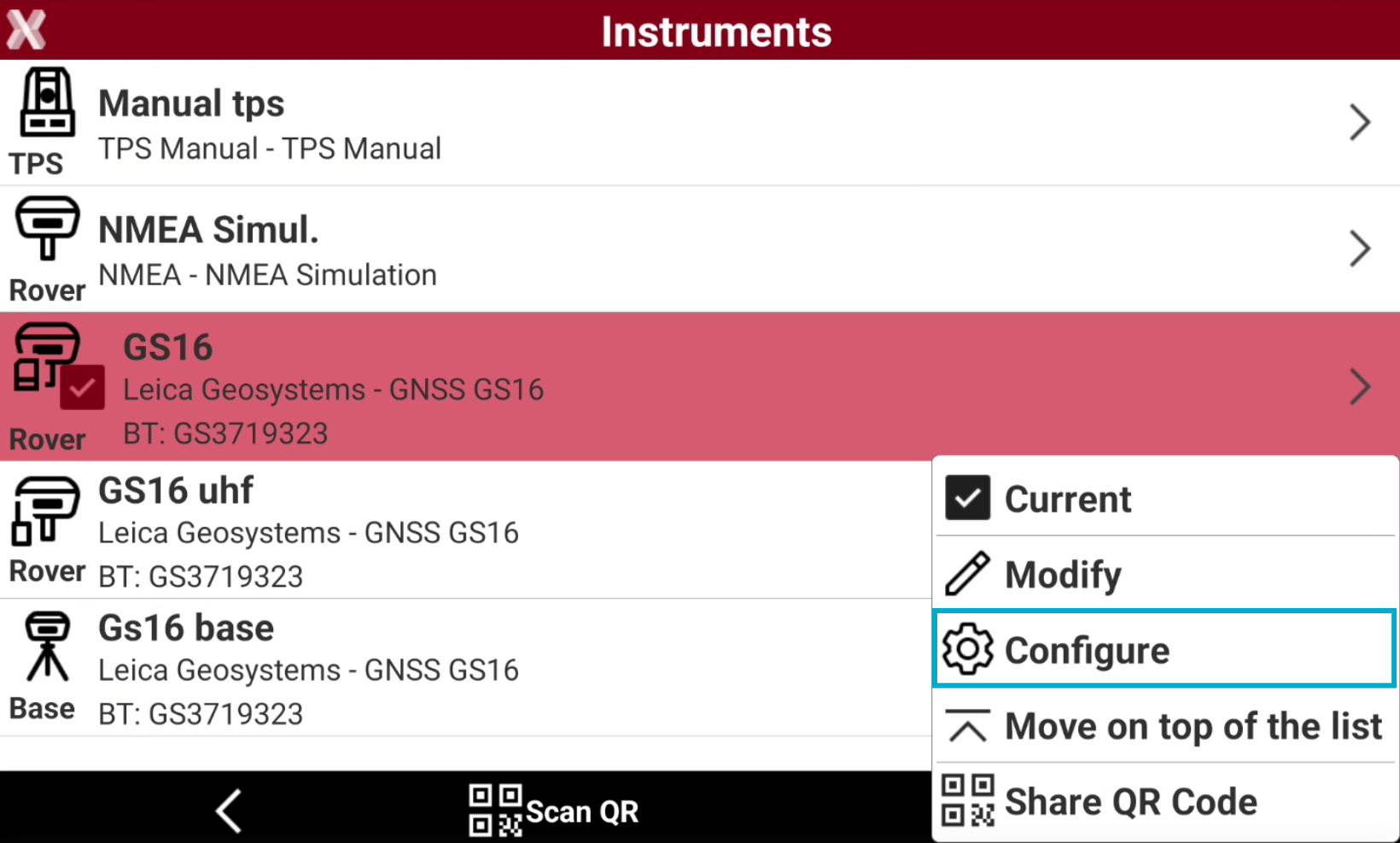
-
The instrument is reconfigured based on the settings defined in the profile.
Reorganize the list according to the most used profiles
-
This command is used to change the order of profiles in the page.
-
In the Instruments page select the profile.
-
Select Move on top of the list.
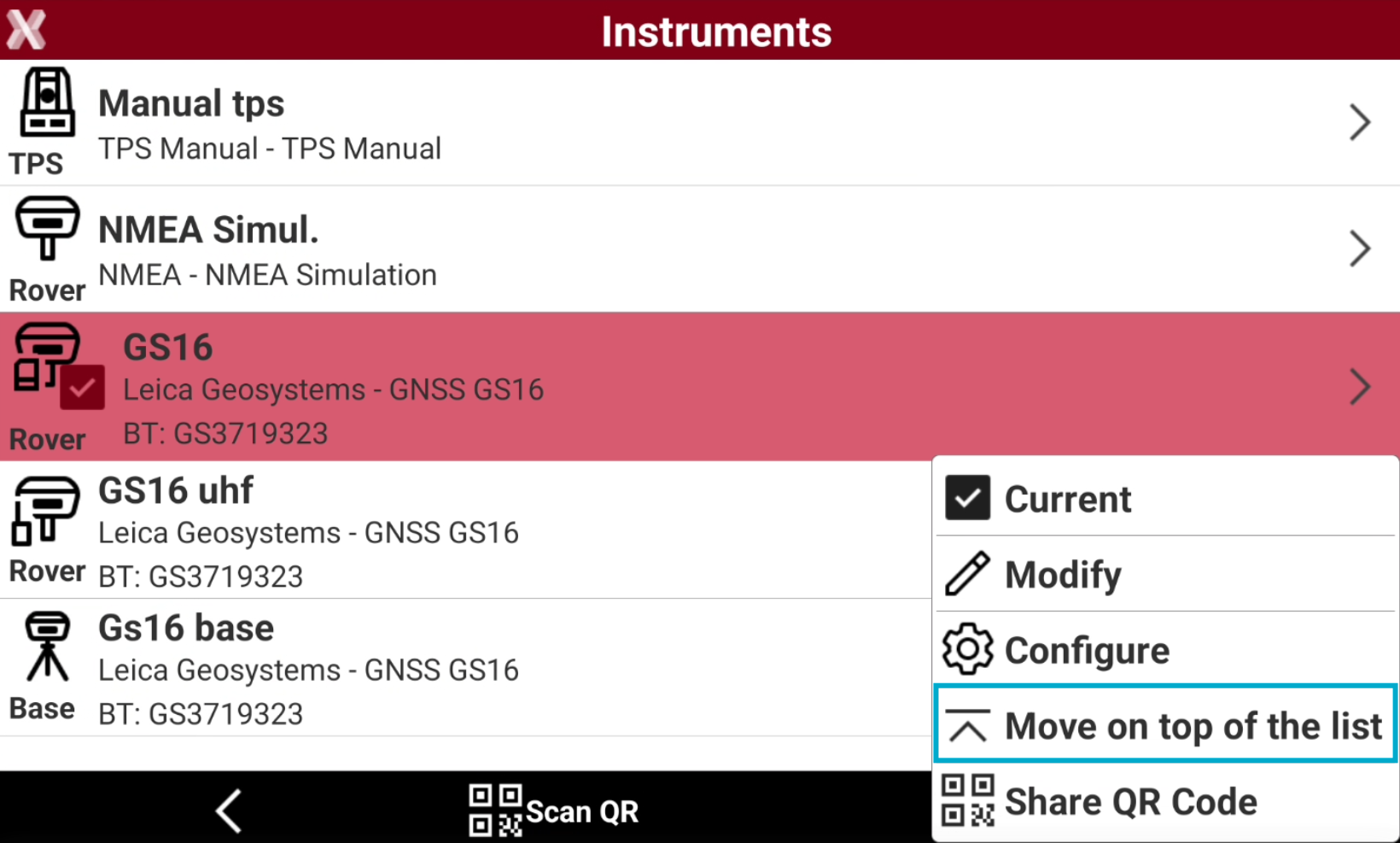
-
Moves the selected profile to the top of the list.
Share QR Code
-
This command allows to generate and print a QR code for quick connection to instrument.
-
You can print and attach the generated image with QR code to the instrument.
Some instruments already have a QR code printed.
-
In the Instruments page select the profile.
-
Select Share QR Code.
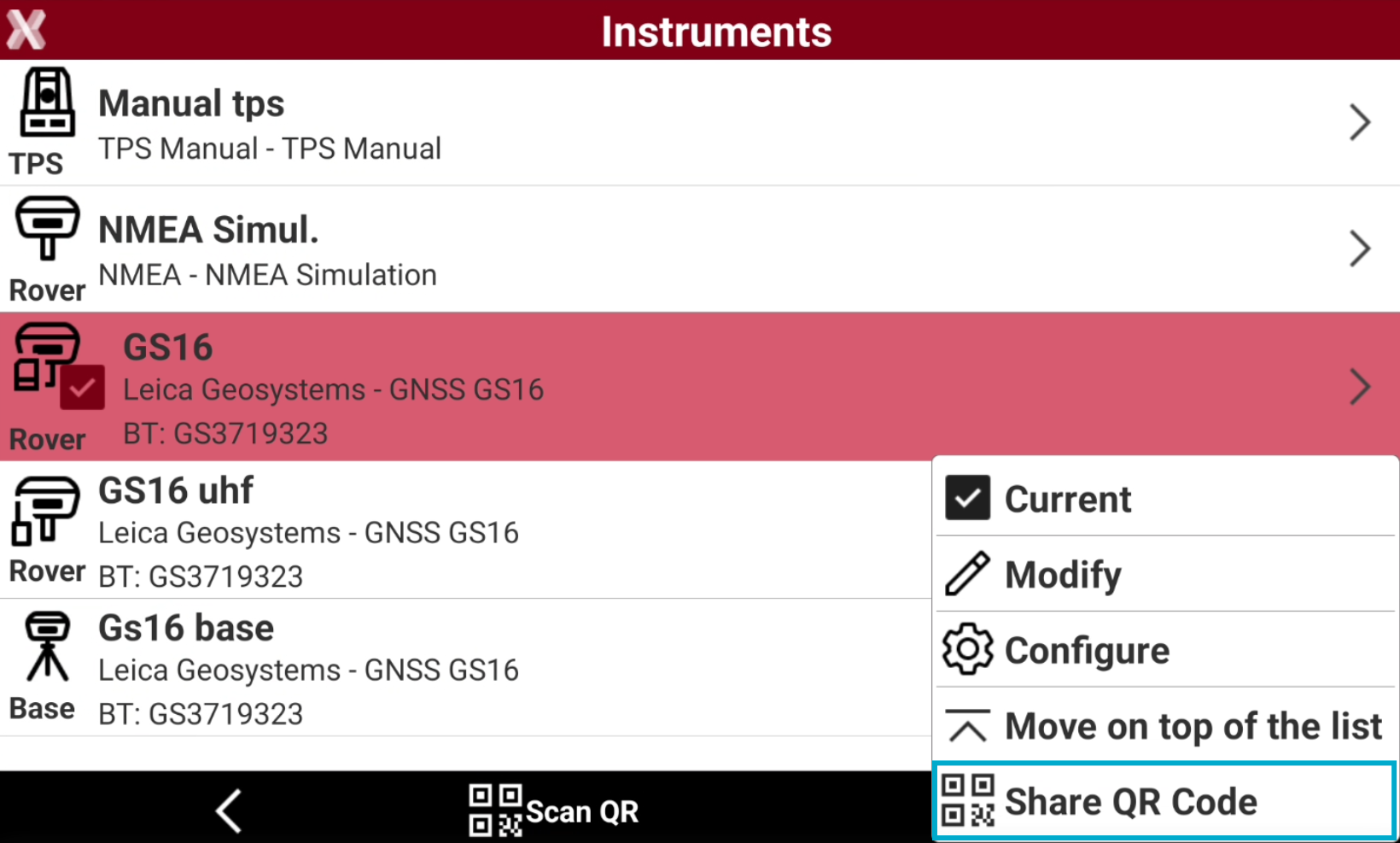
-
Save and print the QR code.
-
Attach the QR code to the instrument to quickly connect using the Scan QR button.