
-
The graphic interface when using a Survey function with a total station is explained in this paragraph.
-
To record points with a total station open the Survey page.
-
Select Survey points.
-
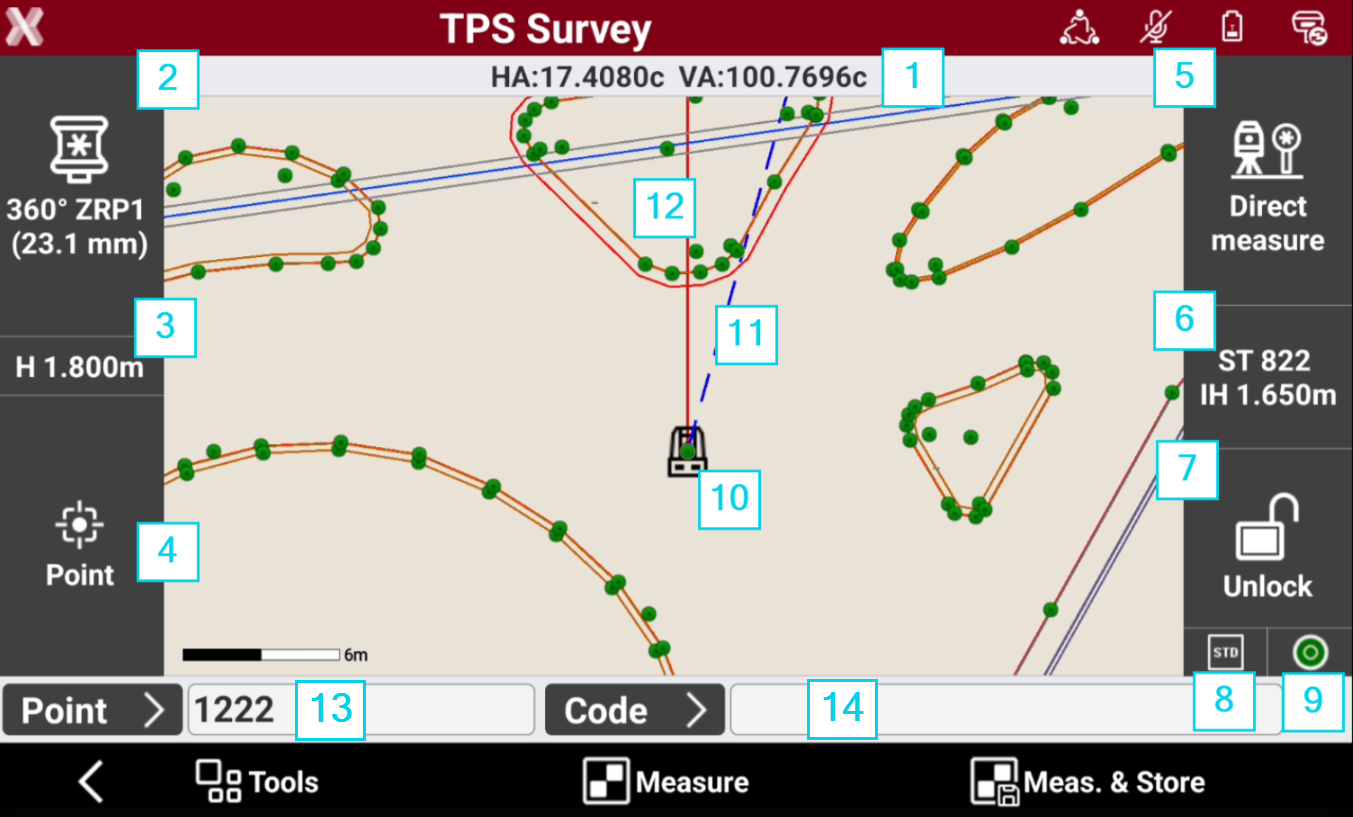
Angles: the current angles of the total station.
-
Current target: the current target. Tap on the panel to Set the target type.
-
Height of the target: height of the target. Tap on the panel to modify the height.
-
Smart drawing: displays the current status of the function Smart Drawing. Click to open the Smart Drawing Tools.
-
Measure mode: visualizes the current measure mode. Press to change TPS measure mode.
-
Current station: name and elevation of the current station. Press to access a window that allow to change the orientation of the station.
-
Status of locking of the prism (robotic station): shows the status of the locking of the prism when working with a robotic total station. Press to open the Robotic total station control panel. If the total station is not robotic press to access the Mechanical total station control panel that allows managing the parameters for the functioning of the mechanic total station.
-

-

-

-
-
EDM mode: the current EDM mode.
-
Electronic level status: the instrument electronic level status. Press to open the Electronic level page.
-
Green

-
Red

-
Grey

-
-
Current position: shows the current position of the total station in the CAD view. Refer to CAD view in survey and stakeout functions.
-
Current angle: the blue line represents the direction of the current instrument horizontal angle.
-
Orientation angle: the red line represents the direction of the orientation angle.
-
Point ID: visualizes the ID of the next point measured, tap in the field to enter a new point ID. The ID follows the rule set in Points name page in TPS Settings. Press Point button to open the Topographic points list.
-
Code: visualizes the survey code, tap in the field to enter a new survey code. Press Code button to open the Survey codes list, or change visualization to Quick codes toolbar.