
-
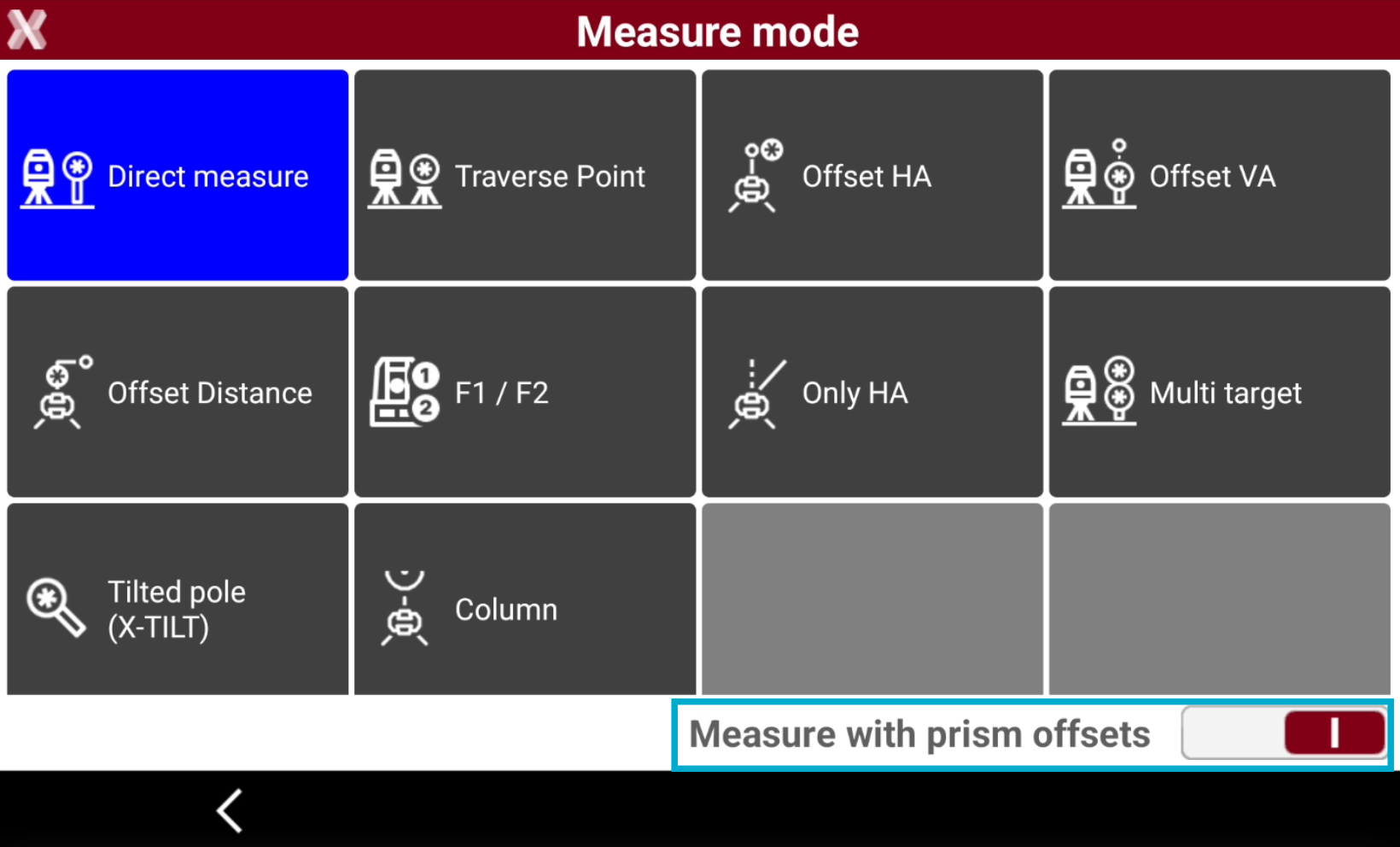
The Measure mode allows to edit the type of measurements.
-
To open the Measure mode page press the corresponding icon.
-
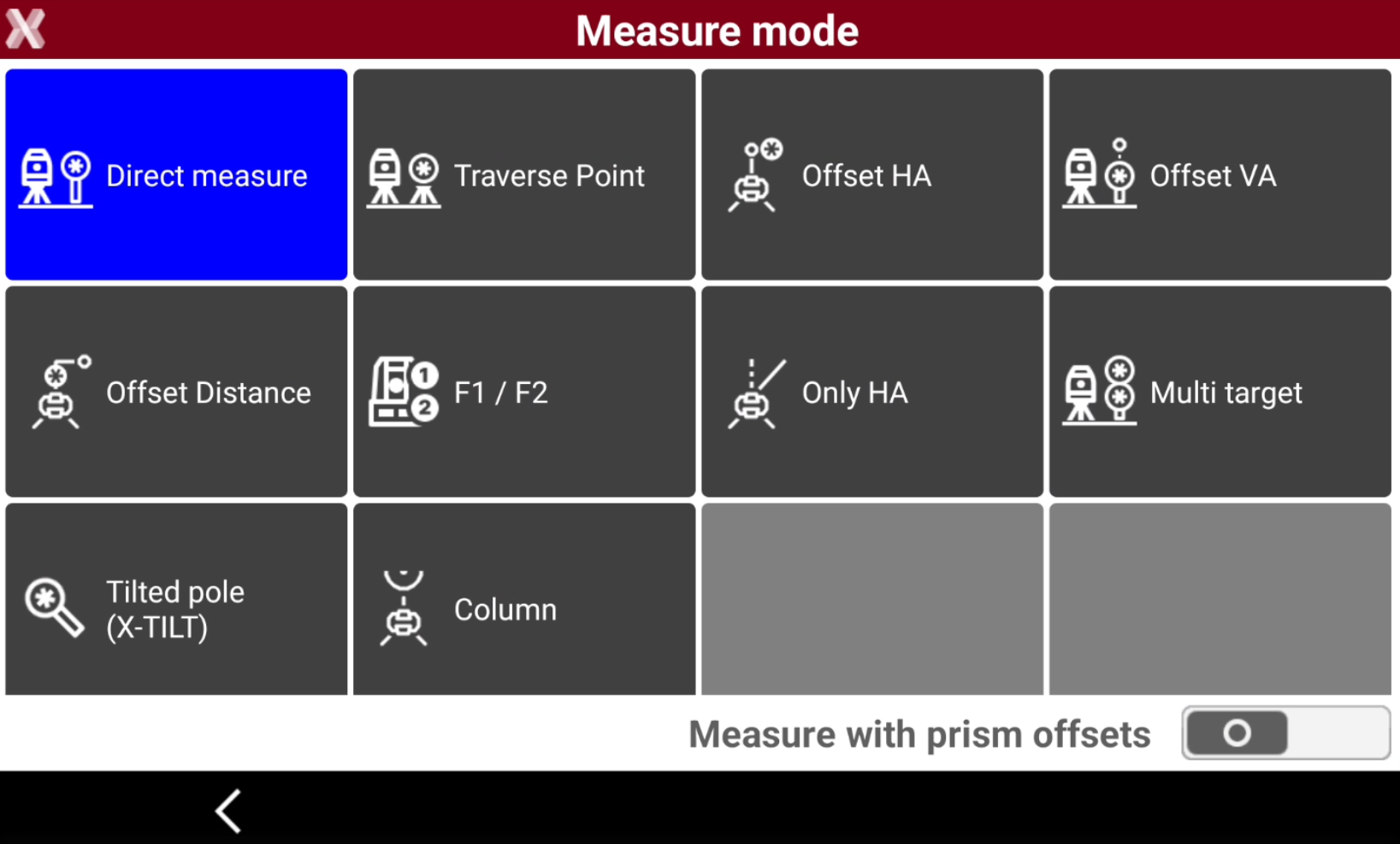
This opens the Measure mode page.
-
Direct measure: measure directly to a point.
-
Traverse Point: specifies that the next point measured is a polygonal point. The polygonal points are saved to allow a rapid change of station.
-
Offset HA: performs a measurement to an object for which the prism cannot be placed at the point to measure.
-
Offset VA: performs a measurement to a point not accessible directly by the prism but above or below.
-
Offset Distance: performs a measurement to a point not accessible directly by the prism but at a certain distance along the direction between station and prism.
-
Face1/Face2: performs a measurement to a point in both faces and calculates the average.
-
Only HA: performs only an angle measurement to a point.
-
Multi target: performs a measurement using a multi target pole.
-
Tilted pole (X-TILT): performs a measurement to a point with two tilted pole measurements.
-
Column: measures a cylinder object measuring the sides and the center of the object.
-
Measure with prism offsets: performs a measurement to points applying an offset to prism measurements. The offset can be left, right or longitudinal.
-
Offset HA
-
Performs a measurement to an object for which the prism cannot be placed at the point to measure.
-
Open the Measure mode page.
-
Select Offset HA.

-
Measure the prism to calculate the distance.
-
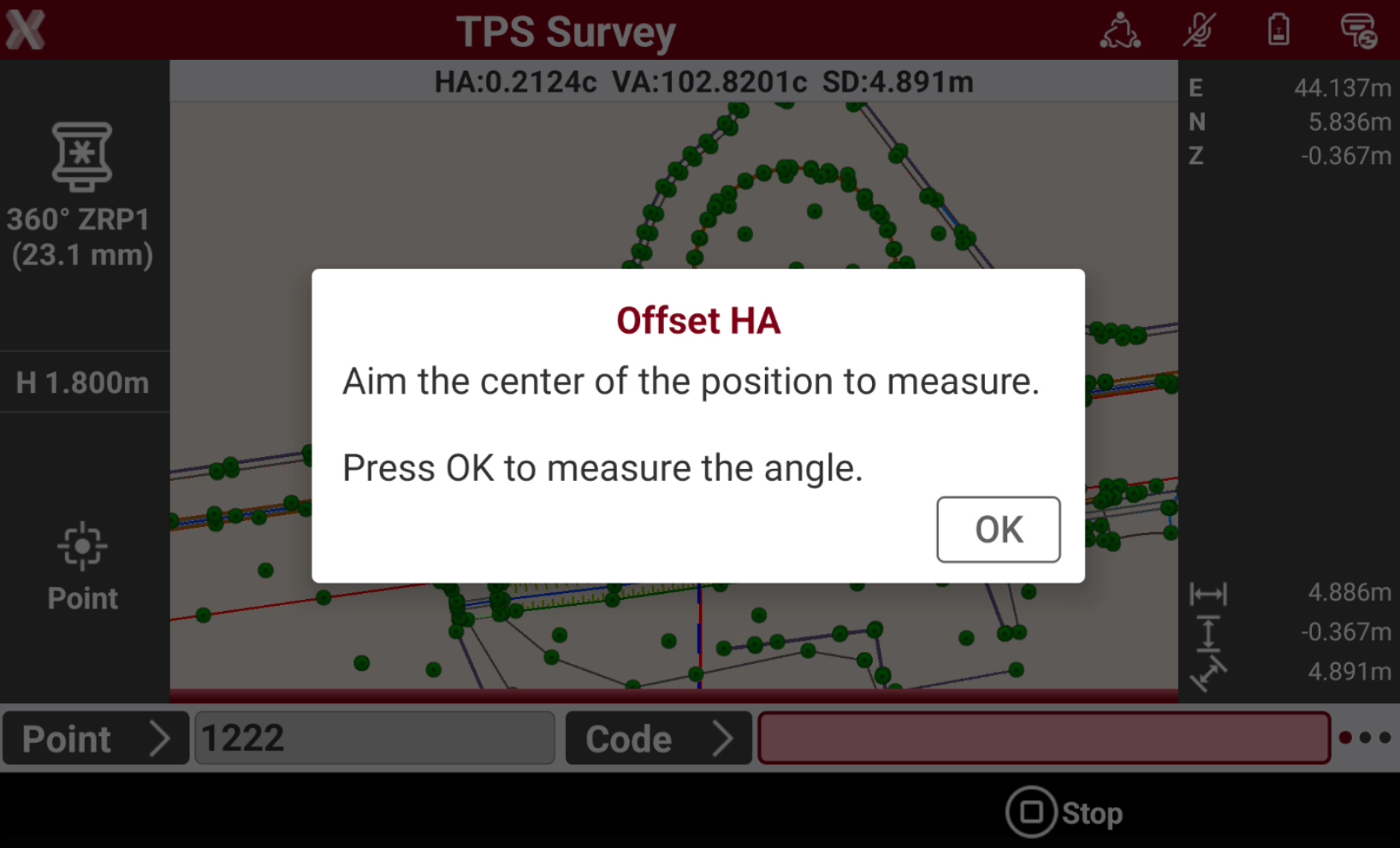
Aim the center of the position to measure to measure the angle.
-
Press OK to save the offset point.
Offset VA
-
Offset VA performs a measurement to a point not accessible directly by the prism but above or below.
-
Open the Measure mode page.
-
Select Offset VA.

-
Measure the prism to calculate the distance.
-
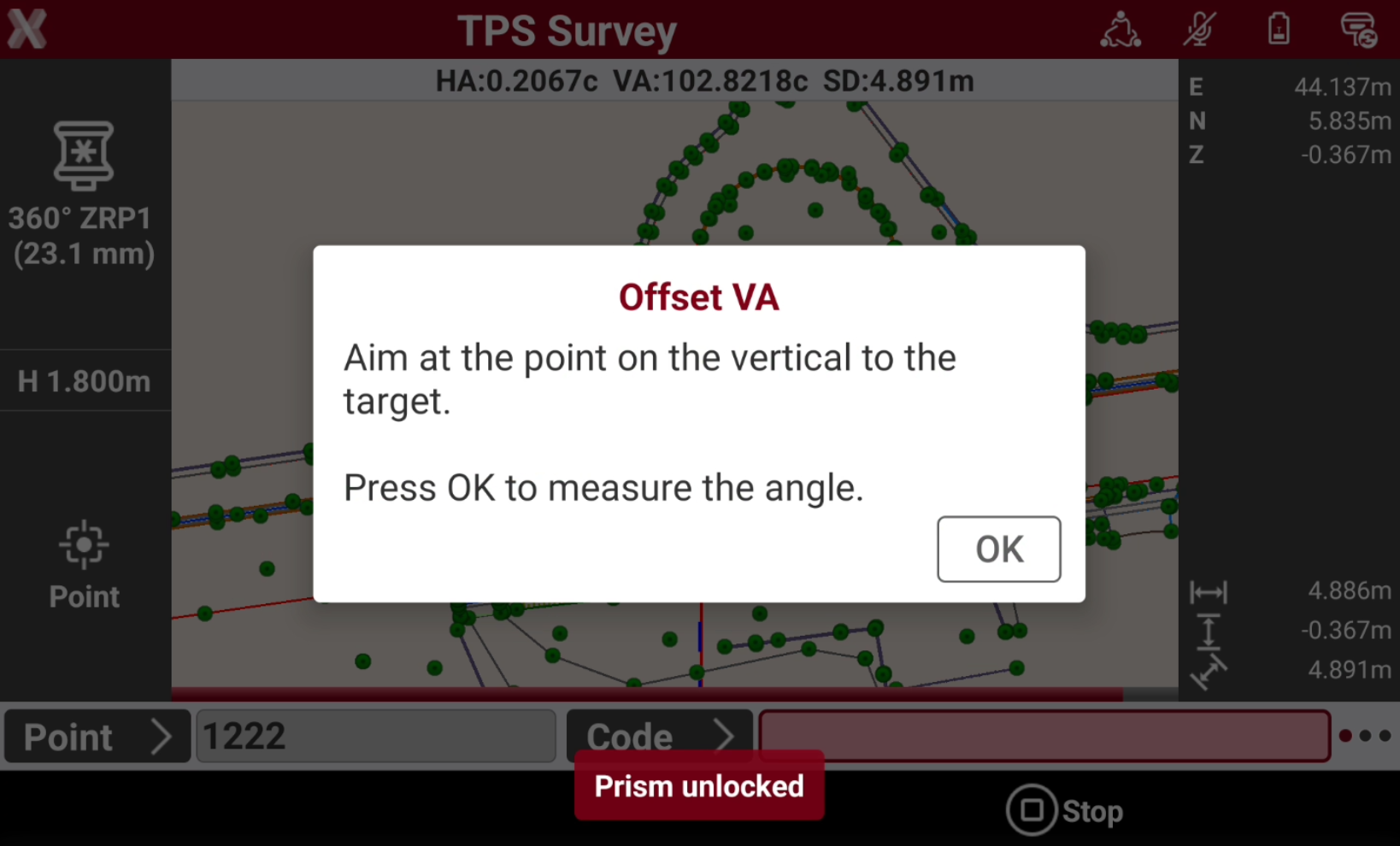
Aim at the point on the vertical to the target.
-
Press OK to save the offset point.
Offset distance
-
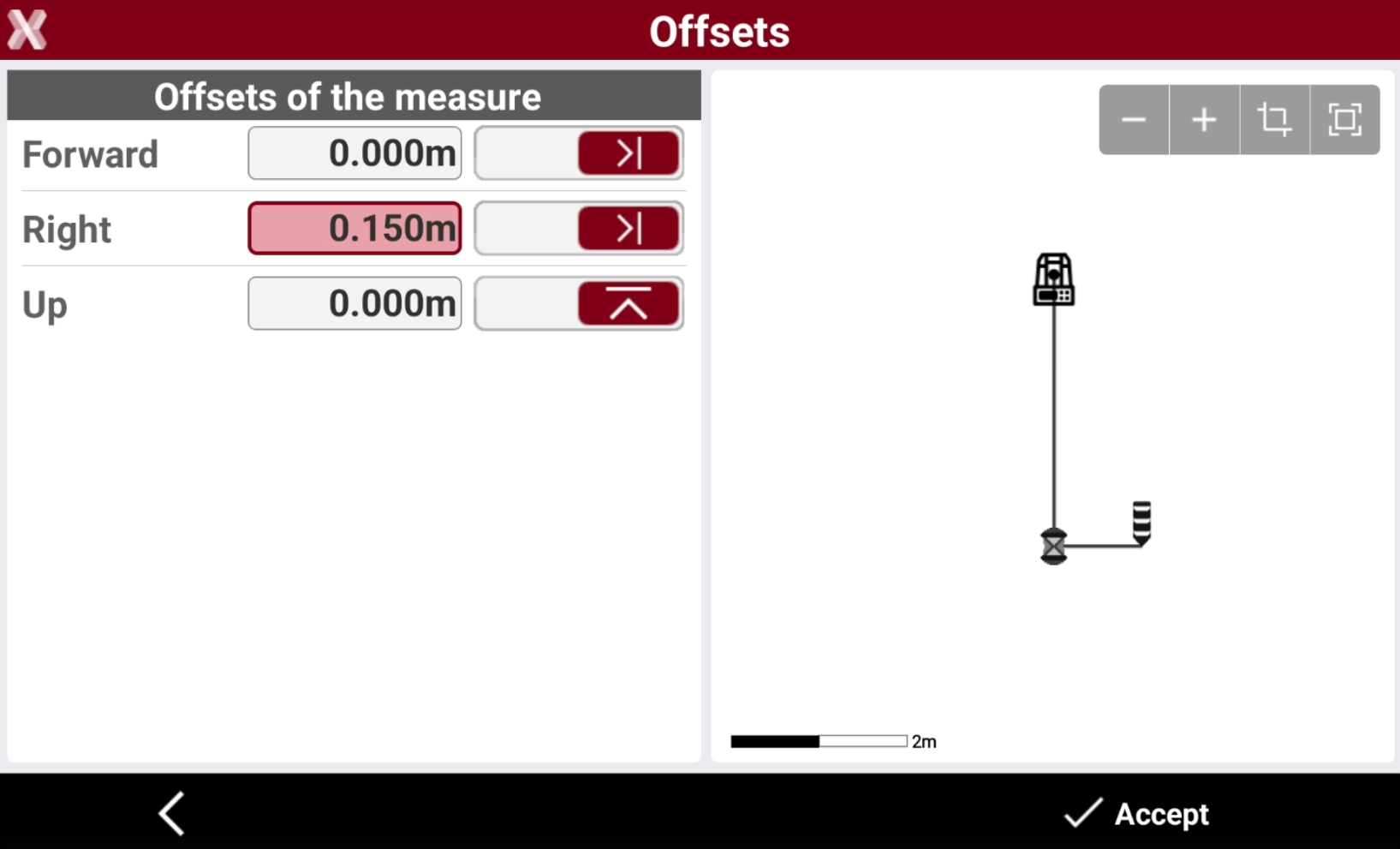
Offset distance performs a measurement to a point not accessible directly by the prism but at a certain distance along the direction between station and prism.
-
Open the Measure mode page.
-
Select Offset Distance.
-
Measure the target.
-
Enter in the Offsets page the offsets to apply.
-
Press Accept to save the measurement and point.
Face I / Face II
-
Performs a measurement to a point in both faces and calculates the average.
-
Open the Measure mode page.
-
Select F1/F2.
-
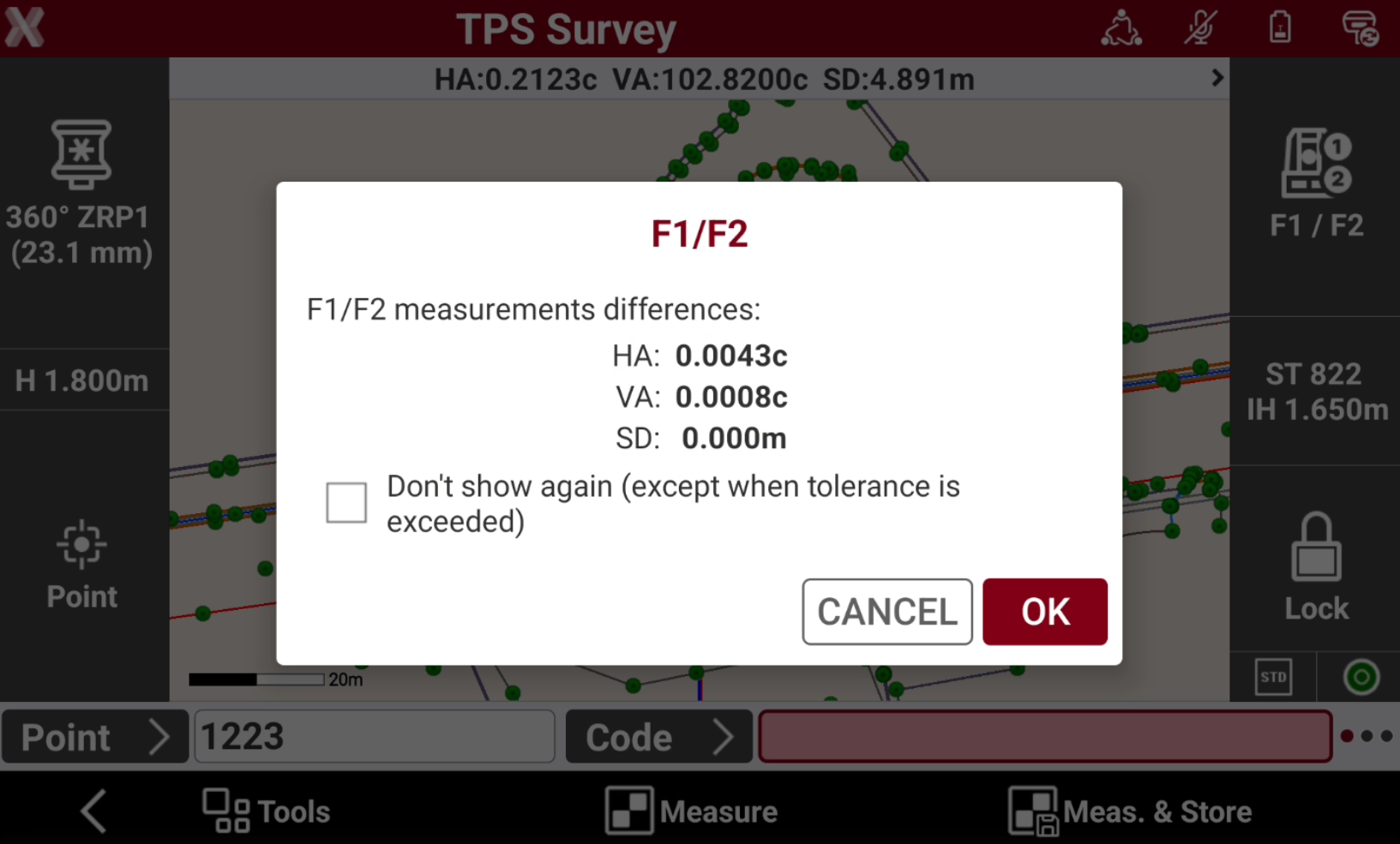
Measure the target. The total station if is robotic automatically rotates to face 2.
-
Press OK to measure the same target with face 2.
-
The software shows the result.
Multi target
-
Performs a measurement using a multi target pole.
-
Open the Measure mode page.
-
Select Multi target.

-
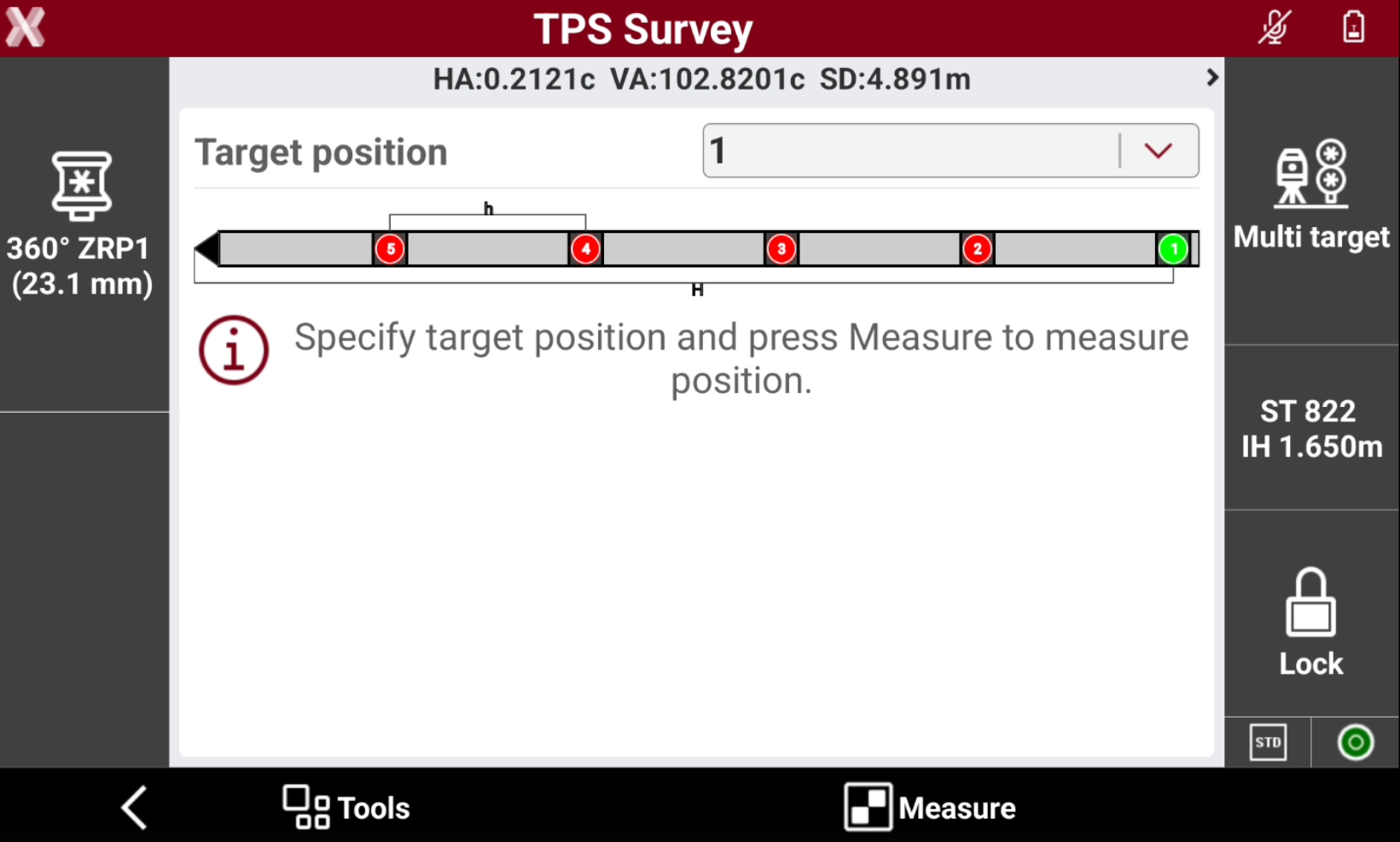
Press Measure.
-
The software allows to indicate the target position on the pole.
-
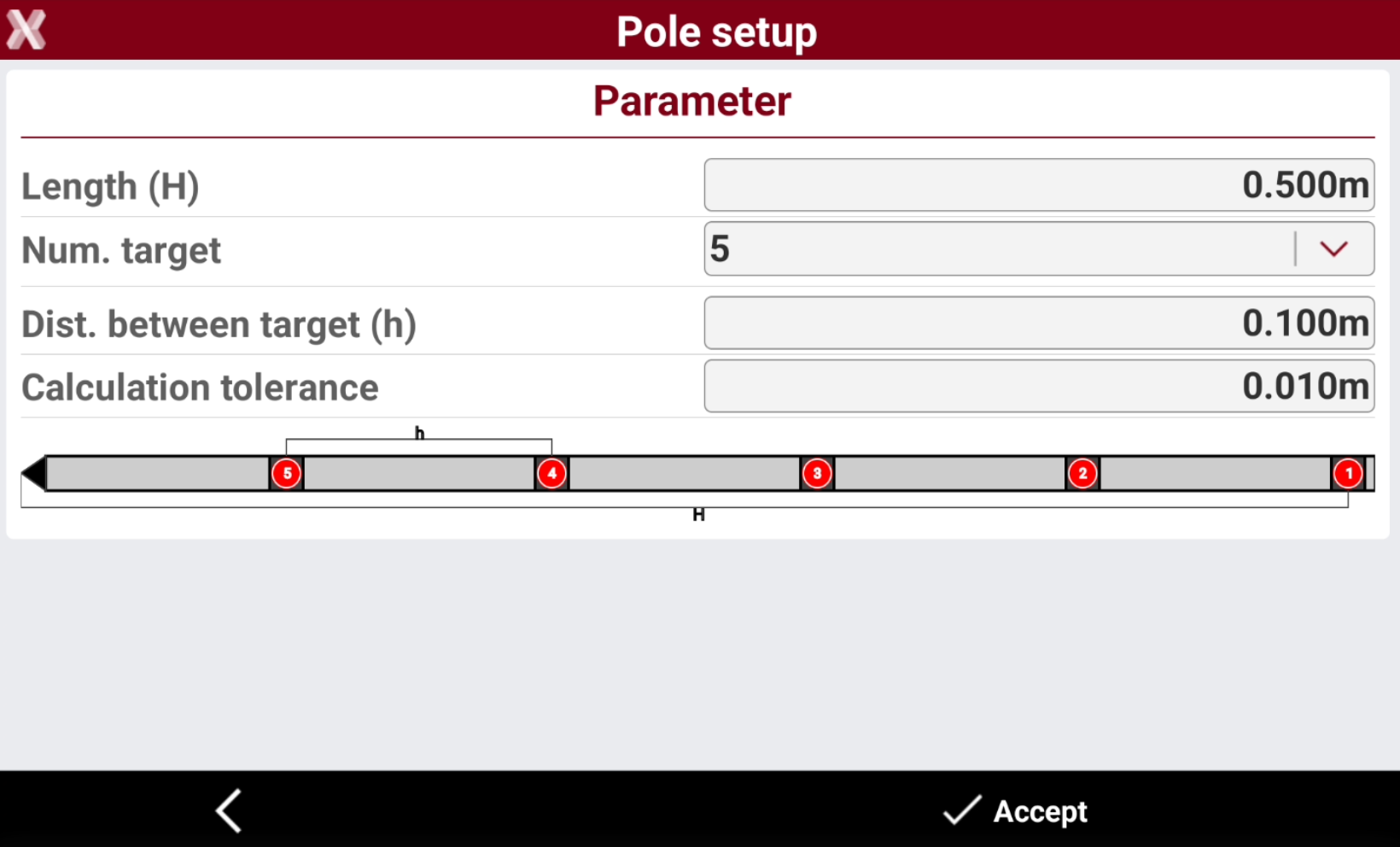
Select Tools and Pole setup to setup the parameters of the multi target pole.
-
Press Measure to measure the first target position.
-
Continue to measure the other target positions.
-
Select Store to save the calculated coordinate.
X-TILT
-
Performs a measurement to a point with two tilted pole measurements, using controller sensors. This measure mode allows to measure points that otherwise cannot be directly measured.
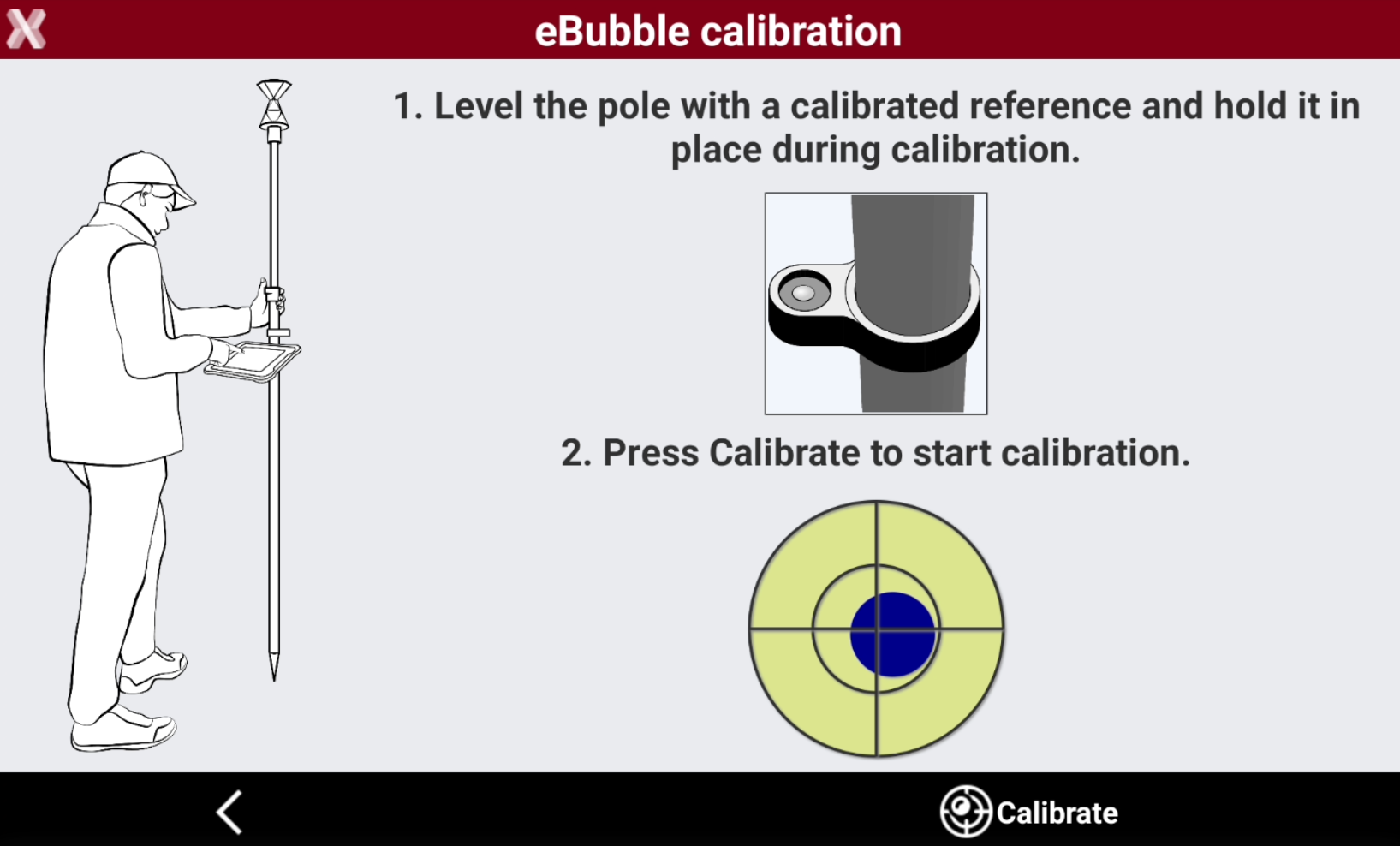
To obtain accurate results, the controller must be firmly attached to the pole.
-
Open the Measure mode page.
-
Select Tilted pole X-TILT.
-
Keep the pole vertical and press Calibrate to start the sensor calibration.
-
Perform the first measurement with the pole tilted.
-
Perform the second measurement with the pole tilted in another direction.
-
Select the correct solution (you can be helped raising the pole) and select Store to save the result.
-
Or select Add point to add a third measurement. With three measurements the solution is automatically selected and the software shows the result residuals.
Column
-
Column measure mode performs an accurate measurement of the center of a cylindric object such as columns, trees or pipes using a TPS.
-
Open the Measure mode page.
-
Select Column.

-
Press Measure and aim to the left side of the cylindric object. Press OK to record the angle only.
-
Aim to the right side of the cylindric object. Press OK to record the angle only.
-
Aim to the center of the object. If the instrument is robotic it automatically rotates. Press OK to measure the distance.
Measure with prism offsets
-
The option enables a toolbar that helps to measure corners or walls using prisms.
-
With this feature the measurement of those element can be done with one single measurement.
-
After have defined the prism type it is possible to specify if the point that you are going to measure is:
-
Longitudinal: prism is on the direction TPS→prism.
-
Right: prism is on the right of the point.
-
Left: prism is on the left of the point
-
-
Open the Measure mode page.
-
Enables Measure with prism offsets.
-
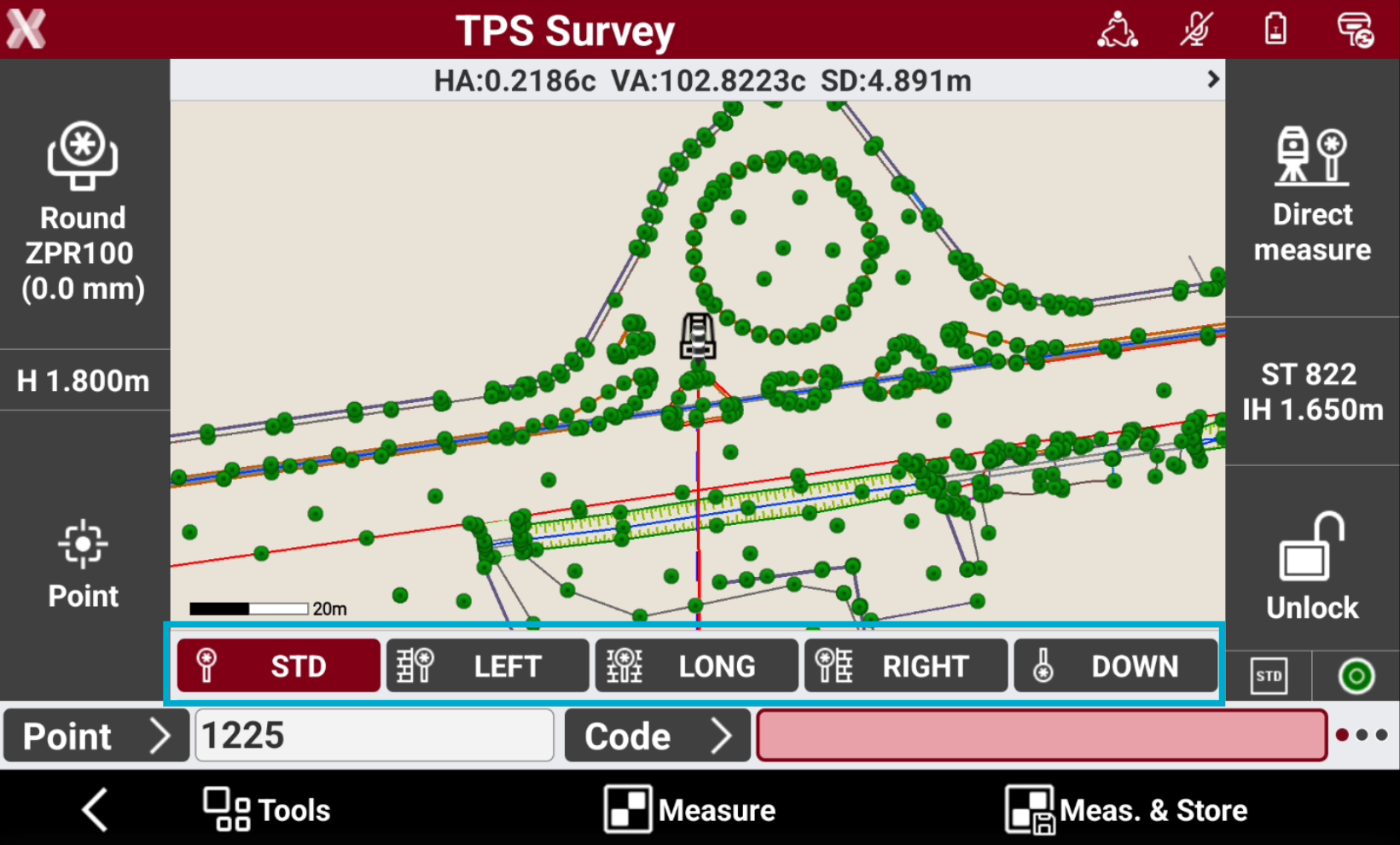
This shows a new bar in the survey page.
-
STD: standard point on the center of the pole.
-
LEFT: point is on the left of the prism:
-
LONG: point is in the direction TPS→prism.
-
RIGHT: point is on the right of the prism.
-
DOWN: it allows to measure a point with the pole up-side down.
-
Measurement with offsets is possible if sizes of the prism are available. Standard prisms comes with these sizes already defined but for custom prisms is the user that has to enter the right values. It is possible define the prisms in the Target manager.