-
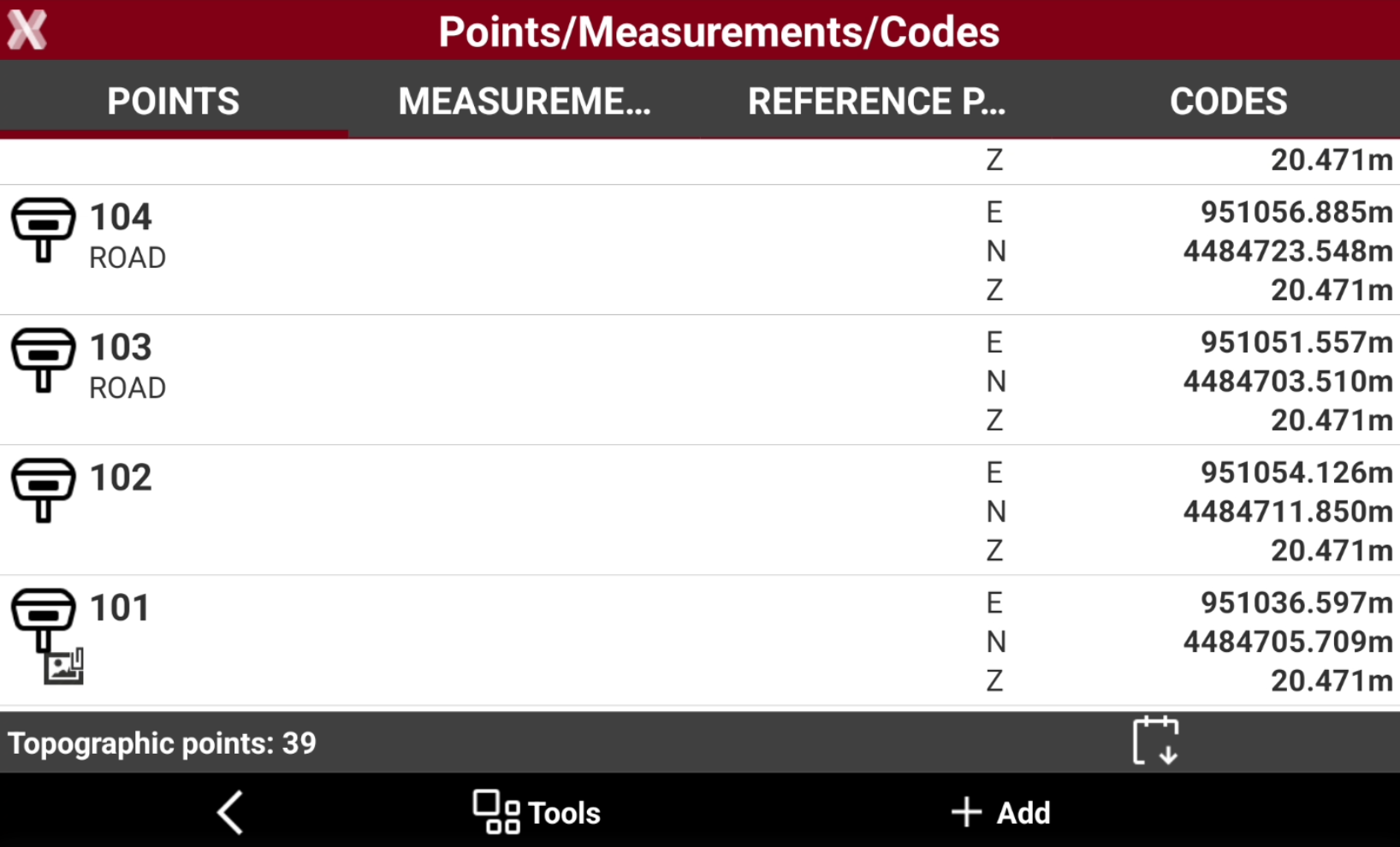
The Topographic points list shows the topographic points stored in the current job.
-
The icon represents the type of topographic point:
-

-

-

-
-

-

-

-

-

-

-

-

-

-

-

-

-

-

-

-

-
-

-

-
Change the visualization order
-
t is possible to sort the topographic points in different order.
-
Sorting options are:
-
Ascending or descending order of the point name.
-
Name of the points.
-
Creation date.
-
Ascending or descending order of the code name.
-
-
Select Tools to open the list of available tools.
-
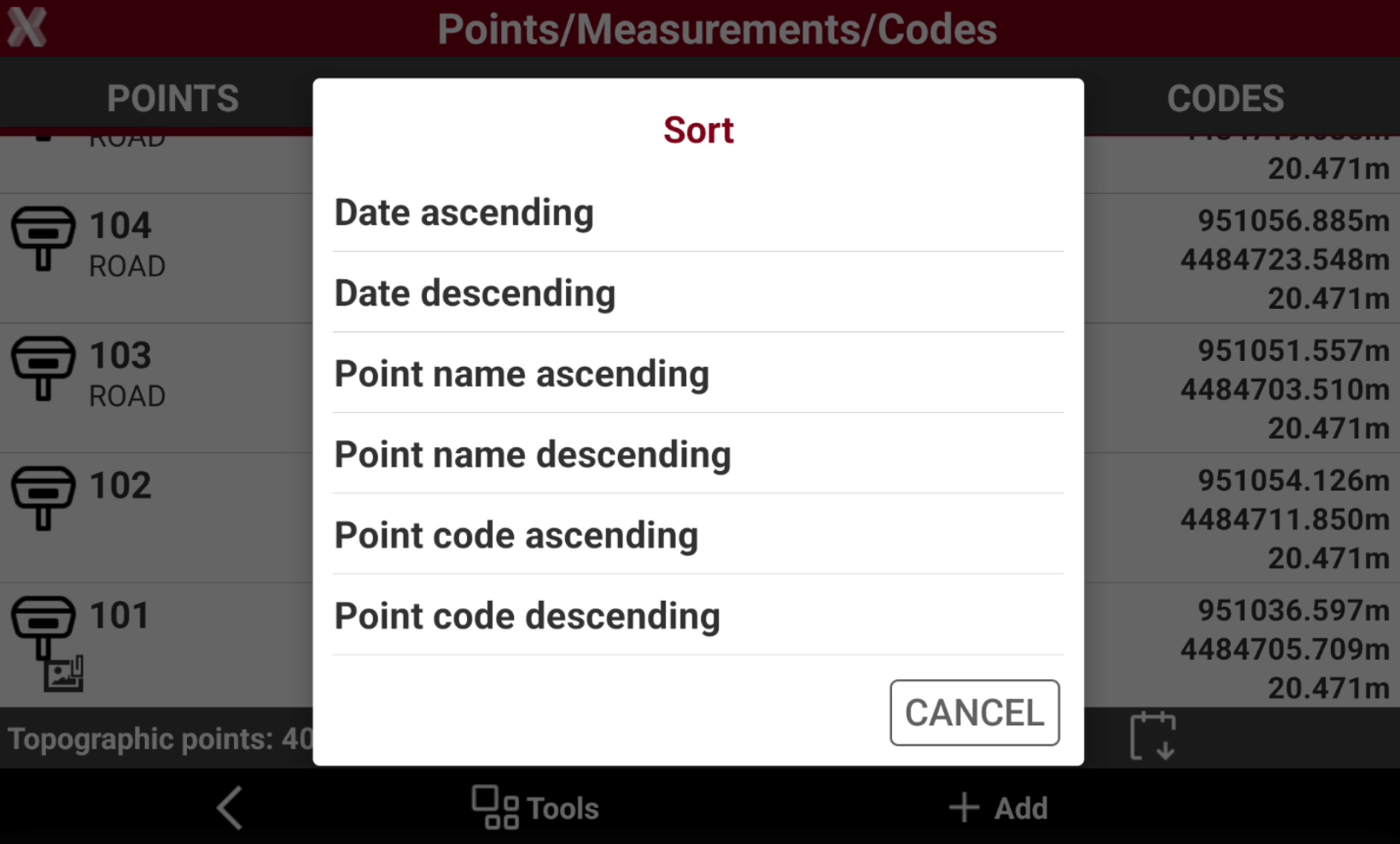
Select Sort.
-
Select the sorting method.
-
Date ascending: points are sorted from the oldest to the most recently created.
-
Date descending: points are sorted from the most recently created to the oldest.
-
Point name ascending: points are sorted alphabetically from A to Z.
-
Point name descending: points are sorted alphabetically from Z to A.
-
Point code ascending: points are sorted alphabetically by survey code, from A to Z.
-
Point code descending: points are sorted alphabetically by survey code, from Z to A.
-
Delete points
-
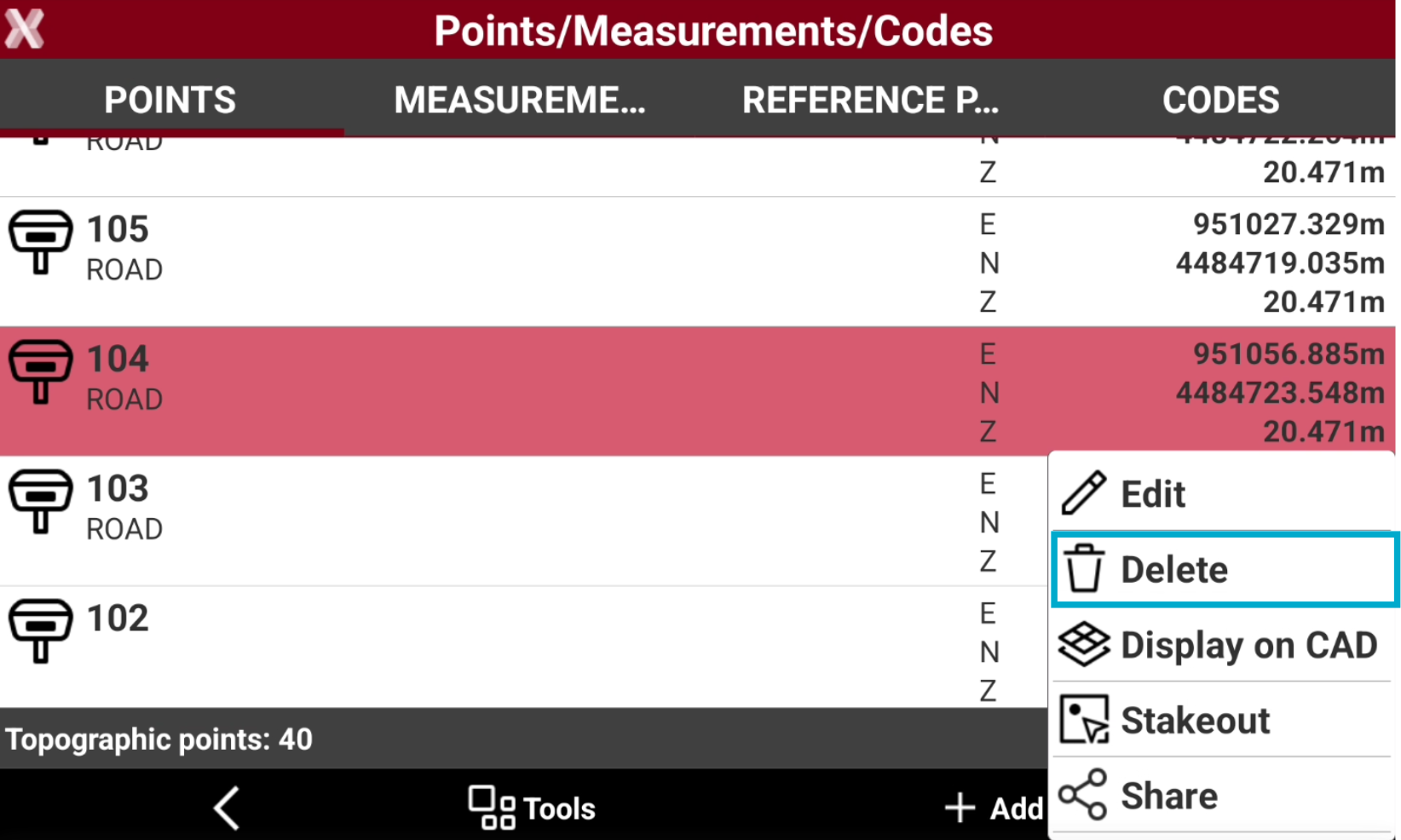
To delete a single topographic point, from the Points tab tap on a point and select Delete.
-
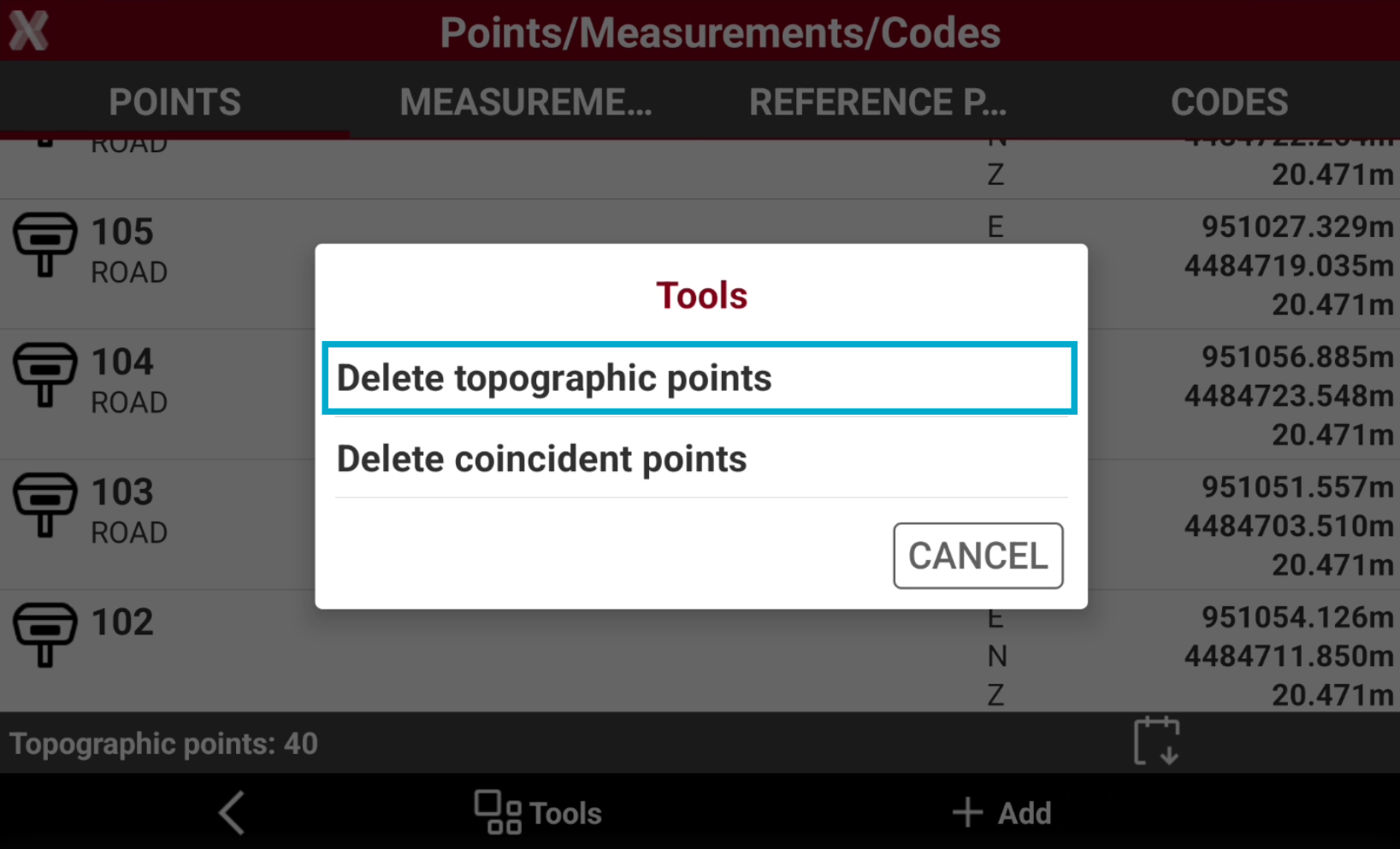
To delete a multiple topographic point, from the Points tab select Tools and select Delete.
-
Select Delete topographic points.
-
Select the items to delete from the list, or tap on Tools option to apply a Selection rules or select/deselect all the points.
-
Press Delete to delete the points.
A deleted point can be restored from the corresponding measure.
Delete coincident points
-
This tool allows to delete points with the same coordinates.
-
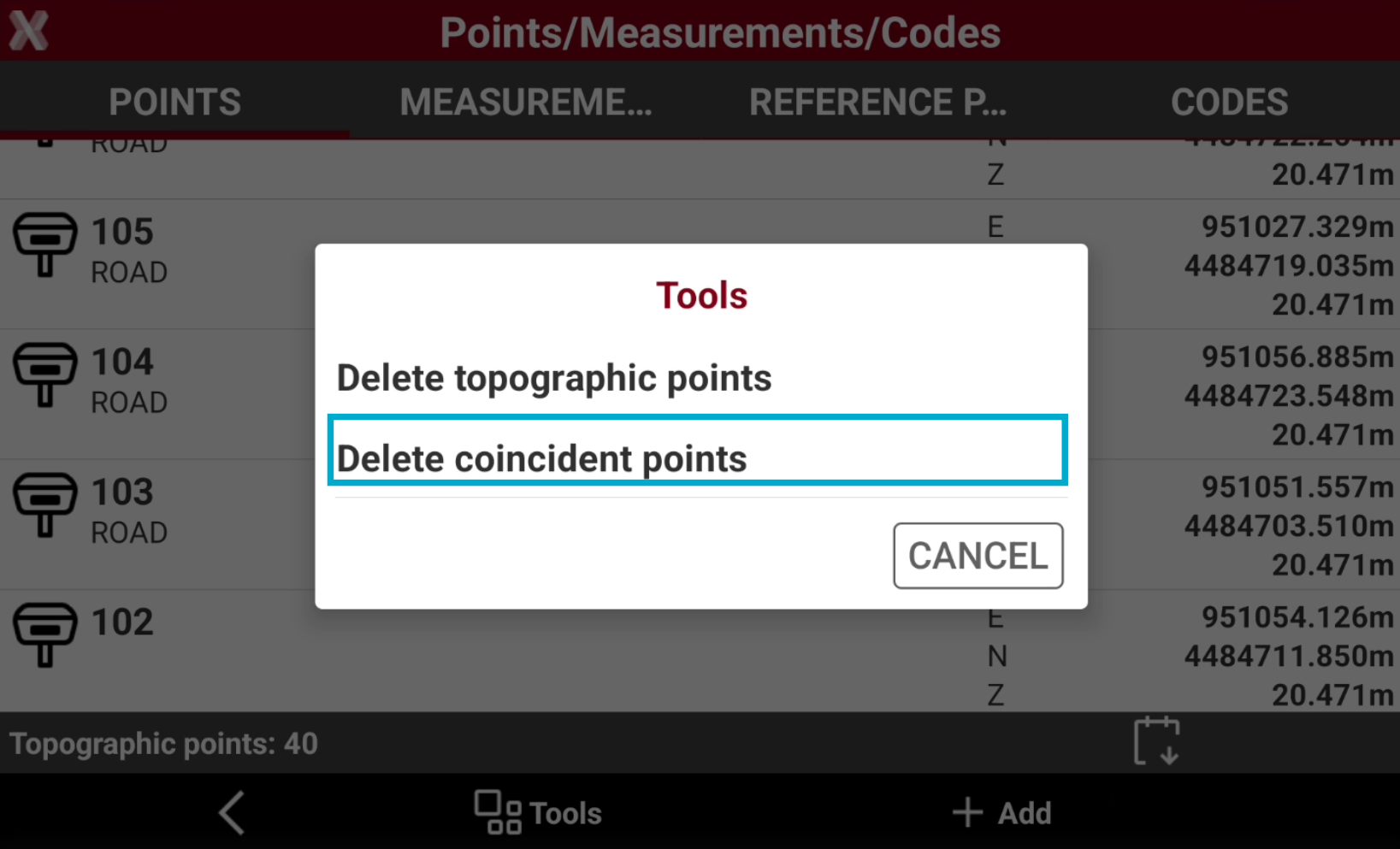
To delete a coincident point, from the Points tab select Tools and select Delete.
-
Select Delete coincident points.
-
Select Delete coincident points. Tap on YES to delete the coincident points.
A deleted point can be restored from the corresponding measure.
Restore deleted points
-
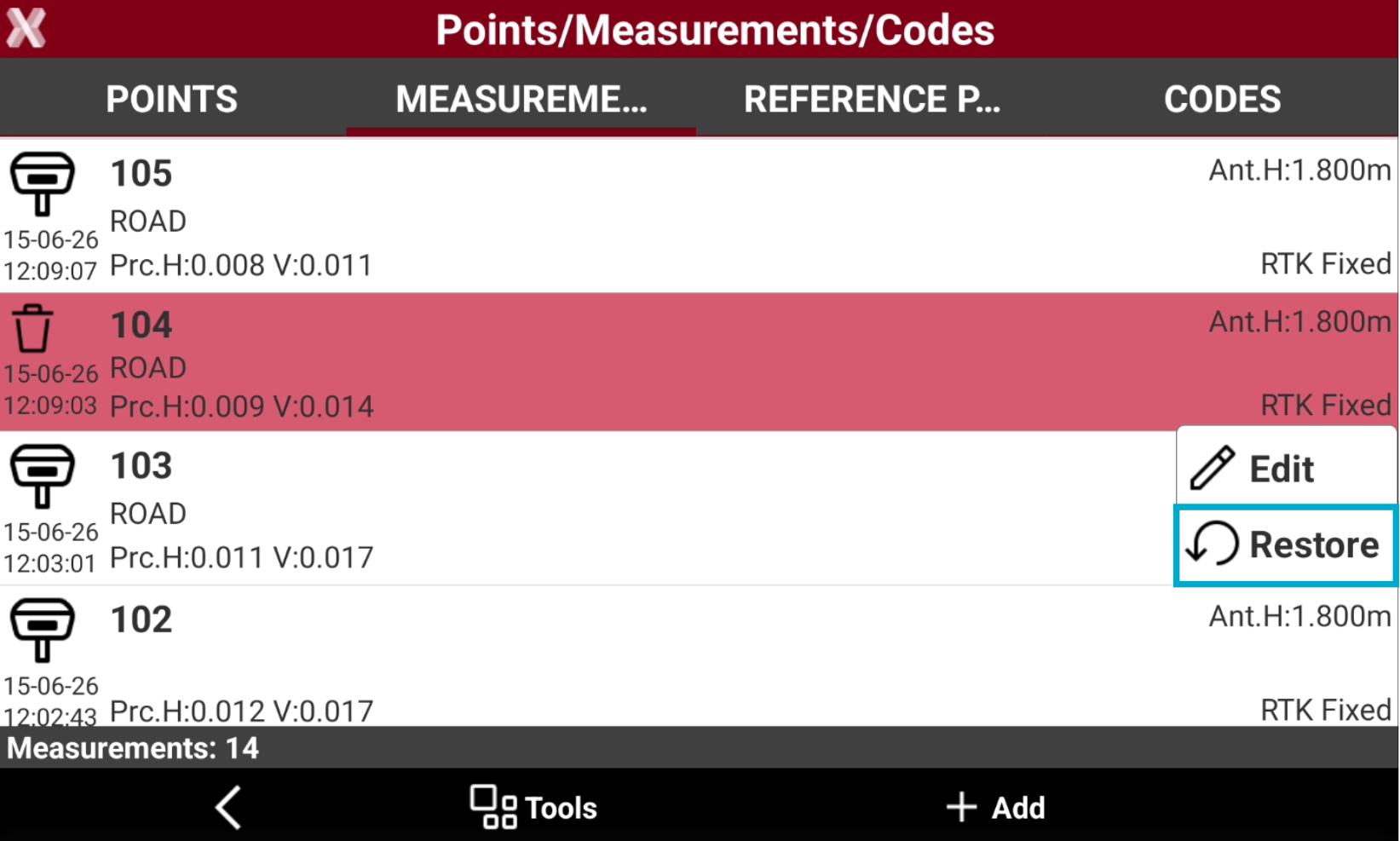
A deleted point can be restored from the corresponding measurement.
-
If a topographic point has been deleted, open the Measurements table.
-
Select the corresponding measure and select Restore.
Visualize a point in CAD
-
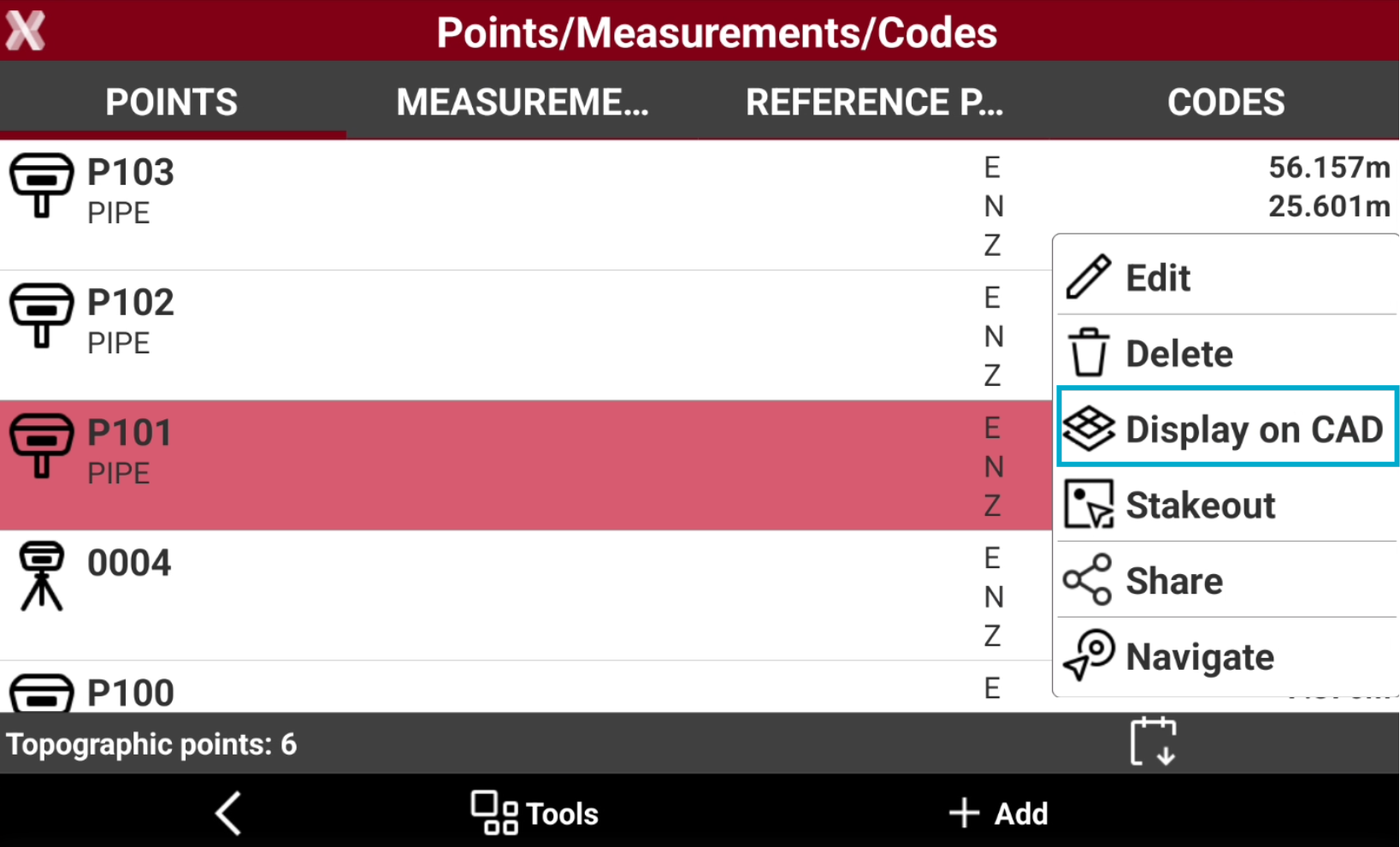
From the topographic point list is possible to visualize the point position on CAD .
-
Select a point from the list to open the context menu and select Display on CAD.
-
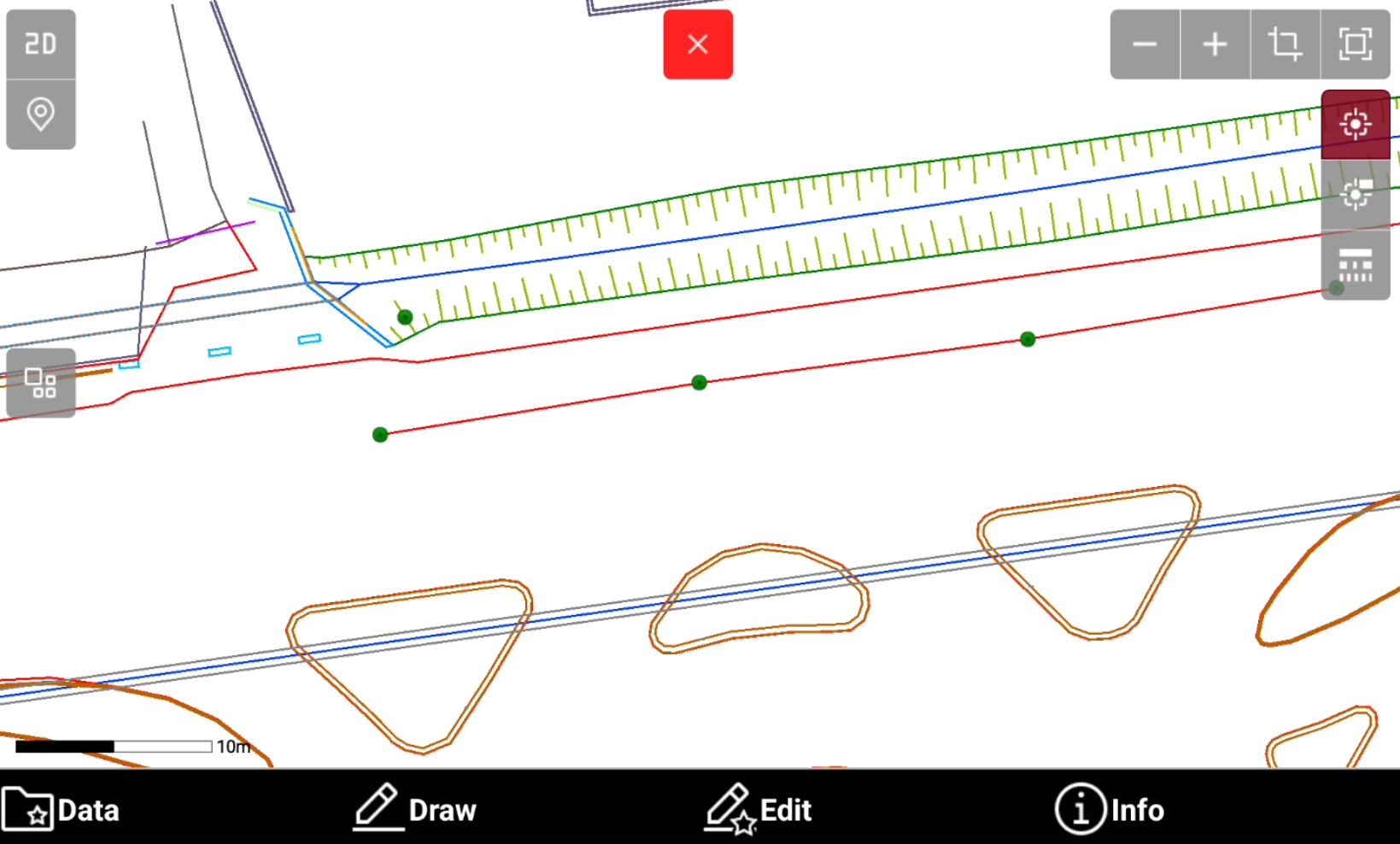
The CAD is opened and the point is visualized in the center of the graphic window.
Stakeout a point
-
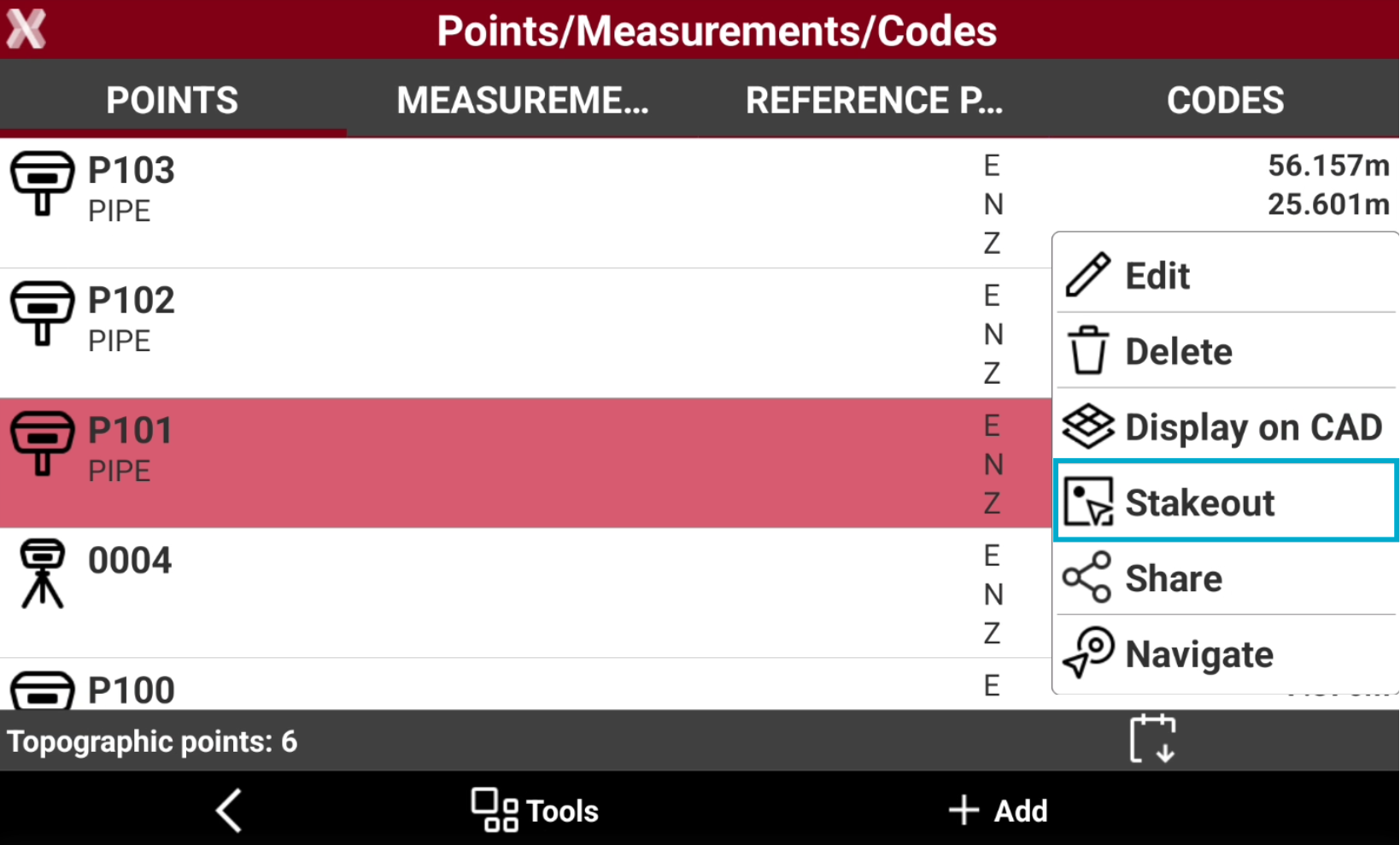
From the point list is possible to select and stakeout a point using the current instrument profile.
-
Select a point from the list to open the context menu and select Stakeout.
-
The point is stakeout using the Stakeout points function.
Share a point
-
It is possible to share a point from the point list.
-
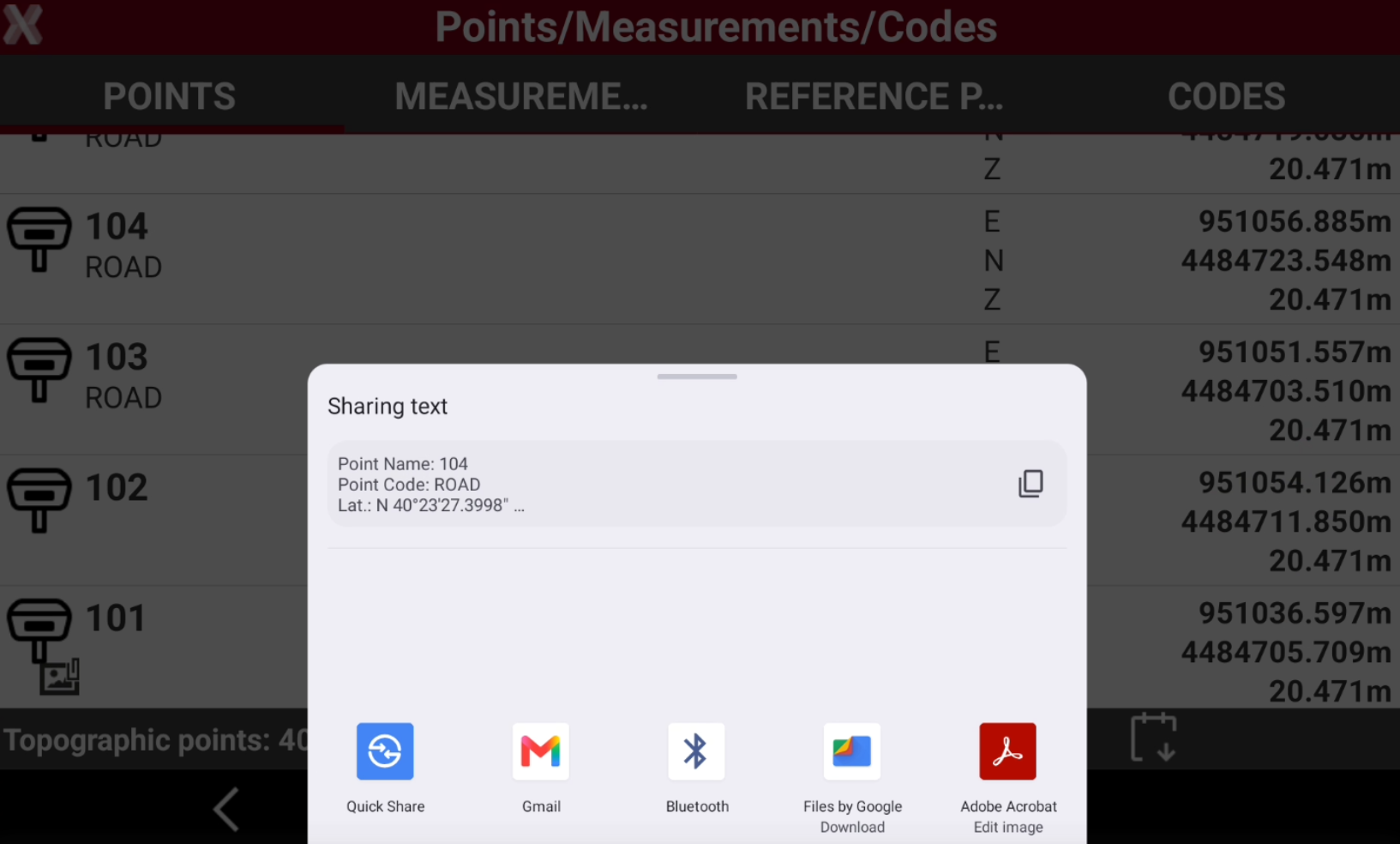
For the selected point, the information related to coordinates (geographic and plane), code, description and eventually the photo/sketch associated is sent.
-
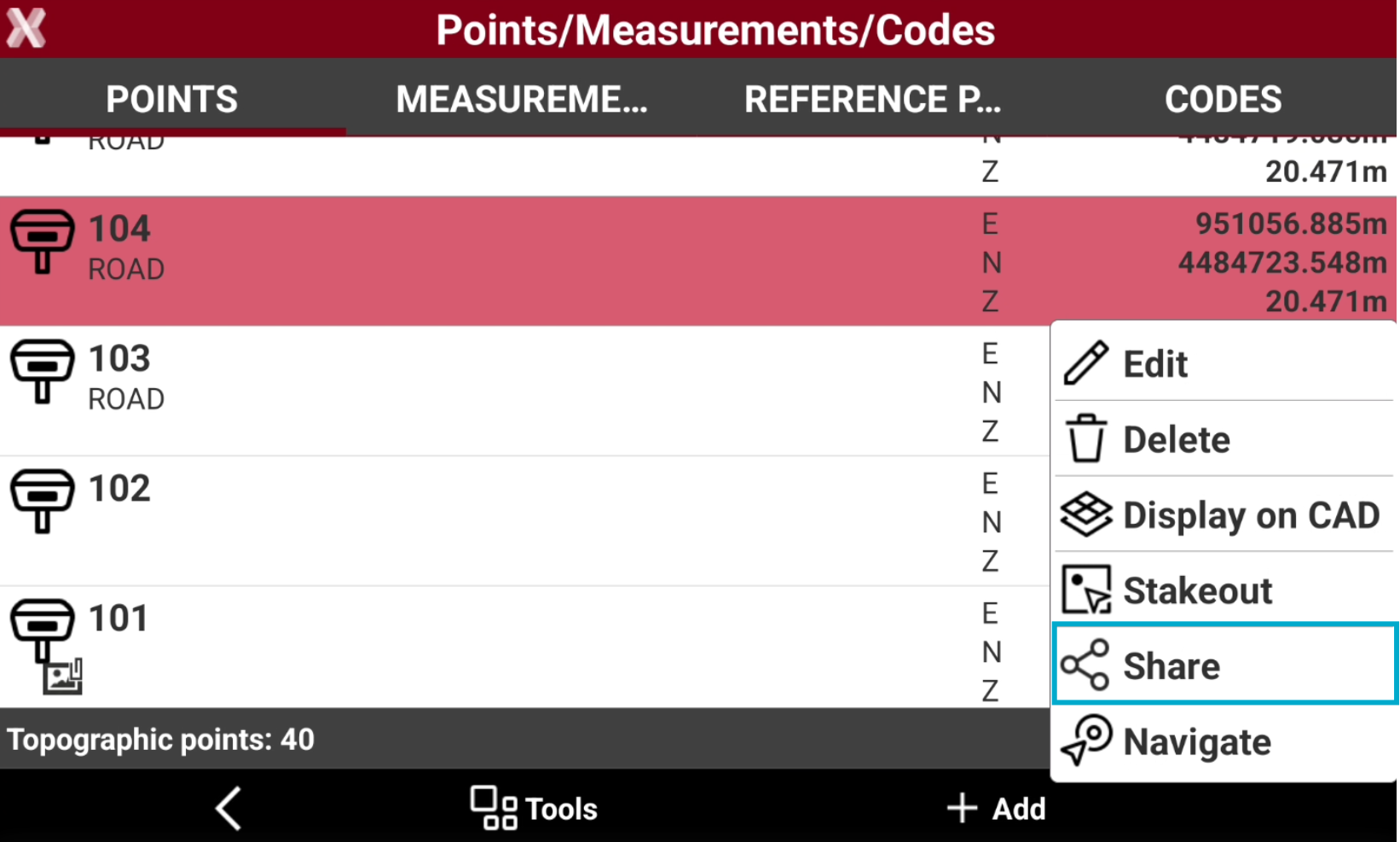
Select a point from the list to open the context menu and click Share.
-
The point information are shared using available 3th party Android applications.
Rotate to point
-
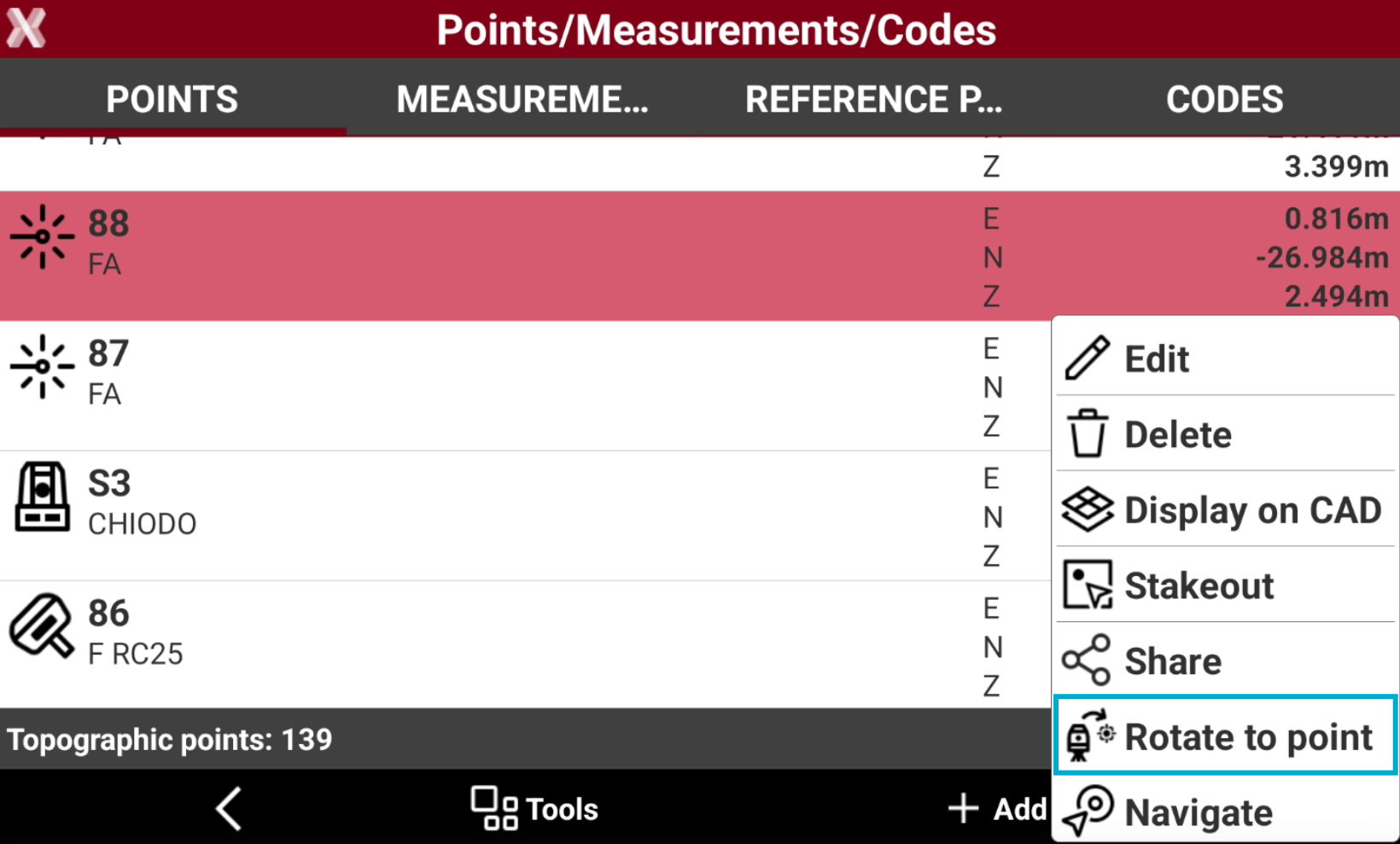
If the current instrument is a robotic total station, the command Rotate to point allows to automatically rotate the total station in the direction of the selected point.
-
Select a point from the list to open the context menu and select Rotate to point.
-
If the instrument is a motorized total station, it rotates to point direction.
Navigate to point with Google Maps
-
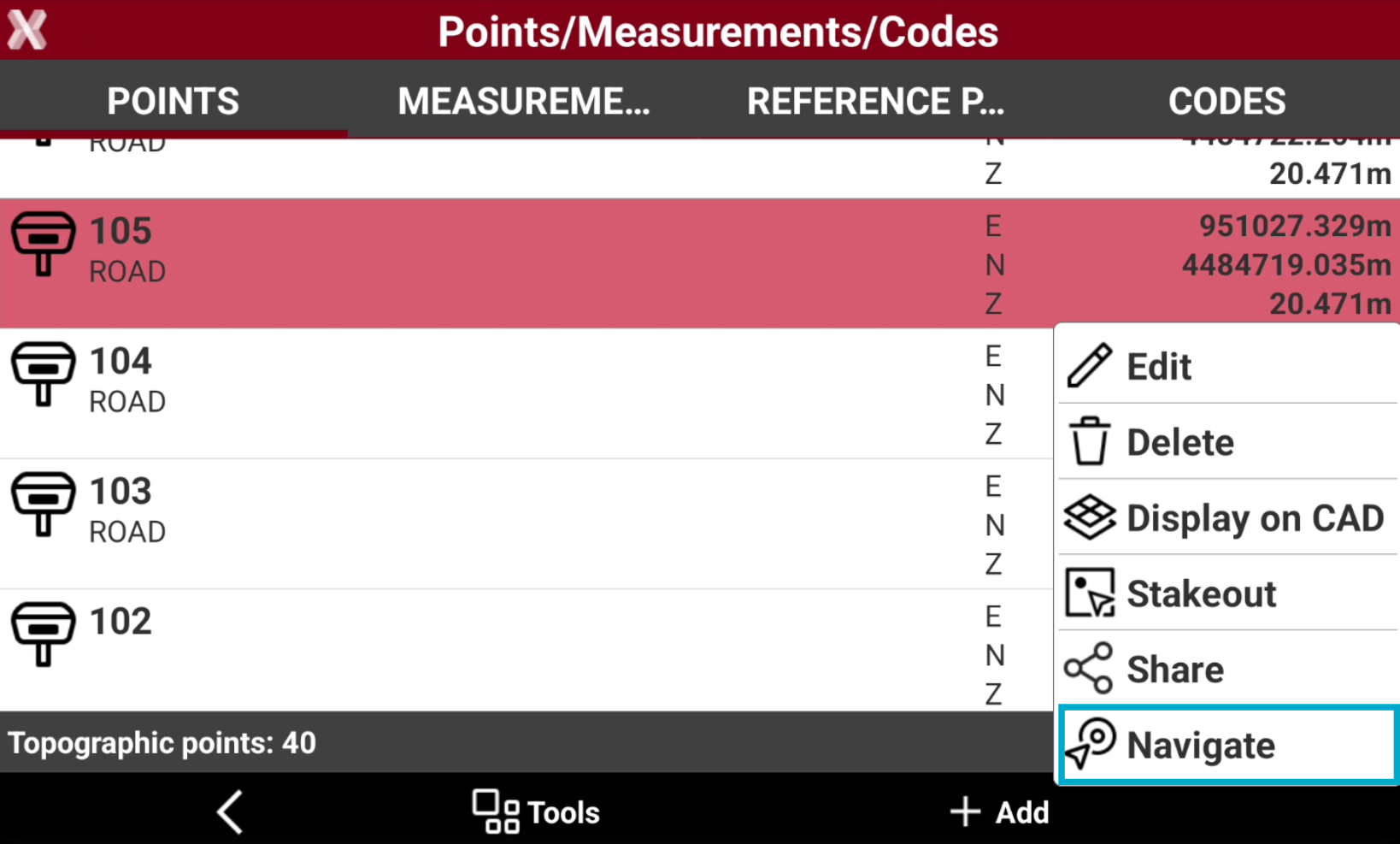
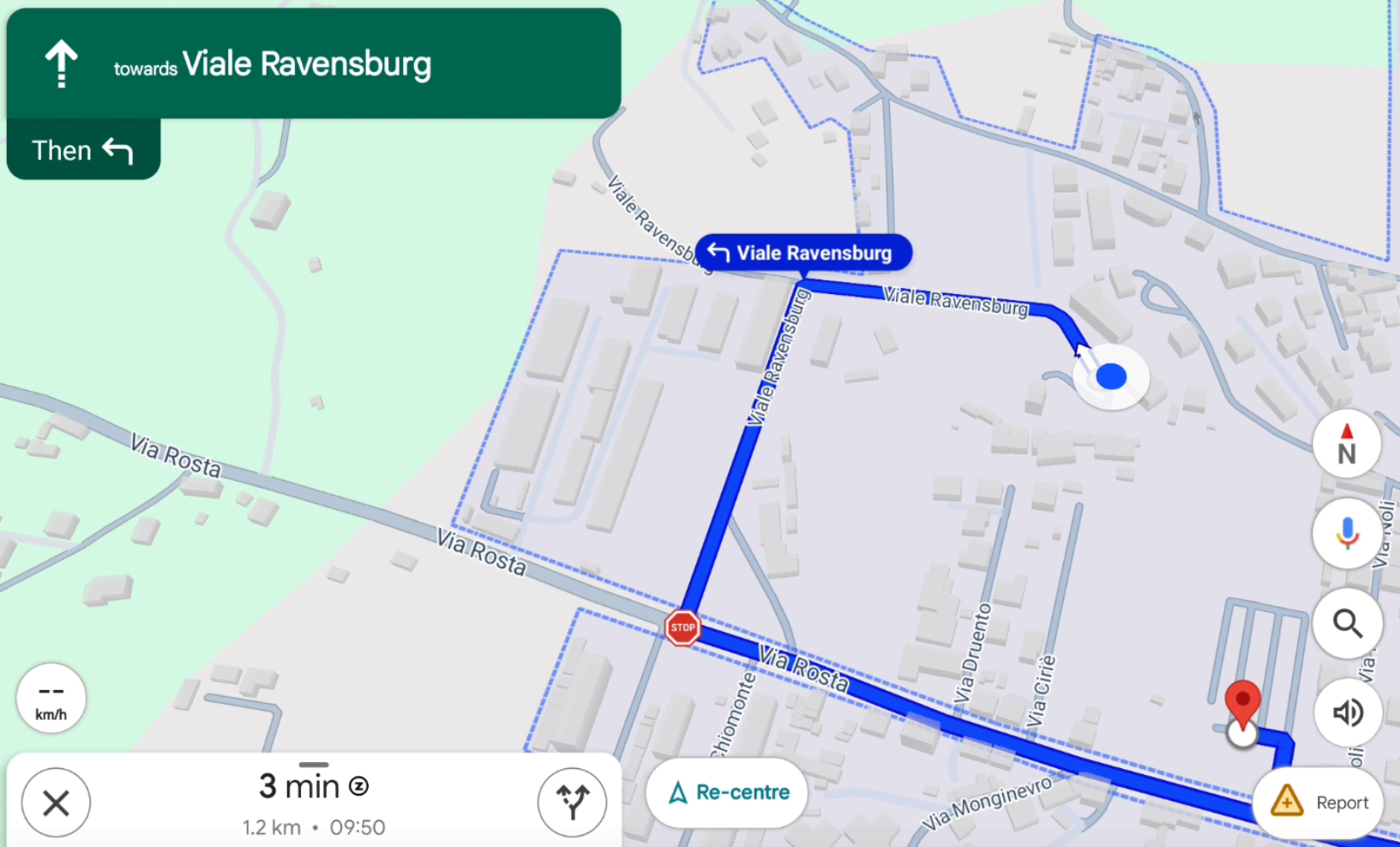
Select a point from the list to open the context menu and select Navigate.
-
The software opens Google Maps with the directions to navigate to the point position.
Search point
-
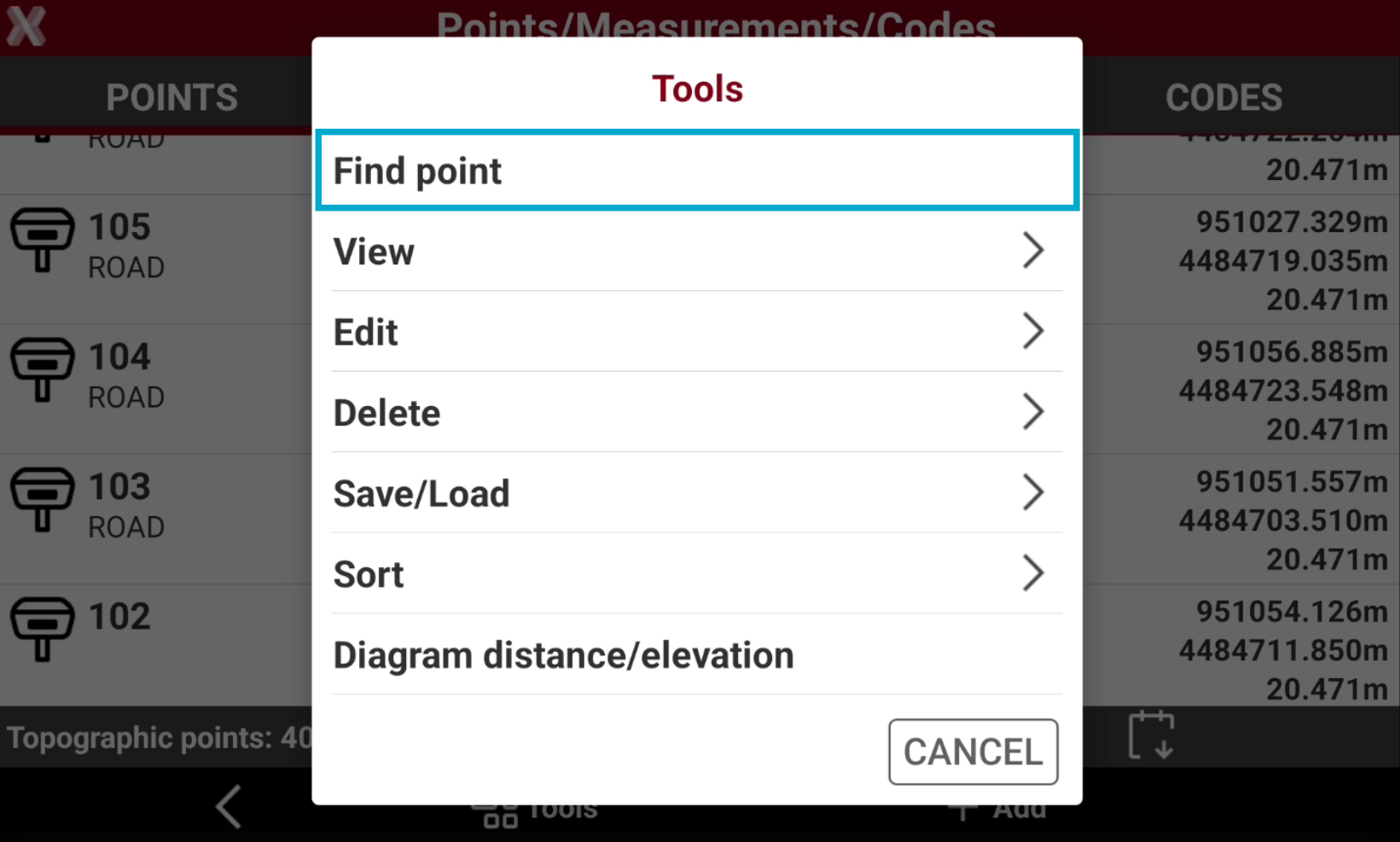
The function Find point is used to search in the Point list a specific point.
-
Select Tools to open the list of available tools.
-
Select Find point.
-
Enter the point ID to find.
Set elevation to points
-
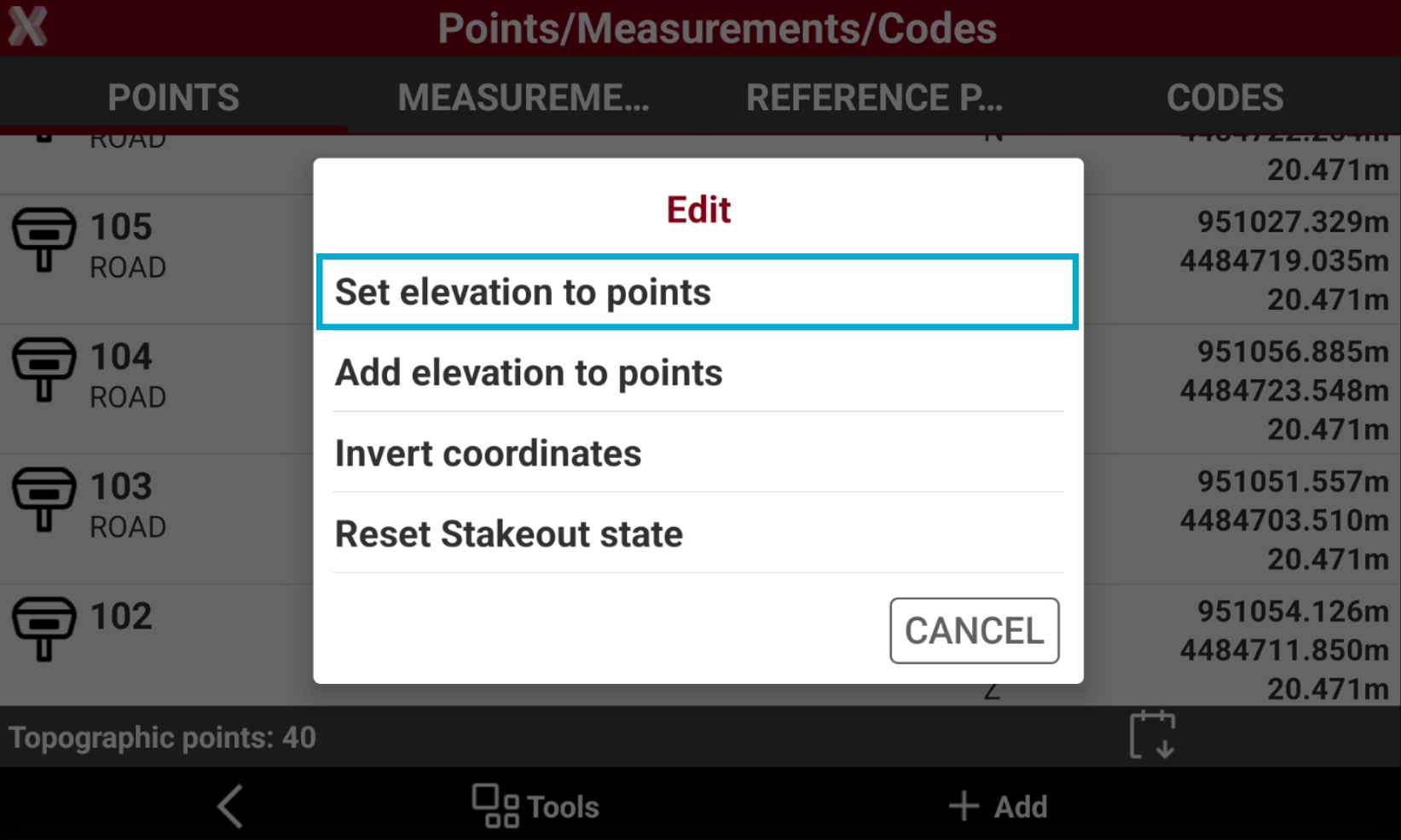
Set elevation to points allow to set a value for the elevation of the selected points.
-
From Tools select Set elevation to points.
-
Check the points from the list, or select Tools to use Selection rules or select/deselect all the points.
-
Select Edit to enter the new elevation to set.
Add elevation to points
-
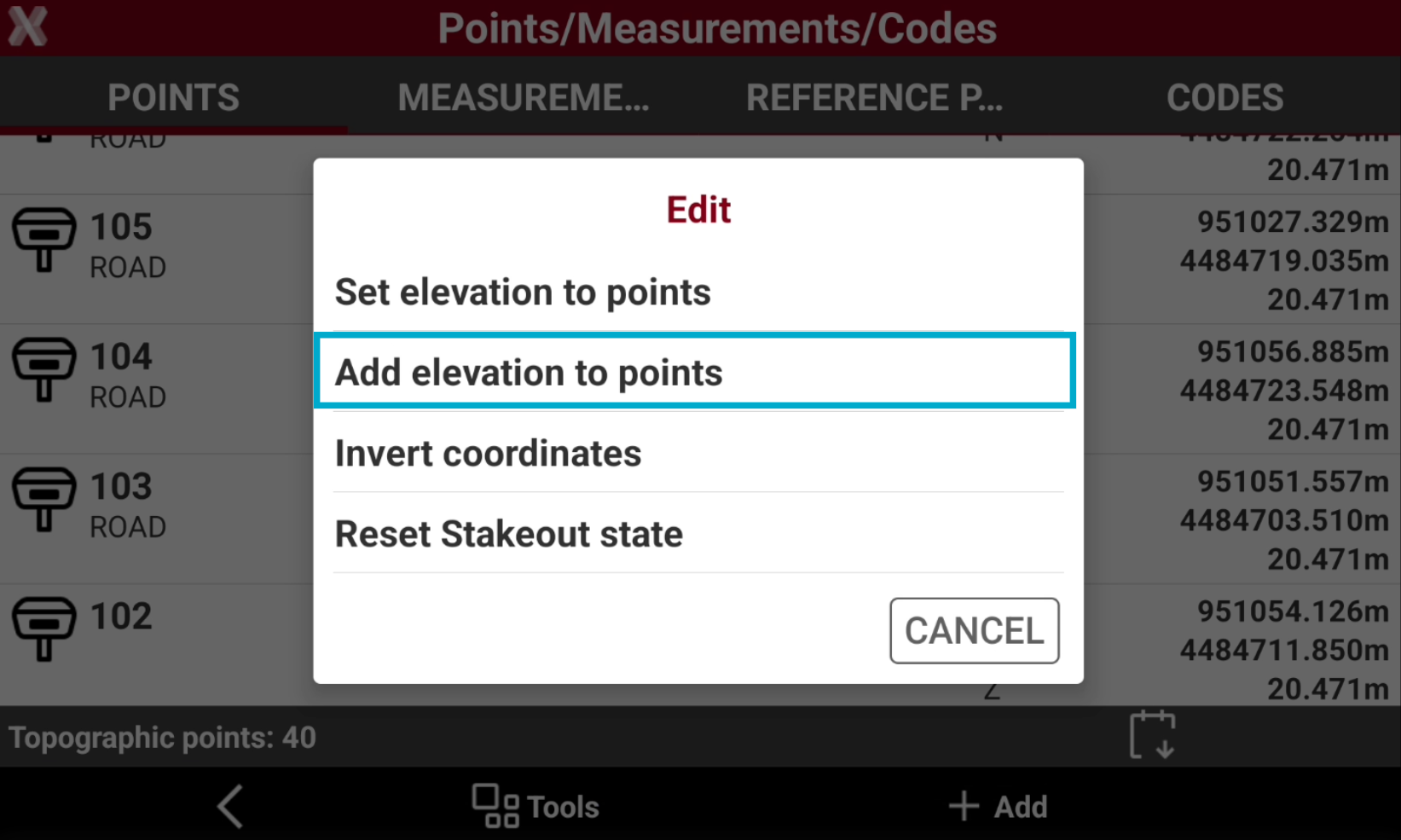
Add elevation to points allows to increase/decrease the elevation of the selected point of an entered value.
-
From Tools select Add elevation to points.
-
Check the points from the list, or select Tools to use Selection rules or select/deselect all the points.
-
Select Edit to add a value.
Invert coordinates
-
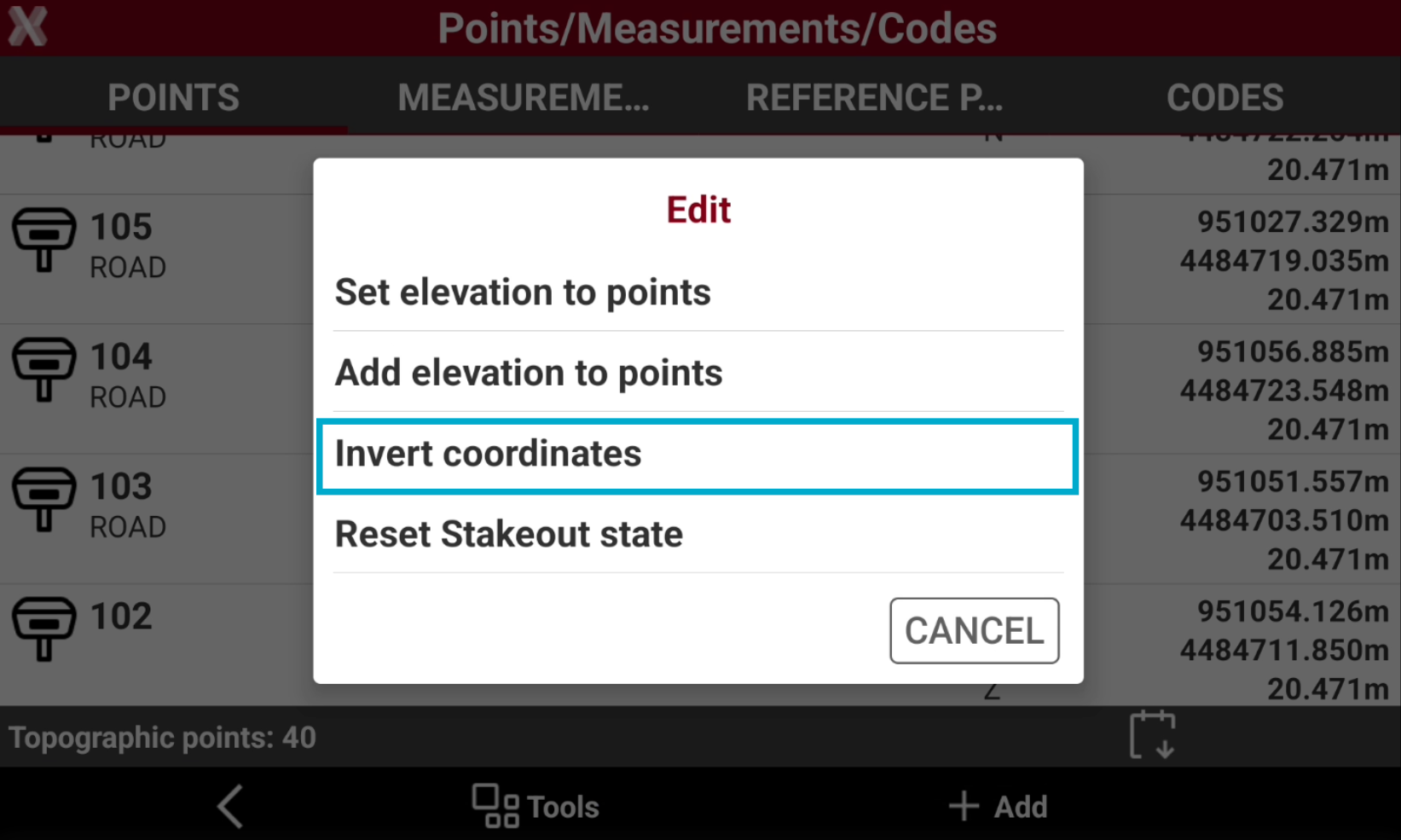
The command Invert coordinates inverts the sign of east and north coordinate.
-
From Tools select Add elevation to points.
-
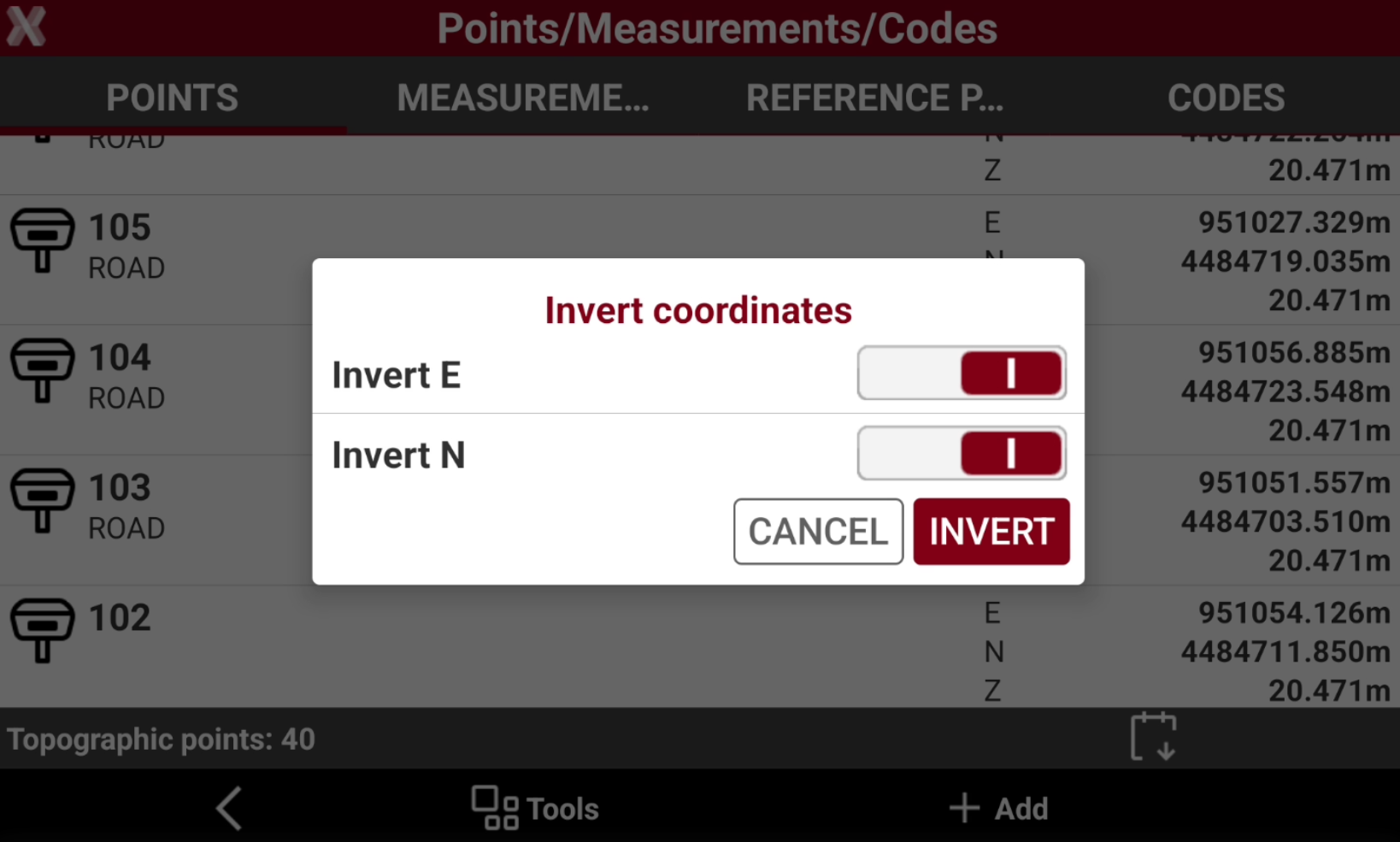
Select the coordinates to invert the sign.
-
Invert E: inverts the sign of E coordinate for all points.
-
Invert N: inverts the sign of N coordinate for all points.
-
-
Select Invert to confirm the operation.
Reset stakeout state
-
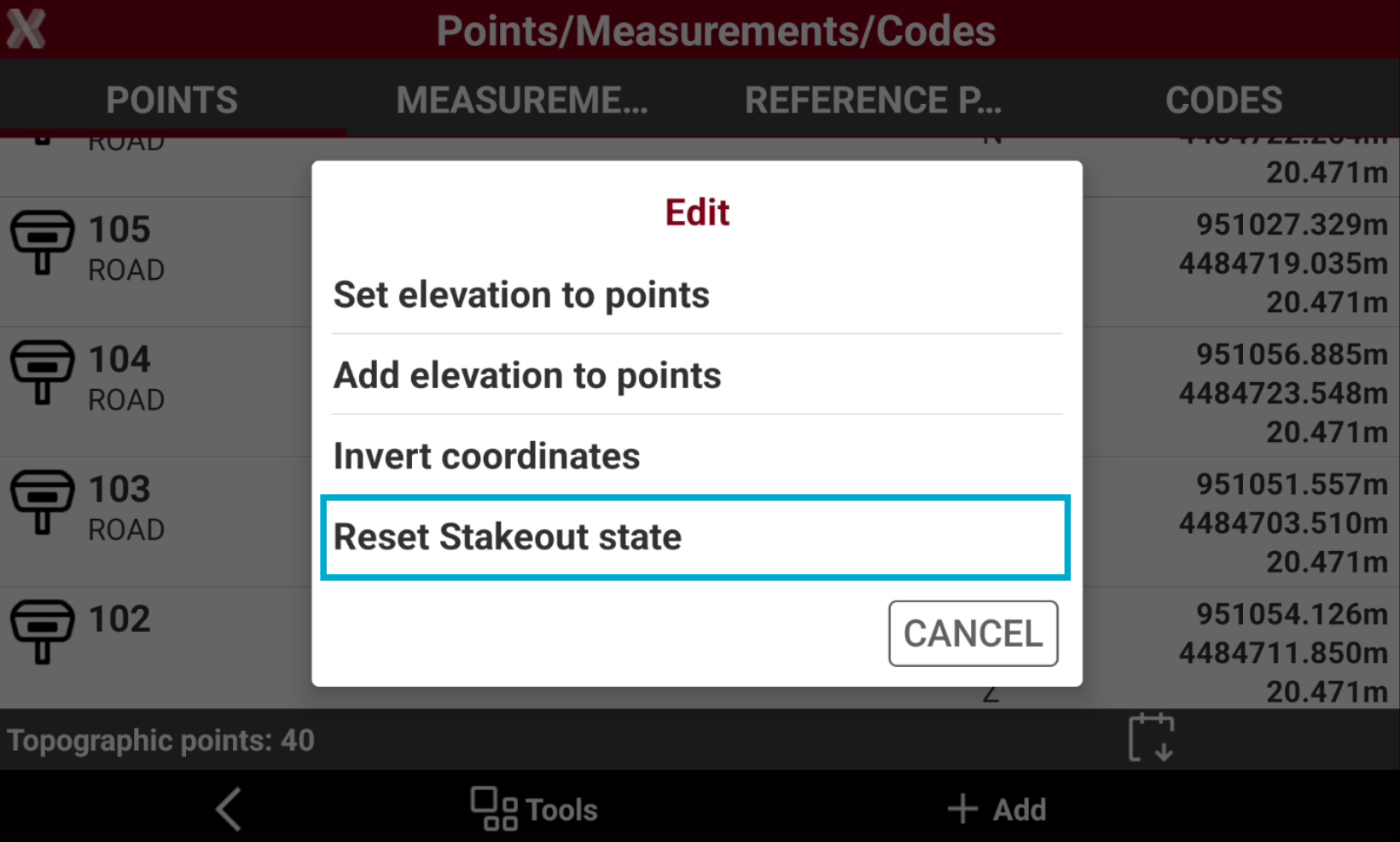
When a point in the Points list has been staked out, it is marked with a status

-
A command is available to reset this status.
-
From Tools select Edit and Reset stakeout state.
Distance and diagram elevation
-
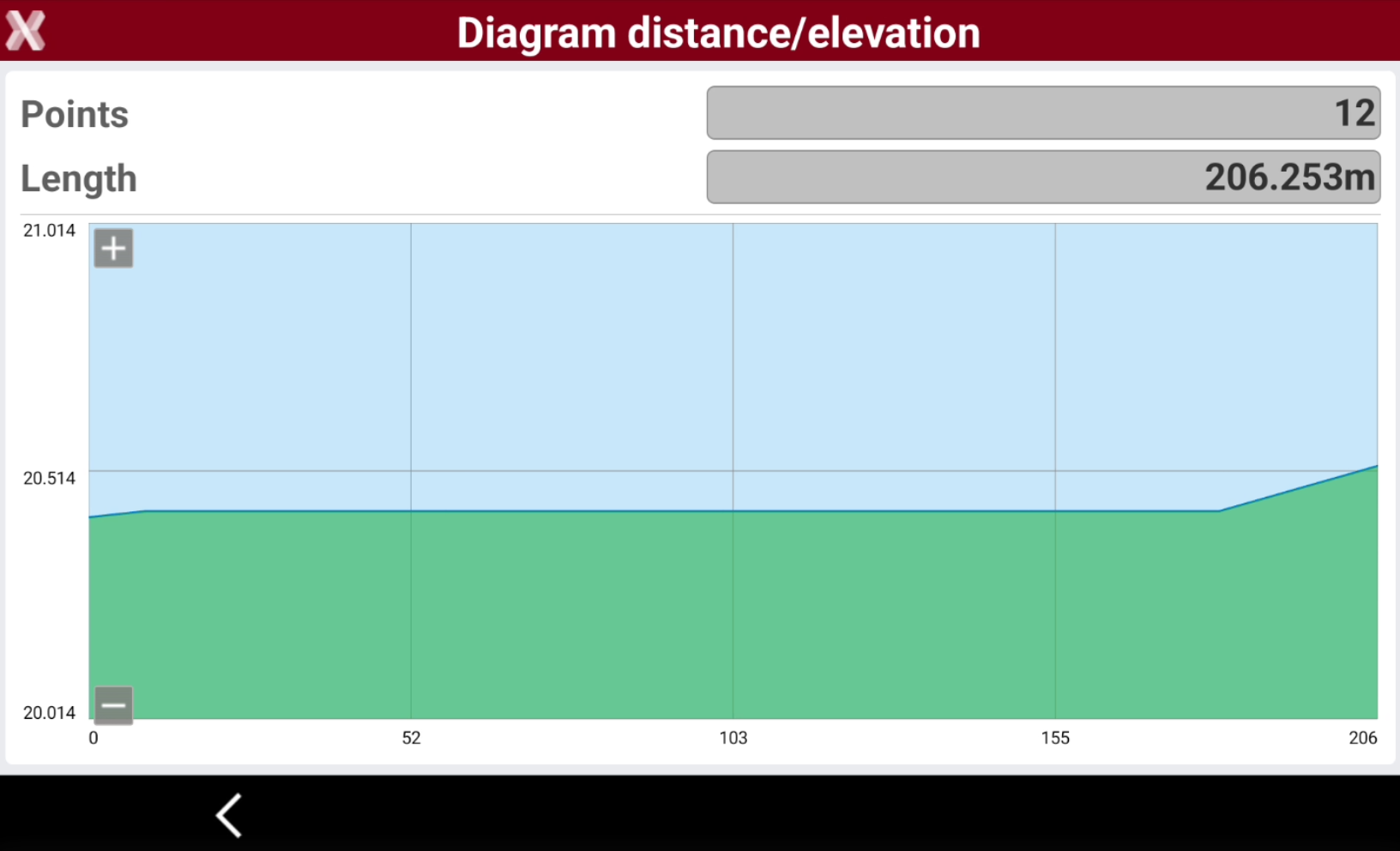
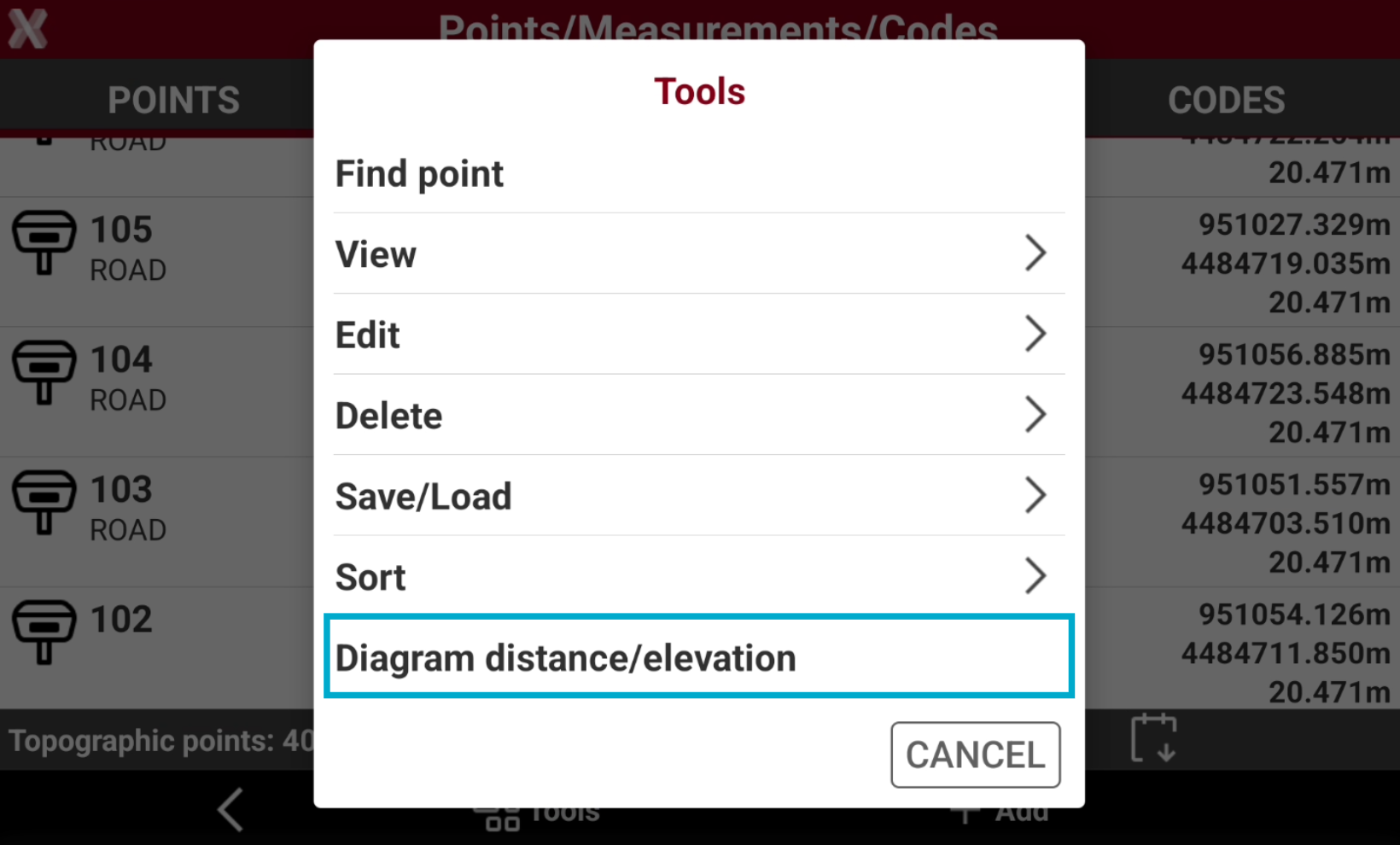
The commands allows to display points on a diagram with the distances on the horizontal axis and the elevation on the ordinate axis.
-
From Tools select Diagram distance/elevation.
-
The software shows a diagram with points distance and elevations.