
-
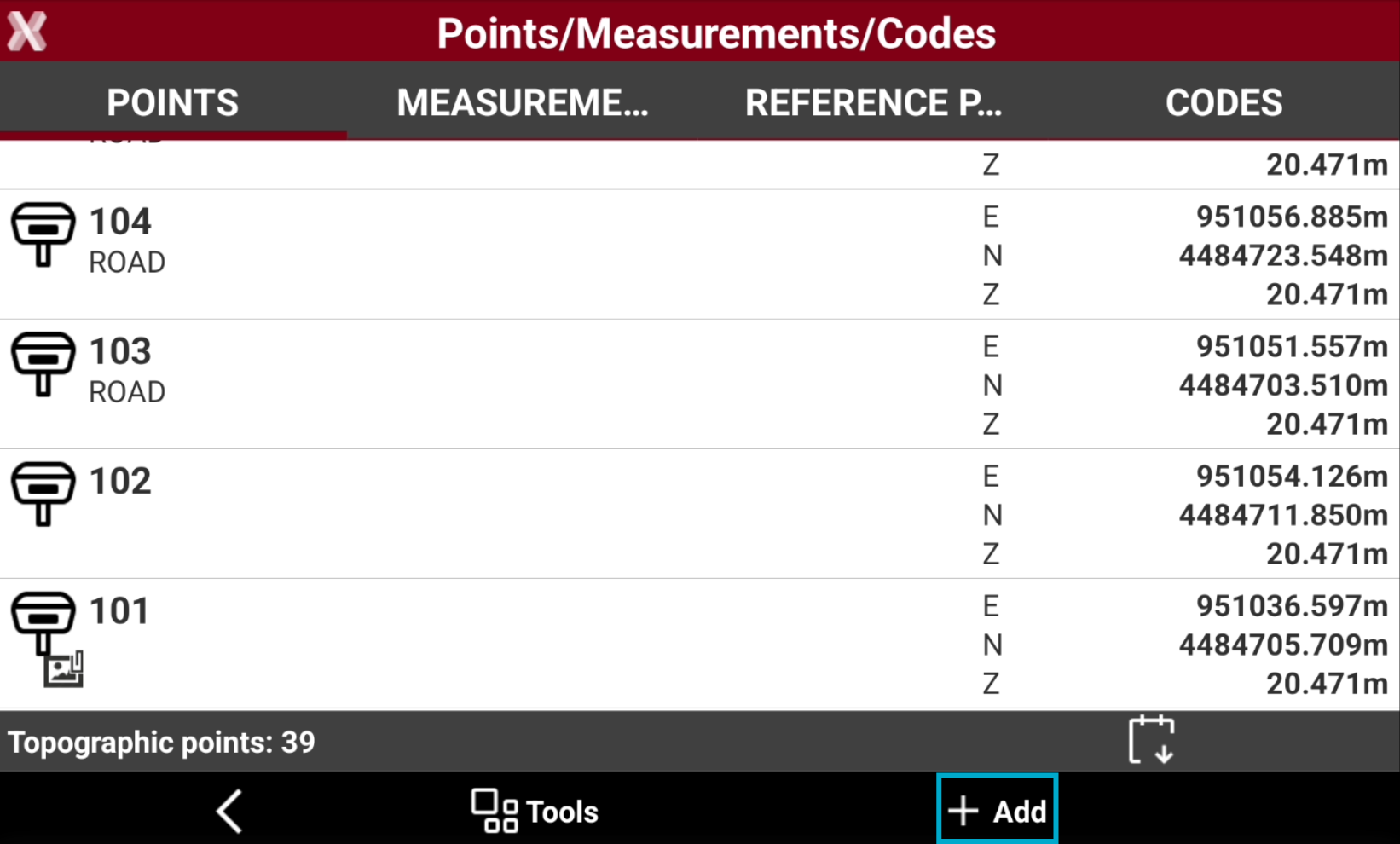
From the Topographic points list it is possible to create manually a point selecting Add button.
-
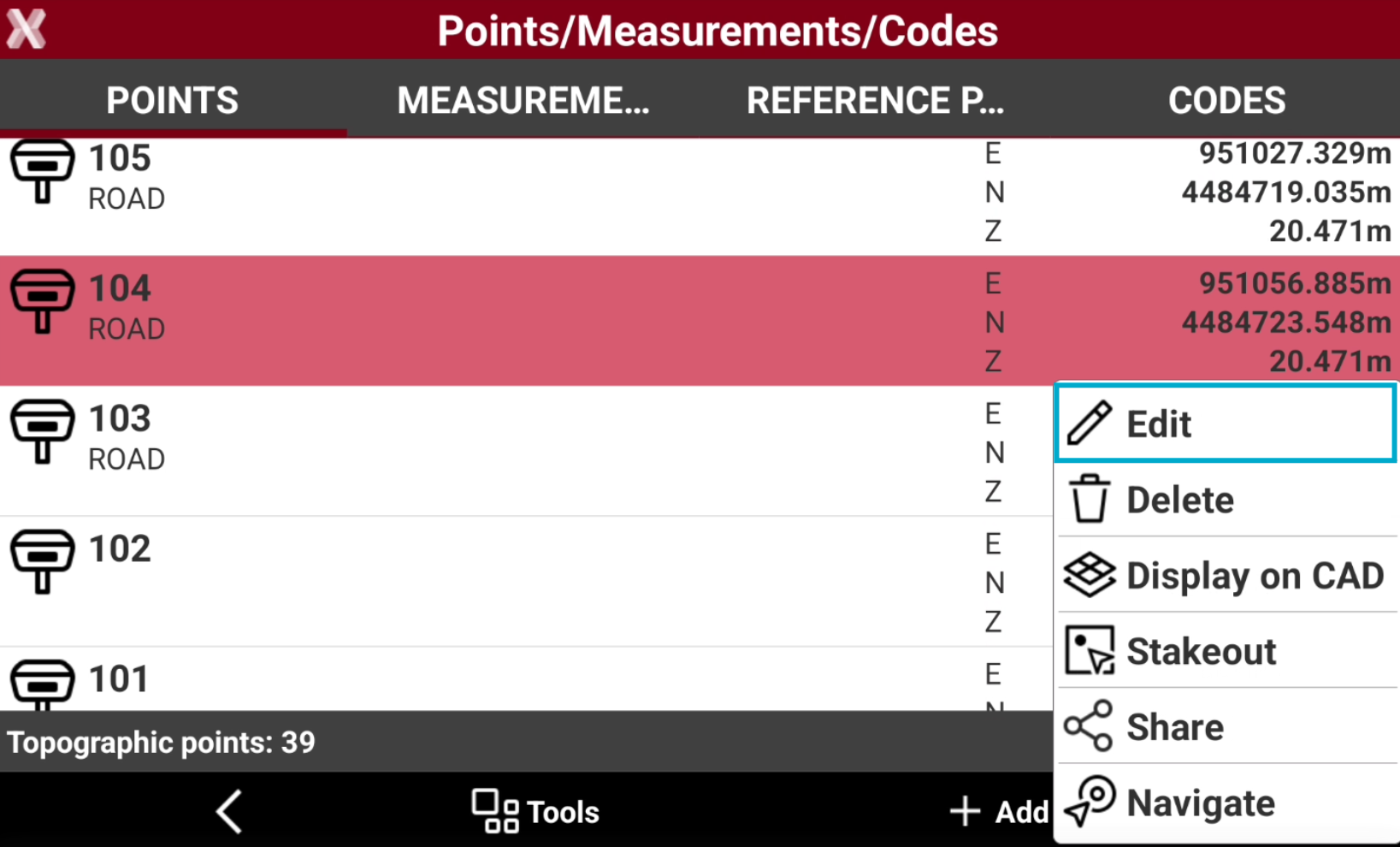
Or editing an existing point selecting Edit from the point context menu.
Coordinates page
-
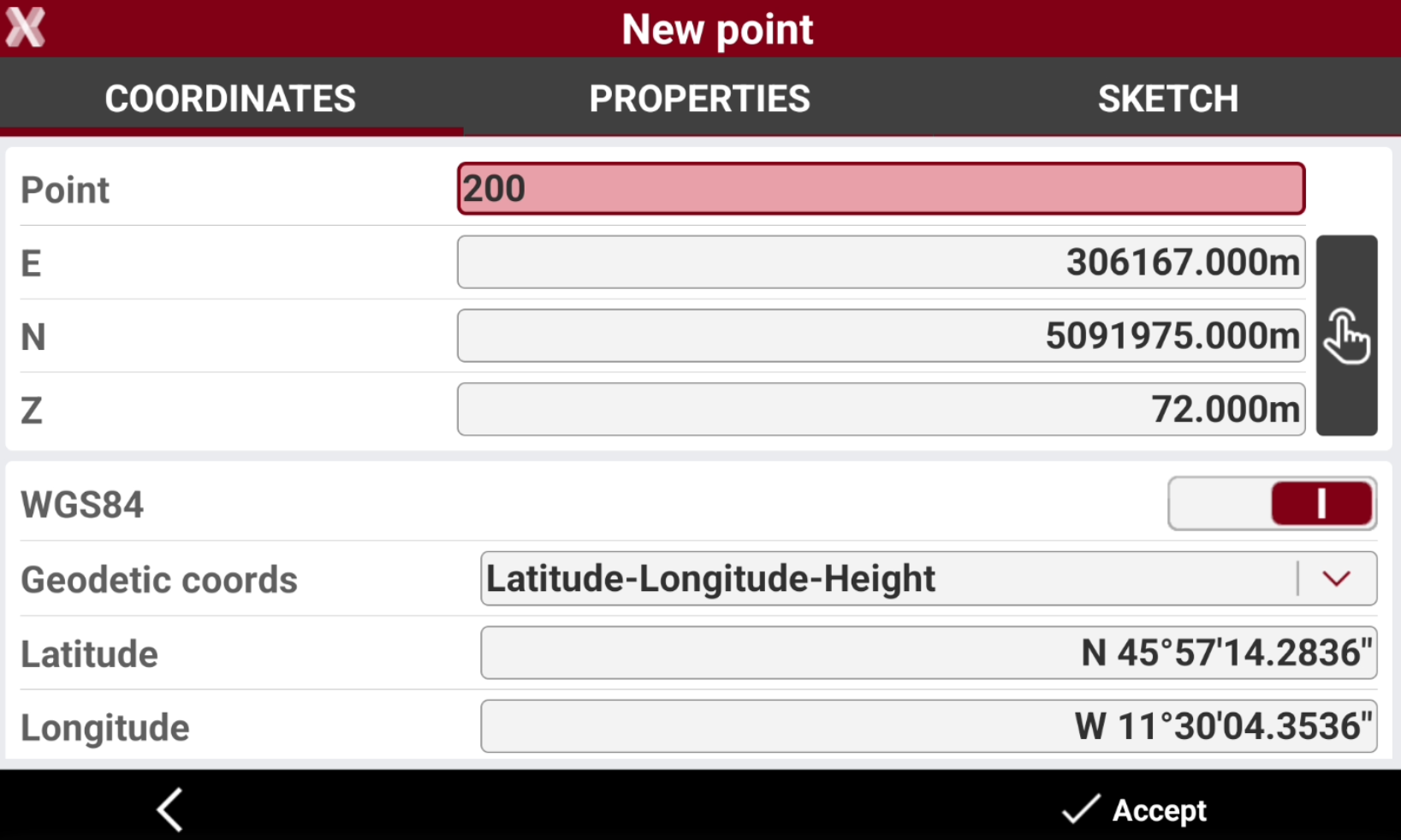
Coordinates page include coordinate information of the topographic point. A topographic point may have plane coordinates and WGS84 coordinates.
-
Point: name of the point.
-
E, N, Z: plane coordinates of the point.
-
WGS84: allows entering the geographic coordinates of the point. If a coordinate system is assigned, the WGS84 coordinate is calculated based on entered plane coordinates, and vive-versa.
-
Geodetic coordinates: allows to choose the input method for the WGS84 coordinate.
-
Latitude, longitude and height: the coordinate is entered from its latitude, longitude and height.
-
ECEF XYZ: the coordinate is entered from its earth centered coordinate.
-
-
-
Select

Properties page
-
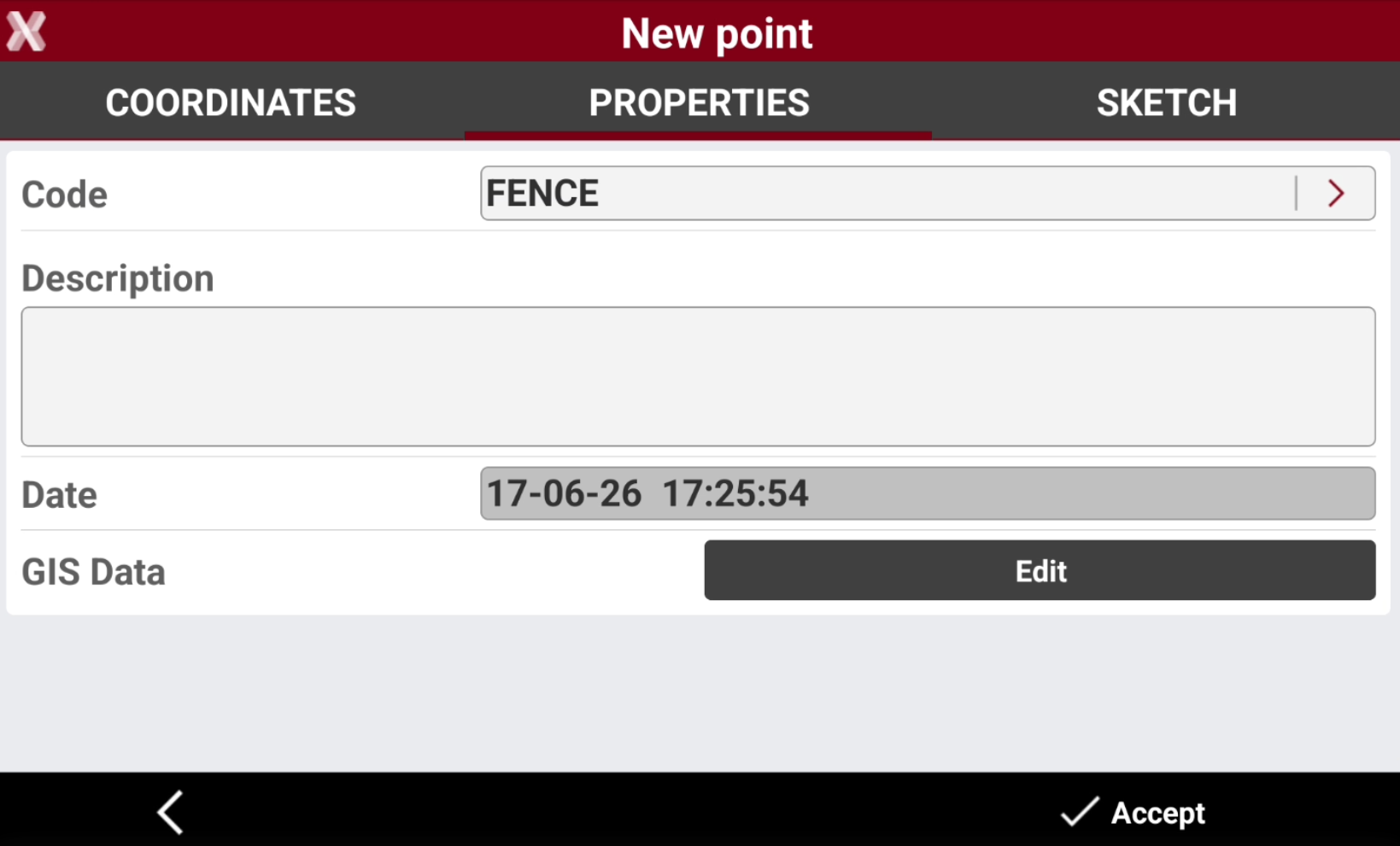
Properties page allows to enter the point properties, as code, description and GIS features.
-
Code: survey code of the point. The icon allows to access the codes library and to select a code from the list.
-
Description: extended description of the point.
-
Date: date and time of storing the point.
-
GIS Data: if one or more codes with GIS features has been associated to the point, the Edit button can be used to insert and modify the corresponding GIS features.
-
Sketch page
-
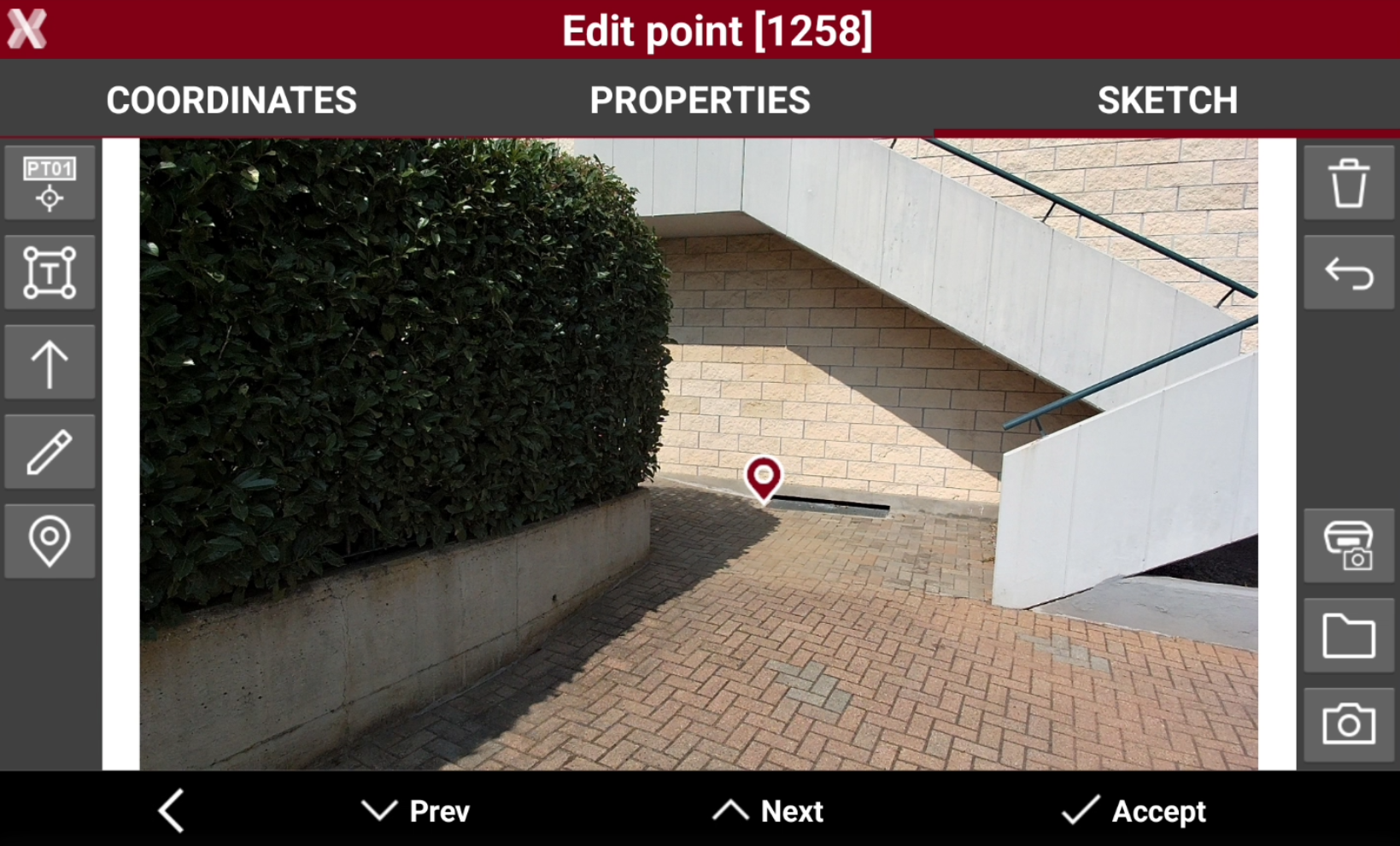
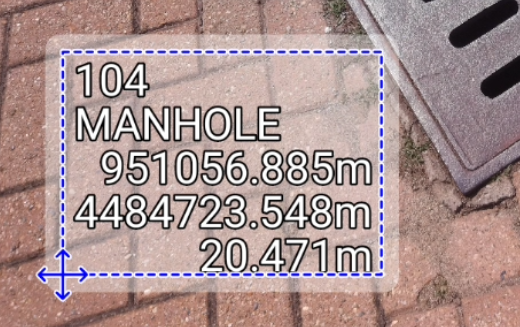
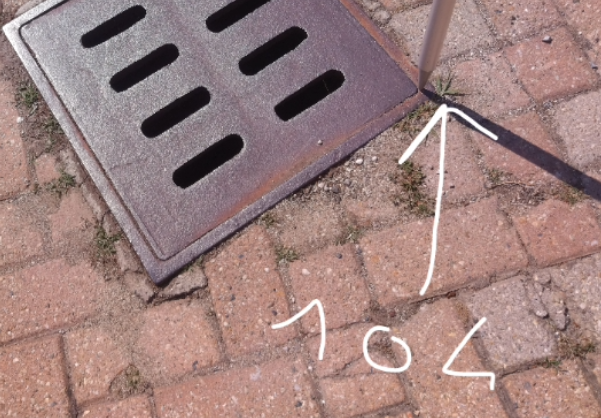
Sketch page allows to view the photo assigned to a point, load or take a new photo or draw on the image to have a picture of the topographic point.
-


-


-


-

-

-

-

-

-

-

-