
-
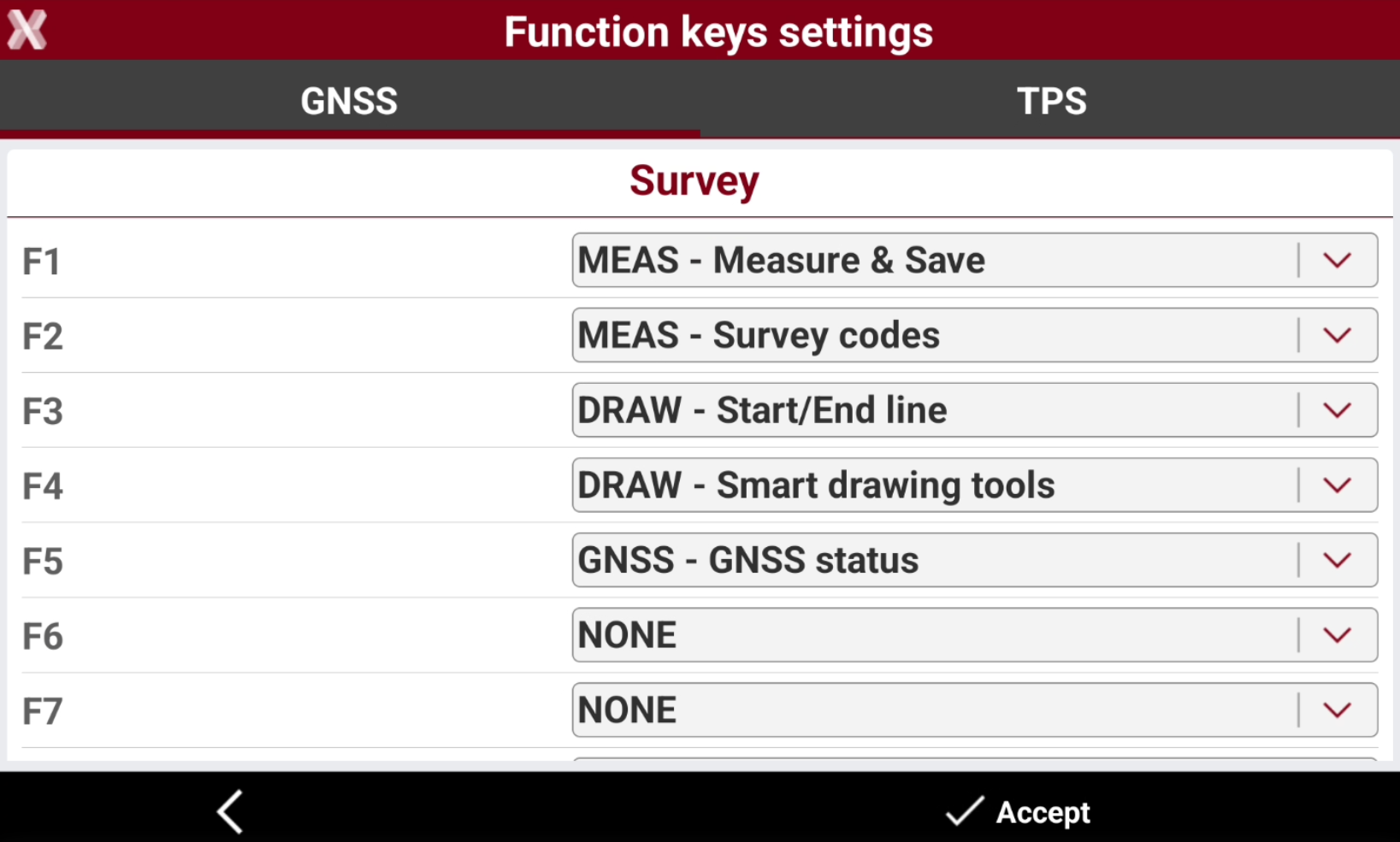
The Function keys settings page allows to set the hardware button on different models of controllers with specific functions in order to be faster and more productive in the field.
-
Select Settings.
-
Select Function keys.
-
Depending on the used controller, there are different function keys to customize.
-
Click on the corresponding function key to configure it for Survey or Stakeout applications.
-
The functions are also organized in a tab when working with a GNSS instrument and a tab when working with a total station.
CSX8/Zenius08 controller
-
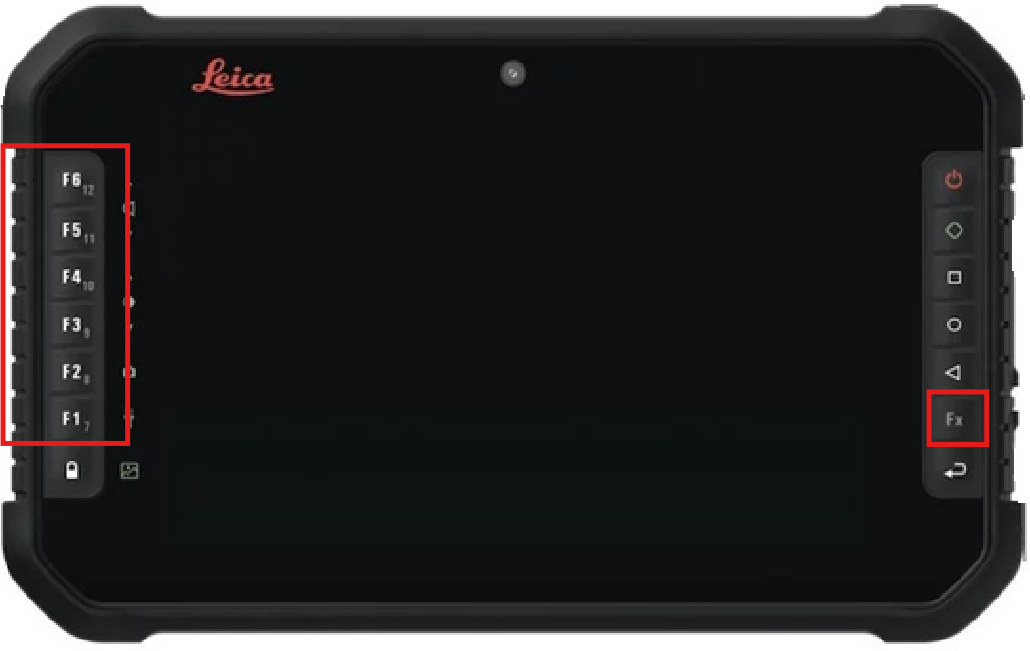
Leica CSX8/Zenius08 controller allows to customize 12 function buttons.
-
F1-F6 can be used simply pressing the corresponding hardware button on the controller.
-
F7-F12 can be used pressing the hardware button Fx and the corresponding hardware button on the controller.
Zenius800 controller
-
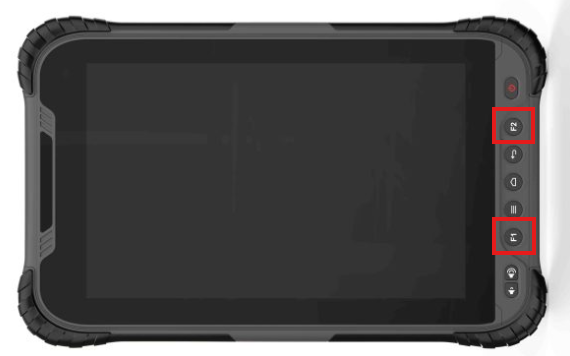
Zenius800 controller allows to set the F1 and F2 hardware button.
Juniper Allegro3 Android controller
-
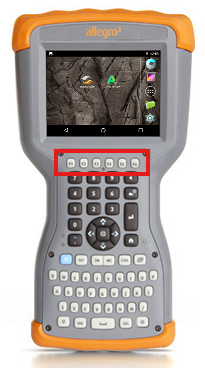
The Juniper Allegro3 Android controller function keys are supported by X-PAD.
-
The six functions keys can be customized as shortcut to activate some commands and options.
Samsung Active Android controller
-
The Samsung Active Android controller has an active button that can be customized to control the software.
Nautiz X6
-
The software allows to configure the 4 function keys for the Nautiz X6 Android controller.
ALPS H6BM
-
The software allows to configure the 11 function keys for the ALPS H6BM Android controller.
SOUTH H6LM
-
The software allows to configure the 11 function keys for the South H6LM Android controller.
PCR500
-
The software allows to configure the 4 function keys for the PCR500 Android controller.
A-Tab
-
The software allows to configure the function keys for the A-Tab Android controller.