The main screen

  • The main window has a menu that groups the commands according to their function.Scroll the page right or left to change page, or tap on the top toolbar.
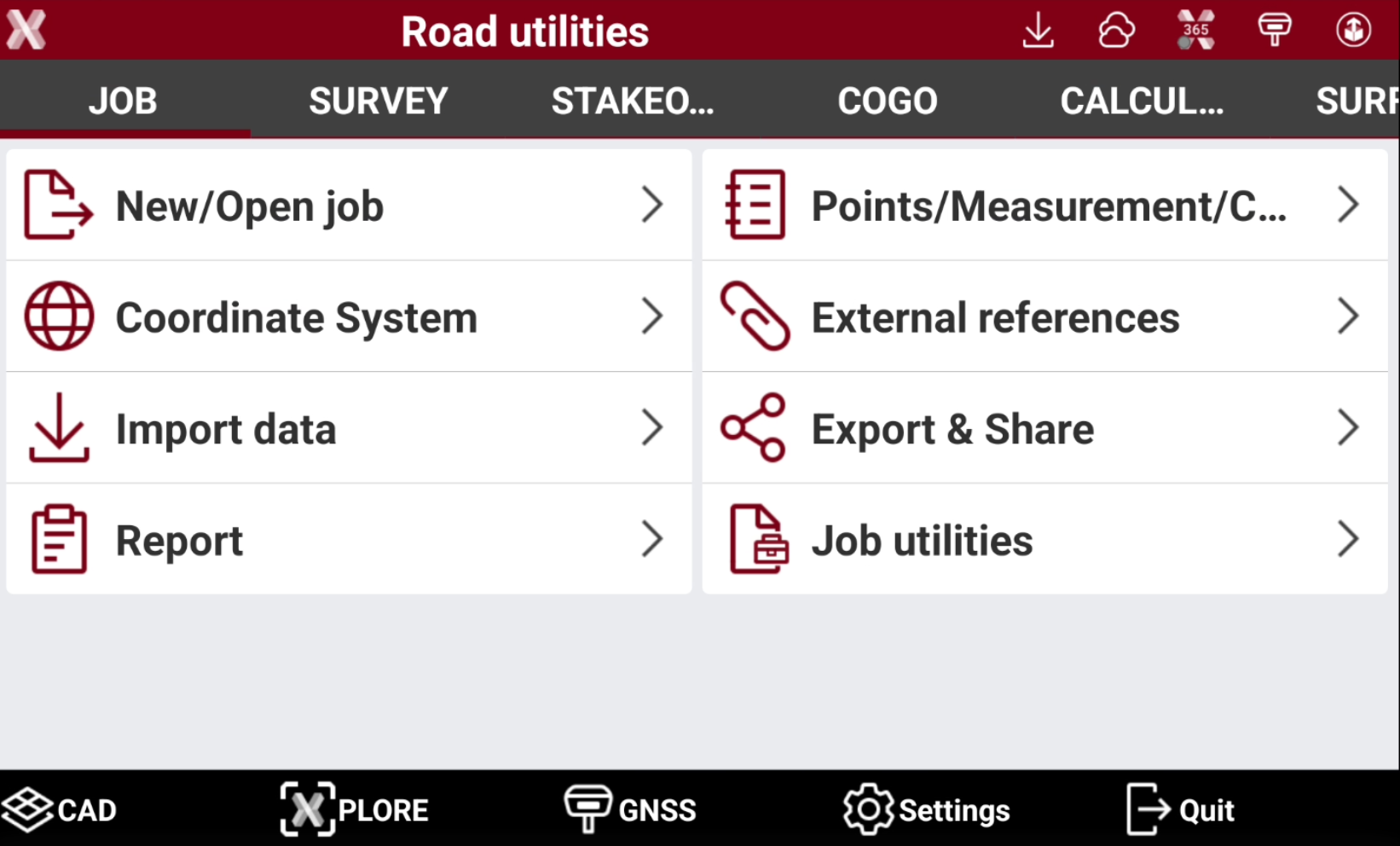
    image-20260909-072519.png
  • The main window includes a bottom section with general-purpose commands and an upper toolbar containing various functions and information.


Bottom toolbar

  • The bottom section of the main window includes general-purpose commands.

  • In the main software window we can find the following commands:

    • CAD image-20250226-155302.png : enters the CAD.

    • X-PLORE image-20260909-072551.png : opens the X-PLORE function. The function allows to utilizes different visualization methods to display the objects in the project using augmented reality. Available for GNSS receivers.

    • TPS image-20250226-155330.png : in case current instrument is a total station, this command opens the TPS Basic application.

    • GNSS image-20250226-155437.png / image-20250226-160707.png : in case current instrument is a GNSS receiver, configured as rover or base, this command opens the GNSS Status.

    • Settings image-20250226-155354.png : opens the Settings page, where you can configure instrument and software parameters.

    • Quit image-20250226-155411.png : exits the software. If an instrument is connected, you are also prompted to turn it off.


Upper toolbar

  • Dialog boxes are characterized by an upper bar reporting several useful information.

    image-20260608-153032.png
    • X-PAD icon image-20260608-153048.png : opens the X-PAD Info page with general information about the software, licenses, software releases and help functionalities.

    • Job name or screen title: the name of the job is displayed in the main screen. The title of the box is displayed in the dialog box.

    • Update available image-20260608-153112.png : if this icon is visualized, it indicates that an update is available. Tap on the icon to see the new release and proceed with the download and installation.

    • Weather image-20260608-153205.png : shows the current weather. Tap on the icon to open a window with the Weather forecast.

    • Select instrument image-20260608-153410.png / image-20260608-153327.png / image-20260608-153353.png : opens the panel to quickly select a different instrument to connect.

    • GPS battery image-20260608-153447.png : shows the connected GNSS receiver battery level. Tap on the icon to open the receiver information page.

    • TPS battery image-20260608-153604.png : shows the connected total station battery level. Tap on the icon to open the total station information page.

    • X-Pole image-20260608-153515.png / image-20260608-153616.png : allows you to switch to the other type of instrument (GNSS or TPS) when working with the X-Pole module. If you are using the GNSS receiver, you can switch to total station and vice versa.

    • Voice command image-20260608-153528.png : enables/disables the use of voice commands during field operations.

    • CCP status image-20260608-153701.png : shows the status of the CCP subscription.


Weather forecast

An internet connection is required

  • X-PAD has a window accessible from the main screen to check the weather forecast.

  • From the main screen click Weather icon.

    image-20260608-153205.png
  • This window shows the weather forecast for next hours and next days.
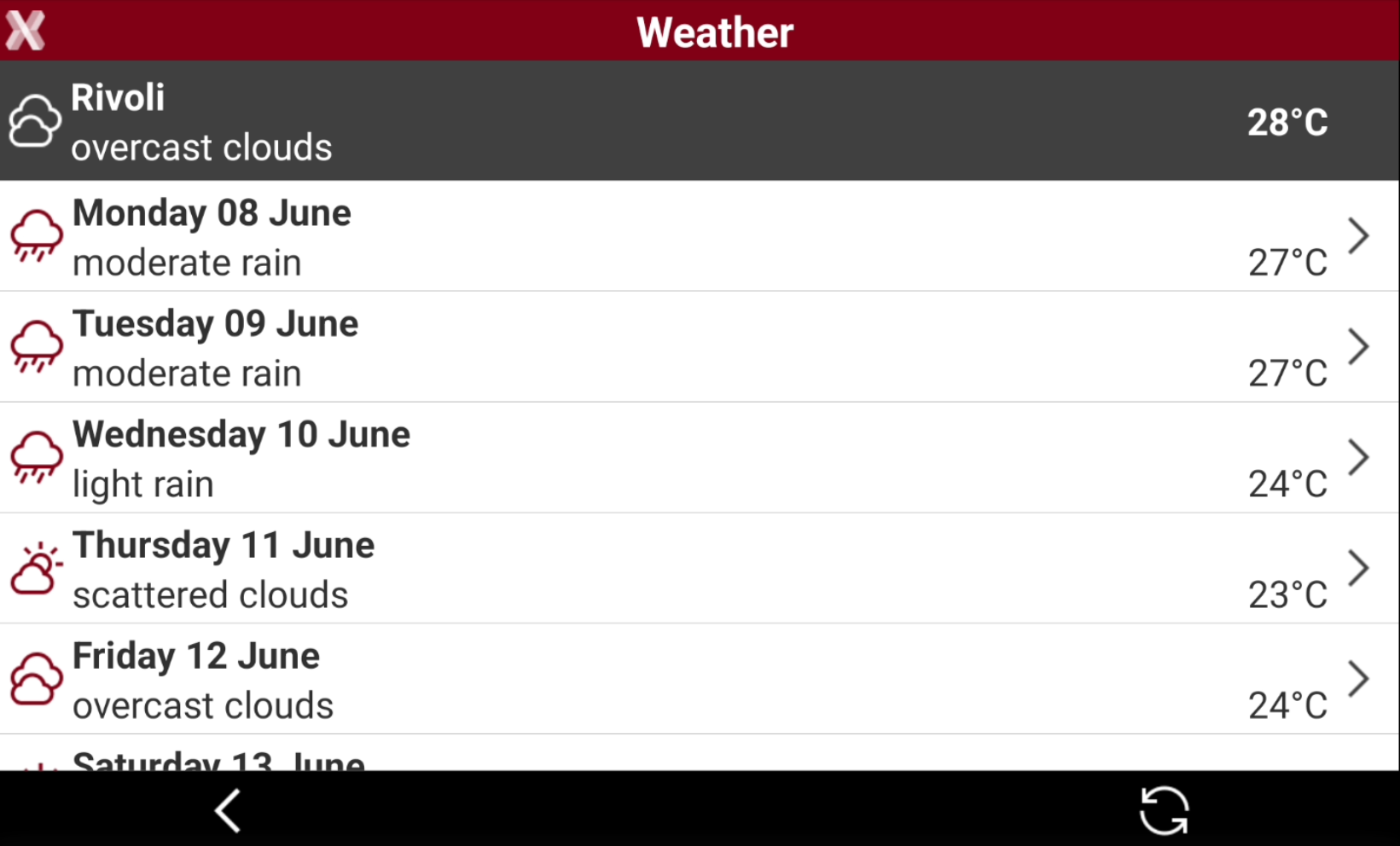
    image-20260608-153823.png
  • Select a day to display the hourly weather forecast for that day.

  • Press image-20250226-162317.png to update the data.

The temperature unit depends on configured Android language.


Quick instrument selection

  • From the main screen it is possible to quickly change instrument, selecting an already configured instrument profile.

  • Depending on the current instrument, select the icon on top-right of the screen.
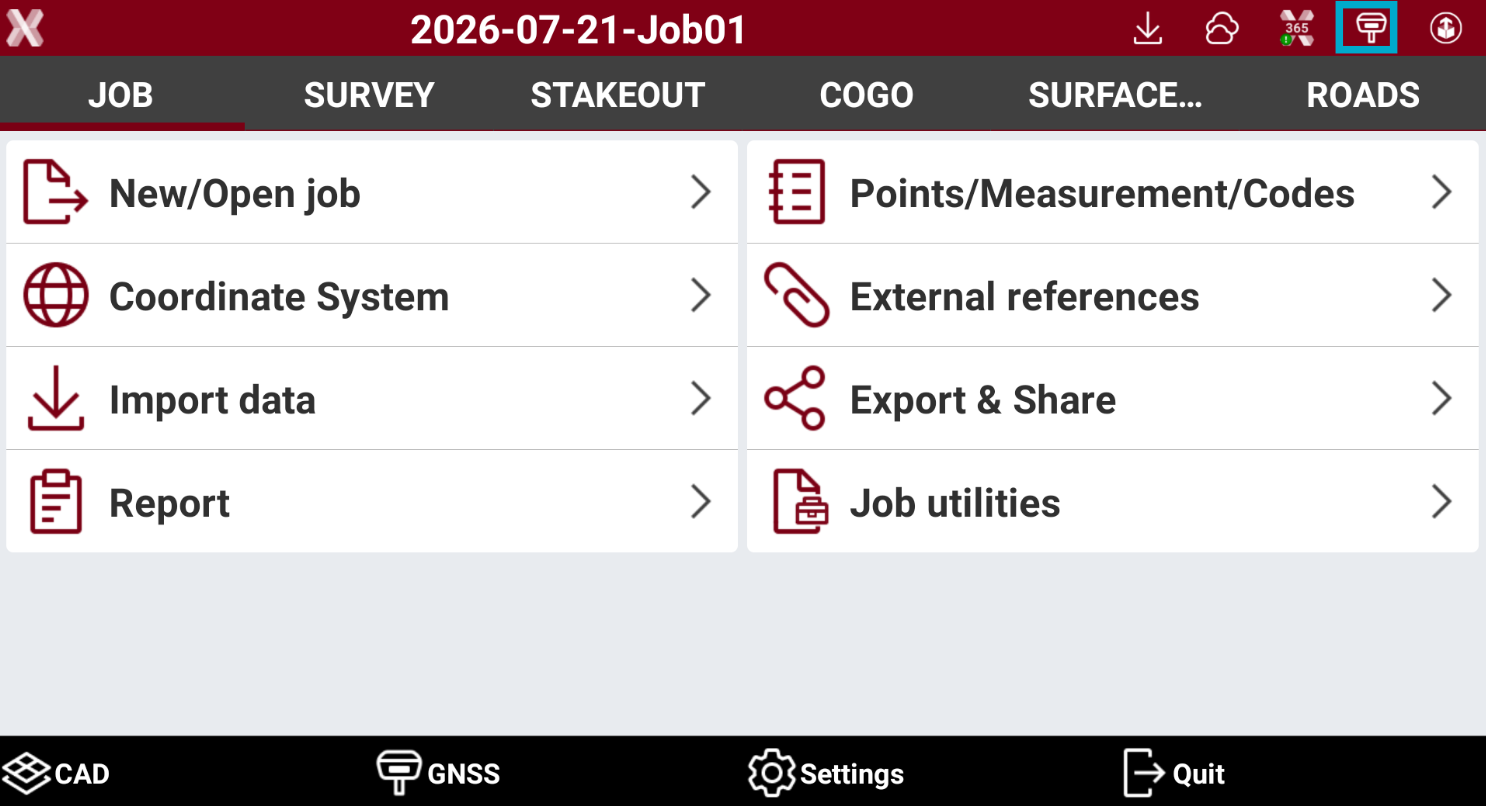
    image-20260721-135300.png
  • This opens a panel where it is possible to select the instrument to connect.

  • This list shows the list of available instrument profiles divided by profile type.
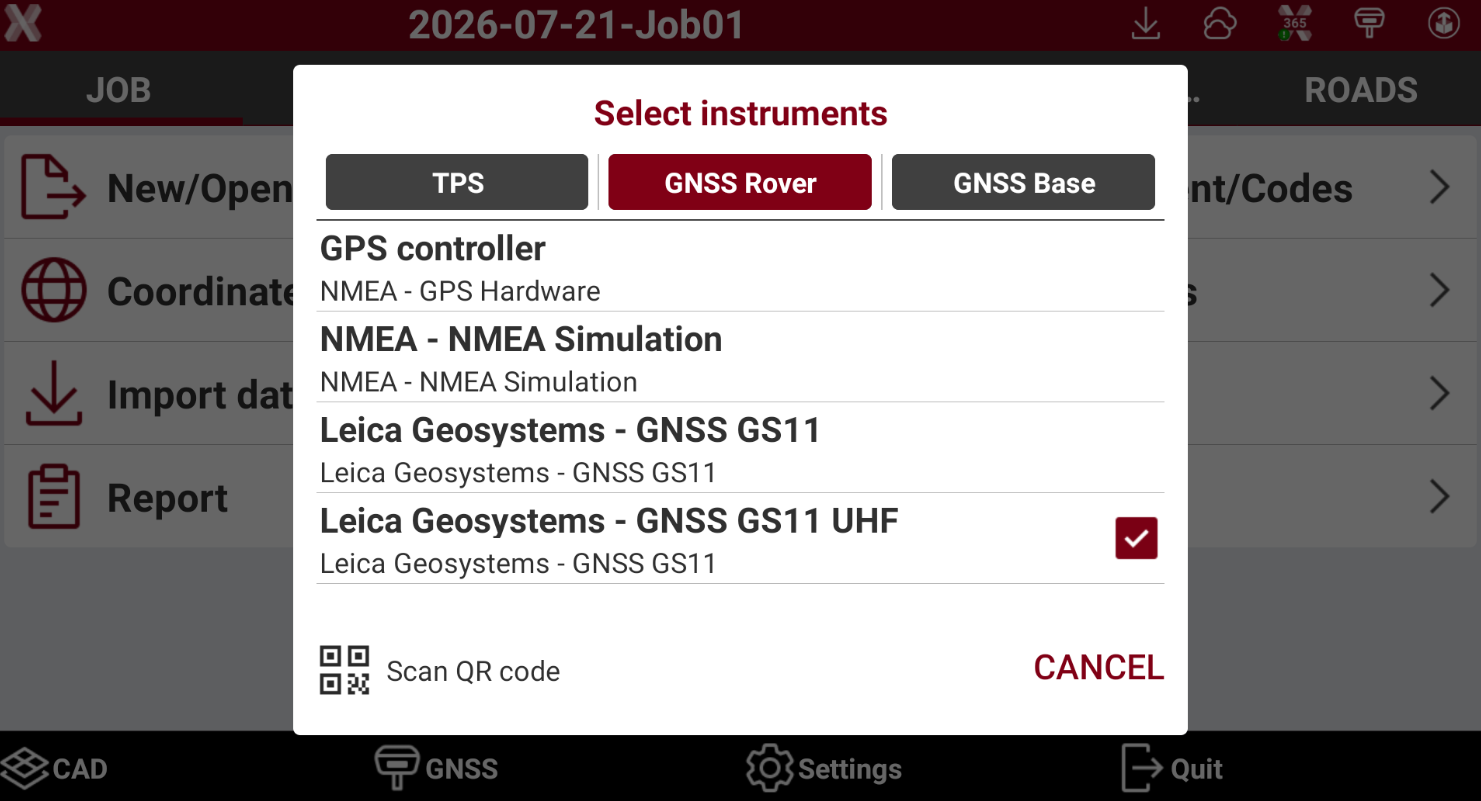
    image-20260721-135231.png
    • TPS: lists the total station profiles.

    • GNSS Rover: lists the GNSS rover profiles.

    • GNSS Base: lists the GNSS base profiles.

  • Select a profile to quickly connect to the instrument.

  • Select Scan QR code to scan an instrument QR code to connect to this device, if the device has a QR code.
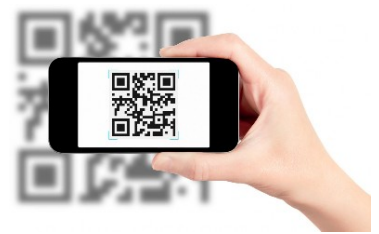
    image-20250226-163213.png
  • When connection is established you are asked to reconfigure the receiver or total station.

  • Select YES to reconfigure the instrument with parameters in the selected profile, select NO to connect to instrument without reconfiguring the instrument.


Receiver/total station information

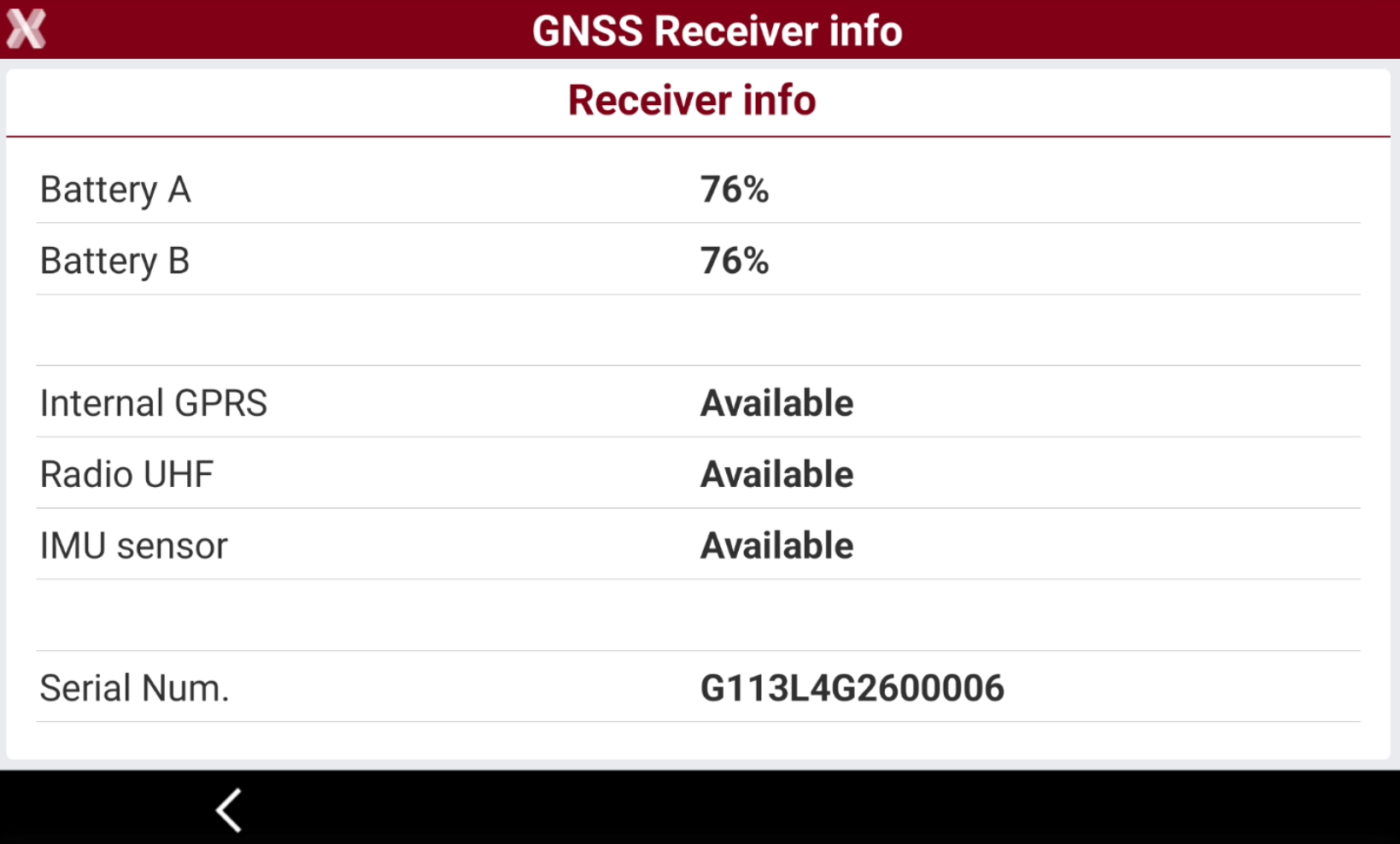
  • While connected to an instrument click on its battery icon image-20260909-072843.png to open the instrument Information page.

  • This opens the instrument info page.

    image-20260909-072908.png
  • The information page shows different information depending on the instrument connected, such as the battery level, the available options, the instrument serial number and the firmware version.