
Survey interface
-
The Survey interface is explained below.
-
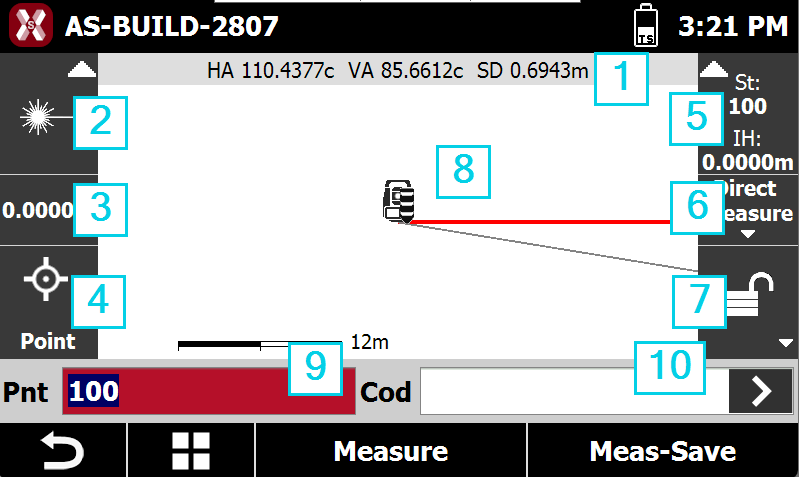
Angles: displays the current horizontal and vertical angles of the total station.
-
Current target: displays the type of target currently in use. Tap the panel to open the settings and edit the target type.
-
Target elevation: displays the current elevation associated with the target. Tap the panel to modify the value.
-
Smart Drawing – drawing during survey: displays the current status of the Smart Drawing function. Tap the panel to select the drawing tool or the operation to perform.
-
Current station: displays the name and elevation of the current station. Tap the panel to open the window for changing the station orientation.
-
Measure mode: changes the measure mode.
-
Lock prism status: shows the lock prism status, if the prism is locked, unlocked or instrument is working with automatic aim. Press this box to open the Control panel.
-

-

-

-
-
Graphic area: graphic view with visualization of the survey and the drawing. Tapping twice in the graphic part parte you access to the main CAD window. The red line indicates the total station orientation, the grey line indicates the current total station direction.
-
Point ID: the next point will be measured with this point ID. Tap on the field to change the ID.
-
Survey code: allows to enter a survey code. See Survey code assignment for more information.
Survey tools
-
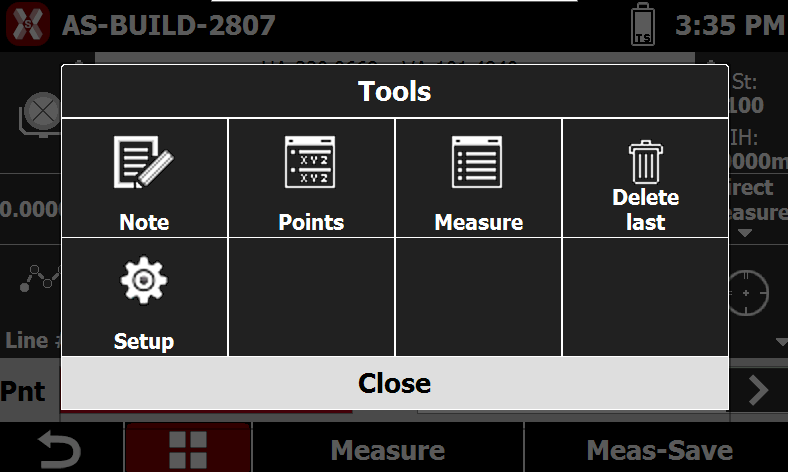
During the survey press Tools

-
Note: allows to enter a field note. See Field book notes.
-
Points: opens the topographic points list.
-
Measure: opens the measurements list.
-
Delete last: deletes the last measured point.
-
Setup: opens the TPS Survey settings page.
-