
-
There are different ways to assign survey codes to a topographic point:
-
Manual insertion of code.
-
Selection from a table of codes.
-
Using quick codes.
-
For more information on how to create and manage survey code lists refer to Survey codes.
Manual insertion of code
-
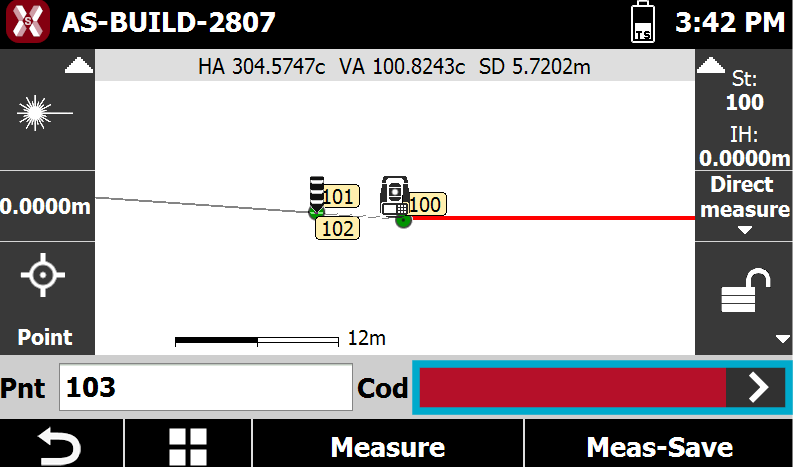
Type code directly in the field Code.
Select a code from the codes list
-
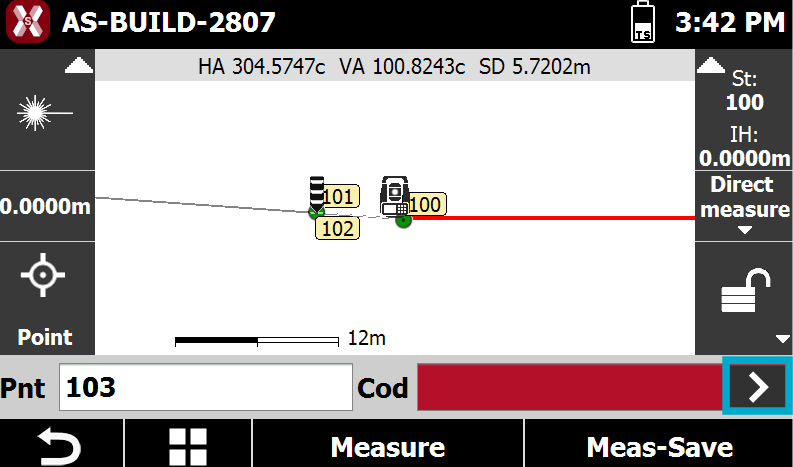
Press > icon to open the codes list.
-
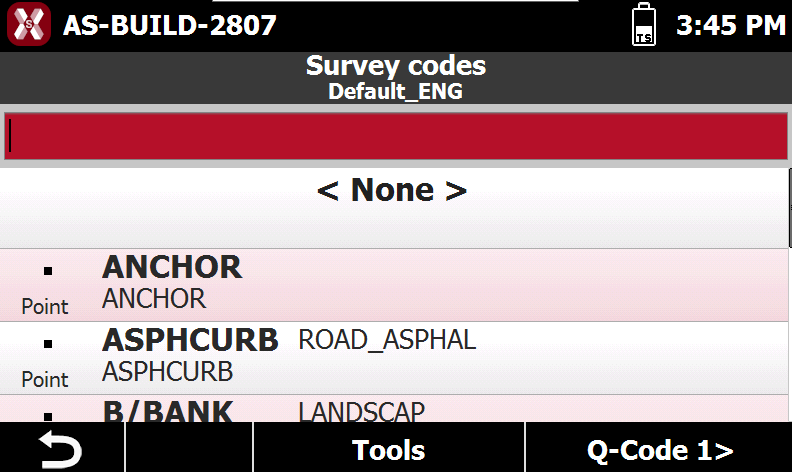
This opens the Survey codes list. On the page, the survey codes are displayed. Select a code from the list to activate the survey code.
Sort survey codes
-
To sort the code press Tools.
-
Press Sort Alphabetic to sort the survey codes alphabetically.
-
Press Sort Last used to sort the survey codes from the last used.
Show free codes
-
Press Tools and select Show free codes to open the list of free codes.
Modify codes.
-
Press Tools and select Modify codes to open the codes list.
-
Select a code from the list to edit it.
Quick codes
-
Press > icon to open the codes list.
-
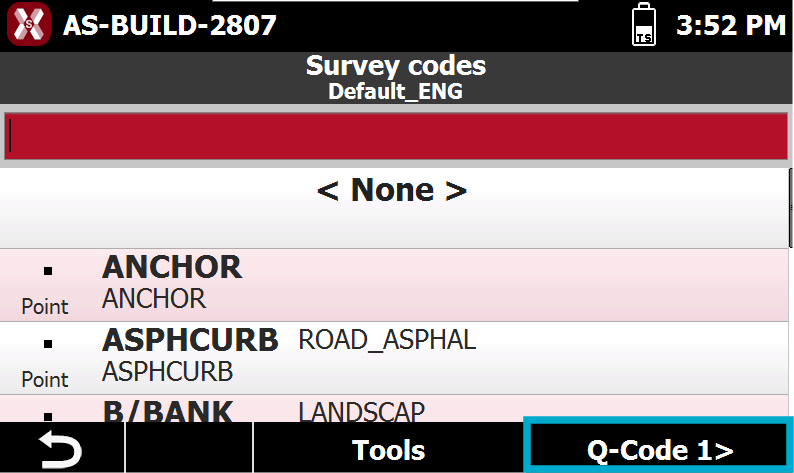
This opens the Survey codes list. Press Q-Code to open the list of quick-codes.
-
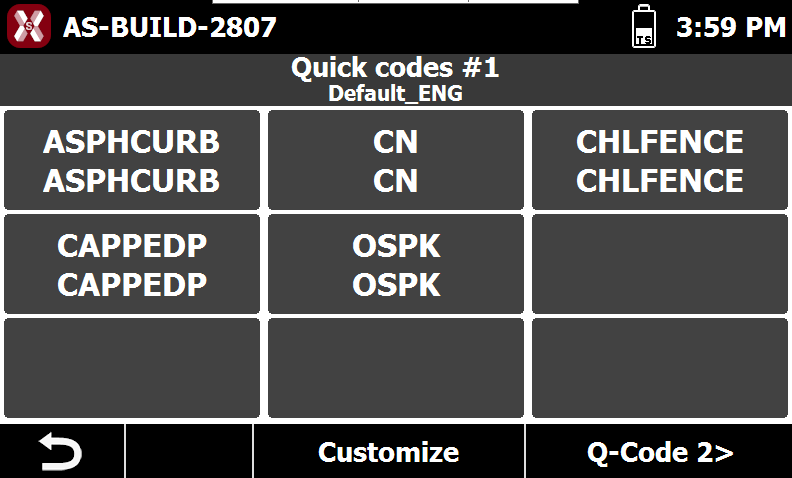
The quick-code table is opened. Press on a box to select a code or press Q-Code to change to a different quick-code table.
Customize quick-codes table
-
The quick-codes table allows to select the most used codes.
-
X-PAD has 3 quick codes tables that is possible to customize.
-
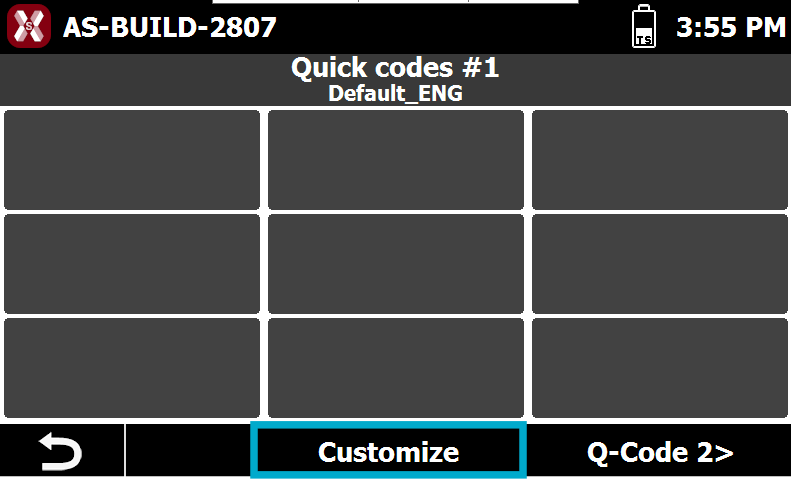
To customize the codes in the table press Customize.
-
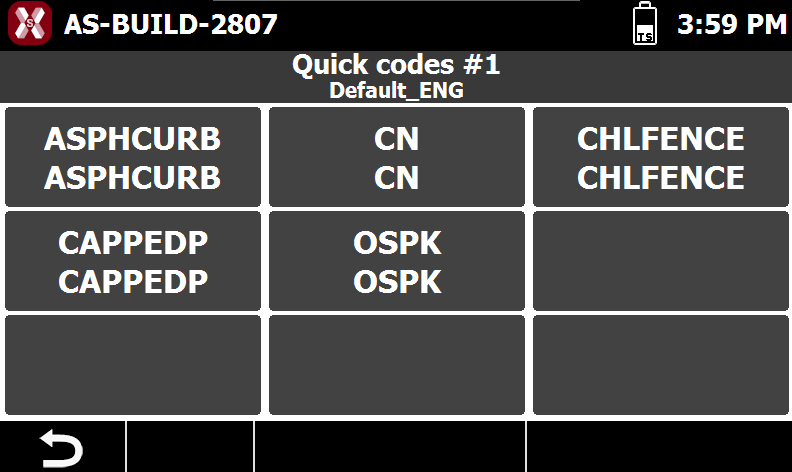
Press each box and select a survey code.
-
Press back when done.
Change quick-code table
-
X-PAD has 3 quick-codes table.
-
Press the Q-Code button to change table.