
-
The function Survey points is used to measure and store topographic points.
-
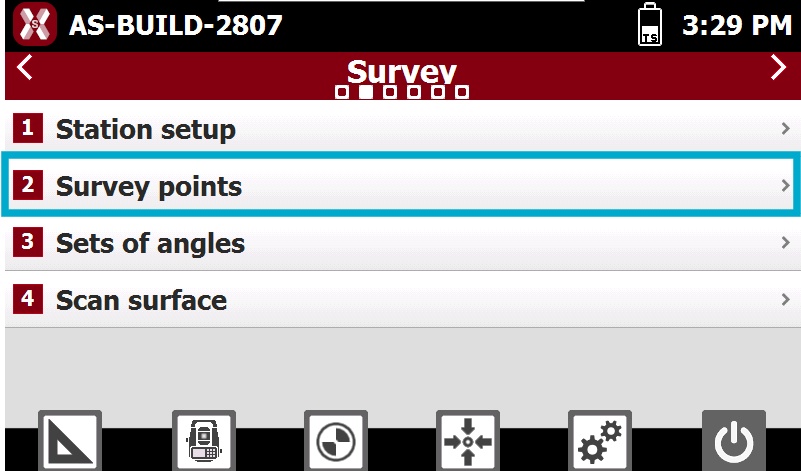
From Survey tab select Survey points.
-
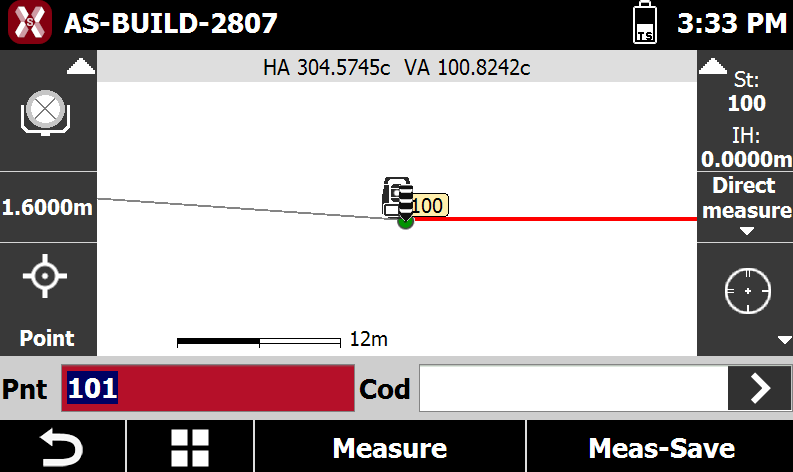
This opens the Survey window.
Rapid measuring of points
-
To measure and automatically record a point press Meas-Save.
-
Pnt: enter the ID of the point. The ID is automatically increased after the measure.
-
Cod: assigns a survey code. See Survey code assignment.
-
-
The point is measured and automatically stored.
Measuring of points
-
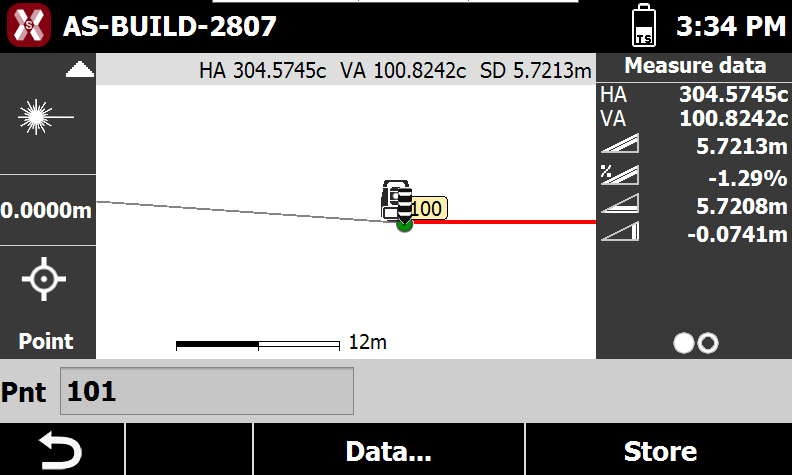
To measure the target and verify the result or add additional information press Measure.
-
After the point has been measured press Data to see and edit the properties or Store to record the result.
Name page
-
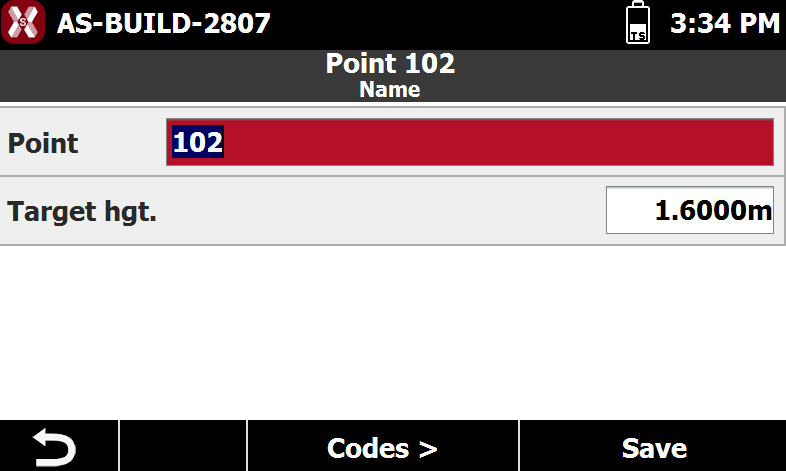
The Name page allows to change point ID and target height.
-
Point: name of the point.
-
Target height: height of the target measured.
-
-
Press Codes to open the codes page or Save the record the point.
Codes page
-
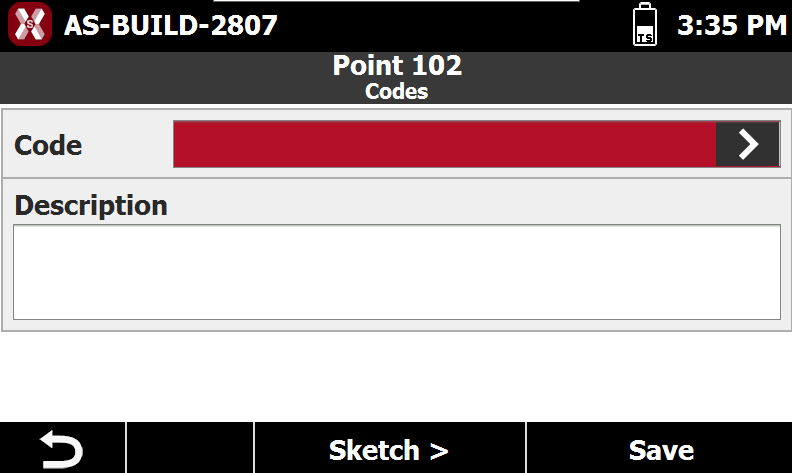
The Codes page allows to enter a survey code and an extended description.
-
-
Code: displays the survey code associated with the point. Use the > button to open the code library and select a code from the list.
-
Description: displays an extended description of the point.
-
-
Press Sketch to open the sketch page or Save the record the point.
Sketch page
-
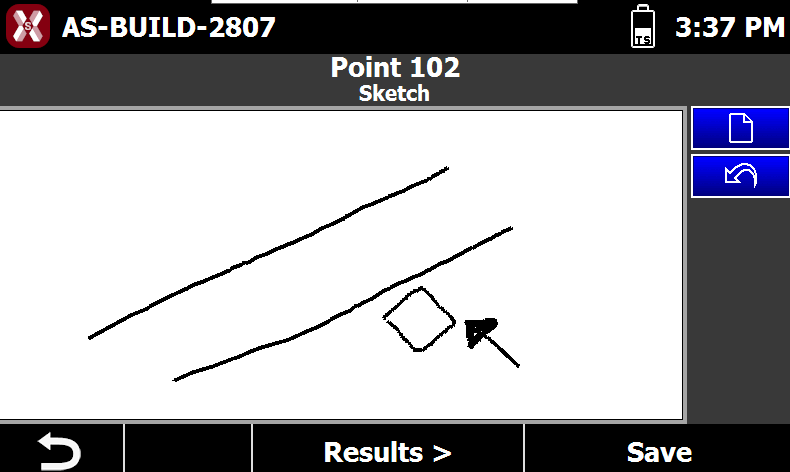
The page Sketch allows to draw a sketch of the point position.
-
Use the pen to draw a sketch.
-

-

-
-
Press Result to review the measurement results or Save the record the point.
Result page
-
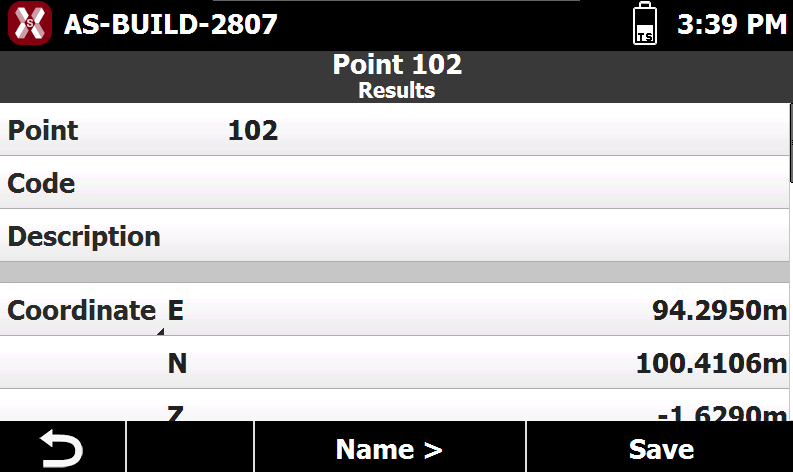
The page Result show the point and measurement result.
-
Press Name to open again the name page or Save the record the point.