
-
Sets of Angles is a measurement function that allows multiple observations to be performed on predefined points, recording both directions and distances for each observation.
-
The software uses all recorded measurements to calculate the average direction and average distance values, which are then used to compute the final point coordinates.
-
The results window provides detailed information about the observations, including the maximum differences between the measured values. If necessary, individual observations can be excluded from the calculation to improve the quality and reliability of the final result.
-
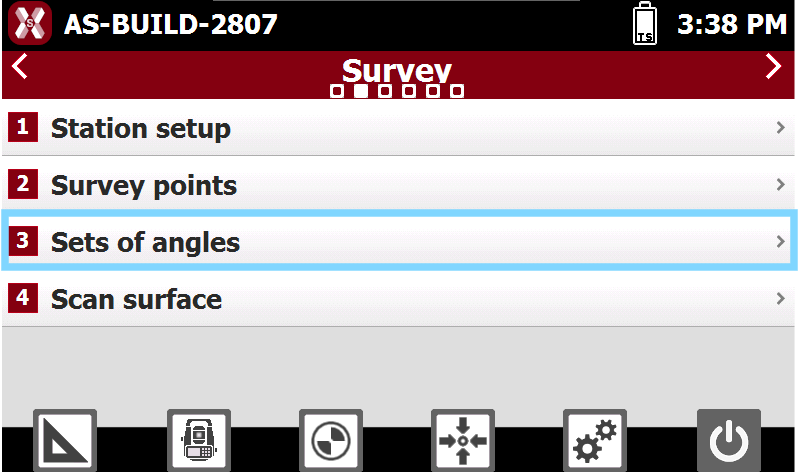
To start the application press Sets of angles from Survey page.
Definition of the list of points to measure
-
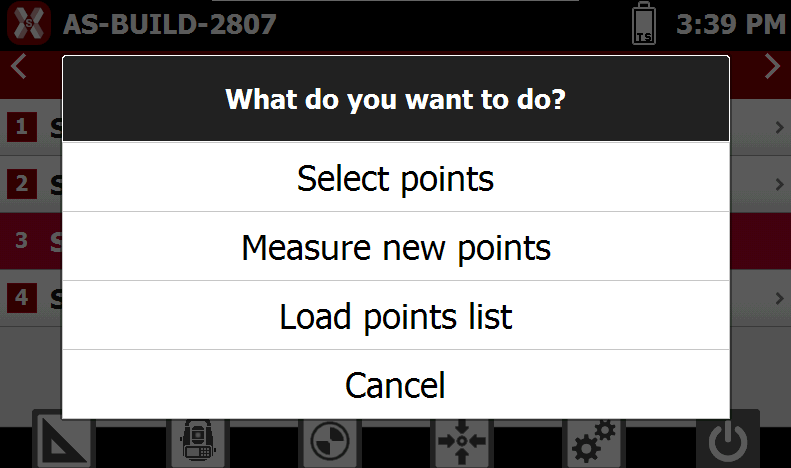
The first request concerns the definition of the list of points to measure.
-
Defines the points to be included in the Sets of Angles measurement session.
-
Select Points: select the required points from the Topographic Points table.
-
Measure Points: measure the points directly to create the observation list. For each point, enter the point name and then perform the measurement.
-
Load Points List: imports a previously saved points list from the current project or from another project. Select the file containing the points list to load it into the current measurement session.
-
List of points management
-
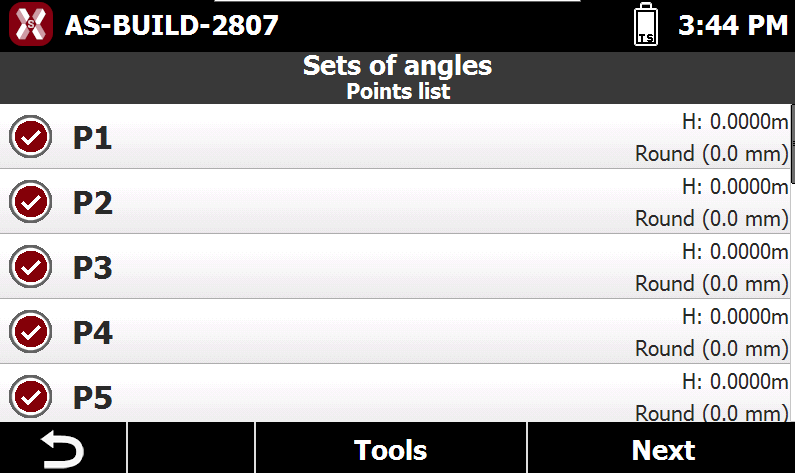
After the points have been selected, they are listed.
Measuring New Points
-
Press Tools and Measure new points to measure the points that will be included in the observation list.
-
For each point, enter the point name and then perform the measurement. The measured point is automatically added to the list.
Clearing the List
-
Press Tools, Manage list and Clear list to removes all points currently included in the observation list.
Loading a Points List
-
Press Tools, Manage list and Load points list to imports a previously saved points list from the current project or from another project.
-
Select the file containing the points list to load it into the current observation session.
Sorting by Direction
-
Press Tools, Manage list and Sort by direction to reorder the points in the list to optimize the observation sequence.
-
The points are arranged so that measurements can be performed continuously in the same direction, minimizing telescope rotations and avoiding unnecessary backtracking.
Changing the Order
-
Press Tools, Manage list and change order to manually define the measurement sequence.
-
Select a point and move it up or down in the list to adjust its position within the observation order.
Assigning Target Height and Target Type
-
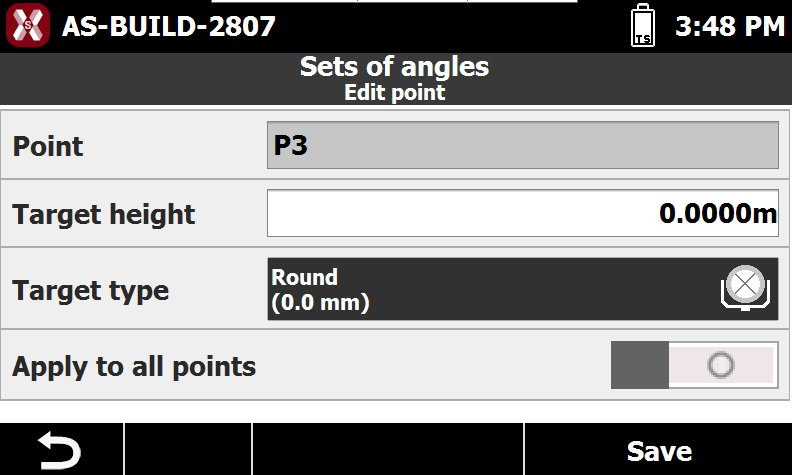
For each point in the list, you can specify the target height and the target type to be used during the observation.
-
Select a point and press Edit to modify its settings.
-
-
Point Name: name of the point to be measured.
-
Target Height: height of the target above the point.
-
Target Type: type of target used for the measurement. Press the corresponding button to select the desired target type.
-
Apply to All Points: enables the same target height and target type settings to be assigned automatically to all points in the list.
-
Measurement Settings
-
The following settings define how the observation sequences are performed and the tolerance criteria used to validate the measurements.
-
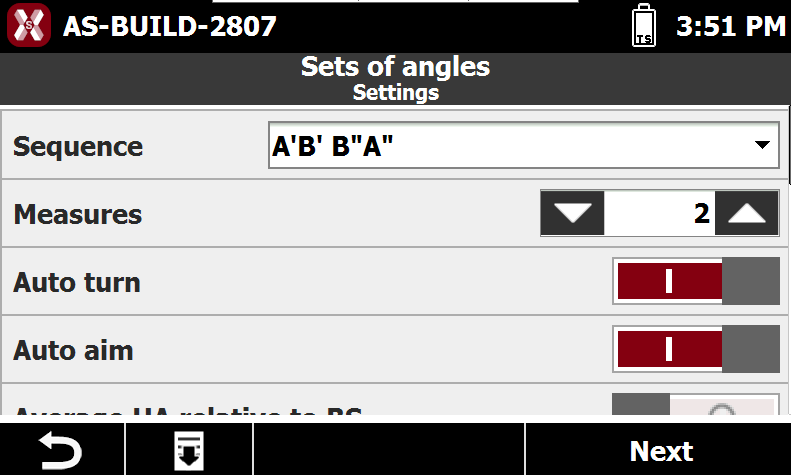
The Settings page defines how the measurement sequence is performed.
-
Sequence: defines the order in which observations are performed.
-
A′A″ B′B″: each point is measured first in Face 1 and then in Face 2 before moving to the next point.
-
A′B′ B″A″: all points are measured in Face 1; the observations are then repeated in Face 2 in reverse order.
-
A′B′ A″B″: all points are measured in Face 1 and then measured again in Face 2 using the same order.
-
A′B′C′D′: all points are measured only in Face 1.
-
-
Measures: specifies the number of observation sequences to be performed.
-
Auto Turn: in robotic total station mode, automatically rotates the instrument toward the next point to be measured.
-
Auto Aim: enables automatic target recognition and collimation on the selected point.
-
Average HA relative to BS: if this option is enabled the software performs an average of all horizontal angles measured to the initial point, which is considered the Y axis orientation and subtracts that value to all other measurements.
-
-
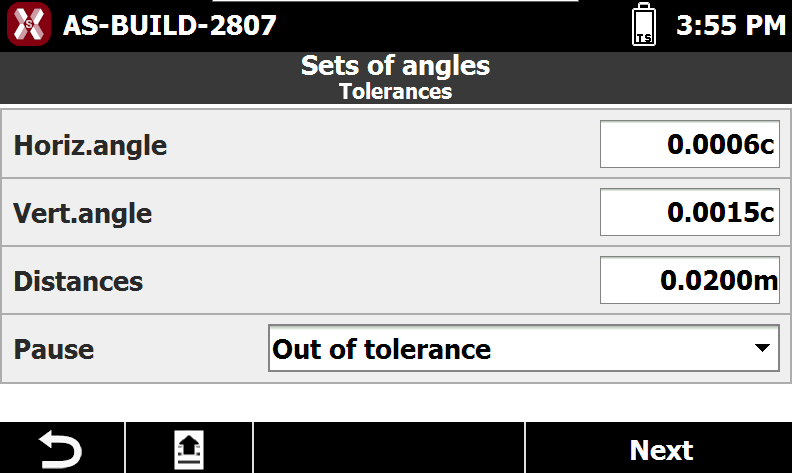
The Tolerance page defines the maximum acceptable differences between repeated observations.
-
-
Horizontal Angle: maximum acceptable difference between horizontal angle measurements.
-
Vertical Angle: maximum acceptable difference between vertical angle measurements.
-
Distance: maximum acceptable difference between distance measurements.
-
Pause: defines when the measurement procedure must stop for operator confirmation.
-
Never: the measurement sequence continues without interruption, regardless of the observed differences.
-
Out of Tolerance: the procedure stops whenever a measurement exceeds one or more of the specified tolerances. The software displays the measured values and requests confirmation before continuing.
-
-
Point measuring
-
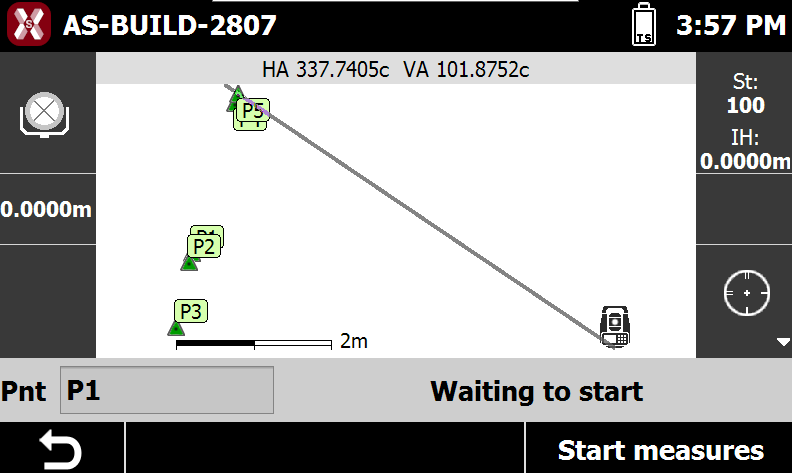
The procedure begins with the measure of the list of points following the defined parameters.
-
If the Auto turn and Auto aim options are activated the procedure is fully automated; otherwise the system blocks to allow rotation on the point and collimation.
Result
-
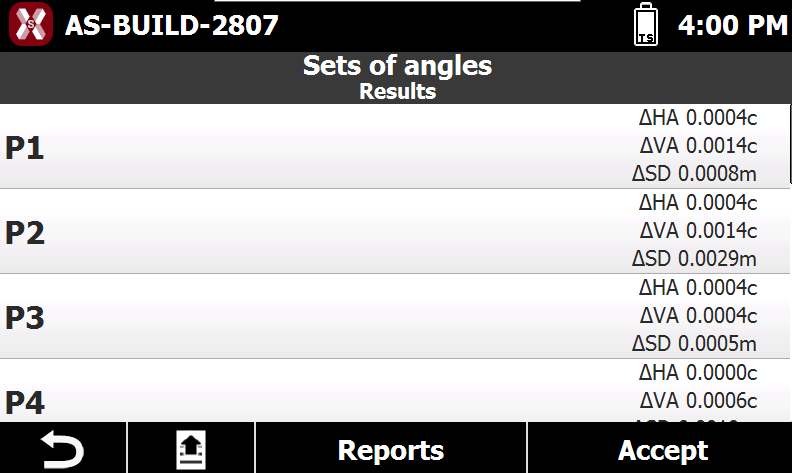
At the end of the measurement session, the software displays the results for each point, including the maximum residuals between the calculated average values and the individual observations.
-
For each point, detailed information for every measurement sequence can be reviewed. It is possible to select a point and press Details button.
-
To generate a complete summary of the observations, press Reports. The report can be exported in CSV or Excel XML format.
-
Once the results have been reviewed, the procedure can be completed by choosing one or both of the following options:
-
Save Points List: saves the list of points to a file for reuse in future Sets of Angles measurement sessions.
-
Update Point Coordinates: updates the coordinates of the surveyed points using the values calculated from the current measurement session.
-
-
These options allow the measured data to be preserved for future use and, if required, applied directly to the project.